
Knowledgebase (2417)
Children categories
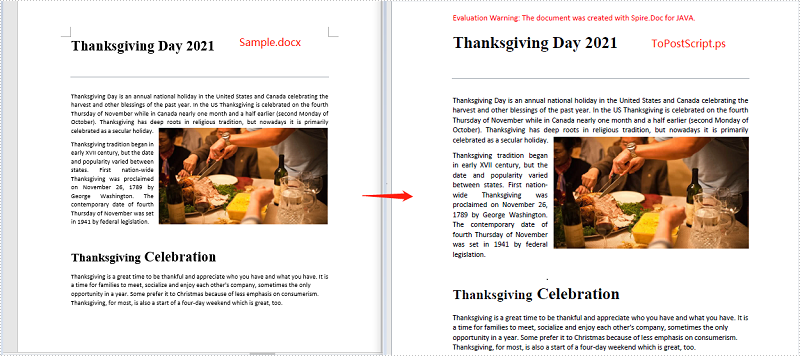
PostScript is a page description language designed by Adobe in 1984 for the purpose of printing. A file described in PostScript language may contain text, raster/vector graphics and can be printed by any printer that supports PostScript without being opened in an application. In some cases, you might need to convert your Word document to PostScript. This article will show you how to achieve this task programmatically in Java using Spire.Doc for Java.
Install Spire.Doc for Java
First of all, you're required to add the Spire.Doc.jar file as a dependency in your Java program. The JAR file can be downloaded from this link. If you use Maven, you can easily import the JAR file in your application by adding the following code to your project's pom.xml file.
<repositories>
    <repository>
        <id>com.e-iceblue</id>
        <name>e-iceblue</name>
        <url>https://repo.e-iceblue.com/nexus/content/groups/public/</url>
    </repository>
</repositories>
<dependencies>
    <dependency>
        <groupId>e-iceblue</groupId>
        <artifactId>spire.doc</artifactId>
        <version>14.8.4</version>
    </dependency>
</dependencies>
Convert Word to PostScript
The following are the steps to convert a Word document to PostScript:
- Create an instance of Document class.
- Load a Word document using Document.loadFromFile() method.
- Save the document to PostScript using Document.saveToFile() method.
- Java
import com.spire.doc.Document;
import com.spire.doc.FileFormat;

public class ConvertWordToPostScript {
    public static void main(String[] args){
        //Create a Document instance
        Document document= new Document();
        //Load a Word document
        document.loadFromFile("Sample.docx");

        //Save the document to PostScript
        document.saveToFile("ToPostScript.ps", FileFormat.Post_Script);
    }
}
Apply for a Temporary License
If you'd like to remove the evaluation message from the generated documents, or to get rid of the function limitations, please request a 30-day trial license for yourself.
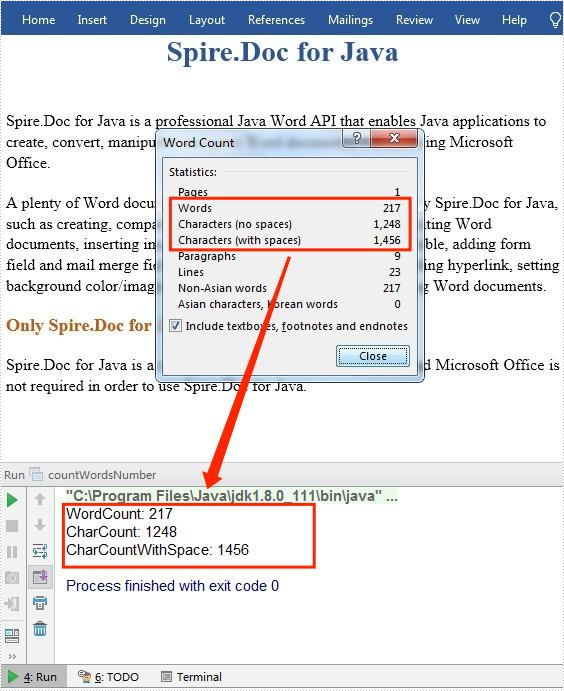
Microsoft Word provides a real-time word counter that counts the number of words in a document when you type. Beyond that, Microsoft Word also counts the number of pages, paragraphs and characters with or without spaces. In this article, you will learn how to programmatically count the number of words or characters in an existing Word document using Spire.Doc for Java.
Install Spire.Doc for Java
First of all, you're required to add the Spire.Doc.jar file as a dependency in your Java program. The JAR file can be downloaded from this link. If you use Maven, you can easily import the JAR file in your application by adding the following code to your project's pom.xml file.
<repositories>
    <repository>
        <id>com.e-iceblue</id>
        <name>e-iceblue</name>
        <url>https://repo.e-iceblue.com/nexus/content/groups/public/</url>
    </repository>
</repositories>
<dependencies>
    <dependency>
        <groupId>e-iceblue</groupId>
        <artifactId>spire.doc</artifactId>
        <version>14.8.4</version>
    </dependency>
</dependencies>
Count the Number of Words in a Word Document
The detailed steps are as follows:
- Create a Document instance.
- Load a sample Word document using Document.loadFromFile() method.
- Count the number of words using Document.getBuiltinDocumentProperties().getWordCount() method.
- Count the number of characters without spaces using Document.getBuiltinDocumentProperties().getCharCount() method.
- Count the number of characters with spaces using Document.getBuiltinDocumentProperties().getCharCountWithSpace() method.
- Java
import com.spire.doc.*;
public class countWordsNumber {
    public static void main(String[] args) {
        //Create a Document instance
        Document document = new Document();

        //Load a sample Word document
        document.loadFromFile("Demo.docx");

        //Count the number of words
        System.out.println("WordCount: " + document.getBuiltinDocumentProperties().getWordCount());

        //Count the number of characters without spaces
        System.out.println("CharCount: " + document.getBuiltinDocumentProperties().getCharCount());

        //Count the number of characters with spaces
        System.out.println("CharCountWithSpace: " + document.getBuiltinDocumentProperties().getCharCountWithSpace());
    }
}
Apply for a Temporary License
If you'd like to remove the evaluation message from the generated documents, or to get rid of the function limitations, please request a 30-day trial license for yourself.
PDF linearization, also known as "Fast Web View", is a way of optimizing PDF files. Ordinarily, users can view a multipage PDF file online only when their web browsers have downloaded all pages from the server. However, if the PDF file is linearized, the browsers can display the first page very quickly even if the full download has not been completed. This article will demonstrate how to convert a PDF to linearized in C# and VB.NET using Spire.PDF for .NET.
Install Spire.PDF for .NET
To begin with, you need to add the DLL files included in the Spire.PDF for.NET package as references in your .NET project. The DLLs files can be either downloaded from this link or installed via NuGet.
- Package Manager
PM> Install-Package Spire.PDF
Convert PDF to Linearized
The following are the steps to convert a PDF file to linearized:
- Load a PDF file using PdfToLinearizedPdfConverter class.
- Convert the file to linearized using PdfToLinearizedPdfConverter.ToLinearizedPdf() method.
- C#
- VB.NET
using Spire.Pdf.Conversion;

namespace ConvertPdfToLinearized
{
    class Program
    {
        static void Main(string[] args)
        {
            //Load a PDF file
            PdfToLinearizedPdfConverter converter = new PdfToLinearizedPdfConverter("Sample.pdf");
            //Convert the file to a linearized PDF
            converter.ToLinearizedPdf("Linearized.pdf");
        }
    }
}
Imports Spire.Pdf.Conversion

Namespace ConvertPdfToLinearized
    Friend Class Program
        Private Shared Sub Main(ByVal args As String())
            'Load a PDF file
            Dim converter As PdfToLinearizedPdfConverter = New PdfToLinearizedPdfConverter("Sample.pdf")
            'Convert the file to a linearized PDF
            converter.ToLinearizedPdf("Linearized.pdf")
        End Sub
    End Class
End Namespace
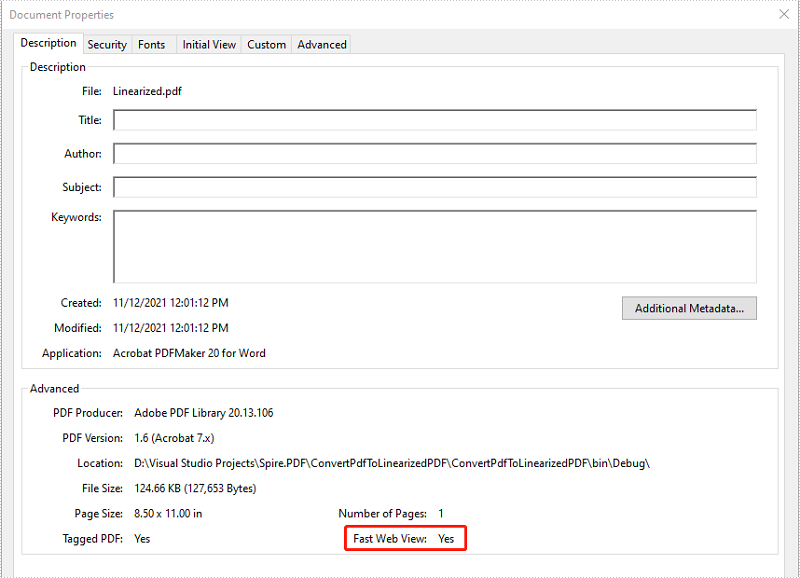
Open the result file in Adobe Acrobat and take a look at the document properties, you can see the value of “Fast Web View” is Yes which means the file is linearized.
Apply for a Temporary License
If you'd like to remove the evaluation message from the generated documents, or to get rid of the function limitations, please request a 30-day trial license for yourself.
