
Knowledgebase (2417)
Children categories
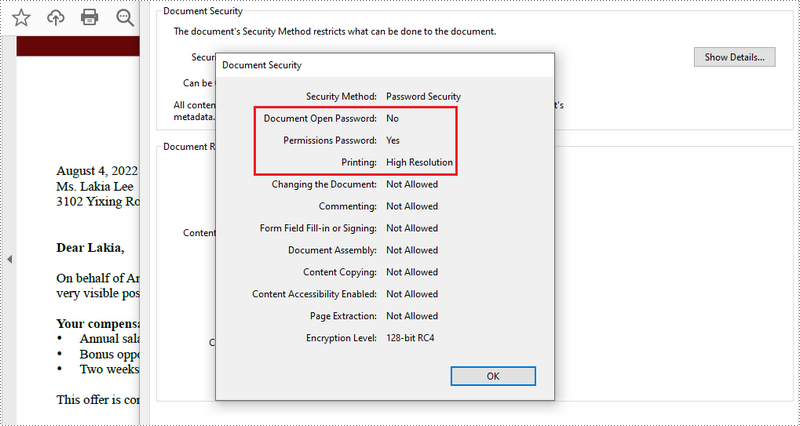
PDF documents can be secured in several ways. When PDFs are protected with a permission password, readers can open the document without needing to enter a password, but they may not have permission to further manipulate the document, such as printing or copying the content. In this article, you will learn how to set security permissions for a PDF document in Java using Spire.PDF for Java library.
Install Spire.PDF for Java
First, you're required to add the Spire.Pdf.jar file as a dependency in your Java program. The JAR file can be downloaded from this link. If you use Maven, you can easily import the JAR file in your application by adding the following code to your project's pom.xml file.
<repositories>
    <repository>
        <id>com.e-iceblue</id>
        <name>e-iceblue</name>
        <url>https://repo.e-iceblue.com/nexus/content/groups/public/</url>
    </repository>
</repositories>
<dependencies>
    <dependency>
        <groupId>e-iceblue</groupId>
        <artifactId>spire.pdf</artifactId>
        <version>12.9.0</version>
    </dependency>
</dependencies>
Add Security Permissions to a PDF Document in Java
Below are the steps to apply security permissions to a PDF document using Spire.PDF for Java.
- Create a PdfDocument object.
- Load a sample PDF file using PdfDocument.loadFileFile() method.
- Specify open password and permission password. The open password can be set to empty so that the generated document will not require a password to open.
- Encrypt the document with the open password and permission password, and set the security permissions using PdfDocument.getSecurity().encypt() method. This method takes PdfPermissionsFlags enumeration as a parameter, which defines user access permissions for an encrypted document.
- Save the document to another PDF file using PdfDocument.saveToFile() method.
- Java
//Create a PdfDocument object
PdfDocument pdf= new PdfDocument();

//Load a sample PDF file
pdf.loadFromFile("C:\\Users\\Administrator\\Desktop\\sample.pdf");
String output = "output/changeSecurityPermission_output.pdf";

// Create a PdfSecurityPolicy with the specified user password and owner password
PdfSecurityPolicy securityPolicy = new PdfPasswordSecurityPolicy("userpassword", "ownerpassword");

// Create a PdfDocumentPrivilege with desired permissions (e.g., allow filling form fields)
PdfDocumentPrivilege privilege = new PdfDocumentPrivilege();
privilege.setAllowFillFormFields(true);
privilege.setAllowPrint(true);

// Encrypt the PDF document using the specified security policy
pdf.encrypt(securityPolicy);

// Save the encrypted PDF document to the output file path
pdf.saveToFile(output, FileFormat.PDF);

// Close the PDF document to release resources
pdf.close();

// Dispose of the PDF document to free up system resources
pdf.dispose();
Apply for a Temporary License
If you'd like to remove the evaluation message from the generated documents, or to get rid of the function limitations, please request a 30-day trial license for yourself.
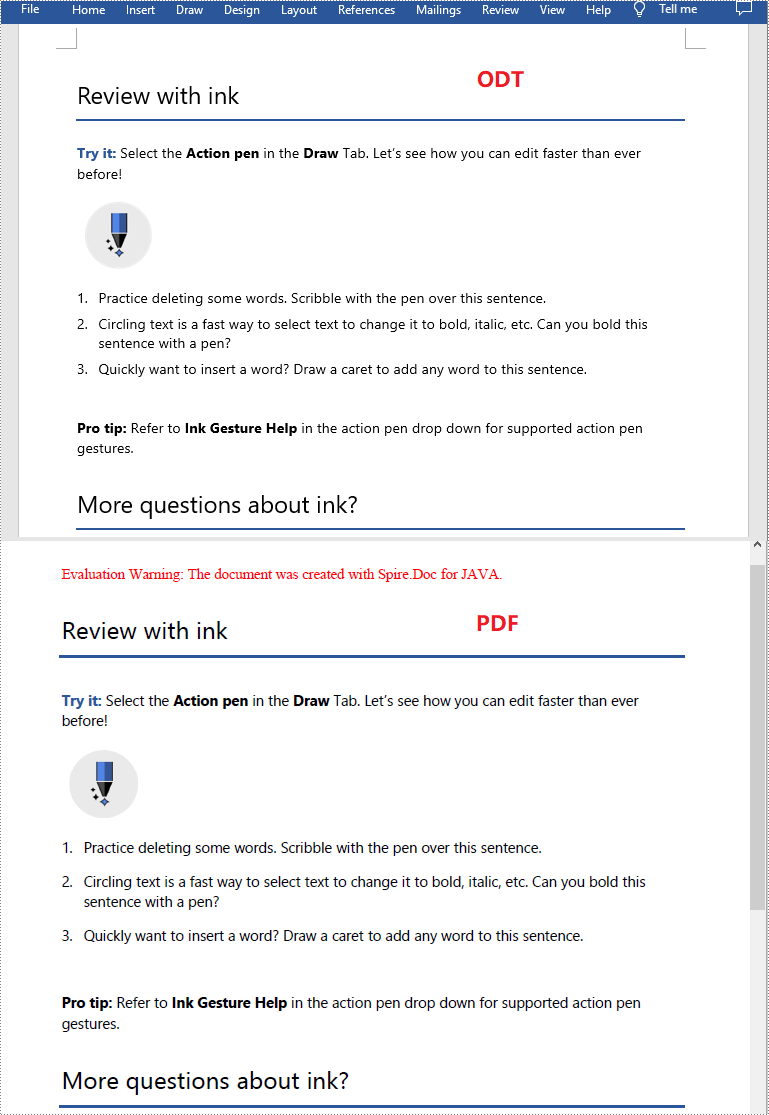
Before you email or share an ODT file with others, you may want to convert the file to PDF in order to make it accessible to anyone across multiple operating systems. In this article, you will learn how to convert ODT to PDF in Java using Spire.Doc for Java.
Install Spire.Doc for Java
First of all, you're required to add the Spire.Doc.jar file as a dependency in your Java program. The JAR file can be downloaded from this link. If you use Maven, you can easily import the JAR file in your application by adding the following code to your project's pom.xml file.
<repositories>
    <repository>
        <id>com.e-iceblue</id>
        <name>e-iceblue</name>
        <url>https://repo.e-iceblue.com/nexus/content/groups/public/</url>
    </repository>
</repositories>
<dependencies>
    <dependency>
        <groupId>e-iceblue</groupId>
        <artifactId>spire.doc</artifactId>
        <version>14.8.4</version>
    </dependency>
</dependencies>
Convert ODT to PDF using Java
The following are the steps to convert an ODT file to PDF:
- Create an instance of Document class.
- Load an ODT file using Document.loadFromFile() method.
- Convert the ODT file to PDF using Document.saveToFile(String fileName, FileFormat fileFormat) method.
- Java
import com.spire.doc.Document;
import com.spire.doc.FileFormat;

public class ConvertOdtToPdf {
    public static void main(String[] args){
        //Create a Document instance
        Document doc = new Document();
        //Load an ODT file
        doc.loadFromFile("Sample.odt");

        //Save the ODT file to PDF
        doc.saveToFile("OdtToPDF.pdf", FileFormat.PDF);

    }
}
Apply for a Temporary License
If you'd like to remove the evaluation message from the generated documents, or to get rid of the function limitations, please request a 30-day trial license for yourself.
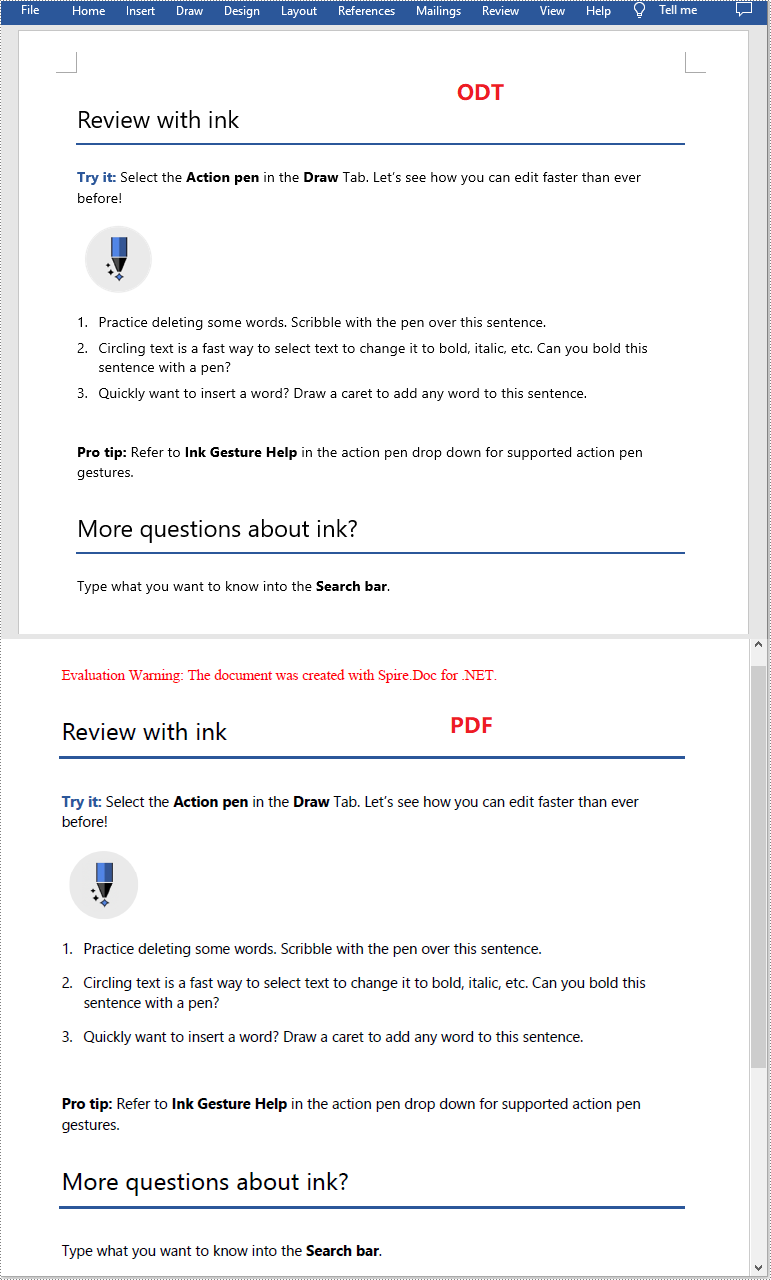
ODT files are OpenDocument Text files created with word processing programs such as free OpenOffice Writer. Like DOCX files, ODT files can contain content like text, images, objects and styles, but they may not be readable by some people who don't have the appropriate application installed. If you plan to share an ODT file, it's best to convert it to pdf so everyone can access it. In this article, we will explain how to convert ODT to PDF in C# and VB.NET using Spire.Doc for .NET.
Install Spire.Doc for .NET
To begin with, you need to add the DLL files included in the Spire.Doc for .NET package as references in your .NET project. The DLL files can be either downloaded from this link or installed via NuGet.
PM> Install-Package Spire.Doc
Convert ODT to PDF using C# and VB.NET
The following are the steps to convert an ODT file to PDF:
- Create an instance of Document class.
- Load an ODT file using Document.LoadFromFile() method.
- Convert the ODT file to PDF using Document.SaveToFile(string fileName, FileFormat fileFormat) method.
- C#
- VB.NET
using Spire.Doc;

namespace ConvertOdtToPdf
{
    internal class Program
    {
        static void Main(string[] args)
        {
            //Create a Document instance
            Document doc = new Document();
            //Load an ODT file
            doc.LoadFromFile("Sample.odt");

            //Save the ODT file to PDF
            doc.SaveToFile("OdtToPDF.pdf", FileFormat.PDF);
        }
    }
}
Apply for a Temporary License
If you'd like to remove the evaluation message from the generated documents, or to get rid of the function limitations, please request a 30-day trial license for yourself.
