
Knowledgebase (2417)
Children categories
Sometimes, you may need to perform specific operations on multiple shapes in Excel, such as adding styles, resizing, or moving them around. Grouping shapes can help you accomplish this task more easily and efficiently. Once shapes are grouped, they are treated as a single entity and can be manipulated at the same time. In this article, you will learn how to programmatically group or ungroup shapes in Excel in C# and VB.NET using Spire.XLS for .NET.
Install Spire.XLS for .NET
To begin with, you need to add the DLL files included in the Spire.XLS for .NET package as references in your .NET project. The DLL files can be either downloaded from this link or installed via NuGet.
PM> Install-Package Spire.XLS
Group Shapes in Excel using C# and VB.NET
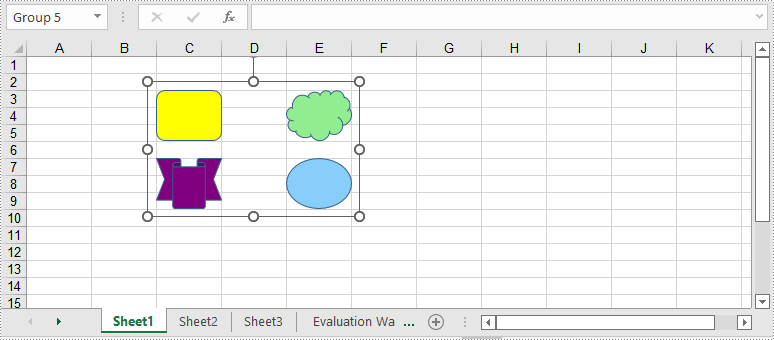
To group certain shapes in an Excel worksheet, you need to use the Worksheet.GroupShapeCollection property to return a GroupShapeCollection object, and then call the GroupShapeCollection.Group() method. The following are the detailed steps:
- Initialize an instance of Workbook class.
- Get the first worksheet by its index through Workbook.Worksheets[int] property.
- Add several shapes to specific rows and columns in the worksheet using Worksheet.PrstGeomShapes.AddPrstGeomShape(int, int, int, int, PrstGeomShapeType) method.
- Get the group shape collection of the worksheet through Worksheet.GroupShapeCollection property.
- Group the shapes using GroupShapeCollection.Group(IShape[]) method.
- Save the result document using Workbook.SaveToFile(string) method.
- C#
- VB.NET
using Spire.Xls;
using Spire.Xls.Core;
using Spire.Xls.Core.MergeSpreadsheet.Collections;
using System.Drawing;

namespace GroupShapes
{
    class Program
    {
        static void Main(string[] args)
        {
            //Create a Workbook instance
            Workbook workbook = new Workbook();
            //Get the first worksheet
            Worksheet worksheet = workbook.Worksheets[0];

            //Add four shapes
            IPrstGeomShape shape1 = worksheet.PrstGeomShapes.AddPrstGeomShape(3, 3, 65, 50, PrstGeomShapeType.RoundRect);
            shape1.Fill.FillType = ShapeFillType.SolidColor;
            shape1.Fill.ForeColor = Color.Yellow;
            shape1.Line.Weight = 0.1;
            IPrstGeomShape shape2 = worksheet.PrstGeomShapes.AddPrstGeomShape(7, 3, 65, 50, PrstGeomShapeType.Ribbon);
            shape2.Fill.FillType = ShapeFillType.SolidColor;
            shape2.Fill.ForeColor = Color.Purple;
            shape2.Line.Weight = 0.1;
            IPrstGeomShape shape3 = worksheet.PrstGeomShapes.AddPrstGeomShape(3, 5, 65, 50, PrstGeomShapeType.Cloud);
            shape3.Fill.FillType = ShapeFillType.SolidColor;
            shape3.Fill.ForeColor = Color.LightGreen;
            shape3.Line.Weight = 0.1;
            IPrstGeomShape shape4 = worksheet.PrstGeomShapes.AddPrstGeomShape(7, 5, 65, 50, PrstGeomShapeType.Ellipse);
            shape4.Fill.FillType = ShapeFillType.SolidColor;
            shape4.Fill.ForeColor = Color.LightSkyBlue;
            shape4.Line.Weight = 0.1;

            //Group the shapes
            GroupShapeCollection groupShapeCollection = worksheet.GroupShapeCollection;
            groupShapeCollection.Group(new IShape[] { shape1, shape2, shape3, shape4});


            //Save the result file
            workbook.SaveToFile("GroupShapes.xlsx", ExcelVersion.Version2013);
        }
    }
}
Ungroup Shapes in Excel using C# and VB.NET
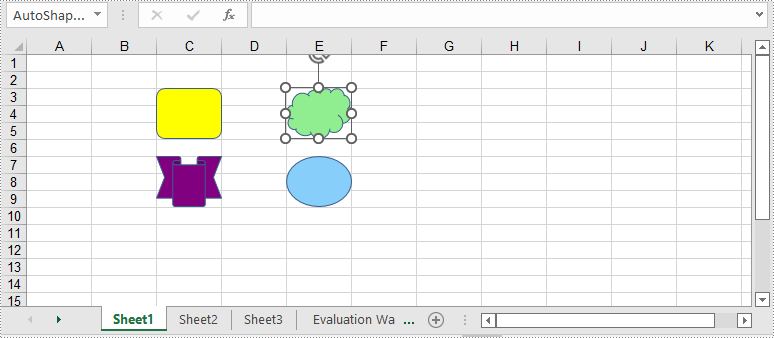
To ungroup the grouped shapes in an Excel worksheet, you can use the GroupShapeCollection. UnGroupAll() method. After the shapes are ungrouped, you can manipulate them individually. The following are the detailed steps:
- Initialize an instance of Workbook class.
- Load an Excel file using Workbook.LoadFromFile() method.
- Get a specific worksheet by its index through Workbook.Worksheets[int] property.
- Get the group shape collection of the worksheet through Worksheet.GroupShapeCollection property.
- Ungroup all the grouped shapes using GroupShapeCollection.UnGroupAll() method.
- Save the result document using Workbook.SaveToFile() method.
- C#
- VB.NET
using Spire.Xls;
using Spire.Xls.Core.MergeSpreadsheet.Collections;

namespace UngroupShapes
{
    class Program
    {
        static void Main(string[] args)
        {
            //Create a Workbook instance
            Workbook workbook = new Workbook();
            workbook.LoadFromFile("GroupShapes.xlsx");

            //Get the first worksheet
            Worksheet worksheet = workbook.Worksheets[0];

            //Ungroup the grouped shapes in the worksheet
            GroupShapeCollection groupShapeCollection = worksheet.GroupShapeCollection;
            groupShapeCollection.UnGroupAll();

            //Save the result file
            workbook.SaveToFile("UnGroupShapes.xlsx", ExcelVersion.Version2013);
        }
    }
}
Apply for a Temporary License
If you'd like to remove the evaluation message from the generated documents, or to get rid of the function limitations, please request a 30-day trial license for yourself.
Java: Convert Images (PNG, JPG, BMP, etc.) to PowerPoint
2022-11-17 01:36:00 Written by AdministratorPicture files are among the most commonly used types of documents in people's lives. Sometimes, you may want to take all image files in a folder and convert them into slides for a PowerPoint presentation. Depending on your requirements, you can convert images to shapes or slide backgrounds. This article demonstrates how to convert images (in any common image format) to a PowerPoint document in Java using Spire.Presentation for Java.
- Convert Images to Backgrounds in PowerPoint in Java
- Convert Images to Shapes in PowerPoint in Java
- Convert Images to PowerPoint with Customized Slide Size in Java
Install Spire.Presentation for Java
First, you're required to add the Spire.Presentation.jar file as a dependency in your Java program. The JAR file can be downloaded from this link. If you use Maven, you can easily import the JAR file in your application by adding the following code to your project's pom.xml file.
<repositories>
    <repository>
        <id>com.e-iceblue</id>
        <name>e-iceblue</name>
        <url>https://repo.e-iceblue.com/nexus/content/groups/public/</url>
    </repository>
</repositories>
<dependencies>
    <dependency>
        <groupId>e-iceblue</groupId>
        <artifactId>spire.presentation</artifactId>
        <version>11.8.3</version>
    </dependency>
</dependencies>
Convert Images to Backgrounds in PowerPoint in Java
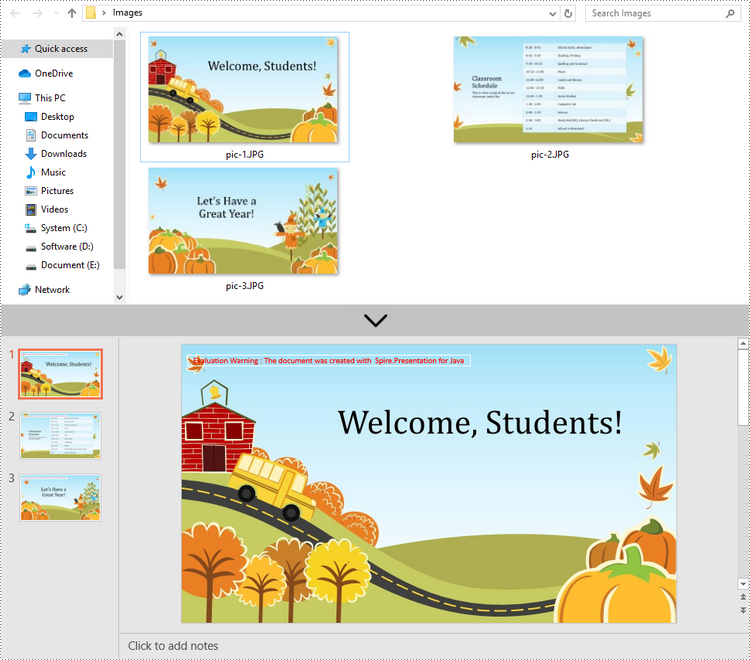
When images are converted as background of each slide in a PowerPoint document, they cannot be moved or scaled. The following are the steps to convert a set of images to a PowerPoint file as background images using Spire.Presentation for Java.
- Create a Presentation object.
- Set the slide size type to Sreen16x9.
- Get the image paths from a folder.
- Traverse through the images.
- Get a specific image and append it to the image collection of the document using Presentation.getImages().append() method.
- Add a slide to the document using Presentation.getSlides().append() method.
- Set the image as the background of the slide using the methods under SlideBackground object.
- Save the document to a PowerPoint file using Presentation.saveToFile() method.
- Java
import com.spire.presentation.*;
import com.spire.presentation.drawing.*;

import javax.imageio.ImageIO;
import java.awt.image.BufferedImage;
import java.io.File;
import java.io.FileInputStream;

public class ConvertImagesAsBackground {

    public static void main(String[] args) throws Exception {

        //Create a Presentation object
        Presentation presentation = new Presentation();

        //Set slide size type
        presentation.getSlideSize().setType(SlideSizeType.SCREEN_16_X_9);

        //Remove the default slide
        presentation.getSlides().removeAt(0);

        //Get image files from a folder
        File directoryPath = new File("C:\\Users\\Administrator\\Desktop\\Images");
        File[] picFiles  = directoryPath.listFiles();

        //Loop through the images
        for (int i = 0; i < picFiles.length; i++)
        {
            //Add a slide
            ISlide slide = presentation.getSlides().append();

            //Get a specific image
            String imageFile = picFiles[i].getAbsolutePath();

            //Append it to the image collection
            BufferedImage bufferedImage =  ImageIO.read(new FileInputStream(imageFile));
            IImageData imageData = presentation.getImages().append(bufferedImage);

            //Set the image as the background image of the slide
            slide.getSlideBackground().setType(BackgroundType.CUSTOM);
            slide.getSlideBackground().getFill().setFillType(FillFormatType.PICTURE);
            slide.getSlideBackground().getFill().getPictureFill().setFillType(PictureFillType.STRETCH);
            slide.getSlideBackground().getFill().getPictureFill().getPicture().setEmbedImage(imageData);
        }

        //Save to file
        presentation.saveToFile("output/ImagesToBackground.pptx", FileFormat.PPTX_2013);
    }
}
Convert Images to Shapes in PowerPoint in Java
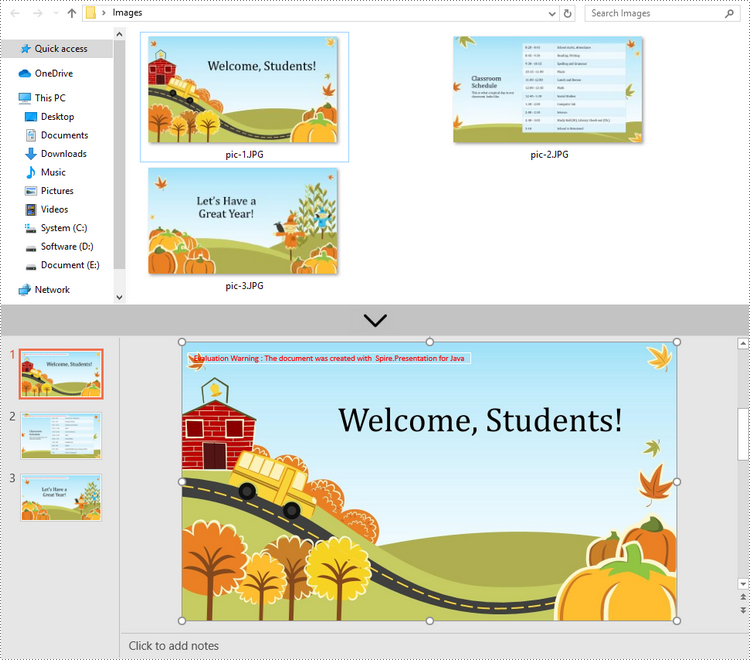
If you would like the images are moveable and resizable in the PowerPoint file, you can convert them as shapes. Below are the steps to convert images to shapes in a PowerPoint document using Spire.Presentation for Java.
- Create a Presentation object.
- Set the slide size type to Sreen16x9.
- Get the image paths from a folder.
- Traverse through the images.
- Get a specific image and append it to the image collection of the document using Presentation.getImages().append() method.
- Add a slide to the document using Presentation.getSlides().append() method.
- Add a shape with the size equal to the slide using ISlide.getShapes().appendShape() method.
- Fill the shape with the image using the methods under FillFormat object.
- Save the document to a PowerPoint file using Presentation.saveToFile() method.
- Java
import com.spire.presentation.*;
import com.spire.presentation.drawing.*;

import javax.imageio.ImageIO;
import java.awt.geom.Rectangle2D;
import java.awt.image.BufferedImage;
import java.io.File;
import java.io.FileInputStream;

public class ConvertImageToShape {

    public static void main(String[] args) throws Exception {

        //Create a Presentation object
        Presentation presentation = new Presentation();

        //Set slide size type
        presentation.getSlideSize().setType(SlideSizeType.SCREEN_16_X_9);

        //Remove the default slide
        presentation.getSlides().removeAt(0);

        //Get image files from a folder
        File directoryPath = new File("C:\\Users\\Administrator\\Desktop\\Images");
        File[] picFiles  = directoryPath.listFiles();

        //Loop through the images
        for (int i = 0; i < picFiles.length; i++)
        {
            //Add a slide
            ISlide slide = presentation.getSlides().append();

            //Get a specific image
            String imageFile = picFiles[i].getAbsolutePath();

            //Append it to the image collection
            BufferedImage bufferedImage =  ImageIO.read(new FileInputStream(imageFile));
            IImageData imageData = presentation.getImages().append(bufferedImage);

            //Add a shape with the size equal to the slide
            IAutoShape shape = slide.getShapes().appendShape(ShapeType.RECTANGLE, new Rectangle2D.Float(0, 0, (float) presentation.getSlideSize().getSize().getWidth(), (float)presentation.getSlideSize().getSize().getHeight()));

            //Fill the shape with image
            shape.getLine().setFillType(FillFormatType.NONE);
            shape.getFill().setFillType(FillFormatType.PICTURE);
            shape.getFill().getPictureFill().setFillType(PictureFillType.STRETCH);
            shape.getFill().getPictureFill().getPicture().setEmbedImage(imageData);
        }

        //Save to file
        presentation.saveToFile("output/ImagesToShape.pptx", FileFormat.PPTX_2013);
    }
}
Convert Images to PowerPoint with Customized Slide Size in Java
If the aspect ratio of your images is not 16:9, or they are not in a standard slide size, you can create slides based on the actual size of the pictures. This will prevent the image from being over stretched or compressed. The following are the steps to convert images to a PowerPoint document with customized slide size using Spire.Presentation for Java.
- Create a Presentation object.
- Create a PdfUnitConvertor object, which is used to convert pixel to point.
- Get the image paths from a folder.
- Traverse through the images.
- Get a specific image and append it to the image collection of the document using Presentation.getImages().append() method.
- Get the image width and height, and convert them to point.
- Set the slide size of the presentation based on the image size using Presentation.getSlideSize().setSize() method.
- Add a slide to the document using Presentation.getSlides().append() method.
- Set the image as the background image of the slide using the methods under SlideBackground object.
- Save the document to a PowerPoint file using Presentation.saveToFile() method.
- Java
import com.spire.presentation.pdf.graphics.PdfGraphicsUnit;
import com.spire.presentation.pdf.graphics.PdfUnitConvertor;
import com.spire.presentation.*;
import com.spire.presentation.drawing.*;

import javax.imageio.ImageIO;
import java.awt.*;
import java.awt.image.BufferedImage;
import java.io.File;
import java.io.FileInputStream;

public class CustomizeSlideSize {

    public static void main(String[] args) throws Exception {

        //Create a Presentation object
        Presentation presentation = new Presentation();

        //Remove the default slide
        presentation.getSlides().removeAt(0);

        //Get image files from a folder
        File directoryPath = new File("C:\\Users\\Administrator\\Desktop\\Images");
        File[] picFiles  = directoryPath.listFiles();

        //Create a PdfUnitConvertor object
        PdfUnitConvertor convertor = new PdfUnitConvertor();

        //Loop through the images
        for (int i = 0; i < picFiles.length; i++)
        {
            //Get a specific image
            String imageFile = picFiles[i].getAbsolutePath();

            //Append it to the image collection
            BufferedImage bufferedImage =  ImageIO.read(new FileInputStream(imageFile));
            IImageData imageData = presentation.getImages().append(bufferedImage);

            //Get image height and width in pixel
            int height = imageData.getHeight();
            int width = imageData.getWidth();

            //Convert pixel to point
            float widthPoint = convertor.convertUnits(width, PdfGraphicsUnit.Pixel, PdfGraphicsUnit.Point);
            float heightPoint= convertor.convertUnits(height, PdfGraphicsUnit.Pixel, PdfGraphicsUnit.Point);

            //Set slide size
            presentation.getSlideSize().setSize(new Dimension((int)widthPoint, (int)heightPoint));

            //Add a slide
            ISlide slide = presentation.getSlides().append();

            //Set the image as the background image of the slide
            slide.getSlideBackground().setType(BackgroundType.CUSTOM);
            slide.getSlideBackground().getFill().setFillType(FillFormatType.PICTURE);
            slide.getSlideBackground().getFill().getPictureFill().setFillType(PictureFillType.STRETCH);
            slide.getSlideBackground().getFill().getPictureFill().getPicture().setEmbedImage(imageData);
        }

        //Save to file
        presentation.saveToFile("output/CustomizeSlideSize.pptx", FileFormat.PPTX_2013);
    }
}

Apply for a Temporary License
If you'd like to remove the evaluation message from the generated documents, or to get rid of the function limitations, please request a 30-day trial license for yourself.
C#/VB.NET: Convert Images (PNG, JPG, BMP, etc.) to PowerPoint
2022-11-14 01:40:53 Written by AdministratorThere are times when you need to create a PowerPoint document from a group of pre-created image files. As an example, you have been provided with some beautiful flyers by your company, and you need to combine them into a single PowerPoint document in order to display each picture in an orderly manner. In this article, you will learn how to convert image files (in any popular image format) to a PowerPoint document in C# and VB.NET using Spire.Presentation for .NET.
- Convert Image to Background in PowerPoint in C# and VB.NET
- Convert Image to Shape in PowerPoint in C# and VB.NET
- Convert Image to PowerPoint with Customized Slide Size in C# and VB.NET
Install Spire.Presentation for .NET
To begin with, you need to add the DLL files included in the Spire.Presentation for.NET package as references in your .NET project. The DLL files can be either downloaded from this link or installed via NuGet.
PM> Install-Package Spire.Presentation
Convert Image to Background in PowerPoint in C# and VB.NET
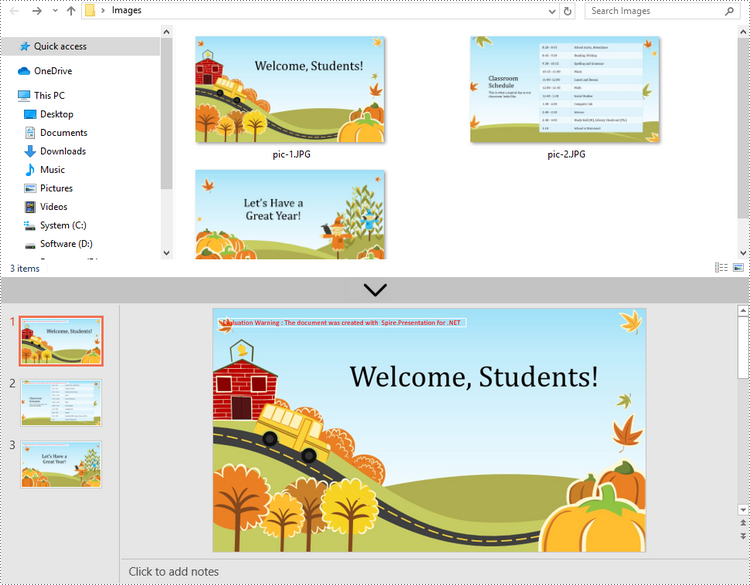
When images are converted as background of each slide in a PowerPoint document, they cannot be moved or scaled. The following are the steps to convert a set of images to a PowerPoint file as background images using Spire.Presentation for .NET.
- Create a Presentation object.
- Set the slide size type to Sreen16x9.
- Get the image paths from a folder and save in a string array.
- Traverse through the images.
- Get a specific image and append it to the image collection of the document using Presentation.Images.Append() method.
- Add a slide to the document using Presentation.Slides.Append() method.
- Set the image as the background of the slide through the properties under ISlide.SlideBackground object.
- Save the document to a PowerPoint file using Presentation.SaveToFile() method.
- C#
- VB.NET
using Spire.Presentation;
using Spire.Presentation.Drawing;
using System.Drawing;
using System.IO;

namespace ConvertImageToBackground
{
    class Program
    {
        static void Main(string[] args)
        {
            //Create a Presentation object
            Presentation presentation = new Presentation();

            //Set slide size type
            presentation.SlideSize.Type = SlideSizeType.Screen16x9;

            //Remove the default slide
            presentation.Slides.RemoveAt(0);

            //Get file paths in a string array
            string[] picFiles = Directory.GetFiles(@"C:\Users\Administrator\Desktop\Images");

            //Loop through the images
            for (int i = 0; i < picFiles.Length; i++)
            {
                //Add a slide
                ISlide slide = presentation.Slides.Append();

                //Get a specific image
                string imageFile = picFiles[i];
                Image image = Image.FromFile(imageFile);

                //Append it to the image collection
                IImageData imageData = presentation.Images.Append(image);

                //Set the image as the background image of the slide
                slide.SlideBackground.Type = BackgroundType.Custom;
                slide.SlideBackground.Fill.FillType = FillFormatType.Picture;
                slide.SlideBackground.Fill.PictureFill.FillType = PictureFillType.Stretch;
                slide.SlideBackground.Fill.PictureFill.Picture.EmbedImage = imageData;
            }

            //Save to file
            presentation.SaveToFile("ImagesToBackground.pptx", FileFormat.Pptx2013);
        }
    }
}
Convert Image to Shape in PowerPoint in C# and VB.NET
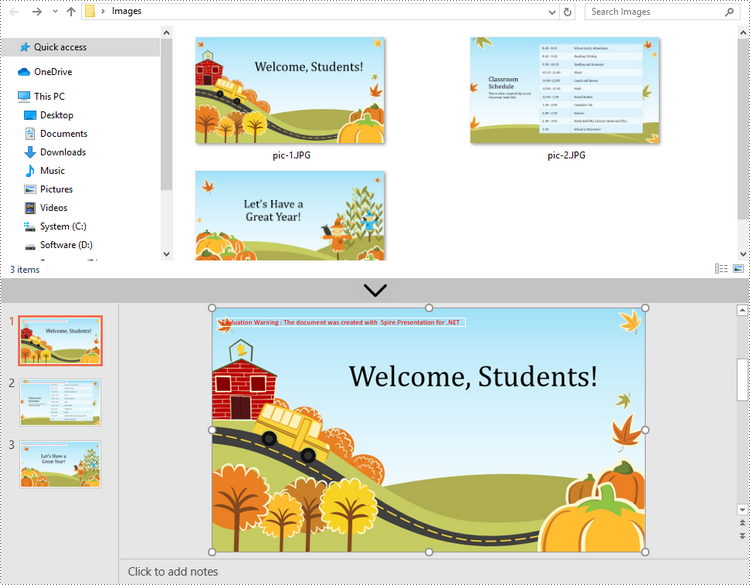
If you would like the images are moveable and resizable in the PowerPoint file, you can convert them as shapes. Below are the steps to convert images to shapes in a PowerPoint document using Spire.Presentation for .NET.
- Create a Presentation object.
- Set the slide size type to Sreen16x9.
- Get the image paths from a folder and save in a string array.
- Traverse through the images.
- Get a specific image and append it to the image collection of the document using Presentation.Images.Append() method.
- Add a slide to the document using Presentation.Slides.Append() method.
- Add a shape with the size equal to the slide using ISlide.Shapes.AppendShape() method.
- Fill the shape with the image through the properties under IAutoShape.Fill object.
- Save the document to a PowerPoint file using Presentation.SaveToFile() method.
- C#
- VB.NET
using Spire.Presentation;
using Spire.Presentation.Drawing;
using System.Drawing;
using System.IO;

namespace ConvertImageToShape
{
    class Program
    {
        static void Main(string[] args)
        {
            //Create a Presentation object
            Presentation presentation = new Presentation();

            //Set slide size type
            presentation.SlideSize.Type = SlideSizeType.Screen16x9;

            //Remove the default slide
            presentation.Slides.RemoveAt(0);

            //Get file paths in a string array
            string[] picFiles = Directory.GetFiles(@"C:\Users\Administrator\Desktop\Images");

            //Loop through the images
            for (int i = 0; i < picFiles.Length; i++)
            {
                //Add a slide
                ISlide slide = presentation.Slides.Append();

                //Get a specific image
                string imageFile = picFiles[i];
                Image image = Image.FromFile(imageFile);

                //Append it to the image collection
                IImageData imageData = presentation.Images.Append(image);

                //Add a shape with a size equal to the slide
                IAutoShape shape = slide.Shapes.AppendShape(ShapeType.Rectangle, new RectangleF(new PointF(0, 0), presentation.SlideSize.Size));

                //Fill the shape with image
                shape.Line.FillType = FillFormatType.None;
                shape.Fill.FillType = FillFormatType.Picture;
                shape.Fill.PictureFill.FillType = PictureFillType.Stretch;
                shape.Fill.PictureFill.Picture.EmbedImage = imageData;
            }

            //Save to file
            presentation.SaveToFile("ImageToShape.pptx", FileFormat.Pptx2013);
        }
    }
}
Convert Image to PowerPoint with Customized Slide Size in C# and VB.NET
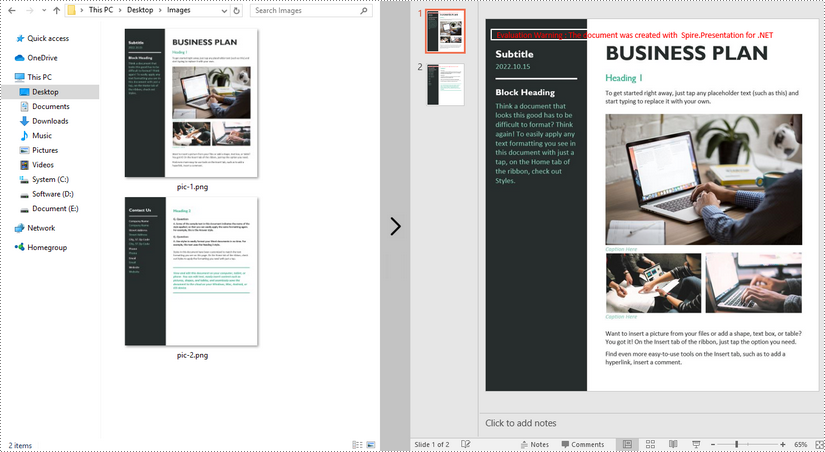
If the aspect ratio of your images is not 16:9, or they are not in a standard slide size, you can create slides based on the actual size of the pictures. This will prevent the image from being over stretched or compressed. The following are the steps to convert images to a PowerPoint document with customized slide size using Spire.Presentation for .NET.
- Create a Presentation object.
- Create a PdfUnitConvertor object, which is used to convert pixel to point.
- Get the image paths from a folder and save in a string array.
- Traverse through the images.
- Get a specific image and append it to the image collection of the document using Presentation.Images.Append() method.
- Get the image width and height, and convert them to point.
- Set the slide size of the presentation based on the image size through Presentation.SlideSize.Size property.
- Add a slide to the document using Presentation.Slides.Append() method.
- Set the image as the background image of the slide through the properties under ISlide.SlideBackground object.
- Save the document to a PowerPoint file using Presentation.SaveToFile() method.
- C#
- VB.NET
using Spire.Pdf.Graphics;
using Spire.Presentation;
using Spire.Presentation.Drawing;
using System.Drawing;
using System.IO;

namespace CustomSlideSize
{
    class Program
    {
        static void Main(string[] args)
        {
            //Create a Presentation object
            Presentation presentation = new Presentation();

            //Remove the default slide
            presentation.Slides.RemoveAt(0);

            //Get file paths in a string array
            string[] picFiles = Directory.GetFiles(@""C:\Users\Administrator\Desktop\Images"");

            TextBox picBox = new TextBox();

            Graphics g = picBox.CreateGraphics();

            float dpiY = g.DpiY;

            //Loop through the images
            for (int i = 0; i < picFiles.Length; i++)
            {
                //Get a specific image
                string imageFile = picFiles[i];
                Image image = Image.FromFile(imageFile);

                //Append it to the image collection
                IImageData imageData = presentation.Images.Append(image);

                //Get image height and width in pixel
                int heightpixels = imageData.Height;
                int widthpixels = imageData.Width;

                //Convert pixel to point
                float widthPoint = widthpixels * 72.0f / dpiY;

                float heightPoint = heightpixels * 72.0f / dpiY;

                //Set slide size
                presentation.SlideSize.Size = new SizeF(widthPoint, heightPoint);

                //Add a slide
                ISlide slide = presentation.Slides.Append();

                //Set the image as the background image of the slide
                slide.SlideBackground.Type = BackgroundType.Custom;
                slide.SlideBackground.Fill.FillType = FillFormatType.Picture;
                slide.SlideBackground.Fill.PictureFill.FillType = PictureFillType.Stretch;
                slide.SlideBackground.Fill.PictureFill.Picture.EmbedImage = imageData;
            }

            //Save to file
            presentation.SaveToFile(""CustomizeSlideSize.pptx"", FileFormat.Pptx2013);
        }
    }
}
Apply for a Temporary License
If you'd like to remove the evaluation message from the generated documents, or to get rid of the function limitations, please request a 30-day trial license for yourself.
