
Knowledgebase (2417)
Children categories
Adding documents as attachments to PDF brings you a lot of convenience. For example, you can transfer multiple documents as a single document; you can open another file inside a PDF document without needing to find the document from other places; you reduce the possibility of losing documents referenced in the PDF document.
Spire.PDF for C++ allows you to attach files in two ways:
- Document Level Attachment (or Regular Attachment): A document-level attachment refers to the attachment that’s added to the Attachment tab and cannot be found on a specific page.
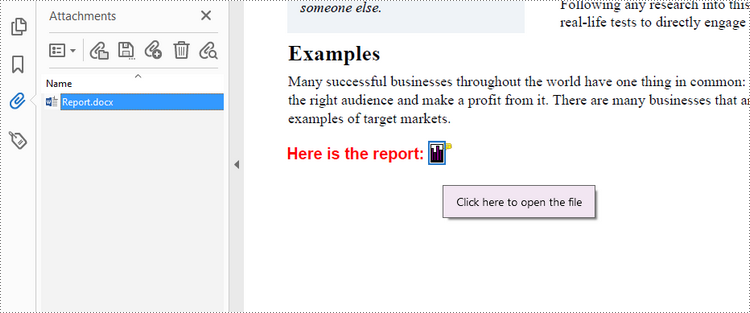
- Annotation Attachment: An annotation attachment refers to the attachment that’s added to a specific position of a page. Annotation attachments are shown as a paper clip icon on the page; reviewers can double-click the icon to open the file.
This article will show you how to add or delete regular attachments and annotation attachments in a PDF document in C++ using Spire.PDF for C++.
- Add a Regular Attachment to PDF in C++
- Add an Annotation Attachment to PDF in C++
- Delete Regular Attachments in PDF in C++
- Delete Annotation Attachments in PDF in C++
Install Spire.PDF for C++
There are two ways to integrate Spire.PDF for C++ into your application. One way is to install it through NuGet, and the other way is to download the package from our website and copy the libraries into your program. Installation via NuGet is simpler and more recommended. You can find more details by visiting the following link.
Integrate Spire.PDF for C++ in a C++ Application
Add a Regular Attachment to PDF in C++
To add a regular attachment, use PdfDocument->GetAttachments()->Add() method. The following are the detailed steps.
- Create a PdfDocument object.
- Load a PDF document using PdfDocument->LoadFromFile() method.
- Create a PdfAttachment object based on an external file.
- Add the attachment to PDF using PdfDocument->GetAttachments()->Add() method.
- Save the document to another PDF file using PdfDocument.SaveToFile() method.
- C++
#include "Spire.Pdf.o.h";

using namespace Spire::Pdf;
using namespace std;

int main() {

    //Specify input file path
    wstring inputPdfPath = L"C:\\Users\\Administrator\\Desktop\\Sample.pdf";
    wstring inputFilePath = L"C:\\Users\\Administrator\\Desktop\\Data.xlsx";

    //Specify output file path
    wstring outputFilePath = L"Output\\Attachment.pdf";

    //Create a PdfDocument object
    PdfDocument* doc = new PdfDocument();

    //Load a sample PDF file
    doc->LoadFromFile(inputPdfPath.c_str());

    //Create a PdfAttachment object based on an external file
    PdfAttachment* attachment = new PdfAttachment(inputFilePath.c_str());

    //Add the attachment to PDF
    doc->GetAttachments()->Add(attachment);

    //Save to file
doc->SaveToFile(outputFilePath.c_str());
delete doc;
}

Add an Annotation Attachment to PDF in C++
An annotation attachment is represented by the PdfAttachmentAnnotation class. You need to create an instance of the class based on an external file, and then add it to a specific page using PdfPageBase->GetAnnotationsWidget()->Add() method. The following are the detailed steps.
- Create a PdfDocument object.
- Load a PDF document using PdfDocument->LoadFromFile() method.
- Get a specific page to add annotation using PdfDocument->GetPages()->GetItem() method.
- Create a PdfAttachmentAnnotation object based on an external file.
- Add the annotation attachment to the page using PdfPageBase->GetAnnotationsWidget->Add() method.
- Save the document using PdfDocument->SaveToFile() method.
- C++
#include "Spire.Pdf.o.h";

using namespace Spire::Pdf;
using namespace std;

int main() {

    //Specify input file path
    wstring inputPdfPath = L"C:\\Users\\Administrator\\Desktop\\Attachment.pdf";
    wstring inputFilePath = L"C:\\Users\\Administrator\\Desktop\\Report.docx";

    //Specify output file path
    wstring outputFilePath = L"Output\\AnnotationAttachment.pdf";

    //Create a PdfDocument object
    PdfDocument* doc = new PdfDocument();

    //Load a sample PDF file
    doc->LoadFromFile(inputPdfPath.c_str());

    //Get a specific page
    boost::intrusive_ptr<PdfPageBase> page = doc->GetPages()->GetItem(0);

    //Draw a label on PDF
    wstring label = L"Here is the report:";
    PdfTrueTypeFont* font = new PdfTrueTypeFont(L"Arial", 13.0f, PdfFontStyle::Bold, true);
    float x = 35;
    float y = doc->GetPages()->GetItem(0)->GetActualSize()->GetHeight() - 220;
    page->GetCanvas()->DrawString(label.c_str(), font, PdfBrushes::GetRed(), x, y);

    //Convert the file to be attached to stream
    ifstream is1(inputFilePath.c_str(), ifstream::in | ios::binary);
    is1.seekg(0, is1.end);
    int length1 = is1.tellg();
    is1.seekg(0, is1.beg);
    char* buffer1 = new  char[length1];
    is1.read(buffer1, length1);
    Stream* stream = new Spire::Pdf::Stream((unsigned char*)buffer1, length1);
    boost::intrusive_ptr <SizeF> size = font->MeasureString(label.c_str());
    RectangleF* bounds = new RectangleF((float)(x + size->GetWidth() + 5), (float)y, 10, 15);

    //Create a PdfAttachmentAnnotation object based on the file
    PdfAttachmentAnnotation* annotation = new PdfAttachmentAnnotation(bounds, L"Report.docx", stream);
    annotation->SetColor(new PdfRGBColor(Spire::Pdf::Color::GetDarkOrange()));
    annotation->SetFlags(PdfAnnotationFlags::ReadOnly);
    annotation->SetIcon(PdfAttachmentIcon::Graph);
    annotation->SetText(L"Click here to open the file");

    //Add the attachment annotation to PDF
    page->GetAnnotationsWidget()->Add(annotation);

    //Save to file
    doc->SaveToFile(outputFilePath.c_str());
    delete doc;
}
Delete Regular Attachments in PDF in C++
The PdfDocument->GetAttachments() method returns a collection of regular attachments of a PDF document. A specific attachment or all attachments can be removed by using PdfAttachmentCollection->RemoveAt() method or PdfAttachmentCollection->Clear() method. The detailed steps are as follows.
- Create a PdfDocument object.
- Load a PDF document using PdfDocument->LoadFromFile() method.
- Get the attachment collection from the document using PdfDocument->GetAttachments() method.
- Remove a specific attachment using PdfAttachmentCollection->RemoveAt() method. To remove all attachments at once, use PdfAttachmentCollection->Clear() method.
- Save the document using PdfDocument->SaveToFile() method.
- C++
#include "Spire.Pdf.o.h";

using namespace Spire::Pdf;
using namespace std;

int main() {

	//Specify input file path
	wstring inputPdfPath = L"C:\\Users\\Administrator\\Desktop\\Sample.pdf";

	//Specify output file path
	wstring outputFilePath = L"Output\\DeleteAttachments.pdf";

	//Create a PdfDocument object
	PdfDocument* doc = new PdfDocument();

	//Load a PDF file
	doc->LoadFromFile(inputPdfPath.c_str());

	//Get all attachments
	boost::intrusive_ptr<PdfAttachmentCollection> attachments = doc->GetAttachments();

	//Delete all attachments
	attachments->Clear();

	//Delete a specific attachment
	//attachments->RemoveAt(0);

	//Save the document
	doc->SaveToFile(outputFilePath.c_str());
	doc->Close();
	delete doc;
}
Delete Annotation Attachments in PDF in C++
The annotation is a page-based element. You can get annotations from a specific page using PdfPageBase->GetAnnotationsWidget() method, and determine if a certain annotation is an annotation attachment. After that, remove the annotation attachment from the annotation collection using PdfAnnotationCollection->Remove() method. The following are the detailed steps.
- Create a PdfDocument object.
- Load a PDF document using PdfDocument->LoadFromFile() method.
- Get the annotation collection from a specific page using PdfPageBase->GetAnnotationsWidget() method.
- Determine if an annotation is an instance of PdfAttachmentAnnotationWidget. If yes, remove the annotation attachment using PdfAnnotationCollection->Remove() method.
- Save the document using PdfDocument->SaveToFile() method.
- C++
#include "Spire.Pdf.o.h";

using namespace Spire::Pdf;
using namespace std;

int main() {

    //Specify input file path
    wstring inputPdfPath = L"C:\\Users\\Administrator\\Desktop\\AnnotationAttachment.pdf";

    //Specify output file path
    wstring outputFilePath = L"Output\\DeleteAnnotationAttachments.pdf";

    //Create a PdfDocument object
    PdfDocument* doc = new PdfDocument();

    //Load a PDF file
    doc->LoadFromFile(inputPdfPath.c_str());

    //Loop through the pages
    for (int i = 0; i < doc->GetPages()->GetCount(); i++)
    {
        //Get the annotation collection
        boost::intrusive_ptr <PdfAnnotationCollection> annotationCollection = doc->GetPages()->GetItem(i)->GetAnnotationsWidget();


        //Loop through the annotations
        for (int j = 0; j < annotationCollection->GetCount(); j++)
        {
            //Get a specific annotation
            boost::intrusive_ptr <PdfAnnotation> annotation = annotationCollection->GetItem(j);

            //Determine if the annotation is an instance of PdfAttachmentAnnotationWidget
            wstring content;
            wchar_t nm_w[100];
            swprintf(nm_w, 100, L"%hs", typeid(PdfAttachmentAnnotationWidget).name());
            LPCWSTR_S newName = nm_w;
            if (wcscmp(newName, annotation->GetInstanceTypeName()) == 0) {

                //Remove the annotation attachment
                annotationCollection->RemoveAt(j);
            }
        }
    }

    //Save the document
    doc->SaveToFile(outputFilePath.c_str());
    doc->Close();
    delete doc;
}
Apply for a Temporary License
If you'd like to remove the evaluation message from the generated documents, or to get rid of the function limitations, please request a 30-day trial license for yourself.
A background color or picture can help make a document more aesthetically pleasing and attention-grabbing. If you are creating a document for marketing, education, or presentation purposes, adding an attractive background color or picture would be very useful. In this article, we will demonstrate how to programmatically add background color or picture to Word documents in C++ using Spire.Doc for C++.
- Add a Background Color to Word in C++
- Add a Gradient Background to Word in C++
- Add a Background Picture to Word in C++
Install Spire.Doc for C++
There are two ways to integrate Spire.Doc for C++ into your application. One way is to install it through NuGet, and the other way is to download the package from our website and copy the libraries into your program. Installation via NuGet is simpler and more recommended. You can find more details by visiting the following link.
Integrate Spire.Doc for C++ in a C++ Application
Add a Background Color to Word in C++
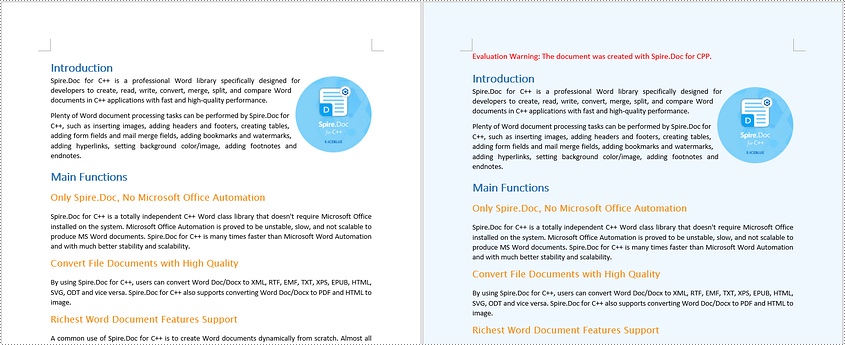
Adding a background color to a Word document is very straightforward using Spire.Doc for C++. You just need to set the document’s background type as color and then specify a color as the background. The detailed steps are as follows.
- Initialize an instance of the Document class.
- Load a Word document using Document->LoadFromFile() method.
- Get the document's background using Document->GetBackground() method.
- Set the background type as color using Background->SetType(BackgroundType::Color) method.
- Set the background color using Background->SetColor() method.
- Save the result document using Document->SaveToFile() method.
- C++
#include "Spire.Doc.o.h"

using namespace Spire::Doc;

int main()
{
	//Initialize an instance of the Document class
	intrusive_ptr<Document> document = new Document();
	//Load a Word document
	document->LoadFromFile(L"Sample.docx");

	//Get the document's background
	intrusive_ptr <Background> background = document->GetBackground();
	//Set the background type as color
	background->SetType(BackgroundType::Color);
	//Set the background color
	background->SetColor(Color::GetAliceBlue());

	//Save the result document
	document->SaveToFile(L"AddBackgroundColor.docx", FileFormat::Docx2013);
	document->Close();
}
Add a Gradient Background to Word in C++
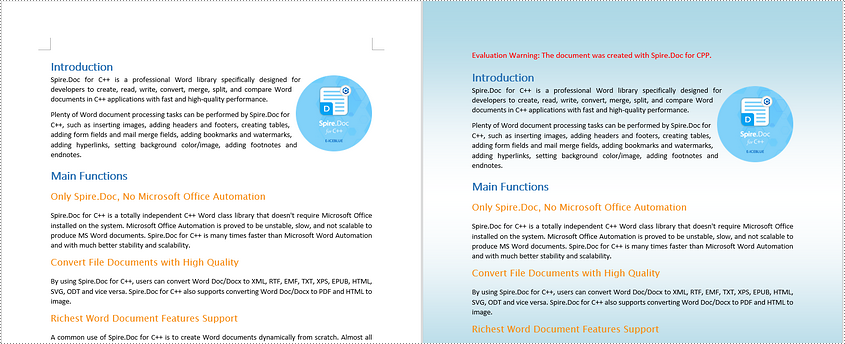
To add a gradient background, you need to set the background type as gradient, specify the gradient color and then set the gradient shading variant and style. The detailed steps are as follows.
- Initialize an instance of the Document class.
- Load a Word document using Document->LoadFromFile() method.
- Get the document's background using Document->GetBackground() method.
- Set the background type as gradient using Background->SetType(BackgroundType::Gradient) method.
- Specify two gradient colors using Background->GetGradient()->SetColor1() and Background->GetGradient()->SetColor2() methods.
- Set gradient shading variant and style using Background->GetGradient()->SetShadingVariant() and Background->GetGradient()->SetShadingStyle() methods.
- Save the result document using Document->SaveToFile() method.
- C++
#include "Spire.Doc.o.h"

using namespace Spire::Doc;

int main()
{
	//Initialize an instance of the Document class
	intrusive_ptr <Document> document = new Document();
	//Load a Word document
	document->LoadFromFile(L"Sample.docx");

	//Get the document's background
	intrusive_ptr <Background> background = document->GetBackground();
	//Set the background type as gradient
	background->SetType(BackgroundType::Gradient);

	//Specify two gradient colors
	background->GetGradient()->SetColor1(Color::GetWhite());
	background->GetGradient()->SetColor2(Color::GetLightBlue());

	//Set gradient shading variant and style
	background->GetGradient()->SetShadingVariant(GradientShadingVariant::ShadingDown);
	background->GetGradient()->SetShadingStyle(GradientShadingStyle::Horizontal);

	//Save the result document
	document->SaveToFile(L"AddGradientBackground.docx", FileFormat::Docx2013);
	document->Close();
}
Add a Background Picture to Word in C++
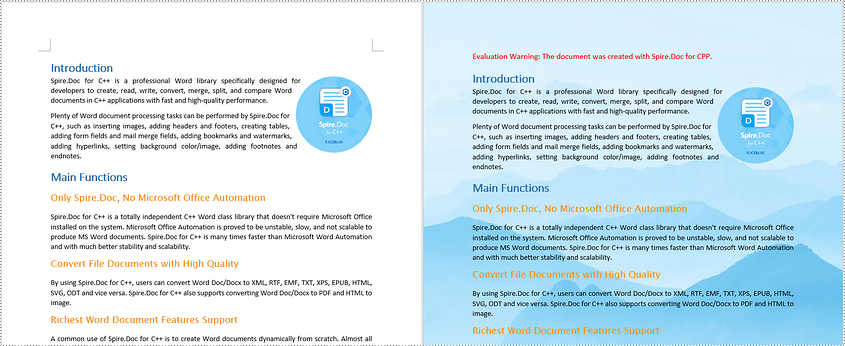
To add a background image to a Word document, you need to set the background type as picture, and then insert a picture as the background. The detailed steps are as follows.
- Initialize an instance of the Document class.
- Load a Word document using Document->LoadFromFile() method.
- Get the document's background using Document->GetBackground() method.
- Set the background type as picture using Background->SetType(BackgroundType::Picture) method.
- Set the background picture using Background->SetPicture() method.
- Save the result document using Document->SaveToFile() method.
- C++
#include "Spire.Doc.o.h"

using namespace Spire::Doc;

int main()
{
	//Initialize an instance of the Document class
	intrusive_ptr <Document> document = new Document();
	//Load a Word document
	document->LoadFromFile(L"Sample.docx");

	//Get the document's background
	intrusive_ptr <Background> background = document->GetBackground();
	//Set the background type as picture
	background->SetType(BackgroundType::Picture);

	//Set the background picture
	background->SetPicture(L"background.png");

	//Save the result document
	document->SaveToFile(L"AddBackgroundPicture.docx", FileFormat::Docx2013);
	document->Close();
}
Apply for a Temporary License
If you'd like to remove the evaluation message from the generated documents, or to get rid of the function limitations, please request a 30-day trial license for yourself.
In MS Word, a Page Break is an important feature of page layout that helps you start a new page wherever you want. After inserting page breaks, all formatting of the previous page applies to the new page, which makes the whole document neat and well organized. In this article, you will learn how to programmatically add or remove page breaks in a Word document using Spire.Doc for C++.
- Insert a Page Break after a Specific Paragraph in Word in C++
- Insert a Page Break after a Specific Text in Word in C++
- Remove Page Breaks in a Word Document in C++
Install Spire.Doc for C++
There are two ways to integrate Spire.Doc for C++ into your application. One way is to install it through NuGet, and the other way is to download the package from our website and copy the libraries into your program. Installation via NuGet is simpler and more recommended. You can find more details by visiting the following link.
Integrate Spire.Doc for C++ in a C++ Application
Insert a Page Break after a Specific Paragraph in Word in C++
Spire.Doc for C++ offers the Paragraph->AppendBreak(BreakType::PageBreak) method to insert a page break after a paragraph. Once inserted, a symbol indicating the page break will be shown. The following are the detailed steps.
- Create a Document instance.
- Load a Word document using Document->LoadFromFile() method.
- Get a specified section using Document->GetSections()->GetItem(sectionIndex) method.
- Get a specified paragraph using Section->GetParagraphs()->GetItem(paragraphIndex) method.
- Add a page break to end of the paragraph using Paragraph->AppendBreak(BreakType::PageBreak) method.
- Save the result document using Document->SaveToFile() method.
- C++
#include "Spire.Doc.o.h"

using namespace Spire::Doc;

int main() {
 //Specify input file path and name
 std::wstring input_path = L"Data\\";
 std::wstring inputFile = input_path + L"Input.docx";

 //Specify output file path and name
 std::wstring output_path = L"Output\\";
 std::wstring outputFile = output_path + L"InsertPageBreak.docx";

 //Create a Document instance
 intrusive_ptr<Document> document = new Document();

 //Load a Word document from disk
 document->LoadFromFile(inputFile.c_str());

 //Get the first section
 intrusive_ptr<Section> section = document->GetSections()->GetItemInSectionCollection(0);

 //Get the 2nd paragraph in the section
 intrusive_ptr <Paragraph> paragraph = section->GetParagraphs()->GetItemInParagraphCollection(1);

 //Insert a page break after the paragraph
 paragraph->AppendBreak(BreakType::PageBreak);

 //Save the result document
 document->SaveToFile(outputFile.c_str(), FileFormat::Docx2013);
 document->Close();
}
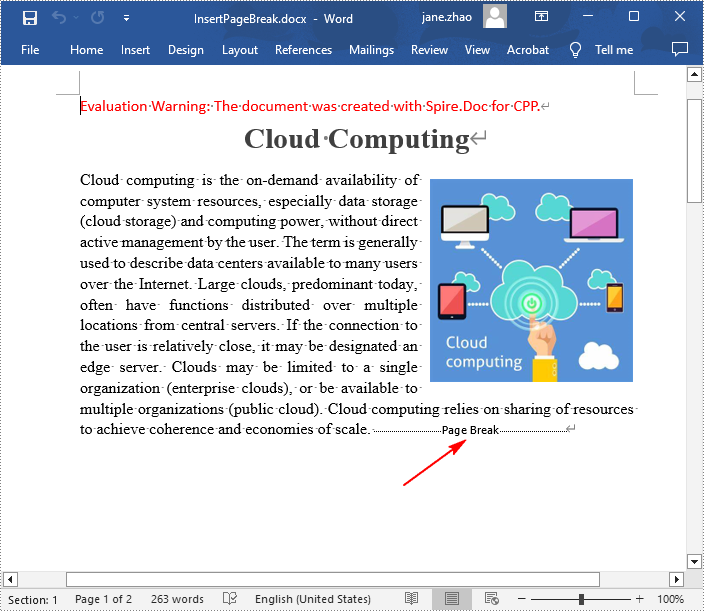
Insert a Page Break after a Specific Text in Word in C++
In addition to inserting a page break after a paragraph, Spire.Doc for C++ also allows you to find a specified text and then insert the page break after the specified text. The following are the detailed steps.
- Create a Document instance.
- Load a Word document using Document->LoadFromFile() method.
- Find a specified text using Document->FindString() method.
- Get the text range of the specified text using TextSelection->GetAsOneRange() method.
- Get the paragraph where the text range is located using TextRange->GetOwnerParagraph() method.
- Get the position index of the text range in the paragraph using Paragraph->GetChildObjects()->IndexOf() method.
- Initialize an instance of Break class to create a page break.
- Insert the page break after the specified text using Paragraph->GetChildObjects()->Insert() method.
- Save the result document using Document->SaveToFile() method.
- C++
#include "Spire.Doc.o.h"

using namespace Spire::Doc;

int main() {
 //Specify input file path and name
 std::wstring input_path = L"Data\\";
 std::wstring inputFile = input_path + L"Input.docx";

 //Specify output file path and name
 std::wstring output_path = L"Output\\";
 std::wstring outputFile = output_path + L"InsertPageBreakAfterText.docx";

 //Create a Document instance
 intrusive_ptr<Document> document = new Document();

 //Load a Word document from disk
 document->LoadFromFile(inputFile.c_str());

 //Find a specified text
 intrusive_ptr<TextSelection> selection = document->FindString(L"infrastructure", true, true);

 //Get the text range of the specified text
 intrusive_ptr<TextRange> range = selection->GetAsOneRange();

 //Get the paragraph where the text range is located
 intrusive_ptr<Paragraph> paragraph = range->GetOwnerParagraph();

 //Get the position index of the text range in the paragraph
 int index = paragraph->GetChildObjects()->IndexOf(range);

 //Create a page break
 intrusive_ptr<Break> pageBreak = new Break(document, BreakType::PageBreak);

 //Insert a page break after the specified text
 paragraph->GetChildObjects()->Insert(index + 1, pageBreak);

 //Save to result document
 document->SaveToFile(outputFile.c_str(), FileFormat::Docx2013);
 document->Close();
}
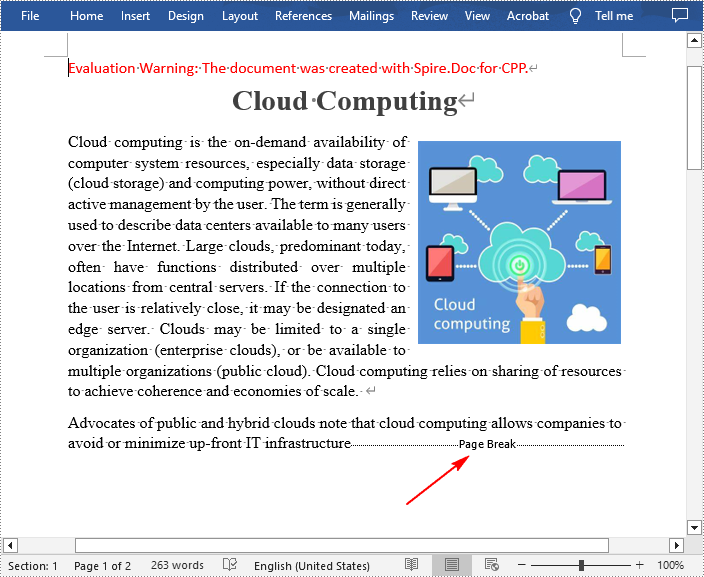
Remove Page Breaks in a Word Document in C++
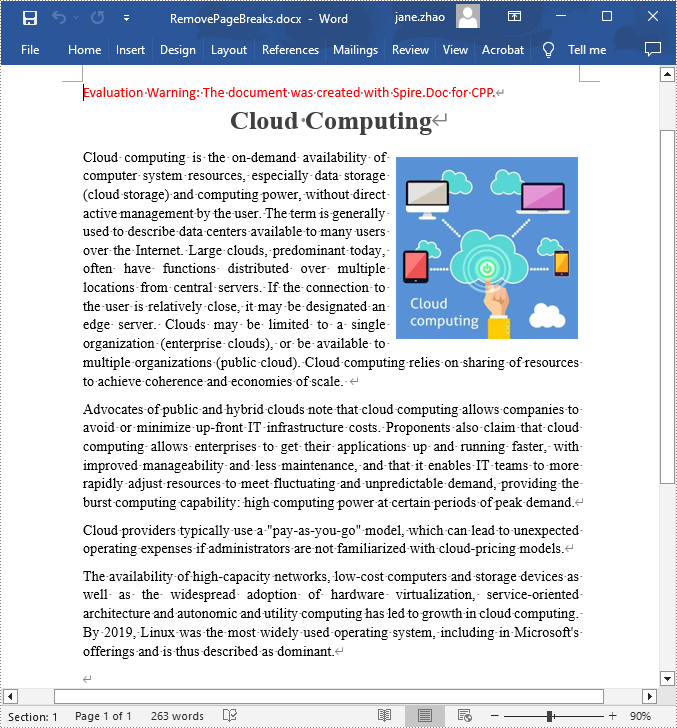
Some mistakenly added page breaks can mess up the structure of your entire document, so it's quite necessary to remove them. The following are the steps to remove page breaks in a Word document.
- Create a Document instance.
- Load a Word document using Document->LoadFromFile() method.
- Traverse through each paragraph in the first section, and then traverse through each child object of a paragraph.
- Determine whether the child object type is a page break. If yes, remove the page break from the paragraph using Paragraph->GetChildObjects()->Remove() method.
- Save the result document using Document->SaveToFile() method.
- C++
#include "Spire.Doc.o.h"

using namespace Spire::Doc;

int main() {
 //Specify input file path and name
 std::wstring input_path = L"Data\\";
 std::wstring inputFile = input_path + L"InsertPageBreak.docx";

 //Specify output file path and name
 std::wstring output_path = L"Output\\";
 std::wstring outputFile = output_path + L"RemovePageBreaks.docx";

 //Create a Document instance
 intrusive_ptr<Document> document = new Document();

 //Load a Word document from disk
 document->LoadFromFile(inputFile.c_str());

 //Traverse through each paragraph in the first section of the document
 for (int j = 0; j < document->GetSections()->GetItemInSectionCollection(0)->GetParagraphs()->GetCount(); j++)
 {
  intrusive_ptr<Paragraph> p = document->GetSections()->GetItemInSectionCollection(0)->GetParagraphs()->GetItemInParagraphCollection(j);

  //Traverse through each child object of a paragraph
  for (int i = 0; i < p->GetChildObjects()->GetCount(); i++)
  {
   intrusive_ptr <DocumentObject> obj = p->GetChildObjects()->GetItem(i);

   //Determine whether the child object type is a page break
   if (Object::CheckType<Break>(obj) && (Object::Dynamic_cast<Break>(obj))->GetBreakType() == BreakType::PageBreak)
   {
    //Remove the page break from the paragraph
    p->GetChildObjects()->Remove(obj);
   }
  }
 }

 //Save the result document
 document->SaveToFile(outputFile.c_str(), FileFormat::Docx2013);
 document->Close();
}
Apply for a Temporary License
If you'd like to remove the evaluation message from the generated documents, or to get rid of the function limitations, please request a 30-day trial license for yourself.
