
Knowledgebase (2417)
Children categories
Changing the font color in a Word document can be an effective way to emphasize important points. For example, if you are creating a report that contains crucial data, changing the font color of the data text to a brighter color can make it stand out from other text and quickly grab your reader's attention. Another benefit of changing the font color is that it can enhance the visual appearance and readability of the document. For instance, when preparing marketing materials, changing the font color of headings and subheadings to a different font color than the rest of the text can help create a clear information hierarchy, making the materials more attractive and easier to read. In this article, we will demonstrate how to change the font color in a Word document in C++ using Spire.Doc for C++.
- Change the Font Color of a Paragraph in Word in C++
- Change the Font Color of a Specific Text in Word in C++
Install Spire.Doc for C++
There are two ways to integrate Spire.Doc for C++ into your application. One way is to install it through NuGet, and the other way is to download the package from our website and copy the libraries into your program. Installation via NuGet is simpler and more recommended. You can find more details by visiting the following link.
Integrate Spire.Doc for C++ in a C++ Application
Change the Font Color of a Paragraph in Word in C++
To change the font color of a specific paragraph in a Word document, you can create a custom paragraph style with a specific font color, then add the style to the document and apply it to the paragraph you want to modify. The detailed steps are as follows:
- Create an instance of the Document class.
- Load a Word document using the Document->LoadFromFile() method.
- Access a specific section in the document by its index using the Document->GetSections()->GetItem(int index) method.
- Access the paragraph you want to modify by its index using the Section->GetParagraphs()->GetItem(int index) method.
- Create an instance of the ParagraphStyle class to define a custom paragraph style.
- Set the name and font color of the paragraph style using the ParagraphStyle->SetName() and ParagraphStyle->GetCharacterFormat()->SetTextColor() methods.
- Add the custom paragraph style to the document using the Document->GetStyles()->Add() method.
- Apply the custom paragraph style to the specific paragraph using the Paragraph->ApplyStyle() method.
- Save the modified document using the Document->SaveToFile() method.
- C++
#include "Spire.Doc.o.h";

using namespace Spire::Doc;

int main()
{
    //Create a Document instance
    intrusive_ptr<Document> document = new Document();

    //Load a Word document
    document->LoadFromFile(L"Sample.docx");

    //Get the first section
    intrusive_ptr<Section> section = document->GetSections()->GetItemInSectionCollection(0);

    //Change the font color of the first Paragraph
    intrusive_ptr<Paragraph> p1 = section->GetParagraphs()->GetItemInParagraphCollection(0);
    intrusive_ptr<ParagraphStyle> style1 = new ParagraphStyle(document);
    style1->SetName(L"Color1");
    style1->GetCharacterFormat()->SetTextColor(Color::GetRosyBrown());
    document->GetStyles()->Add(style1);
    p1->ApplyStyle(style1);

    //Change the font color of the second Paragraph
    intrusive_ptr<Paragraph> p2 = section->GetParagraphs()->GetItemInParagraphCollection(1);
    intrusive_ptr<ParagraphStyle> style2 = new ParagraphStyle(document);
    style2->SetName(L"Color2");
    style2->GetCharacterFormat()->SetTextColor(Color::GetDarkGreen());
    document->GetStyles()->Add(style2);
    p2->ApplyStyle(style2);

    //Save the result document
    document->SaveToFile(L"ChangeFontColorForParagraph.docx", FileFormat::Docx2013);
    document->Close();
}
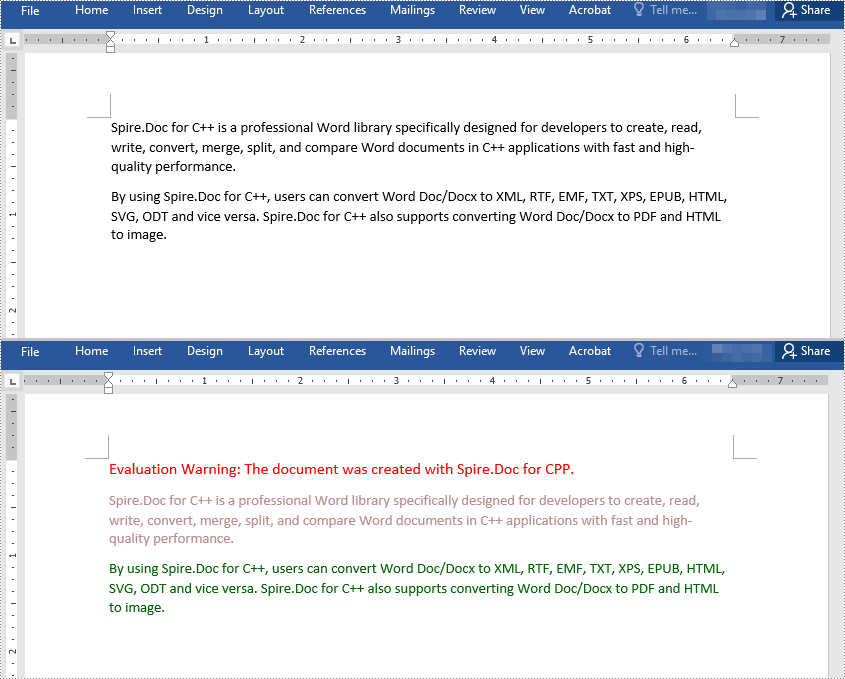
Change the Font Color of a Specific Text in Word in C++
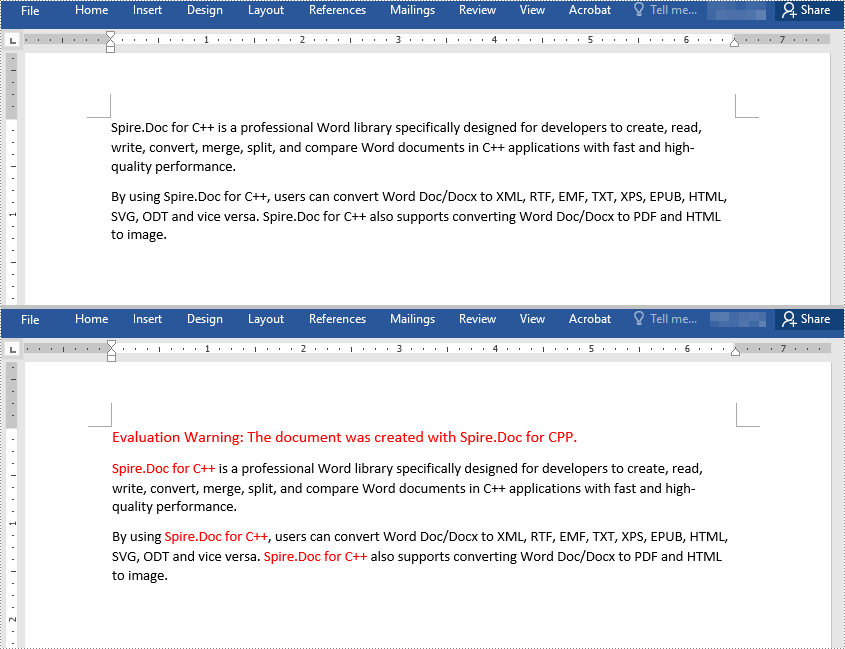
To change the font color of a specific text in a Word document, you need to search for the text in the document, then change the font color of its all occurrences. The detailed steps are as follows:
- Create an instance of the Document class.
- Load a Word document using the Document->LoadFromFile() method.
- Find the text that you want to change the font color of using the Document->FindAllString() method.
- Iterate through all occurrences of the text and change the font color of each occurrence using the TextSelection->GetAsOneRange()->GetCharacterFormat()->SetTextColor() method.
- Save the result document using the Document->SaveToFile() method.
- C++
#include "Spire.Doc.o.h";

using namespace Spire::Doc;
using namespace std;

int main()
{
 //Create a Document instance
 intrusive_ptr<Document> document = new Document();

 //Load a Word document
 document->LoadFromFile(L"Sample.docx");

 //Find the text that you want to change the font color of
 vector<intrusive_ptr<TextSelection>> selection = document->FindAllString(L"Spire.Doc for C++", false, true);

 //Change the font color of all occurrences of the text
 for (auto text : selection)
 {
  text->GetAsOneRange()->GetCharacterFormat()->SetTextColor(Color::GetRed());
 }

 //Save the result document
 document->SaveToFile(L"ChangeFontColorForCertainText.docx", FileFormat::Docx2013);
 document->Close();
}
Apply for a Temporary License
If you'd like to remove the evaluation message from the generated documents, or to get rid of the function limitations, please request a 30-day trial license for yourself.
Pie charts and donut charts are two similar types of charts used to show a percentage breakdown of data. Both charts are visually simple and provide an instant understanding of the part-to-whole relationship. In this article, you will learn how to programmatically create a pie chart or a doughnut chart in Excel using Spire.XLS for C++.
Install Spire.XLS for C++
There are two ways to integrate Spire.XLS for C++ into your application. One way is to install it through NuGet, and the other way is to download the package from our website and copy the libraries into your program. Installation via NuGet is simpler and more recommended. You can find more details by visiting the following link.
Integrate Spire.XLS for C++ in a C++ Application
Create a Pie Chart in Excel in C++
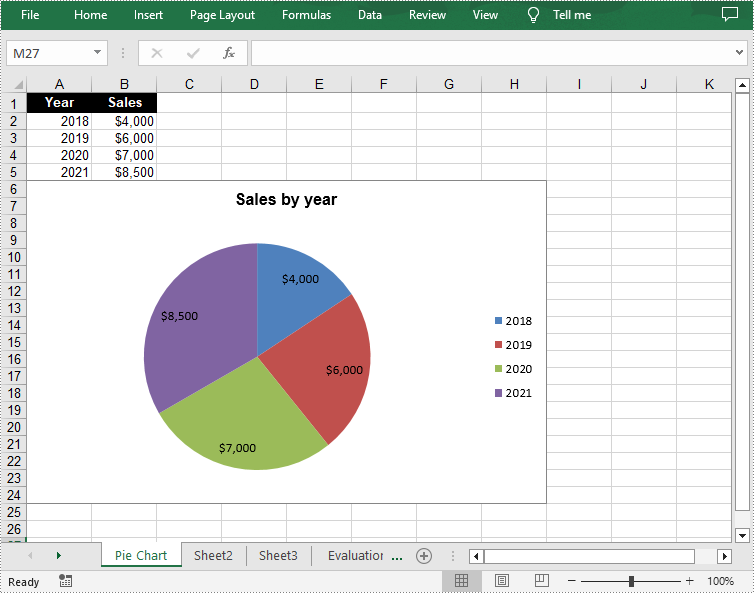
A pie chart is a circular graph divided into several sectors. To add a pie chart in a worksheet, you can use the Worksheet->GetCharts()->Add(ExcelChartType::Pie) method provided by Spire.XLS for C++. The following are the detailed steps.
- Create a Workbook object.
- Get a specified worksheet using Workbook->GetWorksheets()->Get() method.
- Add a pie chart to the worksheet using Worksheet->GetCharts()->Add(ExcelChartType::Pie) method.
- Add some data to specified cells and set the cell styles.
- Set data range for the chart using Chart->SetDataRange() method.
- Set the position and title of the chart.
- Get a specified series in the chart and set category labels and values for the series using ChartSerie->SetCategoryLabels() and ChartSerie->SetValues() methods.
- Show data labels for data points.
- Save the result file using Workbook->SaveToFile() method.
- C++
#include "Spire.Xls.o.h";

using namespace Spire::Xls;

int main()
{
	//Specify the output file path
	std::wstring outputFile = L"Output\\PieChart.xlsx";

	//Create a Workbook object
	intrusive_ptr<Workbook> workbook = new Workbook();

	//Get the first worksheet and set sheet name
	intrusive_ptr<Worksheet> sheet = dynamic_pointer_cast<Worksheet>(workbook->GetWorksheets()->Get(0));
	sheet->SetName(L"Pie Chart");

	//Add a pie chart to the worksheet
	intrusive_ptr<Chart> chart = nullptr;
	chart = sheet->GetCharts()->Add(ExcelChartType::Pie);

	//Set chart data
	sheet->GetRange(L"A1")->SetValue(L"Year");
	sheet->GetRange(L"A2")->SetValue(L"2018");
	sheet->GetRange(L"A3")->SetValue(L"2019");
	sheet->GetRange(L"A4")->SetValue(L"2020");
	sheet->GetRange(L"A5")->SetValue(L"2021");

	sheet->GetRange(L"B1")->SetValue(L"Sales");
	sheet->GetRange(L"B2")->SetNumberValue(4000);
	sheet->GetRange(L"B3")->SetNumberValue(6000);
	sheet->GetRange(L"B4")->SetNumberValue(7000);
	sheet->GetRange(L"B5")->SetNumberValue(8500);

	//Set cell styles
	sheet->GetRange(L"A1:B1")->SetRowHeight(15);
	sheet->GetRange(L"A1:B1")->GetStyle()->SetColor(Spire::Xls::Color::GetBlack());
	sheet->GetRange(L"A1:B1")->GetStyle()->GetFont()->SetColor(Spire::Xls::Color::GetWhite());
	sheet->GetRange(L"A1:B1")->GetStyle()->SetVerticalAlignment(VerticalAlignType::Center);
	sheet->GetRange(L"A1:B1")->GetStyle()->SetHorizontalAlignment(HorizontalAlignType::Center);

	//Set number format
	sheet->GetRange(L"B2:C5")->GetStyle()->SetNumberFormat(L"\"$\"#,##0");

	//Set data range for the chart
	chart->SetDataRange(sheet->GetRange(L"B2:B5"));
	chart->SetSeriesDataFromRange(false);

	//Set position of the chart
	chart->SetLeftColumn(1);
	chart->SetTopRow(6);
	chart->SetRightColumn(9);
	chart->SetBottomRow(25);

	//Set and format chart title
	chart->SetChartTitle(L"Sales by year");
	chart->GetChartTitleArea()->SetIsBold(true);
	chart->GetChartTitleArea()->SetSize(12);

	//Get a specified series in the chart
	intrusive_ptr<ChartSerie> cs = chart->GetSeries()->Get(0);

	//Set category labels for the series
	cs->SetCategoryLabels(sheet->GetRange(L"A2:A5"));

	//Set values for the series
	cs->SetValues(sheet->GetRange(L"B2:B5"));

	//Show data labels for data points
	cs->GetDataPoints()->GetDefaultDataPoint()->GetDataLabels()->SetHasValue(true);

	//Save the result file
	workbook->SaveToFile(outputFile.c_str(), ExcelVersion::Version2013);
	workbook->Dispose();
}
Create a Doughnut Chart in Excel in C++
The doughnut chart is a variant of the pie chart. It has a hole in the center which allows additional information to be displayed. The following are the steps to add a donut chart in an Excel worksheet.
- Create a Workbook object.
- Get a specified worksheet using Workbook->GetWorksheets()->Get() method.
- Add some data to specified cells and set the cell styles.
- Add a chart to the worksheet using Worksheet->GetCharts()->Add() method and then set its type as doughnut chart using Chart->SetChartType(ExcelChartType::Doughnut) method.
- Set data range for the chart using Chart->SetDataRange() method.
- Set the position and title of the chart.
- Show data labels for data points.
- Set the legend position of the chart using Chart->GetLegend()->SetPosition() method.
- Save the result file using Workbook->SaveToFile() method.
- C++
#include "Spire.Xls.o.h";

using namespace Spire::Xls;

int main()
{
	//Specify the output file path
	std::wstring outputFile = L"Output\\DoughnutChart.xlsx";

	//Create a Workbook object
	intrusive_ptr<Workbook> workbook = new Workbook();

	//Get the first worksheet
	intrusive_ptr<Worksheet> sheet = dynamic_pointer_cast<Worksheet>(workbook->GetWorksheets()->Get(0));

	//Insert data to specified cells
	sheet->GetRange(L"A1")->SetValue(L"Country");
	sheet->GetRange(L"A2")->SetValue(L"Cuba");
	sheet->GetRange(L"A3")->SetValue(L"Mexico");
	sheet->GetRange(L"A4")->SetValue(L"France");
	sheet->GetRange(L"A5")->SetValue(L"German");
	sheet->GetRange(L"B1")->SetValue(L"Sales");
	sheet->GetRange(L"B2")->SetNumberValue(6000);
	sheet->GetRange(L"B3")->SetNumberValue(8000);
	sheet->GetRange(L"B4")->SetNumberValue(9000);
	sheet->GetRange(L"B5")->SetNumberValue(8500);

	//Set cell styles
	sheet->GetRange(L"A1:B1")->SetRowHeight(15);
	sheet->GetRange(L"A1:B1")->GetStyle()->SetColor(Spire::Xls::Color::GetBlack());
	sheet->GetRange(L"A1:B1")->GetStyle()->GetFont()->SetColor(Spire::Xls::Color::GetWhite());
	sheet->GetRange(L"A1:B1")->GetStyle()->GetFont()->SetIsBold(true);
	sheet->GetRange(L"A1:B1")->GetStyle()->SetVerticalAlignment(VerticalAlignType::Center);
	sheet->GetRange(L"A1:B1")->GetStyle()->SetHorizontalAlignment(HorizontalAlignType::Center);

	//Add a doughnut chart to the worksheet
	intrusive_ptr<Chart> chart = sheet->GetCharts()->Add();
	chart->SetChartType(ExcelChartType::Doughnut);

	//Set data range for chart
	chart->SetDataRange(sheet->GetRange(L"A1:B5"));
	chart->SetSeriesDataFromRange(false);

	//Set position of the chart
	chart->SetLeftColumn(4);
	chart->SetTopRow(2);
	chart->SetRightColumn(12);
	chart->SetBottomRow(22);

	//Chart title
	chart->SetChartTitle(L"Market share by country");
	chart->GetChartTitleArea()->SetIsBold(true);
	chart->GetChartTitleArea()->SetSize(12);

	//Show data labels for data points
	for (int i = 0; i < chart->GetSeries()->GetCount(); i++)
	{
		intrusive_ptr<ChartSerie> cs = chart->GetSeries()->Get(i);
		cs->GetDataPoints()->GetDefaultDataPoint()->GetDataLabels()->SetHasPercentage(true);
	}

	//Set the legend position of the chart
	chart->GetLegend()->SetPosition(LegendPositionType::Top);

	//Save the result file
	workbook->SaveToFile(outputFile.c_str(), ExcelVersion::Version2013);
	workbook->Dispose();
}

Apply for a Temporary License
If you'd like to remove the evaluation message from the generated documents, or to get rid of the function limitations, please request a 30-day trial license for yourself.
PDF form fields are digital elements that allow users to input and manipulate data within a PDF document. PDF form fields enable users to complete forms, surveys, questionnaires, and other types of documents electronically, which streamlines the process of data collection and eliminates the need for paper-based methods. In this article, you will learn how to create, fill, or remove form fields in a PDF document in C++ using Spire.PDF for C++.
Install Spire.PDF for C++
There are two ways to integrate Spire.PDF for C++ into your application. One way is to install it through NuGet, and the other way is to download the package from our website and copy the libraries into your program. Installation via NuGet is simpler and more recommended. You can find more details by visiting the following link.
Integrate Spire.PDF for C++ in a C++ Application
Create Form Fields in PDF in C++
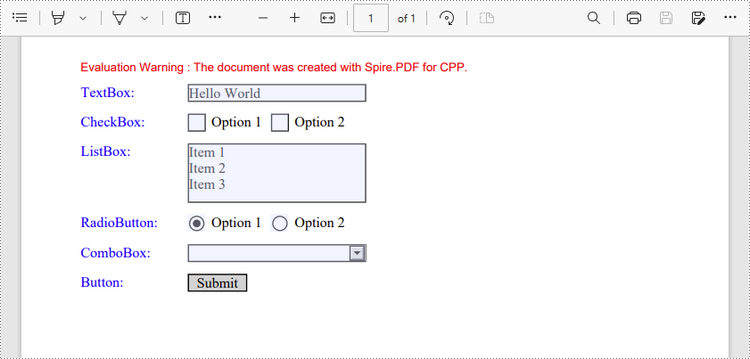
Spire.PDF for C++ offers a set of useful classes that allow developers to create and edit various types of form fields in PDF, including text box, check box, combo box, list box, and radio button. The table below lists some of the core classes involved in this tutorial.
| Class | Description |
| PdfForm | Represents interactive form of the PDF document. |
| PdfField | Represents field of the PDF document's interactive form. |
| PdfTextBoxField | Represents text box field in the PDF form. |
| PdfCheckBoxField | Represents check box field in the PDF form. |
| PdfComboBoxField | Represents combo box field in the PDF Form. |
| PdfListBoxField | Represents list box field of the PDF form. |
| PdfListFieldItem | Represents an item of a list field. |
| PdfRadioButtonListField | Represents radio button field in the PDF form. |
| PdfRadioButtonListItem | Represents an item of a radio button list. |
| PdfButtonField | Represents button field in the PDF form. |
| PdfSignatureField | Represents signature field in the PDF form. |
To create a field, initialize an instance of the corresponding class. Specify its size and position in the document using SetBounds() method, and then add it to the PDF form using PdfForm->GetFields()->Add() method. The following are the steps to create various types of form fields in a PDF document using Spire.PDF for C++.
- Create a PdfDocument object.
- Add a page using PdfDocument->GetPages()->Add() method.
- Create a PdfTextBoxField object, set the properties of the field including Bounds, Font and Text, and then add it to the document using PdfForm->GetFields()->Add() method.
- Repeat the step 3 to add check boxes, combo boxes, list boxes, radio buttons, and buttons to the document.
- Save the document to a PDF file using PdfDocument->SaveToFile() method.
- C++
#include "Spire.Pdf.o.h";

using namespace Spire::Pdf;
using namespace std;

int main() {

    //Create a PdfDocument object
    PdfDocument* doc = new PdfDocument();

    //Add a page
    intrusive_ptr<PdfPageBase> page = doc->GetPages()->Add();

    //Initialize x and y coordinates
    float baseX = 100;
    float baseY = 30;

    //Create two brush objects
    PdfSolidBrush* brush1 = new PdfSolidBrush(new PdfRGBColor(Spire::Pdf::Color::GetBlue()));
    PdfSolidBrush* brush2 = new PdfSolidBrush(new PdfRGBColor(Spire::Pdf::Color::GetBlack()));

    //Create a font
    PdfFont * font = new PdfFont(PdfFontFamily::TimesRoman, 12.0f, PdfFontStyle::Regular);

    //Add a textbox
    page->GetCanvas()->DrawString(L"TextBox:", font, brush1, 10, baseY);
    RectangleF* tbxBounds = new RectangleF(baseX, baseY, 150, 15);
    PdfTextBoxField* textBox = new PdfTextBoxField(page, L"textbox");
    textBox->SetBounds(tbxBounds);
    textBox->SetText(L"Hello World");
    textBox->SetFont(font);
    doc->GetForm()->GetFields()->Add(textBox);
    baseY += 25;

    //add two checkboxes
    page->GetCanvas()->DrawString(L"CheckBox:", font, brush1, 10, baseY);
    RectangleF* checkboxBound1 = new RectangleF(baseX, baseY, 15, 15);
    PdfCheckBoxField* checkBoxField1 = new PdfCheckBoxField(page, L"checkbox1");
    checkBoxField1->SetBounds(checkboxBound1);
    checkBoxField1->SetChecked(false);
    page->GetCanvas()->DrawString(L"Option 1", font, brush2, baseX + 20, baseY);

    RectangleF* checkboxBound2 = new RectangleF(baseX + 70, baseY, 15, 15);
    PdfCheckBoxField* checkBoxField2 = new PdfCheckBoxField(page, L"checkbox2");
    checkBoxField2->SetBounds(checkboxBound2);
    checkBoxField2->SetChecked(false);
    page->GetCanvas()->DrawString(L"Option 2", font, brush2, baseX + 90, baseY);
    doc->GetForm()->GetFields()->Add(checkBoxField1);
    doc->GetForm()->GetFields()->Add(checkBoxField2);
    baseY += 25;

    //Add a listbox
    page->GetCanvas()->DrawString(L"ListBox:", font, brush1, 10, baseY);
    RectangleF* listboxBound = new RectangleF(baseX, baseY, 150, 50);
    PdfListBoxField* listBoxField = new PdfListBoxField(page, L"listbox");
    listBoxField->GetItems()->Add(new PdfListFieldItem(L"Item 1", L"item1"));
    listBoxField->GetItems()->Add(new PdfListFieldItem(L"Item 2", L"item2"));
    listBoxField->GetItems()->Add(new PdfListFieldItem(L"Item 3", L"item3")); ;
    listBoxField->SetBounds(listboxBound);
    listBoxField->SetFont(font);
    listBoxField->SetSelectedIndex(0);
    doc->GetForm()->GetFields()->Add(listBoxField);
    baseY += 60;

    //Add two radio buttons
    page->GetCanvas()->DrawString(L"RadioButton:", font, brush1, 10, baseY);
    PdfRadioButtonListField* radioButtonListField = new PdfRadioButtonListField(page, L"radio");
    PdfRadioButtonListItem* radioItem1 = new PdfRadioButtonListItem(L"option1");
    RectangleF* radioBound1 = new RectangleF(baseX, baseY, 15, 15);
    radioItem1->SetBounds(radioBound1);
    page->GetCanvas()->DrawString(L"Option 1", font, brush2, baseX + 20, baseY);

    PdfRadioButtonListItem* radioItem2 = new PdfRadioButtonListItem(L"option2");
    RectangleF* radioBound2 = new RectangleF(baseX + 70, baseY, 15, 15);
    radioItem2->SetBounds(radioBound2);
    page->GetCanvas()->DrawString(L"Option 2", font, brush2, baseX + 90, baseY);
    radioButtonListField->GetItems()->Add(radioItem1);
    radioButtonListField->GetItems()->Add(radioItem2);
    radioButtonListField->SetSelectedIndex(0);
    doc->GetForm()->GetFields()->Add(radioButtonListField);
    baseY += 25;

    //Add a combobox
    page->GetCanvas()->DrawString(L"ComboBox:", font, brush1, 10, baseY);
    RectangleF* cmbBounds = new RectangleF(baseX, baseY, 150, 15);
    PdfComboBoxField* comboBoxField = new PdfComboBoxField(page, L"combobox");
    comboBoxField->SetBounds(cmbBounds);
    comboBoxField->GetItems()->Add(new PdfListFieldItem(L"Item 1", L"item1"));
    comboBoxField->GetItems()->Add(new PdfListFieldItem(L"Item 2", L"itme2"));
    comboBoxField->GetItems()->Add(new PdfListFieldItem(L"Item 3", L"item3"));
    comboBoxField->GetItems()->Add(new PdfListFieldItem(L"Item 4", L"item4"));
    comboBoxField->SetSelectedIndex(0);
    comboBoxField->SetFont(font);
    comboBoxField->SetEditable(true);
    doc->GetForm()->GetFields()->Add(comboBoxField);
    baseY += 25;

    //Add a button
    page->GetCanvas()->DrawString(L"Button:", font, brush1, 10, baseY);
    RectangleF* btnBounds = new RectangleF(baseX, baseY, 50, 15);
    PdfButtonField* buttonField = new PdfButtonField(page, L"button");
    buttonField->SetBounds(btnBounds);
    buttonField->SetText(L"Submit");
    buttonField->SetFont(font);
    PdfSubmitAction* submitAction = new PdfSubmitAction(L"https://www.e-iceblue.com/getformvalues.php");
    buttonField->GetActions()->SetMouseDown(submitAction);
    doc->GetForm()->GetFields()->Add(buttonField);

    //Save to file
    doc->SaveToFile(L"Output/FillableForm.pdf", FileFormat::PDF);
    doc->Close();
    delete doc;
}
Fill Form Fields in PDF in C++
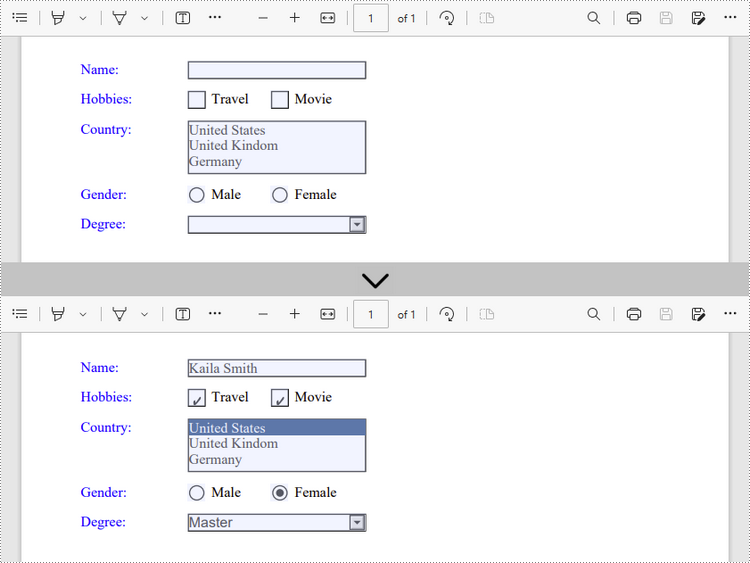
In order to fill out a form, you need first get all the form fields from the PDF document, determine the type of a certain field, and then input a value or select a value from a predefined list. The following are the steps to fill form fields in an existing PDF document using Spire.PDF for C++.
- Create a PdfDocument object.
- Load a sample PDF document using PdfDocument->LoadFromFile() method.
- Get the form from the document using PdfDocument->GetForm() method.
- Get the form field widget collection using PdfFormWidget->GetFieldsWidget() method.
- Loop through the field widget collection to get a specific PdfField.
- Determine if the PdfField is a certain field type such as text box. If yes, set the text of the text box using PdfTextBoxFieldWidget->SetText() method.
- Repeat the step above to fill radio button, check box, combo box, and list box with values.
- Save the document to a PDF file using PdfDocument->SaveToFile() method.
- C++
#include "Spire.Pdf.o.h";

using namespace Spire::Pdf;
using namespace std;

int main() {

    //Create a PdfDocument object
    PdfDocument* doc = new PdfDocument();

    //Load a PDF file containing form fields
    doc->LoadFromFile(L"C:\\Users\\Administrator\\Desktop\\Form.pdf");

    //Get the form from the document
    intrusive_ptr<PdfFormWidget> form = Object::Convert<PdfFormWidget>(doc->GetForm());

    //Get the form widget collection
    intrusive_ptr<PdfFormFieldWidgetCollection> formWidgetCollection = form->GetFieldsWidget();

    //Loop through the widgets
    for (int i = 0; i < formWidgetCollection->GetCount(); i++)
    {
        //Get a specific field
        intrusive_ptr<PdfField> field = formWidgetCollection->GetItem(i);

        //Determine if the field is a text box
        wchar_t nm_w1[100];
        swprintf(nm_w1, 100, L"%hs", typeid(PdfTextBoxFieldWidget).name());
        LPCWSTR_S newName1 = nm_w1;
        if (wcscmp(newName1, field->GetInstanceTypeName()) == 0)
        {
            intrusive_ptr<PdfTextBoxFieldWidget> textBoxField = Object::Convert<PdfTextBoxFieldWidget>(field);
            wstring str = textBoxField->GetName();
            if (str == L"name")
            {
                //Set the text of text box
                textBoxField->SetText(L"Kaila Smith");
            }
        }

        //Determine if the field is a check box
        wchar_t nm_w2[100];
        swprintf(nm_w2, 100, L"%hs", typeid(PdfCheckBoxWidgetFieldWidget).name());
        LPCWSTR_S newName2 = nm_w2;
        if (wcscmp(newName2, field->GetInstanceTypeName()) == 0)
        {
            intrusive_ptr<PdfCheckBoxWidgetFieldWidget> checkBoxField = Object::Convert<PdfCheckBoxWidgetFieldWidget>(field);
            wstring str = checkBoxField->GetName();
            if (str == L"travel")
            {
                //Set the "Checked" status of check box
                checkBoxField->SetChecked(true);
            }
            else if (str == L"movie")
            {
                checkBoxField->SetChecked(true);
            }
        }

        //Determine if the field is a combo box
        wchar_t nm_w3[100];
        swprintf(nm_w3, 100, L"%hs", typeid(PdfListBoxWidgetFieldWidget).name());
        LPCWSTR_S newName3 = nm_w3;
        if (wcscmp(newName3, field->GetInstanceTypeName()) == 0)
        {
            intrusive_ptr<PdfListBoxWidgetFieldWidget> listBoxField = Object::Convert<PdfListBoxWidgetFieldWidget>(field);
            wstring str = listBoxField->GetName();
            if (str == L"country")
            {
                //Set the selected index of combo box
                vector<int> item = { 0 };
                listBoxField->SetSelectedIndex(item);
            }
        }

        //Determine if the field is a radio button
        wchar_t nm_w4[100];
        swprintf(nm_w4, 100, L"%hs", typeid(PdfRadioButtonListFieldWidget).name());
        LPCWSTR_S newName4 = nm_w4;
        if (wcscmp(newName4, field->GetInstanceTypeName()) == 0)
        {
            intrusive_ptr<PdfRadioButtonListFieldWidget> radioButtonListField = Object::Convert<PdfRadioButtonListFieldWidget>(field);
            wstring str = radioButtonListField->GetName();
            if (str == L"gender")
            {
                //Set the selected index of radio button
                radioButtonListField->SetSelectedIndex(1);
            }
        }

        //Determine if the field is a list box
        wchar_t nm_w5[100];
        swprintf(nm_w5, 100, L"%hs", typeid(PdfComboBoxWidgetFieldWidget).name());
        LPCWSTR_S newName5 = nm_w5;
        if (wcscmp(newName5, field->GetInstanceTypeName()) == 0)
        {
            intrusive_ptr<PdfComboBoxWidgetFieldWidget> comBoxField = Object::Convert<PdfComboBoxWidgetFieldWidget>(field);
            wstring str = comBoxField->GetName();
            if (str == L"degree")
            {
                //Set the selected index of list box
                vector<int> item = { 1 };
                comBoxField->SetSelectedIndex(item);
            }
        }
    }

    //Save to file
    doc->SaveToFile(L"Output/FillFormFields.pdf", FileFormat::PDF);
    doc->Close();
    delete doc;
}
Remove Form Fields from PDF in C++
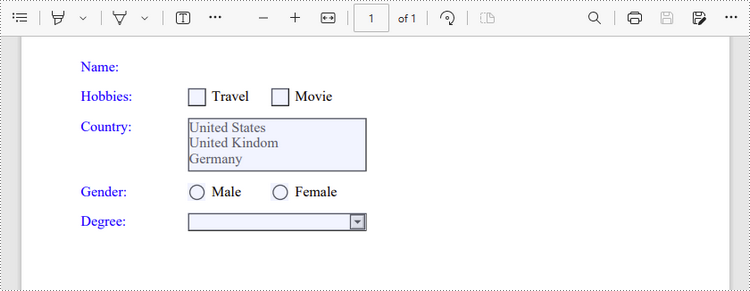
A form field in a PDF document can be accessed by its index or name and removed by PdfFieldCollection->Remove() method. The following are the steps to remove a particular field or all fields from a PDF document using Sprie.PDF for C++.
- Create a PdfDocument object.
- Load a sample PDF document using PdfDocument->LoadFromFile() method.
- Get the form from the document using PdfDocument->GetForm() method.
- Get the form field widget collection using PdfFormWidget->GetFieldsWidget() method.
- Get a specific field using PdfFormFieldWidgetCollection->GetItem() method, and remove it using PdfFieldCollection->Remove() method.
- To remove all fields at once, use PdfFieldCollection->Clear() method.
- Save the document to a PDF file using PdfDocument->SaveToFile() method.
- C++
#include "Spire.Pdf.o.h";

using namespace Spire::Pdf;
using namespace std;

int main() {

    //Create a PdfDocument object
    PdfDocument* doc = new PdfDocument();

    //Load a PDF file
    doc->LoadFromFile(L"C:\\Users\\Administrator\\Desktop\\Form.pdf");

    //Get the form from the document
    intrusive_ptr<PdfFormWidget> form = Object::Convert<PdfFormWidget>(doc->GetForm());

    //Get form widgets from the form
    intrusive_ptr<PdfFormFieldWidgetCollection> widgets = form->GetFieldsWidget();

    //Get a specific field by its name
    intrusive_ptr<PdfField> field = widgets->GetItem(L"name");

    //Remove the field
    widgets->Remove(field);

    //Remove all fields
    //widgets->Clear();

    //Save to file
    doc->SaveToFile(L"Output/DeleteFields.pdf", FileFormat::PDF);
    doc->Close();
    delete doc;
}
Apply for a Temporary License
If you'd like to remove the evaluation message from the generated documents, or to get rid of the function limitations, please request a 30-day trial license for yourself.
