
Knowledgebase (2417)
Children categories
The PDF file format is ideal for most occasions. But still, you may encounter situations where you need to convert PDF to images. Once you convert a certain PDF page into an image, you can post it on social media, upload or transfer it in devices that can only display images, or embed it in your Word document or PowerPoint presentation. In this article, you will learn how to programmatically convert PDF to images in C++ using Spire.PDF for C++.
Install Spire.PDF for C++
There are two ways to integrate Spire.PDF for C++ into your application. One way is to install it through NuGet, and the other way is to download the package from our website and copy the libraries into your program. Installation via NuGet is simpler and more recommended. You can find more details by visiting the following link.
Integrate Spire.PDF for C++ in a C++ Application
Convert a Specific Page to an Image in C++
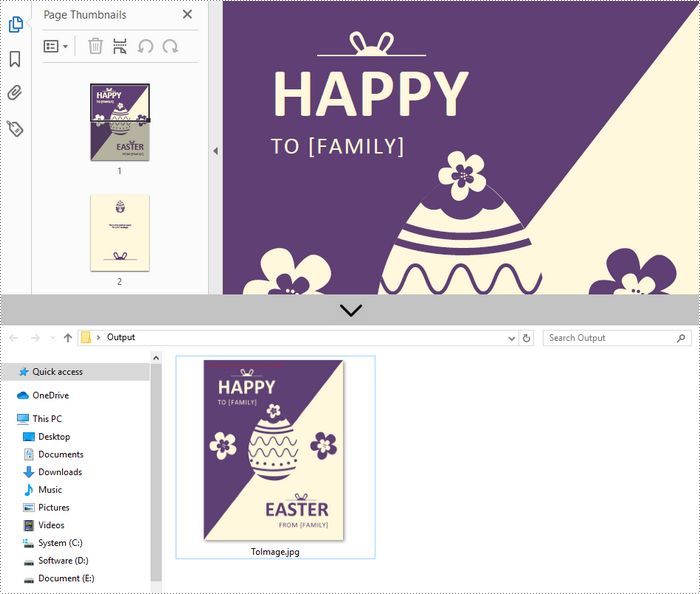
Spire.PDF for C++ offers the PdfDocument->SaveAsImage(int pageIndex) method to convert a particular page into image stream. The stream can be then saved as an image file with the desired extension like PNG, JPG, and BMP. The following are the detailed steps.
- Create a PdfDocument instance.
- Load a PDF file using PdfDocument->LoadFromFile() method.
- Convert a specific page into image stream using PdfDocument->SaveAsImage() method.
- Save the image steam as a JPG file using Stream->Save() method.
- C++
#include "Spire.Pdf.o.h";

using namespace Spire::Pdf;
using namespace std;

int main() {

	//Specify input and output file paths
	wstring inputFile = L"C:\\Users\\Administrator\\Desktop\\sample.pdf";
	wstring outputFile = L"C:\\Users\\Administrator\\Desktop\\Output\\ToImage";

	//Create a PdfDocument object
	PdfDocument* doc = new PdfDocument();

	//Load a PDF file
	doc->LoadFromFile(inputFile.c_str());

	//Convert a specific page as image
	boost::intrusive_ptr<Stream> image = doc->SaveAsImage(0, PdfImageType::Bitmap);

	//Write image to a .jpg file
	wstring fileName = outputFile + L".jpg";
	image->Save(fileName.c_str());

	doc->Close();
	delete doc;
}
Convert an Entire PDF to Multiple Images in C++
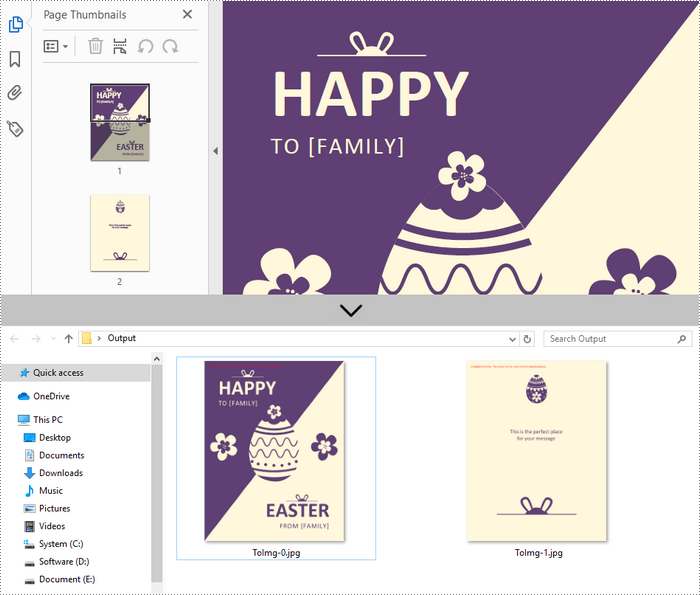
In order to save the whole PDF as separate individual images, you just need to put the conversion part inside a loop statement. The follows are the detailed steps.
- Create a PdfDocument instance.
- Load a PDF file using PdfDocument->LoadFromFile() method.
- Loop through the pages in the document and convert each of them into image stream using PdfDocument->SaveAsImage(int pageIndex) method.
- Save the image steam as JPG files using Stream->Save() method.
- C++
#include "Spire.Pdf.o.h";

using namespace Spire::Pdf;
using namespace std;

int main() {

	//Specify input and output file paths
	wstring inputFile = L"C:\\Users\\Administrator\\Desktop\\sample.pdf";
	wstring outputFile = L"C:\\Users\\Administrator\\Desktop\\Output\\ToImg-";

	//Create a PdfDocument object
	PdfDocument* doc = new PdfDocument();

	//Load a PDF file
	doc->LoadFromFile(inputFile.c_str());

	//Iterate through the pages in the document
	for (int i = 0; i < doc->GetPages()->GetCount(); i++) {

		//Save a specific page as image
		boost::intrusive_ptr<Stream> image = doc->SaveAsImage(i);

		//Write image to a .jpg file
		wstring fileName = outputFile + to_wstring(i) + L".jpg";
		image->Save(fileName.c_str());
	}
	doc->Close();
	delete doc;
}
Apply for a Temporary License
If you'd like to remove the evaluation message from the generated documents, or to get rid of the function limitations, please request a 30-day trial license for yourself.
When you need to share or present your PowerPoint presentations on different computers/devices, you may occasionally find that some content cannot be displayed properly. To avoid such incompatibility issues, a common method is to convert your PowerPoint document to PDF to ensure document integrity. In this article, you will learn how to convert a PowerPoint Presentation to PDF in C++ using Spire.Presentation for C++.
- Convert an Entire PowerPoint Presentation to PDF in C++
- Convert a Specific PowerPoint Slide to PDF in C++
- Convert a PowerPoint to PDF with Specific Page Size in C++
Install Spire.Presentation for C++
There are two ways to integrate Spire.Presentation for C++ into your application. One way is to install it through NuGet, and the other way is to download the package from our website and copy the libraries into your program. Installation via NuGet is simpler and more recommended. You can find more details by visiting the following link.
Integrate Spire.Presentation for C++ in a C++ Application
Convert an Entire PowerPoint Presentation to PDF in C++
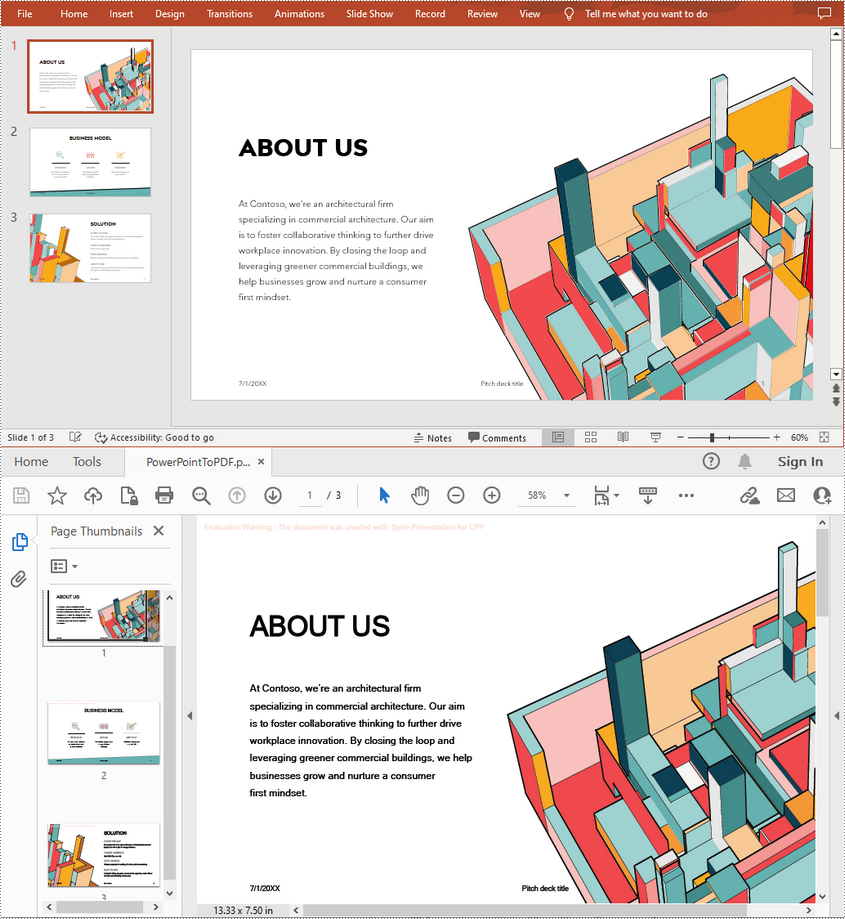
The Presentation->SaveToFile(LPCWSTR_S fileName, FileFormat::PDF) method allows you to convert each slide in PowerPoint to a PDF page. The following are the steps to convert a whole PowerPoint presentation to PDF.
- Create a Presentation object.
- Load a PowerPoint presentation using Presentation->LoadFromFile() method.
- Save it to PDF using Presentation->SaveToFile(LPCWSTR_S fileName, FileFormat::PDF) method.
- C++
#include "Spire.Presentation.o.h";
using namespace Spire::Presentation;
using namespace std;
int main()
{
//Specify the input and output file paths
std::wstring inputFile = L"Data\\sample.pptx";
std::wstring outputFile = L"Output\\PowerPointToPDF.pdf";
//Create a Presentation object
intrusive_ptrPresentation> ppt = new Presentation();
//Load a PowerPoint document from disk
ppt->LoadFromFile(inputFile.c_str());
//Save the document to PDF
ppt->SaveToFile(outputFile.c_str(), FileFormat::PDF);
ppt->Dispose();
}
Convert a Specific PowerPoint Slide to PDF in C++
If you only want to convert a particular slide to PDF, you can use the ISlide->SaveToFile(LPCWSTR_S fileName, FileFormat::PDF) method provided by Spire.Presentation for C++. The following are the detailed steps.
- Create a Presentation object.
- Load a PowerPoint presentation using Presentation->LoadFromFile() method.
- Get a specified slide by index using Presentation->GetSlides()->GetItem(slideIndex) method.
- Save the slide to PDF using ISlide->SaveToFile(LPCWSTR_S fileName, FileFormat::PDF) method.
- C++
#include "Spire.Presentation.o.h";
using namespace Spire::Presentation;
using namespace std;
int main()
{
//Specify the input and output file paths
std::wstring inputFile = L"Data\\sample.pptx";
std::wstring outputFile = L"Output\\SlideToPDF.pdf";
//Create a Presentation object
intrusive_ptrPresentation> ppt = new Presentation();
//Load a PowerPoint document from disk
ppt->LoadFromFile(inputFile.c_str());
//Get the second slide
intrusive_ptr slide = ppt->GetSlides()->GetItem(1);
//Save the second slide to PDF
slide->SaveToFile(outputFile.c_str(), FileFormat::PDF);
ppt->Dispose();
}

Convert a PowerPoint to PDF with Specific Page Size in C++
Spire.Presentation for C++ also allows you to set a desired slide size and orientation for a PowerPoint document before converting it to PDF. The following are the steps to convert a PowerPoint to PDF with Specific Page Size (A4 slide size = 10.83x7.05 inch).
- Create a Presentation object.
- Load a PowerPoint presentation using Presentation->LoadFromFile() method.
- Set the slide size of the PowerPoint document using Presentation->GetSlideSize()->SetType() method.
- Set the slide orientation of the PowerPoint document using Presentation->GetSlideSize()->SetOrientation() method.
- Save the document to PDF using Presentation->SaveToFile(LPCWSTR_S fileName, FileFormat::PDF) method.
- C++
#include "Spire.Presentation.o.h";
using namespace Spire::Presentation;
using namespace std;
int main()
{
//Specify the input and output file paths
std::wstring inputFile = L"Data\\sample.pptx";
std::wstring outputFile = L"Output\\ToPdfWithSpecificPageSize.pdf";
//Create a Presentation object
intrusive_ptrPresentation> ppt = new Presentation();
//Load a PowerPoint document from disk
ppt->LoadFromFile(inputFile.c_str());
//Set the slide size to A4
ppt->GetSlideSize()->SetType(SlideSizeType::A4);
//Set the slide orientation to Landscape
ppt->GetSlideSize()->SetOrientation(SlideOrienation::Landscape);
//Save the document to PDF
ppt->SaveToFile(outputFile.c_str(), FileFormat::PDF);
ppt->Dispose();
}

Apply for a Temporary License
If you'd like to remove the evaluation message from the generated documents, or to get rid of the function limitations, please request a 30-day trial license for yourself.
Watermarks are faded text or images that appear behind the existing content of a document. You can use them to indicate a document's state (confidential, draft, etc.), or add a subtle company logo. A watermark helps prove the origin of a document and discourage unauthorized copies or distribution. In this article, you will learn how to add image watermarks to PDF in C++ using Spire.PDF for C++.
Install Spire.PDF for C++
There are two ways to integrate Spire.PDF for C++ into your application. One way is to install it through NuGet, and the other way is to download the package from our website and copy the libraries into your program. Installation via NuGet is simpler and more recommended. You can find more details by visiting the following link.
Integrate Spire.PDF for C++ in a C++ Application
Add a Single Image Watermark to PDF in C++
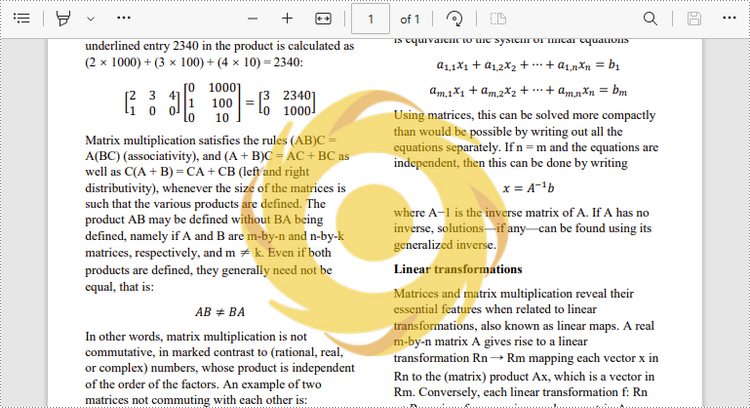
The PdfPageBase->GetCanvas()->DrawImage() method provided by Spire.PDF for C++ allows developers to draw images at any position of a PDF page. The image can be faded by adjusting the transparency of the canvas to prevent it from overwriting the text. The detailed steps to add a single image watermark to PDF are as follows.
- Create a PdfDocument object.
- Load a sample PDF document using PdfDocument->LoadFromFile() method.
- Get a specific page from the document using PdfDocument->GetPages()->GetItem() method.
- Set the transparency of the page using PdfPageBase->GetCanvas()->SetTransparency() method.
- Draw an image at the center of the page using PdfPageBase->GetCanvas()->DrawImage() method.
- Save the document to a different PDF file using PdfDocument->SaveToFile() method.
- C++
#include "Spire.Pdf.o.h";

using namespace std;
using namespace Spire::Pdf;

int main()
{
	//Specify input file and output file paths
	wstring inputFilePath = L"C:\\Users\\Administrator\\Desktop\\sample.pdf";
	wstring outputFilePath = L"C:\\Users\\Administrator\\Desktop\\ImageWatermark.pdf";

	//Create a PdfDocument object
	PdfDocument* doc = new PdfDocument();

	//Load a PDF file
	doc->LoadFromFile(inputFilePath.c_str());

	//Load an image
	boost::intrusive_ptr image = PdfImage::FromFile(L"C:\\Users\\Administrator\\Desktop\\logo.png");

	//Get image height and width
	int imgHeight = image->GetHeight();
	int imgWidth = image->GetWidth();

	//Traverse through the pages in the document
	for (size_t i = 0; i < doc->GetPages()->GetCount(); i++)
	{
		//Get a specific page
		boost::intrusive_ptr page = doc->GetPages()->GetItem(i);

		//Set the page transparency
		page->GetCanvas()->SetTransparency(0.5);

		//Get the page width and height
		float pageWidth = page->GetActualSize()->GetWidth();
		float pageHeight = page->GetActualSize()->GetHeight();

		//Draw image at the center of the page
		RectangleF* rect = new RectangleF((float)(pageWidth - imgWidth) / 2, (float)(pageHeight - imgHeight) / 2, imgWidth, imgHeight);
		page->GetCanvas()->DrawImage(image, rect);
	}

	//Save the document
	doc->SaveToFile(outputFilePath.c_str());
	doc->Close();
	delete doc;
}
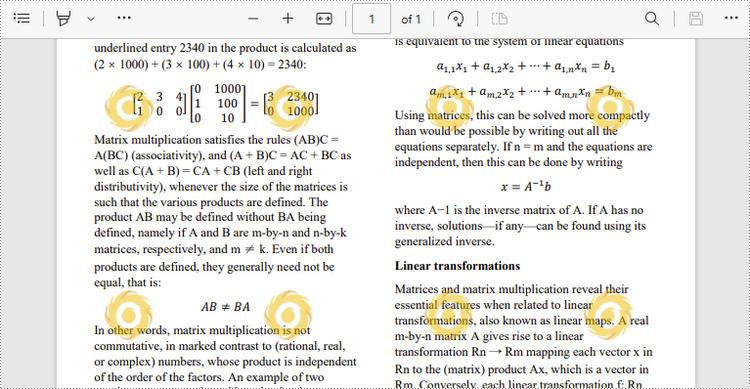
Add a Tiled Image Watermark to PDF in C++
A tiled watermark effect can be achieved by using the PdfTilingBrush class. The tiling brush produces a tiled pattern that is repeated to fill a graphics area. The following are the steps to add a tiled image watermark to a PDF document.
- Create a custom method InsertTiledImagetWatermark(PdfPageBase* page, PdfImage* image, int rowNum, int columnNum) to add a tiled watermark to a PDF page. The parameter rowNum and columnNum specify the row number and column number of the tiled watermark.
- Create a PdfDocument object.
- Load a sample PDF document using PdfDocument->LoadFromFile() method.
- Traverse through all pages in the document, and invoke the custom method InsertTiledImageWatermark() to apply watermark to each page.
- Save the document to another file using PdfDocument->SaveToFile() method.
- C++
#include "Spire.Pdf.o.h";

using namespace std;
using namespace Spire::Pdf;

static void InsertTiledImagetWatermark(PdfPageBase* page, PdfImage* image, int rowNum, int columnNum)
{
	//Get page height and width
	float height = page->GetActualSize()->GetHeight();
	float width = page->GetActualSize()->GetWidth();

	//Get image heigh and width
	float imgHeight = image->GetHeight();
	float imgWidth = image->GetWidth();

	//Create a tiling brush
	PdfTilingBrush* brush = new PdfTilingBrush(new SizeF(width / columnNum, height / rowNum));

	//Set transparency
	brush->GetGraphics()->SetTransparency(0.5f);

	//Translate coordinate system to a certain position
	brush->GetGraphics()->TranslateTransform((brush->GetSize()->GetWidth() - imgWidth) / 2, (brush->GetSize()->GetHeight() - imgHeight) / 2);

	//Draw image on the brush at the specified coordinates
	brush->GetGraphics()->DrawImage(image, 0.0, 0.0);

	//Draw rectangle that covers the whole page with the brush
	page->GetCanvas()->DrawRectangle(brush, 0, 0, width, height);
}

int main()
{
	//Specify input file and output file paths
	wstring inputFilePath = L"C:\\Users\\Administrator\\Desktop\\sample.pdf";
	wstring outputFilePath = L"C:\\Users\\Administrator\\Desktop\\TiledImageWatermark.pdf";

	//Create a PdfDocument object
	PdfDocument* doc = new PdfDocument();

	//Load a PDF file
	doc->LoadFromFile(inputFilePath.c_str());

	//Load an image
	PdfImage* image = PdfImage::FromFile(L"C:\\Users\\Administrator\\Desktop\\small-logo.png");

	//Traverse through the pages in the document
	for (size_t i = 0; i < doc->GetPages()->GetCount(); i++)
	{
		//Get a specific page
		PdfPageBase* page = doc->GetPages()->GetItem(i);

		//Add tiled image watermark to the page
		InsertTiledImagetWatermark(page, image, 4, 4);
	}

	//Save the document
	doc->SaveToFile(outputFilePath.c_str());
	doc->Close();
	delete doc;
}
Apply for a Temporary License
If you'd like to remove the evaluation message from the generated documents, or to get rid of the function limitations, please request a 30-day trial license for yourself.
