
Knowledgebase (2417)
Children categories
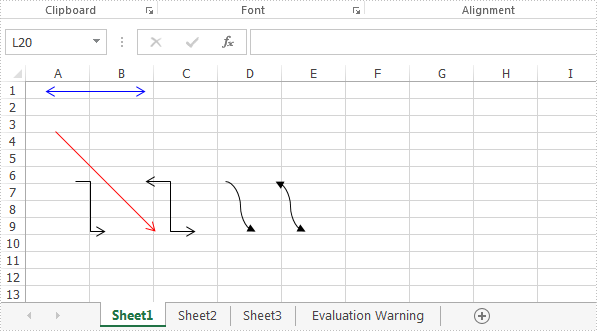
With Spire.XLS for .NET, developers can easily use C# to add shapes to Excel worksheet. From version 9.8.11, Spire.XLS supports to add arrow lines to Excel worksheet. The following sample will show you how to insert arrow line, double Arrow, Elbow Arrow, Elbow Double-Arrow, Curved Arrow and Curved Double-Arrow to Excel worksheet in C#.
using Spire.Xls;
using System.Drawing;

namespace Add_Lines_to_Excel
{
    class Program
    {
        static void Main(string[] args)
        {
            //Initiate a Workbook object and get the first worksheet
            Workbook workbook = new Workbook();
            Worksheet sheet = workbook.Worksheets[0];

            //Add a Double Arrow and fill the line with solid color
            var line = sheet.TypedLines.AddLine();
            line.Top = 10;
            line.Left = 20;
            line.Width = 100;
            line.Height = 0;
            line.Color = Color.Blue;
            line.BeginArrowHeadStyle = ShapeArrowStyleType.LineArrow;
            line.EndArrowHeadStyle = ShapeArrowStyleType.LineArrow;

            //Add an Arrow and fill the line with solid color
            var line_1 = sheet.TypedLines.AddLine();
            line_1.Top = 50;
            line_1.Left = 30;
            line_1.Width = 100;
            line_1.Height = 100;
            line_1.Color = Color.Red;
            line_1.BeginArrowHeadStyle = ShapeArrowStyleType.LineNoArrow;
            line_1.EndArrowHeadStyle = ShapeArrowStyleType.LineArrow;

            //Add an Elbow Arrow Connector
            Spire.Xls.Core.Spreadsheet.Shapes.XlsLineShape line3 = sheet.TypedLines.AddLine() as Spire.Xls.Core.Spreadsheet.Shapes.XlsLineShape;
            line3.LineShapeType = LineShapeType.ElbowLine;
            line3.Width = 30;
            line3.Height = 50;
            line3.EndArrowHeadStyle = ShapeArrowStyleType.LineArrow;
            line3.Top = 100;
            line3.Left = 50;

            //Add an Elbow Double-Arrow Connector
            Spire.Xls.Core.Spreadsheet.Shapes.XlsLineShape line2 = sheet.TypedLines.AddLine() as Spire.Xls.Core.Spreadsheet.Shapes.XlsLineShape;
            line2.LineShapeType = LineShapeType.ElbowLine;
            line2.Width = 50;
            line2.Height = 50;
            line2.EndArrowHeadStyle = ShapeArrowStyleType.LineArrow;
            line2.BeginArrowHeadStyle = ShapeArrowStyleType.LineArrow;
            line2.Left = 120;
            line2.Top = 100;

            //Add a Curved Arrow Connector
            line3 = sheet.TypedLines.AddLine() as Spire.Xls.Core.Spreadsheet.Shapes.XlsLineShape;
            line3.LineShapeType = LineShapeType.CurveLine;
            line3.Width = 30;
            line3.Height = 50;
            line3.EndArrowHeadStyle = ShapeArrowStyleType.LineArrowOpen;
            line3.Top = 100;
            line3.Left = 200;

            //Add a Curved Double-Arrow Connector
            line2 = sheet.TypedLines.AddLine() as Spire.Xls.Core.Spreadsheet.Shapes.XlsLineShape;
            line2.LineShapeType = LineShapeType.CurveLine;
            line2.Width = 30;
            line2.Height = 50;
            line2.EndArrowHeadStyle = ShapeArrowStyleType.LineArrowOpen;
            line2.BeginArrowHeadStyle = ShapeArrowStyleType.LineArrowOpen;
            line2.Left = 250;
            line2.Top = 100;

            //Save the file
            workbook.SaveToFile("AddLines.xlsx", ExcelVersion.Version2013);

        }
    }
}
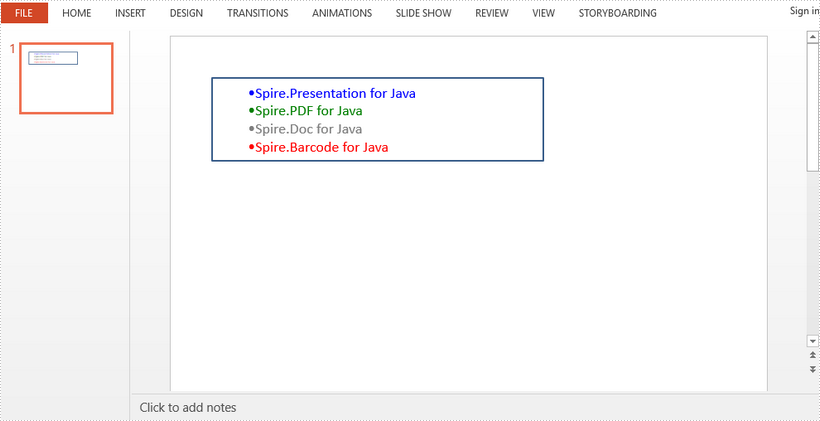
This article demonstrates how to render text with simple HTML tags to formatted text in a presentation slide by using Spire.Presentation for Java.
import com.spire.presentation.FileFormat;
import com.spire.presentation.IAutoShape;
import com.spire.presentation.Presentation;
import com.spire.presentation.ShapeType;
import com.spire.presentation.drawing.FillFormatType;

import java.awt.geom.Rectangle2D;

public class InsertHTML {
    public static void main(String[] args) throws Exception {

        //create a Presentation object
        Presentation ppt = new Presentation();

        //add a shape to the first slide
        IAutoShape shape = ppt.getSlides().get(0).getShapes().appendShape(ShapeType.RECTANGLE, new Rectangle2D.Float(50, 50, 400, 100));
        shape.getFill().setFillType(FillFormatType.NONE);

        //clear the default paragraph
        shape.getTextFrame().getParagraphs().clear();

        //define html string
        String htmlString = "<ul>" +
                            "<li style=\"color:blue\">Spire.Presentation for Java</li>" +
                            "<li style=\"color:green\">Spire.PDF for Java</li>" +
                            "<li style=\"color:gray\">Spire.Doc for Java</li>" +
                            "<li style=\"color:red\">Spire.Barcode for Java</li>" +
                            "</ul>";

        //insert html string in the shape
        shape.getTextFrame().getParagraphs().addFromHtml(htmlString);

        //save to file
        ppt.saveToFile("output/InsertHtml.pptx", FileFormat.PPTX_2013);
    }
}
The table of contents is a field in a Word document that displays the headings of all levels and their corresponding page numbers in the document. Moreover, the table of contents can be updated after changes are made to the content of the document, and new headings and page numbers can be generated according to the new document content. Therefore, the table of contents can be a great convenience both when editing documents and reading them, while also making them more professional. This article is going to show how to insert the table of contents into Word documents through Java programs using Spire.Doc for Java.
- Create a Table of Contents with the Default Format
- Create a Table of Contents with Customized Format
Install Spire.Doc for Java
First, you're required to add the Spire.Doc.jar file as a dependency in your Java program. The JAR file can be downloaded from this link. If you use Maven, you can easily import the JAR file in your application by adding the following code to your project's pom.xml file.
<repositories>
    <repository>
        <id>com.e-iceblue</id>
        <name>e-iceblue</name>
        <url>https://repo.e-iceblue.com/nexus/content/groups/public/</url>
    </repository>
</repositories>
<dependencies>
    <dependency>
        <groupId>e-iceblue</groupId>
        <artifactId>spire.doc</artifactId>
        <version>14.8.4</version>
    </dependency>
</dependencies>
Create a Table of Contents with the Default Format
Before creating a table of contents, it is necessary to set the level for each heading, so that the table of contents can be generated according to each heading and its level. The level of a heading can be set by using the Paragraph.getListFormat().setListLevelNumber(int) method.
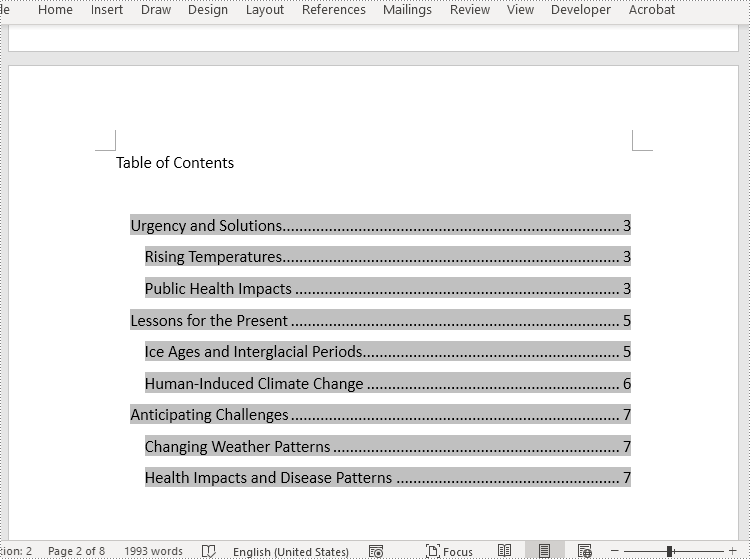
Spire.Doc for Java provides the Paragraph.appendTOC() method to insert a table of contents into a paragraph. The detailed steps for inserting a table of contents with the default style in a Word document are as follows:
- Create an object of Document class.
- Load a Word document using Document.loadFromFile() method.
- Add a section to the document using Document.addSection() method and insert it into the document after the cover section using Document.getSections().insert() method.
- Add a paragraph to the section using Section.addParagraph() method.
- Create a table of contents in the paragraph using Paragraph.appendTOC() method.
- Update the table of contents to display the headings in the document and their page numbers using Document.updateTableOfContents() method.
- Save the document using Document.saveToFile() method.
- Java
import com.spire.doc.Document;
import com.spire.doc.Section;
import com.spire.doc.documents.Paragraph;
import com.spire.doc.fields.TableOfContent;

public class insertTableOfContents {
    public static void main(String[] args) {
        //Create an object of Document class
        Document doc = new Document();

        //Load a Word document
        doc.loadFromFile("Sample.docx");

        //Add a section and insert it into the document after the cover section
        Section section = doc.addSection();
        doc.getSections().insert(1, section);

        //Add a paragraph to the section
        Paragraph paragraph = section.addParagraph();
        paragraph.appendText("Table of Contents\r\n");
        paragraph.getStyle().getCharacterFormat().setFontSize(14f);

        //Create a table of contents in the paragraph
        paragraph.appendTOC(2, 3);

        //Update the table of contents
        doc.updateTableOfContents();

        //Save the document
        doc.saveToFile("CreateTableOfContents.docx");
    }
}
Create a Table of Contents with Customized Format
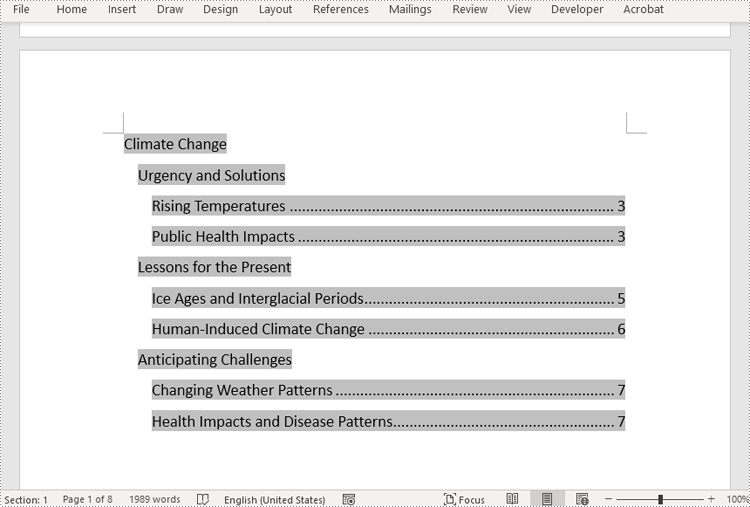
In Spire.Doc for Java, the TableOfContent class represents a table of contents of a Word document. The parts displayed in the table of contents can be customized by the switches while initializing an instance of the TableOfContent class. For example, the switches, "{\\o \"1-3\" \\n 1-2}", mean displaying the first to third level headings while omitting the page numbers of the first and second level headings.
The detailed steps for customizing a table of contents in a Word document are as follows:
- Create an object of Document class.
- Load a Word document using Document.loadFromFile() method.
- Insert a section after the cover section using Document.getSections().insert() method and add a paragraph to the section using Section.addParagraph() method.
- Create an instance of TableOfContent class to create a table of contents that displays the first to third level headings and omits page numbers of the first and second level headings.
- Insert the table of contents to the paragraph using Paragraph.getItems().add() method.
- Insert a field separator mark and a field end mark to the paragraph using Paragraph.appendFieldMark() method to end the table of contents field.
- Set the instance as the table of contents of the document using Document.setTOC() method.
- Update the table of contents to display the current contents for the document using Document.updateTableOfContents() method.
- Save the document using Document.saveToFile() method.
- Java
import com.spire.doc.Document;
import com.spire.doc.Section;
import com.spire.doc.documents.FieldMarkType;
import com.spire.doc.documents.Paragraph;
import com.spire.doc.fields.TableOfContent;

public class insertTableOfContentsWithCustomizedStyle {
    public static void main(String[] args) {
        //Create an object of Document class
        Document doc = new Document();

        //Load a Word document
        doc.loadFromFile("Sample.docx");

        //Insert a section after the first section and add a paragraph in the section
        Section section = doc.addSection();
        doc.getSections().insert(1, section);
        Paragraph paragraph = section.addParagraph();
        paragraph.getStyle().getCharacterFormat().setFontSize(14f);

        //Initialize an instance of TableOfContent class
        TableOfContent toc = new TableOfContent(doc, "{\\o \"1-3\" \\n 1-2}");

        //Insert the table of contents to the document
        paragraph.getItems().add(toc);

        //Insert field marks to end the field
        paragraph.appendFieldMark(FieldMarkType.Field_Separator);
        paragraph.appendFieldMark(FieldMarkType.Field_End);

        //Set the created table of contents as the table of contents of the document
        doc.setTOC(toc);

        //Update the table of contents
        doc.updateTableOfContents();

        //Save the document
        doc.saveToFile("TableOfContentsWithCustomizedStyle.docx");
        doc.dispose();
    }
}
Apply for a Temporary License
If you'd like to remove the evaluation message from the generated documents, or to get rid of the function limitations, please request a 30-day trial license for yourself.
