
Knowledgebase (2417)
Children categories
MS Word Comments feature allows authors to discuss the content with the readers without having to directly edit the content. It is a good way to keep the document neat and clean. In this article, you will learn how to add, delete, or reply to comments in a Word document using Spire.Doc for Java.
Install Spire.Doc for Java
First of all, you're required to add the Spire.Doc.jar file as a dependency in your Java program. The JAR file can be downloaded from this link. If you use Maven, you can easily import the JAR file in your application by adding the following code to your project’s pom.xml file.
<repositories>
    <repository>
        <id>com.e-iceblue</id>
        <name>e-iceblue</name>
        <url>https://repo.e-iceblue.com/nexus/content/groups/public/</url>
    </repository>
</repositories>
<dependencies>
    <dependency>
        <groupId>e-iceblue</groupId>
        <artifactId>spire.doc</artifactId>
        <version>14.8.4</version>
    </dependency>
</dependencies>
Add a Comment to Word
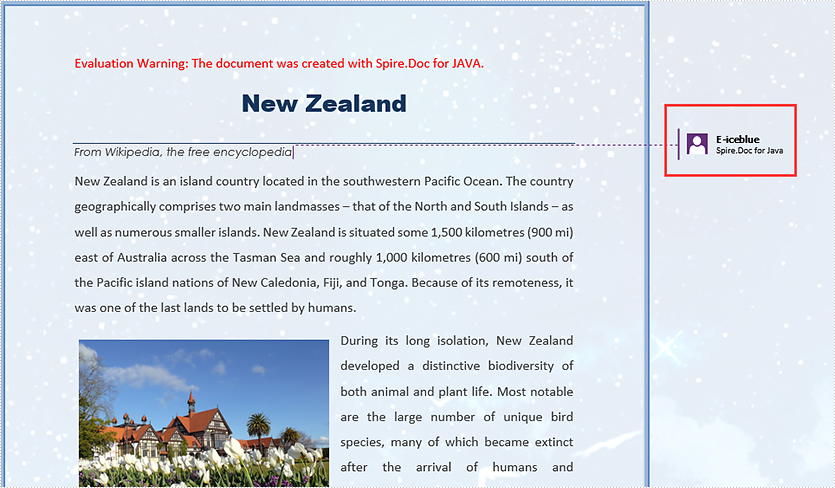
Spire.Doc offers the Paragraph.appendComment() method to a paragraph. The detailed steps are as follows.
- Load the sample Word document while initializing the Document object.
- Get the specific section using Document.getSection() method.
- Get the paragraphs collection using Section.getParagraphs() method, and then get the specific paragraph using ParagraphCollection.get() method.
- Add a comment to the paragraph using Paragraph.appendComment() method.
- Save the document using Document.saveToFile() method.
- Java
import com.spire.doc.*;
import com.spire.doc.documents.Paragraph;
import com.spire.doc.fields.Comment;

public class AddComment {

    public static void main(String[] args) {

        //Load the sample Word document
        Document document= new Document("C:\\Users\\Administrator\\Desktop\\Sample.docx");

        //Get the first section
        Section section = document.getSections().get(0);

        //Get the second paragraph
        Paragraph paragraph = section.getParagraphs().get(1);

        //Add a comment
        Comment comment = paragraph.appendComment("Spire.Doc for Java");
        comment.getFormat().setAuthor("E-iceblue");
        comment.getFormat().setInitial("CM");

        //Save to file
        document.saveToFile("output/AddComment.docx", FileFormat.Docx);
    }
}
Reply to a Comment
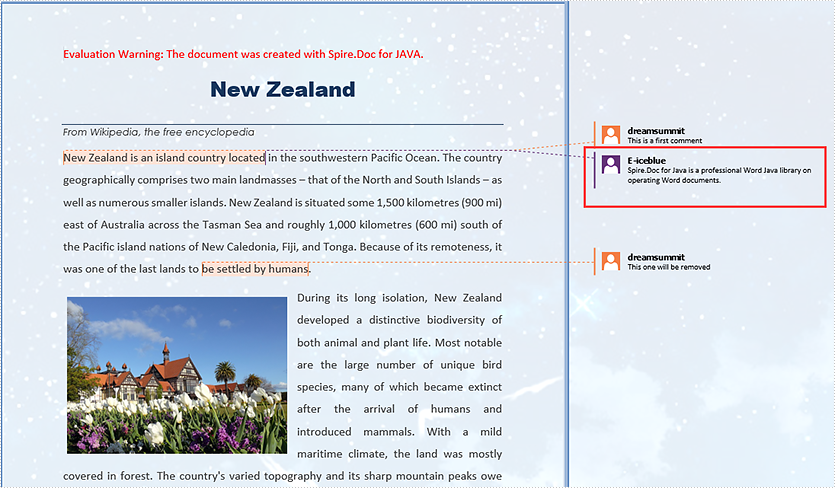
To add a reply to an existing comment, use Comment.replyToComment() method. The following are the detailed steps.
- Load the sample Word document while initializing the Document object.
- Get the comment collection using Document.getComments() method, and then get the specific comment using CommentsCollection.get() method.
- Create a new instance of Comment class, and specify its content and author.
- Add the comment as a reply to an existing comment using Comment.replyToComment() method.
- Save the document using Document.saveToFile() method.
- Java
import com.spire.doc.*;
import com.spire.doc.FileFormat;
import com.spire.doc.fields.*;

public class ReplyToComment {

    public static void main(String[] args) {

        //Load the sample Word document
        Document document= new Document("C:\\Users\\Administrator\\Desktop\\Sample.docx");

        //Get the first comment
        Comment comment1 = document.getComments().get(0);

        //Initialize a Comment object
        Comment replyComment = new Comment(document);

        //Set the author and content of the comment
        replyComment.getFormat().setAuthor("E-iceblue");
        replyComment.getBody().addParagraph().appendText("Spire.Doc for Java is a professional Word Java library on operating Word documents.");

        //Add the new comment as a reply to the first comment
        comment1.replyToComment(replyComment);

        //Save to file
        document.saveToFile("output/ReplyToComment.docx", FileFormat.Docx);
    }
Delete a Comment from Word
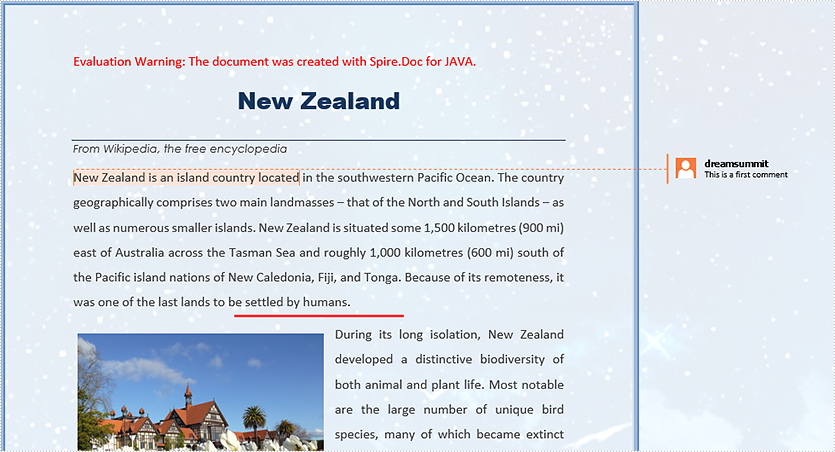
After getting the comments collection through Document.getComments() method, you can use CommentsCollection.removeAt() method to delete the specific comment by its index. Here come the detailed steps.
- Load the sample Word document while initializing the Document object.
- Get the comments collection using Document.getComments() method.
- Remove the specific comment using CommentsCollection.removeAt() method.
- Save the document using Document.saveToFile() method.
- Java
import com.spire.doc.*;
import com.spire.doc.FileFormat;

public class DeleteComment {

    public static void main(String[] args) {

        //Load the sample Word document
        Document document= new Document("C:\\Users\\Administrator\\Desktop\\Sample.docx");

        //Remove the comment by its index
        document.getComments().removeAt(1);

        //Save to file
        document.saveToFile("output/DeleteComment.docx", FileFormat.Docx);
    }
}
Apply for a Temporary License
If you'd like to remove the evaluation message from the generated documents, or to get rid of the function limitations, please request a 30-day trial license for yourself.
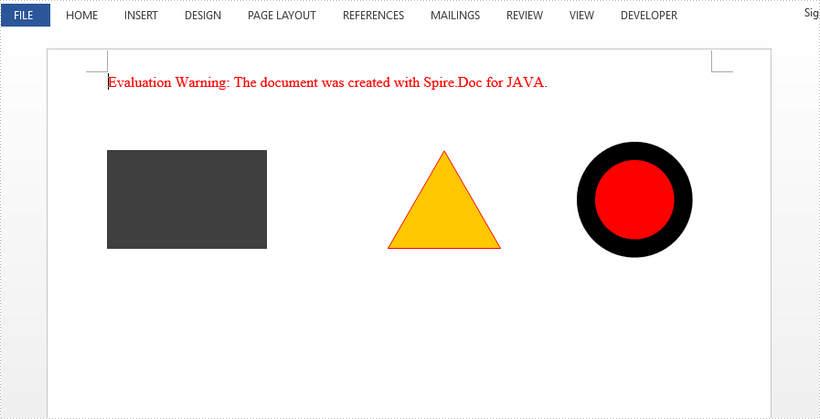
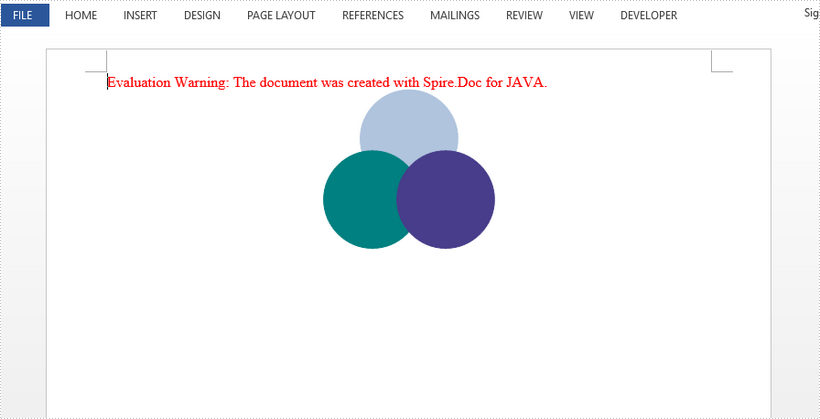
This article demonstrates how to add various kinds of shapes and how to group shapes in a Word document using Spire.Doc for Java.
Insert Shapes
import com.spire.doc.Document;
import com.spire.doc.FileFormat;
import com.spire.doc.Section;
import com.spire.doc.documents.*;
import com.spire.doc.fields.ShapeObject;

import java.awt.*;

public class InsertShapes {

    public static void main(String[] args) throws Exception {

        //create a Word document.
        Document doc = new Document();

        //add a section and a paragraph
        Section sec = doc.addSection();
        Paragraph para = sec.addParagraph();

        //insert a rectangle
        ShapeObject rectangle = para.appendShape(130, 80, ShapeType.Rectangle);
        rectangle.setFillColor(Color.darkGray);
        rectangle.setStrokeColor(Color.darkGray);
        rectangle.setVerticalPosition(50);

        //insert a triangle
        ShapeObject triangle = para.appendShape((float)(160/Math.sqrt(3)),80, ShapeType.Triangle);
        triangle.setStrokeColor(Color.red);
        triangle.setFillColor(Color.orange);
        triangle.setVerticalPosition(50);
        triangle.setHorizontalPosition(200);

        //insert a ellipse
        ShapeObject circle = para.appendShape(80,80, ShapeType.Ellipse);
        circle.setFillColor(Color.RED);
        circle.setStrokeWeight(15);
        circle.setVerticalPosition(50);
        circle.setHorizontalPosition((float)(270 + 160/Math.sqrt(3)));

        //save to file
        doc.saveToFile("output/InsertShapes.docx", FileFormat.Docx);
    }

}
Insert Shape Group
import com.spire.doc.Document;
import com.spire.doc.FileFormat;
import com.spire.doc.Section;
import com.spire.doc.documents.Paragraph;
import com.spire.doc.documents.ShapeType;
import com.spire.doc.fields.ShapeGroup;
import com.spire.doc.fields.ShapeObject;

import java.awt.*;

public class InsertShapeGroup {

    public static void main(String[] args) {

        //create a Word document
        Document doc = new Document();

        //add a section and a paragraph
        Section sec = doc.addSection();
        Paragraph para = sec.addParagraph();

        //get page width
        float pageWidth = sec.getPageSetup().getClientWidth();

        //add a shape group, specifying width, height and horizontal position
        ShapeGroup shapegroup = para.appendShapeGroup(200, 150);
        shapegroup.setHorizontalPosition((pageWidth - 200) / 2);

        //calculate the scale ratio
        float X = (shapegroup.getWidth() / 1000.0f);
        float Y = (shapegroup.getHeight() / 1000.0f);

        //create a circle
        ShapeObject circle_1 = new ShapeObject(doc, ShapeType.Ellipse);
        circle_1.setWidth(80 / X);
        circle_1.setHeight(80 / Y);
        circle_1.setFillColor(new Color(176, 196, 222));
        circle_1.setStrokeColor(new Color(176, 196, 222));
        circle_1.setHorizontalPosition(60 / X);//set its horizontal position relative to shape group

        //add the circle to shape group
        shapegroup.getChildObjects().add(circle_1);

        //add two more circles to shape group
        ShapeObject circle_2 = new ShapeObject(doc, ShapeType.Ellipse);
        circle_2.setWidth(80 / X);
        circle_2.setHeight(80 / Y);
        circle_2.setFillColor(new Color(0, 128, 128));
        circle_2.setStrokeColor(new Color(0, 128, 128));
        circle_2.setHorizontalPosition(30 / X);
        circle_2.setVerticalPosition(50 / Y);
        shapegroup.getChildObjects().add(circle_2);
        ShapeObject circle_3 = new ShapeObject(doc, ShapeType.Ellipse);
        circle_3.setWidth(80 / X);
        circle_3.setHeight(80 / Y);
        circle_3.setFillColor(new Color(72, 61, 139));
        circle_3.setStrokeColor(new Color(72, 61, 139));
        circle_3.setHorizontalPosition(90 / X);
        circle_3.setVerticalPosition(50 / Y);
        shapegroup.getChildObjects().add(circle_3);

        //save the document
        doc.saveToFile("output/InsertShapeGroup.docx", FileFormat.Docx_2010);
    }
}
There are always troublesome situations in the process of creating Word documents. For example, after completing a large Word document, it is discovered that someone’s name or a term, which appears multiple times in the document, was misspelled. Fortunately, there are some simple ways to solve such problems. MS Word has a find-and-replace feature to help users to find the misspelled words in a Word document and replace them with the right ones. However, if you don’t have MS Word, or if you want your application to implement this feature, Spire.Doc for Java is also a good choice. This article shows how to use the professional development component Spire.Doc for Java to find and replace text with new text or images in a Word document.
- Find Text and Replace All Matches with New Text
- Find Text and Replace the First Match with New Text
- Find and Replace Text with a Picture
Install Spire.Doc for Java
First, you're required to add the Spire.Doc.jar file as a dependency in your Java program. The JAR file can be downloaded from this link. If you use Maven, you can easily import the JAR file in your application by adding the following code to your project's pom.xml file.
<repositories>
    <repository>
        <id>com.e-iceblue</id>
        <name>e-iceblue</name>
        <url>https://repo.e-iceblue.com/nexus/content/groups/public/</url>
    </repository>
</repositories>
<dependencies>
    <dependency>
        <groupId>e-iceblue</groupId>
        <artifactId>spire.doc</artifactId>
        <version>14.8.4</version>
    </dependency>
</dependencies>
Find Text and Replace All Matches with New Text
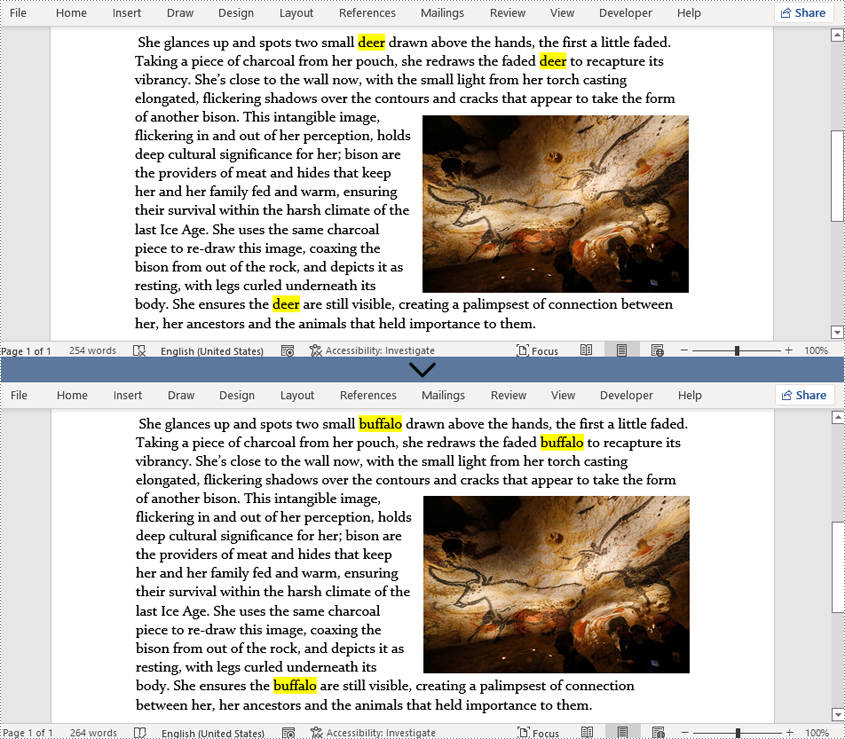
Finding and replacing text in Word documents can be done by Spire.Doc for Java with a simple method Document.replace(). This method replaces all matches of the searched text with new text, and you can decide whether to consider the case and whether to search for whole words.
The detailed steps of finding text and replacing all matches are as follows:
- Create a Document class instance.
- Load a Word document using Document.loadFromFile() method.
- Replace all the matches of text "deer" in the document with new text "buffalo" using Document.replace() method.
- Save the result document using Document.saveToFile() method.
- Java
import com.spire.doc.Document;

public class replaceText {
    public static void main(String[] args) {

        //Create a Document class instance
        Document document = new Document();

        //Load a Word document
        document.loadFromFile("Cave Art.docx");

        //Replace all the matches of text “deer” in the document with new text “buffalo”
        document.replace("deer", "buffalo", false, true);

        //Save the result document
        document.saveToFile("Find&Replace.docx");
    }
}
Find Text and Replace the First Match with New Text
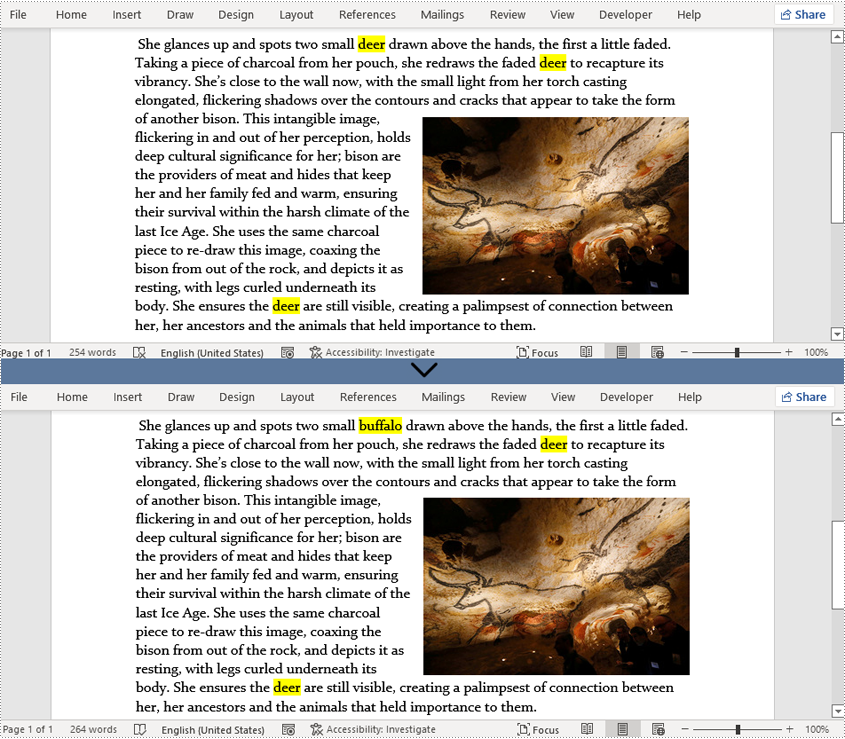
Spire.Doc for Java also provides the Document.setReplaceFirst() method to change the replacement mode of the Document.replace() method to replace the first match or replace all matches.
The detailed steps of finding text and replacing the first match are as follows:
- Create a Document class instance.
- Load a Word document using Document.loadFromFile() method.
- Change the replacement mode as replacing only the first match using Document.setReplaceFirst() method.
- Replace the first match of text "deer" in the document with new text "buffalo" using Document.replace() method.
- Save the result document using Document.saveToFile() method.
- Java
import com.spire.doc.Document;

public class replaceText {
    public static void main(String[] args) {

        //Create a Document class instance
        Document document = new Document();

        //Load a Word document
        document.loadFromFile("Cave Art.docx");

        //Set the replacement mode as replacing only the first match
        document.setReplaceFirst(true);

        //Replace all the matches of text “deer” in the document with new text “buffalo”
        document.replace("deer", "buffalo", false, true);

        //Save the result document
        document.saveToFile("Find&Replace.docx");
    }
}
Find and Replace Text with a Picture
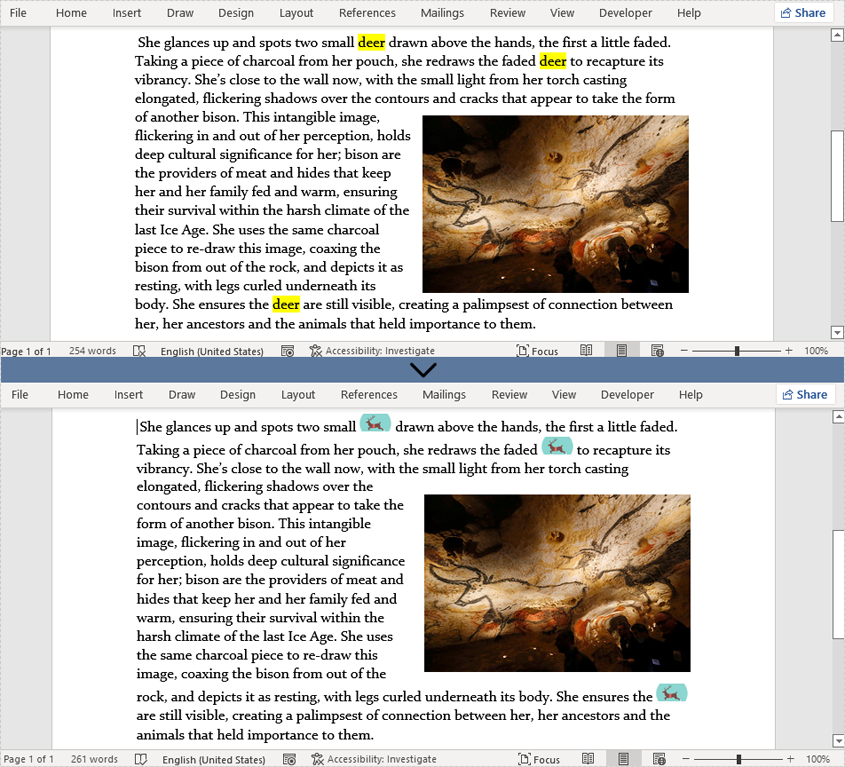
Spire.Doc for Java supports searching text and replacing all matches as pictures as well. To do so, you need to search for the text and get all matches. Then load a picture as a document object, insert it to where the matching text is, and delete the text.
The detailed steps of finding and replacing text with images are as follows:
- Create a Document class instance.
- Load a Word document using Document.loadFromFile() method.
- Find all the strings matching 'deer' in the document using Document.findString() method.
- Loop through the matches to replace all of them with the picture.
- Save the document using Document.saveToFile() method.
- Java
import com.spire.doc.Document;
import com.spire.doc.FileFormat;
import com.spire.doc.documents.TextSelection;
import com.spire.doc.fields.DocPicture;
import com.spire.doc.fields.TextRange;

public class replaceTextWithImage {

    public static void main(String[] args) {

        //Create a Document class instance
        Document document = new Document();

        //Load a Word document
        document.loadFromFile("Cave Art.docx");

        //Find all the strings matching 'deer' in the document
        TextSelection[] selections = document.findAllString("deer", true, true);

        //Replace all the matches with the image
        int index = 0;
        TextRange range = null;
        for (Object obj : selections) {

            TextSelection textSelection = (TextSelection)obj;

            //Create an object of DocPicture class and load a picture
            DocPicture pic = new DocPicture(document);
            pic.loadImage("deer.png");

            range = textSelection.getAsOneRange();
            index = range.getOwnerParagraph().getChildObjects().indexOf(range);
            range.getOwnerParagraph().getChildObjects().insert(index,pic);
            range.getOwnerParagraph().getChildObjects().remove(range);
        }

        //Replace a specific match with the picture
        //Create an object of DocPicture class and load a picture
        //DocPicture pic = new DocPicture(document);
        //pic.loadImage("deer.png");
        //Object object = selections[1];
        //TextSelection selection = (TextSelection) object;
        //TextRange textRange = selection.getAsOneRange();
        //int i = textRange.getOwnerParagraph().getChildObjects().indexOf(textRange);
        //textRange.getOwnerParagraph().getChildObjects().insert(i,pic);
        //textRange.getOwnerParagraph().getChildObjects().remove(textRange);

        //Save the document
        document.saveToFile("ReplaceTextWithImage.docx", FileFormat.Docx_2013);
    }
}
Apply for a Temporary License
If you'd like to remove the evaluation message from the generated documents, or to get rid of the function limitations, please request a 30-day trial license for yourself.
