
Knowledgebase (2417)
Children categories
Word allows you to create forms that other people can use to enter information. Fillable forms are used for a variety of purposes. Human resources use forms to collect employee and consultant information. Marketing departments use forms to survey customer satisfaction with their products and services. Organizations use forms to register members, students, or clients. Some of the tools you will use when creating a form include:
- Content Controls: The areas where users input information in a form.
- Tables: Tables are used in forms to align text and form fields, and to create borders and boxes.
- Protection: Allows users to populate fields but not to make changes to the rest of the document.
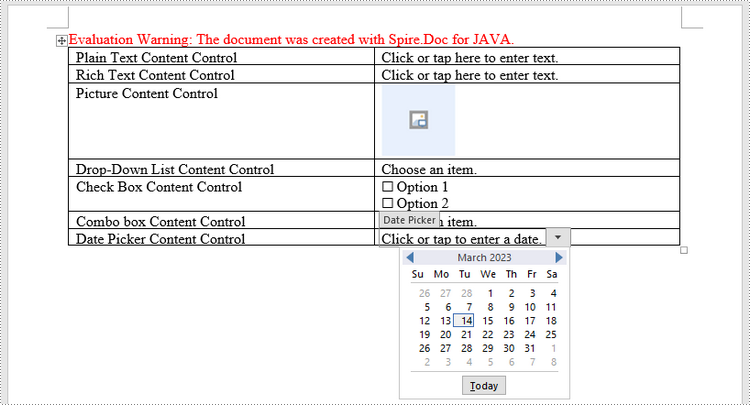
Content controls in Word are containers for content that let users build structured documents. A structured document controls where content appears within the document. There are basically ten types of content controls available in Word 2013. This article focuses on how to create a fillable form in Word consisting of the following seven common content controls using Spire.Doc for Java.
| Content Control | Description |
| Plain Text | A text field limited to plain text, so no formatting can be included. |
| Rich Text | A text field that can contain formatted text or other items, such as tables, pictures, or other content controls. |
| Picture | Accepts a single picture. |
| Drop-Down List | A drop-down list displays a predefined list of items for the user to choose from. |
| Combo Box | A combo box enables users to select a predefined value in a list or type their own value in the text box of the control. |
| Check Box | A check box provides a graphical widget that allows the user to make a binary choice: yes (checked) or no (not checked). |
| Date Picker | Contains a calendar control from which the user can select a date. |
Install Spire.Doc for Java
First of all, you're required to add the Spire.Doc.jar file as a dependency in your Java program. The JAR file can be downloaded from this link. If you use Maven, you can easily import the JAR file in your application by adding the following code to your project's pom.xml file.
<repositories>
    <repository>
        <id>com.e-iceblue</id>
        <name>e-iceblue</name>
        <url>https://repo.e-iceblue.com/nexus/content/groups/public/</url>
    </repository>
</repositories>
<dependencies>
    <dependency>
        <groupId>e-iceblue</groupId>
        <artifactId>spire.doc</artifactId>
        <version>14.8.4</version>
    </dependency>
</dependencies>
Create a Fillable Form in Word in Java
The StructureDocumentTagInline class provided by Spire.Doc for Java is used to create structured document tags for inline-level structures (DrawingML object, fields, etc.) in a paragraph. The SDTProperties property and the SDTContent property under this class shall be used to specify the properties and content of the current structured document tag. The following are the detailed steps to create a fillable form with content controls in Word.
- Create a Document object.
- Add a section using Document.addSection() method.
- Add a table using Section.addTable() method.
- Add a paragraph to a specific table cell using TableCell.addParagraph() method.
- Create an instance of StructureDocumentTagInline class, and add it to the paragraph as a child object using Paragraph.getChildObjects().add() method.
- Specify the properties and content of the structured document tag using the methods under the SDTProperties property and the SDTContent property of the StructureDocumentTagInline object. The type of the structured document tag is set through SDTProperties.setSDTType() method.
- Prevent users from editing content outside form fields using Document.protect() method.
- Save the document using Document.saveToFile() method.
- Java
import com.spire.doc.*;
import com.spire.doc.documents.*;
import com.spire.doc.fields.DocPicture;
import com.spire.doc.fields.TextRange;

import java.util.Date;

public class CreateFillableForm {

    public static void main(String[] args) {

        //Create a Document object
        Document doc = new Document();

        //Add a section
        Section section = doc.addSection();

        //add a table
        Table table = section.addTable(true);
        table.resetCells(7, 2);

        //Add text to the cells of the first column
        Paragraph paragraph = table.getRows().get(0).getCells().get(0).addParagraph();
        paragraph.appendText("Plain Text Content Control");
        paragraph = table.getRows().get(1).getCells().get(0).addParagraph();
        paragraph.appendText("Rich Text Content Control");
        paragraph = table.getRows().get(2).getCells().get(0).addParagraph();
        paragraph.appendText("Picture Content Control");
        paragraph = table.getRows().get(3).getCells().get(0).addParagraph();
        paragraph.appendText("Drop-Down List Content Control");
        paragraph = table.getRows().get(4).getCells().get(0).addParagraph();
        paragraph.appendText("Check Box Content Control");
        paragraph = table.getRows().get(5).getCells().get(0).addParagraph();
        paragraph.appendText("Combo box Content Control");
        paragraph = table.getRows().get(6).getCells().get(0).addParagraph();
        paragraph.appendText("Date Picker Content Control");

        //Add a plain text content control to the cell (0,1)
        paragraph = table.getRows().get(0).getCells().get(1).addParagraph();
        StructureDocumentTagInline sdt = new StructureDocumentTagInline(doc);
        paragraph.getChildObjects().add(sdt);
        sdt.getSDTProperties().setSDTType(SdtType.Text);
        sdt.getSDTProperties().setAlias("Plain Text");
        sdt.getSDTProperties().setTag("Plain Text");
        sdt.getSDTProperties().isShowingPlaceHolder(true);
        SdtText text = new SdtText(true);
        text.isMultiline(false);
        sdt.getSDTProperties().setControlProperties(text);
        TextRange tr = new TextRange(doc);
        tr.setText("Click or tap here to enter text.");
        sdt.getSDTContent().getChildObjects().add(tr);

        //Add a rich text content control to the cell (1,1)
        paragraph = table.getRows().get(1).getCells().get(1).addParagraph();
        sdt = new StructureDocumentTagInline(doc);
        paragraph.getChildObjects().add(sdt);
        sdt.getSDTProperties().setSDTType(SdtType.Rich_Text);
        sdt.getSDTProperties().setAlias("Rich Text");
        sdt.getSDTProperties().setTag("Rich Text");
        sdt.getSDTProperties().isShowingPlaceHolder(true);
        text = new SdtText(true);
        text.isMultiline(false);
        sdt.getSDTProperties().setControlProperties(text);
        tr = new TextRange(doc);
        tr.setText("Click or tap here to enter text.");
        sdt.getSDTContent().getChildObjects().add(tr);

        //Add a picture content control to the cell (2,1)
        paragraph = table.getRows().get(2).getCells().get(1).addParagraph();
        sdt = new StructureDocumentTagInline(doc);
        paragraph.getChildObjects().add(sdt);
        sdt.getSDTProperties().setSDTType(SdtType.Picture);
        sdt.getSDTProperties().setAlias("Picture");
        sdt.getSDTProperties().setTag("Picture");
        SdtPicture sdtPicture = new SdtPicture();
        sdt.getSDTProperties().setControlProperties(sdtPicture);
        DocPicture pic = new DocPicture(doc);
        pic.loadImage("C:\\Users\\Administrator\\Desktop\\ChooseImage.png");
        sdt.getSDTContent().getChildObjects().add(pic);

        //Add a dropdown list content control to the cell(3,1)
        paragraph = table.getRows().get(3).getCells().get(1).addParagraph();
        sdt = new StructureDocumentTagInline(doc);
        sdt.getSDTProperties().setSDTType(SdtType.Drop_Down_List);
        sdt.getSDTProperties().setAlias("Dropdown List");
        sdt.getSDTProperties().setTag("Dropdown List");
        paragraph.getChildObjects().add(sdt);
        SdtDropDownList sddl = new SdtDropDownList();
        sddl.getListItems().add(new SdtListItem("Choose an item.", "1"));
        sddl.getListItems().add(new SdtListItem("Item 2", "2"));
        sddl.getListItems().add(new SdtListItem("Item 3", "3"));
        sddl.getListItems().add(new SdtListItem("Item 4", "4"));
        sdt.getSDTProperties().setControlProperties(sddl);
        tr = new TextRange(doc);
        tr.setText(sddl.getListItems().get(0).getDisplayText());
        sdt.getSDTContent().getChildObjects().add(tr);

        //Add two check box content controls to the cell (4,1)
        paragraph = table.getRows().get(4).getCells().get(1).addParagraph();
        sdt = new StructureDocumentTagInline(doc);
        paragraph.getChildObjects().add(sdt);
        sdt.getSDTProperties().setSDTType(SdtType.Check_Box);
        SdtCheckBox scb = new SdtCheckBox();
        sdt.getSDTProperties().setControlProperties(scb);
        tr = new TextRange(doc);
        sdt.getChildObjects().add(tr);
        scb.setChecked(false);
        paragraph.appendText(" Option 1");

        paragraph = table.getRows().get(4).getCells().get(1).addParagraph();
        sdt = new StructureDocumentTagInline(doc);
        paragraph.getChildObjects().add(sdt);
        sdt.getSDTProperties().setSDTType(SdtType.Check_Box);
        scb = new SdtCheckBox();
        sdt.getSDTProperties().setControlProperties(scb);
        tr = new TextRange(doc);
        sdt.getChildObjects().add(tr);
        scb.setChecked(false);
        paragraph.appendText(" Option 2");

        //Add a combo box content control to the cell (5,1)
        paragraph = table.getRows().get(5).getCells().get(1).addParagraph();
        sdt = new StructureDocumentTagInline(doc);
        paragraph.getChildObjects().add(sdt);
        sdt.getSDTProperties().setSDTType(SdtType.Combo_Box);
        sdt.getSDTProperties().setAlias("Combo Box");
        sdt.getSDTProperties().setTag("Combo Box");
        SdtComboBox cb = new SdtComboBox();
        cb.getListItems().add(new SdtListItem("Choose an item."));
        cb.getListItems().add(new SdtListItem("Item 2"));
        cb.getListItems().add(new SdtListItem("Item 3"));
        sdt.getSDTProperties().setControlProperties(cb);
        tr = new TextRange(doc);
        tr.setText(cb.getListItems().get(0).getDisplayText());
        sdt.getSDTContent().getChildObjects().add(tr);

        //Add a date picker content control to the cell (6,1)
        paragraph = table.getRows().get(6).getCells().get(1).addParagraph();
        sdt = new StructureDocumentTagInline(doc);
        paragraph.getChildObjects().add(sdt);
        sdt.getSDTProperties().setSDTType(SdtType.Date_Picker);
        sdt.getSDTProperties().setAlias("Date Picker");
        sdt.getSDTProperties().setTag("Date Picker");
        SdtDate date = new SdtDate();
        date.setCalendarType(CalendarType.Default);
        date.setDateFormat("yyyy.MM.dd");
        date.setFullDate(new Date());
        sdt.getSDTProperties().setControlProperties(date);
        tr = new TextRange(doc);
        tr.setText("Click or tap to enter a date.");
        sdt.getSDTContent().getChildObjects().add(tr);

        //Allow users to edit the form fields only
        doc.protect(ProtectionType.Allow_Only_Form_Fields, "permission-psd");

        //Save to file
        doc.saveToFile("output/WordForm.docx", FileFormat.Docx_2013);
    }
}
Apply for a Temporary License
If you'd like to remove the evaluation message from the generated documents, or to get rid of the function limitations, please request a 30-day trial license for yourself.
Math equations in Word documents are essential tools for expressing mathematical concepts and relationships. Whether you are writing an academic paper, a scientific report, or any other document involving mathematical content, incorporating math equations can greatly enhance your ability to convey complex mathematical concepts and improve the visual appeal and professionalism of your document. In this article, we will explain how to insert math equations into Word documents in C# and VB.NET using Spire.Doc for .NET.
Install Spire.Doc for .NET
To begin with, you need to add the DLL files included in the Spire.Doc for .NET package as references in your .NET project. The DLL files can be either downloaded from this link or installed via NuGet.
PM> Install-Package Spire.Doc
Insert Math Equations into a Word Document in C# and VB.NET
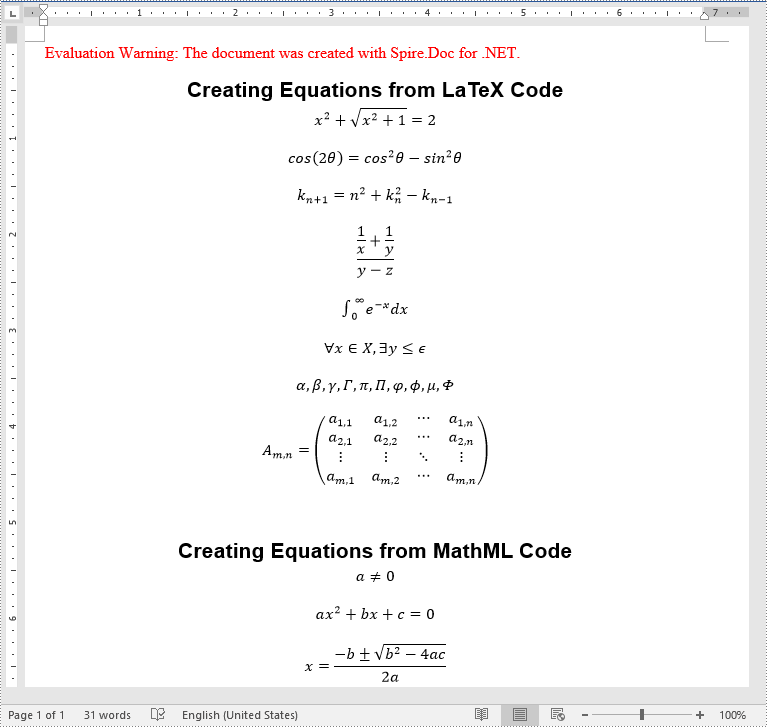
Spire.Doc for .NET allows generating math equations from LaTeX code and MathML code using OfficeMath.FromLatexMathCode(string latexMathCode) and OfficeMath.FromMathMLCode(string mathMLCode) methods. The detailed steps are as follows:
- Create two string arrays from LaTeX code and MathML code.
- Create a Document instance and add a section to it using Document.AddSection() method.
- Iterate through each LaTeX code in the string array.
- Create a math equation from the LaTeX code using OfficeMath.FromLatexMathCode(string latexMathCode) method.
- Add a paragraph to the section, then add the math equation to the paragraph using Paragraph.Items.Add() method.
- Iterate through each MathML code in the string array.
- Create a math equation from the MathML code using OfficeMath.FromMathMLCode(string mathMLCode) method.
- Add a paragraph to the section, then add the math equation to the paragraph using Paragraph.Items.Add() method.
- Save the result document using Document.SaveToFile() method.
- C#
- VB.NET
using Spire.Doc;
using Spire.Doc.Documents;
using Spire.Doc.Fields.OMath;

namespace AddMathEquations
{
    internal class Program
    {
        static void Main(string[] args)
        {
            //Create a string array from LaTeX code
            string[] latexMathCode = {
                "x^{2}+\\sqrt{x^{2}+1}=2",
                "\\cos (2\\theta) = \\cos^2 \\theta - \\sin^2 \\theta",
                "k_{n+1} = n^2 + k_n^2 - k_{n-1}",
                "\\frac {\\frac {1}{x}+ \\frac {1}{y}}{y-z}",
                "\\int_0^ \\infty \\mathrm {e}^{-x} \\, \\mathrm {d}x",
                "\\forall x \\in X, \\quad \\exists y \\leq \\epsilon",
                "\\alpha, \\beta, \\gamma, \\Gamma, \\pi, \\Pi, \\phi, \\varphi, \\mu, \\Phi",
                "A_{m,n} = \\begin{pmatrix} a_{1,1} & a_{1,2} & \\cdots & a_{1,n} \\\\ a_{2,1} & a_{2,2} & \\cdots & a_{2,n} \\\\ \\vdots  & \\vdots  & \\ddots & \\vdots  \\\\ a_{m,1} & a_{m,2} & \\cdots & a_{m,n} \\end{pmatrix}",
            };

            //Create a string array from MathML code
            string[] mathMLCode = {
                "<math xmlns=\"http://www.w3.org/1998/Math/MathML\"><mi>a</mi><mo>≠</mo><mn>0</mn></math>",
                "<math xmlns=\"http://www.w3.org/1998/Math/MathML\"><mi>a</mi><msup><mi>x</mi><mn>2</mn></msup><mo>+</mo><mi>b</mi><mi>x</mi><mo>+</mo><mi>c</mi><mo>=</mo><mn>0</mn></math>",
                "<math xmlns=\"http://www.w3.org/1998/Math/MathML\"><mi>x</mi><mo>=</mo><mrow><mfrac><mrow><mo>−</mo><mi>b</mi><mo>±</mo><msqrt><msup><mi>b</mi><mn>2</mn></msup><mo>−</mo><mn>4</mn><mi>a</mi><mi>c</mi></msqrt></mrow><mrow><mn>2</mn><mi>a</mi></mrow></mfrac></mrow></math>",
            };

            //Create a Document instance
            Document doc = new Document();

            //Add a section
            Section section = doc.AddSection();

            //Add a paragraph to the section
            Paragraph textPara = section.AddParagraph();
            textPara.AppendText("Creating Equations from LaTeX Code");
            textPara.ApplyStyle(BuiltinStyle.Heading1);
            textPara.Format.HorizontalAlignment = HorizontalAlignment.Center;

            //Iterate through each LaTeX code in the string array
            for (int i = 0; i < latexMathCode.Length; i++)
            {
                //Create a math equation from the LaTeX code
                OfficeMath officeMath = new OfficeMath(doc);
                officeMath.FromLatexMathCode(latexMathCode[i]);
                //Add the math equation to the section
                Paragraph paragraph = section.AddParagraph();
                paragraph.Items.Add(officeMath);
                section.AddParagraph();
            }

            section.AddParagraph();

            //Add a paragraph to the section
            textPara = section.AddParagraph();
            textPara.AppendText("Creating Equations from MathML Code");
            textPara.ApplyStyle(BuiltinStyle.Heading1);
            textPara.Format.HorizontalAlignment = HorizontalAlignment.Center;

            //Iterate through each MathML code in the string array
            for (int j = 0; j < mathMLCode.Length; j++)
            {
                //Create a math equation from the MathML code
                OfficeMath officeMath = new OfficeMath(doc);
                officeMath.FromMathMLCode(mathMLCode[j]);
                //Add the math equation to the section
                Paragraph paragraph = section.AddParagraph();
                paragraph.Items.Add(officeMath);
                section.AddParagraph();
            }

            //Save the result document
            doc.SaveToFile("AddMathEquations.docx", FileFormat.Docx2013);
            doc.Dispose();
        }
    }
}
Apply for a Temporary License
If you'd like to remove the evaluation message from the generated documents, or to get rid of the function limitations, please request a 30-day trial license for yourself.
A text box is an element you can insert and position anywhere in a document. MS Word provides several pre-formatted text boxes, and you can also create custom text boxes with unique appearances to grab the reader's attention. In this article, you will learn how to programmatically insert or remove a text box in a Word document using Spire.Doc for Java.
Install Spire.Doc for Java
First, you're required to add the Spire.Doc.jar file as a dependency in your Java program. The JAR file can be downloaded from this link. If you use Maven, you can easily import the JAR file in your application by adding the following code to your project's pom.xml file.
<repositories>
    <repository>
        <id>com.e-iceblue</id>
        <name>e-iceblue</name>
        <url>https://repo.e-iceblue.com/nexus/content/groups/public/</url>
    </repository>
</repositories>
<dependencies>
    <dependency>
        <groupId>e-iceblue</groupId>
        <artifactId>spire.doc</artifactId>
        <version>14.8.4</version>
    </dependency>
</dependencies>
Insert a Text Box in a Word Document
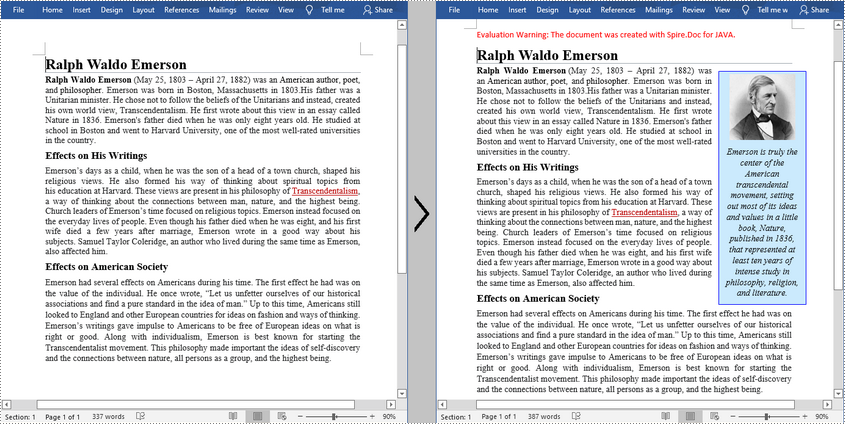
Spire.Doc for Java provides the Paragraph.appendTextBox(float width, float height) method to insert a text box in a specified paragraph. The detailed steps are as follows.
- Create a Document instance, and then load a sample Word document using Document.loadFromFile() method.
- Get the first section using Document.getSections().get() method, and then add a paragraph to the section using Section.addParagraph() method.
- Add a text box to the paragraph using Paragraph.appendTextBox(float width, float height) method.
- Get the format of the text box using TextBox.getFormat() method, and then set the text box's wrapping type, position, border color and fill color using the methods under TextBoxFormat Class.
- Add a paragraph to the text box using TextBox.getBody().addParagraph() method, and then insert an image to the paragraph using Paragraph.appendPicture() method.
- Insert text to the text box using Paragraph.appendText() method, and then set the text font.
- Save the document to another file using Document.saveToFile() method.
- Java
import com.spire.doc.*;
import com.spire.doc.documents.*;
import com.spire.doc.fields.DocPicture;
import com.spire.doc.fields.TextBox;
import com.spire.doc.fields.TextRange;

import java.awt.*;

public class InsertTextbox {

    public static void main(String[] args) {

        //Create a Document instance
        Document doc = new Document();

        //Load a Word document
        doc.loadFromFile("E:\\Files\\Ralph.docx");

        //Append a text box and set its wrapping style
        TextBox tb = doc.getSections().get(0).addParagraph().appendTextBox(120f, 320f);
        tb.getFormat().setTextWrappingStyle(TextWrappingStyle.Square);

        //Set the position of text box
        tb.getFormat().setHorizontalOrigin(HorizontalOrigin.Right_Margin_Area);
        tb.getFormat().setHorizontalPosition(-100f);
        tb.getFormat().setVerticalOrigin(VerticalOrigin.Page);
        tb.getFormat().setVerticalPosition(130f);

        //Set the border color and fill color of the text box
        tb.getFormat().setLineColor(Color.BLUE);
        tb.getFormat().setFillColor(new Color(203,234,253) );

        //Insert an image to text box as a paragraph
        Paragraph para = tb.getBody().addParagraph();
        DocPicture picture = para.appendPicture("C:\\Users\\Administrator\\Desktop\\Ralph.jpg");

        //Set alignment for the paragraph
        para.getFormat().setHorizontalAlignment(HorizontalAlignment.Center);

        //Set the size of the inserted image
        picture.setHeight(90f);
        picture.setWidth(90f);

        //Insert text to text box as the second paragraph
        para = tb.getBody().addParagraph();
        TextRange textRange = para.appendText("Emerson is truly the center of the American transcendental movement, "
                +"setting out most of its ideas and values in a little book, Nature, published in 1836, "
                +"that represented at least ten years of intense study in philosophy, religion, and literature.");

        //Set alignment for the paragraph
        para.getFormat().setHorizontalAlignment(HorizontalAlignment.Center);

        //Set the text font
        textRange.getCharacterFormat().setFontName("Times New Roman");
        textRange.getCharacterFormat().setFontSize(12f);
        textRange.getCharacterFormat().setItalic(true);

        //Save to file
        doc.saveToFile("InsertTextBox.docx", FileFormat.Docx_2013);
    }
}
Remove a Text Box from a Word Document
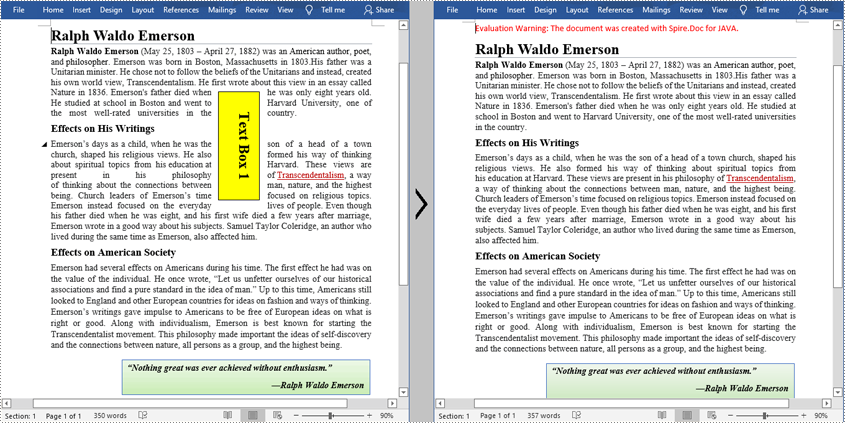
Spire.Doc for Java provides the Document.getTextBoxes().removeAt() method to delete a specified text box by index. If you want to delete all text boxes from the Word document, you can use the Document.getTextBoxes().clear() method. The below example shows how to remove the first text box from a Word document.
- Create a Document instance.
- Load a sample Word document using Document.loadFromFile() method.
- Remove the first text box using Document.getTextBoxes().removeAt() method.
- Save the document to another file using Document.saveToFile() method.
- Java
import com.spire.doc.Document;
import com.spire.doc.FileFormat;

public class DeleteTextbox {

    public static void main(String[] args) {

        //Create a Document instance
        Document doc = new Document();

        //Load a Word document
        doc.loadFromFile("E:\\Files\\TextBox.docx");

        //Remove text box by index
        doc.getTextBoxes().removeAt(0);

        //Remove all text boxes
        //doc.getTextBoxes().clear();

        //Save to file
        doc.saveToFile("RemoveTextbox.docx", FileFormat.Docx);
    }
}
Apply for a Temporary License
If you'd like to remove the evaluation message from the generated documents, or to get rid of the function limitations, please request a 30-day trial license for yourself.
