Knowledgebase (2417)
Children categories
Save Chart, Table and Shape on Presentation slides as Image in Java
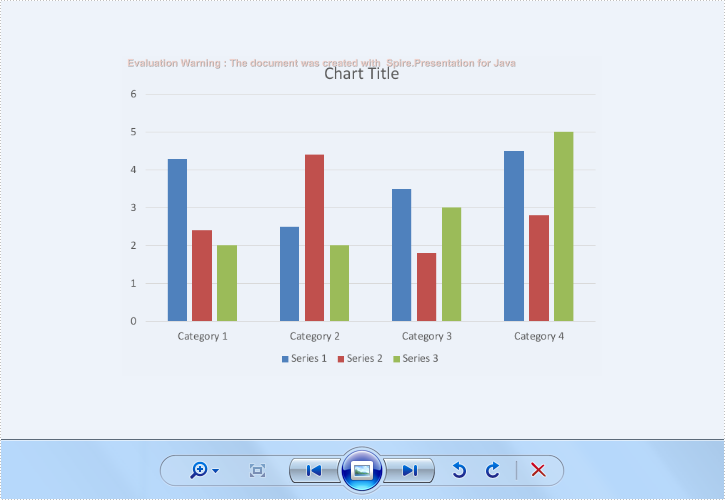
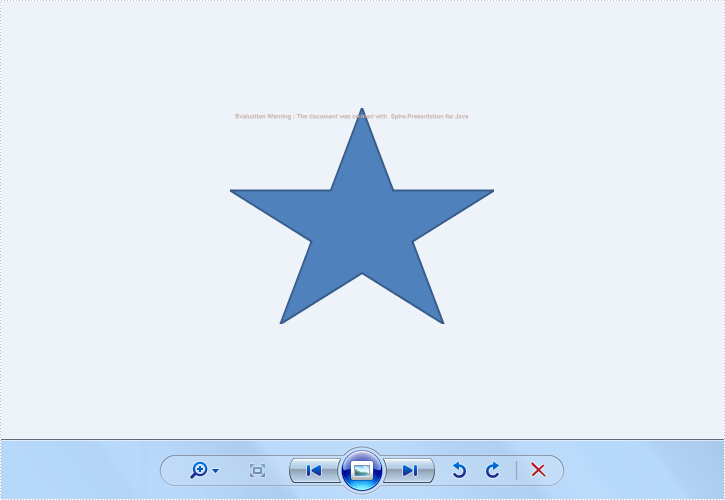
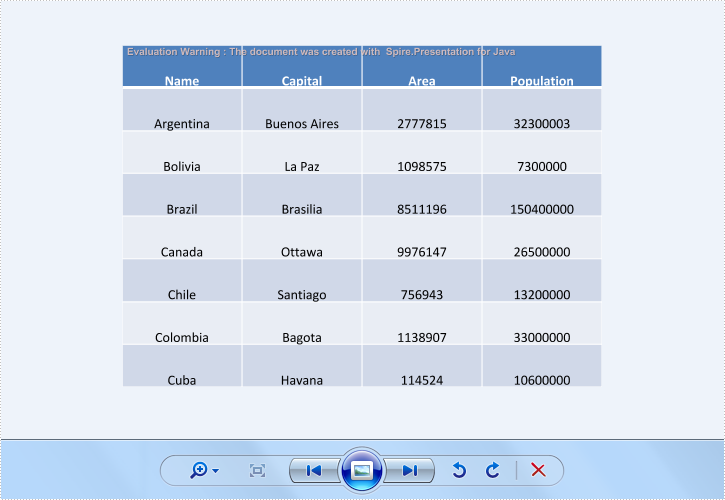
2019-07-09 09:50:09 Written by KoohjiSpire.Presentation for Java supports to save the whole presentation slides with table, chart and shape to image. And it also supports to save the single element in the presentation slides, such as chart, table and shape into image. This article will show you how to save shape and chart on Presentation Slide as image in Java.
import com.spire.presentation.ISlide;
import com.spire.presentation.Presentation;
import javax.imageio.ImageIO;
import java.awt.image.BufferedImage;
import java.io.File;

public class ShapeAsImage {
    public static void main(String[] args) throws Exception {
        String inputFile = "Sample.pptx";
        String outputFile = "output/";

        //Create a Presentation instance and load sample file
        Presentation presentation = new Presentation();
        presentation.loadFromFile(inputFile);

        //Traverse every slides and every shapes on the slides
        int k = 0;
        for (int i = 0; i < presentation.getSlides().getCount(); i++) {
            ISlide slide = presentation.getSlides().get(i);
            for (int j = 0; j < slide.getShapes().getCount(); j++) {
                String fileName = outputFile + String.format("shapeToImage-%1$s.png", k);
                //Save every single shape as image
                BufferedImage image = slide.getShapes().saveAsImage(j);
                ImageIO.write(image, "PNG", new File(fileName));
                k++;
            }
        }
    }
}
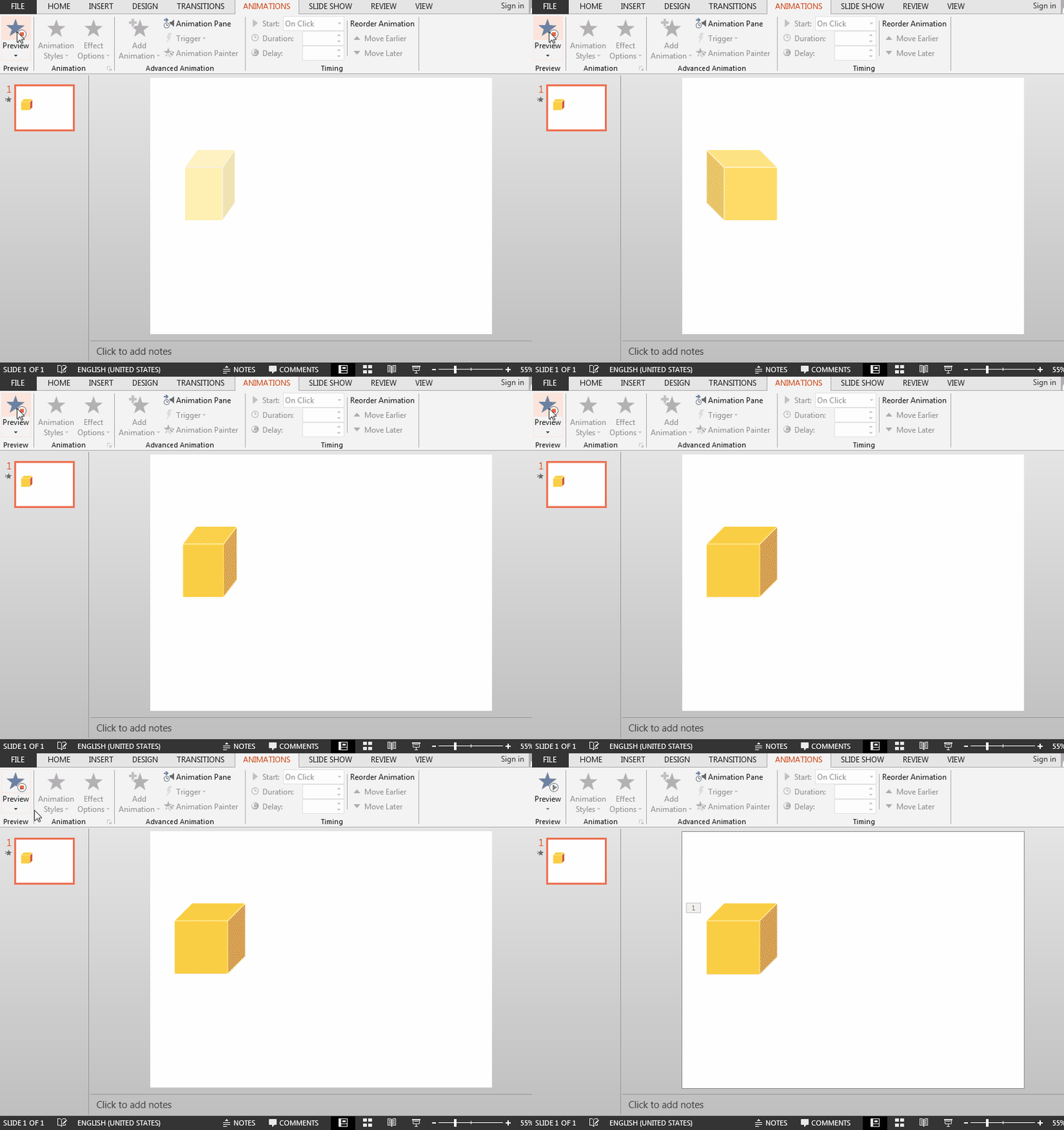
Animation can make a PowerPoint document more dynamic. In this article, we'll introduce how to add animations to shapes in a PowerPoint document using Spire.Presentation for Java.
import com.spire.presentation.*;
import com.spire.presentation.drawing.FillFormatType;
import com.spire.presentation.drawing.animation.AnimationEffectType;

import java.awt.*;

import java.awt.geom.Rectangle2D;

public class SetAnimation {
    public static void main(String[] args) throws Exception {
        //create a PowrePoint document
        Presentation ppt = new Presentation();
        //add a slide
        ISlide slide = ppt.getSlides().get(0);

        //Add a shape to slide
        IAutoShape shape = slide.getShapes().appendShape(ShapeType.CUBE, new Rectangle2D.Double(50, 150, 150, 150));
        shape.getFill().setFillType(FillFormatType.SOLID);
        shape.getFill().getSolidColor().setColor(Color.orange);
        shape.getShapeStyle().getLineColor().setColor(Color.white);

        //Add animation to the shape
        slide.getTimeline().getMainSequence().addEffect(shape, AnimationEffectType.FADED_SWIVEL);

        //save the document
        ppt.saveToFile("AddAnimationToShape.pptx", FileFormat.PPTX_2013);
    }
}
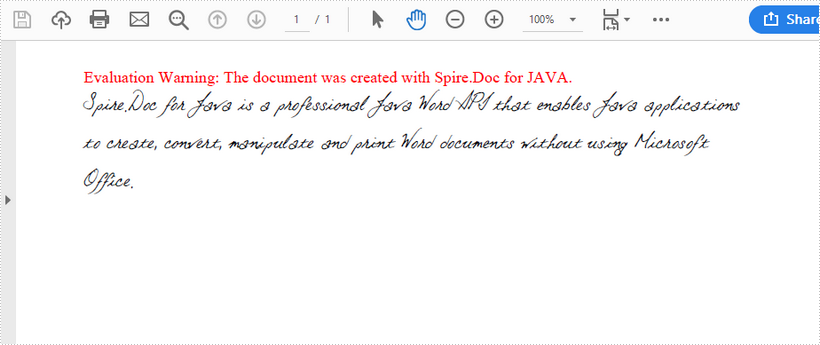
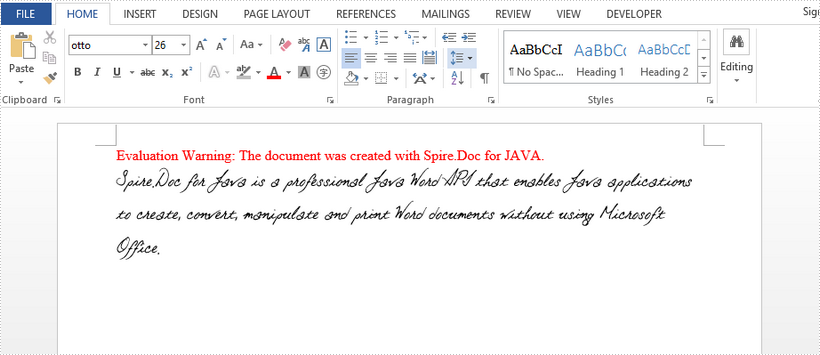
Embedding and applying private fonts in Word or PDF documents can make your documents unique. This article demonstrates how to embed fonts in a Word document as well as a converted PDF document, by using Spire.Doc for Java.
Embed Font in Word Document
import com.spire.doc.Document;
import com.spire.doc.FileFormat;
import com.spire.doc.PrivateFontPath;
import com.spire.doc.documents.Paragraph;
import com.spire.doc.fields.TextRange;

public class EmbedPrivateFontInWord {

    public static void main(String[] args) {

        //create a Word document
        Document document = new Document(false);
        //add a paragraph
        Paragraph paragraph = document.addSection().addParagraph();

        //embed a private font in Word document
        document.setEmbedFontsInFile(true);
        PrivateFontPath fontPath = new PrivateFontPath();
        fontPath.setFontName("Otto");
        fontPath.setFontPath("C:\\Users\\Administrator\\Desktop\\Otto.ttf");
        document.getPrivateFontList().add(fontPath);

        //add text to the paragraph and apply the embedded font
        TextRange tr = paragraph.appendText("Spire.Doc for Java is a professional Java Word API that enables "+
                        "Java applications to create, convert, manipulate and print Word documents without " +
                        "using Microsoft Office.");
        tr.getCharacterFormat().setFontName("Otto");
        tr.getCharacterFormat().setFontSize(26f);

        //save to file
        document.saveToFile("output/EmbedFont.docx", FileFormat.Docx);
    }
}
Embed Font in Converted PDF Document
import com.spire.doc.Document;
import com.spire.doc.PrivateFontPath;
import com.spire.doc.ToPdfParameterList;
import com.spire.doc.documents.Paragraph;
import com.spire.doc.fields.TextRange;

import java.util.*;

public class EmbedPrivateFontInConvertedPDF {

    public static void main(String[] args) {

        //create a Word document
        Document document = new Document(false);
        //add a paragraph
        Paragraph paragraph = document.addSection().addParagraph();

        //initialize PrivateFontPath object
        PrivateFontPath fontPath = new PrivateFontPath("Otto","C:\\Users\\Administrator\\Desktop\\Otto.ttf");

        //add text to paragraph and apply the private font
        TextRange tr = paragraph.appendText("Spire.Doc for Java is a professional Java Word API that enables "+
                "Java applications to create, convert, manipulate and print Word documents without " +
                "using Microsoft Office.");
        tr.getCharacterFormat().setFontName("Otto");
        tr.getCharacterFormat().setFontSize(26f);

        //create a ToPdfParameterList object
        ToPdfParameterList toPdfParameterList = new ToPdfParameterList();

        //set private fonts as a parameter for converting Word to PDF
        List pathList = new LinkedList<>();
        pathList.add(fontPath);
        toPdfParameterList.setPrivateFontPaths(pathList);

        //save to PDF file
        document.saveToFile("output/EmbedFont.pdf",toPdfParameterList);
    }
}