Knowledgebase (2417)
Children categories
Following code snippets demonstrate how to create, rename and delete a folder on mail server by using ImapClient class in Spire.Email.
Create a mail folder
using Spire.Email;
using Spire.Email.IMap;
using System;


namespace CreateMailFolder
{
    class Program
    {
        static void Main(string[] args)
        {
            //create an imapclient with username, password and host
            ImapClient client = new ImapClient();
            client.Username = "test@outlook.com";
            client.Password = "password";
            client.Host = "outlook.office365.com";
            //specify the port
            client.Port = 143;
            //specify the connection protocol
            client.ConnectionProtocols = ConnectionProtocols.Ssl;
            //connect to imap mail server
            client.Connect();
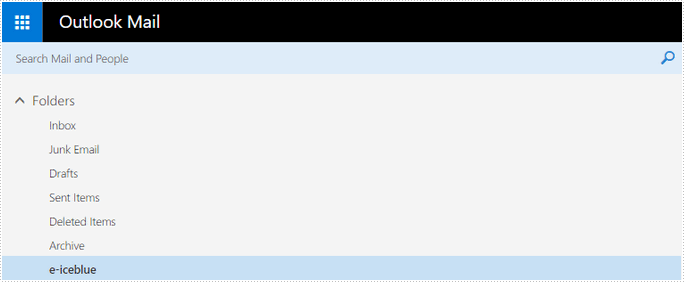
            //create a folder named ‘e-iceblue’
            client.CreateFolder("e-iceblue");
            Console.WriteLine("Done!");
        }
    }
}
Rename a mail folder
using Spire.Email;
using Spire.Email.IMap;
using System;

namespace RenameMailFolder
{
    class Program
    {
        static void Main(string[] args)
        {
            //create an imapclient with username, password and host
            ImapClient client = new ImapClient();
            client.Username = "test@outlook.com";
            client.Password = "password";
            client.Host = "outlook.office365.com";
            //specify the port
            client.Port = 143;
            //specify the connection protocol
            client.ConnectionProtocols = ConnectionProtocols.Ssl;
            //connect to imap mail server
            client.Connect();
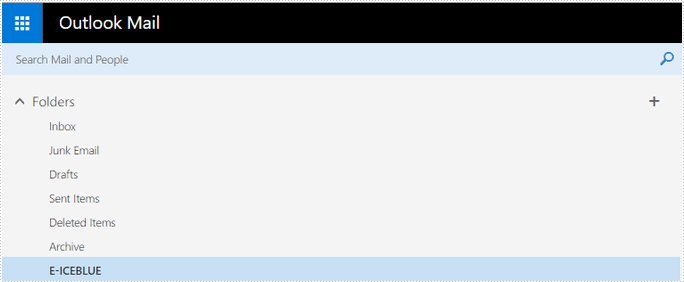
            //rename an existing folder with a new name
            client.RenameFolder("e-iceblue", "E-ICEBLUE");
            Console.WriteLine("Done!");
        }
    }
Delete a mail folder
using Spire.Email;
using Spire.Email.IMap;
using System;

namespace DeleteMailFolder
{
    class Program
    {
        static void Main(string[] args)
        {
            //create an imapclient with username, password and host
            ImapClient client = new ImapClient();
            client.Username = "test@outlook.com";
            client.Password = "password";
            client.Host = "outlook.office365.com";
            //specify the port
            client.Port = 143;
            //specify the connection protocol
            client.ConnectionProtocols = ConnectionProtocols.Ssl;
            //connect to imap mail server
            client.Connect();
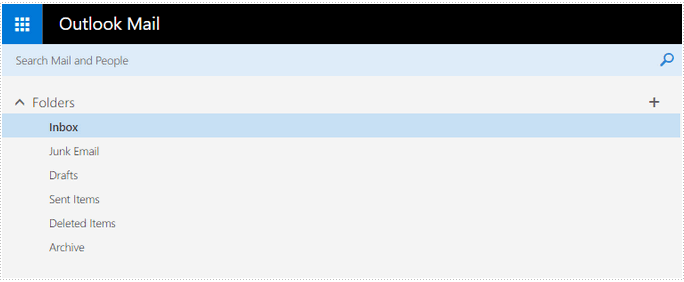
            //delete an existing folder
            client.DeleteFolder("E-ICEBLUE");
            Console.WriteLine("Done!");
        }
    }
}
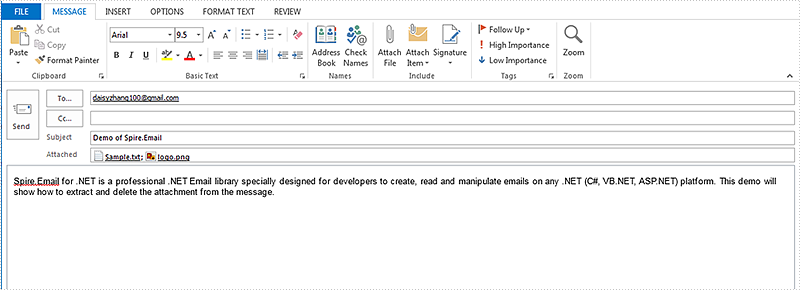
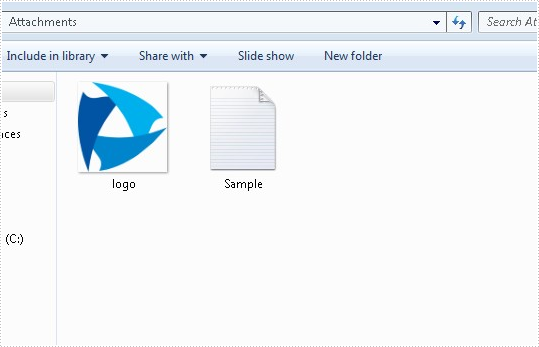
This article demonstrates how to extract the attachment from an email message and delete the attachment via Spire.Email in C# and VB.NET. Spire.Email supports to work with MSG, EML, EMLX, MHTML, PST, OST and TNEF email file formats. On this article we use .msg message format for example.
Firstly, please view the sample email message with attachments:
How to extract the attachment from an Email message:
using Spire.Email;
using System.IO;


namespace ExtractAttachment
{
    class Program
    {
        static void Main(string[] args)
        {
            //Load the mail message from file
            MailMessage mail = MailMessage.Load("Test.msg");

            //Create a folder named Attachments
            if (!Directory.Exists("Attachments"))
            {
                Directory.CreateDirectory("Attachments");
            }

            foreach (Attachment attach in mail.Attachments)
            {
                //To get and save the attachment
                string filePath = string.Format("Attachments\\{0}", attach.ContentType.Name);
                if (File.Exists(filePath))
                {
                    File.Delete(filePath);
                }
                FileStream fs = File.Create(filePath);
                attach.Data.CopyTo(fs);
            }
        }
    }
}
Imports Spire.Email
Imports System.IO


Namespace ExtractAttachment
	Class Program
		Private Shared Sub Main(args As String())
			'Load the mail message from file
			Dim mail As MailMessage = MailMessage.Load("Test.msg")

			'Create a folder named Attachments
			If Not Directory.Exists("Attachments") Then
				Directory.CreateDirectory("Attachments")
			End If

			For Each attach As Attachment In mail.Attachments
				'To get and save the attachment
				Dim filePath As String = String.Format("Attachments\{0}", attach.ContentType.Name)
				If File.Exists(filePath) Then
					File.Delete(filePath)
				End If
				Dim fs As FileStream = File.Create(filePath)
				attach.Data.CopyTo(fs)
			Next
		End Sub
	End Class
End Namespace
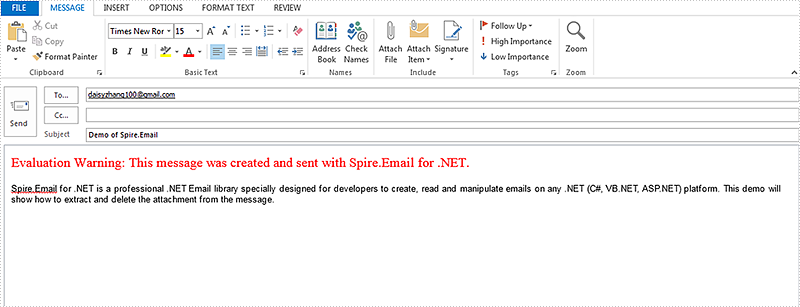
How to delete the attachment from an Email message:
using Spire.Email;


namespace DeleteAttachment
{
    class Program
    {
        static void Main(string[] args)
        {
            MailMessage mail = MailMessage.Load("Test.msg");
            // Delete the attachment by index
            mail.Attachments.RemoveAt(0);
            // Delete the attachment by attachment name
            for (int i = 0; i < mail.Attachments.Count; i++)
            {
                Attachment attach = mail.Attachments[i];
                if (attach.ContentType.Name == "logo.png")
                {
                    mail.Attachments.Remove(attach);
                }
            }
            mail.Save("HasDeletedAttachment.msg", MailMessageFormat.Msg);
        }
    }
}
Imports Spire.Email


Namespace DeleteAttachment
	Class Program
		Private Shared Sub Main(args As String())
			Dim mail As MailMessage = MailMessage.Load("Test.msg")
			' Delete the attachment by index
			mail.Attachments.RemoveAt(0)
			' Delete the attachment by attachment name
			For i As Integer = 0 To mail.Attachments.Count - 1
				Dim attach As Attachment = mail.Attachments(i)
				If attach.ContentType.Name = "logo.png" Then
					mail.Attachments.Remove(attach)
				End If
			Next
			mail.Save("HasDeletedAttachment.msg", MailMessageFormat.Msg)
		End Sub
	End Class
End Namespace
Spire.Email allows receiving email messages with POP3 client and IMAP client. The following examples demonstrate how to retrieve an email using both POP3 and IMAP clients and save it to disk in C# and VB.NET.
Use POP3 client
using Spire.Email;
using Spire.Email.Pop3;
using System;
using System.Globalization;

namespace ReceiveAndSaveEmailByUsingPOP3client
{
    class Program
    {
        static void Main(string[] args)
        {
            //Create a POP3 client
            Pop3Client pop = new Pop3Client();
            //Set host, username, password etc. for the client
            pop.Host = "outlook.office365.com";
            pop.Username = "LeonDavisLD@outlook.com";
            pop.Password = "password";
            pop.Port = 995;
            pop.EnableSsl = true;
            //Connect the server
            pop.Connect();

            //Get the first message by its sequence number
            MailMessage message = pop.GetMessage(1);

            //Parse the message
            Console.WriteLine("------------------ HEADERS ---------------");
            Console.WriteLine("From   : " + message.From.ToString());
            Console.WriteLine("To     : " + message.To.ToString());
            Console.WriteLine("Date   : " + message.Date.ToString(CultureInfo.InvariantCulture));
            Console.WriteLine("Subject: " + message.Subject);
            Console.WriteLine("------------------- BODY -----------------");
            Console.WriteLine(message.BodyText);
            Console.WriteLine("------------------- END ------------------");

            //Save the message to disk using its subject as file name
            message.Save(message.Subject + ".eml", MailMessageFormat.Eml);

            Console.WriteLine("Message Saved.");
            Console.ReadKey();
        }
    }
}
Imports Spire.Email
Imports Spire.Email.Pop3
Imports System.Globalization

Namespace ReceiveAndSaveEmailByUsingPOP3client
	Class Program
		Private Shared Sub Main(args As String())
			'Create a POP3 client
			Dim pop As New Pop3Client()
			'Set host, username, password etc. for the client
			pop.Host = "outlook.office365.com"
			pop.Username = "LeonDavisLD@outlook.com"
			pop.Password = "password"
			pop.Port = 995
			pop.EnableSsl = True
			'Connect the server
			pop.Connect()

			'Get the first message by its sequence number
			Dim message As MailMessage = pop.GetMessage(1)

			'Parse the message
			Console.WriteLine("------------------ HEADERS ---------------")
			Console.WriteLine("From   : " + message.From.ToString())
			Console.WriteLine("To     : " + message.[To].ToString())
			Console.WriteLine("Date   : " + message.[Date].ToString(CultureInfo.InvariantCulture))
			Console.WriteLine("Subject: " + message.Subject)
			Console.WriteLine("------------------- BODY -----------------")
			Console.WriteLine(message.BodyText)
			Console.WriteLine("------------------- END ------------------")

			'Save the message to disk using its subject as file name
			message.Save(message.Subject + ".eml", MailMessageFormat.Eml)

			Console.WriteLine("Message Saved.")
			Console.ReadKey()
		End Sub
	End Class
End Namespace
Use IMAP client
using Spire.Email;
using Spire.Email.IMap;
using System;
using System.Globalization;


namespace ReceiveAndSaveEmailByUsingIMAPclient
{
    class Program
    {
        static void Main(string[] args)
        {
            //Create an IMAP client
            ImapClient imap = new ImapClient();
            // Set host, username, password etc. for the client
            imap.Host = "outlook.office365.com";
            imap.Port = 143;
            imap.Username = "LeonDavisLD@outlook.com";
            imap.Password = "password";
            imap.ConnectionProtocols = ConnectionProtocols.Ssl;
            //Connect the server
            imap.Connect();

            //Select Inbox folder
            imap.Select("Inbox");

            //Get the first message by its sequence number
            MailMessage message = imap.GetFullMessage(1);

            //Parse the message
            Console.WriteLine("------------------ HEADERS ---------------");
            Console.WriteLine("From   : " + message.From.ToString());
            Console.WriteLine("To     : " + message.To.ToString());
            Console.WriteLine("Date   : " + message.Date.ToString(CultureInfo.InvariantCulture));
            Console.WriteLine("Subject: " + message.Subject);
            Console.WriteLine("------------------- BODY -----------------");
            Console.WriteLine(message.BodyText);
            Console.WriteLine("------------------- END ------------------");

            //Save the message to disk using its subject as file name
            message.Save(message.Subject + ".eml", MailMessageFormat.Eml);

            Console.WriteLine("Message Saved.");
            Console.ReadKey();
        }
    }
}
Imports Spire.Email
Imports Spire.Email.IMap
Imports System.Globalization


Namespace ReceiveAndSaveEmailByUsingIMAPclient
	Class Program
		Private Shared Sub Main(args As String())
			'Create an IMAP client
			Dim imap As New ImapClient()
			' Set host, username, password etc. for the client
			imap.Host = "outlook.office365.com"
			imap.Port = 143
			imap.Username = "LeonDavisLD@outlook.com"
			imap.Password = "password"
			imap.ConnectionProtocols = ConnectionProtocols.Ssl
			'Connect the server
			imap.Connect()

			'Select Inbox folder
			imap.[Select]("Inbox")

			'Get the first message by its sequence number
			Dim message As MailMessage = imap.GetFullMessage(1)

			'Parse the message
			Console.WriteLine("------------------ HEADERS ---------------")
			Console.WriteLine("From   : " + message.From.ToString())
			Console.WriteLine("To     : " + message.[To].ToString())
			Console.WriteLine("Date   : " + message.[Date].ToString(CultureInfo.InvariantCulture))
			Console.WriteLine("Subject: " + message.Subject)
			Console.WriteLine("------------------- BODY -----------------")
			Console.WriteLine(message.BodyText)
			Console.WriteLine("------------------- END ------------------")

			'Save the message to disk using its subject as file name
			message.Save(message.Subject + ".eml", MailMessageFormat.Eml)

			Console.WriteLine("Message Saved.")
			Console.ReadKey()
		End Sub
	End Class
End Namespace
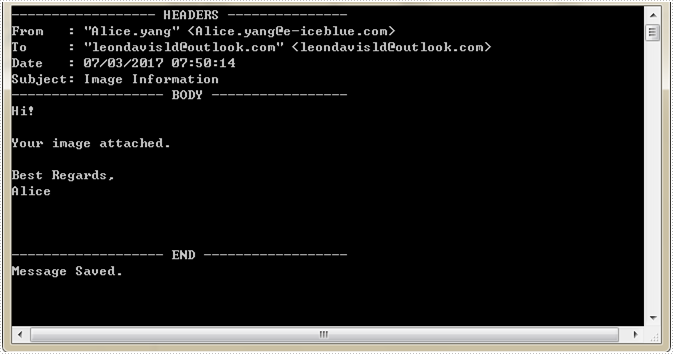
Screenshot: