
Knowledgebase (2417)
Children categories
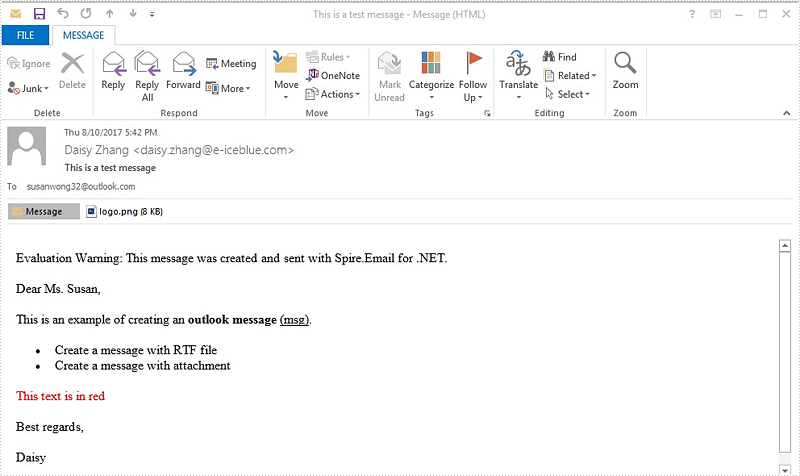
Spire.Email supports to create Outlook message (MSG) files with rich text bodies and attachments in C# and VB.NET. The RTF body supports to set the formatting for the font, such as in bold, underline and set the color and add lists to the message body. It makes the outlook message vivid and clear to view. Here comes to the steps of how to use Spire.Email to create and save the Outlook message with RTF body and attachment in C#.
Step 1: Create an instance of MailMessage class and specify sender and recipient address.
MailAddress addressFrom = new MailAddress("daisy.zhang@e-iceblue.com", "Daisy Zhang");
MailAddress addressTo = new MailAddress("susanwong32@outlook.com");
MailMessage mail = new MailMessage(addressFrom, addressTo);
Step 2: Add the subject, message body and attachment of the message.
mail.Subject = "This is a test message";

string htmlString = @"
   <p>Dear Ms. Susan,</p>
   <p>This is an example of creating an <b>outlook message</b> <u>(msg)</u>.</p>
   <ul>
   <li> Create a message with RTF file </li>
   <li> Create a message with attachment</li>
   </ul>
   <p style='color:red'>This text is in red </p>

   <p>Best regards, </p>
   <p>Daisy </p>";
 mail.BodyHtml = htmlString;

 mail.Attachments.Add(new Attachment("logo.png"));
Step 3: Save the message as MSG format.
mail.Save("Sample.msg", MailMessageFormat.Msg);
Effective screenshot:
Full codes:
using Spire.Email;

namespace CreatingMSGFiles
{
    class Program
    {
        static void Main(string[] args)
        {
            MailAddress addressFrom = new MailAddress("daisy.zhang@e-iceblue.com", "Daisy Zhang");
            MailAddress addressTo = new MailAddress("susanwong32@outlook.com");

            MailMessage mail = new MailMessage(addressFrom, addressTo);

            mail.Subject = "This is a test message";
            string htmlString = @"
           <p>Dear Ms. Susan,</p>
           <p>This is an example of creating an <b>outlook message</b> <u>(msg)</u>.</p>
           <ul>
           <li> Create a message with RTF file </li>
           <li> Create a message with attachment</li>
           </ul>
           <p style='color:red'>This text is in red </p>
           <p>Best regards, </p>
           <p>Daisy </p>";

            mail.BodyHtml = htmlString;

            mail.Attachments.Add(new Attachment("logo.png"));

            mail.Save("Sample.msg", MailMessageFormat.Msg);
        }
    }
}
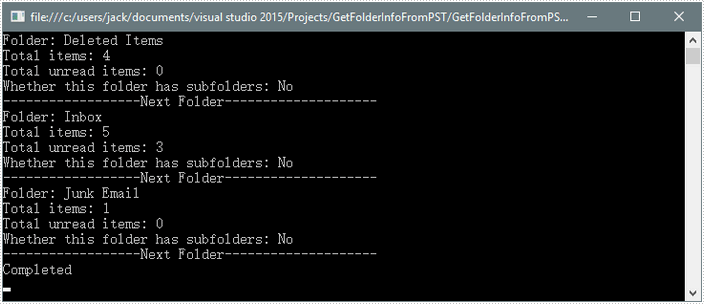
The PST files are used to store information that pertains to the e-mail folders, addresses, contact information, email messages and other data that is saved within Outlook and Exchange programs. Spire.Email supports to read PST files and get the folder information such as folder name, message count and unread message count.
Step 1: Load a PST file from disk into an instance of OutlookFile class.
OutlookFile olf = new OutlookFile(@"C:\Users\jack\Documents\Outlook Files\Sample.pst");
Step 2: Get the folders collection.
OutlookFolderCollection folderCollection = olf.RootOutlookFolder.GetSubFolders();
Step 3: Traverse the collection and get the folder information of each element in the collection.
foreach (OutlookFolder folder in folderCollection)
{
    Console.WriteLine("Folder: " + folder.Name);
    Console.WriteLine("Total items: " + folder.ItemCount);
    Console.WriteLine("Total unread items: " + folder.UnreadItemCount);
    Console.WriteLine("Whether this folder has subfolders: {0}", (folder.HasSubFolders)?"Yes":"No");
    Console.WriteLine("------------------Next Folder--------------------");
}
Output:
Full Code:
using Spire.Email;
using Spire.Email.Outlook;
using System;

namespace GetFolderInformation
{
    class Program
    {
        static void Main(string[] args)
        {
            OutlookFile olf = new OutlookFile(@"C:\Users\jack\Documents\Outlook Files\Sample.pst");
            OutlookFolderCollection folderCollection = olf.RootOutlookFolder.GetSubFolders();

            foreach (OutlookFolder folder in folderCollection)
            {
                Console.WriteLine("Folder: " + folder.Name);
                Console.WriteLine("Total items: " + folder.ItemCount);
                Console.WriteLine("Total unread items: " + folder.UnreadItemCount);
                Console.WriteLine("Whether this folder has subfolders: {0}", (folder.HasSubFolders) ? "Yes" : "No");
                Console.WriteLine("------------------Next Folder--------------------");
            }
            Console.WriteLine("Completed");
        }
    }
}
Imports Spire.Email
Imports Spire.Email.Outlook

Namespace GetFolderInformation
	Class Program
		Private Shared Sub Main(args As String())
			Dim olf As New OutlookFile("C:\Users\jack\Documents\Outlook Files\Sample.pst")
			Dim folderCollection As OutlookFolderCollection = olf.RootOutlookFolder.GetSubFolders()

			For Each folder As OutlookFolder In folderCollection
				Console.WriteLine("Folder: " + folder.Name)
				Console.WriteLine("Total items: " + folder.ItemCount)
				Console.WriteLine("Total unread items: " + folder.UnreadItemCount)
				Console.WriteLine("Whether this folder has subfolders: {0}", If((folder.HasSubFolders), "Yes", "No"))
				Console.WriteLine("------------------Next Folder--------------------")
			Next
			Console.WriteLine("Completed")
		End Sub
	End Class
End Namespace
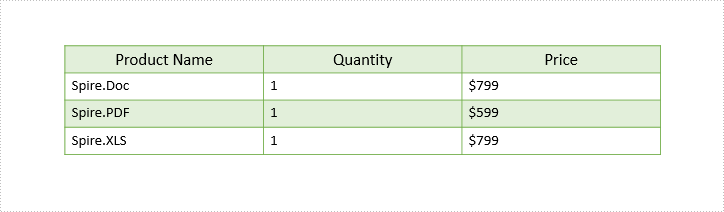
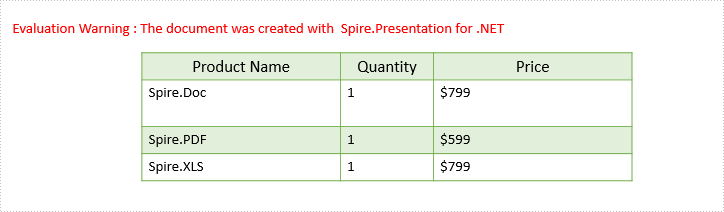
This article demonstrates how to set the row height and column width of an existing table in PowerPoint document using Spire.Presentation in C# and VB.NET.
The following screenshot shows the table before setting row height and column width.
Detail steps:
Step 1: Instantiate a Presentation object and load the PowerPoint document.
Presentation ppt = new Presentation();
ppt.LoadFromFile("Input.pptx");
Step 2: Get the first slide.
ISlide slide = ppt.Slides[0];
Step 3: Get the first table on the slide.
ITable table = ppt.Slides[0].Shapes[0] as ITable;
Step 4: Set table row height and column width.
table.TableRows[1].Height = 50;
table.ColumnsList[1].Width = 100;
Step 5: Save the document.
ppt.SaveToFile("Output.pptx", FileFormat.Pptx2013);
Screenshot:
Full code:
using Spire.Presentation;

namespace Set_table_column_width_and_row_height
{
    class Program
    {
        static void Main(string[] args)
        {
            Presentation ppt = new Presentation();
            ppt.LoadFromFile("Input.pptx");

            ISlide slide = ppt.Slides[0];

            ITable table = ppt.Slides[0].Shapes[0] as ITable;

            table.TableRows[1].Height = 50;
            table.ColumnsList[1].Width = 100;

            ppt.SaveToFile("Output.pptx", FileFormat.Pptx2013);
        }
    }
}
Imports Spire.Presentation

Namespace Set_table_column_width_and_row_height
	Class Program
		Private Shared Sub Main(args As String())
			Dim ppt As New Presentation()
			ppt.LoadFromFile("Input.pptx")

			Dim slide As ISlide = ppt.Slides(0)

			Dim table As ITable = TryCast(ppt.Slides(0).Shapes(0), ITable)

			table.TableRows(1).Height = 50
			table.ColumnsList(1).Width = 100

			ppt.SaveToFile("Output.pptx", FileFormat.Pptx2013)
		End Sub
	End Class
End Namespace
