
Knowledgebase (2417)
Children categories
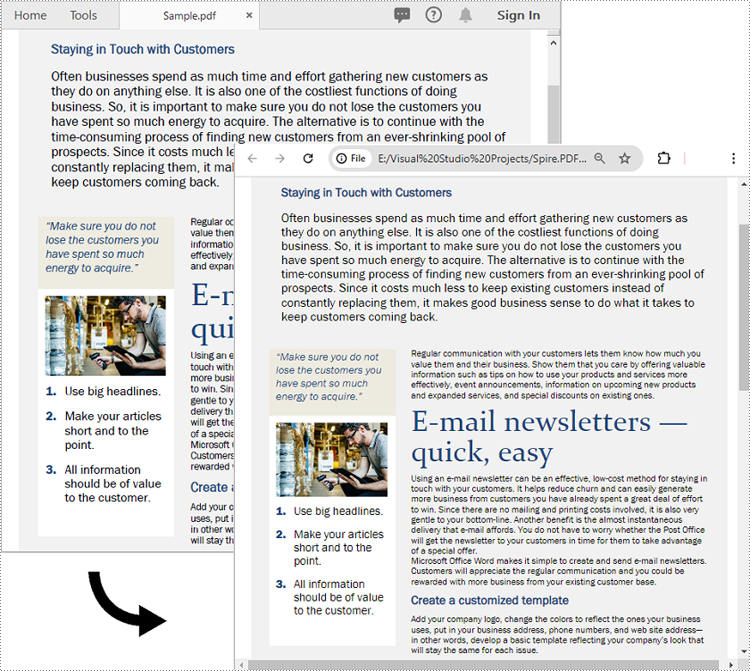
PDF documents have been a popular choice for sharing information due to their cross-platform compatibility and ability to preserve the original layout and formatting. However, as the web continues to evolve, there is an increasing demand for content that can be easily integrated into websites and other online platforms. In this context, converting PDF to HTML format has become highly valuable. By converting PDF files to more flexible and accessible HTML, users gain the ability to better utilize, share, and reuse PDF-based information within the web environment. In this article, we will demonstrate how to convert PDF files to HTML format in C# using Spire.PDF for .NET.
- Convert PDF to HTML in C#
- Set Conversion Options When Converting PDF to HTML in C#
- Convert PDF to HTML Stream in C#
Install Spire.PDF for .NET
To begin with, you need to add the DLL files included in the Spire.PDF for.NET package as references in your .NET project. The DLL files can be either downloaded from this link or installed via NuGet.
PM> Install-Package Spire.PDF
Convert PDF to HTML in C#
To convert a PDF document to HTML format, you can use the PdfDocument.SaveToFile(string fileName, FileFormat.HTML) method provided by Spire.PDF for .NET. The detailed steps are as follows.
- Create an instance of the PdfDocument class.
- Load a PDF document using the PdfDocument.LoadFromFile(string fileName) method.
- Save the PDF document to HTML format using the PdfDocument.SaveToFile(string fileName, FileFormat.HTML) method.
- C#
using Spire.Pdf;

namespace ConvertPdfToHtml
{
    internal class Program
    {
        static void Main(string[] args)
        {
            // Create an instance of the PdfDocument class
            PdfDocument doc = new PdfDocument();

            // Load a PDF document
            doc.LoadFromFile("Sample.pdf");

            // Save the PDF document to HTML format
            doc.SaveToFile("PdfToHtml.html", FileFormat.HTML);
            doc.Close();
        }
    }
}
Set Conversion Options When Converting PDF to HTML in C#
The PdfConvertOptions.SetPdfToHtmlOptions() method allows you to customize the conversion options when transforming PDF files to HTML. This method takes several parameters that you can use to configure the conversion process, such as:
- useEmbeddedSvg (bool): Indicates whether to embed SVG in the resulting HTML file.
- useEmbeddedImg (bool): Indicates whether to embed images in the resulting HTML file. This option is applicable only when useEmbeddedSvg is set to false.
- maxPageOneFile (int): Specifies the maximum number of pages to be included per HTML file. This option is applicable only when useEmbeddedSvg is set to false.
- useHighQualityEmbeddedSvg (bool): Indicates whether to use high-quality embedded SVG in the resulting HTML file. This option is applicable when useEmbeddedSvg is set to true.
The following steps explain how to customize the conversion options when transforming a PDF to HTML using Spire.PDF for .NET.
- Create an instance of the PdfDocument class.
- Load a PDF document using the PdfDocument.LoadFromFile(string fileName) method.
- Get the PdfConvertOptions object using the PdfDocument.ConvertOptions property.
- Set the PDF to HTML conversion options using PdfConvertOptions.SetPdfToHtmlOptions(bool useEmbeddedSvg, bool useEmbeddedImg, int maxPageOneFile, bool useHighQualityEmbeddedSvg) method.
- Save the PDF document to HTML format using PdfDocument.SaveToFile(string fileName, FileFormat.HTML) method.
- C#
using Spire.Pdf;

namespace ConvertPdfToHtmlWithCustomOptions
{
    internal class Program
    {
        static void Main(string[] args)
        {
            // Create an instance of the PdfDocument class
            PdfDocument doc = new PdfDocument();

            // Load a PDF document
            doc.LoadFromFile("Sample.pdf");

            // Set the conversion options to embed images in the resulting HTML and limit one page per HTML file
            PdfConvertOptions pdfToHtmlOptions = doc.ConvertOptions;
            pdfToHtmlOptions.SetPdfToHtmlOptions(false, true, 1);

            // Save the PDF document to HTML format
            doc.SaveToFile("PdfToHtmlWithCustomOptions.html", FileFormat.HTML);
            doc.Close();
        }
    }
}
Convert PDF to HTML Stream in C#
Instead of saving a PDF document to an HTML file, you can save it to an HTML stream by using the PdfDocument.SaveToStream(Stream stream, FileFormat.HTML) method. The detailed steps are as follows.
- Create an instance of the PdfDocument class.
- Load a PDF document using the PdfDocument.LoadFromFile(string fileName) method.
- Create an instance of the MemoryStream class.
- Save the PDF document to an HTML stream using the PdfDocument.SaveToStream(Stream stream, FileFormat.HTML) method.
- C#
using Spire.Pdf;
using System.IO;

namespace ConvertPdfToHtmlStream
{
    internal class Program
    {
        static void Main(string[] args)
        {
            // Create an instance of the PdfDocument class
            PdfDocument doc = new PdfDocument();

            // Load a PDF document
            doc.LoadFromFile("Sample.pdf");

            // Save the PDF document to HTML stream
            using (var fileStream = new MemoryStream())
            {
                doc.SaveToStream(fileStream, FileFormat.HTML);

                // You can now do something with the HTML stream, such as Write it to a file
                using (var outputFile = new FileStream("PdfToHtmlStream.html", FileMode.Create))
                {
                    fileStream.Seek(0, SeekOrigin.Begin);
                    fileStream.CopyTo(outputFile);
                }
            }

            doc.Close();
        }
    }
}
Apply for a Temporary License
If you'd like to remove the evaluation message from the generated documents, or to get rid of the function limitations, please request a 30-day trial license for yourself.
