
Knowledgebase (2417)
Children categories
Add, Count, Retrieve and Remove Variables in a Word document Using C#
2017-06-22 08:26:33 Written by KoohjiDocument variables are used to preserve macro settings in between macro sessions. Spire.Doc allows adding variables, counting the number of variables, retrieving the name and value of variables, and removing specific variables in a Word document.
Add a Variable
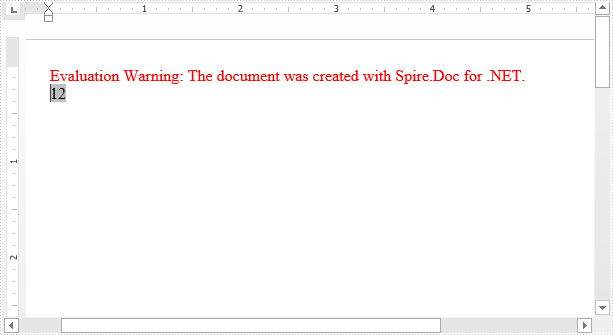
Use the Add method to add a variable to a document. The following example adds a document variable named "A1" with a value of 12 to the document.
using Spire.Doc;
using Spire.Doc.Documents;
namespace ADDVARIABLE
{
    class Program
    {

        static void Main(string[] args)
        {
            //Instantiate a document object
            Document document = new Document();
            //Add a section
            Section section = document.AddSection();
            //Add a paragraph
            Paragraph paragraph = section.AddParagraph();
            //Add a DocVariable Filed
            paragraph.AppendField("A1", FieldType.FieldDocVariable);
            //Add a document variable to the DocVariable Filed
            document.Variables.Add("A1", "12");
            //Update fields
            document.IsUpdateFields = true;
            //Save and close the document object
            document.SaveToFile("AddVariable.docx", FileFormat.Docx2013);
            document.Close();
        }
    }
}
Count the number of Variables
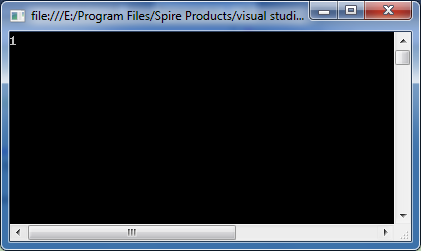
Use the Count property to return the number of variables in a document.
//Load the document
Document document = new Document("AddVariable.docx");
//Get the number of variables in the document
int number = document.Variables.Count;

Console.WriteLine(number);
Retrieve Name and Value of a Variable
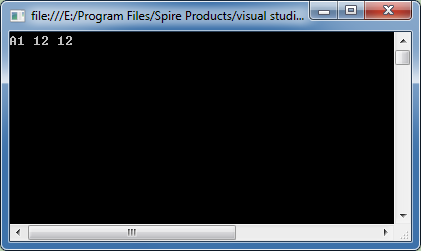
Use the GetNameByIndex and GetValueByIndex methods to retrieve the name and value of the variable by index, and the Variables[String Name] to retrieve or set the value of the variable by name.
using Spire.Doc;
using Spire.Doc.Documents;
using System;
namespace COUNTVARIABLE
{

    class Program
    {

        static void Main(string[] args)
        {
            //Load the document
            Document document = new Document("AddVariable.docx");
            //Get the number of variables in the document
            int number = document.Variables.Count;

            Console.WriteLine(number);

        }
    }
}
Remove a specific Variable
Use the Remove method to remove the variable from the document.
using Spire.Doc;
using System;
namespace RETRIEVEVARIABLE
{
    class Program
    {
        static void Main(string[] args)
        {
            //Load the document
            Document document = new Document("AddVariable.docx");

            // Retrieve name of the variable by index
            string s1 = document.Variables.GetNameByIndex(0);

            // Retrieve value of the variable by index
            string s2 = document.Variables.GetValueByIndex(0);

            // Retrieve or set value of the variable by name
            string s3 = document.Variables["A1"];

            Console.WriteLine("{0} {1} {2}", s1, s2, s3);
        }
    }
}
When we operate the data on an Excel worksheet, we may need to delete text from a cell in a spreadsheet document and sometimes even remove all the contents with format from the cell range. This article will demonstrate how to remove the value and format from Excel Cell range with the help of Spire.XLS.
Step 1: Create an instance of Excel workbook and load the document from file.
Workbook workbook = new Workbook();
workbook.LoadFromFile("Sample.xlsx");
Step 2: Get the first worksheet from the workbook.
Worksheet sheet = workbook.Worksheets[0];
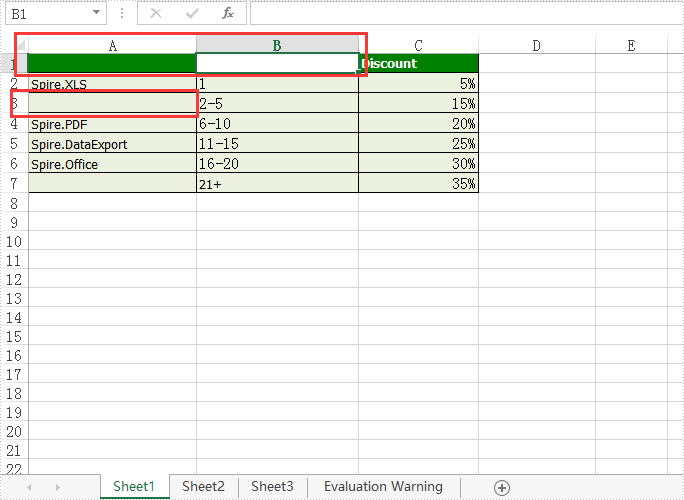
Step 3: Set the value as null to remove the original content from the Excel Cell.
sheet.Range["A1"].Value = "";
Step 4: Clear the contents to remove the original content from the Excel Cell.
sheet.Range["A3"].ClearContents();
Step 5: Remove the contents with format from the Excel cell.
sheet.Range["B1"].ClearAll();
Step 6: Save document to file.
workbook.SaveToFile("result.xlsx",FileFormat.Version2010);
Effective screenshot of remove the value and format from Excel Cell range:
Full codes:
using Spire.Xls;
namespace RemoveValue
{
    class Program
    {

        static void Main(string[] args)
        {
            Workbook workbook = new Workbook();
            workbook.LoadFromFile("Sample.xlsx");

            Worksheet sheet = workbook.Worksheets[0];

            sheet.Range["A1"].Value = "";

            sheet.Range["A3"].ClearContents();

            sheet.Range["B1"].ClearAll();


            workbook.SaveToFile("result.xlsx", FileFormat.Version2010);
        }
    }
}
The PDF417 barcode, also known as Portable Data File 417 or PDF417 Truncated, is a two-dimensional (2D), high-density symbology capable of encoding text, numbers, files and actual data bytes.
Compaction Modes
The data is encoded using one of three compaction modes: Text compaction mode, Binary compaction mode, and Numeric compaction mode.
- Text: It allows encoding all printable ASCII characters, i.e. values from 32 to 126 inclusive in accordance with ISO/IEC 646, as well as selected control characters such as TAB (horizontal tab ASCII 9), LF (NL line feed, new line ASCII 10) and CR (carriage return ASCII 13).
- Binary: It allows encoding all 256 possible 8-bit byte values. This includes all ASCII characters value from 0 to 127 inclusive and provides for international character set support.
- Numeric: It allows efficient encoding of numeric data strings.
- Auto: It switches between Text, Binary and Numeric modes in order to minimize the number of codewords to be encoded.
PDF417 Error Correction Levels
Error correction allows the symbol to endure some damage without causing loss of data. The error correction level depends on the amount of data that needs to be encoded, the size and the amount of symbol damage that could occur. The error correction levels range from 0 to 8.
| EC Level | 0 | 1 | 2 | 3 | 4 | 5 | 6 | 7 | 8 | ||
| EC Codewords Generated | 2 | 4 | 6 | 8 | 16 | 32 | 64 | 128 | 512 | ||
| Data Codewords | 1-40 | 41-160 | 161-320 | 321-863 | |||||||
| Data Bytes Encoded | 1-56 | 57-192 | 193-384 | 385-1035 | |||||||
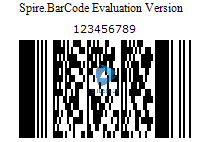
Following code snippets show how to create a PDF417 barcode image using Spire.Barcode.
Step 1: Create an instance of BarcodeSetting class.
BarcodeSettings settings = new BarcodeSettings();
Step 2: Set the barode type as Pdf417 and set the data to be encoded.
settings.Type = BarCodeType.Pdf417;
settings.Data = "123456789";
Step 3: Set the data mode as numeric.
settings.Pdf417DataMode = Pdf417DataMode.Numeric;
Step 4: Set the error correction level as level 2.
settings.Pdf417ECL = Pdf417ECL.Level2;
Step 5: Initialize an instance of BarcodeGenerator and generate an image based on the settings.
BarCodeGenerator generator = new BarCodeGenerator(settings);
Image image = generator.GenerateImage();
Step 6: Save the image in .png format.
image.Save("PDF417Code.png");
Output:
Full Code:
using Spire.Barcode;
using System.Drawing;

namespace PDF417Code
{
    class Program
    {
        static void Main(string[] args)
        {
            BarcodeSettings settings = new BarcodeSettings();
            settings.Type = BarCodeType.Pdf417;
            settings.Data = "123456789";
            settings.Data2D = "123456789";
            settings.Pdf417DataMode = Pdf417DataMode.Numeric;
            settings.Pdf417ECL = Pdf417ECL.Level2;
            BarCodeGenerator generator = new BarCodeGenerator(settings);
            Image image = generator.GenerateImage();
            image.Save("PDF417Code.png");
        }
    }
}
