
Knowledgebase (2417)
Children categories
When we operate the email messages, we may need to send the message to many more email address. Spire.Email supports to send a message to many email addresses at one time. This article demonstrates how to add the new send To and Cc email address from an existing email message via Spire.Email in C# and VB.NET.
Firstly, please view the sample email message with one to and cc email address:
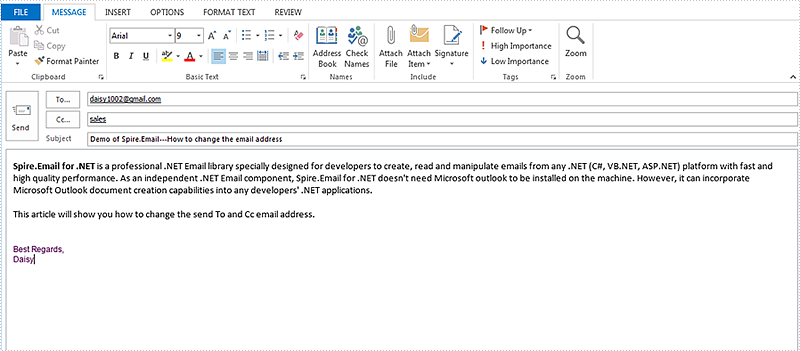
How to add new send to and cc email addresses:
using Spire.Email;

namespace Update
{
    class Program
    {
        static void Main(string[] args)
        {
            //Load the mail message from file
            MailMessage mail = MailMessage.Load("Sample.msg");

            //add a new To email address and its display name
            mail.To.Add(new MailAddress("support@e-iceblue.com", "E-iceblue Support"));

            // add a new Cc email address and its display name
            mail.Cc.Add(new MailAddress("comments@e-iceblue.com", "Comments"));


            // Save the message
            mail.Save("ChangeEmailAddress.msg", MailMessageFormat.Msg);
        }
    }
}
Imports Spire.Email

Namespace Update
	Class Program
		Private Shared Sub Main(args As String())
			'Load the mail message from file
			Dim mail As MailMessage = MailMessage.Load("Sample.msg")

			'add a new To email address and its display name
			mail.[To].Add(New MailAddress("support@e-iceblue.com", "E-iceblue Support"))

			' add a new Cc email address and its display name
			mail.Cc.Add(New MailAddress("comments@e-iceblue.com", "Comments"))


			' Save the message
			mail.Save("ChangeEmailAddress.msg", MailMessageFormat.Msg)
		End Sub
	End Class
End Namespace
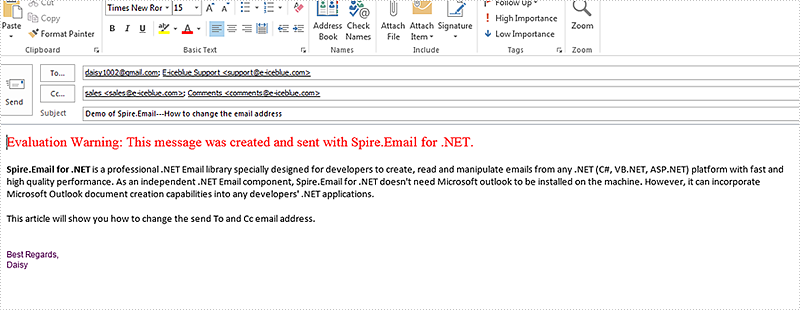
Effective screenshot after changing the email address:
Spire.Email allows developers to search mailbox for email messages that match the given search criteria. This article illustrates how to search email messages using Spire.Email component.
Detail steps:
Step 1: Create an ImapClient instance.
ImapClient imap = new ImapClient();
Step 2: Set host, port, authentication and connection protocol.
imap.Host = "outlook.office365.com";
imap.Port = 143;
imap.Username = "LeonDavisLD@outlook.com";
imap.Password = "password";
imap.ConnectionProtocols = ConnectionProtocols.Ssl;
Step 3: connect the imap server.
imap.Connect();
Step 4: Select Inbox folder.
imap.Select("Inbox");
Step 5: Search email messages in the folder that match the search criteria.
//Search email messages sent from “Alice”
ImapMessageCollection messages = imap.Search("'From' Contains 'Alice'");
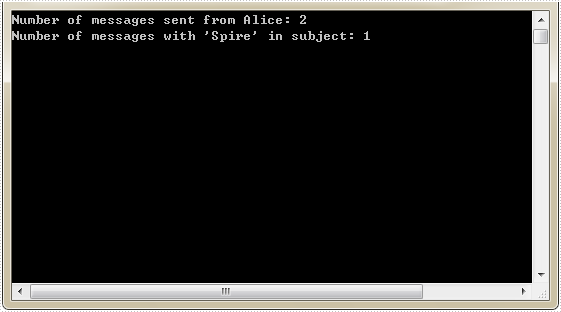
Console.WriteLine("Number of messages sent from Alice: " + messages.Count);

//Search email messages with “Spire” string in subject
messages = imap.Search("'Subject' Contains 'Spire'");
Console.WriteLine("Number of messages with 'Spire' in subject: " + messages.Count);
Screenshot:
Full code:
using Spire.Email;
using Spire.Email.IMap;
using System;

namespace SearchEmailMessages
{
    class Program
    {
        static void Main(string[] args)
        {
            //Create an ImapClient instance
            ImapClient imap = new ImapClient();

            //Set host, port, authentication and connection protocol
            imap.Host = "outlook.office365.com";
            imap.Port = 143;
            imap.Username = "LeonDavisLD@outlook.com";
            imap.Password = "password";
            imap.ConnectionProtocols = ConnectionProtocols.Ssl;

            //Connect the imap server
            imap.Connect();

            //Select Inbox folder
            imap.Select("Inbox");

            //Search email messages sent from "Alice"
            ImapMessageCollection messages = imap.Search("'From' Contains 'Alice'");
            Console.WriteLine("Number of messages sent from Alice: " + messages.Count);

            //Search email messages with “Spire” string in subject
            messages = imap.Search("'Subject' Contains 'Spire'");
            Console.WriteLine("Number of messages with 'Spire' in subject: " + messages.Count);
        }
    }
}
Imports Spire.Email
Imports Spire.Email.IMap

Namespace SearchEmailMessages
	Class Program
		Private Shared Sub Main(args As String())
			'Create an ImapClient instance
			Dim imap As New ImapClient()

			'Set host, port, authentication and connection protocol
			imap.Host = "outlook.office365.com"
			imap.Port = 143
			imap.Username = "LeonDavisLD@outlook.com"
			imap.Password = "password"
			imap.ConnectionProtocols = ConnectionProtocols.Ssl

			'Connect the imap server
			imap.Connect()

			'Select Inbox folder
			imap.[Select]("Inbox")

			'Search email messages sent from "Alice"
			Dim messages As ImapMessageCollection = imap.Search("'From' Contains 'Alice'")
			Console.WriteLine("Number of messages sent from Alice: " + messages.Count)

			'Search email messages with “Spire” string in subject
			messages = imap.Search("'Subject' Contains 'Spire'")
			Console.WriteLine("Number of messages with 'Spire' in subject: " + messages.Count)
		End Sub
	End Class
End Namespace
This article demonstrates how to delete a specific email message along with all email messages using Spire.Email component.
Detail steps:
Step 1: Create a POP3 client.
Pop3Client pop3 = new Pop3Client();
Step 2: Set host, authentication, port and connection protocol.
pop3.Host = "outlook.office365.com";
pop3.Username = "LeonDavisLD@outlook.com";
pop3.Password = "password";
pop3.Port = 995;
pop3.EnableSsl = true;
Step 3: Connect the pop server.
pop3.Connect();
Step 4: Get the number of messages before deleting message(s).
//Get the number of messages before deleting message(s)
Pop3MessageInfoCollection messages = pop3.GetAllMessages();
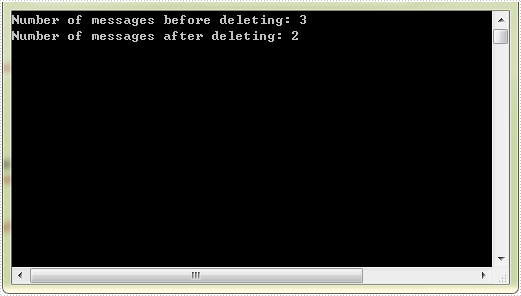
Console.WriteLine("Number of messages before deleting: " + messages.Count);
Step 5: Delete message(s).
//Delete an email message by its sequence number
pop3.DeleteMessage(2);

//Delete all messages
//pop3.DeleteAllMessages();
Step 6: Get the number of messages after deleting message(s).
//Get the number of messages after deleting message(s)
messages = pop3.GetAllMessages();
Console.WriteLine("Number of messages after deleting: " + messages.Count);
Full code:
using Spire.Email;
using Spire.Email.Pop3;
using System;

namespace DeleteEmailMessages
{
    class Program
    {
        static void Main(string[] args)
        {
            //Create a POP3 client
            Pop3Client pop3 = new Pop3Client();

            //Set host, authentication, port and connection protocol
            pop3.Host = "outlook.office365.com";
            pop3.Username = "LeonDavisLD@outlook.com";
            pop3.Password = "password";
            pop3.Port = 995;
            pop3.EnableSsl = true;

            //Connect the pop server
            pop3.Connect();

            //Get the number of messages before deleting message(s)
            Pop3MessageInfoCollection messages = pop3.GetAllMessages();
            Console.WriteLine("Number of messages before deleting: " + messages.Count);

            //Delete an email message by its sequence number
            pop3.DeleteMessage(2);

            //Delete all messages
            //pop3.DeleteAllMessages();

            //Get the number of messages after deleting message(s)
            messages = pop3.GetAllMessages();
            Console.WriteLine("Number of messages after deleting: " + messages.Count);
        }
    }
}
Imports Spire.Email
Imports Spire.Email.Pop3

Namespace DeleteEmailMessages
	Class Program
		Private Shared Sub Main(args As String())
			'Create a POP3 client
			Dim pop3 As New Pop3Client()

			'Set host, authentication, port and connection protocol
			pop3.Host = "outlook.office365.com"
			pop3.Username = "LeonDavisLD@outlook.com"
			pop3.Password = "password"
			pop3.Port = 995
			pop3.EnableSsl = True

			'Connect the pop server
			pop3.Connect()

			'Get the number of messages before deleting message(s)
			Dim messages As Pop3MessageInfoCollection = pop3.GetAllMessages()
			Console.WriteLine("Number of messages before deleting: " + messages.Count)

			'Delete an email message by its sequence number
			pop3.DeleteMessage(2)

			'Delete all messages
			'pop3.DeleteAllMessages();

			'Get the number of messages after deleting message(s)
			messages = pop3.GetAllMessages()
			Console.WriteLine("Number of messages after deleting: " + messages.Count)
		End Sub
	End Class
End Namespace
