Converter ODT para Word: 4 maneiras simples (desktop, online e Python)
Índice
A conversão de arquivos ODT para documentos do Word costuma ser necessária para quem trabalha em diferentes plataformas. Os arquivos ODT (OpenDocument Text) são nativos de suítes de código aberto como LibreOffice e OpenOffice, mas os formatos DOCX e DOC do Microsoft Word continuam sendo o padrão da indústria para editar, revisar e colaborar em documentos profissionalmente.
Este guia explica quatro maneiras práticas de converter ODT para Word, incluindo software de desktop, ferramentas online e scripts Python automatizados. Seja você um estudante, profissional ou desenvolvedor, encontrará o método mais adequado para o seu fluxo de trabalho.
- Por que converter ODT para Word
- Converter ODT para Word usando o LibreOffice
- Converter ODT para Word usando o Microsoft Word
- Converter ODT para Word online
- Automatizar a conversão de ODT para Word usando Python
- ODT para DOCX vs. ODT para DOC: como escolher?
Leituras relacionadas:
Converter RTF para Word: 3 métodos fáceis (online, Word, Python)
Converter Markdown para Word rapidamente: 4 métodos comprovados por especialistas
Converter TXT para Word: 4 métodos fáceis e gratuitos
Por que converter ODT para Word?
A conversão de ODT para Word oferece vários benefícios práticos:
- Melhor compatibilidade: DOCX é o formato padrão em ambientes de negócios, educação e empresariais.
- Colaboração mais fácil: O controle de alterações, comentários e a consistência da formatação são tratados de forma mais confiável em documentos do Word do que em arquivos ODT.
- Envio profissional: Agências governamentais, editoras e empregadores geralmente solicitam arquivos DOC ou DOCX em vez de ODT.
- Integração do fluxo de trabalho: os documentos do Word funcionam perfeitamente com o Microsoft 365, SharePoint e OneDrive.
Converter ODT para Word usando o LibreOffice
LibreOffice é uma das ferramentas mais confiáveis para conversão de ODT para Word porque suporta nativamente ambos os formatos. Esta solução gratuita e offline preserva bem a formatação e funciona em Windows, macOS e Linux.
Passos para converter ODT para Word com o LibreOffice:
-
Abra seu documento ODT no LibreOffice Writer.
-
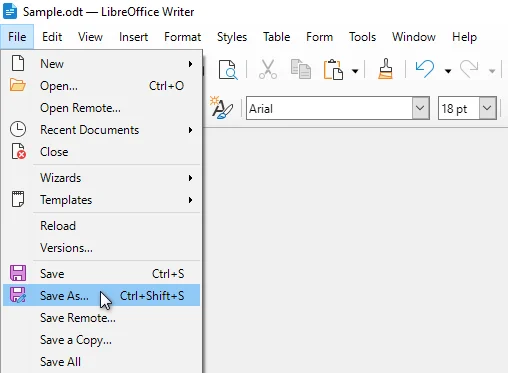
Clique em Arquivo > Salvar como no menu superior.
-
Na lista suspensa Salvar como tipo, selecione um dos seguintes formatos do Word:
- Word 2010-365 (.docx)
- Microsoft Word 97-2003 (.doc)
-
Escolha uma pasta de destino e clique em Salvar para concluir a conversão.
O LibreOffice converterá o documento preservando a maior parte da formatação, estilos, tabelas e imagens.
Ideal para:
- Conversão de desktop gratuita
- Manter a estrutura e a formatação do documento
- Conversões individuais ou ocasionais
Converter ODT para Word usando o Microsoft Word
Microsoft Word (2010 e posterior) pode abrir arquivos ODT diretamente e salvá-los como formato DOCX ou DOC, tornando-o uma opção conveniente para usuários que já trabalham no Word para edição e revisão.
Passos para salvar ODT como Word no Microsoft Word:
-
Inicie o Microsoft Word no seu computador.
-
Clique em Arquivo > Abrir, navegue até o seu arquivo ODT e abra-o.
-
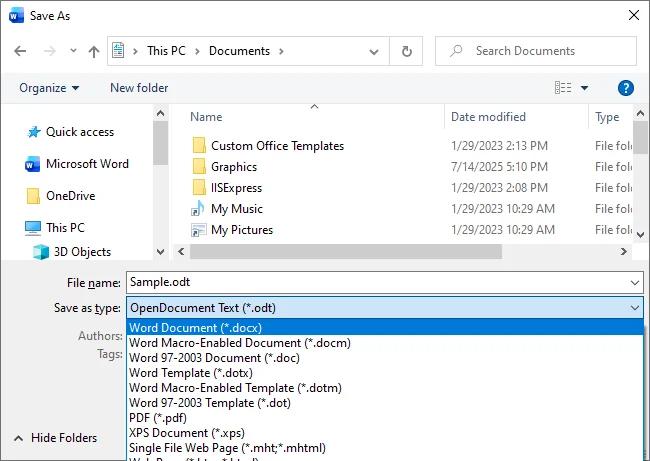
Clique em Arquivo > Salvar como.
-
Escolha Documento do Word (*.docx) ou Documento do Word 97-2003 (*.doc).
-
Salve o arquivo em seu local preferido.
O Microsoft Word lida bem com a formatação ODT padrão; no entanto, alguns estilos ODT avançados, layouts complexos ou formatação personalizada podem ser simplificados ou perdidos durante a conversão. Para obter detalhes, consulte a documentação de suporte oficial da Microsoft.
Ideal para:
- Usuários do Microsoft Word
- Editar e converter ao mesmo tempo
- Volumes de documentos de pequeno a médio porte
Converter ODT para Word online
Os conversores online de ODT para Word oferecem uma maneira rápida e sem instalação de converter ODT para Word online. Essas ferramentas são executadas inteiramente no seu navegador e são adequadas para tarefas rápidas e únicas, especialmente quando você não tem acesso a softwares de desktop como LibreOffice ou Word.
Conversores online populares incluem:
- Convertio
- Zamzar
- FreeConvert
Passos para converter ODT para Word online (usando o Convertio como exemplo):
-
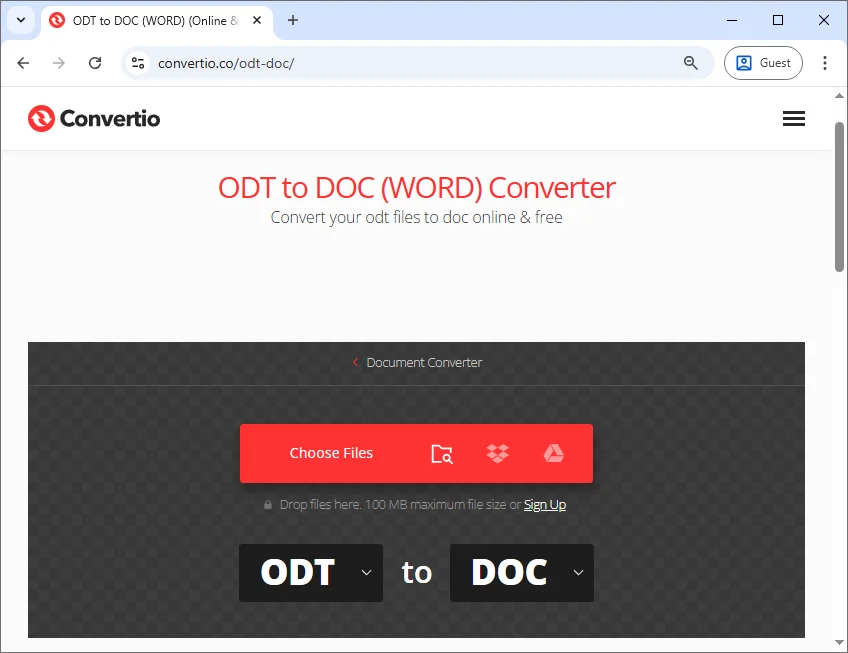
Abra o conversor ODT para Word do Convertio.
-
Clique em Escolher arquivos para enviar seu arquivo ODT ou arraste e solte o arquivo na área de upload.
-
Selecione DOCX ou DOC como formato de saída.
-
Clique em Converter e baixe o arquivo do Word.
Embora convenientes, as ferramentas online exigem o upload de documentos para servidores de terceiros e podem ter limites de tamanho de arquivo. Para arquivos confidenciais, sensíveis ou grandes, os métodos offline são recomendados para maior segurança e confiabilidade.
Ideal para:
- Conversões rápidas e únicas
- Usuários sem software de desktop
- Documentos não confidenciais
Automatizar a conversão de ODT para Word usando Python
Para usuários que precisam converter vários arquivos ODT ou integrar a conversão de documentos em fluxos de trabalho automatizados, o Python oferece uma solução flexível e escalável. Com o Python, você pode automatizar a conversão de ODT para Word em lotes, tornando-o ideal para serviços de back-end, scripts e pipelines de CI sem interação manual.
Exemplo: converter ODT para Word usando Python
Abaixo está um exemplo simples usando o Spire.Doc, uma biblioteca de processamento de documentos do Word em Python que suporta os formatos ODT e Word:
from spire.doc import *

# Carregue o documento ODT
document = Document()
document.LoadFromFile("input.odt")

# Salve como documento do Word
document.SaveToFile("output.docx", FileFormat.Docx)

# Feche o documento para liberar recursos
document.Close()
Passos para usar este script:
-
Instale a biblioteca Python necessária do PyPI usando o seguinte comando:
pip install spire.doc
-
Substitua os caminhos dos arquivos de entrada e saída
-
Execute o script para converter ODT para Word automaticamente
Dica: esta abordagem funciona no Python 3.7 ou superior e suporta ambientes Windows, Linux e macOS. Você pode estender facilmente este exemplo com um loop para processar vários arquivos ODT em um diretório.
Ideal para:
- Desenvolvedores e usuários técnicos
- Conversões em lote ou agendadas
- Fluxos de trabalho empresariais e automatizados
Referência: Documentação oficial do Spire.Doc para Python
ODT para DOCX vs. ODT para DOC: como escolher?
Ao converter arquivos ODT para Word, sua escolha de formato afeta a compatibilidade e a eficiência do fluxo de trabalho:
- ODT para DOCX - Melhor para a maioria dos usuários. Funciona com versões modernas do Word, preserva a formatação, suporta edição colaborativa e lida com recursos avançados.
- ODT para DOC - Adequado apenas para versões mais antigas do Word ou sistemas legados. Limitado em formatação e suporte a recursos.
Dica: para a maioria dos fluxos de trabalho, converta arquivos ODT para o formato DOCX para um documento à prova de futuro e totalmente editável. Use DOC apenas se os destinatários estiverem usando versões mais antigas do Microsoft Word.
Conclusão
A conversão de arquivos ODT para Word pode ser feita de várias maneiras, e a melhor abordagem depende do seu fluxo de trabalho e do volume de arquivos:
- Para conversões pequenas e ocasionais, ferramentas de desktop como LibreOffice ou Microsoft Word são simples e confiáveis.
- Para tarefas rápidas e únicas sem instalar software, os conversores online oferecem uma solução rápida.
- Para conversões em grande escala, automatizadas ou em lote, o script em Python oferece máxima eficiência e controle.
Ao selecionar o método e o formato apropriados, você pode garantir que seus documentos permaneçam totalmente editáveis e compatíveis com as plataformas baseadas no Word.
Procurando por mais tutoriais de Word de alta qualidade? Confira nossos recursos gratuitos do Word.
Perguntas frequentes: converter ODT para Word
Q1: Qual é a melhor maneira de converter ODT para Word?
A1: O LibreOffice é a opção gratuita mais confiável, enquanto o Microsoft Word é conveniente se você já o usa para edição.
Q2: A formatação será preservada ao converter ODT para Word?
A2: A maior parte da formatação, imagens e tabelas são preservadas. Layouts complexos ou estilos personalizados podem exigir revisão.
Q3: Posso converter ODT para Word sem instalar software?
A3: Sim. Os conversores online permitem a conversão baseada em navegador, mas evite-os para arquivos confidenciais ou grandes.
Q4: Como faço para converter vários arquivos ODT de uma vez?
A4: A automação com Python é a melhor para conversões em massa, permitindo fluxos de trabalho totalmente automatizados e repetíveis.
Q5: ODT é melhor que Word?
A5: ODT é aberto e padronizado, mas os formatos do Word oferecem melhor colaboração, edição e compatibilidade. Escolha com base no seu fluxo de trabalho e público.
Veja também
ODT Word 변환: 4가지 간단한 방법 (데스크톱, 온라인 및 Python)
ODT 파일을 Word 문서로 변환하는 것은 여러 플랫폼에서 작업하는 모든 사람에게 종종 필요합니다. ODT(OpenDocument Text) 파일은 LibreOffice 및 OpenOffice와 같은 오픈 소스 제품군의 기본 형식이지만 Microsoft Word의 DOCX 및 DOC 형식은 전문가 수준에서 문서를 편집, 검토 및 공동 작업하기 위한 업계 표준으로 남아 있습니다.
이 가이드에서는 데스크톱 소프트웨어, 온라인 도구 및 자동화된 Python 스크립트를 포함하여 ODT를 Word로 변환하는 네 가지 실용적인 방법을 설명합니다. 학생, 전문가 또는 개발자이든 관계없이 자신의 워크플로에 가장 적합한 방법을 찾을 수 있습니다.
- ODT를 Word로 변환해야 하는 이유
- LibreOffice를 사용하여 ODT를 Word로 변환
- Microsoft Word를 사용하여 ODT를 Word로 변환
- 온라인에서 ODT를 Word로 변환
- Python을 사용하여 ODT를 Word로 변환 자동화
- ODT 대 DOCX, ODT 대 DOC: 어떻게 선택할까요?
관련 자료:
RTF를 Word로 변환: 3가지 쉬운 방법 (온라인, Word, Python)
Markdown을 Word로 빠르게 변환: 4가지 검증된 전문가 방법
ODT를 Word로 변환해야 하는 이유?
ODT를 Word로 변환하면 몇 가지 실용적인 이점이 있습니다.
- 향상된 호환성: DOCX는 비즈니스, 교육 및 기업 환경의 기본 형식입니다.
- 손쉬운 공동 작업: 변경 내용 추적, 메모 및 서식 일관성은 ODT 파일보다 Word 문서에서 더 안정적으로 처리됩니다.
- 전문적인 제출: 정부 기관, 출판사 및 고용주는 종종 ODT 대신 DOC 또는 DOCX 파일을 요청합니다.
- 워크플로 통합: Word 문서는 Microsoft 365, SharePoint 및 OneDrive와 원활하게 작동합니다.
LibreOffice를 사용하여 ODT를 Word로 변환
LibreOffice는 두 형식을 모두 기본적으로 지원하므로 ODT를 Word로 변환하는 가장 신뢰할 수 있는 도구 중 하나입니다. 이 무료 오프라인 솔루션은 서식을 잘 보존하며 Windows, macOS 및 Linux에서 작동합니다.
LibreOffice로 ODT를 Word로 변환하는 단계:
-
LibreOffice Writer에서 ODT 문서를 엽니다.
-
상단 메뉴에서 파일 > 다른 이름으로 저장을 클릭합니다.
-
파일 형식 드롭다운에서 다음 Word 형식 중 하나를 선택합니다.
- Word 2010-365 (.docx)
- Microsoft Word 97-2003 (.doc)
-
대상 폴더를 선택하고 저장을 클릭하여 변환을 완료합니다.
LibreOffice는 대부분의 서식, 스타일, 표 및 이미지를 보존하면서 문서를 변환합니다.
최적 대상:
- 무료 데스크톱 변환
- 문서 구조 및 서식 유지
- 개인 또는 가끔씩의 변환
Microsoft Word를 사용하여 ODT를 Word로 변환
Microsoft Word(2010 이상)는 ODT 파일을 직접 열고 DOCX 또는 DOC 형식으로 저장할 수 있으므로 이미 Word에서 편집 및 검토 작업을 하는 사용자에게 편리한 옵션입니다.
Microsoft Word에서 ODT를 Word로 저장하는 단계:
-
컴퓨터에서 Microsoft Word를 시작합니다.
-
파일 > 열기를 클릭하고 ODT 파일을 찾아 엽니다.
-
파일 > 다른 이름으로 저장을 클릭합니다.
-
Word 문서(*.docx) 또는 Word 97-2003 문서(*.doc)를 선택합니다.
-
원하는 위치에 파일을 저장합니다.
Microsoft Word는 표준 ODT 서식을 잘 처리합니다. 그러나 일부 고급 ODT 스타일, 복잡한 레이아웃 또는 사용자 지정 서식은 변환 중에 단순화되거나 손실될 수 있습니다. 자세한 내용은 공식 Microsoft 지원 설명서를 참조하십시오.
최적 대상:
- Microsoft Word 사용자
- 동시에 편집 및 변환
- 소규모에서 중간 규모의 문서 볼륨
온라인에서 ODT를 Word로 변환
온라인 ODT-Word 변환기는 온라인에서 ODT를 Word로 변환하는 빠르고 설치가 필요 없는 방법을 제공합니다. 이러한 도구는 전적으로 브라우저에서 실행되며, 특히 LibreOffice나 Word와 같은 데스크톱 소프트웨어에 액세스할 수 없는 경우 빠른 일회성 작업에 적합합니다.
인기 있는 온라인 변환기는 다음과 같습니다.
- Convertio
- Zamzar
- FreeConvert
온라인에서 ODT를 Word로 변환하는 단계(Convertio를 예로 사용):
-
Convertio ODT-Word 변환기를 엽니다.
-
파일 선택을 클릭하여 ODT 파일을 업로드하거나 파일을 업로드 영역으로 끌어다 놓습니다.
-
출력 형식으로 DOCX 또는 DOC를 선택합니다.
-
변환을 클릭하고 Word 파일을 다운로드합니다.
온라인 도구는 편리하지만 문서를 타사 서버에 업로드해야 하며 파일 크기 제한이 있을 수 있습니다. 기밀, 민감 또는 대용량 파일의 경우 보안 및 안정성 향상을 위해 오프라인 방법을 권장합니다.
최적 대상:
- 빠른 일회성 변환
- 데스크톱 소프트웨어가 없는 사용자
- 민감하지 않은 문서
Python을 사용하여 ODT를 Word로 변환 자동화
여러 ODT 파일을 변환하거나 문서 변환을 자동화된 워크플로에 통합해야 하는 사용자를 위해 Python은 유연하고 확장 가능한 솔루션을 제공합니다. Python을 사용하면 ODT를 Word로 일괄 변환하는 것을 자동화할 수 있으므로 수동 상호 작용 없이 백엔드 서비스, 스크립트 및 CI 파이프라인에 이상적입니다.
예: Python을 사용하여 ODT를 Word로 변환
다음은 ODT 및 Word 형식을 모두 지원하는 Python Word 문서 처리 라이브러리인 Spire.Doc을 사용한 간단한 예입니다.
from spire.doc import *

# ODT 문서 로드
document = Document()
document.LoadFromFile("input.odt")

# Word 문서로 저장
document.SaveToFile("output.docx", FileFormat.Docx)

# 리소스를 해제하기 위해 문서 닫기
document.Close()
이 스크립트를 사용하는 단계:
-
다음 명령을 사용하여 PyPI에서 필요한 Python 라이브러리를 설치합니다.
pip install spire.doc -
입력 및 출력 파일 경로 바꾸기
-
스크립트를 실행하여 ODT를 Word로 자동 변환
팁: 이 접근 방식은 Python 3.7 이상에서 작동하며 Windows, Linux 및 macOS 환경을 지원합니다. 디렉토리의 여러 ODT 파일을 처리하기 위해 루프를 사용하여 이 예제를 쉽게 확장할 수 있습니다.
최적 대상:
- 개발자 및 기술 사용자
- 일괄 또는 예약 변환
- 기업 및 자동화된 워크플로
참조: Spire.Doc for Python 공식 문서
ODT 대 DOCX, ODT 대 DOC: 어떻게 선택할까요?
ODT 파일을 Word로 변환할 때 형식 선택은 호환성 및 워크플로 효율성에 영향을 미칩니다.
- ODT를 DOCX로 - 대부분의 사용자에게 가장 적합합니다. 최신 Word 버전과 함께 작동하고, 서식을 보존하며, 공동 편집을 지원하고, 고급 기능을 처리합니다.
- ODT를 DOC로 - 이전 Word 버전 또는 레거시 시스템에만 적합합니다. 서식 및 기능 지원이 제한됩니다.
팁: 대부분의 워크플로에서는 미래에도 사용할 수 있는 완전 편집 가능한 문서를 위해 ODT 파일을 DOCX 형식으로 변환하십시오. 수신자가 이전 버전의 Microsoft Word를 사용하는 경우에만 DOC를 사용하십시오.
결론
ODT 파일을 Word로 변환하는 방법에는 여러 가지가 있으며 최상의 접근 방식은 워크플로 및 파일 볼륨에 따라 다릅니다.
- 작고 가끔씩의 변환의 경우 LibreOffice 또는 Microsoft Word와 같은 데스크톱 도구가 간단하고 신뢰할 수 있습니다.
- 소프트웨어 설치 없이 빠른 일회성 작업의 경우 온라인 변환기가 빠른 솔루션을 제공합니다.
- 대규모, 자동화 또는 일괄 변환의 경우 Python 스크립팅이 최고의 효율성과 제어 기능을 제공합니다.
적절한 방법과 형식을 선택하면 Word 기반 플랫폼에서 문서를 완전히 편집하고 호환되도록 유지할 수 있습니다.
더 많은 고품질 Word 튜토리얼을 찾고 계신가요? 무료 Word 리소스를 확인해 보세요.
자주 묻는 질문: ODT를 Word로 변환
Q1: ODT를 Word로 변환하는 가장 좋은 방법은 무엇입니까?
A1: LibreOffice가 가장 신뢰할 수 있는 무료 옵션이며, 이미 편집용으로 사용하고 있다면 Microsoft Word가 편리합니다.
Q2: ODT를 Word로 변환할 때 서식이 유지됩니까?
A2: 대부분의 서식, 이미지 및 표는 유지됩니다. 복잡한 레이아웃이나 사용자 지정 스타일은 검토가 필요할 수 있습니다.
Q3: 소프트웨어를 설치하지 않고 ODT를 Word로 변환할 수 있습니까?
A3: 예. 온라인 변환기는 브라우저 기반 변환을 허용하지만 민감하거나 큰 파일에는 사용하지 마십시오.
Q4: 여러 ODT 파일을 한 번에 변환하려면 어떻게 해야 합니까?
A4: Python 자동화는 대량 변환에 가장 적합하며, 완전히 자동화되고 반복 가능한 워크플로를 가능하게 합니다.
Q5: ODT가 Word보다 낫습니까?
A5: ODT는 개방형이고 표준화되어 있지만 Word 형식은 더 나은 공동 작업, 편집 및 호환성을 제공합니다. 워크플로와 대상에 따라 선택하십시오.
관련 항목
Convertire ODT in Word: 4 modi semplici (desktop, online e Python)
Indice
La conversione di file ODT in documenti Word è spesso necessaria per chiunque lavori su piattaforme diverse. I file ODT (OpenDocument Text) sono nativi di suite open-source come LibreOffice e OpenOffice, ma i formati DOCX e DOC di Microsoft Word rimangono lo standard del settore per la modifica, la revisione e la collaborazione professionale sui documenti.
Questa guida spiega quattro modi pratici per convertire ODT in Word, inclusi software desktop, strumenti online e script Python automatizzati. Che tu sia uno studente, un professionista o uno sviluppatore, troverai il metodo più adatto al tuo flusso di lavoro.
- Perché Convertire ODT in Word
- Convertire ODT in Word Usando LibreOffice
- Convertire ODT in Word Usando Microsoft Word
- Convertire ODT in Word Online
- Automatizzare la Conversione da ODT a Word Usando Python
- ODT a DOCX vs. ODT a DOC: Come Scegliere?
Letture Correlate:
Convertire RTF in Word: 3 Metodi Semplici (Online, Word, Python)
Convertire Markdown in Word Velocemente: 4 Metodi Esperti Comprovati
Convertire TXT in Word: 4 Metodi Semplici e Gratuiti
Perché Convertire ODT in Word?
La conversione da ODT a Word offre diversi vantaggi pratici:
- Migliore Compatibilità: DOCX è il formato predefinito in ambienti aziendali, educativi e d'impresa.
- Collaborazione più Semplice: Revisioni, commenti e coerenza della formattazione sono gestiti in modo più affidabile nei documenti Word rispetto ai file ODT.
- Invio Professionale: Agenzie governative, editori e datori di lavoro richiedono spesso file DOC o DOCX invece di ODT.
- Integrazione del Flusso di Lavoro: I documenti Word funzionano perfettamente con Microsoft 365, SharePoint e OneDrive.
Convertire ODT in Word Usando LibreOffice
LibreOffice è uno degli strumenti più affidabili per la conversione da ODT a Word perché supporta nativamente entrambi i formati. Questa soluzione gratuita e offline preserva bene la formattazione e funziona su Windows, macOS e Linux.
Passaggi per Convertire ODT in Word con LibreOffice:
-
Apri il tuo documento ODT in LibreOffice Writer.
-
Fai clic su File > Salva con nome dal menu in alto.
-
Nel menu a discesa Salva come, seleziona uno dei seguenti formati Word:
- Word 2010-365 (.docx)
- Microsoft Word 97-2003 (.doc)
-
Scegli una cartella di destinazione e fai clic su Salva per completare la conversione.
LibreOffice convertirà il documento preservando la maggior parte della formattazione, degli stili, delle tabelle e delle immagini.
Ideale per:
- Conversione desktop gratuita
- Mantenere la struttura e la formattazione del documento
- Conversioni individuali o occasionali
Convertire ODT in Word Usando Microsoft Word
Microsoft Word (2010 e versioni successive) può aprire direttamente i file ODT e salvarli in formato DOCX o DOC, rendendolo un'opzione comoda per gli utenti che già lavorano in Word per la modifica e la revisione.
Passaggi per Salvare ODT come Word in Microsoft Word:
-
Avvia Microsoft Word sul tuo computer.
-
Fai clic su File > Apri, cerca il tuo file ODT e aprilo.
-
Fai clic su File > Salva con nome.
-
Scegli Documento Word (*.docx) o Documento Word 97-2003 (*.doc).
-
Salva il file nella posizione desiderata.
Microsoft Word gestisce bene la formattazione ODT standard; tuttavia, alcuni stili ODT avanzati, layout complessi o formattazioni personalizzate potrebbero essere semplificati o persi durante la conversione. Per i dettagli, fare riferimento alla documentazione di supporto ufficiale di Microsoft.
Ideale per:
- Utenti di Microsoft Word
- Modifica e conversione allo stesso tempo
- Volumi di documenti di piccole e medie dimensioni
Convertire ODT in Word Online
I convertitori online da ODT a Word offrono un modo rapido e senza installazione per convertire ODT in Word online. Questi strumenti funzionano interamente nel tuo browser e sono adatti per attività veloci e occasionali, specialmente quando non hai accesso a software desktop come LibreOffice o Word.
I Convertitori Online più Popolari includono:
- Convertio
- Zamzar
- FreeConvert
Passaggi per Convertire ODT in Word Online (Usando Convertio come Esempio):
-
Apri il convertitore da ODT a Word di Convertio.
-
Fai clic su Scegli File per caricare il tuo file ODT o trascina e rilascia il file nell'area di caricamento.
-
Seleziona DOCX o DOC come formato di output.
-
Fai clic su Converti e scarica il file Word.
Sebbene convenienti, gli strumenti online richiedono il caricamento di documenti su server di terze parti e possono avere limiti di dimensione dei file. Per file riservati, sensibili o di grandi dimensioni, si consigliano metodi offline per una maggiore sicurezza e affidabilità.
Ideale per:
- Conversioni veloci e occasionali
- Utenti senza software desktop
- Documenti non sensibili
Automatizzare la Conversione da ODT a Word Usando Python
Per gli utenti che necessitano di convertire più file ODT o integrare la conversione di documenti in flussi di lavoro automatizzati, Python offre una soluzione flessibile e scalabile. Con Python, è possibile automatizzare la conversione da ODT a Word in batch, rendendola ideale per servizi di backend, script e pipeline CI senza interazione manuale.
Esempio: Convertire ODT in Word Usando Python
Di seguito è riportato un semplice esempio che utilizza Spire.Doc, una libreria di elaborazione di documenti Word per Python che supporta sia i formati ODT che Word:
from spire.doc import *

# Carica il documento ODT
document = Document()
document.LoadFromFile("input.odt")

# Salva come documento Word
document.SaveToFile("output.docx", FileFormat.Docx)

# Chiudi il documento per liberare le risorse
document.Close()
Passaggi per Usare Questo Script:
-
Installa la libreria Python richiesta da PyPI usando il seguente comando:
pip install spire.doc -
Sostituisci i percorsi dei file di input e output
-
Esegui lo script per convertire automaticamente ODT in Word
Suggerimento: questo approccio funziona su Python 3.7 o versioni successive e supporta ambienti Windows, Linux e macOS. Puoi facilmente estendere questo esempio con un ciclo per elaborare più file ODT in una directory.
Ideale per:
- Sviluppatori e utenti tecnici
- Conversioni batch o pianificate
- Flussi di lavoro aziendali e automatizzati
Riferimento: Documentazione Ufficiale di Spire.Doc per Python
ODT a DOCX vs. ODT a DOC: Come Scegliere?
Quando si convertono file ODT in Word, la scelta del formato influisce sulla compatibilità e sull'efficienza del flusso di lavoro:
- Da ODT a DOCX - Ideale per la maggior parte degli utenti. Funziona con le versioni moderne di Word, preserva la formattazione, supporta la modifica collaborativa e gestisce le funzionalità avanzate.
- Da ODT a DOC - Adatto solo per versioni precedenti di Word o sistemi legacy. Limitato nel supporto della formattazione e delle funzionalità.
Suggerimento: per la maggior parte dei flussi di lavoro, converti i file ODT in formato DOCX per un documento a prova di futuro e completamente modificabile. Utilizzare DOC solo se i destinatari utilizzano versioni precedenti di Microsoft Word.
Conclusione
La conversione di file ODT in Word può essere eseguita in diversi modi e l'approccio migliore dipende dal flusso di lavoro e dal volume dei file:
- Per conversioni piccole e occasionali, strumenti desktop come LibreOffice o Microsoft Word sono semplici e affidabili.
- Per attività veloci e una tantum senza installare software, i convertitori online offrono una soluzione rapida.
- Per conversioni su larga scala, automatizzate o batch, lo scripting Python offre la massima efficienza e controllo.
Selezionando il metodo e il formato appropriati, puoi garantire che i tuoi documenti rimangano completamente modificabili e compatibili su tutte le piattaforme basate su Word.
Cerchi altri tutorial di alta qualità su Word? Dai un'occhiata alle nostre risorse gratuite su Word.
Domande Frequenti: Convertire ODT in Word
D1: Qual è il modo migliore per convertire ODT in Word?
R1: LibreOffice è l'opzione gratuita più affidabile, mentre Microsoft Word è comodo se lo usi già per la modifica.
D2: La formattazione verrà preservata durante la conversione da ODT a Word?
R2: La maggior parte della formattazione, delle immagini e delle tabelle viene preservata. Layout complessi o stili personalizzati potrebbero richiedere una revisione.
D3: Posso convertire ODT in Word senza installare software?
R3: Sì. I convertitori online consentono la conversione basata su browser, ma evitali per file sensibili o di grandi dimensioni.
D4: Come posso convertire più file ODT contemporaneamente?
R4: L'automazione con Python è la soluzione migliore per le conversioni di massa, consentendo flussi di lavoro completamente automatizzati e ripetibili.
D5: ODT è meglio di Word?
R5: ODT è aperto e standardizzato, ma i formati Word offrono una migliore collaborazione, modifica e compatibilità. Scegli in base al tuo flusso di lavoro e al tuo pubblico.
Vedi Anche
Convertir ODT en Word : 4 méthodes simples (bureau, en ligne et Python)
Table des matières
La conversion de fichiers ODT en documents Word est souvent nécessaire pour quiconque travaille sur différentes plateformes. Les fichiers ODT (OpenDocument Text) sont natifs des suites open-source comme LibreOffice et OpenOffice, mais les formats DOCX et DOC de Microsoft Word restent la norme de l'industrie pour l'édition, la révision et la collaboration professionnelle sur des documents.
Ce guide explique quatre méthodes pratiques pour convertir ODT en Word, y compris des logiciels de bureau, des outils en ligne et des scripts Python automatisés. Que vous soyez étudiant, professionnel ou développeur, vous trouverez la méthode la plus adaptée à votre flux de travail.
- Pourquoi convertir ODT en Word
- Convertir ODT en Word avec LibreOffice
- Convertir ODT en Word avec Microsoft Word
- Convertir ODT en Word en ligne
- Automatiser la conversion d'ODT en Word avec Python
- ODT vers DOCX ou ODT vers DOC : Comment choisir ?
Lectures associées :
Convertir RTF en Word : 3 méthodes faciles (en ligne, Word, Python)
Convertir Markdown en Word rapidement : 4 méthodes expertes éprouvées
Convertir TXT en Word : 4 méthodes faciles et gratuites
Pourquoi convertir ODT en Word ?
La conversion d'ODT en Word offre plusieurs avantages pratiques :
- Meilleure compatibilité : DOCX est le format par défaut dans les environnements professionnels, éducatifs et d'entreprise.
- Collaboration plus facile : Le suivi des modifications, les commentaires et la cohérence du formatage sont gérés de manière plus fiable dans les documents Word que dans les fichiers ODT.
- Soumission professionnelle : Les agences gouvernementales, les éditeurs et les employeurs demandent souvent des fichiers DOC ou DOCX au lieu d'ODT.
- Intégration du flux de travail : Les documents Word fonctionnent de manière transparente avec Microsoft 365, SharePoint et OneDrive.
Convertir ODT en Word avec LibreOffice
LibreOffice est l'un des outils les plus fiables pour la conversion d'ODT en Word car il prend en charge nativement les deux formats. Cette solution gratuite et hors ligne préserve bien le formatage et fonctionne sur Windows, macOS et Linux.
Étapes pour convertir ODT en Word avec LibreOffice :
-
Ouvrez votre document ODT dans LibreOffice Writer.
-
Cliquez sur Fichier > Enregistrer sous dans le menu supérieur.
-
Dans la liste déroulante Type de fichier, sélectionnez l'un des formats Word suivants :
- Word 2010-365 (.docx)
- Microsoft Word 97-2003 (.doc)
-
Choisissez un dossier de destination et cliquez sur Enregistrer pour terminer la conversion.
LibreOffice convertira le document tout en préservant la plupart du formatage, des styles, des tableaux et des images.
Idéal pour :
- Conversion de bureau gratuite
- Maintien de la structure et du formatage du document
- Conversions individuelles ou occasionnelles
Convertir ODT en Word avec Microsoft Word
Microsoft Word (2010 et versions ultérieures) peut ouvrir directement les fichiers ODT et les enregistrer au format DOCX ou DOC, ce qui en fait une option pratique pour les utilisateurs qui travaillent déjà dans Word pour l'édition et la révision.
Étapes pour enregistrer ODT en tant que Word dans Microsoft Word :
-
Lancez Microsoft Word sur votre ordinateur.
-
Cliquez sur Fichier > Ouvrir, recherchez votre fichier ODT et ouvrez-le.
-
Cliquez sur Fichier > Enregistrer sous.
-
Choisissez Document Word (*.docx) ou Document Word 97-2003 (*.doc).
-
Enregistrez le fichier à l'emplacement de votre choix.
Microsoft Word gère bien le formatage ODT standard ; cependant, certains styles ODT avancés, des mises en page complexes ou un formatage personnalisé peuvent être simplifiés ou perdus lors de la conversion. Pour plus de détails, consultez la documentation d'assistance officielle de Microsoft.
Idéal pour :
- Utilisateurs de Microsoft Word
- Édition et conversion en même temps
- Volumes de documents de petite à moyenne taille
Convertir ODT en Word en ligne
Les convertisseurs ODT en Word en ligne offrent un moyen rapide et sans installation de convertir ODT en Word en ligne. Ces outils fonctionnent entièrement dans votre navigateur et conviennent aux tâches rapides et ponctuelles, surtout lorsque vous n'avez pas accès à des logiciels de bureau comme LibreOffice ou Word.
Les convertisseurs en ligne populaires incluent :
- Convertio
- Zamzar
- FreeConvert
Étapes pour convertir ODT en Word en ligne (en utilisant Convertio comme exemple) :
-
Ouvrez le convertisseur ODT en Word de Convertio.
-
Cliquez sur Choisir les fichiers pour télécharger votre fichier ODT ou faites glisser et déposez le fichier dans la zone de téléchargement.
-
Sélectionnez DOCX ou DOC comme format de sortie.
-
Cliquez sur Convertir et téléchargez le fichier Word.
Bien que pratiques, les outils en ligne nécessitent de télécharger des documents sur des serveurs tiers et peuvent avoir des limites de taille de fichier. Pour les fichiers confidentiels, sensibles ou volumineux, les méthodes hors ligne sont recommandées pour une meilleure sécurité et fiabilité.
Idéal pour :
- Conversions rapides et ponctuelles
- Utilisateurs sans logiciel de bureau
- Documents non sensibles
Automatiser la conversion d'ODT en Word avec Python
Pour les utilisateurs qui ont besoin de convertir plusieurs fichiers ODT ou d'intégrer la conversion de documents dans des flux de travail automatisés, Python offre une solution flexible et évolutive. Avec Python, vous pouvez automatiser la conversion d'ODT en Word par lots, ce qui le rend idéal pour les services backend, les scripts et les pipelines CI sans interaction manuelle.
Exemple : Convertir ODT en Word avec Python
Voici un exemple simple utilisant Spire.Doc, une bibliothèque de traitement de documents Word en Python qui prend en charge les formats ODT et Word :
from spire.doc import *

# Charger le document ODT
document = Document()
document.LoadFromFile("input.odt")

# Enregistrer en tant que document Word
document.SaveToFile("output.docx", FileFormat.Docx)

# Fermer le document pour libérer les ressources
document.Close()
Étapes pour utiliser ce script :
-
Installez la bibliothèque Python requise à partir de PyPI à l'aide de la commande suivante :
pip install spire.doc -
Remplacez les chemins des fichiers d'entrée et de sortie
-
Exécutez le script pour convertir automatiquement ODT en Word
Astuce : Cette approche fonctionne sur Python 3.7 ou supérieur et prend en charge les environnements Windows, Linux et macOS. Vous pouvez facilement étendre cet exemple avec une boucle pour traiter plusieurs fichiers ODT dans un répertoire.
Idéal pour :
- Développeurs et utilisateurs techniques
- Conversions par lots ou planifiées
- Flux de travail d'entreprise et automatisés
Référence : Documentation officielle de Spire.Doc pour Python
ODT vers DOCX ou ODT vers DOC : Comment choisir ?
Lors de la conversion de fichiers ODT en Word, votre choix de format affecte la compatibilité et l'efficacité du flux de travail :
- ODT vers DOCX - Idéal pour la plupart des utilisateurs. Fonctionne avec les versions modernes de Word, préserve le formatage, prend en charge l'édition collaborative et gère les fonctionnalités avancées.
- ODT vers DOC - Convient uniquement aux anciennes versions de Word ou aux systèmes hérités. Limité en termes de formatage et de prise en charge des fonctionnalités.
Astuce : Pour la plupart des flux de travail, convertissez les fichiers ODT au format DOCX pour un document pérenne et entièrement modifiable. N'utilisez DOC que si les destinataires utilisent d'anciennes versions de Microsoft Word.
Conclusion
La conversion de fichiers ODT en Word peut se faire de plusieurs manières, et la meilleure approche dépend de votre flux de travail et du volume de fichiers :
- Pour les petites conversions occasionnelles, les outils de bureau comme LibreOffice ou Microsoft Word sont simples et fiables.
- Pour les tâches rapides et ponctuelles sans installer de logiciel, les convertisseurs en ligne offrent une solution rapide.
- Pour les conversions à grande échelle, automatisées ou par lots, le scripting Python offre une efficacité et un contrôle maximum.
En sélectionnant la méthode et le format appropriés, vous pouvez vous assurer que vos documents restent entièrement modifiables et compatibles sur les plateformes basées sur Word.
Vous cherchez d'autres tutoriels Word de haute qualité ? Consultez nos ressources Word gratuites.
FAQ : Convertir ODT en Word
Q1 : Quelle est la meilleure façon de convertir ODT en Word ?
R1 : LibreOffice est l'option gratuite la plus fiable, tandis que Microsoft Word est pratique si vous l'utilisez déjà pour l'édition.
Q2 : Le formatage sera-t-il préservé lors de la conversion d'ODT en Word ?
R2 : La plupart du formatage, des images et des tableaux sont préservés. Les mises en page complexes ou les styles personnalisés peuvent nécessiter une révision.
Q3 : Puis-je convertir ODT en Word sans installer de logiciel ?
R3 : Oui. Les convertisseurs en ligne permettent une conversion basée sur le navigateur, mais évitez-les pour les fichiers sensibles ou volumineux.
Q4 : Comment puis-je convertir plusieurs fichiers ODT à la fois ?
R4 : L'automatisation avec Python est la meilleure solution pour les conversions en masse, permettant des flux de travail entièrement automatisés et reproductibles.
Q5 : ODT est-il meilleur que Word ?
R5 : ODT est ouvert et standardisé, mais les formats Word offrent une meilleure collaboration, édition et compatibilité. Choisissez en fonction de votre flux de travail et de votre public.
Voir aussi
Convertir ODT a Word: 4 formas sencillas (escritorio, en línea y Python)
Tabla de Contenidos
Convertir archivos ODT a documentos de Word es a menudo necesario para cualquiera que trabaje en diferentes plataformas. Los archivos ODT (OpenDocument Text) son nativos de suites de código abierto como LibreOffice y OpenOffice, pero los formatos DOCX y DOC de Microsoft Word siguen siendo el estándar de la industria para editar, revisar y colaborar en documentos de manera profesional.
Esta guía explica cuatro formas prácticas de convertir ODT a Word, incluyendo software de escritorio, herramientas en línea y scripts de Python automatizados. Ya sea que seas estudiante, profesional o desarrollador, encontrarás el método más adecuado para tu flujo de trabajo.
- Por Qué Convertir ODT a Word
- Convertir ODT a Word Usando LibreOffice
- Convertir ODT a Word Usando Microsoft Word
- Convertir ODT a Word en Línea
- Automatizar la Conversión de ODT a Word Usando Python
- ODT a DOCX vs. ODT a DOC: ¿Cómo Elegir?
Lecturas Relacionadas:
Convertir RTF a Word: 3 Métodos Fáciles (En Línea, Word, Python)
Convertir Markdown a Word Rápido: 4 Métodos Expertos Probados
Convertir TXT a Word: 4 Métodos Fáciles y Gratuitos
¿Por Qué Convertir ODT a Word?
Convertir ODT a Word ofrece varios beneficios prácticos:
- Mejor Compatibilidad: DOCX es el formato predeterminado en entornos empresariales, educativos y corporativos.
- Colaboración Más Fácil: El Control de Cambios, los comentarios y la consistencia del formato se manejan de manera más confiable en documentos de Word que en archivos ODT.
- Entrega Profesional: Agencias gubernamentales, editoriales y empleadores a menudo solicitan archivos DOC o DOCX en lugar de ODT.
- Integración del Flujo de Trabajo: Los documentos de Word funcionan sin problemas con Microsoft 365, SharePoint y OneDrive.
Convertir ODT a Word Usando LibreOffice
LibreOffice es una de las herramientas más confiables para la conversión de ODT a Word porque admite ambos formatos de forma nativa. Esta solución gratuita y sin conexión preserva bien el formato y funciona en Windows, macOS y Linux.
Pasos para Convertir ODT a Word con LibreOffice:
-
Abra su documento ODT en LibreOffice Writer.
-
Haga clic en Archivo > Guardar Como en el menú superior.
-
En el menú desplegable Guardar como tipo, seleccione uno de los siguientes formatos de Word:
- Word 2010-365 (.docx)
- Microsoft Word 97-2003 (.doc)
-
Elija una carpeta de destino y haga clic en Guardar para completar la conversión.
LibreOffice convertirá el documento preservando la mayoría del formato, estilos, tablas e imágenes.
Ideal para:
- Conversión de escritorio gratuita
- Mantener la estructura y el formato del documento
- Conversiones individuales u ocasionales
Convertir ODT a Word Usando Microsoft Word
Microsoft Word (2010 y posterior) puede abrir archivos ODT directamente y guardarlos como formato DOCX o DOC, lo que lo convierte en una opción conveniente para los usuarios que ya trabajan en Word para editar y revisar.
Pasos para Guardar ODT como Word en Microsoft Word:
-
Inicie Microsoft Word en su computadora.
-
Haga clic en Archivo > Abrir, busque su archivo ODT y ábralo.
-
Haga clic en Archivo > Guardar Como.
-
Elija Documento de Word(*.docx) o Documento de Word 97-2003 (*.doc).
-
Guarde el archivo en su ubicación preferida.
Microsoft Word maneja bien el formato ODT estándar; sin embargo, algunos estilos ODT avanzados, diseños complejos o formato personalizado pueden simplificarse o perderse durante la conversión. Para más detalles, consulte la documentación de soporte oficial de Microsoft.
Ideal para:
- Usuarios de Microsoft Word
- Editar y convertir al mismo tiempo
- Volúmenes de documentos pequeños a medianos
Convertir ODT a Word en Línea
Los convertidores de ODT a Word en línea ofrecen una forma rápida y sin instalación de convertir ODT a Word en línea. Estas herramientas se ejecutan completamente en su navegador y son adecuadas para tareas rápidas y únicas, especialmente cuando no tiene acceso a software de escritorio como LibreOffice o Word.
Los Convertidores en Línea Populares incluyen:
- Convertio
- Zamzar
- FreeConvert
Pasos para Convertir ODT a Word en Línea (Usando Convertio como Ejemplo):
-
Abra el convertidor de ODT a Word de Convertio.
-
Haga clic en Elegir Archivos para cargar su archivo ODT o arrastre y suelte el archivo en el área de carga.
-
Seleccione DOCX o DOC como formato de salida.
-
Haga clic en Convertir y descargue el archivo de Word.
Aunque son convenientes, las herramientas en línea requieren subir documentos a servidores de terceros y pueden tener límites de tamaño de archivo. Para archivos confidenciales, sensibles o grandes, se recomiendan métodos sin conexión para mayor seguridad y confiabilidad.
Ideal para:
- Conversiones rápidas y únicas
- Usuarios sin software de escritorio
- Documentos no sensibles
Automatizar la Conversión de ODT a Word Usando Python
Para los usuarios que necesitan convertir múltiples archivos ODT o integrar la conversión de documentos en flujos de trabajo automatizados, Python ofrece una solución flexible y escalable. Con Python, puede automatizar la conversión de ODT a Word en lotes, lo que lo hace ideal para servicios de backend, scripts y pipelines de CI sin interacción manual.
Ejemplo: Convertir ODT a Word Usando Python
A continuación se muestra un ejemplo simple usando Spire.Doc, una biblioteca de procesamiento de documentos de Word en Python que admite los formatos ODT y Word:
from spire.doc import *

# Load the ODT document
document = Document()
document.LoadFromFile("input.odt")

# Save as Word document
document.SaveToFile("output.docx", FileFormat.Docx)

# Close the document to release resources
document.Close()
Pasos para Usar Este Script:
-
Instale la biblioteca de Python requerida desde PyPI usando el siguiente comando:
pip install spire.doc -
Reemplace las rutas de los archivos de entrada y salida
-
Ejecute el script para convertir ODT a Word automáticamente
Consejo: Este enfoque funciona en Python 3.7 o superior y es compatible con entornos de Windows, Linux y macOS. Puede ampliar fácilmente este ejemplo con un bucle para procesar múltiples archivos ODT en un directorio.
Ideal para:
- Desarrolladores y usuarios técnicos
- Conversiones por lotes o programadas
- Flujos de trabajo empresariales y automatizados
Referencia: Documentación Oficial de Spire.Doc para Python
ODT a DOCX vs. ODT a DOC: ¿Cómo Elegir?
Al convertir archivos ODT a Word, su elección de formato afecta la compatibilidad y la eficiencia del flujo de trabajo:
- ODT a DOCX - Ideal para la mayoría de los usuarios. Funciona con versiones modernas de Word, preserva el formato, admite la edición colaborativa y maneja funciones avanzadas.
- ODT a DOC - Adecuado solo para versiones antiguas de Word o sistemas heredados. Limitado en formato y soporte de funciones.
Consejo: Para la mayoría de los flujos de trabajo, convierta los archivos ODT al formato DOCX para obtener un documento preparado para el futuro y totalmente editable. Use DOC solo si los destinatarios utilizan versiones antiguas de Microsoft Word.
Conclusión
La conversión de archivos ODT a Word se puede realizar de varias maneras, y el mejor enfoque depende de su flujo de trabajo y volumen de archivos:
- Para conversiones pequeñas y ocasionales, las herramientas de escritorio como LibreOffice o Microsoft Word son simples y confiables.
- Para tareas rápidas y únicas sin instalar software, los convertidores en línea ofrecen una solución rápida.
- Para conversiones a gran escala, automatizadas o por lotes, la programación en Python proporciona la máxima eficiencia y control.
Al seleccionar el método y formato apropiados, puede asegurarse de que sus documentos permanezcan totalmente editables y compatibles en las plataformas basadas en Word.
¿Busca más tutoriales de Word de alta calidad? Consulte nuestros recursos gratuitos de Word.
Preguntas Frecuentes: Convertir ODT a Word
P1: ¿Cuál es la mejor manera de convertir ODT a Word?
R1: LibreOffice es la opción gratuita más confiable, mientras que Microsoft Word es conveniente si ya lo usa para editar.
P2: ¿Se conservará el formato al convertir ODT a Word?
R2: La mayoría del formato, las imágenes y las tablas se conservan. Los diseños complejos o los estilos personalizados pueden requerir revisión.
P3: ¿Puedo convertir ODT a Word sin instalar software?
R3: Sí. Los convertidores en línea permiten la conversión basada en el navegador, pero evítelos para archivos sensibles o grandes.
P4: ¿Cómo convierto varios archivos ODT a la vez?
R4: La automatización con Python es la mejor opción para conversiones masivas, ya que permite flujos de trabajo totalmente automatizados y repetibles.
P5: ¿Es ODT mejor que Word?
R5: ODT es abierto y estandarizado, pero los formatos de Word ofrecen mejor colaboración, edición y compatibilidad. Elija según su flujo de trabajo y su audiencia.
Ver También
ODT in Word umwandeln: 4 einfache Wege (Desktop, Online & Python)
Inhaltsverzeichnis
Das Konvertieren von ODT-Dateien in Word-Dokumente ist oft für jeden notwendig, der auf verschiedenen Plattformen arbeitet. ODT (OpenDocument Text)-Dateien sind nativ für Open-Source-Suiten wie LibreOffice und OpenOffice, aber die Formate DOCX und DOC von Microsoft Word bleiben der Industriestandard für das professionelle Bearbeiten, Überprüfen und Zusammenarbeiten an Dokumenten.
Dieser Leitfaden erklärt vier praktische Möglichkeiten, ODT in Word zu konvertieren, einschließlich Desktop-Software, Online-Tools und automatisierter Python-Skripte. Ob Sie Student, Profi oder Entwickler sind, Sie werden die für Ihren Arbeitsablauf am besten geeignete Methode finden.
- Warum ODT in Word konvertieren
- ODT in Word mit LibreOffice konvertieren
- ODT in Word mit Microsoft Word konvertieren
- ODT online in Word konvertieren
- ODT-zu-Word-Konvertierung mit Python automatisieren
- ODT zu DOCX vs. ODT zu DOC: Wie wählt man?
Verwandte Lektüre:
RTF in Word konvertieren: 3 einfache Methoden (Online, Word, Python)
Markdown schnell in Word konvertieren: 4 bewährte Expertenmethoden
TXT in Word konvertieren: 4 einfache & kostenlose Methoden
Warum ODT in Word konvertieren?
Das Konvertieren von ODT in Word bietet mehrere praktische Vorteile:
- Bessere Kompatibilität: DOCX ist das Standardformat in Geschäfts-, Bildungs- und Unternehmensumgebungen.
- Einfachere Zusammenarbeit: Nachverfolgung von Änderungen, Kommentare und Formatierungskonsistenz werden in Word-Dokumenten zuverlässiger gehandhabt als in ODT-Dateien.
- Professionelle Einreichung: Regierungsbehörden, Verlage und Arbeitgeber fordern oft DOC- oder DOCX-Dateien anstelle von ODT an.
- Workflow-Integration: Word-Dokumente funktionieren nahtlos mit Microsoft 365, SharePoint und OneDrive.
ODT in Word mit LibreOffice konvertieren
LibreOffice ist eines der zuverlässigsten Werkzeuge für die Konvertierung von ODT in Word, da es beide Formate nativ unterstützt. Diese kostenlose Offline-Lösung bewahrt die Formatierung gut und funktioniert unter Windows, macOS und Linux.
Schritte zum Konvertieren von ODT in Word mit LibreOffice:
-
Öffnen Sie Ihr ODT-Dokument in LibreOffice Writer.
-
Klicken Sie im oberen Menü auf Datei > Speichern unter.
-
Wählen Sie im Dropdown-Menü Dateityp eines der folgenden Word-Formate aus:
- Word 2010-365 (.docx)
- Microsoft Word 97-2003 (.doc)
-
Wählen Sie einen Zielordner und klicken Sie auf Speichern, um die Konvertierung abzuschließen.
LibreOffice konvertiert das Dokument und behält dabei die meisten Formatierungen, Stile, Tabellen und Bilder bei.
Am besten für:
- Kostenlose Desktop-Konvertierung
- Beibehaltung der Dokumentstruktur und Formatierung
- Einzelne oder gelegentliche Konvertierungen
ODT in Word mit Microsoft Word konvertieren
Microsoft Word (2010 und neuer) kann ODT-Dateien direkt öffnen und sie als DOCX- oder DOC-Format speichern, was es zu einer bequemen Option für Benutzer macht, die bereits in Word zur Bearbeitung und Überprüfung arbeiten.
Schritte zum Speichern von ODT als Word in Microsoft Word:
-
Starten Sie Microsoft Word auf Ihrem Computer.
-
Klicken Sie auf Datei > Öffnen, navigieren Sie zu Ihrer ODT-Datei und öffnen Sie sie.
-
Klicken Sie auf Datei > Speichern unter.
-
Wählen Sie Word-Dokument (*.docx) oder Word 97-2003-Dokument (*.doc).
-
Speichern Sie die Datei an Ihrem bevorzugten Speicherort.
Microsoft Word behandelt die Standard-ODT-Formatierung gut; jedoch können einige erweiterte ODT-Stile, komplexe Layouts oder benutzerdefinierte Formatierungen während der Konvertierung vereinfacht werden oder verloren gehen. Weitere Informationen finden Sie in der offiziellen Microsoft-Supportdokumentation.
Am besten für:
- Microsoft Word-Benutzer
- Gleichzeitiges Bearbeiten und Konvertieren
- Kleine bis mittlere Dokumentenmengen
ODT online in Word konvertieren
Online-Konverter von ODT zu Word bieten eine schnelle, installationsfreie Möglichkeit, ODT online in Word zu konvertieren. Diese Tools laufen vollständig in Ihrem Browser und eignen sich für schnelle, einmalige Aufgaben, insbesondere wenn Sie keinen Zugriff auf Desktop-Software wie LibreOffice oder Word haben.
Beliebte Online-Konverter sind:
- Convertio
- Zamzar
- FreeConvert
Schritte zum Online-Konvertieren von ODT in Word (am Beispiel von Convertio):
-
Öffnen Sie den ODT-zu-Word-Konverter von Convertio.
-
Klicken Sie auf Dateien auswählen, um Ihre ODT-Datei hochzuladen, oder ziehen Sie die Datei per Drag & Drop in den Upload-Bereich.
-
Wählen Sie DOCX oder DOC als Ausgabeformat.
-
Klicken Sie auf Konvertieren und laden Sie die Word-Datei herunter.
Obwohl praktisch, erfordern Online-Tools das Hochladen von Dokumenten auf Server von Drittanbietern und können Dateigrößenbeschränkungen haben. Für vertrauliche, sensible oder große Dateien werden Offline-Methoden für eine bessere Sicherheit und Zuverlässigkeit empfohlen.
Am besten für:
- Schnelle, einmalige Konvertierungen
- Benutzer ohne Desktop-Software
- Nicht sensible Dokumente
ODT-zu-Word-Konvertierung mit Python automatisieren
Für Benutzer, die mehrere ODT-Dateien konvertieren oder die Dokumentenkonvertierung in automatisierte Arbeitsabläufe integrieren müssen, bietet Python eine flexible und skalierbare Lösung. Mit Python können Sie die Konvertierung von ODT in Word stapelweise automatisieren, was es ideal für Backend-Dienste, Skripte und CI-Pipelines ohne manuelle Interaktion macht.
Beispiel: ODT in Word mit Python konvertieren
Unten finden Sie ein einfaches Beispiel mit Spire.Doc, einer Python-Bibliothek zur Verarbeitung von Word-Dokumenten, die sowohl ODT- als auch Word-Formate unterstützt:
from spire.doc import *

# Laden Sie das ODT-Dokument
document = Document()
document.LoadFromFile("input.odt")

# Speichern Sie es als Word-Dokument
document.SaveToFile("output.docx", FileFormat.Docx)

# Schließen Sie das Dokument, um Ressourcen freizugeben
document.Close()
Schritte zur Verwendung dieses Skripts:
-
Installieren Sie die erforderliche Python-Bibliothek von PyPI mit dem folgenden Befehl:
pip install spire.doc -
Ersetzen Sie die Eingabe- und Ausgabedateipfade
-
Führen Sie das Skript aus, um ODT automatisch in Word zu konvertieren
Tipp: Dieser Ansatz funktioniert mit Python 3.7 oder höher und unterstützt Windows-, Linux- und macOS-Umgebungen. Sie können dieses Beispiel leicht mit einer Schleife erweitern, um mehrere ODT-Dateien in einem Verzeichnis zu verarbeiten.
Am besten für:
- Entwickler und technische Benutzer
- Stapel- oder geplante Konvertierungen
- Unternehmens- und automatisierte Arbeitsabläufe
Referenz: Offizielle Dokumentation von Spire.Doc für Python
ODT zu DOCX vs. ODT zu DOC: Wie wählt man?
Bei der Konvertierung von ODT-Dateien in Word beeinflusst Ihre Formatwahl die Kompatibilität und die Effizienz des Arbeitsablaufs:
- ODT zu DOCX - Am besten für die meisten Benutzer. Funktioniert mit modernen Word-Versionen, bewahrt die Formatierung, unterstützt die kollaborative Bearbeitung und handhabt erweiterte Funktionen.
- ODT zu DOC - Nur für ältere Word-Versionen oder Legacy-Systeme geeignet. Begrenzt in der Formatierungs- und Funktionsunterstützung.
Tipp: Für die meisten Arbeitsabläufe konvertieren Sie ODT-Dateien in das DOCX-Format für ein zukunftssicheres, vollständig bearbeitbares Dokument. Verwenden Sie DOC nur, wenn die Empfänger ältere Versionen von Microsoft Word verwenden.
Fazit
Das Konvertieren von ODT-Dateien in Word kann auf verschiedene Weisen erfolgen, und der beste Ansatz hängt von Ihrem Arbeitsablauf und dem Dateivolumen ab:
- Für kleine, gelegentliche Konvertierungen sind Desktop-Tools wie LibreOffice oder Microsoft Word einfach und zuverlässig.
- Für schnelle, einmalige Aufgaben ohne Softwareinstallation bieten Online-Konverter eine schnelle Lösung.
- Für groß angelegte, automatisierte oder Stapelkonvertierungen bietet Python-Skripting maximale Effizienz und Kontrolle.
Indem Sie die geeignete Methode und das richtige Format auswählen, können Sie sicherstellen, dass Ihre Dokumente vollständig bearbeitbar und über Word-basierte Plattformen hinweg kompatibel bleiben.
Suchen Sie nach weiteren hochwertigen Word-Tutorials? Schauen Sie sich unsere kostenlosen Word-Ressourcen an.
FAQs: ODT in Word konvertieren
F1: Was ist der beste Weg, um ODT in Word zu konvertieren?
A1: LibreOffice ist die zuverlässigste kostenlose Option, während Microsoft Word praktisch ist, wenn Sie es bereits zur Bearbeitung verwenden.
F2: Bleibt die Formatierung beim Konvertieren von ODT in Word erhalten?
A2: Die meisten Formatierungen, Bilder und Tabellen bleiben erhalten. Komplexe Layouts oder benutzerdefinierte Stile erfordern möglicherweise eine Überprüfung.
F3: Kann ich ODT in Word konvertieren, ohne Software zu installieren?
A3: Ja. Online-Konverter ermöglichen eine browserbasierte Konvertierung, aber vermeiden Sie sie für sensible oder große Dateien.
F4: Wie konvertiere ich mehrere ODT-Dateien auf einmal?
A4: Die Automatisierung mit Python ist am besten für Massenkonvertierungen geeignet und ermöglicht vollständig automatisierte, wiederholbare Arbeitsabläufe.
F5: Ist ODT besser als Word?
A5: ODT ist offen und standardisiert, aber Word-Formate bieten eine bessere Zusammenarbeit, Bearbeitung und Kompatibilität. Wählen Sie basierend auf Ihrem Arbeitsablauf und Ihrer Zielgruppe.
Siehe auch
Конвертировать ODT в Word: 4 простых способа (на компьютере, онлайн и Python)
Содержание
Конвертация файлов ODT в документы Word часто необходима для тех, кто работает на разных платформах. Файлы ODT (OpenDocument Text) являются родными для пакетов с открытым исходным кодом, таких как LibreOffice и OpenOffice, но форматы DOCX и DOC от Microsoft Word остаются отраслевым стандартом для профессионального редактирования, рецензирования и совместной работы над документами.
В этом руководстве объясняются четыре практических способа конвертировать ODT в Word, включая настольное программное обеспечение, онлайн-инструменты и автоматизированные скрипты на Python. Независимо от того, являетесь ли вы студентом, профессионалом или разработчиком, вы найдете наиболее подходящий метод для вашего рабочего процесса.
- Зачем конвертировать ODT в Word
- Конвертировать ODT в Word с помощью LibreOffice
- Конвертировать ODT в Word с помощью Microsoft Word
- Конвертировать ODT в Word онлайн
- Автоматизировать конвертацию ODT в Word с помощью Python
- ODT в DOCX или ODT в DOC: что выбрать?
Похожие статьи:
Конвертировать RTF в Word: 3 простых способа (онлайн, Word, Python)
Быстро конвертировать Markdown в Word: 4 проверенных экспертных метода
Конвертировать TXT в Word: 4 простых и бесплатных способа
Зачем конвертировать ODT в Word?
Конвертация ODT в Word предлагает несколько практических преимуществ:
- Лучшая совместимость: DOCX является форматом по умолчанию в деловой, образовательной и корпоративной среде.
- Более простое сотрудничество: Отслеживание изменений, комментарии и согласованность форматирования обрабатываются в документах Word более надежно, чем в файлах ODT.
- Профессиональная подача: Государственные учреждения, издатели и работодатели часто запрашивают файлы DOC или DOCX вместо ODT.
- Интеграция рабочего процесса: Документы Word без проблем работают с Microsoft 365, SharePoint и OneDrive.
Конвертировать ODT в Word с помощью LibreOffice
LibreOffice — один из самых надежных инструментов для конвертации ODT в Word, поскольку он изначально поддерживает оба формата. Это бесплатное офлайн-решение хорошо сохраняет форматирование и работает в Windows, macOS и Linux.
Шаги по конвертации ODT в Word с помощью LibreOffice:
-
Откройте ваш документ ODT в LibreOffice Writer.
-
Нажмите Файл > Сохранить как в верхнем меню.
-
В выпадающем списке Тип файла выберите один из следующих форматов Word:
- Word 2010-365 (.docx)
- Microsoft Word 97-2003 (.doc)
-
Выберите папку назначения и нажмите Сохранить, чтобы завершить конвертацию.
LibreOffice преобразует документ, сохраняя большую часть форматирования, стилей, таблиц и изображений.
Лучше всего подходит для:
- Бесплатной конвертации на рабочем столе
- Сохранения структуры и форматирования документа
- Индивидуальных или редких конвертаций
Конвертировать ODT в Word с помощью Microsoft Word
Microsoft Word (2010 и более поздние версии) может открывать файлы ODT напрямую и сохранять их в формате DOCX или DOC, что делает его удобным вариантом для пользователей, которые уже работают в Word для редактирования и рецензирования.
Шаги по сохранению ODT как Word в Microsoft Word:
-
Запустите Microsoft Word на своем компьютере.
-
Нажмите Файл > Открыть, найдите свой файл ODT и откройте его.
-
Нажмите Файл > Сохранить как.
-
Выберите Документ Word (*.docx) или Документ Word 97-2003 (*.doc).
-
Сохраните файл в предпочитаемом месте.
Microsoft Word хорошо справляется со стандартным форматированием ODT; однако некоторые расширенные стили ODT, сложные макеты или пользовательское форматирование могут быть упрощены или утеряны во время конвертации. Для получения подробной информации обратитесь к официальной документации поддержки Microsoft.
Лучше всего подходит для:
- Пользователей Microsoft Word
- Одновременного редактирования и конвертации
- Документов малого и среднего объема
Конвертировать ODT в Word онлайн
Онлайн-конвертеры ODT в Word предлагают быстрый способ конвертировать ODT в Word онлайн без установки. Эти инструменты работают полностью в вашем браузере и подходят для быстрых, одноразовых задач, особенно когда у вас нет доступа к настольному программному обеспечению, такому как LibreOffice или Word.
Популярные онлайн-конвертеры включают:
- Convertio
- Zamzar
- FreeConvert
Шаги по конвертации ODT в Word онлайн (на примере Convertio):
-
Откройте конвертер ODT в Word от Convertio.
-
Нажмите Выбрать файлы, чтобы загрузить ваш файл ODT, или перетащите файл в область загрузки.
-
Выберите DOCX или DOC в качестве выходного формата.
-
Нажмите Конвертировать и загрузите файл Word.
Хотя онлайн-инструменты удобны, они требуют загрузки документов на сторонние серверы и могут иметь ограничения по размеру файла. Для конфиденциальных, чувствительных или больших файлов рекомендуется использовать офлайн-методы для большей безопасности и надежности.
Лучше всего подходит для:
- Быстрых, одноразовых конвертаций
- Пользователей без настольного программного обеспечения
- Неконфиденциальных документов
Автоматизировать конвертацию ODT в Word с помощью Python
Для пользователей, которым необходимо конвертировать несколько файлов ODT или интегрировать конвертацию документов в автоматизированные рабочие процессы, Python предлагает гибкое и масштабируемое решение. С помощью Python вы можете автоматизировать конвертацию ODT в Word в пакетном режиме, что делает его идеальным для бэкэнд-сервисов, скриптов и конвейеров CI без ручного вмешательства.
Пример: Конвертировать ODT в Word с помощью Python
Ниже приведен простой пример с использованием Spire.Doc, библиотеки для обработки документов Word на Python, которая поддерживает форматы ODT и Word:
from spire.doc import *

# Загрузить документ ODT
document = Document()
document.LoadFromFile("input.odt")

# Сохранить как документ Word
document.SaveToFile("output.docx", FileFormat.Docx)

# Закрыть документ, чтобы освободить ресурсы
document.Close()
Шаги по использованию этого скрипта:
-
Установите необходимую библиотеку Python из PyPI с помощью следующей команды:
pip install spire.doc -
Замените пути к входным и выходным файлам
-
Запустите скрипт для автоматической конвертации ODT в Word
Совет: Этот подход работает на Python 3.7 или выше и поддерживает среды Windows, Linux и macOS. Вы можете легко расширить этот пример с помощью цикла для обработки нескольких файлов ODT в каталоге.
Лучше всего подходит для:
- Разработчиков и технических пользователей
- Пакетных или запланированных конвертаций
- Корпоративных и автоматизированных рабочих процессов
Справка: Официальная документация Spire.Doc for Python
ODT в DOCX или ODT в DOC: что выбрать?
При конвертации файлов ODT в Word выбор формата влияет на совместимость и эффективность рабочего процесса:
- ODT в DOCX - Лучший выбор для большинства пользователей. Работает с современными версиями Word, сохраняет форматирование, поддерживает совместное редактирование и обрабатывает расширенные функции.
- ODT в DOC - Подходит только для старых версий Word или устаревших систем. Ограничен в поддержке форматирования и функций.
Совет: Для большинства рабочих процессов конвертируйте файлы ODT в формат DOCX для создания перспективного, полностью редактируемого документа. Используйте DOC только в том случае, если получатели используют старые версии Microsoft Word.
Заключение
Конвертировать файлы ODT в Word можно несколькими способами, и лучший подход зависит от вашего рабочего процесса и объема файлов:
- Для небольших, редких конвертаций настольные инструменты, такие как LibreOffice или Microsoft Word, просты и надежны.
- Для быстрых, одноразовых задач без установки программного обеспечения онлайн-конвертеры предлагают быстрое решение.
- Для крупномасштабных, автоматизированных или пакетных конвертаций скрипты на Python обеспечивают максимальную эффективность и контроль.
Выбрав подходящий метод и формат, вы можете гарантировать, что ваши документы останутся полностью редактируемыми и совместимыми на платформах на базе Word.
Ищете больше качественных руководств по Word? Ознакомьтесь с нашими бесплатными ресурсами по Word.
Часто задаваемые вопросы: Конвертация ODT в Word
В1: Какой лучший способ конвертировать ODT в Word?
О1: LibreOffice — самый надежный бесплатный вариант, в то время как Microsoft Word удобен, если вы уже используете его для редактирования.
В2: Сохранится ли форматирование при конвертации ODT в Word?
О2: Большая часть форматирования, изображений и таблиц сохраняется. Сложные макеты или пользовательские стили могут потребовать проверки.
В3: Могу ли я конвертировать ODT в Word без установки программного обеспечения?
О3: Да. Онлайн-конвертеры позволяют выполнять конвертацию в браузере, но избегайте их для чувствительных или больших файлов.
В4: Как мне конвертировать несколько файлов ODT одновременно?
О4: Автоматизация на Python лучше всего подходит для массовых конвертаций, обеспечивая полностью автоматизированные, повторяемые рабочие процессы.
В5: ODT лучше, чем Word?
О5: ODT является открытым и стандартизированным, но форматы Word предлагают лучшее сотрудничество, редактирование и совместимость. Выбирайте в зависимости от вашего рабочего процесса и аудитории.
Смотрите также
Cross-Platform PDF and Office Printing in C# with Spire.Printing
Printing documents is a common requirement in desktop applications, background services, and server-side systems. In practical development and business scenarios, developers often need to print files silently, route jobs to specific printers, or control printing behavior programmatically—without relying on user interaction.
This guide demonstrates how to use Spire.Printing to implement flexible, automated printing of PDF and Office documents in C# across Windows, Linux, and macOS. You will learn how to handle printable streams, select printers programmatically, and apply advanced print settings, enabling reliable cross-platform printing in modern .NET applications.
Table of Contents
- Installing Spire.Printing
- The Core Printing Workflow and Printing Settings
- Printing Word, Excel, PowerPoint, PDF, and Other Documents
- Advanced Print Settings and Operations
- Licensing Notes
Installing Spire.Printing
Spire.Printing is distributed as a NuGet package and can be added to your project in the standard way:
Install-Package Spire.Printing
Platform Compatibility
Spire.Printing is a cross-platform printing library for modern .NET applications. When used together with Spire.Office libraries (with .NET Standard support), it enables printing Word, Excel, PowerPoint, PDF, and other document formats across Windows, Linux, and macOS—without relying on MS Office Interop.
It supports recent .NET runtimes, including .NET 5.0, .NET 6.0, .NET 9.0, and .NET 10.0, and runs on the following platforms:
- Windows (x64, x86)
- Linux (x64, ARM)
- macOS (x64, ARM)
The Core Printing Workflow and Printing Settings
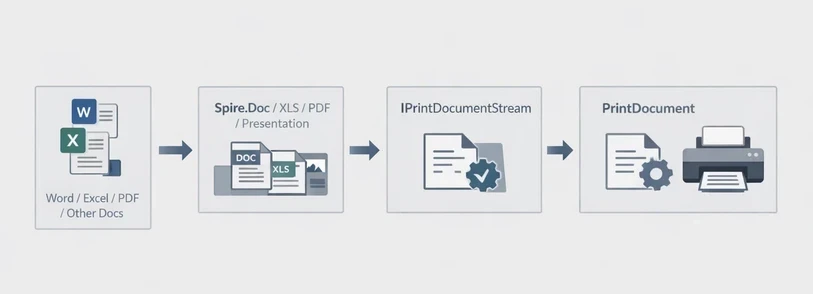
Spire.Printing is designed to send print-ready document streams directly to the printer. On Windows, the printable stream is typically an XPS document, while on Linux and macOS it is a PDF document. It is commonly used with Spire.Office for .NET to implement the printing workflow in .NET applications.
The general process is:
- Create an IPrintDocumentStream instance from the document.
- Create a PrintDocument instance.
- Configure print settings through the PrintSettings property.
- Send the job to the printer.
Code Example
using Spire.Printing;

IPrintDocumentStream documentStream;
if (System.Runtime.InteropServices.RuntimeInformation.IsOSPlatform(System.Runtime.InteropServices.OSPlatform.Windows))
{
    // Windows
    documentStream = new XpsPrintDocument("test.xps");
}
else
{
    // Non-Windows(Linux, MacOS)
    documentStream = new PdfPrintDocument("test.pdf");
}
//new PrintDocument
PrintDocument printDocument = new PrintDocument(documentStream);

//Set paper size
printDocument.PrintSettings.PaperSize = PaperSize.A4;

//Set the number of copies to be printed
printDocument.PrintSettings.Copies = 2;

//Select a page range
printDocument.PrintSettings.SelectPageRange(2, 5);

//Duplex Printing
if (printDocument.PrintSettings.CanDuplex)
{
    //Print in duplex
    printDocument.PrintSettings.Duplex = Duplex.Vertical;
}

//Collated vs. uncollated output:
printDocument.PrintSettings.Collate = true;

//Printing a file to a specific printer, if not set, print to the default printer
printDocument.PrintSettings.PrinterName = "Your Printer Name";

// Print to the specified file
printDocument.PrintSettings.PrintToFile("toXps.xps");

//Record printing logs
printDocument.PrintSettings.PrintLogger = new DefaultPrintLogger("log.txt");

//Print
printDocument.Print();

//Dispose
printDocument.Dispose();
This stream-based model keeps the printing workflow consistent across platforms, while allowing all printer behavior to be customized through the PrintSettings API.
Printing Word, Excel, PowerPoint, PDF, and Other Documents
To print Word, Excel, PowerPoint, PDF, and other document types, Spire.Printing is used together with the corresponding Spire.Office document libraries—Spire.Doc, Spire.XLS, Spire.Presentation, and Spire.PDF (especially the .NET Standard version)—to load the source files, save them into IPrintDocumentStream, and send them to the printer.
Printing Word Documents in C#
Library Installation
Install-Package Spire.Printing
Install-Package Spire.Docfor.NETStandard
Code Example
using Spire.Doc;
using Spire.Printing;

//Check the system
bool isWindows = System.Runtime.InteropServices.RuntimeInformation.IsOSPlatform(System.Runtime.InteropServices.OSPlatform.Windows);

using (Document document = new Document())
{
    //Use Spire.Doc to save documents as. xps or. pdf document streams
    document.LoadFromFile(@"test.docx");
    Spire.Doc.FileFormat fileFormat = !isWindows ? Spire.Doc.FileFormat.PDF : Spire.Doc.FileFormat.XPS;
    MemoryStream stream = new MemoryStream();
    document.SaveToStream(stream, fileFormat);

    //Save to IPrintDocumentStream according to the system
    IPrintDocumentStream docStream = !isWindows ? new PdfPrintDocument(stream) : new XpsPrintDocument(stream);

    //Print
    PrintDocument printDoc = new PrintDocument(docStream);
    printDoc.PrintSettings.SelectPageRange(1, 1);
    printDoc.Print();

    //Dispose
    printDoc.Dispose();
}
Printing Excel Files in C#
Library Installation
Install-Package Spire.Printing
Install-Package Spire.XLSfor.NETStandard
Code Example
using Spire.Printing;
using Spire.Xls;

//Check the system
bool isWindows = System.Runtime.InteropServices.RuntimeInformation.IsOSPlatform(System.Runtime.InteropServices.OSPlatform.Windows);
using (Workbook wb = new Workbook())
{
    //Use Spire.Xls to save documents as. xps or. pdf document streams
    wb.LoadFromFile("test.xlsx");
    Spire.Xls.FileFormat fileFormat = !isWindows ? Spire.Xls.FileFormat.PDF : Spire.Xls.FileFormat.XPS;
    MemoryStream stream = new MemoryStream();
    wb.SaveToStream(stream, fileFormat);

    //Save to IPrintDocumentStream according to the system
    IPrintDocumentStream xlsStream = !isWindows ? new PdfPrintDocument(stream) : new XpsPrintDocument(stream);

    //Print
    PrintDocument printxls = new PrintDocument(xlsStream);
    printxls.PrintSettings.SelectPageRange(1, 1);
    printxls.Print();

    //Dispose
    printxls.Dispose();
}
Printing PDF Files in C#
Library Installation
Install-Package Spire.Printing
Install-Package Spire.PDFfor.NETStandard
Code Example
using Spire.Pdf;
using Spire.Printing;

//Check the system
bool isWindows = System.Runtime.InteropServices.RuntimeInformation.IsOSPlatform(System.Runtime.InteropServices.OSPlatform.Windows);
using (PdfDocument pdfDocument = new PdfDocument())
{
    //Use Spire.PDF to save documents as. xps or. pdf document streams
    pdfDocument.LoadFromFile("test.pdf");
    Spire.Pdf.FileFormat fileFormat = !isWindows ? Spire.Pdf.FileFormat.PDF : Spire.Pdf.FileFormat.XPS;
    MemoryStream stream = new MemoryStream();
    pdfDocument.SaveToStream(stream, fileFormat);

    //Save to IPrintDocumentStream according to the system
    IPrintDocumentStream pdfStream = !isWindows ? new PdfPrintDocument(stream) : new XpsPrintDocument(stream);

    //Print
    PrintDocument printPdf = new PrintDocument(pdfStream);
    printPdf.PrintSettings.SelectPageRange(1, 1);
    printPdf.Print();

    //Dispose
    printPdf.Dispose();
}
Printing PowerPoint Presentations in C#
Library Installation
Install-Package Spire.Printing
Install-Package Spire.Presentationfor.NETStandard
Code Example
using Spire.Presentation;
using Spire.Printing;

//Check the system
bool isWindows = System.Runtime.InteropServices.RuntimeInformation.IsOSPlatform(System.Runtime.InteropServices.OSPlatform.Windows);
using (Presentation ppt = new Presentation())
{
    //Use Spire.Presentation to save documents as. xps or. pdf document streams
    ppt.LoadFromFile("test.pptx");
    Spire.Presentation.FileFormat fileFormat = !isWindows ? Spire.Presentation.FileFormat.PDF : Spire.Presentation.FileFormat.XPS;
    MemoryStream stream = new MemoryStream();
    ppt.SaveToFile(stream, fileFormat);

    //Save to IPrintDocumentStream according to the system
    IPrintDocumentStream pptStream = !isWindows ? new PdfPrintDocument(stream) : new XpsPrintDocument(stream);

    //Print
    PrintDocument printPpt = new PrintDocument(pptStream);
    printPpt.PrintSettings.SelectPageRange(1, 1);
    printPpt.Print();

    //Dispose
    printPpt.Dispose();
}
Advanced Print Settings and Operations
For automated and cross-platform printing scenarios, Spire.Printing provides additional control over printer selection, paper handling, and page output through the PrintSettings API. These options are commonly used in unattended services and batch-printing workflows.
Discovering and Selecting a Printer
Instead of using the system default, you can enumerate available printers and route the print job to a specific device:
IEnumerable<string> printers = printDocument.PrintSettings.Printers;

// Select the first printer or choose based on your logic
string selectedPrinterName = printers.First();
printDocument.PrintSettings.PrinterName = selectedPrinterName;
This is useful when multiple printers are installed or when deterministic printer routing is required.
Choosing a Supported Paper Size
To ensure compatibility with the selected printer, you can query and apply one of its supported paper sizes:
IEnumerable<PaperSize> paperSizes = printDocument.PrintSettings.PaperSizes;

// Select the first available size or apply custom logic
PaperSize selectedPaperSize = paperSizes.First();
printDocument.PrintSettings.PaperSize = selectedPaperSize;
This guarantees the selected paper size is compatible with the target printer.
Selecting Specific Pages
You can restrict printing to certain pages, either as a continuous range or a specific set:
// Print pages 2 to 5
printDocument.PrintSettings.SelectPageRange(2, 5);

// Print specific pages: 1, 3, 5, 7
int[] pages = { 1, 3, 5, 7 };
printDocument.PrintSettings.SelectSomePages(pages);
Only one of these methods should be used per print job.
These advanced operations allow precise control over print output, making it suitable for automated workflows, batch processing, or scenarios where consistent print settings are required across multiple documents and printers.
Licensing Notes
Without a valid license, Spire.Printing prints only the first 10 pages. This limitation can be removed by applying a license for Spire.Office for .NET or the corresponding document libraries, such as Spire.Doc, Spire.XLS, Spire.PDF, or Spire.Presentation.
Spire.Pdf.License.LicenseProvider.SetLicenseKey(string key);
Spire.Doc.License.LicenseProvider.SetLicenseKey(string key);
Spire.Xls.License.LicenseProvider.SetLicenseKey(string key);
Spire.Presentation.License.LicenseProvider.SetLicenseKey(string key);
For details on how to apply a license key, see the licensing guide.
Conclusion
Spire.Printing provides a flexible and reliable way to implement professional printing in C# applications. It supports stream-based printing of PDF, Word, Excel, and PowerPoint documents across Windows, Linux, and macOS, and works seamlessly with Spire.Office for .NET libraries—especially for .NET Standard—to handle Office and PDF files in modern .NET applications.
With the core printing workflow understood, developers can easily apply advanced print settings, such as selecting printers, paper sizes, or specific pages, to meet real-world business requirements and automated workflows.
For evaluation or short-term testing scenarios, a temporary license can be requested to remove trial limitations during development.
Como converter PDF para SVG (3 métodos fáceis)
Índice
- Entendendo o Básico: PDF vs. SVG
- Método 1: Usando Conversores Online Gratuitos de PDF para SVG
- Método 2: Usando o Software de Desktop Gratuito Inkscape
- Método 3: Usando Python para Automatizar a Conversão de PDF para SVG
- Melhores Práticas para a Conversão de PDF para SVG
- Perguntas Comuns sobre PDF para SVG

No cenário digital de hoje, os gráficos vetoriais escaláveis (SVG) tornaram-se o padrão ouro para gráficos da web, ilustrações digitais e design responsivo. Ao contrário dos PDFs, que podem conter elementos vetoriais e raster, os arquivos SVG são um formato vetorial puro, o que significa que eles escalam infinitamente sem perder a qualidade. Saber como converter PDF para SVG abre novas possibilidades para integração na web, animação e edição precisa em software de design.
Seja você um desenvolvedor web precisando de logotipos escaláveis, um designer reaproveitando materiais de impressão para plataformas digitais ou um criador de conteúdo procurando aprimorar os visuais do seu site, este guia o guiará pelos métodos mais eficazes para converter PDF para SVG, cobrindo ferramentas gratuitas, software profissional e scripts de automação, juntamente com dicas profissionais para garantir resultados impecáveis.
Conteúdo:
- Entendendo o Básico: PDF vs. SVG
- Método 1: Usando Conversores Online Gratuitos de PDF para SVG
- Método 2: Usando o Software de Desktop Gratuito Inkscape
- Método 3: Usando Python para Automatizar a Conversão de PDF para SVG
- Melhores Práticas para a Conversão de PDF para SVG
- Perguntas Comuns sobre PDF para SVG
Entendendo o Básico: PDF vs. SVG
Antes de mergulhar nos métodos de conversão, vamos esclarecer as principais diferenças entre esses dois formatos para ajudá-lo a tomar decisões informadas:
- PDF (Portable Document Format) pode conter texto, imagens, gráficos vetoriais e layouts complexos. É projetado principalmente para impressão consistente e compartilhamento de documentos.
- SVG (Scalable Vector Graphics) é um formato de imagem vetorial baseado em XML para logotipos, ícones, diagramas e ilustrações. É suportado nativamente por todos os navegadores modernos e é amigável para SEO (o texto é indexável).
Quando Mudar de PDF para SVG:
- Extrair logotipos ou ícones de documentos PDF
- Converter diagramas para apresentação na web
- Preparar ilustrações para animação
- Criar gráficos responsivos que escalam em todos os dispositivos
Método 1: Usando Conversores Online Gratuitos de PDF para SVG
Se você precisa de uma conversão rápida para arquivos não sensíveis, as ferramentas online são sua melhor aposta. Elas são gratuitas, não exigem instalação de software e funcionam em qualquer sistema operacional (Windows, Mac, Linux ou móvel). Aqui estão as duas opções mais confiáveis:
Opção A: CLOUDXDOCS (Gratuito, Sem Registro)
O CLOUDXDOCS é um conversor confiável e sem anúncios que suporta a conversão de PDF para SVG online. É ideal para arquivos de pequeno a médio porte e não requer inscrição.
- Acesse o conversor de PDF para SVG do CLOUDXDOCS.
- Carregue seu arquivo PDF ou arraste e solte o arquivo na área de upload.
- Aguarde a conclusão do processo de conversão.
- Baixe o arquivo SVG convertido.
Opção B: Convertio (Conversão em Lote)
O conversor online Convertio é ótimo para processamento em lote e funciona em dispositivos móveis. Ele preserva os elementos vetoriais de forma eficaz.
- Visite o Conversor de PDF para SVG do Convertio.
- Clique em “Escolher Arquivos” para carregar seus arquivos PDF.
- Clique em “Converter” – não são necessárias configurações extras para uso básico.
- Baixe SVGs individuais ou uma pasta zip com todos os arquivos.
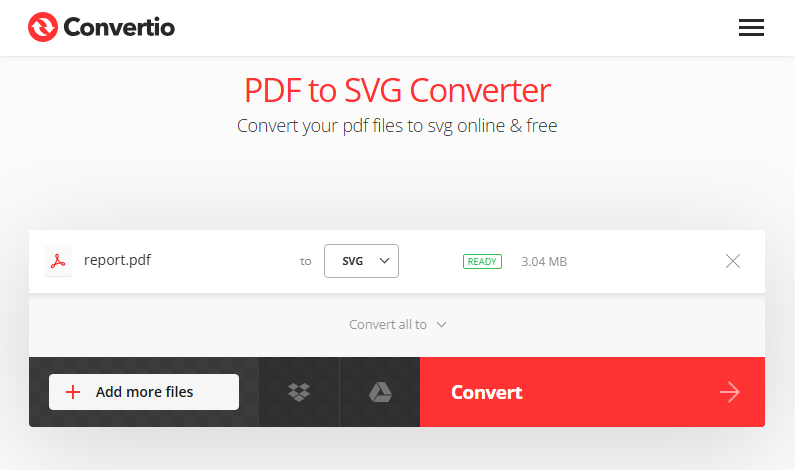
Dica Profissional: Para otimizar o tamanho final do arquivo SVG, você pode cortar as páginas do PDF antes da conversão para remover conteúdo irrelevante e focar nos elementos principais que você precisa.
Método 2: Usando o Software de Desktop Gratuito Inkscape
Para mais controle (e uso offline), o Inkscape é a melhor ferramenta gratuita. É de código aberto, suporta edição vetorial avançada e garante conversões de alta qualidade, perfeito para designers ou usuários avançados.
- Baixe e instale o Inkscape em inkscape.org.
- Abra o Inkscape, vá para “Arquivo > Importar” e selecione seu arquivo PDF.
- Na caixa de diálogo de importação, escolha suas opções preferidas para lidar com páginas e imagens do PDF e clique em “OK”.
- Opcional: Edite o arquivo (por exemplo, desagrupe elementos, remova partes indesejadas ou ajuste caminhos).
- Salvar como SVG: Vá para “Arquivo > Salvar Como”, selecione “SVG Simples (*.svg)” ou "SVG do Inkscape (*.svg)” no menu suspenso e clique em “Salvar”.
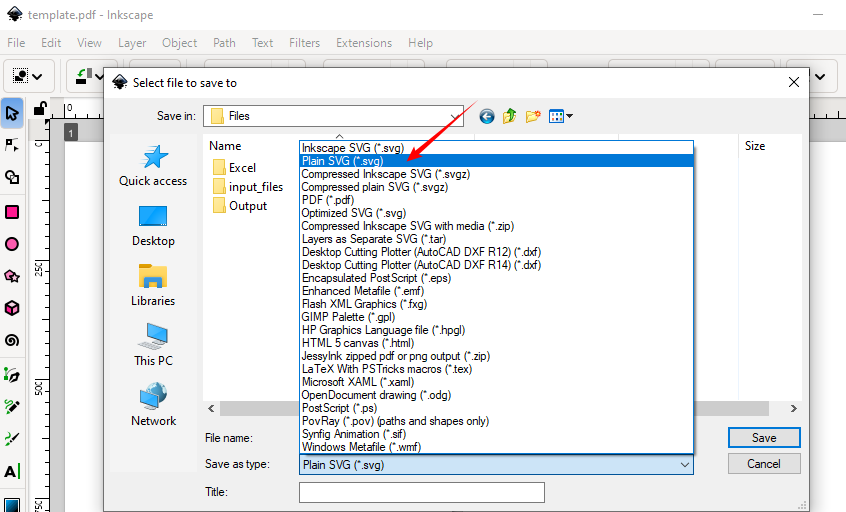
Vantagem: O Inkscape geralmente preserva os caminhos vetoriais com mais precisão do que algumas ferramentas online.
Você também pode gostar: Converter Imagens para PDF no Windows, Mac e Linux
Método 3: Usando Python para Automatizar a Conversão de PDF para SVG
Os desenvolvedores podem integrar a conversão de PDF para SVG em aplicativos, scripts ou pipelines usando o Spire.PDF for Python — uma biblioteca poderosa que suporta PDFs de várias páginas, processamento em lote e configurações personalizadas.
Guia Passo a Passo:
1. Instale a biblioteca de processamento de PDF do Python:
pip install Spire.PDF
2. Use este código para converter um PDF para SVG (suporta PDFs de várias páginas):
from spire.pdf import *

# Crie um objeto da classe PdfDocument
doc = PdfDocument()
# Carregue um arquivo PDF
doc.LoadFromFile("Sample.pdf")

# Salve cada página do arquivo em um arquivo SVG separado
doc.SaveToFile("PdfToSVG/converted.svg", FileFormat.SVG)

# Feche o objeto PdfDocument
doc.Close()
O método SaveToFile() converte cada página de um arquivo PDF em um arquivo SVG separado. Aqui está o resultado da conversão de um arquivo PDF de 5 páginas:
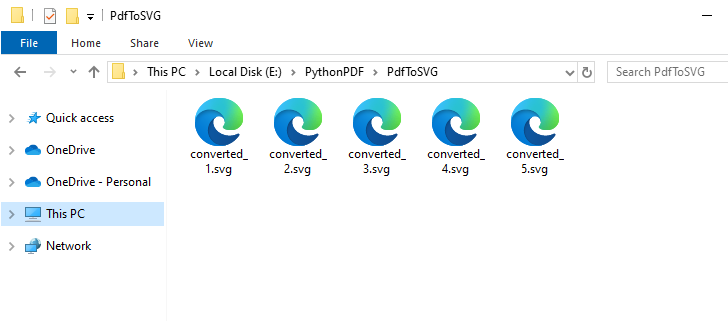
Além de gráficos vetoriais, o Spire.PDF for Python também suporta a conversão de PDF para imagens bitmap comuns, como PNG, JPG e BMP.
Melhores Práticas para a Conversão de PDF para SVG
Antes da Conversão:
- Verifique o tipo de PDF: PDFs baseados em vetores produzem os melhores resultados
- Extraia páginas específicas se necessário
- Verifique a resolução: Mínimo de 300 DPI para imagens incorporadas
- Simplifique documentos complexos quando possível
Após a Conversão:
- Comprima o tamanho do SVG com SVGOMG
- Valide a estrutura do SVG usando o Validador W3C
- Teste em vários navegadores (Chrome, Firefox, Safari)
- Adicione tags de acessibilidade (título, descrição, rótulos ARIA)
Conclusão
A conversão de PDF para SVG desbloqueia recursos poderosos para design web e digital. Para conversões rápidas, use ferramentas online como o CLOUDXDOCS. Para trabalho profissional, o Inkscape oferece edição gratuita e poderosa. Os desenvolvedores podem automatizar com Python para fluxos de trabalho escaláveis.
Seguindo este guia abrangente, você obterá conversões de SVG perfeitas sempre, prontas para qualquer aplicação web ou de design.
Perguntas Comuns sobre PDF para SVG
P: É possível converter um PDF para SVG gratuitamente?
R: Sim. Use ferramentas online como o CLOUDXDOCS ou software de desktop como o Inkscape (gratuito e de código aberto). Para uma solução em Python, experimente a biblioteca Free Spire.PDF for Python (com limitações).
P: A conversão preserva as camadas?
R: Isso depende do conversor. O Inkscape preserva as camadas se “Importar como Páginas” for selecionado, enquanto muitas ferramentas online achatam o documento.
P: Há perda de qualidade?
R: Elementos vetoriais puros devem ser convertidos sem perda de qualidade. No entanto, imagens raster incorporadas em PDFs permanecerão raster no SVG, a menos que sejam traçadas manualmente.
P: Posso converter vários PDFs para SVG em lote?
R: Sim. Use o conversor em lote online ou scripts Python para automatizar a conversão em massa.
Veja Também
PDF를 SVG로 변환하는 방법 (3가지 쉬운 방법)
오늘날의 디지털 환경에서 확장 가능한 벡터 그래픽(SVG)은 웹 그래픽, 디지털 일러스트레이션 및 반응형 디자인의 표준이 되었습니다. 벡터와 래스터 요소를 모두 포함할 수 있는 PDF와 달리 SVG 파일은 순수한 벡터 형식이므로 품질 저하 없이 무한히 확장할 수 있습니다. PDF를 SVG로 변환하는 방법을 알면 웹 통합, 애니메이션 및 디자인 소프트웨어에서의 정밀한 편집을 위한 새로운 가능성이 열립니다.
확장 가능한 로고가 필요한 웹 개발자, 인쇄물을 디지털 플랫폼용으로 용도를 변경하는 디자이너, 웹사이트의 시각적 효과를 향상시키려는 콘텐츠 제작자 등 누구에게나 이 가이드는 무료 도구, 전문 소프트웨어 및 자동화 스크립트를 다루면서 PDF를 SVG로 변환하는 가장 효과적인 방법을 안내하고 완벽한 결과를 보장하기 위한 전문가 팁을 제공합니다.
내용:
- 기본 사항 이해: PDF 대 SVG
- 방법 1: 온라인 무료 PDF를 SVG로 변환하는 변환기 사용
- 방법 2: 무료 데스크톱 소프트웨어 Inkscape 사용
- 방법 3: Python을 사용하여 PDF를 SVG로 변환 자동화
- PDF를 SVG로 변환하기 위한 모범 사례
- PDF를 SVG로 변환하는 것에 대한 일반적인 질문
기본 사항 이해: PDF 대 SVG
변환 방법을 살펴보기 전에 정보에 입각한 결정을 내리는 데 도움이 되도록 이 두 형식 간의 핵심적인 차이점을 명확히 해보겠습니다.
- PDF(Portable Document Format)는 텍스트, 이미지, 벡터 그래픽 및 복잡한 레이아웃을 포함할 수 있습니다. 주로 일관된 인쇄 및 문서 공유를 위해 설계되었습니다.
- SVG(Scalable Vector Graphics)는 로고, 아이콘, 다이어그램 및 일러스트레이션을 위한 XML 기반 벡터 이미지 형식입니다. 모든 최신 브라우저에서 기본적으로 지원되며 SEO 친화적입니다(텍스트 인덱싱 가능).
PDF를 SVG로 변경해야 하는 경우:
- PDF 문서에서 로고 또는 아이콘 추출
- 웹 프레젠테이션을 위한 다이어그램 변환
- 애니메이션을 위한 일러스트레이션 준비
- 여러 장치에서 확장되는 반응형 그래픽 만들기
방법 1: 온라인 무료 PDF를 SVG로 변환하는 변환기 사용
민감하지 않은 파일에 대한 빠른 변환이 필요한 경우 온라인 도구가 가장 좋습니다. 무료이며 소프트웨어 설정이 필요 없으며 모든 OS(Windows, Mac, Linux 또는 모바일)에서 작동합니다. 가장 신뢰할 수 있는 두 가지 옵션은 다음과 같습니다.
옵션 A: CLOUDXDOCS (무료, 등록 필요 없음)
CLOUDXDOCS는 온라인에서 PDF를 SVG로 변환하는 것을 지원하는 신뢰할 수 있는 광고 없는 변환기입니다. 중소 규모 파일에 이상적이며 가입이 필요하지 않습니다.
- CLOUDXDOCS PDF to SVG 변환기로 이동합니다.
- PDF 파일을 업로드하거나 파일을 업로드 영역으로 끌어다 놓습니다.
- 변환 프로세스가 완료될 때까지 기다립니다.
- 변환된 SVG 파일을 다운로드합니다.
옵션 B: Convertio (일괄 변환)
Convertio 온라인 변환기는 일괄 처리에 적합하며 모바일 장치에서 작동합니다. 벡터 요소를 효과적으로 보존합니다.
- Convertio PDF to SVG 변환기를 방문하십시오.
- PDF 파일을 업로드하려면 “파일 선택”을 클릭하십시오.
- 기본 사용에는 추가 설정이 필요 없는 “변환”을 클릭하십시오.
- 개별 SVG 또는 모든 파일의 zip 폴더를 다운로드하십시오.
전문가 팁: 최종 SVG 파일 크기를 최적화하려면 PDF 페이지를 잘라 변환 전에 관련 없는 콘텐츠를 제거하고 필요한 핵심 요소에 집중할 수 있습니다.
방법 2: 무료 데스크톱 소프트웨어 Inkscape 사용
더 많은 제어(및 오프라인 사용)를 위해 Inkscape는 최고의 무료 도구입니다. 오픈 소스이며 고급 벡터 편집을 지원하고 고품질 변환을 보장하므로 디자이너나 고급 사용자에게 적합합니다.
- inkscape.org에서 Inkscape를 다운로드하여 설치하십시오.
- Inkscape를 열고 “파일 > 가져오기”로 이동하여 PDF 파일을 선택하십시오.
- 가져오기 대화 상자에서 PDF 페이지 및 이미지를 처리하기 위한 기본 옵션을 선택한 다음 “확인”을 클릭하십시오.
- 선택 사항: 파일 편집(예: 요소 그룹 해제, 원하지 않는 부분 제거 또는 경로 조정).
- SVG로 저장: “파일 > 다른 이름으로 저장”으로 이동하여 드롭다운에서 “Plain SVG (*.svg)” 또는 “Inkscape SVG (*.svg)”를 선택하고 “저장”을 클릭하십시오.
장점: Inkscape는 일부 온라인 도구보다 벡터 경로를 더 정확하게 보존하는 경우가 많습니다.
관심 있을 만한 다른 글: Windows, Mac 및 Linux에서 이미지를 PDF로 변환
방법 3: Python을 사용하여 PDF를 SVG로 변환 자동화
개발자는 다중 페이지 PDF, 일괄 처리 및 사용자 지정 설정을 지원하는 강력한 라이브러리인 Spire.PDF for Python을 사용하여 PDF에서 SVG로의 변환을 앱, 스크립트 또는 파이프라인에 통합할 수 있습니다.
단계별 가이드:
1. Python PDF 처리 라이브러리를 설치합니다.
pip install Spire.PDF
2. 이 코드를 사용하여 PDF를 SVG로 변환합니다(다중 페이지 PDF 지원).
from spire.pdf import *

# Create an object of the PdfDocument class
doc = PdfDocument()
# Load a PDF file
doc.LoadFromFile("Sample.pdf")

# Save each page of the file to a separate SVG file
doc.SaveToFile("PdfToSVG/converted.svg", FileFormat.SVG)

# Close the PdfDocument object
doc.Close()
SaveToFile() 메서드는 PDF 파일의 각 페이지를 별도의 SVG 파일로 변환합니다. 5페이지 PDF 파일을 변환한 결과는 다음과 같습니다.
벡터 그래픽 외에도 Spire.PDF for Python은 PDF를 PNG, JPG 및 BMP와 같은 일반적인 비트맵 이미지로 변환하는 것도 지원합니다.
PDF를 SVG로 변환하기 위한 모범 사례
변환 전:
- PDF 유형 확인: 벡터 기반 PDF가 최상의 결과를 생성합니다.
- 필요한 경우 특정 페이지 추출
- 해상도 확인: 포함된 이미지의 경우 최소 300DPI
- 가능한 경우 복잡한 문서 단순화
변환 후:
- SVGOMG로 SVG 크기 압축
- W3C 유효성 검사기를 사용하여 SVG 구조 유효성 검사
- 여러 브라우저(Chrome, Firefox, Safari)에서 테스트
- 접근성 태그 추가(title, desc, ARIA 레이블)
결론
PDF를 SVG로 변환하면 웹 및 디지털 디자인을 위한 강력한 기능이 잠금 해제됩니다. 빠른 변환을 위해서는 CLOUDXDOCS와 같은 온라인 도구를 사용하십시오. 전문적인 작업을 위해 Inkscape는 무료이며 강력한 편집 기능을 제공합니다. 개발자는 확장 가능한 워크플로를 위해 Python으로 자동화할 수 있습니다.
이 포괄적인 가이드를 따르면 웹 또는 디자인 응용 프로그램에 사용할 수 있는 완벽한 SVG 변환을 매번 얻을 수 있습니다.
PDF를 SVG로 변환하는 것에 대한 일반적인 질문
Q: PDF를 SVG로 무료로 변환할 수 있습니까?
A: 예. CLOUDXDOCS와 같은 온라인 도구나 Inkscape(무료 및 오픈 소스)와 같은 데스크톱 소프트웨어를 사용하십시오. Python 솔루션의 경우 Free Spire.PDF for Python 라이브러리(제한 있음)를 사용해 보십시오.
Q: 변환 시 레이어가 보존됩니까?
A: 이것은 변환기에 따라 다릅니다. Inkscape는 “페이지로 가져오기”를 선택하면 레이어를 보존하지만 많은 온라인 도구는 문서를 평평하게 만듭니다.
Q: 품질 저하가 있습니까?
A: 순수 벡터 요소는 품질 저하 없이 변환되어야 합니다. 그러나 PDF에 포함된 래스터 이미지는 수동으로 추적하지 않는 한 SVG에서 래스터로 유지됩니다.
Q: 여러 PDF를 SVG로 일괄 변환할 수 있습니까?
A: 예. 온라인 일괄 변환기 또는 Python 스크립트를 사용하여 대량 변환을 자동화하십시오.