Knowledgebase (2417)
Children categories
Branding your documents or indicating confidentiality can be easily achieved by adding a watermark to your Excel spreadsheet. Although Excel does not have a built-in feature for watermark insertion, there are alternative methods to achieve the desired effect.
One approach is to insert an image into the header or footer of your Excel worksheet, which can create a watermark-like appearance. Alternatively, setting an image as the background of your spreadsheet can also mimic the watermark effect.
This article demonstrates how to add header or background image watermarks to Excel in Java using Spire.XLS for Java.
Install Spire.XLS for Java
First of all, you're required to add the Spire.Xls.jar file as a dependency in your Java program. The JAR file can be downloaded from this link. If you use Maven, you can easily import the JAR file in your application by adding the following code to your project's pom.xml file.
<repositories>
    <repository>
        <id>com.e-iceblue</id>
        <name>e-iceblue</name>
        <url>https://repo.e-iceblue.com/nexus/content/groups/public/</url>
    </repository>
</repositories>
<dependencies>
    <dependency>
        <groupId>e-iceblue</groupId>
        <artifactId>spire.xls</artifactId>
        <version>16.8.4</version>
    </dependency>
</dependencies>
Header Image Watermark vs. Background Image Watermark
Header Image Watermark
Pros:
- Ensures the watermark remains intact on the final printed document.
Cons:
- Invisible under "Normal" view mode in Excel, becoming visible only in "Page Layout" or "Page Break Preview" views.
- Requires precise adjustment of white margins, especially on the top and left sides of the image, for central placement.
Background Image Watermark
Pros:
- Provides a uniform watermark across the entire worksheet area.
Cons:
- Does not persist on the printed sheet, hence will not appear in the final printed output.
Add a Header Image Watermark to Excel in Java
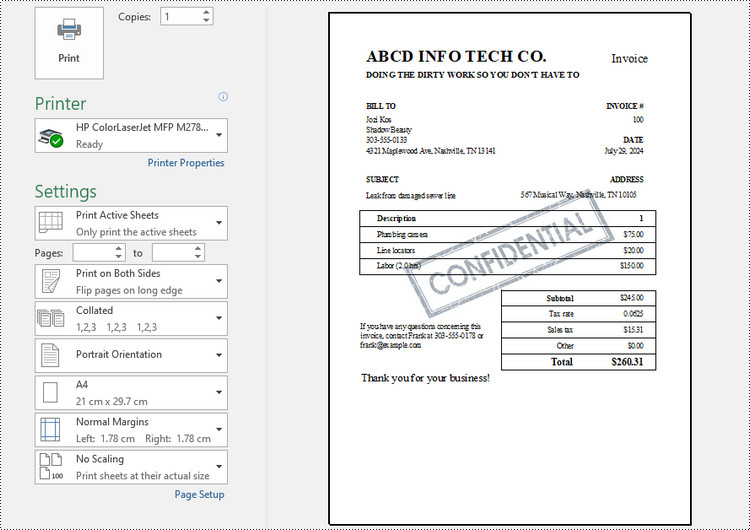
Spire.XLS for Java offers the PageSetup class, providing control over various settings that impact the appearance and layout of a printed worksheet. This class includes the setCenterHeader() and setCenterHeaderImage() methods, which allow for the addition of an image to the worksheet header's center section.
Below are the steps to add a watermark to Excel using a header image in Java.
- Create a Workbook object.
- Load an Excel document from a give file path.
- Load an image using ImageIO.read() method.
- Get a specific worksheet from the workbook.
- Add an image field to the header center by passing "&G" as the parameter of PageSetup.setCenterHeader() method.
- Apply the image to the header center using PageSetup.setCenterHeaderImage() method.
- Save the workbook to a different Excel file.
- Java
import com.spire.xls.ExcelVersion;
import com.spire.xls.Workbook;
import com.spire.xls.Worksheet;

import javax.imageio.ImageIO;
import java.awt.image.BufferedImage;
import java.io.File;
import java.io.IOException;

public class AddWatermarkToExcelUsingHeaderImage {

    public static void main(String[] args) throws IOException {

        // Create a Workbook object
        Workbook workbook = new Workbook();

        // Load an Excel document
        workbook.loadFromFile("C:\\Users\\Administrator\\Desktop\\Input3.xlsx");

        // Load an image file
        BufferedImage image = ImageIO.read( new File("C:\\Users\\Administrator\\Desktop\\confidential_3.jpg"));

        // Loop through all worksheets in the file
        for (int i = 0; i < workbook.getWorksheets().getCount(); i++)
        {
            // Get a specific worksheet
            Worksheet worksheet = workbook.getWorksheets().get(i);

            // Add an image field to the header center
            worksheet.getPageSetup().setCenterHeader("&G");

            // Add the image to the header center
            worksheet.getPageSetup().setCenterHeaderImage(image);
        }

        // Save the result file
        workbook.saveToFile("AddWatermark.xlsx", ExcelVersion.Version2016);

        // Dispose resources
        workbook.dispose();
    }
}
Add a Background Image Watermark to Excel in Java
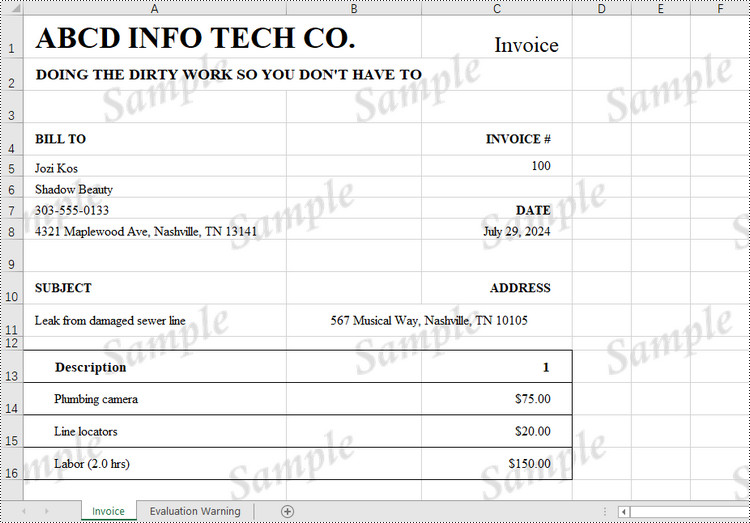
The PageSetup class includes a method called setBackgroundImage(), enabling you to designate an image as the background for a worksheet.
Here are the steps to add a watermark to Excel using a background image in Java.
- Create a Workbook object.
- Load an Excel document from a give file path.
- Load an image using ImageIO.read() method.
- Get a specific worksheet from the workbook.
- Apply the image to the worksheet as the background using PageSetup.setBackgroundImage() method.
- Save the workbook to a different Excel file.
- Java
import com.spire.xls.ExcelVersion;
import com.spire.xls.Workbook;
import com.spire.xls.Worksheet;

import javax.imageio.ImageIO;
import java.awt.image.BufferedImage;
import java.io.File;
import java.io.IOException;

public class AddWatermarkToExcelUsingBackgroundImage {

    public static void main(String[] args) throws IOException {

        // Create a Workbook object
        Workbook workbook = new Workbook();

        // Load an Excel document
        workbook.loadFromFile("C:\\Users\\Administrator\\Desktop\\Input.xlsx");

        // Load an image file
        BufferedImage image = ImageIO.read( new File("C:\\Users\\Administrator\\Desktop\\sample.png"));

        // Loop through all worksheets in the file
        for (int i = 0; i < workbook.getWorksheets().getCount(); i++)
        {
            // Get a specific worksheet
            Worksheet worksheet = workbook.getWorksheets().get(i);

            // Set the image as the background of the worksheet
            worksheet.getPageSetup().setBackgoundImage(image);
        }

        // Save the result file
        workbook.saveToFile("AddWatermark.xlsx", ExcelVersion.Version2016);

        // Dispose resources
        workbook.dispose();
    }
}
Apply for a Temporary License
If you'd like to remove the evaluation message from the generated documents, or to get rid of the function limitations, please request a 30-day trial license for yourself.
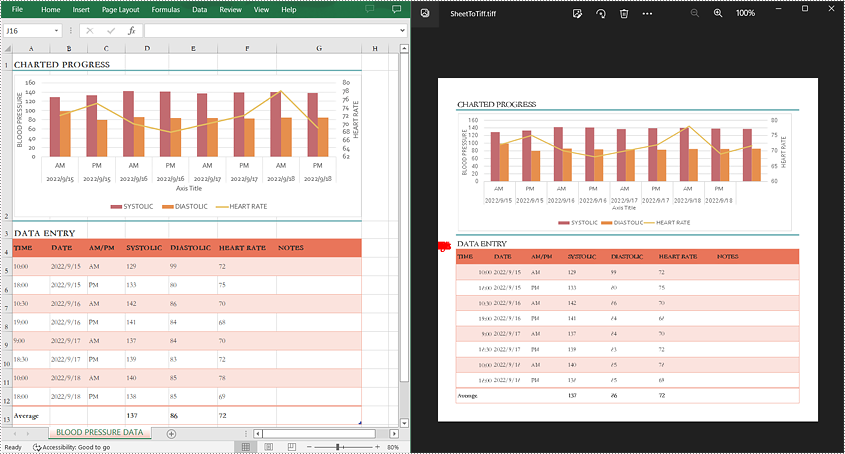
TIFF (Tagged Image File Format) is a standard image format created in the mid-1980s for saving high-quality color images on different computer platforms. Since the TIFF format is widely used in faxing, scanning, and other document exchange processing, conversion from Excel to TIFF may be frequently required in your daily work. This article will demonstrate how to programmatically convert Excel to TIFF using Spire.XLS for Java.
Install Spire.XLS for Java
First of all, you're required to add the Spire.Xls.jar file as a dependency in your Java program. The JAR file can be downloaded from this link. If you use Maven, you can easily import the JAR file in your application by adding the following code to your project's pom.xml file.
<repositories>
    <repository>
        <id>com.e-iceblue</id>
        <name>e-iceblue</name>
        <url>https://repo.e-iceblue.com/nexus/content/groups/public/</url>
    </repository>
</repositories>
<dependencies>
    <dependency>
        <groupId>e-iceblue</groupId>
        <artifactId>spire.xls</artifactId>
        <version>16.8.4</version>
    </dependency>
</dependencies>
Convert a Whole Excel Worksheet to TIFF
The detailed steps are as follows:
- Create a Workbook instance.
- Load a sample Excel file using Workbook.loadFromFile() method.
- Get a specified worksheet using Workbook.getWorksheets().get() method.
- Convert the specified worksheet to TIFF using Worksheet.saveToTiff(java.lang.String fileName) method.
- Java
import com.spire.xls.Workbook;
import com.spire.xls.Worksheet;

public class ConvertExcelToTIFF {
    public static void main(String[] args) {

        //Create a Workbook instance
        Workbook workbook = new Workbook();

        //Load a sample Excel file
        workbook.loadFromFile("input.xlsx");

        //Get the first worksheet
        Worksheet sheet = workbook.getWorksheets().get(0);

        //Save the first worksheet to TIFF
        sheet.saveToTiff("SheetToTiff.tiff");

    }
}
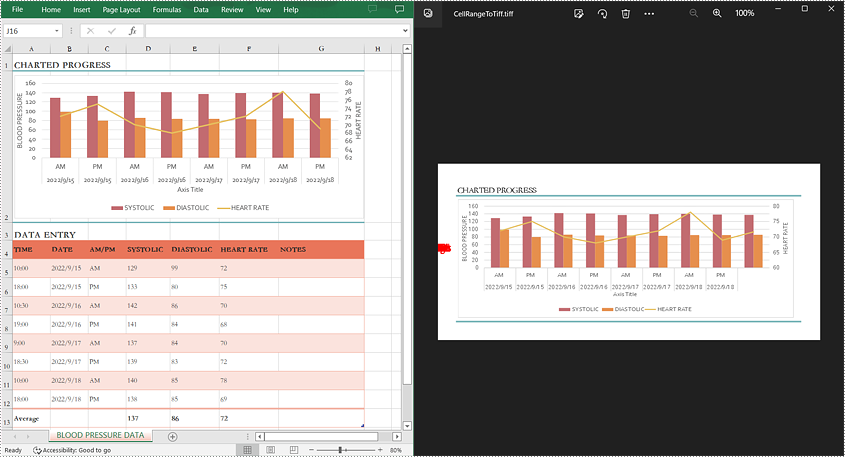
Convert a Specific Cell Range to TIFF
The detailed steps are as follows:
- Create a Workbook instance.
- Load a sample Excel file using Workbook.loadFromFile() method.
- Get a specified worksheet using Workbook.getWorksheets().get() method.
- Convert a specific cell range in the worksheet to TIFF using Worksheet.saveToTiff(java.lang.String fileName, int firstRow, int firstColumn, int lastRow, int lastColumn) method.
- Java
import com.spire.xls.Workbook;
import com.spire.xls.Worksheet;

public class CellRangeToTIFF {
    public static void main(String[] args) {

        //Create a Workbook instance
        Workbook workbook = new Workbook();

        //Load a sample Excel file
        workbook.loadFromFile("input.xlsx");

        //Get the first worksheet
        Worksheet sheet = workbook.getWorksheets().get(0);

        //Save a specific cell range in the first worksheet to TIFF
        sheet.saveToTiff("CellRangeToTiff.tiff",1,1,2,7);
    }
}
Apply for a Temporary License
If you'd like to remove the evaluation message from the generated documents, or to get rid of the function limitations, please request a 30-day trial license for yourself.
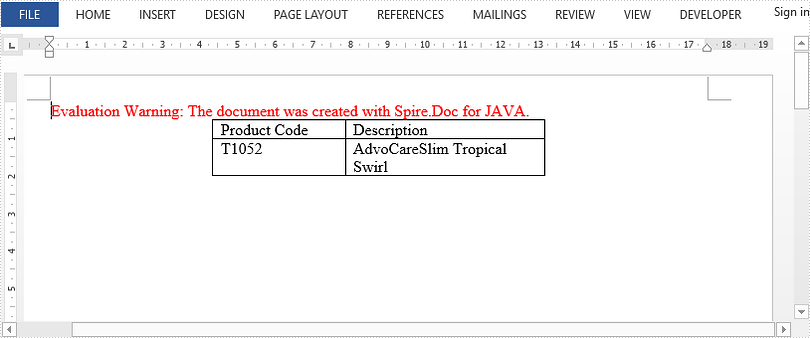
This article demonstrates how to align a table in a Word document using Spire.Doc for Java.
import com.spire.doc.Document;
import com.spire.doc.FileFormat;
import com.spire.doc.Table;
import com.spire.doc.documents.RowAlignment;

public class AlignTable {

    public static void main(String[] args) {

        //Create a Document object
        Document doc=new Document();

        //Add a table
        Table table =doc.addSection().addTable(true);

        //Set column width
        table.setColumnWidth(new float[]{100f,150f});

        //Set column number and row number
        table.resetCells(2,2);

        //Add text to cells
        table.get(0,0).addParagraph().appendText("Product Code");
        table.get(0,1).addParagraph().appendText("Description");
        table.get(1,0).addParagraph().appendText("T1052");
        table.get(1,1).addParagraph().appendText("AdvoCareSlim Tropical Swirl");

        //Align table to center
        table.getFormat().setHorizontalAlignment(RowAlignment.Center);

        //Save the document
        doc.saveToFile("AlignTable.docx", FileFormat.Docx_2013);
    }
}