Knowledgebase (2417)
Children categories
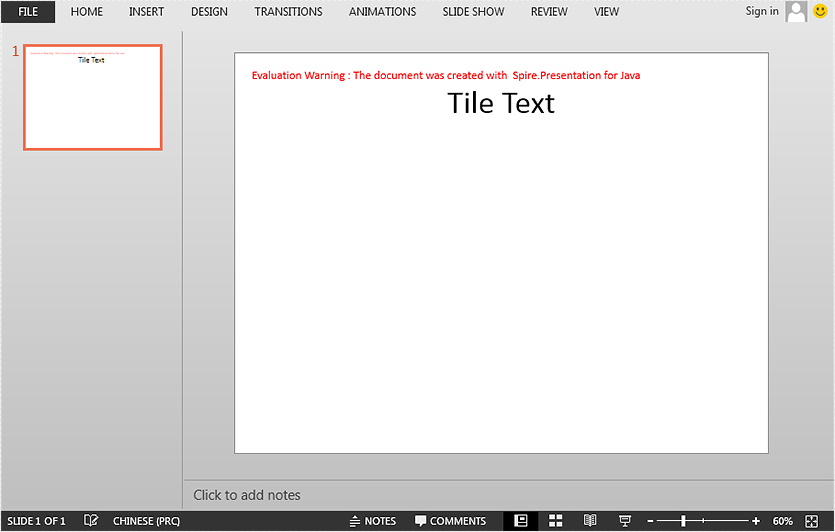
This article demonstrates how to set and get slide title in a PowerPoint document using Spire.Presentation for Java.
Set slide title
import com.spire.presentation.FileFormat;
import com.spire.presentation.ISlide;
import com.spire.presentation.Presentation;

public class SetSlideTitle {
    public static void main(String[] args) throws Exception {
        //Create a Presentation instance
        Presentation ppt = new Presentation();
        //Get the first slide
        ISlide slide = ppt.getSlides().get(0);

        //Set title for the slide
        slide.setTitle("Tile Text");

        //Save the result document
        ppt.saveToFile("SetTitle.pptx", FileFormat.PPTX_2013);
    }
}
Get slide title
import com.spire.presentation.ISlide;
import com.spire.presentation.Presentation;

public class GetSlideTitle {
    public static void main(String[] args) throws Exception {
        //Create a Presentation instance
        Presentation ppt = new Presentation();
        //Load a PowerPoint document
        ppt.loadFromFile("SetTitle.pptx");

        //Get the first slide
        ISlide slide = ppt.getSlides().get(0);

        //Print out the title of the slide
        String tile = slide.getTitle();
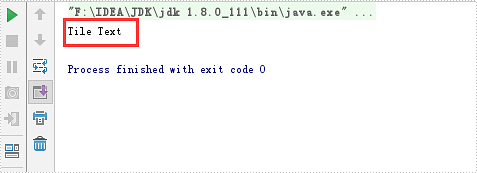
        System.out.println(tile);
    }
}
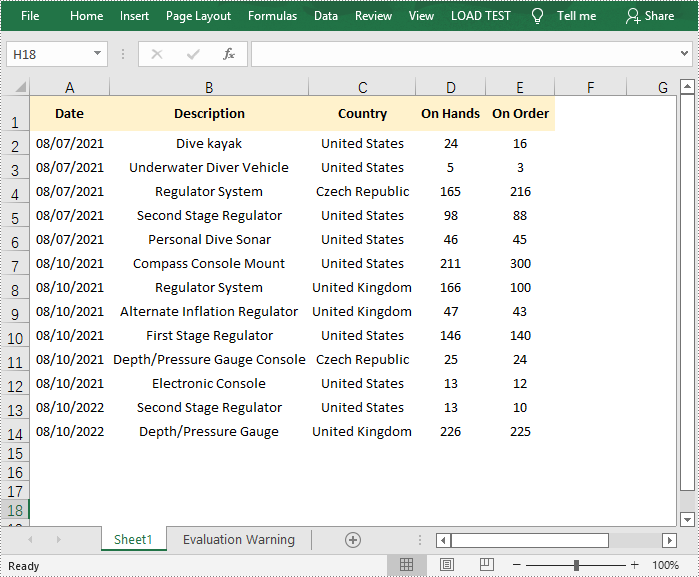
Gridlines are horizontal and vertical faint lines that differentiate between cells in a worksheet. All Excel worksheets have gridlines by default, but sometimes you may need to remove the gridlines as they might interfere with your work. In this article, you will learn how to programmatically show or hide/remove gridlines in an Excel worksheet using Spire.XLS for Java.
Install Spire.XLS for Java
First, you're required to add the Spire.Xls.jar file as a dependency in your Java program. The JAR file can be downloaded from this link. If you use Maven, you can easily import the JAR file in your application by adding the following code to your project's pom.xml file.
<repositories>
    <repository>
        <id>com.e-iceblue</id>
        <name>e-iceblue</name>
        <url>https://repo.e-iceblue.com/nexus/content/groups/public/</url>
    </repository>
</repositories>
<dependencies>
    <dependency>
        <groupId>e-iceblue</groupId>
        <artifactId>spire.xls</artifactId>
        <version>16.8.4</version>
    </dependency>
</dependencies>
Hide or Show Gridlines in Excel
The detailed steps are as follows.
- Create a Workbook object.
- Load a sample Excel document using Workbook.loadFromFile() method.
- Get a specified worksheet using Workbook.getWorksheets().get() method.
- Hide or show gridlines in the specified worksheet using Worksheet.setGridLinesVisible() method.
- Save the result file using Workbook.saveToFile() method.
- Java
import com.spire.xls.ExcelVersion;
import com.spire.xls.Workbook;
import com.spire.xls.Worksheet;

public class HideOrShowGridlines {

    public static void main(String[] args) {

        //Create a Workbook object
        Workbook workbook = new Workbook();

        //Load a sample Excel document
        workbook.loadFromFile("E:\\Files\\Test.xlsx");

        //Get the first worksheet
        Worksheet worksheet = workbook.getWorksheets().get(0);

        //Hide gridlines
        worksheet.setGridLinesVisible(false);

        ////Show gridlines
        //worksheet.setGridLinesVisible(true);

        //Save the document
        workbook.saveToFile("HideGridlines.xlsx", ExcelVersion.Version2016);
    }
}
Apply for a Temporary License
If you'd like to remove the evaluation message from the generated documents, or to get rid of the function limitations, please request a 30-day trial license for yourself.
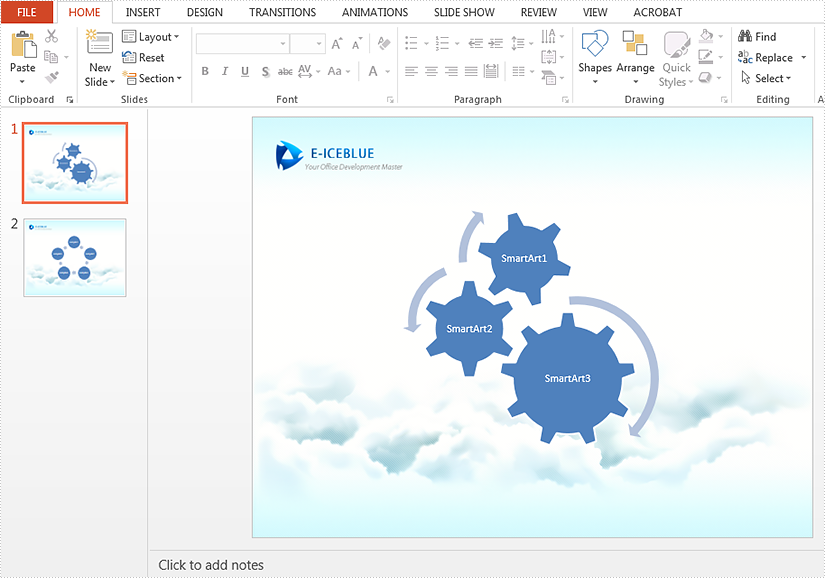
This article will introduce how to extract text from SmartArt in PowerPoint in Java applications.
Firstly view the sample document:
import com.spire.presentation.Presentation;
import com.spire.presentation.diagrams.ISmartArt;
import java.io.*;

public class extractTextFromSmartArt {
    public static void main(String[] args) throws Exception {
        Presentation presentation = new Presentation();
        presentation.loadFromFile("Sample.pptx");

        //Create a new TXT File
        String result = "output/extractTextFromSmartArt.txt";
        File file=new File(result);
        if(file.exists()){
            file.delete();
        }
        file.createNewFile();
        FileWriter fw =new FileWriter(file,true);
        BufferedWriter bw =new BufferedWriter(fw);

        bw.write("Below is extracted text from SmartArt:" + "\r\n");

        //Traverse through all the slides of the PPT file and find the SmartArt shapes.
        for (int i = 0; i < presentation.getSlides().getCount(); i++)
        {
            for (int j = 0; j < presentation.getSlides().get(i).getShapes().getCount(); j++)
            {
                if (presentation.getSlides().get(i).getShapes().get(j) instanceof ISmartArt)
                {
                    ISmartArt smartArt = (ISmartArt)presentation.getSlides().get(i).getShapes().get(j);

                    //Extract text from SmartArt and append to the StringBuilder object.
                    for (int k = 0; k < smartArt.getNodes().getCount(); k++)
                    {
                        bw.write(smartArt.getNodes().get(k).getTextFrame().getText() + "\r\n");
                    }
                }
            }
        }
        bw.flush();
        bw.close();
        fw.close();

    }
}
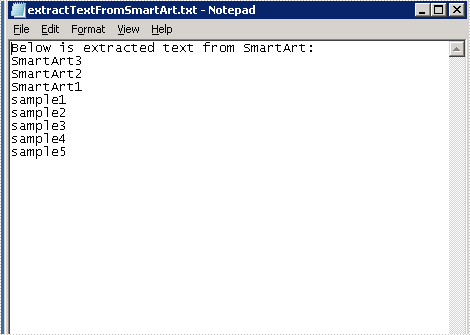
Effective screenshot of the extracting Text from SmartArt: