
Knowledgebase (2417)
Children categories
Sorting data in Excel is a key task for improving data analysis and presentation. By organizing rows based on criteria such as alphabetical order, numerical values, or dates, users can easily identify trends, patterns, and outliers, making data more actionable. This article explores how to sort Excel data programmatically using Java with the Spire.XLS for Java library.
- Sort Data by a Single Column in Excel
- Sort Data by Multiple Columns in Excel
- Sort by a Custom List in Excel
Install Spire.XLS for Java
First of all, you're required to add the Spire.Xls.jar file as a dependency in your Java program. The JAR file can be downloaded from this link. If you use Maven, you can easily import the JAR file in your application by adding the following code to your project's pom.xml file.
<repositories>
    <repository>
        <id>com.e-iceblue</id>
        <name>e-iceblue</name>
        <url>https://repo.e-iceblue.com/nexus/content/groups/public/</url>
    </repository>
</repositories>
<dependencies>
    <dependency>
        <groupId>e-iceblue</groupId>
        <artifactId>spire.xls</artifactId>
        <version>16.8.4</version>
    </dependency>
</dependencies>
Sort Data by a Single Column in Excel
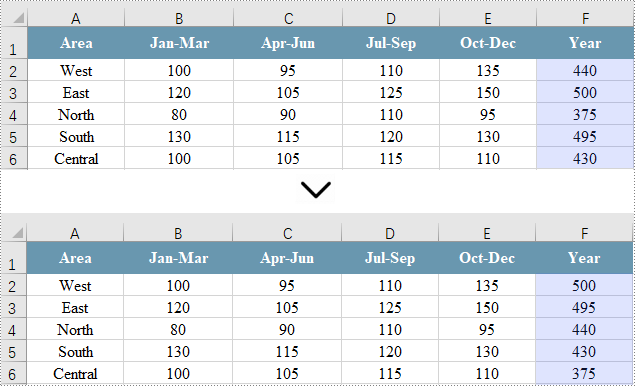
Sorting a single column in Excel allows for quick organization of your data in either ascending or descending order, facilitating easier analysis. However, this approach leaves other columns unchanged, which can lead to misalignment of related data.
Spire.XLS for Java offers the Workbook.getDataSorter().getSortColumns().add(int key, SortComparisonType sortComparisonType, OrderBy orderBy) method. This allows developers to establish sorting criteria by selecting a specific column, defining the comparison type, and specifying the sort order. To apply the sorting to the chosen column, you can use the Workbook.getDataSorter().sort(CellRange range) method.
Here are the steps to sort a single column in Excel using Spire.XLS for Java:
- Create a Workbook object.
- Load an Excel file using the Workbook.loadFromFile() method.
- Retrieve a specific worksheet with the Workbook.getWorksheets().get() method.
- Access the column you want to sort using the Worksheet.getRange().get() method.
- Create sorting criteria for the selected column using the Workbook.getDataSorter().getSortColumns().add() method.
- Perform the sorting on the column using the Workbook.getDataSorter().sort() method.
- Save the workbook to a new Excel file.
- Java
import com.spire.xls.*;

public class SortSingleColumn {

    public static void main(String[] args) {

        // Create a Workbook object
        Workbook workbook = new Workbook();

        // Load an Excel file
        workbook.loadFromFile("C:\\Users\\Administrator\\Desktop\\Input.xlsx");

        // Get a specific worksheet
        Worksheet sheet = workbook.getWorksheets().get(0);

        // Get the cell range (a single column) where you want to sort data
        CellRange cellRange = sheet.getRange().get("F1:F6");

        // Create sorting criteria for the selected column
        workbook.getDataSorter().getSortColumns().add(5, SortComparsionType.Values, OrderBy.Descending);

        // Sort in the specified cell range
        workbook.getDataSorter().sort(cellRange);

        // Save the workbook
        workbook.saveToFile("SortSingleColumn.xlsx", ExcelVersion.Version2013);

        // Dispose resources
        workbook.dispose();
    }
}
Sort Data by Multiple Columns in Excel
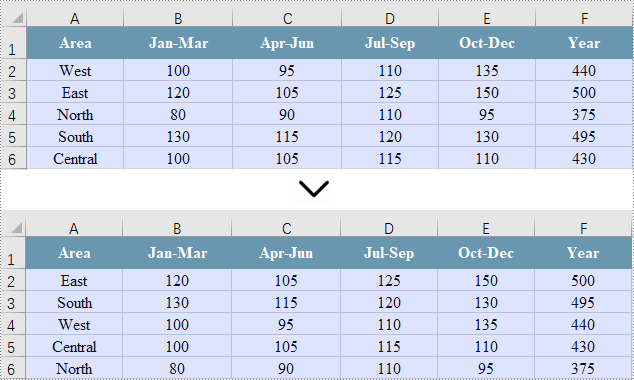
To ensure that all related data across multiple columns stays aligned and meaningful, sorting across these columns is essential. This is particularly valuable for complex datasets where maintaining the relationships between data points is critical.
While sorting multiple columns is similar to sorting a single column, the key distinction is in the CellRange parameter used in the Workbook.getDataSorter().sort(CellRange range) method. Instead of specifying a single column, this parameter defines a range that includes multiple columns.
Here are the steps to sort multiple columns in Excel using Spire.XLS for Java:
- Create a Workbook object.
- Load an Excel file using the Workbook.loadFromFile() method.
- Retrieve a specific worksheet with the Workbook.getWorksheets().get() method.
- Get the cell range (columns) you want to sort using the Worksheet.getRange().get() method.
- Create sorting criteria for the selected column using the Workbook.getDataSorter().getSortColumns().add() method.
- Perform the sorting on the cell range using the Workbook.getDataSorter().sort() method.
- Save the workbook to a new Excel file.
- Java
import com.spire.xls.*;

public class SortMultipleColumns {

    public static void main(String[] args) {

        // Create a new workbook
        Workbook workbook = new Workbook();

        // Load an Excel file
        workbook.loadFromFile("C:\\Users\\Administrator\\Desktop\\Input.xlsx");

        // Get a specific worksheet
        Worksheet sheet = workbook.getWorksheets().get(0);

        // Get the cell range (multiple columns) where you want to sort data
        CellRange cellRange = sheet.getRange().get("A1:F6");

        // Create sorting criteria for the selected column
        workbook.getDataSorter().getSortColumns().add(5, SortComparsionType.Values, OrderBy.Descending);

        // Sort in the specified cell range
        workbook.getDataSorter().sort(cellRange);

        // Save the workbook
        workbook.saveToFile("SortMultipleColumns.xlsx", ExcelVersion.Version2013);

        // Dispose resources
        workbook.dispose();
    }
}
Sort by a Custom List in Excel
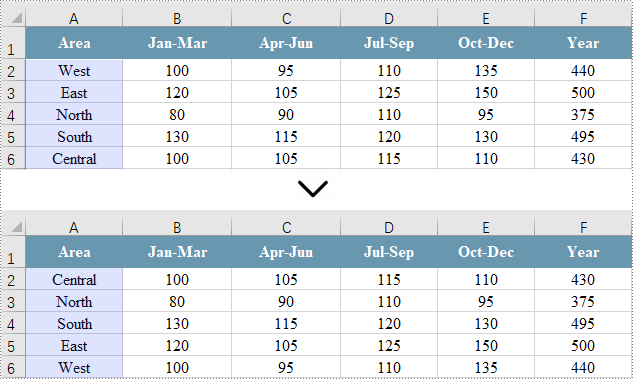
In Excel, you can sort data using a custom list, which allows for arrangement based on specific criteria that may not follow alphabetical order. This approach ensures that the order of data is relevant to your analysis or reporting needs.
To achieve this, start by creating an array of strings that outlines the desired custom sorting order. Then, use the Workbook.getDataSorter().getSortColumns().add(int key, OrderBy orderBy) method to set your sorting criteria. Finally, call the Workbook.getDataSorter().sort(CellRange range) method to sort the designated cell range.
Here are the steps for sorting data by a custom list in Excel using Spire.XLS for Java:
- Create a Workbook object.
- Load an Excel file using the Workbook.loadFromFile() method.
- Retrieve a specific worksheet with the Workbook.getWorksheets().get() method.
- Get the cell range you want to sort using the Worksheet.getRange().get() method.
- Define the custom sorting order with an array of strings.
- Create sorting criteria for the selected column using the Workbook.getDataSorter().getSortColumns().add() method.
- Perform the sorting on the cell range using the Workbook.getDataSorter().sort() method.
- Save the workbook to a new Excel file.
- Java
import com.spire.xls.CellRange;
import com.spire.xls.ExcelVersion;
import com.spire.xls.Workbook;
import com.spire.xls.Worksheet;

public class SortByCustomList {

    public static void main(String[] args) {

        // Create a new workbook
        Workbook workbook = new Workbook();

        // Load an Excel file
        workbook.loadFromFile("C:\\Users\\Administrator\\Desktop\\Input.xlsx");

        // Get a specific worksheet
        Worksheet sheet = workbook.getWorksheets().get(0);

        // Get the cell range where you want to sort data
        CellRange cellRange = sheet.getRange().get("A1:F6");

        // Create an array of strings to define the sorting order
        String[] customList = { "Central", "North", "South", "East", "West" };

        // Create sorting criteria for the selected column
        workbook.getDataSorter().getSortColumns().add(0, customList);

        // Sort data in the specified cell range
        workbook.getDataSorter().sort(cellRange);

        // Save the workbook
        workbook.saveToFile("SortByCustomList.xlsx", ExcelVersion.Version2013);

        // Dispose resources
        workbook.dispose();
    }
}
Apply for a Temporary License
If you'd like to remove the evaluation message from the generated documents, or to get rid of the function limitations, please request a 30-day trial license for yourself.
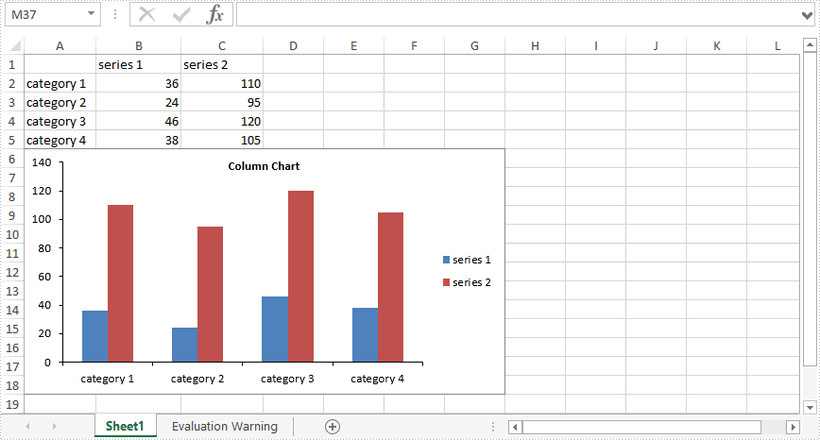
This article demonstrates how to hide gridlines in an Excel chart using Spire.XLS for Java.
import com.spire.xls.*;

public class HideGridlinesInChart {

    public static void main(String[] args) {

        //Create a Workbook object
        Workbook workbook = new Workbook();

        //Load an Excel file that contains data for creating chart
        workbook.loadFromFile("C:\\Users\\Administrator\\Desktop\\data.xlsx");

        //Get the first worksheet
        Worksheet sheet = workbook.getWorksheets().get(0);

        //Add a column chart
        Chart chart = sheet.getCharts().add(ExcelChartType.ColumnClustered);
        chart.setChartTitle("Column Chart");

        //Set the chart data range
        chart.setDataRange(sheet.getCellRange("A1:C5"));
        chart.setSeriesDataFromRange(false);

        //Set the chart position
        chart.setLeftColumn(1);
        chart.setTopRow(6);
        chart.setRightColumn(8);
        chart.setBottomRow(19);

        //Hide the grid lines of chart
        chart.getPrimaryValueAxis().hasMajorGridLines(false);

        //Save the document
        workbook.saveToFile("HideGridlines.xlsx", ExcelVersion.Version2016);
    }
}
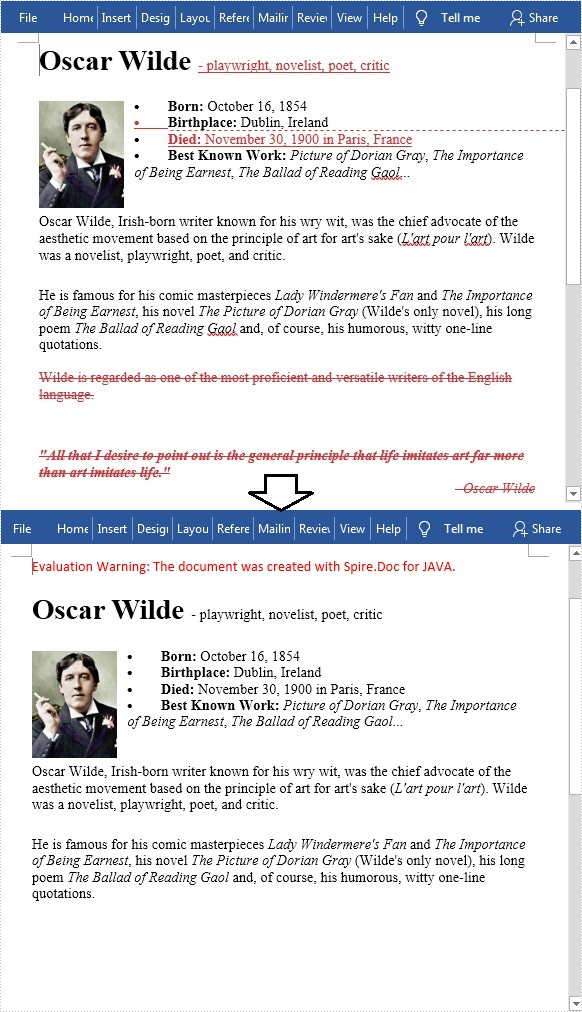
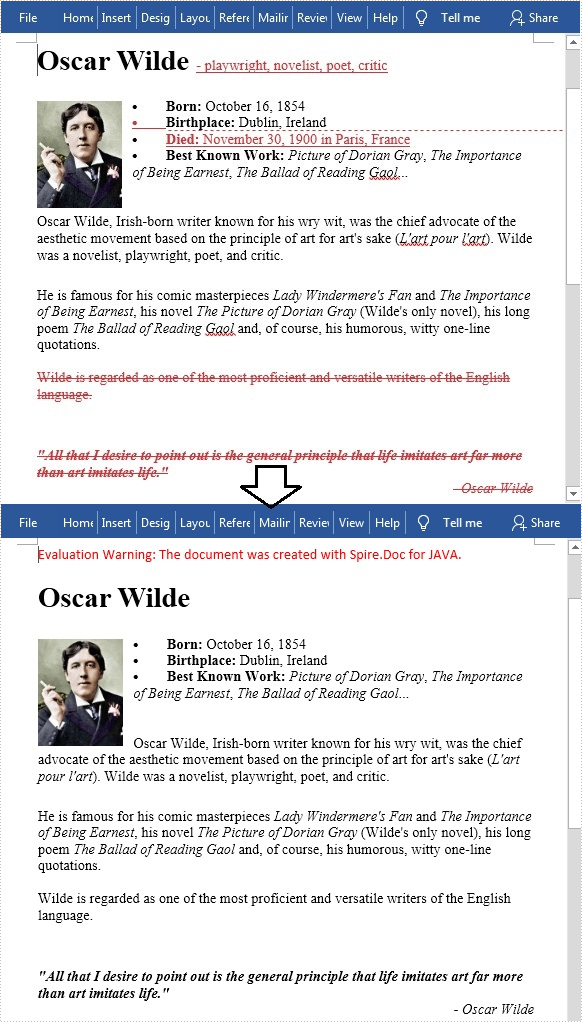
Track Changes is a built-in feature in Microsoft Word which allows you to see all changes that were made to the document, and you can decide whether to accept or reject those changes. It is very useful especially when you are collaborating with multiple people on the same contracts or school assignments. In this article, you will learn how to programmatically accept or reject all tracked changes in a Word document using Spire.Doc for Java.
Install Spire.Doc for Java
First of all, you're required to add the Spire.Doc.jar file as a dependency in your Java program. The JAR file can be downloaded from this link. If you use Maven, you can easily import the JAR file in your application by adding the following code to your project's pom.xml file.
<repositories>
    <repository>
        <id>com.e-iceblue</id>
        <name>e-iceblue</name>
        <url>https://repo.e-iceblue.com/nexus/content/groups/public/</url>
    </repository>
</repositories>
<dependencies>
    <dependency>
        <groupId>e-iceblue</groupId>
        <artifactId>spire.doc</artifactId>
        <version>14.8.4</version>
    </dependency>
</dependencies>
Accept All Tracked Changes in a Word document
The detailed steps are as follows.
- Create a Document instance.
- Load a sample Word document using Document.loadFromFile() method.
- Accept all changes in the document using Document.acceptChanges() method.
- Save the document to another file using Document.saveToFile() method.
- Java
import com.spire.doc.Document;
import com.spire.doc.FileFormat;

public class AcceptTrackedChanges {
    public static void main(String[] args) {

        //Create a Document instance
        Document doc = new Document();

        //Load the sample Word document
        doc.loadFromFile("test file.docx");

        //Accept all changes in the document
        doc.acceptChanges();

        //Save the document
        doc.saveToFile("AcceptAllChanges.docx", FileFormat.Docx);
    }
}
Reject All Tracked Changes in a Word document
The detailed steps are as follows.
- Create a Document instance.
- Load a sample Word document using Document.loadFromFile() method.
- Reject all changes in the document using Document.rejectChanges() method.
- Save the document to another file using Document.saveToFile() method.
- Java
import com.spire.doc.Document;
import com.spire.doc.FileFormat;

public class RejectTrackedChanges {
    public static void main(String[] args) {

        //Create a Document instance
        Document doc = new Document();

        //Load the sample Word document
        doc.loadFromFile("test file.docx");

        //Reject all changes in the document
        doc.rejectChanges();

        //Save the document
        doc.saveToFile("RejectAllChanges.docx", FileFormat.Docx);
    }
}
Apply for a Temporary License
If you'd like to remove the evaluation message from the generated documents, or to get rid of the function limitations, please request a 30-day trial license for yourself.
