
Knowledgebase (2417)
Children categories
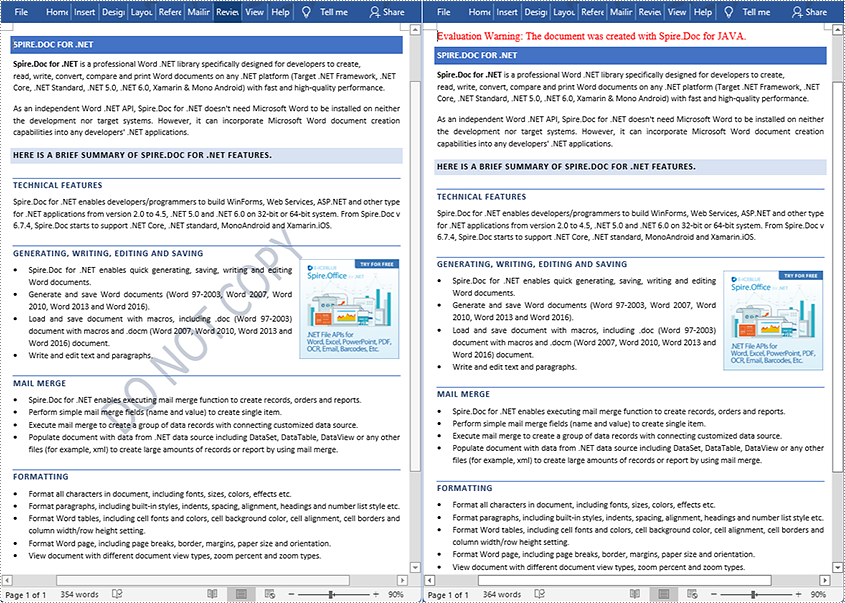
A watermark in a Word document is a semitransparent text or image background that is used to highlight something important about the document, such as using text watermark to remind the reader that the document is confidential or just a draft and declaring copyright through a picture of your company. Sometimes watermarks can affect the readability of documents, and if we want to remove them, Spire.Doc for Java will be of great help. This article shows the detailed steps of removing watermarks from Word documents with the help of Spire.Doc for Java.
Install Spire.Doc for Java
First, you're required to add the Spire.Doc.jar file as a dependency in your Java program. The JAR file can be downloaded from this link. If you use Maven, you can easily import the JAR file in your application by adding the following code to your project's pom.xml file.
<repositories>
    <repository>
        <id>com.e-iceblue</id>
        <name>e-iceblue</name>
        <url>https://repo.e-iceblue.com/nexus/content/groups/public/</url>
    </repository>
</repositories>
<dependencies>
    <dependency>
        <groupId>e-iceblue</groupId>
        <artifactId>spire.doc</artifactId>
        <version>14.8.4</version>
    </dependency>
</dependencies>
Remove the Watermark from a Word Document
The detailed steps of removing a watermark are as follows:
- Create an object of Document.
- Load a Word document from disk using Document.loadFromFile() method.
- Set the watermark to null to remove the watermark using Document.setWatermark() method.
- Save the Word document using Document.saveToFile() method.
- Java
import com.spire.doc.*;

public class removeWatermark {
    public static void main(String[] args) {


        //Create an object of Document
        Document document = new Document();

        //Load a Word document from disk
        document.loadFromFile("D:/testp/test.docx");

        //Set the watermark value to null to remove the watermark
        document.setWatermark(null);

        //Save the Word document
        String output = "D:/javaOutput/removeWatermark.docx";
        document.saveToFile(output, FileFormat.Docx_2013);
    }
}
Apply for a Temporary License
If you'd like to remove the evaluation message from the generated documents, or to get rid of the function limitations, please request a 30-day trial license for yourself.
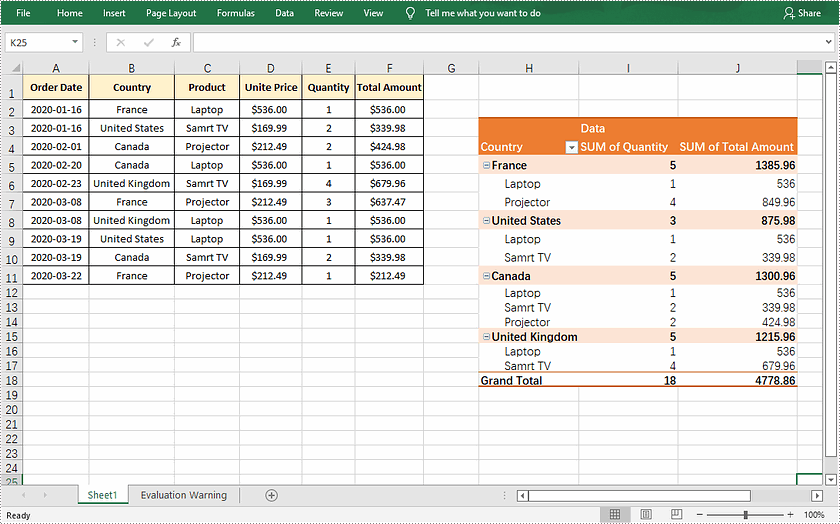
Pivot table is a powerful tool in Excel that supports categorizing, sorting, filtering, and summarizing data. It is often used in situations where data needs to be aggregated and analyzed for reporting. This article will demonstrate how to programmatically create a pivot table in Excel using Spire.XLS for Java.
Install Spire.XLS for Java
First, you're required to add the Spire.Xls.jar file as a dependency in your Java program. The JAR file can be downloaded from this link. If you use Maven, you can easily import the JAR file in your application by adding the following code to your project's pom.xml file.
<repositories>
    <repository>
        <id>com.e-iceblue</id>
        <name>e-iceblue</name>
        <url>https://repo.e-iceblue.com/nexus/content/groups/public/</url>
    </repository>
</repositories>
<dependencies>
    <dependency>
        <groupId>e-iceblue</groupId>
        <artifactId>spire.xls</artifactId>
        <version>16.8.4</version>
    </dependency>
</dependencies>
Create a Pivot Table in Excel
The detailed steps are as follows.
- Create a Workbook object.
- Load a sample Excel document using Workbook.loadFromFile() method.
- Get a specified worksheet using Workbook.getWorksheets().get() method.
- Select the data source range using Worksheet.getCellRange() method, and then create a PivotCache to save the data information using Workbook.getPivotCaches().add(CellRange range) method.
- Add a pivot table to the specified worksheet and set the location and cache of it using Worksheet.getPivotTables().add(java.lang.String name, CellRange location, PivotCache cache) method.
- Define row labels of the pivot table and then add fields to the data area to calculate data using PivotTable.getDataFields().add(IPivotField iField, java.lang.String name, SubtotalTypes subtotal) method.
- Set the pivot table style using PivotTable.setBuiltInStyle(PivotBuiltInStyles builtInStyle) method.
- Save the result document using Workbook.saveToFile() method.
- Java
import com.spire.xls.*;

public class CreatePivotTable {
    public static void main(String[] args)  {

        //Create a Workbook object
        Workbook workbook = new Workbook();

        //Load a sample Excel document
        workbook.loadFromFile("E:\\Files\\sample.xlsx");

        //Get the first worksheet
        Worksheet sheet = workbook.getWorksheets().get(0);

        //Select the data source range
        CellRange dataRange = sheet.getCellRange("B1:F11");
        PivotCache cache = workbook.getPivotCaches().add(dataRange);

        //Add a PivotTable to the worksheet and set the location and cache of it
        PivotTable pt = sheet.getPivotTables().add("Pivot Table", sheet.getCellRange("H3"), cache);

        //Define row labels
        PivotField pf=null;
        if (pt.getPivotFields().get("Country") instanceof PivotField){
            pf= (PivotField) pt.getPivotFields().get("Country");
        }
        pf.setAxis(AxisTypes.Row);

        PivotField pf2 =null;
        if (pt.getPivotFields().get("Product") instanceof PivotField){
            pf2= (PivotField) pt.getPivotFields().get("Product");
        }
        pf2.setAxis(AxisTypes.Row);

        //Add data fields to calculate data
        pt.getDataFields().add(pt.getPivotFields().get("Quantity"), "SUM of Quantity", SubtotalTypes.Sum);
        pt.getDataFields().add(pt.getPivotFields().get("Total Amount"), "SUM of Total Amount", SubtotalTypes.Sum);

        //Set pivot table style
        pt.setBuiltInStyle(PivotBuiltInStyles.PivotStyleMedium10);

        //Save the document
        workbook.saveToFile("CreatePivotTable.xlsx", ExcelVersion.Version2013);
    }
}
Apply for a Temporary License
If you'd like to remove the evaluation message from the generated documents, or to get rid of the function limitations, please request a 30-day trial license for yourself.
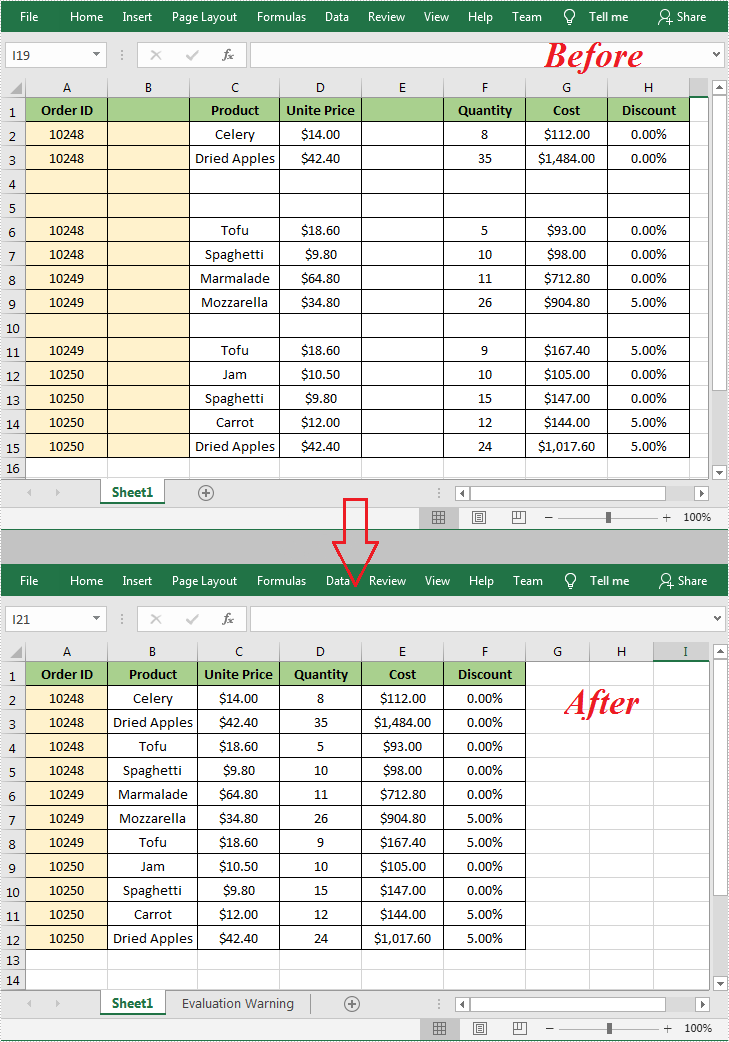
In Microsoft Excel, the blank rows or columns usually indicate the boundaries of data ranges. Therefore, if a blank row or blank column appears in the wrong place will prevent Excel from recognizing the data range correctly when applying some built-in features such as sorting, removing duplicates and subtotals. In such a case, you can delete the blank rows or columns to create a tidy dataset that fit for further processing and analysis. This article will introduce how to programmatically delete blank rows and columns in an Excel document using Spire.XLS for Java.
Install Spire.XLS for Java
First of all, you're required to add the Spire.Xls.jar file as a dependency in your Java program. The JAR file can be downloaded from this link. If you use Maven, you can easily import the JAR file in your application by adding the following code to your project's pom.xml file.
<repositories>
    <repository>
        <id>com.e-iceblue</id>
        <name>e-iceblue</name>
        <url>https://repo.e-iceblue.com/nexus/content/groups/public/</url>
    </repository>
</repositories>
<dependencies>
    <dependency>
        <groupId>e-iceblue</groupId>
        <artifactId>spire.xls</artifactId>
        <version>16.8.4</version>
    </dependency>
</dependencies>
Delete Blank Rows and Columns in Excel
The detailed steps are as follows.
- Create a Workbook object.
- Load a sample Excel document using Workbook.loadFromFile() method.
- Get a specified worksheet using Workbook.getWorksheets().get() method.
- Loop through all used rows in the specified worksheet and determine whether the row is blank using XlsRange.isBlank() method.
- Delete the blank rows using Worksheet.deleteRow() method.
- Loop through all used columns in the specified worksheet and determine whether the column is blank using XlsRange.isBlank() method.
- Delete the blank columns using Worksheet.deleteColumn() method.
- Save the result to another file using Workbook.saveToFile() method.
- Java
import com.spire.xls.ExcelVersion;
import com.spire.xls.Workbook;
import com.spire.xls.Worksheet;

public class DeleteBlankRowsAndColumns {

    public static void main(String[] args) {

        //Create a Workbook object.
        Workbook wb = new Workbook();

        //Load a sample Excel document
        wb.loadFromFile("sample.xlsx ");

        //Get the first worksheet
        Worksheet sheet = wb.getWorksheets().get(0);

        //Loop through all used rows
        for (int i = sheet.getLastRow(); i >= 1; i--)
        {
            //Detect if a row is blank
            if (sheet.getRows()[i-1].isBlank())
            {
                //Remove blank rows
                sheet.deleteRow(i);
            }
        }

        //Loop through all used columns
        for (int j = sheet.getLastColumn(); j >= 1; j--)
        {
            //Detect if a column is blank
            if (sheet.getColumns()[j-1].isBlank())
            {
                //Remove blank columns
                sheet.deleteColumn(j);
            }
        }

        //Save the document
        wb.saveToFile("DeleteBlankRowsAndColumns.xlsx", ExcelVersion.Version2016);
    }
}
Apply for a Temporary License
If you'd like to remove the evaluation message from the generated documents, or to get rid of the function limitations, please request a 30-day trial license for yourself.
