
Knowledgebase (2417)
Children categories
Page breaks in Excel are dividers that separate a large worksheet into individual pages for printing. In this article, you will learn how to add or delete page breaks in Excel in Java using Spire.XLS for Java library.
- Add Page Breaks to Excel in Java
- Delete a Specific Page Break from Excel in Java
- Delete All Page Breaks from Excel in Java
Install Spire.XLS for Java
First of all, you're required to add the Spire.Xls.jar file as a dependency in your Java program. The JAR file can be downloaded from this link. If you use Maven, you can easily import the JAR file in your application by adding the following code to your project's pom.xml file.
<repositories>
    <repository>
        <id>com.e-iceblue</id>
        <name>e-iceblue</name>
        <url>https://repo.e-iceblue.com/nexus/content/groups/public/</url>
    </repository>
</repositories>
<dependencies>
    <dependency>
        <groupId>e-iceblue</groupId>
        <artifactId>spire.xls</artifactId>
        <version>16.8.4</version>
    </dependency>
</dependencies>
Add Page Breaks to Excel in Java
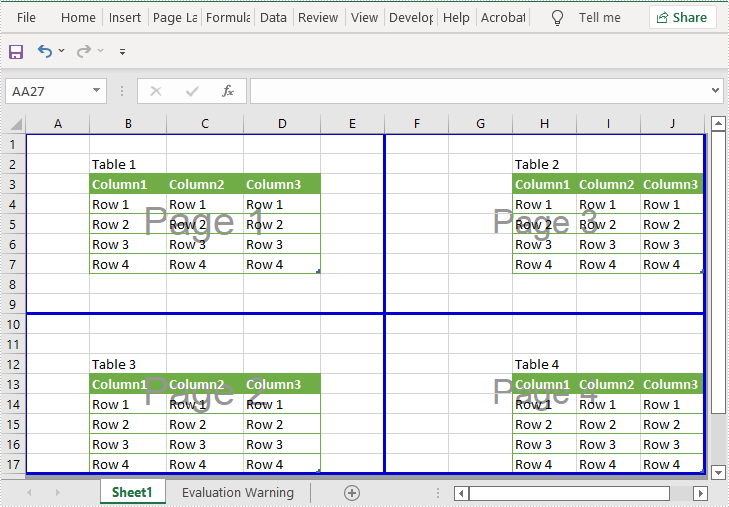
Using Spire.XLS for Java, you can add horizontal and vertical page breaks to an Excel worksheet. Below are the steps to do so:
- Create an instance of Workbook class.
- Load an Excel file using Workbook.loadFromFile() method.
- Get the desired worksheet by its index using Workbook.getWorksheets().get() method.
- Specify the cells where you want to add page breaks to using Worksheet.getRange().get() method.
- Add horizontal and vertical page breaks to the cells using Worksheet.getHPageBreaks().add() and Worksheet.getVPageBreaks().add() methods.
- Set the sheet view mode to ViewMode.Preview using Worksheet.setViewMode() method.
- Save the result file using Workbook.saveToFile() method.
- Java
import com.spire.xls.*;

public class AddPageBreaks {
    public static void main(String []args) {
        //Create a Workbook instance
        Workbook workbook = new Workbook();
        //Load an Excel file
        workbook.loadFromFile("Sample.xlsx");

        //Get the first worksheet
        Worksheet sheet = workbook.getWorksheets().get(0);

        //Specify the cells where you want to add page breaks to
        CellRange cell1 = sheet.getRange().get("A10");
        CellRange cell2 = sheet.getRange().get("F1");

        //Add a horizontal page break
        sheet.getHPageBreaks().add(cell1);

        //Add a vertical page break
        sheet.getVPageBreaks().add(cell2);

        //Set view mode to Preview in order to view the page breaks
        sheet.setViewMode(ViewMode.Preview);

        //Save the result file
        workbook.saveToFile("AddPageBreaks.xlsx", ExcelVersion.Version2013);
    }
}
Delete a Specific Page Break from Excel in Java
The following are the steps to delete a specific page break from an Excel worksheet:
- Create an instance of Workbook class.
- Load an Excel file using Workbook.loadFromFile() method.
- Get the desired worksheet by its index using Workbook.getWorksheets().get() method.
- Delete a specific horizontal or vertical page break from the worksheet by its index using Worksheet.getHPageBreaks().removeAt() or Worksheet.getVPageBreaks().removeAt() method.
- Save the result file using Workbook.saveToFile() method.
- Java
import com.spire.xls.ExcelVersion;
import com.spire.xls.Workbook;
import com.spire.xls.Worksheet;

public class DeleteASpecificPageBreak {
    public static void main(String []args) {
        //Create a Workbook instance
        Workbook workbook = new Workbook();
        //Load an Excel file
        workbook.loadFromFile("AddPageBreaks.xlsx");

        //Get the first worksheet
        Worksheet sheet = workbook.getWorksheets().get(0);

        //Delete the first horizontal page break
        sheet.getHPageBreaks().removeAt(0);
        //Delete the first vertical page break
        sheet.getVPageBreaks().removeAt(0);

        //Save the result file
        workbook.saveToFile("DeleteASpecificPageBreaks.xlsx", ExcelVersion.Version2013);
    }
}
Delete All Page Breaks from Excel in Java
The following are the steps to delete all the page breaks from an Excel worksheet:
- Create an instance of Workbook class.
- Load an Excel file using Workbook.loadFromFile() method.
- Get the desired worksheet by its index using Workbook.getWorksheets().get() method.
- Delete all the horizontal and vertical page breaks from the worksheet using Worksheet.getHPageBreaks().clear() and Worksheet.getVPageBreaks().clear() methods.
- Save the result file using Workbook.saveToFile() method.
- Java
import com.spire.xls.ExcelVersion;
import com.spire.xls.Workbook;
import com.spire.xls.Worksheet;

public class DeleteAllPageBreaks {
    public static void main(String []args) {
        //Create a Workbook instance
        Workbook workbook = new Workbook();
        //Load an Excel file
        workbook.loadFromFile("AddPageBreaks.xlsx");

        //Get the first worksheet
        Worksheet sheet = workbook.getWorksheets().get(0);

        //Delete all horizontal page breaks
        sheet.getHPageBreaks().clear();
        //Delete all vertical page breaks
        sheet.getVPageBreaks().clear();

        //Save the result file
        workbook.saveToFile("DeleteAllPageBreaks.xlsx", ExcelVersion.Version2013);
    }
}
Apply for a Temporary License
If you'd like to remove the evaluation message from the generated documents, or to get rid of the function limitations, please request a 30-day trial license for yourself.
This article demonstrates how to add, count, retrieve and remove variables in a Word document in Java using Spire.Doc for Java library.
Add a Variable
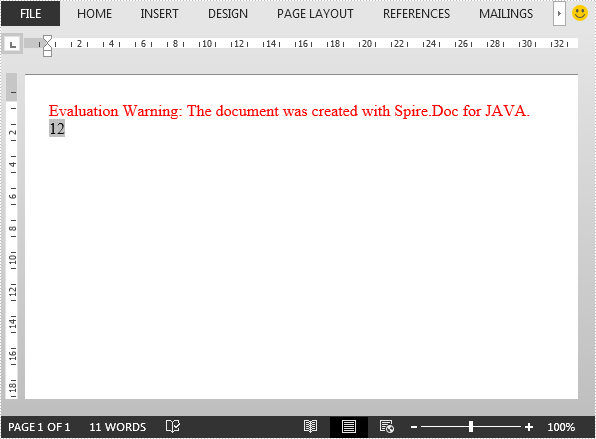
The following example adds a document variable named "A1" with a value of 12 to a Word document.
import com.spire.doc.Document;
import com.spire.doc.FieldType;
import com.spire.doc.FileFormat;
import com.spire.doc.Section;
import com.spire.doc.documents.Paragraph;

public class AddVariables {
    public static void main(String[] args){
        //Create a Document instance
        Document document = new Document();
        //Add a section
        Section section = document.addSection();

        //Add a paragraph to the section
        Paragraph paragraph = section.addParagraph();

        //Add a DocVariable field to the paragraph
        paragraph.appendField("A1", FieldType.Field_Doc_Variable);

        //Add a document variable to the DocVariable field
        document.getVariables().add("A1", "12");

        //Update fields in the document
        document.isUpdateFields(true);

        //Save the result document
        document.saveToFile("AddVariables.docx", FileFormat.Docx_2013);
    }
}
Count the number of Variables
import com.spire.doc.Document;

public class CountVariables {
    public static void main(String[] args){
        //Load the Word document
        Document document = new Document();
        document.loadFromFile("AddVariables.docx");

        //Get the number of variables in the document
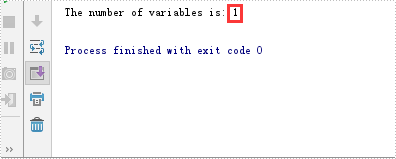
        int number = document.getVariables().getCount();

        StringBuilder content = new StringBuilder();
        content.append("The number of variables is: " + number);

        System.out.println(content.toString());
    }
}
Retrieve Name and Value of a Variable
import com.spire.doc.Document;

public class RetrieveVariables {
    public static void main(String[] args){
        //Load the Word document
        Document document = new Document();
        document.loadFromFile("AddVariables.docx");

        //Retrieve the name of a variable by index
        String s1 = document.getVariables().getNameByIndex(0);

        //Retrieve the value of a variable by index
        String s2 = document.getVariables().getValueByIndex(0);

        //Retrieve the value of a variable by name
        String s3 = document.getVariables().get("A1");

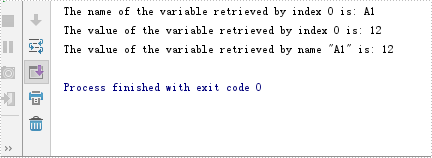
        System.out.println("The name of the variable retrieved by index 0 is: " + s1);
        System.out.println("The value of the variable retrieved by index 0 is: " + s2);
        System.out.println("The value of the variable retrieved by name \"A1\" is: " + s3);
    }
}
Remove a specific Variable
import com.spire.doc.Document;
import com.spire.doc.FileFormat;

public class RemoveVariables {
    public static void main(String[] args){
        //Load the Word document
        Document document = new Document();
        document.loadFromFile("AddVariables.docx");

        //Remove a variable by name
        document.getVariables().remove("A1");

        //Update fields in the document
        document.isUpdateFields (true);

        //Save the result document
        document.saveToFile("RemoveVariables.docx", FileFormat.Docx_2013);
    }
}
Word document editing restrictions are password-protected limitations set on a Word document to restrict the type of editing that can be performed on the document. By setting restrictions on Word documents, users can exercise control over who can modify their documents and to what extent. This ensures that the important information remains unchanged while enabling smooth collaboration among multiple contributors and efficient information collection from a large number of people. On the other hand, it is also important to unsetting the editing restrictions to correct errors, update information, or accommodate changes. This article shows how to set or unset editing restrictions on Word documents using Spire.Doc for Java through Java programs.
- Set Editing Restrictions on Word Documents
- Add Exceptions While Setting Editing Restrictions on Word Documents
- Remove Editing Restrictions from Word Documents
Install Spire.Doc for Java
First of all, you're required to add the Spire.Doc.jar file as a dependency in your Java program. The JAR file can be downloaded from this link. If you use Maven, you can easily import the JAR file in your application by adding the following code to your project's pom.xml file.
<repositories>
    <repository>
        <id>com.e-iceblue</id>
        <name>e-iceblue</name>
        <url>https://repo.e-iceblue.com/nexus/content/groups/public/</url>
    </repository>
</repositories>
<dependencies>
    <dependency>
        <groupId>e-iceblue</groupId>
        <artifactId>spire.doc</artifactId>
        <version>14.8.4</version>
    </dependency>
</dependencies>
Set Editing Restrictions on Word Documents
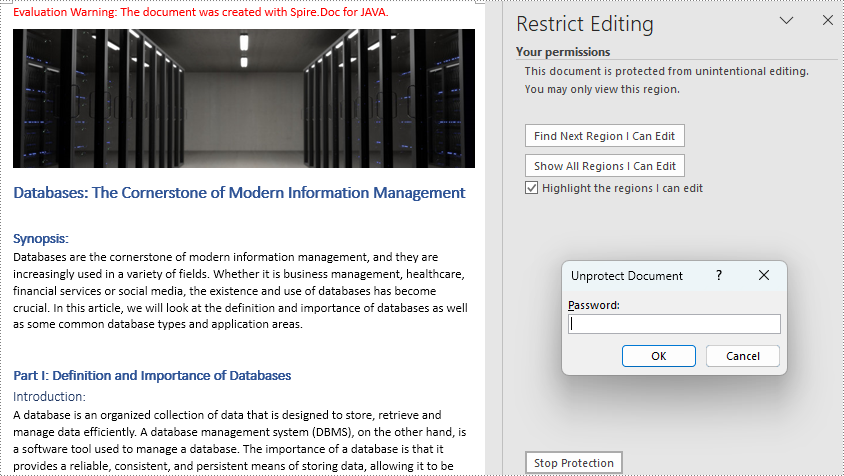
Spire.Doc for Java supports setting four types of editing restrictions with a password on Word documents: no changes (read only), tracked changes, comments, and filling in forms. These editing restrictions can be set by using the Document.protect() method and some Enums.
Here is a list of the Enums to set the editing restrictions and their descriptions.
| Enum | Restriction | Description |
| ProtectionType.Allow_Only_Reading | No changes (read only) | Allow reading only. |
| ProtectionType.Allow_Only_Revisions | Tracked changes | Allow tracked changes only. |
| ProtectionType.Allow_Only_Comments | Comments | Allow commenting only. |
| ProtectionType.Allow_Only_Form_Fields | Filling in forms | Allow filling in forms only. |
| ProtectionType.No_Protection | No restriction | Allow any editing. |
The detailed step for setting editing restrictions with a password on a Word document are as follows:
- Create an object of Document class.
- Load a Word document using Document.loadFromFile() method.
- Set the editing restrictions with a password using Document.protect() method.
- Save the document using Document.saveToFIle() method.
- Java
import com.spire.doc.Document;
import com.spire.doc.FileFormat;
import com.spire.doc.ProtectionType;

public class setEditingRestriction {
    public static void main(String[] args) {
        //Create an object of Document class
        Document doc = new Document();

        //Load a Word document
        doc.loadFromFile("Sample.docx");

        //Set the restriction type to read-only and add a password
        doc.protect(ProtectionType.Allow_Only_Reading, "password");

        //Set the restriction type to comment-only and add a password
        //doc.protect(ProtectionType.Allow_Only_Comments, "password");

        //Set the restriction type to form-filling-only and add a password
        //doc.protect(ProtectionType.Allow_Only_Form_Fields, "password");

        //Set the restriction type to revision-only and add a password
        //doc.protect(ProtectionType.Allow_Only_Revisions, "password");

        //Save the document
        doc.saveToFile("EditingRestrictions.docx", FileFormat.Auto);
    }
}
Add Exceptions While Setting Editing Restrictions on Word Documents
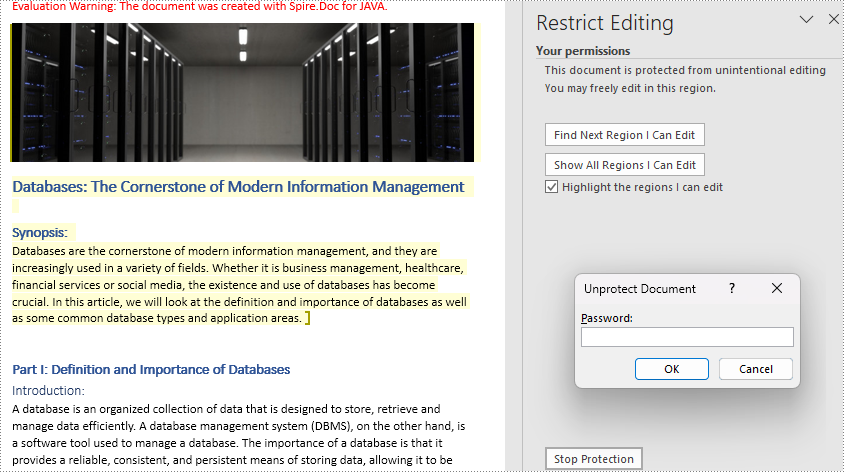
Users can add exceptions (unrestricted areas) when setting editing restrictions on Word documents by inserting permission starting and ending tags. The details steps are as follows:
- Create an object of Document class.
- Load a Word document using Document.loadFromFile() method.
- Create an object of PermissionStart class and an object of PermissionEnd class.
- Get the first section using Document.getSections().get() method.
- Insert the permission starting and ending tags to the paragraphs to set unrestricted areas.
- Set editing restrictions with a password on the other areas using Document.protect() method.
- Save the document using Document.saveToFile() method.
- Java
import com.spire.doc.*;

public class setRegionalEditingRestrictions {
    public static void main(String[] args) {
        //Create an object of Document class
        Document doc = new Document();

        //Load a Word document
        doc.loadFromFile("Sample.docx");

        //Create the permission starting and ending tags
        PermissionStart start = new PermissionStart(doc, "permission1");
        PermissionEnd end = new PermissionEnd(doc, "permission1");

        //Get the first section
        Section section = doc.getSections().get(0);

        //Insert the permission starting tag and the permission ending tag to the document
        section.getParagraphs().get(0).getChildObjects().insert(0,start);
        section.getParagraphs().get(5).getChildObjects().add(end);

        //Set the editing restrictions with a password
        doc.protect(ProtectionType.Allow_Only_Reading, "password");

        //Save the document
        doc.saveToFile("RestrictionExceptions.docx", FileFormat.Auto);
    }
}
Remove Editing Restrictions from Word Documents
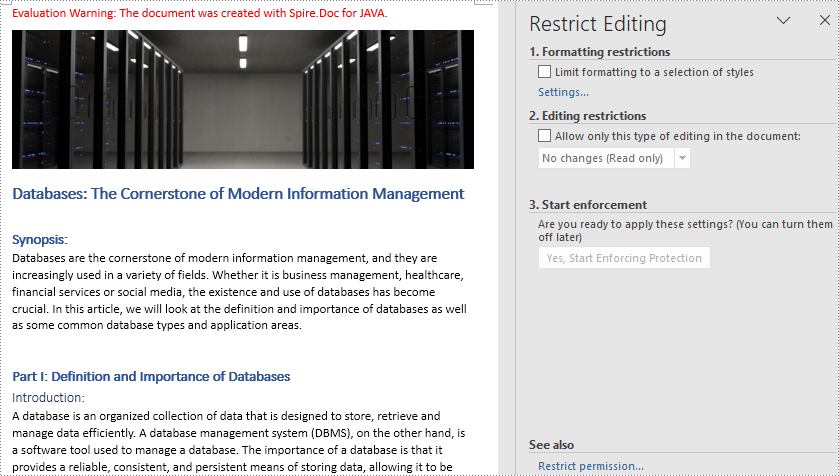
Editing restrictions can be removed by setting the editing restrictions to allow any editing. The detailed steps are as follows:
- Create an object of Document class.
- Load a Word document using Document.loadFromFile() method.
- Set the editing restrictions to allow any editing and remove the password using Document.protect() method.
- If there are areas of exception, find the permission start tags and permission end tags and remove them.
- Save the document using Document.saveToFile() method.
- Java
import com.spire.doc.*;
import com.spire.doc.documents.Paragraph;

public class removeEditingRestriction {
    public static void main(String[] args) {
        //Create an object of Document class
        Document doc = new Document();

        //Load a Word document
        doc.loadFromFile("RegionalEditingRestrictions.docx");

        //Remove the editing restrictions
        doc.protect(ProtectionType.No_Protection);

        //Find permission starting tags and permission ending tags and remove them
        for(int j=0;j<doc.getSections().getCount();j++){
            //Get a section
            Section section=doc.getSections().get(j);
            for(int k=0;k<section.getParagraphs().getCount();k++){
                //Get a paragraph in a section
                Paragraph paragraph=section.getParagraphs().get(k);
                for(int i=0;i<paragraph.getChildObjects().getCount();){
                    //Get a child object of a paragraph
                    DocumentObject obj=paragraph.getChildObjects().get(i);
                    //Determine if a child object is an instance of PermissionStart or PermissionEnd class
                    if(obj instanceof PermissionStart||obj instanceof PermissionEnd){
                        //Remove the child object if it is
                        paragraph.getChildObjects().remove(obj);
                    }else{
                        i++;
                    }
                }
            }
        }

        //Save the document
        doc.saveToFile("NoRestrictions.docx", FileFormat.Auto);
    }
}
Apply for a Temporary License
If you'd like to remove the evaluation message from the generated documents, or to get rid of the function limitations, please request a 30-day trial license for yourself.
