
Knowledgebase (2417)
Children categories
In this article, we will explain how to copy a shapes or all shapes from one slide into another within the same PowerPoint document by using Spire.Presentation.
Firstly, view the sample PowerPoint document:
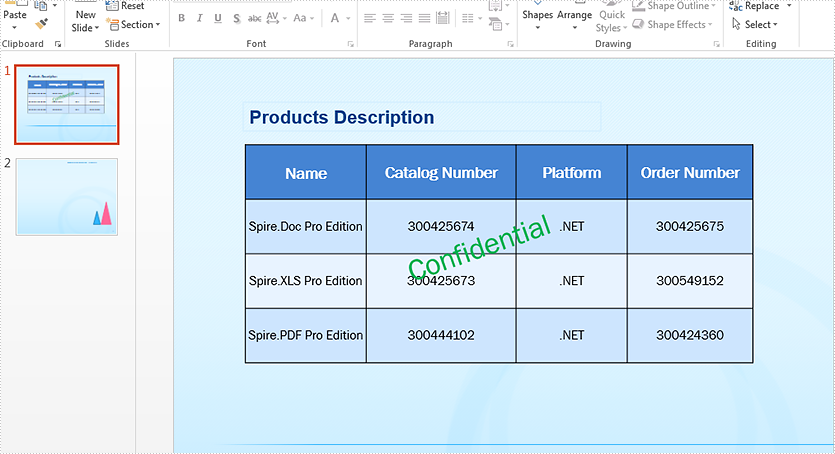
Copy a single shape from the first slide to the second slide:
//Load the sample document
Presentation ppt = new Presentation();
ppt.LoadFromFile("Sample.pptx");


//define the source slide and target slide
ISlide sourceSlide = ppt.Slides[0];
ISlide targetSlide = ppt.Slides[1];

//copy the second shape from the source slide to the target slide
targetSlide.Shapes.AddShape((Shape)sourceSlide.Shapes[1]);

//save the document to file
ppt.SaveToFile("Copyshape.pptx", FileFormat.Pptx2013);
Effective screenshot after copy a single shape from the first slide to second slide:
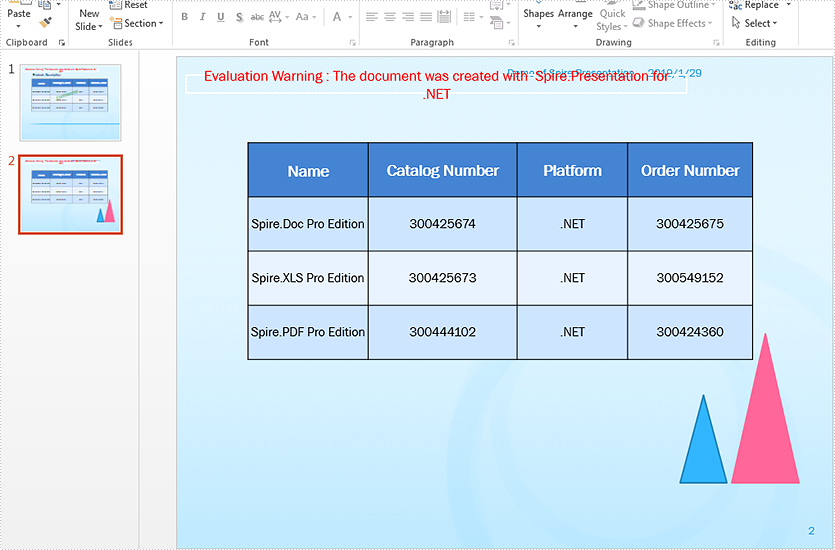
Copy all shapes from the first slide to the second slide:
//Load the sample document
Presentation ppt = new Presentation();
ppt.LoadFromFile("Sample.pptx");


//copy all the shapes from the source slide to the target slide
for (int i = 0; i < ppt.Slides.Count - 1; i++)
{
    ISlide sourceSlide = ppt.Slides[i];
    ISlide targetSlide = ppt.Slides[ppt.Slides.Count - 1];
    for (int j = 0; j < sourceSlide.Shapes.Count; j++)
    {
        targetSlide.Shapes.AddShape((Shape)sourceSlide.Shapes[j]);
    }
}

//save the document to file
ppt.SaveToFile("Copyshapes.pptx", FileFormat.Pptx2013);
Effective screenshot after copy all shapes from the first slide to second slide:
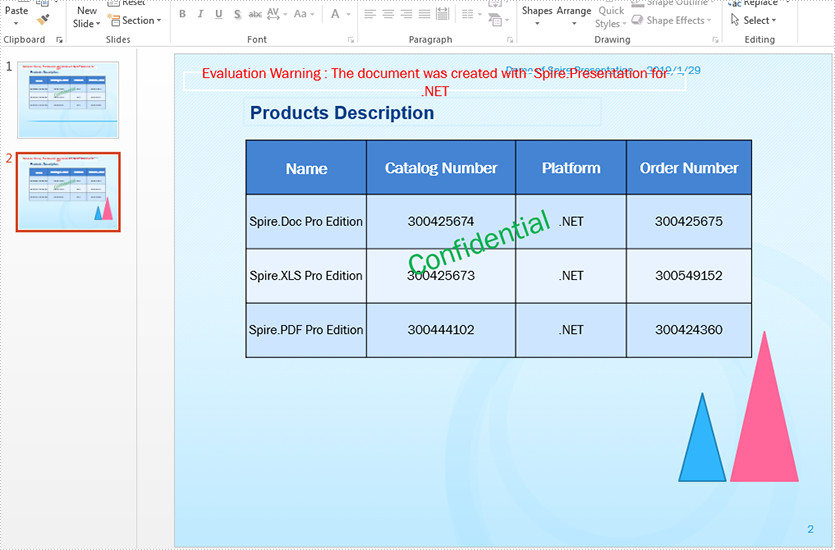
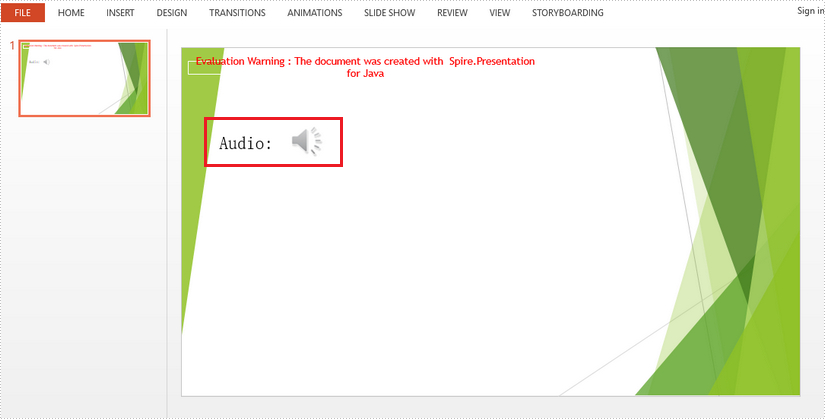
This article demonstrates how to insert an audio file (.wav) in a presentation slide by using Spire.Presentation for Java.
import com.spire.presentation.*;
import com.spire.presentation.drawing.FillFormatType;

import java.awt.*;
import java.awt.geom.Rectangle2D;

public class InsertAudio {

    public static void main(String[] args) throws Exception {

        //create a Presentation object and load an example PowerPoint file
        Presentation presentation = new Presentation();
        presentation.loadFromFile("C:/Users/Administrator/Desktop/example.pptx");

        //add a shape to the first slide
        Rectangle2D.Double labelRect= new Rectangle2D.Double(50, 120, 100, 50);
        IAutoShape labelShape = presentation.getSlides().get(0).getShapes().appendShape(ShapeType.RECTANGLE, labelRect);
        labelShape.getLine().setFillType(FillFormatType.NONE);
        labelShape.getFill().setFillType(FillFormatType.NONE);
        labelShape.getTextFrame().setText("Audio:");
        labelShape.getTextFrame().getTextRange().setFontHeight(28);
        labelShape.getTextFrame().getTextRange().setLatinFont(new TextFont("Myriad Pro Light"));
        labelShape.getTextFrame().getTextRange().getFill().setFillType(FillFormatType.SOLID);
        labelShape.getTextFrame().getTextRange().getFill().getSolidColor().setColor(Color.BLACK);

        //append an audio file to the slide
        Rectangle2D.Double audioRect = new Rectangle2D.Double(170, 120, 50, 50);
        presentation.getSlides().get(0).getShapes().appendAudioMedia((new java.io.File("C:/Users/Administrator/Desktop/Music.wav")).getAbsolutePath(), audioRect);

        //save to file
        presentation.saveToFile("output/InsertAudio.pptx", FileFormat.PPTX_2010);
        presentation.dispose();
    }
}
The java.awt.print package provides classes and interfaces for a general printing API. It has the ability to specify the document types and manage the print options, such as specifying printer name, setting print range, printing in duplex, and printing in custom paper sizes. In this article, you will learn how to print PDF documents in Java using this package and Spire.PDF for Java library.
- Print PDF with the Default Printer Without a Print Dialog
- Print Page Ranges with a Specified Printer
- Print PDF with a Print Dialog
- Print PDF in Duplex Mode
- Print PDF in a Custom Paper Size
Install Spire.PDF for Java
First of all, you're required to add the Spire.Pdf.jar file as a dependency in your Java program. The JAR file can be downloaded from this link. If you use Maven, you can easily import the JAR file in your application by adding the following code to your project's pom.xml file.
<repositories>
    <repository>
        <id>com.e-iceblue</id>
        <name>e-iceblue</name>
        <url>https://repo.e-iceblue.com/nexus/content/groups/public/</url>
    </repository>
</repositories>
<dependencies>
    <dependency>
        <groupId>e-iceblue</groupId>
        <artifactId>spire.pdf</artifactId>
        <version>12.9.0</version>
    </dependency>
</dependencies>
Print PDF with the Default Printer Without a Print Dialog
The following are the steps to print PDF documents with the default printer using java.awt.print and Spire.PDF for Java.
- Create an instance of PrinterJob class, and calls methods in this class to set up a job.
- Create a PdfDocument object, and load a PDF document using PdfDocument.LoadFromFile() method.
- Render each page of the document in the specified format using PrinterJob.setPrintable() method.
- Call PrinterJob.print() method to print the PDF pages.
- Java
import com.spire.pdf.PdfDocument;
import java.awt.print.PageFormat;
import java.awt.print.Paper;
import java.awt.print.PrinterException;
import java.awt.print.PrinterJob;

public class PrintWithDefaultPrinter {

    public static void main(String[] args) {

        //Create a PrinterJob object which is initially associated with the default printer
        PrinterJob printerJob = PrinterJob.getPrinterJob();

        // Create a PageFormat object and set it to a default size and orientation
        PageFormat pageFormat = printerJob.defaultPage();

        //Return a copy of the Paper object associated with this PageFormat
        Paper paper = pageFormat.getPaper();

        //Set the imageable area of this Paper
        paper.setImageableArea(0, 0, pageFormat.getWidth(), pageFormat.getHeight());

        //Set the Paper object for this PageFormat
        pageFormat.setPaper(paper);

        //Create a PdfDocument object
        PdfDocument pdf = new PdfDocument();

        //Load a PDF file
        pdf.loadFromFile("C:\\Users\\Administrator\\Desktop\\sample.pdf");

        //Call painter to render the pages in the specified format
        printerJob.setPrintable(pdf, pageFormat);

        //Execute printing
        try {
            printerJob.print();
        } catch (PrinterException e) {
            e.printStackTrace();
        }
    }
}
Print Page Ranges with a Specified Printer
The following are the steps to print a page range with a specified printer using java.awt.print and Spire.PDF for Java.
- Create an instance of PrinterJob class and calls methods in this class to set up a job.
- Find the available print service using the custom method findPrintService(), and specify the printer name using PrinterJob.setPrintService() method.
- Create a PdfDocument object, and load a PDF document using PdfDocument.LoadFromFile() method.
- Render each page of the document in the specified format using PrinterJob.setPrintable() method.
- Create a PrintRequestAttributeSet object, and add the print range to the attribute set.
- Call PrinterJob.print() method to print the selected pages.
- Java
import com.spire.pdf.PdfDocument;
import javax.print.PrintService;
import javax.print.attribute.HashPrintRequestAttributeSet;
import javax.print.attribute.PrintRequestAttributeSet;
import javax.print.attribute.standard.PageRanges;
import java.awt.print.PageFormat;
import java.awt.print.Paper;
import java.awt.print.PrinterException;
import java.awt.print.PrinterJob;

public class PrintWithSpecifiedPrinter {

    public static void main(String[] args) throws PrinterException {

        //Create a PrinterJob object which is initially associated with the default printer
        PrinterJob printerJob = PrinterJob.getPrinterJob();

        //Specify printer name
        PrintService myPrintService = findPrintService("\\\\192.168.1.104\\HP LaserJet P1007");
        printerJob.setPrintService(myPrintService);

        //Create a PageFormat instance and set it to a default size and orientation
        PageFormat pageFormat = printerJob.defaultPage();

        //Return a copy of the Paper object associated with this PageFormat.
        Paper paper = pageFormat.getPaper();

        //Set the imageable area of this Paper.
        paper.setImageableArea(0, 0, pageFormat.getWidth(), pageFormat.getHeight());

        //Set the Paper object for this PageFormat.
        pageFormat.setPaper(paper);

        //Create a PdfDocument object
        PdfDocument pdf = new PdfDocument();

        //Load a PDF file
        pdf.loadFromFile("C:\\Users\\Administrator\\Desktop\\sample.pdf");

        //Call painter to render the pages in the specified format
        printerJob.setPrintable(pdf, pageFormat);

        //Create a PrintRequestAttributeSet object
        PrintRequestAttributeSet attributeSet = new HashPrintRequestAttributeSet();

        //Set print range
        attributeSet.add(new PageRanges(1,7));

        //Execute printing
        try {
            printerJob.print(attributeSet);
        } catch (PrinterException e) {
            e.printStackTrace();
        }
    }

    //Find print service
    private static PrintService findPrintService(String printerName) {

        PrintService[] printServices = PrinterJob.lookupPrintServices();
        for (PrintService printService : printServices) {
            if (printService.getName().equals(printerName)) {

                System.out.print(printService.getName());
                return printService;
            }
        }
        return null;
    }
}
Print PDF with a Print Dialog
The following are the steps to print PDF documents with print dialog using java.awt.print and Spire.PDF for Java.
- Create an instance of PrinterJob class, and calls methods in this class to set up a job.
- Create a PdfDocument object, and load a PDF document using PdfDocument.LoadFromFile() method.
- Render each page of the document in the specified format using PrinterJob.setPrintable() method.
- Call PrinterJob.printDialog() method to display print dialog.
- Call PrinterJob.print() method to print the PDF pages.
- Java
import com.spire.pdf.PdfDocument;
import java.awt.print.PageFormat;
import java.awt.print.Paper;
import java.awt.print.PrinterException;
import java.awt.print.PrinterJob;

public class PrintWithPrintDialog {

    public static void main(String[] args) {

        //Create a PrinterJob object which is initially associated with the default printer
        PrinterJob printerJob = PrinterJob.getPrinterJob();

        //Create a PageFormat object and set it to a default size and orientation
        PageFormat pageFormat = printerJob.defaultPage();

        //Return a copy of the Paper object associated with this PageFormat
        Paper paper = pageFormat.getPaper();

        //Set the imageable area of this Paper
        paper.setImageableArea(0, 0, pageFormat.getWidth(), pageFormat.getHeight());

        //Set the Paper object for this PageFormat
        pageFormat.setPaper(paper);

        //Create a PdfDocument object
        PdfDocument pdf = new PdfDocument();

        //Load a PDF file
        pdf.loadFromFile("C:\\Users\\Administrator\\Desktop\\sample.pdf");

        //Call painter to render the pages in the specified format
        printerJob.setPrintable(pdf, pageFormat);

        //Display the print dialog
        if (printerJob.printDialog()) {
            try {
                printerJob.print();
            } catch (PrinterException e) {
                e.printStackTrace();
            }
        }
    }
}
Print PDF in Duplex Mode
The following are the steps to print PDF documents in duplex mode using java.awt.print and Spire.PDF for Java.
- Create an instance of PrinterJob class and calls methods in this class to set up a job.
- Create a PdfDocument object, and load a PDF document using PdfDocument.LoadFromFile() method.
- Render each page of the document in the specified format using PrinterJob.setPrintable() method.
- Create a PrintRequestAttributeSet object, and add the two-sided printing mode to the attribute set.
- Call PrinterJob.print() method to print the PDF pages.
- Java
import com.spire.pdf.PdfDocument;
import javax.print.attribute.HashPrintRequestAttributeSet;
import javax.print.attribute.PrintRequestAttributeSet;
import javax.print.attribute.standard.Sides;
import java.awt.print.PageFormat;
import java.awt.print.Paper;
import java.awt.print.PrinterException;
import java.awt.print.PrinterJob;

public class PrintInDuplexMode {

    public static void main(String[] args) {

        //Create a PrinterJob object which is initially associated with the default printer
        PrinterJob printerJob = PrinterJob.getPrinterJob();

        //Create a PageFormat object and set it to a default size and orientation
        PageFormat pageFormat = printerJob.defaultPage();

        //Return a copy of the Paper object associated with this PageFormat
        Paper paper = pageFormat.getPaper();

        //Set the imageable area of this Paper
        paper.setImageableArea(0, 0, pageFormat.getWidth(), pageFormat.getHeight());

        //Set the Paper object for this PageFormat
        pageFormat.setPaper(paper);

        //Create a PdfDocument object
        PdfDocument pdf = new PdfDocument();

        //Load a PDF file
        pdf.loadFromFile("C:\\Users\\Administrator\\Desktop\\sample.pdf");

        //Call painter to render the pages in the specified format
        printerJob.setPrintable(pdf, pageFormat);

        //Create a PrintRequestAttributed object
        PrintRequestAttributeSet attributeSet = new HashPrintRequestAttributeSet();

        //Set to duplex printing mode
        attributeSet.add(Sides.TWO_SIDED_SHORT_EDGE);

        //Execute printing
        try {
            printerJob.print(attributeSet);
        } catch (PrinterException e) {
            e.printStackTrace();
        }
    }
}
Print PDF in a Custom Paper Size
The following are the steps to print PDF documents in a custom paper size using java.awt.print and Spire.PDF for Java.
- Create an instance of PrinterJob class and calls methods in this class to set up a job.
- Set the with and height of the Paper object using Paper.setSize() method.
- Create a PdfDocument object, and load a PDF document using PdfDocument.LoadFromFile() method.
- Render each page of the document in the specified format using PrinterJob.setPrintable() method.
- Call PrinterJob.print() method to print the PDF pages.
- Java
import com.spire.pdf.PdfDocument;
import java.awt.print.PageFormat;
import java.awt.print.Paper;
import java.awt.print.PrinterException;
import java.awt.print.PrinterJob;

public class PrintInCustomPaperSize {

    public static void main(String[] args) {

        //Create a PrinterJob object which is initially associated with the default printer
        PrinterJob printerJob = PrinterJob.getPrinterJob();

        //Create a PageFormat object and set it to a default size and orientation
        PageFormat pageFormat = printerJob.defaultPage();

        //Return a copy of the Paper object associated with this PageFormat
        Paper paper = pageFormat.getPaper();

        //Set the width and height of this Paper object
        paper.setSize(500,600);

        //Set the Paper object for this PageFormat
        pageFormat.setPaper(paper);

        //Create a PdfDocument object
        PdfDocument pdf = new PdfDocument();

        //Load a PDF file
        pdf.loadFromFile("C:\\Users\\Administrator\\Desktop\\sample.pdf");

        //Call painter to render the pages in the specified format
        printerJob.setPrintable(pdf, pageFormat);

        //Execute printing
        try {
            printerJob.print();
        } catch (PrinterException e) {
            e.printStackTrace();
        }
    }
}
Apply for a Temporary License
If you'd like to remove the evaluation message from the generated documents, or to get rid of the function limitations, please request a 30-day trial license for yourself.
