
Knowledgebase (2417)
Children categories
Barcodes are essential for automating data collection and processing. They can be used in a wide range of industries, from retail and manufacturing to healthcare and logistics. By adding barcodes to PDFs, you can create more dynamic and interactive documents that can be easily scanned and processed. In this article, you will learn how to add 1D barcodes or QR codes to PDF in Java using Spire.PDF for Java.
Install the Java Libraries
First of all, you need to download the Spire.PDF for Java and Spire.Barcode for Java libraries, and then add the corresponding JAR files as dependencies in your Java program. If you use Maven, you can easily import the JAR files in your application by adding the following codes to your project's pom.xml file.
<repositories>
    <repository>
        <id>com.e-iceblue</id>
        <name>e-iceblue</name>
        <url>https://repo.e-iceblue.com/nexus/content/groups/public/</url>
    </repository>
</repositories>
<dependencies>
    <dependency>
        <groupId>e-iceblue</groupId>
        <artifactId>spire.pdf</artifactId>
        <version>12.9.0</version>
    </dependency>
</dependencies>
<repositories>
    <repository>
        <id>com.e-iceblue</id>
        <name>e-iceblue</name>
        <url>https://repo.e-iceblue.com/nexus/content/groups/public/</url>
    </repository>
</repositories>
<dependencies>
    <dependency>
        <groupId>e-iceblue</groupId>
        <artifactId>spire.barcode</artifactId>
        <version>5.2.0</version>
    </dependency>
</dependencies>
Add Barcodes to PDF in Java
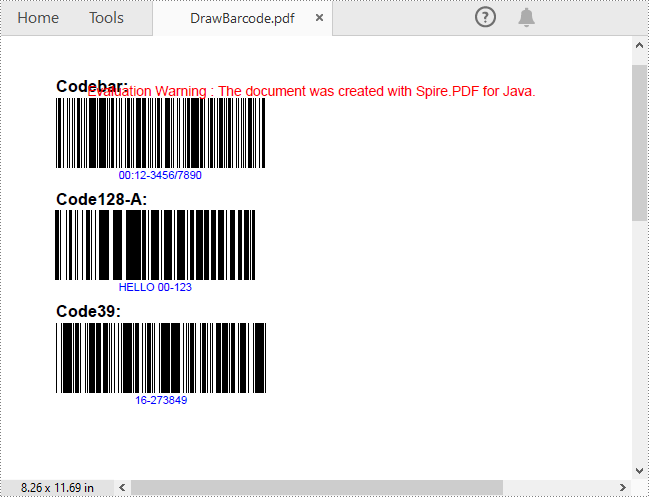
Spire.PDF for Java supports several 1D barcode types represented by different classes, such as PdfCodabarBarcode, PdfCode128ABarcode, PdfCode32Barcode, PdfCode39Barcode, PdfCode93Barcode.
Each class provides corresponding methods for setting the barcode text, size, color, etc. The following are the steps to draw the common Codabar, Code128 and Code39 barcodes at the specified locations on a PDF page.
- Create a PdfDocument object.
- Add a PDF page using PdfDocument.getPages().add() method.
- Create a PdfTextWidget object and draw text on the page using PdfTextWidget.draw() method.
- Create PdfCodabarBarcode, PdfCode128ABarcode, PdfCode39Barcode objects.
- Set the gap between the barcode and the displayed text using the setBarcodeToTextGapHeight() method of the corresponding classes.
- Sets the barcode text display location using the setTextDisplayLocation() method of the corresponding classes.
- Set the barcode text color using the setTextColor() method of the corresponding classes.
- Draw the barcodes at specified locations on the PDF page using the draw() method of the corresponding classes.
- Save the result PDF file using PdfDocument.saveToFile() method.
- Java
import com.spire.pdf.*;
import com.spire.pdf.barcode.*;
import com.spire.pdf.graphics.*;

import java.awt.*;
import java.awt.geom.Point2D;

public class DrawBarcode {
    public static void main(String[] args) {

        // Create a PDF document
        PdfDocument pdf = new PdfDocument();

        // Add a page
        PdfPageBase page = pdf.getPages().add();

        // Initialize y-coordinate
        double y = 15;

        // Create a true type font
        PdfTrueTypeFont font= new PdfTrueTypeFont(new Font("Arial", Font.BOLD, 12));

        // Draw text "Codebar:" on the page
        PdfTextWidget text = new PdfTextWidget();
        text.setFont(font);
        text.setText("Codebar:");
        PdfLayoutResult result = text.draw(page, 0, y);
        y =(float)(result.getBounds().getY()+ result.getBounds().getHeight() + 2);

        // Draw Codabar barcode on the page
        PdfCodabarBarcode codebar= new PdfCodabarBarcode("00:12-3456/7890");
        codebar.setBarcodeToTextGapHeight(1f);
        codebar.setBarHeight(50f);
        codebar.setTextDisplayLocation(TextLocation.Bottom);
        PdfRGBColor blue = new PdfRGBColor(Color.blue);
        codebar.setTextColor(blue);
        Point2D.Float point = new Point2D.Float();
        point.setLocation(0,y);
        codebar.draw(page,point);
        y = codebar.getBounds().getY()+ codebar.getBounds().getHeight() + 5;

        // Draw text "Code128-A:" on the page
        text.setText("Code128-A:");
        result = text.draw(page, 0, y);
        page = result.getPage();
        y =result.getBounds().getY()+ result.getBounds().getHeight() + 2;

        // Draw Code128-A barcode on the page
        PdfCode128ABarcode code128 = new PdfCode128ABarcode("HELLO 00-123");
        code128.setBarcodeToTextGapHeight(1f);
        code128.setBarHeight(50f);
        code128.setTextDisplayLocation(TextLocation.Bottom);
        code128.setTextColor(blue);
        point.setLocation(point.x,y);
        code128.draw(page, point);
        y =code128.getBounds().getY()+ code128.getBounds().getHeight() + 5;

        // Draw text "Code39:" on the page
        text.setText("Code39:");
        result = text.draw(page, 0, y);
        page = result.getPage();
        y =result.getBounds().getY()+ result.getBounds().getHeight() + 2;

        // Draw Code39 barcode on the page
        PdfCode39Barcode code39 = new PdfCode39Barcode("16-273849");
        code39.setBarcodeToTextGapHeight(1f);
        code39.setBarHeight(50f);
        code39.setTextDisplayLocation(TextLocation.Bottom);
        code39.setTextColor(blue);
        point.setLocation(point.x,y);
        code39.draw(page, point);

        // Save the document
        pdf.saveToFile("DrawBarcode.pdf");
    }
}
Add QR Codes to PDF in Java
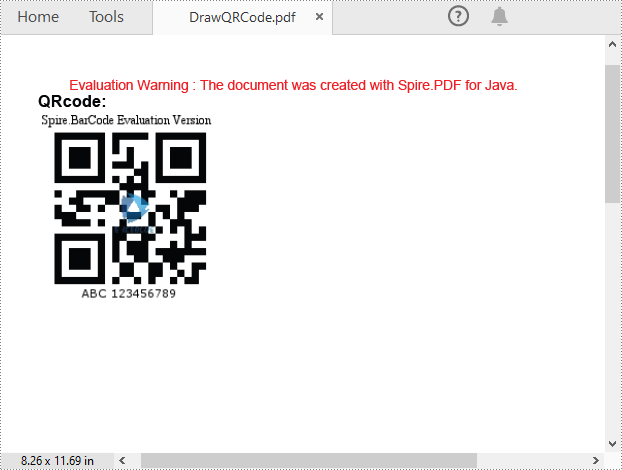
To add 2D barcodes to a PDF file, the Spire.Barcode for Java library is required to generate QR code first, and then you can add the QR code image to the PDF file with the Spire.PDF for Java library. The following are the detailed steps.
- Create a PdfDocument object.
- Add a PDF page using PdfDocument.getPages().add() method.
- Create a BarcodeSettings object.
- Call the corresponding properties of the BarcodeSettings class to set the barcode type, data, error correction level and width, etc.
- Create a BarCodeGenerator object based on the settings.
- Generate QR code image using BarCodeGenerator.generateImage() method.
- Draw the QR code image at a specified location on the PDF page using PdfPageBase.getCanvas().drawImage() method.
- Save the result PDF file using PdfDocument.saveToFile() method.
- Java
import com.spire.pdf.*;
import com.spire.pdf.graphics.*;
import com.spire.barcode.*;

import java.awt.*;
import java.awt.image.BufferedImage;

public class DrawQRCode {
    public static void main(String[] args) {
        // Create a PDF document
        PdfDocument pdf = new PdfDocument();

        // Add a page
        PdfPageBase page = pdf.getPages().add();

        // Create a BarcodeSettings object
        BarcodeSettings settings = new BarcodeSettings();
        // Set the barcode type to QR Code
        settings.setType(BarCodeType.QR_Code);
        // Set the data of the QR code
        settings.setData("ABC 123456789");
        settings.setData2D("ABC 123456789");
        // Set to show QR code text at the bottom
        settings.setShowTextOnBottom(true);
        // Set the width of the QR code
        settings.setX(2);
        // Set the error correction level of the QR code
        settings.setQRCodeECL(QRCodeECL.M);

        // Generate QR code image based on the settings
        BarCodeGenerator barCodeGenerator = new BarCodeGenerator(settings);
        BufferedImage QRimage = barCodeGenerator.generateImage();

        // Initialize y-coordinate
        double y = 30;

        // Create a true type font
        PdfTrueTypeFont font= new PdfTrueTypeFont(new Font("Arial", Font.BOLD, 12));

        // Draw text on the PDF page
        PdfTextWidget text = new PdfTextWidget();
        text.setFont(font);
        text.setText("QRcode:");
        PdfLayoutResult result = text.draw(page, 0, y);
        y =(float)(result.getBounds().getY()+ result.getBounds().getHeight() + 2);

        // Draw text on the PDF page
        PdfImage pdfImage = PdfImage.fromImage(QRimage);
        page.getCanvas().drawImage(pdfImage, 0, y);

        // Save the document
        pdf.saveToFile("DrawQRCode.pdf");
    }
}
Apply for a Temporary License
If you'd like to remove the evaluation message from the generated documents, or to get rid of the function limitations, please request a 30-day trial license for yourself.
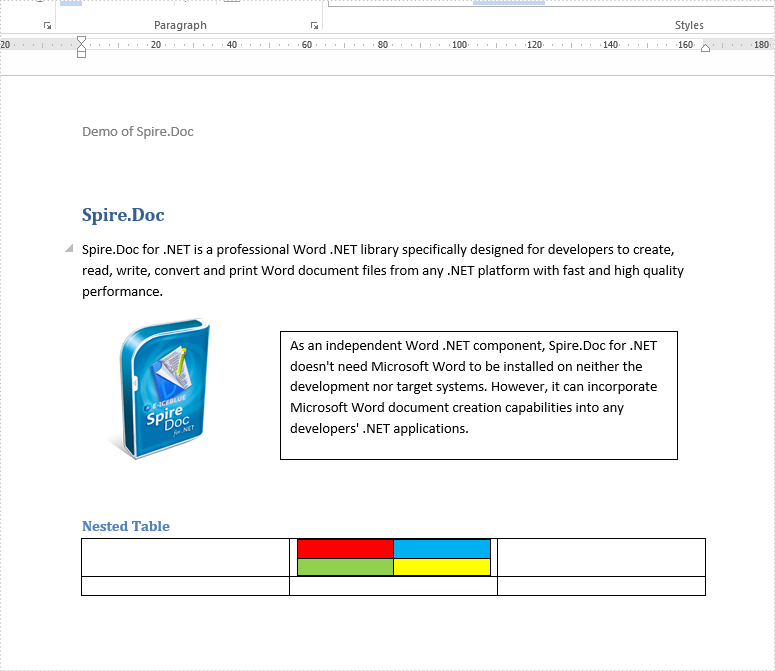
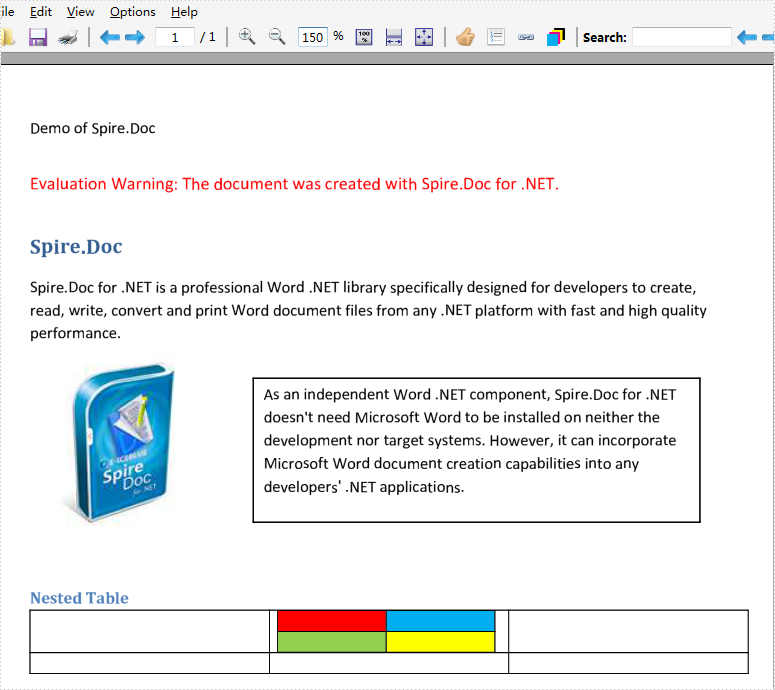
PostScript is a page description language that is an industry standard for outputting high-resolution text and graphics. From Version 6.11.2, Spire.Doc supports to convert doc/docx to a postscript file in both WinForm app and ASP.NET app. This article will demonstrate how to convert word to PostScript in C# and VB.NET.
Firstly, view the sample word document:
using Spire.Doc;

namespace Word
{
    class Program
    {
        static void Main(string[] args)
        {
            Document doc = new Document();
            doc.LoadFromFile("Sample.docx", FileFormat.Docx2010);
            doc.SaveToFile("Result.ps", FileFormat.PostScript);
        }
    }
}
Imports Spire.Doc
Namespace Word
    Class Program
        Private Shared Sub Main(ByVal args As String())
            Dim doc As Document = New Document()
            doc.LoadFromFile("Sample.docx", FileFormat.Docx2010)
            doc.SaveToFile("Result.ps", FileFormat.PostScript)
        End Sub
    End Class
End Namespace
Effective screenshot of the resulted PostScript file converted from .docx document:
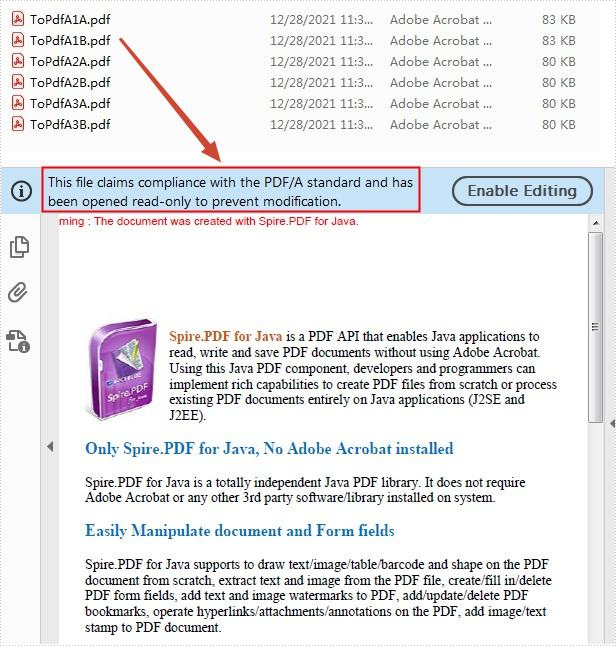
PDF/A is a kind of PDF format designed for archiving and long-term preservation of electronic documents. Unlike paper documents that are easily damaged or smeared, PDF/A format ensures that documents can be reproduced in exactly the same way even after long-term storage. This article will demonstrate how to convert PDF to PDF/A-1A, 2A, 3A, 1B, 2B and 3B compliant PDF using Spire.PDF for Java.
Install Spire.PDF for Java
First of all, you're required to add the Spire.PDF.jar file as a dependency in your Java program. The JAR file can be downloaded from this link. If you use Maven, you can easily import the JAR file in your application by adding the following code to your project's pom.xml file.
<repositories>
    <repository>
        <id>com.e-iceblue</id>
        <name>e-iceblue</name>
        <url>https://repo.e-iceblue.com/nexus/content/groups/public/</url>
    </repository>
</repositories>
<dependencies>
    <dependency>
        <groupId>e-iceblue</groupId>
        <artifactId>spire.pdf</artifactId>
        <version>12.9.0</version>
    </dependency>
</dependencies>
Convert PDF to PDF/A
The detailed steps are as follows:
- Create a PdfStandardsConverter instance, and pass in a sample PDF file as a parameter.
- Convert the sample file to PdfA1A conformance level using PdfStandardsConverter.toPdfA1A() method.
- Convert the sample file to PdfA1B conformance level using PdfStandardsConverter. toPdfA1B() method.
- Convert the sample file to PdfA2A conformance level using PdfStandardsConverter. toPdfA2A() method.
- Convert the sample file to PdfA2B conformance level using PdfStandardsConverter. toPdfA2B() method.
- Convert the sample file to PdfA3A conformance level using PdfStandardsConverter. toPdfA3A() method.
- Convert the sample file to PdfA3B conformance level using PdfStandardsConverter. toPdfA3B() method.
- Java
import com.spire.pdf.conversion.PdfStandardsConverter;

public class ConvertPdfToPdfA {
    public static void main(String[] args) {

        //Create a PdfStandardsConverter instance, and pass in a sample file as a parameter
        PdfStandardsConverter converter = new PdfStandardsConverter("sample.pdf");

        //Convert to PdfA1A
        converter.toPdfA1A("output/ToPdfA1A.pdf");

        //Convert to PdfA1B
        converter.toPdfA1B("output/ToPdfA1B.pdf");

        //Convert to PdfA2A
        converter.toPdfA2A( "output/ToPdfA2A.pdf");

        //Convert to PdfA2B
        converter.toPdfA2B("output/ToPdfA2B.pdf");

        //Convert to PdfA3A
        converter.toPdfA3A("output/ToPdfA3A.pdf");

        //Convert to PdfA3B
        converter.toPdfA3B("output/ToPdfA3B.pdf");
    }
}
Apply for a Temporary License
If you'd like to remove the evaluation message from the generated documents, or to get rid of the function limitations, please request a 30-day trial license for yourself.
