Knowledgebase (2417)
Children categories
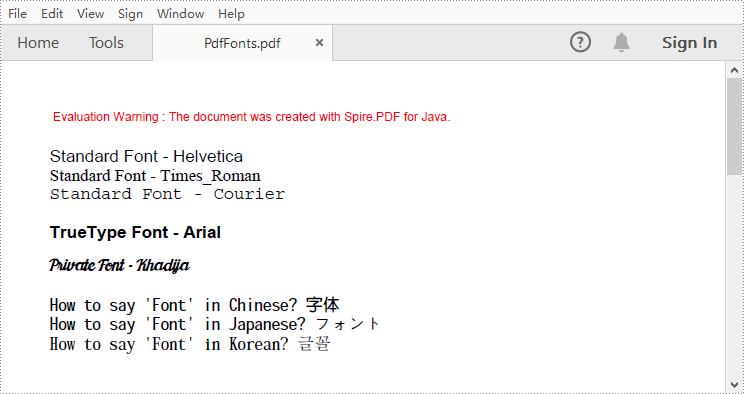
When creating PDF, it’s important to use appropriate fonts in different situations. For normal PDF files, you can draw text with common fonts such as Arial, Times New Roman. If you want to create a distinctive PDF with a unique visual identity, you can use private fonts. This article will demonstrate how to use different fonts in a PDF document with Spire.PDF for Java library.
Install Spire.PDF for Java
First of all, you're required to add the Spire.Pdf.jar file as a dependency in your Java program. The JAR file can be downloaded from this link. If you use Maven, you can easily import the JAR file in your application by adding the following code to your project's pom.xml file.
<repositories>
    <repository>
        <id>com.e-iceblue</id>
        <name>e-iceblue</name>
        <url>https://repo.e-iceblue.com/nexus/content/groups/public/</url>
    </repository>
</repositories>
<dependencies>
    <dependency>
        <groupId>e-iceblue</groupId>
        <artifactId>spire.pdf</artifactId>
        <version>12.9.0</version>
    </dependency>
</dependencies>
Apply Different Fonts in a PDF Document in Java
Spire.PDF for Java supports standard PDF fonts, TrueType fonts, private fonts as well as CJK font. The following are the steps to draw text in PDF using these fonts.
- Create a PdfDocument instance.
- Add a page and then create a brush.
- Create an instance of the PdfFont class with a standard PDF font, and then use the PdfPageBase.getCanvas().drawString() method to draw text on the page with the standard font.
- Create an instance of the PdfTrueTypeFont class with a specified font, and then draw text on the page with the TrueType font.
- Load a private font and create an instance of the PdfTrueTypeFont class with it. Then draw text on the page with the private font.
- Create an instance of PdfCjkStandardFont class with a CJK font, and then draw text on the page with the CJK font.
- Save the result document using PdfDocument.saveToFile() method.
- Java
import com.spire.pdf.PdfDocument;
import com.spire.pdf.PdfPageBase;
import com.spire.pdf.graphics.*;

public class PdfFonts {

    public static void main(String[] args) {

        //Create a PdfDocument instance
        PdfDocument pdf = new PdfDocument();

        //Add a page
        PdfPageBase page = pdf.getPages().add();

        //Create a brush
        PdfBrush brush = PdfBrushes.getBlack();

        //Initialize y coordinate
        float y = 30;

        //Draw text using standard fonts
        PdfFont standardFont = new PdfFont(PdfFontFamily.Helvetica, 14f);
        page.getCanvas().drawString("Standard Font - Helvetica", standardFont, brush, 0, y);
        standardFont = new PdfFont(PdfFontFamily.Times_Roman, 14f);
        page.getCanvas().drawString("Standard Font - Times_Roman", standardFont, brush, 0, (y = y + 16));
        standardFont = new PdfFont(PdfFontFamily.Courier, 14f);
        page.getCanvas().drawString("Standard Font - Courier", standardFont, brush, 0, (y = y + 16));

        //Draw text using truetype font
        java.awt.Font font = new java.awt.Font("Arial", java.awt.Font.BOLD, 14);
        PdfTrueTypeFont trueTypeFont = new PdfTrueTypeFont(font);
        page.getCanvas().drawString("TrueType Font - Arial", trueTypeFont, brush, 0, (y = y + 30f));

        //Draw text using private font
        String fontFileName = "Khadija.ttf";
        trueTypeFont = new PdfTrueTypeFont(fontFileName, 14f);
        page.getCanvas().drawString("Private Font - Khadija", trueTypeFont, brush, 0, (y = y + 30f));

        //Draw text using cjk fonts
        PdfCjkStandardFont cjkFont = new PdfCjkStandardFont(PdfCjkFontFamily.Monotype_Hei_Medium, 14f);
        page.getCanvas().drawString("How to say 'Font' in Chinese? \u5B57\u4F53", cjkFont, brush, 0, (y = y + 30f));
        cjkFont = new PdfCjkStandardFont(PdfCjkFontFamily.Hanyang_Systems_Gothic_Medium, 14f);
        page.getCanvas().drawString("How to say 'Font' in Japanese? \u30D5\u30A9\u30F3\u30C8", cjkFont, brush, 0, (y = y + 16f));
        cjkFont = new PdfCjkStandardFont(PdfCjkFontFamily.Hanyang_Systems_Shin_Myeong_Jo_Medium, 14f);
        page.getCanvas().drawString("How to say 'Font' in Korean? \uAE00\uAF34", cjkFont, brush, 0, (y = y + 16f));

        //Save the result document
        pdf.saveToFile("PdfFonts.pdf");
        pdf.close();
    }
}
Apply for a Temporary License
If you'd like to remove the evaluation message from the generated documents, or to get rid of the function limitations, please request a 30-day trial license for yourself.
Lists are a great way to organize your information. When compared to chunks of text, it is usually easier to identify important points from a list. There are generally two different types of lists in PDF: order list and unorder list. You can also mix these two types in a nested list. In this article, you will learn how to create various types of lists in a PDF document using Spire.PDF for Java.
- Create an Ordered List in PDF
- Create an Unordered List with Symbol Bullets in PDF
- Create an Unordered List with Image Bullets in PDF
- Create a Nested Numbered List in PDF
Spire.PDF for Java provides the PdfSortedList class and the PdfUnorderedList class to represent the ordered list and the unordered list, respectively. To set the list’s content, indent, font, marker style and other attributes, use the methods under these two classes. The following table lists some of the core items involved in this tutorial.
| Member | Description |
| PdfSortedList class | Represents an ordered list in a PDF document. |
| PdfUnorderedList class | Represents an unordered list in a PDF document. |
| PdfListBase.setBrush() method | Sets a list's brush. |
| PdfListBase.setFont() method | Sets a list's font. |
| PdfListBase.sertIndent() method | Sets a list's indent. |
| PdfListBase.setTextIndent() method | Sets the indent from the marker to the list item text. |
| PdfListBase.getItems() method | Gets items of a list. |
| PdfListBase.setMarker() method | Sets the marker of a list. |
| PdfListBase.draw() method | Draw list on the canvas of a page at the specified location. |
| PdfOrderedMarker class | Represents the marker style of an ordered list, such as numbers, letters, and roman numerals. |
| PdfMarker class | Represents bullet style for an unordered list. |
Install Spire.PDF for Java
First of all, you're required to add the Spire.Pdf.jar file as a dependency in your Java program. The JAR file can be downloaded from this link. If you use Maven, you can easily import the JAR file in your application by adding the following code to your project's pom.xml file.
<repositories>
    <repository>
        <id>com.e-iceblue</id>
        <name>e-iceblue</name>
        <url>https://repo.e-iceblue.com/nexus/content/groups/public/</url>
    </repository>
</repositories>
<dependencies>
    <dependency>
        <groupId>e-iceblue</groupId>
        <artifactId>spire.pdf</artifactId>
        <version>12.9.0</version>
    </dependency>
</dependencies>
Create an Ordered List in PDF
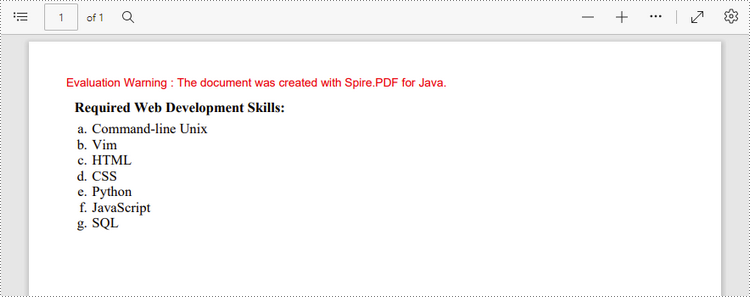
An ordered list is a container, which holds a sequence of objects. Each item in the list is marked with a number, a letter, or a roman numeral. The following are the step to create an ordered list in PDF using Spire.PDF for Java.
- Create a PdfDocument object.
- Add a page to it using PdfDocument.getPages().add() method.
- Create PdfBrush and PdfFont objects for the list.
- Create a PdfOrderedMarker object, specifying the marker style as Lower_Latin.
- Specify the list content with a string, and create an object of PdfSortedList class based on the string.
- Set the font, indent, brush and marker of the list using the methods under the PdfSortedList object.
- Draw the list on the page at the specified location using PdfSortedList.draw() method.
- Save the document to another file using PdfDocument.saveToFile() method.
- Java
import com.spire.pdf.PdfDocument;
import com.spire.pdf.PdfNumberStyle;
import com.spire.pdf.PdfPageBase;
import com.spire.pdf.PdfPageSize;
import com.spire.pdf.graphics.*;
import com.spire.pdf.lists.PdfOrderedMarker;
import com.spire.pdf.lists.PdfSortedList;

public class CreateOrderedList {

    public static void main(String[] args) {

        //Create a PdfDocument object
        PdfDocument doc = new PdfDocument();

        //Set the margins
        PdfMargins margins = new PdfMargins(30);

        //Add a page
        PdfPageBase page = doc.getPages().add(PdfPageSize.A4, margins);

        //Create a brush
        PdfBrush brush = PdfBrushes.getBlack();

        //Create fonts
        PdfFont titleFont = new PdfFont(PdfFontFamily.Times_Roman, 12f, PdfFontStyle.Bold);
        PdfFont listFont = new PdfFont(PdfFontFamily.Times_Roman, 12f, PdfFontStyle.Regular);

        //Create a maker for ordered list
        PdfOrderedMarker marker = new PdfOrderedMarker(PdfNumberStyle.Lower_Latin, listFont);

        //Specify the initial coordinate
        float x = 10;
        float y = 20;

        //Draw title
        String title = "Required Web Development Skills:";
        page.getCanvas().drawString(title, titleFont, brush, x, y);
        y = y + (float) titleFont.measureString(title).getHeight();
        y = y + 5;


        //Create a numbered list
        String listContent = "Command-line Unix\n"
                + "Vim\n"
                + "HTML\n"
                + "CSS\n"
                + "Python\n"
                + "JavaScript\n"
                + "SQL";
        PdfSortedList list = new PdfSortedList(listContent);

        //Set the font, indent, text indent, brush, marker of the list
        list.setFont(listFont);
        list.setIndent(2);
        list.setTextIndent(4);
        list.setBrush(brush);
        list.setMarker(marker);

        //Draw list on the page at the specified location
        list.draw(page, x, y);

        //Save to file
        doc.saveToFile("output/OrderedList.pdf");
    }
}
Create an Unordered List with Symbol Bullets in PDF
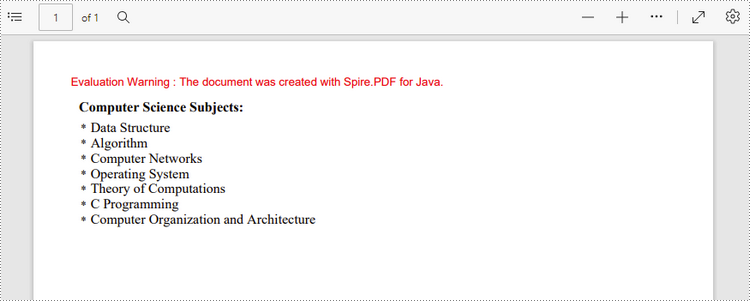
An unordered list, also named bulleted list, is a collection of related items that have no special order or sequence. Each item in the list is marked with a bullet. The following are the step to create an unordered list in PDF using Spire.PDF for Java.
- Create a PdfDocument object.
- Add a page to it using PdfDocument.getPages().add() method.
- Create PdfBrush and PdfFont objects for the list.
- Create a PdfMarker object, specifying the marker style.
- Specify the list content with a string, and create an object of PdfUnorderedList class based on the string.
- Set the font, indent, brush and marker of the list using the methods under the PdfUnorderedList object.
- Draw the list on the page at the specified location using PdfUnorderedList.draw() method.
- Save the document to another file using PdfDocument.saveToFile() method.
- Java
import com.spire.pdf.PdfDocument;
import com.spire.pdf.PdfPageBase;
import com.spire.pdf.PdfPageSize;
import com.spire.pdf.graphics.*;
import com.spire.pdf.lists.PdfMarker;
import com.spire.pdf.lists.PdfUnorderedList;
import com.spire.pdf.lists.PdfUnorderedMarkerStyle;

public class CreateUnorderedList {
    public static void main(String[] args) {

        //Create a PdfDocument object
        PdfDocument doc = new PdfDocument();

        //Set the margin
        PdfMargins margin = new PdfMargins(30);

        //Add a page
        PdfPageBase page = doc.getPages().add(PdfPageSize.A4, margin);

        //Create fonts
        PdfFont titleFont = new PdfFont(PdfFontFamily.Times_Roman, 12f, PdfFontStyle.Bold);
        PdfFont listFont = new PdfFont(PdfFontFamily.Times_Roman, 12f, PdfFontStyle.Regular);
        PdfFont markerFont = new PdfFont(PdfFontFamily.Times_Roman, 6f, PdfFontStyle.Regular);

        //Create a brush
        PdfBrush brush = PdfBrushes.getBlack();

        //Specify the initial coordinate
        float x = 10;
        float y = 20;

        //Draw title
        String title = "Computer Science Subjects:";
        page.getCanvas().drawString(title, titleFont, brush, x, y);
        y = y + (float)titleFont.measureString(title).getHeight();
        y = y + 5;

        //Specify the marker style
        PdfMarker marker = new PdfMarker(PdfUnorderedMarkerStyle.Asterisk);
        marker.setFont(markerFont);

        //Create an unordered list
        String listContent = "Data Structure\n"
                + "Algorithm\n"
                + "Computer Networks\n"
                + "Operating System\n"
                + "Theory of Computations\n"
                + "C Programming\n"
                +"Computer Organization and Architecture";
        PdfUnorderedList list = new PdfUnorderedList(listContent);

        //Set the font, indent, text indent, brush, marker of the list
        list.setFont(listFont);
        list.setIndent(2);
        list.setTextIndent(4);
        list.setBrush(brush);
        list.setMarker(marker);

        //Draw list on the page at the specified location
        list.draw(page, x, y);

        //Save to file
        doc.saveToFile("output/UnorderedList.pdf");
    }
}
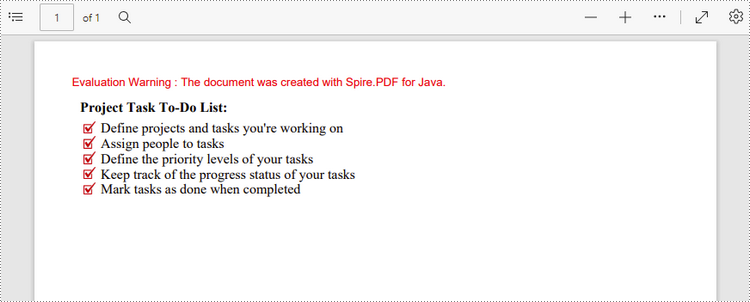
Create an Unordered List with Image Bullets in PDF
In addition to symbols, the bullet points of an unordered list can be also a picture. The steps to create an unordered list with images bullets are as follows.
- Create a PdfDocument object.
- Add a page to it using PdfDocument.getPages().add() method.
- Create PdfBrush and PdfFont objects for the list.
- Create a PdfMarker object, setting the marker style as Custom_Image.
- Set an image as the marker using PdfMarker.setImage() method.
- Specify the list content with a string, and create an object of PdfUnorderedList class based on the string.
- Set the font, indent, brush and marker of the list using the methods under the PdfUnorderedList object.
- Draw the list on the page at the specified location using PdfUnorderedList.draw() method.
- Save the document to another file using PdfDocument.saveToFile() method.
- Java
import com.spire.pdf.PdfDocument;
import com.spire.pdf.PdfPageBase;
import com.spire.pdf.PdfPageSize;
import com.spire.pdf.graphics.*;
import com.spire.pdf.lists.PdfMarker;
import com.spire.pdf.lists.PdfUnorderedList;
import com.spire.pdf.lists.PdfUnorderedMarkerStyle;

public class CustomizeBulletPointsWithImage {

    public static void main(String[] args) {

        //Create a PdfDocument object
        PdfDocument doc = new PdfDocument();

        //Set the margin
        PdfMargins margin = new PdfMargins(30);

        //Add a page
        PdfPageBase page = doc.getPages().add(PdfPageSize.A4, margin);

        //Create fonts
        PdfFont titleFont = new PdfFont(PdfFontFamily.Times_Roman, 12f, PdfFontStyle.Bold);
        PdfFont listFont = new PdfFont(PdfFontFamily.Times_Roman, 12f, PdfFontStyle.Regular);

        //Create a brush
        PdfBrush brush = PdfBrushes.getBlack();

        //Specify the initial coordinate
        float x = 10;
        float y = 20;

        //Draw title
        String title = "Project Task To-Do List:";
        page.getCanvas().drawString(title, titleFont, brush, x, y);
        y = y + (float)titleFont.measureString(title).getHeight();
        y = y + 5;

        //Specify the marker style to image
        PdfMarker marker = new PdfMarker(PdfUnorderedMarkerStyle.Custom_Image);

        //Set the image for the marker
        marker.setImage(PdfImage.fromFile("C:/Users/Administrator/Desktop/checkmark.png"));

        //Create an unordered list
        String listContent = "Define projects and tasks you're working on\n"
                + "Assign people to tasks\n"
                + "Define the priority levels of your tasks\n"
                + "Keep track of the progress status of your tasks\n"
                + "Mark tasks as done when completed";
        PdfUnorderedList list = new PdfUnorderedList(listContent);

        //Set the font, indent, text indent, brush, maker of the list
        list.setFont(listFont);
        list.setIndent(2);
        list.setTextIndent(4);
        list.setBrush(brush);
        list.setMarker(marker);

        //Draw list on a page at the specified location
        list.draw(page, x, y);

        //Save to file
        doc.saveToFile("output/ImageBullets.pdf");
    }
}
Create a Nested Numbered List in PDF
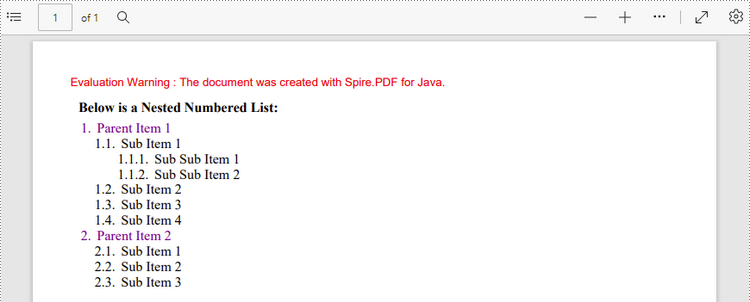
A nested list is a list that contains at least one sub list. Nested lists are used to present data in hierarchical structures. The following are the steps to create a nested numbered list in PDF using Spire.PDF for Java.
- Create a PdfDocument object.
- Add a page to it using PdfDocument.getPages().add() method.
- Create a PdfOrderedMarker object, specifying the marker style as Numeric.
- Specify the list content with a string, and create a parent list based on the string. Then set the font, indent, brush and marker of the list using the methods under the PdfSortedList object.
- Repeat the above step to create sub lists and sub-sub lists.
- Get the specific item of the parent list using PdfSortedList.getItems().get() method, and add a list to it as its sub list using PdfListItem.setSublist() method.
- Draw the list on the page at the specified location using PdfSortedList.draw() method.
- Save the document to another file using PdfDocument.saveToFile() method.
- Java
import com.spire.pdf.PdfDocument;
import com.spire.pdf.PdfNumberStyle;
import com.spire.pdf.PdfPageBase;
import com.spire.pdf.PdfPageSize;
import com.spire.pdf.graphics.*;
import com.spire.pdf.lists.PdfListItem;
import com.spire.pdf.lists.PdfOrderedMarker;
import com.spire.pdf.lists.PdfSortedList;

public class CreateMultiLevelList {

    public static void main(String[] args) {

        //Create a PdfDocument object
        PdfDocument doc = new PdfDocument();

        //Set the margin
        PdfMargins margin = new PdfMargins(30);

        //Add a page
        PdfPageBase page = doc.getPages().add(PdfPageSize.A4, margin);

        //Specify the initial coordinate
        float x = 10;
        float y = 20;

        //Create two brushes
        PdfBrush blackBrush = PdfBrushes.getBlack();
        PdfBrush purpleBrush = PdfBrushes.getPurple();

        //Create two fonts
        PdfFont titleFont = new PdfFont(PdfFontFamily.Times_Roman, 12f, PdfFontStyle.Bold);
        PdfFont listFont = new PdfFont(PdfFontFamily.Times_Roman, 12f, PdfFontStyle.Regular);

        //Create a maker for ordered list
        PdfOrderedMarker marker = new PdfOrderedMarker(PdfNumberStyle.Numeric, listFont);

        //Draw title
        String title = "Below is a Nested Numbered List:";
        page.getCanvas().drawString(title, titleFont, blackBrush, x, y);
        y = y + (float)titleFont.measureString(title).getHeight();
        y = y + 5;

        //Create a parent list
        String parentListContent = "Parent Item 1\n"
                + "Parent Item 2";
        PdfSortedList parentList = new PdfSortedList(parentListContent);
        parentList.setFont(listFont);
        parentList.setIndent(2);
        parentList.setBrush(purpleBrush);
        parentList.setMarker(marker);

        //Create a sub list - "subList_1"
        String subListContent_1 = "Sub Item 1\n"
                + "Sub Item 2\n"
                + "Sub Item 3\n"
                + "Sub Item 4";
        PdfSortedList subList_1 = new PdfSortedList(subListContent_1);
        subList_1.setIndent(12);
        subList_1.setFont(listFont);
        subList_1.setBrush(blackBrush);
        subList_1.setMarker(marker);
        subList_1.setMarkerHierarchy(true);

        //Create another sub list -"subList_2"
        String subListContent_2 = "Sub Item 1\n"
                + "Sub Item 2\n"
                + "Sub Item 3";
        PdfSortedList subList_2 = new PdfSortedList(subListContent_2);
        subList_2.setIndent(12);
        subList_2.setFont(listFont);
        subList_2.setBrush(blackBrush);
        subList_2.setMarker(marker);
        subList_2.setMarkerHierarchy(true);

        //Create a sub-sub list - "subList_1"
        String subSubListContent_1 = "Sub Sub Item 1\n"
                + "Sub Sub Item 2";
        PdfSortedList subSubList = new PdfSortedList(subSubListContent_1);
        subSubList.setIndent(20);
        subSubList.setFont(listFont);
        subSubList.setBrush(blackBrush);
        subSubList.setMarker(marker);
        subSubList.setMarkerHierarchy(true);

        //Set subList_1 as sub list of the first item of parent list
        PdfListItem item_1 = parentList.getItems().get(0);
        item_1.setSubList(subList_1);

        //Set subList_2 as sub list of the second item of parent list
        PdfListItem item_2 = parentList.getItems().get(1);
        item_2.setSubList(subList_2);

        //Set subSubList as sub list of the first item of subList_1
        PdfListItem item_1_1 = subList_1.getItems().get(0);
        item_1_1.setSubList(subSubList);

        //Draw parent list
        parentList.draw(page, x, y);

        //Save to file
        doc.saveToFile("output/MultiLevelList.pdf");
    }
}
Apply for a Temporary License
If you'd like to remove the evaluation message from the generated documents, or to get rid of the function limitations, please request a 30-day trial license for yourself.
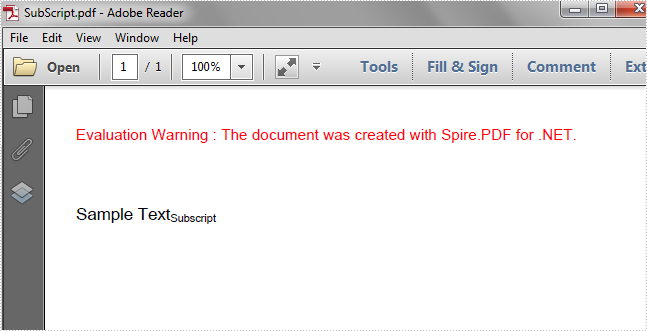
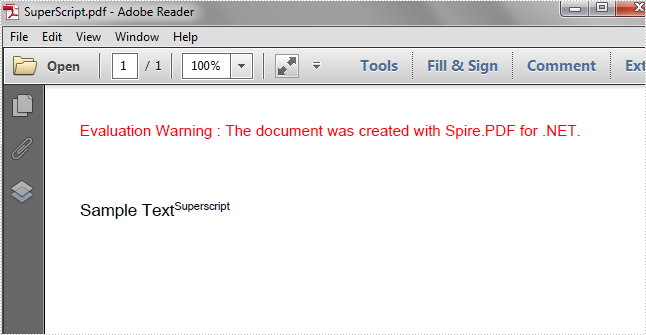
In this article, we're going to demonstrate how to draw superscript and subscript text in PDF using Spire.PDF.
Draw Superscript Text
using Spire.Pdf;
using Spire.Pdf.Graphics;
using System.Drawing;


namespace Superscript
{
    class Program
    {
        static void Main(string[] args)
        {
            //Instantiate a PdfDocument instance
            PdfDocument pdf = new PdfDocument();

            //Add a page
            PdfPageBase page = pdf.Pages.Add();

            //Set initial (x, y) coordinate
            float x = 0;
            float y = 50;

            //Set font
            PdfTrueTypeFont font = new PdfTrueTypeFont(new Font("Arial Unicode MS", 11f), true);

            //Draw string
            string text = "Sample Text";
            page.Canvas.DrawString(text, font, PdfBrushes.Black, new PointF(x, y));

            //Measure the string
            SizeF size = font.MeasureString(text);

            //Set the x coordinate of the superscript text
            x += size.Width;

            //Instantiate a PdfStringFormat instance
            PdfStringFormat format = new PdfStringFormat();
            //Set format as superscript
            format.SubSuperScript = PdfSubSuperScript.SuperScript;

            //Draw superscript text with format
            text = "Superscript";
            page.Canvas.DrawString(text, font, PdfBrushes.Black, new PointF(x, y), format);

            //Save the document
            pdf.SaveToFile("SuperScript.pdf");
        }
    }
}
Draw Superscript Text
using Spire.Pdf;
using Spire.Pdf.Graphics;
using System.Drawing;


namespace Subscript
{
    class Program
    {
        static void Main(string[] args)
        {
            //Instantiate a PdfDocument instance
            PdfDocument pdf = new PdfDocument();

            //Add a page
            PdfPageBase page = pdf.Pages.Add();

            //Set initial (x, y) coordinate
            float x = 0;
            float y = 50;

            //Set font
            PdfTrueTypeFont font = new PdfTrueTypeFont(new Font("Arial Unicode MS", 11f), true);

            //Draw string
            string text = "Sample Text";
            page.Canvas.DrawString(text, font, PdfBrushes.Black, new PointF(x, y));

            //Measure the string
            SizeF size = font.MeasureString(text);

            //Set the x coordinate of the subscript text
            x += size.Width;

            //Instantiate a PdfStringFormat instance
            PdfStringFormat format = new PdfStringFormat();
            //Set format as subscript
            format.SubSuperScript = PdfSubSuperScript.SubScript;

            //Draw subscript
            text = "Subscript";
            page.Canvas.DrawString(text, font, PdfBrushes.Black, new PointF(x, y), format);

            //Save the document
            pdf.SaveToFile("SubScript.pdf");
        }
    }
}