Knowledgebase (2417)
Children categories
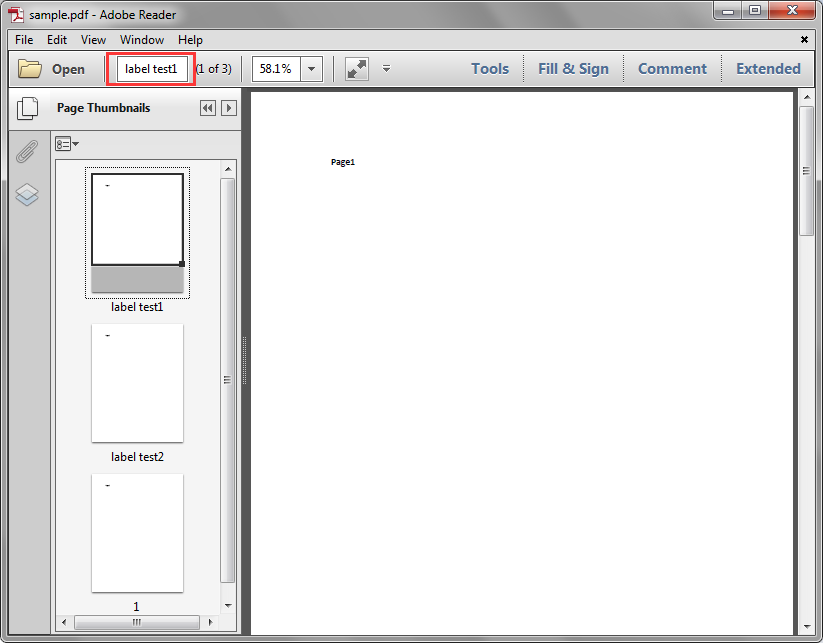
Page labels are used to identify each page visually on the screen or in print. This article demonstrates how to get the PDF page labels using Spire.PDF.
Below is the screenshot of the sample PDF document:
Detail steps:
Step 1: Create a PdfDocument instance and load the sample.pdf file.
PdfDocument pdf = new PdfDocument();
pdf.LoadFromFile("sample.pdf");
Step 2: Get the labels of the pages in the PDF file.
StringBuilder sb = new StringBuilder();
for (int i = 0; i < pdf.Pages.Count; i++)
{
    sb.AppendLine(pdf.Pages[i].PageLabel);
}
Step 3: Save to a .txt file.
File.WriteAllText("PageLabels.txt", sb.ToString());
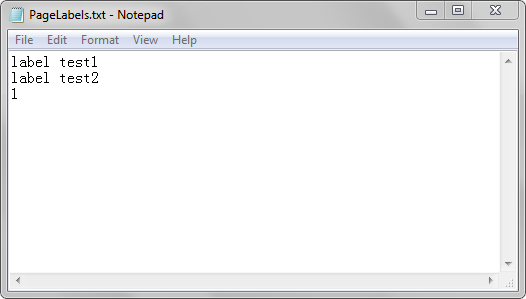
Output:
Full code:
using System.IO;
using System.Text;
using Spire.Pdf;

namespace Get_PDF_Page_Labels
{
    class Program
    {
        static void Main(string[] args)
        {
            //Create a PdfDocument instance
            PdfDocument pdf = new PdfDocument();
            //Load the PDF file
            pdf.LoadFromFile("sample.pdf");

            //Create a StringBuilder instance
            StringBuilder sb = new StringBuilder();
            //Get the lables of the pages in the PDF file
            for (int i = 0; i < pdf.Pages.Count; i++)
            {
                sb.AppendLine(pdf.Pages[i].PageLabel);
            }

            //Save to a .txt file
            File.WriteAllText("PageLabels.txt", sb.ToString());
        }
    }
}
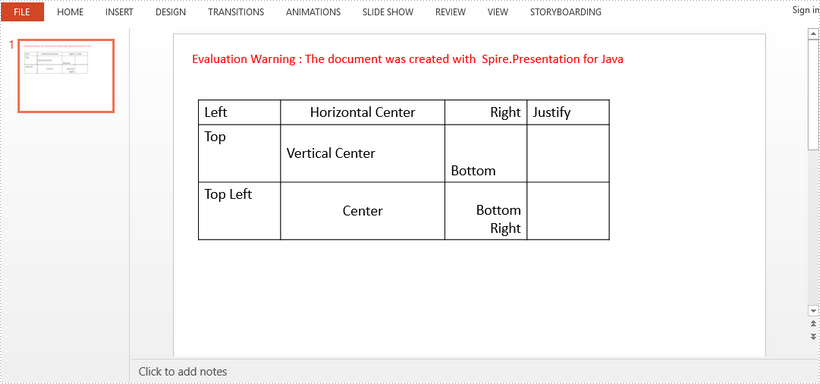
This article demonstrates how to align text within a table cell in PowerPoint using Spire.Presenatation for Java.
Code Snippets
import com.spire.presentation.*;

public class AlignTextInTableCell {

    public static void main(String[] args) throws Exception {

        //create a PowerPoint file
        Presentation presentation = new Presentation();

        //add a table
        Double[] widths = new Double[]{100d, 200d, 100d, 100d};
        Double[] heights = new Double[]{30d, 70d, 70d};
        ITable table = presentation.getSlides().get(0).getShapes().appendTable(30,80, widths, heights);
        table.setStylePreset(TableStylePreset.NONE);

        //set the horizontal alignment for the cells in the first row
        table.get(0, 0).getTextFrame().setText("Left");
        table.get(0, 0).getTextFrame().getParagraphs().get(0).setAlignment(TextAlignmentType.LEFT);
        table.get(1, 0).getTextFrame().setText("Horizontal Center");
        table.get(1, 0).getTextFrame().getParagraphs().get(0).setAlignment(TextAlignmentType.CENTER);
        table.get(2, 0).getTextFrame().setText("Right");
        table.get(2, 0).getTextFrame().getParagraphs().get(0).setAlignment(TextAlignmentType.RIGHT);
        table.get(3, 0).getTextFrame().setText("Justify");
        table.get(3, 0).getTextFrame().getParagraphs().get(0).setAlignment(TextAlignmentType.JUSTIFY);

        //Set the vertical alignment for the cells in the second row
        table.get(0, 1).getTextFrame().setText("Top");
        table.get(0, 1).setTextAnchorType(TextAnchorType.TOP);
        table.get(1, 1).getTextFrame().setText("Vertical Center");
        table.get(1, 1).setTextAnchorType(TextAnchorType.CENTER);
        table.get(2, 1).getTextFrame().setText("Bottom");
        table.get(2, 1).setTextAnchorType(TextAnchorType.BOTTOM);

        //set the both horizontal and vertical alignment for the cells in the third row
        table.get(0, 2).getTextFrame().setText("Top Left");
        table.get(0, 2).getTextFrame().getParagraphs().get(0).setAlignment(TextAlignmentType.LEFT);
        table.get(0, 2).setTextAnchorType(TextAnchorType.TOP);
        table.get(1, 2).getTextFrame().setText("Center");
        table.get(1, 2).getTextFrame().getParagraphs().get(0).setAlignment(TextAlignmentType.CENTER);
        table.get(1, 2).setTextAnchorType(TextAnchorType.CENTER);
        table.get(2, 2).getTextFrame().setText("Bottom Right");
        table.get(2, 2).getTextFrame().getParagraphs().get(0).setAlignment(TextAlignmentType.RIGHT);
        table.get(2, 2).setTextAnchorType(TextAnchorType.BOTTOM);

        //save to file
        presentation.saveToFile("output/Alignment.pptx", FileFormat.PPTX_2013);
        presentation.dispose();
    }
}
Output
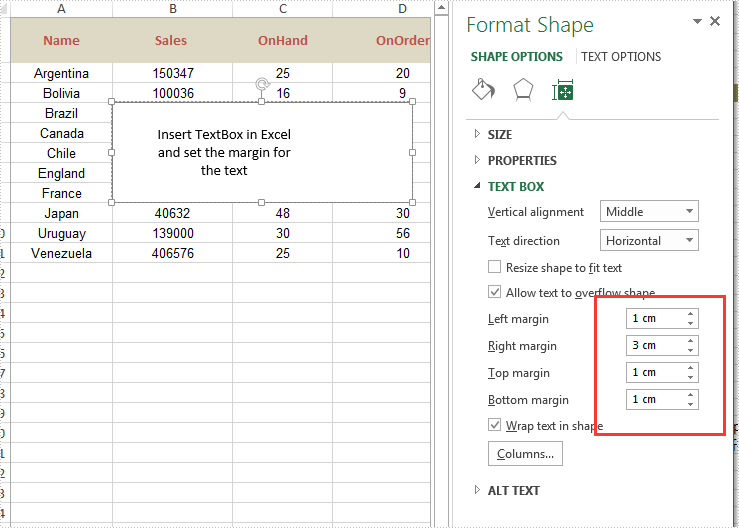
With Spire.XLS, developers can add text or image to the textbox to Excel worksheet easily. From version 9.3.10, Spire.XLS supports to set the inner margin of contents on Excel text box. With this feature, we can adjust the position of the text contents on the textbox to make it beautiful. This article is going to introduce how to set the inner margins of the textbox in Excel worksheet in C#.
using Spire.Xls;
using Spire.Xls.Core.Spreadsheet.Shapes;
namespace SetInternalMargin
{
    class Program
    {
        static void Main(string[] args)
        {
            {

                //load the sample document
                Workbook workbook = new Workbook();
                workbook.LoadFromFile("Sample.xlsx", ExcelVersion.Version2010);

                //get the first worksheet
                Worksheet sheet = workbook.Worksheets[0];

                //add a textbox to the sheet and set its position and size
                XlsTextBoxShape textbox = sheet.TextBoxes.AddTextBox(4, 2, 100, 300) as XlsTextBoxShape;

                //set the text on the textbox
                textbox.Text = "Insert TextBox in Excel and set the margin for the text";
                textbox.HAlignment = CommentHAlignType.Center;
                textbox.VAlignment = CommentVAlignType.Center;

                //set the inner margins of the contents
                textbox.InnerLeftMargin = 1;
                textbox.InnerRightMargin = 3;
                textbox.InnerTopMargin = 1;
                textbox.InnerBottomMargin = 1;

                //save the document to file
                workbook.SaveToFile("Result.xlsx", ExcelVersion.Version2010);

            }

        }
    }
}
Effective screenshot after setting the margins of the contents: