
Knowledgebase (2417)
Children categories
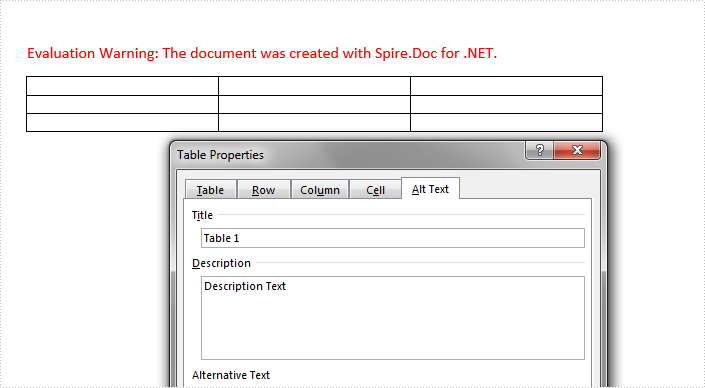
Alternative text (alt text) can help people with screen readers understand the content of our table. This article is going to demonstrate how to add or get the alternative text of a table in a word document using Spire.Doc.
In Spire.Doc, we can set or get the alternative text of a table using the Table.Title and Table.TableDescription properties. The following example shows how to add alternative text to a table.
Detail steps:
Step 1: Instantiate a Document object and load a word document.
Document doc = new Document();
doc.LoadFromFile("Input.docx");
Step 2: Get the first section.
Section section = doc.Sections[0];
Step 3: Get the first table in the section.
Table table = section.Tables[0] as Table;
Step 4: Add alt text to the table.
//Add title
table.Title = "Table 1";
//Add description
table.TableDescription = "Description Text";
Step 5: Save the document.
doc.SaveToFile("output.docx", FileFormat.Docx2013);
Screenshot:
Full code:
using Spire.Doc;

namespace Add_Alt_Text_To_Word_Table
{
    class Program
    {
        static void Main(string[] args)
        {
            //Instantiate a Document object
            Document doc = new Document();
            //Load a word document
            doc.LoadFromFile("Input.docx");

            //Get the first section
            Section section = doc.Sections[0];

            //Get the first table in the section
            Table table = section.Tables[0] as Table;

            //Add alt text

            //Add tile
            table.Title = "Table 1";
            //Add description
            table.TableDescription = "Description Text";

            //Save the document
            doc.SaveToFile("output.docx", FileFormat.Docx2013);
        }
    }
}
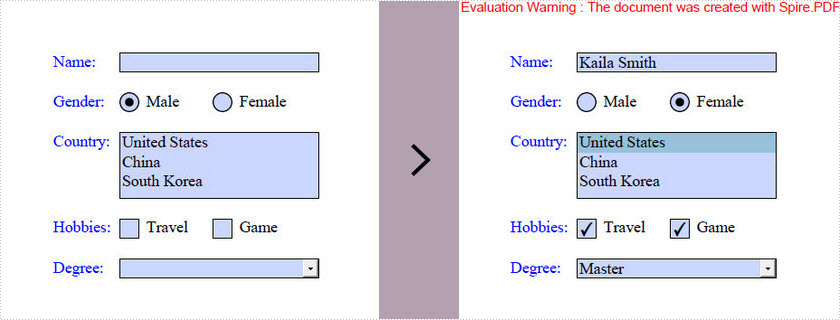
The tutorial shows you how to access the form fields in a PDF document and how to fill each form field with value by using Spire.PDF for Java.
Entire Code:
import com.spire.pdf.FileFormat;
import com.spire.pdf.PdfDocument;
import com.spire.pdf.fields.PdfField;
import com.spire.pdf.widget.*;


public class FillFormField{
    public static void main(String[] args){

        //create a PdfDocument object
        PdfDocument doc = new PdfDocument();

        //load a sample PDF containing forms
        doc.loadFromFile("G:\\java-workspace\\Spire.Pdf\\Forms.pdf");

        //get the form fields from the document
        PdfFormWidget form = (PdfFormWidget) doc.getForm();

        //get the form widget collection
        PdfFormFieldWidgetCollection formWidgetCollection = form.getFieldsWidget();

        //loop through the widget collection and fill each field with value
        for (int i = 0; i < formWidgetCollection.getCount(); i++) {

            PdfField field = formWidgetCollection.get(i);
            if (field instanceof PdfTextBoxFieldWidget) {
                PdfTextBoxFieldWidget textBoxField = (PdfTextBoxFieldWidget) field;
                textBoxField.setText("Kaila Smith");
            }
            if (field instanceof PdfRadioButtonListFieldWidget) {
                PdfRadioButtonListFieldWidget radioButtonListField = (PdfRadioButtonListFieldWidget) field;
                radioButtonListField.setSelectedIndex(1);
            }
            if (field instanceof PdfListBoxWidgetFieldWidget) {
                PdfListBoxWidgetFieldWidget listBox = (PdfListBoxWidgetFieldWidget) field;
                listBox.setSelectedIndex(0);
            }
            if (field instanceof PdfCheckBoxWidgetFieldWidget) {
                PdfCheckBoxWidgetFieldWidget checkBoxField = (PdfCheckBoxWidgetFieldWidget) field;
                switch(checkBoxField.getName()){
                case "checkbox1":
                	checkBoxField.setChecked(true);
                	break;
                case "checkbox2":
                	checkBoxField.setChecked(true);
                	break;
                }
            }
            if (field instanceof PdfComboBoxWidgetFieldWidget) {
                PdfComboBoxWidgetFieldWidget comboBoxField = (PdfComboBoxWidgetFieldWidget) field;
                comboBoxField.setSelectedIndex(1);
            }
        }

        //Save the file
        doc.saveToFile("FillFormFields.pdf", FileFormat.PDF);
    }

}
Output:
Converting PDF files to images is essential for various document processing tasks, including generating thumbnails, archiving, and image manipulation. These conversions allow applications to present PDF content in more accessible formats, enhancing user experience and functionality. Java libraries such as Spire.PDF for Java enable efficient conversions to formats like PNG , JPEG , GIF , BMP , TIFF , and SVG , each serving specific purposes based on their characteristics.
This guide will walk you through the conversion process using Spire.PDF for Java, providing optimized code examples for each format. Additionally, it will explain the key differences among these formats to help you select the most suitable option for your needs.
- Java PDF-to-Image Conversion Library
- Image Format Comparison
- Convert PDF to PNG, JPEG, GIF, and BMP
- Convert PDF to TIFF in Java
- Convert PDF to SVG in Java
- Conclusion
- FAQs
Java PDF-to-Image Conversion Library
Spire.PDF for Java is a robust, feature-rich library for PDF manipulation. It offers several advantages for image conversion:
- High-quality rendering that preserves document formatting and layout
- Batch processing capabilities for handling multiple documents
- Flexible output options including resolution and format control
- Lightweight implementation with minimal memory footprint
The library supports conversion to all major image formats while maintaining excellent text clarity and graphic fidelity, making it suitable for both simple conversions and complex document processing pipelines.
Installation
To get started, download Spire.PDF for Java from our website and add it as a dependency in your project. For Maven users, include the following in your pom.xml:
<repositories>
    <repository>
        <id>com.e-iceblue</id>
        <name>e-iceblue</name>
        <url>https://repo.e-iceblue.com/nexus/content/groups/public/</url>
    </repository>
</repositories>
<dependencies>
    <dependency>
        <groupId>e-iceblue</groupId>
        <artifactId>spire.pdf</artifactId>
        <version>11.6.2</version>
    </dependency>
</dependencies>
Image Format Comparison
Different image formats serve distinct purposes. Below is a comparison of commonly used formats:
| Format | Compression | Transparency | Best For | File Size |
|---|---|---|---|---|
| PNG | Lossless | Yes | High-quality graphics, logos | Medium |
| JPEG | Lossy | No | Photographs, web images | Small |
| GIF | Lossless | Yes (limited) | Simple animations, low-color graphics | Small |
| BMP | None | No | Uncompressed images, Windows apps | Large |
| TIFF | Lossless | Yes | High-quality scans, printing | Very Large |
| SVG | Vector-based | Yes (scalable) | Logos, icons, web graphics | Small |
PNG is ideal for images requiring transparency and lossless quality, while JPEG is better for photographs due to its smaller file size. GIF supports simple animations, and BMP is rarely used due to its large size. TIFF is preferred for professional printing, and SVG is perfect for scalable vector graphics.
Convert PDF to PNG, JPEG, GIF, and BMP
Converting PDF files into various image formats like PNG, JPEG, GIF, and BMP allows developers to cater to diverse application needs. Each format serves different purposes; for example, PNG is ideal for high-quality graphics with transparency, while JPEG is better suited for photographs with smooth gradients.
By leveraging Spire.PDF's capabilities, developers can easily generate the required image formats for their projects, ensuring compatibility and optimal performance.
Basic Conversion Example
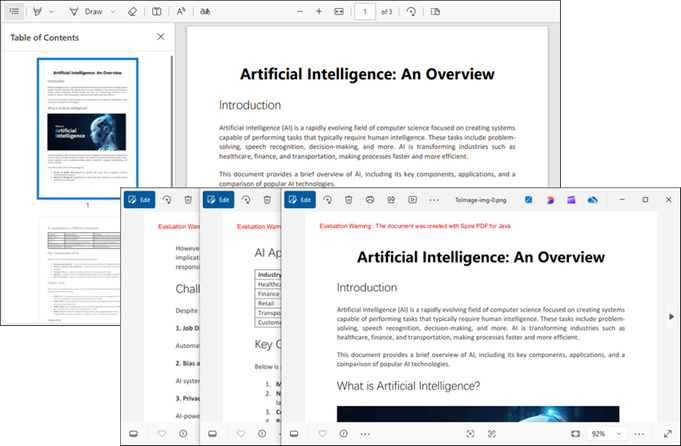
Let's start with the fundamental conversion process. The following code demonstrates how to convert each page of a PDF into individual PNG images:
import com.spire.pdf.PdfDocument;
import com.spire.pdf.graphics.PdfImageType;

import javax.imageio.ImageIO;
import java.awt.image.BufferedImage;
import java.io.File;
import java.io.IOException;

public class ConvertPdfToImage {

    public static void main(String[] args) throws IOException {

        // Create a PdfDocument instance
        PdfDocument doc = new PdfDocument();

        // Load a PDF file
        doc.loadFromFile("C:\\Users\\Administrator\\Desktop\\input.pdf");

        // Iterate through the pages
        for (int i = 0; i < doc.getPages().getCount(); i++) {

            // Convert the current page to BufferedImage
            BufferedImage image = doc.saveAsImage(i, PdfImageType.Bitmap);

            // Save the image data as a png file
            File file = new File("output/" + String.format(("ToImage-img-%d.png"), i));
            ImageIO.write(image, "PNG", file);
        }

        // Clear up resources
        doc.close();
    }
}
Explanation:
- The PdfDocument class loads the input PDF file.
- saveAsImage() converts each page into a BufferedImage .
- ImageIO.write() saves the image in PNG format.
Tip : To convert to JPEG, GIF, or BMP, simply replace " PNG " with " JPEG ", " GIF ", or " BMP " in the ImageIO.write() method.
Output:
PNG with Transparent Background
Converting a PDF page to PNG with a transparent background involves adjusting the conversion options using the setPdfToImageOptionsmethod. This adjustment provides greater flexibility in generating the images, allowing for customized output that meets specific requirements.
Here’s how to achieve this:
doc.getConvertOptions().setPdfToImageOptions(0);

for (int i = 0; i < doc.getPages().getCount(); i++) {
    BufferedImage image = doc.saveAsImage(i, PdfImageType.Bitmap);
    File file = new File("C:\\Users\\Administrator\\Desktop\\Images\\" + String.format(("ToImage-img-%d.png"), i));
    ImageIO.write(image, "PNG", file);
}
Explanation:
- setPdfToImageOptions(0) ensures transparency is preserved.
- The rest of the process remains the same as the basic conversion.
Custom DPI Settings
The saveAsImage method also provides an overload that allows developers to specify the DPI (dots per inch) for the output images. This feature is crucial for ensuring that the images are rendered at the desired resolution, particularly when high-quality images are required.
Here’s an example of converting a PDF to images with a specified DPI:
for (int i = 0; i < doc.getPages().getCount(); i++) {
    BufferedImage image = doc.saveAsImage(i, PdfImageType.Bitmap,300, 300);
    File file = new File("C:\\Users\\Administrator\\Desktop\\Images\\" + String.format(("ToImage-img-%d.png"), i));
    ImageIO.write(image, "PNG", file);
}
Explanation:
- The saveAsImage() method accepts dpiX and dpiY parameters for resolution control.
- Higher DPI values (e.g., 300) produce sharper images but increase file size.
DPI Selection Tip:
- 72-100 DPI : Suitable for screen display
- 150-200 DPI : Good for basic printing
- 300+ DPI : Professional printing quality
- 600+ DPI : High-resolution archival
Convert PDF to TIFF in Java
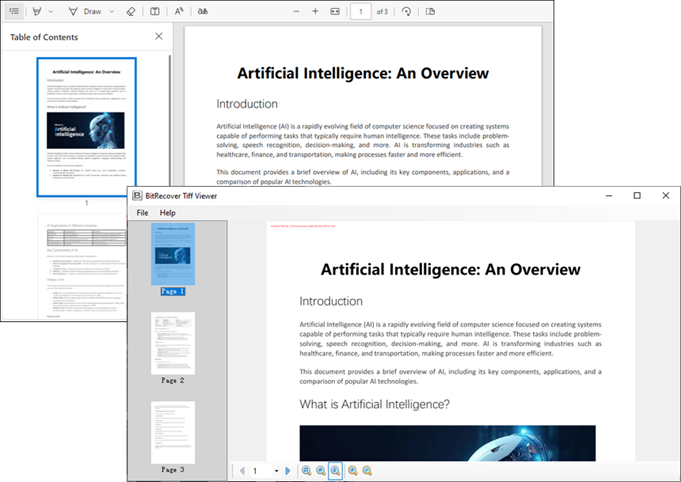
TIFF (Tagged Image File Format) is another popular image format, especially in the publishing and printing industries. Spire.PDF makes it easy to convert PDF pages to TIFF format using the saveToTiff method.
Here’s a simple example demonstrating how to convert a PDF to a multi-page TIFF:
import com.spire.pdf.PdfDocument;

public class ConvertPdfToTiff {

    public static void main(String[] args) {

        // Create a PdfDocument object
        PdfDocument doc = new PdfDocument();

        // Load a PDF file
        doc.loadFromFile("C:\\Users\\Administrator\\Desktop\\input.pdf");

        // Convert a page range to tiff
        doc.saveToTiff("output/PageToTiff.tiff",0,2,300,300);

        // Clear up resources
        doc.dispose();
    }
}
Explanation:
- saveToTiff() converts a specified page range (here, pages 0 to 2).
- The last two parameters set the DPI for the output image.
Output:
Convert PDF to SVG in Java
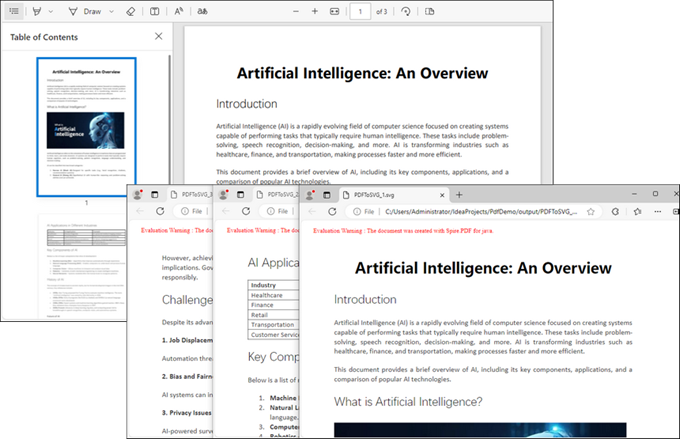
SVG (Scalable Vector Graphics) is a vector image format that is widely used for its scalability and compatibility with web technologies. Converting PDF to SVG can be beneficial for web applications that require responsive images.
To convert a PDF document to SVG using Spire.PDF, the following code can be implemented:
import com.spire.pdf.FileFormat;
import com.spire.pdf.PdfDocument;

public class ConvertPdfToSvg {

    public static void main(String[] args) {

        // Initialize a PdfDocument object
        PdfDocument doc = new PdfDocument();

        // Load the PDF document from the specified path
        doc.loadFromFile("C:\\Users\\Administrator\\Desktop\\input.pdf");

        // Optionally, convert to a single SVG (uncomment to enable)
        // doc.getConvertOptions().setOutputToOneSvg(true);

        // Save the document as SVG files (one SVG per page by default)
        doc.saveToFile("Output/PDFToSVG.svg", FileFormat.SVG);

        // Clear up resources
        doc.dispose();
    }
}
Explanation:
- saveToFile() with FileFormat.SVG exports the PDF as an SVG file.
- Optionally, setOutputToOneSvg(true) merges all pages into a single SVG.
Output:
Conclusion
Spire.PDF for Java simplifies PDF-to-image conversion with support for popular formats like PNG, JPEG, TIFF, SVG, and more . Key features such as transparency control, custom DPI settings, and multi-page TIFF/SVG output enable tailored solutions for generating thumbnails, high-quality prints, or web-optimized graphics. The library ensures high fidelity and performance , making it ideal for batch processing or dynamic rendering. Easily integrate the provided code snippets and APIs to enhance document handling in your Java applications, whether for reporting, archiving, or interactive content.
FAQs
Q1. Can I specify the DPI when converting to TIFF or SVG?
When converting to TIFF, you can specify the DPI to ensure high-quality output. However, SVG is a vector format and does not require DPI settings, as it scales based on the display size.
Q2. Can I convert specific pages of a PDF to images?
Yes, both the saveAsImage and saveToTiff methods allow you to indicate which pages to include in the conversion.
Q3. What is the difference between lossless and lossy image formats?
Lossless formats (like PNG and TIFF) retain all image quality during compression, while lossy formats (like JPEG) reduce file size by discarding some image information, which may affect quality.
Q4. How does converting to SVG differ from raster formats?
Converting to SVG generates vector images that scale without losing quality, while raster formats like PNG and JPEG are pixel-based and can lose quality when resized.
Q5. What other file formats can Spire.PDF convert PDFs to?
Spire.PDF is a powerful Java PDF library that supports converting PDF files to multiple formats, such as:
Get a Free License
To fully experience the capabilities of Spire.PDF for Java without any evaluation limitations, you can request a free 30-day trial license.
