
Knowledgebase (2417)
Children categories
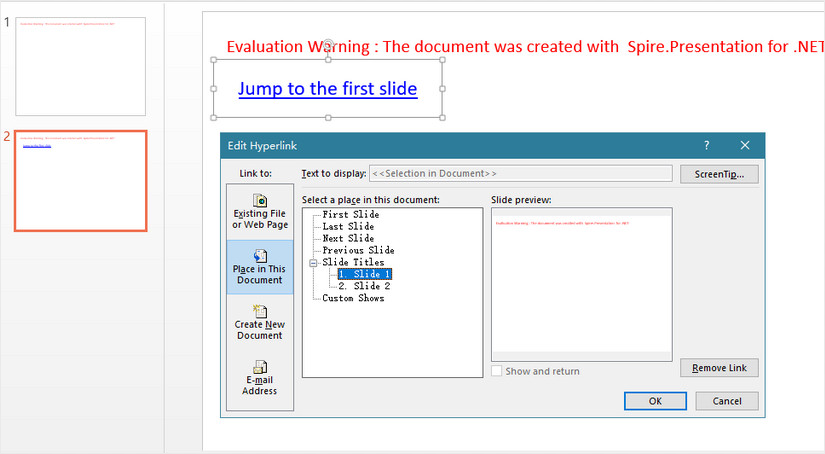
Hyperlinks in a PowerPoint file not only can be linked to external URLs, but also to the specific slide within the document. This article will show you how to create a hyperlink that links to a specified slide using Spire.Presentation.
Step 1: Create a PowerPoint file and append a slide to it.
Presentation presentation = new Presentation();
presentation.Slides.Append();
Step 2: Add a shape to the second slide.
IAutoShape shape = presentation.Slides[1].Shapes.AppendShape(ShapeType.Rectangle, new RectangleF(10, 50, 200, 50));
shape.TextFrame.Text = "Jump to the first slide";
Step 3: Create a hyperlink based on the shape and the text on it, linking to the first slide .
ClickHyperlink hyperlink = new ClickHyperlink(presentation.Slides[0]);
shape.Click = hyperlink;
shape.TextFrame.TextRange.ClickAction = hyperlink;
Step 4: Save the file.
presentation.SaveToFile("hyperlink.pptx", FileFormat.Pptx2010);
Output:
Full Code:
using Spire.Presentation;
using Spire.Presentation.Drawing;
using System.Drawing;
namespace Link_to_a_Specific_Slide
{

    class Program
    {

        static void Main(string[] args)
        {
            Presentation presentation = new Presentation();
            presentation.Slides.Append();
            IAutoShape shape = presentation.Slides[1].Shapes.AppendShape(ShapeType.Rectangle, new RectangleF(10, 50, 200, 50));
            shape.Fill.FillType = FillFormatType.None;
            shape.Line.FillType = FillFormatType.None;
            shape.TextFrame.Text = "Jump to the first slide";
            ClickHyperlink hyperlink = new ClickHyperlink(presentation.Slides[0]);
            shape.Click = hyperlink;
            shape.TextFrame.TextRange.ClickAction = hyperlink;
            presentation.SaveToFile("output.pptx", FileFormat.Pptx2010);


        }
    }
}
Imports Spire.Presentation
Imports Spire.Presentation.Drawing
Imports System.Drawing
Namespace Link_to_a_Specific_Slide

	Class Program

		Private Shared Sub Main(args As String())
			Dim presentation As New Presentation()
			presentation.Slides.Append()
			Dim shape As IAutoShape = presentation.Slides(1).Shapes.AppendShape(ShapeType.Rectangle, New RectangleF(10, 50, 200, 50))
			shape.Fill.FillType = FillFormatType.None
			shape.Line.FillType = FillFormatType.None
			shape.TextFrame.Text = "Jump to the first slide"
			Dim hyperlink As New ClickHyperlink(presentation.Slides(0))
			shape.Click = hyperlink
			shape.TextFrame.TextRange.ClickAction = hyperlink
			presentation.SaveToFile("output.pptx", FileFormat.Pptx2010)


		End Sub
	End Class
End Namespace
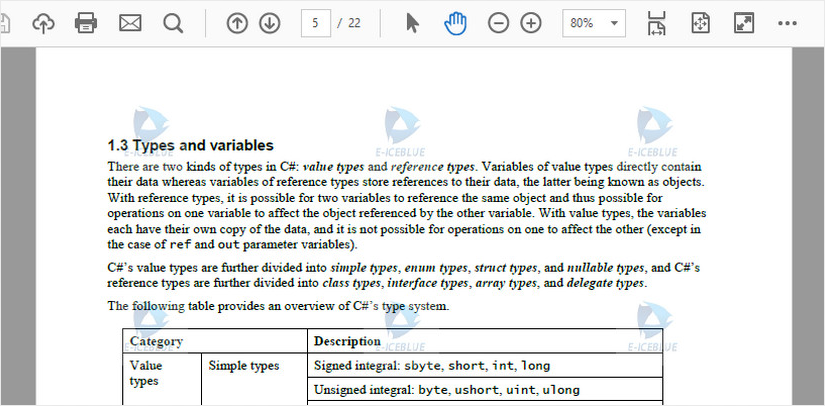
A tiled background usually refers to the background that is filled with one or more repetitions of a small image. In this article, you will learn how to tile an image in PDF and make a tile background for your PDFs in C# and VB.NET.
Step 1: Create a PdfDocument object and load a sample PDF document.
PdfDocument pdf = new PdfDocument();
pdf.LoadFromFile("sample.pdf");
Step 2: Load an image file to PdfImage object.
PdfImage image = PdfImage.FromFile("logo.png");
Step 3: Create a PdfTilingBrush object specifying its size, set the transparency of the brush, and draw an image at the specified position of the brush.
PdfTilingBrush brush = new PdfTilingBrush(new SizeF(pdf.Pages[1].Canvas.Size.Width / 3, pdf.Pages[1].Canvas.Size.Height / 5));
brush.Graphics.SetTransparency(0.2f);
brush.Graphics.DrawImage(image,new PointF((brush.Size.Width-image.Width)/2,(brush.Size.Height-image.Height)/2));
Step 4: Draw rectangles on the PDF page using the brush.
pdf.Pages[1].Canvas.DrawRectangle(brush, new RectangleF(new PointF(0, 0), page.Canvas.Size));
Step 5: Save the file.
pdf.SaveToFile("output.pdf");
Output:
Full Code:
using Spire.Pdf;
using Spire.Pdf.Graphics;
using System.Drawing;


namespace Image
{
    class Program
    {
        static void Main(string[] args)
        {
            PdfDocument pdf = new PdfDocument();
            pdf.LoadFromFile("sample.pdf");

            PdfImage image = PdfImage.FromFile("logo.png");
            foreach (PdfPageBase page in pdf.Pages)
            {
                PdfTilingBrush brush = new PdfTilingBrush(new SizeF(page.Canvas.Size.Width / 3, page.Canvas.Size.Height / 5));
                brush.Graphics.SetTransparency(0.2f);
                brush.Graphics.DrawImage(image, new PointF((brush.Size.Width - image.Width) / 2, (brush.Size.Height - image.Height) / 2));
                page.Canvas.DrawRectangle(brush, new RectangleF(new PointF(0, 0), page.Canvas.Size));
            }
            pdf.SaveToFile("output.pdf");
        }
    }
}
Imports Spire.Pdf
Imports Spire.Pdf.Graphics
Imports System.Drawing


Namespace Image
	Class Program
		Private Shared Sub Main(args As String())
			Dim pdf As New PdfDocument()
			pdf.LoadFromFile("sample.pdf")

			Dim image As PdfImage = PdfImage.FromFile("logo.png")
			For Each page As PdfPageBase In pdf.Pages
				Dim brush As New PdfTilingBrush(New SizeF(page.Canvas.Size.Width / 3, page.Canvas.Size.Height / 5))
				brush.Graphics.SetTransparency(0.2F)
				brush.Graphics.DrawImage(image, New PointF((brush.Size.Width - image.Width) / 2, (brush.Size.Height - image.Height) / 2))
				page.Canvas.DrawRectangle(brush, New RectangleF(New PointF(0, 0), page.Canvas.Size))
			Next
			pdf.SaveToFile("output.pdf")
		End Sub
	End Class
End Namespace
When processing a Word document, you may need to remove some paragraphs. For example, after you copied contents from the Internet with a lot of redundant paragraphs to your document, you need to delete the extra paragraphs and keep only those that are useful. The deletion can be easily achieved by Spire.Doc for .NET by programming with no need for other software. This article will show you the detailed steps of removing paragraphs in a Word document using Spire.Doc for .NET.
Install Spire.Doc for .NET
To begin with, you need to add the DLL files included in the Spire.Doc for.NET package as references in your .NET project. The DLL files can be either downloaded from this link or installed via NuGet.
PM> Install-Package Spire.Doc
Delete a Specific Paragraph in a Word Document
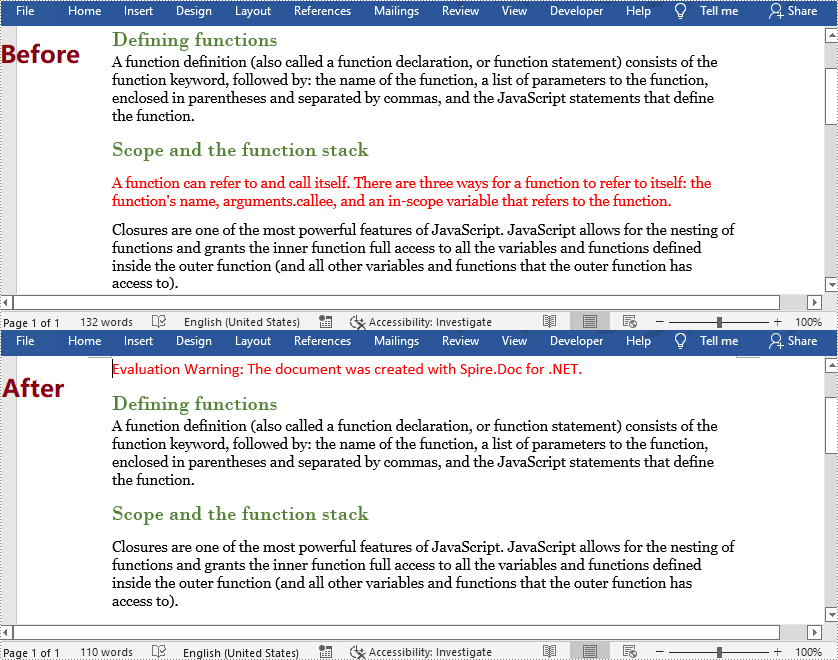
Spire.Doc for .NET provides a method RemoveAt() under ParagraphCollection to remove paragraphs.
The detailed steps of removing a specific paragraph are as follows:
- Create an object of Document class.
- Load a Word document using Document.LoadFromFile() method.
- Get the first section using Document.Section[] property.
- Remove the 4th paragraph using Section.Paragraphs.RemoveAt() method.
- Save the document using Document.SaveToFile() method.
- C#
- VB.NET
using System;
using Spire.Doc;

namespace RemoveParagraphs
{
    internal class Program
    {
        static void Main(string[] args)
        {
            //Create an object of Document class
            Document document = new Document();

            //Load a Word document
            document.LoadFromFile("Sample.docx");

            //Get the first section
            Section section = document.Sections[0];

            //Remove the first paragraph in the section
            section.Paragraphs.RemoveAt(3);

            //Save the document
            document.SaveToFile("RemoveParagraphs.docx", FileFormat.Docx2013);
        }
    }
}
Delete All Paragraphs in a Word Document
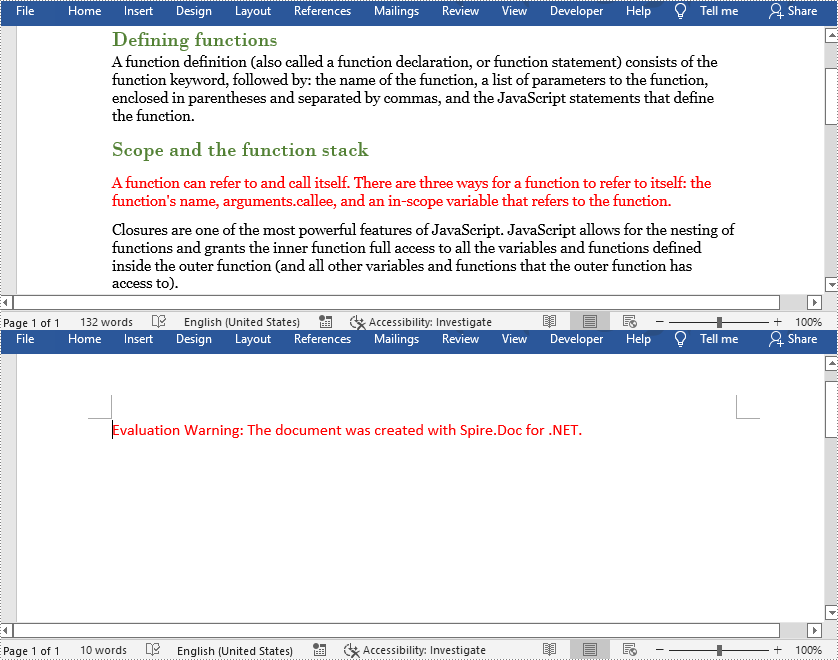
To remove all paragraphs, you can use the method Clear() under ParagraphCollection provided by Spire.Doc for .NET.
The detailed steps are as follows:
- Create an object of Document class.
- Load a Word Document using Document.LoadFromFile() method.
- Loop through all sections, and remove all paragraphs in each section using Section.Paragraphs.Clear() method.
- Save the document using Document.SaveToFile() method.
- C#
- VB.NET
using System;
using Spire.Doc;

namespace RemoveAllParagraphs
{
    internal class Program
    {
        static void Main(string[] args)
        {
            //Create an object of Document class
            Document document = new Document();

            //Load a Word document
            document.LoadFromFile("Sample.docx");

            //Loop through all sections
            foreach (Section section in document.Sections)
            {
                //Remove all paragraphs in the section
                section.Paragraphs.Clear();
            }

            //Save the document
            document.SaveToFile("RemoveAllParagraphs.docx", FileFormat.Docx2013);
        }
    }
}
Apply for a Temporary License
If you'd like to remove the evaluation message from the generated documents, or to get rid of the function limitations, please request a 30-day trial license for yourself.
