
Knowledgebase (2417)
Children categories
Want to make your Excel data easier to explore and analyze? Auto Filters are your go-to tool. With just a few clicks, you can sort, filter and focus on the rows that matter. In this guide, you’ll learn how to add filters in Excel with C# using Spire.XLS for .NET, making it easy to insert Auto Filters into your spreadsheets. As a bonus, we’ll also show you how to remove Auto Filters in Excel when you're done.
Let’s dive in and make your spreadsheets smarter!
- Add Auto Filters to a Cell Range in Excel
- Apply Built-in Auto Filters in Excel: Date
- Create Custom Auto Filters in Excel
- Bonus: How to Remove Auto Filters in Excel
- Wrapping Up
- FAQ: Excel AutoFilter Questions Answered
What is Spire.XLS and Why Use It
Spire.XLS for .NET is a powerful Excel library that enables you to create, edit, and convert Excel files programmatically — no need for Microsoft Excel to be installed on your machine. It’s ideal for automating Excel tasks in C# and other .NET applications.
To get started, you can install the library via NuGet with the following command:
PM> Install-Package Spire.XLSFor smaller or lightweight Excel projects, the free version is available:
PM> Install-Package FreeSpire.XLSIf you prefer manual setup or need more installation options, you can also download Spire.XLS for .NET or Free Spire.XLS for .NET directly from the official website.
How to Add Auto Filters to a Cell Range in Excel
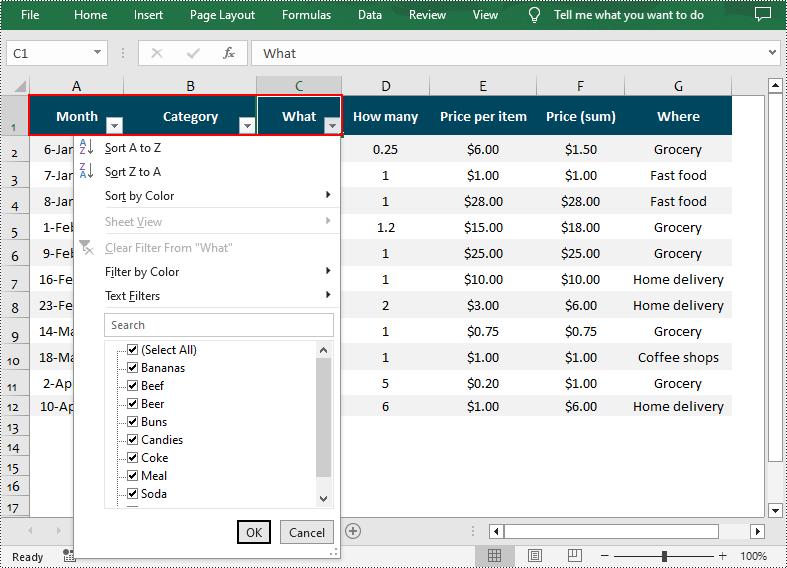
If you want to quickly filter data in an Excel sheet without writing formulas, Auto Filters will help to instantly display only the needed rows. In this section, you'll learn how to add Auto Filters to a specific cell range in Excel using C#. Whether you're working with a small table or a large dataset, this method helps streamline data analysis with just a few lines of code.
The steps to apply Auto Filters to a cell range with C#:
- Create a Workbook instance and read an Excel file.
- Get a certain worksheet.
- Add an AutoFilter to a specified cell range using Worksheet.AutoFilters.Range property.
- Save the modified Excel file.
Here’s a code example showing how to add an Auto Filter in the cell range “A1:C1”:
- C#
using Spire.Xls;

namespace AddAutoFilter
{
    class Program
    {
        static void Main(string[] args)
        {
            // Create a Workbook instance
            Workbook workbook = new Workbook();

            // Load an Excel file
            workbook.LoadFromFile(@"C:\Users\Administrator\Desktop\Data.xlsx");

            // Get the first worksheet
            Worksheet sheet = workbook.Worksheets[0];

            // Create an AutoFilter in the sheet and specify the range to be filtered
            sheet.AutoFilters.Range = sheet.Range["A1:C1"];

            // Save the result file
            workbook.SaveToFile("ExcelAutoFilter.xlsx", ExcelVersion.Version2016);
        }
    }
}
How to Add Built-in Auto Filters in Excel - Date
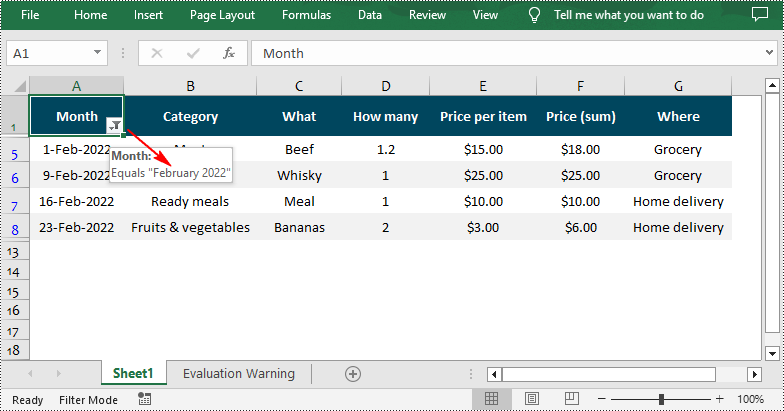
Excel’s built-in Auto Filters make it easy to filter data by common criteria like dates, numbers, and text. In this part, we’ll show you how to add a date Auto Filter in Excel using C#. The example focuses on applying a filter to a date column so you can quickly display rows based on specific days, months, or years.
- Create a Workbook instance and load a sample Excel spreadsheet.
- Get a worksheet and apply filters to a cell range through Worksheet.AutoFilters.Range property.
- Add a date filter to the cell range with Workbook.AutoFilters.AddDateFilter() method.
- Apply the date filter using Workbook.AutoFilters.Filter() method.
- Save the updated Excel file.
- C#
using Spire.Xls;
using Spire.Xls.Core;
using Spire.Xls.Core.Spreadsheet.AutoFilter;

namespace AddAutoFilter
{
    class Program
    {
        static void Main(string[] args)
        {
            // Create a Workbook instance
            Workbook workbook = new Workbook();

            // Load an Excel file
            workbook.LoadFromFile(@"C:\Users\Administrator\Desktop\Data.xlsx");

            // Get the first worksheet
            Worksheet sheet = workbook.Worksheets[0];

            // Create an auto filter in the sheet and specify the range to be filtered
            sheet.AutoFilters.Range = sheet.Range["A1:A12"];

            // Get the column to be filtered
            IAutoFilter filtercolumn = sheet.AutoFilters[0];

            // Add a date filter to filter data related to February 2022
            sheet.AutoFilters.AddDateFilter(filtercolumn, DateTimeGroupingType.Month, 2022, 2, 0, 0, 0, 0);

            // Apply the filter
            sheet.AutoFilters.Filter();

           // Save the result file
            workbook.SaveToFile("DateAutoFilter.xlsx", ExcelVersion.Version2016);
        }
    }
}
Quickly Apply Custom AutoFilter in Excel in C#
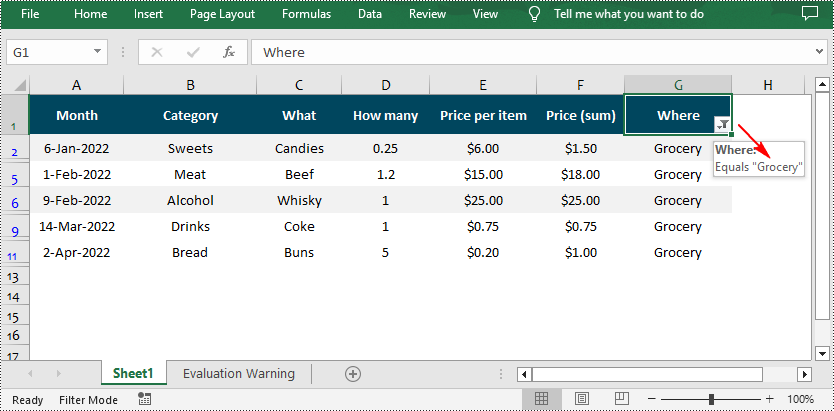
While built-in filters like date filters offer quick presets, there are times when you need more control over what gets displayed. That’s where custom AutoFilters come in. In this section, we’ll show you how to add a custom AutoFilter in Excel using C#, allowing you to filter by specific values or conditions — such as greater than, contains, or equals — to fit more complex data scenarios.
Steps to apply custom Auto Filters in Excel:
- Create a Workbook object and load an Excel file.
- Retrieve a worksheet.
- Add an Auto Filter to a cell range.
- Add a custom filter to the cell range through Workbook.AutoFilters.CustomFilter() method.
- Apply the filter using Workbook.AutoFilters.Filter() method.
- Save the resulting file.
- C#
using Spire.Xls;
using Spire.Xls.Core.Spreadsheet.AutoFilter;

namespace AddAutoFilter
{
    class Program
    {
        static void Main(string[] args)
        {
            // Create a Workbook instance
            Workbook workbook = new Workbook();

            // Load an Excel file
            workbook.LoadFromFile(@"C:\Users\Administrator\Desktop\Data.xlsx");

            // Get the first worksheet
            Worksheet sheet = workbook.Worksheets[0];

            // Create an auto filter in the sheet and specify the range to be filtered
            sheet.AutoFilters.Range = sheet.Range["G1:G12"];

            // Get the column to be filtered
            FilterColumn filtercolumn = (FilterColumn)sheet.AutoFilters[0];

            // Add a custom filter to filter data containing the string "Grocery"
            string strCrt = "Grocery";
            sheet.AutoFilters.CustomFilter(filtercolumn, FilterOperatorType.Equal, strCrt);

            // Apply the filter
            sheet.AutoFilters.Filter();

           // Save the result file
            workbook.SaveToFile("CustomAutoFilter.xlsx", ExcelVersion.Version2016);
        }
    }
}
Bonus Tip: How to Remove AutoFilters in Excel
Once you're done filtering, removing AutoFilters in Excel is just as easy. You can clear filters from a worksheet using a single line of C# code. This helps reset the view and ensures your data is fully visible again.
Want the exact steps? Check out our full guide on how to remove AutoFilters in Excel, including detailed instructions and code samples.
Wrapping Up
Adding AutoFilters in Excel using C# doesn’t have to be complicated — whether you’re working with a standard cell range, dates, or applying custom filter criteria. With just a few lines of code, you can make your Excel spreadsheets far more interactive and easier to analyze.
FAQ: Excel AutoFilter Questions Answered
Q1: How do I quickly add filters in Excel using C#?
You can quickly add filters to a cell range in Excel by using the Worksheet.AutoFilters.Range property in C#. Just define the target range and apply the filter with a single line of code.
Q2: How do I insert a drop-down filter in Excel?
Excel AutoFilters are essentially drop-down filters. Once you apply an AutoFilter to a column, Excel automatically creates a drop-down menu that lets you sort or filter the data based on values, conditions, or custom criteria.
Q3: How do I add a drop-down slicer in Excel?
Slicers are a visual filtering tool mainly used with PivotTables. While AutoFilters apply to standard worksheets, slicers offer a more user-friendly UI for filtering PivotTable data. If you're working with regular data (not PivotTables), AutoFilters are the better choice.
Q4: Can I remove filters once they’re applied in Excel with C#?
Yes, you can easily remove filters using C#. Just call the Worksheet.AutoFilters.Clear() method to remove all active filters from your worksheet.
Adjust the Height of Headers and Footers in a Word document in C#
2018-08-16 02:52:41 Written by KoohjiThe height of headers and footers can be adjusted by using the HeaderDistance and the FooterDistance properties. The detail steps of how to adjust the height of headers and footers in a word document using Spire.Doc are shown below.
Detail steps:
Step 1: Instantiate a Document object and load the word document.
Document doc = new Document();
doc.LoadFromFile("Headers and Footers.docx");
Step 2: Get the first section.
Section section = doc.Sections[0];
Step 3: Adjust the height of headers and footers in the section.
section.PageSetup.HeaderDistance = 100;
section.PageSetup.FooterDistance = 100;
Step 4: Save the file.
doc.SaveToFile("Output.docx", FileFormat.Docx2013);
Screenshot:
Header:

Footer:

Full code:
//Instantiate a Document object
Document doc = new Document();
//Load the word document
doc.LoadFromFile("Headers and Footers.docx");

//Get the first section
Section section = doc.Sections[0];

//Adjust the height of headers in the section
section.PageSetup.HeaderDistance = 100;

//Adjust the height of footers in the section
section.PageSetup.FooterDistance = 100;

//Save the document
doc.SaveToFile("Output.docx", FileFormat.Docx2013);
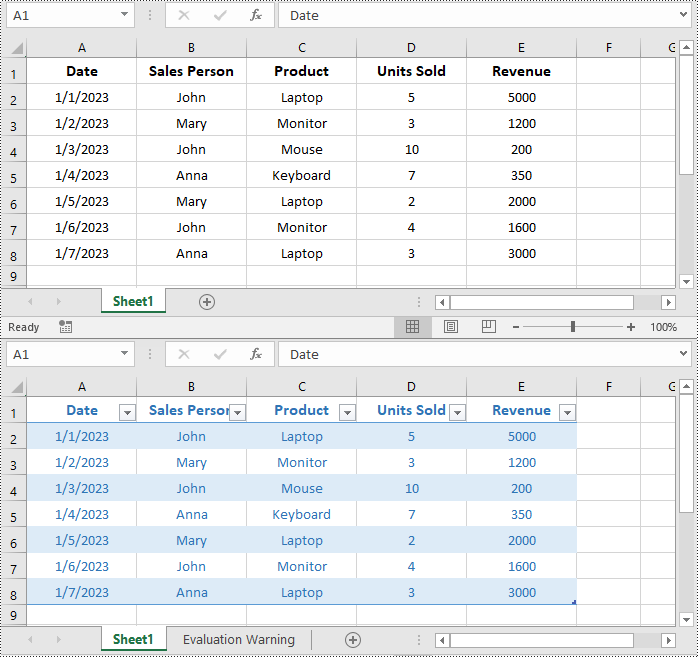
A table in Excel is a structured range of data that includes headers for each column. When you convert a range of cells into a table, Excel automatically applies formatting, adds filter arrows to each header cell, and provides enhanced features for manipulating and analyzing the data. In this article, we will explain how to create, resize, and remove tables in Excel in C# using Spire.XLS for .NET.
- Create a Table in Excel in C#
- Add a Total Row to a Table in Excel in C#
- Resize a Table in Excel in C#
- Remove a Table from Excel in C#
Install Spire.XLS for .NET
To begin with, you need to add the DLL files included in the Spire.XLS for .NET package as references in your .NET project. The DLL files can be either downloaded from this link or installed via NuGet.
PM> Install-Package Spire.XLS
Create a Table in Excel in C#
Spire.XLS for .NET allows you to convert a specific range of data in an Excel worksheet to a table using the Worksheet.ListObjects.Create(tableName, cellRange) method. The detailed steps are as follows.
- Create an object of the Workbook class.
- Load an Excel file using Workbook.LoadFromFile() method.
- Get a specific worksheet using Workbook.Worksheets[index] property.
- Get the cell range you want to convert to a table using Worksheet.Range[] property.
- Convert the cell range to a table using Worksheet.ListObjects.Create(tableName, cellRange) method.
- Save the resulting workbook to a file using Workbook.SaveToFile() method.
- C#
using Spire.Xls;
using Spire.Xls.Core;

namespace CreateTable
{
    internal class Program
    {
        static void Main(string[] args)
        {
            //Create an object of the Workbook class
            Workbook workbook = new Workbook();
            //Load an Excel file
            workbook.LoadFromFile("Sample.xlsx");

            //Get the first worksheet
            Worksheet sheet = workbook.Worksheets[0];

            //Get the cell range you want to convert to a table
            CellRange range = sheet.Range[1, 1, sheet.LastRow, sheet.LastColumn];

            //Convert the cell range to a table
            IListObject table = sheet.ListObjects.Create("SalesTransactions", range);

            //Format the table with a built-in table style
            table.BuiltInTableStyle = TableBuiltInStyles.TableStyleLight2;

            //Save the resulting workbook to a file
            workbook.SaveToFile("CreateTable.xlsx", ExcelVersion.Version2016);
            workbook.Dispose();
        }
    }
}
Add a Total Row to a Table in Excel in C#
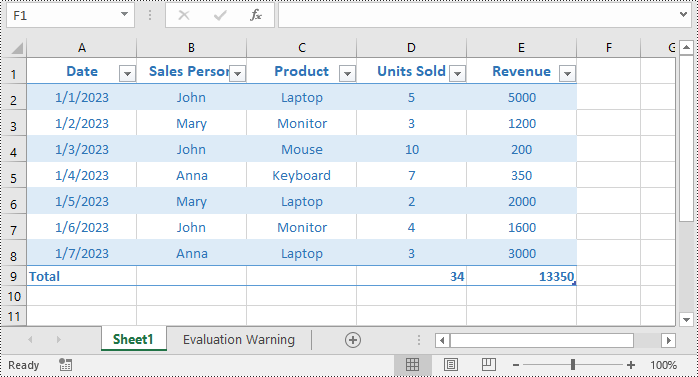
You can add a total row after the end of a table to display summary calculations, such as sums, averages, or other aggregations of the data in the table. The detailed steps are as follows.
- Create an object of the Workbook class.
- Load an Excel file using Workbook.LoadFromFile() method.
- Get a specific worksheet using Workbook.Worksheets[index] property.
- Get a specific table in the worksheet using Worksheet.ListObjects[index] property.
- Display a total row at the end of the table by setting Table.DisplayTotalRow property to true.
- Set total row label in a specific table column using IListObject.Columns[index].TotalsRowLabel property.
- Set the calculation functions for specific table columns using IListObject.Columns[index].TotalsCalculation property.
- Save the resulting workbook to a file using Workbook.SaveToFile() method.
- C#
using Spire.Xls;
using Spire.Xls.Core;

namespace AddTotalRowToTable
{
    internal class Program
    {
        static void Main(string[] args)
        {
            //Create an object of the Workbook class
            Workbook workbook = new Workbook();
            //Load an Excel file
            workbook.LoadFromFile("CreateTable.xlsx");

            //Get the first worksheet
            Worksheet sheet = workbook.Worksheets[0];

            //Get the first table in the worksheet
            IListObject table = sheet.ListObjects[0];

            //Show total row
            table.DisplayTotalRow = true;
            // Set total row label
            table.Columns[0].TotalsRowLabel = "Total";
            //Set the function used for the total calculation
            table.Columns[3].TotalsCalculation = ExcelTotalsCalculation.Sum;
            table.Columns[4].TotalsCalculation = ExcelTotalsCalculation.Sum;

            //Save the resulting workbook to a file
            workbook.SaveToFile("AddTotalRow.xlsx", ExcelVersion.Version2016);
            workbook.Dispose();
        }
    }
}
Resize a Table in Excel in C#
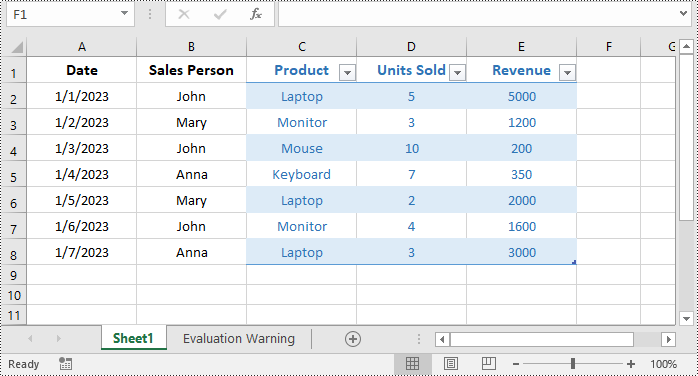
You can resize a table by updating the data range of it using IListObject.Location property. The detailed steps are as follows.
- Create an object of the Workbook class.
- Load an Excel file using Workbook.LoadFromFile() method.
- Get a specific worksheet using Workbook.Worksheets[index] property.
- Get a specific table in the worksheet using Worksheet.ListObjects[index] property.
- Resize the table by updating the data range of it using IListObject.Location property.
- Save the resulting workbook to a file using Workbook.SaveToFile() method.
- C#
using Spire.Xls;
using Spire.Xls.Core;

namespace ResizeTable
{
    internal class Program
    {
        static void Main(string[] args)
        {
            //Create an object of the Workbook class
            Workbook workbook = new Workbook();
            //Load an Excel file
            workbook.LoadFromFile("CreateTable.xlsx");

            //Get the first worksheet
            Worksheet sheet = workbook.Worksheets[0];

            //Get the first table in the worksheet
            IListObject table = sheet.ListObjects[0];

            table.Location = sheet.Range["C1:E8"];

            //Save the resulting workbook to a file
            workbook.SaveToFile("ResizeTable.xlsx", ExcelVersion.Version2016);
            workbook.Dispose();
        }
    }
}
Remove a Table from Excel in C#
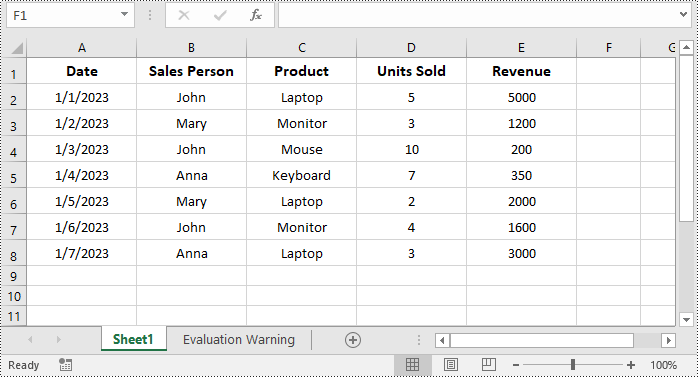
If you no longer need a table, you can convert it back to a normal range of cells by using the IListObjects.RemoveAt(tableIndex) method. The detailed steps are as follows.
- Create an object of the Workbook class.
- Load an Excel file using Workbook.LoadFromFile() method.
- Get a specific worksheet using Workbook.Worksheets[index] property.
- Get the table collection of the worksheet using Worksheet.ListObjects property.
- Remove a specific table from the table collection using IListObjects.RemoveAt(tableIndex) property.
- Save the resulting workbook to a file using Workbook.SaveToFile() method.
- C#
using Spire.Xls;
using Spire.Xls.Core;

namespace RemoveTable
{
    internal class Program
    {
        static void Main(string[] args)
        {
            //Create an object of the Workbook class
            Workbook workbook = new Workbook();
            //Load an Excel file
            workbook.LoadFromFile("CreateTable.xlsx");

            //Get the first worksheet
            Worksheet sheet = workbook.Worksheets[0];

            //Get the table collection of the worksheet
            IListObjects tables = sheet.ListObjects;
            //Remove a specific table by its index
            tables.RemoveAt(0);

            ////Or remove a specific table by its name
            //for (int i = tables.Count - 1; i >= 0; i--)
            //{
            //    // Check if the table name matches the specific value
            //    if (tables[i].Name == "SalesTransactions")
            //    {
            //        // Remove the table
            //        tables.RemoveAt(i);
            //    }
            //}

            //Save the resulting workbook to a file
            workbook.SaveToFile("RemoveTable.xlsx", ExcelVersion.Version2016);
            workbook.Dispose();
            System.Diagnostics.Process.Start("RemoveTable.xlsx");
        }
    }
}
Apply for a Temporary License
If you'd like to remove the evaluation message from the generated documents, or to get rid of the function limitations, please request a 30-day trial license for yourself.
