
Knowledgebase (2417)
Children categories
Create Multiple Slide Maters and Apply Them to Individual Slides in C#, VB.NET
2018-05-03 09:09:22 Written by KoohjiWhen you want to use multiple themes in one presentation, you’ll need multiple slide masters. In this article, you will learn how create additional slide masters and apply them to different slides, by using Spire.Presentation with C# and VB.NET.
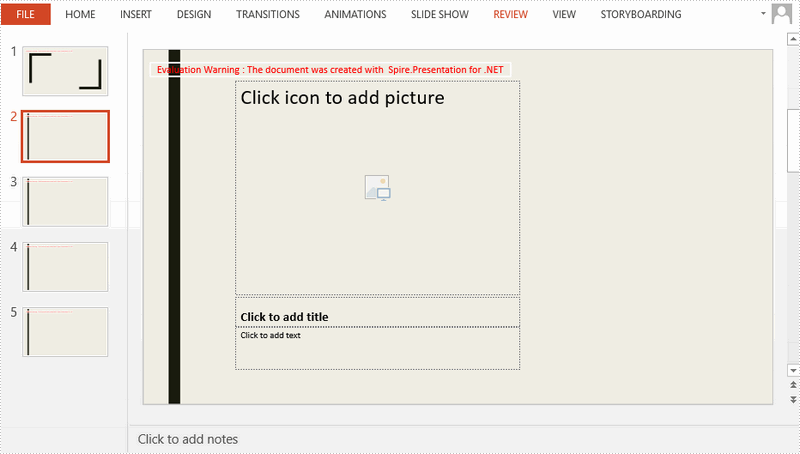
Step 1: Create a PowerPoint document and insert four slides to it. There are five slides in total including the default slide.
Presentation ppt = new Presentation();
for (int i = 0; i < 4; i++)
{
    ppt.Slides.Append();
}
Step 2: Get the first default slide master.
IMasterSlide first_master = ppt.Masters[0];
Step 3: Append another slide master.
ppt.Masters.AppendSlide(first_master);
IMasterSlide second_master = ppt.Masters[1];
Step 4: Set different background image for the two slide masters.
string pic1 = @"C:\Users\Administrator\Desktop\image-1.png";
string pic2 = @"C:\Users\Administrator\Desktop\image-2.png";
RectangleF rect = new RectangleF(0, 0, ppt.SlideSize.Size.Width, ppt.SlideSize.Size.Height);
first_master.SlideBackground.Fill.FillType = FillFormatType.Picture;
IEmbedImage image1 = first_master.Shapes.AppendEmbedImage(ShapeType.Rectangle, pic1, rect);
first_master.SlideBackground.Fill.PictureFill.Picture.EmbedImage = image1 as IImageData;
second_master.SlideBackground.Fill.FillType = FillFormatType.Picture;
IEmbedImage image2 = second_master.Shapes.AppendEmbedImage(ShapeType.Rectangle, pic2, rect);
second_master.SlideBackground.Fill.PictureFill.Picture.EmbedImage = image2 as IImageData;
Step 5: Apply the first master with layout to the first slide.
ppt.Slides[0].Layout = first_master.Layouts[1];
Step 6: Apply the second master with layout to other slides.
for (int i = 1; i < ppt.Slides.Count; i++)
{
    ppt.Slides[i].Layout = second_master.Layouts[8];
}
Step 7: Save the file.
ppt.SaveToFile("result.pptx", FileFormat.Pptx2013);
Output:
Full Code:
using Spire.Presentation;
using Spire.Presentation.Drawing;
using System.Drawing;
namespace  CreateMultipleMaster
{
    class Program
    {
        static void Main(string[] args)
        {
            Presentation ppt = new Presentation();
            ppt.SlideSize.Type = SlideSizeType.Screen16x9;
            for (int i = 0; i < 4; i++)
            {
                ppt.Slides.Append();
            }

            IMasterSlide first_master = ppt.Masters[0];
            ppt.Masters.AppendSlide(first_master);
            IMasterSlide second_master = ppt.Masters[1];

            string pic1 = @"C:\Users\Administrator\Desktop\image-1.png";
            string pic2 = @"C:\Users\Administrator\Desktop\image-2.png";
            RectangleF rect = new RectangleF(0, 0, ppt.SlideSize.Size.Width, ppt.SlideSize.Size.Height);
            first_master.SlideBackground.Fill.FillType = FillFormatType.Picture;
            IEmbedImage image1 = first_master.Shapes.AppendEmbedImage(ShapeType.Rectangle, pic1, rect);
            first_master.SlideBackground.Fill.PictureFill.Picture.EmbedImage = image1 as IImageData;
            second_master.SlideBackground.Fill.FillType = FillFormatType.Picture;
            IEmbedImage image2 = second_master.Shapes.AppendEmbedImage(ShapeType.Rectangle, pic2, rect);
            second_master.SlideBackground.Fill.PictureFill.Picture.EmbedImage = image2 as IImageData;

            ppt.Slides[0].Layout = first_master.Layouts[1];
            for (int i = 1; i < ppt.Slides.Count; i++)
            {
                ppt.Slides[i].Layout = second_master.Layouts[8];
            }
            ppt.SaveToFile("result.pptx", FileFormat.Pptx2013);

            }
        }
    }
Imports Spire.Presentation
Imports Spire.Presentation.Drawing
Imports System.Drawing
Namespace CreateMultipleMaster
	Class Program
		Private Shared Sub Main(args As String())
			Dim ppt As New Presentation()
			ppt.SlideSize.Type = SlideSizeType.Screen16x9
			For i As Integer = 0 To 3
				ppt.Slides.Append()
			Next

			Dim first_master As IMasterSlide = ppt.Masters(0)
			ppt.Masters.AppendSlide(first_master)
			Dim second_master As IMasterSlide = ppt.Masters(1)

			Dim pic1 As String = "C:\Users\Administrator\Desktop\image-1.png"
			Dim pic2 As String = "C:\Users\Administrator\Desktop\image-2.png"
			Dim rect As New RectangleF(0, 0, ppt.SlideSize.Size.Width, ppt.SlideSize.Size.Height)
			first_master.SlideBackground.Fill.FillType = FillFormatType.Picture
			Dim image1 As IEmbedImage = first_master.Shapes.AppendEmbedImage(ShapeType.Rectangle, pic1, rect)
			first_master.SlideBackground.Fill.PictureFill.Picture.EmbedImage = TryCast(image1, IImageData)
			second_master.SlideBackground.Fill.FillType = FillFormatType.Picture
			Dim image2 As IEmbedImage = second_master.Shapes.AppendEmbedImage(ShapeType.Rectangle, pic2, rect)
			second_master.SlideBackground.Fill.PictureFill.Picture.EmbedImage = TryCast(image2, IImageData)

			ppt.Slides(0).Layout = first_master.Layouts(1)
			For i As Integer = 1 To ppt.Slides.Count - 1
				ppt.Slides(i).Layout = second_master.Layouts(8)
			Next
			ppt.SaveToFile("result.pptx", FileFormat.Pptx2013)

		End Sub
	End Class
End Namespace
Every PowerPoint presentation has a slide master which contains all the styles for your slides. You can quickly change the look of your entire presentation by selecting the slide master, and then adopting a theme, adding a background picture or changing the color scheme.
In this article, you will learn how to access and customize the slide master in an existing presentation.
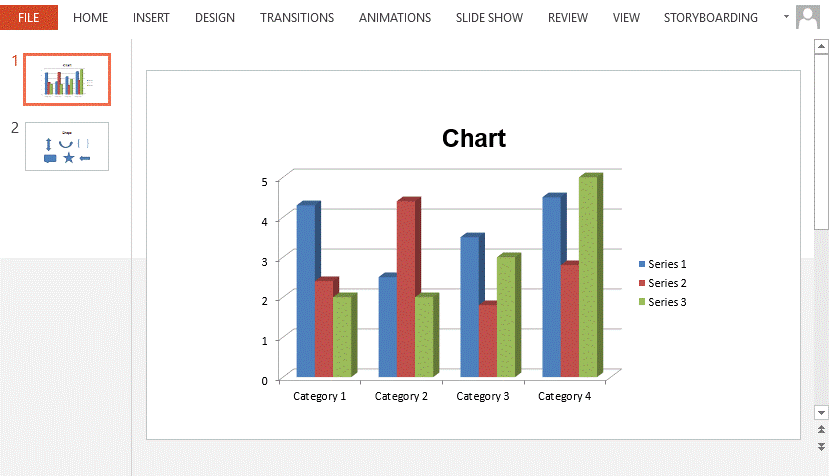
Source File:
Detail steps:
Step 1: Load the source file.
Presentation ppt = new Presentation();
ppt.LoadFromFile(@"sample.pptx");
Step 2: Get the first slide master from the presentation.
IMasterSlide masterSlide = ppt.Masters[0];
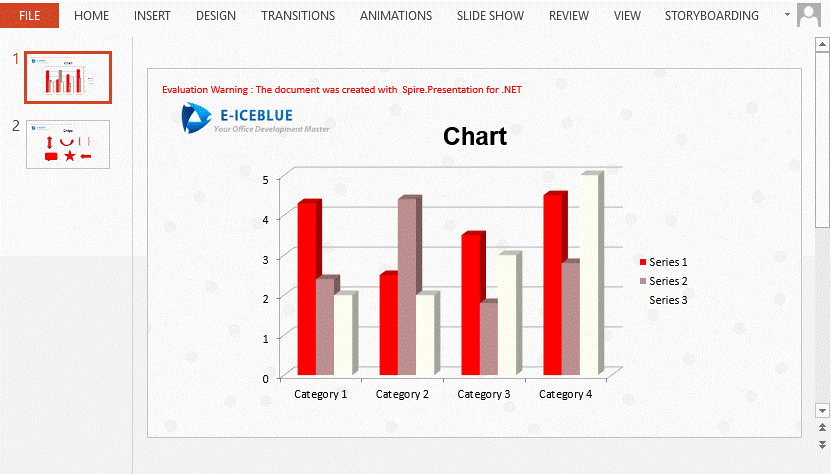
Step 3: Customize the background of the slide master.
string backgroundPic = "background.png";
RectangleF rect = new RectangleF(0, 0, ppt.SlideSize.Size.Width, ppt.SlideSize.Size.Height);
masterSlide.SlideBackground.Fill.FillType = FillFormatType.Picture;
IEmbedImage image = masterSlide.Shapes.AppendEmbedImage(ShapeType.Rectangle, backgroundPic, rect);
masterSlide.SlideBackground.Fill.PictureFill.Picture.EmbedImage = image as IImageData;
Step 4: Change the color scheme.
masterSlide.Theme.ColorScheme.Accent1.Color = Color.Red;
masterSlide.Theme.ColorScheme.Accent2.Color = Color.RosyBrown;
masterSlide.Theme.ColorScheme.Accent3.Color = Color.Ivory;
masterSlide.Theme.ColorScheme.Accent4.Color = Color.Lavender;
masterSlide.Theme.ColorScheme.Accent5.Color = Color.Black;
Step 5: Add an image to the slide master. If you want, you can add any other document elements to slide master so that they can display on each slide.
string logo = "logo.png";
IEmbedImage imageShape = masterSlide.Shapes.AppendEmbedImage(ShapeType.Rectangle, logo, new RectangleF(40, 40, 240, 65));
imageShape.Line.FillFormat.FillType = FillFormatType.None;
Step 6: Save the document.
ppt.SaveToFile("result.pptx", FileFormat.Pptx2013);
Result:
Full code:
using Spire.Presentation;
using Spire.Presentation.Drawing;
using System.Drawing;
namespace ApplySlideMaster
{
    class Program
    {
        static void Main(string[] args)
        {
            Presentation ppt = new Presentation();
            ppt.LoadFromFile(@"sample.pptx");

            IMasterSlide masterSlide = ppt.Masters[0];
            string backgroundPic = "background.png";
            string logo = "logo.png";
            RectangleF rect = new RectangleF(0, 0, ppt.SlideSize.Size.Width, ppt.SlideSize.Size.Height);
            masterSlide.SlideBackground.Fill.FillType = FillFormatType.Picture;
            IEmbedImage image = masterSlide.Shapes.AppendEmbedImage(ShapeType.Rectangle, backgroundPic, rect);
            masterSlide.SlideBackground.Fill.PictureFill.Picture.EmbedImage = image as IImageData;
            masterSlide.Theme.ColorScheme.Accent1.Color = Color.Red;
            masterSlide.Theme.ColorScheme.Accent2.Color = Color.RosyBrown;
            masterSlide.Theme.ColorScheme.Accent3.Color = Color.Ivory;
            masterSlide.Theme.ColorScheme.Accent4.Color = Color.Lavender;
            masterSlide.Theme.ColorScheme.Accent5.Color = Color.Black;
            IEmbedImage imageShape = masterSlide.Shapes.AppendEmbedImage
            (ShapeType.Rectangle, logo, new RectangleF(40, 40, 240, 65));
            imageShape.Line.FillFormat.FillType = FillFormatType.None;

            ppt.SaveToFile("result.pptx", FileFormat.Pptx2013);

            }
        }
    }
Imports Spire.Presentation
Imports Spire.Presentation.Drawing
Imports System.Drawing
Namespace ApplySlideMaster
	Class Program
		Private Shared Sub Main(args As String())
			Dim ppt As New Presentation()
			ppt.LoadFromFile("sample.pptx")

			Dim masterSlide As IMasterSlide = ppt.Masters(0)
			Dim backgroundPic As String = "background.png"
			Dim logo As String = "logo.png"
			Dim rect As New RectangleF(0, 0, ppt.SlideSize.Size.Width, ppt.SlideSize.Size.Height)
			masterSlide.SlideBackground.Fill.FillType = FillFormatType.Picture
			Dim image As IEmbedImage = masterSlide.Shapes.AppendEmbedImage(ShapeType.Rectangle, backgroundPic, rect)
			masterSlide.SlideBackground.Fill.PictureFill.Picture.EmbedImage = TryCast(image, IImageData)
			masterSlide.Theme.ColorScheme.Accent1.Color = Color.Red
			masterSlide.Theme.ColorScheme.Accent2.Color = Color.RosyBrown
			masterSlide.Theme.ColorScheme.Accent3.Color = Color.Ivory
			masterSlide.Theme.ColorScheme.Accent4.Color = Color.Lavender
			masterSlide.Theme.ColorScheme.Accent5.Color = Color.Black
			Dim imageShape As IEmbedImage = masterSlide.Shapes.AppendEmbedImage(ShapeType.Rectangle, logo, New RectangleF(40, 40, 240, 65))
			imageShape.Line.FillFormat.FillType = FillFormatType.None

			ppt.SaveToFile("result.pptx", FileFormat.Pptx2013)

		End Sub
	End Class
End Namespace
Vertically align the text in table cell on Presentation slides
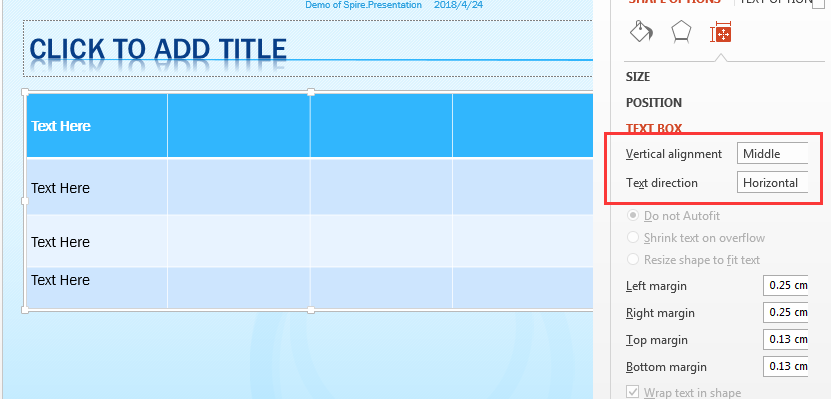
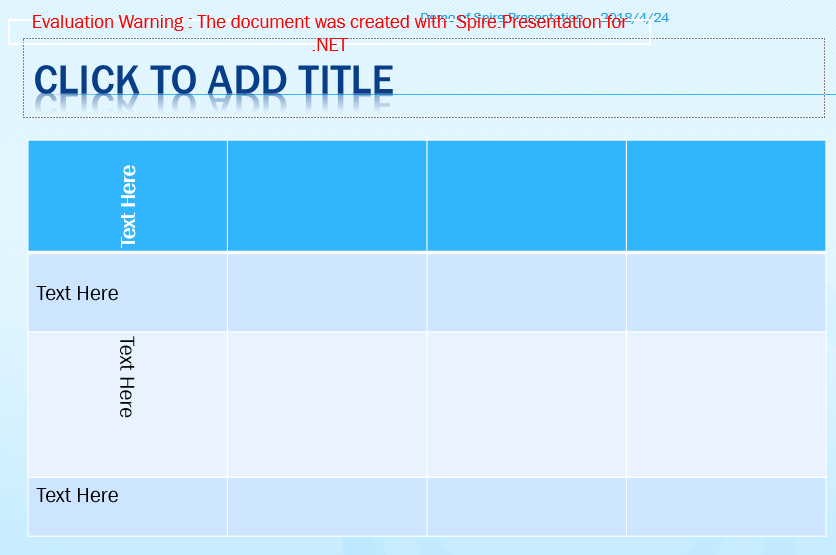
2018-04-25 01:23:05 Written by jie zouSpire.Presentation supports to align text vertically in a table cell on the presentation slides. In this article, we will show you how to use C# to align the text in table cell and set the text direction. Firstly, view the screenshot on Microsoft PowerPoint of the vertical alignment and the text direction:
Detail steps:
Step 1: Create a new PowerPoint document and load the sample document from file.
Presentation ppt = new Presentation();
ppt.LoadFromFile("Sample1.pptx",FileFormat.Pptx2010);
Step 2: Get the table shape from the first presentation slide.
ITable table = null;
foreach (IShape shape in ppt.Slides[0].Shapes)
{
    if (shape is ITable)
    {
        table = (ITable)shape;
Step 3: Aligning the text vertically and set the text direction.
table[i, 0].TextAnchorType = TextAnchorType.Center;
table[i, 0].VerticalTextType = VerticalTextType.Vertical270;

table[i, 1].TextAnchorType = TextAnchorType.Center;
table[i, 1].VerticalTextType = VerticalTextType.Horizontal;

table[i, 2].TextAnchorType = TextAnchorType.Center;
table[i, 2].VerticalTextType = VerticalTextType.Vertical;
Step 4: Save the document to file.
ppt.SaveToFile("Result.pptx", FileFormat.Pptx2010);
Effective screenshot after set the vertical alignment and the text direction:
Full codes of vertical align the text and set the text direction.:
using Spire.Presentation;

namespace AlignText
{

    class Program
    {
        static void Main(string[] args)
        {

            Presentation ppt = new Presentation();

            ppt.LoadFromFile("Sample1.pptx", FileFormat.Pptx2010);

            ITable table = null;
            foreach (IShape shape in ppt.Slides[0].Shapes)
            {
                if (shape is ITable)
                {
                    table = (ITable)shape;

                    for (int i = 0; i < table.ColumnsList.Count; i++)
                    {
                        table[i, 0].TextAnchorType = TextAnchorType.Center;
                        table[i, 0].VerticalTextType = VerticalTextType.Vertical270;


                        table[i, 1].TextAnchorType = TextAnchorType.Center;
                        table[i, 1].VerticalTextType = VerticalTextType.Horizontal;

                        table[i, 2].TextAnchorType = TextAnchorType.Center;
                        table[i, 2].VerticalTextType = VerticalTextType.Vertical;

                    }
                }
            }

            ppt.SaveToFile("Result.pptx", FileFormat.Pptx2010);

        }
    }
}
