
Knowledgebase (2417)
Children categories
Convert Excel to JSON and JSON to Excel in C# .NET – Step-by-Step Guide
2025-08-13 09:40:46 Written by alice yang
Excel files are widely used to enter, organize, and present tabular data, while JSON is commonly used by APIs and applications to exchange structured data between systems. Converting between these formats allows developers to import spreadsheet data into applications and export application data to Excel for reporting, analysis, or sharing.
In this tutorial, you’ll learn how to convert Excel to JSON and JSON to Excel in C# using Spire.XLS for .NET.
What We Will Cover:
- Why Convert Between Excel and JSON
- Prerequisites & Package Installation
- Basic Excel to JSON Conversion in C# .NET
- Advanced Excel to JSON Conversion Scenarios
- Convert JSON to Excel in C# .NET
- Tips and Best Practices
- FAQs
- Conclusion
Why Convert Between Excel and JSON?
Converting data between Excel (.xlsx or .xls) and JSON formats is a standard requirement in .NET applications for the following development tasks:
- Data Ingestion: Parses business-generated spreadsheets into standard server-side objects for backend processing.
- API Integration: Formats tabular data into standard JSON payloads required by web APIs and microservices.
- Frontend Serialization: Transforms structured server-side data into lightweight JSON format for consumption by web clients and JavaScript frameworks.
- NoSQL Storage: Prepares relational or tabular spreadsheet data for direct migration into document databases like MongoDB or Cosmos DB.
- Automated Reporting: Converts dynamic JSON application data into readable Excel reports for end users.
Prerequisites and Package Installation
Before you begin, ensure your development environment meets these specific requirements.
- Visual Studio (2019 or later recommended)
- .NET Environment: .NET Framework 4.0+, .NET Core 3.1+, or .NET 5.0+.
- NuGet Packages:
- Spire.XLS for .NET (version 15.11.3 or higher)
- Newtonsoft.Json (required for JSON serialization, deserialization and custom formatting)
Installing the Required NuGet Packages
Option 1: Using .NET Package Manager Console
Open your project in Visual Studio and run the following commands in the Package Manager Console:
Install-Package Spire.XLS
Install-Package Newtonsoft.Json
Option 2: Using .NET CLI
For cross-platform developers using terminal-based environments, execute the following commands inside the project's root folder:
dotnet add package Spire.XLS
dotnet add package Newtonsoft.Json
Basic Excel to JSON Conversion in C# .NET
Starting with Spire.XLS for .NET 15.11.3, developers can export an Excel workbook directly to JSON by calling the SaveToFile() method.
This method is suitable when you want to convert the whole workbook and do not need to customize the generated JSON structure.
Steps to Convert an Excel Workbook to JSON
- Instantiate a new
Workbookobject. - Use
LoadFromFile()to load your Excel workbook. - Call
SaveToFile()and specifyFileFormat.Jsonas the output format to export the workbook to JSON.
Complete Code Example
using System;
using Spire.Xls;

namespace ConvertExcelToJSON
{
    class Program
    {
        static void Main(string[] args)
        {
            string inputFile = @"Sample.xlsx";
            string outputFile = @"output.json";

            try
            {
                // Create a Workbook object
                using (Workbook workbook = new Workbook())
                {
                    // Load the Excel file
                    workbook.LoadFromFile(inputFile);

                    // Save the entire workbook into a single JSON file
                    // Supported in Spire.XLS 15.11.3 and later
                    workbook.SaveToFile(outputFile, FileFormat.Json);
                }
            }
            catch (Exception ex)
            {
                Console.WriteLine($"Error during conversion: {ex.Message}");
            }
        }
    }
}
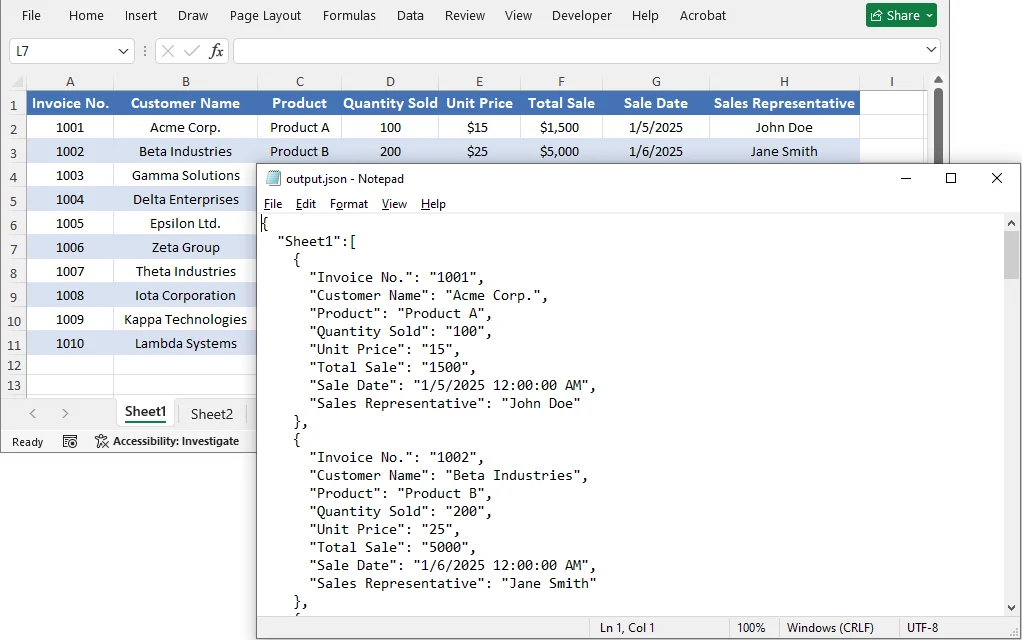
The Output JSON:
The converted JSON structure corresponds to the Excel data as follows:
- Worksheet name → Becomes a key in the outermost JSON object.
- Data in each worksheet → Becomes an array, where each object represents a single row.
- Header row values → Become the default field names for each data object.
Advanced Excel to JSON Conversion Scenarios
While saving the entire workbook to JSON is convenient, there are scenarios where you need more control—such as converting only a specific worksheet, cell range, or customizing the JSON output format. Spire.XLS provides flexible approaches to achieve these custom conversions.
Worksheet to JSON
To convert only a specific worksheet rather than the entire workbook, copy the target worksheet to a new workbook and then save that workbook as JSON.
Steps to Convert a Specific Worksheet to JSON
- Load the source workbook using
LoadFromFile(). - Get the target worksheet by its index or name.
- Create a new
Workbookobject for the output. - Use the
Worksheets.AddCopy()method to copy the target worksheet to the new workbook. - Call
SaveToFile()withFileFormat.Jsonon the new workbook.
Complete Code Example
using System;
using Spire.Xls;

namespace ConvertWorksheetToJSON
{
    class Program
    {
        static void Main(string[] args)
        {
            string inputFile = @"Sample.xlsx";
            string outputFile = @"sheet_output.json";

            try
            {
                using (Workbook sourceWorkbook = new Workbook())
                {
                    sourceWorkbook.LoadFromFile(inputFile);

                    // Access the first worksheet by index (or by name: sourceWorkbook.Worksheets["sheetName"])
                    Worksheet targetSheet = sourceWorkbook.Worksheets[0];

                    using (Workbook newWorkbook = new Workbook())
                    {
                        // Remove default worksheets from the new workbook
                        newWorkbook.Worksheets.Clear();

                        // Copy the target worksheet into the new workbook
                        newWorkbook.Worksheets.AddCopy(targetSheet);

                        // Save the single worksheet as JSON
                        newWorkbook.SaveToFile(outputFile, FileFormat.Json);
                    }
                }
            }
            catch (Exception ex)
            {
                Console.WriteLine($"Error: {ex.Message}");
            }
        }
    }
}
Cell Range to JSON
If you only need to export a portion of worksheet data—such as a specific table or range—copy the desired range to a new workbook and then save the result file as JSON.
Steps to Convert a Cell Range to JSON
- Load the source workbook.
- Get the target worksheet containing the data.
- Define the range you want to export (e.g., worksheet.Range["A1:D3"]).
- Instantiate a new
Workbookobject. - Copy the range data to a new worksheet in the new workbook with
Worksheet.Copy(). - Call
SaveToFile()with FileFormat.Json to save the new workbook as a .json file.
Complete Code Example
using System;
using Spire.Xls;

namespace ConvertExcelToJSON
{
    class Program
    {
        static void Main(string[] args)
        {
            string inputFile = @"Sample.xlsx";
            string outputFile = @"range_output.json";

            try
            {
                using (Workbook sourceWorkbook = new Workbook())
                {
                    sourceWorkbook.LoadFromFile(inputFile);
                    Worksheet sourceWorksheet = sourceWorkbook.Worksheets[0];

                    // Define the range to export (e.g., A1:D3)
                    CellRange sourceRange = sourceWorksheet.Range["A1:D3"];

                    using (Workbook targetWorkbook = new Workbook())
                    {
                        // Remove the default worksheets
                        targetWorkbook.Worksheets.Clear();

                        // Add a worksheet for the selected range
                        Worksheet targetWorksheet = targetWorkbook.Worksheets.Add("RangeData");

                        // Create a destination range with the same dimensions
                        CellRange destinationRange = targetWorksheet.Range["A1:D3"];

                        // Copy values and styles to the new workbook
                        sourceWorksheet.Copy(sourceRange, destinationRange, true);

                        // Export the isolated range to JSON
                        targetWorkbook.SaveToFile(outputFile, FileFormat.Json);
                    }
                }
            }
            catch (Exception ex)
            {
                Console.WriteLine($"Error exporting cell range: {ex.Message}");
            }
        }
    }
}
Customize JSON Output Formatting
The SaveToFile() method provides a quick conversion, but the output format is fixed. If you need greater control over the JSON output, export the worksheet data to a DataTable with ExportDataTable() and serialize it with Newtonsoft.Json. This allows you to customize property names, null handling, date formats, and indentation.
Steps for Custom JSON Output Formatting
- Load the Excel File.
- Access the worksheet and export its data to a DataTable using
ExportDataTable(). - Configure
JsonSerializerSettingsto define formatting rules (camelCase, null handling, date format, etc.). - Serialize the DataTable using
JsonConvert.SerializeObject()with the settings. - Save the JSON string to a file.
Complete Code Example
using System;
using System.Data;
using System.IO;
using Spire.Xls;
using Newtonsoft.Json;
using Newtonsoft.Json.Serialization;

namespace ConvertExcelToJSON
{
    class Program
    {
        static void Main(string[] args)
        {
            string excelFilePath = @"Sample.xlsx";
            string jsonOutputPath = "custom_output.json";

            try
            {
                using (Workbook workbook = new Workbook())
                {
                    workbook.LoadFromFile(excelFilePath);
                    Worksheet worksheet = workbook.Worksheets[0];

                    // Convert tabular data directly into an in-memory DataTable structure
                    DataTable dataTable = worksheet.ExportDataTable(worksheet.AllocatedRange, true);

                    // Define custom JSON serialization rules
                    JsonSerializerSettings settings = new JsonSerializerSettings
                    {
                        Formatting = Formatting.Indented, // Structured, readable format
                        ContractResolver = new CamelCasePropertyNamesContractResolver(), // camelCase naming conventions
                        NullValueHandling = NullValueHandling.Ignore, // Omit null fields from output string
                        DateFormatString = "yyyy-MM-dd" // Explicit date string overrides
                    };

                    // Serialize the data structure to string with settings applied
                    string jsonResult = JsonConvert.SerializeObject(dataTable, settings);

                    // Write string payload out to target destination
                    File.WriteAllText(jsonOutputPath, jsonResult);
                }
            }
            catch (Exception ex)
            {
                Console.WriteLine($"Error during custom serialization: {ex.Message}");
            }
        }
    }
}
Explanation of Customization Options
| Setting | Purpose |
|---|---|
| Formatting = Formatting.Indented | Produces human‑readable JSON with line breaks and indentation. |
| CamelCasePropertyNamesContractResolver | Applies camelCase naming to compatible column names, which is a common convention in JSON APIs. |
| NullValueHandling = NullValueHandling.Ignore | Omits values represented as null or DBNull.Value. |
| DateFormatString = "yyyy-MM-dd" | Formats values represented as DateTime or DateTimeOffset. |
Note on Column Names with Spaces:
When Excel headers contain spaces (e.g., "First Name"), the generated JSON keys will retain those spaces. Consumers must use bracket notation (obj["First Name"]) instead of dot notation. For cleaner camelCase property names, normalize the DataTable column names by iterating DataTable.Columns — e.g., remove spaces or apply a custom naming convention before serialization.
You can further customize the output by adding custom JsonConverter implementations, modifying date handling, or using different ContractResolver strategies. For more details, refer to the Newtonsoft.Json documentation.
How to Convert JSON to Excel in C# .NET
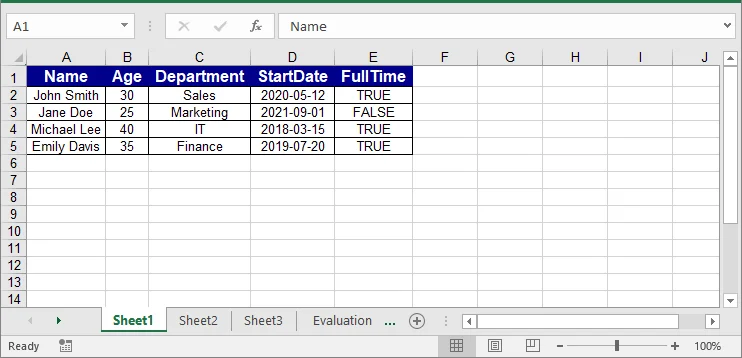
To convert JSON to Excel, deserialize the JSON data into a DataTable, then insert the table into an Excel worksheet.
Steps to Import JSON into Excel
- Load the JSON data from a file, API response, or string variable.
- Use
Newtonsoft.Json.JsonConvert.DeserializeObject<DataTable>()to convert the JSON data to a DataTable. - Instantiate a new
Workbookobject. - Use
InsertDataTable()to transfer data to a worksheet in the new workbook. - Style headers and data cells for better readability.
- Save the new workbook as an Excel file.
Complete Code Example
using System;
using System.Data;
using System.Drawing;
using Spire.Xls;
using Newtonsoft.Json;

namespace ConvertJSONToExcel
{
    class Program
    {
        static void Main(string[] args)
        {
            // Sample JSON array
            string jsonInput = @"
            [
                {""Name"":""John Smith"",""Age"":30,""Department"":""Sales"",""StartDate"":""2020-05-12"",""FullTime"":true},
                {""Name"":""Jane Doe"",""Age"":25,""Department"":""Marketing"",""StartDate"":""2021-09-01"",""FullTime"":false},
                {""Name"":""Michael Lee"",""Age"":40,""Department"":""IT"",""StartDate"":""2018-03-15"",""FullTime"":true},
                {""Name"":""Emily Davis"",""Age"":35,""Department"":""Finance"",""StartDate"":""2019-07-20"",""FullTime"":true}
            ]";

            string excelOutputPath = "output.xlsx";

            try
            {
                // Deserialize the JSON array into a DataTable
                DataTable dataTable = JsonConvert.DeserializeObject<DataTable>(jsonInput);

                using (Workbook workbook = new Workbook())
                {
                    Worksheet worksheet = workbook.Worksheets[0];

                    // Insert the data and column headers starting at cell A1
                    worksheet.InsertDataTable(dataTable, true, 1, 1);

                    // --- Define Header Styles ---
                    CellStyle headerStyle = workbook.Styles.Add("HeaderStyle");
                    headerStyle.Font.IsBold = true;
                    headerStyle.Font.Size = 12;
                    headerStyle.Font.Color = Color.White;
                    headerStyle.Color = Color.DarkBlue;
                    headerStyle.HorizontalAlignment = HorizontalAlignType.Center;
                    headerStyle.VerticalAlignment = VerticalAlignType.Center;

                    // Apply the style to the header row
                    int colCount = dataTable.Columns.Count;
                    worksheet.Range[1, 1, 1, colCount].CellStyleName = "HeaderStyle";

                    // --- Define Data Row Styles ---
                    CellStyle dataStyle = workbook.Styles.Add("DataStyle");
                    dataStyle.HorizontalAlignment = HorizontalAlignType.Center;
                    dataStyle.VerticalAlignment = VerticalAlignType.Center;
                    dataStyle.Borders[BordersLineType.EdgeLeft].LineStyle = LineStyleType.Thin;
                    dataStyle.Borders[BordersLineType.EdgeRight].LineStyle = LineStyleType.Thin;
                    dataStyle.Borders[BordersLineType.EdgeTop].LineStyle = LineStyleType.Thin;
                    dataStyle.Borders[BordersLineType.EdgeBottom].LineStyle = LineStyleType.Thin;

                    // Apply the style to data rows
                    int rowCount = dataTable.Rows.Count;
                    worksheet.Range[2, 1, rowCount + 1, colCount].CellStyleName = "DataStyle";

                    // Autofit column widths
                    worksheet.AllocatedRange.AutoFitColumns();

                    // Save the workbook as an XLSX file
                    workbook.SaveToFile(excelOutputPath, ExcelVersion.Version2016);
                }
            }
            catch (Exception ex)
            {
                Console.WriteLine($"Conversion exception thrown: {ex.Message}");
            }
        }
    }
}
Handling Wrapped or Nested JSON
The direct DataTable deserialization works best with a flat JSON array. If the records are wrapped inside a root object or contain nested objects and arrays, extract and flatten the required values before converting them to a DataTable.
For example, the following JSON string contains both a root wrapper and nested data:
string jsonInput = @"
{
  ""status"": ""success"",
  ""data"": [
    {
      ""Name"": ""John Smith"",
      ""Department"": {
        ""Id"": 10,
        ""Name"": ""Sales""
      },
      ""Skills"": [
        ""Negotiation"",
        ""CRM""
      ]
    },
    {
      ""Name"": ""Jane Doe"",
      ""Department"": {
        ""Id"": 20,
        ""Name"": ""Marketing""
      },
      ""Skills"": [
        ""Content Writing"",
        ""Analytics""
      ]
    }
  ]
}";
The following method extracts the data array, flattens the nested values, and returns a DataTable:
using System.Data;
using System.IO;
using System.Linq;
using Newtonsoft.Json;
using Newtonsoft.Json.Linq;

private static DataTable ConvertNestedJsonToDataTable(string jsonInput)
{
    // Parse either a root object or a root array.
    JToken rootToken = JToken.Parse(jsonInput);

    // Accept a root array or an array stored in the "data" property.
    JArray records = rootToken as JArray
        ?? ((rootToken as JObject)?["data"] as JArray)
        ?? throw new InvalidDataException(
            "The JSON does not contain a valid record array.");

    // Flatten nested objects and arrays into tabular fields.
    var flattenedRecords = records.Select(record => new
    {
        Name = (string)record["Name"] ?? string.Empty,

        // Convert the nested Department object into separate columns.
        DepartmentId = (int?)record["Department"]?["Id"],
        DepartmentName =
            (string)record["Department"]?["Name"] ?? string.Empty,

        // Join the Skills array into a comma-separated string.
        Skills = string.Join(
            ", ",
            record["Skills"]?.Values<string>()
                ?? Enumerable.Empty<string>())
    });

    // Convert the flattened records into a DataTable.
    string flattenedJson =
        JsonConvert.SerializeObject(flattenedRecords);

    DataTable dataTable =
        JsonConvert.DeserializeObject<DataTable>(flattenedJson);

    if (dataTable == null || dataTable.Columns.Count == 0)
        throw new InvalidDataException(
            "The JSON contains no tabular records.");

    return dataTable;
}
The returned DataTable can then be inserted into a worksheet using InsertDataTable():
DataTable nestedTable = ConvertNestedJsonToDataTable(jsonInput);
worksheet.InsertDataTable(nestedTable, true, 1, 1);
Note: This mapping is based on the structure of the sample JSON. For other JSON schemas, adjust the selected properties and output columns accordingly.
Tips and Best Practices
When converting between Excel and JSON, following these best practices will help ensure data integrity and usability:
- Validate Data Types: Ensure that data types (dates, numbers, booleans) are correctly formatted to avoid issues during conversion.
- Handle Empty Cells: Decide how to treat empty cells (convert to null, omit, or use default values) to maintain data integrity.
- Use Consistent Naming Conventions: Standardize column names in Excel for clear and consistent JSON keys.
- Test Thoroughly: Always test the conversion processes to ensure valid JSON output and accurate Excel representation.
- Include Headers: When converting JSON to Excel, always insert headers for improved readability and usability.
FAQs
Do I need Microsoft Excel installed to use these examples?
No. Spire.XLS is a standalone .NET library that reads, writes, and converts Excel files without any dependency on Microsoft Office or Excel Interop.
Can I convert older .xls (97–2003) files as well as .xlsx to JSON?
Yes. LoadFromFile() automatically detects the file format, so the same code works for both .xls and .xlsx sources.
Can I convert nested JSON to Excel?
JsonConvert.DeserializeObject<DataTable>() works with flat JSON arrays. For nested JSON, flatten the structure into a simple list of objects before calling InsertDataTable().
Does this approach work in ASP.NET Core or other cross-platform .NET apps?
Yes. Spire.XLS supports .NET Framework, .NET Core, and .NET 5–10, so the same code runs in console apps, ASP.NET Core services, and cross-platform (Linux/macOS) environments.
Conclusion
This tutorial demonstrated how to convert Excel workbooks, individual worksheets, and cell ranges to JSON, as well as how to import JSON data into Excel in C#. By combining Spire.XLS with Newtonsoft.Json, you can handle both straightforward conversions and scenarios that require custom formatting or nested data processing.
Get a Free License
To fully experience the capabilities of Spire.XLS for .NET without any evaluation limitations, you can request a free 30-day trial license.
How to Generate & Create QR Code in ASP.NET C# (Full Example)
2025-08-08 05:38:37 Written by jie zou
QR codes have become a standard feature in modern web applications, widely used for user authentication, contactless transactions, and sharing data like URLs or contact information. For developers working with ASP.NET, implementing QR code generation using C# is a practical requirement in many real-world scenarios.
In this article, you’ll learn how to generate QR codes in ASP.NET using Spire.Barcode for .NET. We’ll walk through a complete example based on an ASP.NET Core Web App (Razor Pages) project, including backend logic and a simple UI to display the generated code. The same approach can be easily adapted to MVC, Web API, and Web Forms applications.
Article Overview
- 1. Project Setup and Dependencies
- 2. Generate QR Code in ASP.NET Using C#
- 3. Customize QR Code Output
- 4. Apply Logic in MVC, Web API, and Web Forms
- 5. Conclusion
- FAQs
1. Project Setup and Dependencies
Prerequisites
To follow along, make sure you have:
- Visual Studio 2019 or newer
- .NET 6 or later
- ASP.NET Core Web App (Razor Pages Template)
- NuGet package: Spire.Barcode for .NET
Install Spire.Barcode for .NET
Install the required library using NuGet Package Manager Console:
Install-Package Spire.Barcode
Spire.Barcode is a fully self-contained .NET barcode library that supports in-memory generation of QR codes without external APIs. You can also use Free Spire.Barcode for .NET for smaller projects.
2. Generate QR Code in ASP.NET Using C#
This section describes how to implement QR code generation in an ASP.NET Core Web App (Razor Pages) project. The example includes a backend C# handler that generates the QR code using Spire.Barcode for .NET, and a simple Razor Page frontend for user input and real-time display.
Step 1: Add QR Code Generation Logic in PageModel
The backend logic resides in the Index.cshtml.cs file. It processes the form input, generates a QR code using Spire.Barcode, and returns the result as a Base64-encoded image string that can be directly embedded in HTML.
using Microsoft.AspNetCore.Mvc;
using Microsoft.AspNetCore.Mvc.RazorPages;
using Spire.Barcode;

public class IndexModel : PageModel
{
    [BindProperty]
    public string InputData { get; set; }

    public string QrCodeBase64 { get; set; }

    public void OnPost()
    {
        if (!string.IsNullOrWhiteSpace(InputData))
        {
            QrCodeBase64 = GenerateQrCodeBase64(InputData);
        }
    }

    private string GenerateQrCodeBase64(string input)
    {
        var settings = new BarcodeSettings
        {
            Type = BarCodeType.QRCode,            // QR code type
            Data = input,                         // Main encoded data
            Data2D = input,                       // Required for 2D barcode, usually same as Data
            QRCodeDataMode = QRCodeDataMode.Byte, // Byte mode (supports multilingual content)
            QRCodeECL = QRCodeECL.M,              // Medium error correction (15%)
            X = 3,                                // Module size (affects image dimensions)
            ShowText = false,                     // Hide default barcode text
            ShowBottomText = true,                // Show custom bottom text
            BottomText = input                    // Bottom text to display under the QR code
        };

        var generator = new BarCodeGenerator(settings);
        using var ms = new MemoryStream();
        var qrImage = generator.GenerateImage();
        qrImage.Save(ms, System.Drawing.Imaging.ImageFormat.Png);
        return Convert.ToBase64String(ms.ToArray());
    }
}
Key Components:
-
BarcodeSettings: Specifies the QR code's core configuration, such as type (QRCode), data content, encoding mode, and error correction level.
-
BarCodeGenerator: Takes the settings and generates the QR code image as a System.Drawing.Image object using the GenerateImage() method.
-
Base64 Conversion: Converts the image to a Base64 string so it can be directly embedded into the HTML page without saving to disk.
This approach keeps the entire process in memory, making it fast, portable, and suitable for serverless or cloud-hosted applications.
Step 2: Create the Razor Page for User Input and QR Code Display and Download
The following Razor markup in the Index.cshtml file defines a form for entering text or URLs, displays the generated QR code upon submission, and provides a button to download the QR code image.
@page
@model IndexModel
@{
    ViewData["Title"] = "QR Code Generator";
}

<h2>QR Code Generator</h2>

<form method="post">
    <label for="InputData">Enter text or URL:</label>
    <input type="text" id="InputData" name="InputData" style="width:300px;" required />
    <button type="submit">Generate QR Code</button>
</form>

@if (!string.IsNullOrEmpty(Model.QrCodeBase64))
{
    <div style="margin-top:20px">
        <img src="data:image/png;base64,@Model.QrCodeBase64" alt="QR Code" />
        <br />
        <a href="data:image/png;base64,@Model.QrCodeBase64" download="qrcode.png">Download QR Code</a>
    </div>
}
The Base64-encoded image is displayed directly in the browser using a data: URI. This eliminates the need for file storage and allows for immediate rendering and download.
The following screenshot shows the result after submitting text input.

If you need to scan QR codes instead, please refer to How to Scan QR Codes in C#.
3. Customize QR Code Output
Spire.Barcode provides several customization options through the BarcodeSettings class to control the appearance and behavior of the generated QR code:
| Property | Function | Example |
|---|---|---|
| QRCodeDataMode | Text encoding mode | QRCodeDataMode.Byte |
| QRCodeECL | Error correction level | QRCodeECL.H (high redundancy) |
| X | Module size (resolution) | settings.X = 6 |
| ImageWidth/Height | Control dimensions of QR image | settings.ImageWidth = 300 |
| ForeColor | Set QR code color | settings.ForeColor = Color.Blue |
| ShowText | Show or hide text below barcode | settings.ShowText = false |
| BottomText | Custom text to display below barcode | settings.BottomText = "Scan Me" |
| ShowBottomText | Show or hide the custom bottom text | settings.ShowBottomText = true |
| QRCodeLogoImage | Add a logo image to overlay at QR code center | settings.QRCodeLogoImage = System.Drawing.Image.FromFile("logo.png"); |
These properties help you tailor the appearance of your QR code for branding, readability, or user interaction purposes.
To explore more QR code settings, refer to the BarcodeSettings API reference.
4. Apply Logic in MVC, Web API, and Web Forms
The same QR code generation logic used in Razor Pages can also be reused in other ASP.NET frameworks such as MVC, Web API, and Web Forms.
MVC Controller Action
In an MVC project, you can add a Generate action in a controller (e.g., QrController.cs) to generate and return the QR code image directly:
public class QrController : Controller
{
    public ActionResult Generate(string data)
    {
        var settings = new BarcodeSettings
        {
            Type = BarCodeType.QRCode,
            Data = data,
            QRCodeDataMode = QRCodeDataMode.Byte,
            QRCodeECL = QRCodeECL.M,
            X = 5
        };

        var generator = new BarCodeGenerator(settings);
        using var ms = new MemoryStream();
        generator.GenerateImage().Save(ms, System.Drawing.Imaging.ImageFormat.Png);
        return File(ms.ToArray(), "image/png");
    }
}
This method returns the QR code as a downloadable PNG file, ideal for server-side rendering.
Web API Endpoint
For Web API, you can define a GET endpoint in a controller such as QrApiController.cs that responds with the generated image stream:
[ApiController]
[Route("api/[controller]")]
public class QrApiController : ControllerBase
{
    [HttpGet("generate")]
    public IActionResult GetQr(string data)
    {
        var settings = new BarcodeSettings
        {
            Type = BarCodeType.QRCode,
            Data = data
        };

        var generator = new BarCodeGenerator(settings);
        using var ms = new MemoryStream();
        generator.GenerateImage().Save(ms, System.Drawing.Imaging.ImageFormat.Png);
        return File(ms.ToArray(), "image/png");
    }
}
This approach is suitable for frontends built with React, Vue, Angular, or any JavaScript framework.
Web Forms Code-Behind
In ASP.NET Web Forms, you can handle QR code generation in the code-behind of a page like Default.aspx.cs:
protected void btnGenerate_Click(object sender, EventArgs e)
{
    var settings = new BarcodeSettings
    {
        Type = BarCodeType.QRCode,
        Data = txtInput.Text
    };

    var generator = new BarCodeGenerator(settings);
    using var ms = new MemoryStream();
    generator.GenerateImage().Save(ms, System.Drawing.Imaging.ImageFormat.Png);
    imgQR.ImageUrl = "data:image/png;base64," + Convert.ToBase64String(ms.ToArray());
}
The generated image is embedded directly into an asp:Image control using a Base64 data URI.
5. Conclusion
With Spire.Barcode for .NET, you can seamlessly generate and customize QR codes across all ASP.NET project types — Razor Pages, MVC, Web API, or Web Forms. The solution is fully offline, fast, and requires no third-party API.
Returning images as Base64 strings simplifies deployment and avoids file management. Whether you're building authentication tools, ticketing systems, or contact sharing, this approach is reliable and production-ready.
FAQs
Q: Does Spire.Barcode support Unicode characters like Chinese or Arabic?
A: Yes. Use QRCodeDataMode.Byte for full Unicode support.
Q: Can I adjust QR code size and color?
A: Absolutely. Use properties like X, ForeColor, and ImageWidth.
Q: Is this solution fully offline?
A: Yes. It works without any external API calls or services.
Q: Can I expose this QR logic via API?
A: Yes. Use ASP.NET Web API to serve generated images to client apps.
Export Database to Excel in C#: Practical Guide with SQL Example
2025-08-06 01:59:33 Written by jie zou
Exporting data from a database to Excel using C# is a frequent requirement in business applications—be it for internal reporting, audit logs, data migration, or ad-hoc analysis. Excel's portability and familiarity make it a go-to format for sharing structured data with both technical and non-technical users.
In this guide, you'll learn how to export database records to Excel using C# and Spire.XLS for .NET. We’ll walk through retrieving data from a SQL Server database and writing it into a well-formatted Excel file. The same workflow applies to other relational databases such as SQLite, MySQL, or Oracle with only minimal adjustments.
Table of Contents:
- Prerequisites and Environment Setup
- Exporting Data from SQL Database to Excel in C#
- Format the Excel Output
- Alternative Approaches to Read Data
- Common Issues and Troubleshooting
- Conclusion
- FAQ
Prerequisites and Environment Setup
Before we dive into code, ensure your development environment is ready:
-
.NET Version: .NET Framework or .NET Core / .NET 6 / .NET 8
-
IDE: Visual Studio (Community or higher)
-
Database: A relational database (e.g., SQL Server, SQLite, MySQL, Oracle). This tutorial uses SQL Server Express as the example. By default, the connection uses Windows Authentication, but you can switch to SQL Authentication if needed.
-
Libraries:
- Spire.XLS for .NET (Install via NuGet: Install-Package Spire.XLS)
- Microsoft.Data.SqlClient (Install via NuGet if using SQL Server)
Sample Data
In the following examples, we'll use a simple Employees table stored in SQL Server Express. Here's the SQL script to create and populate it:
CREATE TABLE Employees (
    Id INT PRIMARY KEY IDENTITY,
    Name NVARCHAR(100) NOT NULL,
    Department NVARCHAR(50) NOT NULL,
    Position NVARCHAR(50),
    HireDate DATE NOT NULL,
    Salary DECIMAL(10, 2) NOT NULL,
    IsFullTime BIT NOT NULL
);

INSERT INTO Employees (Name, Department, Position, HireDate, Salary, IsFullTime) VALUES
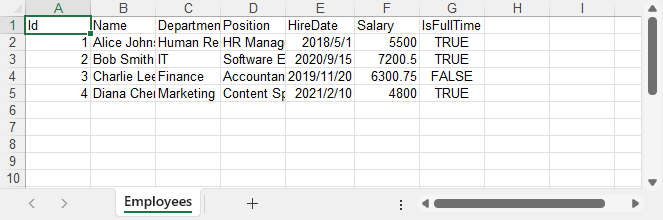
('Alice Johnson', 'Human Resources', 'HR Manager', '2018-05-01', 5500.00, 1),
('Bob Smith', 'IT', 'Software Engineer', '2020-09-15', 7200.50, 1),
('Charlie Lee', 'Finance', 'Accountant', '2019-11-20', 6300.75, 0),
('Diana Chen', 'Marketing', 'Content Specialist', '2021-02-10', 4800.00, 1);
If you're using another database system like MySQL or SQLite, just adjust the SQL syntax and connection string accordingly. The export logic remains the same.
Exporting Data from SQL Database to Excel in C#
Let’s walk through how to retrieve data from a database and export it to an Excel file using Spire.XLS for .NET.
Step 1: Connect to the SQL Server Database
We start by establishing a connection to the database using SqlConnection. Here's an example connection string targeting SQL Server Express:
string connectionString = @"Data Source=YourServer\SQLEXPRESS;Initial Catalog=YourDatabaseName;Integrated Security=True;";
The above connection string uses Windows Authentication (Integrated Security=True). If you prefer SQL Server Authentication, replace it with: User ID=yourUsername;Password=yourPassword;Encrypt=True;TrustServerCertificate=True;
Make sure that your SQL Server Express instance is running, and that the specified database and table exist.
Step 2: Retrieve Data into a DataTable
To make the data ready for export, we use SqlDataAdapter to fill a DataTable with the results of a SQL query:
using System.Data;
using Microsoft.Data.SqlClient;

DataTable dataTable = new DataTable();
using (SqlConnection conn = new SqlConnection(connectionString))
{
    conn.Open();
    string query = "SELECT * FROM Employees";
    using (SqlDataAdapter adapter = new SqlDataAdapter(query, conn))
    {
        adapter.Fill(dataTable);
    }
}
Spire.XLS can directly import data from a DataTable using InsertDataTable, which makes it ideal for structured exports from relational databases.
Step 3: Export the DataTable to Excel Using Spire.XLS
Once the DataTable is populated, we can use Spire.XLS to write its contents into a new Excel worksheet:
using Spire.Xls;

// Create a new workbook
Workbook workbook = new Workbook();
// Clear the default sheets and create a new one
workbook.Worksheets.Clear();
Worksheet sheet = workbook.Worksheets.Add("Employees");

// Insert data starting from row 1, column 1, and include column headers
sheet.InsertDataTable(dataTable, true, 1, 1);

// Save the workbook as an Excel xlsx file
workbook.SaveToFile("Employees.xlsx", ExcelVersion.Version2013);
Key classes and methods used:
- Workbook: The main entry point for creating or loading Excel files.
- Worksheet: Represents a single sheet in the workbook. Use workbook.Worksheets[] to access a sheet, or Worksheets.Add() to add more.
- InsertDataTable(DataTable dataTable, bool columnHeaders, int firstRow, int firstColumn):
- columnHeaders = true tells Spire.XLS to write column names as the first row.
- firstRow, firstColumn specify where the data begins (1-based index).
- Workbook.SaveToFile(string fileName, ExcelVersion version): Saves the workbook to a file. Spire.XLS supports saving Excel workbooks to various formats, including .xlsx, .xls, and .csv. You can also save to a stream using SaveToStream().
Here’s what the resulting Excel file looks like with the raw data exported from the database.
Step 4: Format the Excel Output (Optional but Recommended)
While the data is already exported, applying some formatting can significantly improve readability for end users:
// Write data to Excel, including column names, starting at row 1, column 1
sheet.InsertDataTable(dataTable, true, 1, 1);

// Make header row bold and highlight with background color
sheet.Rows[0].Style.Font.IsBold = true;
sheet.Rows[0].Style.Font.Size = 14;
sheet.Rows[0].Style.HorizontalAlignment = HorizontalAlignType.Center;
sheet.Rows[0].Style.Color = System.Drawing.Color.LightGray;

// Format data rows
for (int i = 1; i < sheet.Rows.Count(); i++)
{
    CellRange dataRow = sheet.Rows[i];
    dataRow.Style.Font.Size = 12;
    dataRow.Style.HorizontalAlignment = HorizontalAlignType.Left;
}

// Set font name
sheet.AllocatedRange.Style.Font.FontName = "Arial";

// Set borders
sheet.AllocatedRange.BorderAround(LineStyleType.Thin, System.Drawing.Color.Black);
sheet.AllocatedRange.BorderInside(LineStyleType.Medium, System.Drawing.Color.Black);

// Auto-fit columns
sheet.AllocatedRange.AutoFitColumns();
Here's what the Excel file looks like after formatting.
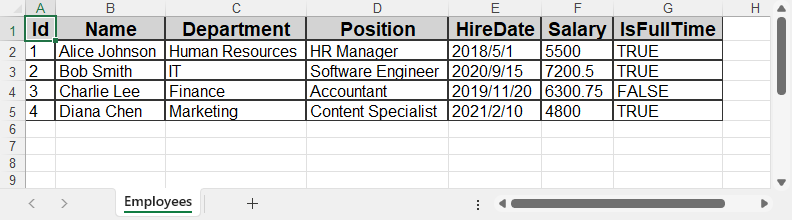
Spire.XLS provides full access to cell styles, fonts, colors, borders, alignment, and more—making it suitable for generating production-quality Excel reports.
If you need advanced number formatting, learn how to set number formats for Excel cells using C#.
Alternative Approaches to Read Data
The export process relies on having a DataTable, but how you populate it can vary based on your application architecture:
A. Using Entity Framework (ORM)
If you use EF Core or EF6, you can load data via LINQ and manually insert it into Excel:
var employees = dbContext.Employees.ToList();
To export, either convert this list into a DataTable, or use a loop to write rows manually using sheet.Range[row, col].Value = value.
B. Using Stored Procedures
Stored procedures allow encapsulating SQL logic. You can execute them using SqlCommand and fill the result into a DataTable:
SqlCommand cmd = new SqlCommand("GetEmployees", conn);
cmd.CommandType = CommandType.StoredProcedure;
C. Reading from SQLite
For lightweight scenarios, replace the connection string and class:
using (SQLiteConnection conn = new SQLiteConnection("Data Source=mydb.db"))
Export logic remains identical—fill a DataTable and use InsertDataTable.
D. Reading from MySQL or Oracle
Same pattern applies—just change the connection class:
using (MySqlConnection conn = new MySqlConnection("server=localhost;uid=root;pwd=123;database=test"))
Make sure to install the appropriate ADO.NET data provider (e.g., Microsoft.Data.SqlClient, Microsoft.Data.Sqlite, or MySql.Data) via NuGet when connecting to different databases.
As long as you populate a DataTable, Spire.XLS handles the Excel generation the same way.
You may also like: How to Import Data from Excel to Database – learn how to complete the full data exchange cycle using Spire.XLS.
Common Issues and Troubleshooting
| Issue | Solution |
|---|---|
| Excel file opens empty | Ensure the DataTable has data before calling InsertDataTable() |
| Access denied on save | Check folder permissions or file path conflicts |
| Connection fails | Verify your database server, credentials, and connection string |
| Special characters not displaying | Use NVARCHAR in SQL and Unicode-compatible fonts in Excel |
| Login failed or authentication error | Check authentication method: use Integrated Security=True for Windows, or provide User ID and Password for SQL Authentication. |
Conclusion
Exporting a database to Excel in C# can be done efficiently using Spire.XLS for .NET. By retrieving data into a DataTable and exporting it with InsertDataTable(), you can automate reporting and data extraction without needing Microsoft Office installed.
This solution can also be integrated into scheduled tasks, background services, or web applications for automated report generation.
To unlock all features during development or testing, you can apply for a free 30-day temporary license. For smaller projects, Free Spire.XLS for .NET may also be sufficient.
FAQ
How do I export SQL to Excel in C#?
Use SqlConnection to retrieve data into a DataTable, and export it using Spire.XLS’s InsertDataTable() method.
Can I use this method with SQLite or MySQL?
Yes. Just change the connection type and query, then pass the resulting DataTable to Spire.XLS.
Do I need Excel installed to use Spire.XLS?
No. Spire.XLS is a standalone library and does not require Microsoft Excel on the machine.
Can I export multiple tables to Excel?
Yes. Use Workbook.Worksheets.Add() to create additional worksheets, and export each DataTable separately.
