
Knowledgebase (2417)
Children categories
How to Convert PDF to CSV in Java (Easily Extract PDF Tables)
2025-08-28 05:43:27 Written by jie zou
When working with reports, invoices, or datasets stored in PDF format, developers often need a way to reuse the tabular data in spreadsheets, databases, or analytical tools. A common solution is to convert PDF to CSV using Java, since CSV is lightweight, structured, and compatible with almost every platform.
Unlike text or image export, a PDF-to-CSV conversion is mainly about extracting tables from PDF and saving them as CSV. With the help of Spire.PDF for Java, you can detect table structures in PDFs and export them programmatically with just a few lines of code.
In this article, you’ll learn step by step how to perform a PDF to CSV conversion in Java—from setting up the environment, to extracting tables, and even handling more complex scenarios like multi-page documents or multiple tables per page.
Overview of This Tutorial
Environment Setup for PDF to CSV Conversion in Java
Before extracting tables and converting PDF to CSV using Java, you need to set up the development environment. This involves choosing a suitable library and adding it to your project.
Why Choose Spire.PDF for Java
Since PDF files do not provide a built-in export to CSV, extracting tables programmatically is the practical approach. Spire.PDF for Java offers APIs to detect table structures in PDF documents and save them directly as CSV files, making the conversion process simple and efficient.
Install Spire.PDF for Java
Add Spire.PDF for Java to your project using Maven:
<repositories>
    <repository>
        <id>com.e-iceblue</id>
        <name>e-iceblue</name>
        <url>https://repo.e-iceblue.com/nexus/content/groups/public/</url>
    </repository>
</repositories>
<dependencies>
    <dependency>
        <groupId>e-iceblue</groupId>
        <artifactId>spire.pdf</artifactId>
        <version>12.9.0</version>
    </dependency>
</dependencies>
If you are not using Maven, you can download the Spire.PDF for Java package and add the JAR files to your project’s classpath.
Extract Tables from PDF and Save as CSV
The most practical way to perform PDF to CSV conversion is by extracting tables. With Spire.PDF for Java, this can be done with just a few steps:
- Load the PDF document.
- Use PdfTableExtractor to find tables on each page.
- Collect cell values row by row.
- Write the output into a CSV file.
Here is a Java example that shows the process from start to finish:
Java Code Example for PDF to CSV Conversion
import com.spire.pdf.*;
import com.spire.pdf.utilities.*;

import java.io.*;

public class PdfToCsvExample {
    public static void main(String[] args) throws Exception {
        // Load the PDF document
        PdfDocument pdf = new PdfDocument();
        pdf.loadFromFile("Sample.pdf");

        // Create a StringBuilder to store extracted text
        StringBuilder sb = new StringBuilder();

        // Iterate through each page
        for (int i = 0; i < pdf.getPages().getCount(); i++) {
            PdfTableExtractor extractor = new PdfTableExtractor(pdf);
            PdfTable[] tableLists = extractor.extractTable(i);

            if (tableLists != null) {
                for (PdfTable table : tableLists) {
                    for (int row = 0; row < table.getRowCount(); row++) {
                        for (int col = 0; col < table.getColumnCount(); col++) {
                            // Escape the cell text safely
                            String cellText = escapeCsvField(table.getText(row, col));
                            sb.append(cellText);

                            if (col < table.getColumnCount() - 1) {
                                sb.append(",");
                            }
                        }
                        sb.append("\n");
                    }
                }
            }
        }

        // Write the output to a CSV file
        FileWriter writer = new FileWriter("output/PDFTable.csv");
        writer.write(sb.toString());
        writer.close();

        pdf.close();
        System.out.println("PDF tables successfully exported to CSV.");
    }

    // Utility method to escape CSV fields
    private static String escapeCsvField(String text) {
        if (text == null) return "";

        // Remove line breaks
        text = text.replaceAll("[\\n\\r]", "");

        // Escape if contains special characters
        if (text.contains(",") || text.contains(";") || text.contains("\"") || text.contains("\n")) {
            text = text.replace("\"", "\"\"");  // Escape double quotes
            text = "\"" + text + "\"";          // Wrap with quotes
        }

        return text;
    }
}
Code Walkthrough
- PdfDocument loads the PDF file into memory.
- PdfTableExtractor checks each page for tables.
- PdfTable provides access to rows and columns.
- escapeCsvField() removes line breaks and safely quotes/escapes text if needed.
- StringBuilder accumulates cell text, separated by commas.
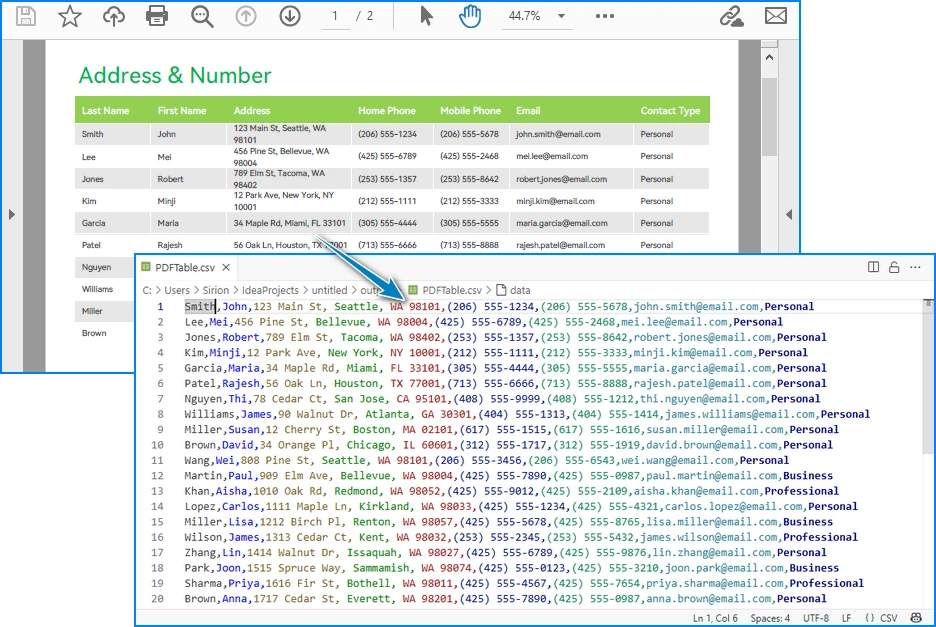
- The result is written into Output.csv, which you can open in Excel or any editor.
CSV file generated from a PDF table after running the Java code.
Handling Complex PDF-to-CSV Conversion Cases
In practice, PDFs often contain multiple tables, span multiple pages, or have irregular structures. Let’s see how to extend the solution to handle these scenarios.
1. Multiple Tables per Page
The PdfTable[] returned by extractTable(i) contains all tables detected on a page. You can process each one separately. For example, to save each table as a different CSV file:
for (int i = 0; i < pdf.getPages().getCount(); i++) {
    PdfTableExtractor extractor = new PdfTableExtractor(pdf);
    PdfTable[] tableLists = extractor.extractTable(i);

    if (tableLists != null) {
        for (int t = 0; t < tableLists.length; t++) {
            PdfTable table = tableLists[t];
            StringBuilder tableContent = new StringBuilder();

            for (int row = 0; row < table.getRowCount(); row++) {
                for (int col = 0; col < table.getColumnCount(); col++) {
                    tableContent.append(escapeCsvField(table.getText(row, col)));
                    if (col < table.getColumnCount() - 1) {
                        tableContent.append(",");
                    }
                }
                tableContent.append("\n");
            }

            FileWriter writer = new FileWriter("Table_Page" + i + "_Index" + t + ".csv");
            writer.write(tableContent.toString());
            writer.close();
        }
    }
}
Example of multiple tables in one PDF page exported into separate CSV files.
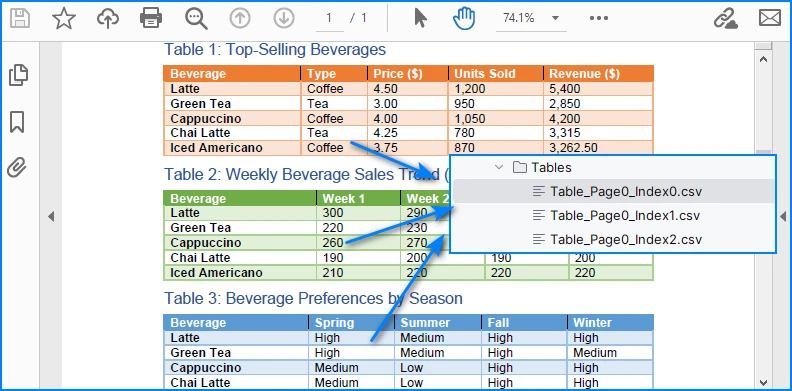
This way, every table is saved as an independent CSV file for better organization.
2. Multi-page or Large Tables
If a table spans across multiple pages, iterating page by page ensures that all data is collected. The key is to append data instead of overwriting:
StringBuilder sb = new StringBuilder();

for (int i = 0; i < pdf.getPages().getCount(); i++) {
    PdfTableExtractor extractor = new PdfTableExtractor(pdf);
    PdfTable[] tables = extractor.extractTable(i);

    if (tables != null) {
        for (PdfTable table : tables) {
            for (int row = 0; row < table.getRowCount(); row++) {
                for (int col = 0; col < table.getColumnCount(); col++) {
                    sb.append(escapeCsvField(table.getText(row, col)));
                    if (col < table.getColumnCount() - 1) sb.append(",");
                }
                sb.append("\n");
            }
        }
    }
}

FileWriter writer = new FileWriter("MergedTables.csv");
writer.write(sb.toString());
writer.close();
Example of a large table across multiple PDF pages merged into one CSV file.
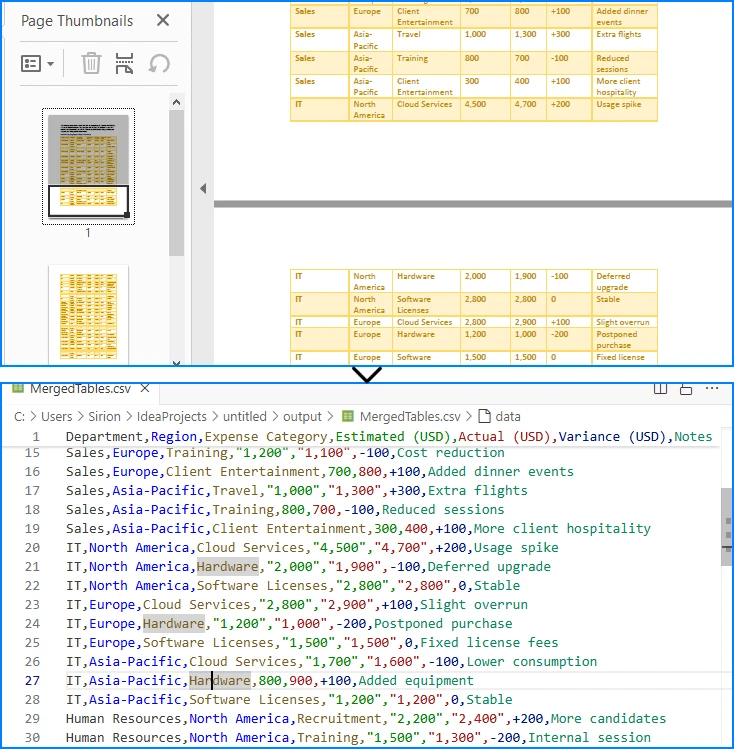
Here, all tables across pages are merged into one CSV file, useful when dealing with continuous reports.
3. Limitations with Formatting
CSV only stores plain text values. Elements like merged cells, fonts, or images are discarded. If preserving styling is critical, exporting to Excel (.xlsx) is a better alternative, which the same library also supports. See How to Export PDF Table to Excel in Java for more details.
4. CSV Special Characters Handling
When writing tables to CSV, certain characters like commas, semicolons, double quotes, or line breaks can break the file structure if not handled properly.
In the Java examples above, the escapeCsvField method removes line breaks and safely quotes or escapes text when needed.
For more advanced scenarios, you can also use Spire.XLS for Java to write data into worksheets and then save as CSV, which automatically handles special characters and ensures correct CSV formatting without manual processing.
Alternatively, for open-source options, libraries like OpenCSV or Apache Commons CSV also automatically handle special characters and CSV formatting, reducing potential issues and simplifying code.
Conclusion
Converting PDF to CSV in Java essentially means extracting tables and saving them in a structured format. CSV is widely supported, lightweight, and ideal for storing and analyzing tabular data. By setting up Spire.PDF for Java and following the code example, you can automate this process, saving time and reducing manual effort.
If you want to explore more advanced features of Spire.PDF for Java, please apply for a free trial license. You can also use Free Spire.PDF for Java for small projects.
FAQ
Q: Can I turn a PDF into a CSV file? A: Yes. While images and styled text cannot be exported, you can extract tables and save them as CSV files using Java.
Q: How to extract data from a PDF file in Java? A: Use a PDF library like Spire.PDF for Java to parse the document, detect tables, and export them to CSV or Excel.
Q: What is the best PDF to CSV converter? A: For Java developers, programmatic solutions such as Spire.PDF for Java offer more flexibility and automation than manual converters.
Q: How to convert PDF to Excel using Java code? A: The process is similar to CSV export. Instead of writing data as comma-separated text, you can export tables into Excel format for richer features.
Convert PDF and Byte Array in C# (Load, Edit, Save in Memory)
2025-08-25 06:56:30 Written by jie zou
Working with PDFs as byte arrays is common in C# development. Developers often need to store PDF documents in a database, transfer them through an API, or process them entirely in memory without touching the file system. In such cases, converting between PDF and bytes using C# becomes essential.
This tutorial explains how to perform these operations step by step using Spire.PDF for .NET. You will learn how to convert a byte array to PDF, convert a PDF back into a byte array, and even edit a PDF directly from memory with C# code.
Jump right where you need
- Why Work with Byte Arrays and PDFs in C#?
- Convert Byte Array to PDF in C#
- Convert PDF to Byte Array in C#
- Create and Edit PDF Directly from a Byte Array
- Advantages of Using Spire.PDF for .NET
- Conclusion
- FAQ
Why Work with Byte Arrays and PDFs in C#?
Using byte[] as the transport format lets you avoid temporary files and makes your code friendlier to cloud and container environments.
- Database storage (BLOB): Persist PDFs as raw bytes; hydrate only when needed.
- Web APIs: Send/receive PDFs over HTTP without touching disk.
- In-memory processing: Transform or watermark PDFs entirely in streams.
- Security & isolation: Limit file I/O, reduce temp-file risks.
Getting set up: before running the examples, add the NuGet package of Spire.PDF for .NET so the API surface is available in your project.
Install-Package Spire.PDF
Once installed, you can load from byte[] or Stream, edit pages, and write outputs back to memory or disk—no extra converters required.
Convert Byte Array to PDF in C#
When an upstream service (e.g., an API or message queue) hands you a byte[] that represents a PDF, you often need to materialize it as a document for further processing or for a one-time save to disk. With Spire.PDF for .NET, this is a direct load operation—no intermediate temp file.
Scenario & approach: we’ll accept a byte[] (from DB/API), construct a PdfDocument in memory, optionally validate basic metadata, and then save the document.
using Spire.Pdf;
using System.IO;

class Program
{
    static void Main()
    {
        // Example source: byte[] retrieved from DB/API
        byte[] pdfBytes = File.ReadAllBytes("Sample.pdf"); // substitute with your source

        // 1) Load PDF from raw bytes (in memory)
        PdfDocument doc = new PdfDocument();
        doc.LoadFromBytes(pdfBytes);

        // 2) (Optional) inspect basic info before saving or further processing
        // int pageCount = doc.Pages.Count;

        // 3) Save to a file
        doc.SaveToFile("Output.pdf");
        doc.Close();
    }
}
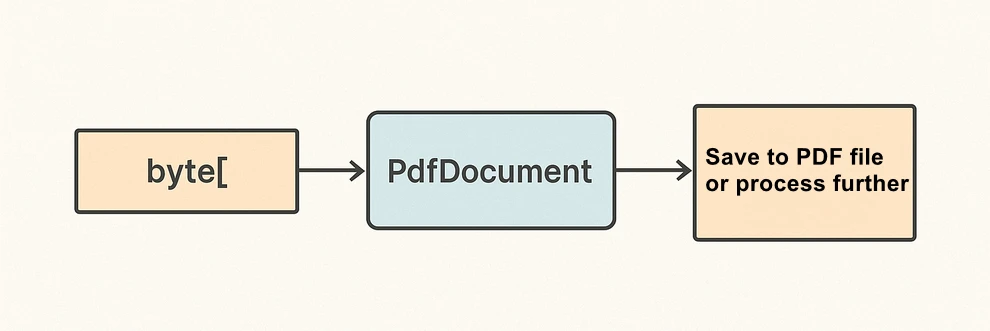
The diagram below illustrates the byte[] to PDF conversion workflow:
What the code is doing & why it matters:
- LoadFromBytes(byte[]) initializes the PDF entirely in memory—perfect for services without write access.
- You can branch after loading: validate pages, redact, stamp, or route elsewhere.
- SaveToFile(string) saves the document to disk for downstream processing or storing.
Convert PDF to Byte Array in C#
In the reverse direction, converting a PDF to a byte[] enables database writes, caching, or streaming the file through an HTTP response. Spire.PDF for .NET writes directly to a MemoryStream, which you can convert to a byte array with ToArray().
Scenario & approach: load an existing PDF, push the document into a MemoryStream, then extract the byte[]. This pattern is especially useful when returning PDFs from APIs or persisting them to databases.
using Spire.Pdf;
using System.IO;

class Program
{
    static void Main()
    {
        // 1) Load a PDF from disk, network share, or embedded resource
        PdfDocument doc = new PdfDocument();
        doc.LoadFromFile("Input.pdf");

        // 2) Save to a MemoryStream for fileless output
        byte[] pdfBytes;
        using (var ms = new MemoryStream())
        {
            doc.SaveToStream(ms);
            pdfBytes = ms.ToArray();
        }

        doc.Close();

        // pdfBytes now contains the full document (ready for DB/API)
        // e.g., return File(pdfBytes, "application/pdf");
    }
}
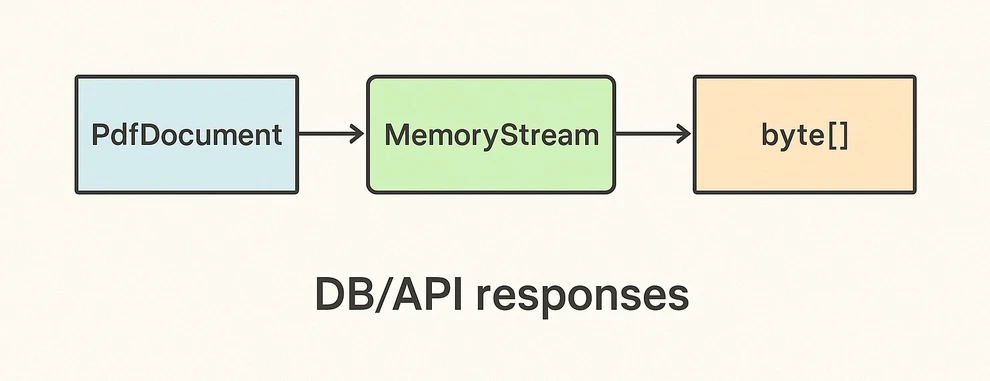
The diagram below shows the PDF to byte[] conversion workflow:
Key takeaways after the code:
- SaveToStream → ToArray is the standard way to obtain a PDF as bytes in C# without creating temp files.
- This approach scales for large PDFs; the only limit is available memory.
- Great for ASP.NET: return the byte array directly in your controller or minimal API endpoint.
If you want to learn more about working with streams, check out our guide on loading and saving PDF documents via streams in C#.
Create and Edit PDF Directly from a Byte Array
The real power comes from editing PDFs fully in memory. You can load from byte[], add text or images, stamp a watermark, fill form fields, and save the edited result back into a new byte[]. This enables fileless pipelines and is well-suited for microservices.
Scenario & approach: we’ll load a PDF from bytes, draw a small text annotation on page 1 (stand-in for any edit operation), and emit the edited document as a fresh byte array.
using Spire.Pdf;
using Spire.Pdf.Graphics;
using System.Drawing;
using System.IO;

class Program
{
    static void Main()
    {
        // Source could be DB, API, or file — represented as byte[]
        byte[] inputBytes = File.ReadAllBytes("Input.pdf");

        // 1) Load in memory
        var doc = new PdfDocument();
        doc.LoadFromBytes(inputBytes);

        // 2) Edit: write a small marker on the first page
        PdfPageBase page = doc.Pages[0];
        page.Canvas.DrawString(
            "Edited in memory",
            new PdfFont(PdfFontFamily.Helvetica, 12f),
            PdfBrushes.DarkBlue,
            new PointF(100, page.Size.Height - 100)
        );

        // 3) Save the edited PDF back to byte[]
        byte[] editedBytes;
        using (var ms = new MemoryStream())
        {
            doc.SaveToStream(ms);
            editedBytes = ms.ToArray();
        }

        doc.Close();

        // editedBytes can now be persisted or returned by an API
    }
}
The image below shows the edited PDF page:
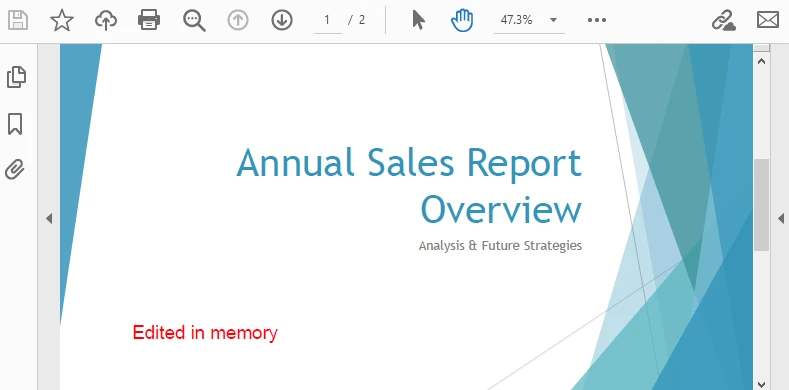
After-code insights:
- The same pattern works for text, images, watermarks, annotations, and form fields.
- Keep edits idempotent (e.g., check if you already stamped a page) for safe reprocessing.
- For ASP.NET, this is ideal for on-the-fly stamping or conditional redaction before returning the response.
For a step-by-step tutorial on building a PDF from scratch, see our article on creating PDF documents in C#.
Advantages of Using Spire.PDF for .NET
A concise view of why this API pairs well with byte-array workflows:
| Concern | What you get with Spire.PDF for .NET |
|---|---|
| I/O flexibility | Load/save from file path, Stream, or byte[] with the same PdfDocument API. |
| In-memory editing | Draw text/images, manage annotations/forms, watermark, and more—no temp files. |
| Service-friendly | Clean integration with ASP.NET endpoints and background workers. |
| Scales to real docs | Handles multi-page PDFs; you control memory via streams. |
| Straightforward code | Minimal boilerplate; avoids manual byte fiddling and fragile interop. |
Conclusion
You’ve seen how to convert byte array to PDF in C#, how to convert PDF to byte array, and how to edit a PDF directly from memory—all with concise code. Keeping everything in streams and byte[] simplifies API design, accelerates response times, and plays nicely with databases and cloud hosting. Spire.PDF for .NET gives you a consistent, fileless workflow that’s easy to extend from quick conversions to full in-memory document processing.
If you want to try these features without limitations, you can request a free 30-day temporary license. Alternatively, you can explore Free Spire.PDF for .NET for lightweight PDF tasks.
FAQ
Can I create a PDF from a byte array in C# without saving to disk?
Yes. Load from byte[] with LoadFromBytes, then either save to a MemoryStream or return it directly from an API—no disk required.
How do I convert PDF to byte array in C# for database storage?
Use SaveToStream on PdfDocument and call ToArray() on the MemoryStream. Store that byte[] as a BLOB (or forward it to another service).
Can I edit a PDF that only exists as a byte array?
Absolutely. Load from bytes, apply edits (text, images, watermarks, annotations, form fill), then save the result back to a new byte[].
Any tips for performance and reliability?
Dispose streams promptly, reuse buffers when appropriate, and create a new PdfDocument per operation/thread. For large files, stream I/O keeps memory usage predictable.
CSV (Comma-Separated Values) remains a universal format for data exchange due to its simplicity, readability, and wide compatibility across platforms. If you're looking for a robust and efficient method to read CSV in Java, the Spire.XLS for Java library offers a powerful and straightforward solution.
This guide will walk you through how to use Java to load and read CSV files, as well as convert them into structured DataTables for seamless data manipulation and analysis in your applications.
- Why Choose Spire.XLS for Java to Parse CSV Files?
- Step-by-Step: Read a CSV File in Java
- Advanced: Read CSV into DataTable in Java
- Frequently Asked Questions
- Conclusion
Why Choose Spire.XLS for Java to Parse CSV Files?
Compared with other CSV parser in Java, Spire.XLS offers several advantages for CSV processing:
- Simplified API for reading CSV files
- Support for custom delimiters (not just commas)
- Built-in range detection to avoid empty rows/columns
- Natively converts CSV data to DataTable
- Seamlessly switch between CSV, XLS, and XLSX formats
Step-by-Step: Read a CSV File in Java
Spire.XLS for Java provides the Workbook class to load CSV files and the Worksheet class to access data. Below are the steps to read CSV files line by line with automatic delimiter detection:
1. Setup and Dependencies
First, ensure you have Spire.XLS for Java included in your project. You can add it via Maven by including the following dependency:
<repositories>
    <repository>
        <id>com.e-iceblue</id>
        <name>e-iceblue</name>
        <url>https://repo.e-iceblue.com/nexus/content/groups/public/</url>
    </repository>
</repositories>
<dependencies>
    <dependency>
        <groupId>e-iceblue</groupId>
        <artifactId>spire.xls</artifactId>
        <version>16.8.4</version>
    </dependency>
</dependencies>
2. Load the CSV File
Spire.XLS for Java loads CSV files into a Workbook object, where each CSV row becomes a worksheet row.
import com.spire.xls.*;

public class ReadCSV {
    public static void main(String[] args) {
        // Create Workbook instance
        Workbook workbook = new Workbook();

        // Load CSV file (specify delimiter)
        workbook.loadFromFile("sample.csv", ",", 1, 1);
    }
}
Parameters:
The loadFromFile() method accepts four parameters:
- "sample.csv": The input CSV file path.
- ", ": Custom delimiter (e.g."," ";" or "\t").
- 1: Start row index.
- 1: Start column index.
3. Access Worksheet & Read CSV Data
Spire.XLS treats CSV files as single-worksheet workbooks, so we access the first worksheet and then iterate through rows/columns:
// Get the first worksheet
Worksheet sheet = workbook.getWorksheets().get(0);

// Get the used range (avoids iterating over empty rows/columns)
CellRange dataRange = sheet.getAllocatedRange();

//Iterate through the rows
for (int i = 0; i < dataRange.getRowCount(); i++) {

    //Iterate through the columns
    for (int j = 0; j < dataRange.getColumnCount(); j++) {
        // Get cell text
        CellRange cell = dataRange.get(i+1,j+1);
        System.out.print(cell.getText() + "\t"); // Use tab to separate columns
    }
    System.out.println(); // New line per row
Output: Read data from a CSV file and print out with tab separation for readability.

Advanced: Read CSV into DataTable in Java
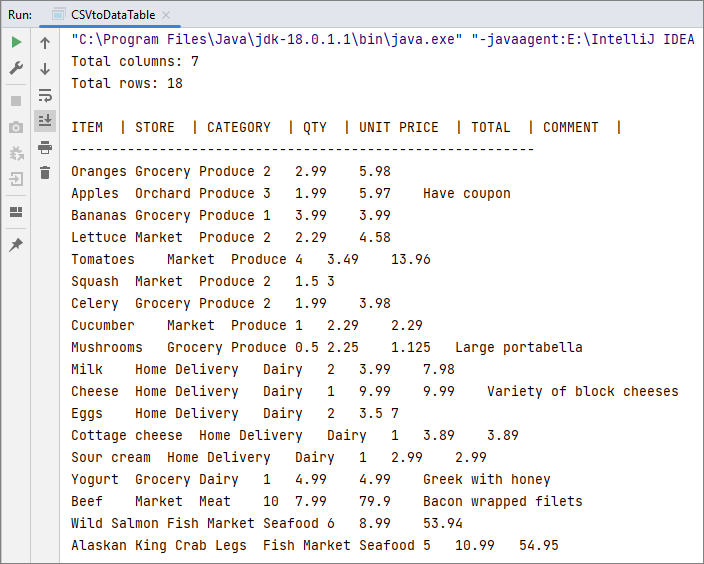
For structured data manipulation, converting CSV to a DataTable is invaluable. A DataTable organizes data into rows and columns, making it easy to query, filter, or integrate with databases.
Java code to read a CSV file and export to a DataTable:
import com.spire.xls.*;
import com.spire.xls.data.table.DataTable;

public class CSVtoDataTable {
    public static void main(String[] args) {

        // Create a workbook and load a csv file
        Workbook workbook = new Workbook();
        workbook.loadFromFile("sample.csv", ",", 1, 1);

        // Get the first worksheet
        Worksheet sheet = workbook.getWorksheets().get(0);

        // Export to DataTable
        DataTable dataTable = sheet.exportDataTable();

        // Get row and column count
        System.out.println("Total columns: " + dataTable.getColumns().size());
        System.out.println("Total rows: " + dataTable.getRows().size());
        System.out.println();

        // Print column names
        for (int i = 0; i < dataTable.getColumns().size(); i++) {
            System.out.print(dataTable.getColumns().get(i).getColumnName() + "  | ");
        }
        System.out.println();
        System.out.println("----------------------------------------------------------");
        // Print rows
        for (int i = 0; i < dataTable.getRows().size(); i++) {
            for (int j = 0; j < dataTable.getColumns().size(); j++) {
                System.out.print(dataTable.getRows().get(i).getString(j) + "\t");
            }
            System.out.println();
        }
    }
}
Key Explanations:
- exportDataTable(): convert CSV data into a DataTable directly, no manual row/column mapping required.
- DataTable Benefits: Easily access basic information such as column count, row count, column names, and row data etc.
Output:
You may also read: Convert CSV to Excel in Java
Frequently Asked Questions
Q1: How do I handle CSV files with different delimiters (semicolon, tab, etc.)?
A: Specify the delimiter in the loadFromFile() method:
// For semicolon-delimited files
workbook.loadFromFile("sample.csv", ";", 0, 0);

// For tab-delimited files
workbook.loadFromFile("sample.csv", "\t", 0, 0);

// For pipe-delimited files
workbook.loadFromFile("sample.csv", "|", 0, 0);
Q2: How do I skip header rows in a CSV file?
A: You can skip header rows by iterating from the second row. For example, if your CSV has 2 header rows (rows 1 and 2) and data starts at row 3:
// Start reading from the third row
for (int i = 2; i < dataRange.getRowCount(); i++) {
    for (int j = 0; j < dataRange.getColumnCount(); j++) {
        // Convert 0-based loop index to Spire.XLS's 1-based cell index
        CellRange cell = dataRange.get(i + 1, j + 1);
        System.out.print(cell.getText() + "\t");
Q3. Can I export a specific range of a CSV to a DataTable?
A: Yes. Spire.XLS lets you define a precise cell range and export it to a DataTable with the exportDataTable(CellRange range, boolean exportColumnNames) method.
Conclusion
Spire.XLS for Java simplifies CSV file reading in Java, offering a robust alternative to manual parsing or basic libraries. Whether you need to read a simple CSV, or convert it to a structured DataTable, this guide provides the corresponding examples to help you implement CSV parsing efficiently.
For more advanced features (e.g., exporting to PDF), check the Spire.XLS for Java Documentation.
