
Knowledgebase (2412)
Children categories
When working with PDF files, you may need to adjust the page size to emphasize important content, remove extra white space, or fit specific printing and display requirements. Cropping PDF pages helps streamline the document layout, making the content more readable and well-organized. It also reduces file size, improving both accessibility and sharing. Additionally, precise cropping enhances the document's visual appeal, giving it a more polished and professional look. This article will demonstrate how to crop PDF pages in Java using the Spire.PDF for Java library.
Install Spire.PDF for Java
First of all, you're required to add the Spire.Pdf.jar file as a dependency in your Java program. The JAR file can be downloaded from this link. If you use Maven, you can easily import the JAR file in your application by adding the following code to your project's pom.xml file.
<repositories>
    <repository>
        <id>com.e-iceblue</id>
        <name>e-iceblue</name>
        <url>https://repo.e-iceblue.com/nexus/content/groups/public/</url>
    </repository>
</repositories>
<dependencies>
    <dependency>
        <groupId>e-iceblue</groupId>
        <artifactId>spire.pdf</artifactId>
        <version>12.9.0</version>
    </dependency>
</dependencies>
Crop a PDF Page in Java
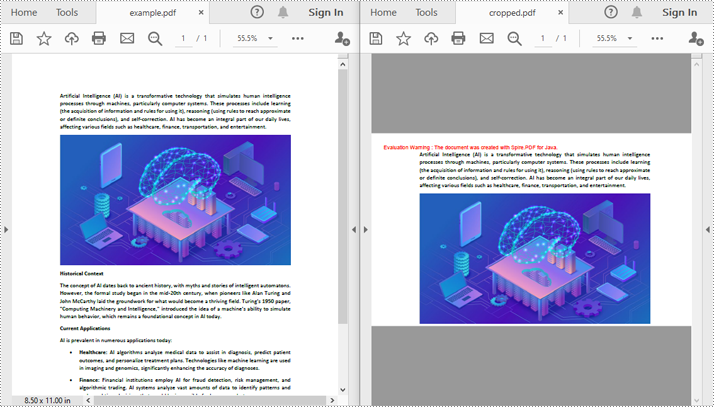
Spire.PDF for Java provides the PdfPageBase.setCropBox(Rectangle2D rect) method to set the crop area for a PDF page. The detailed steps are as follows.
- Create an instance of the PdfDocument class.
- Load a PDF document using the PdfDocument.loadFromFile() method.
- Get a specific page from the PDF using the PdfDocument.getPages().get(int pageIndex) method.
- Create an instance of the Rectangle2D class to define the crop area.
- Use the PdfPageBase.setCropBox(Rectangle2D rect) method to set the crop area for the page.
- Save the cropped PDF using the PdfDocument.saveToFile() method.
- Java
import com.spire.pdf.PdfDocument;
import com.spire.pdf.PdfPageBase;
import java.awt.geom.Rectangle2D;

public class CropPdfPage {
    public static void main(String[] args) {
        // Create an instance of the PdfDocument class
        PdfDocument pdf = new PdfDocument();
        // Load the PDF file
        pdf.loadFromFile("example.pdf");

        // Get the first page of the PDF
        PdfPageBase page = pdf.getPages().get(0);

        // Define the crop area (parameters: x, y, width, height)
        Rectangle2D rectangle = new Rectangle2D.Float(0, 40, 600, 360);
        // Set the crop area for the page
        page.setCropBox(rectangle);

        // Save the cropped PDF
        pdf.saveToFile("cropped.pdf");

        // Close the document and release resources
        pdf.close();
    }
}
Crop a PDF page and Export the Result as an Image in Java
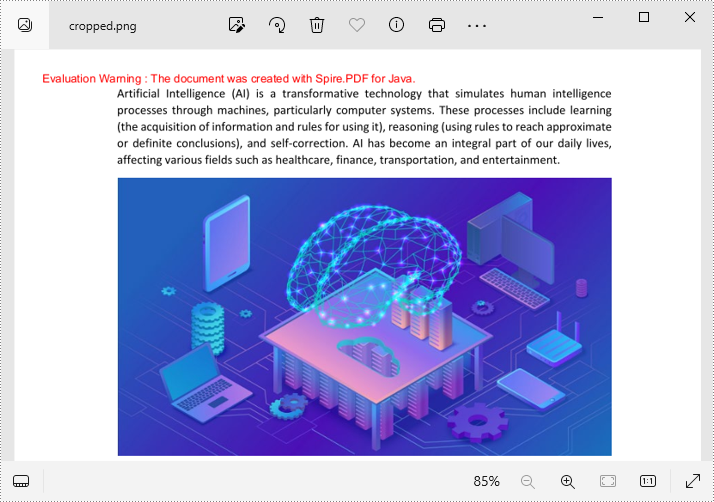
After cropping a PDF page, developers can use the PdfDocument.saveAsImage(int pageIndex, PdfImageType type) method to export the result as an image. The detailed steps are as follows.
- Create an instance of the PdfDocument class.
- Load a PDF document using the PdfDocument.loadFromFile() class.
- Get a specific page from the PDF using the PdfDocument.getPages().get(int pageIndex) mthod.
- Create an instance of the Rectangle2D class to define the crop area.
- Use the PdfPageBase.setCropBox(Rectangle2D rect) method to set the crop area for the page.
- Use the PdfDocument.saveAsImage(int pageIndex, PdfImageType type) method to export the cropped page as an image.
- Save the image as an image file.
- Java
import com.spire.pdf.PdfDocument;
import com.spire.pdf.PdfPageBase;
import com.spire.pdf.graphics.PdfImageType;
import javax.imageio.ImageIO;
import java.awt.geom.Rectangle2D;
import java.awt.image.BufferedImage;
import java.io.File;
import java.io.IOException;

public class CropPdfPageAndSaveAsImage {
    public static void main(String[] args) {
        // Create an instance of the PdfDocument class
        PdfDocument pdf = new PdfDocument();
        // Load the PDF file
        pdf.loadFromFile("example.pdf");

        // Get the first page of the PDF
        PdfPageBase page = pdf.getPages().get(0);

        // Define the crop area (parameters: x, y, width, height)
        Rectangle2D rectangle = new Rectangle2D.Float(0, 40, 600, 360);
        // Set the crop area for the page
        page.setCropBox(rectangle);

        // Export the cropped page as an image
        BufferedImage image = pdf.saveAsImage(0, PdfImageType.Bitmap);

        // Save the image as a PNG file
        File outputFile = new File("cropped.png");
        try {
            ImageIO.write(image, "PNG", outputFile);
            System.out.println("Cropped page saved as: " + outputFile.getAbsolutePath());
        } catch (IOException e) {
            System.err.println("Error saving image: " + e.getMessage());
        }

        // Close the document and release resources
        pdf.close();
    }
}
Get a Free License
To fully experience the capabilities of Spire.PDF for Java without any evaluation limitations, you can request a free 30-day trial license.
Word documents often contain extensive text, and applying emphasis marks is an effective way to highlight key information. Whether you need to accentuate important terms or enhance text clarity with styled formatting, emphasis marks can make your content more readable and professional. Instead of manually adjusting formatting, this guide demonstrates how to use Spire.Doc for Python to efficiently apply emphasis to text in Word with Python, saving time while ensuring a polished document.
- Apply Emphasis Marks to First Matched Text
- Apply Emphasis Marks to All Matched Text
- Apply Emphasis Marks to Text with Regular Expression
Install Spire.Doc for Python
This scenario requires Spire.Doc for Python and plum-dispatch v1.7.4. They can be easily installed in your Windows through the following pip command.
pip install Spire.Doc
If you are unsure how to install, please refer to this tutorial: How to Install Spire.Doc for Python on Windows.
Apply Emphasis Marks to First Matched Text in Word Documents
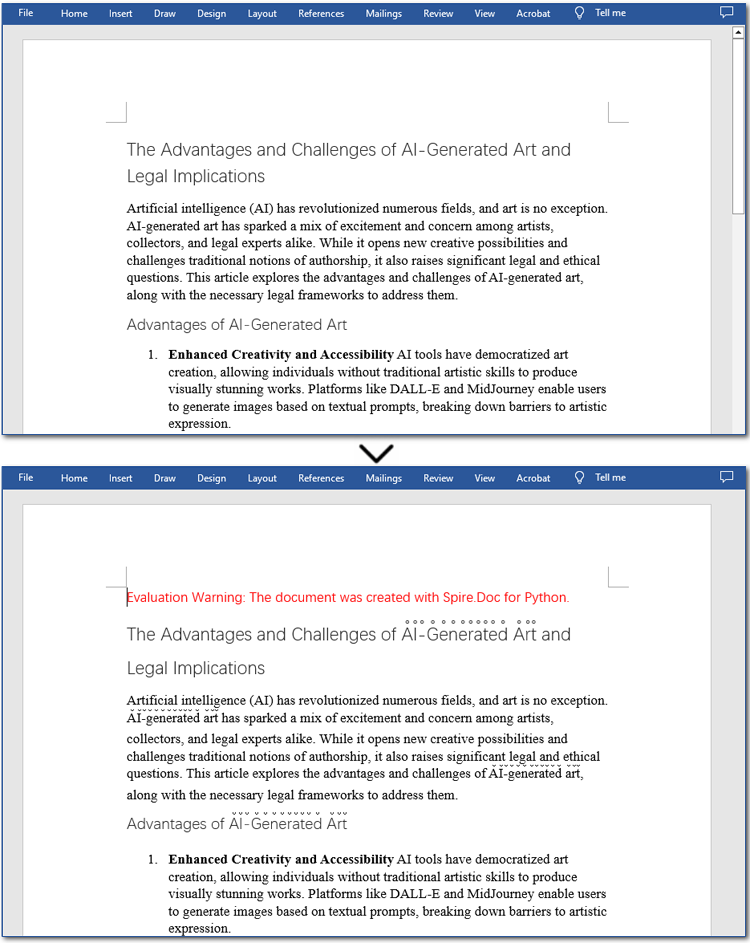
When crafting a Word document, highlighting keywords or phrases can improve readability and draw attention to important information. With Spire.Doc's CharacterFormat.EmphasisMark property, you can easily apply emphasis marks to any text, ensuring clarity and consistency.
Steps to apply emphasis marks to the first matched text in a Word document:
- Create an object of the Document class.
- Load a source Word document from files using Document.LoadFromFile() method.
- Find the text that you want to emphasize with Document.FindString() method.
- Apply emphasis marks to the text through CharacterFormat.EmphasisMark property.
- Save the updated Word document using Document.SaveToFile() method.
Below is the code example showing how to emphasize the first matching text of "AI-Generated Art" in a Word document:
- Python
from spire.doc import *
from spire.doc.common import *

# Create a Document object
doc = Document()
doc.LoadFromFile("/AI-Generated Art.docx")

# Customize the text that you want to apply an emphasis mark to
matchingtext = doc.FindString("AI-Generated Art", True, True)

# Apply the emphasis mark to the matched text
matchingtext.GetAsOneRange().CharacterFormat.EmphasisMark = Emphasis.CommaAbove

# Save the document as a new one
doc.SaveToFile("/ApplyEmphasisMark_FirstMatch.docx", FileFormat.Docx2013)
doc.Close()

Apply Emphasis Marks to All Matched Text in Word Files
In the previous section, we demonstrated how to add an emphasis mark to the first matched text. Now, let's take it a step further—how can we emphasize all occurrences of a specific text? The solution is simple: use the Document.FindAllString() method to locate all matches and then apply emphasis marks using the CharacterFormat.EmphasisMark property. Below, you'll find detailed steps and code examples to guide you through the process.
Steps to apply emphasis marks to all matched text:
- Create an instance of Document class.
- Read a Word file through Document.LoadFromFile() method.
- Find all the matching text using Document.FindAllString() method.
- Loop through all occurrences and apply the emphasis effect to the text through CharacterFormat.EmphasisMark property.
- Save the modified Word document through Document.SaveToFile() method.
The following code demonstrates how to apply emphasis to all occurrences of "AI-Generated Art" while ignoring case sensitivity:
- Python
from spire.doc import *
from spire.doc.common import *

# Create a Document object
doc = Document()
doc.LoadFromFile("/AI-Generated Art.docx")

# Customize the text that you want to apply an emphasis mark to
textselections = doc.FindAllString("AI-Generated Art", False, True)

# Loop through the text selections and apply the emphasis mark to the text
for textselection in textselections:
    textselection.GetAsOneRange().CharacterFormat.EmphasisMark = Emphasis.CircleAbove

# Save the document as a new one
doc.SaveToFile("/ApplyEmphasisMark_AllMatch.docx", FileFormat.Docx2013)
doc.Close()
Apply Emphasis Marks to Text in Word Documents with Regular Expression
Sometimes, the text you want to highlight may vary but follow a similar structure, such as email addresses, phone numbers, dates, or patterns like two to three words followed by special symbols (#, *, etc.). The best way to identify such text is by using regular expressions. Once located, you can apply emphasis marks using the same method. Let's go through the steps!
Steps to apply emphasis marks to text using regular expressions:
- Create a Document instance.
- Load a Word document from the local storage using Document.LoadFromFile() method.
- Find text that you want to emphasize with Document.FindAllPattern() method.
- Iterate through all occurrences and apply the emphasis effect to the text through CharacterFormat.EmphasisMark property.
- Save the resulting Word file through Document.SaveToFile() method.
The code example below shows how to emphasize "AI" and the word after it in a Word document:
- Python
from spire.doc import *
from spire.doc.common import *

# Create a Document object
doc = Document()
doc.LoadFromFile("/AI-Generated Art.docx")

# Match "AI" and the next word using regular expression
pattern = Regex(r"AI\s+\w+")

# Find all matching text
textSelections = doc.FindAllPattern(pattern)

# Loop through all the matched text and apply an emphasis mark
for selection in textSelections:
    selection.GetAsOneRange().CharacterFormat.EmphasisMark = Emphasis.DotBelow

# Save the document as a new one
doc.SaveToFile("/ApplyEmphasisMark_Regex.docx", FileFormat.Docx2013)
doc.Close()

Get a Free License
To fully experience the capabilities of Spire.Doc for Python without any evaluation limitations, you can request a free 30-day trial license.
Adding borders to specific text and paragraphs in Word documents is an effective way to highlight key information and improve the document's structure. Whether it's important terms or entire sections, borders help them stand out. In this guide, we'll show you how to use Spire.Doc for Python to add borders to text and paragraphs in Word with Python, boosting both the readability and professionalism of your document while saving you time from manual formatting.
Install Spire.Doc for Python
This scenario requires Spire.Doc for Python and plum-dispatch v1.7.4. They can be easily installed in your Windows through the following pip command.
pip install Spire.Doc
If you are unsure how to install, please refer to this tutorial: How to Install Spire.Doc for Python on Windows.
Add a Border to Text in Word Documents with Python
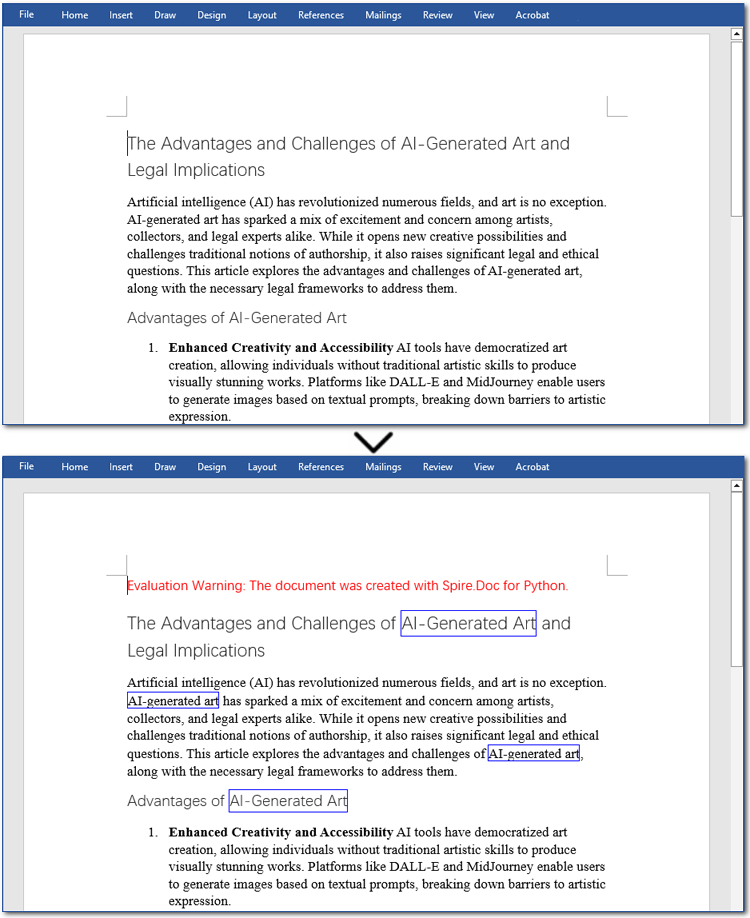
In Word documents, important information like technical terms, company names, or legal clauses can be highlighted with borders to draw readers' attention. Using Python, you can locate the required text with the Document.FindAllString() method and apply borders using the CharacterFormat.Border.BorderType property. Here's a step-by-step guide to help you do this efficiently.
Steps to add borders to all matched text in a Word document:
- Create an object of Document class.
- Read a source Word document from files using Document.LoadFromFile() method.
- Find all occurrences of the specified text through Document.FindAllString() method.
- Loop through all matched text and get the text as a text range.
- Add a border to the text with CharacterFormat.Border.BorderType property.
- Customize the color of the border through CharacterFormat.Border.Color property.
- Save the modified document with Document.SaveToFile() method.
The code example below shows how to add a border to all occurrences of "AI-Generated Art":
- Python
from spire.doc import *
from spire.doc.common import *

# Create a Document object
doc = Document()
doc.LoadFromFile("/AI-Generated Art.docx")

# Set the target text
target_text = "AI-Generated Art"
# Create a TextSelection object and find all matches
text_selections = doc.FindAllString(target_text, False, True)

# Loop through the text selections
for selection in text_selections:
    text_range = selection.GetAsOneRange()
    # Add a border to the text
    text_range.CharacterFormat.Border.BorderType = BorderStyle.Single
    # Set the border color
    text_range.CharacterFormat.Border.Color = Color.get_Blue()

# Save the resulting document
doc.SaveToFile("/AddBorder_Text.docx", FileFormat.Docx2013)
doc.Close()
Add a Border to Paragraphs in Word Files Using Python
Important clauses or legal statements in contracts, summaries in reports, and quotations in papers often require adding borders to paragraphs for emphasis or distinction. Unlike text borders, adding a border to a paragraph involves finding the target paragraph by its index and then using the Format.Borders.BorderType property. Let's check out the detailed instructions.
Steps to add a border to paragraphs in Word documents:
- Create a Document instance.
- Read a Word document through Document.LoadFromFile() method.
- Get the specified paragraph with Document.Sections[].Paragraphs[] property.
- Add a border to the paragraph using Format.Borders.BorderType property.
- Set the type and color of the border.
- Save the resulting Word file through Document.SaveToFile() method.
Here is an example showing how to add a border to the fourth paragraph in a Word document:
- Python
from spire.doc import *
from spire.doc.common import *

# Create a Document object
doc = Document()
doc.LoadFromFile("/AI-Generated Art.docx")

# Get the fourth paragraph
paragraph = doc.Sections[0].Paragraphs[3]

# Add a border to the paragraph
borders = paragraph.Format.Borders
borders.BorderType(BorderStyle.DotDotDash)
borders.Color(Color.get_Blue())

# Save the updated document
doc.SaveToFile("/AddBorder_Paragraph.docx", FileFormat.Docx2013)
doc.Close()

Get a Free License
To fully experience the capabilities of Spire.Doc for Python without any evaluation limitations, you can request a free 30-day trial license.
