
Knowledgebase (2417)
Children categories

Modern business systems, from retail checkout lanes to warehouse inventory tracking, rely heavily on barcode scanning, and Python-based solutions have become a popular choice due to their versatility and ease of use. In this article, we’ll explore how to read barcodes in Python using the Spire.Barcode for Python library, covering setup, scanning from image files or bytes, and customization options for improved accuracy.
Table of Contents:
- Python Library for Reading Barcodes
- Integrate Spire.Barcode into Your Python Application
- Read a Barcode from an Image File
- Read Multiple Barcodes from an Image File
- Read Barcodes from Image Bytes
- Adjust Barcode Recognition Settings
- Conclusion
- FAQs
Python Library for Reading Barcodes
Spire.Barcode for Python is a powerful library specifically crafted for creating and reading barcodes in Python applications. The library supports a variety of barcode formats, including:
- 1D Barcodes : Such as Code 128, Code 39, EAN-13, and UPC-A.
- 2D Barcodes : Including QR Code, DataMatrix, and PDF417.
Notable Features of Spire.Barcode
- Format Support : Capable of reading barcodes from various image formats, including PNG, JPG, BMP, GIF, and TIFF.
- Batch Scanning : Enables the detection of multiple barcodes within a single image file.
- Recognition Accuracy : Utilizes advanced algorithms to deliver reliable barcode detection.
- Customization : Allows users to specify barcode types and enable checksum verification for enhanced recognition efficiency.
This library provides the capability to read barcodes from both image files and bytes, along with extensive customization options to meet diverse requirements.
Integrate Spire.Barcode into Your Python Application
To get started with Spire.Barcode, you first need to install the library. You can do this via pip. Open your terminal and run:
pip install spire.barcode
Once you have installed the library, you will need a license key to unlock its full capabilities. You can obtain a trial license from our website. and set up the library in your Python script:
from spire.barcode import *

License.SetLicenseKey("your license key")
Now that you have the library in place, you can begin reading barcodes using Python.
Read a Barcode from an Image File in Python
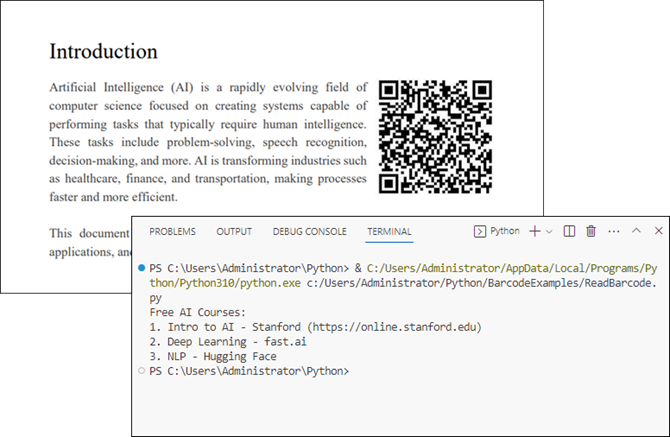
Reading a single barcode from an image file is straightforward with Spire.Barcode. Here's how you can do it:
from spire.barcode import *

# Apply license key to unlock full capabilities
License.SetLicenseKey("your license key")

# Read barcode from an image file
result = BarcodeScanner.ScanOneFile("C:/Users/Administrator/Desktop/qr_code.png")

# Print the result
print(result)
Explanation
- License.SetLicenseKey() : Initializes the library with your license key.
- BarcodeScanner.ScanOneFile() : Reads a single barcode from the specified image file.
- The result is printed to the console, displaying the barcode's data.
Output:
Read Multiple Barcodes from an Image File in Python
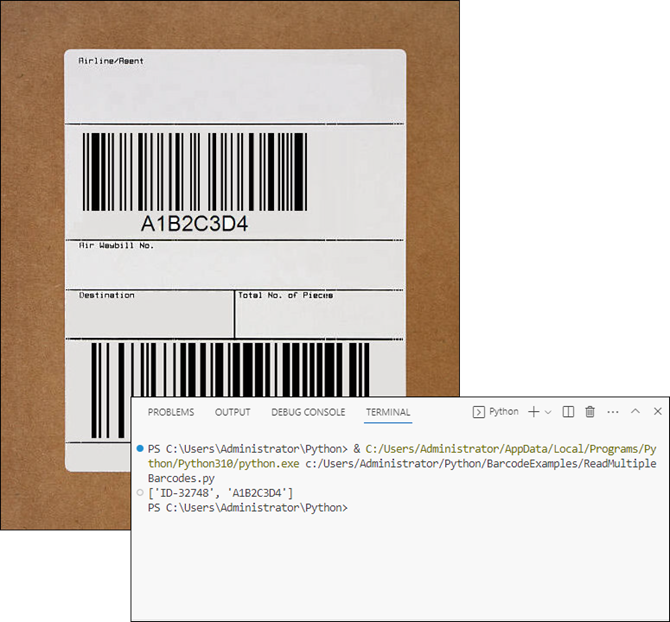
If you need to read multiple barcodes from a single image file, Spire.Barcode makes this easy as well. Here’s an example:
from spire.barcode import *

# Apply license key to unlock full capabilities
License.SetLicenseKey("your license key")

# Read multiple barcodes from stream
results = BarcodeScanner.ScanFile("C:/Users/Administrator/Desktop/barcodes.jpg")

# Print results
print(results)
Explanation
- BarcodeScanner.ScanFile() : Scans the entire image for multiple barcodes.
- The results are stored as a list. Each element in the list contains the data from a detected barcode.
Output:
Read Barcodes from Image Bytes in Python
In addition to reading barcodes directly from files, Spire.Barcode for Python supports decoding barcodes from in-memory image bytes . This approach is useful when working with dynamically loaded images (e.g., from APIs, databases, or user uploads).
Here’s how to do it:
from spire.barcode import *

# Apply license key to unlock full capabilities
License.SetLicenseKey("your license key")

# Read an image file into bytes
image_path = "C:/Users/Administrator/Desktop/barcodes.jpg"
with open(image_path, "rb") as file:
    image_bytes = file.read()

# Wrap bytes in Spire.Barcode's Stream object
stream = Stream(image_bytes)

# Read one barcode from stream
# result = BarcodeScanner.ScanOneStream(stream)

# Read multiple barcodes from stream
results = BarcodeScanner.ScanStream(stream)

# Print results
print(results)
Explanation
- image_bytes: Raw binary data read from an image file (e.g., PNG, JPG) or other sources like APIs or databases.
- Stream (Spire.Barcode class): Converts image_bytes into an in-memory stream compatible with Spire.Barcode’s scanner.
- BarcodeScanner.ScanStream() : Scans the stream for barcodes and returns a list of detected barcodes.
Adjust Barcode Recognition Settings
The BarcodeScanner class provides various methods to customize barcode recognition settings. This can help improve detection accuracy and efficiency. Some of the key methods include:
- ScanOneFileBarCodeTypeIncludeCheckSum(fileName: str, barcodeType: BarCodeType, IncludeCheckSum: bool)
- ScanFileBarCodeTypeIncludeCheckSum(fileName: str, barcodeType: BarCodeType, IncludeCheckSum: bool)
- ScanOneStreamBarCodeTypeIncludeCheckSum(stream: Stream, barcodeType: BarCodeType, IncludeCheckSum: bool)
- ScanStreamBarCodeTypeIncludeCheckSum(stream: Stream, barcodeType: BarCodeType, IncludeCheckSum: bool)
Here’s an example of how to specify a barcode type and include checksum verification:
from spire.barcode import *

# Apply license key to unlock full capabilities
License.SetLicenseKey("your license key")

# Specify the barcode type (e.g., EAN13)
barcode_type = BarCodeType.EAN13

# Read a barcode from an image file with checksum included
result = BarcodeScanner.ScanOneFileBarCodeTypeIncludeCheckSum("C:/Users/Administrator/Desktop/EAN_13.png", barcode_type, True)

# Print the result
print(result)
Explanation
- BarcodeType : Specifies the type of barcode you want to scan.
- IncludeCheckSum (bool): Determines whether to verify the checksum during scanning. Setting it to True can help catch errors in data.
Conclusion
In this article, we explored how to read barcodes in Python using the Spire.Barcode library. We covered the setup process, reading single and multiple barcodes from image files, and reading from image bytes. Additionally, we discussed how to customize barcode detection settings for improved accuracy. With these tools at your disposal, you can easily integrate barcode scanning capabilities into your Python applications.
FAQs
Q1: What types of barcodes can I read with Spire.Barcode?
Spire.Barcode supports a wide range of barcode formats, including QR codes, UPC, EAN, Code 128, Code 39, and many others.
Q2: Do I need a license to use Spire.Barcode?
Yes, a license key is required to unlock the full functionality of the library. You can obtain a free 30-day trial license from our website.
Q3: Can I read barcodes from a webcam using Spire.Barcode?
While Spire.Barcode does not directly support webcam input, you can capture images from a webcam and then read barcodes from those images using the library.
Q4: How can I improve barcode scanning accuracy?
You can improve accuracy by specifying the barcode type and enabling checksum verification during scanning. Additionally, ensure that the images are clear and well-lit.
Q5. Can I generate barcodes using Spire.Barcode for Python?
Yes, Spire.Barcode supports both barcode recognition and generation. For detailed instructions, check out this tutorial: How to Generate Barcodes in Python: A Step-by-Step Guide.

QR codes have become a common part of modern applications — from user authentication and digital payments to product packaging and event tickets. In many of these scenarios, developers often need to read QR codes in C# as part of their workflow, especially when working with image-based inputs like scanned documents or uploaded files.
To handle such tasks reliably, a decoding method that’s both accurate and easy to implement is essential. In this tutorial, we’ll walk through a straightforward approach to reading QR codes from images using C#, with minimal setup and clean integration.
Quick Navigation
- Project Setup
- Read QR Code from Image Using C#
- Read QR Code from Stream Using C#
- Improve Accuracy and Handle Errors
- Bonus: Get QR Code Coordinates
- FAQ
- Final Thoughts
1. Project Setup
To begin, we’ll use a .NET barcode library that supports QR code decoding. In this guide, we demonstrate with Spire.Barcode for .NET, which provides a simple API for reading QR codes from image files and streams.
1.1 Install the Library via NuGet
You can install the library through NuGet Package Manager:
Install-Package Spire.Barcode
For basic scenarios, you can also use Free Spire.Barcode for .NET:
Install-Package FreeSpire.Barcode
1.2 Create a New Console Project
For demonstration, create a C# Console App in Visual Studio:
- Target .NET Framework, .NET Core/.NET 6+, ASP.NET, or Xamarin for cross-platform mobile development
- Add reference to Spire.Barcode.dll (if not using NuGet)
2. Read QR Code from Image in C#
To read QR codes from an image file in C#, you can simply use the static BarcodeScanner.Scan() method provided by the library. This method takes an image path and the BarCodeType as input and returns all decoded results that match the specified barcode type — in this case, QR codes.
This method supports scanning images in formats like JPG, PNG, and EMF. It’s the most direct way to scan QR code data in desktop applications or backend services that receive uploaded files.
2.1 Sample Code: Decode QR Code from an Image File
using Spire.Barcode;

class Program
{
    static void Main(string[] args)
    {
        // Load the QR code image
        string imagePath = @"C:\qr-code.png";

        // Barcode scanner reads QR code from image file
        string[] results = BarcodeScanner.Scan(imagePath, BarCodeType.QRCode);

        // Display QR code result(s)
        foreach (string result in results)
        {
            Console.WriteLine("QR Code Data: " + result + "\n");
        }
    }
}
The QR code image and the scan results from C# code:
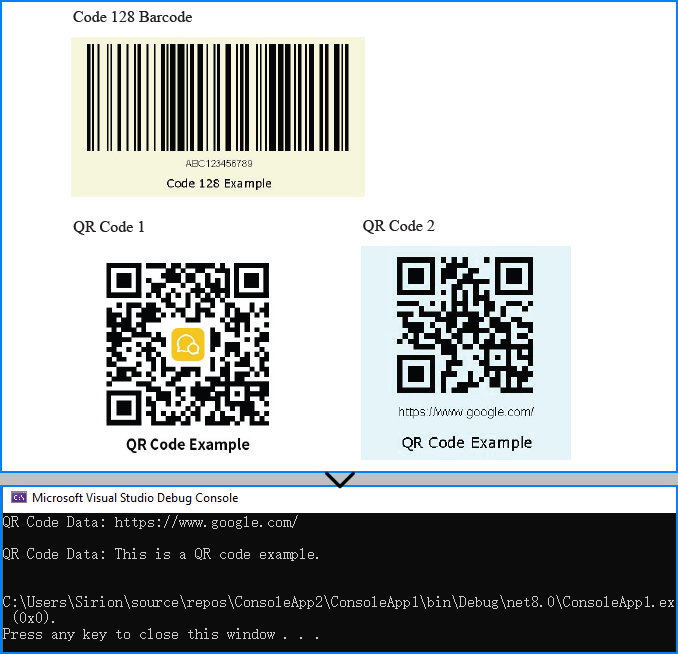
2.2 Explanation
- Scan() reads and decodes all barcodes found in the image.
- BarCodeType.QRCode ensures only QR codes are detected (you can change it to detect other types).
- Returns an array in case the image contains multiple QR codes.
You may also like: How to Generate QR Codes Using C#
3. Read QR Code from Stream in C#
In web APIs or modern applications where images are processed in memory, you’ll often deal with Stream objects—such as when handling file uploads or reading from cloud storage.
The BarcodeScanner.Scan() method also accepts a Stream directly, allowing you to decode QR codes from memory streams without converting them to Bitmap.
using Spire.Barcode;
using System.IO;

class Program
{
    static void Main(string[] args)
    {
        using (FileStream fs = new FileStream(@"C:\qr-code.png", FileMode.Open, FileAccess.Read))
        {
            // Directly scan the QR codes from the image stream
            string[] results = BarcodeScanner.Scan(fs, BarCodeType.QRCode, false);
            foreach (string result in results)
            {
                Console.WriteLine("QR Code Data: " + result);
            }
        }
    }
}
This method is useful for WPF or ASP.NET Core apps that handle QR code images in memory.
Related article: Scan Barcodes from PDF Using C#
4. Improve Accuracy and Handle Errors
In real-world scenarios, QR code recognition may occasionally fail due to image quality or unexpected input issues. Here are best practices to improve decoding accuracy and handle failures in C#:
4.1 Boost Recognition Accuracy
- Use high-resolution images. Avoid blurred or overcompressed files.
- Ensure quiet zone (white space) around the QR code is preserved.
- Use formats like PNG for better clarity.
- Avoid perspective distortion — use straight, scanned images.
4.2 Add Robust Error Handling
Wrap your decoding logic in a try-catch block to prevent crashes and inform the user clearly:
try
{
    string[] results = BarcodeScanner.Scan(imagePath, BarCodeType.QRCode);

    if (results.Length == 0)
    {
        Console.WriteLine("No QR code found.");
    }
    else
    {
        Console.WriteLine("QR Code: " + results[0]);
    }
}
catch (Exception ex)
{
    Console.WriteLine("Error decoding QR code: " + ex.Message);
}
5. Bonus: Get QR Code Coordinates
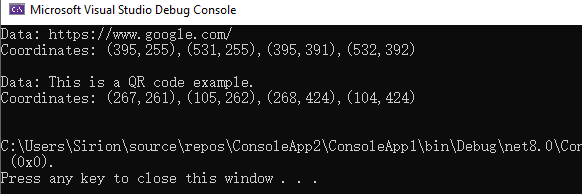
Sometimes, you may need to locate the QR code’s exact position in the image—for cropping, overlay, or annotation. The ScanInfo() method helps retrieve bounding boxes:
BarcodeInfo[] results = BarcodeScanner.ScanInfo(imagePath, BarCodeType.QRCode);
foreach (BarcodeInfo result in results)
{
    Console.WriteLine("Data: " + result.DataString);
    Console.WriteLine($"Coordinates: " + string.Join(",", result.Vertexes.Select(p => $"({p.X},{p.Y})")) + "\n");
}
This provides both the data and the coordinates of each detected QR code.
The reading results:
6. FAQ
How to read QR code in C#?
You can use the Spire.Barcode for .NET library and its BarcodeScanner.Scan() method to read QR codes from image files or memory streams in just a few lines of code.
How do I read my own QR code image?
Load your QR code image file path into the scanner, or open it as a stream if you're working in a web or WPF application. The scanner will decode all readable QR codes in the image.
How to read barcodes in C# (not just QR codes)?
You can simply pass the image path to the Scan() method, and it will automatically detect and read all supported barcode types. To restrict detection to a specific type (e.g., only QR codes or Code128), pass the corresponding BarCodeType as the second parameter.
What is the best barcode reader library for C#?
Spire.Barcode for .NET is a popular choice for its simplicity, format support, and clean API. It supports both free and commercial use cases.
7. Final Thoughts
Reading QR codes in C# can be implemented with just a few lines of code using Spire.Barcode for .NET. It supports image and stream-based decoding, works well for desktop, server-side, or WPF applications, and offers solid performance with minimal setup.
You can further explore QR code generation, document integration, and real-time scanning workflows based on this foundation.
Need to unlock full barcode reading features?
Request a free temporary license and try the full capabilities of Spire.Barcode for .NET without limitations.

Barcodes are widely used in various industries for inventory management, retail, logistics, and more. Reading barcodes efficiently is crucial for automating data entry and improving accuracy. In Java, one of the most reliable libraries for barcode recognition is Spire.Barcode for Java. This article provides a comprehensive guide on how to read barcode in Java using this powerful library.
Table of Contents
- Introduction to Spire.Barcode for Java
- Key Features of Spire.Barcode
- Setting Up Spire.Barcode in Your Java Project
- Reading a Single Barcode from an Image File
- Reading Multiple Barcodes from One Image
- Customizing Barcode Recognition Settings
- Conclusion
- FAQs
Introduction to Spire.Barcode for Java
Spire.Barcode for Java is a robust library designed to generate and read barcodes in Java applications. It supports a wide range of barcode symbologies, including:
- 1D Barcodes : Code 128, Code 39, EAN-13, UPC-A, etc.
- 2D Barcodes : QR Code, DataMatrix, PDF417, etc.
Spire.Barcode provides fast and precise barcode recognition in Java, whether scanning from a dedicated barcode image or a complex image containing additional elements.
Key Features of Spire.Barcode
Before diving into implementation, let’s explore some key features of Spire.Barcode:
- Multi-Format Support : Read barcodes from PNG, JPG, BMP, GIF, and TIFF images.
- Batch Processing : Scan multiple barcodes in a single image.
- High Recognition Accuracy : Advanced algorithms ensure reliable barcode detection.
- Customizable Settings : Adjust scan regions and barcode types for optimized recognition.
- Cross-Platform Compatibility : Works seamlessly on Windows, Linux, and macOS.
These features make Spire.Barcode an excellent choice for enterprise-level barcode processing.
Setting Up Spire.Barcode in Your Java Project
To start reading barcodes in Java, you need to integrate Spire.Barcode into your project. Follow these steps:
Step 1: Install the Library
If you're using Maven, you can easily integrate Spire.Barcode by adding the following dependency to your pom.xml file:
<repositories>
    <repository>
        <id>com.e-iceblue</id>
        <name>e-iceblue</name>
        <url>https://repo.e-iceblue.com/nexus/content/groups/public/</url>
    </repository>
</repositories>
<dependency>
    <groupId>e-iceblue</groupId>
    <artifactId>spire.barcode</artifactId>
    <version>5.1.11</version>
</dependency>
For manual setup, download Spire.Barcode for Java from our website and add the downloaded .jar file to your project’s build path.
Step 2: Get a Temporary License
Spire.Barcode requires a license to read certain barcode types. To unlock full barcode recognition capabilities, get a free 30-day trial license. After receiving the license file, apply it using this code:
LicenseProvider.setLicenseKey("your license key");
Now, you're ready to read barcode in Java using Spire.Barcode.
Reading a Single Barcode from an Image File
Reading one barcode from an image is a fundamental scenario, and Spire.Barcode facilitates this with just a few lines of code.
Here’s a step-by-step example:
import com.spire.barcode.BarcodeScanner;
import com.spire.barcode.license.LicenseProvider;

import javax.imageio.ImageIO;
import java.awt.image.BufferedImage;
import java.io.File;
import java.io.IOException;

public class ReadBarcode {

    public static void main(String[] args) throws IOException {

        // Apply license key to remove restrictions on barcode types
        LicenseProvider.setLicenseKey("your license key");

        // Load the image file containing the barcode
        BufferedImage bufferedImage = ImageIO.read(new File("C:\\Users\\Administrator\\Desktop\\barcode.jpg "));

        // Scan the barcode from the loaded image
        String result = BarcodeScanner.scanOne(bufferedImage);

        // Output the scanned barcode result
        System.out.print(result);
    }
}
Explanation
- ImageIO.read() loads the image file, supporting extensions such as .png, .jpeg, .bmp, or .gif.
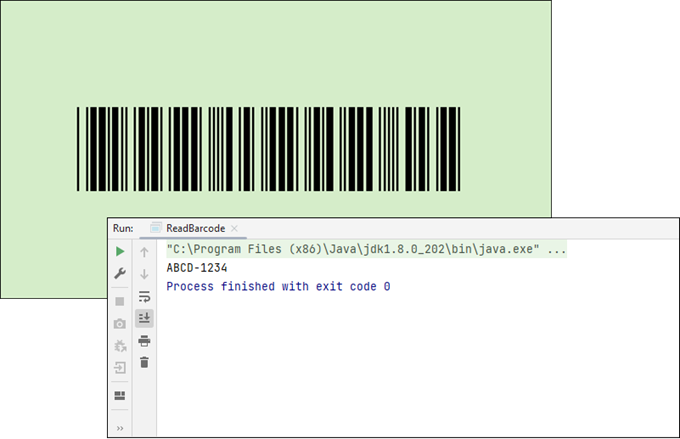
- BarcodeScanner.scanOne() detects and decodes the barcode from the image.
- The decoded result is stored in a String .
Note
The scanOne() method and the scan() method, which will be discussed later, can accept not only a BufferedImage as a parameter but also an InputStream and a String representing the image file path. Whether you're processing images from disk, user uploads, or real-time streams, this flexibility simplifies integration into diverse workflows.
Output:
Reading Multiple Barcodes from One Image
Spire.Barcode can detect and decode multiple barcodes in a single image. Here’s how:
import com.spire.barcode.BarcodeScanner;
import com.spire.barcode.license.LicenseProvider;

import javax.imageio.ImageIO;
import java.awt.image.BufferedImage;
import java.io.File;
import java.io.IOException;
import java.util.Arrays;

public class ReadMultipleBarcodes {

    public static void main(String[] args) throws IOException {

        // Apply license key to remove restrictions on barcode types
        LicenseProvider.setLicenseKey("your license key");

        // Load the image file containing the barcode
        BufferedImage bufferedImage = ImageIO.read(new File("C:\\Users\\Administrator\\Desktop\\barcodes.jpg"));

        // Scan the barcode from the loaded image
        String[] results = BarcodeScanner.scan(bufferedImage);

        // Output the results
        System.out.println(Arrays.toString(results));
    }
}
Explanation
- BarcodeScanner.scan() identifies and decodes all the barcodes present in the image.
- The results are stored in a String array .
Output:

Customizing Barcode Recognition Settings
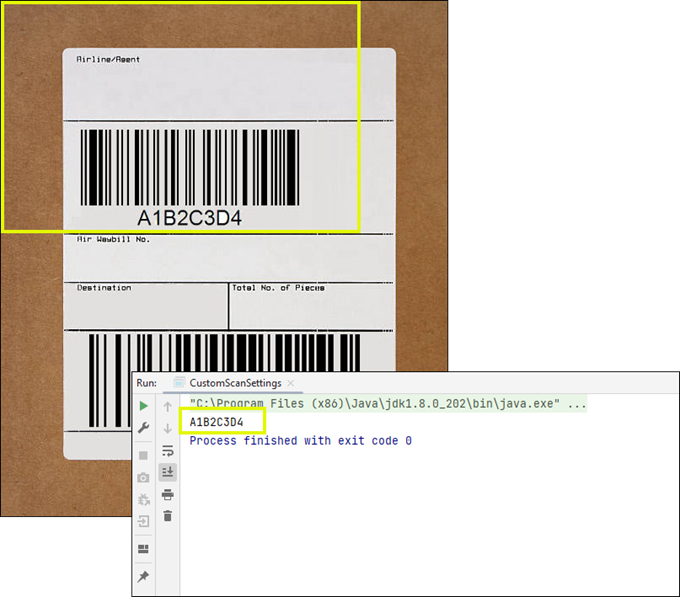
For improved accuracy, Spire.Barcode allows you to customize scan settings, such as defining a scan region or specifying a particular barcode type. This enhanced approach ensures you have the flexibility and control needed for effective barcode scanning in Java.
Here is an example:
import com.spire.barcode.BarCodeType;
import com.spire.barcode.BarcodeScanner;
import com.spire.barcode.license.LicenseProvider;

import javax.imageio.ImageIO;
import java.awt.*;
import java.awt.image.BufferedImage;
import java.io.File;
import java.io.IOException;

public class CustomScanSettings {

    public static void main(String[] args) throws IOException {

        // Apply license key to remove restrictions on barcode types
        LicenseProvider.setLicenseKey("your license key");

        // Load the image file containing the barcode
        BufferedImage bufferedImage = ImageIO.read(new File("C:\\Users\\Administrator\\Desktop\\barcodes.jpg"));

        // Define a rectangle area for barcode recognition
        Rectangle rectangle = new Rectangle(0,0,380,270);

        // Scan the barcode from the loaded image
        String[] results = BarcodeScanner.scan(bufferedImage, rectangle, BarCodeType.Code_93);

        // Output the first result
        System.out.print(results[0]);
    }
}
Explanation
- Rectangle() defines a specific area within the image for barcode recognition.
- BarCodeType enumeration allows you to specify the barcode type for more accurate detection.
Output:
Conclusion
In this article, we've explored the essential steps to set up Spire.Barcode in your Java project, read barcodes from images , handle multiple barcodes , and customize recognition settings for optimal accuracy. By leveraging these capabilities, developers can seamlessly integrate barcode scanning into their applications, improving data entry automation and reducing errors.
With Spire.Barcode, you have a reliable tool at your disposal to meet your barcode reading needs, paving the way for more efficient business operations.
FAQs
Q1. What types of barcodes can Spire.Barcode read?
Spire.Barcode supports 38+ barcode types, including both 1D barcodes like Code 128, Code 39, EAN-13, and UPC-A, as well as 2D barcodes such as QR Code, DataMatrix, and PDF417.
Q2. Can I customize the barcode scanning region?
Yes, Spire.Barcode allows you to define a specific scan area within the image by using a Rectangle object. This feature helps improve accuracy by focusing on a designated section of the image.
Q3. Can Spire.Barcode read multiple barcodes from a single image?
Yes! Using BarcodeScanner.scan(), you can detect and decode multiple barcodes in one image efficiently.
Q4. Is a license required to use Spire.Barcode for barcode recognition?
A commercial license is needed for full functionality, but you can get a free 30-day trial license to test all features before purchasing.
Q5. Can I use Spire.Barcode for Java to create barcodes?
Yes, Spire.Barcode supports generating over 38 commonly used 1D and 2D barcodes. For more information, check out: How to Create Barcode in Java
