
Knowledgebase (2417)
Children categories
Generating Word documents programmatically is a common requirement in business applications, whether for creating reports, contracts, or personalized letters. Spire.Doc for .NET provides a comprehensive solution for working with Word documents in C# without Microsoft Office dependencies.
This article explores two effective approaches for document generation from templates: replacing text placeholders and modifying bookmark content.
- Create a Word Document By Replacing Text Placeholders
- Create a Word Document By Replacing Bookmark Content
.NET Library for Creating Word Documents
Spire.Doc for .NET is a professional Word API that enables developers to perform a wide range of document processing tasks. Key features include:
- Creating, reading, editing, and converting Word documents
- Support for DOC, DOCX, RTF, and other formats
- Template-based document generation
- Mail merge functionality
- Preservation of original formatting
The library is particularly useful for automating document generation in enterprise applications, where consistency and efficiency are crucial.
To begin generating Word documents from a template, donwload Spire.Doc for .NET from our official website or install it using the NuGet Package Manager with the following command:
PM> Install-Package Spire.Doc
Create a Word Document By Replacing Text Placeholders
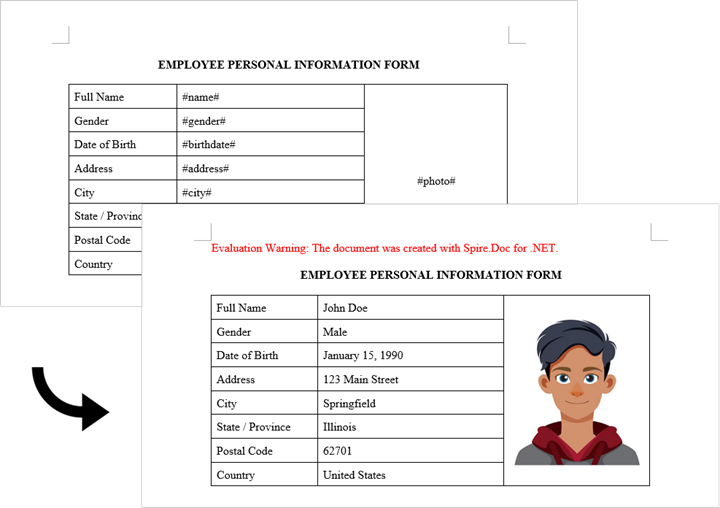
The Document.Replace method in the Spire.Doc library is used to find and replace specific text within a Word document. This method allows for the efficient modification of text placeholders, enabling the dynamic generation of documents based on templates.
Here are the steps for Word generation through text pattern replacement:
- Document Initialization: Create a new Document object and load the template file.
- Placeholder Definition: Use a dictionary to map placeholders (like #name#) to their replacement values.
- Text Replacement: The Document.Replace method performs case-sensitive and whole-word replacement of all placeholders.
- Image Handling: The custom ReplaceTextWithImage method locates a text placeholder and substitutes it with an image.
- Document Saving: The modified document is saved with a new filename.
- C#
using Spire.Doc;
using Spire.Doc.Documents;
using Spire.Doc.Fields;
using System.Drawing;

namespace CreateWordByReplacingTextPlaceholders
{
    class Program
    {
        static void Main(string[] args)
        {
            // Initialize a new Document object
            Document document = new Document();

            // Load the template Word file
            document.LoadFromFile("C:\\Users\\Administrator\\Desktop\\Template.docx");

            // Dictionary to hold text placeholders and their replacements
            Dictionary<string, string> replaceDict = new Dictionary<string, string>
            {
                { "#name#", "John Doe" },
                { "#gender#", "Male" },
                { "#birthdate#", "January 15, 1990" },
                { "#address#", "123 Main Street" },
                { "#city#", "Springfield" },
                { "#state#", "Illinois" },
                { "#postal#", "62701" },
                { "#country#", "United States" }
            };

            // Replace placeholders in the document with corresponding values
            foreach (KeyValuePair<string, string> kvp in replaceDict)
            {
                document.Replace(kvp.Key, kvp.Value, true, true);
            }

            // Path to the image file
            String imagePath = "C:\\Users\\Administrator\\Desktop\\portrait.png";

            // Replace the placeholder “#photo#” with an image
            ReplaceTextWithImage(document, "#photo#", imagePath);

            // Save the modified document
            document.SaveToFile("ReplacePlaceholders.docx", FileFormat.Docx);

            // Release resources
            document.Dispose();
        }

        // Method to replace a placeholder in the document with an image
        static void ReplaceTextWithImage(Document document, String stringToReplace, String imagePath)
        {
            // Load the image from the specified path
            Image image = Image.FromFile(imagePath);
            DocPicture pic = new DocPicture(document);
            pic.LoadImage(image);

            // Find the placeholder in the document
            TextSelection selection = document.FindString(stringToReplace, false, true);

            // Get the range of the found text
            TextRange range = selection.GetAsOneRange();
            int index = range.OwnerParagraph.ChildObjects.IndexOf(range);

            // Insert the image and remove the placeholder text
            range.OwnerParagraph.ChildObjects.Insert(index, pic);
            range.OwnerParagraph.ChildObjects.Remove(range);
        }
    }
}
Create a Word Document By Replacing Bookmark Content
The BookmarksNavigator class in Spire.Doc is specifically designed to manage and navigate through bookmarks in a Word document. This class simplifies the process of finding and replacing content in bookmarks, making it easy to update sections of a document without manually searching for each bookmark.
The following are the steps for Word generation using bookmark content replacement:
- Document Initialization: Create a new Document object and load the template file.
- Bookmark Content Definitions: Create a dictionary mapping bookmark names to their replacement content.
- Bookmark Navigation: The BookmarksNavigator class provides precise control over bookmark locations.
- Content Replacement: The ReplaceBookmarkContent method preserves the bookmark while updating its content.
- Document Saving: The modified document is saved with a new filename.
- C#
using Spire.Doc;
using Spire.Doc.Documents;

namespace CreateWordByReplacingBookmarkContent
{
    class Program
    {
        static void Main(string[] args)
        {
            // Initialize a new Document object
            Document document = new Document();

            // Load the template Word file
            document.LoadFromFile("C:\\Users\\Administrator\\Desktop\\Template.docx");

            // Define bookmark names and their replacement values
            Dictionary<string, string> replaceDict = new Dictionary<string, string>
            {
                { "name", "Tech Innovations Inc." },
                { "year", "2015" },
                { "headquarter", "San Francisco, California, USA" },
                { "history", "Tech Innovations Inc. was founded by a group of engineers and " +
                              "entrepreneurs with a vision to revolutionize the technology sector. Starting " +
                              "with a focus on software development, the company expanded its portfolio to " +
                              "include artificial intelligence and cloud computing solutions." }
            };

            // Create a BookmarksNavigator to manage bookmarks in the document
            BookmarksNavigator bookmarkNavigator = new BookmarksNavigator(document);

            // Replace each bookmark's content with the corresponding value
            foreach (KeyValuePair<string, string> kvp in replaceDict)
            {
                bookmarkNavigator.MoveToBookmark(kvp.Key); // Navigate to bookmark
                bookmarkNavigator.ReplaceBookmarkContent(kvp.Value, true); // Replace content
            }

            // Save the modified document
            document.SaveToFile("ReplaceBookmarkContent.docx", FileFormat.Docx2013);

            // Release resources
            document.Dispose();
        }
    }
}

Conclusion
Both approaches provide effective ways to generate documents from templates, but with important differences:
- Text Replacement Method:
- Permanently removes placeholders during replacement
- Best for one-time document generation
- Better suited for replacing text with images
- Bookmark Replacement Method:
- Preserves bookmarks for future updates
- Ideal for templates requiring periodic updates
Additionally, Spire.Doc for .NET supports Mail Merge functionality, which provides another powerful way to dynamically generate documents from templates. This feature is particularly useful for creating personalized documents in bulk, such as form letters or reports, where data comes from a database or other structured source.
Get a Free License
To fully experience the capabilities of Spire.Doc for .NET without any evaluation limitations, you can request a free 30-day trial license.
Introduction
Digital signatures help verify the authenticity and integrity of PDF documents. However, if a signing certificate expires or is revoked, the signature alone may no longer be considered valid. To solve this, a timestamp can be added to the digital signature, proving that the document was signed at a specific point in time-validated by a trusted Time Stamp Authority (TSA).
In this tutorial, we will introduce how to use the Spire.PDF for Python library to digitally sign a PDF document with a timestamp in Python.
Prerequisites
To follow this tutorial, ensure you have the following:
- Spire.PDF for Python library
- A valid digital certificate (.pfx file)
- A sample PDF file
- An image to display as the signature appearance (optional)
- A reliable Time Stamp Authority (TSA) URL
pip install Spire.PDF
How to Digitally Sign a PDF with a Timestamp in Python
In Spire.PDF for Python, the Security_PdfSignature class is used to create a digital signature, and the ConfigureTimestamp(tsaUrl) method in this class is used to embed a timestamp into the signature. The tsaUrl parameter specifies the address of the TSA server.
Steps to Add a Timestamped Digital Signature
Follow these steps to add a timestamped digital signature to a PDF in Python using Spire.PDF for Python:
- Create a PdfDocument instance and use the LoadFromFile() method to load the PDF you want to sign.
- Create a Security_PdfSignature object, specifying the target page, certificate file path, certificate password, and signature name.
- Configure the signature's appearance, including its position, size, display labels, and signature image.
- Embed a timestamp by calling the ConfigureTimestamp(tsaUrl) method with a valid Time Stamp Authority (TSA) URL.
- Save the signed PDF using the SaveToFile() method.
Code Example
- Python
from spire.pdf import *

inputFile = "Sample.pdf"
inputFile_pfx = "gary.pfx"
inputImage = "E-iceblueLogo.png"
outputFile = "SignWithTimestamp.pdf"

# Create a PdfDocument instance and load the PDF file to be signed
doc = PdfDocument()
doc.LoadFromFile(inputFile)

# Create a digital signature object by specifying the document, target page, certificate file path, certificate password, and signature name
signature = Security_PdfSignature(doc, doc.Pages.get_Item(0), inputFile_pfx, "e-iceblue", "signature")

# Define the position and size of the signature on the page (unit: point)
signature.Bounds = RectangleF(PointF(90.0, 600.0), SizeF(180.0, 90.0))

# Set the labels and content for the signature details
signature.NameLabel = "Digitally signed by: "
signature.Name = "Gary"
signature.LocationInfoLabel = "Location: "
signature.LocationInfo = "CN"
signature.ReasonLabel = "Reason: "
signature.Reason = "Ensure authenticity"
signature.ContactInfoLabel = "Contact Number: "
signature.ContactInfo = "028-81705109"

# Set document permissions: allow form filling, forbid further changes
signature.DocumentPermissions = PdfCertificationFlags.AllowFormFill.value | PdfCertificationFlags.ForbidChanges.value

# Set the graphic mode to include both image and signature details,
# and set the signature image
signature.GraphicsMode = Security_GraphicMode.SignImageAndSignDetail
signature.SignImageSource = PdfImage.FromFile(inputImage)

# Embed a timestamp into the signature using a Time Stamp Authority (TSA) server
url = "http://tsa.cesnet.cz:3161/tsa"
signature.ConfigureTimestamp(url)

# Save the signed PDF and close the document
doc.SaveToFile(outputFile)
doc.Close()
View the Timestamp in PDF
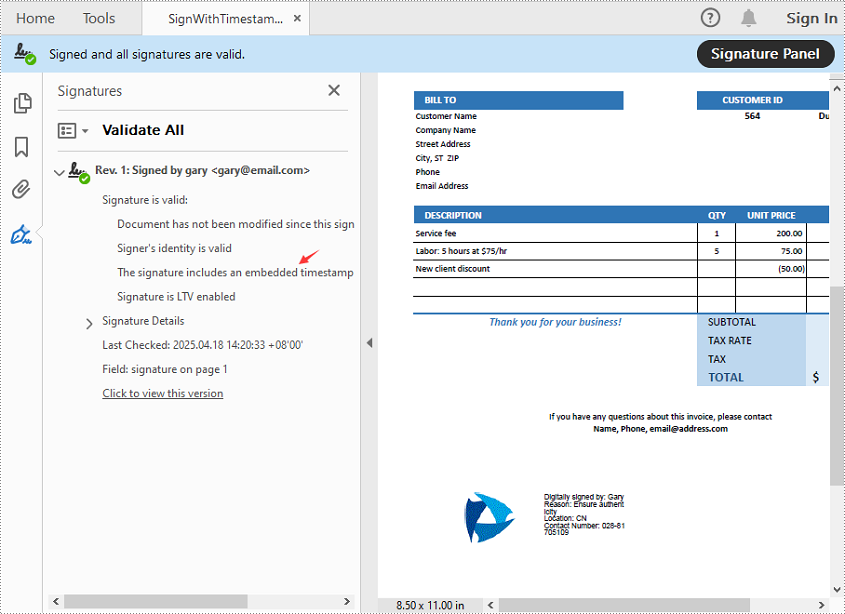
When you open the signed PDF in a viewer like Adobe Acrobat, you can click the Signature Panel to view both the digital signature and the timestamp, which confirm the document’s validity and the signing time:
Get a Free License
To fully experience the capabilities of Spire.PDF for Python without any evaluation limitations, you can request a free 30-day trial license.
Conclusion
Timestamping enhances the reliability of digital signatures by proving when a PDF was signed-even after the certificate has expired. With Spire.PDF for Python, implementing a timestamped digital signature is a straightforward process. Whether you're handling contracts, invoices, or confidential records, this approach ensures long-term document validity and compliance.
PostScript, developed by Adobe, is a page description language known for its high-quality graphics and text rendering capabilities. By converting PDF to PostScript, you can have a precise control over complex graphics, fonts and colors when printing brochures, magazines, advertisements, or other materials.
PCL, on the other hand, is a printer control language developed by Hewlett-Packard. It is designed to be efficient and easy for the printers to interpret. Converting PDF to PCL ensures compatibility with a large number of printers and also optimizes the printing speed for text-heavy documents such as academic reports, letters, or contracts.
This article will demonstrate how to convert PDF to PS or PDF to PCL in Python using Spire.PDF for Python.
Install Spire.PDF for Python
This scenario requires Spire.PDF for Python. It can be easily installed in your Windows through the following pip command.
pip install Spire.PDF
If you are unsure how to install, please refer to this tutorial: How to Install Spire.PDF for Python on Windows
Convert PDF to PostScript in Python
Converting PDF to PS can improve the quality of the printed output. Spire.PDF for .NET allows you to load a PDF file and then converting it to PS format using PdfDocument.SaveToFile(filename: string, FileFormat.POSTSCRIPT) method. The following are the detailed steps.
- Create a PdfDocument instance.
- Load a PDF file using PdfDocument.LoadFromFile() method.
- Save the PDF file to PostScript format using PdfDocument.SaveToFile(filename: string, FileFormat.POSTSCRIPT) method.
- Python
from spire.pdf.common import *
from spire.pdf import *

# Specify the input and output file paths
inputFile = "input1.pdf"
outputFile = "PdfToPostScript.ps"

# Create a PdfDocument instance
pdf = PdfDocument()

# Load a PDF document
pdf.LoadFromFile(inputFile)

# Convert the PDF to a PostScript file
pdf.SaveToFile(outputFile, FileFormat.POSTSCRIPT)
pdf.Close()

Convert PDF to PCL in Python
Converting PDF to PCL can ensure faster printing speed. By using the PdfDocument.SaveToFile(filename: string, FileFormat.PCL) method, you can save a loaded PDF file as a PCL file. The following are the detailed steps.
- Create a PdfDocument instance.
- Load a PDF file using PdfDocument.LoadFromFile() method.
- Save the PDF file to PCL format using PdfDocument.SaveToFile(filename: string, FileFormat.PCL) method.
- Python
from spire.pdf.common import *
from spire.pdf import *

# Specify the input and output file paths
inputFile = "input1.pdf"
outputFile = "ToPCL\\PdfToPcl.pcl"

# Create a PdfDocument instance
pdf = PdfDocument()

# Load a PDF document
pdf.LoadFromFile(inputFile)

# Convert the PDF to a PCL file
pdf.SaveToFile(outputFile, FileFormat.PCL)
pdf.Close()

Get a Free License
To fully experience the capabilities of Spire.PDF for Python without any evaluation limitations, you can request a free 30-day trial license.
