
Knowledgebase (2417)
Children categories

Creating PowerPoint presentations programmatically can save time and enhance efficiency in generating reports, slideshows, and other visual presentations. By automating the process, you can focus on content and design rather than manual formatting.
In this tutorial, we will explore how to create PowerPoint documents in Python using Spire.Presentation for Python. This powerful tool allows developers to manipulate and generate PPT and PPTX files seamlessly.
Table of Contents:
- Python Library to Work with PowerPoint Files
- Installing Spire.Presentation for Python
- Creating a PowerPoint Document from Scratch
- Creating PowerPoint Documents Based on a Template
- Best Practices for Python PowerPoint Generation
- Wrap Up
- FAQs
1. Python Library to Work with PowerPoint Files
Spire.Presentation is a robust library for creating, reading, and modifying PowerPoint files in Python , without requiring Microsoft Office. This library supports a wide range of features, including:
- Create PowerPoint documents from scratch or templates.
- Add text, images, lists, tables, charts, and shapes.
- Customize fonts, colors, backgrounds, and layouts.
- Save as or export to PPT, PPTX, PDF, or images.
In the following sections, we will walk through the steps to install the library, create presentations, and add various elements to your slides.
2. Installing Spire.Presentation for Python
To get started, you need to install the Spire.Presentation library. You can install it using pip:
pip install spire.presentation
Once installed, you can begin utilizing its features in your Python scripts to create PowerPoint documents.
3. Creating a PowerPoint Document from Scratch
3.1 Generate and Save a Blank Presentation
Let's start by creating a basic PowerPoint presentation from scratch. The following code snippet demonstrates how to generate and save a blank presentation:
from spire.presentation.common import *
from spire.presentation import *

# Create a Presentation object
presentation = Presentation()

# Set the slide size type
presentation.SlideSize.Type = SlideSizeType.Screen16x9

# Add a slide (there is one slide in the document by default)
presentation.Slides.Append()

# Save the document as a PPT or PPTX file
presentation.SaveToFile("BlankPowerPoint.pptx", FileFormat.Pptx2019)
presentation.Dispose()
In this code:
- Presentation : Root class representing the PowerPoint file.
- SlideSize.Type : Sets the slide dimensions (e.g., SlideSizeType.Screen16x9 for widescreen).
- Slides.Append() : Adds a new slide to the presentation. By default, a presentation starts with one slide.
- SaveToFile() : Saves the presentation to the specified file format (PPTX in this case).
3.2 Add Basic Elements to Your Slides
Now that we have a blank presentation, let's add some basic elements like text, images, lists, and tables.
Add Formatted Text
To add formatted text, we can use the following code:
# Get the first slide
first_slide = presentation.Slides[0]

# Add a shape to the slide
rect = RectangleF.FromLTRB (30, 60, 900, 150)
shape = first_slide.Shapes.AppendShape(ShapeType.Rectangle, rect)
shape.ShapeStyle.LineColor.Color = Color.get_Transparent()
shape.Fill.FillType = FillFormatType.none

# Add text to the shape
shape.AppendTextFrame("This guide demonstrates how to create a PowerPoint document using Python.")

# Get text of the shape as a text range
textRange = shape.TextFrame.TextRange

# Set font name, style (bold & italic), size and color
textRange.LatinFont = TextFont("Times New Roman")
textRange.IsBold = TriState.TTrue
textRange.FontHeight = 32
textRange.Fill.FillType = FillFormatType.Solid
textRange.Fill.SolidColor.Color = Color.get_Black()

# Set alignment
textRange.Paragraph.Alignment = TextAlignmentType.Left
In this code:
- AppendShape() : Adds a shape to the slide. We create a rectangle shape that will house our text.
- AppendTextFrame() : Adds a text frame to the shape, allowing us to insert text into it.
- TextFrame.TextRange : Accesses the text range of the shape, enabling further customization such as font style, size, and color.
- Paragraph.Alignment : Sets the alignment of the text within the shape.
Add an Image
To include an image in your presentation, use the following code snippet:
# Get the first slide
first_slide = presentation.Slides[0]

# Load an image file
imageFile = "C:\\Users\\Administrator\\Desktop\\logo.png"
stream = Stream(imageFile)
imageData = presentation.Images.AppendStream(stream)

# Reset size
width = imageData.Width * 0.6
height = imageData.Height * 0.6

# Append it to the slide
rect = RectangleF.FromLTRB (750, 50, 750 + width, 50 + height)
image = first_slide.Shapes.AppendEmbedImageByImageData(ShapeType.Rectangle, imageData, rect)
image.Line.FillType = FillFormatType.none
In this code:
- Stream() : Creates a stream from the specified image file path.
- AppendStream() : Appends the image data to the presentation's image collection.
- AppendEmbedImageByImageData() : Adds the image to the slide at the specified rectangle coordinates.
You may also like: Insert Shapes in PowerPoint in Python
Add a List
To add a bulleted list to your slide, we can use:
# Get the first slide
first_slide = presentation.Slides[0]

# Specify list bounds and content
listBounds = RectangleF.FromLTRB(30, 150, 500, 350)
listContent = [
    " Step 1. Install Spire.Presentation for Python.",
    " Step 2. Create a Presentation object.",
    " Step 3. Add text, images, etc. to slides.",
    " Step 5. Set a background image or color.",
    " Step 6. Save the presentation to a PPT(X) file."
]

# Add a shape
autoShape = first_slide.Shapes.AppendShape(ShapeType.Rectangle, listBounds)
autoShape.TextFrame.Paragraphs.Clear()
autoShape.Fill.FillType = FillFormatType.none
autoShape.Line.FillType = FillFormatType.none

for content in listContent:
    # Create paragraphs based on the list content and add them to the shape
    paragraph = TextParagraph()
    autoShape.TextFrame.Paragraphs.Append(paragraph)
    paragraph.Text = content
    paragraph.TextRanges[0].Fill.FillType = FillFormatType.Solid
    paragraph.TextRanges[0].Fill.SolidColor.Color = Color.get_Black()
    paragraph.TextRanges[0].FontHeight = 20
    paragraph.TextRanges[0].LatinFont = TextFont("Arial")

    # Set the bullet type for these paragraphs
    paragraph.BulletType = TextBulletType.Symbol

    # Set line spacing
    paragraph.LineSpacing = 150
In this code:
- AppendShape() : Creates a rectangle shape for the list.
- TextFrame.Paragraphs.Append() : Adds paragraphs for each list item.
- BulletType : Sets the bullet style for the list items.
Add a Table
To include a table, you can use the following:
# Get the first slide
first_slide = presentation.Slides[0]

# Define table dimensions and data
widths = [200, 200, 200]
heights = [18, 18, 18, 18]
dataStr = [
    ["Slide Number", "Title", "Content Type"],
    ["1", "Introduction", "Text/Image"],
    ["2", "Project Overview", "Chart/Graph"],
    ["3", "Key Findings", "Text/List"]
]

# Add table to the slide
table = first_slide.Shapes.AppendTable(30, 360, widths, heights)

# Fill table with data and apply formatting
for rowNum, rowData in enumerate(dataStr):
    for colNum, cellData in enumerate(rowData):
        cell = table[colNum, rowNum]
        cell.TextFrame.Text = cellData

        textRange = cell.TextFrame.Paragraphs[0].TextRanges[0]
        textRange.LatinFont = TextFont("Times New Roman")
        textRange.FontHeight = 20

        cell.TextFrame.Paragraphs[0].Alignment = TextAlignmentType.Center

# Apply a built-in table style
table.StylePreset = TableStylePreset.MediumStyle2Accent1
In this code:
- AppendTable() : Adds a table to the slide at specified coordinates with defined widths and heights for columns and rows.
- Cell.TextFrame.Text : Sets the text for each cell in the table.
- StylePreset : Applies a predefined style to the table for enhanced aesthetics.
3.3 Apply a Background Image or Color
To set a custom background for your slide, use the following code:
# Get the first slide
first_slide = presentation.Slides[0]

# Get the background of the first slide
background = first_slide.SlideBackground

# Create a stream from the specified image file
stream = Stream("C:\\Users\\Administrator\\Desktop\\background.jpg")
imageData = presentation.Images.AppendStream(stream)

# Set the image as the background
background.Type = BackgroundType.Custom
background.Fill.FillType = FillFormatType.Picture
background.Fill.PictureFill.FillType = PictureFillType.Stretch
background.Fill.PictureFill.Picture.EmbedImage = imageData
In this code:
- SlideBackground : Accesses the background properties of the slide.
- Fill.FillType : Specifies the type of fill (in this case, an image).
- PictureFill.FillType : Sets how the background image is displayed (stretched, in this case).
- Picture.EmbedImage : Sets image data for the background.
For additional background options, refer to this tutorial: Set Background Color or Picture for PowerPoint Slides in Python
Output:
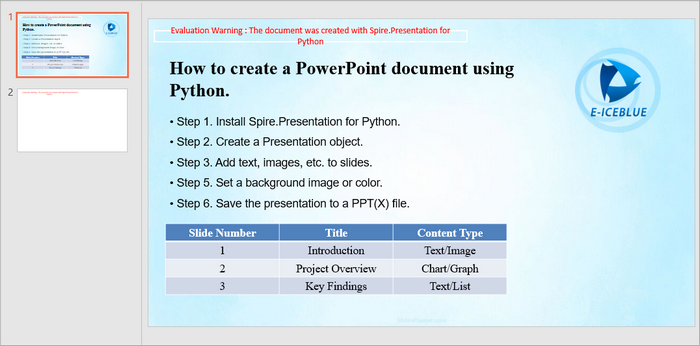
Below is a screenshot of the PowerPoint document generated by the code snippets provided above.
4. Creating PowerPoint Documents Based on a Template
Using templates can simplify the process of creating presentations by allowing you to replace placeholders with actual data. Below is an example of how to create a PowerPoint document based on a template:
from spire.presentation.common import *
from spire.presentation import *

# Create a Presentation object
presentation = Presentation()

# Load a PowerPoint document from a specified file path
presentation.LoadFromFile("C:\\Users\\Administrator\\Desktop\\template.pptx")

# Get a specific slide from the presentation
slide = presentation.Slides[0]

# Define a list of replacements where each tuple consists of the placeholder and its corresponding replacement text
replacements = [
    ("{project_name}", "GreenCity Solar Initiative"),
    ("{budget}", "$1,250,000"),
    ("{status}", "In Progress (65% Completion)"),
    ("{start_date}", "March 15, 2023"),
    ("{end_date}", "November 30, 2024"),
    ("{manager}", "Emily Carter"),
    ("{client}", "GreenCity Municipal Government")
]

# Iterate through each replacement pair
for old_string, new_string in replacements:

    # Replace the first occurrence of the old string in the slide with the new string
    slide.ReplaceFirstText(old_string, new_string, False)

# Save the modified presentation to a new file
presentation.SaveToFile("Template-Based.pptx", FileFormat.Pptx2019)
presentation.Dispose()
In this code:
- LoadFromFile() : Loads an existing PowerPoint file that serves as the template.
- ReplaceFirstText() : Replaces placeholders within the slide with actual values. This is useful for dynamic content generation.
- SaveToFile() : Saves the modified presentation as a new file.
Output:

5. Best Practices for Python PowerPoint Generation
When creating PowerPoint presentations using Python, consider the following best practices:
- Maintain Consistency : Ensure that the formatting (fonts, colors, styles) is consistent across slides for a professional appearance.
- Modular Code: Break document generation into functions (e.g., add_list(), insert_image()) for reusability.
- Optimize Images : Resize and compress images before adding them to presentations to reduce file size and improve loading times.
- Use Templates : Whenever possible, use templates to save time and maintain a cohesive design.
- Test Your Code : Always test your presentation generation code to ensure that all elements are added correctly and appear as expected.
6. Wrap Up
In this tutorial, we explored how to create PowerPoint documents in Python using the Spire.Presentation library. We covered the installation, creation of presentations from scratch, adding various elements, and using templates for dynamic content generation. With these skills, you can automate the creation of presentations, making your workflow more efficient and effective.
7. FAQs
Q1. What is Spire.Presentation?
Spire.Presentation is a powerful library used for creating, reading, and modifying PowerPoint files in various programming languages, including Python.
Q2. Does this library require Microsoft Office to be installed?
No, Spire.Presentation operates independently and does not require Microsoft Office.
Q3. Can I customize the layout of slides in my presentation?
Yes, you can customize the layout of each slide by adjusting properties such as size, background, and the placement of shapes, text, and images.
Q4. Does Spire.Presentation support both PPT and PPTX format?
Yes, Spire.Presentation supports both PPT and PPTX formats, allowing you to create and manipulate presentations in either format.
Q5. Can I add charts to my presentations?
Yes, Spire.Presentation supports the addition of charts to your slides, allowing you to visualize data effectively. For detailed instruction, refer to: How to Create Column Charts in PowerPoint Using Python
Get a Free License
To fully experience the capabilities of Spire.Presentation for Python without any evaluation limitations, you can request a free 30-day trial license.
Optical Character Recognition (OCR) technology bridges the physical and digital worlds by converting text within images into machine-readable data. For .NET developers, the ability to extract text from images in C# is essential for building intelligent document processing, automated data entry, and accessibility solutions.
In this article, we’ll explore how to implement OCR in C# using the Spire.OCR for .NET library, covering basic extraction, advanced features like coordinate tracking, and best practices to ensure accuracy and efficiency.
Table of Contents:
- Understanding OCR and Spire.OCR
- Setting Up Your OCR Environment
- Basic Recognition: Extract Text from Images in C#
- Advanced Extraction: Extract Text with Coordinates in C#
- Tips to Optimize OCR Accuracy
- FAQs (Supported Languages and Image Formats)
- Conclusion & Free License
Understanding OCR and Spire.OCR
What is OCR?
OCR technology analyzes images of text - such as scanned documents, screenshots, or photos - and converts them into text strings that can be edited, searched, or processed programmatically.
Why Spire.OCR Stands Out?
Spire.OCR for .NET is a powerful, developer-friendly library that enables highly accurate text recognition from images in C# applications. Key features include:
- Support for multiple languages (English, Chinese, Japanese, etc.).
- High accuracy recognition algorithms optimized for various fonts and styles.
- Text coordinate extraction for precise positioning.
- Batch processing capabilities.
- Compatibility with .NET Framework and .NET Core.
Setting Up Your OCR Environment
Before diving into the C# code for image to text OCR operations, configure your development environment first:
1. Install via NuGet:
Open the NuGet Package Manager in Visual Studio. Search for "Spire.OCR" and install the latest version in your project. Alternatively, use the Package Manager Console:
Install-Package Spire.OCR
2. Download OCR Models:
Spire.OCR relies on pre-trained models to recognize image text. Download the model files for your operating system:
After downloading, extract to a directory (e.g., F:\OCR Model\win-x64)
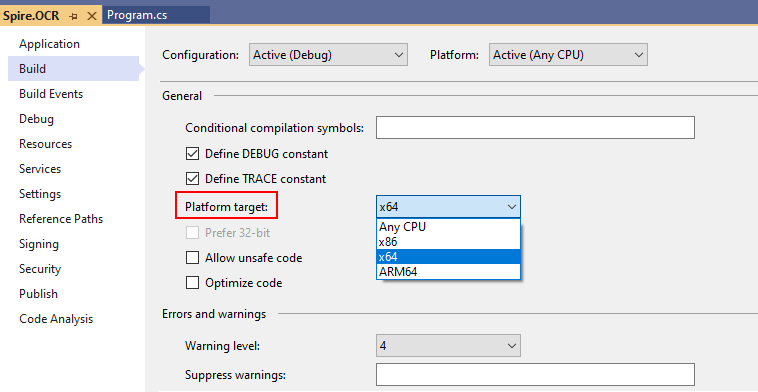
Important Note: Remember to change the platform target of your solution to x64 as Spire.OCR only supports 64-bit platforms.
Basic Recognition: Extract Text from Images in C#
Let’s start with a simple example that demonstrates how to read text from an image using Spire.OCR.
C# code to get text from an image:
using Spire.OCR;
using System.IO;

namespace OCRTextFromImage
{
    internal class Program
    {
        static void Main(string[] args)
        {

            // Create an instance of the OcrScanner class
            OcrScanner scanner = new OcrScanner();

            // Create an instance of the ConfigureOptions class
            ConfigureOptions configureOptions = new ConfigureOptions();

            // Set the path to the OCR model
            configureOptions.ModelPath = "F:\\OCR Model\\win-x64";

            // Set the language for text recognition. (The default is English.)
            configureOptions.Language = "English";

            // Apply the configuration options to the scanner
            scanner.ConfigureDependencies(configureOptions);

            // Scan image and extract text
            scanner.Scan("sample.png");

            // Save the extracted text to a txt file
            string text = scanner.Text.ToString();
            File.WriteAllText("output.txt", text);
        }
    }
}
Code Explanation:
- OcrScanner: Core class for text recognition.
- ConfigureOptions: Sets OCR parameters:
- ModelPath: Specifies the path to the OCR model files.
- Language: Defines the recognition language (e.g., "English", "Chinese").
- Scan(): Processes image and extracts text using the configured settings.
Output:
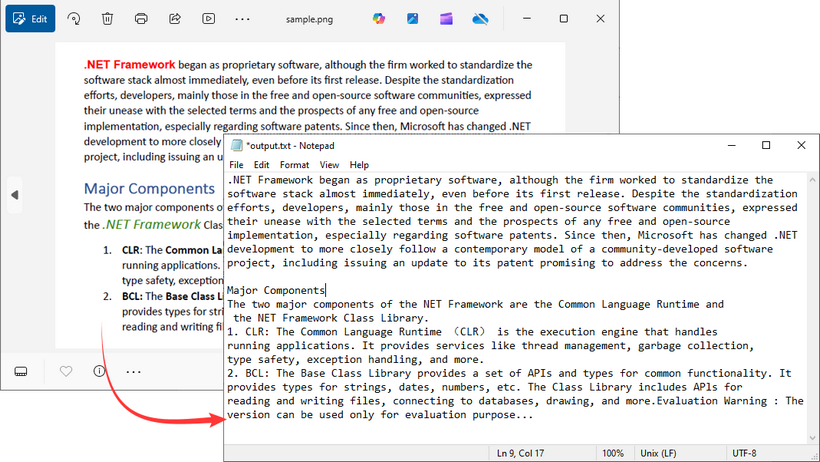
This C# code processes an image file (sample.png) and saves the extracted text to a text file (output.txt) using File.WriteAllText().
Advanced Extraction: Extract Text with Coordinates in C#
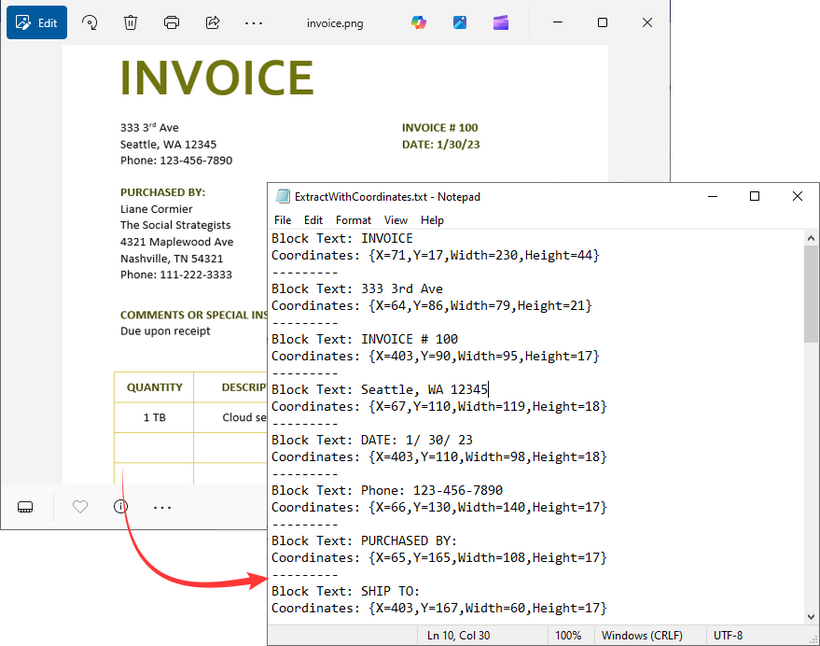
In many cases, knowing the position of extracted text within an image is as important as the text itself - for example, when processing invoices, forms, or structured documents. Spire.OCR allows you to extract not just text but also the coordinates of the text blocks, enabling precise analysis.
C# code to extract text with coordinates from an Image:
using Spire.OCR;
using System.Collections.Generic;
using System.IO;

namespace OCRWithCoordinates
{
    internal class Program
    {
        static void Main(string[] args)
        {

            // Create an instance of the OcrScanner class
            OcrScanner scanner = new OcrScanner();

            // Create an instance of the ConfigureOptions class
            ConfigureOptions configureOptions = new ConfigureOptions();

            // Set the path to the OCR model
            configureOptions.ModelPath = "F:\\OCR Model\\win-x64";

            // Set the language for text recognition. (The default is English.)
            configureOptions.Language = "English";

            // Apply the configuration options to the scanner
            scanner.ConfigureDependencies(configureOptions);

            // Extract text from an image
            scanner.Scan("invoice.png");

            // Get the OCR result text
            IOCRText text = scanner.Text;

            // Create a list to store information
            List<string> results = new List<string>();

            // Iterate through each block of the OCR result text
            foreach (IOCRTextBlock block in text.Blocks)
            {
                // Add the text of each block and its location information to the list
                results.Add($"Block Text: {block.Text}");
                results.Add($"Coordinates: {block.Box}");
                results.Add("---------");
            }

            // Save the extracted text with coordinates to a txt file
            File.WriteAllLines("ExtractWithCoordinates.txt", results);
        }
    }
}
Critical Details
- IOCRText: Represents the entire OCR result.
- IOCRTextBlock: Represents a block of contiguous text (e.g., a paragraph, line, or word).
- IOCRTextBlock.Box: Contains the rectangular coordinates of the text block:
- X (horizontal position)
- Y (vertical position)
- Width
- Height
Output:
This C# code performs OCR on an image file (invoice.png), extracting both the recognized text and its position coordinates in the image, then saves this information to a text file (ExtractWithCoordinates.txt).
Tips to Optimize OCR Accuracy
To ensure reliable results when using C# to recognize text from images, consider these best practices:
- Use high-resolution images (300 DPI or higher).
- Preprocess images (e.g., resize, deskew) for better results.
- Ensure correct language settings correspond to the text in image.
- Store OCR models in a secure, accessible location.
FAQs (Supported Languages and Image Formats)
Q1: What image formats does Spire.OCR support?
A: Spire.OCR supports all common formats:
- PNG
- JPEG/JPG
- BMP
- TIFF
- GIF
Q2: What languages does Spire.OCR support?
A: Multiple languages are supported:
- English (default)
- Chinese (Simplified and Traditional)
- Japanese
- Korean
- German
- French
Q3: Can I use Spire.OCR in ASP.NET Core applications?
A: Yes. Supported environments:
- .NET Framework 2.0+
- .NET Standard 2.0+
- .NET Core 2.0+
- .NET 5
Q4: Can Spire.OCR extract text from scanned PDFs in C#?
A: The task requires the Spire.PDF integration to convert PDFs to images or extract images from scanned PDFs first, and then use the above C# examples to get text from the images.
Conclusion & Free License
Spire.OCR for .NET provides a powerful yet straightforward solution for extracting text from images in C# applications. Whether you’re building a simple tool to convert images to text or a complex system for processing thousands of invoices, by following the techniques and best practices outlined in this guide, you can integrate OCR functionality into your C# applications with ease.
Request a 30-day trial license here to get unlimited OCR capabilities and unlock valuable information trapped in visual format.
 In daily work, extracting text from PDF files is a common task. For standard digital documents—such as those exported from Word to PDF—this process is usually straightforward. However, things get tricky when dealing with scanned PDFs, which are essentially images of printed documents. In such cases, traditional text extraction methods fail, and OCR (Optical Character Recognition) becomes necessary to recognize and convert the text within images into editable content.
In this article, we’ll walk through how to perform PDF OCR using Python to automate this workflow and significantly reduce manual effort.
- Why OCR is Needed for PDF Text Extraction
- Best Python OCR Libraries for PDF Processing
- Convert PDF Pages to Images Using Python
- Scan and Extract Text from Images Using Spire.OCR
- Conclusion
Why OCR is Needed for PDF Text Extraction
When it comes to extracting text from PDF files, one important factor that determines your approach is the type of PDF. Generally, PDFs fall into two categories: scanned (image-based) PDFs and searchable PDFs. Each requires a different strategy for text extraction.
-
Scanned PDFs are typically created by digitizing physical documents such as books, invoices, contracts, or magazines. While the text appears readable to the human eye, it's actually embedded as an image—making it inaccessible to traditional text extraction tools. Older digital files or password-protected PDFs may also lack an actual text layer.
-
Searchable PDFs, on the other hand, contain a hidden text layer that allows computers to search, copy, or parse the content. These files are usually generated directly from applications like Microsoft Word or PDF editors and are much easier to process programmatically.
This distinction highlights the importance of OCR (Optical Character Recognition) when working with scanned PDFs. With tools like Python PDF OCR, we can convert these image-based PDFs into images, run OCR to recognize the text, and extract it for further use—all in an automated way.
Best Python OCR Libraries for PDF Processing
Before diving into the implementation, let’s take a quick look at the tools we’ll be using in this tutorial. To simplify the process, we’ll use Spire.PDF for Python and Spire.OCR for Python to perform PDF OCR in Python.
- Spire.PDF will handle the conversion from PDF to images.
- Spire.OCR, a powerful OCR tool for PDF files, will recognize the text in those images and extract it as editable content.
You can install Spire.PDF using the following pip command:
pip install spire.pdf
and install Spire.OCR with:
pip install spire.ocr
Alternatively, you can download and install them manually by visiting the official Spire.PDF and Spire.OCR pages.
Convert PDF Pages to Images Using Python
Before we dive into Python PDF OCR, it's crucial to understand a foundational step: OCR technology doesn't directly process PDF files. Especially with image-based PDFs (like those created from scanned documents), we first need to convert them into individual image files.
Converting PDFs to images using the Spire.PDF library is straightforward. You simply load your target PDF document and then iterate through each page. For every page, call the PdfDocument.SaveAsImage() method to save it as a separate image file. Once this step is complete, your images are ready for the subsequent OCR process.
Here's a code example showing how to convert PDF to PNG:
from spire.pdf import *

# Load the PDF file
pdf = PdfDocument()
pdf.LoadFromFile("/AI-Generated Art.pdf")

# Loop through pages and save as images
for i in range(pdf.Pages.Count):
    # Convert each page to image
    with pdf.SaveAsImage(i) as image:

        # Save in different formats as needed
        image.Save(f"/output/pdftoimage/ToImage_{i}.png")
        # image.Save(f"Output/ToImage_{i}.jpg")
        # image.Save(f"Output/ToImage_{i}.bmp")

# Close the PDF document
pdf.Close()
Conversion result preview: 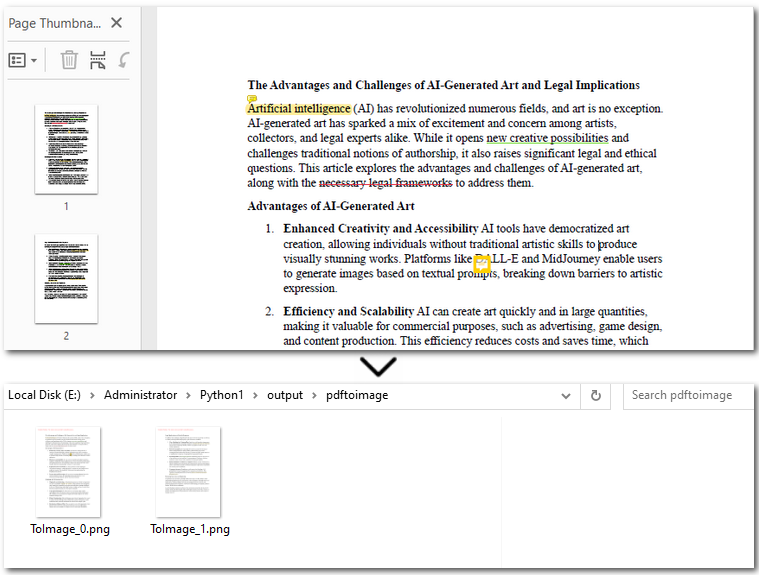
Scan and Extract Text from Images Using Spire.OCR
After converting the scanned PDF into images, we can now move on to OCR PDF with Python and to extract text from the PDF. With OcrScanner.Scan() from Spire.OCR, recognizing text in images becomes straightforward. It supports multiple languages such as English, Chinese, French, and German. Once the text is extracted, you can easily save it to a .txt file or generate a Word document.
The code example below shows how to OCR the first PDF page and export to text in Python:
from spire.ocr import *

# Create OCR scanner instance
scanner = OcrScanner()

# Configure OCR model path and language
configureOptions = ConfigureOptions()
configureOptions.ModelPath = r'E:/DownloadsNew/win-x64/'
configureOptions.Language = 'English'
scanner.ConfigureDependencies(configureOptions)

# Perform OCR on the image
scanner.Scan(r'/output/pdftoimage/ToImage_0.png')

# Save extracted text to file
text = scanner.Text.ToString()
with open('/output/scannedpdfoutput.txt', 'a', encoding='utf-8') as file:
    file.write(text + '\n')
Result preview: 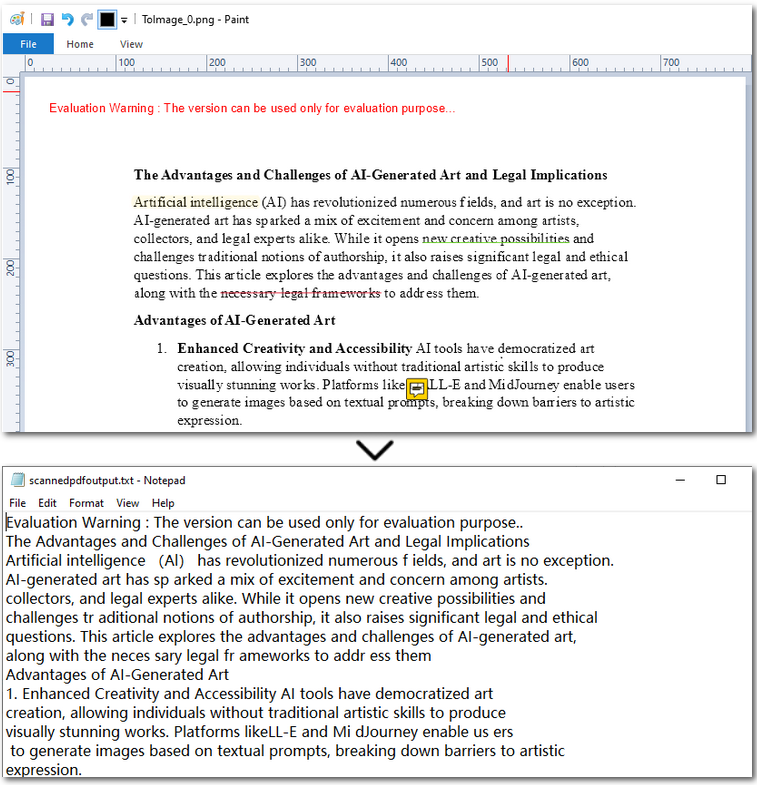
The Conclusion
In this article, we covered how to perform PDF OCR with Python—from converting PDFs to images, to recognizing text with OCR, and finally saving the extracted content as a plain text file. With this streamlined approach, extracting text from scanned PDFs becomes effortless. If you're looking to automate your PDF processing workflows, feel free to reach out and request a 30-day free trial. It’s time to simplify your document management.
