
Knowledgebase (2417)
Children categories
Python Tutorial: Delete Text Boxes in PowerPoint Automatically
2025-06-12 07:00:22 Written by AdministratorText boxes are one of the most common elements used to display content in PowerPoint. However, as slides get frequently edited, you may end up with a clutter of unnecessary text boxes. Manually deleting them can be time-consuming. This guide will show you how to delete text boxes in PowerPoint using Python. Whether you want to delete all text boxes, remove a specific one, or clean up only the empty ones, you'll learn how to do it in just a few lines of code — saving time and making your workflow much more efficient. 
- Install the Python Library
- Delete All Text Boxes
- Delete a Specific Text Box
- Delete Empty Text Boxes
- Compare All Three Methods
- FAQs
Install the Python Library for PowerPoint Automation
To make this task easier, installing the right Python library is essential. In this guide, we’ll use Spire.Presentation for Python to demonstrate how to automate the removal of text boxes in a PowerPoint file. As a standalone third-party component, Spire.Presentation doesn’t require Microsoft Office to be installed on your machine. Its API is simple and beginner-friendly, and installation is straightforward — just run:
pip install spire.presentation
Alternatively, you can download the package for custom installation. A free version is also available, which is great for small projects and testing purposes.
How to Delete All Text Boxes in PowerPoint
Let’s start by looking at how to delete all text boxes — a common need when you're cleaning up a PowerPoint template. Instead of adjusting each text box and its content manually, it's often easier to remove them all and then re-add only what you need. With the help of Spire.Presentation, you can use the IAutoShape.Remove() method to remove text boxes in just a few lines of code. Let’s see how it works in practice. Steps to delete all text boxes in a PowerPoint presentation with Python:
- Create an instance of Presentation class, and load a sample PowerPoint file.
- Loop through all slides and all shapes on slides, and check if the shape is IAutoShape and if it is a text box.
- Remove text boxes in the PowerPoint presentation through IAutoShape.Remove() method.
- Save the modified PowerPoint file.
The following is a complete code example for deleting all text boxes in a PowerPoint presentation:
from spire.presentation import *

# Create a Presentation object and load a PowerPoint file
presentation = Presentation()
presentation.LoadFromFile("E:/Administrator/Python1/input/pre1.pptx")

# Loop through all slides
for slide in presentation.Slides:
    # Loop through all shapes in the slide
    for i in range(slide.Shapes.Count - 1, -1, -1):
        shape = slide.Shapes[i]
        # Check if the shape is IAutoShape and is a text box
        if isinstance(shape, IAutoShape) and shape.IsTextBox:
            # Remove the shape
            slide.Shapes.Remove(shape)

# Save the modified presentation
presentation.SaveToFile("E:/Administrator/Python1/output/RemoveAllTextBoxes.pptx", FileFormat.Pptx2013)
presentation.Dispose()
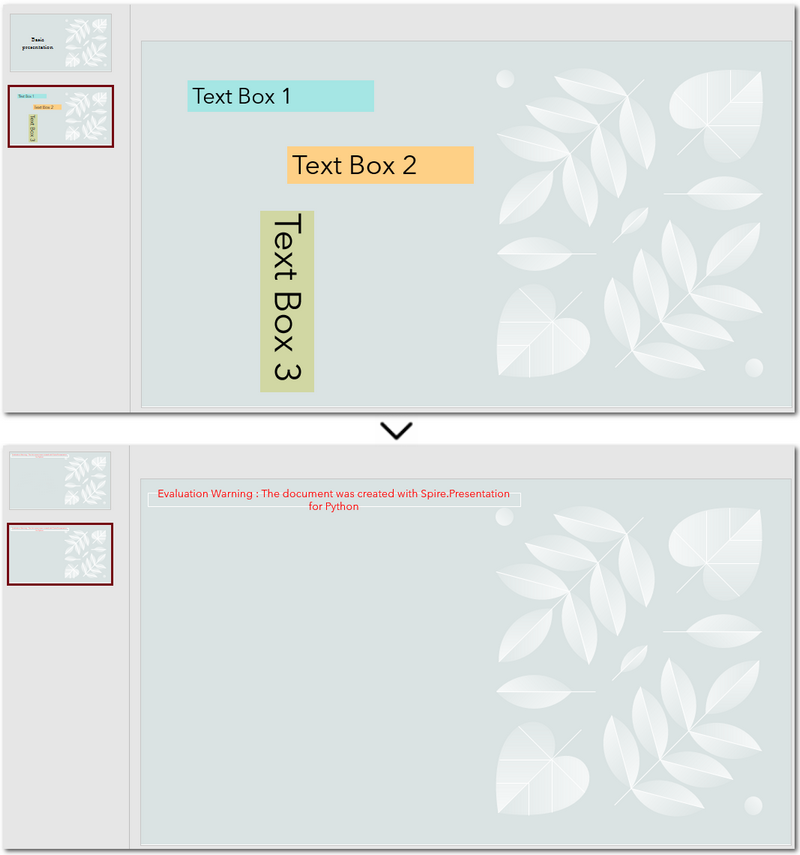
Warm Tip: When looping through shapes, use reverse order to avoid skipping any elements after deletion.
How to Delete a Specific Text Box in PowerPoint
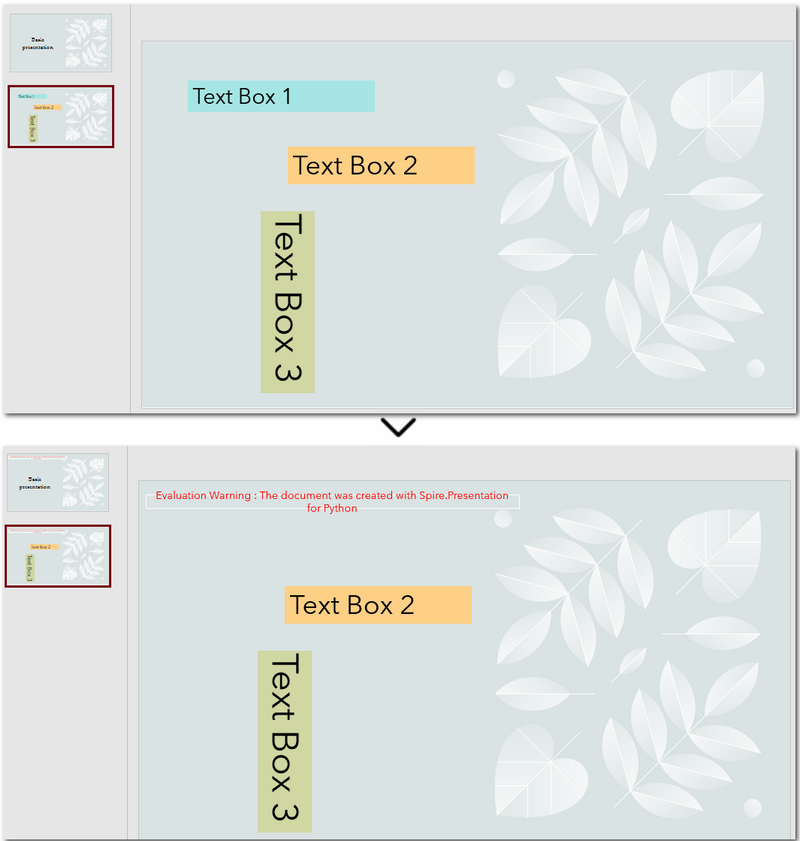
If you only need to remove a few specific text boxes — for example, the first text box on the second slide — this method is perfect for you. In Python, you can first locate the target slide by its index, then identify the text box by its content, and finally remove it. This approach gives you precise control when you know exactly which text box needs to be deleted. Let’s walk through how to do this in practice. Steps to delete a specific text box in PowerPoint using Python:
- Create an object of Presentation class and read a PowerPoint document.
- Get a slide using Presentation.Slides[] property.
- Loop through each shape on the slide and check if it is the target text box.
- Remove the text box through IAutoShape.Remove() method.
- Save the modified PowerPoint presentation.
The following code demonstrates how to delete a text box with the content "Text Box 1" on the second slide of the presentation:
from spire.presentation import *

# Create a new Presentation object and load a PowerPoint file
presentation = Presentation()
presentation.LoadFromFile("E:/Administrator/Python1/input/pre1.pptx")

# Get the second slide
slide = presentation.Slides[1]

# Loop through all shapes on the slide
for i in range(slide.Shapes.Count - 1, -1, -1):
    shape = slide.Shapes[i]
    # Check if the shape is a text box and its text is "Text Box 1"
    if isinstance(shape, IAutoShape) and shape.IsTextBox:
        if shape.TextFrame.Text.strip() == "Text Box 1":
            slide.Shapes.Remove(shape)

# Save the modified presentation
presentation.SaveToFile("E:/Administrator/Python1/output/RemoveSpecificTextbox.pptx", FileFormat.Pptx2013)
presentation.Dispose()
How to Delete Empty Text Boxes in PowerPoint
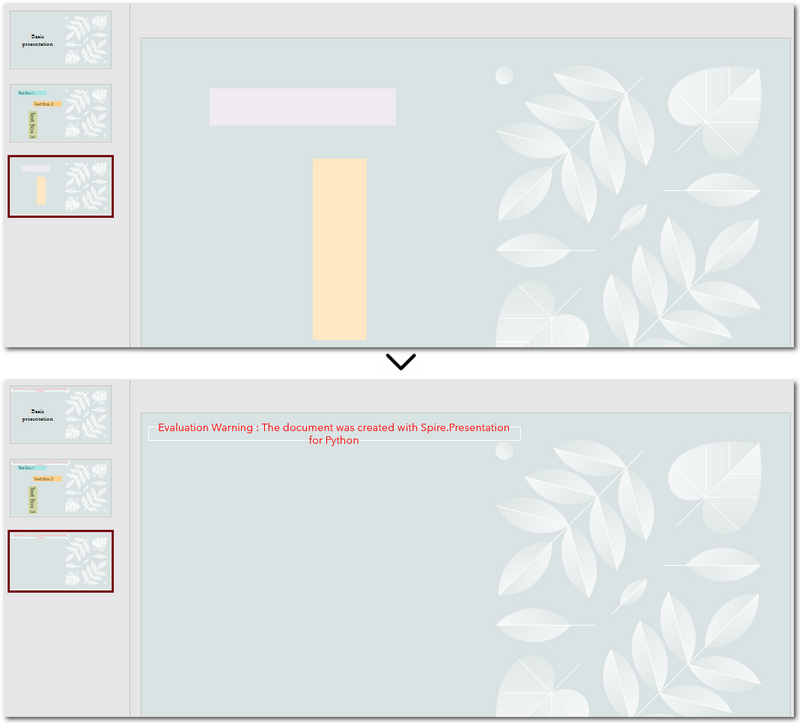
Another common scenario is removing all empty text boxes from a PowerPoint file — especially when you're cleaning up slides exported from other tools or merging multiple presentations and want to get rid of unused placeholders. Instead of checking each slide manually, automating the process with Python allows you to quickly remove all blank text boxes and keep only the meaningful content. It’s a far more efficient approach. Steps to delete empty text boxes in PowerPoint file using Python:
- Create an object of Presentation class, and load a PowerPoint file.
- Loop through all slides and all shapes on slides.
- Check if the shape is a text box and is empty.
- Remove text boxes in the PowerPoint presentation through IAutoShape.Remove() method.
- Save the modified PowerPoint file.
Here's the code example that shows how to delete empty text boxes in a PowerPoint presentation:
from spire.presentation import *

# Create a Presentation instance and load a sample file
presentation = Presentation()
presentation.LoadFromFile("E:/Administrator/Python1/input/pre1.pptx")

# Loop through each slide
for slide in presentation.Slides:
    # Iterate through shapes
    for i in range(slide.Shapes.Count - 1, -1, -1):
        shape = slide.Shapes[i]
        # Check if the shape is a textbox and its text is empty
        if isinstance(shape, IAutoShape) and shape.IsTextBox:
            text = shape.TextFrame.Text.strip()
            # Remove the shape if it is empty
            if not text:
                slide.Shapes.Remove(shape)

# Save the result file
presentation.SaveToFile("E:/Administrator/Python1/output/RemoveEmptyTextBoxes.pptx", FileFormat.Pptx2013)
presentation.Dispose()
Compare All Three Methods: Which One Should You Use?
Each of the three methods we've discussed has its own ideal use case. If you're still unsure which one fits your needs after reading through them, the table below will help you compare them at a glance — so you can quickly pick the most suitable solution.
| Method | Best For | Keeps Valid Content? |
|---|---|---|
| Delete All Text Boxes | Cleaning up entire templates or resetting slides | ❌ No |
| Delete Specified Text Box | When you know exactly which text box to remove (e.g., slide 2, shape 1) | ✅ Yes |
| Delete Empty Text Boxes | Cleaning up imported or merged presentations | ✅ Yes |
Conclusion and Best Practice
Whether you're refreshing templates, fine-tuning individual slides, or cleaning up empty placeholders, automating PowerPoint with Python can save you hours of manual work. Choose the method that fits your workflow best — and start making your presentations cleaner and more efficient today.
FAQs about Deleting Text Boxes in PowerPoint
Q1: Why can't I delete a text box in PowerPoint?
A: One common reason is that the text box is placed inside the Slide Master layout. In this case, it can’t be selected or deleted directly from the normal slide view. You’ll need to go to the View → Slide Master tab, locate the layout, and delete it from there.
Q2: How can I delete a specific text box using Python?
A: You can locate the specific text box by accessing the slide and then searching for the shape based on its index or text content. Once identified, use the IAutoShape.Remove() method to delete it. This is useful when you know exactly which text box needs to be removed.
Q3: Is it possible to remove a text box without deleting the content?
A: If you want to keep the content but remove the text box formatting (like borders or background), you can extract the text before deleting the shape and reinsert it elsewhere — for example, as a plain paragraph. However, PowerPoint doesn’t natively support detaching text from its container without removing the shape.
How to Extract Text from Image Using Python (OCR Code Examples)
2025-06-11 01:58:59 Written by Administrator
Extracting text from images using Python is a widely used technique in OCR-driven workflows such as document digitization, form recognition, and invoice processing. Many important documents still exist only as scanned images or photos, making it essential to convert visual information into machine-readable text.
With the help of powerful Python libraries, you can easily perform text extraction from image files with Python — even for multilingual documents or layout-sensitive content. In this article, you’ll learn how to use Python to extract text from an image, through practical OCR examples, useful tips, and proven methods to improve recognition accuracy.
The guide is structured as follows:
- Powerful Python Library to Extract Text from Image
- Step-by-Step: Python Code to Extract Text from Image
- Real-World Use Cases for Text Extraction from Images
- Supported Languages and Image Formats
- How to Improve OCR Accuracy (Best Practices)
- FAQ
Powerful Python Library to Extract Text from Image
Spire.OCR for Python is a powerful OCR library for Python, especially suited for applications requiring structured layout extraction and multilingual support. This Python OCR engine supports:
- Text recognition with layout and position information
- Multilingual support (English, Chinese, French, etc.)
- Supports multiple image formats including JPG, PNG, BMP, GIF, and TIFF
Setup: Install Dependencies and OCR Models
Before extracting text from images using Python, you need to install the spire.ocr library and download the OCR model files compatible with your operating system.
1. Install the Spire.OCR Python Package
Use pip to install the Spire.OCR for Python package:
pip install spire.ocr
2. Download the OCR Model Package
Download the OCR model files based on your OS:
- Windows: win-x64.zip
- Linux: linux.zip
- macOS: mac.zip
- linux_aarch: linux_aarch.zip
After downloading, extract the files and set the model path in your Python script when configuring the OCR engine.
Step-by-Step: Python Code to Extract Text from Image
In this section, we’ll walk through different ways to extract text from images using Python — starting with a simple plain-text extraction, and then moving to more advanced structured recognition.
Basic OCR Text Extraction (Image to Plain Text)
Here’s how to extract plain text from an image using Python:
from spire.ocr import *

# Create OCR scanner instance
scanner = OcrScanner()

# Configure OCR model path and language
configureOptions = ConfigureOptions()
configureOptions.ModelPath = r'D:\OCR\win-x64'
configureOptions.Language = 'English'
scanner.ConfigureDependencies(configureOptions)

# Perform OCR on the image
scanner.Scan(r'Sample.png')

# Save extracted text to file
text = scanner.Text.ToString()
with open('output.txt', 'a', encoding='utf-8') as file:
    file.write(text + '\n')
Optional: Clean and Preprocess Extracted Text (Post-OCR)
After OCR, the output may contain empty lines or noise. This snippet shows how to clean the text:
# Clean extracted text: remove empty or short lines
clean_lines = [line.strip() for line in text.split('\n') if len(line.strip()) > 2]
cleaned_text = '\n'.join(clean_lines)

# Save to a clean version
with open('output_clean.txt', 'w', encoding='utf-8') as file:
    file.write(cleaned_text)
Use Case: Useful for post-processing OCR output before feeding into NLP tasks or database storage.
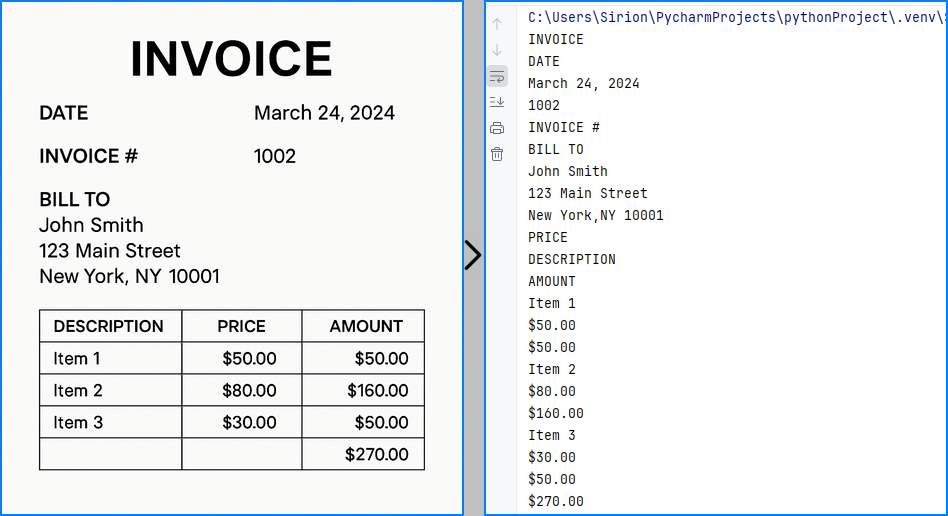
Here’s an example of plain-text OCR output using Spire.OCR:
Extract Text from Image with Coordinates
In forms or invoices, you may need both text content and layout. The code below outputs each block’s bounding box info:
from spire.ocr import *

scanner = OcrScanner()

configureOptions = ConfigureOptions()
configureOptions.ModelPath = r'D:\OCR\win-x64'
configureOptions.Language = 'English'
scanner.ConfigureDependencies(configureOptions)

scanner.Scan(r'sample.png')
text = scanner.Text

# Extract block-level text with position
block_text = ""
for block in text.Blocks:
    rectangle = block.Box
    block_info = f'{block.Text} -> x: {rectangle.X}, y: {rectangle.Y}, w: {rectangle.Width}, h: {rectangle.Height}'
    block_text += block_info + '\n'

with open('output.txt', 'a', encoding='utf-8') as file:
    file.write(block_text + '\n')
Extract Text from Multiple Images in a Folder
You can also batch process a folder of images:
import os
from spire.ocr import *

def extract_text_from_folder(folder_path, model_path):
    scanner = OcrScanner()
    config = ConfigureOptions()
    config.ModelPath = model_path
    config.Language = 'English'
    scanner.ConfigureDependencies(config)

    for filename in os.listdir(folder_path):
        if filename.lower().endswith(('.png', '.jpg', '.jpeg')):
            image_path = os.path.join(folder_path, filename)
            scanner.Scan(image_path)
            text = scanner.Text.ToString()

            # Save each result as a separate file
            output_file = os.path.splitext(filename)[0] + '_output.txt'
            with open(output_file, 'w', encoding='utf-8') as f:
                f.write(text)

# Example usage
extract_text_from_folder(r'D:\images', r'D:\OCR\win-x64')
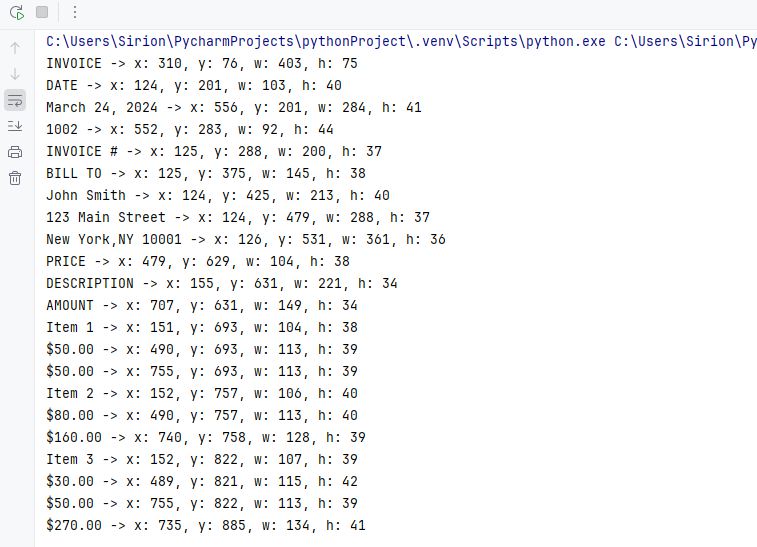
The recognized text blocks with position information are shown below:
Real-World Use Cases for Text Extraction from Images
Python-based OCR can be applied in:
- ✅ Invoice and receipt scanning
- ✅ Identity document OCR (passport, license)
- ✅ Business card digitization
- ✅ Form and survey data extraction
- ✅ Multilingual document indexing
Tip: For text extraction from PDF documents instead of images, you might also want to explore this tutorial on extracting text from PDF using Python.
Supported Languages and Image Formats
Spire.OCR supports multiple languages and a wide range of image formats for broader application scenarios.
Supported Languages:
- English
- Simplified / Traditional Chinese
- French
- German
- Japanese
- Korean
You can set the language using configureOptions.Language.
Supported Image Formats:
- JPG / JPEG
- PNG
- BMP
- GIF
- TIFF
How to Improve OCR Accuracy (Best Practices)
For better OCR text extraction from images using Python, follow these tips:
- Use high-resolution images (≥300 DPI)
- Preprocess with grayscale, thresholding, or denoising
- Avoid skewed or noisy scans
- Match the OCR language with the image content
FAQ
How to extract text from an image in Python code?
To extract text from an image using Python, you can use an OCR library like Spire.OCR for Python. With just a few lines of Python code, you can recognize text in scanned documents or photos and convert it into editable, searchable content.
What is the best Python library to extract text from image?
Spire.OCR for Python is a powerful Python OCR library that offers high-accuracy recognition, multilingual support, and layout-aware output. It also works seamlessly with Spire.Office components, allowing full automation — such as saving extracted text to Excel, Word, or searchable PDFs. You can also explore open-source tools to build your Python text extraction from image projects, depending on your specific needs and preferences.
How to extract data (including position) from image in Python?
When performing text extraction from image using Python, Spire.OCR provides not just the recognized text, but also bounding box coordinates for each block — ideal for processing structured content like tables, forms, or receipts.
How to extract text using Python from scanned PDF files?
To perform text extraction from scanned PDF files using Python, you can first convert each PDF page into an image, then apply OCR using Spire.OCR for Python. For this, we recommend using Spire.PDF for Python — it allows you to save PDF pages as images or directly extract embedded images from scanned PDFs, making it easy to integrate with your OCR pipeline.
Conclusion: Efficient Text Extraction from Images with Python
Thanks to powerful libraries like Spire.OCR, text extraction from images in Python is both fast and reliable. Whether you're processing receipts or building an intelligent OCR pipeline, this approach gives you precise control over both content and layout.
If you want to remove usage limitations of Spire.OCR for Python, you can apply for a free temporary license.
How to Read PDF Files in Python – Text, Tables, Images, and More
2025-06-06 08:07:20 Written by jie zou
Reading PDF files using Python is essential for tasks like document automation, content analysis, and data scraping. Whether you're working with contracts, reports, invoices, or scientific papers, being able to programmatically access PDF content saves time and enables powerful workflows.
To reliably read PDF content in Python — including text, tables, images, and metadata — you need a reliable Python PDF reader. In this guide, we’ll show you how to read PDFs in Python using Spire.PDF for Python, a professional and easy-to-use library that supports full-featured PDF reading without relying on any third-party tools.
Here's what's covered:
- Preparing Your Environment
- Load a PDF File in Python
- Read Text from PDF Pages in Python
- Read Table Data from PDFs in Python
- Read Images from PDFs in Python
- Read PDF Metadata (Title, Author, etc.)
- Common Questions on Reading PDFs
Environment Setup for Reading PDFs in Python
Spire.PDF for Python is a powerful Python PDF reader that allows users to read PDF content with simple Python code, including text, tables, images, and metadata. It offers a developer-friendly interface and supports a wide range of PDF reading operations:
- Read PDF files from disk or memory
- Access text, tables, metadata, and images
- No need for third-party tools
- High accuracy for structured data reading
- Free version available
It’s suitable for developers who want to read and process PDFs with minimal setup.
You can install Spire.PDF for Python via pip:
pip install spire.pdf
Or the free version Free Spire.PDF for Python for small tasks:
pip install spire.pdf.free
Load a PDF File in Python
Before accessing content, the first step is to load the PDF into memory. Spire.PDF lets you read PDF files from a path on disk or directly from in-memory byte streams — ideal for reading from web uploads or APIs.
Read PDF from File Path
To begin reading a PDF in Python, load the file using PdfDocument.LoadFromFile(). This creates a document object you can use to access content.
from spire.pdf import PdfDocument

# Create a PdfDocument instance
pdf = PdfDocument()
# Load a PDF document
pdf.LoadFromFile("sample.pdf")
Read PDF from Bytes (In-Memory)
To read a PDF file from memory without saving it to disk, you can first load its byte content and then initialize a PdfDocument using a Stream object. This method is especially useful when handling PDF files received from web uploads, APIs, or temporary in-memory data.
from spire.pdf import PdfDocument, Stream

# Read the PDF file to a byte array
with open("sample.pdf", "rb") as f:
    byte_data = f.read()

# Create a stream using the byte array
pdfStream = Stream(byte_data)
# Create a PdfDocument using the stream
pdf = PdfDocument(pdfStream)
To go further, check out this guide: Loading and Saving PDFs via Byte Streams in Python
Read Text from PDF Pages in Python
Reading text from a PDF file is one of the most common use cases in document automation. With Spire.PDF, you can easily retrieve all visible text from the entire PDF or from individual pages using simple methods.
Read All Text from PDF
To extract all text from a PDF, loop through each page and call PdfTextExtractor.ExtractText() to collect visible text content.
from spire.pdf import PdfDocument, PdfTextExtractor, PdfTextExtractOptions

# Create a PdfDocument instance
pdf = PdfDocument()
# Load a PDF document
pdf.LoadFromFile("sample.pdf")

all_text = ""
# Loop through each page
for pageIndex in range(pdf.Pages.Count):
    page = pdf.Pages.get_Item(pageIndex)
    # Create a PdfTextExtract instance
    text_extractor = PdfTextExtractor(page)
    # Configure extracting options
    options = PdfTextExtractOptions()
    options.IsExtractAllText = True
    options.IsSimpleExtraction = True
    # Extract text from the current page
    all_text += text_extractor.ExtractText(options)
print(all_text)
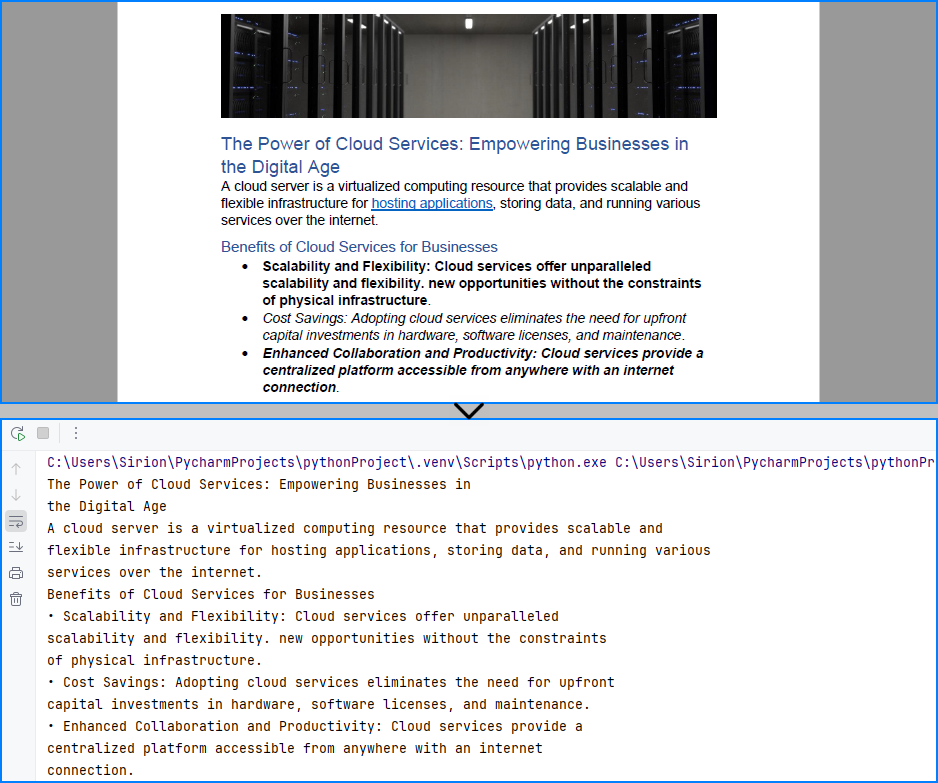
Sample text content retrieved:
Read Text from Specific Area of a Page
You can also read text from a defined region of a page using a bounding box. This is useful when only a portion of the layout contains relevant information.
from spire.pdf import RectangleF, PdfDocument, PdfTextExtractor, PdfTextExtractOptions

# Load the PDF file
pdf = PdfDocument()
pdf.LoadFromFile("sample.pdf")

# Get the first page
page = pdf.Pages.get_Item(0)
# Create a PdfTextExtractor instance
textExtractor = PdfTextExtractor(page)
# Set the area to extract text by configuring the PdfTextExtractOptions
options = PdfTextExtractOptions()
area = RectangleF.FromLTRB(0, 200, page.Size.Width, 270)  # x, y, width, height
options.ExtractArea = area
options.IsSimpleExtraction = True

# Extract text from the area
text = textExtractor.ExtractText(options)
print(text)
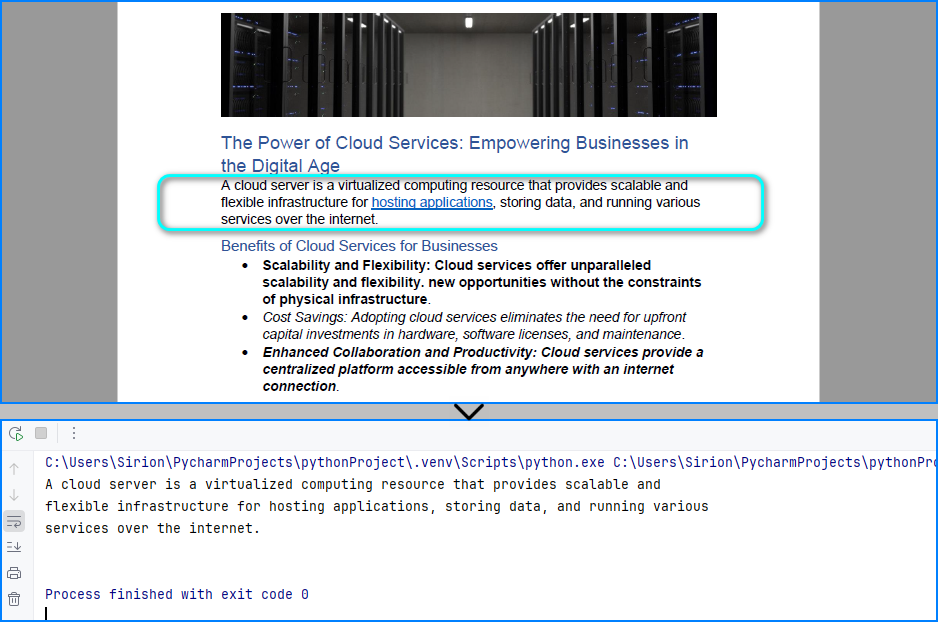
The text read from the PDF page area:
Read Table Data from PDFs in Python
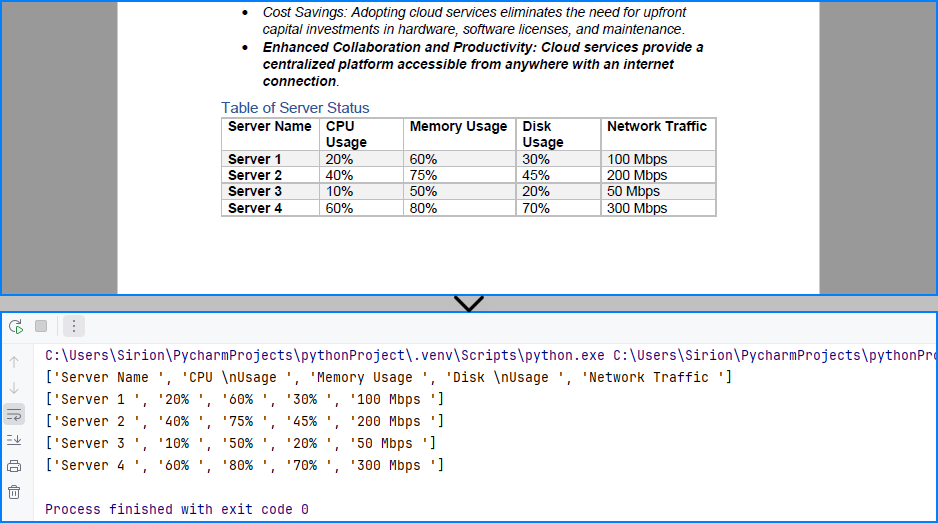
PDF tables are often used in reports, invoices, and statements. With Spire.PDF, you can read PDF tables in Python by extracting structured tabular content using its layout-aware table extractor, making it ideal for financial and business documents. Use PdfTableExtractor.ExtractTable() to detect tables page by page and output each row and cell as structured text.
from spire.pdf import PdfDocument, PdfTableExtractor

# Load the PDF file
pdf = PdfDocument()
pdf.LoadFromFile("sample.pdf")

# Create a PdfTableExtractor instance
table_extractor = PdfTableExtractor(pdf)
# Extract the table from the first page
tables = table_extractor.ExtractTable(0)
for table in tables:
    # Get the number of rows and columns
    row_count = table.GetRowCount()
    column_count = table.GetColumnCount()
    # Iterate all rows
    for i in range(row_count):
        table_row = []
        # Iterate all columns
        for j in range(column_count):
            # Get the cell
            cell_text = table.GetText(i, j)
            table_row.append(cell_text)
        print(table_row)
Table content extracted using the code above:
Want to extract text from scanned PDFs using OCR? Read this guide on OCR with Python
Read Images from PDF in Python
PDF files often contain logos, scanned pages, or embedded images. Spire.PDF allows you to read and export these images, which is helpful for working with digitized documents or preserving visual content. Use PdfImageHelper.GetImagesInfo() on each page to retrieve and save all embedded images.
from spire.pdf import PdfDocument, PdfImageHelper

# Load the PDF file
pdf = PdfDocument()
pdf.LoadFromFile("sample.pdf")

# Get the first page
page = pdf.Pages.get_Item(0)

# Create a PdfImageHelper object
image_helper = PdfImageHelper()
# Get the image information from the page
images_info = image_helper.GetImagesInfo(page)
# Save the images from the page as image files
for i in range(len(images_info)):
    images_info[i].Image.Save("output/Images/image" + str(i) + ".png")
The image read from the PDF file:
Read PDF Metadata (Title, Author, etc.)
Sometimes you may want to access document metadata like author, subject, and title. This can be helpful for indexing or organizing files. Use the ocumentInformation property to read metadata fields.
from spire.pdf import PdfDocument

# Load the PDF file
pdf = PdfDocument()
pdf.LoadFromFile("sample.pdf")

# Get the document properties
properties = pdf.DocumentInformation
print("Title: " + properties.Title)
print("Author: " + properties.Author)
print("Subject: " + properties.Subject)
print("Keywords: " + properties.Keywords)
The metadata read from the PDF document:

Common Questions on Reading PDFs
Can Python parse a PDF file?
Yes. Libraries like Spire.PDF for Python allow you to read PDF text, extract tables, and access embedded images or metadata. It supports methods like PdfTextExtractor.ExtractText() and PdfTableExtractor.ExtractTable() for structured content parsing.
How do I read a PDF in Jupyter?
Spire.PDF works seamlessly in Jupyter Notebooks. Just install it via pip and use its API to read PDF files, extract text, or parse tables and images directly in your notebook environment.
How to read text from a PDF file?
Use the PdfTextExtractor.ExtractText() method on each page after loading the PDF with Spire.PDF. This lets you read PDF file to text in Python and retrieve visible content for processing or analysis.
Can I read a PDF file without saving it to disk?
Yes. You can use LoadFromStream() to read PDF content as bytes and load it directly from memory. This is useful for processing PDFs received from web APIs or file uploads.
Conclusion
With Spire.PDF for Python, you can easily read a PDF in Python — including reading PDF text, tables, images, and metadata — and even read a PDF file to text for further processing or automation. This makes it an ideal solution for document automation, data ingestion, and content parsing in Python.
Need to process large PDF files or unlock all features? Request a free license and take full advantage of Spire.PDF for Python today!
