How to Sign a PDF without Adobe: 3 Free Methods
Table of Contents
Adobe Acrobat has long been a popular choice for managing PDF documents, but its subscription cost and desktop software requirements may not be ideal for everyone. Fortunately, you can sign a PDF without Adobe using several simpler alternatives.
This guide walks you through three practical approaches: signing a PDF with an online tool, adding a signature locally with built-in desktop apps, and applying a certificate-based digital signature with Python. Each method includes step-by-step instructions so you can choose the option that best fits your needs.
- Understanding PDF Signatures: Electronic vs. Digital
- How to Sign a PDF without Adobe Using iLovePDF
- How to Sign a PDF Free Using Built-in Desktop Tools
- How to Digitally Sign a PDF without Adobe Using Python (Batch Processing)
- Choosing Your PDF Signing Solution
Understanding PDF Signatures: Electronic vs. Digital
Before choosing a tool, it helps to understand what happens when you sign a PDF file.
- Electronic Signatures (e-Signatures): An electronic signature can be represented by a typed name, drawn signature, uploaded image, or other electronic signing data added to a document.
- Digital Signatures: A PDF digital signature uses a digital certificate and cryptographic algorithms to authenticate the signer and detect changes made to the document after signing.
PDF digital signatures can be invisible, meaning the cryptographic signature is stored in the PDF without a visible signature appearance, or visible, meaning the cryptographic signature is accompanied by a visual signature appearance on the page.
How to Sign a PDF without Adobe Using iLovePDF
For occasional signing tasks, browser-based PDF editors offer a convenient option without requiring additional software. Platforms like iLovePDF allow you to upload a PDF, create a signature by drawing, typing, or uploading an image, and export the signed document directly from your browser. For free or basic use, online signing tools typically focus on electronic signatures, while certificate-based digital signing may require a paid plan.
Here are the steps to sign on PDF using iLovePDF:
- Step 1: Navigate to iLovePDF's Sign PDF tool in a web browser and click Select PDF file to upload a PDF document.
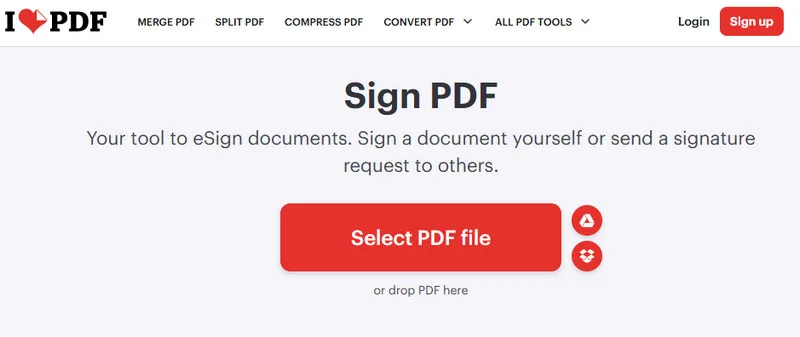
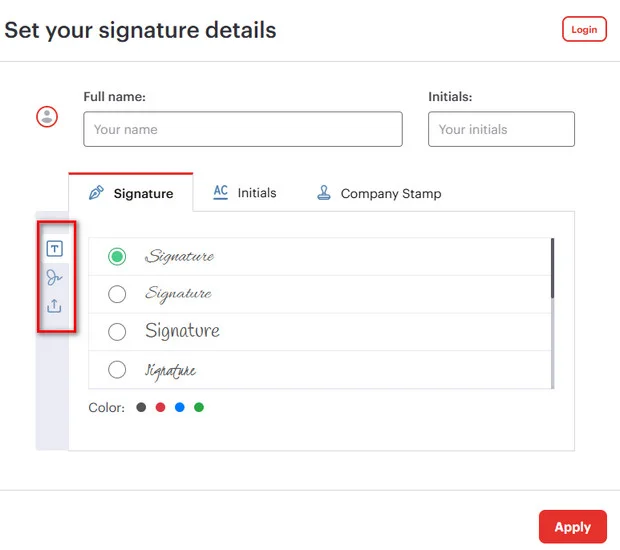
- Step 2: Choose your signer type (e.g., "Only me") and create your signature by drawing it, typing your name, or uploading a PNG image of your physical signature.
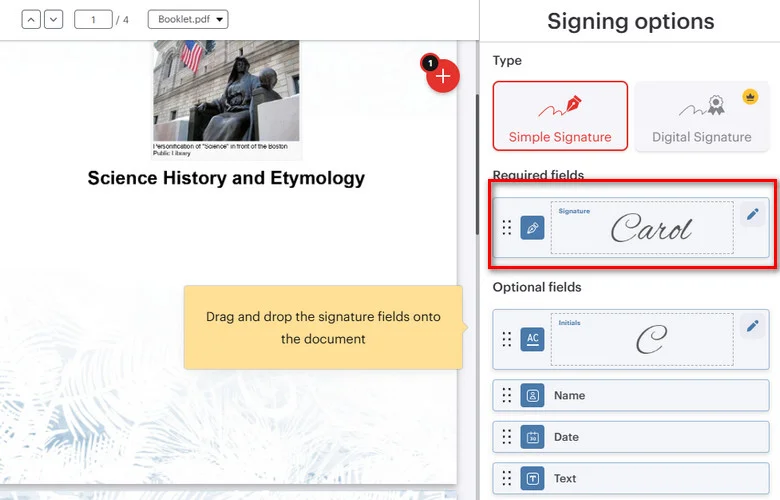
- Step 3: Drag and drop your signature field onto the target location on the PDF page.
- Step 4: Click Sign and download the signed document.
Limitations: Web tools only generate basic visual e-signatures, and uploading files to third-party cloud servers carries data leakage risks.
How to Sign a PDF Free Using Built-in Desktop Tools
If you prefer to keep your files on your computer, built-in desktop tools provide another option. Microsoft Edge on Windows lets you annotate PDFs with a handwritten signature, while macOS Preview provides a built-in Sign tool for adding electronic signatures locally.
Windows Microsoft Edge
Microsoft Edge includes PDF markup tools that allow you to draw a handwritten signature directly on a PDF. This adds a visual annotation layer rather than a certificate-based digital signature.
- Step 1: Right-click a PDF document and select Open with > Microsoft Edge.
- Step 2: Click the Draw icon (pen symbol) in the top toolbar.
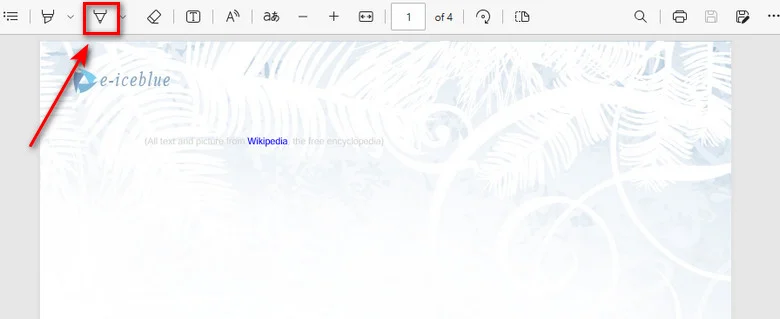
- Step 3: Use your mouse, touchpad, or stylus to draw your signature directly on the document.
- Step 4: Click the Save button to save the annotated PDF.
macOS Preview
macOS Preview provides a built-in Sign tool that lets you create and add a handwritten signature to a PDF locally.
- Step 1: Double-click your PDF file to open it in macOS Preview.
- Step 2: Click the Markup Toolbar button (pen icon) in the top menu, then select the Sign tool.
- Step 3: Create a signature using your trackpad by scanning a paper signature with your Mac camera or by writing on a connected iPhone/iPad.
- Step 4: Click the saved signature to insert it, drag it to the correct line, and save the PDF using File > Save or Cmd + S.
Limitations: These built-in tools do not create certificate-based digital signatures. Microsoft Edge mainly provides PDF markup features, while macOS Preview adds electronic signature elements. Both methods require manual, one-file-at-a-time processing, making them unsuitable for batch signing or automated workflows.
How to Digitally Sign a PDF without Adobe Using Python (Batch Processing)
When building web backends, automated invoicing systems, or enterprise microservices, manual drag-and-drop tools fall short. Developers need a solution that can digitally sign PDFs without Adobe while maintaining data privacy and full backend control.
Free Spire.PDF for Python is a standalone, lightweight library that enables developers to process and sign PDF documents without relying on Adobe Acrobat. It supports digital certificates stored in PKCS#12 (.pfx or .p12) files.
Adding an Invisible Digital Signature to a PDF
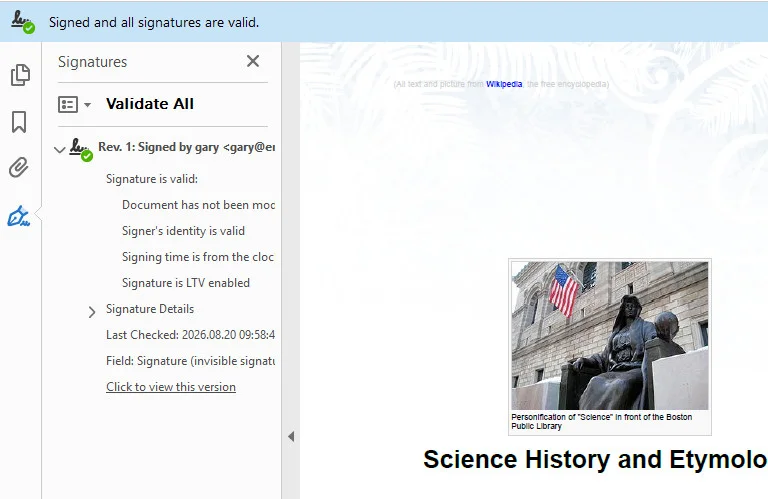
An invisible digital signature applies a cryptographic signature to a PDF without displaying a signature appearance on the page. With Free Spire.PDF for Python, you can use PdfOrdinarySignatureMaker to load a PKCS#12 certificate (.pfx or .p12) and apply the signature to the document.
In the following example, the certificate path and password are passed to PdfOrdinarySignatureMaker, which creates the digital signature without adding a visible signature appearance.
from spire.pdf.common import *
from spire.pdf import *

# Create a new PdfDocument instance
doc = PdfDocument()
# Load a PDF document
doc.LoadFromFile("/input/Booklet.pdf")

# Create a PdfOrdinarySignatureMaker instance
signatureMaker = PdfOrdinarySignatureMaker(doc, "/gary.pfx", "e-iceblue")

# Add an invisible digital signature to the document
signatureMaker.MakeSignature("Signature")

# Save the signed PDF document
doc.SaveToFile("/output/invisible signature.pdf")
doc.Close()
Adding a Visible Digital Signature to a PDF
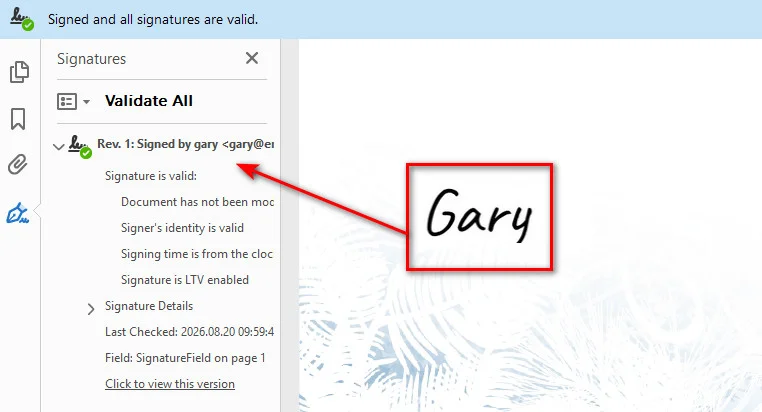
A visible digital signature combines an on-page graphic stamp (like an official seal or signature image) with a PKI cryptographic seal. The visual appearance is configured with PdfSignatureAppearance, while SignatureImage specifies the signature image and MakeSignature() defines the page and position of the visible signature.
from spire.pdf import *

# Step 1: Load the target PDF document
doc = PdfDocument()
doc.LoadFromFile("/input/Booklet.pdf")

# Step 2: Initialize signature maker with certificate path and password
signatureMaker = PdfOrdinarySignatureMaker(doc, "/gary.pfx", "e-iceblue")

# Step 3: Configure signature metadata
signature = signatureMaker.Signature
signature.Name = "Finance Department"
signature.ContactInfo = "finance@company.com"
signature.Reason = "Approved for Payment"

# Step 4: Configure visual appearance and attach stamp image
appearance = PdfSignatureAppearance(signature)
appearance.SignatureImage = PdfImage.FromFile("/gary sign.png")
appearance.GraphicMode = GraphicMode.SignImageOnly

# Step 5: Apply the signature to page 1 at target coordinates (X, Y, Width, Height)
page = doc.Pages[0]
signatureMaker.MakeSignature("SignatureField", page, 100.0, 600.0, 180.0, 60.0, appearance)

# Step 6: Save the signed PDF document
doc.SaveToFile("/output/signed_visible.pdf")
doc.Close()
Note: After signing a PDF, you may also need to verify the signature or extract signature information for auditing and document validation. See Python: Verify and Extract Digital Signatures in PDF for a programmatic approach.
Choosing Your PDF Signing Solution
Choosing the right PDF signing method depends on your privacy requirements, technical skills, and workflow scale. Compare the key features below to find the approach that best fits your setup:
| Feature | iLovePDF (Web Tool) | macOS Preview / Edge (OS Native) | Free Spire.PDF for Python (SDK) |
|---|---|---|---|
| Signature Type | Electronic Signature(Basic) | Electronic Signature | Certificate-based Digital Signature |
| Ease of Use | Instant (Browser) | High (Pre-installed) | Medium (Developer skills) |
| Data Privacy | Lower (Cloud upload) | High (Local execution) | High (Local/server execution) |
| Automation | Low (Manual) | Low (Manual) | High (Automated workflows) |
| Security | Depends on signing method | Basic electronic signing | Certificate-based cryptographic signing |
Conclusion
You do not need Adobe Acrobat to add a signature to a PDF. For a quick electronic signature, an online tool or a built-in desktop application is usually sufficient. If you need a certificate-based digital signature or automated processing, a Python PDF library provides greater control over the signing workflow.
The right approach depends on how you plan to use the signed document. Choose a local tool when document privacy is important, an online service when convenience matters most, or a Python-based solution when signing needs to be integrated into an automated application.
Also Read:
How to Insert a Hyperlink in Excel: 3 Easy Methods
Adding hyperlinks in Excel is simple when you only need to link one or two cells. However, manually managing dozens or hundreds of links can become time-consuming, especially when working with external files, websites, or large workbooks.
This guide explains three ways to add a hyperlink in Excel, including manual insertion, keyboard shortcuts, and Python-based automation for batch processing.
- Insert a Hyperlink with the Link Feature
- Insert a Hyperlink Using the HYPERLINK Function
- Batch Insert Hyperlinks Using Free Spire.XLS for Python
- Tips for Managing Hyperlinks in Excel
- FAQs
Insert a Hyperlink in Excel Manually with the Link Feature
The most direct way to insert a hyperlink in Excel is by using its built-in Link feature. It is suitable for users who only need to add a small number of hyperlinks manually. With this method, you can easily connect cells to external web pages, local files, or specific worksheets in just a few clicks.
Follow these simple steps to insert hyperlinks manually:
- Step 1: Select the target cell where you want the link to appear.
- Step 2: Go to the Insert tab at the top ribbon and click Link. Or right-click the cell and select Link from the context menu.
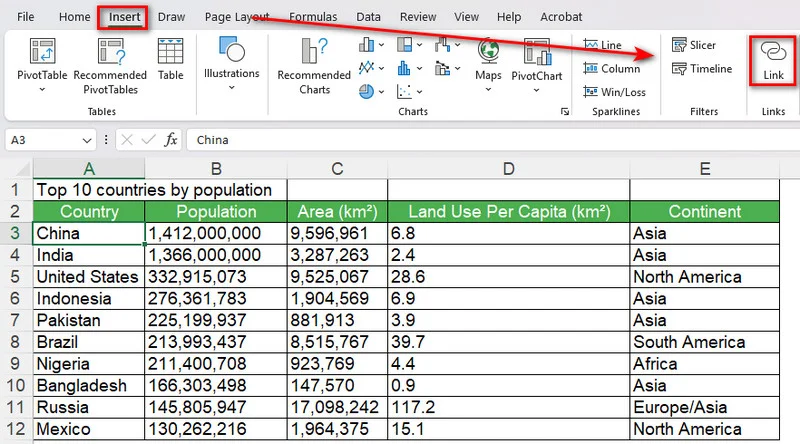
- Step 3: In the popup dialog box, choose your link destination from the left panel (e.g., Existing File or Web Page).
- Step 4: Enter the web URL or file path into the Address bar.
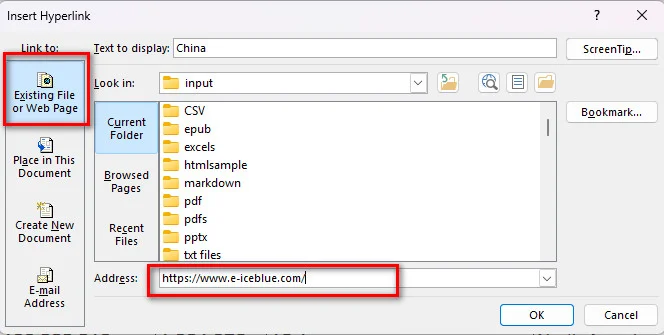
- Step 5: Click OK to apply the link.
Tip: Use a Keyboard Shortcut to Insert a Hyperlink in Excel
If you frequently add hyperlinks, you can open the Link dialog box directly with a keyboard shortcut instead of navigating through the Insert tab.
- On Windows, select the target cell and press Ctrl + K.
- On Mac, select the target cell and press Cmd + K.
The shortcut opens the same Link dialog box, where you can enter a URL, select a local file, or link to another location in the workbook. This provides a quick way to insert a hyperlink in Excel on Mac or Windows without opening the Insert tab each time.
Insert a Hyperlink in Excel Using the HYPERLINK Function
If you need to create hyperlinks from existing data, Excel's HYPERLINK function provides a convenient alternative to inserting links manually. It lets you specify both the link destination and the text displayed in the cell. This is especially useful when you need to generate multiple hyperlinks based on URLs stored in a worksheet.
The basic syntax is
=HYPERLINK(link_location, [friendly_name])
Here, link_location specifies the destination of the hyperlink, while the optional friendly_name determines the text displayed in the cell.
How to Create a Hyperlink with the HYPERLINK Function
- Step 1: Select the cell where you want to display the hyperlink.
- Step 2: Enter the HYPERLINK formula with the destination URL and display text. For example:
=HYPERLINK("https://www.e-iceblue.com/","Visit Website")
- Step 3: Press Enter. Excel will display Visit Website as a clickable hyperlink.
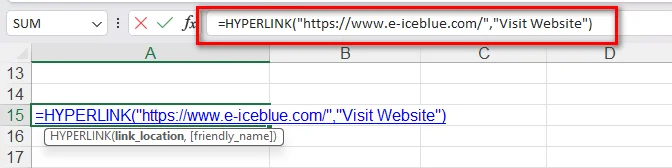
- Step 4: If the URL and display text are stored in separate cells, reference those cells in the formula. For example, if the URL is in "A2" and the display text is in "B2", enter:
=HYPERLINK(A2,B2)
- Step 5: Drag the formula down to apply it to other rows and create multiple hyperlinks automatically.
This approach is useful for creating link lists, navigation tables, resource directories, and other Excel reports containing many URLs.
How to Batch Insert Hyperlinks in Excel Using Free Spire.XLS for Python
While the manual and shortcut methods covered above are simple and convenient, they are only suitable for adding a few hyperlinks at a time. If you need to process hundreds of links or insert a mix of different types, such as web URLs, local files, email addresses, and internal sheet references, manual entry quickly becomes inefficient and error-prone.
In such cases, programmatic automation can be a more efficient approach. By utilizing Free Spire.XLS for Python, you can dynamically generate and format hyperlinked Excel files with a few lines of code. What's more, this library can automate hyperlink generation without requiring Microsoft Excel to be installed on the machine or server.
Step 1: Install the Library
Open your terminal or command prompt and run:
pip install Spire.Xls.Free
Step 2: Run the Python Script
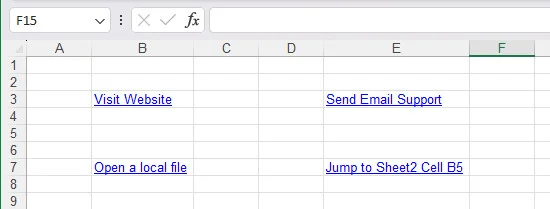
The following Python script demonstrates how to batch insert hyperlinks in Excel, including web links, email addresses, external file links, and internal sheet references:
from spire.xls import *
from spire.xls.common import *

# Initialize a new workbook object
workbook = Workbook()

# Get the first worksheet
sheet = workbook.Worksheets[0]

# Add a hyperlink to a Website
cell_web = sheet.Range["B3"]
url_link = sheet.HyperLinks.Add(cell_web)
url_link.Type = HyperLinkType.Url
url_link.TextToDisplay = "Visit Website"
url_link.Address = "https://www.e-iceblue.com/"

# Add an Email hyperlink
cell_email = sheet.Range["E3"]
mail_link = sheet.HyperLinks.Add(cell_email)
mail_link.Type = HyperLinkType.Url
mail_link.TextToDisplay = "Send Email Support"
mail_link.Address = "mailto:example@outlook.com"

# Add a link to an External Local File
cell_file = sheet.Range["B7"]
file_link = sheet.HyperLinks.Add(cell_file)
file_link.Type = HyperLinkType.File
file_link.TextToDisplay = "Open a local file"
file_link.Address = "/sales report.xlsx"

# Add an internal link to another Sheet
cell_sheet = sheet.Range["E7"]
sheet_link = sheet.HyperLinks.Add(cell_sheet)
sheet_link.Type = HyperLinkType.Workbook
sheet_link.TextToDisplay = "Jump to Sheet2 Cell B5"
sheet_link.Address = "Sheet2!B5"

# Auto-fit columns for better presentation
sheet.AutoFitColumn(2)
sheet.AutoFitColumn(5)

# Save the workbook to an Excel file
workbook.SaveToFile("/output/AddHyperlinks.xlsx", ExcelVersion.Version2016)
workbook.Dispose()
Below is a preview of the generated Excel file with hyperlinks:
Why use Python for Excel hyperlinks?
- Batch processing: Add multiple hyperlinks in Excel files automatically.
- Dynamic reporting: Generate financial statements or data exports with interactive links dynamically.
Tip: If you need to embed files directly into an Excel workbook instead of creating clickable links, see our guide on How to Insert Objects in Excel: Embedding and Linking Files.
Tips for Managing Hyperlinks in Excel
Adding hyperlinks in Excel is straightforward, but managing them when worksheets grow requires a few extra tricks.
How to Edit or Remove a Hyperlink
- To Edit: Right-click the hyperlinked cell and choose Edit Hyperlink to change the destination address.
- To Remove: Right-click the cell and click Remove Hyperlink. The text will remain, but the clickable link will be deleted.
How to Link to Another Sheet in the Same Workbook
To navigate within the same spreadsheet:
- Step 1: Press Ctrl + K.
- Step 2: Click Place in This Document on the left menu.
- Step 3: Select your target worksheet from the list. You can also specify a cell reference like
B5at the top. - Step 4: Click OK.
FAQs
What is the shortcut to insert a hyperlink in Excel for Windows and Mac?
The default shortcut on Windows is Ctrl + K. On macOS, use Cmd + K.
How do I remove multiple hyperlinks in Excel at once?
Highlight all the cells containing hyperlinks, right-click anywhere inside the selected area, and click Remove Hyperlinks.
Can I add hyperlinks to Excel files without Microsoft Office?
Yes. Python libraries like Free Spire.XLS for Python allow you to insert and modify hyperlinks programmatically without having Microsoft Office or Excel installed on your machine.
Conclusion
Mastering how to insert hyperlinks in Excel helps you create more interactive and organized spreadsheets. For occasional edits, manual insertion or keyboard shortcuts are usually enough. When working with large numbers of links, Python automation provides a more efficient approach. Choose the method that best matches your workflow and project requirements.
Also Read:
How to Insert a Video in Word Documents (3 Easy Ways)
Adding videos to Microsoft Word can make reports, manuals, and technical guides more interactive by combining text instructions with visual content. However, Word supports several ways to add videos, including online videos, hyperlinks, and embedded files. Choosing the right method depends on how you plan to share the document. Whether you want to embed a video in a Word document for interactive online playback or link a local file cleanly, here are three practical ways to insert a video in Microsoft Word while keeping the formatting clean and file size under control.
- Insert an Online Video in Word for Direct Playback
- Insert a Video in a Word Document with Hyperlinks
- Embed a Video in Word Documents as an Object
- Which Method Should You Choose
- FAQs
How to Insert an Online Video in Word for Direct Playback
Inserting an online video is one of the simplest ways to add video content to a Word document. Instead of redirecting readers to an external web browser, Microsoft Word renders an interactive player component directly on the page. This allows readers to access supported online videos directly from the document interface without manually opening a separate browser window.
Here are the steps to embed a YouTube video in a Word document:
- Step 1: Open a Word document and place the cursor where you want the video player to appear.
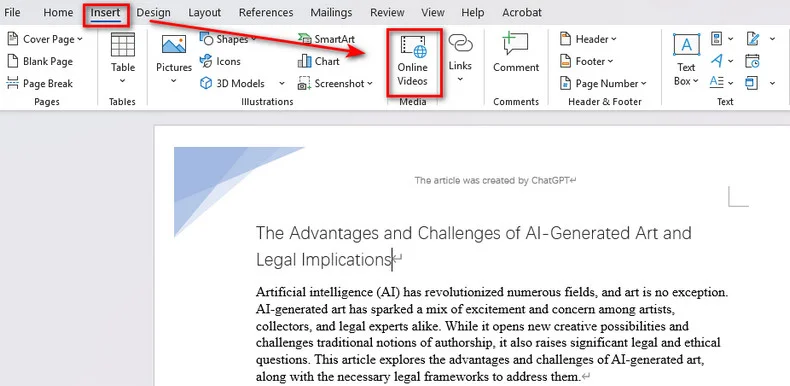
- Step 2: Go to the Insert tab on the top ribbon menu.
- Step 3: In the Media group, click the Online Video option.
- Step 4: Paste the web link of a YouTube video.
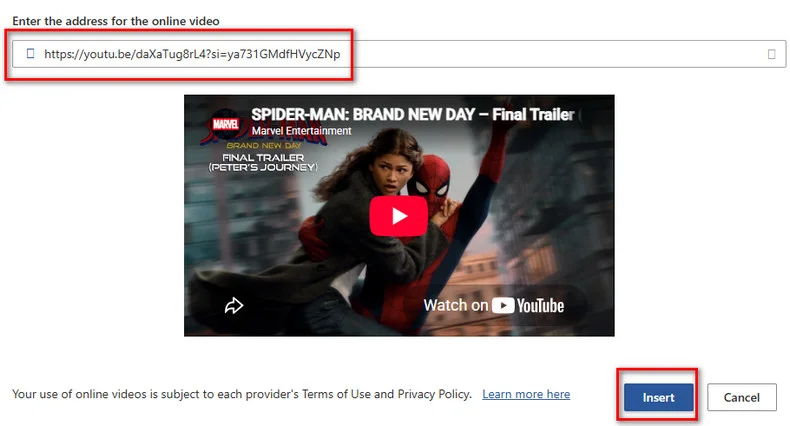
- Step 5: Click Insert. Word will immediately generate a responsive video thumbnail with a play icon on your page.
Troubleshooting: Why is the "Online Video" button grayed out?
If the button is disabled, you have likely opened a DOC document in **compatibility mode. Click File > Info > Convert to upgrade it to the DOCX format. Also, ensure Protected View is turned off and your privacy settings allow connected experiences.
How to Insert a Video in a Word Document with Hyperlinks
If you need to reference local MP4 files or customize the appearance of a video link, inserting a hyperlink is usually a more flexible option. Unlike the native online video tool, this technique attaches a web URL or local file path to a text string or a custom image cover. When readers click the link, it seamlessly opens the video in their default web browser or local media player.
1. Manually Insert a Video Link in Word
Setting up a video hyperlink manually takes only a few seconds and works seamlessly for any web or local file.
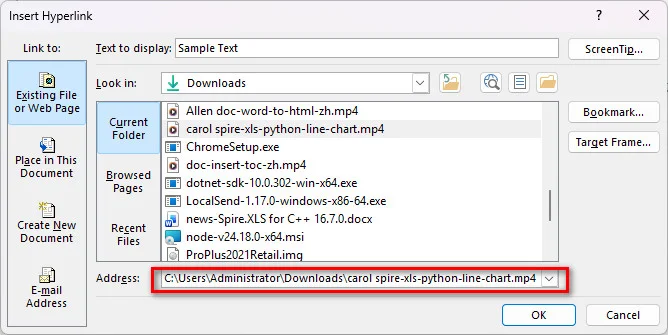
- Step 1: Select the text or image (such as a video cover thumbnail) in your Word document where you want to add the link.
- Step 2: Right-click the selected object and select Link, or go to the top ribbon and click Insert > Link.
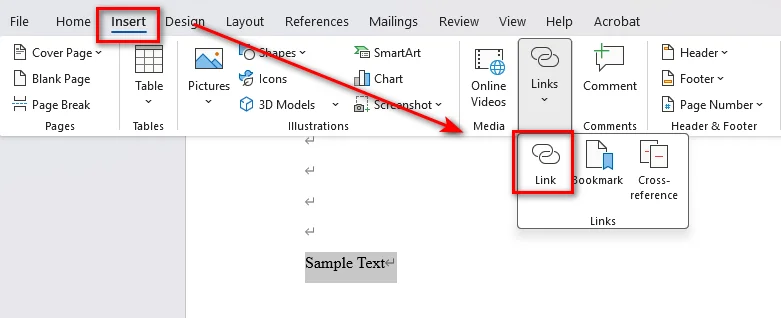
- Step 3: In the pop-up window, paste your online video URL or click Existing File or Web Page to select a local video file path, then click OK.
2. Insert Video Hyperlinks Automatically with Python
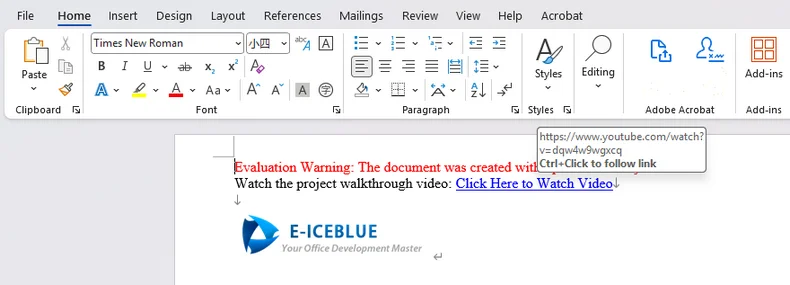
For developers generating automated reports, batch-processing documentation, or building docx generation pipelines, you can insert a video link in Word programmatically using Free Spire.Doc for Python. It is a standalone Python library that enables developers to create, edit, and convert Word documents without Microsoft Office. It also provides hyperlink-related APIs that can be used to add video URLs or local file links to text and image elements in Word documents.
from spire.doc import *
from spire.doc.common import *

# Initialize a new Word document
doc = Document()

# Add a section and a paragraph
section = doc.AddSection()
paragraph = section.AddParagraph()

# Insert a text hyperlink pointing to an online video
video_url = "https://www.youtube.com/watch?v=dQw4w9WgXcQ"
paragraph.AppendText("Watch the project walkthrough video: ")
paragraph.AppendHyperlink(video_url, "Click Here to Watch Video", HyperlinkType.WebLink)

# Add line breaks
paragraph.AppendBreak(BreakType.LineBreak)
paragraph.AppendBreak(BreakType.LineBreak)

# Insert an image hyperlink (thumbnail + video link)
thumbnail_path = "/Logo1.png"
picture = paragraph.AppendPicture(thumbnail_path)

# Attach the video URL to the thumbnail image
paragraph.AppendHyperlink(video_url, picture, HyperlinkType.WebLink)

# Save the generated document
doc.SaveToFile("/output/VideoLinksDocument.docx", FileFormat.Docx2019)
doc.Dispose()
Embed a Video in Word Documents as an Object
If you are delivering files to clients in an offline environment, you can choose to embed a video in Word as an embedded binary object. This approach forces Word to package the raw video file directly inside the file container. It is best suited for scenarios where external links are forbidden and recipient devices lack internet access, but it will increase the document's size.
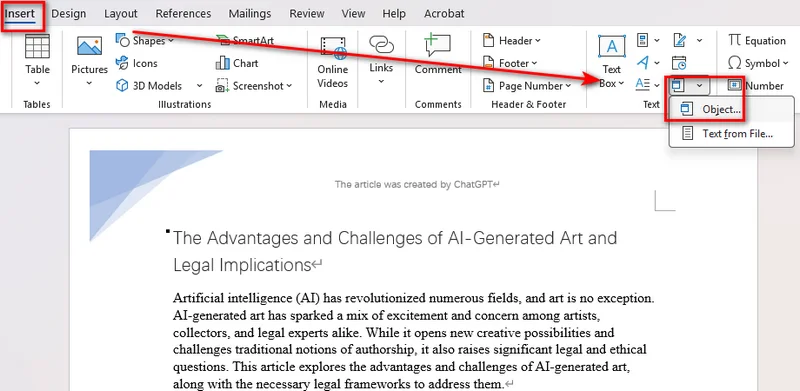
- Step 1: Navigate to the Insert tab on the top ribbon.
- Step 2: Locate the Text section, click the Object dropdown, and choose Object....
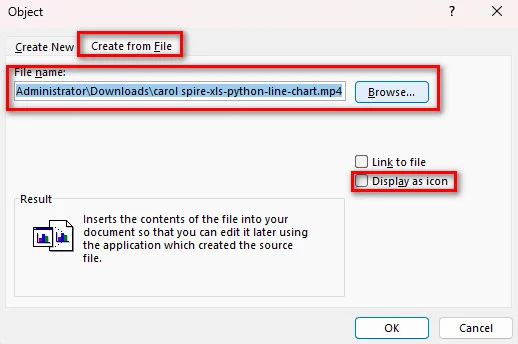
- Step 3: In the pop-up dialog, switch to the Create from File tab.
- Step 4: Click Browse to locate your local video file (MP4, AVI, MOV).
- Step 5: Check the Display as Icon box to ensure it appears as a clean file attachment, then click OK.
Unlike PowerPoint, Word does not render native video preview frames for embedded local video files. It displays a system icon or a plain square. Double-clicking launches your default local media player.
You may like: How to Attach Files to a Word Document (5 Effective Ways)
Which Method Should You Choose?
Use this quick comparison table to pick the right method for your document needs:
| Method | Playback Experience | File Size Impact | Internet Required? | Supports Automation? |
|---|---|---|---|---|
| Online Video | Direct popup player inside Word | Negligible (bytes) | Yes | Limited |
| Video Hyperlink | Opens default browser / player | Negligible (bytes) | Optional | Yes (Python) |
| Embedded Object | Double-click to open player | Extremely Large | No | Yes |
FAQs about Inserting Video in Word
1. Can I embed a video directly into Word like in PowerPoint?
Yes, but playback behavior depends on the video source:
- Online Videos (YouTube, Vimeo, etc.): Plays directly inside Word via an inline popup window with a native play button.
- Local Video Files (MP4, MOV, etc.): Cannot play inline. They insert as file icons (or hyperlinked images) that launch your default media player when clicked.
2. How do I insert a video into Word without increasing file size?
To keep your document lightweight, use Method 1 (Online Video) or Method 2 (Image Cover Hyperlink). Both methods link to external resources and won't enlarge the Word document.
3. Why won't my embedded video play in Microsoft Word?
If your video fails to play, check if your document is saved in the **compatibility mode. Also, ensure your network connection is active for online videos, or verify that your local media player supports the video format.
Conclusion
Adding videos correctly helps you create Word documents that are easier to understand and more interactive for readers. Whether you choose to embed a video in a Word document using Microsoft Word's native Online Video feature, link custom image thumbnails manually or via Python automation, or attach offline video objects, selecting the right method depends on your audience's technical constraints. Choose online videos for seamless web playback, hyperlinks for flexible local storage, and embedded objects strictly for offline sharing.
Also Read:
How to Insert Hyperlinks in PowerPoint [Detailed Guide]

Hyperlinks can make PowerPoint presentations easier to navigate and more engaging for audiences. Instead of creating text-heavy slides, adding hyperlinks helps keep your layout clean while allowing viewers to access external resources instantly. In this guide, you’ll learn how to insert hyperlinks in PowerPoint, covering both manual operations in Microsoft PowerPoint and automation using Python for text, images, and other visual elements.
- How to Insert Hyperlinks in PowerPoint
- Practical Scenarios: Linking Pictures and Online Videos
- Insert a Hyperlink in PowerPoint Presentations with Python
- FAQs
How to Insert Hyperlinks in PowerPoint
In PowerPoint, hyperlinks typically point to external files, web pages, or specific slides within the presentation. Fortunately, the core steps are the same regardless of the target type. With Microsoft PowerPoint, you can add a hyperlink into text or images in just three simple steps.
Follow these steps to insert hyperlinks in PowerPoint:
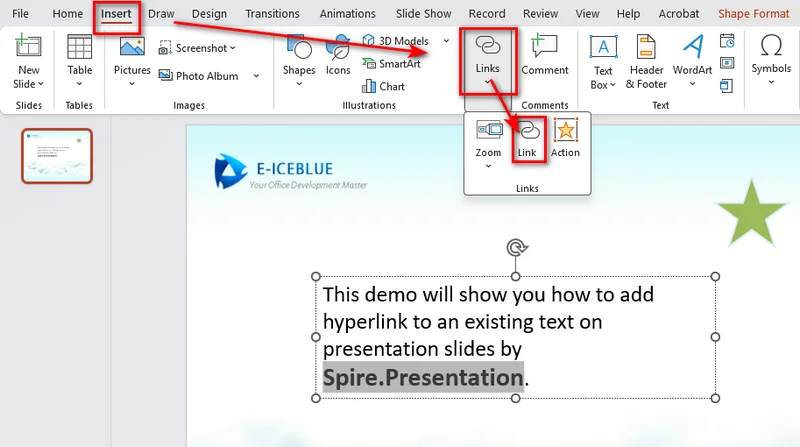
- Step 1: Select the object by clicking to highlight the text word, picture, shape, or icon you want to make clickable.
- Step 2: Go to the top ribbon and click Insert > Links > Link.
- Step 3: In the pop-up dialog box, set your target destination:
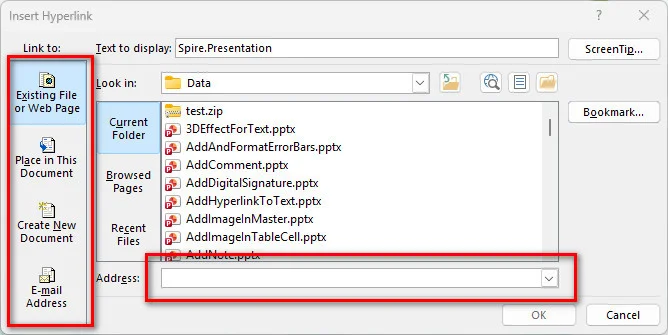
- Existing File or Web Page: Paste an external URL (e.g., https://example.com) or select a local file on your computer.
- Place in This Document: Choose a specific slide number or title inside your current presentation.
- Email Address: Configure an automatic mailto: link for quick email responses.
Practical Scenarios: Linking Pictures and Online Videos
Beyond basic links, hyperlinks are also useful for creating interactive logos, navigation buttons, and lightweight video presentations.
1: Interactive Logos and Navigation Icons
Adding hyperlinks to logos and graphics transforms them from visuals into functional navigation tools, enhancing brand identity while keeping the PowerPoint presentation interactive.
- Brand Authority: Link your company logo directly to the official website, product landing page, or online store so viewers can explore your brand instantly.
- Custom Navigation: Link home, menu, or back-to-top icons to Slide 1 or an index page for fast, flexible jumping during live Q&A sessions.
2: Lightweight Online Video Sharing
Inserting video files directly into PowerPoint often inflates file sizes, making presentations difficult to email or run smoothly on older hardware.
To keep your presentation lightweight:
- Insert a play-button image or text callout (e.g., "Watch Full Demo").
- Apply a hyperlink pointing to your video URL on YouTube, Vimeo, or cloud storage.
Tip: Hyperlinked vs. Embedded Videos
When sharing video in PowerPoint, you can either link to an external video or embed the video file directly. Choosing the right method depends on your file size limits and presentation setup:
- Hyperlinked Video: Links directly to a web URL (e.g., YouTube) or local file path. It opens in a web browser, keeping the presentation's size minimal and easy to email.
- Embedded Video: Integrates the actual video file into the presentation. It plays directly inside the slide frame without internet dependency but significantly increases file size.
Insert a Hyperlink in PowerPoint Presentations Effortlessly with Python
Manual hyperlink insertion works well for small presentations. However, when processing hundreds of slides or generating presentations dynamically, automation becomes more efficient. To streamline workflows, developers can use Free Spire.Presentation for Python to add hyperlinks automatically. Free Spire.Presentation provides APIs for adding hyperlinks to text, images, and shapes programmatically, making it easier to automate large-scale presentation processing.
Adding Hyperlinks to Text
Text hyperlinks are applied at the TextRange level within a shape's text frame. By iterating through paragraphs and text ranges, you can locate specific keywords and set their target URL via ClickAction.Address.
Adding Hyperlinks to Pictures or Shapes
For visual elements like shapes or embedded images, hyperlinks are applied at the shape object level. You can instantiate a ClickHyperlink object with your destination URL and directly assign it to the image's .Click property.
Complete Python Code Example
This code example shows how to insert hyperlinks for text and an image in a PowerPoint presentation:
from spire.presentation import *
from spire.presentation.common import *

# Create a new Presentation object and load a PowerPoint file
presentation = Presentation()
presentation.LoadFromFile("/sample.pptx")

# Get the first slide
slide = presentation.Slides[0]

# Insert hyperlink to text
for shape in slide.Shapes:
    if isinstance(shape, IAutoShape):
        for para in shape.TextFrame.Paragraphs:
            for tr in para.TextRanges:
                # Find the specified text keyword
                if "Spire.Presentation" in tr.Text:
                    # Add hyperlink to the text
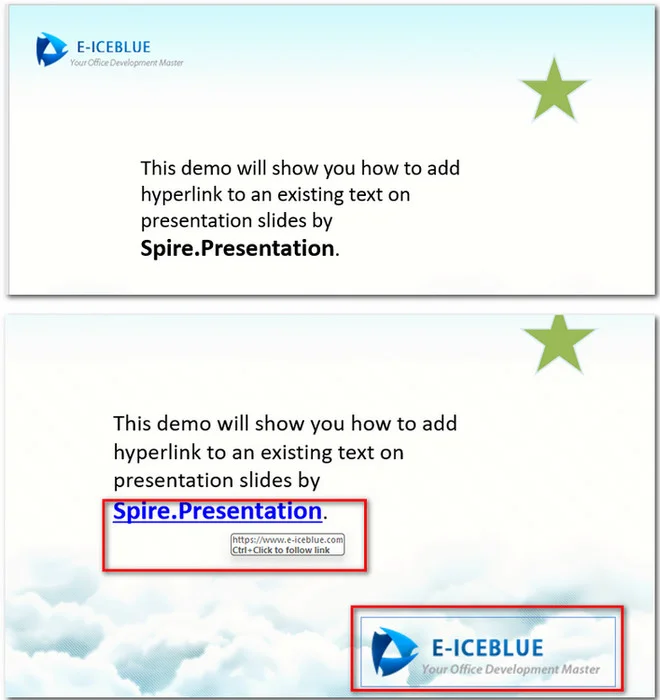
                    tr.ClickAction.Address = "https://www.e-iceblue.com"

# Create a rectangle shape and define image position and size
rect = RectangleF.FromLTRB(400, 380, 660, 450)

# Append an image to the slide and set its position and size
image = slide.Shapes.AppendEmbedImageByPath(ShapeType.Rectangle, "/Logo1.png", rect)

# Insert a hyperlink to the image
hyperlink = ClickHyperlink("https://www.e-iceblue.com")
image.Click = hyperlink

# Save the modified presentation
presentation.SaveToFile("/output/AddHyperlinks_Output.pptx", FileFormat.Pptx2013)
presentation.Dispose()
The following image shows the resulting PowerPoint file with inserted hyperlinks:
FAQs about Inserting Hyperlinks in PowerPoint
How do I edit or remove a hyperlink in PowerPoint?
Right-click the linked text, picture, or shape. Select Edit Link to change the target URL, or click Remove Link to convert the element back into static content.
Will hyperlinks still work after converting PowerPoint to PDF?
Most web hyperlinks are preserved during PowerPoint-to-PDF conversion. Internal slide navigation links depend on the conversion tool and PDF viewer compatibility.
Why does PowerPoint show a security warning when clicking a video link?
PowerPoint triggers default security alerts whenever an element attempts to launch external web browsers or local executables. You can safely click Yes to proceed, or adjust your settings under File > Options > Trust Center > Trust Center Settings to customize link warnings.
To Wrap Up
Adding hyperlinks in PowerPoint helps create more interactive and user-friendly presentations. For simple tasks, you can use PowerPoint’s built-in tools to link text, images, videos, or slides. When working with large presentations, Free Spire.Presentation provides a programmatic way to automate hyperlink creation. Before sharing your presentation, remember to test all links in slideshow mode to ensure they work as expected.
Also Read:
How to Password Protect a PDF File for Free (5 Easy Ways)
Table of Contents
- How to Password Protect a PDF for Free Online
- Password Protect a PDF on Mac for Free Using Preview
- How to Encrypt a PDF for Free with Desktop Applications
- Password Protect PDFs Automatically with Free Spire.PDF
- How to Password Protect a PDF When Exporting from Word
- PDF Encryption Methods Comparison
- FAQs
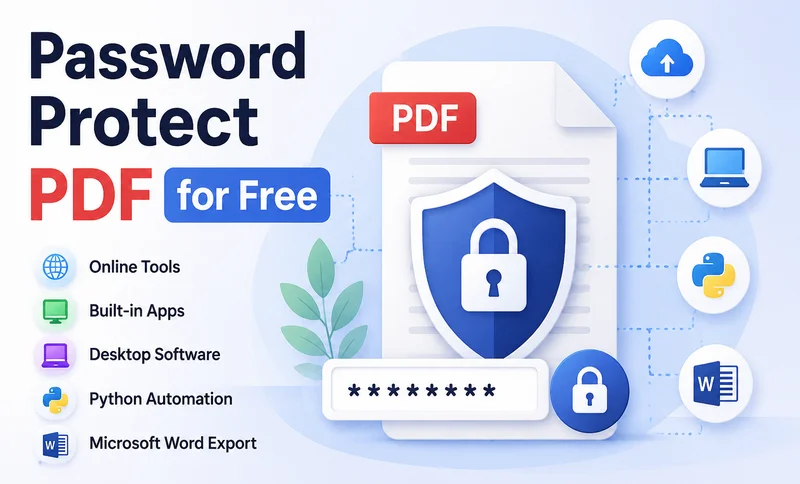
Sharing confidential documents as PDFs can put sensitive information at risk if they are not properly secured. Adding password protection helps control who can open, edit, copy, or print your files. Fortunately, you don't need expensive software or an Adobe Acrobat subscription to encrypt a PDF. In this guide, you'll learn five ways to password protect a PDF for free, including online tools, built-in applications, desktop software, Python automation, and Microsoft Word.
- How to Password Protect a PDF for Free Online
- Password Protect a PDF on Mac for Free Using Preview
- How to Encrypt a PDF for Free with Desktop Applications
- Password Protect PDFs Automatically with Free Spire.PDF
- How to Password Protect a PDF When Exporting from Word
- PDF Encryption Methods Comparison
- FAQs
How to Password Protect a PDF for Free Online
If you need to lock a PDF document right away without installing new software, online tools are the quickest method. They work across Windows, macOS, iOS, and Android. Popular platforms like Adobe Acrobat Online Free Tool, iLovePDF, and Smallpdf allow you to set strong passwords in just a few clicks.
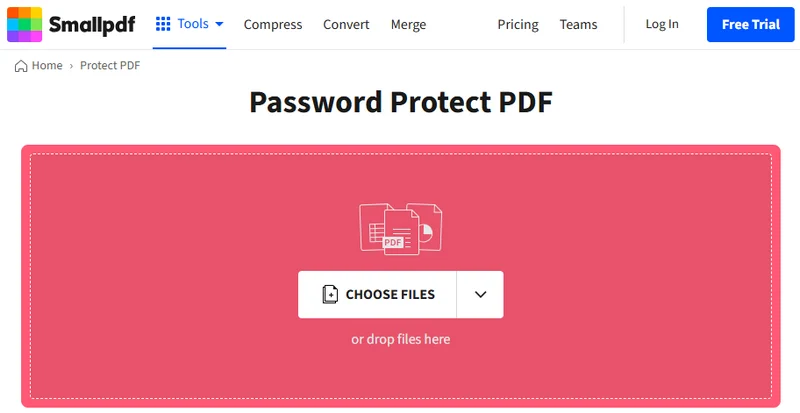
Here's how to encrypt a PDF file for free using Smallpdf:
- Step 1. Navigate to Smallpdf's Protect PDF tool in a browser.
- Step 2. Upload a PDF document and type in a password.
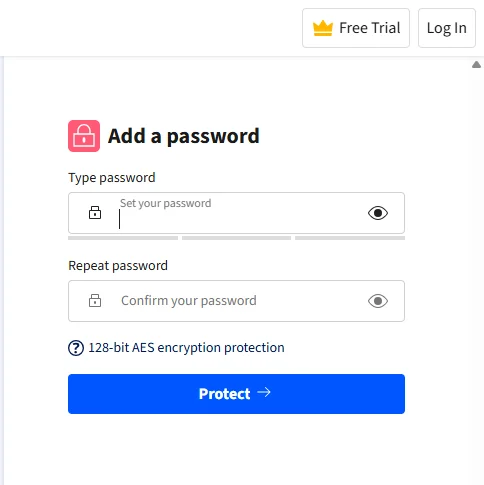
- Step 3. Tap on the Protect button and download the encrypted PDF.
Note: Most online PDF editors claim to delete uploaded files within 24 hours. However, avoid uploading sensitive personal or business documents. For confidential files, choose an offline method instead.
Password Protect a PDF on Mac for Free Using Preview
If you use macOS, you already have a powerful, built-in PDF editor on your computer. The Preview app allows you to encrypt PDF files instantly without connecting to the internet.
Follow these steps to lock PDF documents on Mac:
- Step 1. Double-click your PDF file to open it in the Preview app.
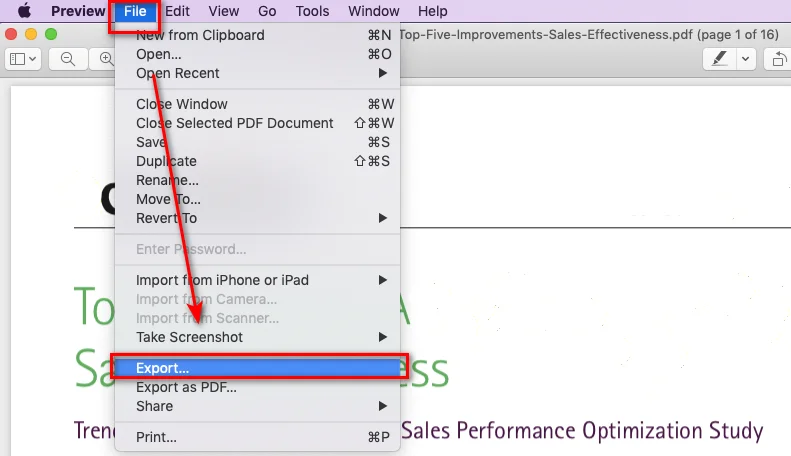
- Step 2. Click File in the top menu bar and select Export... (or Edit Permissions... depending on your macOS version).
- Step 3. Click the Permissions... button at the bottom of the export window.
- Step 4. Check Require Password To Open Document, type your password, and re-enter it to confirm. But the available options may vary depending on your macOS version.
- Step 5. Click Apply, then click Save.
How to Encrypt a PDF for Free with Desktop Applications
If you are using Windows, the operating system does not include a built-in tool for directly password protecting existing PDF files. In this case, a free desktop PDF application can help you encrypt files locally without uploading them to online services. Tools like PDFEncrypt provide an easy way to add password protection and encryption to PDF documents.
Here is how to lock your file using PDFEncrypt on Windows:
- Step 1. Download, install, and launch PDFEncrypt.
- Step 2. Click Source File to select the target PDF document, and set the destination of the locked PDF.
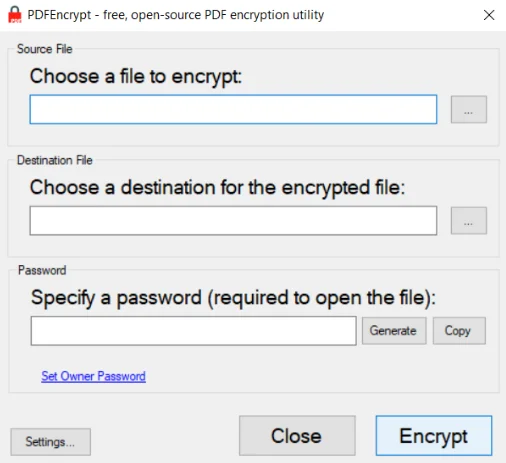
- Step 3. Enter an opening password. You can also set an owner password to restrict printing or copying content.
- Step 4. Click Encrypt to protect the PDF.
Password Protect PDFs Automatically with Free Spire.PDF
While the above tools are great for single PDFs, manually locking dozens of PDFs one by one is inefficient. This is when Free Spire.PDF for Python comes to help by automating PDF encryption. It allows developers to apply open and permission passwords to PDF files with just a few lines of code.
Code Example
With the help of Free Spire.PDF, securing PDF files takes just three simple steps:
- Load the PDF file.
- Call Security.Encrypt() to apply password protection.
- Save the encrypted PDF.
Here is the complete code snippet:
from spire.pdf import *

# Initialize the PdfDocument object
doc = PdfDocument()

# Load the target PDF file
doc.LoadFromFile("/input/Sample.pdf")

# Encrypt the PDF with user and owner passwords
doc.Security.Encrypt("openPsd", "permissionPsd", PdfPermissionsFlags.Print, PdfEncryptionKeySize.Key128Bit)

# Save the password-protected PDF to a new file
doc.SaveToFile("/output/protected_sample.pdf")
doc.Close()
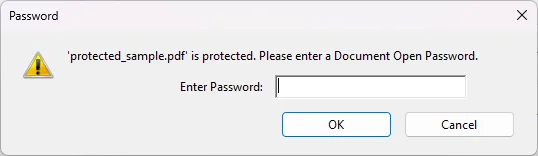
Opening the output PDF will now display a password prompt, indicating successful encryption:
You may like: How to Make a PDF Read Only in 2025 (A Complete Guide)
How to Password Protect a PDF When Exporting from Word
What if you haven't created the PDF file yet? If you are preparing your document in Microsoft Word, you don't need a separate PDF encryption tool. Word allows you to save the document as a PDF and add password protection during the export process.
- Step 1. Open your document in Microsoft Word.
- Step 2. Go to File > Save As and choose PDF as the file format.
- Step 3. Click the Options... button near the format selector.
- Step 4. Check Encrypt the document with a password at the bottom of the pop-up window.
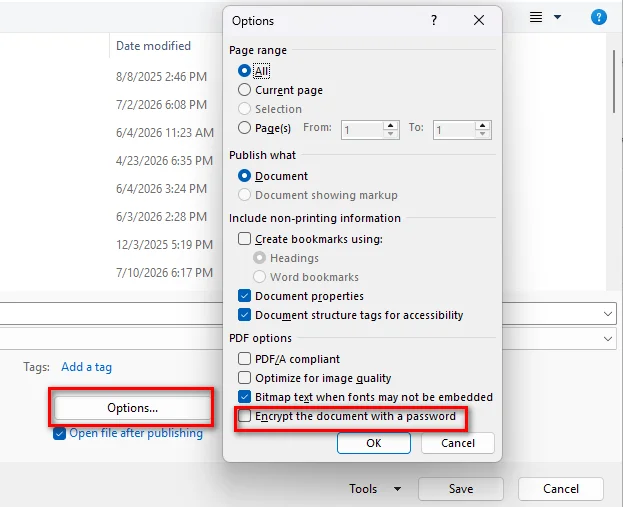
- Step 5. Click OK, enter your password, and save the secured PDF.
PDF Encryption Methods Comparison
To help you choose the right method, the following table compares each option based on privacy, supported platforms, and setup requirements:
| Method | Best For | Privacy Level | Platform | Setup Required |
|---|---|---|---|---|
| Online Tools | Quick protection for one-time PDF tasks | Moderate (cloud upload) | All Browsers | None |
| Mac Preview | Mac users needing offline PDF protection | High (local processing) | macOS | Built-in |
| Windows Desktop App | Protecting sensitive files on Windows | High (local processing) | Windows | Free Download |
| Free Spire.PDF for Python | Developers and batch PDF encryption | High (local processing) | Cross-platform | pip install |
| Microsoft Word Export | Creating password-protected PDFs while exporting | High (local processing) | Windows | Microsoft Office |
FAQs about Password Protecting PDFs
What is the difference between an Open Password and a Permission Password?
An open password (user password) prevents anyone from opening and viewing the file without entering the code. A permission password (owner password) allows users to open and read the document, but stops them from making changes, printing pages, or copying text.
Can I password protect a PDF without downloading extra software?
Yes, Mac users can rely on Preview, while users on any platform can choose online PDF protection tools. If you need offline protection on Windows, a free desktop application is also available.
Is it safe to encrypt a PDF online?
Generally, it is safe, but uploading sensitive or personal data to web tools is not recommended. If your PDF contains critical information, try offline desktop software or Free Spire.PDF for Python instead.
Conclusion
This guide covered five free ways to password protect a PDF, from quick online tools and built-in applications to desktop software, Python automation, and Microsoft Word export options. Each method is suitable for different situations: online tools work well for quick tasks, offline solutions provide better privacy, and automation is ideal for processing multiple files. Choose the method that best matches your security needs and workflow.
Also Read:
How to Remove Comments from PDF: with or without Adobe
Table of Contents
Whether you are preparing a final contract, submitting a thesis, or sharing a report with clients, removing internal comments, highlights, and review notes helps to maintain a professional appearance and prevents accidental data exposure.
In this guide, we will show you how to remove comments from PDF documents with three approaches. Depending on your needs, you can use Adobe Acrobat, free online tools, or an automated Python script.
- How to Delete All Comments in Adobe
- Remove Comments from PDF Online
- Remove Annotations from PDF Automatically with Python
- FAQs
How to Delete All Comments in Adobe
Adobe Acrobat is one of the most popular ways to manage and clean up PDFs. It allows you to remove comments using built-in features. Here is how to delete all comments in Adobe using two different approaches.
1. Bulk Select via the Comment Pane
This method is useful when you want to remove annotations from PDF quickly without hassle. Here are the detailed steps:
- Step 1. Open a PDF in Adobe Acrobat.
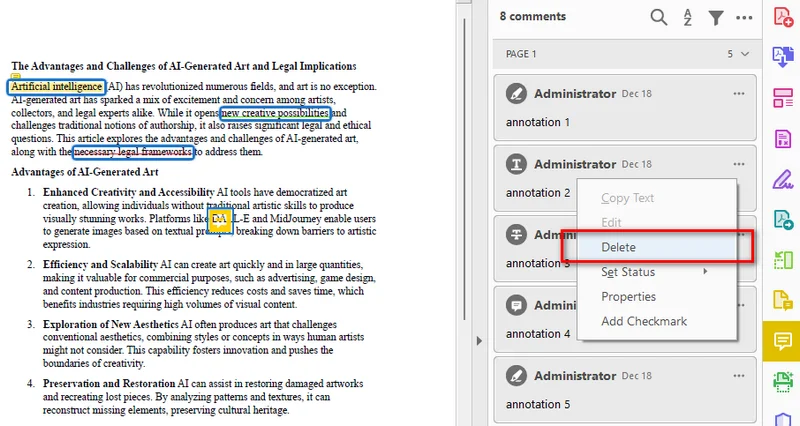
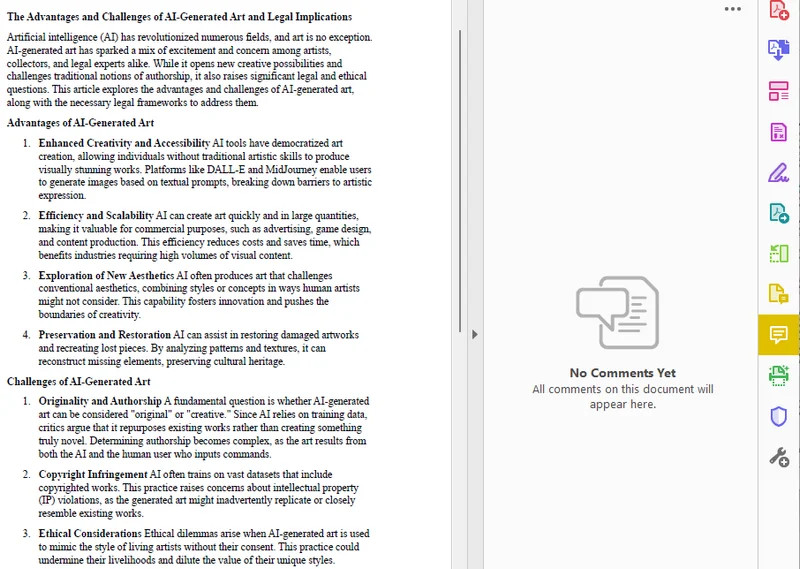
- Step 2. Open the comment panel by clicking the Comment icon in the right-hand toolbar.
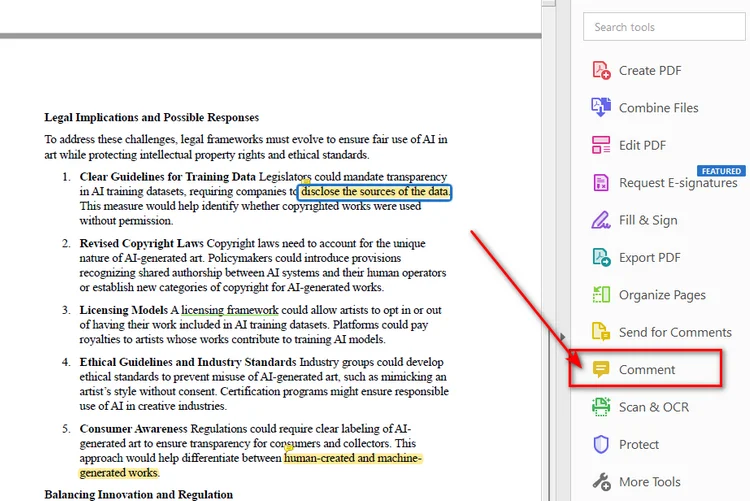
- Step 3. Left-click the first comment at the top of the panel.
- Step 4. Scroll down to the bottom of the list, hold down the Shift key on your keyboard, and click the last comment to select all annotations.
- Step 5. Right-click anywhere on the highlighted list and select Delete.
2. Use the Sanitize Document Feature
If you are dealing with a highly confidential document, manual deletion might miss hidden data. Acrobat's Sanitize feature can remove hidden information, including comments, metadata, and other private content.
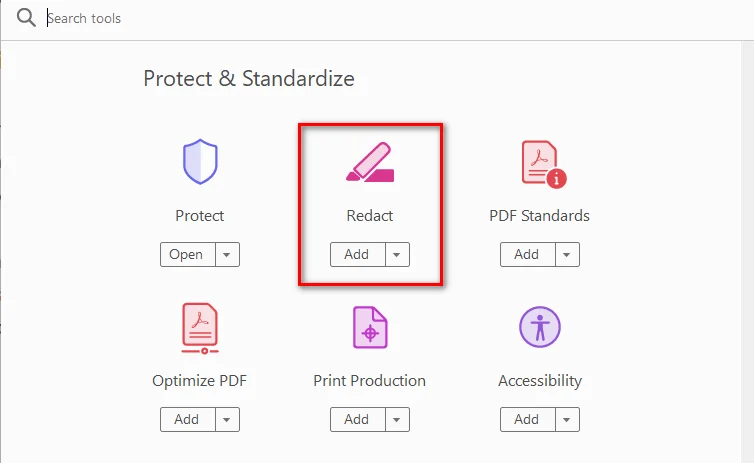
- Step 1. Go to the top menu and select Tools -> Redact.
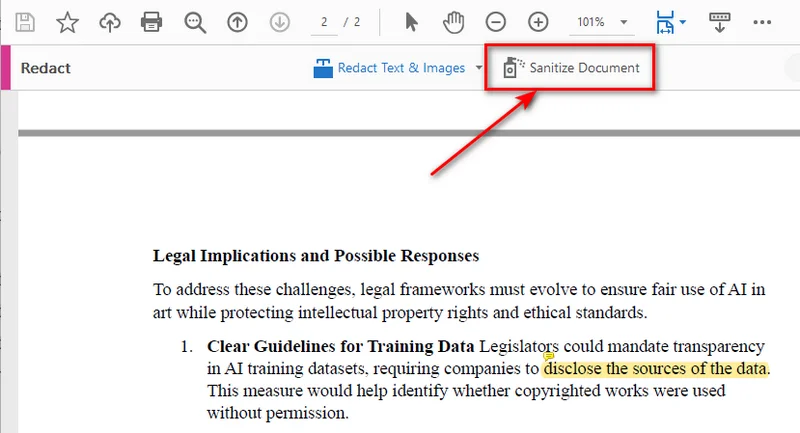
- Step 2. Click on the Sanitize Document button in the top bar.
- Step 3. A pop-up will appear. Click OK to permanently strip all hidden comments, revision histories, and private metadata.
Note: Using this way, Adobe will automatically create a new and clean version of PDF. This leaves your original PDF untouched, making it perfect for keeping an internal copy with your comments intact while creating a clean draft for others.
You may like: How to Make a PDF Read Only in 2025 (A Complete Guide)
How to Remove Comments from PDF Online (Without Adobe)
While Adobe Acrobat is highly powerful, most of its advanced features, including full comment management, require a paid subscription. If you only need to delete comments in PDF documents once or twice, using a web-based PDF editor is a better alternative. With platforms like Smallpdf, you can upload files directly in a browser and start editing instantly. The biggest advantages are that these tools are usually free, lightweight, and require no installation, making them a convenient option for quick PDF edits.
Steps to Remove Comments Online:
- Step 1. Search for online PDF editors in a browser.
- Step 2. Upload the PDF file to the editor.
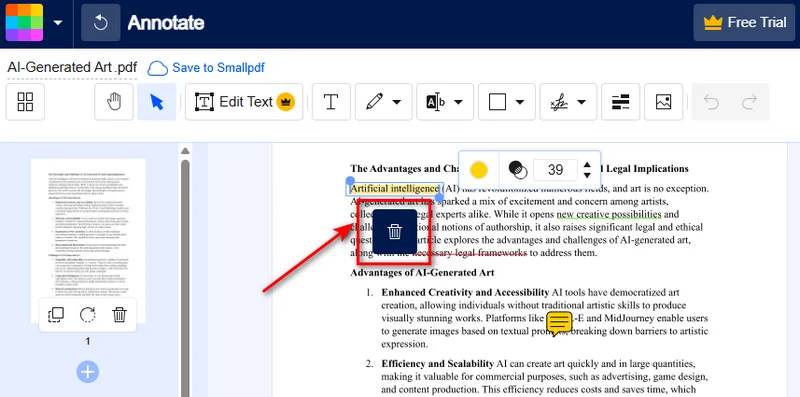
- Step 3. Click any annotation on the page, and tap the trash can icon to delete the comment.
While online tools are free and convenient, keep two things in mind: First, avoid uploading PDFs with sensitive financial data or trade secrets to third-party servers. Second, most web tools require you to delete comments one by one. If your document has dozens of notes or contains confidential data, try Adobe Acrobat or the Python method below.
How to Remove Annotations from PDF Automatically with Python
For developers or users who need to process multiple PDFs regularly, automation can save significant time compared with manual editing. If you need to automate document workflows or process large batches of files, you can remove all comments from PDF documents using a Python script.
In official PDF specifications, interactive elements like sticky notes, text markups, and shapes are technically called "annotations." Using the Free Spire.PDF for Python library, you can easily clear these elements out of the file structure automatically. As a standalone component, it allows you to process PDF files locally without relying on Adobe Acrobat, which is useful for automated batch processing.
Python Code to Clear PDF Comments
With the help of Free Spire.PDF, we can delete annotations from PDFs with two main steps: loop through each PDF page, access the annotation collection of each page and remove all annotation objects.
Here's the code example:
from spire.pdf.common import *
from spire.pdf import *

# Load the target PDF document from your local directory
pdf = PdfDocument()
pdf.LoadFromFile("/input/sample.pdf")

# Loop through all pages to remove all comments from pdf
for i in range(pdf.Pages.Count):
    page = pdf.Pages.get_Item(i)

    # Clear all sticky notes, highlights, and annotations on the current page
    page.AnnotationsWidget.Clear()

# Save the clean PDF
pdf.SaveToFile("/output/commentremoved.pdf")
pdf.Close()
FAQs about Removing Comments from PDF
Q1: How to remove comments from a PDF document for free?
A: You can use free web tools like Smallpdf to upload, clean, and download your file in seconds. However, if security is your top priority, using the Free Spire.PDF library is a better alternative. It runs entirely offline on your local machine, allowing you to batch-clean confidential documents for free with zero data leak risks.
Q2: Will removing comments also delete the highlight effect in the PDF?
A: Yes. In PDFs, highlights, underlines, and strikethroughs are classified as text markup annotations. When you remove annotations from PDF via Adobe's Sanitize tool, online editors, or Python scripts, these visual highlights will be deleted along with the sticky notes.
Q3: How do I hide comments instead of deleting them in Adobe?
A: If you want to keep the feedback for later but need a clean view right now, you can open the Comment pane in Adobe Acrobat and click the Hide All Comments icon at the top of the panel.
Conclusion
Knowing how to remove comments from PDF files helps you prepare clean and professional documents before sharing them. Whether you use Adobe Acrobat, an online PDF editor, or a Python script with Free Spire.PDF, you can easily delete comments based on your specific needs. Choose Adobe Acrobat for detailed manual editing, online tools for quick one-time tasks, or Python automation when you need to process multiple PDF files efficiently.
Also Read:
How to Add a Watermark in PowerPoint (Detailed Guide)
When creating presentations, adding watermarks, such as a company logo, slogan, or "CONFIDENTIAL" label, is an effective way to maintain a consistent design and indicate document ownership. However, because PowerPoint does not have a built-in, one-click watermark button, many users are unsure about how to add a watermark in PowerPoint presentations.
This guide walks you through several practical ways to add watermarks in PowerPoint, from manual Microsoft PowerPoint workarounds to batch processing with Python automation, helping you create secure and professional presentations easily.
- Insert Watermark in PowerPoint via Slide Master
- Put Watermark in PPT via Slide Master Code
- Add a Watermark in PowerPoint Slides Individually
- Best Practices
- FAQs
How to Insert Watermark in PowerPoint via Slide Master
Since MS PowerPoint lacks a watermark tool, the most effective way is to manually add text or image watermarks directly into the Slide Master. This applies the watermark to every slide automatically, saving time and keeping your formatting consistent across the entire presentation.
Step-by-Step Guide
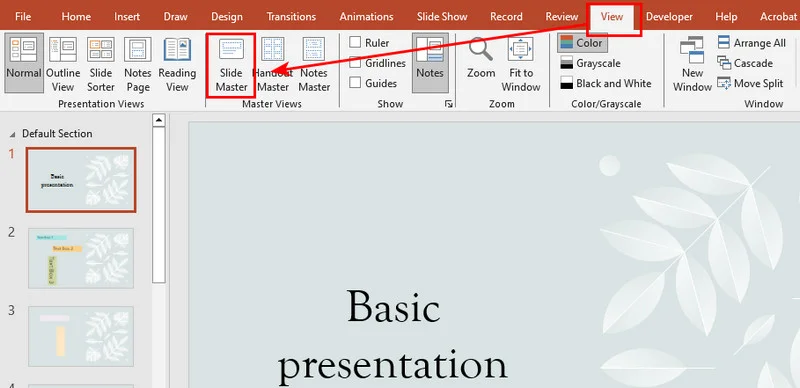
- Step 1: Open your presentation and navigate to View > Slide Master on the top ribbon.
- Step 2: Scroll to the very top of the left thumbnail pane and click the primary slide master (the largest, top-most thumbnail).
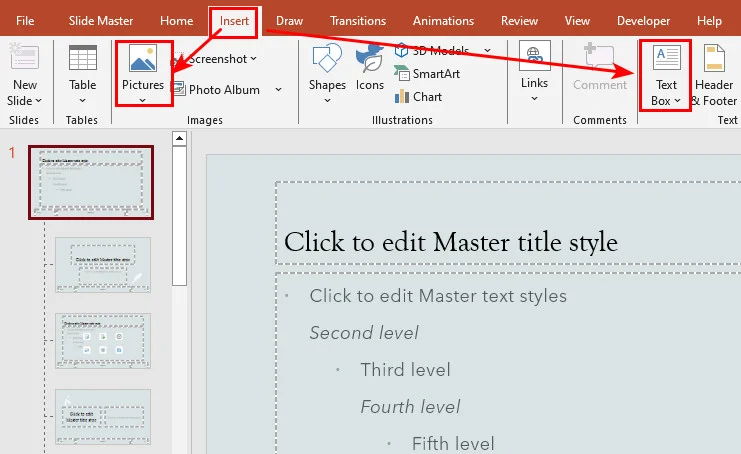
- Step 3: Go to the Insert tab. Choose Text Box for a text watermark (e.g., "CONFIDENTIAL") or click Pictures to upload a low-opacity PNG logo.
- Step 4: Right-click your inserted text or image and select Send to Back. This keeps your watermark underneath the main presentation data.
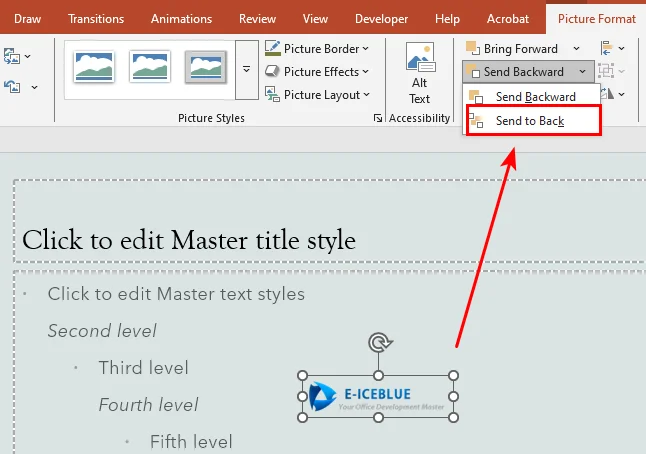
- Step 5: Click Close Master View in the Slide Master tab to return to the normal editing mode.
While this manual approach is perfect for one-off design tasks because it is highly visual and requires no technical background, it becomes inefficient when it comes to multiple presentations. Relying on repetitive manual work leaves too much room for human error. To handle large-scale document formatting effectively, we should turn to programmatic automation.
How to Put Watermark in PPT via Slide Master Code
When dealing with a large batch of PowerPoint files, automating the workflow with code is the more efficient choice. In this section, we will demonstrate how to automatically add watermarks in PowerPoint presentations using Free Spire.Presentation for Python. It is a free, standalone library that enables users to create and edit presentations without requiring Microsoft PowerPoint to be installed.
With the help of Free Spire.Presentation, we can still put watermarks in PPT by inserting an image or text into the Slide Master to apply the watermark across the entire presentation.
Here is the code example:
from spire.presentation.common import *
from spire.presentation import *

# Initialize and load the PPT file
presentation = Presentation()
presentation.LoadFromFile("/input/pre1.pptx")

# Get the slide master of the first slide
master = presentation.Masters[0]

# Calculate the coordinates to center the watermark image
img_width = 350.0
img_height = 110.0
left = (presentation.SlideSize.Size.Width - img_width) / 2
top = (presentation.SlideSize.Size.Height - img_height) / 2

# Define the coordinates using RectangleF class
rect = RectangleF(left, top, img_width, img_height)

# Add the image shape to the slide master as a watermark
image_shape = master.Shapes.AppendEmbedImageByPath(ShapeType.Rectangle, "/Logo1.png", rect)

# Optimize appearance and send the shape to the background
image_shape.Line.FillType = FillFormatType.none
image_shape.SetShapeArrange(ShapeArrange.SendToBack)

# Save the presentation
presentation.SaveToFile("/output/MasterImageWatermark.pptx", FileFormat.Pptx2010)
presentation.Dispose()
Here's the preview of the output PowerPoint presentation:
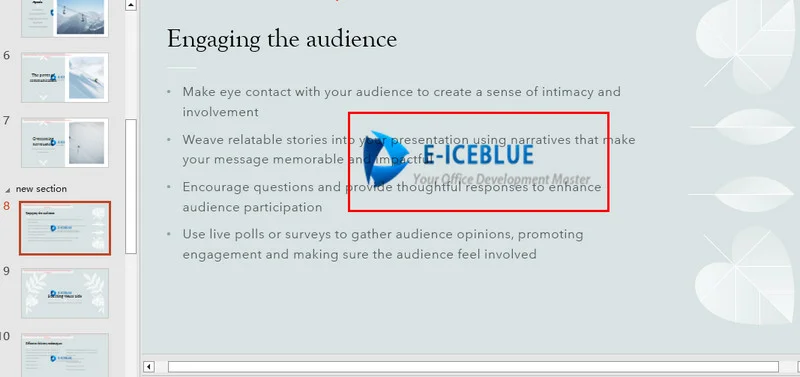
As seen in the left thumbnails, the same image watermark is now applied across all slides.
How to Add a Watermark in PowerPoint Slides Individually
While creating watermarks in Slide Master is ideal for protecting the full document, certain scenarios require a more precise way. For instance, you might want to stamp a "CONFIDENTIAL" text watermark only on specific content slides while leaving the cover page and closing slide clean and clear.
Adding a watermark to a specific slide is largely the same as the slide master method. You still insert rectangle shapes and add text or images. The only difference is that you use the presentation.Slides[index] property to target the specific slide instead of the global template.
Here is how to apply both text and image watermarks to the 8th slide:
from spire.presentation.common import *
from spire.presentation import *

# Initialize and load the PPT file
presentation = Presentation()
presentation.LoadFromFile("/input/pre1.pptx")

# Get presentation dimensions and target the 8th slide
slide_size = presentation.SlideSize.Size
first_slide = presentation.Slides[7]

# Load the image file stream
stream = Stream("/Logo1.png")
image = presentation.Images.AppendStream(stream)
stream.Close()

# Get the original width and height of the image
img_width = float(image.Width)
img_height = float(image.Height)

# Calculate the coordinates to center the image and define the bounding rectangle
img_left = (slide_size.Width - img_width) / 2
img_top = (slide_size.Height - img_height) / 2
img_rect = RectangleF(img_left, img_top, img_width, img_height)

# Add a rectangle shape and fill it with the image
img_shape = first_slide.Shapes.AppendShape(ShapeType.Rectangle, img_rect)
img_shape.Line.FillType = FillFormatType.none
img_shape.Locking.SelectionProtection = True  # Enable selection lock to prevent accidental modification
img_shape.Fill.FillType = FillFormatType.Picture
img_shape.Fill.PictureFill.FillType = PictureFillType.Stretch
img_shape.Fill.PictureFill.Picture.EmbedImage = image


# Define the width, height, and centering coordinates for the text watermark
txt_width = 350.0
txt_height = 110.0
txt_left = (slide_size.Width - txt_width) / 2
txt_top = (slide_size.Height - txt_height) / 2
txt_rect = RectangleF(txt_left, txt_top, txt_width, txt_height)

# Add a rectangle shape container for the text
txt_shape = first_slide.Shapes.AppendShape(ShapeType.Rectangle, txt_rect)
txt_shape.Fill.FillType = FillFormatType.none
txt_shape.ShapeStyle.LineColor.Color = Color.get_Transparent()
txt_shape.Line.FillType = FillFormatType.none
txt_shape.Rotation = -35                     # Rotate the text by -35 degrees
txt_shape.Locking.SelectionProtection = True  # Enable selection lock to prevent accidental modification

# Configure the watermark text content and formatting
txt_shape.TextFrame.Text = "CONFIDENTIAL"
text_range = txt_shape.TextFrame.TextRange
text_range.Fill.FillType = FillFormatType.Solid
text_range.Fill.SolidColor.Color = Color.FromArgb(120, Color.get_Black().R, Color.get_HotPink().G, Color.get_HotPink().B)
text_range.FontHeight = 45
text_range.LatinFont = TextFont("Times New Roman")

# Send both the image and text shapes to the background layer to prevent blocking content
img_shape.SetShapeArrange(ShapeArrange.SendToBack)
txt_shape.SetShapeArrange(ShapeArrange.SendToBack)

# Save the presentation file
presentation.SaveToFile("/output/WatermarkinSpecificSlide.pptx", FileFormat.Pptx2013)
presentation.Dispose()
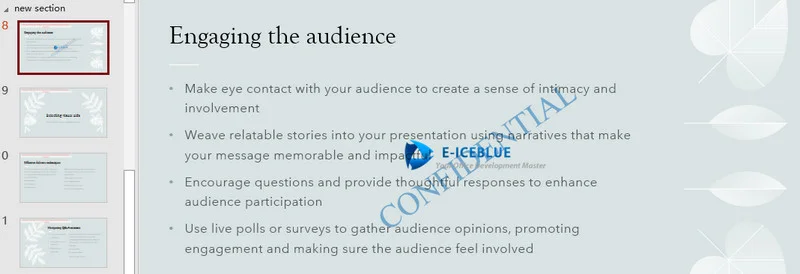
The Selection Lock Hack
Because these shapes are added directly onto the main slide canvas rather than the Slide Master, users could technically click and move them. To prevent this, setting shape.Locking.SelectionProtection = True on both the image and text shapes acts as an additional safeguard. It helps prevent accidental editing.
You may like: 5 Effective Ways to Password Protect PowerPoint Files
Best Practices
Before running scripts or sharing PowerPoint presentations, keep these design principles in mind to keep your presentation clean and easy-to-read:
- Transparency is Key: 15% to 20% opacity level is recommended. The watermark should not cover the main text.
- Strategic Rotation: Tilt your text at a -35° or -45° angle. Diagonal text blocks make unauthorized smartphone screenshots or photo leaks much harder to crop out.
- Color Selection: Neutral colors are suggested. Use light grays for light slide backgrounds and deep slate tones for dark presentation themes. Avoid loud, high-contrast colors like pure red or black.
Conclusion
Adding watermarks to your PowerPoint presentations protects your brand and secures sensitive data. For a quick, one-off file, the manual Slide Master view works perfectly. However, Python automation is better suited for large-scale processing. By utilizing Free Spire.Presentation for Python, you can easily script both global master updates and page-specific locks without even needing Microsoft PowerPoint installed. Pick the method that fits your current need and start securing your presentations today.
FAQs about Adding Watermarks to PPT
Q1: Can users remove the Python-generated watermark?
Not during regular editing. A watermark added via the Slide Master is natively unclickable in the standard view. However, users can still open the Slide Master view to move or delete it manually. If you want absolute, unremovable security, export the presentation to a PDF.
Q2: Why does my watermark image look pixelated?
The source image resolution is too low. Whether adding it manually or via code, always use a high-resolution PNG file with a transparent background.
Q3: Will the watermark remain intact when printing the slides?
Yes. Watermarks are embedded directly onto the slide master or locked canvas coordinates. They will generally preserve the opacity and the position when printing and exporting.
Also Read:
Convert EPUB to Word DOCX in 3 Simple Ways [Ultimate Guide]
EPUB is ideal for reading eBooks, but it's not designed for editing. If you want to revise content, quote a chapter, or reuse text in Microsoft Word, you'll first need to convert EPUB to Word, as Word doesn't support EPUB files natively. Fortunately, there are several ways to do this. Depending on whether you need a quick online converter, a desktop application, or an automated batch solution, this guide walks you through three practical methods using online tools, Calibre, and Python.
- Convert EPUB to Word Online Quickly
- Convert EPUB to DOCX Offline with Calibre Safely
- Batch Convert EPUB to Word Using Python
- Which Method Should You Choose
- FAQs
Convert EPUB to Word Online Quickly
If you only have one or two short eBooks to convert, online EPUB-to-Word converters are ideal for users who only need occasional conversions right in their web browser.
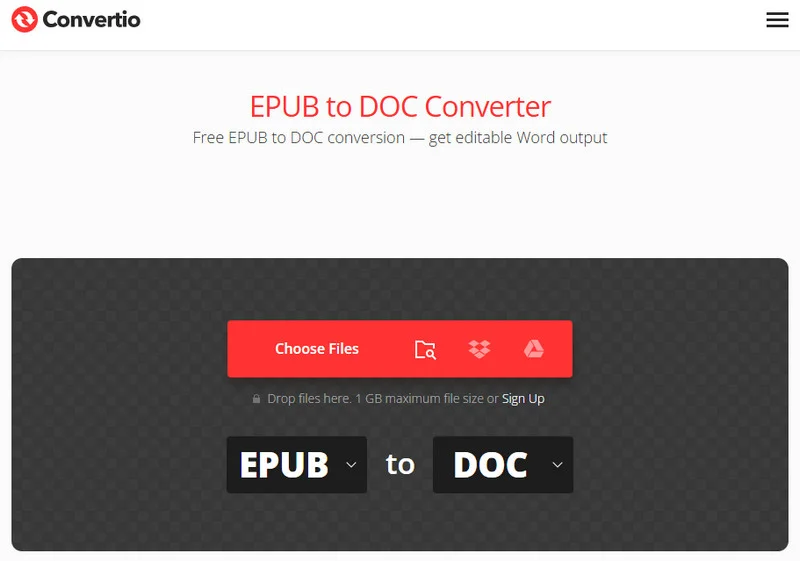
Two of the most reliable web-based platforms for this task are Convertio and FreeConvert. Convertio offers an easy-to-use interface and outputs clean .docx files, though it caps free uploads at 100MB. FreeConvert, on the other hand, allows larger files and gives you advanced control over individual conversion settings.
Tip: If you just want to view or share an eBook rather than edit its contents, converting it to PDF may be a better choice. See our guide on how to convert EPUB to PDF for several quick and reliable methods.
Steps to convert EPUB to Word documents with online tools
- Step 1: Upload EPUB files onto the website's dashboard.
- Step 2: Choose DOCX or DOC as your target format.
- Step 3: Click the convert button and wait for the cloud server to process documents.
- Step 4: Save the converted Word document directly to your device.
Pros and Cons
- Pros: No installation required; completely free and fast for single files.
- Cons: Potential privacy risks since you upload files to a third-party server; strict file size limits; unstable formatting if the book has a complex layout.
When it comes to sensitive data or confidential company materials, you might want to skip the web apps to avoid privacy risks. Instead, let's look at how to convert from EPUB to Word using a private, desktop-based workflow.
Convert EPUB to DOCX Offline with Calibre Safely
When web tools fail to handle heavy books or complex styling, you can turn to Calibre. Calibre is an open-source ebook management tool that also supports format conversion.
Because it runs completely on your local machine, your data remains 100% private. It features a robust layout engine that analyzes the underlying code of an eBook, making it an incredibly accurate tool to convert EPUB content into DOCX while preserving most of the original formatting.
Step-by-Step Desktop Guide
- Step 1: Open Calibre and click the Add books button in the top-left corner to load your EPUB file.
- Step 2: Highlight your book from the main library list and click the Convert books icon on the top toolbar.
- Step 3: In the pop-up window, look at the top-right corner and change the Output format to DOCX.
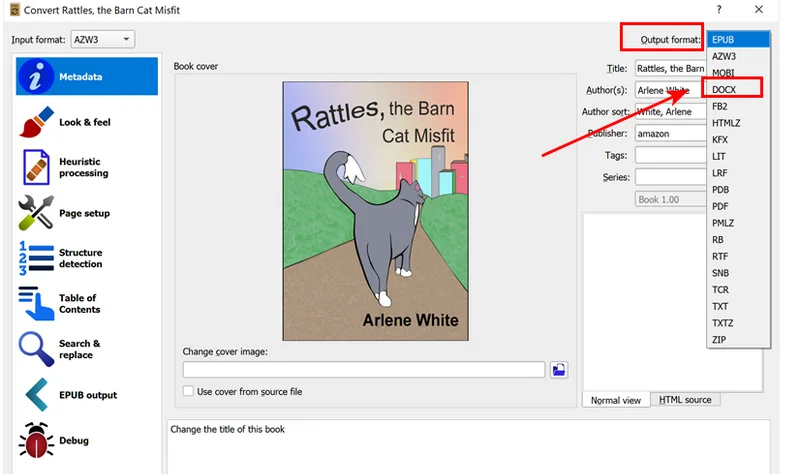
- Step 4: On the left-hand menu, navigate to Heuristic Processing and check the box to enable heuristic processing. This built-in feature automatically scans and fixes broken paragraph lines, unwanted hyphenations, and bad spacing.
- Step 5: Click OK at the bottom right. Once the tasks spinner hits zero, click Save to disk to export your polished Word document.
Tip:
If you prefer using your terminal over a user interface, Calibre installs a native command-line utility straight into your system path. Open your terminal or PowerShell and run this command to instantly convert an EPUB file:
ebook-convert input.epub output.docx
While Calibre is excellent for manual management, it still requires many clicks or custom shell scripts. If you are integrating EPUB conversion into your own application or need to automate massive EPUB files, writing a custom Python script is more efficient.
Batch Convert EPUB to Word Using Python
Manually clicking buttons on web pages or desktop apps becomes inefficient when you have hundreds of eBooks that need to be converted. For developers and IT professionals, building a script to convert EPUB files to Word docs in large batches saves hours of repetitive labor.
To automate the conversion process, we'll use Free Spire.Doc for Python. The library provides native support for EPUB documents and can be integrated into Python applications for automated document conversion. It also supports converting Word documents back to EPUB, making it a practical choice for two-way document conversion.
Python Code Implementation
Converting a single file with Free Spire.Doc takes just two steps: loading the EPUB and saving it as a DOCX. However, to handle an entire library, we need a quick Python loop to scan the directory.
Before running the script, make sure you install the library in your environment:
pip install Spire.Doc.Free
The following example converts every EPUB file in a folder into DOCX:
import os
from spire.doc import Document, FileFormat

# Define source and destination directories
input_dir = "/input/epub/"
output_dir = "/output/epubtoword/"

# Ensure the output directory exists
if not os.path.exists(output_dir):
    os.makedirs(output_dir)

# Scan the folder and batch convert all EPUB files
for file_name in os.listdir(input_dir):
    if file_name.lower().endswith('.epub'):
        # Create a Document object
        document = Document()

        # Load the EPUB file natively
        document.LoadFromFile(os.path.join(input_dir, file_name))

        # Save the EPUB document as a Word DOCX file
        base_name = os.path.splitext(file_name)[0]
        document.SaveToFile(os.path.join(output_dir, f"{base_name}.docx"), FileFormat.Docx)

        # Close the document to release resources
        document.Close()
Here's the preview of the batch-converted Word documents: 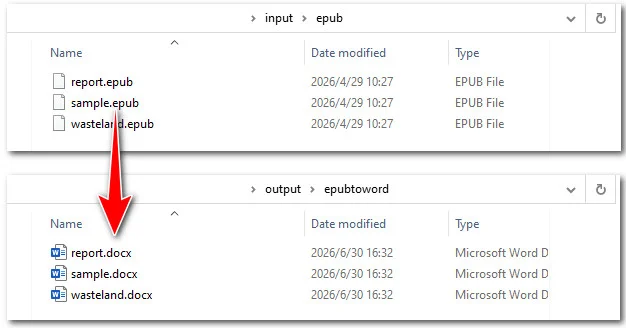
You may like: 5 Best EPUB to TXT Converters (Online & Programming Ways)
Which Method Should You Choose?
Picking the perfect tool depends on how many files you have, your technical background, and your privacy standards. Here is a clear breakdown to help you decide which approach to take:
| Feature / Metric | Online Tools | Calibre | Python Automation |
|---|---|---|---|
| Target Audience | Casual users with quick tasks | Heavy readers and book collectors | Developers and system administrators |
| Data Privacy | Low | High | High |
| File Size Limit | Yes | None | None |
| Batch Processing | Average | Good | Best |
| Layout Retention | Average | Very Good | Excellent |
Conclusion
Choosing the right solution comes down to your workload. If you just have one or two public files and want a quick fix without installing anything, online converters like Convertio are great. For a larger personal file where you need privacy and complex layout control, Calibre is a better choice. Finally, if you need to handle bulk conversions or integrate it into a background workflow, using a Python script with Free Spire.Doc is the best option.
FAQs about Converting EPUB to Word Documents
Q1: Why did my converted Word document lose its formatting or images?
Because EPUBs use flexible web layouts while Word relies on fixed page dimensions, their formatting rules don't always match. When complex elements like sidebars are converted, Word often cannot map their exact positions, so it deletes them or pushes them to a new page. To improve the conversion results, enable Calibre's heuristic processing before exporting or adjust Free Spire.Doc script to handle specific element margins.
Q2: Can I convert DRM-protected EPUB files to Word?
DRM-protected EPUB files cannot be converted directly. If permitted by the publisher and applicable local laws, remove the DRM protection before converting the file.
Q3: Is it possible to convert from EPUB to Word without losing the clickable Table of Contents (TOC)?
Yes! Advanced utilities like Calibre and Free Spire.Doc automatically translate the native eBook compilation index into Word's default interactive hyperlink system.
Also Read:
The Ultimate Guide to Convert Text File to Excel (5 Simple Ways)
Table of Contents
- Convert TXT to Excel by Importing Data with Data Tab
- Open TXT File in Excel Directly and Save It
- Convert Selected Text Snippets with Text to Columns
- Batch Convert TXT to Excel with Python Script
- Convert Text Files to Excel Fast with Online Converter
- The Comparison Table of the 5 Methods
- Troubleshooting
- FAQs
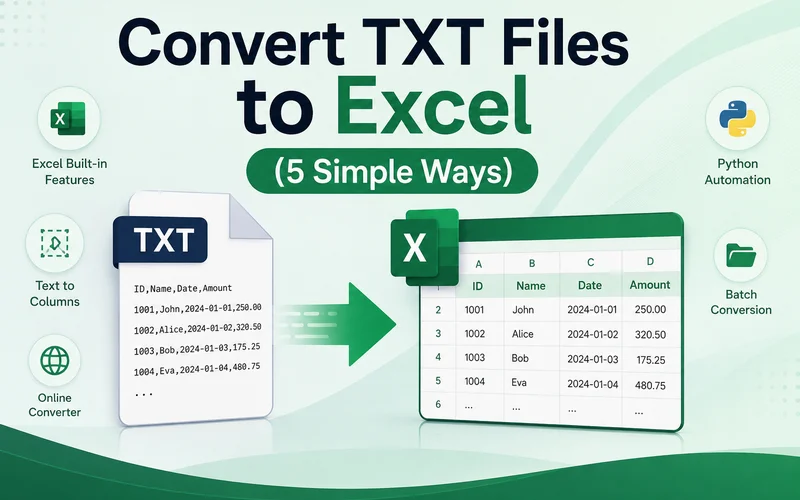
Many systems export reports, logs, and transaction records as TXT files. While text files are easy to store and share, analyzing large amounts of data in a plain text format can be frustrating. Sorting, filtering, and creating formulas become difficult, which is why many users need to convert TXT files to Excel for easier data management.
This guide covers five practical ways to convert text files to Excel, including Microsoft Excel's built-in import tools, Python automation solutions and online converters.
- Convert TXT to Excel by Importing Data with Data Tab
- Open TXT File in Excel Directly and Save It
- Convert Selected Text Snippets with Text to Columns
- Batch Convert TXT to Excel with Python Script
- Convert Text Files to Excel Fast with Online Converter
- The Comparison Table of the 5 Methods
- Troubleshooting
- FAQs
Convert TXT to Excel by Importing Data with Data Tab
Let's start with Excel's built-in features. To make data migration across different formats much smoother, Excel offers native tools to import data from various external sources. This approach allows you to import structured data from a TXT file while preserving its original layout. It is a highly reliable way to convert a text file to Excel.
Here are the detailed steps:
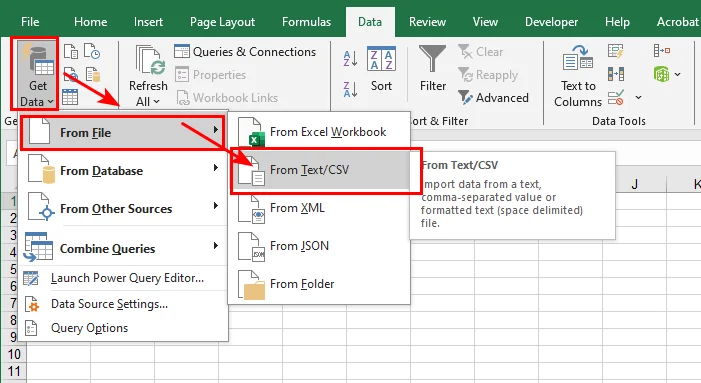
- Step 1: Open Microsoft Excel and navigate to the top menu bar, click the Data tab, select Get Data > From File, and then click From Text/CSV.
- Step 2: Click the Delimiter dropdown menu to verify if your data splits correctly using a comma, tab, space, or semicolon.
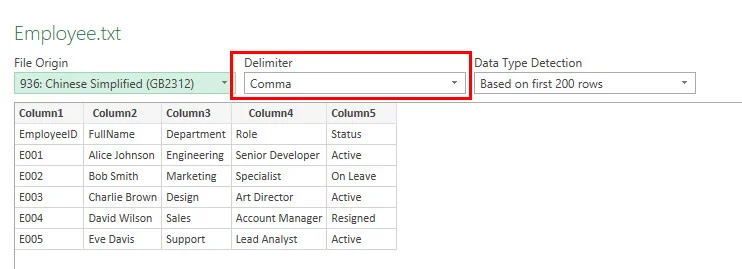
- Step 3: Review the columns in the preview grid, click the Load button at the bottom right, and save the document.
Notice: If your text contains non-English characters or symbols that look scrambled in the preview window, click the File Origin dropdown menu and change the encoding to UTF-8 or GBK to fix the display before loading.
- Pros: High accuracy, prevents messy codes, and handles huge files flawlessly.
- Cons: Takes a few more clicks than other methods.
Open TXT File in Excel Directly and Save It
If your dataset is straightforward and uses clear delimiters, you can pull the raw document straight into the application. Open the text file directly in Excel and let the built-in import wizard automatically split the data into columns. This is the quickest method for opening and converting a well-formatted text file.
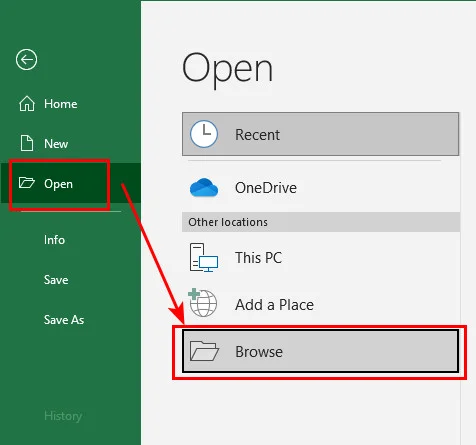
- Step 1: Launch Excel, click File > Open > Browse, and change the file type dropdown filter from "All Excel Files" to All Files (.).
- Step 2: Double-click your TXT file to trigger Excel's built-in data parsing window.
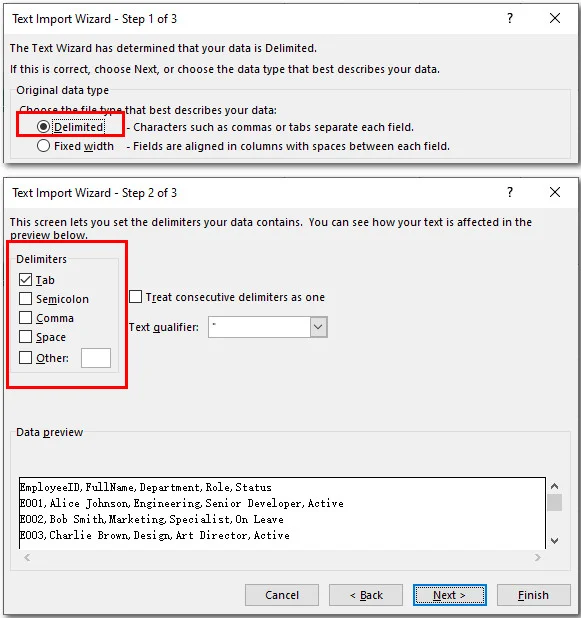
- Step 3: Select Delimited, click next, check the correct separator (like tab or space), and hit Finish.
-
Step 4: Go to File > Save As, choose the target folder, and save it in Excel Workbook (*.xlsx) format.
-
Pros: Fast, requires no preparation.
-
Cons: Risky if the text contains special formatting or complex data types.
Convert Selected Text Snippets with Text to Columns
Sometimes, you don't need to transform an entire report. You might just need a small snippet of data from an email or a system log. In these scenarios, a simple copy-paste lets you insert the exact data you want directly into a single column. Then, you can use the Text to Columns feature to quickly parse that text into separate cells, allowing you to convert a part of the txt file to Excel without dealing with full-scale documents.
- Step 1: Copy the data you need in a text file, and paste it into a cell of a blank Excel sheet.
- Step 2: Highlight the whole column, go to the Data tab, and click Text to Columns.
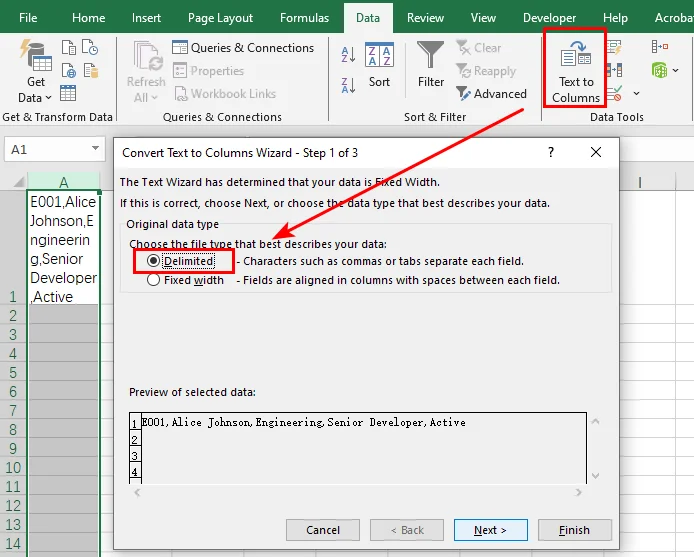
-
Step 3: Choose Delimited on the first screen and hit Next.
-
Step 4: Check the box next to your delimiter (such as a comma or space), click Finish to distribute the text into separate cells, and save the document.
-
Pros: Perfect for quick edits and partial data snippets.
-
Cons: Inefficient for processing large files or multiple documents.
Batch Convert TXT to Excel with Python Script
If you deal with dozens of reports daily, manually processing each file can become time-consuming. Learning how to convert TXT files to Excel using Python lets you build a hands-free automation pipeline. For this task, we will use Free Spire.XLS for Python, a standalone library that allows developers to create, manage, and convert Excel spreadsheets programmatically without requiring Microsoft Excel to be installed. By using its advanced workbook features, you can easily parse text files with custom delimiters and convert them in batches.
Below is the workflow batch converting text documents to Excel spreadsheets using the library:
- Step 1: Define the file paths and set the target delimiter (such as a comma or tab) to handle different text structures.
- Step 2: Loop through the folder to locate all
.txtfiles and dynamically generate the corresponding.xlsxoutput names. - Step 3: Initialize the
Workbookobject and use theLoadFromFilemethod to parse the text data into rows and columns. - Step 4: Call
AutoFitColumns()on the allocated range to make columns fit data length automatically, then save the documents.
Here is how to use Free Spire.XLS to read and convert multiple text files with mixed delimiters into Excel spreadsheets:
import os
from spire.xls import *

# Define input and output directory paths
input_folder = "/input/txt files/"
output_folder = "/output/excel files/"

# Loop through and process all text files in the input folder
for filename in os.listdir(input_folder):
    if filename.endswith(".txt"):
        txt_path = os.path.join(input_folder, filename)
        excel_name = filename.replace(".txt", ".xlsx")
        excel_path = os.path.join(output_folder, excel_name)

        # Read the first line
        with open(txt_path, 'r', encoding='utf-8') as f:
            first_line = f.readline()

        # Dynamically match delimiter: priority given to comma, then space, else default to tab
        current_delimiter = "," if "," in first_line else (" " if " " in first_line else "\t")

        # Initialize workbook and load the text file
        workbook = Workbook()
        workbook.LoadFromFile(txt_path, current_delimiter, 1, 1)

        # Automatically fit columns to make them match the data length
        sheet = workbook.Worksheets[0]
        sheet.AllocatedRange.AutoFitColumns()

        # Save the result as an Excel file
        workbook.SaveToFile(excel_path, ExcelVersion.Version2016)
        workbook.Dispose()
        print(f"Successfully converted ({'Comma' if current_delimiter==',' else 'Space'}): {filename} -> {excel_name}")
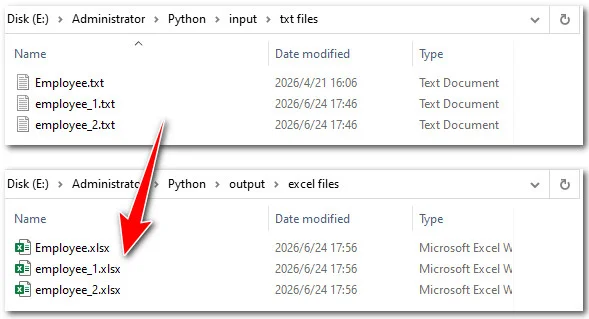
- Pros: 100% automated, processes hundreds of files instantly, handle different files using different delimiters.
- Cons: Requires a Python environment setup on your device.
Convert Text Files to Excel Fast with Online Converter
If you are working on a computer or mobile device without Microsoft Excel installed, online tools provide a quick fix. A web-based TXT-to-Excel converter can save time and effort when you need a fast turnaround.
Here is how to convert from text files to Excel using online converters, using Convertio as an example:
- Step 1: Find the TXT-to-XLSX tool of Convertio.
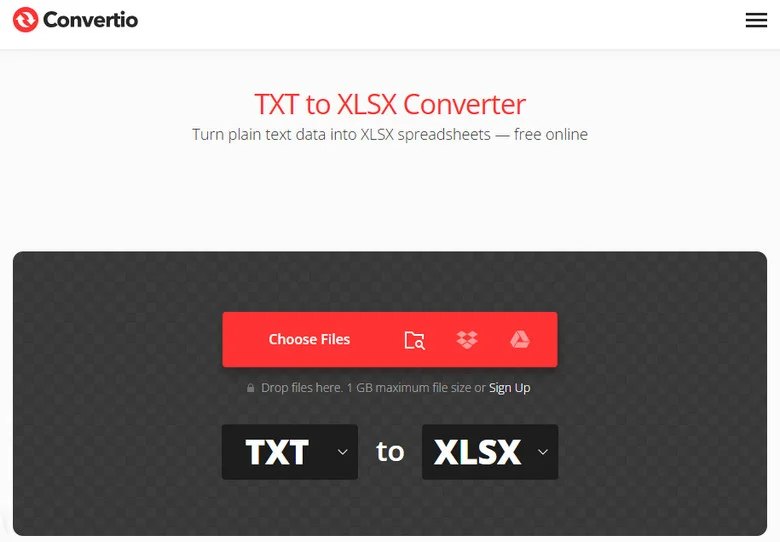
- Step 2: Click to upload the target TXT file from your device.
- Step 3: Click the Convert button, wait a few seconds, and then you can download the resulting Excel file.
- Pros: No software installation required, works on both desktop and mobile devices, and converts files quickly.
- Cons: Limited control over formatting, file size restrictions may apply, and uploading sensitive data to third-party servers can create privacy risks.
The Comparison Table of the 5 Methods
To help you find the best approach, here is a quick comparison table of the 5 methods above based on data size, file complexity, and speed:
| Method | Best For | Data Size Limit | Speed |
|---|---|---|---|
| Data Tab Import | Complex layouts & foreign text | Very High | Medium |
| Direct Open | Clean, basic text files | Medium | Fast |
| Text to Columns | Copying text snippets | Low | Fast |
| Python Code | Batch converting folders | Unlimited | Instant (Automated) |
| Online Converter | Emergency use without Excel | Low | Fast |
Troubleshooting
When learning how to convert a TXT file to Excel, you might encounter minor formatting glitches. Here is how to fix them fast:
Garbled or Scrambled Text
If special symbols or accented characters turn into strange shapes, your file encoding is mismatched. Re-import the file using Method 1 and try switching the File Origin dropdown to Windows-1252 (Western European) or UTF-8 until the text displays correctly in the preview window.
Numbers Turning into Scientific Notation
If long ID numbers appear as 4.5E+11, Excel is automatically formatting them as numeric values. Before importing, set the column type to Text instead of General. If you've already loaded the data, you can still convert those numbers back to text format to preserve the full value.
Conclusion
Converting a TXT file to Excel is easier than most people expect. If you only need to work with a single file, Excel's built-in import tools are usually the quickest option. For larger datasets, they also provide better control over delimiters and encoding. If your accounting software, ERP system, or reporting platform exports daily TXT reports, Python automation can save significant time by processing files in batches. Choose the method that best fits your workflow, and you'll be able to turn raw text data into organized Excel workbooks in just a few minutes.
FAQs about Converting TXT to Excel
Can Excel open TXT files directly?
Yes. Excel can open TXT files directly through File > Open or by using the Data > From Text/CSV import feature. The import method is generally recommended because it provides more control over delimiters, encoding, and column formatting.
Why does my TXT file look garbled in Excel?
This usually happens when the file encoding does not match Excel's import settings. Try re-importing the file and selecting a different encoding, such as UTF-8 or Windows-1252, until the text displays correctly.
How can I convert multiple TXT files to Excel at once?
For batch conversion, automation tools such as Free Spire.XLS for Python are often the most efficient option. A script can process an entire folder of TXT files and save each one as an Excel workbook automatically.
Can I convert TXT to Excel without Microsoft Excel?
Yes. You can use online TXT-to-Excel converters or programmatic solutions such as Python libraries. However, be cautious when uploading files that contain sensitive or confidential information.
Also Read
How to Attach a File to a PDF (Adobe Acrobat & Python Guide)
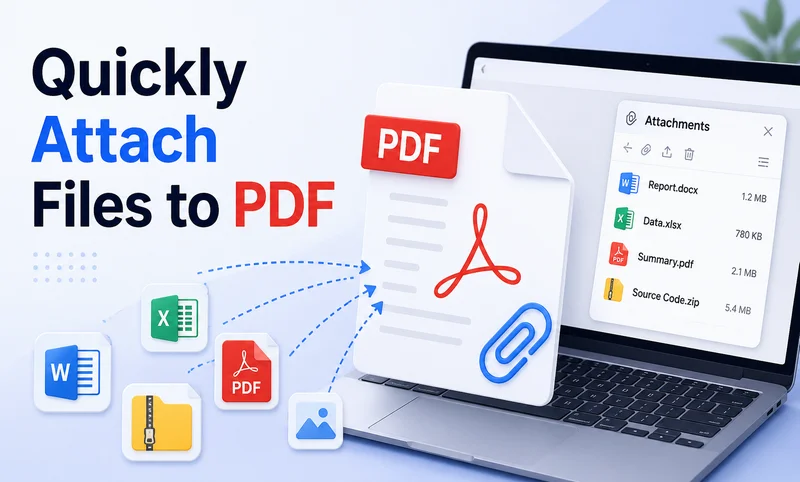
Imagine sending an invoice PDF to a client but forgetting to include the Excel itemization sheet. Or worse, emailing a technical report without the source code. Merging everything into one place can prevent such mistakes. Knowing how to attach a file to a PDF ensures your readers get all the data they need in a single document. In this guide, you will learn how to add attachments to PDF files with Adobe and how to automate it using Python.
- Understanding the 2 Ways to Attach Files to a PDF
- Comparison Table
- Attach a File to a PDF Manually using Adobe Acrobat
- Attach Documents to PDF using Free Spire.PDF
- Best Practices & Troubleshooting
Understanding the 2 Ways to Attach Files to a PDF
Before diving into the steps, it's important to understand how PDFs handle embedded files. Depending on your goal, you can choose between a clean, hidden approach or a highly visual one.
- Document-Level Attachments: Document-level attachments work much like email attachments. The external file is embedded into the PDF document and stays hidden inside the viewer's sidebar panel. This method is ideal for bundling large datasets, source code packages, or supporting documents.
Tip: If you need to package multiple related files into a single PDF container, you may also consider creating a PDF Portfolio, which provides a more structured way to organize attachments.
- File Attachment Annotations: These are page-level attachments. They display a visual icon (like a paperclip or a pin) at a specific coordinate on the page. Readers can double-click the icon to open the file immediately. It is ideal for linking a source document right next to text or a paragraph.
Quick Comparison
Choosing the right method to attach files saves time and improves your reader's experience. Use this quick breakdown to decide which approach fits your project:
| Feature | Document-Level Attachment | File Attachment Annotation |
|---|---|---|
| Visibility | Completely hidden on the page. Only visible in the attachments sidebar. | Displays a clickable icon on a specific page coordinate. |
| User Action | User must open the sidebar panel and scroll through a file list. | User reads a paragraph and double-clicks the icon directly on the page. |
| Primary Use | Archiving raw data, attaching project source code or full Excel sheets. | Contextual references, detailed chart explanations, legal proofs. |
| Recommendation | Best for automated data archiving | Best for interactive reading |
All in all, if you want to bundle raw data without messing up your PDF layout, go with Document-Level. If you want your readers to check a specific source file right after reading a paragraph, annotation is better.
Method 1: How to Attach a File to a PDF Manually using Adobe Acrobat
If you only have a few files to process and prefer an intuitive interface, attaching a file to a PDF manually via Adobe Acrobat is perfect. As one of the most popular PDF editors, Adobe Acrobat makes it easy to add attachments to PDF documents, allowing you to seamlessly embed external files either at the document level or as visual annotations.
Adding a Document-Level Attachment to PDF
- Step 1. Open your target PDF file in Adobe Acrobat.
- Step 2. Expand the left navigation pane and click the Attachments icon (it looks like a paperclip).
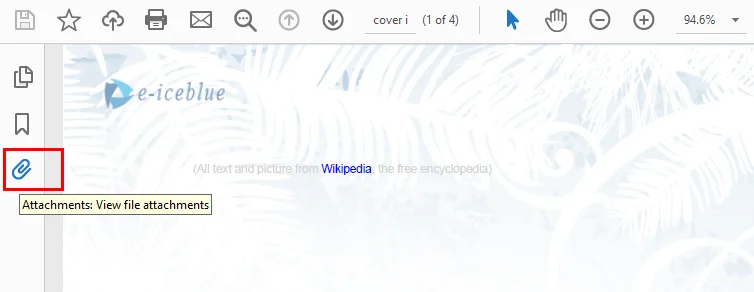
- Step 3. Click the Add files button at the top of the panel, select a file from your computer, and save the PDF.
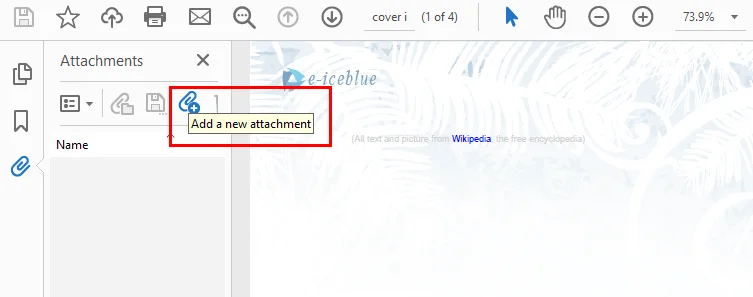
Adding a File Attachment Annotation in PDF
- Step 1: Click Comment in the right sidebar to open the comment toolbar.
- Step 2: Click the Attach File tool on the toolbar.
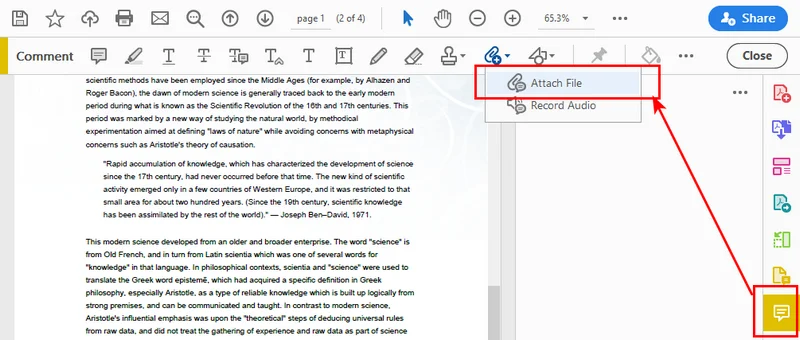
- Step 3: Click anywhere on the PDF page where you want to place the visual attachment icon.
- Step 4: Select the target file from your device, choose your preferred icon style in the pop-up properties window, and save the document.
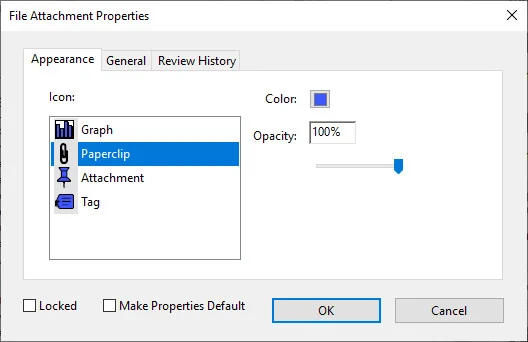
Method 2: How to Attach Documents to a PDF Programmatically using Free Spire.PDF
Attaching a few files manually is manageable, but the process quickly becomes inefficient when dealing with dozens or hundreds of documents. If you need to integrate file bundling into an automated enterprise workflow, like linking raw data sheets to invoices or source files to technical reports, doing it by hand is exhausting. To scale your document pipelines, automating file attaching becomes the most efficient and scalable solution. By leveraging Free Spire.PDF for Python, you can achieve this with just a few lines of code.
As a standalone and free community component, Free Spire.PDF for Python requires no Adobe Acrobat installation on your servers. It allows you to manipulate PDF structures seamlessly, supporting both document-level and annotation-style file attaching.
Attach a File to a PDF Directly
This script demonstrates how to inject files directly into the global attachment collection of a PDF. The core idea is to create a PdfAttachment object based on a local file and then use the PdfDocument.Attachments.Add() method to attach it to the source PDF file.
from spire.pdf import *
from spire.pdf.common import *

# Initialize the document object
doc = PdfDocument()

# Load your existing PDF file
doc.LoadFromFile("/input/Booklet.pdf")

# Create document-level attachments by passing the file path
attachment_1 = PdfAttachment("/sample.docx")
attachment_2 = PdfAttachment("/invoice.xlsx")

# Add the attachments to the global attachments collection
doc.Attachments.Add(attachment_1)
doc.Attachments.Add(attachment_2)

# Save the finalized PDF document
doc.SaveToFile("/output/global_attachment.pdf")
doc.Close()
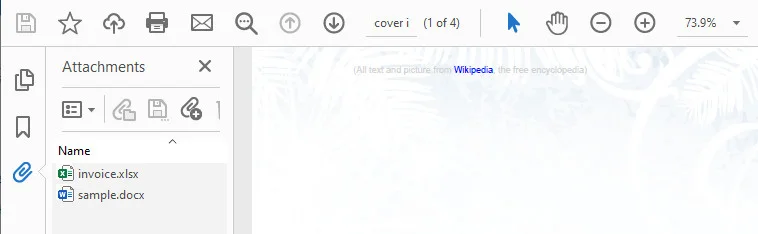
Adding Attachments to a PDF as an Annotation
This code sample adds an external file to the PDF as an annotation attachment, which is ultimately displayed as a clickable graph icon on the first page.
The core idea is to retrieve a target page via doc.Pages.get_Item(), define the exact page coordinates using RectangleF, and initialize a PdfAttachmentAnnotation object tied to your external file. After customizing properties like the icon style, color, and hover text, you simply append it to the page's interactive layer using the page.AnnotationsWidget.Add() method.
from spire.pdf import *
from spire.pdf.common import *

# Initialize the document object and load the source PDF file
doc = PdfDocument()
doc.LoadFromFile("/input/new.pdf")

# Get the first page
page = doc.Pages.get_Item(0)

# Draw a text prompt on the PDF page canvas
text_str = "Here is the report:"
font = PdfTrueTypeFont("Times New Roman", 16.0, PdfFontStyle.Bold, True)
x = 50.0
# Calculate the Y coordinate dynamically based on the actual page height
y = doc.Pages.get_Item(0).ActualSize.Height - 300.0
page.Canvas.DrawString(text_str, font, PdfBrushes.get_Blue(), x, y)

# Read the local file into a data stream as the attachment content
data_stream = Stream("/input/sample.docx")

# Calculate position: place the icon 5.0 pixels to the right of the text prompt
text_size = font.MeasureString(text_str)
bounds = RectangleF((x + text_size.Width + 5.0), y, 15.0, 15.0)

# Create the file attachment annotation object
annotation = PdfAttachmentAnnotation(bounds, "sample_attachment.docx", data_stream)

# Customize the appearance and tooltip behavior of the annotation
annotation.Color = PdfRGBColor(Color.get_Blue())
annotation.Flags = PdfAnnotationFlags.Default
annotation.Icon = PdfAttachmentIcon.Graph
annotation.Text = "Click to open the file"

# Add the interactive annotation layer to the page widget collection
page.AnnotationsWidget.Add(annotation)

# Save the PDF document
doc.SaveToFile("/output/AnnotationAttachment1.pdf")
doc.Close()
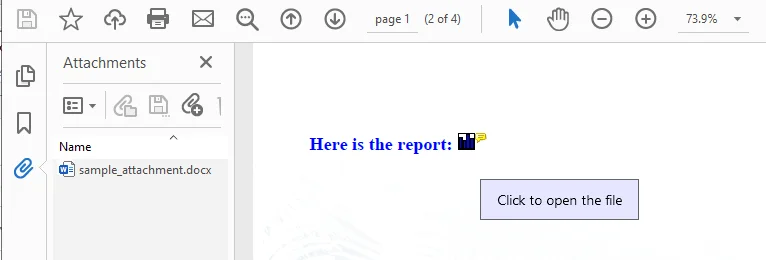
Note: If you are working on a collaborative review layout, these annotations sync perfectly with standard PDF revision tracking fields.
Best Practices & Troubleshooting when Attaching Files to PDFs
Before you hit send on your newly updated documents, you should keep a few notes in mind to avoid common errors.
- File Size Management: When you attach a file to PDF structures, for example, embedding a 50MB video will make your PDF too large to email. Compress your files first, or use secure cloud URLs for large files.
- Security & Blocked Formats: Modern PDF readers are highly sensitive to malware. It is recommended to attach files in safe formats like
.txt,.docx, or.xlsx. - How to Extract Attachments: What goes in must come out. If you are building an automated pipeline, you can use
PdfAttachment.DataorPdfAttachmentAnnotation.Datato read and extract these files back out into your database later.
Conclusion
In this post, we explored how to attach a file to a PDF using two main approaches: document-level file attachments and page-level annotation attachments. We also explained both manual operations via Adobe Acrobat and code-based automation using Free Spire.PDF for Python.
Whether you need a quick manual fix for a few documents or want to integrate file bundling into an automated workflow, both approaches can help streamline the way you distribute supporting files alongside PDF documents. Choose the method that best fits your business scenario, and start optimizing your PDF pipelines today!