Leitura de PDF com IA em C#: Ler e Extrair Dados
Ler e processar arquivos PDF programaticamente em C# é um requisito comum para desenvolvedores .NET que criam sistemas de automação de documentos, extração de dados e geração de relatórios. Bibliotecas tradicionais de análise de PDF exigem código complexo para extrair texto, preservar a formatação e analisar tabelas. Elas frequentemente produzem resultados ruins para layouts irregulares, conteúdo desalinhado e estruturas de tabela não padrão.
Se você deseja uma maneira simples e com IA de ler PDFs em C# e exportar o conteúdo do PDF para outros formatos, Spire.Agent.Office é uma ótima escolha. Este SDK de agente de IA para .NET conduz fluxos de trabalho de análise e conversão de PDF usando instruções em linguagem natural. Ele funciona sem Adobe Acrobat ou softwares externos de terceiros para PDF.
Neste tutorial, apresentaremos como usar IA para ler PDF em C#, com exemplos de código completos e executáveis para:
- Extrair conteúdo de PDF para TXT
- Converter PDF em Word editável
- Ler tabelas de PDF para CSV/Excel
- Processar vários PDFs em lote
Por que escolher o Spire.Agent.Office em vez de outros leitores de PDF com IA?
A internet está cheia de leitores de PDF genéricos com IA, mas a maioria carece de flexibilidade para desenvolvedores, segurança corporativa e precisão na análise estrutural. Spire.Agent.Office é um SDK de processamento de documentos com IA criado para o ecossistema .NET. Ele combina análise com IA com APIs de documentos de escritório. Você pode ler, analisar e converter arquivos PDF, Word, Excel e PowerPoint passando prompts simples em linguagem natural.
Principais vantagens para leitura de PDF com IA em C#:
- SDK focado no desenvolvedor: Criado para integração perfeita de API em aplicativos personalizados, CRMs, pipelines de automação e sistemas de back-end
- Precisão de dados estruturados: preservação superior de tabelas e layout
- Segurança corporativa: opções de processamento local evitam que dados confidenciais de PDF vazem para ferramentas de nuvem de terceiros
- Suporte a vários formatos: lê PDFs e documentos do Office em um único agente unificado
- Código mínimo: substitua centenas de linhas de lógica de análise manual por chamadas simples de prompt de IA para acelerar o desenvolvimento.
Configuração: projeto, namespaces e token
- 1. Instale o pacote NuGet
Crie seu projeto .NET e instale a biblioteca; todas as dependências são instaladas automaticamente.
Install-Package Spire.Agent.Office
- 2. Adicione os namespaces
Três diretivas using fornecem tudo o necessário para processamento de PDF com IA:
using Spire.Agent.Office.AI;
using Spire.Agent.Office.Extensions;
using Spire.Pdf;
- 3. Configurando o SpireToken
O Spire.Agent.Office exige uma chave SpireToken válida. Você pode solicitar uma chave temporária para avaliação aqui.
AIOptions options = new AIOptions();
options.SpireToken = "YOUR_SPIRE_TOKEN_KEY";
Exemplo 1: Extrair texto de PDF com agente de IA .NET
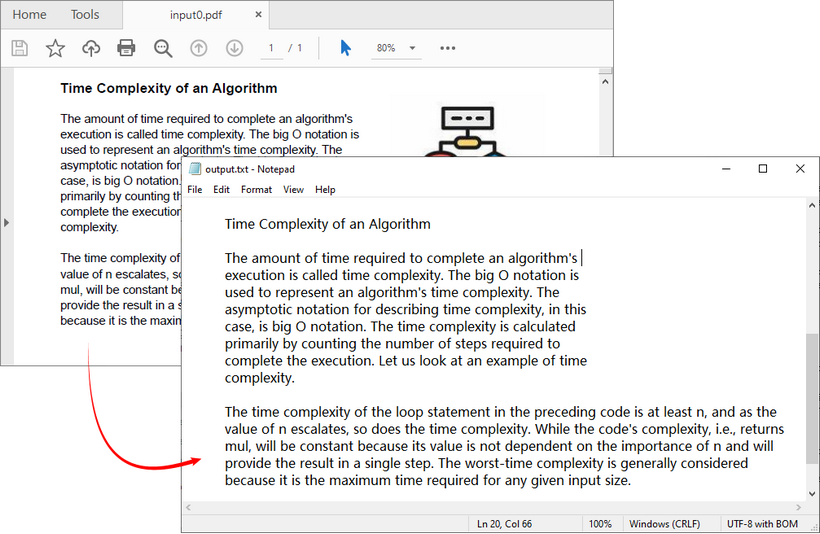
Extrair o conteúdo de texto bruto geralmente é o primeiro estágio de qualquer pipeline de processamento de documentos. O Spire.Agent.Office permite analisar o conteúdo do PDF e gravar os resultados diretamente em um arquivo TXT usando instruções em linguagem natural.
Casos de uso comuns: criação de índices de pesquisa, alimentação de pipelines de NLP downstream, registro de auditoria e detecção de alterações de conteúdo.
Código C#: PDF para TXT
using Spire.Agent.Office.AI;
using Spire.Agent.Office.Extensions;
using Spire.Pdf;

string inputPath = @"input0.pdf";
string outputPath = @"output.txt";
string key = "YOUR_SPIRE_TOKEN_KEY";

if (!string.IsNullOrEmpty(inputPath) && File.Exists(inputPath))
{
    AIOptions options = new AIOptions();
    options.SpireToken = key;

    using (PdfDocument pdf = new PdfDocument())
    {
        pdf.LoadFromFile(inputPath);

        // Get the AI processor for PDF
        AIDocumentProcessor processor = pdf.AI(options);

        // Natural language instruction
        string instruction = "Read all text content from the PDF file, retain paragraph layout, and save as a TXT file";

        // Execute the AI instruction
        AIResult result = processor.ExecuteInstruction(pdf, instruction, outputPath);
    }
}
O arquivo TXT gerado mantém a estrutura de parágrafos do PDF. Para extrair texto simples sem formatação de parágrafo, altere a instrução de IA conforme necessário.
Exemplo 2: Converter PDF em Word editável com agente de IA .NET
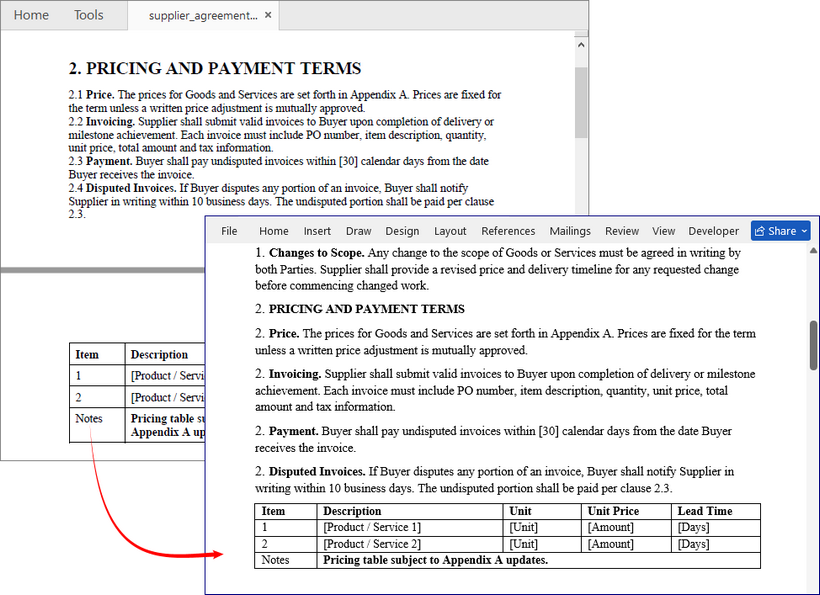
PDFs padrão não são editáveis, o que dificulta a revisão e a reutilização de conteúdo. A IA do Spire.Agent.Office lê o layout do PDF, estilos de fonte e estrutura de parágrafos e, em seguida, converte PDFs estáticos em arquivos DOCX totalmente editáveis, mantendo a formatação consistente.
Caso de uso do mundo real: equipes de compras ou jurídicas recebem contratos de fornecedores em formato PDF e precisam de arquivos DOCX editáveis para revisão com controle de alterações, inserção de comentários e comparação de versões.
Código C#: PDF para Word
using Spire.Agent.Office.AI;
using Spire.Agent.Office.Extensions;
using Spire.Pdf;

string inputPath = @"supplier_agreement.pdf";
string outputPath = @"supplier_agreement_editable.docx";
string key = "YOUR_SPIRE_TOKEN_KEY";

if (!string.IsNullOrEmpty(inputPath) && File.Exists(inputPath))
{
    AIOptions options = new AIOptions();
    options.SpireToken = key;

    using (PdfDocument pdf = new PdfDocument())
    {
        pdf.LoadFromFile(inputPath);

        // Get the AI processor for PDF
        AIDocumentProcessor processor = pdf.AI(options);

        // Natural language instruction
        string instruction = "Convert this supplier agreement PDF into an editable Word document. " +
                    "Retain hierarchical clause numbering (1, 1.1, 1.2…), use Word's multilevel list, no hardcoded numbers. " +
                    "keep section headings in bold, and convert tables to native Word tables at original positions. " +
                    "Do not flatten the layout into plain paragraphs. Keep signature block formatting intact.";

        // Execute the AI instruction
        AIResult result = processor.ExecuteInstruction(pdf, instruction, outputPath);
    }
}
Principais benefícios
- Retenção da estrutura de cláusulas: cláusulas legais numeradas permanecem devidamente estruturadas para marcação de alterações
- Preservação de tabelas: tabelas de preços e cronogramas permanecem como tabelas reais do Word
- Código mínimo: uma única instrução substitui o que tradicionalmente exigiria chamadas extensas de API para vários componentes
Exemplo 3: Ler tabelas de PDF para CSV/Excel com agente de IA .NET
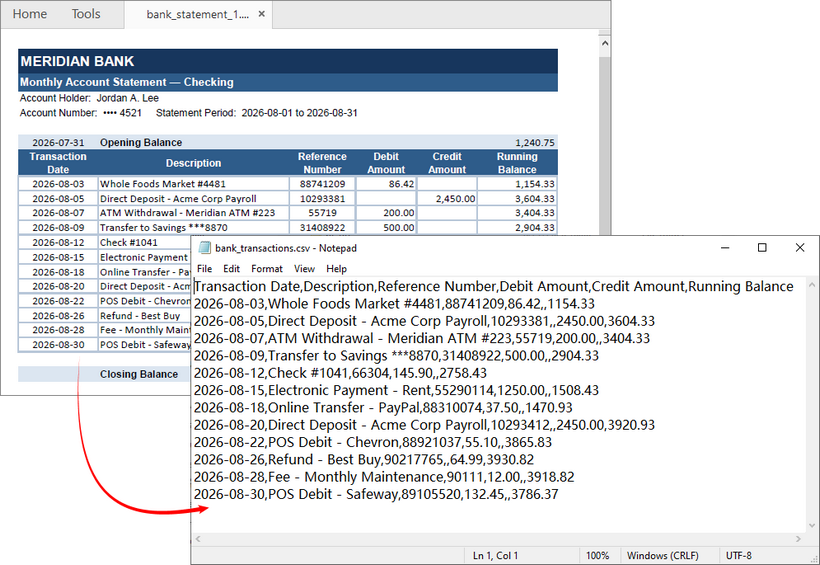
Um dos recursos mais poderosos do Spire.Agent.Office é sua capacidade de entender e extrair dados estruturados de tabelas de PDF. Cenários de negócios incluem automação de contas a pagar, conciliação de extratos bancários e processamento de relatórios financeiros.
Código C#: Extrato bancário PDF para CSV
Se você baixa um extrato em PDF todos os meses e precisa importar transações para um software de contabilidade, este exemplo é para você.
using Spire.Agent.Office.AI;
using Spire.Agent.Office.Extensions;
using Spire.Pdf;

string inputPath = @"bank_statement_1.pdf";
string outputPath = @"bank_transactions.csv";
string key = "YOUR_SPIRE_TOKEN_KEY";

if (!string.IsNullOrEmpty(inputPath) && File.Exists(inputPath))
{
    AIOptions options = new AIOptions();
    options.SpireToken = key;

    using (PdfDocument pdf = new PdfDocument())
    {
        pdf.LoadFromFile(inputPath);

        // Get the AI processor for PDF
        AIDocumentProcessor processor = pdf.AI(options);

        // Natural language instruction
        string instruction = "Extract all transactions from this bank statement into a CSV." +
                    " Include: Transaction Date, Description, Reference Number, Debit Amount, Credit Amount," +
                    " and Running Balance. Use empty cells (not zeros) when a debit or credit field doesn't apply to a row." +
                    " Exclude opening balance, closing balance, and any summary totals." +
                    " Preserve the original transaction order as they appear on the statement.";

        // Execute the AI instruction
        AIResult result = processor.ExecuteInstruction(pdf, instruction, outputPath);
    }
}
Código C#: Relatório financeiro em PDF para Excel
Para exportar tabelas de PDF para Excel, basta alterar o formato de saída (.xlsx) e ajustar as instruções. Por exemplo, se você tem um relatório trimestral em PDF com várias tabelas ao longo das páginas, pode extrair tudo para uma única pasta de trabalho com planilhas separadas:
string inputPath = @"Q3_2024_financial_report.pdf";
string outputPath = @"Q3_2024_financials.xlsx";

string instruction = "This PDF contains multiple financial tables across several pages:" +
            " Revenue by Region, Cost of Goods Sold, Operating Expenses, and Cash Flow Summary." +
            " Extract each table into its own named worksheet in the output Excel file." +
            " Use the table's section heading as the sheet name. Keep column headers on the" +
            " first row of each sheet, ensure all currency values are numeric (strip out '{BODY_CONTENT}#39; and ',')," +
            " and preserve the original row and column order.";
Exemplo 4: Muitos PDFs, uma instrução (processamento em lote)
A maioria das cargas de trabalho de automação do mundo real lida com lotes de documentos (por exemplo, dezenas de PDFs de faturas). Use o parâmetro attachmentPaths:
- Instancie um
PdfDocumentvazio. - Passe sua coleção de caminhos de arquivos PDF por meio de
attachmentPaths. - Escreva uma instrução descrevendo como combinar ou agregar as saídas.
Esse padrão possibilita casos de uso como consolidar muitas faturas em uma única pasta de trabalho do Excel agregada.
Código C#: Processamento em lote de faturas em PDF
using Spire.Agent.Office.AI;
using Spire.Agent.Office.Extensions;
using Spire.Pdf;

string[] invoicePaths = Directory.GetFiles(@"F:\Invoices", "*.pdf");
string outputPath = @"consolidated_invoices.xlsx";
string key = "YOUR_SPIRE_TOKEN_KEY";

AIOptions options = new AIOptions();
options.SpireToken = key;

using (PdfDocument pdf = new PdfDocument())
{
    // Get the AI processor for PDF
    AIDocumentProcessor processor = pdf.AI(options);

    // Natural language instruction for batch processing
    string instruction = "Read all attached invoice PDFs and consolidate them into one Excel workbook. " +
        "Create one row per invoice with columns: Invoice Number, Vendor Name, Invoice Date, " +
        "Due Date, Subtotal, Tax, Total Amount. Sort by Invoice Date ascending.";

    // Execute with attachment paths
    AIResult result = processor.ExecuteInstruction(pdf, instruction, outputPath, invoicePaths);
}
Visão geral da API
| Componente da API | Finalidade | Método/Propriedade principal |
|---|---|---|
AIOptions |
Objeto de configuração | SpireToken, WorkDir, TimeoutMs |
AIDocumentProcessor |
Ponto de entrada principal do processamento de IA | ExecuteInstruction() |
pdf.AI(options) |
Método de extensão em PdfDocument | Retorna AIDocumentProcessor |
AIResult |
Contrato de resultado da execução | Success, TokenUsage |
attachmentPaths |
Parâmetro de documentos de suporte | Passado para ExecuteInstruction() |
Práticas recomendadas para extração confiável
1. Escreva requisitos de saída específicos nas instruções
Evite prompts vagos como “extraia os dados”. Defina o formato de destino, colunas e estrutura (por exemplo, “exporte para uma pasta de trabalho do Excel, uma linha por item”).
2. Coloque a lógica de negócios nas instruções
Implemente filtragem, classificação e normalização nos prompts em vez de codificar deslocamentos posicionais ou coordenadas. A lógica permanece legível e de fácil manutenção.
3. Valide AIResult.Success
Verifique o status de execução em cada chamada. Falhas silenciosas podem interromper pipelines de automação não assistida.
if (result == null || !result.Success)
{
    throw new InvalidOperationException(
        {BODY_CONTENT}quot;AI instruction failed: {result?.ErrorMessage ?? "Unknown error"}");
}
4. Valide a saída.
Para dados financeiros ou de conformidade, execute suas próprias verificações no arquivo produzido — contagem de linhas, totais de colunas, conformidade de esquema. O agente produz o artefato; seu pipeline continua responsável pela correção.
Considerações finais
Os exemplos acima mostram como o SDK Spire.Agent.Office pode aproveitar a IA para ler PDF para TXT, reconstruir PDFs como documentos Word editáveis, extrair extratos bancários e tabelas financeiras para CSV ou Excel, e consolidar lotes de faturas em uma única pasta de trabalho. Em cada caso, o código permanece pequeno, as instruções permanecem legíveis e a saída continua estruturada o suficiente para automação downstream.
Se sua equipe passa tempo escrevendo lógica de análise frágil ou digitando novamente dados de PDF manualmente, o Spire.Agent.Office oferece um caminho prático a seguir. Instale o pacote NuGet, adicione seu token e comece com um fluxo de trabalho. A partir daí, você pode expandir para processamento em lote e criar pipelines de automação de documentos que são mais rápidos de desenvolver, mais fáceis de manter e mais resilientes a PDFs do mundo real.
Perguntas frequentes (FAQs)
P: Qual é a precisão da extração de tabelas?
O Spire.Agent.Office usa análise com IA que entende a estrutura da tabela, incluindo tabelas irregulares e células mescladas. Para melhores resultados, forneça instruções claras sobre o formato de saída esperado.
P: Posso processar PDFs protegidos por senha?
Sim. Você pode carregar PDFs protegidos por senha fornecendo a senha ao chamar pdf.LoadFromFile(inputPath, password).
P: Como lidar com grandes lotes de PDFs?
Use o parâmetro attachmentPaths para passar vários arquivos em uma única instrução. O agente de IA os processa coletivamente e produz uma saída consolidada.
P: Como defino um tempo limite para o processamento de IA?
Você pode configurar o tempo limite usando a propriedade TimeoutMs em AIOptions:
AIOptions options = new AIOptions();
options.SpireToken = key;
options.TimeoutMs = 120000; // 2 minutes
Mais exemplos
- Auditoria de Excel com IA em C#: detecte erros e anomalias de dados
- Geração de documentos com IA: de dados a documentos prontos para uso
- Censura de documentos com IA em C#: preserve a formatação
- Tradutor de documentos com IA: traduza arquivos Word, Excel e PowerPoint em C#
- Automatize cálculos no Excel com um agente de IA .NET
C#에서 AI 기반 PDF 읽기: 데이터 읽기 및 추출
C#에서 프로그래밍 방식으로 PDF 파일을 읽고 처리하는 것은 문서 자동화, 데이터 추출, 보고서 생성 시스템을 구축하는 .NET 개발자에게 흔한 요구 사항입니다. 기존 PDF 파싱 라이브러리는 텍스트를 추출하고 서식을 유지하며 표를 파싱하기 위해 복잡한 코드를 요구합니다. 이들은 불규칙한 레이아웃, 정렬되지 않은 콘텐츠, 비표준 표 구조에 대해 종종 품질이 낮은 결과를 생성합니다.
C#에서 PDF를 읽고 PDF 콘텐츠를 다른 형식으로 내보내는 간단하고 AI 기반의 방법을 원한다면, Spire.Agent.Office가 좋은 선택입니다. 이 .NET AI 에이전트 SDK는 자연어 지시를 사용하여 PDF 파싱 및 변환 워크플로를 구동합니다. Adobe Acrobat이나 외부 타사 PDF 소프트웨어 없이 작동합니다.
이 튜토리얼에서는 C#에서 AI로 PDF를 읽는 방법을 소개하며, 다음과 같은 완전한 실행 가능 코드 샘플을 제공합니다:
다른 AI PDF 리더 대신 Spire.Agent.Office를 선택해야 하는 이유
인터넷에는 범용 AI PDF 리더가 넘쳐나지만, 대부분은 개발자 유연성, 엔터프라이즈 보안, 구조적 파싱 정확성이 부족합니다. Spire.Agent.Office는 .NET 생태계를 위해 구축된 AI 문서 처리 SDK입니다. AI 파싱과 Office 문서 API를 결합합니다. 간단한 자연어 프롬프트를 전달하여 PDF, Word, Excel, PowerPoint 파일을 읽고, 분석하고, 변환할 수 있습니다.
C#에서 AI PDF 읽기의 주요 장점:
- 개발자 우선 SDK: 사용자 정의 앱, CRM, 자동화 파이프라인, 백엔드 시스템에 원활하게 API를 통합할 수 있도록 구축됨
- 구조화된 데이터 정확성: 뛰어난 표 및 레이아웃 보존
- 엔터프라이즈 보안: 로컬 처리 옵션으로 민감한 PDF 데이터가 타사 클라우드 도구로 유출되는 것을 방지
- 다중 형식 지원: 하나의 통합 에이전트에서 PDF와 Office 문서를 읽음
- 최소한의 코드: 수백 줄의 수동 파싱 로직을 간단한 AI 프롬프트 호출로 대체하여 개발 속도를 높임.
설정: 프로젝트, 네임스페이스, 토큰
- 1. NuGet 패키지 설치
.NET 프로젝트를 생성하고 라이브러리를 설치하세요. 모든 종속성이 자동으로 설치됩니다.
Install-Package Spire.Agent.Office
- 2. 네임스페이스 추가
세 개의 using 지시문으로 AI PDF 처리에 필요한 모든 것을 얻을 수 있습니다:
using Spire.Agent.Office.AI;
using Spire.Agent.Office.Extensions;
using Spire.Pdf;
- 3. SpireToken 구성
Spire.Agent.Office에는 유효한 SpireToken 키가 필요합니다. 평가용 임시 키는 여기에서 요청할 수 있습니다.
AIOptions options = new AIOptions();
options.SpireToken = "YOUR_SPIRE_TOKEN_KEY";
예제 1: .NET AI 에이전트로 PDF 텍스트 추출하기
원시 텍스트 콘텐츠를 추출하는 것은 일반적으로 모든 문서 처리 파이프라인의 첫 번째 단계입니다. Spire.Agent.Office를 사용하면 자연어 지시를 사용하여 PDF 콘텐츠를 파싱하고 결과를 TXT 파일에 직접 작성할 수 있습니다.
일반적인 사용 사례: 검색 인덱스 구축, 문서를 다운스트림 NLP 파이프라인에 공급, 감사 로깅, 콘텐츠 변경 감지.
C# 코드: PDF를 TXT로
using Spire.Agent.Office.AI;
using Spire.Agent.Office.Extensions;
using Spire.Pdf;

string inputPath = @"input0.pdf";
string outputPath = @"output.txt";
string key = "YOUR_SPIRE_TOKEN_KEY";

if (!string.IsNullOrEmpty(inputPath) && File.Exists(inputPath))
{
    AIOptions options = new AIOptions();
    options.SpireToken = key;

    using (PdfDocument pdf = new PdfDocument())
    {
        pdf.LoadFromFile(inputPath);

        // Get the AI processor for PDF
        AIDocumentProcessor processor = pdf.AI(options);

        // Natural language instruction
        string instruction = "Read all text content from the PDF file, retain paragraph layout, and save as a TXT file";

        // Execute the AI instruction
        AIResult result = processor.ExecuteInstruction(pdf, instruction, outputPath);
    }
}
생성된 TXT 파일은 PDF의 단락 구조를 유지합니다. 단락 서식 없이 일반 텍스트를 추출하려면 필요에 따라 AI 지시를 변경하세요.
예제 2: .NET AI 에이전트로 PDF를 편집 가능한 Word로 변환하기
표준 PDF는 편집할 수 없으므로 수정 및 콘텐츠 재사용이 어렵습니다. Spire.Agent.Office AI는 PDF 레이아웃, 글꼴 스타일, 단락 구조를 읽은 다음 서식을 일관되게 유지하면서 정적 PDF를 완전히 편집 가능한 DOCX 파일로 변환합니다.
실제 사용 사례: 조달 또는 법무 팀은 PDF 형식의 공급업체 계약서를 받고 변경 내용 추적 검토, 주석 삽입 및 버전 비교를 위해 편집 가능한 DOCX 파일이 필요합니다.
C# 코드: PDF를 Word로
using Spire.Agent.Office.AI;
using Spire.Agent.Office.Extensions;
using Spire.Pdf;

string inputPath = @"supplier_agreement.pdf";
string outputPath = @"supplier_agreement_editable.docx";
string key = "YOUR_SPIRE_TOKEN_KEY";

if (!string.IsNullOrEmpty(inputPath) && File.Exists(inputPath))
{
    AIOptions options = new AIOptions();
    options.SpireToken = key;

    using (PdfDocument pdf = new PdfDocument())
    {
        pdf.LoadFromFile(inputPath);

        // Get the AI processor for PDF
        AIDocumentProcessor processor = pdf.AI(options);

        // Natural language instruction
        string instruction = "Convert this supplier agreement PDF into an editable Word document. " +
                    "Retain hierarchical clause numbering (1, 1.1, 1.2…), use Word's multilevel list, no hardcoded numbers. " +
                    "keep section headings in bold, and convert tables to native Word tables at original positions. " +
                    "Do not flatten the layout into plain paragraphs. Keep signature block formatting intact.";

        // Execute the AI instruction
        AIResult result = processor.ExecuteInstruction(pdf, instruction, outputPath);
    }
}
주요 이점
- 조항 구조 유지: 번호가 매겨진 법적 조항이 수정 검토(redlining)를 위해 적절하게 구조화된 상태로 유지됨
- 표 보존: 가격표와 일정표가 실제 Word 표로 유지됨
- 최소한의 코드: 단일 지시로 기존에 여러 구성 요소에 대한 광범위한 API 호출이 필요했던 작업을 대체함
예제 3: .NET AI 에이전트로 PDF 표를 CSV/Excel로 읽기
Spire.Agent.Office의 가장 강력한 기능 중 하나는 PDF 표에서 구조화된 데이터를 이해하고 추출하는 능력입니다. 비즈니스 시나리오에는 미지급금 자동화, 은행 명세서 조정, 재무 보고서 처리가 포함됩니다.
C# 코드: 은행 명세서 PDF를 CSV로
매달 PDF 명세서를 다운로드하고 거래 내역을 회계 소프트웨어로 가져와야 하는 경우, 이 예제가 적합합니다.
using Spire.Agent.Office.AI;
using Spire.Agent.Office.Extensions;
using Spire.Pdf;

string inputPath = @"bank_statement_1.pdf";
string outputPath = @"bank_transactions.csv";
string key = "YOUR_SPIRE_TOKEN_KEY";

if (!string.IsNullOrEmpty(inputPath) && File.Exists(inputPath))
{
    AIOptions options = new AIOptions();
    options.SpireToken = key;

    using (PdfDocument pdf = new PdfDocument())
    {
        pdf.LoadFromFile(inputPath);

        // Get the AI processor for PDF
        AIDocumentProcessor processor = pdf.AI(options);

        // Natural language instruction
        string instruction = "Extract all transactions from this bank statement into a CSV." +
                    " Include: Transaction Date, Description, Reference Number, Debit Amount, Credit Amount," +
                    " and Running Balance. Use empty cells (not zeros) when a debit or credit field doesn't apply to a row." +
                    " Exclude opening balance, closing balance, and any summary totals." +
                    " Preserve the original transaction order as they appear on the statement.";

        // Execute the AI instruction
        AIResult result = processor.ExecuteInstruction(pdf, instruction, outputPath);
    }
}
C# 코드: 재무 PDF 보고서를 Excel로
PDF 표를 Excel로 내보내려면 출력 형식(.xlsx)을 변경하고 지시를 조정하기만 하면 됩니다. 예를 들어, 여러 페이지에 걸쳐 여러 표가 있는 분기별 PDF 보고서가 있는 경우, 모든 것을 별도의 시트가 있는 단일 통합 문서로 추출할 수 있습니다:
string inputPath = @"Q3_2024_financial_report.pdf";
string outputPath = @"Q3_2024_financials.xlsx";

string instruction = "This PDF contains multiple financial tables across several pages:" +
            " Revenue by Region, Cost of Goods Sold, Operating Expenses, and Cash Flow Summary." +
            " Extract each table into its own named worksheet in the output Excel file." +
            " Use the table's section heading as the sheet name. Keep column headers on the" +
            " first row of each sheet, ensure all currency values are numeric (strip out '{BODY_CONTENT}#39; and ',')," +
            " and preserve the original row and column order.";
예제 4: 여러 PDF, 하나의 지시 (일괄 처리)
대부분의 실제 자동화 워크로드는 문서 배치(예: 수십 개의 송장 PDF)를 처리합니다. attachmentPaths 매개변수를 사용하세요:
- 빈
PdfDocument를 인스턴스화합니다. attachmentPaths를 통해 PDF 파일 경로 컬렉션을 전달합니다.- 출력을 결합하거나 집계하는 방법을 설명하는 하나의 지시를 작성합니다.
이 패턴은 많은 송장을 하나의 집계된 Excel 통합 문서로 통합하는 것과 같은 사용 사례를 가능하게 합니다.
C# 코드: PDF 송장 일괄 처리
using Spire.Agent.Office.AI;
using Spire.Agent.Office.Extensions;
using Spire.Pdf;

string[] invoicePaths = Directory.GetFiles(@"F:\Invoices", "*.pdf");
string outputPath = @"consolidated_invoices.xlsx";
string key = "YOUR_SPIRE_TOKEN_KEY";

AIOptions options = new AIOptions();
options.SpireToken = key;

using (PdfDocument pdf = new PdfDocument())
{
    // Get the AI processor for PDF
    AIDocumentProcessor processor = pdf.AI(options);

    // Natural language instruction for batch processing
    string instruction = "Read all attached invoice PDFs and consolidate them into one Excel workbook. " +
        "Create one row per invoice with columns: Invoice Number, Vendor Name, Invoice Date, " +
        "Due Date, Subtotal, Tax, Total Amount. Sort by Invoice Date ascending.";

    // Execute with attachment paths
    AIResult result = processor.ExecuteInstruction(pdf, instruction, outputPath, invoicePaths);
}
API 개요
| API 구성 요소 | 목적 | 주요 메서드/속성 |
|---|---|---|
AIOptions |
구성 개체 | SpireToken, WorkDir, TimeoutMs |
AIDocumentProcessor |
주요 AI 처리 진입점 | ExecuteInstruction() |
pdf.AI(options) |
PdfDocument의 확장 메서드 | AIDocumentProcessor를 반환 |
AIResult |
실행 결과 계약 | Success, TokenUsage |
attachmentPaths |
지원 문서 매개변수 | ExecuteInstruction()에 전달됨 |
안정적인 추출을 위한 모범 사례
1. 지시에 구체적인 출력 요구 사항 작성
“데이터를 추출하세요”와 같은 모호한 프롬프트는 피하세요. 대상 형식, 열, 구조를 정의하세요 (예: “Excel 통합 문서로 내보내기, 라인 항목당 한 행”).
2. 비즈니스 로직을 지시에 포함
위치 오프셋이나 좌표를 하드코딩하는 대신 프롬프트 내에서 필터링, 정렬, 정규화를 구현하세요. 로직이 사람이 읽을 수 있고 유지 관리 가능한 상태로 유지됩니다.
3. AIResult.Success 검증
모든 호출에서 실행 상태를 확인하세요. 조용한 실패는 무인 자동화 파이프라인을 중단시킬 수 있습니다.
if (result == null || !result.Success)
{
    throw new InvalidOperationException(
        {BODY_CONTENT}quot;AI instruction failed: {result?.ErrorMessage ?? "Unknown error"}");
}
4. 출력을 검증하세요.
재무 또는 규정 준수 데이터의 경우, 생성된 파일에 대해 자체 검사를 실행하세요 — 행 수, 열 합계, 스키마 준수. 에이전트는 결과물을 생성하며, 파이프라인은 정확성에 대한 책임을 유지합니다.
마무리 생각
위의 예제는 Spire.Agent.Office SDK가 AI를 활용하여 PDF를 TXT로 읽고, PDF를 편집 가능한 Word 문서로 재구성하고, 은행 명세서와 재무 표를 CSV 또는 Excel로 추출하고, 송장 배치를 단일 통합 문서로 통합하는 방법을 보여줍니다. 각 경우에 코드는 작게 유지되고, 지시는 읽기 쉬우며, 출력은 다운스트림 자동화에 충분히 구조화된 상태로 유지됩니다.
팀이 취약한 파싱 로직을 작성하거나 PDF 데이터를 수동으로 다시 입력하는 데 시간을 보내고 있다면, Spire.Agent.Office는 실용적인 해결책을 제공합니다. NuGet 패키지를 설치하고, 토큰을 추가하고, 하나의 워크플로로 시작하세요. 그런 다음 일괄 처리로 확장하고 더 빠르게 개발하고, 유지 관리가 더 쉽고, 실제 PDF에 더 강력한 문서 자동화 파이프라인을 구축할 수 있습니다.
자주 묻는 질문 (FAQ)
Q: 표 추출은 얼마나 정확한가요?
Spire.Agent.Office는 불규칙한 표와 병합된 셀을 포함한 표 구조를 이해하는 AI 기반 파싱을 사용합니다. 최상의 결과를 얻으려면 예상 출력 형식에 대한 명확한 지시를 제공하세요.
Q: 암호로 보호된 PDF를 처리할 수 있나요?
예. pdf.LoadFromFile(inputPath, password)를 호출할 때 암호를 제공하여 암호로 보호된 PDF를 로드할 수 있습니다.
Q: 대량의 PDF 배치를 어떻게 처리하나요?
attachmentPaths 매개변수를 사용하여 단일 지시로 여러 파일을 전달하세요. AI 에이전트는 이를 집합적으로 처리하고 통합된 출력을 생성합니다.
Q: AI 처리의 시간 초과를 어떻게 설정하나요?
AIOptions의 TimeoutMs 속성을 사용하여 시간 초과를 구성할 수 있습니다:
AIOptions options = new AIOptions();
options.SpireToken = key;
options.TimeoutMs = 120000; // 2 minutes
더 많은 예제
Lettura PDF basata su AI in C#: leggere ed estrarre dati
Leggere ed elaborare file PDF a livello di programmazione in C# è un'esigenza comune per gli sviluppatori .NET che creano sistemi di automazione documentale, estrazione dati e generazione report. Le librerie tradizionali di analisi PDF richiedono codice complesso per estrarre testo, preservare la formattazione e analizzare tabelle. Spesso producono output scadenti per layout irregolari, contenuti disallineati e strutture di tabelle non standard.
Se desideri un modo semplice, basato sull'AI, per leggere PDF in C# ed esportare il contenuto PDF in altri formati, Spire.Agent.Office è una scelta valida. Questo SDK agente AI .NET guida flussi di lavoro di analisi e conversione PDF utilizzando istruzioni in linguaggio naturale. Funziona senza Adobe Acrobat o software PDF di terze parti esterni.
In questo tutorial, presenteremo come usare l'AI per leggere PDF in C#, con esempi di codice completi ed eseguibili per:
- Estrazione del contenuto PDF in TXT
- Conversione di PDF in Word modificabile
- Lettura di tabelle PDF in CSV/Excel
- Elaborazione in batch di più PDF
Perché scegliere Spire.Agent.Office rispetto ad altri lettori PDF AI?
Internet è pieno di lettori PDF AI generici, ma molti mancano di flessibilità per gli sviluppatori, sicurezza aziendale e accuratezza nell'analisi strutturale. Spire.Agent.Office è un SDK di elaborazione documenti AI progettato per l'ecosistema .NET. Combina l'analisi AI con API per documenti office. Puoi leggere, analizzare e convertire file PDF, Word, Excel e PowerPoint passando semplici prompt in linguaggio naturale.
Vantaggi principali per la lettura PDF con AI in C#:
- SDK pensato per gli sviluppatori: progettato per un'integrazione API fluida in app personalizzate, CRM, pipeline di automazione e sistemi backend
- Accuratezza dei dati strutturati: conservazione superiore di tabelle e layout
- Sicurezza aziendale: opzioni di elaborazione locale impediscono che dati PDF sensibili trapelino verso strumenti cloud di terze parti
- Supporto multi-formato: legge PDF e documenti Office in un unico agente unificato
- Codice minimo: sostituisci centinaia di righe di logica di analisi manuale con semplici chiamate a prompt AI per accelerare lo sviluppo.
Configurazione: progetto, namespace e token
- 1. Installa il pacchetto NuGet
Crea il tuo progetto .NET e installa la libreria; tutte le dipendenze vengono installate automaticamente.
Install-Package Spire.Agent.Office
- 2. Aggiungi i namespace
Tre direttive using ti forniscono tutto il necessario per l'elaborazione PDF con AI:
using Spire.Agent.Office.AI;
using Spire.Agent.Office.Extensions;
using Spire.Pdf;
- 3. Configurazione di SpireToken
Spire.Agent.Office richiede una chiave SpireToken valida. Puoi richiedere qui una chiave temporanea per la valutazione.
AIOptions options = new AIOptions();
options.SpireToken = "YOUR_SPIRE_TOKEN_KEY";
Esempio 1: estrarre testo PDF con agente AI .NET
L'estrazione del contenuto testuale grezzo è in genere la prima fase di qualsiasi pipeline di elaborazione documenti. Spire.Agent.Office ti consente di analizzare il contenuto PDF e scrivere i risultati direttamente in un file TXT usando istruzioni in linguaggio naturale.
Casi d'uso comuni: creazione di indici di ricerca, alimentazione di pipeline NLP downstream, registrazione di audit e rilevamento di modifiche ai contenuti.
Codice C#: da PDF a TXT
using Spire.Agent.Office.AI;
using Spire.Agent.Office.Extensions;
using Spire.Pdf;

string inputPath = @"input0.pdf";
string outputPath = @"output.txt";
string key = "YOUR_SPIRE_TOKEN_KEY";

if (!string.IsNullOrEmpty(inputPath) && File.Exists(inputPath))
{
    AIOptions options = new AIOptions();
    options.SpireToken = key;

    using (PdfDocument pdf = new PdfDocument())
    {
        pdf.LoadFromFile(inputPath);

        // Get the AI processor for PDF
        AIDocumentProcessor processor = pdf.AI(options);

        // Natural language instruction
        string instruction = "Read all text content from the PDF file, retain paragraph layout, and save as a TXT file";

        // Execute the AI instruction
        AIResult result = processor.ExecuteInstruction(pdf, instruction, outputPath);
    }
}
Il file TXT generato conserva la struttura dei paragrafi del PDF. Per estrarre testo semplice senza formattazione dei paragrafi, modifica l'istruzione AI come necessario.
Esempio 2: convertire PDF in Word modificabile con agente AI .NET
I PDF standard non sono modificabili, il che rende difficili revisione e riutilizzo dei contenuti. L'AI di Spire.Agent.Office legge layout PDF, stili dei caratteri e struttura dei paragrafi, quindi converte PDF statici in file DOCX completamente modificabili mantenendo la formattazione coerente.
Caso d'uso reale: team di approvvigionamento o legali ricevono accordi con fornitori in formato PDF e richiedono file DOCX modificabili per revisione con modifiche tracciate, inserimento commenti e confronto versioni.
Codice C#: da PDF a Word
using Spire.Agent.Office.AI;
using Spire.Agent.Office.Extensions;
using Spire.Pdf;

string inputPath = @"supplier_agreement.pdf";
string outputPath = @"supplier_agreement_editable.docx";
string key = "YOUR_SPIRE_TOKEN_KEY";

if (!string.IsNullOrEmpty(inputPath) && File.Exists(inputPath))
{
    AIOptions options = new AIOptions();
    options.SpireToken = key;

    using (PdfDocument pdf = new PdfDocument())
    {
        pdf.LoadFromFile(inputPath);

        // Get the AI processor for PDF
        AIDocumentProcessor processor = pdf.AI(options);

        // Natural language instruction
        string instruction = "Convert this supplier agreement PDF into an editable Word document. " +
                    "Retain hierarchical clause numbering (1, 1.1, 1.2…), use Word's multilevel list, no hardcoded numbers. " +
                    "keep section headings in bold, and convert tables to native Word tables at original positions. " +
                    "Do not flatten the layout into plain paragraphs. Keep signature block formatting intact.";

        // Execute the AI instruction
        AIResult result = processor.ExecuteInstruction(pdf, instruction, outputPath);
    }
}
Vantaggi principali
- Conservazione della struttura delle clausole: le clausole legali numerate rimangono correttamente strutturate per la redazione delle modifiche
- Conservazione delle tabelle: tabelle prezzi e schedule rimangono come vere tabelle Word
- Codice minimo: una singola istruzione sostituisce ciò che tradizionalmente richiederebbe numerose chiamate API a più componenti
Esempio 3: leggere tabelle PDF in CSV/Excel con agente AI .NET
Una delle funzionalità più potenti di Spire.Agent.Office è la capacità di comprendere ed estrarre dati strutturati dalle tabelle PDF. Gli scenari aziendali includono automazione dei conti fornitori, riconciliazione di estratti conto bancari ed elaborazione di report finanziari.
Codice C#: estratto conto bancario PDF in CSV
Se scarichi un estratto conto PDF ogni mese e devi importare le transazioni nel software contabile, questo esempio fa per te.
using Spire.Agent.Office.AI;
using Spire.Agent.Office.Extensions;
using Spire.Pdf;

string inputPath = @"bank_statement_1.pdf";
string outputPath = @"bank_transactions.csv";
string key = "YOUR_SPIRE_TOKEN_KEY";

if (!string.IsNullOrEmpty(inputPath) && File.Exists(inputPath))
{
    AIOptions options = new AIOptions();
    options.SpireToken = key;

    using (PdfDocument pdf = new PdfDocument())
    {
        pdf.LoadFromFile(inputPath);

        // Get the AI processor for PDF
        AIDocumentProcessor processor = pdf.AI(options);

        // Natural language instruction
        string instruction = "Extract all transactions from this bank statement into a CSV." +
                    " Include: Transaction Date, Description, Reference Number, Debit Amount, Credit Amount," +
                    " and Running Balance. Use empty cells (not zeros) when a debit or credit field doesn't apply to a row." +
                    " Exclude opening balance, closing balance, and any summary totals." +
                    " Preserve the original transaction order as they appear on the statement.";

        // Execute the AI instruction
        AIResult result = processor.ExecuteInstruction(pdf, instruction, outputPath);
    }
}
Codice C#: report finanziario PDF in Excel
Per esportare tabelle PDF in Excel, cambia semplicemente il formato di output (.xlsx) e adatta le istruzioni. Ad esempio, se hai un report PDF trimestrale con più tabelle su più pagine, puoi estrarre tutto in un'unica cartella di lavoro con fogli separati:
string inputPath = @"Q3_2024_financial_report.pdf";
string outputPath = @"Q3_2024_financials.xlsx";

string instruction = "This PDF contains multiple financial tables across several pages:" +
            " Revenue by Region, Cost of Goods Sold, Operating Expenses, and Cash Flow Summary." +
            " Extract each table into its own named worksheet in the output Excel file." +
            " Use the table's section heading as the sheet name. Keep column headers on the" +
            " first row of each sheet, ensure all currency values are numeric (strip out '{BODY_CONTENT}#39; and ',')," +
            " and preserve the original row and column order.";
Esempio 4: molti PDF, un'unica istruzione (elaborazione in batch)
La maggior parte dei carichi di lavoro di automazione reali gestisce batch di documenti (ad es. dozzine di PDF di fatture). Usa il parametro attachmentPaths:
- Istanzia un
PdfDocumentvuoto. - Passa la tua raccolta di percorsi di file PDF tramite
attachmentPaths. - Scrivi un'unica istruzione che descriva come combinare o aggregare gli output.
Questo pattern abilita casi d'uso come la consolidazione di molte fatture in un'unica cartella di lavoro Excel aggregata.
Codice C#: elaborazione in batch di fatture PDF
using Spire.Agent.Office.AI;
using Spire.Agent.Office.Extensions;
using Spire.Pdf;

string[] invoicePaths = Directory.GetFiles(@"F:\Invoices", "*.pdf");
string outputPath = @"consolidated_invoices.xlsx";
string key = "YOUR_SPIRE_TOKEN_KEY";

AIOptions options = new AIOptions();
options.SpireToken = key;

using (PdfDocument pdf = new PdfDocument())
{
    // Get the AI processor for PDF
    AIDocumentProcessor processor = pdf.AI(options);

    // Natural language instruction for batch processing
    string instruction = "Read all attached invoice PDFs and consolidate them into one Excel workbook. " +
        "Create one row per invoice with columns: Invoice Number, Vendor Name, Invoice Date, " +
        "Due Date, Subtotal, Tax, Total Amount. Sort by Invoice Date ascending.";

    // Execute with attachment paths
    AIResult result = processor.ExecuteInstruction(pdf, instruction, outputPath, invoicePaths);
}
Panoramica dell'API
| Componente API | Scopo | Metodo/proprietà chiave |
|---|---|---|
AIOptions |
Oggetto di configurazione | SpireToken, WorkDir, TimeoutMs |
AIDocumentProcessor |
Punto di ingresso principale per l'elaborazione AI | ExecuteInstruction() |
pdf.AI(options) |
Metodo di estensione su PdfDocument | Restituisce AIDocumentProcessor |
AIResult |
Contratto del risultato di esecuzione | Success, TokenUsage |
attachmentPaths |
Parametro per documenti di supporto | Passato a ExecuteInstruction() |
Buone pratiche per un'estrazione affidabile
1. Scrivi requisiti di output specifici nelle istruzioni
Evita prompt vaghi come “estrai i dati”. Definisci formato di destinazione, colonne e struttura (ad es. “esporta in una cartella di lavoro Excel, una riga per voce”).
2. Inserisci la logica di business nelle istruzioni
Implementa filtri, ordinamenti e normalizzazione all'interno dei prompt invece di codificare in modo rigido offset posizionali o coordinate. La logica rimane leggibile e manutenibile.
3. Convalida AIResult.Success
Controlla lo stato di esecuzione a ogni chiamata. I fallimenti silenziosi possono interrompere le pipeline di automazione non presidiate.
if (result == null || !result.Success)
{
    throw new InvalidOperationException(
        {BODY_CONTENT}quot;AI instruction failed: {result?.ErrorMessage ?? "Unknown error"}");
}
4. Convalida l'output.
Per dati finanziari o di conformità, esegui i tuoi controlli sul file prodotto — conteggi righe, totali colonne, conformità allo schema. L'agente produce l'artefatto; la tua pipeline rimane responsabile della correttezza.
Considerazioni finali
Gli esempi precedenti mostrano come l'SDK Spire.Agent.Office possa sfruttare l'AI per leggere PDF in TXT, ricostruire PDF come documenti Word modificabili, estrarre estratti conto bancari e tabelle finanziarie in CSV o Excel e consolidare batch di fatture in un'unica cartella di lavoro. In ogni caso, il codice rimane ridotto, le istruzioni rimangono leggibili e l'output resta sufficientemente strutturato per l'automazione downstream.
Se il tuo team trascorre tempo scrivendo logica di analisi fragile o reinserendo manualmente dati PDF, Spire.Agent.Office offre un percorso pratico. Installa il pacchetto NuGet, aggiungi il tuo token e inizia con un flusso di lavoro. Da lì, puoi espanderti nell'elaborazione in batch e creare pipeline di automazione documentale più veloci da sviluppare, più facili da mantenere e più resilienti ai PDF del mondo reale.
Domande frequenti (FAQ)
D: Quanto è accurata l'estrazione delle tabelle?
Spire.Agent.Office utilizza analisi basata su AI che comprende la struttura delle tabelle, incluse tabelle irregolari e celle unite. Per risultati ottimali, fornisci istruzioni chiare sul formato di output previsto.
D: Posso elaborare PDF protetti da password?
Sì. Puoi caricare PDF protetti da password fornendo la password quando chiami pdf.LoadFromFile(inputPath, password).
D: Come gestisco grandi batch di PDF?
Usa il parametro attachmentPaths per passare più file in un'unica istruzione. L'agente AI li elabora collettivamente e produce un output consolidato.
D: Come imposto un timeout per l'elaborazione AI?
Puoi configurare il timeout usando la proprietà TimeoutMs in AIOptions:
AIOptions options = new AIOptions();
options.SpireToken = key;
options.TimeoutMs = 120000; // 2 minutes
Altri esempi
- Audit Excel basato su AI in C#: rileva errori e anomalie nei dati
- Generazione documenti con AI: dai dati a documenti pronti all'uso
- Oscuramento documenti basato su AI in C#: preserva la formattazione
- Traduttore di documenti AI: traduci file Word, Excel e PowerPoint in C#
- Automatizza i calcoli in Excel con un agente AI .NET
Lecture de PDF assistée par IA en C# : Lire et extraire des données
Lire et traiter des fichiers PDF par programmation en C# est une exigence courante pour les développeurs .NET qui créent des systèmes d'automatisation documentaire, d'extraction de données et de génération de rapports. Les bibliothèques d'analyse PDF traditionnelles exigent un code complexe pour extraire le texte, préserver la mise en forme et analyser les tableaux. Elles produisent fréquemment des résultats médiocres pour les mises en page irrégulières, les contenus désalignés et les structures de tableaux non standard.
Si vous recherchez une méthode simple et assistée par IA pour lire des PDF en C# et exporter le contenu PDF vers d'autres formats, Spire.Agent.Office est un excellent choix. Ce SDK d'agent IA .NET pilote les flux de travail d'analyse et de conversion de PDF à l'aide d'instructions en langage naturel. Il fonctionne sans Adobe Acrobat ni logiciels PDF tiers externes.
Dans ce tutoriel, nous vous présentons comment utiliser l'IA pour lire des PDF en C#, avec des exemples de code entièrement exécutables pour :
- Extraire le contenu PDF vers TXT
- Convertir un PDF en Word modifiable
- Lire les tableaux PDF vers CSV/Excel
- Traiter plusieurs PDF par lots
Pourquoi choisir Spire.Agent.Office plutôt que d'autres lecteurs PDF à IA ?
Internet regorge de lecteurs PDF à IA génériques, mais la plupart manquent de flexibilité pour les développeurs, de sécurité d'entreprise et de précision d'analyse structurelle. Spire.Agent.Office est un SDK de traitement documentaire par IA conçu pour l'écosystème .NET. Il combine l'analyse par IA avec les API de documents bureautiques. Vous pouvez lire, analyser et convertir des fichiers PDF, Word, Excel et PowerPoint en transmettant de simples invites en langage naturel.
Principaux avantages pour la lecture de PDF par IA en C# :
- SDK pensé pour les développeurs : conçu pour une intégration transparente de l'API dans des applications personnalisées, des CRM, des pipelines d'automatisation et des systèmes backend
- Précision des données structurées : préservation supérieure des tableaux et de la mise en page
- Sécurité d'entreprise : les options de traitement local empêchent les données PDF sensibles de fuiter vers des outils cloud tiers
- Prise en charge multi-format : lit les PDF ainsi que les documents Office dans un seul agent unifié
- Code minimal : remplacez des centaines de lignes de logique d'analyse manuelle par de simples appels d'invites IA pour accélérer le développement.
Configuration : projet, espaces de noms et jeton
- 1. Installer le package NuGet
Créez votre projet .NET et installez la bibliothèque ; toutes les dépendances s'installent automatiquement.
Install-Package Spire.Agent.Office
- 2. Ajouter les espaces de noms
Trois directives using vous donnent tout ce qui est nécessaire pour le traitement de PDF par IA :
using Spire.Agent.Office.AI;
using Spire.Agent.Office.Extensions;
using Spire.Pdf;
- 3. Configurer SpireToken
Spire.Agent.Office nécessite une clé SpireToken valide. Vous pouvez demander une clé temporaire pour évaluation ici.
AIOptions options = new AIOptions();
options.SpireToken = "YOUR_SPIRE_TOKEN_KEY";
Exemple 1 : extraire le texte d'un PDF avec un agent IA .NET
L'extraction du contenu texte brut est généralement la première étape de tout pipeline de traitement documentaire. Spire.Agent.Office vous permet d'analyser le contenu d'un PDF et d'écrire les résultats directement dans un fichier TXT à l'aide d'instructions en langage naturel.
Cas d'usage courants : création d'index de recherche, alimentation de pipelines NLP en aval, journalisation d'audit et détection de modifications de contenu.
Code C# : PDF vers TXT
using Spire.Agent.Office.AI;
using Spire.Agent.Office.Extensions;
using Spire.Pdf;

string inputPath = @"input0.pdf";
string outputPath = @"output.txt";
string key = "YOUR_SPIRE_TOKEN_KEY";

if (!string.IsNullOrEmpty(inputPath) && File.Exists(inputPath))
{
    AIOptions options = new AIOptions();
    options.SpireToken = key;

    using (PdfDocument pdf = new PdfDocument())
    {
        pdf.LoadFromFile(inputPath);

        // Get the AI processor for PDF
        AIDocumentProcessor processor = pdf.AI(options);

        // Natural language instruction
        string instruction = "Read all text content from the PDF file, retain paragraph layout, and save as a TXT file";

        // Execute the AI instruction
        AIResult result = processor.ExecuteInstruction(pdf, instruction, outputPath);
    }
}
Le fichier TXT généré conserve la structure des paragraphes du PDF. Pour extraire du texte brut sans mise en forme des paragraphes, modifiez l'instruction IA selon vos besoins.
Exemple 2 : convertir un PDF en Word modifiable avec un agent IA .NET
Les PDF standard ne sont pas modifiables, ce qui rend la révision et la réutilisation du contenu difficiles. L'IA de Spire.Agent.Office lit la mise en page, les styles de police et la structure des paragraphes du PDF, puis convertit les PDF statiques en fichiers DOCX entièrement modifiables tout en conservant une mise en forme cohérente.
Cas d'usage concret : les équipes achats ou juridiques reçoivent des contrats fournisseurs au format PDF et ont besoin de fichiers DOCX modifiables pour la révision avec suivi des modifications, l'insertion de commentaires et la comparaison de versions.
Code C# : PDF vers Word
using Spire.Agent.Office.AI;
using Spire.Agent.Office.Extensions;
using Spire.Pdf;

string inputPath = @"supplier_agreement.pdf";
string outputPath = @"supplier_agreement_editable.docx";
string key = "YOUR_SPIRE_TOKEN_KEY";

if (!string.IsNullOrEmpty(inputPath) && File.Exists(inputPath))
{
    AIOptions options = new AIOptions();
    options.SpireToken = key;

    using (PdfDocument pdf = new PdfDocument())
    {
        pdf.LoadFromFile(inputPath);

        // Get the AI processor for PDF
        AIDocumentProcessor processor = pdf.AI(options);

        // Natural language instruction
        string instruction = "Convert this supplier agreement PDF into an editable Word document. " +
                    "Retain hierarchical clause numbering (1, 1.1, 1.2…), use Word's multilevel list, no hardcoded numbers. " +
                    "keep section headings in bold, and convert tables to native Word tables at original positions. " +
                    "Do not flatten the layout into plain paragraphs. Keep signature block formatting intact.";

        // Execute the AI instruction
        AIResult result = processor.ExecuteInstruction(pdf, instruction, outputPath);
    }
}
Principaux avantages
- Conservation de la structure des clauses : les clauses juridiques numérotées restent correctement structurées pour le redlining
- Préservation des tableaux : les grilles tarifaires et les annexes restent de véritables tableaux Word
- Code minimal : une seule instruction remplace ce qui nécessiterait traditionnellement de nombreux appels d'API à plusieurs composants
Exemple 3 : lire les tableaux d'un PDF vers CSV/Excel avec un agent IA .NET
L'une des fonctionnalités les plus puissantes de Spire.Agent.Office est sa capacité à comprendre et à extraire des données structurées à partir de tableaux PDF. Les scénarios métier incluent l'automatisation des comptes fournisseurs, le rapprochement de relevés bancaires et le traitement de rapports financiers.
Code C# : relevé bancaire PDF vers CSV
Si vous téléchargez un relevé PDF chaque mois et devez importer les transactions dans un logiciel de comptabilité, cet exemple est fait pour vous.
using Spire.Agent.Office.AI;
using Spire.Agent.Office.Extensions;
using Spire.Pdf;

string inputPath = @"bank_statement_1.pdf";
string outputPath = @"bank_transactions.csv";
string key = "YOUR_SPIRE_TOKEN_KEY";

if (!string.IsNullOrEmpty(inputPath) && File.Exists(inputPath))
{
    AIOptions options = new AIOptions();
    options.SpireToken = key;

    using (PdfDocument pdf = new PdfDocument())
    {
        pdf.LoadFromFile(inputPath);

        // Get the AI processor for PDF
        AIDocumentProcessor processor = pdf.AI(options);

        // Natural language instruction
        string instruction = "Extract all transactions from this bank statement into a CSV." +
                    " Include: Transaction Date, Description, Reference Number, Debit Amount, Credit Amount," +
                    " and Running Balance. Use empty cells (not zeros) when a debit or credit field doesn't apply to a row." +
                    " Exclude opening balance, closing balance, and any summary totals." +
                    " Preserve the original transaction order as they appear on the statement.";

        // Execute the AI instruction
        AIResult result = processor.ExecuteInstruction(pdf, instruction, outputPath);
    }
}
Code C# : rapport financier PDF vers Excel
Pour exporter des tableaux PDF vers Excel, modifiez simplement le format de sortie (.xlsx) et ajustez les instructions. Par exemple, si vous disposez d'un rapport PDF trimestriel comportant plusieurs tableaux répartis sur plusieurs pages, vous pouvez tout extraire dans un seul classeur avec des feuilles distinctes :
string inputPath = @"Q3_2024_financial_report.pdf";
string outputPath = @"Q3_2024_financials.xlsx";

string instruction = "This PDF contains multiple financial tables across several pages:" +
            " Revenue by Region, Cost of Goods Sold, Operating Expenses, and Cash Flow Summary." +
            " Extract each table into its own named worksheet in the output Excel file." +
            " Use the table's section heading as the sheet name. Keep column headers on the" +
            " first row of each sheet, ensure all currency values are numeric (strip out '{BODY_CONTENT}#39; and ',')," +
            " and preserve the original row and column order.";
Exemple 4 : plusieurs PDF, une seule instruction (traitement par lots)
La plupart des charges de travail d'automatisation réelles traitent des lots de documents (par exemple, des dizaines de PDF de factures). Utilisez le paramètre attachmentPaths :
- Instanciez un
PdfDocumentvide. - Transmettez votre collection de chemins de fichiers PDF via
attachmentPaths. - Rédigez une seule instruction décrivant comment combiner ou agréger les sorties.
Ce modèle permet des cas d'usage tels que la consolidation de nombreuses factures dans un seul classeur Excel agrégé.
Code C# : traitement par lots de factures PDF
using Spire.Agent.Office.AI;
using Spire.Agent.Office.Extensions;
using Spire.Pdf;

string[] invoicePaths = Directory.GetFiles(@"F:\Invoices", "*.pdf");
string outputPath = @"consolidated_invoices.xlsx";
string key = "YOUR_SPIRE_TOKEN_KEY";

AIOptions options = new AIOptions();
options.SpireToken = key;

using (PdfDocument pdf = new PdfDocument())
{
    // Get the AI processor for PDF
    AIDocumentProcessor processor = pdf.AI(options);

    // Natural language instruction for batch processing
    string instruction = "Read all attached invoice PDFs and consolidate them into one Excel workbook. " +
        "Create one row per invoice with columns: Invoice Number, Vendor Name, Invoice Date, " +
        "Due Date, Subtotal, Tax, Total Amount. Sort by Invoice Date ascending.";

    // Execute with attachment paths
    AIResult result = processor.ExecuteInstruction(pdf, instruction, outputPath, invoicePaths);
}
Aperçu de la surface d'API
| Composant d'API | Objectif | Méthode/propriété clé |
|---|---|---|
AIOptions |
Objet de configuration | SpireToken, WorkDir, TimeoutMs |
AIDocumentProcessor |
Point d'entrée principal du traitement par IA | ExecuteInstruction() |
pdf.AI(options) |
Méthode d'extension sur PdfDocument | Retourne AIDocumentProcessor |
AIResult |
Contrat de résultat d'exécution | Success, TokenUsage |
attachmentPaths |
Paramètre de documents joints | Transmis à ExecuteInstruction() |
Bonnes pratiques pour une extraction fiable
1. Rédigez des exigences de sortie précises dans les instructions
Évitez les invites vagues comme « extrayez les données ». Définissez le format cible, les colonnes et la structure (par exemple « exporter vers un classeur Excel, une ligne par article »).
2. Placez la logique métier dans les instructions
Implémentez le filtrage, le tri et la normalisation dans les invites plutôt que de coder en dur des décalages de position ou des coordonnées. La logique reste lisible par l'humain et maintenable.
3. Validez AIResult.Success
Vérifiez l'état d'exécution à chaque appel. Les échecs silencieux peuvent interrompre des pipelines d'automatisation non surveillés.
if (result == null || !result.Success)
{
    throw new InvalidOperationException(
        {BODY_CONTENT}quot;AI instruction failed: {result?.ErrorMessage ?? "Unknown error"}");
}
4. Validez la sortie.
Pour les données financières ou de conformité, effectuez vos propres vérifications sur le fichier produit — nombre de lignes, totaux de colonnes, conformité au schéma. L'agent produit l'artefact ; votre pipeline reste responsable de l'exactitude.
Réflexions finales
Les exemples ci-dessus vous montrent comment le SDK Spire.Agent.Office peut exploiter l'IA pour lire un PDF vers TXT, reconstruire des PDF en documents Word modifiables, extraire des relevés bancaires et des tableaux financiers vers CSV ou Excel, et consolider des lots de factures dans un seul classeur. Dans chaque cas, le code reste concis, les instructions restent lisibles et la sortie demeure suffisamment structurée pour l'automatisation en aval.
Si votre équipe passe du temps à écrire une logique d'analyse fragile ou à ressaisir manuellement des données PDF, Spire.Agent.Office offre une voie pratique. Installez le package NuGet, ajoutez votre jeton et commencez par un seul flux de travail. À partir de là, vous pouvez étendre vers le traitement par lots et construire des pipelines d'automatisation documentaire plus rapides à développer, plus faciles à maintenir et plus résilients face aux PDF du monde réel.
Questions fréquentes (FAQ)
Q : Quelle est la précision de l'extraction des tableaux ?
Spire.Agent.Office utilise une analyse assistée par IA qui comprend la structure des tableaux, y compris les tableaux irréguliers et les cellules fusionnées. Pour de meilleurs résultats, fournissez des instructions claires sur le format de sortie attendu.
Q : Puis-je traiter des PDF protégés par mot de passe ?
Oui. Vous pouvez charger des PDF protégés par mot de passe en fournissant le mot de passe lors de l'appel à pdf.LoadFromFile(inputPath, password).
Q : Comment gérer de grands lots de PDF ?
Utilisez le paramètre attachmentPaths pour transmettre plusieurs fichiers dans une seule instruction. L'agent IA les traite collectivement et produit une sortie consolidée.
Q : Comment définir un délai d'expiration pour le traitement par IA ?
Vous pouvez configurer le délai d'expiration à l'aide de la propriété TimeoutMs dans AIOptions :
AIOptions options = new AIOptions();
options.SpireToken = key;
options.TimeoutMs = 120000; // 2 minutes
Plus d'exemples
- Audit Excel assisté par IA en C# : détecter les erreurs et les anomalies de données
- Génération de documents par IA : des données aux documents prêts à l'emploi
- Caviardage de documents assisté par IA en C# : préserver la mise en forme
- Traducteur de documents IA : traduire des fichiers Word, Excel et PowerPoint en C#
- Automatiser les calculs dans Excel avec un agent IA .NET
Lectura de PDF con IA en C#: Leer y extraer datos
Leer y procesar archivos PDF mediante programación en C# es un requisito común para los desarrolladores de .NET que crean sistemas de automatización de documentos, extracción de datos y generación de informes. Las bibliotecas tradicionales de análisis de PDF exigen código complejo para extraer texto, preservar el formato y analizar tablas. Con frecuencia producen resultados deficientes para diseños irregulares, contenido desalineado y estructuras de tablas no estándar.
Si desea una forma simple e impulsada por IA de leer PDF en C# y exportar el contenido PDF a otros formatos, Spire.Agent.Office es una gran opción. Este SDK de agente de IA de .NET impulsa flujos de trabajo de análisis y conversión de PDF mediante instrucciones en lenguaje natural. Funciona sin Adobe Acrobat ni software PDF externo de terceros.
En este tutorial, presentaremos cómo usar IA para leer PDF en C#, con ejemplos de código completos y ejecutables para:
- Extraer contenido PDF a TXT
- Convertir PDF a Word editable
- Leer tablas PDF a CSV/Excel
- Procesar por lotes varios PDF
¿Por qué elegir Spire.Agent.Office en lugar de otros lectores PDF con IA?
Internet está lleno de lectores PDF con IA genéricos, pero la mayoría carece de flexibilidad para desarrolladores, seguridad empresarial y precisión en el análisis estructural. Spire.Agent.Office es un SDK de procesamiento de documentos con IA creado para el ecosistema .NET. Combina el análisis con IA con API de documentos de Office. Puede leer, analizar y convertir archivos PDF, Word, Excel y PowerPoint pasando simples indicaciones en lenguaje natural.
Ventajas clave para la lectura de PDF con IA en C#:
- SDK centrado en el desarrollador: creado para una integración de API perfecta en aplicaciones personalizadas, CRM, canalizaciones de automatización y sistemas de back-end
- Precisión de datos estructurados: preservación superior de tablas y diseño
- Seguridad empresarial: las opciones de procesamiento local evitan que datos PDF confidenciales se filtren a herramientas en la nube de terceros
- Compatibilidad con múltiples formatos: lee PDF y documentos de Office en un único agente unificado
- Código mínimo: reemplace cientos de líneas de lógica de análisis manual con simples llamadas a indicaciones de IA para acelerar el desarrollo.
Configuración: proyecto, espacios de nombres y token
- 1. Instalar el paquete NuGet
Cree su proyecto .NET e instale la biblioteca; todas las dependencias se instalan automáticamente.
Install-Package Spire.Agent.Office
- 2. Agregar los espacios de nombres
Tres directivas using le proporcionan todo lo necesario para el procesamiento de PDF con IA:
using Spire.Agent.Office.AI;
using Spire.Agent.Office.Extensions;
using Spire.Pdf;
- 3. Configurar SpireToken
Spire.Agent.Office requiere una clave SpireToken válida. Puede solicitar aquí una clave temporal para evaluación.
AIOptions options = new AIOptions();
options.SpireToken = "YOUR_SPIRE_TOKEN_KEY";
Ejemplo 1: Extraer texto de PDF con un agente de IA de .NET
Extraer el contenido de texto sin formato suele ser la primera etapa de cualquier flujo de procesamiento de documentos. Spire.Agent.Office le permite analizar el contenido de PDF y escribir los resultados directamente en un archivo TXT mediante instrucciones en lenguaje natural.
Casos de uso comunes: crear índices de búsqueda, alimentar documentos a flujos posteriores de NLP, registro de auditoría y detección de cambios de contenido.
Código C#: PDF a TXT
using Spire.Agent.Office.AI;
using Spire.Agent.Office.Extensions;
using Spire.Pdf;

string inputPath = @"input0.pdf";
string outputPath = @"output.txt";
string key = "YOUR_SPIRE_TOKEN_KEY";

if (!string.IsNullOrEmpty(inputPath) && File.Exists(inputPath))
{
    AIOptions options = new AIOptions();
    options.SpireToken = key;

    using (PdfDocument pdf = new PdfDocument())
    {
        pdf.LoadFromFile(inputPath);

        // Get the AI processor for PDF
        AIDocumentProcessor processor = pdf.AI(options);

        // Natural language instruction
        string instruction = "Read all text content from the PDF file, retain paragraph layout, and save as a TXT file";

        // Execute the AI instruction
        AIResult result = processor.ExecuteInstruction(pdf, instruction, outputPath);
    }
}
El archivo TXT generado conserva la estructura de párrafos del PDF. Para extraer texto simple sin formato de párrafos, cambie la instrucción de IA según sea necesario.
Ejemplo 2: Convertir PDF a Word editable con un agente de IA de .NET
Los PDF estándar no son editables, lo que dificulta la revisión y la reutilización del contenido. La IA de Spire.Agent.Office lee el diseño del PDF, los estilos de fuente y la estructura de párrafos, y luego convierte PDF estáticos en archivos DOCX totalmente editables mientras mantiene el formato coherente.
Caso de uso real: los equipos de compras o legales reciben acuerdos de proveedores en formato PDF y necesitan archivos DOCX editables para revisar cambios, insertar comentarios y comparar versiones.
Código C#: PDF a Word
using Spire.Agent.Office.AI;
using Spire.Agent.Office.Extensions;
using Spire.Pdf;

string inputPath = @"supplier_agreement.pdf";
string outputPath = @"supplier_agreement_editable.docx";
string key = "YOUR_SPIRE_TOKEN_KEY";

if (!string.IsNullOrEmpty(inputPath) && File.Exists(inputPath))
{
    AIOptions options = new AIOptions();
    options.SpireToken = key;

    using (PdfDocument pdf = new PdfDocument())
    {
        pdf.LoadFromFile(inputPath);

        // Get the AI processor for PDF
        AIDocumentProcessor processor = pdf.AI(options);

        // Natural language instruction
        string instruction = "Convert this supplier agreement PDF into an editable Word document. " +
                    "Retain hierarchical clause numbering (1, 1.1, 1.2…), use Word's multilevel list, no hardcoded numbers. " +
                    "keep section headings in bold, and convert tables to native Word tables at original positions. " +
                    "Do not flatten the layout into plain paragraphs. Keep signature block formatting intact.";

        // Execute the AI instruction
        AIResult result = processor.ExecuteInstruction(pdf, instruction, outputPath);
    }
}
Beneficios clave
- Retención de la estructura de cláusulas: las cláusulas legales numeradas permanecen correctamente estructuradas para el control de cambios
- Preservación de tablas: las tablas de precios y los anexos permanecen como tablas reales de Word
- Código mínimo: una sola instrucción reemplaza lo que tradicionalmente requeriría extensas llamadas a API a múltiples componentes
Ejemplo 3: Leer tablas de PDF a CSV/Excel con un agente de IA de .NET
Una de las funciones más potentes de Spire.Agent.Office es su capacidad para comprender y extraer datos estructurados de tablas PDF. Los escenarios empresariales incluyen automatización de cuentas por pagar, conciliación de extractos bancarios y procesamiento de informes financieros.
Código C#: extracto bancario PDF a CSV
Si descarga un extracto PDF cada mes y necesita importar transacciones a un software de contabilidad, este ejemplo es para usted.
using Spire.Agent.Office.AI;
using Spire.Agent.Office.Extensions;
using Spire.Pdf;

string inputPath = @"bank_statement_1.pdf";
string outputPath = @"bank_transactions.csv";
string key = "YOUR_SPIRE_TOKEN_KEY";

if (!string.IsNullOrEmpty(inputPath) && File.Exists(inputPath))
{
    AIOptions options = new AIOptions();
    options.SpireToken = key;

    using (PdfDocument pdf = new PdfDocument())
    {
        pdf.LoadFromFile(inputPath);

        // Get the AI processor for PDF
        AIDocumentProcessor processor = pdf.AI(options);

        // Natural language instruction
        string instruction = "Extract all transactions from this bank statement into a CSV." +
                    " Include: Transaction Date, Description, Reference Number, Debit Amount, Credit Amount," +
                    " and Running Balance. Use empty cells (not zeros) when a debit or credit field doesn't apply to a row." +
                    " Exclude opening balance, closing balance, and any summary totals." +
                    " Preserve the original transaction order as they appear on the statement.";

        // Execute the AI instruction
        AIResult result = processor.ExecuteInstruction(pdf, instruction, outputPath);
    }
}
Código C#: informe financiero PDF a Excel
Para exportar tablas PDF a Excel, simplemente cambie el formato de salida (.xlsx) y ajuste las instrucciones. Por ejemplo, si tiene un informe PDF trimestral con varias tablas en distintas páginas, puede extraer todo en un único libro de trabajo con hojas separadas:
string inputPath = @"Q3_2024_financial_report.pdf";
string outputPath = @"Q3_2024_financials.xlsx";

string instruction = "This PDF contains multiple financial tables across several pages:" +
            " Revenue by Region, Cost of Goods Sold, Operating Expenses, and Cash Flow Summary." +
            " Extract each table into its own named worksheet in the output Excel file." +
            " Use the table's section heading as the sheet name. Keep column headers on the" +
            " first row of each sheet, ensure all currency values are numeric (strip out '{BODY_CONTENT}#39; and ',")," +
            " and preserve the original row and column order.";
Ejemplo 4: Muchos PDF, una instrucción (procesamiento por lotes)
La mayoría de las cargas de trabajo de automatización del mundo real manejan lotes de documentos (por ejemplo, docenas de PDF de facturas). Use el parámetro attachmentPaths:
- Cree una instancia de un
PdfDocumentvacío. - Pase su colección de rutas de archivos PDF mediante
attachmentPaths. - Escriba una instrucción que describa cómo combinar o agregar las salidas.
Este patrón habilita casos de uso como consolidar muchas facturas en un único libro de Excel agregado.
Código C#: procesamiento por lotes de facturas PDF
using Spire.Agent.Office.AI;
using Spire.Agent.Office.Extensions;
using Spire.Pdf;

string[] invoicePaths = Directory.GetFiles(@"F:\Invoices", "*.pdf");
string outputPath = @"consolidated_invoices.xlsx";
string key = "YOUR_SPIRE_TOKEN_KEY";

AIOptions options = new AIOptions();
options.SpireToken = key;

using (PdfDocument pdf = new PdfDocument())
{
    // Get the AI processor for PDF
    AIDocumentProcessor processor = pdf.AI(options);

    // Natural language instruction for batch processing
    string instruction = "Read all attached invoice PDFs and consolidate them into one Excel workbook. " +
        "Create one row per invoice with columns: Invoice Number, Vendor Name, Invoice Date, " +
        "Due Date, Subtotal, Tax, Total Amount. Sort by Invoice Date ascending.";

    // Execute with attachment paths
    AIResult result = processor.ExecuteInstruction(pdf, instruction, outputPath, invoicePaths);
}
La API de un vistazo
| Componente de API | Propósito | Método/propiedad clave |
|---|---|---|
AIOptions |
Objeto de configuración | SpireToken, WorkDir, TimeoutMs |
AIDocumentProcessor |
Punto de entrada principal del procesamiento de IA | ExecuteInstruction() |
pdf.AI(options) |
Método de extensión en PdfDocument | Devuelve AIDocumentProcessor |
AIResult |
Contrato de resultado de ejecución | Success, TokenUsage |
attachmentPaths |
Parámetro de documentos de soporte | Se pasa a ExecuteInstruction() |
Prácticas recomendadas para una extracción confiable
1. Escriba requisitos de salida específicos en las instrucciones
Evite indicaciones vagas como “extraer los datos”. Defina el formato de destino, las columnas y la estructura (p. ej., “exportar a libro de Excel, una fila por elemento de línea”).
2. Coloque la lógica de negocio en las instrucciones
Implemente filtrado, ordenación y normalización dentro de las indicaciones en lugar de codificar de forma rígida desplazamientos posicionales o coordenadas. La lógica se mantiene legible para humanos y fácil de mantener.
3. Valide AIResult.Success
Compruebe el estado de ejecución en cada llamada. Los fallos silenciosos pueden interrumpir canalizaciones de automatización no atendidas.
if (result == null || !result.Success)
{
    throw new InvalidOperationException(
        {BODY_CONTENT}quot;AI instruction failed: {result?.ErrorMessage ?? "Unknown error"}");
}
4. Valide la salida.
Para datos financieros o de cumplimiento, ejecute sus propias comprobaciones en el archivo producido: recuento de filas, totales de columnas, conformidad con el esquema. El agente produce el artefacto; su canalización sigue siendo responsable de la exactitud.
Reflexiones finales
Los ejemplos anteriores muestran cómo el SDK Spire.Agent.Office puede aprovechar la IA para leer PDF a TXT, reconstruir PDF como documentos de Word editables, extraer extractos bancarios y tablas financieras a CSV o Excel, y consolidar lotes de facturas en un único libro de trabajo. En cada caso, el código permanece pequeño, las instrucciones siguen siendo legibles y la salida permanece lo suficientemente estructurada para la automatización posterior.
Si su equipo dedica tiempo a escribir lógica de análisis frágil o a reingresar manualmente datos de PDF, Spire.Agent.Office ofrece un camino práctico a seguir. Instale el paquete NuGet, agregue su token y comience con un flujo de trabajo. A partir de ahí, puede ampliarlo al procesamiento por lotes y crear canalizaciones de automatización de documentos que sean más rápidas de desarrollar, más fáciles de mantener y más resistentes frente a PDF del mundo real.
Preguntas frecuentes (FAQ)
P: ¿Qué precisión tiene la extracción de tablas?
Spire.Agent.Office utiliza análisis impulsado por IA que comprende la estructura de las tablas, incluidas tablas irregulares y celdas combinadas. Para obtener mejores resultados, proporcione instrucciones claras sobre el formato de salida esperado.
P: ¿Puedo procesar PDF protegidos con contraseña?
Sí. Puede cargar PDF protegidos con contraseña proporcionando la contraseña al llamar a pdf.LoadFromFile(inputPath, password).
P: ¿Cómo manejo lotes grandes de PDF?
Use el parámetro attachmentPaths para pasar varios archivos en una sola instrucción. El agente de IA los procesa en conjunto y produce una salida consolidada.
P: ¿Cómo establezco un tiempo de espera para el procesamiento de IA?
Puede configurar el tiempo de espera mediante la propiedad TimeoutMs en AIOptions:
AIOptions options = new AIOptions();
options.SpireToken = key;
options.TimeoutMs = 120000; // 2 minutes
Más ejemplos
- Auditoría de Excel impulsada por IA en C#: detecte errores y anomalías de datos
- Generación de documentos con IA: de datos a documentos listos para usar
- Censura de documentos impulsada por IA en C#: preserve el formato
- Traductor de documentos con IA: traduzca archivos Word, Excel y PowerPoint en C#
- Automatice cálculos en Excel con un agente de IA de .NET
KI-gestütztes PDF-Lesen in C#: Daten lesen und extrahieren
Inhaltsverzeichnis
Das programmgesteuerte Lesen und Verarbeiten von PDF-Dateien in C# ist eine häufige Anforderung für .NET-Entwickler, die Systeme zur Dokumentenautomatisierung, Datenextraktion und Berichtserstellung entwickeln. Traditionelle PDF-Parsing-Bibliotheken erfordern komplexen Code, um Text zu extrahieren, Formatierungen beizubehalten und Tabellen zu parsen. Sie erzeugen häufig schlechte Ergebnisse bei unregelmäßigen Layouts, falsch ausgerichtetem Inhalt und nicht standardmäßigen Tabellenstrukturen.
Wenn Sie eine einfache, KI-gestützte Möglichkeit suchen, PDFs in C# zu lesen und PDF-Inhalte in andere Formate zu exportieren, ist Spire.Agent.Office eine starke Wahl. Dieses .NET-KI-Agent-SDK steuert PDF-Parsing- und Konvertierungsworkflows mithilfe von Anweisungen in natürlicher Sprache. Es funktioniert ohne Adobe Acrobat oder externe PDF-Software von Drittanbietern.
In diesem Tutorial stellen wir vor, wie Sie KI zum Lesen von PDFs in C# verwenden, mit vollständigen ausführbaren Codebeispielen für:
- Extrahieren von PDF-Inhalten nach TXT
- Konvertieren von PDF in bearbeitbares Word
- Lesen von PDF-Tabellen nach CSV/Excel
- Batchverarbeitung mehrerer PDFs
Warum Spire.Agent.Office gegenüber anderen KI-PDF-Readern wählen?
Das Internet ist voll von generischen KI-PDF-Readern, aber den meisten fehlt es an Entwicklerflexibilität, Unternehmenssicherheit und Genauigkeit beim strukturellen Parsing. Spire.Agent.Office ist ein KI-Dokumentenverarbeitungs-SDK, das für das .NET-Ökosystem entwickelt wurde. Es kombiniert KI-Parsing mit Office-Dokument-APIs. Sie können PDF-, Word-, Excel- und PowerPoint-Dateien lesen, analysieren und konvertieren, indem Sie einfache Prompts in natürlicher Sprache übergeben.
Wichtige Vorteile für das KI-gestützte Lesen von PDFs in C#:
- Developer-First SDK: Entwickelt für nahtlose API-Integration in benutzerdefinierte Apps, CRMs, Automatisierungspipelines und Backend-Systeme
- Genauigkeit strukturierter Daten: Überlegene Tabellen- und Layout-Erhaltung
- Unternehmenssicherheit: Lokale Verarbeitungsoptionen verhindern, dass sensible PDF-Daten an Cloud-Tools von Drittanbietern gelangen
- Multi-Format-Unterstützung: Liest PDFs sowie Office-Dokumente in einem einheitlichen Agenten
- Minimaler Code: Ersetzen Sie Hunderte Zeilen manueller Parsing-Logik durch einfache KI-Prompt-Aufrufe, um die Entwicklung zu beschleunigen.
Einrichtung: Projekt, Namespaces und Token
- 1. Installieren Sie das NuGet-Paket
Erstellen Sie Ihr .NET-Projekt und installieren Sie die Bibliothek; alle Abhängigkeiten werden automatisch installiert.
Install-Package Spire.Agent.Office
- 2. Fügen Sie die Namespaces hinzu
Drei using-Direktiven geben Ihnen alles, was für die KI-PDF-Verarbeitung benötigt wird:
using Spire.Agent.Office.AI;
using Spire.Agent.Office.Extensions;
using Spire.Pdf;
- 3. Konfigurieren von SpireToken
Spire.Agent.Office erfordert einen gültigen SpireToken-Schlüssel. Sie können hier einen temporären Schlüssel zur Evaluierung anfordern.
AIOptions options = new AIOptions();
options.SpireToken = "YOUR_SPIRE_TOKEN_KEY";
Beispiel 1: PDF-Text mit .NET-KI-Agent extrahieren
Das Extrahieren von reinem Textinhalt ist typischerweise die erste Stufe jeder Dokumentenverarbeitungspipeline. Mit Spire.Agent.Office können Sie PDF-Inhalte parsen und Ergebnisse mithilfe von Anweisungen in natürlicher Sprache direkt in eine TXT-Datei schreiben.
Häufige Anwendungsfälle: Erstellen von Suchindizes, Einspeisen von Dokumenten in nachgelagerte NLP-Pipelines, Audit-Protokollierung und Erkennung von Inhaltsänderungen.
C#-Code: PDF nach TXT
using Spire.Agent.Office.AI;
using Spire.Agent.Office.Extensions;
using Spire.Pdf;

string inputPath = @"input0.pdf";
string outputPath = @"output.txt";
string key = "YOUR_SPIRE_TOKEN_KEY";

if (!string.IsNullOrEmpty(inputPath) && File.Exists(inputPath))
{
    AIOptions options = new AIOptions();
    options.SpireToken = key;

    using (PdfDocument pdf = new PdfDocument())
    {
        pdf.LoadFromFile(inputPath);

        // Get the AI processor for PDF
        AIDocumentProcessor processor = pdf.AI(options);

        // Natural language instruction
        string instruction = "Read all text content from the PDF file, retain paragraph layout, and save as a TXT file";

        // Execute the AI instruction
        AIResult result = processor.ExecuteInstruction(pdf, instruction, outputPath);
    }
}
Die generierte TXT-Datei behält die Absatzstruktur des PDFs bei. Um reinen Text ohne Absatzformatierung zu extrahieren, ändern Sie die KI-Anweisung nach Bedarf.
Beispiel 2: PDF mit .NET-KI-Agent in bearbeitbares Word konvertieren
Standard-PDFs sind nicht bearbeitbar, was die Überarbeitung und Wiederverwendung von Inhalten erschwert. Spire.Agent.Office KI liest PDF-Layout, Schriftstile und Absatzstruktur und konvertiert statische PDFs in vollständig bearbeitbare DOCX-Dateien, während die Formatierung konsistent bleibt.
Praxisnaher Anwendungsfall: Beschaffungs- oder Rechtsteams erhalten Lieferantenvereinbarungen im PDF-Format und benötigen bearbeitbare DOCX-Dateien für die Überprüfung mit Änderungsverfolgung, das Einfügen von Kommentaren und den Versionsvergleich.
C#-Code: PDF nach Word
using Spire.Agent.Office.AI;
using Spire.Agent.Office.Extensions;
using Spire.Pdf;

string inputPath = @"supplier_agreement.pdf";
string outputPath = @"supplier_agreement_editable.docx";
string key = "YOUR_SPIRE_TOKEN_KEY";

if (!string.IsNullOrEmpty(inputPath) && File.Exists(inputPath))
{
    AIOptions options = new AIOptions();
    options.SpireToken = key;

    using (PdfDocument pdf = new PdfDocument())
    {
        pdf.LoadFromFile(inputPath);

        // Get the AI processor for PDF
        AIDocumentProcessor processor = pdf.AI(options);

        // Natural language instruction
        string instruction = "Convert this supplier agreement PDF into an editable Word document. " +
                    "Retain hierarchical clause numbering (1, 1.1, 1.2…), use Word's multilevel list, no hardcoded numbers. " +
                    "keep section headings in bold, and convert tables to native Word tables at original positions. " +
                    "Do not flatten the layout into plain paragraphs. Keep signature block formatting intact.";

        // Execute the AI instruction
        AIResult result = processor.ExecuteInstruction(pdf, instruction, outputPath);
    }
}
Wichtige Vorteile
- Beibehaltung der Klauselstruktur: Nummerierte rechtliche Klauseln bleiben für das Redlining ordnungsgemäß strukturiert
- Tabellenerhaltung: Preistabellen und Anhänge bleiben als echte Word-Tabellen erhalten
- Minimaler Code: Eine einzige Anweisung ersetzt das, was traditionell umfangreiche API-Aufrufe an mehrere Komponenten erfordern würde
Beispiel 3: PDF-Tabellen mit .NET-KI-Agent nach CSV/Excel lesen
Eine der leistungsstärksten Funktionen von Spire.Agent.Office ist die Fähigkeit, strukturierte Daten aus PDF-Tabellen zu verstehen und zu extrahieren. Geschäftsszenarien umfassen Kreditorenbuchhaltungs-Automatisierung, Kontoauszugsabstimmung und Verarbeitung von Finanzberichten.
C#-Code: Kontoauszug-PDF nach CSV
Wenn Sie jeden Monat einen PDF-Kontoauszug herunterladen und Transaktionen in Ihre Buchhaltungssoftware importieren müssen, ist dieses Beispiel für Sie.
using Spire.Agent.Office.AI;
using Spire.Agent.Office.Extensions;
using Spire.Pdf;

string inputPath = @"bank_statement_1.pdf";
string outputPath = @"bank_transactions.csv";
string key = "YOUR_SPIRE_TOKEN_KEY";

if (!string.IsNullOrEmpty(inputPath) && File.Exists(inputPath))
{
    AIOptions options = new AIOptions();
    options.SpireToken = key;

    using (PdfDocument pdf = new PdfDocument())
    {
        pdf.LoadFromFile(inputPath);

        // Get the AI processor for PDF
        AIDocumentProcessor processor = pdf.AI(options);

        // Natural language instruction
        string instruction = "Extract all transactions from this bank statement into a CSV." +
                    " Include: Transaction Date, Description, Reference Number, Debit Amount, Credit Amount," +
                    " and Running Balance. Use empty cells (not zeros) when a debit or credit field doesn't apply to a row." +
                    " Exclude opening balance, closing balance, and any summary totals." +
                    " Preserve the original transaction order as they appear on the statement.";

        // Execute the AI instruction
        AIResult result = processor.ExecuteInstruction(pdf, instruction, outputPath);
    }
}
C#-Code: Finanzieller PDF-Bericht nach Excel
Um PDF-Tabellen nach Excel zu exportieren, ändern Sie einfach das Ausgabeformat (.xlsx) und passen Sie die Anweisungen an. Wenn Sie beispielsweise einen vierteljährlichen PDF-Bericht mit mehreren Tabellen über Seiten hinweg haben, können Sie alles in eine einzelne Arbeitsmappe mit separaten Tabellenblättern extrahieren:
string inputPath = @"Q3_2024_financial_report.pdf";
string outputPath = @"Q3_2024_financials.xlsx";

string instruction = "This PDF contains multiple financial tables across several pages:" +
            " Revenue by Region, Cost of Goods Sold, Operating Expenses, and Cash Flow Summary." +
            " Extract each table into its own named worksheet in the output Excel file." +
            " Use the table's section heading as the sheet name. Keep column headers on the" +
            " first row of each sheet, ensure all currency values are numeric (strip out '{BODY_CONTENT}#39; and ',')," +
            " and preserve the original row and column order.";
Beispiel 4: Viele PDFs, eine Anweisung (Batchverarbeitung)
Die meisten realen Automatisierungs-Workloads verarbeiten Stapel von Dokumenten (z. B. Dutzende Rechnungs-PDFs). Verwenden Sie den attachmentPaths-Parameter:
- Instanziieren Sie ein leeres
PdfDocument. - Übergeben Sie Ihre Sammlung von PDF-Dateipfaden über
attachmentPaths. - Schreiben Sie eine Anweisung, die beschreibt, wie Ausgaben kombiniert oder aggregiert werden sollen.
Dieses Muster ermöglicht Anwendungsfälle wie das Konsolidieren vieler Rechnungen in einer einzigen aggregierten Excel-Arbeitsmappe.
C#-Code: Batch-Verarbeitung von PDF-Rechnungen
using Spire.Agent.Office.AI;
using Spire.Agent.Office.Extensions;
using Spire.Pdf;

string[] invoicePaths = Directory.GetFiles(@"F:\Invoices", "*.pdf");
string outputPath = @"consolidated_invoices.xlsx";
string key = "YOUR_SPIRE_TOKEN_KEY";

AIOptions options = new AIOptions();
options.SpireToken = key;

using (PdfDocument pdf = new PdfDocument())
{
    // Get the AI processor for PDF
    AIDocumentProcessor processor = pdf.AI(options);

    // Natural language instruction for batch processing
    string instruction = "Read all attached invoice PDFs and consolidate them into one Excel workbook. " +
        "Create one row per invoice with columns: Invoice Number, Vendor Name, Invoice Date, " +
        "Due Date, Subtotal, Tax, Total Amount. Sort by Invoice Date ascending.";

    // Execute with attachment paths
    AIResult result = processor.ExecuteInstruction(pdf, instruction, outputPath, invoicePaths);
}
API-Überblick auf einen Blick
| API-Komponente | Zweck | Wichtige Methode/Eigenschaft |
|---|---|---|
AIOptions |
Konfigurationsobjekt | SpireToken, WorkDir, TimeoutMs |
AIDocumentProcessor |
Haupt-Einstiegspunkt für die KI-Verarbeitung | ExecuteInstruction() |
pdf.AI(options) |
Erweiterungsmethode für PdfDocument | Gibt AIDocumentProcessor zurück |
AIResult |
Vertrag für das Ausführungsergebnis | Success, TokenUsage |
attachmentPaths |
Parameter für unterstützende Dokumente | Wird an ExecuteInstruction() übergeben |
Best Practices für zuverlässige Extraktion
1. Schreiben Sie spezifische Ausgabeanforderungen in die Anweisungen
Vermeiden Sie vage Prompts wie „die Daten extrahieren“. Definieren Sie Zielformat, Spalten und Struktur (z. B. „nach Excel-Arbeitsmappe exportieren, eine Zeile pro Position“).
2. Platzieren Sie Geschäftslogik in den Anweisungen
Implementieren Sie Filterung, Sortierung und Normalisierung innerhalb von Prompts, anstatt Positionsoffsets oder Koordinaten fest zu codieren. Die Logik bleibt für Menschen lesbar und wartbar.
3. Validieren Sie AIResult.Success
Überprüfen Sie den Ausführungsstatus bei jedem Aufruf. Stille Fehler können unbeaufsichtigte Automatisierungspipelines unterbrechen.
if (result == null || !result.Success)
{
    throw new InvalidOperationException(
        {BODY_CONTENT}quot;AI instruction failed: {result?.ErrorMessage ?? "Unknown error"}");
}
4. Validieren Sie die Ausgabe.
Führen Sie bei Finanz- oder Compliance-Daten Ihre eigenen Prüfungen der erzeugten Datei durch – Zeilenanzahl, Spaltensummen, Schema-Konformität. Der Agent erzeugt das Artefakt; Ihre Pipeline bleibt für die Korrektheit verantwortlich.
Abschließende Gedanken
Die obigen Beispiele zeigen, wie das Spire.Agent.Office SDK KI nutzen kann, um PDF nach TXT zu lesen, PDFs als bearbeitbare Word-Dokumente neu zu erstellen, Kontoauszüge und Finanztabellen in CSV oder Excel zu extrahieren und Stapel von Rechnungen in einer einzigen Arbeitsmappe zu konsolidieren. In jedem Fall bleibt der Code klein, die Anweisungen bleiben lesbar und die Ausgabe bleibt strukturiert genug für die nachgelagerte Automatisierung.
Wenn Ihr Team Zeit mit dem Schreiben fragiler Parsing-Logik oder dem manuellen Nacherfassen von PDF-Daten verbringt, bietet Spire.Agent.Office einen praktischen Weg nach vorn. Installieren Sie das NuGet-Paket, fügen Sie Ihren Token hinzu und beginnen Sie mit einem Workflow. Von dort aus können Sie auf Batchverarbeitung erweitern und Dokumentenautomatisierungspipelines aufbauen, die schneller zu entwickeln, einfacher zu warten und widerstandsfähiger gegenüber realen PDFs sind.
Häufig gestellte Fragen (FAQs)
F: Wie genau ist die Tabellenextraktion?
Spire.Agent.Office verwendet KI-gestütztes Parsing, das Tabellenstrukturen versteht, einschließlich unregelmäßiger Tabellen und verbundener Zellen. Für beste Ergebnisse geben Sie klare Anweisungen zum erwarteten Ausgabeformat.
F: Kann ich passwortgeschützte PDFs verarbeiten?
Ja. Sie können passwortgeschützte PDFs laden, indem Sie beim Aufruf von pdf.LoadFromFile(inputPath, password) das Passwort angeben.
F: Wie gehe ich mit großen Stapeln von PDFs um?
Verwenden Sie den attachmentPaths-Parameter, um mehrere Dateien in einer einzigen Anweisung zu übergeben. Der KI-Agent verarbeitet sie gemeinsam und erzeugt eine konsolidierte Ausgabe.
F: Wie lege ich ein Timeout für die KI-Verarbeitung fest?
Sie können das Timeout mithilfe der TimeoutMs-Eigenschaft in AIOptions konfigurieren:
AIOptions options = new AIOptions();
options.SpireToken = key;
options.TimeoutMs = 120000; // 2 minutes
Weitere Beispiele
- KI-gestütztes Excel-Audit in C#: Fehler und Datenanomalien erkennen
- KI-Dokumentgenerierung: Von Daten zu gebrauchsfertigen Dokumenten
- KI-gestützte Dokumentenschwärzung in C#: Formatierung beibehalten
- KI-Dokumentenübersetzer: Word-, Excel- und PowerPoint-Dateien in C# übersetzen
- Berechnungen in Excel mit einem .NET-KI-Agent automatisieren
Чтение PDF с помощью ИИ в C#: чтение и извлечение данных
Программное чтение и обработка PDF-файлов на C# — распространённая задача для .NET-разработчиков, создающих системы автоматизации документооборота, извлечения данных и генерации отчётов. Традиционные библиотеки анализа PDF требуют сложного кода для извлечения текста, сохранения форматирования и разбора таблиц. Они часто дают некачественный результат при нестандартных макетах, нарушенном выравнивании содержимого и нетиповых структурах таблиц.
Если вам нужен простой способ чтения PDF на C# с использованием ИИ и экспорта содержимого PDF в другие форматы, Spire.Agent.Office — отличный выбор. Этот SDK ИИ-агента для .NET управляет процессами анализа и преобразования PDF с помощью инструкций на естественном языке. Он работает без Adobe Acrobat и внешних сторонних PDF-программ.
В этом руководстве мы расскажем, как использовать ИИ для чтения PDF на C#, с полными готовыми примерами кода для:
- Извлечение содержимого PDF в TXT
- Преобразование PDF в редактируемый Word
- Чтение таблиц PDF в CSV/Excel
- Пакетная обработка нескольких PDF
Почему стоит выбрать Spire.Agent.Office вместо других средств чтения PDF на основе ИИ?
Интернет полон универсальных средств чтения PDF на основе ИИ, но большинству из них не хватает гибкости для разработчиков, корпоративной безопасности и точности структурного анализа. Spire.Agent.Office — это SDK обработки документов с ИИ, созданный для экосистемы .NET. Он объединяет ИИ-анализ с API офисных документов. Вы можете читать, анализировать и преобразовывать файлы PDF, Word, Excel и PowerPoint, передавая простые подсказки на естественном языке.
Ключевые преимущества чтения PDF с помощью ИИ на C#:
- SDK, ориентированный на разработчиков: создан для бесшовной интеграции API в пользовательские приложения, CRM, конвейеры автоматизации и серверные системы
- Точность структурированных данных: превосходное сохранение таблиц и макета
- Корпоративная безопасность: возможности локальной обработки предотвращают утечку конфиденциальных данных PDF в сторонние облачные инструменты
- Поддержка множества форматов: читает PDF и документы Office в одном унифицированном агенте
- Минимум кода: замените сотни строк ручной логики анализа простыми вызовами ИИ-подсказок, чтобы ускорить разработку.
Настройка: проект, пространства имён и токен
- 1. Установите пакет NuGet
Создайте проект .NET и установите библиотеку; все зависимости установятся автоматически.
Install-Package Spire.Agent.Office
- 2. Добавьте пространства имён
Три директивы using дают всё необходимое для ИИ-обработки PDF:
using Spire.Agent.Office.AI;
using Spire.Agent.Office.Extensions;
using Spire.Pdf;
- 3. Настройка SpireToken
Spire.Agent.Office требует действительный ключ SpireToken. Вы можете запросить временный ключ для ознакомления здесь.
AIOptions options = new AIOptions();
options.SpireToken = "YOUR_SPIRE_TOKEN_KEY";
Пример 1: Извлечение текста PDF с помощью .NET ИИ-агента
Извлечение необработанного текстового содержимого обычно является первым этапом любого конвейера обработки документов. Spire.Agent.Office позволяет анализировать содержимое PDF и записывать результаты напрямую в файл TXT с помощью инструкций на естественном языке.
Типичные варианты использования: создание поисковых индексов, подача документов в последующие конвейеры NLP, ведение журнала аудита и обнаружение изменений содержимого.
Код C#: PDF в TXT
using Spire.Agent.Office.AI;
using Spire.Agent.Office.Extensions;
using Spire.Pdf;

string inputPath = @"input0.pdf";
string outputPath = @"output.txt";
string key = "YOUR_SPIRE_TOKEN_KEY";

if (!string.IsNullOrEmpty(inputPath) && File.Exists(inputPath))
{
    AIOptions options = new AIOptions();
    options.SpireToken = key;

    using (PdfDocument pdf = new PdfDocument())
    {
        pdf.LoadFromFile(inputPath);

        // Get the AI processor for PDF
        AIDocumentProcessor processor = pdf.AI(options);

        // Natural language instruction
        string instruction = "Read all text content from the PDF file, retain paragraph layout, and save as a TXT file";

        // Execute the AI instruction
        AIResult result = processor.ExecuteInstruction(pdf, instruction, outputPath);
    }
}
Созданный файл TXT сохраняет структуру абзацев PDF. Чтобы извлечь простой текст без форматирования абзацев, измените инструкцию ИИ по мере необходимости.
Пример 2: Преобразование PDF в редактируемый Word с помощью .NET ИИ-агента
Обычные PDF не редактируются, что затрудняет внесение правок и повторное использование содержимого. ИИ Spire.Agent.Office считывает макет PDF, стили шрифтов и структуру абзацев, а затем преобразует статические PDF в полностью редактируемые файлы DOCX, сохраняя единообразное форматирование.
Реальный вариант использования: закупочные или юридические команды получают договоры с поставщиками в формате PDF и нуждаются в редактируемых файлах DOCX для проверки с отслеживанием изменений, вставки комментариев и сравнения версий.
Код C#: PDF в Word
using Spire.Agent.Office.AI;
using Spire.Agent.Office.Extensions;
using Spire.Pdf;

string inputPath = @"supplier_agreement.pdf";
string outputPath = @"supplier_agreement_editable.docx";
string key = "YOUR_SPIRE_TOKEN_KEY";

if (!string.IsNullOrEmpty(inputPath) && File.Exists(inputPath))
{
    AIOptions options = new AIOptions();
    options.SpireToken = key;

    using (PdfDocument pdf = new PdfDocument())
    {
        pdf.LoadFromFile(inputPath);

        // Get the AI processor for PDF
        AIDocumentProcessor processor = pdf.AI(options);

        // Natural language instruction
        string instruction = "Convert this supplier agreement PDF into an editable Word document. " +
                    "Retain hierarchical clause numbering (1, 1.1, 1.2…), use Word's multilevel list, no hardcoded numbers. " +
                    "keep section headings in bold, and convert tables to native Word tables at original positions. " +
                    "Do not flatten the layout into plain paragraphs. Keep signature block formatting intact.";

        // Execute the AI instruction
        AIResult result = processor.ExecuteInstruction(pdf, instruction, outputPath);
    }
}
Ключевые преимущества
- Сохранение структуры пунктов: нумерованные юридические пункты остаются правильно структурированными для внесения правок
- Сохранение таблиц: таблицы цен и графики остаются настоящими таблицами Word
- Минимальный код: одна инструкция заменяет то, что традиционно требовало множества вызовов API к нескольким компонентам
Пример 3: Чтение таблиц PDF в CSV/Excel с помощью .NET ИИ-агента
Одна из самых мощных возможностей Spire.Agent.Office — способность понимать и извлекать структурированные данные из таблиц PDF. Бизнес-сценарии включают автоматизацию кредиторской задолженности, сверку банковских выписок и обработку финансовых отчётов.
Код C#: банковская выписка PDF в CSV
Если вы каждый месяц скачиваете выписку в PDF и вам нужно импортировать транзакции в бухгалтерскую программу, этот пример для вас.
using Spire.Agent.Office.AI;
using Spire.Agent.Office.Extensions;
using Spire.Pdf;

string inputPath = @"bank_statement_1.pdf";
string outputPath = @"bank_transactions.csv";
string key = "YOUR_SPIRE_TOKEN_KEY";

if (!string.IsNullOrEmpty(inputPath) && File.Exists(inputPath))
{
    AIOptions options = new AIOptions();
    options.SpireToken = key;

    using (PdfDocument pdf = new PdfDocument())
    {
        pdf.LoadFromFile(inputPath);

        // Get the AI processor for PDF
        AIDocumentProcessor processor = pdf.AI(options);

        // Natural language instruction
        string instruction = "Extract all transactions from this bank statement into a CSV." +
                    " Include: Transaction Date, Description, Reference Number, Debit Amount, Credit Amount," +
                    " and Running Balance. Use empty cells (not zeros) when a debit or credit field doesn't apply to a row." +
                    " Exclude opening balance, closing balance, and any summary totals." +
                    " Preserve the original transaction order as they appear on the statement.";

        // Execute the AI instruction
        AIResult result = processor.ExecuteInstruction(pdf, instruction, outputPath);
    }
}
Код C#: финансовый отчёт PDF в Excel
Чтобы экспортировать таблицы PDF в Excel, просто измените выходной формат (.xlsx) и скорректируйте инструкции. Например, если у вас есть квартальный отчёт PDF с несколькими таблицами на разных страницах, вы можете извлечь всё в одну книгу с отдельными листами:
string inputPath = @"Q3_2024_financial_report.pdf";
string outputPath = @"Q3_2024_financials.xlsx";

string instruction = "This PDF contains multiple financial tables across several pages:" +
            " Revenue by Region, Cost of Goods Sold, Operating Expenses, and Cash Flow Summary." +
            " Extract each table into its own named worksheet in the output Excel file." +
            " Use the table's section heading as the sheet name. Keep column headers on the" +
            " first row of each sheet, ensure all currency values are numeric (strip out '{BODY_CONTENT}#39; and ',')," +
            " and preserve the original row and column order.";
Пример 4: Много PDF — одна инструкция (пакетная обработка)
Большинство реальных задач автоматизации обрабатывают пакеты документов (например, десятки PDF-счетов). Используйте параметр attachmentPaths:
- Создайте пустой экземпляр
PdfDocument. - Передайте коллекцию путей к PDF-файлам через
attachmentPaths. - Напишите одну инструкцию, описывающую, как объединить или агрегировать выходные данные.
Этот шаблон позволяет реализовать такие сценарии, как объединение множества счетов в одну агрегированную книгу Excel.
Код C#: пакетная обработка PDF-счетов
using Spire.Agent.Office.AI;
using Spire.Agent.Office.Extensions;
using Spire.Pdf;

string[] invoicePaths = Directory.GetFiles(@"F:\Invoices", "*.pdf");
string outputPath = @"consolidated_invoices.xlsx";
string key = "YOUR_SPIRE_TOKEN_KEY";

AIOptions options = new AIOptions();
options.SpireToken = key;

using (PdfDocument pdf = new PdfDocument())
{
    // Get the AI processor for PDF
    AIDocumentProcessor processor = pdf.AI(options);

    // Natural language instruction for batch processing
    string instruction = "Read all attached invoice PDFs and consolidate them into one Excel workbook. " +
        "Create one row per invoice with columns: Invoice Number, Vendor Name, Invoice Date, " +
        "Due Date, Subtotal, Tax, Total Amount. Sort by Invoice Date ascending.";

    // Execute with attachment paths
    AIResult result = processor.ExecuteInstruction(pdf, instruction, outputPath, invoicePaths);
}
Краткий обзор API
| Компонент API | Назначение | Ключевой метод/свойство |
|---|---|---|
AIOptions |
Объект конфигурации | SpireToken, WorkDir, TimeoutMs |
AIDocumentProcessor |
Основная точка входа ИИ-обработки | ExecuteInstruction() |
pdf.AI(options) |
Метод расширения для PdfDocument | Возвращает AIDocumentProcessor |
AIResult |
Контракт результата выполнения | Success, TokenUsage |
attachmentPaths |
Параметр вспомогательных документов | Передаётся в ExecuteInstruction() |
Рекомендации для надёжного извлечения
1. Указывайте конкретные требования к выходным данным в инструкциях
Избегайте расплывчатых подсказок вроде «извлеки данные». Определите целевой формат, столбцы и структуру (например, «экспортируй в книгу Excel, одна строка на позицию»).
2. Помещайте бизнес-логику в инструкции
Реализуйте фильтрацию, сортировку и нормализацию в подсказках вместо жёсткого задания позиционных смещений или координат. Логика остаётся понятной человеку и удобной в сопровождении.
3. Проверяйте AIResult.Success
Проверяйте статус выполнения при каждом вызове. Незаметные сбои могут нарушить работу автоматизированных конвейеров без оператора.
if (result == null || !result.Success)
{
    throw new InvalidOperationException(
        {BODY_CONTENT}quot;AI instruction failed: {result?.ErrorMessage ?? "Unknown error"}");
}
4. Проверяйте выходные данные.
Для финансовых данных или данных о соответствии нормативным требованиям выполняйте собственные проверки созданного файла — количество строк, итоги по столбцам, соответствие схеме. Агент создаёт артефакт; ваш конвейер по-прежнему отвечает за корректность.
Заключение
Приведённые выше примеры показывают, как SDK Spire.Agent.Office может использовать ИИ для чтения PDF в TXT, пересборки PDF в редактируемые документы Word, извлечения банковских выписок и финансовых таблиц в CSV или Excel, а также объединения пакетов счетов в одну книгу. В каждом случае код остаётся небольшим, инструкции — читаемыми, а выходные данные — достаточно структурированными для последующей автоматизации.
Если ваша команда тратит время на написание хрупкой логики анализа или ручной перенос данных из PDF, Spire.Agent.Office предлагает практичный путь вперёд. Установите пакет NuGet, добавьте свой токен и начните с одного рабочего процесса. Оттуда вы можете перейти к пакетной обработке и создавать конвейеры автоматизации документов, которые быстрее разрабатывать, легче сопровождать и которые более устойчивы к реальным PDF-файлам.
Часто задаваемые вопросы (FAQ)
Вопрос: Насколько точно извлекаются таблицы?
Spire.Agent.Office использует анализ на основе ИИ, который понимает структуру таблиц, включая нестандартные таблицы и объединённые ячейки. Для лучших результатов давайте чёткие инструкции об ожидаемом формате выходных данных.
Вопрос: Можно ли обрабатывать PDF-файлы, защищённые паролем?
Да. Вы можете загружать PDF-файлы, защищённые паролем, указав пароль при вызове pdf.LoadFromFile(inputPath, password).
Вопрос: Как обрабатывать большие пакеты PDF-файлов?
Используйте параметр attachmentPaths, чтобы передать несколько файлов в одной инструкции. ИИ-агент обрабатывает их совместно и формирует консолидированные выходные данные.
Вопрос: Как задать тайм-аут для ИИ-обработки?
Вы можете настроить тайм-аут с помощью свойства TimeoutMs в AIOptions:
AIOptions options = new AIOptions();
options.SpireToken = key;
options.TimeoutMs = 120000; // 2 minutes
Дополнительные примеры
- Аудит Excel с помощью ИИ на C#: обнаружение ошибок и аномалий данных
- Генерация документов с помощью ИИ: от данных к готовым к использованию документам
- Сокрытие конфиденциальных данных в документах с помощью ИИ на C#: сохранение форматирования
- ИИ-переводчик документов: перевод файлов Word, Excel и PowerPoint на C#
- Автоматизация вычислений в Excel с помощью .NET ИИ-агента
Crie um Gráfico de Cascata no Excel (Tutorial Fácil + Exemplos)

Os gráficos de cascata são uma das ferramentas mais poderosas do Excel para visualizar como um valor inicial é afetado por uma série de alterações positivas e negativas. Quer você esteja acompanhando um orçamento, analisando lucros e perdas ou explicando o desempenho de vendas, um gráfico de cascata (também conhecido como gráfico de ponte) transforma um mar de números em uma história clara e envolvente.
Neste guia, você aprenderá exatamente como criar um gráfico de cascata no Excel e personalizá-lo para obter o máximo impacto. Também abordaremos um método de programação para desenvolvedores que precisam automatizar a criação de gráficos.
- O que é um Gráfico de Cascata?
- Criar um Gráfico de Cascata no Excel
- Criar um Gráfico de Cascata Programaticamente com C#
- Dicas Profissionais para Personalizar um Gráfico de Cascata
- Perguntas Frequentes (FAQs)
O que é um Gráfico de Cascata?
Um gráfico de cascata mostra um total acumulado à medida que valores são adicionados ou subtraídos. As colunas "flutuantes" parecem preencher a lacuna entre um ponto inicial e final, mostrando exatamente como você chegou de um ao outro.
Gráficos de cascata são ideais para:
| Caso de Uso | Exemplo |
|---|---|
| Demonstrações Financeiras | Detalhamento de lucros & perdas da receita ao lucro líquido |
| Acompanhamento de Orçamento | Mostrar como despesas e financiamento afetam seu orçamento |
| Análise de Inventário | Acompanhar alterações de estoque a partir de novo estoque, vendas e devoluções |
| Desempenho de Vendas | Mostrar como linhas de produtos ou regiões contribuíram para as metas |
| Análise de Fluxo de Caixa | Visualizar entradas e saídas de dinheiro |
Se você precisa explicar o percurso do Ponto A ao Ponto B, um gráfico de cascata é uma das ferramentas mais eficazes do seu kit de ferramentas de visualização de dados.
Criar um Gráfico de Cascata no Excel
Versões modernas do Excel (2016, 2019 e Microsoft 365) incluem um recurso nativo de gráfico de cascata que permite criar rapidamente um gráfico totalmente funcional. Este é o método mais rápido e confiável para a maioria dos usuários.
Etapa 1: Prepare seus Dados
O segredo para um ótimo gráfico do Excel é uma tabela de dados bem estruturada. Para um gráfico de cascata, você precisará de pelo menos duas colunas: uma para rótulos e outra para valores.
Pontos principais:
- Use números positivos para aumentos
- Use números negativos (com sinal de menos) para diminuições
- As linhas inicial e final geralmente são seus totais (não alterações contribuintes)
Aqui está um exemplo simples de orçamento mensal:
Etapa 2: Insira o Gráfico de Cascata
- Selecione o intervalo de dados, incluindo ambas as colunas e os cabeçalhos.
- Vá para a guia “Inserir” na faixa de opções do Excel.
- No grupo “Gráficos”, clique no ícone "Inserir Gráfico de Cascata, Funil, Ações, Superfície ou Radar".
- Selecione Cascata no menu suspenso.
O Excel gerará instantaneamente um gráfico de cascata básico. No entanto, ele ainda não parecerá totalmente correto porque trata cada valor como uma etapa. Os valores inicial e final precisam ser definidos como totais — esta é a etapa de edição mais crítica.
Etapa 3: Definir Colunas de Total (Crítico)
Por padrão, o Excel não sabe quais barras devem ser totais e quais são etapas contribuintes.
Para definir um total inicial ou final:
- Clique duas vezes na barra que você deseja definir como total.
- No painel “Formatar Ponto de Dados” à direita, marque a caixa “Definir como total”.
- Repita esse processo para sua barra de saldo final.
Essas colunas agora serão ancoradas ao eixo horizontal, criando a estrutura clássica do gráfico de cascata.
Se você precisar visualizar proporções em vez de um total acumulado, também pode criar um gráfico de pizza no Excel para mostrar como cada categoria contribui para o todo.
Criar um Gráfico de Cascata Programaticamente com C#
Para desenvolvedores e usuários avançados que precisam criar um gráfico de cascata no Excel automaticamente, você pode criar o gráfico inteiramente com código usando a biblioteca Free Spire.XLS for .NET. Essa abordagem é rápida, repetível e oferece controle programático total sobre totais, rótulos e estilos.
Quando Usar o Método de Programação
Use o Free Spire.XLS ou uma biblioteca de automação do Excel semelhante quando precisar:
- Gerar o mesmo gráfico de cascata em dezenas de pastas de trabalho
- Extrair dados de um banco de dados e criar relatórios automaticamente
- Agendar painéis financeiros mensais ou semanais
- Evitar erros manuais de formatação de gráficos
Exemplo Completo de Código C#
using Spire.Xls;

namespace WaterfallChart
{
    class Program
    {
        static void Main(string[] args)
        {
            //Create a Workbook instance
            Workbook workbook = new Workbook();

            //Load a sample Excel document
            workbook.LoadFromFile("Income.xlsx");

            //Get the first worksheet
            Worksheet sheet = workbook.Worksheets[0];

            //Add a waterfall chart to the worksheet
            Chart chart = sheet.Charts.Add(ExcelChartType.WaterFall);

            //Set data range for the chart
            chart.DataRange = sheet["A2:B11"];

            //Set position of the chart
            chart.LeftColumn = 4;
            chart.TopRow = 2;
            chart.RightColumn = 15;
            chart.BottomRow = 23;

            //Set the chart title
            chart.ChartTitle = "Income Statement";

            //Set specific data points in the chart as totals or subtotals
            chart.Series[0].DataPoints[2].SetAsTotal = true;
            chart.Series[0].DataPoints[7].SetAsTotal = true;
            chart.Series[0].DataPoints[9].SetAsTotal = true;

            //Show the connector lines between data points
            chart.Series[0].Format.ShowConnectorLines = true;

            //Show data labels for data points
            chart.Series[0].DataPoints.DefaultDataPoint.DataLabels.HasValue = true;
            chart.Series[0].DataPoints.DefaultDataPoint.DataLabels.Size = 8;

            //Set the legend position of the chart
            chart.Legend.Position = LegendPositionType.Top;

            //Save the result document
            workbook.SaveToFile("WaterfallChart.xlsx");
            workbook.Dispose();
        }
    }
}
Código Principal:
ExcelChartType.WaterFall: Especifica o tipo de gráfico como um gráfico de cascata.chart.DataRange: Define os dados de origem (rótulos e valores).chart.Series[].DataPoints[].SetAsTotal: Marca pontos de dados específicos como totais. (Observação: os índices começam em zero).ShowConnectorLines: Habilita as linhas de conexão entre barras flutuantes.DataLabels.HasValue: Ativa os rótulos de dados para que os visualizadores possam ler os valores exatos.
Resultado:
Dica Profissional: O Free Spire.XLS também oferece suporte a outros tipos de gráfico. Para comparações simples, você pode criar um gráfico de barras. Para tendências ao longo do tempo, você pode usar um gráfico de linhas.
Dicas Profissionais para Personalizar um Gráfico de Cascata
Um gráfico de cascata básico funciona para análises rápidas, mas personalizá-lo fará com que seus relatórios pareçam refinados e profissionais.
1. Ajuste as Cores do Gráfico
Clique em qualquer coluna do gráfico para abrir a guia Design do Gráfico. Use esquemas de cores predefinidos ou defina manualmente cores exclusivas para valores positivos, valores negativos e colunas de total.
- Convenção: Verde para aumentos e vermelho para diminuições é um padrão comum que torna o gráfico imediatamente legível.
2. Adicione Rótulos de Dados
Clique no sinal (+) ao lado do gráfico e marque Rótulos de Dados. Isso posiciona os rótulos acima das colunas positivas e abaixo das colunas negativas para evitar sobreposição e melhorar a legibilidade.
3. Limpe os Elementos do Gráfico
Remova linhas de grade desnecessárias, edite o título do gráfico para que seja descritivo (por exemplo, "Análise de Cascata do Fluxo de Caixa Trimestral") e ajuste as escalas dos eixos para eliminar espaços em branco desperdiçados.
4. Atualize Fontes e Dimensionamento do Gráfico
Use fontes consistentes e profissionais e redimensione o gráfico para se ajustar ao seu painel do Excel, apresentação ou layout de relatório sem cortar os rótulos.
Considerações Finais
Saber criar um gráfico de cascata no Excel ajuda você a transformar uma lista estática de números em uma narrativa dinâmica de causa e efeito. O recurso nativo do Excel (disponível em 2016 e posteriores) torna o processo surpreendentemente acessível: prepare seus dados, insira o gráfico e defina seus totais. Para quem precisa de automação, C# com Free Spire.XLS oferece uma maneira confiável de criar um gráfico de cascata no Excel programaticamente.
Quer você o crie manualmente ou por meio de código, um gráfico de cascata bem projetado capacita você a comunicar insights financeiros complexos de forma clara e confiante.
Perguntas Frequentes (FAQs)
P: Posso criar um gráfico de cascata para dados de vendas mensais?
R: Com certeza! Gráficos de cascata são ideais para acompanhar o crescimento das vendas mensais, despesas mensais e mudanças incrementais no desempenho dos negócios ao longo do tempo.
P: O Excel mais antigo (2013 / 2010) oferece suporte a gráficos de cascata nativos?
R: Não. A funcionalidade nativa de gráfico de cascata foi introduzida no Excel 2016. Se você usa uma versão mais antiga, precisará criar uma solução manual usando gráficos de colunas empilhadas. Recomenda-se atualizar sua versão do Excel para obter recursos visuais de cascata nativos e de baixa manutenção.
P: Posso exportar um gráfico de cascata como imagem?
R: Sim. Clique com o botão direito na área do gráfico e selecione Salvar como Imagem. Você pode salvá-la como PNG, JPEG ou GIF para usar em apresentações ou relatórios. Para uma solução de programação com Free Spire.XLS, consulte este guia: Converter Gráficos no Excel em Imagens em C#.
P: Posso criar um gráfico de cascata com várias séries de dados?
R: Não. O gráfico de cascata nativo do Excel oferece suporte a apenas uma série de dados. Se você precisar mostrar várias séries (por exemplo, comparar dois anos lado a lado), deverá usar uma solução alternativa de gráfico de colunas empilhadas com uma série base oculta, ou criar dois gráficos de cascata separados.
Veja Também
- Como Adicionar Subtótulos no Excel: Fórmula, Tabela Dinâmica & Python
- Converter Excel em PNG: 4 Métodos Fáceis (Soluções Gratuitas e em Lote)
- Como Excluir Colunas Duplicadas no Excel: 4 Melhores Maneiras
- C#: Criar um Gráfico de Radar no Excel
- Python: Extrair, Redimensionar, Mover ou Remover Gráficos no Excel
Excel에서 폭포 차트 만들기 (쉬운 튜토리얼 + 예제)
폭포 차트는 시작 값이 일련의 긍정적 및 부정적 변화에 의해 어떻게 영향을 받는지 시각화하는 Excel의 가장 강력한 도구 중 하나입니다. 예산을 추적하든, 손익을 분석하든, 판매 실적을 설명하든, 폭포 차트(브리지 차트라고도 함)는 수많은 숫자를 명확하고 설득력 있는 이야기로 바꿔줍니다.
이 가이드에서는 Excel에서 폭포 차트를 만들고 최대한의 효과를 위해 사용자 지정하는 방법을 정확히 배웁니다. 또한 차트 생성을 자동화해야 하는 개발자를 위한 프로그래밍 방법도 다룹니다.
폭포 차트란 무엇인가요?
폭포 차트는 값이 더해지거나 빼질 때 누계를 보여줍니다. “떠 있는” 열은 시작점과 끝점 사이의 간극을 연결하는 것처럼 보이며, 한 지점에서 다른 지점으로 어떻게 이동했는지 정확히 보여줍니다.
폭포 차트는 다음에 적합합니다:
| 사용 사례 | 예시 |
|---|---|
| 재무제표 | 매출에서 순이익까지 손익 분석 |
| 예산 추적 | 지출과 자금이 예산에 미치는 영향 표시 |
| 재고 분석 | 신규 재고, 판매, 반품으로 인한 재고 변화 추적 |
| 판매 실적 | 제품 라인 또는 지역이 목표에 어떻게 기여했는지 표시 |
| 현금 흐름 분석 | 유입 및 유출 자금 시각화 |
A 지점에서 B 지점까지의 여정을 설명해야 한다면, 폭포 차트는 데이터 시각화 도구 모음에서 가장 효과적인 도구 중 하나입니다.
Excel에서 폭포 차트 만들기
최신 Excel 버전(2016, 2019, Microsoft 365)에는 완전한 기능을 갖춘 차트를 빠르게 만들 수 있는 기본 폭포 차트 기능이 포함되어 있습니다. 대부분의 사용자에게 가장 빠르고 안정적인 방법입니다.
1단계: 데이터 준비
훌륭한 Excel 차트의 비결은 잘 구조화된 데이터 표입니다. 폭포 차트의 경우 최소 두 개의 열(레이블용과 값용)이 필요합니다.
핵심 사항:
- 증가에는 양수를 사용
- 감소에는 음수(마이너스 기호 포함)를 사용
- 첫 번째와 마지막 행은 일반적으로 합계입니다(변경에 기여하지 않음)
다음은 간단한 월별 예산 예시입니다:
2단계: 폭포 차트 삽입
- 두 열과 머리글을 포함하여 데이터 범위를 선택합니다.
- Excel 리본의 “삽입” 탭으로 이동합니다.
- “차트” 그룹에서 “폭포형, 깔때기형, 주식형, 표면형 또는 방사형 차트 삽입” 아이콘을 클릭합니다.
- 드롭다운 메뉴에서 폭포형을 선택합니다.
Excel에서 기본 폭포 차트를 즉시 생성합니다. 그러나 모든 값을 단계로 처리하기 때문에 아직 제대로 보이지 않을 수 있습니다. 시작 값과 끝 값을 합계로 설정해야 하며, 이것이 가장 중요한 편집 단계입니다.
3단계: 합계 열 설정(중요)
기본적으로 Excel은 어떤 막대가 합계이고 어떤 막대가 기여 단계인지 알지 못합니다.
시작 또는 끝 합계를 설정하려면:
- 합계로 설정할 막대를 두 번 클릭합니다.
- 오른쪽의 “데이터 요소 서식” 창에서 “합계로 설정” 확인란을 선택합니다.
- 기말 잔액 막대에 대해 이 과정을 반복합니다.
이제 이 열들이 가로 축에 고정되어 고전적인 폭포 차트 구조를 만듭니다.
누계 대신 비율을 시각화해야 하는 경우, Excel에서 원형 차트를 만들어 각 범주가 전체에 어떻게 기여하는지 표시할 수도 있습니다.
C#으로 프로그래밍 방식으로 폭포 차트 만들기
Excel에서 폭포 차트를 자동으로 만들어야 하는 개발자와 고급 사용자는 Free Spire.XLS for .NET 라이브러리를 사용하여 전적으로 코드로 차트를 만들 수 있습니다. 이 접근 방식은 빠르고 반복 가능하며 합계, 레이블, 스타일에 대한 완전한 프로그래밍 제어를 제공합니다.
프로그래밍 방법을 사용해야 하는 경우
다음이 필요할 때 Free Spire.XLS 또는 유사한 Excel 자동화 라이브러리를 사용하십시오:
- 수십 개의 통합 문서에서 동일한 폭포 차트 생성
- 데이터베이스에서 데이터를 가져와 보고서를 자동으로 작성
- 월별 또는 주별 재무 대시보드 예약
- 수동 차트 서식 오류 방지
전체 C# 코드 예제
using Spire.Xls;

namespace WaterfallChart
{
    class Program
    {
        static void Main(string[] args)
        {
            //Create a Workbook instance
            Workbook workbook = new Workbook();

            //Load a sample Excel document
            workbook.LoadFromFile("Income.xlsx");

            //Get the first worksheet
            Worksheet sheet = workbook.Worksheets[0];

            //Add a waterfall chart to the worksheet
            Chart chart = sheet.Charts.Add(ExcelChartType.WaterFall);

            //Set data range for the chart
            chart.DataRange = sheet["A2:B11"];

            //Set position of the chart
            chart.LeftColumn = 4;
            chart.TopRow = 2;
            chart.RightColumn = 15;
            chart.BottomRow = 23;

            //Set the chart title
            chart.ChartTitle = "Income Statement";

            //Set specific data points in the chart as totals or subtotals
            chart.Series[0].DataPoints[2].SetAsTotal = true;
            chart.Series[0].DataPoints[7].SetAsTotal = true;
            chart.Series[0].DataPoints[9].SetAsTotal = true;

            //Show the connector lines between data points
            chart.Series[0].Format.ShowConnectorLines = true;

            //Show data labels for data points
            chart.Series[0].DataPoints.DefaultDataPoint.DataLabels.HasValue = true;
            chart.Series[0].DataPoints.DefaultDataPoint.DataLabels.Size = 8;

            //Set the legend position of the chart
            chart.Legend.Position = LegendPositionType.Top;

            //Save the result document
            workbook.SaveToFile("WaterfallChart.xlsx");
            workbook.Dispose();
        }
    }
}
핵심 코드:
ExcelChartType.WaterFall: 차트 유형을 폭포 차트로 지정합니다.chart.DataRange: 원본 데이터(레이블 및 값)를 정의합니다.chart.Series[].DataPoints[].SetAsTotal: 특정 데이터 요소를 합계로 표시합니다. (참고: 인덱스는 0부터 시작합니다.)ShowConnectorLines: 떠 있는 막대 사이의 연결선을 활성화합니다.DataLabels.HasValue: 보는 사람이 정확한 값을 읽을 수 있도록 데이터 레이블을 켭니다.
결과:
전문가 팁: Free Spire.XLS는 다른 차트 유형도 지원합니다. 간단한 비교를 위해서는 막대형 차트를 만들 수 있습니다. 시간에 따른 추세에는 꺾은선형 차트를 사용할 수 있습니다.
폭포 차트를 사용자 지정하기 위한 전문가 팁
기본 폭포 차트는 빠른 분석에 적합하지만, 사용자 지정하면 보고서가 세련되고 전문적으로 보입니다.
1. 차트 색상 조정
차트 열을 클릭하여 차트 디자인 탭을 엽니다. 미리 만들어진 색 구성표를 사용하거나 양수 값, 음수 값, 합계 열에 대해 고유한 색상을 수동으로 설정합니다.
- 관례: 증가에는 녹색, 감소에는 빨간색을 사용하는 것이 차트를 즉시 읽기 쉽게 만드는 일반적인 표준입니다.
2. 데이터 레이블 추가
차트 옆의 (+) 기호를 클릭하고 데이터 레이블을 선택합니다. 이렇게 하면 레이블이 양수 열 위와 음수 열 아래에 배치되어 겹침을 방지하고 가독성을 높입니다.
3. 차트 요소 정리
불필요한 눈금선을 제거하고, 차트 제목을 설명적으로 편집하며(예: “분기별 현금 흐름 폭포 분석”), 축 눈금을 조정하여 낭비되는 빈 공간을 제거합니다.
4. 차트 글꼴 및 크기 업데이트
일관되고 전문적인 글꼴을 사용하고 레이블이 잘리지 않도록 Excel 대시보드, 프레젠테이션 또는 보고서 레이아웃에 맞게 차트 크기를 조정하세요.
맺음말
Excel에서 폭포 차트를 만드는 방법을 알면 정적인 숫자 목록을 원인과 결과의 역동적인 내러티브로 바꿀 수 있습니다. 기본 Excel 기능(2016 이상에서 사용 가능)은 이 과정을 놀랍도록 쉽게 만듭니다: 데이터를 준비하고, 차트를 삽입하고, 합계를 설정하세요. 자동화가 필요한 경우 C#과 Free Spire.XLS를 사용하면 Excel에서 프로그래밍 방식으로 폭포 그래프를 만들 수 있는 안정적인 방법을 제공합니다.
수동으로 만들든 코드로 만들든, 잘 설계된 폭포 차트는 복잡한 재무 인사이트를 명확하고 자신 있게 전달할 수 있게 해줍니다.
자주 묻는 질문(FAQ)
질문: 월별 판매 데이터에 대한 폭포 차트를 만들 수 있나요?
답변: 물론입니다! 폭포 차트는 월별 매출 성장, 월별 비용 및 시간 경과에 따른 점진적인 비즈니스 성과 변화를 추적하는 데 이상적입니다.
질문: 이전 Excel(2013 / 2010)은 기본 폭포 차트를 지원하나요?
답변: 아니요. 기본 폭포 차트 기능은 Excel 2016에서 도입되었습니다. 이전 버전을 사용하는 경우 누적 세로 막대형 차트를 사용하여 수동 해결 방법을 만들어야 합니다. 기본 제공되고 유지 관리가 적은 폭포 시각화를 위해 Excel 버전을 업그레이드하는 것이 좋습니다.
질문: 폭포 차트를 그림으로 내보낼 수 있나요?
답변: 예. 차트 영역을 마우스 오른쪽 버튼으로 클릭하고 그림으로 저장을 선택합니다. 프레젠테이션이나 보고서에 사용할 수 있도록 PNG, JPEG 또는 GIF로 저장할 수 있습니다. Free Spire.XLS를 사용한 프로그래밍 솔루션은 이 가이드를 참조하세요: C#에서 Excel의 차트를 이미지로 변환.
질문: 여러 데이터 계열이 있는 폭포 차트를 만들 수 있나요?
답변: 아니요. Excel의 기본 폭포 차트는 하나의 데이터 계열만 지원합니다. 여러 계열을 표시해야 하는 경우(예: 두 해를 나란히 비교) 숨겨진 기준 계열을 사용하는 누적 세로 막대형 차트 해결 방법을 사용하거나 두 개의 개별 폭포 차트를 만들어야 합니다.
참고 항목
Creare un grafico a cascata in Excel (tutorial semplice + esempi)
I grafici a cascata sono uno degli strumenti più potenti di Excel per visualizzare come un valore iniziale viene influenzato da una serie di variazioni positive e negative. Che tu stia monitorando un budget, analizzando profitti e perdite o spiegando le prestazioni di vendita, un grafico a cascata (noto anche come grafico a ponte) trasforma un mare di numeri in una storia chiara e avvincente.
In questa guida imparerai esattamente come creare un grafico a cascata in Excel e personalizzarlo per il massimo impatto. Tratteremo anche un metodo di programmazione per gli sviluppatori che hanno bisogno di automatizzare la creazione dei grafici.
- Che cos'è un grafico a cascata?
- Creare un grafico a cascata in Excel
- Creare un grafico a cascata a livello di programmazione con C#
- Consigli professionali per personalizzare il grafico a cascata
- Domande frequenti (FAQ)
Che cos'è un grafico a cascata?
Un grafico a cascata mostra un totale progressivo man mano che i valori vengono aggiunti o sottratti. Le colonne "fluttuanti" sembrano colmare il divario tra un punto iniziale e uno finale, mostrandoti esattamente come sei passato dall'uno all'altro.
I grafici a cascata sono ideali per:
| Caso d'uso | Esempio |
|---|---|
| Bilanci finanziari | Scomporre il conto economico dai ricavi all'utile netto |
| Monitoraggio del budget | Mostrare come le spese e i finanziamenti influiscono sul tuo budget |
| Analisi delle scorte | Monitorare le variazioni di magazzino da nuovi acquisti, vendite e resi |
| Prestazioni di vendita | Mostrare come le linee di prodotto o le regioni hanno contribuito agli obiettivi |
| Analisi del flusso di cassa | Visualizzare il denaro in entrata e in uscita |
Se devi spiegare il percorso dal punto A al punto B, un grafico a cascata è uno degli strumenti più efficaci nel tuo kit di visualizzazione dei dati.
Creare un grafico a cascata in Excel
Le versioni moderne di Excel (2016, 2019 e Microsoft 365) includono una funzione nativa per i grafici a cascata che ti consente di creare rapidamente un grafico completamente funzionante. Questo è il metodo più veloce e affidabile per la maggior parte degli utenti.
Passaggio 1: prepara i tuoi dati
Il segreto per un ottimo grafico di Excel è una tabella dati ben strutturata. Per un grafico a cascata, avrai bisogno di almeno due colonne: una per le etichette e una per i valori.
Punti chiave:
- Usa numeri positivi per gli aumenti
- Usa numeri negativi (con il segno meno) per le diminuzioni
- La prima e l'ultima riga sono in genere i tuoi totali (non variazioni contributive)
Ecco un semplice esempio di budget mensile:
Passaggio 2: inserisci il grafico a cascata
- Seleziona l'intervallo di dati, includendo sia le colonne sia le intestazioni.
- Vai alla scheda “Inserisci” sulla barra multifunzione di Excel.
- Nel gruppo “Grafici”, fai clic sull'icona "Inserisci grafico a cascata, a imbuto, azionario, di superficie o radar".
- Seleziona Cascata dal menu a discesa.
Excel genererà immediatamente un grafico a cascata di base. Tuttavia, non avrà ancora un aspetto del tutto corretto, perché considera ogni valore come un passaggio. I valori iniziale e finale devono essere impostati come totali: questo è il passaggio di modifica più critico.
Passaggio 3: imposta le colonne dei totali (fondamentale)
Per impostazione predefinita, Excel non sa quali barre devono essere totali e quali sono passaggi contributivi.
Per impostare un totale iniziale o finale:
- Fai doppio clic sulla barra che desideri impostare come totale.
- Nel riquadro “Formato punto dati” a destra, seleziona la casella “Imposta come totale”.
- Ripeti questa operazione per la barra del saldo finale.
Queste colonne ora si ancoreranno all'asse orizzontale, creando la classica struttura del grafico a cascata.
Se devi visualizzare proporzioni anziché un totale progressivo, puoi anche creare un grafico a torta in Excel per mostrare come ciascuna categoria contribuisce al totale.
Creare un grafico a cascata a livello di programmazione con C#
Per gli sviluppatori e gli utenti avanzati che devono creare automaticamente un grafico a cascata in Excel, puoi creare il grafico interamente tramite codice utilizzando la libreria Free Spire.XLS for .NET. Questo approccio è veloce, ripetibile e ti offre il pieno controllo a livello di programmazione su totali, etichette e stile.
Quando usare il metodo di programmazione
Usa Free Spire.XLS o una libreria simile per l'automazione di Excel quando devi:
- Generare lo stesso grafico a cascata in decine di cartelle di lavoro
- Estrarre dati da un database e creare report automaticamente
- Pianificare dashboard finanziarie mensili o settimanali
- Evitare errori manuali nella formattazione dei grafici
Esempio completo di codice C#
using Spire.Xls;

namespace WaterfallChart
{
    class Program
    {
        static void Main(string[] args)
        {
            //Create a Workbook instance
            Workbook workbook = new Workbook();

            //Load a sample Excel document
            workbook.LoadFromFile("Income.xlsx");

            //Get the first worksheet
            Worksheet sheet = workbook.Worksheets[0];

            //Add a waterfall chart to the worksheet
            Chart chart = sheet.Charts.Add(ExcelChartType.WaterFall);

            //Set data range for the chart
            chart.DataRange = sheet["A2:B11"];

            //Set position of the chart
            chart.LeftColumn = 4;
            chart.TopRow = 2;
            chart.RightColumn = 15;
            chart.BottomRow = 23;

            //Set the chart title
            chart.ChartTitle = "Income Statement";

            //Set specific data points in the chart as totals or subtotals
            chart.Series[0].DataPoints[2].SetAsTotal = true;
            chart.Series[0].DataPoints[7].SetAsTotal = true;
            chart.Series[0].DataPoints[9].SetAsTotal = true;

            //Show the connector lines between data points
            chart.Series[0].Format.ShowConnectorLines = true;

            //Show data labels for data points
            chart.Series[0].DataPoints.DefaultDataPoint.DataLabels.HasValue = true;
            chart.Series[0].DataPoints.DefaultDataPoint.DataLabels.Size = 8;

            //Set the legend position of the chart
            chart.Legend.Position = LegendPositionType.Top;

            //Save the result document
            workbook.SaveToFile("WaterfallChart.xlsx");
            workbook.Dispose();
        }
    }
}
Codice principale:
ExcelChartType.WaterFall: specifica il tipo di grafico come grafico a cascata.chart.DataRange: definisce i dati di origine (etichette e valori).chart.Series[].DataPoints[].SetAsTotal: contrassegna punti dati specifici come totali. (Nota: gli indici partono da zero).ShowConnectorLines: abilita le linee di collegamento tra le barre fluttuanti.DataLabels.HasValue: attiva le etichette dati in modo che gli utenti possano leggere i valori esatti.
Risultato:
Consiglio da professionista: Free Spire.XLS supporta anche altri tipi di grafici. Per confronti semplici, puoi creare un grafico a barre. Per le tendenze nel tempo, puoi usare un grafico a linee.
Consigli professionali per personalizzare il grafico a cascata
Un grafico a cascata di base è sufficiente per un'analisi rapida, ma personalizzarlo renderà i tuoi report curati e professionali.
1. Regola i colori del grafico
Fai clic su qualsiasi colonna del grafico per aprire la scheda Progettazione grafico. Usa schemi di colori predefiniti o imposta manualmente colori specifici per valori positivi, valori negativi e colonne dei totali.
- Convenzione: il verde per gli aumenti e il rosso per le diminuzioni è uno standard comune che rende il grafico immediatamente leggibile.
2. Aggiungi etichette dati
Fai clic sul segno (+) accanto al grafico e seleziona Etichette dati. In questo modo le etichette vengono posizionate sopra le colonne positive e sotto quelle negative per evitare sovrapposizioni e migliorare la leggibilità.
3. Riordina gli elementi del grafico
Rimuovi le linee della griglia non necessarie, modifica il titolo del grafico rendendolo descrittivo (ad es. "Analisi a cascata del flusso di cassa trimestrale") e regola le scale degli assi per eliminare lo spazio bianco superfluo.
4. Aggiorna i caratteri e le dimensioni del grafico
Usa caratteri coerenti e professionali e ridimensiona il grafico per adattarlo alla tua dashboard di Excel, alla presentazione o al layout del report senza tagliare le etichette.
Considerazioni finali
Sapere come creare un grafico a cascata in Excel ti aiuta a trasformare un elenco statico di numeri in una narrazione dinamica di causa ed effetto. La funzione nativa di Excel (disponibile dalla versione 2016 in poi) rende il processo sorprendentemente accessibile: prepara i tuoi dati, inserisci il grafico e imposta i tuoi totali. Per chi ha bisogno di automazione, C# con Free Spire.XLS offre un modo affidabile per creare un grafico a cascata in Excel a livello di programmazione.
Che tu lo crei manualmente o tramite codice, un grafico a cascata ben progettato ti consente di comunicare informazioni finanziarie complesse in modo chiaro e sicuro.
Domande frequenti (FAQ)
D: Posso creare un grafico a cascata per i dati di vendita mensili?
R: Assolutamente sì! I grafici a cascata sono ideali per monitorare la crescita delle vendite mensili, le spese mensili e le variazioni incrementali delle prestazioni aziendali nel tempo.
D: Le versioni precedenti di Excel (2013 / 2010) supportano i grafici a cascata nativi?
R: No. La funzionalità nativa dei grafici a cascata è stata introdotta in Excel 2016. Se utilizzi una versione precedente, dovrai creare una soluzione alternativa manuale utilizzando grafici a colonne in pila. Si consiglia di aggiornare la versione di Excel per ottenere visualizzazioni a cascata native e a bassa manutenzione.
D: Posso esportare un grafico a cascata come immagine?
R: Sì. Fai clic con il pulsante destro del mouse sull'area del grafico e seleziona Salva come immagine. Puoi salvarlo come PNG, JPEG o GIF per utilizzarlo in presentazioni o report. Per una soluzione di programmazione con Free Spire.XLS, consulta questa guida: Convertire i grafici di Excel in immagini in C#.
D: Posso creare un grafico a cascata con più serie di dati?
R: No. Il grafico a cascata nativo di Excel supporta una sola serie di dati. Se devi mostrare più serie (ad esempio, confrontare due anni affiancati), devi utilizzare una soluzione alternativa con grafico a colonne in pila e una serie di base nascosta, oppure creare due grafici a cascata separati.
Vedi anche
- Come aggiungere subtotali in Excel: formula, tabella pivot e Python
- Convertire Excel in PNG: 4 metodi semplici (soluzioni gratuite e in batch)
- Come eliminare le colonne duplicate in Excel: i 4 modi migliori
- C#: creare un grafico radar in Excel
- Python: estrarre, ridimensionare, spostare o rimuovere grafici in Excel