Modificare i metadati del PDF: quattro modi efficaci
Indice
- Cosa sono i metadati PDF?
- Metodo 1: Modificare i metadati PDF con Adobe Acrobat
- Metodo 2: Modificare i metadati PDF con Sejda (Online)
- Metodo 3: Modificare i metadati PDF con strumenti da riga di comando
- Metodo 4: Modificare i metadati PDF programmaticamente con Spire.PDF
- Confronto dei diversi metodi
- Considerazioni finali
- Domande frequenti
I metadati PDF contengono informazioni descrittive su un documento, come titolo, autore, oggetto e parole chiave. Sebbene questi dati non siano visibili all'interno delle pagine del PDF stesso, sono incorporati nella struttura del file e possono essere consultati da lettori PDF, motori di ricerca e sistemi di gestione documentale.
In questo articolo, esploreremo quattro modi pratici ed efficaci per modificare i metadati PDF, coprendo strumenti desktop, editor online e soluzioni orientate agli sviluppatori. Che tu debba aggiornare un singolo file o automatizzare la modifica dei metadati per grandi raccolte di PDF, questa guida ti aiuterà a scegliere l'approccio giusto.
Panoramica dei metodi:
- Metodo 1: Modificare i metadati PDF con Adobe Acrobat
- Metodo 2: Modificare i metadati PDF con Sejda (Online)
- Metodo 3: Modificare i metadati PDF con strumenti da riga di comando
- Metodo 4: Modificare i metadati PDF programmaticamente con Spire.PDF
Cosa sono i metadati PDF?
I metadati PDF sono un insieme di proprietà memorizzate all'interno di un file PDF che descrivono il documento piuttosto che il suo contenuto visibile. Queste proprietà aiutano il software a identificare, classificare e gestire i file PDF in modo più efficiente. I campi comuni dei metadati PDF includono:
- Titolo – Il titolo del documento mostrato nei visualizzatori PDF
- Autore – Il creatore o proprietario del documento
- Oggetto – Una breve descrizione del documento
- Parole chiave – Tag o frasi ricercabili
- Creatore – L'applicazione che ha creato il PDF
- Produttore – Il software utilizzato per generare il PDF finale
- Data di creazione / Data di modifica
Poiché i metadati sono separati dal layout e dal testo del documento, possono essere modificati in sicurezza senza alterare il contenuto visivo.
Metodo 1: Modificare i metadati PDF con Adobe Acrobat
Adobe Acrobat offre un'interfaccia affidabile e intuitiva per la modifica dei metadati PDF, rendendolo una scelta popolare per gli utenti di tutti i giorni. Fornisce pieno accesso ai campi di metadati standard attraverso un flusso di lavoro grafico familiare. Per aggiornare i metadati con Adobe Acrobat, segui questi passaggi:
- Apri il file PDF in Adobe Acrobat.
- Fai clic su File → Proprietà per aprire la finestra di dialogo delle proprietà del documento.

- Modifica campi come Titolo, Autore, Oggetto e Parole chiave nella scheda Descrizione.
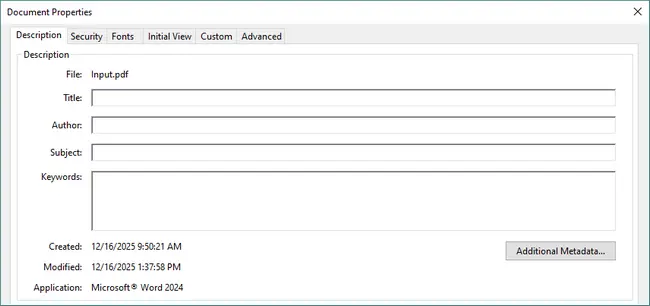
- Fai clic su OK e salva il PDF per applicare le modifiche.
Vantaggi
- Interfaccia grafica intuitiva.
- Supporto completo per i campi di metadati PDF standard.
- Soluzione PDF affidabile e ampiamente riconosciuta.
Svantaggi
- Richiede una licenza a pagamento.
- Non adatto per l'elaborazione batch o automatizzata.
Metodo 2: Modificare i metadati PDF con Sejda (Online)
Sejda è un noto strumento online che consente di modificare i metadati PDF direttamente nel browser. Questo metodo è ideale per modifiche rapide e occasionali quando non si desidera installare software desktop. Il processo di modifica è semplice e richiede solo pochi passaggi:
- Apri lo strumento Modifica metadati PDF di Sejda.
- Carica il tuo file PDF dal tuo computer o da un archivio cloud.

- Scegli Cambia metadati, quindi fai clic su Continua.
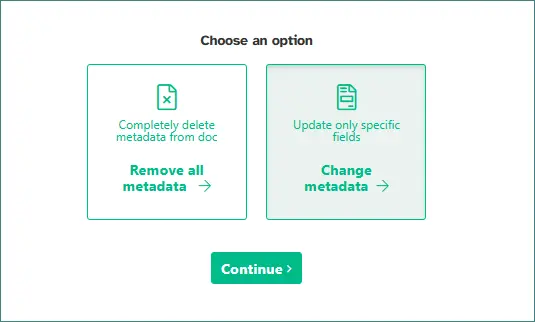
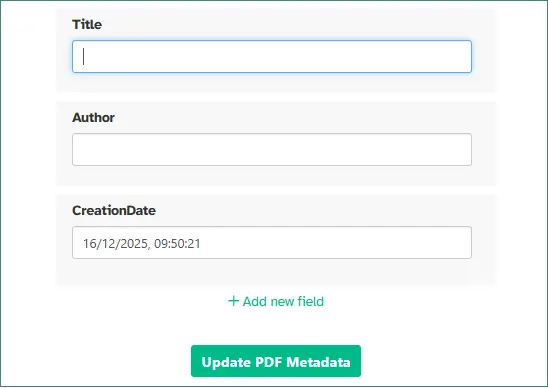
- Modifica i campi di metadati richiesti e fai clic su Aggiorna metadati PDF per salvare le modifiche.
- Scarica il file PDF aggiornato.
Vantaggi
- Nessuna installazione di software richiesta.
- Molto facile da usare per modifiche rapide e occasionali.
- Accessibile da qualsiasi browser moderno.
Svantaggi
- Limitazioni sulla dimensione dei file e sull'utilizzo giornaliero.
- Preoccupazioni sulla privacy a causa del caricamento di file.
Metodo 3: Modificare i metadati PDF con strumenti da riga di comando
Gli strumenti da riga di comando forniscono un modo affidabile e scriptabile per modificare i metadati PDF su diversi sistemi operativi. Questo metodo è ideale per gli utenti che preferiscono flussi di lavoro basati su terminale o che necessitano di elaborare più file PDF in modo efficiente. Uno degli strumenti più utilizzati a questo scopo è ExifTool, che supporta sia la lettura che la scrittura dei metadati PDF.
Passaggi per modificare i metadati PDF con ExifTool (su Windows):
-
Installa ExifTool sul tuo sistema.
- Scarica ExifTool per Windows
- Estrai exiftool(-k).exe
- Rinominalo in exiftool.exe
- Copia il file .exe e la cartella "exiftool_files" in C:\Windows
-
Apri un terminale o un prompt dei comandi e verifica se ExifTool è disponibile.
exiftool -ver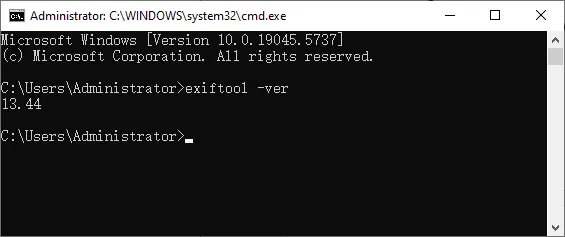
-
Naviga nella directory contenente il tuo file PDF. Ad esempio, se si trova in D:\Documents, digita:
D:
cd Documents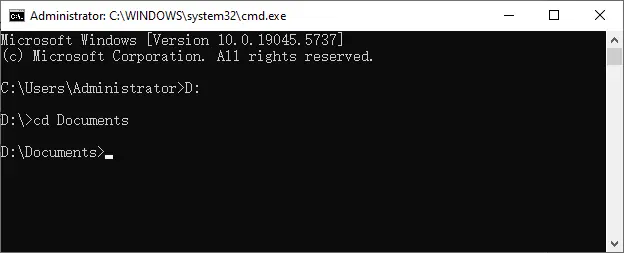
-
Esegui un comando per modificare i campi di metadati richiesti.
exiftool -Title="Panoramica del Cloud Computing" -Author="Tim Taylor" -Subject="Introduzione ai servizi cloud" -Keywords="cloud; business; server" Input.pdf
-
Verifica le modifiche leggendo i metadati.
exiftool Input.pdf
Vantaggi
- Funziona in modo affidabile su Windows, macOS e Linux.
- Eccellente per aggiornamenti batch e automatizzati.
- Nessuna interfaccia grafica richiesta.
Svantaggi
- Richiede conoscenza della riga di comando.
- Rischio di sovrascritture accidentali in caso di uso improprio.
Nota: i passaggi di installazione variano a seconda del sistema operativo. Gli utenti di Linux e macOS dovrebbero installare ExifTool utilizzando un gestore di pacchetti.
Metodo 4: Modificare i metadati PDF programmaticamente con Spire.PDF
Quando si lavora con un gran numero di file PDF o flussi di lavoro automatizzati, la modifica programmatica dei metadati è la soluzione più efficiente. Spire.PDF per Python fornisce un'API potente e intuitiva per gli sviluppatori che consente di modificare sia i metadati PDF integrati che quelli personalizzati con un codice minimo.
Questo approccio è particolarmente utile per i servizi di backend, le pipeline di documenti e gli scenari in cui i metadati devono essere standardizzati su molti file.
Di seguito è riportato un esempio che dimostra come modificare i metadati PDF utilizzando Spire.PDF per Python:
from spire.pdf import *
from spire.pdf.common import *

# Crea un oggetto della classe PdfDocument e carica un documento PDF
pdf = PdfDocument()
pdf.LoadFromFile("Input.pdf")

# Ottieni le proprietà del documento
properties = pdf.DocumentInformation

# Imposta le proprietà integrate
properties.Author = "Tim Taylor"
properties.Creator = "Spire.PDF"
properties.Keywords = "servizio cloud; business digitale"
properties.Subject = "L'introduzione del servizio cloud e i suoi vantaggi"
properties.Title = "Il potere dei servizi cloud: potenziare le aziende nell'era digitale"
properties.Producer = "Spire.PDF per Python"

# Imposta le proprietà personalizzate
properties.SetCustomProperty("Azienda", "E-iceblue")
properties.SetCustomProperty("Tag", "Cloud; Business; Server")

# Salva il documento
pdf.SaveToFile("output/EditPDFMetadata.pdf")
pdf.Close()
Leggi di più: Impostare e recuperare le proprietà PDF utilizzando Python
Vantaggi
- Supporta sia i metadati PDF integrati che quelli personalizzati.
- Ideale per l'elaborazione batch e i flussi di lavoro di automazione.
Svantaggi
- Richiede una conoscenza di base della programmazione Python.
- È richiesta la configurazione iniziale della libreria.
- Meno comodo per modifiche singole e manuali.
Oltre alla modifica dei metadati, Spire.PDF per Python fornisce API per l'elaborazione batch, la generazione di PDF e la modifica dei contenuti, che possono essere combinate per attività di automazione dei documenti più complesse.
Confronto dei diversi metodi
| Metodo | Facilità d'uso | Modifica batch | Automazione | Privacy |
|---|---|---|---|---|
| Adobe Acrobat | Alta | No | No | Alta |
| Sejda (Online) | Molto alta | No | No | Bassa |
| Strumenti da riga di comando | Bassa | Sì | Sì | Alta |
| Spire.PDF per Python | Media | Sì | Sì | Alta |
Considerazioni finali
La modifica dei metadati PDF è un modo pratico per mantenere i documenti ben organizzati, ricercabili e coerenti tra diversi flussi di lavoro. A seconda del tuo background tecnico e dello scenario di utilizzo, esistono diversi modi efficaci per aggiornare le proprietà del PDF senza modificare il contenuto visibile del documento.
Per gli utenti che preferiscono un'interfaccia grafica, Adobe Acrobat fornisce una soluzione desktop affidabile, mentre Sejda PDF Editor è comodo per modifiche rapide basate su browser. Se hai bisogno di un maggiore controllo o desideri elaborare più file in modo efficiente, strumenti da riga di comando come ExifTool offrono un approccio potente e multipiattaforma. Per gli sviluppatori e i sistemi automatizzati, Spire.PDF per Python si distingue come l'opzione più flessibile, supportando sia i metadati integrati che quelli personalizzati con un codice minimo.
Scegliendo il metodo che meglio si adatta al tuo flusso di lavoro—manuale, online, da riga di comando o programmatico—puoi garantire che i tuoi metadati PDF rimangano accurati, standardizzati e facili da gestire su qualsiasi scala.
Domande frequenti
D1. È possibile modificare i metadati PDF senza modificare il contenuto del documento?
Sì. Gli aggiornamenti dei metadati non influiscono sul testo visibile o sul layout di un PDF.
D2. I metadati PDF sono visibili ai lettori?
I metadati sono nascosti per impostazione predefinita ma possono essere visualizzati nelle proprietà del documento.
D3. Posso modificare in batch i metadati di più PDF?
Sì. I metodi programmatici e da riga di comando sono i migliori per le operazioni batch.
D4. La modifica dei metadati influisce sulle firme digitali?
Sì. Qualsiasi modifica, incluse le modifiche ai metadati, può invalidare una firma digitale.
Potrebbe interessarti anche
Modifier les métadonnées d'un PDF : quatre méthodes efficaces
Table des matières
- Qu'est-ce que les métadonnées PDF ?
- Méthode 1 : Modifier les métadonnées PDF avec Adobe Acrobat
- Méthode 2 : Modifier les métadonnées PDF avec Sejda (en ligne)
- Méthode 3 : Modifier les métadonnées PDF avec des outils en ligne de commande
- Méthode 4 : Modifier les métadonnées PDF par programmation avec Spire.PDF
- Comparaison des différentes méthodes
- Réflexions finales
- FAQ
Les métadonnées PDF contiennent des informations descriptives sur un document, telles que son titre, son auteur, son sujet et ses mots-clés. Bien que ces données ne soient pas visibles dans les pages PDF elles-mêmes, elles sont intégrées dans la structure du fichier et peuvent être consultées par les lecteurs PDF, les moteurs de recherche et les systèmes de gestion de documents.
Dans cet article, nous explorerons quatre manières pratiques et efficaces de modifier les métadonnées PDF, couvrant les outils de bureau, les éditeurs en ligne et les solutions orientées développeur. Que vous ayez besoin de mettre à jour un seul fichier ou d'automatiser la modification des métadonnées pour de grandes collections de PDF, ce guide vous aidera à choisir la bonne approche.
Aperçu des méthodes :
- Méthode 1 : Modifier les métadonnées PDF avec Adobe Acrobat
- Méthode 2 : Modifier les métadonnées PDF avec Sejda (en ligne)
- Méthode 3 : Modifier les métadonnées PDF avec des outils en ligne de commande
- Méthode 4 : Modifier les métadonnées PDF par programmation avec Spire.PDF
Qu'est-ce que les métadonnées PDF ?
Les métadonnées PDF sont un ensemble de propriétés stockées dans un fichier PDF qui décrivent le document plutôt que son contenu visible. Ces propriétés aident les logiciels à identifier, classer et gérer plus efficacement les fichiers PDF. Les champs de métadonnées PDF courants incluent :
- Titre – Le titre du document affiché dans les visionneuses PDF
- Auteur – Le créateur ou le propriétaire du document
- Sujet – Une brève description du document
- Mots-clés – Balises ou expressions consultables
- Créateur – L'application qui a créé le PDF
- Producteur – Le logiciel utilisé pour générer le PDF final
- Date de création / Date de modification
Étant donné que les métadonnées sont distinctes de la mise en page et du texte du document, elles peuvent être modifiées en toute sécurité sans affecter le contenu visuel.
Méthode 1 : Modifier les métadonnées PDF avec Adobe Acrobat
Adobe Acrobat offre une interface fiable et intuitive pour la modification des métadonnées PDF, ce qui en fait un choix populaire pour les utilisateurs quotidiens. Il offre un accès complet aux champs de métadonnées standard via un flux de travail graphique familier. Pour mettre à jour les métadonnées à l'aide d'Adobe Acrobat, procédez comme suit :
- Ouvrez le fichier PDF dans Adobe Acrobat.
- Cliquez sur Fichier → Propriétés pour ouvrir la boîte de dialogue des propriétés du document.
- Modifiez des champs tels que Titre, Auteur, Sujet et Mots-clés sous l'onglet Description.
- Cliquez sur OK et enregistrez le PDF pour appliquer les modifications.
Avantages
- Interface graphique conviviale.
- Prise en charge complète des champs de métadonnées PDF standard.
- Solution PDF fiable et largement reconnue.
Inconvénients
- Nécessite une licence payante.
- Ne convient pas au traitement par lots ou automatisé.
Méthode 2 : Modifier les métadonnées PDF avec Sejda (en ligne)
Sejda est un outil en ligne bien connu qui vous permet de modifier les métadonnées PDF directement dans votre navigateur. Cette méthode est idéale pour des modifications rapides et ponctuelles lorsque vous ne souhaitez pas installer de logiciel de bureau. Le processus d'édition est simple et ne nécessite que quelques étapes :
- Ouvrez l'outil Modifier les métadonnées PDF de Sejda.
- Téléchargez votre fichier PDF depuis votre ordinateur ou votre stockage cloud.
- Choisissez Modifier les métadonnées, puis cliquez sur Continuer.
- Modifiez les champs de métadonnées requis, et cliquez sur Mettre à jour les métadonnées PDF pour enregistrer les modifications.
- Téléchargez le fichier PDF mis à jour.
Avantages
- Aucune installation de logiciel requise.
- Très facile à utiliser pour des modifications rapides et ponctuelles.
- Accessible depuis n'importe quel navigateur moderne.
Inconvénients
- Limitations de taille de fichier et d'utilisation quotidienne.
- Problèmes de confidentialité dus aux téléchargements de fichiers.
Méthode 3 : Modifier les métadonnées PDF avec des outils en ligne de commande
Les outils en ligne de commande offrent un moyen fiable et scriptable de modifier les métadonnées PDF sur différents systèmes d'exploitation. Cette méthode est idéale pour les utilisateurs qui préfèrent les flux de travail basés sur un terminal ou qui ont besoin de traiter efficacement plusieurs fichiers PDF. L'un des outils les plus utilisés à cette fin est ExifTool, qui prend en charge à la fois la lecture et l'écriture des métadonnées PDF.
Étapes pour modifier les métadonnées PDF avec ExifTool (sous Windows) :
-
Installez ExifTool sur votre système.
- Télécharger ExifTool pour Windows
- Extraire exiftool(-k).exe
- Renommez-le en exiftool.exe
- Copiez le .exe et le dossier "exiftool_files" dans C:\Windows
-
Ouvrez un terminal ou une invite de commande et vérifiez si ExifTool est disponible.
exiftool -ver -
Accédez au répertoire contenant votre fichier PDF. Par exemple, s'il se trouve dans D:\Documents, tapez :
D: cd Documents -
Exécutez une commande pour modifier les champs de métadonnées requis.
exiftool -Title="Cloud Computing Overview" -Author="Tim Taylor" -Subject="Introduction to cloud services" -Keywords="cloud; business; server" Input.pdf -
Vérifiez les modifications en lisant les métadonnées.
exiftool Input.pdf
Avantages
- Fonctionne de manière fiable sur Windows, macOS et Linux.
- Excellent pour les mises à jour par lots et automatisées.
- Aucune interface graphique requise.
Inconvénients
- Nécessite des connaissances en ligne de commande.
- Risque d'écrasements accidentels en cas de mauvaise utilisation.
Remarque : les étapes d'installation varient selon le système d'exploitation. Les utilisateurs de Linux et de macOS doivent installer ExifTool à l'aide d'un gestionnaire de paquets.
Méthode 4 : Modifier les métadonnées PDF par programmation avec Spire.PDF
Lorsque vous travaillez avec un grand nombre de fichiers PDF ou des flux de travail automatisés, la modification programmatique des métadonnées est la solution la plus efficace. Spire.PDF for Python fournit une API puissante et conviviale pour les développeurs qui vous permet de modifier les métadonnées PDF intégrées et personnalisées avec un minimum de code.
Cette approche est particulièrement utile pour les services backend, les pipelines de documents et les scénarios où les métadonnées doivent être normalisées sur de nombreux fichiers.
Vous trouverez ci-dessous un exemple illustrant comment modifier les métadonnées PDF à l'aide de Spire.PDF for Python :
from spire.pdf import *
from spire.pdf.common import *

# Create an object of PdfDocument class and load a PDF document
pdf = PdfDocument()
pdf.LoadFromFile("Input.pdf")

# Get the properties of the document
properties = pdf.DocumentInformation

# Set built-in properties
properties.Author = "Tim Taylor"
properties.Creator = "Spire.PDF"
properties.Keywords = "cloud service; digital business"
properties.Subject = "The introduction of cloud service and its advantages"
properties.Title = "The Power of Cloud Services: Empowering Businesses in the Digital Age"
properties.Producer = "Spire.PDF for Python"

# Set custom properties
properties.SetCustomProperty("Company", "E-iceblue")
properties.SetCustomProperty("Tags", "Cloud; Business; Server")

# Save the document
pdf.SaveToFile("output/EditPDFMetadata.pdf")
pdf.Close()
Lire la suite : Définir et récupérer les propriétés PDF à l'aide de Python
Avantages
- Prend en charge les métadonnées PDF intégrées et personnalisées.
- Idéal pour le traitement par lots et les flux de travail d'automatisation.
Inconvénients
- Nécessite des connaissances de base en programmation Python.
- Une configuration initiale de la bibliothèque est requise.
- Moins pratique pour les modifications manuelles uniques.
En plus de la modification des métadonnées, Spire.PDF for Python fournit des API pour le traitement par lots, la génération de PDF et la modification de contenu, qui peuvent être combinées pour des tâches d'automatisation de documents plus complexes.
Comparaison des différentes méthodes
| Méthode | Facilité d'utilisation | Édition par lots | Automatisation | Confidentialité |
|---|---|---|---|---|
| Adobe Acrobat | Élevée | Non | Non | Élevée |
| Sejda (en ligne) | Très élevée | Non | Non | Faible |
| Outils en ligne de commande | Faible | Oui | Oui | Élevée |
| Spire.PDF for Python | Moyenne | Oui | Oui | Élevée |
Réflexions finales
La modification des métadonnées PDF est un moyen pratique de garder les documents bien organisés, consultables et cohérents dans différents flux de travail. En fonction de votre bagage technique et de votre scénario d'utilisation, il existe plusieurs moyens efficaces de mettre à jour les propriétés PDF sans modifier le contenu visible du document.
Pour les utilisateurs qui préfèrent une interface graphique, Adobe Acrobat fournit une solution de bureau fiable, tandis que Sejda PDF Editor est pratique pour des modifications rapides basées sur un navigateur. Si vous avez besoin d'un plus grand contrôle ou si vous souhaitez traiter efficacement plusieurs fichiers, des outils en ligne de commande tels qu'ExifTool offrent une approche puissante et multiplateforme. Pour les développeurs et les systèmes automatisés, Spire.PDF for Python se distingue comme l'option la plus flexible, prenant en charge les métadonnées intégrées et personnalisées avec un minimum de code.
En choisissant la méthode qui correspond le mieux à votre flux de travail—manuelle, en ligne, en ligne de commande ou programmatique—vous pouvez vous assurer que vos métadonnées PDF restent exactes, standardisées et faciles à gérer à n'importe quelle échelle.
FAQ
Q1. Les métadonnées PDF peuvent-elles être modifiées sans changer le contenu du document ?
Oui. Les mises à jour des métadonnées n'affectent pas le texte visible ou la mise en page d'un PDF.
Q2. Les métadonnées PDF sont-elles visibles pour les lecteurs ?
Les métadonnées sont masquées par défaut mais peuvent être consultées dans les propriétés du document.
Q3. Puis-je modifier par lots les métadonnées de plusieurs PDF ?
Oui. Les méthodes programmatiques et en ligne de commande sont les meilleures pour les opérations par lots.
Q4. La modification des métadonnées affecte-t-elle les signatures numériques ?
Oui. Toute modification, y compris les modifications de métadonnées, peut invalider une signature numérique.
Vous pourriez aussi être intéressé par
Editar metadatos de PDF: cuatro formas efectivas
Tabla de Contenidos
- ¿Qué son los metadatos de PDF?
- Método 1: Editar metadatos de PDF usando Adobe Acrobat
- Método 2: Editar metadatos de PDF usando Sejda (en línea)
- Método 3: Editar metadatos de PDF usando herramientas de línea de comandos
- Método 4: Editar metadatos de PDF programáticamente usando Spire.PDF
- Comparación de diferentes métodos
- Conclusiones
- Preguntas frecuentes
Los metadatos de PDF contienen información descriptiva sobre un documento, como su título, autor, asunto y palabras clave. Aunque estos datos no son visibles dentro de las propias páginas del PDF, están incrustados en la estructura del archivo y pueden ser accedidos por lectores de PDF, motores de búsqueda y sistemas de gestión de documentos.
En este artículo, exploraremos cuatro formas prácticas y eficaces de editar metadatos de PDF, abarcando herramientas de escritorio, editores en línea y soluciones orientadas a desarrolladores. Ya sea que necesite actualizar un solo archivo o automatizar la edición de metadatos para grandes colecciones de PDF, esta guía le ayudará a elegir el enfoque adecuado.
Resumen de los métodos:
- Método 1: Editar metadatos de PDF usando Adobe Acrobat
- Método 2: Editar metadatos de PDF usando Sejda (en línea)
- Método 3: Editar metadatos de PDF usando herramientas de línea de comandos
- Método 4: Editar metadatos de PDF programáticamente usando Spire.PDF
¿Qué son los metadatos de PDF?
Los metadatos de PDF son un conjunto de propiedades almacenadas dentro de un archivo PDF que describen el documento en lugar de su contenido visible. Estas propiedades ayudan al software a identificar, categorizar y gestionar los archivos PDF de manera más eficiente. Los campos comunes de metadatos de PDF incluyen:
- Título – El título del documento que se muestra en los visores de PDF
- Autor – El creador o propietario del documento
- Asunto – Una breve descripción del documento
- Palabras clave – Etiquetas o frases de búsqueda
- Creador – La aplicación que creó el PDF
- Productor – El software utilizado para generar el PDF final
- Fecha de creación / Fecha de modificación
Dado que los metadatos están separados del diseño y el texto del documento, se pueden editar de forma segura sin afectar el contenido visual.
Método 1: Editar metadatos de PDF usando Adobe Acrobat
Adobe Acrobat ofrece una interfaz fiable e intuitiva para editar metadatos de PDF, lo que lo convierte en una opción popular para los usuarios cotidianos. Proporciona acceso completo a los campos de metadatos estándar a través de un flujo de trabajo gráfico familiar. Para actualizar los metadatos con Adobe Acrobat, siga estos pasos:
- Abra el archivo PDF en Adobe Acrobat.
- Haga clic en Archivo → Propiedades para abrir el cuadro de diálogo de propiedades del documento.
- Edite campos como Título, Autor, Asunto y Palabras clave en la pestaña Descripción.
- Haga clic en Aceptar y guarde el PDF para aplicar los cambios.
Ventajas
- Interfaz gráfica fácil de usar.
- Soporte completo para los campos de metadatos estándar de PDF.
- Solución de PDF fiable y ampliamente reconocida.
Desventajas
- Requiere una licencia de pago.
- No es adecuado para el procesamiento por lotes o automatizado.
Método 2: Editar metadatos de PDF usando Sejda (en línea)
Sejda es una conocida herramienta en línea que le permite editar metadatos de PDF directamente en su navegador. Este método es ideal para ediciones rápidas y únicas cuando no desea instalar software de escritorio. El proceso de edición es simple y requiere solo unos pocos pasos:
- Abra la herramienta Editar metadatos de PDF de Sejda.
- Suba su archivo PDF desde su ordenador o almacenamiento en la nube.
- Elija Cambiar metadatos y luego haga clic en Continuar.
- Modifique los campos de metadatos requeridos y haga clic en Actualizar metadatos de PDF para guardar los cambios.
- Descargue el archivo PDF actualizado.
Ventajas
- No requiere instalación de software.
- Muy fácil de usar para ediciones rápidas y únicas.
- Accesible desde cualquier navegador moderno.
Desventajas
- Limitaciones de tamaño de archivo y uso diario.
- Preocupaciones de privacidad debido a la subida de archivos.
Método 3: Editar metadatos de PDF usando herramientas de línea de comandos
Las herramientas de línea de comandos proporcionan una forma fiable y programable de editar metadatos de PDF en diferentes sistemas operativos. Este método es ideal para los usuarios que prefieren flujos de trabajo basados en terminal o que necesitan procesar múltiples archivos PDF de manera eficiente. Una de las herramientas más utilizadas para este propósito es ExifTool, que admite tanto la lectura como la escritura de metadatos de PDF.
Pasos para editar metadatos de PDF con ExifTool (en Windows):
-
Instale ExifTool en su sistema.
- Descargar ExifTool para Windows
- Extraer exiftool(-k).exe
- Renombrarlo a exiftool.exe
- Copiar el .exe y la carpeta "exiftool_files" a C:\Windows
-
Abra una terminal o símbolo del sistema y compruebe si ExifTool está disponible.
exiftool -ver -
Navegue al directorio que contiene su archivo PDF. Por ejemplo, si está en D:\Documents, escriba:
D: cd Documents -
Ejecute un comando para modificar los campos de metadatos requeridos.
exiftool -Title="Cloud Computing Overview" -Author="Tim Taylor" -Subject="Introduction to cloud services" -Keywords="cloud; business; server" Input.pdf -
Verifique los cambios leyendo los metadatos.
exiftool Input.pdf
Ventajas
- Funciona de forma fiable en Windows, macOS y Linux.
- Excelente para actualizaciones por lotes y automatizadas.
- No se requiere interfaz gráfica.
Desventajas
- Requiere conocimientos de la línea de comandos.
- Riesgo de sobrescrituras accidentales si se usa incorrectamente.
Nota: Los pasos de instalación varían según el sistema operativo. Los usuarios de Linux y macOS deben instalar ExifTool utilizando un gestor de paquetes.
Método 4: Editar metadatos de PDF programáticamente usando Spire.PDF
Cuando se trabaja con un gran número de archivos PDF o flujos de trabajo automatizados, la edición programática de metadatos es la solución más eficiente. Spire.PDF para Python proporciona una API potente y fácil de usar para desarrolladores que le permite modificar tanto los metadatos de PDF integrados como los personalizados con un código mínimo.
Este enfoque es especialmente útil para servicios de backend, canalizaciones de documentos y escenarios donde los metadatos deben estandarizarse en muchos archivos.
A continuación se muestra un ejemplo que demuestra cómo editar metadatos de PDF utilizando Spire.PDF para Python:
from spire.pdf import *
from spire.pdf.common import *

# Create an object of PdfDocument class and load a PDF document
pdf = PdfDocument()
pdf.LoadFromFile("Input.pdf")

# Get the properties of the document
properties = pdf.DocumentInformation

# Set built-in properties
properties.Author = "Tim Taylor"
properties.Creator = "Spire.PDF"
properties.Keywords = "cloud service; digital business"
properties.Subject = "The introduction of cloud service and its advantages"
properties.Title = "The Power of Cloud Services: Empowering Businesses in the Digital Age"
properties.Producer = "Spire.PDF for Python"

# Set custom properties
properties.SetCustomProperty("Company", "E-iceblue")
properties.SetCustomProperty("Tags", "Cloud; Business; Server")

# Save the document
pdf.SaveToFile("output/EditPDFMetadata.pdf")
pdf.Close()
Leer más: Establecer y recuperar propiedades de PDF usando Python
Ventajas
- Admite metadatos de PDF tanto integrados como personalizados.
- Ideal para el procesamiento por lotes y los flujos de trabajo de automatización.
Desventajas
- Requiere conocimientos básicos de programación en Python.
- Se requiere la configuración inicial de la biblioteca.
- Menos conveniente para ediciones manuales únicas.
Además de la edición de metadatos, Spire.PDF para Python proporciona API para el procesamiento por lotes, la generación de PDF y la modificación de contenido, que se pueden combinar para tareas de automatización de documentos más complejas.
Comparación de diferentes métodos
| Método | Facilidad de uso | Edición por lotes | Automatización | Privacidad |
|---|---|---|---|---|
| Adobe Acrobat | Alta | No | No | Alta |
| Sejda (en línea) | Muy alta | No | No | Baja |
| Herramientas de línea de comandos | Baja | Sí | Sí | Alta |
| Spire.PDF para Python | Media | Sí | Sí | Alta |
Conclusiones
La edición de metadatos de PDF es una forma práctica de mantener los documentos bien organizados, con capacidad de búsqueda y coherentes en diferentes flujos de trabajo. Dependiendo de su experiencia técnica y escenario de uso, existen múltiples formas efectivas de actualizar las propiedades de un PDF sin modificar el contenido visible del documento.
Para los usuarios que prefieren una interfaz gráfica, Adobe Acrobat proporciona una solución de escritorio fiable, mientras que el editor de PDF Sejda es conveniente para ediciones rápidas basadas en el navegador. Si necesita un mayor control o desea procesar múltiples archivos de manera eficiente, las herramientas de línea de comandos como ExifTool ofrecen un enfoque potente y multiplataforma. Para desarrolladores y sistemas automatizados, Spire.PDF para Python se destaca como la opción más flexible, admitiendo metadatos tanto integrados como personalizados con un código mínimo.
Al elegir el método que mejor se adapte a su flujo de trabajo (manual, en línea, por línea de comandos o programático), puede asegurarse de que sus metadatos de PDF sigan siendo precisos, estandarizados y fáciles de gestionar a cualquier escala.
Preguntas frecuentes
P1. ¿Se pueden editar los metadatos de un PDF sin cambiar el contenido del documento?
Sí. Las actualizaciones de metadatos no afectan el texto visible ni el diseño de un PDF.
P2. ¿Son visibles los metadatos de un PDF para los lectores?
Los metadatos están ocultos de forma predeterminada, pero se pueden ver en las propiedades del documento.
P3. ¿Puedo editar metadatos por lotes para múltiples archivos PDF?
Sí. Los métodos programáticos y de línea de comandos son los mejores para las operaciones por lotes.
P4. ¿La edición de metadatos afecta a las firmas digitales?
Sí. Cualquier modificación, incluidos los cambios en los metadatos, puede invalidar una firma digital.
También le puede interesar
PDF-Metadaten bearbeiten: Vier effektive Methoden
Inhaltsverzeichnis
- Was sind PDF-Metadaten?
- Methode 1: PDF-Metadaten mit Adobe Acrobat bearbeiten
- Methode 2: PDF-Metadaten mit Sejda (Online) bearbeiten
- Methode 3: PDF-Metadaten mit Befehlszeilen-Tools bearbeiten
- Methode 4: PDF-Metadaten programmgesteuert mit Spire.PDF bearbeiten
- Vergleich verschiedener Methoden
- Abschließende Gedanken
- Häufig gestellte Fragen
PDF-Metadaten enthalten beschreibende Informationen über ein Dokument, wie z. B. Titel, Autor, Betreff und Schlüsselwörter. Obwohl diese Daten nicht auf den PDF-Seiten selbst sichtbar sind, sind sie in der Dateistruktur eingebettet und können von PDF-Readern, Suchmaschinen und Dokumentenmanagementsystemen abgerufen werden.
In diesem Artikel werden wir vier praktische und effektive Möglichkeiten zur Bearbeitung von PDF-Metadaten untersuchen, die Desktop-Tools, Online-Editoren und entwicklerorientierte Lösungen abdecken. Egal, ob Sie eine einzelne Datei aktualisieren oder die Metadatenbearbeitung für große PDF-Sammlungen automatisieren müssen, dieser Leitfaden wird Ihnen helfen, den richtigen Ansatz zu wählen.
Methodenübersicht:
- Methode 1: PDF-Metadaten mit Adobe Acrobat bearbeiten
- Methode 2: PDF-Metadaten mit Sejda (Online) bearbeiten
- Methode 3: PDF-Metadaten mit Befehlszeilen-Tools bearbeiten
- Methode 4: PDF-Metadaten programmgesteuert mit Spire.PDF bearbeiten
Was sind PDF-Metadaten?
PDF-Metadaten sind eine Reihe von Eigenschaften, die in einer PDF-Datei gespeichert sind und das Dokument anstelle seines sichtbaren Inhalts beschreiben. Diese Eigenschaften helfen Software dabei, PDF-Dateien effizienter zu identifizieren, zu kategorisieren und zu verwalten. Gängige PDF-Metadatenfelder umfassen:
- Titel – Der Dokumenttitel, der in PDF-Viewern angezeigt wird
- Autor – Der Ersteller oder Besitzer des Dokuments
- Betreff – Eine kurze Beschreibung des Dokuments
- Schlüsselwörter – Durchsuchbare Tags oder Phrasen
- Ersteller – Die Anwendung, die das PDF erstellt hat
- Hersteller – Die Software, die zur Erzeugung des endgültigen PDFs verwendet wurde
- Erstellungsdatum / Änderungsdatum
Da Metadaten vom Layout und Text des Dokuments getrennt sind, können sie sicher bearbeitet werden, ohne den visuellen Inhalt zu beeinträchtigen.
Methode 1: PDF-Metadaten mit Adobe Acrobat bearbeiten
Adobe Acrobat bietet eine zuverlässige und intuitive Benutzeroberfläche zur Bearbeitung von PDF-Metadaten und ist daher eine beliebte Wahl für alltägliche Benutzer. Es bietet vollen Zugriff auf Standard-Metadatenfelder über einen vertrauten grafischen Arbeitsablauf. Um Metadaten mit Adobe Acrobat zu aktualisieren, folgen Sie diesen Schritten:
- Öffnen Sie die PDF-Datei in Adobe Acrobat.
- Klicken Sie auf Datei → Eigenschaften, um das Dialogfeld für die Dokumenteigenschaften zu öffnen.
- Bearbeiten Sie Felder wie Titel, Autor, Betreff und Schlüsselwörter unter dem Reiter Beschreibung.
- Klicken Sie auf OK und speichern Sie das PDF, um die Änderungen zu übernehmen.
Vorteile
- Benutzerfreundliche grafische Oberfläche.
- Volle Unterstützung für Standard-PDF-Metadatenfelder.
- Zuverlässige und weithin anerkannte PDF-Lösung.
Nachteile
- Erfordert eine kostenpflichtige Lizenz.
- Nicht für die Stapel- oder automatisierte Verarbeitung geeignet.
Methode 2: PDF-Metadaten mit Sejda (Online) bearbeiten
Sejda ist ein bekanntes Online-Tool, mit dem Sie PDF-Metadaten direkt in Ihrem Browser bearbeiten können. Diese Methode ist ideal für schnelle, einmalige Bearbeitungen, wenn Sie keine Desktop-Software installieren möchten. Der Bearbeitungsprozess ist einfach und erfordert nur wenige Schritte:
- Öffnen Sie Sejdas PDF-Metadaten bearbeiten Tool.
- Laden Sie Ihre PDF-Datei von Ihrem Computer oder Cloud-Speicher hoch.
- Wählen Sie Metadaten ändern und klicken Sie dann auf Weiter.
- Ändern Sie die erforderlichen Metadatenfelder und klicken Sie auf PDF-Metadaten aktualisieren, um die Änderungen zu speichern.
- Laden Sie die aktualisierte PDF-Datei herunter.
Vorteile
- Keine Softwareinstallation erforderlich.
- Sehr einfach für schnelle, einmalige Bearbeitungen zu verwenden.
- Von jedem modernen Browser aus zugänglich.
Nachteile
- Dateigrößen- und tägliche Nutzungsbeschränkungen.
- Datenschutzbedenken aufgrund von Datei-Uploads.
Methode 3: PDF-Metadaten mit Befehlszeilen-Tools bearbeiten
Befehlszeilen-Tools bieten eine zuverlässige und skriptfähige Möglichkeit, PDF-Metadaten über verschiedene Betriebssysteme hinweg zu bearbeiten. Diese Methode ist ideal für Benutzer, die terminalbasierte Arbeitsabläufe bevorzugen oder mehrere PDF-Dateien effizient verarbeiten müssen. Eines der am weitesten verbreiteten Werkzeuge für diesen Zweck ist ExifTool, das sowohl das Lesen als auch das Schreiben von PDF-Metadaten unterstützt.
Schritte zur Bearbeitung von PDF-Metadaten mit ExifTool (unter Windows):
-
Installieren Sie ExifTool auf Ihrem System.
- Laden Sie ExifTool für Windows herunter
- Extrahieren Sie exiftool(-k).exe
- Benennen Sie es in exiftool.exe um
- Kopieren Sie die .exe-Datei und den "exiftool_files" Ordner nach C:\Windows
-
Öffnen Sie ein Terminal oder eine Eingabeaufforderung und prüfen Sie, ob ExifTool verfügbar ist.
exiftool -ver -
Navigieren Sie zu dem Verzeichnis, das Ihre PDF-Datei enthält. Wenn sie sich beispielsweise in D:\Dokumente befindet, geben Sie ein:
D: cd Documents -
Führen Sie einen Befehl aus, um die erforderlichen Metadatenfelder zu ändern.
exiftool -Title="Cloud Computing Overview" -Author="Tim Taylor" -Subject="Introduction to cloud services" -Keywords="cloud; business; server" Input.pdf -
Überprüfen Sie die Änderungen, indem Sie die Metadaten lesen.
exiftool Input.pdf
Vorteile
- Funktioniert zuverlässig unter Windows, macOS und Linux.
- Hervorragend für Stapel- und automatisierte Updates.
- Keine grafische Oberfläche erforderlich.
Nachteile
- Erfordert Kenntnisse der Befehlszeile.
- Gefahr des versehentlichen Überschreibens bei unsachgemäßer Verwendung.
Hinweis: Die Installationsschritte variieren je nach Betriebssystem. Linux- und macOS-Benutzer sollten ExifTool mit einem Paketmanager installieren.
Methode 4: PDF-Metadaten programmgesteuert mit Spire.PDF bearbeiten
Bei der Arbeit mit einer großen Anzahl von PDF-Dateien oder automatisierten Arbeitsabläufen ist die programmgesteuerte Bearbeitung von Metadaten die effizienteste Lösung. Spire.PDF for Python bietet eine leistungsstarke und entwicklerfreundliche API, mit der Sie sowohl integrierte als auch benutzerdefinierte PDF-Metadaten mit minimalem Code ändern können.
Dieser Ansatz ist besonders nützlich für Backend-Dienste, Dokumenten-Pipelines und Szenarien, in denen Metadaten über viele Dateien hinweg standardisiert werden müssen.
Unten finden Sie ein Beispiel, das zeigt, wie Sie PDF-Metadaten mit Spire.PDF for Python bearbeiten:
from spire.pdf import *
from spire.pdf.common import *

# Create an object of PdfDocument class and load a PDF document
pdf = PdfDocument()
pdf.LoadFromFile("Input.pdf")

# Get the properties of the document
properties = pdf.DocumentInformation

# Set built-in properties
properties.Author = "Tim Taylor"
properties.Creator = "Spire.PDF"
properties.Keywords = "cloud service; digital business"
properties.Subject = "The introduction of cloud service and its advantages"
properties.Title = "The Power of Cloud Services: Empowering Businesses in the Digital Age"
properties.Producer = "Spire.PDF for Python"

# Set custom properties
properties.SetCustomProperty("Company", "E-iceblue")
properties.SetCustomProperty("Tags", "Cloud; Business; Server")

# Save the document
pdf.SaveToFile("output/EditPDFMetadata.pdf")
pdf.Close()
Lesen Sie weiter: PDF-Eigenschaften mit Python festlegen und abrufen
Vorteile
- Unterstützt sowohl integrierte als auch benutzerdefinierte PDF-Metadaten.
- Ideal für Stapelverarbeitungs- und Automatisierungs-Workflows.
Nachteile
- Erfordert grundlegende Python-Programmierkenntnisse.
- Eine anfängliche Bibliothekseinrichtung ist erforderlich.
- Weniger praktisch für einzelne, manuelle Bearbeitungen.
Zusätzlich zur Metadatenbearbeitung bietet Spire.PDF for Python APIs für die Stapelverarbeitung, PDF-Erstellung und Inhaltsänderung, die für komplexere Aufgaben der Dokumentenautomatisierung kombiniert werden können.
Vergleich verschiedener Methoden
| Methode | Benutzerfreundlichkeit | Stapelbearbeitung | Automatisierung | Datenschutz |
|---|---|---|---|---|
| Adobe Acrobat | Hoch | Nein | Nein | Hoch |
| Sejda (Online) | Sehr hoch | Nein | Nein | Niedrig |
| Befehlszeilen-Tools | Niedrig | Ja | Ja | Hoch |
| Spire.PDF for Python | Mittel | Ja | Ja | Hoch |
Abschließende Gedanken
Die Bearbeitung von PDF-Metadaten ist eine praktische Möglichkeit, Dokumente gut organisiert, durchsuchbar und über verschiedene Arbeitsabläufe hinweg konsistent zu halten. Abhängig von Ihrem technischen Hintergrund und Ihrem Anwendungsszenario gibt es mehrere effektive Möglichkeiten, PDF-Eigenschaften zu aktualisieren, ohne den sichtbaren Inhalt des Dokuments zu ändern.
Für Benutzer, die eine grafische Benutzeroberfläche bevorzugen, bietet Adobe Acrobat eine zuverlässige Desktop-Lösung, während der Sejda PDF Editor für schnelle, browserbasierte Bearbeitungen praktisch ist. Wenn Sie mehr Kontrolle benötigen oder mehrere Dateien effizient verarbeiten möchten, bieten Befehlszeilen-Tools wie ExifTool einen leistungsstarken und plattformübergreifenden Ansatz. Für Entwickler und automatisierte Systeme ist Spire.PDF for Python die flexibelste Option, die sowohl integrierte als auch benutzerdefinierte Metadaten mit minimalem Code unterstützt.
Indem Sie die Methode wählen, die am besten zu Ihrem Arbeitsablauf passt – manuell, online, per Befehlszeile oder programmgesteuert – können Sie sicherstellen, dass Ihre PDF-Metadaten korrekt, standardisiert und in jedem Maßstab einfach zu verwalten bleiben.
Häufig gestellte Fragen
F1. Können PDF-Metadaten bearbeitet werden, ohne den Dokumentinhalt zu ändern?
Ja. Metadaten-Updates beeinträchtigen nicht den sichtbaren Text oder das Layout eines PDFs.
F2. Sind PDF-Metadaten für Leser sichtbar?
Metadaten sind standardmäßig ausgeblendet, können aber in den Dokumenteigenschaften eingesehen werden.
F3. Kann ich Metadaten für mehrere PDFs im Stapel bearbeiten?
Ja. Programmgesteuerte und Befehlszeilenmethoden eignen sich am besten für Stapeloperationen.
F4. Beeinflusst die Bearbeitung von Metadaten digitale Signaturen?
Ja. Jede Änderung, einschließlich Metadatenänderungen, kann eine digitale Signatur ungültig machen.
Das könnte Sie auch interessieren
Редактирование метаданных PDF: четыре эффективных способа
Содержание
- Что такое метаданные PDF?
- Способ 1: Редактирование метаданных PDF с помощью Adobe Acrobat
- Способ 2: Редактирование метаданных PDF с помощью Sejda (онлайн)
- Способ 3: Редактирование метаданных PDF с помощью инструментов командной строки
- Способ 4: Программное редактирование метаданных PDF с помощью Spire.PDF
- Сравнение различных методов
- Заключительные мысли
- Часто задаваемые вопросы
Метаданные PDF содержат описательную информацию о документе, такую как его заголовок, автор, тема и ключевые слова. Хотя эти данные не видны на самих страницах PDF, они встроены в структуру файла и могут быть доступны для программ чтения PDF, поисковых систем и систем управления документами.
В этой статье мы рассмотрим четыре практичных и эффективных способа редактирования метаданных PDF, охватывая настольные инструменты, онлайн-редакторы и решения, ориентированные на разработчиков. Независимо от того, нужно ли вам обновить один файл или автоматизировать редактирование метаданных для больших коллекций PDF, это руководство поможет вам выбрать правильный подход.
Обзор методов:
- Способ 1: Редактирование метаданных PDF с помощью Adobe Acrobat
- Способ 2: Редактирование метаданных PDF с помощью Sejda (онлайн)
- Способ 3: Редактирование метаданных PDF с помощью инструментов командной строки
- Способ 4: Программное редактирование метаданных PDF с помощью Spire.PDF
Что такое метаданные PDF?
Метаданные PDF — это набор свойств, хранящихся в файле PDF, которые описывают документ, а не его видимое содержимое. Эти свойства помогают программному обеспечению более эффективно идентифицировать, классифицировать и управлять файлами PDF. Общие поля метаданных PDF включают:
- Заголовок – Заголовок документа, отображаемый в программах для просмотра PDF
- Автор – Создатель или владелец документа
- Тема – Краткое описание документа
- Ключевые слова – Теги или фразы для поиска
- Создатель – Приложение, создавшее PDF
- Производитель – Программное обеспечение, использованное для создания окончательного PDF
- Дата создания / Дата изменения
Поскольку метаданные отделены от макета и текста документа, их можно безопасно редактировать, не затрагивая визуальное содержимое.
Способ 1: Редактирование метаданных PDF с помощью Adobe Acrobat
Adobe Acrobat предлагает надежный и интуитивно понятный интерфейс для редактирования метаданных PDF, что делает его популярным выбором для обычных пользователей. Он обеспечивает полный доступ к стандартным полям метаданных через знакомый графический рабочий процесс. Чтобы обновить метаданные с помощью Adobe Acrobat, выполните следующие действия:
- Откройте PDF-файл в Adobe Acrobat.
- Нажмите Файл → Свойства, чтобы открыть диалоговое окно свойств документа.
- Отредактируйте такие поля, как Заголовок, Автор, Тема и Ключевые слова на вкладке Описание.
- Нажмите ОК и сохраните PDF, чтобы применить изменения.
Плюсы
- Удобный графический интерфейс.
- Полная поддержка стандартных полей метаданных PDF.
- Надежное и широко признанное решение для PDF.
Минусы
- Требуется платная лицензия.
- Не подходит для пакетной или автоматизированной обработки.
Способ 2: Редактирование метаданных PDF с помощью Sejda (онлайн)
Sejda — это известный онлайн-инструмент, который позволяет редактировать метаданные PDF прямо в браузере. Этот метод идеально подходит для быстрых одноразовых правок, когда вы не хотите устанавливать настольное программное обеспечение. Процесс редактирования прост и требует всего нескольких шагов:
- Откройте инструмент Sejda Редактировать метаданные PDF.
- Загрузите свой PDF-файл с компьютера или из облачного хранилища.
- Выберите Изменить метаданные, затем нажмите Продолжить.
- Измените необходимые поля метаданных и нажмите Обновить метаданные PDF, чтобы сохранить изменения.
- Загрузите обновленный PDF-файл.
Плюсы
- Не требуется установка программного обеспечения.
- Очень прост в использовании для быстрых одноразовых правок.
- Доступен из любого современного браузера.
Минусы
- Ограничения по размеру файла и ежедневному использованию.
- Проблемы с конфиденциальностью из-за загрузки файлов.
Способ 3: Редактирование метаданных PDF с помощью инструментов командной строки
Инструменты командной строки предоставляют надежный и скриптовый способ редактирования метаданных PDF в различных операционных системах. Этот метод идеально подходит для пользователей, которые предпочитают рабочие процессы на основе терминала или нуждаются в эффективной обработке нескольких файлов PDF. Одним из наиболее широко используемых инструментов для этой цели является ExifTool, который поддерживает как чтение, так и запись метаданных PDF.
Шаги по редактированию метаданных PDF с помощью ExifTool (в Windows):
-
Установите ExifTool в вашей системе.
- Скачайте ExifTool для Windows
- Извлеките exiftool(-k).exe
- Переименуйте его в exiftool.exe
- Скопируйте .exe и папку "exiftool_files" в C:\Windows
-
Откройте терминал или командную строку и проверьте, доступен ли ExifTool.
exiftool -ver -
Перейдите в каталог, содержащий ваш PDF-файл. Например, если он находится в D:\Documents, введите:
D: cd Documents -
Выполните команду для изменения необходимых полей метаданных.
exiftool -Title="Cloud Computing Overview" -Author="Tim Taylor" -Subject="Introduction to cloud services" -Keywords="cloud; business; server" Input.pdf -
Проверьте изменения, прочитав метаданные.
exiftool Input.pdf
Плюсы
- Надежно работает в Windows, macOS и Linux.
- Отлично подходит для пакетных и автоматизированных обновлений.
- Не требуется графический интерфейс.
Минусы
- Требуются знания командной строки.
- Риск случайной перезаписи при неправильном использовании.
Примечание: шаги установки зависят от операционной системы. Пользователи Linux и macOS должны устанавливать ExifTool с помощью менеджера пакетов.
Способ 4: Программное редактирование метаданных PDF с помощью Spire.PDF
При работе с большим количеством PDF-файлов или автоматизированными рабочими процессами программное редактирование метаданных является наиболее эффективным решением. Spire.PDF for Python предоставляет мощный и удобный для разработчиков API, который позволяет изменять как встроенные, так и пользовательские метаданные PDF с минимальным кодом.
Этот подход особенно полезен для бэкэнд-сервисов, конвейеров документов и сценариев, где метаданные необходимо стандартизировать для многих файлов.
Ниже приведен пример, демонстрирующий, как редактировать метаданные PDF с помощью Spire.PDF for Python:
from spire.pdf import *
from spire.pdf.common import *

# Create an object of PdfDocument class and load a PDF document
pdf = PdfDocument()
pdf.LoadFromFile("Input.pdf")

# Get the properties of the document
properties = pdf.DocumentInformation

# Set built-in properties
properties.Author = "Tim Taylor"
properties.Creator = "Spire.PDF"
properties.Keywords = "cloud service; digital business"
properties.Subject = "The introduction of cloud service and its advantages"
properties.Title = "The Power of Cloud Services: Empowering Businesses in the Digital Age"
properties.Producer = "Spire.PDF for Python"

# Set custom properties
properties.SetCustomProperty("Company", "E-iceblue")
properties.SetCustomProperty("Tags", "Cloud; Business; Server")

# Save the document
pdf.SaveToFile("output/EditPDFMetadata.pdf")
pdf.Close()
Читать далее: Установка и получение свойств PDF с помощью Python
Плюсы
- Поддерживает как встроенные, так и пользовательские метаданные PDF.
- Идеально подходит для пакетной обработки и автоматизации рабочих процессов.
Минусы
- Требуются базовые знания программирования на Python.
- Требуется начальная настройка библиотеки.
- Менее удобно для единичных ручных правок.
Помимо редактирования метаданных, Spire.PDF for Python предоставляет API для пакетной обработки, создания PDF и изменения содержимого, которые можно комбинировать для более сложных задач автоматизации документов.
Сравнение различных методов
| Метод | Простота использования | Пакетное редактирование | Автоматизация | Конфиденциальность |
|---|---|---|---|---|
| Adobe Acrobat | Высокая | Нет | Нет | Высокая |
| Sejda (Онлайн) | Очень высокая | Нет | Нет | Низкая |
| Инструменты командной строки | Низкая | Да | Да | Высокая |
| Spire.PDF for Python | Средняя | Да | Да | Высокая |
Заключительные мысли
Редактирование метаданных PDF — это практичный способ поддерживать документы в хорошо организованном, доступном для поиска и согласованном виде в различных рабочих процессах. В зависимости от вашего технического опыта и сценария использования существует несколько эффективных способов обновления свойств PDF без изменения видимого содержимого документа.
Для пользователей, предпочитающих графический интерфейс, Adobe Acrobat предоставляет надежное настольное решение, в то время как Sejda PDF Editor удобен для быстрых правок в браузере. Если вам нужен больший контроль или вы хотите эффективно обрабатывать несколько файлов, инструменты командной строки, такие как ExifTool, предлагают мощный и кроссплатформенный подход. Для разработчиков и автоматизированных систем Spire.PDF for Python выделяется как наиболее гибкий вариант, поддерживающий как встроенные, так и пользовательские метаданные с минимальным кодом.
Выбирая метод, который наилучшим образом соответствует вашему рабочему процессу — ручной, онлайн, командная строка или программный — вы можете гарантировать, что ваши метаданные PDF останутся точными, стандартизированными и простыми в управлении в любом масштабе.
Часто задаваемые вопросы
В1. Можно ли редактировать метаданные PDF, не изменяя содержимое документа?
Да. Обновления метаданных не влияют на видимый текст или макет PDF.
В2. Видны ли метаданные PDF читателям?
Метаданные по умолчанию скрыты, но их можно просмотреть в свойствах документа.
В3. Могу ли я пакетно редактировать метаданные для нескольких PDF-файлов?
Да. Программные и командно-строчные методы лучше всего подходят для пакетных операций.
В4. Влияет ли редактирование метаданных на цифровые подписи?
Да. Любое изменение, включая изменения метаданных, может сделать цифровую подпись недействительной.
Вам также может быть интересно
Converter Word para RTF: 4 maneiras fáceis (opções gratuitas e em lote)
Ao compartilhar documentos entre plataformas, os arquivos do Word podem encontrar problemas de compatibilidade, especialmente entre diferentes sistemas operacionais ou aplicativos de escritório. A conversão de documentos do Word para RTF (Rich Text Format) preserva a formatação essencial do texto, garantindo amplo suporte multiplataforma, tornando-o ideal para compartilhamento contínuo. Este guia fornece uma visão geral completa de como converter Word para RTF, explicando o que é RTF, por que é importante e quatro métodos práticos para realizar a conversão de forma eficiente.
- O que é RTF
- Por que converter Word para RTF
- Como converter Word para RTF
- Como evitar problemas de formatação durante a conversão de Word para RTF
Dica: Se precisar reverter o processo, nosso tutorial sobre conversão de RTF para Word mostra maneiras simples de converter de volta.
O que é RTF?
RTF (Rich Text Format) é um formato de documento desenvolvido pela Microsoft na década de 1980 para permitir a troca de texto formatado entre diferentes plataformas e aplicativos.
Diferente do texto simples, o RTF suporta formatação básica, como fontes, tamanhos de fonte, estilos de negrito e itálico, cores de texto e alinhamento de parágrafo. Ao mesmo tempo, evita muitos dos recursos avançados e complexos encontrados nos formatos modernos do Word, tornando-o mais estável e amplamente compatível em diferentes ambientes.
Por que converter Word para RTF?
Em comparação com os formatos DOC ou DOCX, o RTF oferece várias vantagens práticas:
-
Melhor compatibilidade
Os arquivos RTF podem ser abertos por quase todos os aplicativos de processamento de texto, incluindo editores mais antigos ou leves.
-
Tamanho de arquivo menor
Sem elementos complexos, os arquivos RTF costumam ser mais compactos que os documentos DOCX.
-
Estrutura mais simples
Ideal para sistemas que exigem formatação básica, mas não suportam recursos avançados do Word.
-
Formato amigável para e-mail
Muitos sistemas de e-mail e plataformas de documentos lidam com arquivos RTF de forma mais confiável do que com DOCX.
Como converter Word para RTF?
Existem várias maneiras de converter documentos do Word para RTF, desde ferramentas de desktop manuais até serviços online e processamento em lote automatizado. Abaixo estão quatro métodos comumente usados, cada um adequado para diferentes cenários.
Converter Word para RTF usando o Microsoft Word
Usar o próprio Microsoft Word é a maneira mais direta e confiável de converter documentos do Word para RTF. Quase todas as versões do Word - incluindo 2010, 2013, 2016, 2019, 2021 e Microsoft 365 - suportam a exportação de documentos para o formato RTF.
Passos:
-
Abra o arquivo DOC ou DOCX no Microsoft Word.
-
Clique em Arquivo > Salvar como.
-
Escolha uma pasta de destino.
-
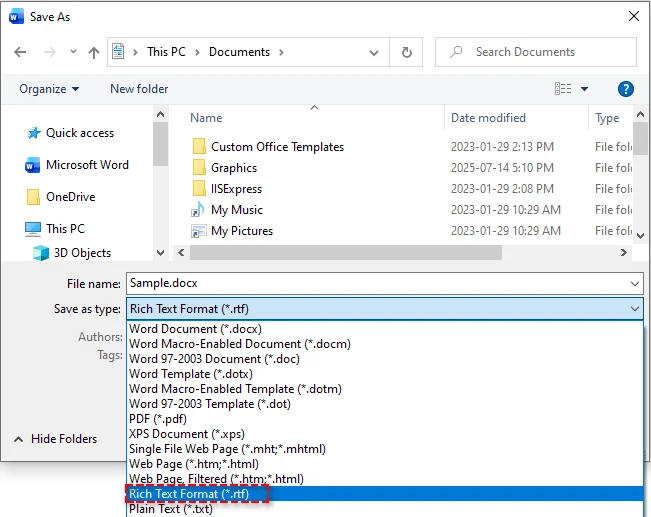
No menu suspenso Salvar como tipo, selecione Formato Rich Text (*.rtf).
-
Clique em Salvar.
Prós:
- Alta precisão de formatação
- Nenhum software adicional necessário
- Simples e confiável
Contras:
- Não é adequado para processamento em lote
Ideal para:
- Conversões únicas
- Documentos que exigem alta fidelidade de formatação
Converter Word para RTF usando o LibreOffice
O LibreOffice é uma suíte de escritório gratuita e de código aberto que suporta salvar documentos do Word como RTF no Windows, macOS e Linux. É uma excelente alternativa quando o Microsoft Word não está disponível.
Passos:
-
Baixe e instale o LibreOffice do site oficial.
-
Abra o arquivo do Word no LibreOffice Writer.
-
Vá para Arquivo > Salvar como.
-
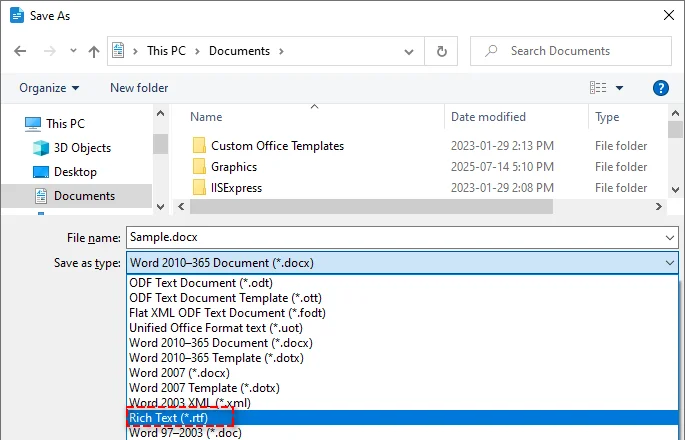
Selecione Rich Text (*.rtf) como o formato de saída.
-
Clique em Salvar.
Prós:
- Gratuito e de código aberto
- Suporte multiplataforma
- Nenhuma dependência do Microsoft Word
Contras:
- Pequenas diferenças podem aparecer em layouts complexos
- A interface pode parecer desconhecida para os usuários do Word
Ideal para:
- Usuários sem Microsoft Word
- Ambientes de código aberto ou baseados em Linux
Converter Word para RTF usando ferramentas online gratuitas
Se você prefere não instalar software de desktop ou precisa converter documentos do Word para RTF em serviços móveis, as ferramentas online são uma solução conveniente.
Conversores online populares incluem:
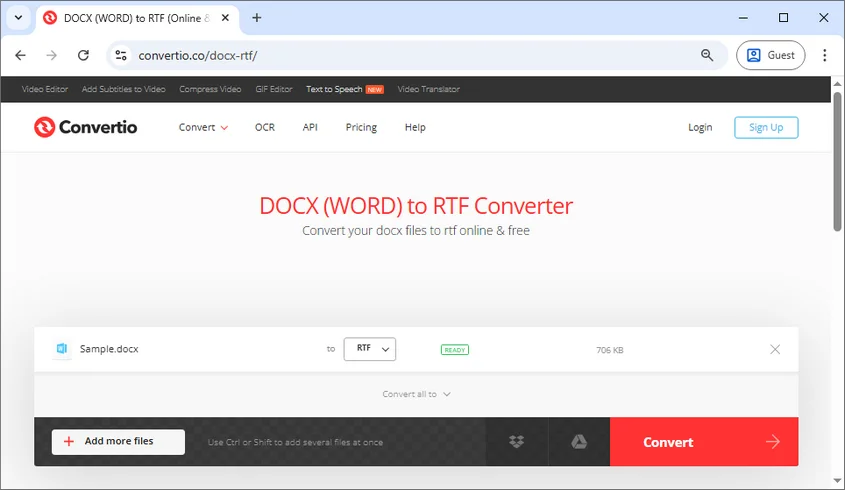
- Convertio - Suporta conversão em lote e importações de armazenamento em nuvem (Google Drive ou Dropbox)
- CloudConvert - Oferece vários formatos e acesso à API
- Zamzar - Permite que os arquivos convertidos sejam entregues por e-mail
Passos (usando o Convertio como exemplo):
- Abra o conversor online de Word para RTF do Convertio.
- Clique em Escolher arquivos para enviar seu arquivo do Word ou arraste-o para a área de upload.
- Selecione RTF como o formato de destino.
- Clique em Converter para iniciar o processo de conversão.
- Baixe o arquivo RTF convertido.
Prós:
- Nenhuma instalação de software necessária
- Acessível de qualquer dispositivo com um navegador
- Fácil de usar
Contras:
- Limites de tamanho de arquivo ou de uso podem ser aplicados
- Preocupações com a privacidade ao enviar documentos confidenciais
- Menos controle sobre a formatação avançada
Ideal para:
- Conversões rápidas e únicas
- Arquivos pequenos sem conteúdo sensível
Converter arquivos do Word em lote para RTF usando C#
Para conversões de documentos em grande escala ou recorrentes, os métodos manuais tornam-se ineficientes. Usando C# e a biblioteca Spire.Doc for .NET, você pode converter automaticamente em lote centenas de arquivos Word DOC/DOCX para RTF ou outros formatos de arquivo como PDF e HTML sem esforço.

Passos para converter em lote Word para RTF:
-
Preparar arquivos do Word
Coloque todos os arquivos DOC ou DOCX que você deseja converter em uma única pasta.
-
Criar um novo projeto C#
Abra o Visual Studio e crie um aplicativo de console.
-
Instalar o Spire.Doc for .NET
Instale a biblioteca via NuGet em seu projeto C# usando o seguinte comando:
Install-Package Spire.Doc -
Adicionar o código para converter em lote arquivos DOC/DOCX para RTF
O código a seguir demonstra como percorrer cada documento do Word na pasta e salvá-lo no formato RTF:
using Spire.Doc; using System; using System.IO; namespace BatchWordToRtf { class Program { static void Main() { // Caminho da pasta de entrada: onde seus arquivos do Word estão armazenados string inputFolder = @"C:\WordFiles\"; // Caminho da pasta de saída: onde os arquivos RTF convertidos serão salvos string outputFolder = @"C:\RtfFiles\"; // Percorrer todos os arquivos na pasta de entrada foreach (string file in Directory.EnumerateFiles(inputFolder)) { // Obter a extensão do arquivo e converter para minúsculas string extension = Path.GetExtension(file).ToLower(); // Processar apenas arquivos .doc e .docx if (extension == ".doc" || extension == ".docx") { // Criar um objeto Document e carregar o arquivo do Word Document doc = new Document(); doc.LoadFromFile(file); // Obter o nome do arquivo sem extensão string fileName = Path.GetFileNameWithoutExtension(file); // Salvar o arquivo como RTF na pasta de saída doc.SaveToFile(Path.Combine(outputFolder, fileName + ".rtf"), FileFormat.Rtf); } } Console.WriteLine("Conversão em lote concluída!"); } } } -
Executar o programa
Execute o programa para realizar a conversão em lote. Após a execução, os arquivos RTF serão gerados automaticamente na pasta de saída especificada no código.
Prós:
- Alta eficiência para conversões em massa
- Nenhuma instalação do Microsoft Word necessária
- Facilmente integrado em fluxos de trabalho automatizados ou ambientes de servidor
Contras:
- Requer conhecimento de programação
- Depende de bibliotecas .NET de terceiros
Ideal para:
- Empresas e desenvolvedores
- Sistemas automatizados de processamento de documentos
Artigo relacionado: C#/VB.NET: Converter RTF para Word Doc/Docx e vice-versa
Como evitar problemas de formatação durante a conversão de Word para RTF
Para minimizar problemas de formatação durante a conversão de Word para RTF, considere as seguintes práticas recomendadas:
-
Evite recursos avançados do Word
Macros, SmartArt, objetos incorporados e tabelas complexas podem não ser convertidos corretamente. Convertê-los em imagens pode ajudar a preservar sua aparência.
-
Use fontes padrão
Escolha fontes amplamente suportadas, como Arial, Times New Roman ou Calibri, para garantir uma exibição de texto consistente em diferentes plataformas.
-
Verifique a compatibilidade entre plataformas
Abra o arquivo RTF convertido em diferentes editores (por exemplo, Word e LibreOffice) para verificar a consistência do layout.
-
Teste antes do processamento em lote
Sempre valide alguns arquivos de amostra antes de executar conversões em grande escala ou automatizadas.
Conclusão
A conversão de Word para RTF é uma maneira eficaz de melhorar a compatibilidade, portabilidade e confiabilidade entre plataformas. Dependendo de suas necessidades, você pode escolher a conversão manual com o Microsoft Word ou LibreOffice, a conversão rápida com ferramentas online ou o processamento em lote automatizado usando C#.
Procurando por mais tutoriais de Word de alta qualidade? Confira nossos recursos gratuitos sobre Word.
Perguntas frequentes: Word para RTF
P1: Qual é a maneira mais fácil de converter Word para RTF?
R1: Usar o recurso "Salvar como" do Microsoft Word é o método mais simples.
P2: A conversão de Word para RTF afetará a formatação?
R2: A formatação básica é preservada, mas recursos avançados como macros ou SmartArt podem não ser totalmente suportados.
P3: Posso converter Word para RTF gratuitamente?
R3: Sim. O LibreOffice e muitos conversores online oferecem opções de conversão gratuitas.
P4: Como posso converter em lote vários arquivos do Word para RTF?
R4: Você pode usar C# com bibliotecas como o Spire.Doc para automatizar conversões em lote.
P5: O RTF é compatível entre plataformas e aplicativos?
R5: Sim. O RTF é amplamente suportado no Windows, macOS, Linux e na maioria dos processadores de texto.
P6: Posso converter Word para RTF online sem instalar software?
R6: Sim. Ferramentas online como o Convertio permitem a conversão baseada em navegador, embora possam ser aplicadas limitações de tamanho de arquivo e privacidade.
Veja também
Word를 RTF로 변환: 4가지 쉬운 방법 (무료 및 일괄 처리 옵션)
여러 플랫폼에서 문서를 공유할 때 Word 파일은 특히 다른 운영 체제나 오피스 응용 프로그램 간에 호환성 문제가 발생할 수 있습니다. Word 문서를 RTF(서식 있는 텍스트 형식)로 변환하면 필수 텍스트 서식을 유지하면서 광범위한 플랫폼 간 지원을 보장하므로 원활한 공유에 이상적입니다. 이 가이드는 Word를 RTF로 변환하는 방법에 대한 전체 개요를 제공하며, RTF가 무엇인지, 왜 중요한지, 그리고 변환을 효율적으로 수행하기 위한 네 가지 실용적인 방법을 설명합니다.
팁: 프로세스를 되돌려야 하는 경우 RTF를 Word로 변환하는 방법에 대한 자습서에서 다시 변환하는 간단한 방법을 보여줍니다.
RTF란 무엇인가?
RTF(서식 있는 텍스트 형식)는 1980년대에 Microsoft가 여러 플랫폼과 응용 프로그램 간에 서식 있는 텍스트를 교환할 수 있도록 개발한 문서 형식입니다.
일반 텍스트와 달리 RTF는 글꼴, 글꼴 크기, 굵게 및 기울임꼴 스타일, 텍스트 색상, 단락 정렬과 같은 기본 서식을 지원합니다. 동시에 최신 Word 형식에서 볼 수 있는 고급 및 복잡한 기능 중 상당수를 피하므로 환경 전반에서 더 안정적이고 널리 호환됩니다.
Word를 RTF로 변환하는 이유는 무엇인가?
DOC 또는 DOCX 형식과 비교할 때 RTF는 몇 가지 실용적인 이점을 제공합니다.
-
향상된 호환성
RTF 파일은 구형 또는 경량 편집기를 포함하여 거의 모든 워드 프로세싱 응용 프로그램에서 열 수 있습니다.
-
더 작은 파일 크기
복잡한 요소가 없으면 RTF 파일은 종종 DOCX 문서보다 더 작습니다.
-
더 간단한 구조
기본 서식은 필요하지만 고급 Word 기능은 지원하지 않는 시스템에 이상적입니다.
-
이메일 친화적인 형식
많은 이메일 시스템과 문서 플랫폼은 DOCX보다 RTF 파일을 더 안정적으로 처리합니다.
Word를 RTF로 변환하는 방법은 무엇인가?
수동 데스크톱 도구부터 온라인 서비스 및 자동 일괄 처리에 이르기까지 Word 문서를 RTF로 변환하는 방법에는 여러 가지가 있습니다. 다음은 다양한 시나리오에 각각 적합한 네 가지 일반적으로 사용되는 방법입니다.
Microsoft Word를 사용하여 Word를 RTF로 변환
Microsoft Word 자체를 사용하는 것이 Word 문서를 RTF로 변환하는 가장 간단하고 신뢰할 수 있는 방법입니다. 2010, 2013, 2016, 2019, 2021 및 Microsoft 365를 포함한 거의 모든 버전의 Word는 문서를 RTF 형식으로 내보내는 것을 지원합니다.
단계:
-
Microsoft Word에서 DOC 또는 DOCX 파일을 엽니다.
-
파일 > 다른 이름으로 저장을 클릭합니다.
-
대상 폴더를 선택합니다.
-
파일 형식 드롭다운에서 서식 있는 텍스트 형식(*.rtf)을 선택합니다.
-
저장을 클릭합니다.
장점:
- 높은 서식 정확도
- 추가 소프트웨어 필요 없음
- 간단하고 신뢰할 수 있음
단점:
- 일괄 처리에 적합하지 않음
적합한 대상:
- 일회성 변환
- 높은 서식 충실도가 필요한 문서
LibreOffice를 사용하여 Word를 RTF로 변환
LibreOffice는 Windows, macOS 및 Linux에서 Word 문서를 RTF로 저장을 지원하는 무료 오픈 소스 오피스 제품군입니다. Microsoft Word를 사용할 수 없을 때 훌륭한 대안입니다.
단계:
-
공식 웹사이트에서 LibreOffice를 다운로드하여 설치합니다.
-
LibreOffice Writer에서 Word 파일을 엽니다.
-
파일 > 다른 이름으로 저장으로 이동합니다.
-
출력 형식으로 서식 있는 텍스트(*.rtf)를 선택합니다.
-
저장을 클릭합니다.
장점:
- 무료 및 오픈 소스
- 크로스 플랫폼 지원
- Microsoft Word에 대한 종속성 없음
단점:
- 복잡한 레이아웃에서 사소한 차이가 나타날 수 있음
- 인터페이스가 Word 사용자에게 익숙하지 않을 수 있음
적합한 대상:
- Microsoft Word가 없는 사용자
- 오픈 소스 또는 Linux 기반 환경
무료 온라인 도구를 사용하여 Word를 RTF로 변환
데스크톱 소프트웨어를 설치하고 싶지 않거나 모바일 서비스에서 Word 문서를 RTF로 변환해야 하는 경우 온라인 도구가 편리한 해결책입니다.
인기 있는 온라인 변환기는 다음과 같습니다.
- Convertio - 일괄 변환 및 클라우드 저장소(Google Drive 또는 Dropbox) 가져오기 지원
- CloudConvert - 여러 형식 및 API 액세스 제공
- Zamzar - 변환된 파일을 이메일로 전달할 수 있음
단계(Convertio를 예로 사용):
- Convertio 온라인 Word를 RTF로 변환기를 엽니다.
- 파일 선택을 클릭하여 Word 파일을 업로드하거나 업로드 영역으로 드래그합니다.
- 대상 형식으로 RTF를 선택합니다.
- 변환을 클릭하여 변환 프로세스를 시작합니다.
- 변환된 RTF 파일을 다운로드합니다.
장점:
- 소프트웨어 설치 필요 없음
- 브라우저가 있는 모든 장치에서 액세스 가능
- 사용하기 쉬움
단점:
- 파일 크기 또는 사용량 제한이 적용될 수 있음
- 민감한 문서를 업로드할 때의 개인 정보 보호 문제
- 고급 서식에 대한 제어력 감소
적합한 대상:
- 빠른 일회성 변환
- 민감한 내용이 없는 작은 파일
C#을 사용하여 Word 파일을 RTF로 일괄 변환
대규모 또는 반복적인 문서 변환의 경우 수동 방법은 비효율적입니다. C# 및 Spire.Doc for .NET 라이브러리를 사용하면 수백 개의 Word DOC/DOCX 파일을 RTF 또는 PDF 및 HTML과 같은 다른 파일 형식으로 손쉽게 자동 일괄 변환할 수 있습니다.
Word를 RTF로 일괄 변환하는 단계:
-
Word 파일 준비
변환하려는 모든 DOC 또는 DOCX 파일을 단일 폴더에 넣습니다.
-
새 C# 프로젝트 만들기
Visual Studio를 열고 콘솔 앱을 만듭니다.
-
Spire.Doc for .NET 설치
다음 명령을 사용하여 C# 프로젝트의 NuGet을 통해 라이브러리를 설치합니다.
Install-Package Spire.Doc -
DOC/DOCX 파일을 RTF로 일괄 변환하는 코드 추가
다음 코드는 폴더의 각 Word 문서를 반복하고 RTF 형식으로 저장하는 방법을 보여줍니다.
using Spire.Doc; using System; using System.IO; namespace BatchWordToRtf { class Program { static void Main() { // 입력 폴더 경로: Word 파일이 저장된 위치 string inputFolder = @"C:\WordFiles\"; // 출력 폴더 경로: 변환된 RTF 파일이 저장될 위치 string outputFolder = @"C:\RtfFiles\"; // 입력 폴더의 모든 파일을 반복합니다. foreach (string file in Directory.EnumerateFiles(inputFolder)) { // 파일 확장자를 가져와 소문자로 변환합니다. string extension = Path.GetExtension(file).ToLower(); // .doc 및 .docx 파일만 처리합니다. if (extension == ".doc" || extension == ".docx") { // Document 개체를 만들고 Word 파일을 로드합니다. Document doc = new Document(); doc.LoadFromFile(file); // 확장자 없이 파일 이름을 가져옵니다. string fileName = Path.GetFileNameWithoutExtension(file); // 파일을 RTF로 출력 폴더에 저장합니다. doc.SaveToFile(Path.Combine(outputFolder, fileName + ".rtf"), FileFormat.Rtf); } } Console.WriteLine("일괄 변환이 완료되었습니다!"); } } } -
프로그램 실행
프로그램을 실행하여 일괄 변환을 수행합니다. 실행 후 RTF 파일은 코드에 지정된 출력 폴더에 자동으로 생성됩니다.
장점:
- 대량 변환에 대한 높은 효율성
- Microsoft Word 설치 필요 없음
- 자동화된 워크플로 또는 서버 환경에 쉽게 통합
단점:
- 프로그래밍 지식 필요
- 타사 .NET 라이브러리에 의존
적합한 대상:
- 기업 및 개발자
- 자동화된 문서 처리 시스템
관련 기사: C#/VB.NET: RTF를 Word Doc/Docx로 변환 및 그 반대
Word를 RTF로 변환하는 동안 서식 문제가 발생하는 것을 방지하는 방법
Word를 RTF로 변환하는 동안 서식 문제를 최소화하려면 다음 모범 사례를 고려하십시오.
-
고급 Word 기능 피하기
매크로, SmartArt, 포함된 개체 및 복잡한 표가 올바르게 변환되지 않을 수 있습니다. 이미지로 변환하면 모양을 보존하는 데 도움이 될 수 있습니다.
-
표준 글꼴 사용
Arial, Times New Roman 또는 Calibri와 같이 널리 지원되는 글꼴을 선택하여 여러 플랫폼에서 일관된 텍스트 표시를 보장합니다.
-
크로스 플랫폼 호환성 확인
변환된 RTF 파일을 다른 편집기(예: Word 및 LibreOffice)에서 열어 레이아웃 일관성을 확인합니다.
-
일괄 처리 전 테스트
대규모 또는 자동화된 변환을 실행하기 전에 항상 몇 개의 샘플 파일을 확인하십시오.
결론
Word를 RTF로 변환하는 것은 플랫폼 간 호환성, 이식성 및 안정성을 향상시키는 효과적인 방법입니다. 필요에 따라 Microsoft Word 또는 LibreOffice를 사용한 수동 변환, 온라인 도구를 사용한 빠른 변환 또는 C#을 사용한 자동 일괄 처리를 선택할 수 있습니다.
더 많은 고품질 Word 자습서를 찾고 계십니까? 무료 Word 리소스를 확인하십시오.
자주 묻는 질문: Word를 RTF로
Q1: Word를 RTF로 변환하는 가장 쉬운 방법은 무엇입니까?
A1: Microsoft Word의 "다른 이름으로 저장" 기능을 사용하는 것이 가장 간단한 방법입니다.
Q2: Word를 RTF로 변환하면 서식에 영향을 줍니까?
A2: 기본 서식은 유지되지만 매크로 또는 SmartArt와 같은 고급 기능은 완전히 지원되지 않을 수 있습니다.
Q3: Word를 RTF로 무료로 변환할 수 있습니까?
A3: 예. LibreOffice 및 많은 온라인 변환기는 무료 변환 옵션을 제공합니다.
Q4: 여러 Word 파일을 RTF로 일괄 변환하려면 어떻게 해야 합니까?
A4: Spire.Doc과 같은 라이브러리와 함께 C#을 사용하여 일괄 변환을 자동화할 수 있습니다.
Q5: RTF는 플랫폼과 응용 프로그램 전반에서 호환됩니까?
A5: 예. RTF는 Windows, macOS, Linux 및 대부분의 워드 프로세서에서 널리 지원됩니다.
Q6: 소프트웨어를 설치하지 않고 온라인으로 Word를 RTF로 변환할 수 있습니까?
A6: 예. Convertio와 같은 온라인 도구를 사용하면 브라우저 기반 변환이 가능하지만 파일 크기 및 개인 정보 보호 제한이 적용될 수 있습니다.
참고 항목
Convertire Word in RTF: 4 modi semplici (opzioni gratuite e batch)
Quando si condividono documenti tra piattaforme diverse, i file di Word possono presentare problemi di compatibilità, specialmente tra sistemi operativi o applicazioni per ufficio differenti. La conversione di documenti Word in RTF (Rich Text Format) preserva la formattazione essenziale del testo garantendo al contempo un ampio supporto multipiattaforma, rendendolo ideale per una condivisione senza interruzioni. Questa guida fornisce una panoramica completa su come convertire Word in RTF, spiegando cos'è l'RTF, perché è importante e quattro metodi pratici per eseguire la conversione in modo efficiente.
- Cos'è RTF
- Perché Convertire Word in RTF
- Come Convertire Word in RTF
- Come Evitare Problemi di Formattazione Durante la Conversione da Word a RTF
Suggerimento: se hai bisogno di invertire il processo, il nostro tutorial su come convertire RTF in Word mostra modi semplici per riconvertire.
Cos'è RTF?
RTF (Rich Text Format) è un formato di documento sviluppato da Microsoft negli anni '80 per consentire lo scambio di testo formattato tra diverse piattaforme e applicazioni.
A differenza del testo semplice, l'RTF supporta la formattazione di base come caratteri, dimensioni dei caratteri, stili grassetto e corsivo, colori del testo e allineamento dei paragrafi. Allo stesso tempo, evita molte delle funzionalità avanzate e complesse presenti nei formati Word moderni, rendendolo più stabile e ampiamente compatibile tra i vari ambienti.
Perché Convertire Word in RTF?
Rispetto ai formati DOC o DOCX, l'RTF offre diversi vantaggi pratici:
-
Migliore compatibilità
I file RTF possono essere aperti da quasi tutte le applicazioni di elaborazione testi, inclusi editor più vecchi o leggeri.
-
Dimensioni del file più piccole
Senza elementi complessi, i file RTF sono spesso più compatti dei documenti DOCX.
-
Struttura più semplice
Ideale per sistemi che richiedono una formattazione di base ma non supportano le funzionalità avanzate di Word.
-
Formato adatto alle email
Molti sistemi di posta elettronica e piattaforme documentali gestiscono i file RTF in modo più affidabile rispetto ai DOCX.
Come Convertire Word in RTF?
Esistono diversi modi per convertire documenti Word in RTF, che vanno dagli strumenti desktop manuali ai servizi online e all'elaborazione batch automatizzata. Di seguito sono riportati quattro metodi di uso comune, ciascuno adatto a scenari diversi.
Convertire Word in RTF Usando Microsoft Word
Usare Microsoft Word stesso è il modo più diretto e affidabile per convertire documenti Word in RTF. Quasi tutte le versioni di Word, incluse 2010, 2013, 2016, 2019, 2021 e Microsoft 365, supportano l'esportazione di documenti in formato RTF.
Passaggi:
-
Apri il file DOC o DOCX in Microsoft Word.
-
Fai clic su File > Salva con nome.
-
Scegli una cartella di destinazione.
-
Nel menu a discesa Salva come, seleziona Formato RTF (*.rtf).
-
Fai clic su Salva.
Vantaggi:
- Elevata precisione di formattazione
- Nessun software aggiuntivo richiesto
- Semplice e affidabile
Svantaggi:
- Non adatto per l'elaborazione in blocco
Ideale per:
- Conversioni una tantum
- Documenti che richiedono un'elevata fedeltà di formattazione
Convertire Word in RTF Usando LibreOffice
LibreOffice è una suite per ufficio gratuita e open-source che supporta il salvataggio di documenti Word come RTF su Windows, macOS e Linux. È un'ottima alternativa quando Microsoft Word non è disponibile.
Passaggi:
-
Scarica e installa LibreOffice dal sito ufficiale.
-
Apri il file Word in LibreOffice Writer.
-
Vai su File > Salva con nome.
-
Seleziona Testo RTF (*.rtf) come formato di output.
-
Fai clic su Salva.
Vantaggi:
- Gratuito e open-source
- Supporto multipiattaforma
- Nessuna dipendenza da Microsoft Word
Svantaggi:
- Potrebbero apparire piccole differenze nei layout complessi
- L'interfaccia potrebbe risultare poco familiare agli utenti di Word
Ideale per:
- Utenti senza Microsoft Word
- Ambienti open-source o basati su Linux
Convertire Word in RTF Usando Strumenti Online Gratuiti
Se preferisci non installare software desktop o hai bisogno di convertire documenti Word in RTF su servizi mobili, gli strumenti online sono una soluzione comoda.
I convertitori online più popolari includono:
- Convertio - Supporta la conversione in blocco e l'importazione da archivi cloud (Google Drive o Dropbox)
- CloudConvert - Offre più formati e accesso API
- Zamzar - Consente di ricevere i file convertiti via email
Passaggi (Usando Convertio come Esempio):
- Apri il convertitore online da Word a RTF di Convertio.
- Fai clic su Scegli file per caricare il tuo file Word, oppure trascinalo nell'area di caricamento.
- Seleziona RTF come formato di destinazione.
- Fai clic su Converti per avviare il processo di conversione.
- Scarica il file RTF convertito.
Vantaggi:
- Nessuna installazione di software richiesta
- Accessibile da qualsiasi dispositivo con un browser
- Facile da usare
Svantaggi:
- Potrebbero essere applicati limiti di dimensione del file o di utilizzo
- Preoccupazioni per la privacy durante il caricamento di documenti sensibili
- Meno controllo sulla formattazione avanzata
Ideale per:
- Conversioni rapide e una tantum
- File di piccole dimensioni senza contenuto sensibile
Convertire in Blocco File Word in RTF Usando C#
Per conversioni di documenti su larga scala o ricorrenti, i metodi manuali diventano inefficienti. Usando C# e la libreria Spire.Doc for .NET, è possibile convertire automaticamente in blocco centinaia di file Word DOC/DOCX in RTF o altri formati di file come PDF e HTML senza sforzo.
Passaggi per Convertire in Blocco Word in RTF:
-
Prepara i File di Word
Metti tutti i file DOC o DOCX che vuoi convertire in un'unica cartella.
-
Crea un Nuovo Progetto C#
Apri Visual Studio e crea un'App Console.
-
Installa Spire.Doc for .NET
Installa la libreria tramite NuGet nel tuo progetto C# usando il seguente comando:
Install-Package Spire.Doc -
Aggiungi il codice per convertire in blocco i file DOC/DOCX in RTF
Il codice seguente dimostra come scorrere ogni documento Word nella cartella e salvarlo in formato RTF:
using Spire.Doc; using System; using System.IO; namespace BatchWordToRtf { class Program { static void Main() { // Percorso della cartella di input: dove sono archiviati i tuoi file Word string inputFolder = @"C:\WordFiles\"; // Percorso della cartella di output: dove verranno salvati i file RTF convertiti string outputFolder = @"C:\RtfFiles\"; // Scorrere tutti i file nella cartella di input foreach (string file in Directory.EnumerateFiles(inputFolder)) { // Ottenere l'estensione del file e convertirla in minuscolo string extension = Path.GetExtension(file).ToLower(); // Elaborare solo i file .doc e .docx if (extension == ".doc" || extension == ".docx") { // Creare un oggetto Document e caricare il file Word Document doc = new Document(); doc.LoadFromFile(file); // Ottenere il nome del file senza estensione string fileName = Path.GetFileNameWithoutExtension(file); // Salvare il file come RTF nella cartella di output doc.SaveToFile(Path.Combine(outputFolder, fileName + ".rtf"), FileFormat.Rtf); } } Console.WriteLine("Conversione in blocco completata!"); } } } -
Esegui il Programma
Esegui il programma per effettuare la conversione in blocco. Dopo l'esecuzione, i file RTF verranno generati automaticamente nella cartella di output specificata nel codice.
Vantaggi:
- Alta efficienza per le conversioni di massa
- Nessuna installazione di Microsoft Word richiesta
- Facilmente integrabile in flussi di lavoro automatizzati o ambienti server
Svantaggi:
- Richiede conoscenze di programmazione
- Dipende da librerie .NET di terze parti
Ideale per:
- Aziende e sviluppatori
- Sistemi di elaborazione automatizzata dei documenti
Articolo Correlato: C#/VB.NET: Convertire RTF in Word Doc/Docx e Viceversa
Come Evitare Problemi di Formattazione Durante la Conversione da Word a RTF
Per ridurre al minimo i problemi di formattazione durante la conversione da Word a RTF, considera le seguenti migliori pratiche:
-
Evita le funzionalità avanzate di Word
Macro, SmartArt, oggetti incorporati e tabelle complesse potrebbero non essere convertiti correttamente. Convertirli in immagini può aiutare a preservarne l'aspetto.
-
Usa caratteri standard
Scegli caratteri ampiamente supportati come Arial, Times New Roman o Calibri per garantire una visualizzazione del testo coerente su piattaforme diverse.
-
Verifica la compatibilità multipiattaforma
Apri il file RTF convertito in editor diversi (ad es. Word e LibreOffice) per verificare la coerenza del layout.
-
Testa prima dell'elaborazione in blocco
Convalida sempre alcuni file di esempio prima di eseguire conversioni su larga scala o automatizzate.
Conclusione
La conversione da Word a RTF è un modo efficace per migliorare la compatibilità, la portabilità e l'affidabilità tra le piattaforme. A seconda delle tue esigenze, puoi scegliere la conversione manuale con Microsoft Word o LibreOffice, la conversione rapida con strumenti online o l'elaborazione batch automatizzata tramite C#.
Cerchi altri tutorial di alta qualità su Word? Dai un'occhiata alle nostre risorse gratuite su Word.
Domande Frequenti: da Word a RTF
D1: Qual è il modo più semplice per convertire Word in RTF?
R1: Usare la funzione "Salva con nome" di Microsoft Word è il metodo più semplice.
D2: La conversione da Word a RTF influirà sulla formattazione?
R2: La formattazione di base viene preservata, ma le funzionalità avanzate come macro o SmartArt potrebbero non essere completamente supportate.
D3: Posso convertire Word in RTF gratuitamente?
R3: Sì. LibreOffice e molti convertitori online offrono opzioni di conversione gratuite.
D4: Come posso convertire in blocco più file Word in RTF?
R4: È possibile utilizzare C# con librerie come Spire.Doc per automatizzare le conversioni in blocco.
D5: L'RTF è compatibile tra piattaforme e applicazioni?
R5: Sì. L'RTF è ampiamente supportato su Windows, macOS, Linux e sulla maggior parte degli elaboratori di testi.
D6: Posso convertire Word in RTF online senza installare software?
R6: Sì. Strumenti online come Convertio consentono la conversione basata su browser, sebbene possano essere applicate limitazioni di dimensione del file e di privacy.
Vedi Anche
Convertir Word en RTF : 4 méthodes simples (options gratuites et par lots)
Lors du partage de documents entre différentes plateformes, les fichiers Word peuvent rencontrer des problèmes de compatibilité, en particulier entre différents systèmes d'exploitation ou applications de bureau. La conversion de documents Word au format RTF (Rich Text Format) préserve la mise en forme essentielle du texte tout en garantissant une large prise en charge multiplateforme, ce qui la rend idéale pour un partage transparent. Ce guide offre un aperçu complet de la manière de convertir un document Word en RTF, en expliquant ce qu'est le format RTF, pourquoi il est important, et quatre méthodes pratiques pour effectuer la conversion efficacement.
- Qu'est-ce que le format RTF
- Pourquoi convertir un document Word en RTF
- Comment convertir un document Word en RTF
- Comment éviter les problèmes de formatage lors de la conversion de Word en RTF
Conseil : Si vous avez besoin d'inverser le processus, notre tutoriel sur la conversion de RTF en Word montre des moyens simples de revenir en arrière.
Qu'est-ce que le format RTF ?
Le RTF (Rich Text Format) est un format de document développé par Microsoft dans les années 1980 pour permettre l'échange de texte formaté entre différentes plateformes et applications.
Contrairement au texte brut, le RTF prend en charge la mise en forme de base telle que les polices, les tailles de police, les styles gras et italique, les couleurs de texte et l'alignement des paragraphes. En même temps, il évite de nombreuses fonctionnalités avancées et complexes présentes dans les formats Word modernes, ce qui le rend plus stable et largement compatible entre les environnements.
Pourquoi convertir un document Word en RTF ?
Comparé aux formats DOC ou DOCX, le RTF offre plusieurs avantages pratiques :
-
Meilleure compatibilité
Les fichiers RTF peuvent être ouverts par presque toutes les applications de traitement de texte, y compris les éditeurs plus anciens ou légers.
-
Taille de fichier plus petite
Sans éléments complexes, les fichiers RTF sont souvent plus compacts que les documents DOCX.
-
Structure plus simple
Idéal pour les systèmes qui nécessitent une mise en forme de base mais ne prennent pas en charge les fonctionnalités avancées de Word.
-
Format adapté aux e-mails
De nombreux systèmes de messagerie et plateformes de documents gèrent les fichiers RTF de manière plus fiable que les fichiers DOCX.
Comment convertir un document Word en RTF ?
Il existe plusieurs façons de convertir des documents Word en RTF, allant des outils de bureau manuels aux services en ligne et au traitement par lots automatisé. Vous trouverez ci-dessous quatre méthodes couramment utilisées, chacune adaptée à différents scénarios.
Convertir un document Word en RTF avec Microsoft Word
L'utilisation de Microsoft Word lui-même est le moyen le plus simple et le plus fiable de convertir des documents Word en RTF. Presque toutes les versions de Word, y compris 2010, 2013, 2016, 2019, 2021 et Microsoft 365, prennent en charge l'exportation de documents au format RTF.
Étapes :
-
Ouvrez le fichier DOC ou DOCX dans Microsoft Word.
-
Cliquez sur Fichier > Enregistrer sous.
-
Choisissez un dossier de destination.
-
Dans la liste déroulante Type de fichier, sélectionnez Format RTF (*.rtf).
-
Cliquez sur Enregistrer.
Avantages :
- Haute précision de formatage
- Aucun logiciel supplémentaire requis
- Simple et fiable
Inconvénients :
- Ne convient pas au traitement par lots
Idéal pour :
- Conversions ponctuelles
- Documents nécessitant une haute fidélité de formatage
Convertir un document Word en RTF avec LibreOffice
LibreOffice est une suite bureautique gratuite et open-source qui prend en charge l'enregistrement de documents Word au format RTF sous Windows, macOS et Linux. C'est une excellente alternative lorsque Microsoft Word n'est pas disponible.
Étapes :
-
Téléchargez et installez LibreOffice depuis le site officiel.
-
Ouvrez le fichier Word dans LibreOffice Writer.
-
Allez dans Fichier > Enregistrer sous.
-
Sélectionnez Texte enrichi (*.rtf) comme format de sortie.
-
Cliquez sur Enregistrer.
Avantages :
- Gratuit et open-source
- Prise en charge multiplateforme
- Aucune dépendance à Microsoft Word
Inconvénients :
- Des différences mineures peuvent apparaître dans les mises en page complexes
- L'interface peut sembler peu familière aux utilisateurs de Word
Idéal pour :
- Utilisateurs sans Microsoft Word
- Environnements open-source ou basés sur Linux
Convertir un document Word en RTF avec des outils en ligne gratuits
Si vous préférez ne pas installer de logiciel de bureau ou si vous avez besoin de convertir des documents Word en RTF sur des services mobiles, les outils en ligne sont une solution pratique.
Les convertisseurs en ligne populaires incluent :
- Convertio - Prend en charge la conversion par lots et les importations depuis le stockage cloud (Google Drive ou Dropbox)
- CloudConvert - Offre plusieurs formats et un accès API
- Zamzar - Permet de recevoir les fichiers convertis par e-mail
Étapes (en utilisant Convertio comme exemple) :
- Ouvrez le convertisseur en ligne de Word en RTF de Convertio.
- Cliquez sur Choisir les fichiers pour télécharger votre fichier Word, ou faites-le glisser dans la zone de téléchargement.
- Sélectionnez RTF comme format cible.
- Cliquez sur Convertir pour démarrer le processus de conversion.
- Téléchargez le fichier RTF converti.
Avantages :
- Aucune installation de logiciel requise
- Accessible depuis n'importe quel appareil avec un navigateur
- Facile à utiliser
Inconvénients :
- Des limites de taille de fichier ou d'utilisation peuvent s'appliquer
- Préoccupations de confidentialité lors du téléchargement de documents sensibles
- Moins de contrôle sur la mise en forme avancée
Idéal pour :
- Conversions rapides et ponctuelles
- Petits fichiers sans contenu sensible
Convertir par lots des fichiers Word en RTF en utilisant C#
Pour les conversions de documents à grande échelle ou récurrentes, les méthodes manuelles deviennent inefficaces. En utilisant C# et la bibliothèque Spire.Doc for .NET, vous pouvez convertir automatiquement par lots des centaines de fichiers Word DOC/DOCX en RTF ou d'autres formats de fichiers comme PDF et HTML sans effort.
Étapes pour convertir par lots des documents Word en RTF :
-
Préparer les fichiers Word
Placez tous les fichiers DOC ou DOCX que vous souhaitez convertir dans un seul dossier.
-
Créer un nouveau projet C#
Ouvrez Visual Studio et créez une application console.
-
Installer Spire.Doc for .NET
Installez la bibliothèque via NuGet dans votre projet C# en utilisant la commande suivante :
Install-Package Spire.Doc -
Ajouter le code pour convertir par lots les fichiers DOC/DOCX en RTF
Le code suivant montre comment parcourir chaque document Word dans le dossier et l'enregistrer au format RTF :
using Spire.Doc; using System; using System.IO; namespace BatchWordToRtf { class Program { static void Main() { // Chemin du dossier d'entrée : où vos fichiers Word sont stockés string inputFolder = @"C:\WordFiles\"; // Chemin du dossier de sortie : où les fichiers RTF convertis seront enregistrés string outputFolder = @"C:\RtfFiles\"; // Parcourir tous les fichiers dans le dossier d'entrée foreach (string file in Directory.EnumerateFiles(inputFolder)) { // Obtenir l'extension du fichier et la convertir en minuscules string extension = Path.GetExtension(file).ToLower(); // Traiter uniquement les fichiers .doc et .docx if (extension == ".doc" || extension == ".docx") { // Créer un objet Document et charger le fichier Word Document doc = new Document(); doc.LoadFromFile(file); // Obtenir le nom du fichier sans extension string fileName = Path.GetFileNameWithoutExtension(file); // Enregistrer le fichier au format RTF dans le dossier de sortie doc.SaveToFile(Path.Combine(outputFolder, fileName + ".rtf"), FileFormat.Rtf); } } Console.WriteLine("Conversion par lots terminée !"); } } } -
Exécuter le programme
Exécutez le programme pour effectuer la conversion par lots. Après l'exécution, les fichiers RTF seront automatiquement générés dans le dossier de sortie spécifié dans le code.
Avantages :
- Haute efficacité pour les conversions en masse
- Aucune installation de Microsoft Word requise
- Facilement intégrable dans des flux de travail automatisés ou des environnements de serveur
Inconvénients :
- Nécessite des connaissances en programmation
- Dépend de bibliothèques .NET tierces
Idéal pour :
- Entreprises et développeurs
- Systèmes de traitement de documents automatisés
Article connexe : C#/VB.NET : Convertir RTF en Word Doc/Docx et vice versa
Comment éviter les problèmes de formatage lors de la conversion de Word en RTF
Pour minimiser les problèmes de formatage lors de la conversion de Word en RTF, tenez compte des meilleures pratiques suivantes :
-
Éviter les fonctionnalités avancées de Word
Les macros, SmartArt, objets incorporés et tableaux complexes peuvent ne pas être convertis correctement. Les convertir en images peut aider à préserver leur apparence.
-
Utiliser des polices standard
Choisissez des polices largement prises en charge telles que Arial, Times New Roman ou Calibri pour garantir un affichage de texte cohérent sur différentes plateformes.
-
Vérifier la compatibilité multiplateforme
Ouvrez le fichier RTF converti dans différents éditeurs (par exemple, Word et LibreOffice) pour vérifier la cohérence de la mise en page.
-
Tester avant le traitement par lots
Validez toujours quelques fichiers d'exemple avant d'exécuter des conversions à grande échelle ou automatisées.
Conclusion
La conversion de Word en RTF est un moyen efficace d'améliorer la compatibilité, la portabilité et la fiabilité sur toutes les plateformes. En fonction de vos besoins, vous pouvez choisir la conversion manuelle avec Microsoft Word ou LibreOffice, la conversion rapide avec des outils en ligne ou le traitement par lots automatisé en utilisant C#.
Vous cherchez d'autres tutoriels Word de haute qualité ? Consultez nos ressources Word gratuites.
FAQ : Word vers RTF
Q1 : Quel est le moyen le plus simple de convertir un document Word en RTF ?
R1 : L'utilisation de la fonction "Enregistrer sous" de Microsoft Word est la méthode la plus simple.
Q2 : La conversion de Word en RTF affectera-t-elle la mise en forme ?
R2 : La mise en forme de base est préservée, mais les fonctionnalités avancées telles que les macros ou SmartArt peuvent ne pas être entièrement prises en charge.
Q3 : Puis-je convertir un document Word en RTF gratuitement ?
R3 : Oui. LibreOffice et de nombreux convertisseurs en ligne offrent des options de conversion gratuites.
Q4 : Comment puis-je convertir par lots plusieurs fichiers Word en RTF ?
R4 : Vous pouvez utiliser C# avec des bibliothèques telles que Spire.Doc pour automatiser les conversions par lots.
Q5 : Le format RTF est-il compatible sur toutes les plateformes et applications ?
R5 : Oui. Le RTF est largement pris en charge sur Windows, macOS, Linux et la plupart des traitements de texte.
Q6 : Puis-je convertir un document Word en RTF en ligne sans installer de logiciel ?
R6 : Oui. Des outils en ligne comme Convertio permettent la conversion via un navigateur, bien que des limitations de taille de fichier et de confidentialité puissent s'appliquer.
Voir aussi
Convertir Word a RTF: 4 formas fáciles (opciones gratuitas y por lotes)
Tabla de Contenidos
Al compartir documentos entre plataformas, los archivos de Word pueden encontrar problemas de compatibilidad, especialmente entre diferentes sistemas operativos o aplicaciones de oficina. Convertir documentos de Word a RTF (Formato de Texto Enriquecido) preserva el formato de texto esencial al tiempo que garantiza un amplio soporte multiplataforma, lo que lo hace ideal para compartir sin problemas. Esta guía proporciona una descripción completa de cómo convertir Word a RTF, explicando qué es RTF, por qué es importante y cuatro métodos prácticos para realizar la conversión de manera eficiente.
- Qué es RTF
- Por qué convertir Word a RTF
- Cómo convertir Word a RTF
- Cómo evitar problemas de formato durante la conversión de Word a RTF
Consejo: Si necesita revertir el proceso, nuestro tutorial sobre cómo convertir RTF a Word muestra formas sencillas de volver a convertir.
¿Qué es RTF?
RTF (Formato de Texto Enriquecido) es un formato de documento desarrollado por Microsoft en la década de 1980 para permitir el intercambio de texto con formato entre diferentes plataformas y aplicaciones.
A diferencia del texto sin formato, RTF admite formatos básicos como fuentes, tamaños de fuente, estilos de negrita y cursiva, colores de texto y alineación de párrafos. Al mismo tiempo, evita muchas de las características avanzadas y complejas que se encuentran en los formatos modernos de Word, lo que lo hace más estable y ampliamente compatible en todos los entornos.
¿Por qué convertir Word a RTF?
En comparación con los formatos DOC o DOCX, RTF ofrece varias ventajas prácticas:
-
Mejor compatibilidad
Los archivos RTF pueden ser abiertos por casi todas las aplicaciones de procesamiento de textos, incluidos los editores más antiguos o ligeros.
-
Tamaño de archivo más pequeño
Sin elementos complejos, los archivos RTF suelen ser más compactos que los documentos DOCX.
-
Estructura más simple
Ideal para sistemas que requieren formato básico pero no admiten funciones avanzadas de Word.
-
Formato amigable para el correo electrónico
Muchos sistemas de correo electrónico y plataformas de documentos manejan los archivos RTF de manera más confiable que los DOCX.
¿Cómo convertir Word a RTF?
Existen múltiples formas de convertir documentos de Word a RTF, que van desde herramientas de escritorio manuales hasta servicios en línea y procesamiento por lotes automatizado. A continuación se presentan cuatro métodos de uso común, cada uno adecuado para diferentes escenarios.
Convertir Word a RTF usando Microsoft Word
Usar Microsoft Word es la forma más directa y confiable de convertir documentos de Word a RTF. Casi todas las versiones de Word, incluidas 2010, 2013, 2016, 2019, 2021 y Microsoft 365, admiten la exportación de documentos a formato RTF.
Pasos:
-
Abra el archivo DOC o DOCX en Microsoft Word.
-
Haga clic en Archivo > Guardar como.
-
Elija una carpeta de destino.
-
En el menú desplegable Guardar como tipo, seleccione Formato de texto enriquecido (*.rtf).
-
Haga clic en Guardar.
Ventajas:
- Alta precisión de formato
- No se requiere software adicional
- Simple y confiable
Desventajas:
- No apto para procesamiento por lotes
Ideal para:
- Conversiones únicas
- Documentos que requieren alta fidelidad de formato
Convertir Word a RTF usando LibreOffice
LibreOffice es una suite de oficina gratuita y de código abierto que admite guardar documentos de Word como RTF en Windows, macOS y Linux. Es una excelente alternativa cuando Microsoft Word no está disponible.
Pasos:
-
Descargue e instale LibreOffice desde el sitio web oficial.
-
Abra el archivo de Word en LibreOffice Writer.
-
Vaya a Archivo > Guardar como.
-
Seleccione Texto enriquecido (*.rtf) como formato de salida.
-
Haga clic en Guardar.
Ventajas:
- Gratuito y de código abierto
- Soporte multiplataforma
- Sin dependencia de Microsoft Word
Desventajas:
- Pueden aparecer pequeñas diferencias en diseños complejos
- La interfaz puede resultar desconocida para los usuarios de Word
Ideal para:
- Usuarios sin Microsoft Word
- Entornos de código abierto o basados en Linux
Convertir Word a RTF usando herramientas en línea gratuitas
Si prefiere no instalar software de escritorio o necesita convertir documentos de Word a RTF en servicios móviles, las herramientas en línea son una solución conveniente.
Los convertidores en línea populares incluyen:
- Convertio - Admite la conversión por lotes y la importación desde almacenamiento en la nube (Google Drive o Dropbox)
- CloudConvert - Ofrece múltiples formatos y acceso a la API
- Zamzar - Permite que los archivos convertidos se entreguen por correo electrónico
Pasos (usando Convertio como ejemplo):
- Abra el convertidor de Word a RTF en línea de Convertio.
- Haga clic en Elegir archivos para cargar su archivo de Word, o arrástrelo al área de carga.
- Seleccione RTF como formato de destino.
- Haga clic en Convertir para iniciar el proceso de conversión.
- Descargue el archivo RTF convertido.
Ventajas:
- No se requiere instalación de software
- Accesible desde cualquier dispositivo con un navegador
- Fácil de usar
Desventajas:
- Pueden aplicarse límites de tamaño de archivo o de uso
- Preocupaciones de privacidad al cargar documentos confidenciales
- Menos control sobre el formato avanzado
Ideal para:
- Conversiones rápidas y únicas
- Archivos pequeños sin contenido confidencial
Convertir archivos de Word a RTF por lotes usando C#
Para conversiones de documentos a gran escala o recurrentes, los métodos manuales se vuelven ineficientes. Usando C# y la biblioteca Spire.Doc for .NET, puede convertir automáticamente por lotes cientos de archivos Word DOC/DOCX a RTF u otros formatos de archivo como PDF y HTML sin esfuerzo.
Pasos para convertir por lotes Word a RTF:
-
Preparar archivos de Word
Coloque todos los archivos DOC o DOCX que desee convertir en una sola carpeta.
-
Crear un nuevo proyecto de C#
Abra Visual Studio y cree una aplicación de consola.
-
Instalar Spire.Doc for .NET
Instale la biblioteca a través de NuGet en su proyecto de C# usando el siguiente comando:
Install-Package Spire.Doc -
Agregar el código para convertir por lotes archivos DOC/DOCX a RTF
El siguiente código demuestra cómo recorrer cada documento de Word en la carpeta y guardarlo en formato RTF:
using Spire.Doc; using System; using System.IO; namespace BatchWordToRtf { class Program { static void Main() { // Ruta de la carpeta de entrada: donde se almacenan sus archivos de Word string inputFolder = @"C:\WordFiles\"; // Ruta de la carpeta de salida: donde se guardarán los archivos RTF convertidos string outputFolder = @"C:\RtfFiles\"; // Recorrer todos los archivos en la carpeta de entrada foreach (string file in Directory.EnumerateFiles(inputFolder)) { // Obtener la extensión del archivo y convertir a minúsculas string extension = Path.GetExtension(file).ToLower(); // Procesar solo archivos .doc y .docx if (extension == ".doc" || extension == ".docx") { // Crear un objeto Document y cargar el archivo de Word Document doc = new Document(); doc.LoadFromFile(file); // Obtener el nombre del archivo sin extensión string fileName = Path.GetFileNameWithoutExtension(file); // Guardar el archivo como RTF en la carpeta de salida doc.SaveToFile(Path.Combine(outputFolder, fileName + ".rtf"), FileFormat.Rtf); } } Console.WriteLine("¡Conversión por lotes completada!"); } } } -
Ejecutar el programa
Ejecute el programa para realizar la conversión por lotes. Después de ejecutarlo, los archivos RTF se generarán automáticamente en la carpeta de salida especificada en el código.
Ventajas:
- Alta eficiencia para conversiones masivas
- No se requiere instalación de Microsoft Word
- Fácilmente integrable en flujos de trabajo automatizados o entornos de servidor
Desventajas:
- Requiere conocimientos de programación
- Depende de bibliotecas .NET de terceros
Ideal para:
- Empresas y desarrolladores
- Sistemas automatizados de procesamiento de documentos
Artículo relacionado: C#/VB.NET: Convertir RTF a Word Doc/Docx y viceversa
Cómo evitar problemas de formato durante la conversión de Word a RTF
Para minimizar los problemas de formato durante la conversión de Word a RTF, considere las siguientes mejores prácticas:
-
Evitar funciones avanzadas de Word
Las macros, SmartArt, objetos incrustados y tablas complejas pueden no convertirse correctamente. Convertirlos en imágenes puede ayudar a preservar su apariencia.
-
Usar fuentes estándar
Elija fuentes ampliamente compatibles como Arial, Times New Roman o Calibri para garantizar una visualización de texto coherente en diferentes plataformas.
-
Verificar la compatibilidad multiplataforma
Abra el archivo RTF convertido en diferentes editores (por ejemplo, Word y LibreOffice) para verificar la coherencia del diseño.
-
Probar antes del procesamiento por lotes
Valide siempre algunos archivos de muestra antes de ejecutar conversiones a gran escala o automatizadas.
Conclusión
Convertir Word a RTF es una forma eficaz de mejorar la compatibilidad, la portabilidad y la fiabilidad en todas las plataformas. Dependiendo de sus necesidades, puede elegir la conversión manual con Microsoft Word o LibreOffice, la conversión rápida con herramientas en línea o el procesamiento por lotes automatizado usando C#.
¿Busca más tutoriales de Word de alta calidad? Consulte nuestros recursos gratuitos de Word.
Preguntas frecuentes: Word a RTF
P1: ¿Cuál es la forma más fácil de convertir Word a RTF?
R1: Usar la función "Guardar como" de Microsoft Word es el método más simple.
P2: ¿La conversión de Word a RTF afectará el formato?
R2: Se conserva el formato básico, pero es posible que las funciones avanzadas como macros o SmartArt no sean totalmente compatibles.
P3: ¿Puedo convertir Word a RTF gratis?
R3: Sí. LibreOffice y muchos convertidores en línea ofrecen opciones de conversión gratuitas.
P4: ¿Cómo puedo convertir por lotes varios archivos de Word a RTF?
R4: Puede usar C# con bibliotecas como Spire.Doc para automatizar las conversiones por lotes.
P5: ¿Es RTF compatible en todas las plataformas y aplicaciones?
R5: Sí. RTF es ampliamente compatible con Windows, macOS, Linux y la mayoría de los procesadores de texto.
P6: ¿Puedo convertir Word a RTF en línea sin instalar software?
R6: Sí. Herramientas en línea como Convertio permiten la conversión basada en navegador, aunque pueden aplicarse limitaciones de tamaño de archivo y privacidad.