Como Adicionar Números de Página a um PDF (4 Maneiras)
Índice
- Método 1. Use o Adobe Acrobat (Rápido e Profissional)
- Método 2. Use Ferramentas Online (Nenhuma Instalação Necessária)
- Método 3. Use o Microsoft Word (Converter → Adicionar → Exportar)
- Método 4. Adicione Números de Página Usando Python (Amigável para Automação)
- Dicas para Melhores Resultados
- Compare os Diferentes Métodos
- Considerações Finais
- Perguntas Frequentes

Os números de página desempenham um papel essencial em tornar os documentos mais fáceis de ler, referenciar e navegar. Esteja você preparando relatórios de negócios, trabalhos acadêmicos, manuais de usuário ou eBooks, numerar suas páginas de PDF garante clareza e profissionalismo. No entanto, muitos usuários não sabem como adicionar números de página diretamente a um PDF, especialmente quando o arquivo é digitalizado, protegido ou criado a partir de fontes mistas.
A boa notícia? Adicionar números de página a um PDF é mais fácil do que você pensa. Neste guia, você aprenderá quatro métodos práticos — do Adobe Acrobat a ferramentas online, Microsoft Word e automação com Python. Cada método tem suas vantagens, dependendo de suas ferramentas, nível de habilidade e da complexidade do seu documento.
Visão geral do método:
- Método 1. Use o Adobe Acrobat (Rápido e Profissional)
- Método 2. Use Ferramentas Online (Nenhuma Instalação Necessária)
- Método 3. Use o Microsoft Word (Converter → Adicionar → Exportar)
- Método 4. Adicione Números de Página Usando Python (Amigável para Automação)
Método 1. Use o Adobe Acrobat (Rápido e Profissional)
O Adobe Acrobat é a ferramenta mais confiável, precisa e de nível profissional para editar PDFs. Se você precisa de números de página limpos e consistentes em todas as páginas — sem problemas de formatação — o Acrobat é difícil de superar.
Passos para Adicionar Números de Página no Adobe Acrobat
-
Abra seu PDF no Adobe Acrobat Pro.
-
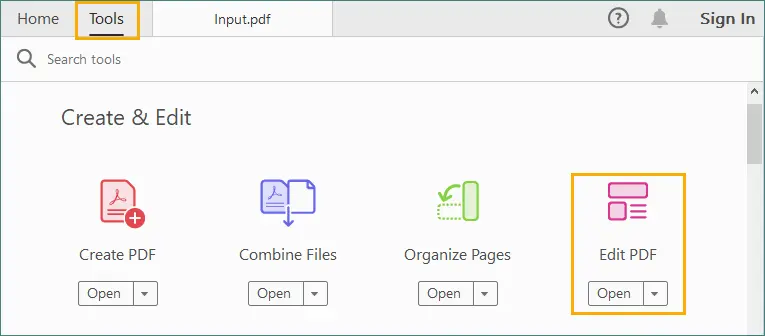
Vá para Ferramentas → Editar PDF.
-
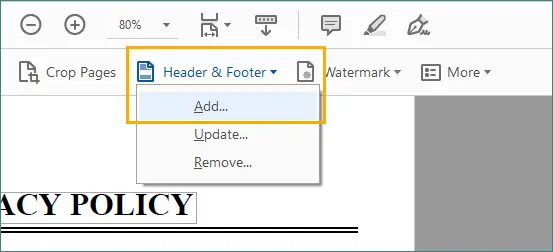
Selecione Cabeçalho e Rodapé → Adicionar.
-
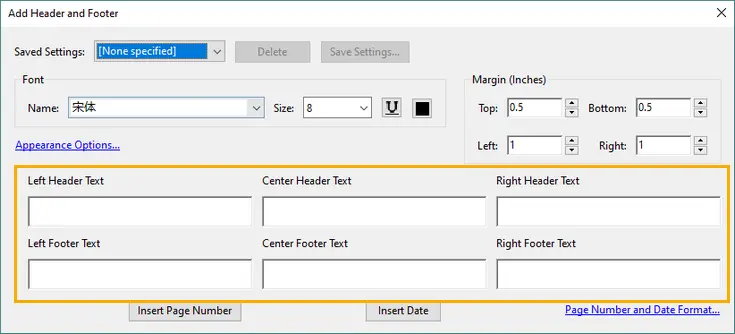
Escolha onde os números de página devem aparecer:
- Superior ou inferior
- Esquerda, centro ou direita
-
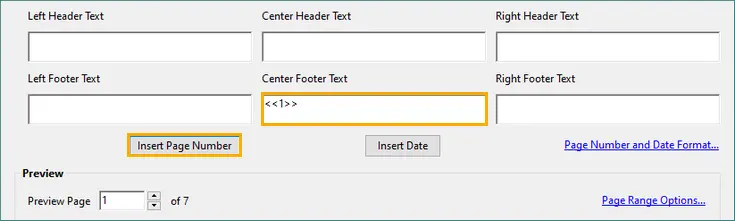
Clique em Inserir Número de Página.
-
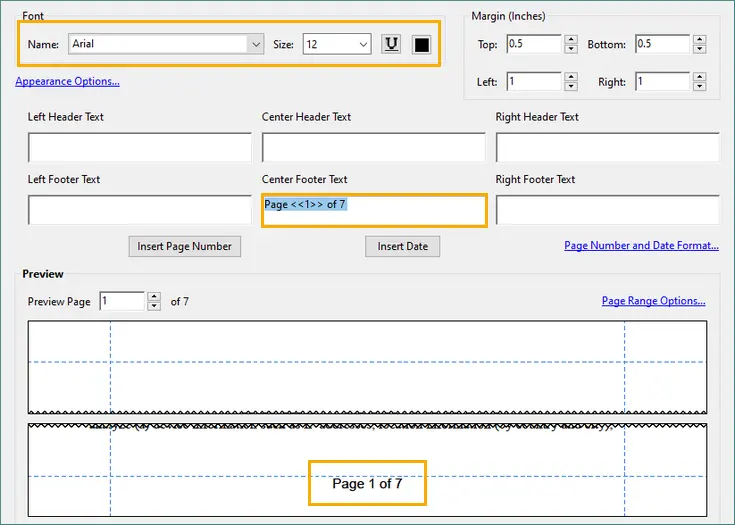
Personalize configurações adicionais:
- Fonte, tamanho e cor
- Margens
- Intervalo de páginas (por exemplo, pular a página de rosto)
- Estilo de numeração (por exemplo, “1”, “Página 1”, “i, ii, iii”)
-
Clique em OK e salve seu PDF.
Prós
- Muito estável e preciso.
- Permite intervalos de páginas e formatação de números.
- Funciona para layouts complexos e PDFs digitalizados.
Contras
- Requer o Adobe Acrobat Pro (versão paga).
Quando Usar Este Método
- Para documentos profissionais.
- Quando a precisão da formatação é importante.
- Ao lidar com PDFs complexos ou digitalizados.
- Quando você precisa de recursos como “Página X de Y”.
Método 2. Use Ferramentas Online (Nenhuma Instalação Necessária)
Se você não quer instalar software, os editores de PDF online oferecem uma maneira rápida e conveniente de adicionar números de página. As plataformas populares incluem:
- iLovePDF
- Sejda
- Smallpdf
- PDF24 Tools
Essas ferramentas funcionam inteiramente no navegador, tornando-as ideais para pequenas edições ou tarefas ocasionais.
Passos Típicos (Usando o iLovePDF como Exemplo)
-
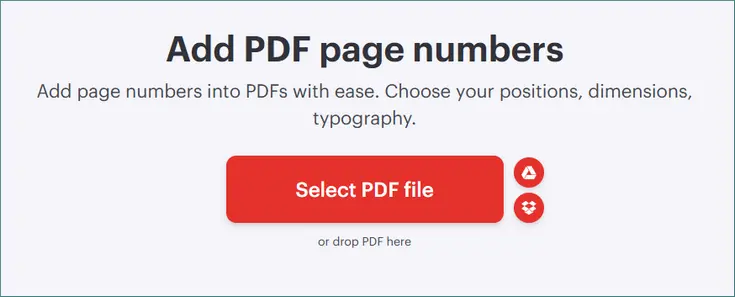
Vá para a ferramenta de adicionar números de página do iLovePDF.
-
Envie seu arquivo PDF para o site.
-
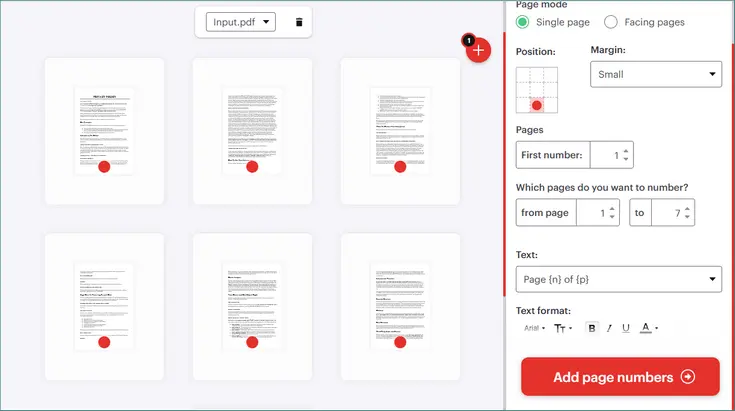
Escolha suas opções de numeração de página:
- Posição (superior/inferior, esquerda/centro/direita)
- Formato (fonte, tamanho, aparência)
- Páginas (por exemplo, todas as páginas, excluir capa, número inicial, etc.)
- Texto (Página {n}, Página {n} de {p}, etc.)
-
Clique em “Adicionar números de página”.
-
Baixe o PDF atualizado com os números de página recém-adicionados.
Prós
- Rápido e fácil de usar.
- Nenhuma instalação necessária.
- Opções gratuitas disponíveis.
Contras
- Não é ideal para documentos confidenciais.
- Algumas ferramentas online limitam o tamanho do arquivo e oferecem apenas opções básicas de personalização.
Quando Usar Este Método
- Você precisa de uma solução gratuita e rápida.
- O documento não é confidencial.
- Você está trabalhando em layouts simples.
Método 3. Use o Microsoft Word (Converter → Adicionar → Exportar)
O Microsoft Word não pode editar PDFs diretamente, mas pode converter PDFs em documentos Word editáveis, permitindo que você insira números de página e salve o arquivo de volta como PDF. Este método funciona melhor para arquivos PDF que contêm principalmente texto e formatação simples.
Como Fazer
- Abra o Microsoft Word.
- Vá para Arquivo → Abrir e selecione seu PDF.
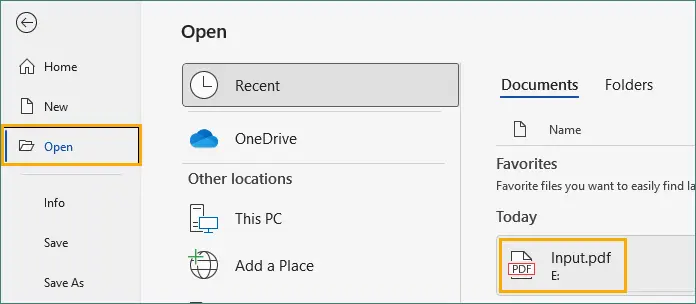
- Clique em OK na janela de aviso para permitir que o Word converta o PDF em um documento editável.

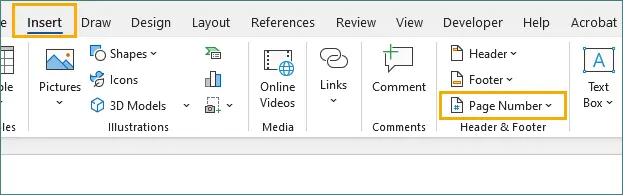
- Vá para Inserir → Número de Página.
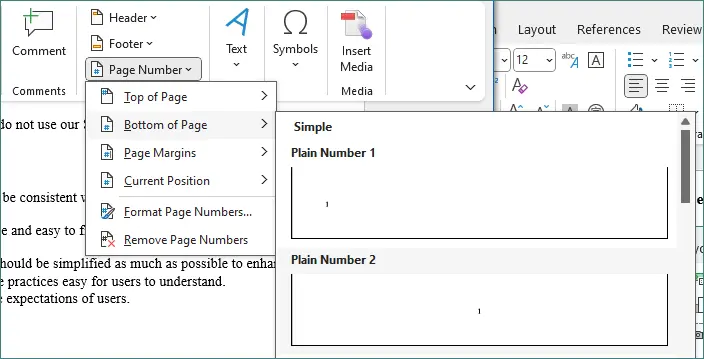
- Escolha a posição e o formato desejados.
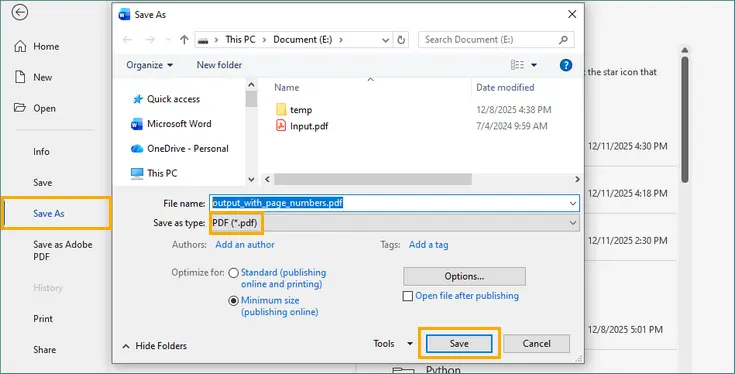
- Quando terminar, vá para Arquivo → Salvar Como → PDF.
Prós
- Ótimo para documentos simples.
- Cabeçalhos e rodapés totalmente personalizáveis.
- Nenhum software pago necessário.
Contras
- A formatação pode mudar após a conversão.
- Não é adequado para PDFs baseados em imagem ou digitalizados.
Quando Usar Este Método
- Seu PDF é baseado em texto.
- A formatação não é extremamente complexa.
- Você precisa de uma solução gratuita e fácil.
Método 4. Adicione Números de Página Usando Python (Amigável para Automação)
Para desenvolvedores ou usuários que precisam processar PDFs em massa, o Python é uma excelente opção. Com uma biblioteca dedicada como o Spire.PDF for Python, você pode adicionar números de página programaticamente com controle total sobre estilo, posição e intervalos de páginas.
Passos Gerais
- Instale o Spire.PDF via Pypi.
pip install spire.pdf - Carregue o arquivo PDF em seu script.
- Crie a fonte, o pincel e os elementos de formatação usados para os números de página.
- Percorra todas as páginas do documento.
- Calcule as coordenadas de posicionamento com base no tamanho da página e nas margens.
- Desenhe o texto do número da página (por exemplo, “Página X de Y”) em cada página.
- Salve o PDF modificado em um novo arquivo.
Código de Exemplo
from spire.pdf.common import *
from spire.pdf import *

# Crie um objeto PdfDocument
doc = PdfDocument()

# Carregue um arquivo PDF
doc.LoadFromFile("Input.pdf")

# Crie fonte, pincel e caneta
font = PdfTrueTypeFont("Times New Roman", 12.0, PdfFontStyle.Regular, True)
brush = PdfBrushes.get_Black()
pen = PdfPen(brush, 1.0)

# Especifique as margens em branco ao redor da página
leftMargin = 54.0
rightMargin = 54.0
bottomMargin = 72.0

# Crie um objeto PdfPageNumberField e um objeto PdfPageCountField
pageNumberField = PdfPageNumberField()
pageCountField = PdfPageCountField()

# Crie um objeto PdfCompositeField para combinar o campo de contagem de páginas e o campo de número de página em um único campo
compositeField = PdfCompositeField(font, brush, "Página {0} de {1}", [pageNumberField, pageCountField])

# Itere pelas páginas do documento
for i in range(doc.Pages.Count):

    # Obtenha uma página específica
    page = doc.Pages[i]

    # Obtenha o tamanho da página
    pageSize = doc.Pages[i].Size

    # Meça o tamanho de "Página X de Y"
    pageNumberSize = font.MeasureString("Página {} de {}".format(i + 1, doc.Pages.Count))

    # Defina a localização do campo composto
    compositeField.Location = PointF((pageSize.Width - pageNumberSize.Width)/2,
                                     pageSize.Height - bottomMargin + 18.0)

    # Desenhe o campo composto na página
    compositeField.Draw(page.Canvas, 0.0, 0.0)

# Salve em um arquivo PDF diferente
doc.SaveToFile("PageNumbers.pdf")
doc.Dispose()
Este script insere “Página X de Y” no centro inferior de cada página. Se você quiser explorar mais layouts — como números de página alinhados à esquerda ou à direita — consulte o guia completo: Adicionar Números de Página a um Documento PDF em Python.
Prós
- Controle total sobre o posicionamento dos números.
- Ótimo para processamento em lote.
- Funciona até mesmo para PDFs digitalizados.
Contras
- Requer conhecimento básico de codificação.
Quando Usar Este Método
- Você precisa processar muitos PDFs.
- Você quer personalização total.
- Você está automatizando a geração de PDF.
Além da numeração de páginas, o Spire.PDF permite aplicar cabeçalhos e rodapés, adicionar marcas d'água para branding e carimbar texto em todo o documento. Para um mergulho mais profundo nesses e em outros recursos, confira a documentação completa do Spire.PDF.
Dicas para Melhores Resultados
- Escolha a posição correta para interferência mínima
- Use um estilo de numeração claro e informativo
- Combine a tipografia do documento
- Deixe espaço de margem adequado
- Evite adicionar números a certas páginas
Se o seu PDF tiver cabeçalhos, rodapés ou conteúdo denso perto das margens, coloque os números de página em um canto ou longe de elementos-chave. As posições inferior direita e inferior esquerda geralmente oferecem a menor interrupção, permanecendo visíveis.
Formatos como “Página X de Y” fornecem aos leitores uma navegação clara, especialmente em documentos longos. Se você só precisa de uma numeração simples, use apenas dígitos para uma aparência mais limpa.
A consistência melhora o profissionalismo. Tente combinar a fonte do número da página com a fonte, o tamanho e a cor existentes no documento. Isso garante que os números de página se misturem naturalmente com o restante do layout do PDF.
Se o seu PDF tiver muito texto ou usar rodapés, certifique-se de que haja margem inferior suficiente para que os números de página não se sobreponham ao conteúdo. Ajuste o espaçamento conforme necessário com base nos resultados da visualização.
Alguns documentos — como páginas de rosto, sumários ou divisórias de seção — ficam mais limpos sem números de página. Exclua essas páginas se sua ferramenta permitir intervalos de páginas personalizados.
Compare os Diferentes Métodos
| Método | Dificuldade | Custo | Melhor Para | Limitações |
|---|---|---|---|---|
| Adobe Acrobat | Fácil | Pago | Resultados profissionais e precisos | Requer assinatura |
| Ferramentas Online | Muito fácil | Gratuito | Tarefas rápidas, sem instalação | Preocupações com privacidade, limites de tamanho de arquivo |
| Microsoft Word | Fácil | Gratuito com Word | PDFs baseados em texto | Possível distorção do layout |
| Python (Spire.PDF) | Médio | Gratuito/Pago | Automação, processamento em massa | Requer codificação |
Considerações Finais
A escolha da maneira certa de adicionar números de página depende das ferramentas que você possui e de como planeja usar seu PDF.
- O Adobe Acrobat é ideal quando você precisa de precisão e formatação profissional.
- As ferramentas online funcionam bem para edições rápidas e ocasionais sem instalar software.
- O Microsoft Word é adequado para documentos simples e com muito texto.
- O Python é a melhor opção quando você deseja automação ou precisa processar muitos arquivos de uma vez.
Com o método que se adapta ao seu fluxo de trabalho — e aplicando as dicas para obter os melhores resultados — você pode garantir que seus PDFs tenham números de página limpos, claros e consistentes sempre.
Perguntas Frequentes
P1. Posso adicionar “Página X de Y” a um PDF?
Sim. O Adobe Acrobat e muitas ferramentas online suportam este formato. O Word também o suporta antes de exportar para PDF.
P2. Posso pular a numeração da primeira página?
Sim. Acrobat, Word e Python todos suportam isso. Algumas ferramentas online também permitem intervalos de páginas personalizados.
P3. Posso adicionar números de página a um PDF digitalizado?
Sim. Você pode sobrepor números usando Acrobat, iLovePDF ou Python. Executar o OCR primeiro melhora a precisão.
P4. Adicionar números de página mudará a formatação do meu PDF?
Não se você usar o Acrobat ou o Python. O Word pode alterar a formatação após a conversão, mas você pode minimizar isso incorporando fontes e limpando cabeçalhos/rodapés.
Você Também Pode Estar Interessado Em
PDF에 페이지 번호를 추가하는 방법 (4가지 방법)
페이지 번호는 문서를 더 쉽게 읽고, 참조하고, 탐색하는 데 필수적인 역할을 합니다. 비즈니스 보고서, 학술 논문, 사용 설명서 또는 전자책을 준비할 때 PDF 페이지에 번호를 매기면 명확성과 전문성이 보장됩니다. 그러나 많은 사용자는 특히 파일이 스캔되거나, 보호되거나, 혼합된 소스에서 생성된 경우 PDF에 직접 페이지 번호를 추가하는 방법을 모릅니다.
좋은 소식은? PDF에 페이지 번호 추가하기는 생각보다 쉽습니다. 이 가이드에서는 Adobe Acrobat부터 온라인 도구, Microsoft Word, Python 자동화에 이르기까지 네 가지 실용적인 방법을 배웁니다. 각 방법은 도구, 기술 수준 및 문서의 복잡성에 따라 장점이 있습니다.
방법 개요:
- 방법 1. Adobe Acrobat 사용 (빠르고 전문적)
- 방법 2. 온라인 도구 사용 (설치 필요 없음)
- 방법 3. Microsoft Word 사용 (변환 → 추가 → 내보내기)
- 방법 4. Python을 사용하여 페이지 번호 추가 (자동화 친화적)
방법 1. Adobe Acrobat 사용 (빠르고 전문적)
Adobe Acrobat은 PDF 편집을 위한 가장 신뢰할 수 있고 정확하며 전문가 수준의 도구입니다. 서식 문제 없이 모든 페이지에 깨끗하고 일관된 페이지 번호가 필요한 경우 Acrobat을 이기기는 어렵습니다.
Adobe Acrobat에서 페이지 번호를 추가하는 단계
-
Adobe Acrobat Pro에서 PDF를 엽니다.
-
도구 → PDF 편집으로 이동합니다.
-
머리글 및 바닥글 → 추가를 선택합니다.
-
페이지 번호가 표시될 위치를 선택합니다:
- 상단 또는 하단
- 왼쪽, 가운데 또는 오른쪽
-
페이지 번호 삽입을 클릭합니다.
-
추가 설정 사용자 지정:
- 글꼴, 크기 및 색상
- 여백
- 페이지 범위 (예: 표지 건너뛰기)
- 번호 매기기 스타일 (예: "1", "1페이지", "i, ii, iii")
-
확인을 클릭하고 PDF를 저장합니다.
장점
- 매우 안정적이고 정확합니다.
- 페이지 범위 및 번호 서식을 허용합니다.
- 복잡한 레이아웃 및 스캔된 PDF에서 작동합니다.
단점
- Adobe Acrobat Pro (유료 버전)가 필요합니다.
이 방법을 사용해야 하는 경우
- 전문적인 문서의 경우.
- 서식 정확도가 중요한 경우.
- 복잡하거나 스캔된 PDF를 처리할 때.
- "Y 중 X 페이지"와 같은 기능이 필요한 경우.
방법 2. 온라인 도구 사용 (설치 필요 없음)
소프트웨어를 설치하고 싶지 않다면 온라인 PDF 편집기에서 페이지 번호를 빠르고 편리하게 추가할 수 있습니다. 인기 있는 플랫폼은 다음과 같습니다.
- iLovePDF
- Sejda
- Smallpdf
- PDF24 Tools
이러한 도구는 브라우저에서 완전히 작동하므로 작은 편집이나 가끔씩 하는 작업에 이상적입니다.
일반적인 단계 (iLovePDF를 예로 사용)
-
iLovePDF의 페이지 번호 추가 도구로 이동합니다.
-
웹사이트에 PDF 파일을 업로드합니다.
-
페이지 번호 매기기 옵션을 선택합니다:
- 위치 (상단/하단, 왼쪽/가운데/오른쪽)
- 서식 (글꼴, 크기, 모양)
- 페이지 (예: 모든 페이지, 표지 제외, 시작 번호 등)
- 텍스트 ({n}페이지, {p} 중 {n}페이지 등)
-
“페이지 번호 추가”를 클릭합니다.
-
새로 추가된 페이지 번호가 있는 업데이트된 PDF를 다운로드합니다.
장점
- 빠르고 사용자 친화적입니다.
- 설치가 필요 없습니다.
- 무료 옵션을 사용할 수 있습니다.
단점
- 기밀 문서에는 적합하지 않습니다.
- 일부 온라인 도구는 파일 크기를 제한하고 기본적인 사용자 지정 옵션만 제공합니다.
이 방법을 사용해야 하는 경우
- 무료이고 빠른 솔루션이 필요합니다.
- 문서가 기밀이 아닙니다.
- 간단한 레이아웃으로 작업하고 있습니다.
방법 3. Microsoft Word 사용 (변환 → 추가 → 내보내기)
Microsoft Word는 PDF를 직접 편집할 수 없지만 PDF를 편집 가능한 Word 문서로 변환하여 페이지 번호를 삽입하고 파일을 다시 PDF로 저장할 수 있습니다. 이 방법은 주로 텍스트와 간단한 서식이 포함된 PDF 파일에 가장 적합합니다.
방법
- Microsoft Word를 엽니다.
- 파일 → 열기로 이동하여 PDF를 선택합니다.
- 프롬프트 창에서 확인을 클릭하여 Word가 PDF를 편집 가능한 문서로 변환하도록 허용합니다.
- 삽입 → 페이지 번호로 이동합니다.
- 원하는 위치와 서식을 선택합니다.
- 완료되면 파일 → 다른 이름으로 저장 → PDF로 이동합니다.
장점
- 간단한 문서에 적합합니다.
- 완전히 사용자 정의 가능한 머리글 및 바닥글.
- 유료 소프트웨어가 필요 없습니다.
단점
- 변환 후 서식이 변경될 수 있습니다.
- 이미지 기반 또는 스캔된 PDF에는 적합하지 않습니다.
이 방법을 사용해야 하는 경우
- PDF가 텍스트 기반입니다.
- 서식이 매우 복잡하지 않습니다.
- 무료이고 쉬운 솔루션이 필요합니다.
방법 4. Python을 사용하여 페이지 번호 추가 (자동화 친화적)
대량으로 PDF를 처리해야 하는 개발자나 사용자에게 Python은 훌륭한 옵션입니다. Spire.PDF for Python과 같은 전용 라이브러리를 사용하면 스타일, 위치 및 페이지 범위를 완벽하게 제어하여 프로그래밍 방식으로 페이지 번호를 추가할 수 있습니다.
일반적인 단계
- Pypi를 통해 Spire.PDF를 설치합니다.
pip install spire.pdf - 스크립트에 PDF 파일을 로드합니다.
- 페이지 번호에 사용되는 글꼴, 브러시 및 서식 요소를 만듭니다.
- 문서의 모든 페이지를 반복합니다.
- 페이지 크기와 여백을 기준으로 배치 좌표를 계산합니다.
- 각 페이지에 페이지 번호 텍스트(예: "Y 중 X 페이지")를 그립니다.
- 수정된 PDF를 새 파일에 저장합니다.
예제 코드
from spire.pdf.common import *
from spire.pdf import *

# PdfDocument 개체 만들기
doc = PdfDocument()

# PDF 파일 로드
doc.LoadFromFile("Input.pdf")

# 글꼴, 브러시 및 펜 만들기
font = PdfTrueTypeFont("Times New Roman", 12.0, PdfFontStyle.Regular, True)
brush = PdfBrushes.get_Black()
pen = PdfPen(brush, 1.0)

# 페이지 주위의 빈 여백 지정
leftMargin = 54.0
rightMargin = 54.0
bottomMargin = 72.0

# PdfPageNumberField 개체와 PdfPageCountField 개체 만들기
pageNumberField = PdfPageNumberField()
pageCountField = PdfPageCountField()

# PdfCompositeField 개체를 만들어 페이지 수 필드와 페이지 번호 필드를 단일 필드로 결합
compositeField = PdfCompositeField(font, brush, "Page {0} of {1}", [pageNumberField, pageCountField])

# 문서의 페이지 반복
for i in range(doc.Pages.Count):

    # 특정 페이지 가져오기
    page = doc.Pages[i]

    # 페이지 크기 가져오기
    pageSize = doc.Pages[i].Size

    # "Page X of Y" 크기 측정
    pageNumberSize = font.MeasureString("Page {} of {}".format(i + 1, doc.Pages.Count))

    # 복합 필드의 위치 설정
    compositeField.Location = PointF((pageSize.Width - pageNumberSize.Width)/2,
                                     pageSize.Height - bottomMargin + 18.0)

    # 페이지에 복합 필드 그리기
    compositeField.Draw(page.Canvas, 0.0, 0.0)

# 다른 PDF 파일에 저장
doc.SaveToFile("PageNumbers.pdf")
doc.Dispose()
이 스크립트는 각 페이지의 하단 중앙에 "Y 중 X 페이지"를 삽입합니다. 왼쪽 정렬 또는 오른쪽 정렬 페이지 번호와 같은 더 많은 레이아웃을 탐색하려면 전체 가이드인 Python에서 PDF 문서에 페이지 번호 추가를 참조하십시오.
장점
- 번호 배치에 대한 완전한 제어.
- 일괄 처리에 적합합니다.
- 스캔된 PDF에서도 작동합니다.
단점
- 기본적인 코딩 지식이 필요합니다.
이 방법을 사용해야 하는 경우
- 많은 PDF를 처리해야 합니다.
- 완전한 사용자 지정을 원합니다.
- PDF 생성을 자동화하고 있습니다.
페이지 번호 매기기 외에도 Spire.PDF를 사용하면 머리글 및 바닥글을 적용하고, 브랜딩을 위해 워터마크를 추가하고, 전체 문서에 텍스트를 스탬프할 수 있습니다. 이러한 기능 및 기타 기능에 대해 자세히 알아보려면 전체 Spire.PDF 설명서를 확인하십시오.
최상의 결과를 위한 팁
- 간섭을 최소화하기 위해 올바른 위치를 선택하십시오
- 명확하고 유익한 번호 매기기 스타일 사용
- 문서의 타이포그래피와 일치
- 적절한 여백 공간 남기기
- 특정 페이지에 번호 추가 방지
PDF에 머리글, 바닥글 또는 여백 근처에 빽빽한 콘텐츠가 있는 경우 페이지 번호를 모서리나 주요 요소에서 떨어진 곳에 배치하십시오. 오른쪽 하단 및 왼쪽 하단 위치는 일반적으로 계속 보이면서도 중단을 최소화합니다.
"Y 중 X 페이지"와 같은 형식은 특히 긴 문서에서 독자에게 명확한 탐색을 제공합니다. 간단한 번호 매기기만 필요한 경우 더 깔끔한 모양을 위해 일반 숫자를 사용하십시오.
일관성은 전문성을 향상시킵니다. 페이지 번호 글꼴을 문서의 기존 서체, 크기 및 색상과 일치시키십시오. 이렇게 하면 페이지 번호가 나머지 PDF 레이아웃과 자연스럽게 조화를 이룹니다.
PDF가 텍스트가 많거나 바닥글을 사용하는 경우 페이지 번호가 콘텐츠와 겹치지 않도록 충분한 하단 여백이 있는지 확인하십시오. 미리보기 결과에 따라 필요에 따라 간격을 조정하십시오.
표지, 목차 또는 섹션 구분선과 같은 일부 문서는 페이지 번호가 없으면 더 깔끔해 보입니다. 도구에서 사용자 지정 페이지 범위를 허용하는 경우 이러한 페이지를 제외하십시오.
다양한 방법 비교
| 방법 | 난이도 | 비용 | 최적 대상 | 제한 사항 |
|---|---|---|---|---|
| Adobe Acrobat | 쉬움 | 유료 | 전문적이고 정확한 결과 | 구독 필요 |
| 온라인 도구 | 매우 쉬움 | 무료 | 빠른 작업, 설치 필요 없음 | 개인 정보 보호 문제, 파일 크기 제한 |
| Microsoft Word | 쉬움 | Word와 함께 무료 | 텍스트 기반 PDF | 레이아웃 왜곡 가능 |
| Python (Spire.PDF) | 중간 | 무료/유료 | 자동화, 일괄 처리 | 코딩 필요 |
마지막 생각
페이지 번호를 추가하는 올바른 방법을 선택하는 것은 보유한 도구와 PDF 사용 계획에 따라 다릅니다.
- Adobe Acrobat은 정밀하고 전문적인 서식이 필요할 때 이상적입니다.
- 온라인 도구는 소프트웨어를 설치하지 않고 빠르고 가끔씩 편집하는 데 적합합니다.
- Microsoft Word는 간단하고 텍스트가 많은 문서에 적합합니다.
- Python은 자동화를 원하거나 한 번에 많은 파일을 처리해야 할 때 가장 좋은 옵션입니다.
워크플로에 맞는 방법을 사용하고 최상의 결과를 위한 팁을 적용하면 PDF에 항상 깨끗하고 명확하며 일관된 페이지 번호가 있는지 확인할 수 있습니다.
자주 묻는 질문
Q1. PDF에 "Y 중 X 페이지"를 추가할 수 있습니까?
예. Adobe Acrobat 및 많은 온라인 도구에서 이 형식을 지원합니다. Word는 PDF로 내보내기 전에도 지원합니다.
Q2. 첫 페이지 번호 매기기를 건너뛸 수 있습니까?
예. Acrobat, Word 및 Python은 모두 이를 지원합니다. 일부 온라인 도구에서는 사용자 지정 페이지 범위도 허용합니다.
Q3. 스캔한 PDF에 페이지 번호를 추가할 수 있습니까?
예. Acrobat, iLovePDF 또는 Python을 사용하여 숫자를 오버레이할 수 있습니다. 먼저 OCR을 실행하면 정확도가 향상됩니다.
Q4. 페이지 번호를 추가하면 PDF 서식이 변경됩니까?
Acrobat 또는 Python을 사용하는 경우에는 그렇지 않습니다. Word는 변환 후 서식을 변경할 수 있지만 글꼴을 포함하고 머리글/바닥글을 정리하여 이를 최소화할 수 있습니다.
관심 있을 만한 다른 항목
Come aggiungere i numeri di pagina a un PDF (4 modi)
Indice
- Metodo 1. Usa Adobe Acrobat (Veloce e Professionale)
- Metodo 2. Usa Strumenti Online (Nessuna Installazione Richiesta)
- Metodo 3. Usa Microsoft Word (Converti → Aggiungi → Esporta)
- Metodo 4. Aggiungi Numeri di Pagina con Python (Adatto all'Automazione)
- Consigli per i Migliori Risultati
- Confronta i Diversi Metodi
- Considerazioni Finali
- Domande Frequenti
I numeri di pagina svolgono un ruolo essenziale nel rendere i documenti più facili da leggere, consultare e navigare. Che tu stia preparando report aziendali, documenti accademici, manuali utente o eBook, numerare le pagine del tuo PDF garantisce chiarezza e professionalità. Tuttavia, molti utenti non sanno come aggiungere i numeri di pagina direttamente a un PDF, specialmente quando il file è scansionato, protetto o creato da fonti miste.
La buona notizia? Aggiungere numeri di pagina a un PDF è più facile di quanto pensi. In questa guida, imparerai quattro metodi pratici, da Adobe Acrobat agli strumenti online, Microsoft Word e l'automazione con Python. Ogni metodo ha i suoi vantaggi a seconda dei tuoi strumenti, del tuo livello di abilità e della complessità del tuo documento.
Panoramica dei metodi:
- Metodo 1. Usa Adobe Acrobat (Veloce e Professionale)
- Metodo 2. Usa Strumenti Online (Nessuna Installazione Richiesta)
- Metodo 3. Usa Microsoft Word (Converti → Aggiungi → Esporta)
- Metodo 4. Aggiungi Numeri di Pagina con Python (Adatto all'Automazione)
Metodo 1. Usa Adobe Acrobat (Veloce e Professionale)
Adobe Acrobat è lo strumento più affidabile, preciso e di livello professionale per la modifica dei PDF. Se hai bisogno di numeri di pagina puliti e coerenti su ogni pagina, senza problemi di formattazione, Acrobat è difficile da battere.
Passaggi per Aggiungere Numeri di Pagina in Adobe Acrobat
-
Apri il tuo PDF in Adobe Acrobat Pro.
-
Vai su Strumenti → Modifica PDF.
-
Seleziona Intestazione e piè di pagina → Aggiungi.
-
Scegli dove devono apparire i numeri di pagina:
- In alto o in basso
- A sinistra, al centro o a destra
-
Fai clic su Inserisci Numero di Pagina.
-
Personalizza impostazioni aggiuntive:
- Carattere, dimensione e colore
- Margini
- Intervallo di pagine (es. salta la copertina)
- Stile di numerazione (es. “1”, “Pagina 1”, “i, ii, iii”)
-
Fai clic su OK e salva il tuo PDF.
Vantaggi
- Molto stabile e preciso.
- Consente intervalli di pagine e formattazione dei numeri.
- Funziona per layout complessi e PDF scansionati.
Svantaggi
- Richiede Adobe Acrobat Pro (versione a pagamento).
Quando Usare Questo Metodo
- Per documenti professionali.
- Quando la precisione della formattazione è importante.
- Quando si ha a che fare con PDF complessi o scansionati.
- Quando hai bisogno di funzionalità come “Pagina X di Y”.
Metodo 2. Usa Strumenti Online (Nessuna Installazione Richiesta)
Se non vuoi installare software, gli editor PDF online offrono un modo rapido e conveniente per aggiungere i numeri di pagina. Le piattaforme più popolari includono:
- iLovePDF
- Sejda
- Smallpdf
- PDF24 Tools
Questi strumenti funzionano interamente nel browser, rendendoli ideali per piccole modifiche o attività occasionali.
Passaggi Tipici (Usando iLovePDF come Esempio)
-
Vai allo strumento per aggiungere numeri di pagina di iLovePDF.
-
Carica il tuo file PDF sul sito web.
-
Scegli le tue opzioni di numerazione delle pagine:
- Posizione (in alto/in basso, a sinistra/al centro/a destra)
- Formato (carattere, dimensione, aspetto)
- Pagine (es. tutte le pagine, escludi copertina, numero di partenza, ecc.)
- Testo (Pagina {n}, Pagina {n} di {p}, ecc.)
-
Fai clic su “Aggiungi numeri di pagina”.
-
Scarica il PDF aggiornato con i numeri di pagina appena aggiunti.
Vantaggi
- Veloce e facile da usare.
- Nessuna installazione richiesta.
- Opzioni gratuite disponibili.
Svantaggi
- Non ideale per documenti riservati.
- Alcuni strumenti online limitano la dimensione dei file e offrono solo opzioni di personalizzazione di base.
Quando Usare Questo Metodo
- Hai bisogno di una soluzione gratuita e veloce.
- Il documento non è riservato.
- Stai lavorando su layout semplici.
Metodo 3. Usa Microsoft Word (Converti → Aggiungi → Esporta)
Microsoft Word non può modificare direttamente i PDF, ma può convertire i PDF in documenti Word modificabili, consentendoti di inserire i numeri di pagina e salvare nuovamente il file come PDF. Questo metodo funziona meglio per i file PDF che contengono principalmente testo e formattazione semplice.
Come Fare
- Apri Microsoft Word.
- Vai su File → Apri e seleziona il tuo PDF.
- Fai clic su OK nella finestra di dialogo per consentire a Word di convertire il PDF in un documento modificabile.
- Vai su Inserisci → Numero di pagina.
- Scegli la posizione e il formato desiderati.
- Al termine, vai su File → Salva con nome → PDF.
Vantaggi
- Ottimo per documenti semplici.
- Intestazioni e piè di pagina completamente personalizzabili.
- Nessun software a pagamento richiesto.
Svantaggi
- La formattazione potrebbe cambiare dopo la conversione.
- Non adatto per PDF basati su immagini o scansionati.
Quando Usare Questo Metodo
- Il tuo PDF è basato su testo.
- La formattazione non è estremamente complessa.
- Hai bisogno di una soluzione gratuita e facile.
Metodo 4. Aggiungi Numeri di Pagina con Python (Adatto all'Automazione)
Per gli sviluppatori o gli utenti che necessitano di elaborare PDF in blocco, Python è un'opzione eccellente. Con una libreria dedicata come Spire.PDF per Python, puoi aggiungere numeri di pagina programmaticamente con un controllo completo su stile, posizione e intervalli di pagine.
Passaggi Generali
- Installa Spire.PDF tramite Pypi.
pip install spire.pdf - Carica il file PDF nel tuo script.
- Crea il carattere, il pennello e gli elementi di formattazione utilizzati per i numeri di pagina.
- Scorri tutte le pagine del documento.
- Calcola le coordinate di posizionamento in base alle dimensioni della pagina e ai margini.
- Disegna il testo del numero di pagina (es. “Pagina X di Y”) su ogni pagina.
- Salva il PDF modificato in un nuovo file.
Codice di Esempio
from spire.pdf.common import *
from spire.pdf import *

# Crea un oggetto PdfDocument
doc = PdfDocument()

# Carica un file PDF
doc.LoadFromFile("Input.pdf")

# Crea carattere, pennello e penna
font = PdfTrueTypeFont("Times New Roman", 12.0, PdfFontStyle.Regular, True)
brush = PdfBrushes.get_Black()
pen = PdfPen(brush, 1.0)

# Specifica i margini vuoti intorno alla pagina
leftMargin = 54.0
rightMargin = 54.0
bottomMargin = 72.0

# Crea un oggetto PdfPageNumberField e un oggetto PdfPageCountField
pageNumberField = PdfPageNumberField()
pageCountField = PdfPageCountField()

# Crea un oggetto PdfCompositeField per combinare il campo del conteggio delle pagine e il campo del numero di pagina in un unico campo
compositeField = PdfCompositeField(font, brush, "Pagina {0} di {1}", [pageNumberField, pageCountField])

# Itera attraverso le pagine del documento
for i in range(doc.Pages.Count):

    # Ottieni una pagina specifica
    page = doc.Pages[i]

    # Ottieni le dimensioni della pagina
    pageSize = doc.Pages[i].Size

    # Misura la dimensione di "Pagina X di Y"
    pageNumberSize = font.MeasureString("Pagina {} di {}".format(i + 1, doc.Pages.Count))

    # Imposta la posizione del campo composito
    compositeField.Location = PointF((pageSize.Width - pageNumberSize.Width)/2,
                                     pageSize.Height - bottomMargin + 18.0)

    # Disegna il campo composito sulla pagina
    compositeField.Draw(page.Canvas, 0.0, 0.0)

# Salva in un file PDF diverso
doc.SaveToFile("PageNumbers.pdf")
doc.Dispose()
Questo script inserisce “Pagina X di Y” al centro in basso di ogni pagina. Se vuoi esplorare altri layout, come numeri di pagina allineati a sinistra o a destra, consulta la guida completa: Aggiungere Numeri di Pagina a un Documento PDF in Python.
Vantaggi
- Controllo completo sul posizionamento dei numeri.
- Ottimo per l'elaborazione in blocco.
- Funziona anche per i PDF scansionati.
Svantaggi
- Richiede conoscenze di base di programmazione.
Quando Usare Questo Metodo
- Devi elaborare molti PDF.
- Vuoi una personalizzazione completa.
- Stai automatizzando la generazione di PDF.
Oltre alla numerazione delle pagine, Spire.PDF ti consente di applicare intestazioni e piè di pagina, aggiungere filigrane per il branding e timbrare testo in tutto il documento. Per un'analisi più approfondita di queste e altre funzionalità, consulta la documentazione completa di Spire.PDF.
Consigli per i Migliori Risultati
- Scegli la posizione giusta per un'interferenza minima
- Usa uno stile di numerazione chiaro e informativo
- Abbina la tipografia del documento
- Lascia uno spazio di margine adeguato
- Evita di aggiungere numeri a determinate pagine
Se il tuo PDF ha intestazioni, piè di pagina o contenuti densi vicino ai margini, posiziona i numeri di pagina in un angolo o lontano dagli elementi chiave. Le posizioni in basso a destra e in basso a sinistra offrono in genere la minima interruzione pur rimanendo visibili.
Formati come “Pagina X di Y” forniscono ai lettori una navigazione chiara, specialmente nei documenti lunghi. Se hai solo bisogno di una numerazione semplice, attieniti a cifre semplici per un aspetto più pulito.
La coerenza migliora la professionalità. Cerca di abbinare il carattere del numero di pagina con il carattere, la dimensione e il colore esistenti del documento. Ciò garantisce che i numeri di pagina si integrino naturalmente con il resto del layout del PDF.
Se il tuo PDF è ricco di testo o utilizza piè di pagina, assicurati che ci sia abbastanza margine inferiore in modo che i numeri di pagina non si sovrappongano al contenuto. Regola la spaziatura secondo necessità in base ai risultati dell'anteprima.
Alcuni documenti, come copertine, indici o divisori di sezione, hanno un aspetto più pulito senza numeri di pagina. Escludi queste pagine se il tuo strumento consente intervalli di pagine personalizzati.
Confronta i Diversi Metodi
| Metodo | Difficoltà | Costo | Ideale Per | Limitazioni |
|---|---|---|---|---|
| Adobe Acrobat | Facile | A pagamento | Risultati professionali e precisi | Richiede abbonamento |
| Strumenti Online | Molto facile | Gratuito | Attività veloci, nessuna installazione | Preoccupazioni per la privacy, limiti di dimensione del file |
| Microsoft Word | Facile | Gratuito con Word | PDF basati su testo | Possibile distorsione del layout |
| Python (Spire.PDF) | Medio | Gratuito/A pagamento | Automazione, elaborazione in blocco | Richiede programmazione |
Considerazioni Finali
La scelta del modo giusto per aggiungere i numeri di pagina dipende dagli strumenti che hai e da come prevedi di utilizzare il tuo PDF.
- Adobe Acrobat è ideale quando hai bisogno di precisione e formattazione professionale.
- Gli strumenti online funzionano bene per modifiche rapide e occasionali senza installare software.
- Microsoft Word è adatto per documenti semplici e ricchi di testo.
- Python è l'opzione migliore quando desideri l'automazione o devi elaborare molti file contemporaneamente.
Con il metodo che si adatta al tuo flusso di lavoro e applicando i suggerimenti per i migliori risultati, puoi assicurarti che i tuoi PDF abbiano numeri di pagina puliti, chiari e coerenti ogni volta.
Domande Frequenti
D1. Posso aggiungere “Pagina X di Y” a un PDF?
Sì. Adobe Acrobat e molti strumenti online supportano questo formato. Anche Word lo supporta prima di esportare in PDF.
D2. Posso saltare la numerazione della prima pagina?
Sì. Acrobat, Word e Python lo supportano tutti. Anche alcuni strumenti online consentono intervalli di pagine personalizzati.
D3. Posso aggiungere numeri di pagina a un PDF scansionato?
Sì. Puoi sovrapporre i numeri usando Acrobat, iLovePDF o Python. L'esecuzione dell'OCR prima migliora la precisione.
D4. L'aggiunta di numeri di pagina modificherà la formattazione del mio PDF?
No, se usi Acrobat o Python. Word potrebbe modificare la formattazione dopo la conversione, ma puoi minimizzare questo problema incorporando i caratteri e pulendo intestazioni/piè di pagina.
Potrebbe Interessarti Anche
Comment ajouter des numéros de page à un PDF (4 méthodes)
Table des matières
- Méthode 1. Utiliser Adobe Acrobat (Rapide et professionnel)
- Méthode 2. Utiliser des outils en ligne (Aucune installation requise)
- Méthode 3. Utiliser Microsoft Word (Convertir → Ajouter → Exporter)
- Méthode 4. Ajouter des numéros de page avec Python (Adapté à l'automatisation)
- Conseils pour de meilleurs résultats
- Comparer les différentes méthodes
- Réflexions finales
- FAQ
Les numéros de page jouent un rôle essentiel pour faciliter la lecture, la référence et la navigation dans les documents. Que vous prépariez des rapports d'activité, des articles universitaires, des manuels d'utilisation ou des livres électroniques, la numérotation de vos pages PDF garantit clarté et professionnalisme. Pourtant, de nombreux utilisateurs ne savent pas comment ajouter des numéros de page directement à un PDF, surtout lorsque le fichier est numérisé, protégé ou créé à partir de sources mixtes.
La bonne nouvelle ? Ajouter des numéros de page à un PDF est plus facile que vous ne le pensez. Dans ce guide, vous découvrirez quatre méthodes pratiques, d'Adobe Acrobat aux outils en ligne, en passant par Microsoft Word et l'automatisation avec Python. Chaque méthode a ses avantages en fonction de vos outils, de votre niveau de compétence et de la complexité de votre document.
Aperçu des méthodes :
- Méthode 1. Utiliser Adobe Acrobat (Rapide et professionnel)
- Méthode 2. Utiliser des outils en ligne (Aucune installation requise)
- Méthode 3. Utiliser Microsoft Word (Convertir → Ajouter → Exporter)
- Méthode 4. Ajouter des numéros de page avec Python (Adapté à l'automatisation)
Méthode 1. Utiliser Adobe Acrobat (Rapide et professionnel)
Adobe Acrobat est l'outil le plus fiable, précis et de qualité professionnelle pour éditer des PDF. Si vous avez besoin de numéros de page propres et cohérents sur chaque page, sans problèmes de formatage, Acrobat est difficile à battre.
Étapes pour ajouter des numéros de page dans Adobe Acrobat
-
Ouvrez votre PDF dans Adobe Acrobat Pro.
-
Allez dans Outils → Modifier le PDF.
-
Sélectionnez En-tête et pied de page → Ajouter.
-
Choisissez où les numéros de page doivent apparaître :
- En haut ou en bas
- À gauche, au centre ou à droite
-
Cliquez sur Insérer un numéro de page.
-
Personnalisez les paramètres supplémentaires :
- Police, taille et couleur
- Marges
- Plage de pages (par ex., sauter la page de couverture)
- Style de numérotation (par ex., « 1 », « Page 1 », « i, ii, iii »)
-
Cliquez sur OK et enregistrez votre PDF.
Avantages
- Très stable et précis.
- Permet des plages de pages et le formatage des numéros.
- Fonctionne pour les mises en page complexes et les PDF numérisés.
Inconvénients
- Nécessite Adobe Acrobat Pro (version payante).
Quand utiliser cette méthode
- Pour les documents professionnels.
- Lorsque la précision du formatage est importante.
- Lorsque vous traitez des PDF complexes ou numérisés.
- Lorsque vous avez besoin de fonctionnalités comme « Page X sur Y ».
Méthode 2. Utiliser des outils en ligne (Aucune installation requise)
Si vous ne souhaitez pas installer de logiciel, les éditeurs de PDF en ligne offrent un moyen rapide et pratique d'ajouter des numéros de page. Les plateformes populaires incluent :
- iLovePDF
- Sejda
- Smallpdf
- PDF24 Tools
Ces outils fonctionnent entièrement dans le navigateur, ce qui les rend idéaux pour de petites modifications ou des tâches occasionnelles.
Étapes typiques (en utilisant iLovePDF comme exemple)
-
Allez sur l'outil d'ajout de numéros de page d'iLovePDF.
-
Téléchargez votre fichier PDF sur le site web.
-
Choisissez vos options de numérotation de page :
- Position (en haut/en bas, à gauche/au centre/à droite)
- Format (police, taille, apparence)
- Pages (par ex., toutes les pages, exclure la couverture, numéro de départ, etc.)
- Texte (Page {n}, Page {n} sur {p}, etc.)
-
Cliquez sur “Ajouter des numéros de page”.
-
Téléchargez le PDF mis à jour avec les numéros de page nouvellement ajoutés.
Avantages
- Rapide et convivial.
- Aucune installation requise.
- Options gratuites disponibles.
Inconvénients
- Pas idéal pour les documents confidentiels.
- Certains outils en ligne limitent la taille des fichiers et n'offrent que des options de personnalisation de base.
Quand utiliser cette méthode
- Vous avez besoin d'une solution gratuite et rapide.
- Le document n'est pas confidentiel.
- Vous travaillez sur des mises en page simples.
Méthode 3. Utiliser Microsoft Word (Convertir → Ajouter → Exporter)
Microsoft Word ne peut pas éditer les PDF directement, mais il peut convertir les PDF en documents Word modifiables, vous permettant d'insérer des numéros de page et de réenregistrer le fichier en PDF. Cette méthode fonctionne mieux pour les fichiers PDF qui contiennent principalement du texte et une mise en forme simple.
Comment faire
- Ouvrez Microsoft Word.
- Allez dans Fichier → Ouvrir et sélectionnez votre PDF.
- Cliquez sur OK dans la fenêtre d'invite pour autoriser Word à convertir le PDF en un document modifiable.
- Allez dans Insertion → Numéro de page.
- Choisissez la position et le format souhaités.
- Une fois terminé, allez dans Fichier → Enregistrer sous → PDF.
Avantages
- Idéal pour les documents simples.
- En-têtes et pieds de page entièrement personnalisables.
- Aucun logiciel payant requis.
Inconvénients
- Le formatage peut changer après la conversion.
- Ne convient pas aux PDF basés sur des images ou numérisés.
Quand utiliser cette méthode
- Votre PDF est basé sur du texte.
- Le formatage n'est pas extrêmement complexe.
- Vous avez besoin d'une solution gratuite et facile.
Méthode 4. Ajouter des numéros de page avec Python (Adapté à l'automatisation)
Pour les développeurs ou les utilisateurs ayant besoin de traiter des PDF en masse, Python est une excellente option. Avec une bibliothèque dédiée telle que Spire.PDF for Python, vous pouvez ajouter des numéros de page par programmation avec un contrôle total sur le style, la position et les plages de pages.
Étapes générales
- Installez Spire.PDF via Pypi.
pip install spire.pdf - Chargez le fichier PDF dans votre script.
- Créez les éléments de police, de pinceau et de formatage utilisés pour les numéros de page.
- Parcourez toutes les pages du document.
- Calculez les coordonnées de placement en fonction de la taille de la page et des marges.
- Dessinez le texte du numéro de page (par ex., « Page X sur Y ») sur chaque page.
- Enregistrez le PDF modifié dans un nouveau fichier.
Exemple de code
from spire.pdf.common import *
from spire.pdf import *

# Create a PdfDocument object
doc = PdfDocument()

# Load a PDF file
doc.LoadFromFile("Input.pdf")

# Create font, brush and pen
font = PdfTrueTypeFont("Times New Roman", 12.0, PdfFontStyle.Regular, True)
brush = PdfBrushes.get_Black()
pen = PdfPen(brush, 1.0)

# Specify the blank margins around the page
leftMargin = 54.0
rightMargin = 54.0
bottomMargin = 72.0

# Create a PdfPageNumberField object and a PdfPageCountField object
pageNumberField = PdfPageNumberField()
pageCountField = PdfPageCountField()

# Create a PdfCompositeField object to combine page count field and page number field in a single field
compositeField = PdfCompositeField(font, brush, "Page {0} of {1}", [pageNumberField, pageCountField])

# Iterate through the pages in the document
for i in range(doc.Pages.Count):

    # Get a specific page
    page = doc.Pages[i]

    # Get the page size
    pageSize = doc.Pages[i].Size

    # Measure the size the "Page X of Y"
    pageNumberSize = font.MeasureString("Page {} of {}".format(i + 1, doc.Pages.Count))

    # Set the location of the composite field
    compositeField.Location = PointF((pageSize.Width - pageNumberSize.Width)/2,
                                     pageSize.Height - bottomMargin + 18.0)

    # Draw the composite field on the page
    compositeField.Draw(page.Canvas, 0.0, 0.0)

# Save to a different PDF file
doc.SaveToFile("PageNumbers.pdf")
doc.Dispose()
Ce script insère « Page X sur Y » en bas au centre de chaque page. Si vous souhaitez explorer d'autres mises en page, telles que des numéros de page alignés à gauche ou à droite, consultez le guide complet : Ajouter des numéros de page à un document PDF en Python.
Avantages
- Contrôle total sur le placement des numéros.
- Idéal pour le traitement par lots.
- Fonctionne même pour les PDF numérisés.
Inconvénients
- Nécessite des connaissances de base en codage.
Quand utiliser cette méthode
- Vous devez traiter de nombreux PDF.
- Vous voulez une personnalisation complète.
- Vous automatisez la génération de PDF.
Au-delà de la numérotation des pages, Spire.PDF vous permet d'appliquer des en-têtes et des pieds de page, d'ajouter des filigranes pour l'image de marque et d'apposer du texte dans tout le document. Pour une exploration plus approfondie de ces fonctionnalités et d'autres, consultez la documentation complète de Spire.PDF.
Conseils pour de meilleurs résultats
- Choisissez la bonne position pour une interférence minimale
- Utilisez un style de numérotation clair et informatif
- Faites correspondre la typographie du document
- Laissez un espace de marge adéquat
- Évitez d'ajouter des numéros à certaines pages
Si votre PDF contient des en-têtes, des pieds de page ou un contenu dense près des marges, placez les numéros de page dans un coin ou à l'écart des éléments clés. Les positions en bas à droite et en bas à gauche offrent généralement le moins de perturbations tout en restant visibles.
Des formats comme « Page X sur Y » offrent aux lecteurs une navigation claire, en particulier dans les documents longs. Si vous n'avez besoin que d'une numérotation simple, tenez-vous-en à de simples chiffres pour un aspect plus épuré.
La cohérence améliore le professionnalisme. Essayez de faire correspondre la police du numéro de page avec la police, la taille et la couleur existantes du document. Cela garantit que les numéros de page se fondent naturellement dans le reste de la mise en page du PDF.
Si votre PDF est lourd en texte ou utilise des pieds de page, assurez-vous qu'il y a suffisamment de marge inférieure pour que les numéros de page ne chevauchent pas le contenu. Ajustez l'espacement si nécessaire en fonction des résultats de l'aperçu.
Certains documents, tels que les pages de couverture, les tables des matières ou les séparateurs de section, sont plus propres sans numéros de page. Excluez ces pages si votre outil autorise des plages de pages personnalisées.
Comparer les différentes méthodes
| Méthode | Difficulté | Coût | Idéal pour | Limites |
|---|---|---|---|---|
| Adobe Acrobat | Facile | Payant | Résultats professionnels et précis | Nécessite un abonnement |
| Outils en ligne | Très facile | Gratuit | Tâches rapides, sans installation | Problèmes de confidentialité, limites de taille de fichier |
| Microsoft Word | Facile | Gratuit avec Word | PDF à base de texte | Distorsion possible de la mise en page |
| Python (Spire.PDF) | Moyen | Gratuit/Payant | Automatisation, traitement par lots | Nécessite du codage |
Réflexions finales
Le choix de la bonne méthode pour ajouter des numéros de page dépend des outils dont vous disposez et de la manière dont vous prévoyez d'utiliser votre PDF.
- Adobe Acrobat est idéal lorsque vous avez besoin de précision et d'un formatage professionnel.
- Les outils en ligne fonctionnent bien pour des modifications rapides et occasionnelles sans installer de logiciel.
- Microsoft Word convient aux documents simples et riches en texte.
- Python est la meilleure option lorsque vous souhaitez automatiser ou traiter de nombreux fichiers à la fois.
Avec la méthode qui correspond à votre flux de travail et en appliquant les conseils pour de meilleurs résultats, vous pouvez vous assurer que vos PDF ont des numéros de page propres, clairs et cohérents à chaque fois.
FAQ
Q1. Puis-je ajouter « Page X sur Y » à un PDF ?
Oui. Adobe Acrobat et de nombreux outils en ligne prennent en charge ce format. Word le prend également en charge avant l'exportation au format PDF.
Q2. Puis-je sauter la numérotation de la première page ?
Oui. Acrobat, Word et Python le permettent tous. Certains outils en ligne autorisent également des plages de pages personnalisées.
Q3. Puis-je ajouter des numéros de page à un PDF numérisé ?
Oui. Vous pouvez superposer des numéros à l'aide d'Acrobat, d'iLovePDF ou de Python. L'exécution préalable de l'OCR améliore la précision.
Q4. L'ajout de numéros de page modifiera-t-il le formatage de mon PDF ?
Pas si vous utilisez Acrobat ou Python. Word peut modifier le formatage après la conversion, mais vous pouvez minimiser cela en incorporant des polices et en nettoyant les en-têtes/pieds de page.
Vous pourriez aussi être intéressé par
Cómo añadir números de página a un PDF (4 formas)
Tabla de Contenidos
- Método 1. Usar Adobe Acrobat (Rápido y Profesional)
- Método 2. Usar Herramientas en Línea (No Requiere Instalación)
- Método 3. Usar Microsoft Word (Convertir → Añadir → Exportar)
- Método 4. Añadir Números de Página con Python (Ideal para Automatización)
- Consejos para Mejores Resultados
- Comparar los Diferentes Métodos
- Conclusiones Finales
- Preguntas Frecuentes
Los números de página juegan un papel esencial en hacer que los documentos sean más fáciles de leer, referenciar y navegar. Ya sea que estés preparando informes de negocios, trabajos académicos, manuales de usuario o libros electrónicos, numerar las páginas de tu PDF asegura claridad y profesionalismo. Sin embargo, muchos usuarios no saben cómo añadir números de página directamente a un PDF, especialmente cuando el archivo está escaneado, protegido o creado a partir de fuentes mixtas.
¿La buena noticia? Añadir números de página a un PDF es más fácil de lo que piensas. En esta guía, aprenderás cuatro métodos prácticos, desde Adobe Acrobat hasta herramientas en línea, Microsoft Word y la automatización con Python. Cada método tiene sus ventajas dependiendo de tus herramientas, nivel de habilidad y la complejidad de tu documento.
Resumen de los métodos:
- Método 1. Usar Adobe Acrobat (Rápido y Profesional)
- Método 2. Usar Herramientas en Línea (No Requiere Instalación)
- Método 3. Usar Microsoft Word (Convertir → Añadir → Exportar)
- Método 4. Añadir Números de Página con Python (Ideal para Automatización)
Método 1. Usar Adobe Acrobat (Rápido y Profesional)
Adobe Acrobat es la herramienta más fiable, precisa y de nivel profesional para editar PDFs. Si necesitas números de página limpios y consistentes en cada página, sin problemas de formato, Acrobat es difícil de superar.
Pasos para Añadir Números de Página en Adobe Acrobat
-
Abre tu PDF en Adobe Acrobat Pro.
-
Ve a Herramientas → Editar PDF.
-
Selecciona Encabezado y pie de página → Añadir.
-
Elige dónde deben aparecer los números de página:
- Arriba o abajo
- Izquierda, centro o derecha
-
Haz clic en Insertar número de página.
-
Personaliza configuraciones adicionales:
- Fuente, tamaño y color
- Márgenes
- Rango de páginas (p. ej., omitir la portada)
- Estilo de numeración (p. ej., “1”, “Página 1”, “i, ii, iii”)
-
Haz clic en Aceptar y guarda tu PDF.
Ventajas
- Muy estable y preciso.
- Permite rangos de páginas y formato de números.
- Funciona para diseños complejos y PDFs escaneados.
Desventajas
- Requiere Adobe Acrobat Pro (versión de pago).
Cuándo Usar Este Método
- Para documentos profesionales.
- Cuando la precisión del formato importa.
- Cuando se trabaja con PDFs complejos o escaneados.
- Cuando necesitas funciones como “Página X de Y”.
Método 2. Usar Herramientas en Línea (No Requiere Instalación)
Si no quieres instalar software, los editores de PDF en línea ofrecen una forma rápida y conveniente de añadir números de página. Las plataformas populares incluyen:
- iLovePDF
- Sejda
- Smallpdf
- PDF24 Tools
Estas herramientas funcionan completamente en el navegador, lo que las hace ideales para pequeñas ediciones o tareas ocasionales.
Pasos Típicos (Usando iLovePDF como Ejemplo)
-
Ve a la herramienta para añadir números de página de iLovePDF.
-
Sube tu archivo PDF al sitio web.
-
Elige tus opciones de numeración de página:
- Posición (arriba/abajo, izquierda/centro/derecha)
- Formato (fuente, tamaño, apariencia)
- Páginas (p. ej., todas las páginas, excluir portada, número de inicio, etc.)
- Texto (Página {n}, Página {n} de {p}, etc.)
-
Haz clic en “Añadir números de página”.
-
Descarga el PDF actualizado con los números de página recién añadidos.
Ventajas
- Rápido y fácil de usar.
- No requiere instalación.
- Opciones gratuitas disponibles.
Desventajas
- No es ideal para documentos confidenciales.
- Algunas herramientas en línea limitan el tamaño del archivo y ofrecen solo opciones de personalización básicas.
Cuándo Usar Este Método
- Necesitas una solución gratuita y rápida.
- El documento no es confidencial.
- Estás trabajando en diseños simples.
Método 3. Usar Microsoft Word (Convertir → Añadir → Exportar)
Microsoft Word no puede editar PDFs directamente, pero puede convertir PDFs a documentos de Word editables, permitiéndote insertar números de página y guardar el archivo de nuevo como PDF. Este método funciona mejor para archivos PDF que contienen principalmente texto y formato simple.
Cómo Hacerlo
- Abre Microsoft Word.
- Ve a Archivo → Abrir y selecciona tu PDF.
- Haz clic en Aceptar en la ventana emergente para permitir que Word convierta el PDF en un documento editable.
- Ve a Insertar → Número de página.
- Elige la posición y el formato deseados.
- Cuando termines, ve a Archivo → Guardar como → PDF.
Ventajas
- Ideal para documentos simples.
- Encabezados y pies de página totalmente personalizables.
- No se requiere software de pago.
Desventajas
- El formato puede cambiar después de la conversión.
- No es adecuado para PDFs basados en imágenes o escaneados.
Cuándo Usar Este Método
- Tu PDF está basado en texto.
- El formato no es extremadamente complejo.
- Necesitas una solución gratuita y fácil.
Método 4. Añadir Números de Página con Python (Ideal para Automatización)
Para desarrolladores o usuarios que necesitan procesar PDFs en masa, Python es una excelente opción. Con una biblioteca dedicada como Spire.PDF for Python, puedes añadir números de página programáticamente con control total sobre el estilo, la posición y los rangos de páginas.
Pasos Generales
- Instala Spire.PDF a través de Pypi.
pip install spire.pdf - Carga el archivo PDF en tu script.
- Crea la fuente, el pincel y los elementos de formato utilizados para los números de página.
- Recorre todas las páginas del documento.
- Calcula las coordenadas de ubicación según el tamaño de la página y los márgenes.
- Dibuja el texto del número de página (p. ej., “Página X de Y”) en cada página.
- Guarda el PDF modificado en un nuevo archivo.
Código de Ejemplo
from spire.pdf.common import *
from spire.pdf import *

# Create a PdfDocument object
doc = PdfDocument()

# Load a PDF file
doc.LoadFromFile("Input.pdf")

# Create font, brush and pen
font = PdfTrueTypeFont("Times New Roman", 12.0, PdfFontStyle.Regular, True)
brush = PdfBrushes.get_Black()
pen = PdfPen(brush, 1.0)

# Specify the blank margins around the page
leftMargin = 54.0
rightMargin = 54.0
bottomMargin = 72.0

# Create a PdfPageNumberField object and a PdfPageCountField object
pageNumberField = PdfPageNumberField()
pageCountField = PdfPageCountField()

# Create a PdfCompositeField object to combine page count field and page number field in a single field
compositeField = PdfCompositeField(font, brush, "Page {0} of {1}", [pageNumberField, pageCountField])

# Iterate through the pages in the document
for i in range(doc.Pages.Count):

    # Get a specific page
    page = doc.Pages[i]

    # Get the page size
    pageSize = doc.Pages[i].Size

    # Measure the size the "Page X of Y"
    pageNumberSize = font.MeasureString("Page {} of {}".format(i + 1, doc.Pages.Count))

    # Set the location of the composite field
    compositeField.Location = PointF((pageSize.Width - pageNumberSize.Width)/2,
                                     pageSize.Height - bottomMargin + 18.0)

    # Draw the composite field on the page
    compositeField.Draw(page.Canvas, 0.0, 0.0)

# Save to a different PDF file
doc.SaveToFile("PageNumbers.pdf")
doc.Dispose()
Este script inserta “Página X de Y” en el centro inferior de cada página. Si quieres explorar más diseños, como números de página alineados a la izquierda o a la derecha, consulta la guía completa: Añadir Números de Página a un Documento PDF en Python.
Ventajas
- Control total sobre la ubicación del número.
- Ideal para el procesamiento por lotes.
- Funciona incluso para PDFs escaneados.
Desventajas
- Requiere conocimientos básicos de codificación.
Cuándo Usar Este Método
- Necesitas procesar muchos PDFs.
- Quieres personalización total.
- Estás automatizando la generación de PDFs.
Más allá de la numeración de páginas, Spire.PDF te permite aplicar encabezados y pies de página, añadir marcas de agua para branding y estampar texto en todo el documento. Para una inmersión más profunda en estas y otras características, consulta la documentación completa de Spire.PDF.
Consejos para Mejores Resultados
- Elige la posición correcta para una interferencia mínima
- Usa un estilo de numeración claro e informativo
- Coincide con la tipografía del documento
- Deja un espacio de margen adecuado
- Evita añadir números a ciertas páginas
Si tu PDF tiene encabezados, pies de página o contenido denso cerca de los márgenes, coloca los números de página en una esquina o lejos de los elementos clave. Las posiciones inferior derecha e inferior izquierda suelen ofrecer la menor interrupción sin dejar de ser visibles.
Formatos como “Página X de Y” proporcionan a los lectores una navegación clara, especialmente en documentos largos. Si solo necesitas una numeración simple, utiliza dígitos simples para un aspecto más limpio.
La consistencia mejora el profesionalismo. Intenta que la fuente del número de página coincida con el tipo de letra, tamaño y color existentes en el documento. Esto asegura que los números de página se integren de forma natural con el resto del diseño del PDF.
Si tu PDF tiene mucho texto o utiliza pies de página, asegúrate de que haya suficiente margen inferior para que los números de página no se superpongan con el contenido. Ajusta el espaciado según sea necesario basándote en los resultados de la vista previa.
Algunos documentos, como portadas, tablas de contenido o separadores de sección, se ven más limpios sin números de página. Excluye estas páginas si tu herramienta permite rangos de páginas personalizados.
Comparar los Diferentes Métodos
| Método | Dificultad | Costo | Ideal Para | Limitaciones |
|---|---|---|---|---|
| Adobe Acrobat | Fácil | De pago | Resultados profesionales y precisos | Requiere suscripción |
| Herramientas en Línea | Muy fácil | Gratis | Tareas rápidas, sin instalación | Preocupaciones de privacidad, límites de tamaño de archivo |
| Microsoft Word | Fácil | Gratis con Word | PDFs basados en texto | Posible distorsión del diseño |
| Python (Spire.PDF) | Medio | Gratis/De pago | Automatización, procesamiento por lotes | Requiere codificación |
Conclusiones Finales
Elegir la forma correcta de añadir números de página depende de las herramientas que tengas y de cómo planees usar tu PDF.
- Adobe Acrobat es ideal cuando necesitas precisión y formato profesional.
- Las herramientas en línea funcionan bien para ediciones rápidas y ocasionales sin instalar software.
- Microsoft Word es adecuado para documentos sencillos y con mucho texto.
- Python es la mejor opción cuando quieres automatización o necesitas procesar muchos archivos a la vez.
Con el método que se ajuste a tu flujo de trabajo, y aplicando los consejos para obtener los mejores resultados, puedes asegurar que tus PDFs tengan números de página limpios, claros y consistentes cada vez.
Preguntas Frecuentes
P1. ¿Puedo añadir “Página X de Y” a un PDF?
Sí. Adobe Acrobat y muchas herramientas en línea soportan este formato. Word también lo soporta antes de exportar a PDF.
P2. ¿Puedo omitir la numeración de la primera página?
Sí. Acrobat, Word y Python lo soportan. Algunas herramientas en línea también permiten rangos de páginas personalizados.
P3. ¿Puedo añadir números de página a un PDF escaneado?
Sí. Puedes superponer números usando Acrobat, iLovePDF o Python. Ejecutar OCR primero mejora la precisión.
P4. ¿Añadir números de página cambiará el formato de mi PDF?
No si usas Acrobat o Python. Word puede cambiar el formato después de la conversión, pero puedes minimizarlo incrustando fuentes y limpiando encabezados/pies de página.
También te puede interesar
So fügen Sie Seitenzahlen zu PDF hinzu (4 Wege)
Inhaltsverzeichnis
- Methode 1. Adobe Acrobat verwenden (Schnell & Professionell)
- Methode 2. Online-Tools verwenden (Keine Installation erforderlich)
- Methode 3. Microsoft Word verwenden (Konvertieren → Hinzufügen → Exportieren)
- Methode 4. Seitenzahlen mit Python hinzufügen (Automatisierungsfreundlich)
- Tipps für beste Ergebnisse
- Vergleich der verschiedenen Methoden
- Abschließende Gedanken
- FAQs
Seitenzahlen spielen eine wesentliche Rolle dabei, Dokumente leichter lesbar, referenzierbar und navigierbar zu machen. Ob Sie Geschäftsberichte, wissenschaftliche Arbeiten, Benutzerhandbücher oder E-Books vorbereiten, die Nummerierung Ihrer PDF-Seiten sorgt für Klarheit und Professionalität. Dennoch wissen viele Benutzer nicht, wie man Seitenzahlen direkt in ein PDF einfügt, insbesondere wenn die Datei gescannt, geschützt oder aus gemischten Quellen erstellt wurde.
Die gute Nachricht? Das Hinzufügen von Seitenzahlen zu einem PDF ist einfacher als Sie denken. In diesem Leitfaden lernen Sie vier praktische Methoden kennen – von Adobe Acrobat über Online-Tools und Microsoft Word bis hin zur Python-Automatisierung. Jede Methode hat ihre Vorteile, abhängig von Ihren Werkzeugen, Ihrem Kenntnisstand und der Komplexität Ihres Dokuments.
Methodenübersicht:
- Methode 1. Adobe Acrobat verwenden (Schnell & Professionell)
- Methode 2. Online-Tools verwenden (Keine Installation erforderlich)
- Methode 3. Microsoft Word verwenden (Konvertieren → Hinzufügen → Exportieren)
- Methode 4. Seitenzahlen mit Python hinzufügen (Automatisierungsfreundlich)
Methode 1. Adobe Acrobat verwenden (Schnell & Professionell)
Adobe Acrobat ist das zuverlässigste, genaueste und professionellste Werkzeug zur Bearbeitung von PDFs. Wenn Sie saubere, konsistente Seitenzahlen auf jeder Seite benötigen – ohne Formatierungsprobleme – ist Acrobat kaum zu übertreffen.
Schritte zum Hinzufügen von Seitenzahlen in Adobe Acrobat
-
Öffnen Sie Ihr PDF in Adobe Acrobat Pro.
-
Gehen Sie zu Werkzeuge → PDF bearbeiten.
-
Wählen Sie Kopf- & Fußzeile → Hinzufügen.
-
Wählen Sie aus, wo die Seitenzahlen erscheinen sollen:
- Oben oder unten
- Links, zentriert oder rechts
-
Klicken Sie auf Seitenzahl einfügen.
-
Passen Sie zusätzliche Einstellungen an:
- Schriftart, Größe und Farbe
- Ränder
- Seitenbereich (z. B. Deckblatt überspringen)
- Nummerierungsstil (z. B. „1“, „Seite 1“, „i, ii, iii“)
-
Klicken Sie auf OK und speichern Sie Ihr PDF.
Vorteile
- Sehr stabil und genau.
- Ermöglicht Seitenbereiche und Zahlenformatierung.
- Funktioniert für komplexe Layouts und gescannte PDFs.
Nachteile
- Erfordert Adobe Acrobat Pro (kostenpflichtige Version).
Wann diese Methode verwenden
- Für professionelle Dokumente.
- Wenn die Formatierungsgenauigkeit wichtig ist.
- Bei komplexen oder gescannten PDFs.
- Wenn Sie Funktionen wie „Seite X von Y“ benötigen.
Methode 2. Online-Tools verwenden (Keine Installation erforderlich)
Wenn Sie keine Software installieren möchten, bieten Online-PDF-Editoren eine schnelle und bequeme Möglichkeit, Seitenzahlen hinzuzufügen. Beliebte Plattformen sind:
- iLovePDF
- Sejda
- Smallpdf
- PDF24 Tools
Diese Tools funktionieren vollständig im Browser und sind daher ideal für kleine Bearbeitungen oder gelegentliche Aufgaben.
Typische Schritte (am Beispiel von iLovePDF)
-
Gehen Sie zum Tool zum Hinzufügen von Seitenzahlen von iLovePDF.
-
Laden Sie Ihre PDF-Datei auf die Website hoch.
-
Wählen Sie Ihre Optionen für die Seitennummerierung:
- Position (oben/unten, links/zentriert/rechts)
- Format (Schriftart, Größe, Erscheinungsbild)
- Seiten (z. B. alle Seiten, Deckblatt ausschließen, Startnummer usw.)
- Text (Seite {n}, Seite {n} von {p}, usw.)
-
Klicken Sie auf „Seitenzahlen hinzufügen“.
-
Laden Sie das aktualisierte PDF mit den neu hinzugefügten Seitenzahlen herunter.
Vorteile
- Schnell und benutzerfreundlich.
- Keine Installation erforderlich.
- Kostenlose Optionen verfügbar.
Nachteile
- Nicht ideal für vertrauliche Dokumente.
- Einige Online-Tools begrenzen die Dateigröße und bieten nur grundlegende Anpassungsoptionen.
Wann diese Methode verwenden
- Sie benötigen eine kostenlose und schnelle Lösung.
- Das Dokument ist nicht vertraulich.
- Sie arbeiten an einfachen Layouts.
Methode 3. Microsoft Word verwenden (Konvertieren → Hinzufügen → Exportieren)
Microsoft Word kann PDFs nicht direkt bearbeiten – aber es kann PDFs in bearbeitbare Word-Dokumente konvertieren, sodass Sie Seitenzahlen einfügen und die Datei wieder als PDF speichern können. Diese Methode funktioniert am besten für PDF-Dateien, die hauptsächlich Text und einfache Formatierungen enthalten.
Wie es geht
- Öffnen Sie Microsoft Word.
- Gehen Sie zu Datei → Öffnen und wählen Sie Ihr PDF aus.
- Klicken Sie im Eingabeaufforderungsfenster auf OK, damit Word das PDF in ein bearbeitbares Dokument konvertieren kann.
- Gehen Sie zu Einfügen → Seitenzahl.
- Wählen Sie die gewünschte Position und das gewünschte Format.
- Wenn Sie fertig sind, gehen Sie zu Datei → Speichern unter → PDF.
Vorteile
- Ideal für einfache Dokumente.
- Vollständig anpassbare Kopf- und Fußzeilen.
- Keine kostenpflichtige Software erforderlich.
Nachteile
- Die Formatierung kann sich nach der Konvertierung ändern.
- Nicht geeignet für bildbasierte oder gescannte PDFs.
Wann diese Methode verwenden
- Ihr PDF ist textbasiert.
- Die Formatierung ist nicht extrem komplex.
- Sie benötigen eine kostenlose, einfache Lösung.
Methode 4. Seitenzahlen mit Python hinzufügen (Automatisierungsfreundlich)
Für Entwickler oder Benutzer, die PDFs in großen Mengen verarbeiten müssen, ist Python eine ausgezeichnete Option. Mit einer dedizierten Bibliothek wie Spire.PDF for Python können Sie Seitenzahlen programmgesteuert mit vollständiger Kontrolle über Stil, Position und Seitenbereiche hinzufügen.
Allgemeine Schritte
- Installieren Sie Spire.PDF über Pypi.
pip install spire.pdf - Laden Sie die PDF-Datei in Ihr Skript.
- Erstellen Sie die Schriftart, den Pinsel und die Formatierungselemente, die für Seitenzahlen verwendet werden.
- Durchlaufen Sie alle Seiten im Dokument.
- Berechnen Sie die Platzierungskoordinaten basierend auf Seitengröße und Rändern.
- Zeichnen Sie den Seitenzahlentext (z. B. „Seite X von Y“) auf jede Seite.
- Speichern Sie das geänderte PDF in einer neuen Datei.
Beispielcode
from spire.pdf.common import *
from spire.pdf import *

# Create a PdfDocument object
doc = PdfDocument()

# Load a PDF file
doc.LoadFromFile("Input.pdf")

# Create font, brush and pen
font = PdfTrueTypeFont("Times New Roman", 12.0, PdfFontStyle.Regular, True)
brush = PdfBrushes.get_Black()
pen = PdfPen(brush, 1.0)

# Specify the blank margins around the page
leftMargin = 54.0
rightMargin = 54.0
bottomMargin = 72.0

# Create a PdfPageNumberField object and a PdfPageCountField object
pageNumberField = PdfPageNumberField()
pageCountField = PdfPageCountField()

# Create a PdfCompositeField object to combine page count field and page number field in a single field
compositeField = PdfCompositeField(font, brush, "Page {0} of {1}", [pageNumberField, pageCountField])

# Iterate through the pages in the document
for i in range(doc.Pages.Count):

    # Get a specific page
    page = doc.Pages[i]

    # Get the page size
    pageSize = doc.Pages[i].Size

    # Measure the size the "Page X of Y"
    pageNumberSize = font.MeasureString("Page {} of {}".format(i + 1, doc.Pages.Count))

    # Set the location of the composite field
    compositeField.Location = PointF((pageSize.Width - pageNumberSize.Width)/2,
                                     pageSize.Height - bottomMargin + 18.0)

    # Draw the composite field on the page
    compositeField.Draw(page.Canvas, 0.0, 0.0)

# Save to a different PDF file
doc.SaveToFile("PageNumbers.pdf")
doc.Dispose()
Dieses Skript fügt „Seite X von Y“ unten in der Mitte jeder Seite ein. Wenn Sie weitere Layouts erkunden möchten – wie links- oder rechtsbündige Seitenzahlen – lesen Sie die vollständige Anleitung: Seitenzahlen zu einem PDF-Dokument in Python hinzufügen.
Vorteile
- Volle Kontrolle über die Platzierung der Zahlen.
- Ideal für die Stapelverarbeitung.
- Funktioniert auch bei gescannten PDFs.
Nachteile
- Erfordert grundlegende Programmierkenntnisse.
Wann diese Methode verwenden
- Sie müssen viele PDFs verarbeiten.
- Sie möchten vollständige Anpassungsmöglichkeiten.
- Sie automatisieren die PDF-Erstellung.
Über die Seitennummerierung hinaus können Sie mit Spire.PDF Kopf- und Fußzeilen anwenden, Wasserzeichen für das Branding hinzufügen und Text im gesamten Dokument stempeln. Für einen tieferen Einblick in diese und andere Funktionen lesen Sie die vollständige Spire.PDF-Dokumentation.
Tipps für beste Ergebnisse
- Wählen Sie die richtige Position für minimale Störungen
- Verwenden Sie einen klaren und informativen Nummerierungsstil
- Passen Sie die Typografie des Dokuments an
- Lassen Sie ausreichend Randplatz
- Vermeiden Sie das Hinzufügen von Nummern zu bestimmten Seiten
Wenn Ihr PDF Kopf- oder Fußzeilen oder dichten Inhalt in der Nähe der Ränder hat, platzieren Sie die Seitenzahlen in einer Ecke oder entfernt von wichtigen Elementen. Die Positionen unten rechts und unten links bieten in der Regel die geringste Störung und bleiben dennoch sichtbar.
Formate wie „Seite X von Y“ bieten den Lesern eine klare Navigation, insbesondere in langen Dokumenten. Wenn Sie nur eine einfache Nummerierung benötigen, bleiben Sie bei einfachen Ziffern für ein saubereres Aussehen.
Konsistenz verbessert die Professionalität. Versuchen Sie, die Schriftart der Seitenzahlen an die vorhandene Schriftart, Größe und Farbe des Dokuments anzupassen. Dadurch wird sichergestellt, dass sich die Seitenzahlen natürlich in das restliche PDF-Layout einfügen.
Wenn Ihr PDF textlastig ist oder Fußzeilen verwendet, stellen Sie sicher, dass genügend unterer Rand vorhanden ist, damit die Seitenzahlen den Inhalt nicht überlappen. Passen Sie den Abstand bei Bedarf basierend auf den Vorschauergebnissen an.
Einige Dokumente – wie Deckblätter, Inhaltsverzeichnisse oder Abschnittstrenner – sehen ohne Seitenzahlen sauberer aus. Schließen Sie diese Seiten aus, wenn Ihr Tool benutzerdefinierte Seitenbereiche zulässt.
Vergleich der verschiedenen Methoden
| Methode | Schwierigkeit | Kosten | Am besten für | Einschränkungen |
|---|---|---|---|---|
| Adobe Acrobat | Einfach | Kostenpflichtig | Professionelle, genaue Ergebnisse | Erfordert Abonnement |
| Online-Tools | Sehr einfach | Kostenlos | Schnelle Aufgaben, keine Installation | Datenschutzbedenken, Dateigrößenbeschränkungen |
| Microsoft Word | Einfach | Kostenlos mit Word | Textbasierte PDFs | Layoutverzerrung möglich |
| Python (Spire.PDF) | Mittel | Kostenlos/Kostenpflichtig | Automatisierung, Stapelverarbeitung | Erfordert Programmierkenntnisse |
Abschließende Gedanken
Die Wahl der richtigen Methode zum Hinzufügen von Seitenzahlen hängt von den Ihnen zur Verfügung stehenden Werkzeugen und davon ab, wie Sie Ihr PDF verwenden möchten.
- Adobe Acrobat ist ideal, wenn Sie Präzision und professionelle Formatierung benötigen.
- Online-Tools eignen sich gut für schnelle, gelegentliche Bearbeitungen ohne Softwareinstallation.
- Microsoft Word ist für unkomplizierte, textlastige Dokumente geeignet.
- Python ist die beste Option, wenn Sie Automatisierung wünschen oder viele Dateien auf einmal verarbeiten müssen.
Mit der Methode, die zu Ihrem Arbeitsablauf passt – und indem Sie die Tipps für beste Ergebnisse anwenden – können Sie sicherstellen, dass Ihre PDFs jedes Mal saubere, klare und konsistente Seitenzahlen haben.
FAQs
F1. Kann ich „Seite X von Y“ zu einem PDF hinzufügen?
Ja. Adobe Acrobat und viele Online-Tools unterstützen dieses Format. Word unterstützt es auch vor dem Exportieren in PDF.
F2. Kann ich die Nummerierung der ersten Seite überspringen?
Ja. Acrobat, Word und Python unterstützen dies alle. Einige Online-Tools ermöglichen auch benutzerdefinierte Seitenbereiche.
F3. Kann ich Seitenzahlen zu einem gescannten PDF hinzufügen?
Ja. Sie können Zahlen mit Acrobat, iLovePDF oder Python überlagern. Das vorherige Ausführen von OCR verbessert die Genauigkeit.
F4. Wird das Hinzufügen von Seitenzahlen die Formatierung meines PDFs ändern?
Nicht, wenn Sie Acrobat oder Python verwenden. Word kann die Formatierung nach der Konvertierung ändern, aber Sie können dies minimieren, indem Sie Schriftarten einbetten und Kopf-/Fußzeilen bereinigen.
Das könnte Sie auch interessieren
Как добавить номера страниц в PDF (4 способа)
Содержание
- Способ 1. Используйте Adobe Acrobat (быстро и профессионально)
- Способ 2. Используйте онлайн-инструменты (установка не требуется)
- Способ 3. Используйте Microsoft Word (конвертировать → добавить → экспортировать)
- Способ 4. Добавьте номера страниц с помощью Python (удобно для автоматизации)
- Советы для достижения наилучших результатов
- Сравнение различных методов
- Заключительные мысли
- Часто задаваемые вопросы
Нумерация страниц играет важную роль, облегчая чтение, создание ссылок и навигацию по документам. Готовите ли вы деловые отчеты, научные работы, руководства пользователя или электронные книги, нумерация страниц PDF обеспечивает ясность и профессионализм. Однако многие пользователи не знают, как добавлять номера страниц непосредственно в PDF, особенно если файл отсканирован, защищен или создан из разных источников.
Хорошие новости? Добавить номера страниц в PDF проще, чем вы думаете. В этом руководстве вы узнаете четыре практических способа — от Adobe Acrobat до онлайн-инструментов, Microsoft Word и автоматизации с помощью Python. Каждый метод имеет свои преимущества в зависимости от ваших инструментов, уровня квалификации и сложности вашего документа.
Обзор методов:
- Способ 1. Используйте Adobe Acrobat (быстро и профессионально)
- Способ 2. Используйте онлайн-инструменты (установка не требуется)
- Способ 3. Используйте Microsoft Word (конвертировать → добавить → экспортировать)
- Способ 4. Добавьте номера страниц с помощью Python (удобно для автоматизации)
Способ 1. Используйте Adobe Acrobat (быстро и профессионально)
Adobe Acrobat — самый надежный, точный и профессиональный инструмент для редактирования PDF. Если вам нужны чистые, последовательные номера страниц на каждой странице — без проблем с форматированием — Acrobat трудно превзойти.
Шаги по добавлению номеров страниц в Adobe Acrobat
-
Откройте ваш PDF в Adobe Acrobat Pro.
-
Перейдите в Инструменты → Редактировать PDF.
-
Выберите Колонтитулы → Добавить.
-
Выберите, где должны отображаться номера страниц:
- Сверху или снизу
- Слева, по центру или справа
-
Нажмите Вставить номер страницы.
-
Настройте дополнительные параметры:
- Шрифт, размер и цвет
- Поля
- Диапазон страниц (например, пропустить титульный лист)
- Стиль нумерации (например, «1», «Страница 1», «i, ii, iii»)
-
Нажмите OK и сохраните ваш PDF.
Плюсы
- Очень стабильно и точно.
- Позволяет настраивать диапазоны страниц и форматирование номеров.
- Работает со сложными макетами и отсканированными PDF.
Минусы
- Требуется Adobe Acrobat Pro (платная версия).
Когда использовать этот метод
- Для профессиональных документов.
- Когда важна точность форматирования.
- При работе со сложными или отсканированными PDF.
- Когда вам нужны функции типа «Страница X из Y».
Способ 2. Используйте онлайн-инструменты (установка не требуется)
Если вы не хотите устанавливать программное обеспечение, онлайн-редакторы PDF предлагают быстрый и удобный способ добавления номеров страниц. Популярные платформы включают:
- iLovePDF
- Sejda
- Smallpdf
- PDF24 Tools
Эти инструменты работают полностью в браузере, что делает их идеальными для небольших правок или редких задач.
Типичные шаги (на примере iLovePDF)
-
Перейдите к инструменту добавления номеров страниц iLovePDF.
-
Загрузите ваш PDF-файл на сайт.
-
Выберите параметры нумерации страниц:
- Положение (сверху/снизу, слева/по центру/справа)
- Формат (шрифт, размер, внешний вид)
- Страницы (например, все страницы, исключить обложку, начальный номер и т. д.)
- Текст (Страница {n}, Страница {n} из {p} и т. д.)
-
Нажмите «Добавить номера страниц».
-
Загрузите обновленный PDF с новыми номерами страниц.
Плюсы
- Быстро и удобно.
- Установка не требуется.
- Доступны бесплатные опции.
Минусы
- Не идеально для конфиденциальных документов.
- Некоторые онлайн-инструменты ограничивают размер файла и предлагают только базовые возможности настройки.
Когда использовать этот метод
- Вам нужно бесплатное и быстрое решение.
- Документ не является конфиденциальным.
- Вы работаете с простыми макетами.
Способ 3. Используйте Microsoft Word (конвертировать → добавить → экспортировать)
Microsoft Word не может редактировать PDF напрямую, но он может конвертировать PDF в редактируемые документы Word, что позволяет вставлять номера страниц и сохранять файл обратно в формате PDF. Этот метод лучше всего подходит для PDF-файлов, которые содержат в основном текст и простое форматирование.
Как это сделать
- Откройте Microsoft Word.
- Перейдите в Файл → Открыть и выберите ваш PDF.
- Нажмите OK в появившемся окне, чтобы разрешить Word преобразовать PDF в редактируемый документ.
- Перейдите в Вставка → Номер страницы.
- Выберите желаемое положение и формат.
- По завершении перейдите в Файл → Сохранить как → PDF.
Плюсы
- Отлично подходит для простых документов.
- Полностью настраиваемые колонтитулы.
- Не требуется платное программное обеспечение.
Минусы
- Форматирование может измениться после преобразования.
- Не подходит для PDF-файлов на основе изображений или отсканированных.
Когда использовать этот метод
- Ваш PDF основан на тексте.
- Форматирование не слишком сложное.
- Вам нужно бесплатное и простое решение.
Способ 4. Добавьте номера страниц с помощью Python (удобно для автоматизации)
Для разработчиков или пользователей, которым необходимо обрабатывать PDF в больших объемах, Python — отличный вариант. С помощью специальной библиотеки, такой как Spire.PDF for Python, вы можете добавлять номера страниц программно с полным контролем над стилем, положением и диапазонами страниц.
Общие шаги
- Установите Spire.PDF через Pypi.
pip install spire.pdf - Загрузите PDF-файл в свой скрипт.
- Создайте элементы шрифта, кисти и форматирования, используемые для номеров страниц.
- Пройдитесь по всем страницам документа.
- Рассчитайте координаты размещения на основе размера страницы и полей.
- Нанесите текст номера страницы (например, «Страница X из Y») на каждую страницу.
- Сохраните измененный PDF в новый файл.
Пример кода
from spire.pdf.common import *
from spire.pdf import *

# Create a PdfDocument object
doc = PdfDocument()

# Load a PDF file
doc.LoadFromFile("Input.pdf")

# Create font, brush and pen
font = PdfTrueTypeFont("Times New Roman", 12.0, PdfFontStyle.Regular, True)
brush = PdfBrushes.get_Black()
pen = PdfPen(brush, 1.0)

# Specify the blank margins around the page
leftMargin = 54.0
rightMargin = 54.0
bottomMargin = 72.0

# Create a PdfPageNumberField object and a PdfPageCountField object
pageNumberField = PdfPageNumberField()
pageCountField = PdfPageCountField()

# Create a PdfCompositeField object to combine page count field and page number field in a single field
compositeField = PdfCompositeField(font, brush, "Page {0} of {1}", [pageNumberField, pageCountField])

# Iterate through the pages in the document
for i in range(doc.Pages.Count):

    # Get a specific page
    page = doc.Pages[i]

    # Get the page size
    pageSize = doc.Pages[i].Size

    # Measure the size the "Page X of Y"
    pageNumberSize = font.MeasureString("Page {} of {}".format(i + 1, doc.Pages.Count))

    # Set the location of the composite field
    compositeField.Location = PointF((pageSize.Width - pageNumberSize.Width)/2,
                                     pageSize.Height - bottomMargin + 18.0)

    # Draw the composite field on the page
    compositeField.Draw(page.Canvas, 0.0, 0.0)

# Save to a different PDF file
doc.SaveToFile("PageNumbers.pdf")
doc.Dispose()
Этот скрипт вставляет «Страница X из Y» внизу по центру каждой страницы. Если вы хотите изучить другие макеты, такие как нумерация страниц с выравниванием по левому или правому краю, обратитесь к полному руководству: Добавление номеров страниц в документ PDF на Python.
Плюсы
- Полный контроль над размещением номеров.
- Отлично подходит для пакетной обработки.
- Работает даже с отсканированными PDF.
Минусы
- Требуются базовые знания в программировании.
Когда использовать этот метод
- Вам нужно обработать много PDF-файлов.
- Вы хотите полной кастомизации.
- Вы автоматизируете создание PDF.
Помимо нумерации страниц, Spire.PDF позволяет применять колонтитулы, добавлять водяные знаки для брендинга и штамповать текст по всему документу. Для более глубокого изучения этих и других функций ознакомьтесь с полной документацией Spire.PDF.
Советы для достижения наилучших результатов
- Выберите правильное положение для минимального вмешательства
- Используйте понятный и информативный стиль нумерации
- Соответствуйте типографике документа
- Оставляйте достаточно места на полях
- Избегайте добавления номеров на определенные страницы
Если в вашем PDF есть колонтитулы или плотное содержимое у полей, размещайте номера страниц в углу или вдали от ключевых элементов. Положения внизу справа и внизу слева обычно создают наименьшие помехи, оставаясь при этом видимыми.
Форматы типа «Страница X из Y» обеспечивают читателям понятную навигацию, особенно в длинных документах. Если вам нужна простая нумерация, используйте обычные цифры для более чистого вида.
Последовательность повышает профессионализм. Постарайтесь подобрать шрифт номера страницы, соответствующий существующему шрифту, размеру и цвету документа. Это гарантирует, что номера страниц будут естественно сочетаться с остальным макетом PDF.
Если ваш PDF содержит много текста или использует колонтитулы, убедитесь, что нижнее поле достаточно велико, чтобы номера страниц не перекрывали содержимое. При необходимости отрегулируйте интервалы на основе результатов предварительного просмотра.
Некоторые документы, такие как титульные листы, оглавления или разделители разделов, выглядят чище без номеров страниц. Исключите эти страницы, если ваш инструмент позволяет настраивать диапазоны страниц.
Сравнение различных методов
| Метод | Сложность | Стоимость | Лучше всего для | Ограничения |
|---|---|---|---|---|
| Adobe Acrobat | Легко | Платно | Профессиональные, точные результаты | Требуется подписка |
| Онлайн-инструменты | Очень легко | Бесплатно | Быстрые задачи, без установки | Проблемы с конфиденциальностью, ограничения на размер файла |
| Microsoft Word | Легко | Бесплатно с Word | Текстовые PDF | Возможно искажение макета |
| Python (Spire.PDF) | Средне | Бесплатно/Платно | Автоматизация, пакетная обработка | Требуется кодирование |
Заключительные мысли
Выбор правильного способа добавления номеров страниц зависит от имеющихся у вас инструментов и от того, как вы планируете использовать свой PDF.
- Adobe Acrobat идеален, когда вам нужна точность и профессиональное форматирование.
- Онлайн-инструменты хорошо подходят для быстрых, редких правок без установки программного обеспечения.
- Microsoft Word подходит для простых, текстоемких документов.
- Python — лучший вариант, когда вам нужна автоматизация или необходимо обработать много файлов одновременно.
С помощью метода, который соответствует вашему рабочему процессу, и применяя советы для достижения наилучших результатов, вы можете гарантировать, что ваши PDF-файлы всегда будут иметь чистые, ясные и последовательные номера страниц.
Часто задаваемые вопросы
В1. Могу ли я добавить «Страница X из Y» в PDF?
Да. Adobe Acrobat и многие онлайн-инструменты поддерживают этот формат. Word также поддерживает его перед экспортом в PDF.
В2. Могу ли я пропустить нумерацию первой страницы?
Да. Acrobat, Word и Python поддерживают это. Некоторые онлайн-инструменты также позволяют настраивать диапазоны страниц.
В3. Могу ли я добавить номера страниц в отсканированный PDF?
Да. Вы можете наложить номера с помощью Acrobat, iLovePDF или Python. Предварительное выполнение OCR повышает точность.
В4. Изменит ли добавление номеров страниц форматирование моего PDF?
Нет, если вы используете Acrobat или Python. Word может изменить форматирование после преобразования, но вы можете минимизировать это, встроив шрифты и очистив колонтитулы.
Вам также может быть интересно
Como Tornar um PDF Somente Leitura em 2025 (Um Guia Completo)
Ao compartilhar um contrato, fatura, relatório ou arquivo confidencial, você pode querer garantir que o conteúdo não possa ser modificado. É por isso que tornar um PDF somente leitura é tão importante. Um “PDF somente leitura” protege seu conteúdo de edições indesejadas, alterações não autorizadas ou modificações acidentais. Na prática, definir permissões de edição e achatar PDFs são as duas maneiras eficazes de tornar um PDF não editável.
Ambos os métodos funcionam, mas se aplicam a cenários diferentes. Abaixo, vamos percorrer cada método passo a passo usando ferramentas como Adobe Acrobat, Free Spire.PDF e serviços online.
- Tornar um PDF somente leitura definindo permissões de edição
- Tornar um PDF não editável achatando-o
- Comparando os 2 métodos
- Escolha o melhor método
- Conclusão
Método 1: Tornar um PDF somente leitura definindo permissões de edição
Definir permissões é a maneira mais comum de bloquear a edição de um PDF. O método mantém o arquivo totalmente pesquisável e selecionável, impedindo que outras pessoas façam alterações.
1. Use o Adobe Acrobat para tornar um PDF somente leitura
O Adobe Acrobat inclui configurações de segurança integradas que permitem aplicar uma senha de permissão para controlar o que outras pessoas podem fazer com seu PDF, como editar, imprimir ou copiar seu conteúdo. Para tornar um PDF somente leitura, basta definir uma senha de permissão que bloqueie quaisquer alterações no documento.
Passos para tornar um PDF não editável usando o Adobe Acrobat:
-
Abra seu PDF no Adobe Acrobat.
-
Navegue até Ferramentas → Proteger → Proteger usando senha.
-
Na caixa de diálogo, selecione Edição como a opção de restrição, em seguida, insira e confirme sua senha de permissão.
-
Salve o arquivo para aplicar as configurações de somente leitura.
Este método é rápido e conveniente, especialmente para usuários que já têm o Adobe Acrobat instalado. Embora a proteção por permissão às vezes possa ser contornada por ferramentas avançadas, ainda é suficiente para a maioria dos cenários de escritório do dia a dia.
Se você quiser mais controle sobre o que os usuários podem ou não fazer com seu PDF, pode ir para Arquivo → Propriedades → Segurança, onde o Adobe Acrobat fornece uma lista completa de configurações de permissão detalhadas. Aqui, você pode definir restrições como impressão, cópia de conteúdo, preenchimento de formulários, comentários e muito mais.
2. Use o Free Spire.PDF para definir permissões de somente leitura (para automação e sistemas)
Se você tiver um grande número de PDFs que precisam ser bloqueados para edição, automatizar o processo com Python é muito mais eficiente do que abrir cada arquivo manualmente no Adobe Acrobat. Free Spire.PDF for Python, uma biblioteca poderosa para proteger documentos PDF, facilita o processamento de vários arquivos em um único fluxo de trabalho. Abaixo está o processo geral para tornar um PDF somente leitura com esta ferramenta: 
- Instale o Free Spire.PDF e importe os módulos essenciais.
- Crie um PdfDocument e carregue um PDF do arquivo.
- Torne o arquivo PDF somente leitura definindo uma senha de permissão para ele com o método PdfDocument.Security.Encrypt().
- Salve o PDF não editável como um novo.
O código a seguir demonstra como tornar um PDF não editável com Python:
from spire.pdf.common import *
from spire.pdf import *

# Create a PdfDocument object
doc = PdfDocument()

# Load a sample PDF file
doc.LoadFromFile("/input/Booklet.pdf")

# Set only a permission password and disable editing
doc.Security.Encrypt(
    "",
    "permissionPsd",
    PdfPermissionsFlags.none,
    PdfEncryptionKeySize.Key128Bit
)

# Save the result file
doc.SaveToFile("/output/ReadOnly.pdf", FileFormat.PDF)
Esta abordagem é ideal para empresas que precisam de proteção automatizada de PDF em seus fluxos de trabalho, pois ajuda a melhorar a eficiência e a reduzir erros causados por operações manuais. Também pode ser usada em conjunto com recursos como adicionar uma assinatura digital para aprimorar ainda mais a segurança do documento.
Quando usar a proteção baseada em permissão
Escolha este método se:
- Você precisa que o PDF permaneça pesquisável e selecionável.
- Você deseja proteção básica sem alterar a aparência visual.
- Você prefere um método de bloqueio reversível e leve.
- Você precisa processar PDFs em lote por meio de código.
Para a maioria dos trabalhadores do conhecimento, esta é a resposta mais simples para tornar um PDF somente leitura.
Método 2: Tornar um PDF não editável achatando-o
O achatamento converte cada página em elementos estáticos, como imagens ou contornos, criando um PDF verdadeiramente não editável; este processo é irreversível, portanto, uma vez achatado, nenhum texto, formulário, carimbo, anotação ou camada pode ser modificado.
1. Use o Adobe Acrobat para achatar um PDF
O Adobe Acrobat fornece ferramentas integradas para achatar PDFs. Este recurso está disponível no Adobe Acrobat Pro, que é uma versão paga; não está totalmente disponível no Acrobat Reader gratuito.
O achatamento pode ser feito através dos seguintes passos:
-
Abra seu PDF no Adobe Acrobat Pro.
-
Vá para Arquivo → Imprimir.
-
Selecione Adobe PDF como a impressora.
-
Clique em Imprimir e escolha um local para salvar o novo arquivo.
-
O PDF resultante é uma versão achatada — visualmente idêntica, mas não editável.
O achatamento garante que o conteúdo seja bloqueado e não possa ser modificado, tornando-o ideal para documentos que exigem alta segurança ou conformidade legal.
2. Use ferramentas online para achatar um PDF (rápido e sem instalação)
Se você só precisa de uma solução rápida, os achatadores de PDF online podem ser muito convenientes. Basta fazer o upload do seu arquivo, e a ferramenta o converterá em um layout estático, e então você baixa a versão somente leitura.
As ferramentas online são especialmente úteis quando você não tem o Adobe Acrobat instalado e quando tem apenas alguns documentos para lidar. No entanto, o upload de arquivos PDF para a Internet pode causar vazamento de dados.
Quando usar o achatamento de PDF
O achatamento é o melhor método quando:
- Você precisa de proteção máxima.
- Você está compartilhando contratos assinados ou documentos legais.
- Você deve garantir que absolutamente ninguém possa editar o conteúdo.
- Você está enviando um PDF para um portal governamental ou empresarial que exige uma versão “somente leitura”.
Se a segurança é sua prioridade, este método é muito mais robusto do que as permissões.
Método 1 vs. Método 2 — Qual é a melhor maneira de tornar um PDF somente leitura?
| Recurso | Permissões (Adobe, Free Spire.PDF) | Achatamento (Adobe, Ferramentas Online) |
|---|---|---|
| Editável | Potencialmente | Quase impossível |
| Texto selecionável/pesquisável | Sim | Geralmente não |
| Nível de segurança | Médio | Alto |
| Facilidade de uso | Fácil | Fácil |
| Melhor para | Arquivos de escritório, compartilhamento interno | Contratos, arquivos legais, compartilhamento externo |
Ambos os métodos resolvem o problema de como tornar um PDF somente leitura de forma eficaz, mas atendem a necessidades diferentes. Algumas organizações até combinam ambos: achatamento e proteção por permissão.
Como escolher o melhor método
Se você não tiver certeza de qual método é o melhor para sua situação, consulte o guia rápido abaixo:
-
Precisa de proteção rápida?
→ Defina permissões no Adobe. -
Precisa de automação para vários arquivos?
→ Use o Free Spire.PDF. -
Precisa de proteção forte ou de bloquear um PDF assinado?
→ Achate o arquivo. -
Nenhum software instalado?
→ Use uma ferramenta de achatamento online.
Conclusão
Quando se trata de tornar um PDF somente leitura, você pode definir permissões de edição para manter o texto pesquisável ou achatar o arquivo para segurança máxima e permanente. Usando ferramentas como Adobe Acrobat, Free Spire.PDF ou serviços online, é fácil criar um PDF somente leitura que se adapte ao seu fluxo de trabalho, necessidades de segurança e preferência por processamento manual ou automatizado.
Leia também:
2025년에 PDF를 읽기 전용으로 만드는 방법 (완벽 가이드)
계약서, 송장, 보고서 또는 기밀 파일을 공유할 때 내용이 수정되지 않도록 해야 할 수 있습니다. 이것이 바로 PDF를 읽기 전용으로 만드는 것이 중요한 이유입니다. "읽기 전용 PDF"는 원치 않는 편집, 무단 변경 또는 우발적인 수정으로부터 콘텐츠를 보호합니다. 실제로 편집 권한을 설정하고 PDF를 병합하는 것이 PDF를 편집 불가능하게 만드는 두 가지 효과적인 방법입니다.
두 방법 모두 효과가 있지만 서로 다른 시나리오에 적용됩니다. 아래에서는 Adobe Acrobat, Free Spire.PDF 및 온라인 서비스와 같은 도구를 사용하여 각 방법을 단계별로 살펴보겠습니다.
방법 1: 편집 권한 설정을 통해 PDF를 읽기 전용으로 만들기
권한 설정은 PDF 편집을 잠그는 가장 일반적인 방법입니다. 이 방법을 사용하면 다른 사람이 변경하는 것을 방지하면서 파일을 완전히 검색하고 선택할 수 있습니다.
1. Adobe Acrobat을 사용하여 PDF를 읽기 전용으로 만들기
Adobe Acrobat에는 PDF로 다른 사람이 할 수 있는 작업(예: 편집, 인쇄 또는 내용 복사)을 제어하기 위해 권한 암호를 적용할 수 있는 기본 제공 보안 설정이 포함되어 있습니다. PDF를 읽기 전용으로 만들려면 문서에 대한 모든 변경을 차단하는 권한 암호를 설정하기만 하면 됩니다.
Adobe Acrobat을 사용하여 PDF를 편집 불가능하게 만드는 단계:
-
Adobe Acrobat에서 PDF를 엽니다.
-
도구 → 보호 → 암호를 사용하여 보호로 이동합니다.
-
대화 상자에서 편집을 제한 옵션으로 선택한 다음 권한 암호를 입력하고 확인합니다.
-
파일을 저장하여 읽기 전용 설정을 적용합니다.
이 방법은 특히 Adobe Acrobat이 이미 설치된 사용자에게 빠르고 편리합니다. 고급 도구로 권한 보호를 우회할 수 있는 경우도 있지만 대부분의 일상적인 사무 환경에서는 여전히 충분합니다.
사용자가 PDF로 할 수 있거나 할 수 없는 작업에 대해 더 많은 제어를 원하면 파일 → 속성 → 보안으로 이동할 수 있습니다. 여기에서 Adobe Acrobat은 자세한 권한 설정의 전체 목록을 제공합니다. 여기에서 인쇄, 내용 복사, 양식 채우기, 주석 달기 등과 같은 제한을 설정할 수 있습니다.
2. Free Spire.PDF를 사용하여 읽기 전용 권한 설정 (자동화 및 시스템용)
편집을 위해 잠가야 하는 PDF가 많은 경우 Python으로 프로세스를 자동화하는 것이 Adobe Acrobat에서 각 파일을 수동으로 여는 것보다 훨씬 효율적입니다. Free Spire.PDF for Python은 PDF 문서 보호를 위한 강력한 라이브러리로, 단일 워크플로에서 여러 파일을 쉽게 처리할 수 있도록 합니다. 이 도구를 사용하여 PDF를 읽기 전용으로 만드는 일반적인 프로세스는 다음과 같습니다:
- Free Spire.PDF를 설치하고 필수 모듈을 가져옵니다.
- PdfDocument를 만들고 파일에서 PDF를 로드합니다.
- PdfDocument.Security.Encrypt() 메서드를 사용하여 권한 암호를 설정하여 PDF 파일을 읽기 전용으로 만듭니다.
- 편집 불가능한 PDF를 새 것으로 저장합니다.
다음 코드는 Python을 사용하여 PDF를 편집 불가능하게 만드는 방법을 보여줍니다.
from spire.pdf.common import *
from spire.pdf import *

# Create a PdfDocument object
doc = PdfDocument()

# Load a sample PDF file
doc.LoadFromFile("/input/Booklet.pdf")

# Set only a permission password and disable editing
doc.Security.Encrypt(
    "",
    "permissionPsd",
    PdfPermissionsFlags.none,
    PdfEncryptionKeySize.Key128Bit
)

# Save the result file
doc.SaveToFile("/output/ReadOnly.pdf", FileFormat.PDF)
이 접근 방식은 수동 작업으로 인한 오류를 줄이면서 효율성을 향상시키는 데 도움이 되므로 워크플로에서 자동화된 PDF 보호가 필요한 회사에 이상적입니다. 또한 디지털 서명 추가 와 같은 기능과 함께 사용하여 문서 보안을 더욱 강화할 수 있습니다.
권한 기반 보호를 사용해야 하는 경우
다음과 같은 경우 이 방법을 선택하십시오.
- PDF를 검색 및 선택 가능하게 유지해야 합니다.
- 시각적 모양을 변경하지 않고 기본 보호를 원합니다.
- 되돌릴 수 있는 경량 잠금 방법을 선호합니다.
- 코드를 통해 PDF를 일괄 처리해야 합니다.
대부분의 지식 근로자에게 이것이 PDF를 읽기 전용으로 만드는 가장 간단한 해답입니다.
방법 2: PDF를 병합하여 편집 불가능하게 만들기
병합은 모든 페이지를 이미지나 윤곽선과 같은 정적 요소로 변환하여 진정으로 편집 불가능한 PDF를 만듭니다. 이 프로세스는 되돌릴 수 없으므로 일단 병합되면 텍스트, 양식, 스탬프, 주석 또는 레이어를 수정할 수 없습니다.
1. Adobe Acrobat을 사용하여 PDF 병합
Adobe Acrobat은 PDF를 병합하는 기본 제공 도구를 제공합니다. 이 기능은 유료 버전인 Adobe Acrobat Pro에서 사용할 수 있으며 무료 Acrobat Reader에서는 완전히 사용할 수 없습니다.
병합은 다음 단계를 통해 수행할 수 있습니다.
-
Adobe Acrobat Pro에서 PDF를 엽니다.
-
파일 → 인쇄로 이동합니다.
-
프린터로 Adobe PDF를 선택합니다.
-
인쇄를 클릭하고 새 파일을 저장할 위치를 선택합니다.
-
결과 PDF는 병합된 버전으로, 시각적으로는 동일하지만 편집할 수 없습니다.
병합은 콘텐츠가 잠겨 수정할 수 없도록 보장하므로 높은 보안이나 법적 준수가 필요한 문서에 이상적입니다.
2. 온라인 도구를 사용하여 PDF 병합 (빠르고 설치 필요 없음)
빠른 해결책만 필요하다면 온라인 PDF 병합기가 매우 편리할 수 있습니다. 파일을 업로드하기만 하면 도구가 정적 레이아웃으로 변환한 다음 읽기 전용 버전을 다운로드합니다.
온라인 도구는 Adobe Acrobat이 설치되어 있지 않고 처리할 문서가 몇 개 없을 때 특히 유용합니다. 그 외에도 PDF 파일을 인터넷에 업로드하면 데이터 유출이 발생할 수 있습니다.
PDF 병합을 사용해야 하는 경우
다음과 같은 경우 병합이 최상의 방법입니다.
- 최대한의 보호가 필요합니다.
- 서명된 계약서나 법률 문서를 공유하고 있습니다.
- 아무도 콘텐츠를 편집할 수 없도록 절대적으로 보장해야 합니다.
- "읽기 전용" 버전이 필요한 정부 또는 비즈니스 포털에 PDF를 제출하고 있습니다.
보안이 우선이라면 이 방법이 권한보다 훨씬 강력합니다.
방법 1 대 방법 2 — PDF를 읽기 전용으로 만드는 가장 좋은 방법은 무엇입니까?
| 기능 | 권한 (Adobe, Free Spire.PDF) | 병합 (Adobe, 온라인 도구) |
|---|---|---|
| 편집 가능 | 잠재적으로 | 거의 불가능 |
| 텍스트 선택/검색 가능 | 예 | 일반적으로 아니요 |
| 보안 수준 | 중간 | 높음 |
| 사용 용이성 | 쉬움 | 쉬움 |
| 최적 대상 | 사무실 파일, 내부 공유 | 계약서, 법률 파일, 외부 공유 |
두 방법 모두 PDF를 효과적으로 읽기 전용으로 만드는 문제를 해결하지만 서로 다른 요구에 적합합니다. 일부 조직에서는 병합과 권한 보호를 모두 결합하기도 합니다.
최적의 방법 선택 방법
어떤 방법이 자신의 상황에 가장 적합한지 확실하지 않은 경우 아래의 빠른 가이드를 참조하십시오.
-
빠른 보호가 필요하십니까?
→ Adobe에서 권한을 설정하십시오. -
여러 파일에 대한 자동화가 필요하십니까?
→ Free Spire.PDF를 사용하십시오. -
강력한 보호 또는 서명된 PDF 잠금이 필요하십니까?
→ 파일을 병합하십시오. -
소프트웨어가 설치되어 있지 않습니까?
→ 온라인 병합 도구를 사용하십시오.
결론
PDF를 읽기 전용으로 만들 때 텍스트를 검색 가능하게 유지하기 위해 편집 권한을 설정하거나 최대의 영구적인 보안을 위해 파일을 병합할 수 있습니다. Adobe Acrobat, Free Spire.PDF 또는 온라인 서비스와 같은 도구를 사용하면 워크플로, 보안 요구 사항 및 수동 또는 자동 처리 기본 설정에 맞는 읽기 전용 PDF를 쉽게 만들 수 있습니다.
또한 읽기:
Come rendere un PDF di sola lettura nel 2025 (Una guida completa)
Quando si condivide un contratto, una fattura, un report o un file confidenziale, è possibile che si desideri garantire che il contenuto non possa essere modificato. Ecco perché rendere un PDF di sola lettura è così importante. Un "PDF di sola lettura" protegge i tuoi contenuti da modifiche indesiderate, cambiamenti non autorizzati o modifiche accidentali. In pratica, l'impostazione delle autorizzazioni di modifica e l'appiattimento dei PDF sono i due modi efficaci per rendere un PDF non modificabile.
Entrambi i metodi funzionano, ma si applicano a scenari diversi. Di seguito, esamineremo ogni metodo passo dopo passo utilizzando strumenti come Adobe Acrobat, Free Spire.PDF e servizi online.
- Rendere un PDF di sola lettura impostando le autorizzazioni di modifica
- Rendere un PDF non modificabile appiattendolo
- Confronto tra i 2 metodi
- Scegliere il metodo migliore
- Conclusione
Metodo 1: Rendere un PDF di sola lettura impostando le autorizzazioni di modifica
L'impostazione delle autorizzazioni è il modo più comune per bloccare la modifica di un PDF. Il metodo mantiene il file completamente ricercabile e selezionabile impedendo ad altri di apportare modifiche.
1. Utilizzare Adobe Acrobat per rendere un PDF di sola lettura
Adobe Acrobat include impostazioni di sicurezza integrate che consentono di applicare una password di autorizzazione per controllare ciò che gli altri possono fare con il PDF, come la modifica, la stampa o la copia del suo contenuto. Per rendere un PDF di sola lettura, è sufficiente impostare una password di autorizzazione che blocchi qualsiasi modifica al documento.
Passaggi per rendere un PDF non modificabile utilizzando Adobe Acrobat:
-
Apri il tuo PDF in Adobe Acrobat.
-
Vai a Strumenti → Proteggi → Proteggi con password.
-
Nella finestra di dialogo, seleziona Modifica come opzione di restrizione, quindi inserisci e conferma la password delle autorizzazioni.
-
Salva il file per applicare le impostazioni di sola lettura.
Questo metodo è rapido e conveniente, soprattutto per gli utenti che hanno già installato Adobe Acrobat. Sebbene la protezione delle autorizzazioni possa talvolta essere aggirata da strumenti avanzati, è comunque sufficiente per la maggior parte degli scenari di ufficio quotidiani.
Se desideri un maggiore controllo su ciò che gli utenti possono o non possono fare con il tuo PDF, puoi andare su File → Proprietà → Sicurezza, dove Adobe Acrobat fornisce un elenco completo di impostazioni di autorizzazione dettagliate. Qui puoi impostare restrizioni come la stampa, la copia dei contenuti, la compilazione di moduli, i commenti e altro ancora.
2. Utilizzare Free Spire.PDF per impostare le autorizzazioni di sola lettura (per automazione e sistemi)
Se si dispone di un gran numero di PDF che devono essere bloccati dalla modifica, l'automazione del processo con Python è molto più efficiente dell'apertura manuale di ogni file in Adobe Acrobat. Free Spire.PDF for Python, una potente libreria per proteggere i documenti PDF, semplifica l'elaborazione di più file in un unico flusso di lavoro. Di seguito è riportato il processo generale per rendere un PDF di sola lettura con questo strumento:
- Installa Free Spire.PDF e importa i moduli essenziali.
- Crea un PdfDocument e carica un PDF da un file.
- Rendi il file PDF di sola lettura impostando una password di autorizzazione con il metodo PdfDocument.Security.Encrypt().
- Salva il PDF non modificabile come nuovo.
Il seguente codice mostra come rendere un PDF non modificabile con Python:
from spire.pdf.common import *
from spire.pdf import *

# Create a PdfDocument object
doc = PdfDocument()

# Load a sample PDF file
doc.LoadFromFile("/input/Booklet.pdf")

# Set only a permission password and disable editing
doc.Security.Encrypt(
    "",
    "permissionPsd",
    PdfPermissionsFlags.none,
    PdfEncryptionKeySize.Key128Bit
)

# Save the result file
doc.SaveToFile("/output/ReadOnly.pdf", FileFormat.PDF)
Questo approccio è ideale per le aziende che necessitano di una protezione PDF automatizzata nei loro flussi di lavoro, poiché aiuta a migliorare l'efficienza riducendo gli errori causati dalle operazioni manuali. Può anche essere utilizzato insieme a funzionalità come l'aggiunta di una firma digitale per migliorare ulteriormente la sicurezza dei documenti.
Quando utilizzare la protezione basata sulle autorizzazioni
Scegli questo metodo se:
- Hai bisogno che il PDF rimanga ricercabile e selezionabile.
- Desideri una protezione di base senza modificare l'aspetto visivo.
- Preferisci un metodo di blocco leggero e reversibile.
- Devi elaborare in batch i PDF tramite codice.
Per la maggior parte dei knowledge worker, questa è la risposta più semplice per rendere un PDF di sola lettura.
Metodo 2: Rendere un PDF non modificabile appiattendolo
L'appiattimento converte ogni pagina in elementi statici, come immagini o contorni, creando un PDF veramente non modificabile; questo processo è irreversibile, quindi una volta appiattito, nessun testo, modulo, timbro, annotazione o livello può essere modificato.
1. Utilizzare Adobe Acrobat per appiattire un PDF
Adobe Acrobat fornisce strumenti integrati per appiattire i PDF. Questa funzione è disponibile in Adobe Acrobat Pro, che è una versione a pagamento; non è completamente disponibile nel lettore gratuito Acrobat Reader.
L'appiattimento può essere eseguito attraverso i seguenti passaggi:
-
Apri il tuo PDF in Adobe Acrobat Pro.
-
Vai a File → Stampa.
-
Seleziona Adobe PDF come stampante.
-
Fai clic su Stampa e scegli una posizione per salvare il nuovo file.
-
Il PDF risultante è una versione appiattita, visivamente identica ma non modificabile.
L'appiattimento garantisce che il contenuto sia bloccato e non possa essere modificato, rendendolo ideale per i documenti che richiedono un'elevata sicurezza o conformità legale.
2. Utilizzare strumenti online per appiattire un PDF (veloce e senza installazione)
Se hai solo bisogno di una soluzione rapida, gli appiattitori di PDF online possono essere molto convenienti. Carica semplicemente il tuo file e lo strumento lo convertirà in un layout statico, quindi scaricherai la versione di sola lettura.
Gli strumenti online sono particolarmente utili quando non si ha installato Adobe Acrobat e quando si hanno solo pochi documenti da gestire. Oltre a ciò, il caricamento di file PDF su Internet può causare una fuga di dati.
Quando utilizzare l'appiattimento PDF
L'appiattimento è il metodo migliore quando:
- Hai bisogno della massima protezione.
- Stai condividendo contratti firmati o documenti legali.
- Devi assicurarti che assolutamente nessuno possa modificare il contenuto.
- Stai inviando un PDF a un portale governativo o aziendale che richiede una versione di "sola lettura".
Se la sicurezza è la tua priorità, questo metodo è molto più robusto delle autorizzazioni.
Metodo 1 vs. Metodo 2 — Qual è il modo migliore per rendere un PDF di sola lettura?
| Caratteristica | Autorizzazioni (Adobe, Free Spire.PDF) | Appiattimento (Adobe, strumenti online) |
|---|---|---|
| Modificabile | Potenzialmente | Quasi impossibile |
| Testo selezionabile/ricercabile | Sì | Di solito no |
| Livello di sicurezza | Medio | Alto |
| Facilità d'uso | Facile | Facile |
| Ideale per | File di Office, condivisione interna | Contratti, file legali, condivisione esterna |
Entrambi i metodi risolvono efficacemente il problema di come rendere un PDF di sola lettura, ma si adattano a esigenze diverse. Alcune organizzazioni addirittura combinano entrambi: appiattimento e protezione delle autorizzazioni.
Come scegliere il metodo migliore
Se non sei sicuro di quale metodo sia il migliore per la tua situazione, fai riferimento alla guida rapida di seguito:
-
Hai bisogno di una protezione rapida?
→ Imposta le autorizzazioni in Adobe. -
Hai bisogno di automazione per più file?
→ Usa Free Spire.PDF. -
Hai bisogno di una protezione avanzata o di bloccare un PDF firmato?
→ Appiattisci il file. -
Nessun software installato?
→ Usa uno strumento di appiattimento online.
Conclusione
Quando si tratta di rendere un PDF di sola lettura, è possibile impostare le autorizzazioni di modifica per mantenere il testo ricercabile o appiattire il file per la massima sicurezza permanente. Utilizzando strumenti come Adobe Acrobat, Free Spire.PDF o servizi online, è facile creare un PDF di sola lettura che si adatti al tuo flusso di lavoro, alle esigenze di sicurezza e alle preferenze per l'elaborazione manuale o automatizzata.
Leggi anche: