Word in RTF umwandeln: 4 einfache Wege (Kostenlose & Batch-Optionen)
Beim Teilen von Dokumenten über verschiedene Plattformen hinweg können bei Word-Dateien Kompatibilitätsprobleme auftreten – insbesondere zwischen verschiedenen Betriebssystemen oder Office-Anwendungen. Die Konvertierung von Word-Dokumenten in RTF (Rich Text Format) bewahrt die wesentliche Textformatierung und gewährleistet eine breite plattformübergreifende Unterstützung, was es ideal für den nahtlosen Austausch macht. Diese Anleitung bietet einen vollständigen Überblick darüber, wie man Word in RTF konvertiert, und erklärt, was RTF ist, warum es wichtig ist und vier praktische Methoden, um die Konvertierung effizient durchzuführen.
- Was ist RTF
- Warum Word in RTF konvertieren
- Wie man Word in RTF konvertiert
- Wie man Formatierungsprobleme bei der Konvertierung von Word in RTF vermeidet
Tipp: Wenn Sie den Vorgang umkehren müssen, zeigt unser Tutorial zum Konvertieren von RTF in Word einfache Möglichkeiten zur Rückkonvertierung.
Was ist RTF?
RTF (Rich Text Format) ist ein Dokumentenformat, das in den 1980er Jahren von Microsoft entwickelt wurde, um den Austausch von formatiertem Text zwischen verschiedenen Plattformen und Anwendungen zu ermöglichen.
Im Gegensatz zu reinem Text unterstützt RTF grundlegende Formatierungen wie Schriftarten, Schriftgrößen, Fett- und Kursivdruck, Textfarben und Absatzausrichtung. Gleichzeitig vermeidet es viele der fortgeschrittenen und komplexen Funktionen moderner Word-Formate, was es stabiler und in verschiedenen Umgebungen weithin kompatibel macht.
Warum Word in RTF konvertieren?
Im Vergleich zu den Formaten DOC oder DOCX bietet RTF mehrere praktische Vorteile:
-
Bessere Kompatibilität
RTF-Dateien können von fast allen Textverarbeitungsprogrammen geöffnet werden, einschließlich älterer oder schlanker Editoren.
-
Kleinere Dateigröße
Ohne komplexe Elemente sind RTF-Dateien oft kompakter als DOCX-Dokumente.
-
Einfachere Struktur
Ideal für Systeme, die eine grundlegende Formatierung erfordern, aber keine erweiterten Word-Funktionen unterstützen.
-
E-Mail-freundliches Format
Viele E-Mail-Systeme und Dokumentenplattformen behandeln RTF-Dateien zuverlässiger als DOCX.
Wie konvertiert man Word in RTF?
Es gibt mehrere Möglichkeiten, Word-Dokumente in RTF zu konvertieren, die von manuellen Desktop-Tools über Online-Dienste bis hin zur automatisierten Stapelverarbeitung reichen. Im Folgenden werden vier häufig verwendete Methoden vorgestellt, die jeweils für unterschiedliche Szenarien geeignet sind.
Word mit Microsoft Word in RTF konvertieren
Die Verwendung von Microsoft Word selbst ist die einfachste und zuverlässigste Methode, um Word-Dokumente in RTF zu konvertieren. Fast alle Versionen von Word – einschließlich 2010, 2013, 2016, 2019, 2021 und Microsoft 365 – unterstützen den Export von Dokumenten in das RTF-Format.
Schritte:
-
Öffnen Sie die DOC- oder DOCX-Datei in Microsoft Word.
-
Klicken Sie auf Datei > Speichern unter.
-
Wählen Sie einen Zielordner.
-
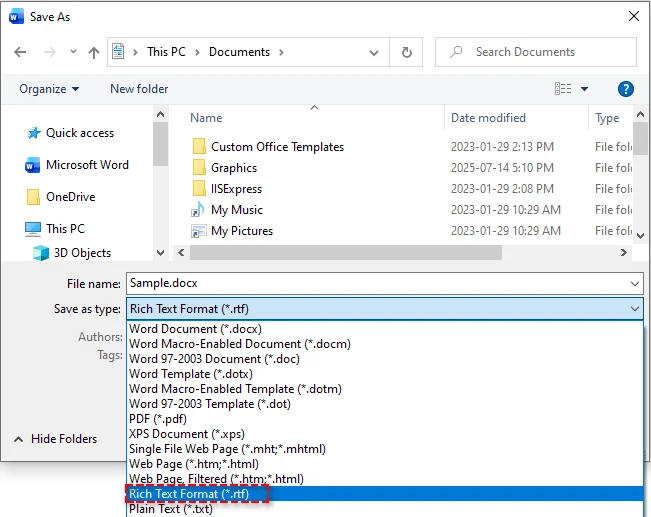
Wählen Sie im Dropdown-Menü Dateityp die Option Rich Text Format (*.rtf) aus.
-
Klicken Sie auf Speichern.
Vorteile:
- Hohe Formatierungsgenauigkeit
- Keine zusätzliche Software erforderlich
- Einfach und zuverlässig
Nachteile:
- Nicht für die Stapelverarbeitung geeignet
Am besten für:
- Einmalige Konvertierungen
- Dokumente, die eine hohe Formatierungstreue erfordern
Word mit LibreOffice in RTF konvertieren
LibreOffice ist eine kostenlose Open-Source-Office-Suite, die das Speichern von Word-Dokumenten als RTF unter Windows, macOS und Linux unterstützt. Es ist eine ausgezeichnete Alternative, wenn Microsoft Word nicht verfügbar ist.
Schritte:
-
Laden Sie LibreOffice von der offiziellen Website herunter und installieren Sie es.
-
Öffnen Sie die Word-Datei in LibreOffice Writer.
-
Gehen Sie zu Datei > Speichern unter.
-
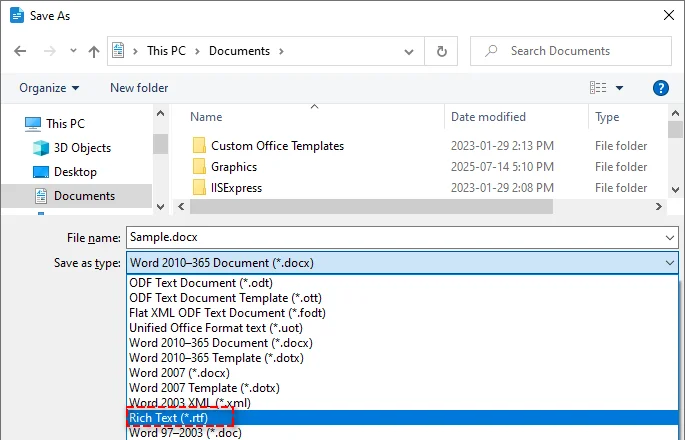
Wählen Sie Rich Text (*.rtf) als Ausgabeformat.
-
Klicken Sie auf Speichern.
Vorteile:
- Kostenlos und Open-Source
- Plattformübergreifende Unterstützung
- Keine Abhängigkeit von Microsoft Word
Nachteile:
- Bei komplexen Layouts können geringfügige Unterschiede auftreten
- Die Benutzeroberfläche mag für Word-Benutzer ungewohnt sein
Am besten für:
- Benutzer ohne Microsoft Word
- Open-Source- oder Linux-basierte Umgebungen
Word mit kostenlosen Online-Tools in RTF konvertieren
Wenn Sie keine Desktop-Software installieren möchten oder Word-Dokumente auf mobilen Geräten in RTF konvertieren müssen, sind Online-Tools eine praktische Lösung.
Beliebte Online-Konverter sind:
- Convertio – Unterstützt Stapelkonvertierung und Importe aus Cloud-Speichern (Google Drive oder Dropbox)
- CloudConvert – Bietet mehrere Formate und API-Zugriff
- Zamzar – Ermöglicht die Zustellung konvertierter Dateien per E-Mail
Schritte (am Beispiel von Convertio):
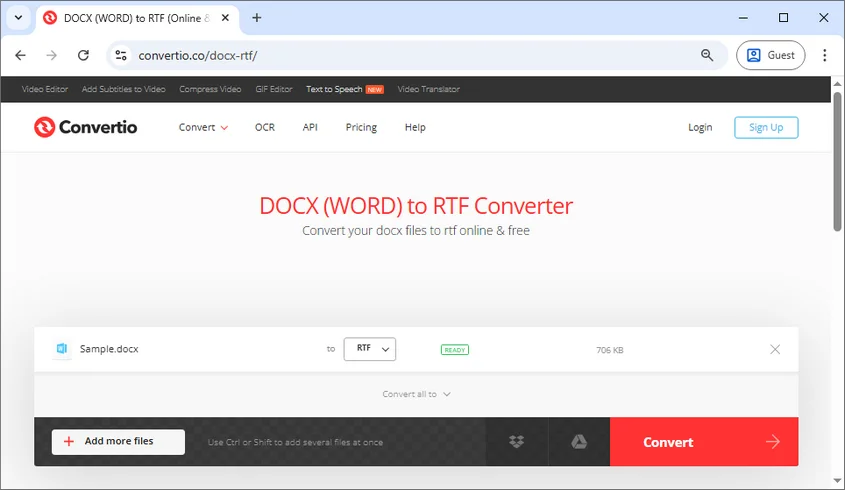
- Öffnen Sie den Online-Konverter von Convertio für Word in RTF.
- Klicken Sie auf Dateien auswählen, um Ihre Word-Datei hochzuladen, oder ziehen Sie sie in den Upload-Bereich.
- Wählen Sie RTF als Zielformat.
- Klicken Sie auf Konvertieren, um den Konvertierungsprozess zu starten.
- Laden Sie die konvertierte RTF-Datei herunter.
Vorteile:
- Keine Softwareinstallation erforderlich
- Von jedem Gerät mit Browser aus zugänglich
- Einfach zu bedienen
Nachteile:
- Es können Beschränkungen hinsichtlich Dateigröße oder Nutzung gelten
- Datenschutzbedenken beim Hochladen sensibler Dokumente
- Weniger Kontrolle über erweiterte Formatierungen
Am besten für:
- Schnelle, einmalige Konvertierungen
- Kleine Dateien ohne sensiblen Inhalt
Word-Dateien stapelweise mit C# in RTF konvertieren
Bei umfangreichen oder wiederkehrenden Dokumentenkonvertierungen werden manuelle Methoden ineffizient. Mit C# und der Bibliothek Spire.Doc for .NET können Sie Hunderte von Word-DOC/DOCX-Dateien mühelos stapelweise in RTF oder andere Dateiformate wie PDF und HTML konvertieren.

Schritte zur Stapelkonvertierung von Word in RTF:
-
Word-Dateien vorbereiten
Legen Sie alle DOC- oder DOCX-Dateien, die Sie konvertieren möchten, in einem einzigen Ordner ab.
-
Neues C#-Projekt erstellen
Öffnen Sie Visual Studio und erstellen Sie eine Konsolen-App.
-
Spire.Doc for .NET installieren
Installieren Sie die Bibliothek über NuGet in Ihrem C#-Projekt mit dem folgenden Befehl:
Install-Package Spire.Doc -
Code zur Stapelkonvertierung von DOC/DOCX-Dateien in RTF hinzufügen
Der folgende Code zeigt, wie Sie jedes Word-Dokument im Ordner durchlaufen und im RTF-Format speichern:
using Spire.Doc; using System; using System.IO; namespace BatchWordToRtf { class Program { static void Main() { // Eingabeordnerpfad: wo Ihre Word-Dateien gespeichert sind string inputFolder = @"C:\WordFiles\"; // Ausgabeordnerpfad: wo konvertierte RTF-Dateien gespeichert werden string outputFolder = @"C:\RtfFiles\"; // Alle Dateien im Eingabeordner durchlaufen foreach (string file in Directory.EnumerateFiles(inputFolder)) { // Dateierweiterung abrufen und in Kleinbuchstaben umwandeln string extension = Path.GetExtension(file).ToLower(); // Nur .doc- und .docx-Dateien verarbeiten if (extension == ".doc" || extension == ".docx") { // Ein Document-Objekt erstellen und die Word-Datei laden Document doc = new Document(); doc.LoadFromFile(file); // Dateinamen ohne Erweiterung abrufen string fileName = Path.GetFileNameWithoutExtension(file); // Datei als RTF im Ausgabeordner speichern doc.SaveToFile(Path.Combine(outputFolder, fileName + ".rtf"), FileFormat.Rtf); } } Console.WriteLine("Stapelkonvertierung abgeschlossen!"); } } } -
Programm ausführen
Führen Sie das Programm aus, um die Stapelkonvertierung durchzuführen. Nach der Ausführung werden die RTF-Dateien automatisch im im Code angegebenen Ausgabeordner generiert.
Vorteile:
- Hohe Effizienz bei Massenkonvertierungen
- Keine Installation von Microsoft Word erforderlich
- Leicht in automatisierte Arbeitsabläufe oder Serverumgebungen integrierbar
Nachteile:
- Erfordert Programmierkenntnisse
- Abhängig von .NET-Bibliotheken von Drittanbietern
Am besten für:
- Unternehmen und Entwickler
- Automatisierte Dokumentenverarbeitungssysteme
Verwandter Artikel: C#/VB.NET: RTF in Word Doc/Docx konvertieren und umgekehrt
Wie man Formatierungsprobleme bei der Konvertierung von Word in RTF vermeidet
Um Formatierungsprobleme bei der Konvertierung von Word in RTF zu minimieren, beachten Sie die folgenden bewährten Methoden:
-
Vermeiden Sie erweiterte Word-Funktionen
Makros, SmartArt, eingebettete Objekte und komplexe Tabellen werden möglicherweise nicht korrekt konvertiert. Die Konvertierung in Bilder kann helfen, ihr Aussehen zu bewahren.
-
Verwenden Sie Standardschriftarten
Wählen Sie weit verbreitete Schriftarten wie Arial, Times New Roman oder Calibri, um eine konsistente Textanzeige auf verschiedenen Plattformen zu gewährleisten.
-
Überprüfen Sie die plattformübergreifende Kompatibilität
Öffnen Sie die konvertierte RTF-Datei in verschiedenen Editoren (z. B. Word und LibreOffice), um die Layoutkonsistenz zu überprüfen.
-
Vor der Stapelverarbeitung testen
Validieren Sie immer einige Beispieldateien, bevor Sie umfangreiche oder automatisierte Konvertierungen durchführen.
Fazit
Die Konvertierung von Word in RTF ist eine effektive Methode, um die Kompatibilität, Portabilität und Zuverlässigkeit auf verschiedenen Plattformen zu verbessern. Je nach Ihren Bedürfnissen können Sie zwischen der manuellen Konvertierung mit Microsoft Word oder LibreOffice, der schnellen Konvertierung mit Online-Tools oder der automatisierten Stapelverarbeitung mit C# wählen.
Suchen Sie nach weiteren hochwertigen Word-Tutorials? Schauen Sie sich unsere kostenlosen Word-Ressourcen an.
FAQs: Word zu RTF
F1: Was ist der einfachste Weg, Word in RTF zu konvertieren?
A1: Die Verwendung der „Speichern unter“-Funktion von Microsoft Word ist die einfachste Methode.
F2: Beeinträchtigt die Konvertierung von Word in RTF die Formatierung?
A2: Die grundlegende Formatierung bleibt erhalten, aber erweiterte Funktionen wie Makros oder SmartArt werden möglicherweise nicht vollständig unterstützt.
F3: Kann ich Word kostenlos in RTF konvertieren?
A3: Ja. LibreOffice und viele Online-Konverter bieten kostenlose Konvertierungsoptionen.
F4: Wie kann ich mehrere Word-Dateien stapelweise in RTF konvertieren?
A4: Sie können C# mit Bibliotheken wie Spire.Doc verwenden, um Stapelkonvertierungen zu automatisieren.
F5: Ist RTF plattform- und anwendungsübergreifend kompatibel?
A5: Ja. RTF wird unter Windows, macOS, Linux und den meisten Textverarbeitungsprogrammen weitgehend unterstützt.
F6: Kann ich Word online in RTF konvertieren, ohne Software zu installieren?
A6: Ja. Online-Tools wie Convertio ermöglichen eine browserbasierte Konvertierung, obwohl möglicherweise Einschränkungen hinsichtlich Dateigröße und Datenschutz gelten.
Siehe auch
Конвертировать Word в RTF: 4 простых способа (бесплатные и пакетные варианты)
При обмене документами между платформами файлы Word могут столкнуться с проблемами совместимости, особенно между различными операционными системами или офисными приложениями. Преобразование документов Word в формат RTF (Rich Text Format) сохраняет основное форматирование текста, обеспечивая широкую кроссплатформенную поддержку, что делает его идеальным для беспрепятственного обмена. В этом руководстве представлен полный обзор того, как конвертировать Word в RTF, объясняется, что такое RTF, почему это важно, и четыре практических метода для эффективного выполнения преобразования.
- Что такое RTF
- Зачем конвертировать Word в RTF
- Как конвертировать Word в RTF
- Как избежать проблем с форматированием при конвертации Word в RTF
Совет: если вам нужно выполнить обратный процесс, наше руководство по преобразованию RTF в Word показывает простые способы обратного преобразования.
Что такое RTF?
RTF (Rich Text Format) — это формат документов, разработанный Microsoft в 1980-х годах для обмена отформатированным текстом между различными платформами и приложениями.
В отличие от простого текста, RTF поддерживает базовое форматирование, такое как шрифты, размеры шрифтов, полужирный и курсивный стили, цвета текста и выравнивание абзацев. В то же время он избегает многих расширенных и сложных функций, присущих современным форматам Word, что делает его более стабильным и широко совместимым в различных средах.
Зачем конвертировать Word в RTF?
По сравнению с форматами DOC или DOCX, RTF предлагает несколько практических преимуществ:
-
Лучшая совместимость
Файлы RTF могут быть открыты практически всеми текстовыми процессорами, включая старые или облегченные редакторы.
-
Меньший размер файла
Без сложных элементов файлы RTF часто более компактны, чем документы DOCX.
-
Более простая структура
Идеально подходит для систем, которым требуется базовое форматирование, но которые не поддерживают расширенные функции Word.
-
Формат, удобный для электронной почты
Многие почтовые системы и платформы для документов обрабатывают файлы RTF более надежно, чем DOCX.
Как конвертировать Word в RTF?
Существует несколько способов преобразования документов Word в RTF, от ручных настольных инструментов до онлайн-сервисов и автоматической пакетной обработки. Ниже приведены четыре часто используемых метода, каждый из которых подходит для разных сценариев.
Конвертировать Word в RTF с помощью Microsoft Word
Использование самого Microsoft Word — самый простой и надежный способ преобразования документов Word в RTF. Почти все версии Word, включая 2010, 2013, 2016, 2019, 2021 и Microsoft 365, поддерживают экспорт документов в формат RTF.
Шаги:
-
Откройте файл DOC или DOCX в Microsoft Word.
-
Нажмите Файл > Сохранить как.
-
Выберите папку назначения.
-
В раскрывающемся списке Тип файла выберите Rich Text Format (*.rtf).
-
Нажмите Сохранить.
Плюсы:
- Высокая точность форматирования
- Не требуется дополнительное программное обеспечение
- Просто и надежно
Минусы:
- Не подходит для пакетной обработки
Лучше всего подходит для:
- Одноразовых преобразований
- Документов, требующих высокой точности форматирования
Конвертировать Word в RTF с помощью LibreOffice
LibreOffice — это бесплатный офисный пакет с открытым исходным кодом, который поддерживает сохранение документов Word в формате RTF в Windows, macOS и Linux. Это отличная альтернатива, когда Microsoft Word недоступен.
Шаги:
-
Загрузите и установите LibreOffice с официального сайта.
-
Откройте файл Word в LibreOffice Writer.
-
Перейдите в Файл > Сохранить как.
-
Выберите Rich Text (*.rtf) в качестве формата вывода.
-
Нажмите Сохранить.
Плюсы:
- Бесплатный и с открытым исходным кодом
- Кроссплатформенная поддержка
- Нет зависимости от Microsoft Word
Минусы:
- В сложных макетах могут появиться незначительные различия
- Интерфейс может показаться непривычным для пользователей Word
Лучше всего подходит для:
- Пользователей без Microsoft Word
- Сред с открытым исходным кодом или на базе Linux
Конвертировать Word в RTF с помощью бесплатных онлайн-инструментов
Если вы предпочитаете не устанавливать настольное программное обеспечение или вам нужно конвертировать документы Word в RTF на мобильных устройствах, онлайн-инструменты — удобное решение.
Популярные онлайн-конвертеры включают:
- Convertio - Поддерживает пакетное преобразование и импорт из облачных хранилищ (Google Drive или Dropbox)
- CloudConvert - Предлагает несколько форматов и доступ к API
- Zamzar - Позволяет доставлять преобразованные файлы по электронной почте
Шаги (на примере Convertio):
- Откройте онлайн-конвертер Convertio Word в RTF.
- Нажмите Выбрать файлы, чтобы загрузить файл Word, или перетащите его в область загрузки.
- Выберите RTF в качестве целевого формата.
- Нажмите Конвертировать, чтобы начать процесс преобразования.
- Загрузите преобразованный файл RTF.
Плюсы:
- Не требуется установка программного обеспечения
- Доступно с любого устройства с браузером
- Простота в использовании
Минусы:
- Могут применяться ограничения на размер файла или использование
- Проблемы с конфиденциальностью при загрузке конфиденциальных документов
- Меньше контроля над расширенным форматированием
Лучше всего подходит для:
- Быстрых, одноразовых преобразований
- Небольших файлов без конфиденциального содержимого
Пакетное преобразование файлов Word в RTF с использованием C#
Для крупномасштабных или повторяющихся преобразований документов ручные методы становятся неэффективными. Используя C# и библиотеку Spire.Doc for .NET, вы можете легко автоматизировать пакетное преобразование сотен файлов Word DOC/DOCX в RTF или другие форматы, такие как PDF и HTML.
Шаги для пакетного преобразования Word в RTF:
-
Подготовьте файлы Word
Поместите все файлы DOC или DOCX, которые вы хотите преобразовать, в одну папку.
-
Создайте новый проект C#
Откройте Visual Studio и создайте консольное приложение.
-
Установите Spire.Doc for .NET
Установите библиотеку через NuGet в своем проекте C#, используя следующую команду:
Install-Package Spire.Doc -
Добавьте код для пакетного преобразования файлов DOC/DOCX в RTF
Следующий код демонстрирует, как перебирать каждый документ Word в папке и сохранять его в формате RTF:
using Spire.Doc; using System; using System.IO; namespace BatchWordToRtf { class Program { static void Main() { // Путь к входной папке: где хранятся ваши файлы Word string inputFolder = @"C:\WordFiles\"; // Путь к выходной папке: куда будут сохраняться преобразованные файлы RTF string outputFolder = @"C:\RtfFiles\"; // Перебрать все файлы во входной папке foreach (string file in Directory.EnumerateFiles(inputFolder)) { // Получить расширение файла и преобразовать в нижний регистр string extension = Path.GetExtension(file).ToLower(); // Обрабатывать только файлы .doc и .docx if (extension == ".doc" || extension == ".docx") { // Создать объект Document и загрузить файл Word Document doc = new Document(); doc.LoadFromFile(file); // Получить имя файла без расширения string fileName = Path.GetFileNameWithoutExtension(file); // Сохранить файл как RTF в выходную папку doc.SaveToFile(Path.Combine(outputFolder, fileName + ".rtf"), FileFormat.Rtf); } } Console.WriteLine("Пакетное преобразование завершено!"); } } } -
Запустите программу
Выполните программу для пакетного преобразования. После запуска файлы RTF будут автоматически сгенерированы в выходной папке, указанной в коде.
Плюсы:
- Высокая эффективность для массовых преобразований
- Не требуется установка Microsoft Word
- Легко интегрируется в автоматизированные рабочие процессы или серверные среды
Минусы:
- Требуются знания в области программирования
- Зависит от сторонних библиотек .NET
Лучше всего подходит для:
- Предприятий и разработчиков
- Автоматизированных систем обработки документов
Связанная статья: C#/VB.NET: Преобразование RTF в Word Doc/Docx и наоборот
Как избежать проблем с форматированием при конвертации Word в RTF
Чтобы свести к минимуму проблемы с форматированием при преобразовании Word в RTF, примите во внимание следующие рекомендации:
-
Избегайте расширенных функций Word
Макросы, SmartArt, встроенные объекты и сложные таблицы могут конвертироваться некорректно. Преобразование их в изображения может помочь сохранить их внешний вид.
-
Используйте стандартные шрифты
Выбирайте широко поддерживаемые шрифты, такие как Arial, Times New Roman или Calibri, чтобы обеспечить единообразное отображение текста на разных платформах.
-
Проверьте кроссплатформенную совместимость
Откройте преобразованный файл RTF в разных редакторах (например, Word и LibreOffice), чтобы проверить согласованность макета.
-
Тестируйте перед пакетной обработкой
Всегда проверяйте несколько образцов файлов перед запуском крупномасштабных или автоматизированных преобразований.
Заключение
Преобразование Word в RTF — это эффективный способ улучшить совместимость, переносимость и надежность на разных платформах. В зависимости от ваших потребностей вы можете выбрать ручное преобразование с помощью Microsoft Word или LibreOffice, быстрое преобразование с помощью онлайн-инструментов или автоматическую пакетную обработку с использованием C#.
Ищете больше качественных руководств по Word? Ознакомьтесь с нашими бесплатными ресурсами по Word.
Часто задаваемые вопросы: Word в RTF
В1: Какой самый простой способ конвертировать Word в RTF?
О1: Использование функции "Сохранить как" в Microsoft Word — самый простой метод.
В2: Повлияет ли преобразование Word в RTF на форматирование?
О2: Базовое форматирование сохраняется, но расширенные функции, такие как макросы или SmartArt, могут не полностью поддерживаться.
В3: Могу ли я бесплатно конвертировать Word в RTF?
О3: Да. LibreOffice и многие онлайн-конвертеры предлагают бесплатные варианты преобразования.
В4: Как я могу пакетно преобразовать несколько файлов Word в RTF?
О4: Вы можете использовать C# с библиотеками, такими как Spire.Doc, для автоматизации пакетных преобразований.
В5: Совместим ли RTF на разных платформах и в разных приложениях?
О5: Да. RTF широко поддерживается в Windows, macOS, Linux и большинстве текстовых процессоров.
В6: Могу ли я конвертировать Word в RTF онлайн без установки программного обеспечения?
О6: Да. Онлайн-инструменты, такие как Convertio, позволяют выполнять преобразование в браузере, хотя могут применяться ограничения по размеру файла и конфиденциальности.
Смотрите также
Incorporar vídeo em PDF: 4 maneiras práticas de adicionar vídeos a um PDF
Índice
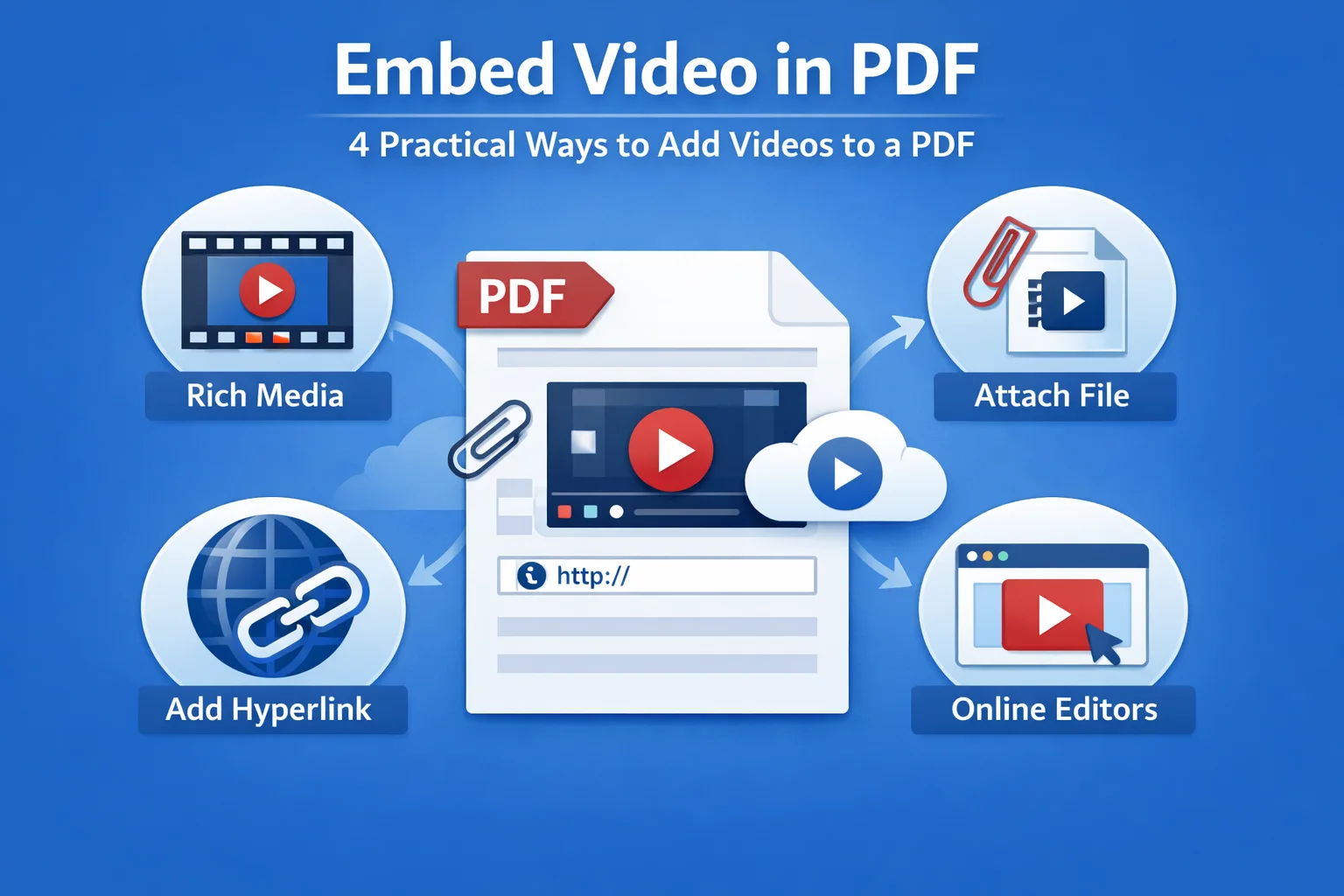
Você pode incorporar um vídeo em um PDF? A resposta é sim, você pode. Embora os documentos PDF não sejam projetados para multimídia, existem várias maneiras de adicionar vídeos a um PDF. Neste guia, vamos orientá-lo através de 4 abordagens práticas para incorporar vídeo em documentos PDF, explicar como funcionam e as ferramentas envolvidas. Vamos encontrar o melhor método para você hoje!
- Compreendendo como o vídeo funciona em um documento PDF
- Abordagem 1 – Incorporar vídeo como Rich Media
- Abordagem 2 – Anexar arquivos de vídeo a um PDF
- Abordagem 3 – Adicionar vídeo por meio de hiperlinks
- Abordagem 4 – Editores Online
- Tabela de Comparação dos 4 Métodos
- Perguntas Frequentes
Compreendendo como o vídeo funciona em um documento PDF
Antes de analisar abordagens específicas, é útil entender uma limitação fundamental: o PDF não é um formato orientado para vídeo. Quando você incorpora um vídeo em um arquivo PDF, ele está armazenando o vídeo dentro do arquivo, adicionando-o como um anexo ou vinculando a um vídeo armazenado localmente ou hospedado em plataformas como o YouTube.
Essas diferenças são importantes porque afetam diretamente se um vídeo pode ser reproduzido offline, o quão grande o arquivo PDF se torna e quão consistentemente o documento funciona em diferentes leitores de PDF. Com essas considerações em mente, vamos dar uma olhada mais de perto nas principais abordagens para incorporar vídeo em um PDF.
Abordagem 1 – Incorporar vídeo como Rich Media (Vídeo verdadeiramente incorporado)
Esta é a abordagem mais próxima da incorporação de vídeo em um PDF. O recurso Rich Media usa anotações especiais de PDF que permitem que um vídeo seja armazenado dentro do documento e reproduzido diretamente na página.
Do ponto de vista técnico, ele depende das Anotações de Rich Media do PDF, onde o arquivo de vídeo é incorporado como parte da estrutura do PDF. Quando funciona como esperado, o vídeo aparecerá em linha e pode até ser reproduzido offline.
No entanto, essa abordagem vem com uma ressalva importante. O suporte a rich media depende muito do leitor de PDF que está sendo usado. Na prática, você pode encontrar uma situação em que um vídeo incorporado com o Adobe Acrobat é reproduzido perfeitamente no Adobe Acrobat ou no Adobe Reader, mas não consegue ser reproduzido ou não aparece quando o mesmo PDF é aberto em outros visualizadores de PDF. Por esse motivo, o rich media é mais adequado para cenários em que o ambiente de visualização é conhecido com antecedência e os leitores compatíveis com a Adobe são garantidos.
Passos típicos (Adobe Acrobat Pro):
- Abra o arquivo PDF no Adobe Acrobat Pro.
- Vá para o painel Ferramentas e localize Rich Media.
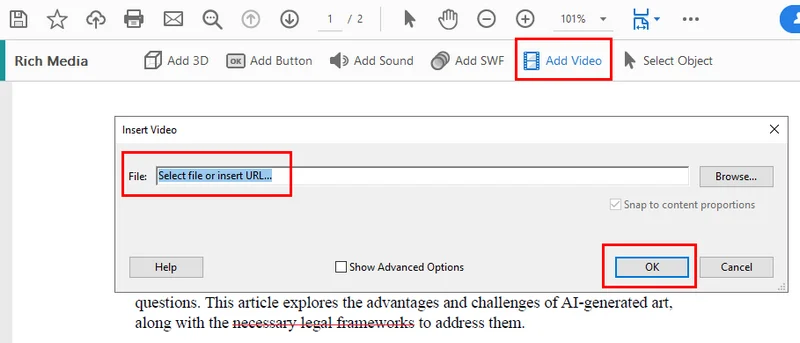
- Clique em Adicionar Vídeo, em seguida, arraste para definir a área na página onde o vídeo deve aparecer.
- Escolha um arquivo de vídeo local ou insira um URL de vídeo e clique em OK para confirmar.
Ferramentas que suportam esta abordagem:
- Adobe Acrobat Pro
Prós e contras:
- O vídeo é armazenado dentro do PDF e pode ser reproduzido offline.
- Compatibilidade limitada e dependência de leitores de PDF específicos.
Abordagem 2 – Anexar arquivos de vídeo a um PDF
Outra maneira de incorporar um vídeo em um documento PDF é adicionando-o como um anexo. Nessa abordagem, o arquivo de vídeo é armazenado dentro do pacote PDF, mas não é exibido diretamente na página.
O vídeo aparece como um arquivo anexado que os usuários podem abrir manualmente. Embora isso pareça menos interativo, oferece uma compatibilidade muito mais ampla entre diferentes leitores de PDF e evita muitas das limitações associadas à reprodução de rich media.
Usando o Adobe Acrobat
O Adobe Acrobat permite anexar arquivos de vídeo a um PDF como arquivos incorporados. O vídeo anexado pode ser acessado através do painel de anexos ou de um ícone de arquivo colocado na página.
Passos típicos:
- Abra o arquivo PDF no Adobe Acrobat. Vá para o painel Ferramentas ou a barra lateral direita e selecione Comentário.
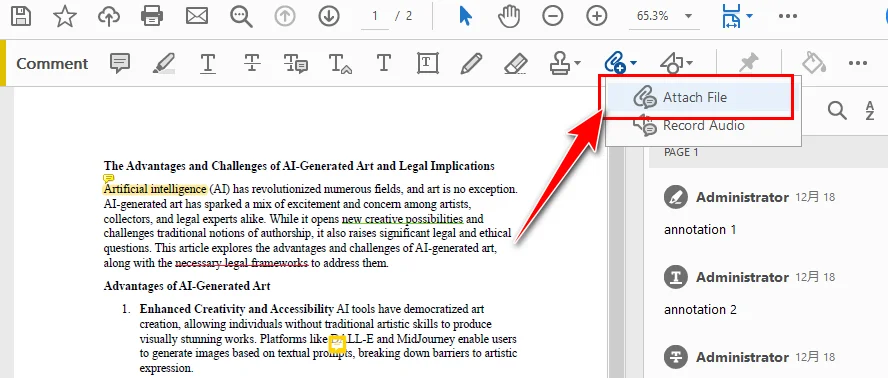
- Na barra de ferramentas superior, clique em Anexar Arquivo (Adicionar um novo anexo).
- Clique na página para escolher onde o ícone do anexo deve aparecer e, em seguida, selecione o arquivo de vídeo.
- Personalize as configurações do anexo, se necessário, e clique em OK para concluir a adição do arquivo de vídeo.
Este método é comumente usado quando todos os materiais relacionados devem ser entregues juntos em um único documento autocontido.
Usando o Free Spire.PDF
Com o Free Spire.PDF, você pode incorporar vídeos em um PDF como anexos de forma programática. Esta biblioteca de PDF ajuda os desenvolvedores a adicionar anexos a documentos PDF automaticamente. O exemplo a seguir usa Python, mas o fluxo de trabalho geral é semelhante em Java e C#.
Passos típicos:
- Instale o Free Spire.PDF em seu ambiente Python. E importe os módulos necessários.
- Carregue o documento PDF existente e prepare o arquivo de vídeo a ser anexado.
- Adicione o arquivo de vídeo ao PDF como um anexo incorporado.
- Salve o documento PDF atualizado.

Aqui está o código completo que você pode seguir:
from spire.pdf import *
from spire.pdf.common import *

# Create a PdfDocument object
doc = PdfDocument()

# Load a sample PDF file
doc.LoadFromFile("\\Input.pdf")

# Create PdfAttachment objects based on external files
attachment = PdfAttachment("\\sample.mp4")

# Add the attachments to PDF
doc.Attachments.Add(attachment)

# Save to file
doc.SaveToFile("\\Attachment.pdf")
Essa abordagem funciona bem em fluxos de trabalho automatizados ou programáticos, especialmente ao gerar PDFs em massa ou integrar arquivos de vídeo como materiais de apoio.
Casos de uso:
- Documentos legais que exigem que todos os arquivos de apoio sejam agrupados.
- Entregas técnicas ou transferências de projetos.
- Cenários em que a completude do arquivo é mais importante do que a reprodução em linha.
No geral, anexar arquivos de vídeo a um PDF estabelece um equilíbrio entre confiabilidade e simplicidade. Pode não fornecer a experiência de visualização mais suave, mas continua sendo uma opção confiável para ambientes profissionais.
Abordagem 3 – Adicionar vídeo por meio de hiperlinks (mais compatível)
Incorporar um vídeo em um PDF usando hiperlinks é a maneira mais comum e direta. Tecnicamente falando, o vídeo não é incorporado no PDF. Em vez disso, o documento contém um link clicável que aponta para o arquivo de vídeo.
Na prática, é isso que a maioria das pessoas quer dizer quando pergunta como incorporar um vídeo em um PDF. Funciona em quase todos os leitores de PDF, mantendo os tamanhos dos arquivos PDF pequenos e evitando muitos problemas de segurança.
O conteúdo do vídeo pode ser hospedado em:
- YouTube ou outras plataformas de vídeo online.
- Um arquivo de vídeo local no dispositivo do usuário.
- Serviços de armazenamento em nuvem.
Usando o Adobe Acrobat
O Adobe Acrobat permite adicionar hiperlinks a texto, imagens ou áreas específicas de uma página. Quando um leitor clica no link, o vídeo é aberto no navegador ou reprodutor de mídia padrão.
Passos típicos:
- Abra o documento PDF no Adobe Acrobat.
- Clique com o botão direito no texto, imagem ou área onde deseja colocar o link do vídeo e selecione Criar Link.
- Defina a Ação do Link para Abrir um arquivo (para um arquivo de vídeo local) ou Abrir uma página da web (para um vídeo online).
- Clique em Avançar, em seguida, escolha o arquivo de vídeo ou insira o URL do vídeo.

Este método é simples e confiável, tornando-o uma escolha comum para documentos instrutivos e PDFs prontos para a web.
Usando o Free Spire.PDF
O Free Spire.PDF permite que você adicione hiperlinks a um PDF também. Embora a implementação seja feita por meio de código, você não precisa se preocupar com erros manuais.
Passos típicos:
- Carregue o documento PDF existente.
- Localize o texto de destino usando um método de pesquisa de texto e defina-o como a área do link.
- Defina o destino do hiperlink para um URL de vídeo ou um arquivo de vídeo local.
- Salve o documento PDF atualizado.
Aqui está o exemplo de código que você pode seguir:
from spire.pdf.common import *
from spire.pdf import *

# Create a PdfDocument instance
pdf = PdfDocument()

# Load a PDF file
pdf.LoadFromFile("input.pdf")

# Get the first page
page = pdf.Pages.get_Item(0)

# Find all occurrences of the specified text on the page
collection = page.FindText("Christmas Songs", TextFindParameter.IgnoreCase)

# Loop through all occurrences of the specified text
for find in collection.Finds:
    # Create a hyperlink annotation
    uri = PdfUriAnnotation(find.Bounds)
    # Set the URL of the hyperlink
    uri.Uri = "https://youtu.be/ombP9z_ir8c?si=Wq2U-HWeSyJQda-0"
    # Set the border of the hyperlink annotation
    uri.Border = PdfAnnotationBorder(1.0)
    # Set the color of the border
    uri.Color = PdfRGBColor(Color.get_Blue())
    # Add the hyperlink annotation to the page
    page.AnnotationsWidget.Add(uri)

#Save the result file
pdf.SaveToFile("SearchTextAndAddHyperlink.pdf")
pdf.Close()
Este método é especialmente útil em fluxos de trabalho automatizados onde os PDFs são gerados ou modificados em lotes.
Por que este é o método mais comum:
- Simples e fácil de implementar.
- Melhor compatibilidade entre dispositivos e leitores de PDF.
- Impacto mínimo no tamanho do arquivo PDF.
- Menores riscos de segurança e estabilidade.
Para a maioria dos cenários de negócios, educacionais e de documentação, adicionar vídeos por meio de hiperlinks é a solução mais segura e prática.
Abordagem 4 – Editores Online: Conveniência em vez de Controle
Discutimos os editores de PDF online em uma seção separada, não porque eles introduzem um novo método de incorporação, mas porque fornecem um cenário de uso distinto. Eles permitem que você carregue um PDF, insira um link de vídeo online sem instalar aplicativos de terceiros.
Passos típicos (editores de PDF online, por exemplo, Smallpdf):
- Carregue o arquivo PDF para o editor online.
- Insira uma imagem em miniatura para representar o vídeo.
- Adicione um link clicável ao URL do vídeo (na imagem ou como texto próximo).
- Baixe e teste o PDF atualizado.
Vantagens e riscos:
- Nenhuma instalação necessária.
- Potenciais preocupações com privacidade e conformidade.
- Tamanho de arquivo e controle de recursos limitados.
As ferramentas online são adequadas para tarefas leves e não sensíveis, mas geralmente não são ideais para fluxos de trabalho empresariais ou de longo prazo.
Comparação: Qual Abordagem Você Deve Escolher?
| Abordagem | Reprodução Offline | Tamanho do Arquivo | Compatibilidade | Melhores Ferramentas |
|---|---|---|---|---|
| Rich Media | Sim | Grande | Baixa | Adobe Acrobat Pro |
| Anexo | Sim | Grande | Média | Adobe Acrobat, Spire.PDF |
| Hiperlink | Não | Pequeno | Alta | Adobe Acrobat, Spire.PDF |
| Editores Online | Não | Pequeno | Alta | Ferramentas de PDF baseadas na web |
Cada método serve a um propósito diferente. Se a reprodução offline for necessária, o rich media pode ser uma opção. Se a confiabilidade e a legibilidade forem mais importantes, os hiperlinks geralmente são a melhor escolha.
Conclusão
Incorporar vídeos em PDFs é menos sobre encontrar um único método perfeito e mais sobre entender as compensações de cada abordagem. Uma vez que você alinha a técnica com seu público e cenário de distribuição, escolher a solução certa se torna muito mais fácil.
FAQ: Incorporando Vídeos em Documentos PDF
P1: Você pode incorporar um vídeo em um documento PDF e reproduzi-lo offline?
Sim, mas apenas quando o vídeo é adicionado como rich media ou como um arquivo anexado. Os hiperlinks podem apontar para arquivos de vídeo locais, mas a reprodução offline geralmente falha em outros dispositivos porque o arquivo vinculado não está disponível.
P2: Por que meu vídeo incorporado não é reproduzido em alguns leitores de PDF?
Muitos leitores de PDF restringem ou bloqueiam completamente os recursos de rich media por motivos de segurança. Como resultado, os vídeos incorporados podem funcionar de forma confiável apenas no Adobe Acrobat e em alguns visualizadores compatíveis.
P3: Os PDFs podem suportar vídeos ou conteúdo animado como GIFs?
Sim. Os PDFs podem suportar vídeos por meio de rich media, anexos de arquivo ou hiperlinks, e os GIFs podem ser inseridos como imagens. No entanto, o suporte varia dependendo do leitor de PDF e da plataforma.
PDF에 동영상 삽입: PDF에 동영상을 추가하는 4가지 실용적인 방법
PDF에 비디오를 포함할 수 있나요? 대답은 '예'입니다. PDF 문서는 멀티미디어를 위해 설계되지 않았지만 PDF에 비디오를 추가하는 여러 가지 방법이 있습니다. 이 가이드에서는 PDF 문서에 비디오를 포함하는 4가지 실용적인 방법을 안내하고, 작동 방식과 관련된 도구를 설명합니다. 오늘 여러분에게 가장 적합한 방법을 찾아보세요!
- PDF 문서에서 비디오가 작동하는 방식 이해하기
- 방법 1 – 리치 미디어로 비디오 포함
- 방법 2 – PDF에 비디오 파일 첨부
- 방법 3 – 하이퍼링크를 통해 비디오 추가
- 방법 4 – 온라인 편집기
- 4가지 방법 비교표
- 자주 묻는 질문
PDF 문서에서 비디오가 작동하는 방식 이해하기
특정 방법을 살펴보기 전에 한 가지 주요 한계를 이해하는 것이 도움이 됩니다. PDF는 비디오 중심 형식이 아닙니다. PDF 파일에 비디오를 포함할 때, 비디오를 파일 내에 저장하거나, 첨부 파일로 추가하거나, 로컬에 저장되거나 YouTube와 같은 플랫폼에서 호스팅되는 비디오에 연결하는 것입니다.
이러한 차이점은 비디오가 오프라인에서 재생될 수 있는지, PDF 파일 크기가 얼마나 커지는지, 그리고 문서가 다른 PDF 리더에서 얼마나 일관되게 작동하는지에 직접적인 영향을 미치기 때문에 중요합니다. 이러한 고려 사항을 염두에 두고 PDF에 비디오를 포함하는 주요 방법을 자세히 살펴보겠습니다.
방법 1 – 리치 미디어로 비디오 포함 (진정한 포함 비디오)
이것은 PDF에 비디오를 포함하는 가장 가까운 방법입니다. 리치 미디어 기능은 비디오를 문서 내에 저장하고 페이지에서 직접 재생할 수 있도록 하는 특수 PDF 주석을 사용합니다.
기술적인 관점에서 볼 때, 이것은 비디오 파일이 PDF 구조의 일부로 포함되는 PDF 리치 미디어 주석에 의존합니다. 예상대로 작동하면 비디오가 인라인으로 나타나고 오프라인에서도 재생할 수 있습니다.
그러나 이 방법에는 중요한 주의 사항이 있습니다. 리치 미디어 지원은 사용되는 PDF 리더에 크게 의존합니다. 실제로 Adobe Acrobat으로 포함된 비디오가 Adobe Acrobat 또는 Adobe Reader에서는 완벽하게 재생되지만 동일한 PDF를 다른 PDF 뷰어에서 열었을 때 재생되지 않거나 전혀 나타나지 않는 상황에 직면할 수 있습니다. 이러한 이유로 리치 미디어는 보기 환경을 미리 알고 있고 Adobe 호환 리더가 보장되는 시나리오에 가장 적합합니다.
일반적인 단계 (Adobe Acrobat Pro):
- Adobe Acrobat Pro에서 PDF 파일을 엽니다.
- 도구 패널로 이동하여 리치 미디어를 찾습니다.
- 비디오 추가를 클릭한 다음 페이지에서 비디오가 나타나야 할 영역을 드래그하여 정의합니다.
- 로컬 비디오 파일을 선택하거나 비디오 URL을 입력하고 확인을 클릭하여 확인합니다.
이 방법을 지원하는 도구:
- Adobe Acrobat Pro
장단점:
- 비디오가 PDF 내에 저장되어 오프라인에서 재생할 수 있습니다.
- 제한된 호환성 및 특정 PDF 리더에 대한 의존성.
방법 2 – PDF에 비디오 파일 첨부
PDF 문서에 비디오를 포함하는 또 다른 방법은 첨부 파일로 추가하는 것입니다. 이 방법에서는 비디오 파일이 PDF 패키지 내에 저장되지만 페이지에 직접 표시되지는 않습니다.
비디오는 사용자가 수동으로 열 수 있는 첨부 파일로 나타납니다. 이것은 덜 상호작용적으로 느껴질 수 있지만, 다른 PDF 리더에서 훨씬 더 넓은 호환성을 제공하며 리치 미디어 재생과 관련된 많은 제한을 피할 수 있습니다.
Adobe Acrobat 사용
Adobe Acrobat을 사용하면 비디오 파일을 포함된 파일로 PDF에 첨부할 수 있습니다. 첨부된 비디오는 첨부 파일 패널이나 페이지에 배치된 파일 아이콘을 통해 액세스할 수 있습니다.
일반적인 단계:
- Adobe Acrobat에서 PDF 파일을 엽니다. 도구 패널 또는 오른쪽 사이드바에서 주석을 선택합니다.
- 상단 도구 모음에서 파일 첨부(새 첨부 파일 추가)를 클릭합니다.
- 페이지에서 첨부 아이콘이 나타날 위치를 클릭한 다음 비디오 파일을 선택합니다.
- 필요한 경우 첨부 설정을 사용자 지정하고 확인을 클릭하여 비디오 파일 추가를 마칩니다.
이 방법은 모든 관련 자료를 단일의 독립적인 문서로 함께 전달해야 할 때 일반적으로 사용됩니다.
Free Spire.PDF 사용
Free Spire.PDF를 사용하면 프로그래밍 방식으로 PDF에 비디오를 첨부 파일로 포함할 수 있습니다. 이 PDF 라이브러리는 개발자가 자동으로 PDF 문서에 첨부 파일을 추가하는 데 도움이 됩니다. 다음 예제는 Python을 사용하지만 전체적인 작업 흐름은 Java 및 C#에서도 유사합니다.
일반적인 단계:
- Python 환경에 Free Spire.PDF를 설치하고 필요한 모듈을 가져옵니다.
- 기존 PDF 문서를 로드하고 첨부할 비디오 파일을 준비합니다.
- 비디오 파일을 포함된 첨부 파일로 PDF에 추가합니다.
- 업데이트된 PDF 문서를 저장합니다.
다음은 따라할 수 있는 전체 코드입니다.
from spire.pdf import *
from spire.pdf.common import *

# Create a PdfDocument object
doc = PdfDocument()

# Load a sample PDF file
doc.LoadFromFile("\\Input.pdf")

# Create PdfAttachment objects based on external files
attachment = PdfAttachment("\\sample.mp4")

# Add the attachments to PDF
doc.Attachments.Add(attachment)

# Save to file
doc.SaveToFile("\\Attachment.pdf")
이 방법은 자동화되거나 프로그래밍 방식의 워크플로에서 특히 유용하며, 특히 PDF를 대량으로 생성하거나 비디오 파일을 지원 자료로 통합할 때 유용합니다.
사용 사례:
- 모든 지원 파일을 함께 묶어야 하는 법률 문서.
- 기술적 결과물 또는 프로젝트 인계.
- 인라인 재생보다 파일 완전성이 더 중요한 시나리오.
전반적으로 PDF에 비디오 파일을 첨부하는 것은 신뢰성과 단순성 사이의 균형을 맞춥니다. 가장 부드러운 시청 경험을 제공하지는 않을 수 있지만 전문적인 환경에서는 신뢰할 수 있는 옵션으로 남아 있습니다.
방법 3 – 하이퍼링크를 통해 비디오 추가 (가장 호환성이 높음)
하이퍼링크를 사용하여 PDF에 비디오를 포함하는 것은 가장 일반적이고 직접적인 방법입니다. 기술적으로 말하면 비디오는 PDF에 포함되지 않습니다. 대신 문서는 비디오 파일을 가리키는 클릭 가능한 링크를 포함합니다.
실제로 이것은 대부분의 사람들이 PDF에 비디오를 포함하는 방법을 물을 때 의미하는 것입니다. 이것은 거의 모든 PDF 리더에서 작동하며 PDF 파일 크기를 작게 유지하고 많은 보안 문제를 피할 수 있습니다.
비디오 콘텐츠는 다음에 호스팅될 수 있습니다.
- YouTube 또는 기타 온라인 비디오 플랫폼.
- 사용자 장치의 로컬 비디오 파일.
- 클라우드 스토리지 서비스.
Adobe Acrobat 사용
Adobe Acrobat을 사용하면 텍스트, 이미지 또는 페이지의 특정 영역에 하이퍼링크를 추가할 수 있습니다. 독자가 링크를 클릭하면 비디오가 기본 브라우저나 미디어 플레이어에서 열립니다.
일반적인 단계:
- Adobe Acrobat에서 PDF 문서를 엽니다.
- 비디오 링크를 배치할 텍스트, 이미지 또는 영역을 마우스 오른쪽 버튼으로 클릭하고 링크 만들기를 선택합니다.
- 링크 동작을 파일 열기(로컬 비디오 파일의 경우) 또는 웹 페이지 열기(온라인 비디오의 경우)로 설정합니다.
- 다음을 클릭한 다음 비디오 파일을 선택하거나 비디오 URL을 입력합니다.
이 방법은 간단하고 신뢰할 수 있어 교육용 문서 및 온라인용 PDF에 일반적으로 선택됩니다.
Free Spire.PDF 사용
Free Spire.PDF를 사용하면 PDF에 하이퍼링크를 추가할 수도 있습니다. 구현은 코드를 통해 이루어지지만 수동 오류에 대해 걱정할 필요가 없습니다.
일반적인 단계:
- 기존 PDF 문서를 로드합니다.
- 텍스트 검색 방법을 사용하여 대상 텍스트를 찾고 링크 영역으로 정의합니다.
- 하이퍼링크 대상을 비디오 URL 또는 로컬 비디오 파일로 설정합니다.
- 업데이트된 PDF 문서를 저장합니다.
다음은 따라할 수 있는 코드 예제입니다.
from spire.pdf.common import *
from spire.pdf import *

# Create a PdfDocument instance
pdf = PdfDocument()

# Load a PDF file
pdf.LoadFromFile("input.pdf")

# Get the first page
page = pdf.Pages.get_Item(0)

# Find all occurrences of the specified text on the page
collection = page.FindText("Christmas Songs", TextFindParameter.IgnoreCase)

# Loop through all occurrences of the specified text
for find in collection.Finds:
    # Create a hyperlink annotation
    uri = PdfUriAnnotation(find.Bounds)
    # Set the URL of the hyperlink
    uri.Uri = "https://youtu.be/ombP9z_ir8c?si=Wq2U-HWeSyJQda-0"
    # Set the border of the hyperlink annotation
    uri.Border = PdfAnnotationBorder(1.0)
    # Set the color of the border
    uri.Color = PdfRGBColor(Color.get_Blue())
    # Add the hyperlink annotation to the page
    page.AnnotationsWidget.Add(uri)

#Save the result file
pdf.SaveToFile("SearchTextAndAddHyperlink.pdf")
pdf.Close()
이 방법은 PDF가 일괄적으로 생성되거나 수정되는 자동화된 워크플로에서 특히 유용합니다.
이것이 가장 일반적인 방법인 이유:
- 간단하고 구현하기 쉽습니다.
- 장치 및 PDF 리더 전반에 걸쳐 최고의 호환성.
- PDF 파일 크기에 미치는 영향이 최소화됩니다.
- 보안 및 안정성 위험이 낮습니다.
대부분의 비즈니스, 교육 및 문서화 시나리오에서 하이퍼링크를 통해 비디오를 추가하는 것이 가장 안전하고 실용적인 솔루션입니다.
방법 4 – 온라인 편집기: 제어보다 편리함
온라인 PDF 편집기는 새로운 포함 방법을 도입하는 것이 아니라 별도의 사용 시나리오를 제공하기 때문에 별도의 섹션에서 논의합니다. 이를 통해 PDF를 업로드하고 타사 응용 프로그램을 설치하지 않고도 온라인으로 비디오 링크를 삽입할 수 있습니다.
일반적인 단계 (온라인 PDF 편집기, 예: Smallpdf):
- 온라인 편집기에 PDF 파일을 업로드합니다.
- 비디오를 나타내는 썸네일 이미지를 삽입합니다.
- 비디오 URL에 대한 클릭 가능한 링크를 추가합니다(이미지 또는 근처 텍스트).
- 업데이트된 PDF를 다운로드하고 테스트합니다.
장점과 위험:
- 설치가 필요 없습니다.
- 잠재적인 개인 정보 보호 및 규정 준수 문제.
- 제한된 파일 크기 및 기능 제어.
온라인 도구는 가볍고 민감하지 않은 작업에 적합하지만 일반적으로 기업 또는 장기 워크플로에는 이상적이지 않습니다.
비교: 어떤 방법을 선택해야 할까요?
| 방법 | 오프라인 재생 | 파일 크기 | 호환성 | 최고의 도구 |
|---|---|---|---|---|
| 리치 미디어 | 예 | 큼 | 낮음 | Adobe Acrobat Pro |
| 첨부 파일 | 예 | 큼 | 중간 | Adobe Acrobat, Spire.PDF |
| 하이퍼링크 | 아니요 | 작음 | 높음 | Adobe Acrobat, Spire.PDF |
| 온라인 편집기 | 아니요 | 작음 | 높음 | 웹 기반 PDF 도구 |
각 방법은 다른 목적을 제공합니다. 오프라인 재생이 필요한 경우 리치 미디어가 옵션이 될 수 있습니다. 신뢰성과 가독성이 가장 중요하다면 하이퍼링크가 일반적으로 더 나은 선택입니다.
결론
PDF에 비디오를 포함하는 것은 단 하나의 완벽한 방법을 찾는 것보다 각 방법의 장단점을 이해하는 것에 가깝습니다. 기술을 청중 및 배포 시나리오에 맞추면 올바른 솔루션을 선택하는 것이 훨씬 쉬워집니다.
FAQ: PDF 문서에 비디오 포함하기
Q1: PDF 문서에 비디오를 포함하고 오프라인에서 재생할 수 있나요?
예, 하지만 비디오가 리치 미디어나 첨부 파일로 추가된 경우에만 가능합니다. 하이퍼링크는 로컬 비디오 파일을 가리킬 수 있지만, 연결된 파일을 사용할 수 없기 때문에 다른 장치에서는 오프라인 재생이 일반적으로 실패합니다.
Q2: 일부 PDF 리더에서 포함된 비디오가 재생되지 않는 이유는 무엇인가요?
많은 PDF 리더는 보안상의 이유로 리치 미디어 기능을 제한하거나 완전히 차단합니다. 결과적으로 포함된 비디오는 Adobe Acrobat 및 일부 호환 뷰어에서만 안정적으로 작동할 수 있습니다.
Q3: PDF는 비디오나 GIF와 같은 애니메이션 콘텐츠를 지원할 수 있나요?
예. PDF는 리치 미디어, 파일 첨부 또는 하이퍼링크를 통해 비디오를 지원할 수 있으며 GIF는 이미지로 삽입할 수 있습니다. 그러나 지원은 PDF 리더 및 플랫폼에 따라 다릅니다.
Incorporare video in PDF: 4 modi pratici per aggiungere video a un PDF
Indice
È possibile incorporare un video in un PDF? La risposta è sì, è possibile. Anche se i documenti PDF non sono progettati per i contenuti multimediali, esistono diversi modi per aggiungere video a un PDF. In questa guida, ti illustreremo 4 approcci pratici per incorporare video nei documenti PDF, spiegando come funzionano e gli strumenti coinvolti. Troviamo il metodo migliore per te oggi!
- Comprendere come funzionano i video in un documento PDF
- Approccio 1 – Incorporare video come Rich Media
- Approccio 2 – Allegare file video a un PDF
- Approccio 3 – Aggiungere video tramite collegamenti ipertestuali
- Approccio 4 – Editor online
- Tabella di confronto dei 4 metodi
- Domande frequenti
Comprendere come funzionano i video in un documento PDF
Prima di esaminare approcci specifici, è utile comprendere una limitazione fondamentale: il PDF non è un formato orientato ai video. Quando si incorpora un video in un file PDF, si sta memorizzando il video all'interno del file, aggiungendolo come allegato o creando un collegamento a un video archiviato localmente o ospitato su piattaforme come YouTube.
Queste differenze sono importanti perché influenzano direttamente la possibilità di riprodurre un video offline, le dimensioni del file PDF e la coerenza del funzionamento del documento tra i diversi lettori PDF. Tenendo conto di queste considerazioni, diamo un'occhiata più da vicino ai principali approcci per incorporare video in un PDF.
Approccio 1 – Incorporare video come Rich Media (vero video incorporato)
Questo è l'approccio più vicino all'incorporamento di video in un PDF. La funzione Rich Media utilizza speciali annotazioni PDF che consentono di archiviare un video all'interno del documento e di riprodurlo direttamente sulla pagina.
Da un punto di vista tecnico, si basa sulle annotazioni Rich Media del PDF, in cui il file video è incorporato come parte della struttura del PDF. Quando funziona come previsto, il video apparirà in linea e potrà anche essere riprodotto offline.
Tuttavia, questo approccio presenta un'importante avvertenza. Il supporto per i rich media dipende fortemente dal lettore PDF utilizzato. In pratica, potresti trovarti in una situazione in cui un video incorporato con Adobe Acrobat viene riprodotto perfettamente in Adobe Acrobat o Adobe Reader ma non viene riprodotto o non appare affatto quando lo stesso PDF viene aperto in altri visualizzatori PDF. Per questo motivo, i rich media sono più adatti a scenari in cui l'ambiente di visualizzazione è noto in anticipo e sono garantiti lettori compatibili con Adobe.
Passaggi tipici (Adobe Acrobat Pro):
- Apri il file PDF in Adobe Acrobat Pro.
- Vai al pannello Strumenti e individua Rich Media.
- Fai clic su Aggiungi video, quindi trascina per definire l'area sulla pagina in cui deve apparire il video.
- Scegli un file video locale o inserisci un URL video e fai clic su OK per confermare.
Strumenti che supportano questo approccio:
- Adobe Acrobat Pro
Pro e contro:
- Il video è archiviato all'interno del PDF e può essere riprodotto offline.
- Compatibilità limitata e dipendenza da specifici lettori PDF.
Approccio 2 – Allegare file video a un PDF
Un altro modo per incorporare un video in un documento PDF è aggiungerlo come allegato. In questo approccio, il file video viene archiviato all'interno del pacchetto PDF ma non viene visualizzato direttamente sulla pagina.
Il video appare come un file allegato che gli utenti possono aprire manualmente. Sebbene ciò sembri meno interattivo, offre una compatibilità molto più ampia tra i diversi lettori PDF ed evita molte delle limitazioni associate alla riproduzione di rich media.
Utilizzando Adobe Acrobat
Adobe Acrobat consente di allegare file video a un PDF come file incorporati. È possibile accedere al video allegato tramite il pannello degli allegati o un'icona di file posizionata sulla pagina.
Passaggi tipici:
- Apri il file PDF in Adobe Acrobat. Vai al pannello Strumenti o alla barra laterale di destra e seleziona Commento.
- Nella barra degli strumenti in alto, fai clic su Allega file (Aggiungi un nuovo allegato).
- Fai clic sulla pagina per scegliere dove deve apparire l'icona dell'allegato, quindi seleziona il file video.
- Personalizza le impostazioni dell'allegato se necessario e fai clic su OK per terminare l'aggiunta del file video.
Questo metodo è comunemente usato quando tutti i materiali correlati devono essere consegnati insieme in un unico documento autonomo.
Utilizzando Free Spire.PDF
Con Free Spire.PDF, puoi incorporare video in un PDF come allegati in modo programmatico. Questa libreria PDF aiuta gli sviluppatori ad aggiungere allegati ai documenti PDF automaticamente. L'esempio seguente utilizza Python, ma il flusso di lavoro generale è simile in Java e C#.
Passaggi tipici:
- Installa Free Spire.PDF nel tuo ambiente Python. E importa i moduli richiesti.
- Carica il documento PDF esistente e prepara il file video da allegare.
- Aggiungi il file video al PDF come allegato incorporato.
- Salva il documento PDF aggiornato.
Ecco il codice completo che puoi seguire:
from spire.pdf import *
from spire.pdf.common import *

# Create a PdfDocument object
doc = PdfDocument()

# Load a sample PDF file
doc.LoadFromFile("\\Input.pdf")

# Create PdfAttachment objects based on external files
attachment = PdfAttachment("\\sample.mp4")

# Add the attachments to PDF
doc.Attachments.Add(attachment)

# Save to file
doc.SaveToFile("\\Attachment.pdf")
Questo approccio funziona bene nei flussi di lavoro automatizzati o programmatici, specialmente quando si generano PDF in blocco o si integrano file video come materiali di supporto.
Casi d'uso:
- Documenti legali che richiedono che tutti i file di supporto siano raggruppati insieme.
- Consegne tecniche o passaggi di consegne di progetti.
- Scenari in cui la completezza del file è più importante della riproduzione in linea.
Nel complesso, allegare file video a un PDF rappresenta un equilibrio tra affidabilità e semplicità. Potrebbe non fornire l'esperienza di visualizzazione più fluida, ma rimane un'opzione affidabile per gli ambienti professionali.
Approccio 3 – Aggiungere video tramite collegamenti ipertestuali (il più compatibile)
Incorporare un video in un PDF utilizzando i collegamenti ipertestuali è il modo più comune e diretto. Tecnicamente parlando, il video non è incorporato nel PDF. Invece, il documento contiene un collegamento cliccabile che punta al file video.
In pratica, questo è ciò che la maggior parte delle persone intende quando chiede come incorporare un video in un PDF. Funziona in quasi tutti i lettori PDF, mantenendo ridotte le dimensioni dei file PDF ed evitando molti problemi di sicurezza.
Il contenuto video può essere ospitato su:
- YouTube o altre piattaforme video online.
- Un file video locale sul dispositivo dell'utente.
- Servizi di archiviazione cloud.
Utilizzando Adobe Acrobat
Adobe Acrobat consente di aggiungere collegamenti ipertestuali a testo, immagini o aree specifiche di una pagina. Quando un lettore fa clic sul collegamento, il video si apre nel browser o nel lettore multimediale predefinito.
Passaggi tipici:
- Apri il documento PDF in Adobe Acrobat.
- Fai clic con il pulsante destro del mouse sul testo, sull'immagine o sull'area in cui desideri inserire il collegamento video e seleziona Crea collegamento.
- Imposta l'Azione collegamento su Apri un file (per un file video locale) o Apri una pagina web (per un video online).
- Fai clic su Avanti, quindi scegli il file video o inserisci l'URL del video.
Questo metodo è semplice e affidabile, il che lo rende una scelta comune per documenti didattici e PDF pronti per l'online.
Utilizzando Free Spire.PDF
Free Spire.PDF consente anche di aggiungere collegamenti ipertestuali a un PDF. Sebbene l'implementazione avvenga tramite codice, non devi preoccuparti di errori manuali.
Passaggi tipici:
- Carica il documento PDF esistente.
- Individua il testo di destinazione utilizzando un metodo di ricerca testuale e definiscilo come area del collegamento.
- Imposta la destinazione del collegamento ipertestuale su un URL video o un file video locale.
- Salva il documento PDF aggiornato.
Ecco l'esempio di codice che puoi seguire:
from spire.pdf.common import *
from spire.pdf import *

# Create a PdfDocument instance
pdf = PdfDocument()

# Load a PDF file
pdf.LoadFromFile("input.pdf")

# Get the first page
page = pdf.Pages.get_Item(0)

# Find all occurrences of the specified text on the page
collection = page.FindText("Christmas Songs", TextFindParameter.IgnoreCase)

# Loop through all occurrences of the specified text
for find in collection.Finds:
    # Create a hyperlink annotation
    uri = PdfUriAnnotation(find.Bounds)
    # Set the URL of the hyperlink
    uri.Uri = "https://youtu.be/ombP9z_ir8c?si=Wq2U-HWeSyJQda-0"
    # Set the border of the hyperlink annotation
    uri.Border = PdfAnnotationBorder(1.0)
    # Set the color of the border
    uri.Color = PdfRGBColor(Color.get_Blue())
    # Add the hyperlink annotation to the page
    page.AnnotationsWidget.Add(uri)

#Save the result file
pdf.SaveToFile("SearchTextAndAddHyperlink.pdf")
pdf.Close()
Questo metodo è particolarmente utile nei flussi di lavoro automatizzati in cui i PDF vengono generati o modificati in lotti.
Perché questo è il metodo più comune:
- Semplice e facile da implementare.
- Migliore compatibilità tra dispositivi e lettori PDF.
- Impatto minimo sulle dimensioni del file PDF.
- Minori rischi per la sicurezza e la stabilità.
Per la maggior parte degli scenari aziendali, educativi e di documentazione, l'aggiunta di video tramite collegamenti ipertestuali è la soluzione più sicura e pratica.
Approccio 4 – Editor online: la convenienza prima del controllo
Discutiamo degli editor PDF online in una sezione separata, non perché introducano un nuovo metodo di incorporamento, ma perché forniscono uno scenario di utilizzo distinto. Ti consentono di caricare un PDF, inserire un collegamento video online senza installare applicazioni di terze parti.
Passaggi tipici (editor PDF online, ad es. Smallpdf):
- Carica il file PDF nell'editor online.
- Inserisci un'immagine in miniatura per rappresentare il video.
- Aggiungi un collegamento cliccabile all'URL del video (sull'immagine o come testo vicino).
- Scarica e testa il PDF aggiornato.
Vantaggi e rischi:
- Nessuna installazione richiesta.
- Potenziali problemi di privacy e conformità.
- Dimensioni del file e controllo delle funzionalità limitati.
Gli strumenti online sono adatti per attività leggere e non sensibili, ma di solito non sono ideali per flussi di lavoro aziendali o a lungo termine.
Confronto: quale approccio dovresti scegliere?
| Approccio | Riproduzione offline | Dimensione file | Compatibilità | Migliori strumenti |
|---|---|---|---|---|
| Rich Media | Sì | Grande | Bassa | Adobe Acrobat Pro |
| Allegato | Sì | Grande | Media | Adobe Acrobat, Spire.PDF |
| Collegamento ipertestuale | No | Piccola | Alta | Adobe Acrobat, Spire.PDF |
| Editor online | No | Piccola | Alta | Strumenti PDF basati sul web |
Ogni metodo ha uno scopo diverso. Se è richiesta la riproduzione offline, i rich media possono essere un'opzione. Se l'affidabilità e la leggibilità sono più importanti, i collegamenti ipertestuali sono solitamente la scelta migliore.
Conclusione
Incorporare video nei PDF non significa tanto trovare un unico metodo perfetto, quanto comprendere i compromessi di ciascun approccio. Una volta allineata la tecnica con il tuo pubblico e lo scenario di distribuzione, scegliere la soluzione giusta diventa molto più facile.
FAQ: Incorporare video nei documenti PDF
D1: È possibile incorporare un video in un documento PDF e riprodurlo offline?
Sì, ma solo quando il video viene aggiunto come rich media o come file allegato. I collegamenti ipertestuali possono puntare a file video locali, ma la riproduzione offline di solito fallisce su altri dispositivi perché il file collegato non è disponibile.
D2: Perché il mio video incorporato non viene riprodotto in alcuni lettori PDF?
Molti lettori PDF limitano o bloccano completamente le funzionalità di rich media per motivi di sicurezza. Di conseguenza, i video incorporati potrebbero funzionare in modo affidabile solo in Adobe Acrobat e in alcuni visualizzatori compatibili.
D3: I PDF possono supportare video o contenuti animati come le GIF?
Sì. I PDF possono supportare video tramite rich media, allegati di file o collegamenti ipertestuali e le GIF possono essere inserite come immagini. Tuttavia, il supporto varia a seconda del lettore PDF e della piattaforma.
Intégrer une vidéo dans un PDF : 4 méthodes pratiques pour ajouter des vidéos à un PDF
Table des matières
Pouvez-vous intégrer une vidéo dans un PDF ? La réponse est oui. Même si les documents PDF ne sont pas conçus pour le multimédia, il existe plusieurs façons d'ajouter des vidéos à un PDF. Dans ce guide, nous vous présenterons 4 approches pratiques pour intégrer une vidéo dans des documents PDF, en expliquant leur fonctionnement et les outils nécessaires. Trouvons la meilleure méthode pour vous dès aujourd'hui !
- Comprendre le fonctionnement de la vidéo dans un document PDF
- Approche 1 – Intégrer la vidéo en tant que média enrichi
- Approche 2 – Joindre des fichiers vidéo à un PDF
- Approche 3 – Ajouter une vidéo via des hyperliens
- Approche 4 – Éditeurs en ligne
- Tableau comparatif des 4 méthodes
- FAQ
Comprendre le fonctionnement de la vidéo dans un document PDF
Avant d'examiner des approches spécifiques, il est utile de comprendre une limitation clé : le PDF n'est pas un format orienté vidéo. Lorsque vous intégrez une vidéo dans un fichier PDF, il s'agit soit de stocker la vidéo à l'intérieur du fichier, de l'ajouter en tant que pièce jointe, soit de créer un lien vers une vidéo stockée localement ou hébergée sur des plateformes comme YouTube.
Ces différences sont importantes car elles affectent directement la possibilité de lire une vidéo hors ligne, la taille du fichier PDF et la cohérence du fonctionnement du document sur différents lecteurs PDF. En gardant ces considérations à l'esprit, examinons de plus près les principales approches pour intégrer une vidéo dans un PDF.
Approche 1 – Intégrer la vidéo en tant que média enrichi (véritable vidéo intégrée)
C'est l'approche la plus proche de l'intégration vidéo dans un PDF. La fonctionnalité Média enrichi utilise des annotations PDF spéciales qui permettent de stocker une vidéo à l'intérieur du document et de la lire directement sur la page.
D'un point de vue technique, cela repose sur les annotations de média enrichi PDF, où le fichier vidéo est intégré dans la structure du PDF. Lorsque cela fonctionne comme prévu, la vidéo apparaît en ligne et peut même être lue hors ligne.
Cependant, cette approche comporte une mise en garde importante. La prise en charge des médias enrichis dépend fortement du lecteur PDF utilisé. En pratique, vous pouvez rencontrer une situation où une vidéo intégrée avec Adobe Acrobat se lit parfaitement dans Adobe Acrobat ou Adobe Reader, mais ne se lit pas ou n'apparaît pas du tout lorsque le même PDF est ouvert dans d'autres visionneuses PDF. Pour cette raison, les médias enrichis sont les mieux adaptés aux scénarios où l'environnement de visualisation est connu à l'avance et où des lecteurs compatibles avec Adobe sont garantis.
Étapes typiques (Adobe Acrobat Pro) :
- Ouvrez le fichier PDF dans Adobe Acrobat Pro.
- Allez dans le panneau Outils et localisez Média enrichi.
- Cliquez sur Ajouter une vidéo, puis faites glisser pour définir la zone de la page où la vidéo doit apparaître.
- Choisissez un fichier vidéo local ou entrez une URL de vidéo, puis cliquez sur OK pour confirmer.
Outils prenant en charge cette approche :
- Adobe Acrobat Pro
Avantages et inconvénients :
- La vidéo est stockée dans le PDF et peut être lue hors ligne.
- Compatibilité limitée et dépendance à des lecteurs PDF spécifiques.
Approche 2 – Joindre des fichiers vidéo à un PDF
Une autre façon d'intégrer une vidéo dans un document PDF est de l'ajouter en tant que pièce jointe. Dans cette approche, le fichier vidéo est stocké dans le package PDF mais n'est pas affiché directement sur la page.
La vidéo apparaît comme un fichier joint que les utilisateurs peuvent ouvrir manuellement. Bien que cela semble moins interactif, cela offre une compatibilité beaucoup plus large avec les différents lecteurs PDF et évite de nombreuses limitations associées à la lecture de médias enrichis.
Utilisation d'Adobe Acrobat
Adobe Acrobat vous permet de joindre des fichiers vidéo à un PDF en tant que fichiers intégrés. La vidéo jointe est accessible via le panneau des pièces jointes ou une icône de fichier placée sur la page.
Étapes typiques :
- Ouvrez le fichier PDF dans Adobe Acrobat. Allez dans le panneau Outils ou la barre latérale droite et sélectionnez Commentaire.
- Dans la barre d'outils supérieure, cliquez sur Joindre un fichier (Ajouter une nouvelle pièce jointe).
- Cliquez sur la page pour choisir où l'icône de la pièce jointe doit apparaître, puis sélectionnez le fichier vidéo.
- Personnalisez les paramètres de la pièce jointe si nécessaire, puis cliquez sur OK pour terminer l'ajout du fichier vidéo.
Cette méthode est couramment utilisée lorsque tous les matériaux connexes doivent être livrés ensemble dans un seul document autonome.
Utilisation de Free Spire.PDF
Avec Free Spire.PDF, vous pouvez intégrer des vidéos dans un PDF en tant que pièces jointes de manière programmatique. Cette bibliothèque PDF aide les développeurs à ajouter automatiquement des pièces jointes aux documents PDF. L'exemple suivant utilise Python, mais le flux de travail global est similaire en Java et C#.
Étapes typiques :
- Installez Free Spire.PDF dans votre environnement Python. Et importez les modules requis.
- Chargez le document PDF existant et préparez le fichier vidéo à joindre.
- Ajoutez le fichier vidéo au PDF en tant que pièce jointe intégrée.
- Enregistrez le document PDF mis à jour.
Voici le code complet que vous pouvez suivre :
from spire.pdf import *
from spire.pdf.common import *

# Create a PdfDocument object
doc = PdfDocument()

# Load a sample PDF file
doc.LoadFromFile("\\Input.pdf")

# Create PdfAttachment objects based on external files
attachment = PdfAttachment("\\sample.mp4")

# Add the attachments to PDF
doc.Attachments.Add(attachment)

# Save to file
doc.SaveToFile("\\Attachment.pdf")
Cette approche fonctionne bien dans les flux de travail automatisés ou programmatiques, en particulier lors de la génération de PDF en masse ou de l'intégration de fichiers vidéo comme matériaux de support.
Cas d'utilisation :
- Documents juridiques qui nécessitent que tous les fichiers de support soient regroupés.
- Livrables techniques ou transferts de projet.
- Scénarios où l'exhaustivité des fichiers est plus importante que la lecture en ligne.
Dans l'ensemble, joindre des fichiers vidéo à un PDF établit un équilibre entre fiabilité et simplicité. Cela peut ne pas offrir l'expérience de visionnage la plus fluide, mais cela reste une option fiable pour les environnements professionnels.
Approche 3 – Ajouter une vidéo via des hyperliens (la plus compatible)
L'intégration d'une vidéo dans un PDF à l'aide d'hyperliens est la manière la plus courante et la plus directe. Techniquement parlant, la vidéo n'est pas intégrée dans le PDF. Au lieu de cela, le document contient un lien cliquable qui pointe vers le fichier vidéo.
En pratique, c'est ce que la plupart des gens veulent dire lorsqu'ils demandent comment intégrer une vidéo dans un PDF. Cela fonctionne dans presque tous les lecteurs PDF tout en gardant la taille des fichiers PDF petite et en évitant de nombreux problèmes de sécurité.
Le contenu vidéo peut être hébergé sur :
- YouTube ou d'autres plateformes de vidéo en ligne.
- Un fichier vidéo local sur l'appareil de l'utilisateur.
- Services de stockage en nuage.
Utilisation d'Adobe Acrobat
Adobe Acrobat vous permet d'ajouter des hyperliens à du texte, des images ou des zones spécifiques d'une page. Lorsqu'un lecteur clique sur le lien, la vidéo s'ouvre dans le navigateur ou le lecteur multimédia par défaut.
Étapes typiques :
- Ouvrez le document PDF dans Adobe Acrobat.
- Faites un clic droit sur le texte, l'image ou la zone où vous souhaitez placer le lien vidéo, et sélectionnez Créer un lien.
- Définissez l'Action du lien sur Ouvrir un fichier (pour un fichier vidéo local) ou Ouvrir une page web (pour une vidéo en ligne).
- Cliquez sur Suivant, puis choisissez le fichier vidéo ou entrez l'URL de la vidéo.
Cette méthode est simple et fiable, ce qui en fait un choix courant pour les documents pédagogiques et les PDF prêts pour le web.
Utilisation de Free Spire.PDF
Free Spire.PDF vous permet également d'ajouter des hyperliens à un PDF. Bien que l'implémentation se fasse par le code, vous n'avez pas à vous soucier des erreurs manuelles.
Étapes typiques :
- Chargez le document PDF existant.
- Localisez le texte cible à l'aide d'une méthode de recherche de texte et définissez-le comme zone de lien.
- Définissez la cible de l'hyperlien sur une URL de vidéo ou un fichier vidéo local.
- Enregistrez le document PDF mis à jour.
Voici l'exemple de code que vous pouvez suivre :
from spire.pdf.common import *
from spire.pdf import *

# Create a PdfDocument instance
pdf = PdfDocument()

# Load a PDF file
pdf.LoadFromFile("input.pdf")

# Get the first page
page = pdf.Pages.get_Item(0)

# Find all occurrences of the specified text on the page
collection = page.FindText("Christmas Songs", TextFindParameter.IgnoreCase)

# Loop through all occurrences of the specified text
for find in collection.Finds:
    # Create a hyperlink annotation
    uri = PdfUriAnnotation(find.Bounds)
    # Set the URL of the hyperlink
    uri.Uri = "https://youtu.be/ombP9z_ir8c?si=Wq2U-HWeSyJQda-0"
    # Set the border of the hyperlink annotation
    uri.Border = PdfAnnotationBorder(1.0)
    # Set the color of the border
    uri.Color = PdfRGBColor(Color.get_Blue())
    # Add the hyperlink annotation to the page
    page.AnnotationsWidget.Add(uri)

#Save the result file
pdf.SaveToFile("SearchTextAndAddHyperlink.pdf")
pdf.Close()
Cette méthode est particulièrement utile dans les flux de travail automatisés où les PDF sont générés ou modifiés par lots.
Pourquoi est-ce la méthode la plus courante :
- Simple et facile à mettre en œuvre.
- Meilleure compatibilité entre les appareils et les lecteurs PDF.
- Impact minimal sur la taille du fichier PDF.
- Risques de sécurité et de stabilité réduits.
Pour la plupart des scénarios professionnels, éducatifs et de documentation, l'ajout de vidéos via des hyperliens est la solution la plus sûre et la plus pratique.
Approche 4 – Éditeurs en ligne : la commodité avant le contrôle
Nous discutons des éditeurs PDF en ligne dans une section distincte, non pas parce qu'ils introduisent une nouvelle méthode d'intégration, mais parce qu'ils offrent un scénario d'utilisation distinct. Ils vous permettent de télécharger un PDF, d'insérer un lien vidéo en ligne sans installer d'applications tierces.
Étapes typiques (éditeurs PDF en ligne, par ex. Smallpdf) :
- Téléchargez le fichier PDF dans l'éditeur en ligne.
- Insérez une image miniature pour représenter la vidéo.
- Ajoutez un lien cliquable vers l'URL de la vidéo (sur l'image ou comme texte à proximité).
- Téléchargez et testez le PDF mis à jour.
Avantages et risques :
- Aucune installation requise.
- Préoccupations potentielles en matière de confidentialité et de conformité.
- Taille de fichier et contrôle des fonctionnalités limités.
Les outils en ligne conviennent aux tâches légères et non sensibles, mais ne sont généralement pas idéaux pour les flux de travail d'entreprise ou à long terme.
Comparaison : Quelle approche devriez-vous choisir ?
| Approche | Lecture hors ligne | Taille du fichier | Compatibilité | Meilleurs outils |
|---|---|---|---|---|
| Média enrichi | Oui | Grande | Faible | Adobe Acrobat Pro |
| Pièce jointe | Oui | Grande | Moyenne | Adobe Acrobat, Spire.PDF |
| Hyperlien | Non | Petite | Élevée | Adobe Acrobat, Spire.PDF |
| Éditeurs en ligne | Non | Petite | Élevée | Outils PDF basés sur le Web |
Chaque méthode a un objectif différent. Si la lecture hors ligne est requise, le média enrichi peut être une option. Si la fiabilité et la lisibilité sont les plus importantes, les hyperliens sont généralement le meilleur choix.
Conclusion
L'intégration de vidéos dans les PDF consiste moins à trouver une seule méthode parfaite qu'à comprendre les compromis de chaque approche. Une fois que vous alignez la technique avec votre public et votre scénario de distribution, choisir la bonne solution devient beaucoup plus facile.
FAQ : Intégration de vidéos dans des documents PDF
Q1 : Pouvez-vous intégrer une vidéo dans un document PDF et la lire hors ligne ?
Oui, mais uniquement lorsque la vidéo est ajoutée en tant que média enrichi ou en tant que fichier joint. Les hyperliens peuvent pointer vers des fichiers vidéo locaux, mais la lecture hors ligne échoue généralement sur d'autres appareils car le fichier lié n'est pas disponible.
Q2 : Pourquoi ma vidéo intégrée ne se lit-elle pas dans certains lecteurs PDF ?
De nombreux lecteurs PDF restreignent ou bloquent complètement les fonctionnalités de médias enrichis pour des raisons de sécurité. Par conséquent, les vidéos intégrées peuvent ne fonctionner de manière fiable que dans Adobe Acrobat et quelques visionneuses compatibles.
Q3 : Les PDF peuvent-ils prendre en charge des vidéos ou du contenu animé comme les GIF ?
Oui. Les PDF peuvent prendre en charge les vidéos via des médias enrichis, des pièces jointes ou des hyperliens, et les GIF peuvent être insérés en tant qu'images. Cependant, la prise en charge varie en fonction du lecteur PDF et de la plateforme.
Incrustar video en PDF: 4 formas prácticas de agregar videos a un PDF
Tabla de Contenidos
¿Puedes incrustar un video en un PDF? La respuesta es sí, puedes. Aunque los documentos PDF no están diseñados para multimedia, hay varias formas de añadir videos a un PDF. En esta guía, te mostraremos 4 métodos prácticos para incrustar video en documentos PDF, explicaremos cómo funcionan y las herramientas necesarias. ¡Encontremos el mejor método para ti hoy!
- Comprender cómo funciona el video en un documento PDF
- Método 1 – Incrustar video como Rich Media
- Método 2 – Adjuntar archivos de video a un PDF
- Método 3 – Añadir video a través de hipervínculos
- Método 4 – Editores en línea
- Tabla comparativa de los 4 métodos
- Preguntas frecuentes
Comprender cómo funciona el video en un documento PDF
Antes de ver los métodos específicos, es útil entender una limitación clave: el PDF no es un formato orientado a video. Cuando incrustas un video en un archivo PDF, o bien se almacena el video dentro del archivo, se añade como un archivo adjunto, o se enlaza a un video almacenado localmente o alojado en plataformas como YouTube.
Estas diferencias son importantes porque afectan directamente si un video se puede reproducir sin conexión, cuánto aumenta el tamaño del archivo PDF y cuán consistentemente funciona el documento en diferentes lectores de PDF. Con estas consideraciones en mente, echemos un vistazo más de cerca a los principales métodos para incrustar video en un PDF.
Método 1 – Incrustar video como Rich Media (Video verdaderamente incrustado)
Este es el método más cercano a la incrustación de video en un PDF. La función Rich Media utiliza anotaciones especiales de PDF que permiten que un video se almacene dentro del documento y se reproduzca directamente en la página.
Desde una perspectiva técnica, se basa en las Anotaciones Rich Media de PDF, donde el archivo de video se incrusta como parte de la estructura del PDF. Cuando funciona como se espera, el video aparecerá en línea e incluso se podrá reproducir sin conexión.
Sin embargo, este método tiene una advertencia importante. El soporte para Rich Media depende en gran medida del lector de PDF que se utilice. En la práctica, es posible que te encuentres con una situación en la que un video incrustado con Adobe Acrobat se reproduce perfectamente en Adobe Acrobat o Adobe Reader, pero no se reproduce o no aparece en absoluto cuando el mismo PDF se abre en otros visores de PDF. Por esta razón, Rich Media es más adecuado para escenarios donde el entorno de visualización se conoce de antemano y se garantiza el uso de lectores compatibles con Adobe.
Pasos típicos (Adobe Acrobat Pro):
- Abre el archivo PDF en Adobe Acrobat Pro.
- Ve al panel Herramientas y localiza Rich Media.
- Haz clic en Añadir video, luego arrastra para definir el área en la página donde debe aparecer el video.
- Elige un archivo de video local o introduce una URL de video, y haz clic en Aceptar para confirmar.
Herramientas que soportan este método:
- Adobe Acrobat Pro
Pros y contras:
- El video se almacena dentro del PDF y se puede reproducir sin conexión.
- Compatibilidad limitada y dependencia de lectores de PDF específicos.
Método 2 – Adjuntar archivos de video a un PDF
Otra forma de incrustar un video en un documento PDF es añadiéndolo como un archivo adjunto. En este método, el archivo de video se almacena dentro del paquete PDF pero no se muestra directamente en la página.
El video aparece como un archivo adjunto que los usuarios pueden abrir manualmente. Aunque esto parece menos interactivo, ofrece una compatibilidad mucho más amplia entre diferentes lectores de PDF y evita muchas de las limitaciones asociadas con la reproducción de Rich Media.
Usando Adobe Acrobat
Adobe Acrobat te permite adjuntar archivos de video a un PDF como archivos incrustados. Se puede acceder al video adjunto a través del panel de archivos adjuntos o de un icono de archivo colocado en la página.
Pasos típicos:
- Abre el archivo PDF en Adobe Acrobat. Ve al panel Herramientas o a la barra lateral derecha y selecciona Comentario.
- En la barra de herramientas superior, haz clic en Adjuntar archivo (Añadir un nuevo adjunto).
- Haz clic en la página para elegir dónde debe aparecer el icono del adjunto, luego selecciona el archivo de video.
- Personaliza la configuración del adjunto si es necesario, y haz clic en Aceptar para terminar de añadir el archivo de video.
Este método se utiliza comúnmente cuando todos los materiales relacionados deben entregarse juntos en un único documento autónomo.
Usando Free Spire.PDF
Con Free Spire.PDF, puedes incrustar videos en un PDF como archivos adjuntos de forma programática. Esta biblioteca de PDF ayuda a los desarrolladores a añadir adjuntos a documentos PDF automáticamente. El siguiente ejemplo usa Python, pero el flujo de trabajo general es similar en Java y C#.
Pasos típicos:
- Instala Free Spire.PDF en tu entorno de Python. E importa los módulos necesarios.
- Carga el documento PDF existente y prepara el archivo de video que se va a adjuntar.
- Añade el archivo de video al PDF como un adjunto incrustado.
- Guarda el documento PDF actualizado.
Aquí está el código completo que puedes seguir:
from spire.pdf import *
from spire.pdf.common import *

# Create a PdfDocument object
doc = PdfDocument()

# Load a sample PDF file
doc.LoadFromFile("\\Input.pdf")

# Create PdfAttachment objects based on external files
attachment = PdfAttachment("\\sample.mp4")

# Add the attachments to PDF
doc.Attachments.Add(attachment)

# Save to file
doc.SaveToFile("\\Attachment.pdf")
Este método funciona bien en flujos de trabajo automatizados o programáticos, especialmente al generar PDFs en masa o integrar archivos de video como materiales de apoyo.
Casos de uso:
- Documentos legales que requieren que todos los archivos de apoyo se agrupen.
- Entregas técnicas o traspasos de proyectos.
- Escenarios donde la completitud del archivo es más importante que la reproducción en línea.
En general, adjuntar archivos de video a un PDF logra un equilibrio entre fiabilidad y simplicidad. Puede que no proporcione la experiencia de visualización más fluida, pero sigue siendo una opción fiable para entornos profesionales.
Método 3 – Añadir video a través de hipervínculos (El más compatible)
Incrustar un video en un PDF usando hipervínculos es la forma más común y directa. Técnicamente hablando, el video no está incrustado en el PDF. En su lugar, el documento contiene un enlace clicable que apunta al archivo de video.
En la práctica, esto es a lo que la mayoría de la gente se refiere cuando pregunta cómo incrustar un video en un PDF. Funciona en casi todos los lectores de PDF mientras mantiene pequeños los tamaños de los archivos PDF y evita muchos problemas de seguridad.
El contenido del video puede estar alojado en:
- YouTube u otras plataformas de video en línea.
- Un archivo de video local en el dispositivo del usuario.
- Servicios de almacenamiento en la nube.
Usando Adobe Acrobat
Adobe Acrobat te permite añadir hipervínculos a texto, imágenes o áreas específicas de una página. Cuando un lector hace clic en el enlace, el video se abre en el navegador o reproductor multimedia predeterminado.
Pasos típicos:
- Abre el documento PDF en Adobe Acrobat.
- Haz clic derecho en el texto, imagen o área donde quieras colocar el enlace del video, y selecciona Crear enlace.
- Establece la Acción del enlace en Abrir un archivo (para un archivo de video local) o Abrir una página web (para un video en línea).
- Haz clic en Siguiente, luego elige el archivo de video o introduce la URL del video.
Este método es simple y fiable, lo que lo convierte en una opción común para documentos instructivos y PDFs listos para usar en línea.
Usando Free Spire.PDF
Free Spire.PDF también te permite añadir hipervínculos a un PDF. Aunque la implementación se realiza a través de código, no tienes que preocuparte por errores manuales.
Pasos típicos:
- Carga el documento PDF existente.
- Localiza el texto de destino usando un método de búsqueda de texto y defínelo como el área del enlace.
- Establece el destino del hipervínculo a una URL de video o un archivo de video local.
- Guarda el documento PDF actualizado.
Aquí tienes el ejemplo de código que puedes seguir:
from spire.pdf.common import *
from spire.pdf import *

# Create a PdfDocument instance
pdf = PdfDocument()

# Load a PDF file
pdf.LoadFromFile("input.pdf")

# Get the first page
page = pdf.Pages.get_Item(0)

# Find all occurrences of the specified text on the page
collection = page.FindText("Christmas Songs", TextFindParameter.IgnoreCase)

# Loop through all occurrences of the specified text
for find in collection.Finds:
    # Create a hyperlink annotation
    uri = PdfUriAnnotation(find.Bounds)
    # Set the URL of the hyperlink
    uri.Uri = "https://youtu.be/ombP9z_ir8c?si=Wq2U-HWeSyJQda-0"
    # Set the border of the hyperlink annotation
    uri.Border = PdfAnnotationBorder(1.0)
    # Set the color of the border
    uri.Color = PdfRGBColor(Color.get_Blue())
    # Add the hyperlink annotation to the page
    page.AnnotationsWidget.Add(uri)

#Save the result file
pdf.SaveToFile("SearchTextAndAddHyperlink.pdf")
pdf.Close()
Este método es especialmente útil en flujos de trabajo automatizados donde los PDFs se generan o modifican en lotes.
Por qué este es el método más común:
- Simple y fácil de implementar.
- La mejor compatibilidad entre dispositivos y lectores de PDF.
- Impacto mínimo en el tamaño del archivo PDF.
- Menores riesgos de seguridad y estabilidad.
Para la mayoría de los escenarios empresariales, educativos y de documentación, añadir videos a través de hipervínculos es la solución más segura y práctica.
Método 4 – Editores en línea: Conveniencia sobre control
Discutimos los editores de PDF en línea en una sección separada, no porque introduzcan un nuevo método de incrustación, sino porque proporcionan un escenario de uso distinto. Te permiten subir un PDF, insertar un enlace de video en línea sin instalar aplicaciones de terceros.
Pasos típicos (editores de PDF en línea, p. ej. Smallpdf):
- Sube el archivo PDF al editor en línea.
- Inserta una imagen en miniatura para representar el video.
- Añade un enlace clicable a la URL del video (en la imagen o como texto cercano).
- Descarga y prueba el PDF actualizado.
Ventajas y riesgos:
- No se requiere instalación.
- Posibles preocupaciones de privacidad y cumplimiento.
- Control limitado sobre el tamaño del archivo y las características.
Las herramientas en línea son adecuadas para tareas ligeras y no sensibles, pero generalmente no son ideales para flujos de trabajo empresariales o a largo plazo.
Comparación: ¿Qué método deberías elegir?
| Método | Reproducción sin conexión | Tamaño del archivo | Compatibilidad | Mejores herramientas |
|---|---|---|---|---|
| Rich Media | Sí | Grande | Baja | Adobe Acrobat Pro |
| Adjunto | Sí | Grande | Media | Adobe Acrobat, Spire.PDF |
| Hipervínculo | No | Pequeño | Alta | Adobe Acrobat, Spire.PDF |
| Editores en línea | No | Pequeño | Alta | Herramientas de PDF basadas en web |
Cada método sirve para un propósito diferente. Si se requiere reproducción sin conexión, Rich Media puede ser una opción. Si la fiabilidad y la legibilidad son lo más importante, los hipervínculos suelen ser la mejor opción.
Conclusión
Incrustar videos en PDFs no se trata tanto de encontrar un único método perfecto, sino de comprender las ventajas y desventajas de cada enfoque. Una vez que alineas la técnica con tu audiencia y escenario de distribución, elegir la solución correcta se vuelve mucho más fácil.
FAQ: Incrustar videos en documentos PDF
P1: ¿Puedes incrustar un video en un documento PDF y reproducirlo sin conexión?
Sí, pero solo cuando el video se añade como Rich Media o como un archivo adjunto. Los hipervínculos pueden apuntar a archivos de video locales, but la reproducción sin conexión generalmente falla en otros dispositivos porque el archivo enlazado no está disponible.
P2: ¿Por qué mi video incrustado no se reproduce en algunos lectores de PDF?
Muchos lectores de PDF restringen o bloquean completamente las funciones de Rich Media por razones de seguridad. Como resultado, los videos incrustados solo pueden funcionar de manera fiable en Adobe Acrobat y algunos visores compatibles.
P3: ¿Pueden los PDFs soportar videos o contenido animado como GIFs?
Sí. Los PDFs pueden soportar videos a través de Rich Media, archivos adjuntos o hipervínculos, y los GIFs se pueden insertar como imágenes. Sin embargo, el soporte varía según el lector de PDF y la plataforma.
Video in PDF einbetten: 4 praktische Methoden, um Videos zu einem PDF hinzuzufügen
Inhaltsverzeichnis
Können Sie ein Video in ein PDF einbetten? Die Antwort ist ja, das können Sie. Obwohl PDF-Dokumente nicht für Multimedia konzipiert sind, gibt es mehrere Möglichkeiten, Videos zu einem PDF hinzuzufügen. In diesem Leitfaden führen wir Sie durch 4 praktische Ansätze, um Videos in PDF-Dokumente einzubetten, erklären, wie sie funktionieren und welche Werkzeuge beteiligt sind. Lassen Sie uns heute die beste Methode für Sie finden!
- Verstehen, wie Videos in einem PDF-Dokument funktionieren
- Ansatz 1 – Video als Rich Media einbetten
- Ansatz 2 – Videodateien an ein PDF anhängen
- Ansatz 3 – Video über Hyperlinks hinzufügen
- Ansatz 4 – Online-Editoren
- Vergleichstabelle der 4 Methoden
- FAQs
Verstehen, wie Videos in einem PDF-Dokument funktionieren
Bevor wir uns spezifische Ansätze ansehen, ist es hilfreich, eine wesentliche Einschränkung zu verstehen: PDF ist kein videoorientiertes Format. Wenn Sie ein Video in eine PDF-Datei einbetten, wird das Video entweder in der Datei gespeichert, als Anhang hinzugefügt oder es wird auf ein lokal gespeichertes oder auf Plattformen wie YouTube gehostetes Video verlinkt.
Diese Unterschiede sind wichtig, da sie direkt beeinflussen, ob ein Video offline abgespielt werden kann, wie groß die PDF-Datei wird und wie konsistent das Dokument in verschiedenen PDF-Readern funktioniert. Mit diesen Überlegungen im Hinterkopf werfen wir einen genaueren Blick auf die Hauptansätze zum Einbetten von Videos in ein PDF.
Ansatz 1 – Video als Rich Media einbetten (Echtes eingebettetes Video)
Dies ist der Ansatz, der dem Einbetten von Videos in ein PDF am nächsten kommt. Die Rich Media-Funktion verwendet spezielle PDF-Anmerkungen, die es ermöglichen, ein Video im Dokument zu speichern und direkt auf der Seite abzuspielen.
Aus technischer Sicht basiert es auf PDF Rich Media Annotations, bei denen die Videodatei als Teil der PDF-Struktur eingebettet wird. Wenn es wie erwartet funktioniert, erscheint das Video inline und kann sogar offline abgespielt werden.
Dieser Ansatz hat jedoch einen wichtigen Vorbehalt. Die Unterstützung von Rich Media hängt stark vom verwendeten PDF-Reader ab. In der Praxis kann es vorkommen, dass ein mit Adobe Acrobat eingebettetes Video in Adobe Acrobat oder Adobe Reader perfekt abgespielt wird, aber nicht abgespielt wird oder gar nicht erscheint, wenn dasselbe PDF in anderen PDF-Viewern geöffnet wird. Aus diesem Grund eignet sich Rich Media am besten für Szenarien, in denen die Betrachtungsumgebung im Voraus bekannt ist und Adobe-kompatible Reader garantiert sind.
Typische Schritte (Adobe Acrobat Pro):
- Öffnen Sie die PDF-Datei in Adobe Acrobat Pro.
- Gehen Sie zum Werkzeuge-Panel und suchen Sie Rich Media.
- Klicken Sie auf Video hinzufügen und ziehen Sie dann, um den Bereich auf der Seite zu definieren, in dem das Video erscheinen soll.
- Wählen Sie eine lokale Videodatei oder geben Sie eine Video-URL ein und klicken Sie zur Bestätigung auf OK.
Werkzeuge, die diesen Ansatz unterstützen:
- Adobe Acrobat Pro
Vor- und Nachteile:
- Das Video wird in der PDF-Datei gespeichert und kann offline abgespielt werden.
- Begrenzte Kompatibilität und Abhängigkeit von bestimmten PDF-Readern.
Ansatz 2 – Videodateien an ein PDF anhängen
Eine weitere Möglichkeit, ein Video in ein PDF-Dokument einzubetten, besteht darin, es als Anhang hinzuzufügen. Bei diesem Ansatz wird die Videodatei im PDF-Paket gespeichert, aber nicht direkt auf der Seite angezeigt.
Das Video erscheint als angehängte Datei, die Benutzer manuell öffnen können. Obwohl dies weniger interaktiv wirkt, bietet es eine viel breitere Kompatibilität über verschiedene PDF-Reader hinweg und vermeidet viele der Einschränkungen, die mit der Rich-Media-Wiedergabe verbunden sind.
Verwendung von Adobe Acrobat
Mit Adobe Acrobat können Sie Videodateien als eingebettete Dateien an ein PDF anhängen. Auf das angehängte Video kann über das Anhangs-Panel oder ein auf der Seite platziertes Dateisymbol zugegriffen werden.
Typische Schritte:
- Öffnen Sie die PDF-Datei in Adobe Acrobat. Gehen Sie zum Werkzeuge-Panel oder zur rechten Seitenleiste und wählen Sie Kommentar.
- Klicken Sie in der oberen Symbolleiste auf Datei anhängen (Einen neuen Anhang hinzufügen).
- Klicken Sie auf die Seite, um auszuwählen, wo das Anhangssymbol erscheinen soll, und wählen Sie dann die Videodatei aus.
- Passen Sie bei Bedarf die Anhangseinstellungen an und klicken Sie auf OK, um das Hinzufügen der Videodatei abzuschließen.
Diese Methode wird häufig verwendet, wenn alle zugehörigen Materialien in einem einzigen, in sich geschlossenen Dokument geliefert werden müssen.
Verwendung von Free Spire.PDF
Mit Free Spire.PDF können Sie Videos programmatisch als Anhänge in ein PDF einbetten. Diese PDF-Bibliothek hilft Entwicklern, Anhänge automatisch zu PDF-Dokumenten hinzuzufügen. Das folgende Beispiel verwendet Python, aber der allgemeine Arbeitsablauf ist in Java und C# ähnlich.
Typische Schritte:
- Installieren Sie Free Spire.PDF in Ihrer Python-Umgebung. Und importieren Sie die erforderlichen Module.
- Laden Sie das vorhandene PDF-Dokument und bereiten Sie die anzuhängende Videodatei vor.
- Fügen Sie die Videodatei als eingebetteten Anhang zum PDF hinzu.
- Speichern Sie das aktualisierte PDF-Dokument.
Hier ist der vollständige Code, dem Sie folgen können:
from spire.pdf import *
from spire.pdf.common import *

# Create a PdfDocument object
doc = PdfDocument()

# Load a sample PDF file
doc.LoadFromFile("\\Input.pdf")

# Create PdfAttachment objects based on external files
attachment = PdfAttachment("\\sample.mp4")

# Add the attachments to PDF
doc.Attachments.Add(attachment)

# Save to file
doc.SaveToFile("\\Attachment.pdf")
Dieser Ansatz funktioniert gut in automatisierten oder programmatischen Arbeitsabläufen, insbesondere bei der Erstellung von PDFs in großen Mengen oder der Integration von Videodateien als unterstützende Materialien.
Anwendungsfälle:
- Rechtsdokumente, bei denen alle unterstützenden Dateien gebündelt werden müssen.
- Technische Lieferungen oder Projektübergaben.
- Szenarien, in denen die Vollständigkeit der Datei wichtiger ist als die Inline-Wiedergabe.
Insgesamt stellt das Anhängen von Videodateien an ein PDF eine Balance zwischen Zuverlässigkeit und Einfachheit dar. Es bietet möglicherweise nicht das reibungsloseste Seherlebnis, bleibt aber eine verlässliche Option für professionelle Umgebungen.
Ansatz 3 – Video über Hyperlinks hinzufügen (Am kompatibelsten)
Das Einbetten eines Videos in ein PDF mithilfe von Hyperlinks ist die gebräuchlichste und direkteste Methode. Technisch gesehen ist das Video nicht im PDF eingebettet. Stattdessen enthält das Dokument einen klickbaren Link, der auf die Videodatei verweist.
In der Praxis ist dies das, was die meisten Leute meinen, wenn sie fragen, wie man ein Video in ein PDF einbettet. Es funktioniert in fast jedem PDF-Reader, während die PDF-Dateigrößen klein gehalten werden und viele Sicherheitsprobleme vermieden werden.
Der Videoinhalt kann gehostet werden auf:
- YouTube oder anderen Online-Videoplattformen.
- Einer lokalen Videodatei auf dem Gerät des Benutzers.
- Cloud-Speicherdiensten.
Verwendung von Adobe Acrobat
Mit Adobe Acrobat können Sie Hyperlinks zu Text, Bildern oder bestimmten Bereichen einer Seite hinzufügen. Wenn ein Leser auf den Link klickt, wird das Video im Standardbrowser oder Mediaplayer geöffnet.
Typische Schritte:
- Öffnen Sie das PDF-Dokument in Adobe Acrobat.
- Klicken Sie mit der rechten Maustaste auf den Text, das Bild oder den Bereich, in dem Sie den Videolink platzieren möchten, und wählen Sie Link erstellen.
- Setzen Sie die Link-Aktion auf Eine Datei öffnen (für eine lokale Videodatei) oder Eine Webseite öffnen (für ein Online-Video).
- Klicken Sie auf Weiter und wählen Sie dann die Videodatei aus oder geben Sie die Video-URL ein.
Diese Methode ist einfach und zuverlässig und daher eine gängige Wahl für Anleitungsdokumente und online-fähige PDFs.
Verwendung von Free Spire.PDF
Mit Free Spire.PDF können Sie ebenfalls Hyperlinks zu PDF hinzufügen. Obwohl die Implementierung durch Code erfolgt, müssen Sie sich keine Sorgen über manuelle Fehler machen.
Typische Schritte:
- Laden Sie das vorhandene PDF-Dokument.
- Suchen Sie den Zieltext mit einer Textsuchmethode und definieren Sie ihn als Linkbereich.
- Setzen Sie das Hyperlink-Ziel auf eine Video-URL oder eine lokale Videodatei.
- Speichern Sie das aktualisierte PDF-Dokument.
Hier ist das Codebeispiel, dem Sie folgen können:
from spire.pdf.common import *
from spire.pdf import *

# Create a PdfDocument instance
pdf = PdfDocument()

# Load a PDF file
pdf.LoadFromFile("input.pdf")

# Get the first page
page = pdf.Pages.get_Item(0)

# Find all occurrences of the specified text on the page
collection = page.FindText("Christmas Songs", TextFindParameter.IgnoreCase)

# Loop through all occurrences of the specified text
for find in collection.Finds:
    # Create a hyperlink annotation
    uri = PdfUriAnnotation(find.Bounds)
    # Set the URL of the hyperlink
    uri.Uri = "https://youtu.be/ombP9z_ir8c?si=Wq2U-HWeSyJQda-0"
    # Set the border of the hyperlink annotation
    uri.Border = PdfAnnotationBorder(1.0)
    # Set the color of the border
    uri.Color = PdfRGBColor(Color.get_Blue())
    # Add the hyperlink annotation to the page
    page.AnnotationsWidget.Add(uri)

#Save the result file
pdf.SaveToFile("SearchTextAndAddHyperlink.pdf")
pdf.Close()
Diese Methode ist besonders nützlich in automatisierten Arbeitsabläufen, in denen PDFs stapelweise generiert oder geändert werden.
Warum dies die gebräuchlichste Methode ist:
- Einfach und leicht zu implementieren.
- Beste Kompatibilität über Geräte und PDF-Reader hinweg.
- Minimale Auswirkung auf die PDF-Dateigröße.
- Geringere Sicherheits- und Stabilitätsrisiken.
Für die meisten geschäftlichen, bildungsbezogenen und dokumentarischen Szenarien ist das Hinzufügen von Videos über Hyperlinks die sicherste und praktischste Lösung.
Ansatz 4 – Online-Editoren: Bequemlichkeit vor Kontrolle
Wir besprechen Online-PDF-Editoren in einem separaten Abschnitt, nicht weil sie eine neue Einbettungsmethode einführen, sondern weil sie ein eigenständiges Anwendungsszenario bieten. Sie ermöglichen es Ihnen, ein PDF hochzuladen und einen Videolink online einzufügen, ohne Anwendungen von Drittanbietern installieren zu müssen.
Typische Schritte (Online-PDF-Editoren, z.B. Smallpdf):
- Laden Sie die PDF-Datei in den Online-Editor hoch.
- Fügen Sie ein Miniaturbild ein, um das Video darzustellen.
- Fügen Sie einen klickbaren Link zur Video-URL hinzu (auf dem Bild oder als naheliegender Text).
- Laden Sie das aktualisierte PDF herunter und testen Sie es.
Vorteile und Risiken:
- Keine Installation erforderlich.
- Mögliche Datenschutz- und Compliance-Bedenken.
- Begrenzte Dateigröße und Funktionskontrolle.
Online-Tools eignen sich für einfache, nicht sensible Aufgaben, sind aber in der Regel nicht ideal für Unternehmens- oder langfristige Arbeitsabläufe.
Vergleich: Welchen Ansatz sollten Sie wählen?
| Ansatz | Offline-Wiedergabe | Dateigröße | Kompatibilität | Beste Werkzeuge |
|---|---|---|---|---|
| Rich Media | Ja | Groß | Niedrig | Adobe Acrobat Pro |
| Anhang | Ja | Groß | Mittel | Adobe Acrobat, Spire.PDF |
| Hyperlink | Nein | Klein | Hoch | Adobe Acrobat, Spire.PDF |
| Online-Editoren | Nein | Klein | Hoch | Webbasierte PDF-Tools |
Jede Methode dient einem anderen Zweck. Wenn eine Offline-Wiedergabe erforderlich ist, kann Rich Media eine Option sein. Wenn Zuverlässigkeit und Lesbarkeit am wichtigsten sind, sind Hyperlinks in der Regel die bessere Wahl.
Fazit
Beim Einbetten von Videos in PDFs geht es weniger darum, eine einzige perfekte Methode zu finden, als vielmehr darum, die Kompromisse jedes Ansatzes zu verstehen. Sobald Sie die Technik auf Ihr Publikum und Ihr Verteilungsszenario abstimmen, wird die Wahl der richtigen Lösung viel einfacher.
FAQ: Einbetten von Videos in PDF-Dokumente
F1: Kann man ein Video in ein PDF-Dokument einbetten und es offline abspielen?
Ja, aber nur, wenn das Video als Rich Media oder als angehängte Datei hinzugefügt wird. Hyperlinks können auf lokale Videodateien verweisen, aber die Offline-Wiedergabe schlägt auf anderen Geräten normalerweise fehl, da die verknüpfte Datei nicht verfügbar ist.
F2: Warum wird mein eingebettetes Video in einigen PDF-Readern nicht abgespielt?
Viele PDF-Reader schränken Rich-Media-Funktionen aus Sicherheitsgründen ein oder blockieren sie vollständig. Daher funktionieren eingebettete Videos möglicherweise nur zuverlässig in Adobe Acrobat und einigen wenigen kompatiblen Viewern.
F3: Können PDFs Videos oder animierte Inhalte wie GIFs unterstützen?
Ja. PDFs können Videos über Rich Media, Dateianhänge oder Hyperlinks unterstützen, und GIFs können als Bilder eingefügt werden. Die Unterstützung variiert jedoch je nach PDF-Reader und Plattform.
Вставка видео в PDF: 4 практических способа добавить видео в PDF-файл
Содержание
Можно ли встроить видео в PDF? Ответ — да, можно. Хотя PDF-документы не предназначены для мультимедиа, существует несколько способов добавления видео в PDF. В этом руководстве мы рассмотрим 4 практических подхода к встраиванию видео в PDF-документы, объясним, как они работают и какие инструменты для этого используются. Давайте найдем лучший метод для вас уже сегодня!
- Понимание того, как видео работает в PDF-документе
- Подход 1 – Встраивание видео как мультимедийного содержимого
- Подход 2 – Прикрепление видеофайлов к PDF
- Подход 3 – Добавление видео через гиперссылки
- Подход 4 – Онлайн-редакторы
- Сравнительная таблица 4 методов
- Часто задаваемые вопросы
Понимание того, как видео работает в PDF-документе
Прежде чем рассматривать конкретные подходы, полезно понять ключевое ограничение: PDF — это не формат, ориентированный на видео. Когда вы встраиваете видео в PDF-файл, вы либо сохраняете видео внутри файла, либо добавляете его как вложение, либо ссылаетесь на видео, хранящееся локально или размещенное на платформах вроде YouTube.
Эти различия важны, потому что они напрямую влияют на то, можно ли воспроизводить видео в автономном режиме, насколько большим становится PDF-файл и насколько стабильно документ работает в разных программах для чтения PDF. Учитывая эти соображения, давайте подробнее рассмотрим основные подходы к встраиванию видео в PDF.
Подход 1 – Встраивание видео как мультимедийного содержимого (настоящее встроенное видео)
Это самый близкий подход к встраиванию видео в PDF. Функция Rich Media использует специальные аннотации PDF, которые позволяют хранить видео внутри документа и воспроизводить его прямо на странице.
С технической точки зрения, это основано на аннотациях Rich Media в PDF, где видеофайл встраивается как часть структуры PDF. Когда все работает как надо, видео появляется внутри документа и может даже воспроизводиться в автономном режиме.
Однако у этого подхода есть важный недостаток. Поддержка мультимедийного содержимого сильно зависит от используемой программы для чтения PDF. На практике вы можете столкнуться с ситуацией, когда видео, встроенное с помощью Adobe Acrobat, отлично воспроизводится в Adobe Acrobat или Adobe Reader, но не воспроизводится или вообще не отображается, когда тот же PDF открыт в других программах для просмотра PDF. По этой причине мультимедийное содержимое лучше всего подходит для сценариев, где среда просмотра известна заранее и гарантировано использование совместимых с Adobe программ.
Типичные шаги (Adobe Acrobat Pro):
- Откройте PDF-файл в Adobe Acrobat Pro.
- Перейдите в панель Инструменты и найдите Мультимедиа.
- Нажмите Добавить видео, затем перетащите, чтобы определить область на странице, где должно появиться видео.
- Выберите локальный видеофайл или введите URL-адрес видео и нажмите OK для подтверждения.
Инструменты, поддерживающие этот подход:
- Adobe Acrobat Pro
Плюсы и минусы:
- Видео хранится внутри PDF и может воспроизводиться в автономном режиме.
- Ограниченная совместимость и зависимость от конкретных программ для чтения PDF.
Подход 2 – Прикрепление видеофайлов к PDF
Еще один способ встроить видео в PDF-документ — добавить его как вложение. При этом подходе видеофайл хранится внутри пакета PDF, но не отображается непосредственно на странице.
Видео отображается как прикрепленный файл, который пользователи могут открыть вручную. Хотя это кажется менее интерактивным, это обеспечивает гораздо более широкую совместимость с различными программами для чтения PDF и позволяет избежать многих ограничений, связанных с воспроизведением мультимедийного содержимого.
Использование Adobe Acrobat
Adobe Acrobat позволяет прикреплять видеофайлы к PDF как встроенные файлы. Доступ к прикрепленному видео можно получить через панель вложений или значок файла, размещенный на странице.
Типичные шаги:
- Откройте PDF-файл в Adobe Acrobat. Перейдите в панель Инструменты или боковую панель справа и выберите Комментарий.
- На верхней панели инструментов нажмите Прикрепить файл (Добавить новое вложение).
- Щелкните на странице, чтобы выбрать, где должен появиться значок вложения, затем выберите видеофайл.
- При необходимости настройте параметры вложения и нажмите OK, чтобы завершить добавление видеофайла.
Этот метод обычно используется, когда все связанные материалы должны быть доставлены вместе в одном, самодостаточном документе.
Использование Free Spire.PDF
С помощью Free Spire.PDF вы можете встраивать видео в PDF в качестве вложений программным способом. Эта библиотека PDF помогает разработчикам автоматически добавлять вложения в PDF-документы. В следующем примере используется Python, но общий процесс аналогичен для Java и C#.
Типичные шаги:
- Установите Free Spire.PDF в вашей среде Python. И импортируйте необходимые модули.
- Загрузите существующий PDF-документ и подготовьте видеофайл для прикрепления.
- Добавьте видеофайл в PDF как встроенное вложение.
- Сохраните обновленный PDF-документ.
Вот полный код, которому вы можете следовать:
from spire.pdf import *
from spire.pdf.common import *

# Create a PdfDocument object
doc = PdfDocument()

# Load a sample PDF file
doc.LoadFromFile("\\Input.pdf")

# Create PdfAttachment objects based on external files
attachment = PdfAttachment("\\sample.mp4")

# Add the attachments to PDF
doc.Attachments.Add(attachment)

# Save to file
doc.SaveToFile("\\Attachment.pdf")
Этот подход хорошо работает в автоматизированных или программных рабочих процессах, особенно при массовом создании PDF-файлов или интеграции видеофайлов в качестве вспомогательных материалов.
Случаи использования:
- Юридические документы, требующие, чтобы все вспомогательные файлы были объединены вместе.
- Технические поставки или передача проектов.
- Сценарии, где полнота файла важнее, чем встроенное воспроизведение.
В целом, прикрепление видеофайлов к PDF обеспечивает баланс между надежностью и простотой. Это может не обеспечивать самого плавного просмотра, но остается надежным вариантом для профессиональной среды.
Подход 3 – Добавление видео через гиперссылки (наиболее совместимый)
Встраивание видео в PDF с помощью гиперссылок — самый распространенный и прямой способ. Технически говоря, видео не встраивается в PDF. Вместо этого документ содержит кликабельную ссылку, которая указывает на видеофайл.
На практике это то, что большинство людей имеют в виду, когда спрашивают, как встроить видео в PDF. Это работает почти в каждой программе для чтения PDF, при этом сохраняя небольшой размер PDF-файлов и избегая многих проблем с безопасностью.
Видеоконтент может быть размещен на:
- YouTube или других онлайн-видеоплатформах.
- Локальном видеофайле на устройстве пользователя.
- Облачных хранилищах.
Использование Adobe Acrobat
Adobe Acrobat позволяет добавлять гиперссылки к тексту, изображениям или определенным областям страницы. Когда читатель нажимает на ссылку, видео открывается в браузере по умолчанию или медиаплеере.
Типичные шаги:
- Откройте PDF-документ в Adobe Acrobat.
- Щелкните правой кнопкой мыши по тексту, изображению или области, где вы хотите разместить ссылку на видео, и выберите Создать ссылку.
- Установите Действие ссылки на Открыть файл (для локального видеофайла) или Открыть веб-страницу (для онлайн-видео).
- Нажмите Далее, затем выберите видеофайл или введите URL-адрес видео.
Этот метод прост и надежен, что делает его обычным выбором для инструкционных документов и PDF-файлов, готовых к онлайн-использованию.
Использование Free Spire.PDF
Free Spire.PDF также позволяет добавлять гиперссылки в PDF. Хотя реализация выполняется через код, вам не нужно беспокоиться о ручных ошибках.
Типичные шаги:
- Загрузите существующий PDF-документ.
- Найдите целевой текст с помощью метода поиска текста и определите его как область ссылки.
- Установите цель гиперссылки на URL-адрес видео или локальный видеофайл.
- Сохраните обновленный PDF-документ.
Вот пример кода, которому вы можете следовать:
from spire.pdf.common import *
from spire.pdf import *

# Create a PdfDocument instance
pdf = PdfDocument()

# Load a PDF file
pdf.LoadFromFile("input.pdf")

# Get the first page
page = pdf.Pages.get_Item(0)

# Find all occurrences of the specified text on the page
collection = page.FindText("Christmas Songs", TextFindParameter.IgnoreCase)

# Loop through all occurrences of the specified text
for find in collection.Finds:
    # Create a hyperlink annotation
    uri = PdfUriAnnotation(find.Bounds)
    # Set the URL of the hyperlink
    uri.Uri = "https://youtu.be/ombP9z_ir8c?si=Wq2U-HWeSyJQda-0"
    # Set the border of the hyperlink annotation
    uri.Border = PdfAnnotationBorder(1.0)
    # Set the color of the border
    uri.Color = PdfRGBColor(Color.get_Blue())
    # Add the hyperlink annotation to the page
    page.AnnotationsWidget.Add(uri)

#Save the result file
pdf.SaveToFile("SearchTextAndAddHyperlink.pdf")
pdf.Close()
Этот метод особенно полезен в автоматизированных рабочих процессах, где PDF-файлы создаются или изменяются пакетами.
Почему это самый распространенный метод:
- Простота и легкость реализации.
- Лучшая совместимость на разных устройствах и в программах для чтения PDF.
- Минимальное влияние на размер PDF-файла.
- Меньшие риски безопасности и стабильности.
Для большинства деловых, образовательных и документационных сценариев добавление видео через гиперссылки является самым безопасным и практичным решением.
Подход 4 – Онлайн-редакторы: удобство важнее контроля
Мы обсуждаем онлайн-редакторы PDF в отдельном разделе не потому, что они предлагают новый метод встраивания, а потому, что они предоставляют особый сценарий использования. Они позволяют загрузить PDF, вставить ссылку на видео онлайн без установки сторонних приложений.
Типичные шаги (онлайн-редакторы PDF, например, Smallpdf):
- Загрузите PDF-файл в онлайн-редактор.
- Вставьте миниатюру изображения для представления видео.
- Добавьте кликабельную ссылку на URL-адрес видео (на изображении или в тексте рядом).
- Загрузите и протестируйте обновленный PDF.
Преимущества и риски:
- Не требуется установка.
- Потенциальные проблемы с конфиденциальностью и соответствием требованиям.
- Ограниченный размер файла и контроль над функциями.
Онлайн-инструменты подходят для легких, неконфиденциальных задач, но обычно не идеальны для корпоративных или долгосрочных рабочих процессов.
Сравнение: какой подход выбрать?
| Подход | Воспроизведение в автономном режиме | Размер файла | Совместимость | Лучшие инструменты |
|---|---|---|---|---|
| Мультимедиа | Да | Большой | Низкая | Adobe Acrobat Pro |
| Вложение | Да | Большой | Средняя | Adobe Acrobat, Spire.PDF |
| Гиперссылка | Нет | Маленький | Высокая | Adobe Acrobat, Spire.PDF |
| Онлайн-редакторы | Нет | Маленький | Высокая | Веб-инструменты для PDF |
Каждый метод служит своей цели. Если требуется воспроизведение в автономном режиме, мультимедиа может быть вариантом. Если надежность и читаемость важнее всего, гиперссылки обычно являются лучшим выбором.
Заключение
Встраивание видео в PDF — это не столько поиск одного идеального метода, сколько понимание компромиссов каждого подхода. Как только вы согласуете технику с вашей аудиторией и сценарием распространения, выбор правильного решения становится намного проще.
Часто задаваемые вопросы: встраивание видео в PDF-документы
В1: Можно ли встроить видео в PDF-документ и воспроизводить его в автономном режиме?
Да, но только когда видео добавлено как мультимедийное содержимое или как прикрепленный файл. Гиперссылки могут указывать на локальные видеофайлы, но воспроизведение в автономном режиме обычно не работает на других устройствах, потому что связанный файл недоступен.
В2: Почему мое встроенное видео не воспроизводится в некоторых программах для чтения PDF?
Многие программы для чтения PDF ограничивают или полностью блокируют функции мультимедийного содержимого по соображениям безопасности. В результате встроенные видео могут надежно работать только в Adobe Acrobat и нескольких совместимых программах.
В3: Могут ли PDF-файлы поддерживать видео или анимированный контент, такой как GIF?
Да. PDF-файлы могут поддерживать видео через мультимедийное содержимое, вложения файлов или гиперссылки, а GIF-файлы можно вставлять как изображения. Однако поддержка зависит от программы для чтения PDF и платформы.
Como adicionar marcas d'água no Excel (4 maneiras fáceis)
Tabela de Conteúdos
- Método 1: Adicionar uma Marca d'Água Usando Cabeçalho e Rodapé
- Método 2: Inserir uma Imagem de Fundo como Marca d'Água
- Método 3: Inserir WordArt ou Formas como Marca d'Água
- Método 4: Adicionar Marcas d'Água ao Excel Programaticamente Usando Python
- Comparação dos Métodos de Marca d'Água
- Considerações Finais
- FAQs Sobre Adicionar Marcas d'Água ao Excel

Marcas d'água são amplamente utilizadas em arquivos do Excel para indicar o status ou a propriedade do documento, como Confidencial, Rascunho, Amostra, ou um logotipo da empresa. Elas são especialmente úteis ao compartilhar relatórios internamente ou distribuir arquivos para partes interessadas externas.
Ao contrário do Microsoft Word, o Excel não oferece um recurso dedicado de “Marca d'Água”. No entanto, existem várias maneiras práticas de alcançar o mesmo efeito usando ferramentas integradas ou soluções programáticas.
Neste artigo, você aprenderá quatro maneiras fáceis e eficazes de adicionar marcas d'água ao Excel, desde técnicas manuais até a marca d'água automatizada usando Python.
Visão geral dos métodos:
- Método 1: Adicionar uma Marca d'Água Usando Cabeçalho e Rodapé
- Método 2: Inserir uma Imagem de Fundo como Marca d'Água
- Método 3: Inserir WordArt ou Formas como Marca d'Água
- Método 4: Adicionar Marcas d'Água ao Excel Programaticamente Usando Python
Método 1: Adicionar uma Marca d'Água Usando Cabeçalho e Rodapé
Usar o recurso Cabeçalho e Rodapé é a maneira mais amplamente aceita de adicionar uma marca d'água no Excel, especialmente para documentos que serão impressos ou exportados como PDFs.
Como a marca d'água é colocada fora da grade da planilha, ela não interfere no conteúdo das células, mantendo-se consistente em todas as páginas.
Este método funciona bem para adicionar logotipos ou imagens de “rascunho” a relatórios formais e documentos oficiais.
Passos
-
Abra seu arquivo do Excel.
-
Vá para Inserir → Cabeçalho e Rodapé.
-
Clique na seção central do cabeçalho.
-
Clique em Imagem na seção Cabeçalho e Rodapé para inserir uma marca d'água de imagem, ou digite o texto diretamente.
Nota: Recomenda-se uma marca d'água de imagem, pois o texto do cabeçalho muitas vezes dificulta a obtenção de uma aparência eficaz de marca d'água.
-
Toque em qualquer lugar fora do cabeçalho para ver a marca d'água.
Prós
- Imprimível.
- Aparência limpa e profissional.
- Adequado para logotipos e rótulos de documentos.
Contras
- Não visível na exibição Normal.
- Flexibilidade de formatação limitada.
Melhor Caso de Uso
Este método é mais adequado para documentos do Excel formais ou compartilháveis, onde a marca d'água precisa aparecer na impressão, na Visualização de Impressão ou em PDFs exportados sem interferir nos dados da planilha.
Método 2: Inserir uma Imagem de Fundo como Marca d'Água
O Excel permite que você insira uma imagem como plano de fundo de uma planilha, que pode servir como marca d'água. Esta marca d'água permanece visível na exibição Normal, tornando-a útil para revisão na tela, compartilhamento interno ou arquivos de modelo.
No entanto, as imagens de fundo são projetadas puramente para referência visual e não aparecerão ao imprimir ou exportar para PDF.
Passos
-
Abra seu arquivo do Excel.
-
Vá para Layout da Página → Plano de Fundo.
-
Selecione um arquivo de imagem.
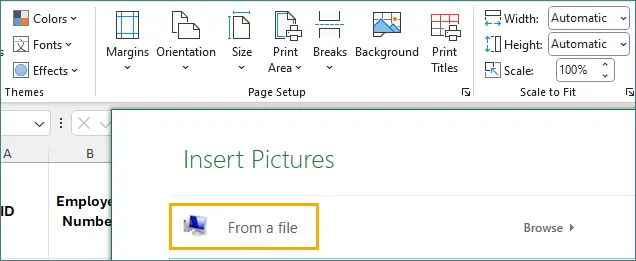
-
A imagem se repetirá por toda a planilha.
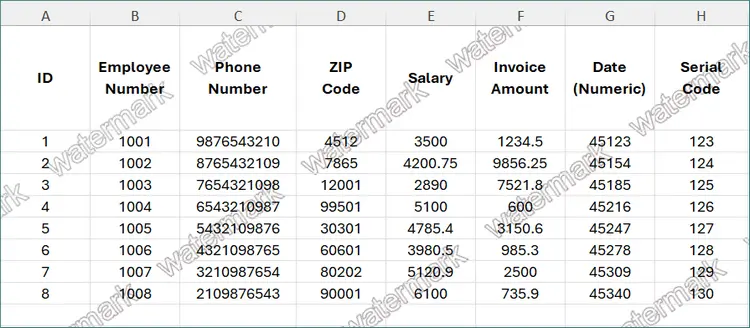
Prós
- Visível na exibição Normal.
- Simples de aplicar.
- Aplica-se a toda a planilha.
Contras
- Não imprimível.
- Personalização limitada.
Melhor Caso de Uso
Este método é mais adequado para documentos internos ou modelos de trabalho onde a visibilidade durante a edição é mais importante do que a saída de impressão.
Método 3: Inserir WordArt ou Formas como Marca d'Água
Inserir um WordArt, Caixa de Texto, ou Forma oferece o maior controle sobre a aparência de uma marca d'água.
Como a marca d'água é um objeto regular da planilha, ela permanece visível na exibição Normal e pode ser livremente redimensionada, girada e estilizada.
Esta abordagem é ideal quando você precisa de marcas d'água baseadas em texto personalizadas ou diferentes estilos de marca d'água em planilhas individuais.
Passos
-
Vá para Inserir → WordArt.

-
Selecione um estilo predefinido no menu suspenso.
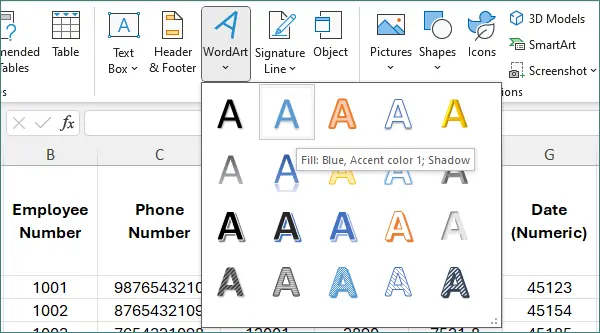
-
Digite o texto da marca d'água (por exemplo, “CONFIDENCIAL”).
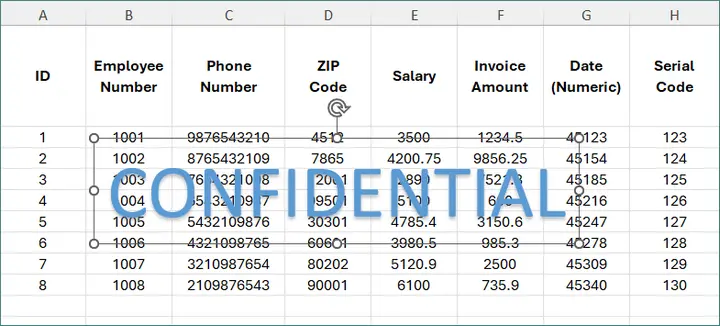
-
Gire a forma e ajuste a aparência (tamanho, cor ou estilo) do texto conforme necessário.
Prós
- Totalmente personalizável.
- Visível na exibição Normal.
- Fácil de editar ou remover.
Contras
- Pode se mover quando linhas ou colunas são redimensionadas.
- Requer configuração manual por planilha.
Melhor Caso de Uso
Este método é mais adequado para cenários de revisão na tela onde a marca d'água deve permanecer visível na exibição Normal e onde é necessária uma estilização de texto flexível ou rotulagem específica da planilha.
Método 4: Adicionar Marcas d'Água ao Excel Programaticamente Usando Python
Quando a marca d'água precisa ser aplicada repetidamente ou em vários arquivos, a automação programática é a abordagem mais eficiente.
Usando Spire.XLS for Python, você pode adicionar marcas d'água programaticamente das mesmas maneiras que os métodos manuais descritos anteriormente, incluindo marcas d'água de cabeçalho/rodapé, marcas d'água de imagem de fundo e marcas d'água baseadas em formas.
Isso garante resultados consistentes enquanto reduz o esforço manual, especialmente em fluxos de trabalho de geração de relatórios ou distribuição de documentos.
Exemplo: Adicionar uma Marca d'Água de Imagem via Cabeçalho e Rodapé
O exemplo a seguir adiciona uma marca d'água de imagem ao cabeçalho central de cada planilha. Este método é equivalente ao Método 1 e produz uma marca d'água que aparece na exibição de Layout de Página, Visualização de Impressão e PDFs exportados.
from spire.xls import *
from spire.xls.common import *

# Crie um objeto Workbook
workbook = Workbook()

# Carregue um documento do Excel
workbook.LoadFromFile("C:\\Users\\Administrator\\Desktop\\Input.xlsx")

# Carregue a imagem da marca d'água
stream = Stream("C:\\Users\\Administrator\\Desktop\\confidential.png")

# Aplique a marca d'água a todas as planilhas
for i in range(workbook.Worksheets.Count):
    worksheet = workbook.Worksheets[i]
    worksheet.PageSetup.CenterHeader = "&G"
    worksheet.PageSetup.CenterHeaderImage = stream

# Salve o resultado
workbook.SaveToFile("output/AddWatermark.xlsx", ExcelVersion.Version2016)

# Libere os recursos
workbook.Dispose()
Casos de Uso Típicos
- Você precisa marcar com marca d'água vários arquivos ou planilhas do Excel.
- As marcas d'água devem ser aplicadas de forma consistente e automática.
- Os arquivos do Excel são gerados como parte de um pipeline de relatórios ou exportação.
Para explorar capacidades adicionais de automação do Excel e detalhes de uso da API, consulte o Guia de Programação do Spire.XLS. O guia abrange exemplos práticos que podem ajudá-lo a estender a lógica de marca d'água e a construir soluções de processamento de Excel mais flexíveis.
Comparação dos Métodos de Marca d'Água
| Método | Imprimível | Visível na Exibição Normal | Personalizável | Automação |
|---|---|---|---|---|
| Cabeçalho e Rodapé | ✔ | ✖ | Limitada | ✔ |
| Imagem de Fundo | ✖ | ✔ | ✖ | ✔ |
| WordArt / Forma | ✔ | ✔ | ✔ | Limitada |
| Automação com Python | ✔ / ✖ | ✔ / ✖ | Controlada | ✔✔ |
Considerações Finais
Embora o Excel não forneça um recurso de marca d'água integrado, ele oferece várias maneiras confiáveis de alcançar o mesmo resultado. A melhor abordagem depende de como o arquivo será usado e distribuído.
- Use marcas d'água de Cabeçalho e Rodapé para documentos profissionais que serão impressos ou exportados para PDF.
- Use imagens de fundo ou WordArt quando a visibilidade da marca d'água durante a edição na tela for a prioridade.
- Use automação com Python com Spire.XLS quando as marcas d'água precisarem ser aplicadas de forma consistente em vários arquivos ou como parte de um fluxo de trabalho automatizado.
Ao escolher o método que corresponde aos seus requisitos de visibilidade e saída, você pode adicionar marcas d'água claras e eficazes ao Excel sem interromper a legibilidade dos dados ou a estrutura do documento.
FAQs Sobre Adicionar Marcas d'Água ao Excel
Q1. O Excel tem um recurso de marca d'água integrado?
Não. O Excel não oferece um botão dedicado para marca d'água, mas várias alternativas eficazes estão disponíveis.
Q2. Por que minha marca d'água não aparece na exibição Normal?
As marcas d'água de cabeçalho e rodapé são visíveis apenas no Layout de Página ou na Visualização de Impressão.
Q3. Posso adicionar marcas d'água diferentes a planilhas diferentes?
Sim. Isso pode ser feito manualmente ou programaticamente, aplicando configurações por planilha.
Q4. Qual é a melhor maneira de marcar com marca d'água arquivos do Excel em massa?
Usar a automação com Python com Spire.XLS é a abordagem mais eficiente e escalável.