Converter Word para PNG: 3 Maneiras Práticas que Você Realmente Pode Usar
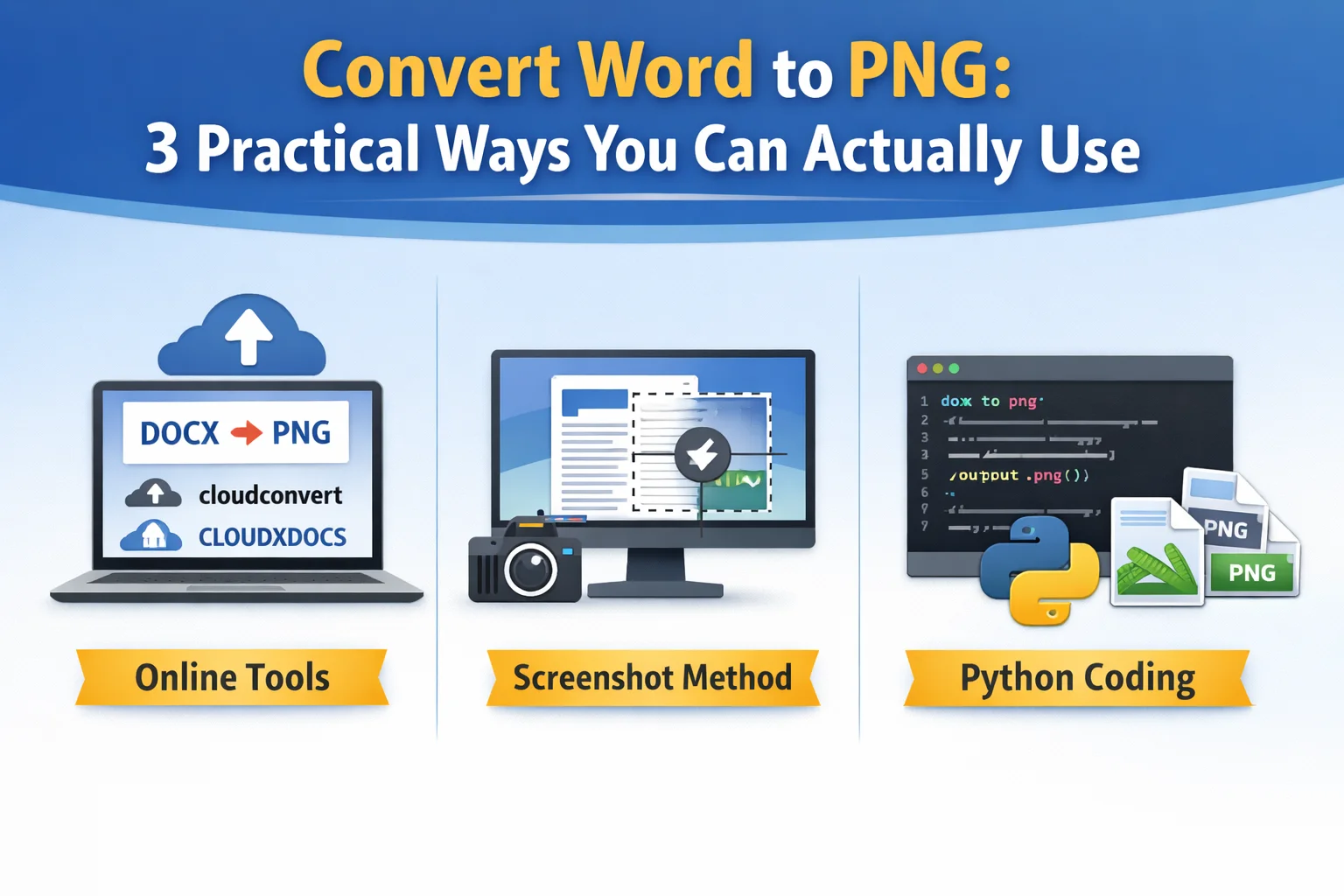
Você já compartilhou um documento do Word com colegas de trabalho ou o postou online, apenas para descobrir que o layout parece completamente diferente? As fontes mudam, o espaçamento quebra e as páginas não aparecem mais da maneira que você deseja. É exatamente quando a conversão de um documento do Word para um arquivo PNG se torna útil. Ao transformar cada página em uma imagem, você pode preservar a aparência visual original em diferentes sistemas e dispositivos.
No guia de hoje, vamos percorrer três maneiras práticas e fáceis de converter Word para PNG, ajudando você a escolher o método que melhor se adapta à sua situação — seja para uma solução rápida de uma única vez ou uma abordagem mais confiável.
- Converter Word para PNG Usando Conversores Online
- Converter Documento do Word para PNG com Capturas de Tela
- Convertendo Word para PNG com Python
- Escolhendo a Maneira Certa de Converter Word para PNG
- Perguntas Frequentes
1. Converter Word para PNG Usando Conversores Online
Conversores online são a solução mais comum que as pessoas tentam primeiro. Eles funcionam diretamente no navegador e não exigem conhecimento técnico. Após o upload de um documento do Word, o serviço o processa em um servidor remoto e exporta cada página como uma imagem PNG.
Antes de usar um conversor online de Word para PNG, vale a pena verificar o formato do arquivo. Se o seu documento ainda estiver no formato .doc mais antigo, é recomendável converter doc para docx primeiro, pois a maioria das ferramentas online lida com arquivos .docx de forma mais confiável e produz resultados mais consistentes.
Em vez de recomendar conversores específicos de documento do Word para PNG, este capítulo simplesmente destaca duas opções populares para mostrar como funcionam.
cloudconvert
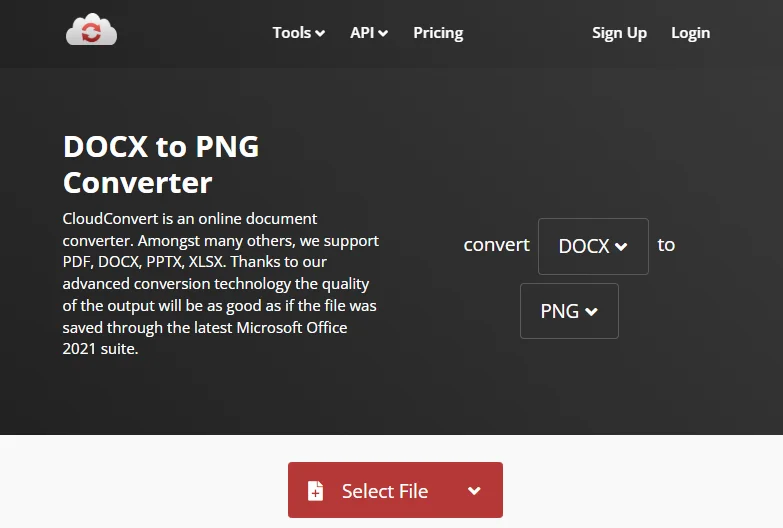
O cloudconvert é uma plataforma de conversão de arquivos tudo-em-um que suporta uma ampla gama de formatos. Além de converter rapidamente documentos do Word em arquivos de imagem como PNG, ele também pode lidar com arquivos do Excel, vídeos, arquivos de áudio e muito mais. Usá-lo para converter Word para PNG é simples:
- Acesse o cloudconvert e escolha converter Word para PNG, ou simplesmente pesquise pelo conversor de Word para PNG do cloudconvert.
- Faça o upload do seu arquivo e clique em Converter.
- Assim que a conversão estiver concluída, baixe o arquivo PNG para o seu dispositivo local.
CLOUDXDOCS
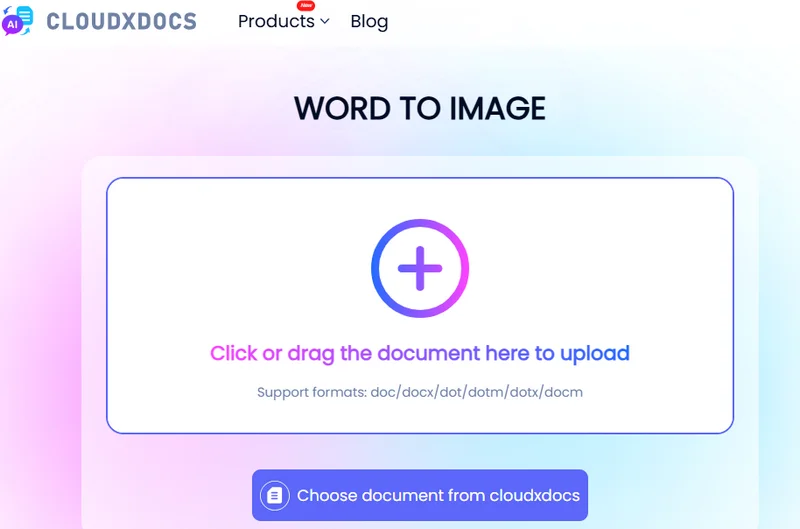
O CLOUDXDOCS é outro site que suporta a conversão de múltiplos formatos de arquivo. Ele lida principalmente com documentos como arquivos do Word, planilhas do Excel, PDFs e apresentações do PowerPoint. Diferente do cloudconvert, ele também permite que você edite arquivos online e integra recursos de IA para processar inteligentemente diferentes tipos de documentos.
Converter Word para PNG com o CLOUDXDOCS é igualmente simples:
- Navegue até o CLOUDXDOCS e escolha Conversor → WORD > IMAGEM.
- Faça o upload do seu arquivo e a conversão começará automaticamente.
- Clique em Baixar para salvar o arquivo PNG convertido em seu dispositivo local.
Esses dois conversores de Word para PNG são rápidos e convenientes, especialmente para tarefas pequenas ou ocasionais. No entanto, eles geralmente vêm com limitações, como restrições de tamanho de arquivo, resolução de imagem limitada e preocupações com o upload de documentos confidenciais. As ferramentas online são mais adequadas para conversões simples e únicas, em vez de uso contínuo ou profissional.
Dica: Você pode reduzir o tamanho de um documento do Word removendo hiperlinks, comentários, anexos e outros elementos desnecessários.
2. Converter Documento do Word para PNG com Capturas de Tela
Embora o Microsoft Word não forneça um recurso integrado para converter arquivos do Word diretamente em imagens, você ainda pode salvar um documento do Word como PNG usando a função de captura de tela em seu computador ou outros dispositivos. Por exemplo, no Windows você pode usar a tecla Print Screen, enquanto no macOS você pode usar Command (⌘) + Shift + 4 para capturar uma área selecionada da tela. 
Essa abordagem é essencialmente uma solução manual em vez de uma conversão verdadeira, mas pode ser útil quando você precisa apenas da imagem de uma ou duas páginas. As etapas gerais são as seguintes:
- Abra o documento do Word e navegue até a página que deseja salvar como PNG.
- Ajuste o nível de zoom para que a página inteira caiba claramente na tela.
- Use o atalho de captura de tela do sistema para capturar a página.
- Salve a imagem capturada no formato PNG em seu dispositivo local.
Lembre-se de que a qualidade da imagem depende da resolução da sua tela e das configurações de zoom, e cada página deve ser capturada separadamente.
3. Convertendo Word para PNG com Python
Para usuários que precisam de qualidade de saída consistente ou desejam converter vários arquivos de uma vez, usar Python para converter documentos do Word para PNG é a solução mais confiável. Diferente das ferramentas online ou capturas de tela, essa abordagem não depende da resolução da tela ou de operações manuais. Em vez disso, ela trabalha diretamente com a estrutura interna do documento e renderiza cada página como uma imagem programaticamente.
Uma maneira comum de conseguir isso em Python é usando o Free Spire.Doc. É uma biblioteca leve de processamento de documentos que permite carregar arquivos do Word, percorrer as páginas e exportá-las como imagens sem depender do Microsoft Word ou de qualquer outro aplicativo de terceiros. ![Converter um Documento do Word para Arquivos PNG Usando o Free Spire.Doc]/images/art_images/convert-word-png-4.webp)
Aqui está o exemplo de código que você pode consultar:
from spire.doc import *
from spire.doc.common import *

# Create a Document object
document = Document()

# Load a Word file
document.LoadFromFile("Desktop/input.docx")

# Loop through the pages in the document
for i in range(document.GetPageCount()):

    # Convert the current page to bitmap image
    imageStream = document.SaveImageToStreams(i, ImageType.Bitmap)

    # Save the bitmap to a PNG file
    with open('Output/ToImage-{0}.png'.format(i),'wb') as imageFile:
        imageFile.write(imageStream.ToArray())

document.Close()
Essa abordagem é comumente usada em sistemas automatizados, serviços de backend e fluxos de trabalho empresariais. Embora exija alguma configuração técnica, funciona bem para conversão em lote e melhora muito a eficiência.
4. Escolhendo a Maneira Certa de Converter Word para PNG
Para ajudá-lo a identificar rapidamente o método que melhor se adapta às suas necessidades, esta seção compara as três soluções mais comuns de Word para PNG discutidas anteriormente.
| Método | Facilidade de Uso | Qualidade da Imagem | Suporte a Lote | Automação | Ideal Para |
|---|---|---|---|---|---|
| Ferramentas Online | Muito fácil, sem necessidade de configuração | Média, geralmente com resolução fixa | Limitado ou não suportado | Não suportado | Conversões únicas e usuários casuais |
| Capturas de Tela | Fácil, mas totalmente manual | Baixa a média, depende da resolução da tela | Não suportado | Não suportado | Capturar uma única página para referência rápida |
| Free Spire.Doc (Python) | Requer conhecimento básico de programação | Alta, com resolução controlável | Totalmente suportado | Totalmente suportado | Processamento em lote, automação e fluxos de trabalho empresariais |
Considerações Finais
Converter Word para PNG se torna muito mais fácil quando você entende as três abordagens abordadas neste guia. As ferramentas online são convenientes para conversões rápidas e únicas, as capturas de tela funcionam apenas para necessidades simples e temporárias, e usar o Free Spire.Doc com Python oferece o maior controle para processamento em lote e automação. Ao escolher a opção que se alinha com o tamanho do seu arquivo, requisitos de qualidade e fluxo de trabalho, você pode transformar documentos do Word em imagens PNG de forma mais eficiente.
Perguntas Frequentes sobre a Conversão de Documento do Word para Arquivo PNG
P1: Como posso converter um arquivo do Word para PNG online e de graça?
Você pode converter um arquivo do Word para PNG online usando ferramentas gratuitas como o cloudconvert ou o CLOUDXDOCS. Essas plataformas permitem que você faça o upload de um documento do Word, escolha PNG como o formato de saída e baixe as imagens convertidas, geralmente com limitações básicas de tamanho de arquivo ou contagem de páginas.
P2: Como converto Word para PNG ou JPG?
Ao usar o cloudconvert, basta selecionar PNG ou JPG como o formato de saída.
Com o Free Spire.Doc, você só precisa alterar a extensão do arquivo ao salvar a imagem renderizada:
    with open('Output/ToImage-{0}.jpg'.format(i),'wb') as imageFile:
        imageFile.write(imageStream.ToArray())
P3: Qual método de conversão de Word para PNG funciona melhor para várias páginas ou arquivos em lote?
Para documentos de várias páginas ou conversão em lote, usar Python com o Free Spire.Doc é a opção mais confiável. Ele suporta o processamento de múltiplos documentos de uma só vez diretamente no código.
Leia Também
Word를 PNG로 변환: 실제로 사용할 수 있는 3가지 실용적인 방법
Word 문서를 동료와 공유하거나 온라인에 게시했을 때 레이아웃이 완전히 다르게 보이는 것을 발견한 적이 있습니까? 글꼴이 바뀌고, 간격이 깨지고, 페이지가 더 이상 원하는 대로 표시되지 않습니다. 바로 이럴 때 Word 문서를 PNG 파일로 변환하는 것이 유용합니다. 각 페이지를 이미지로 변환하면 다른 시스템과 장치에서도 원본의 시각적 모양을 그대로 유지할 수 있습니다.
오늘 가이드에서는 Word를 PNG로 변환하는 세 가지 실용적이고 쉬운 방법을 안내하여, 빠른 일회성 해결책이 필요하든 더 안정적인 접근 방식이 필요하든 상황에 가장 적합한 방법을 선택하는 데 도움을 드립니다.
- 온라인 변환기를 사용하여 Word를 PNG로 변환
- 스크린샷으로 Word 문서를 PNG로 변환
- Python으로 Word를 PNG로 변환
- Word를 PNG로 변환하는 올바른 방법 선택
- 자주 묻는 질문
1. 온라인 변환기를 사용하여 Word를 PNG로 변환
온라인 변환기는 사람들이 가장 먼저 시도하는 가장 일반적인 해결책입니다. 브라우저에서 직접 작동하며 기술적인 지식이 필요하지 않습니다. Word 문서를 업로드하면 서비스가 원격 서버에서 처리하고 각 페이지를 PNG 이미지로 내보냅니다.
온라인 Word를 PNG로 변환하는 변환기를 사용하기 전에 파일 형식을 확인하는 것이 좋습니다. 문서가 여전히 이전 .doc 형식인 경우, 대부분의 온라인 도구가 .docx 파일을 더 안정적으로 처리하고 더 일관된 결과를 생성하므로 먼저 doc를 docx로 변환하는 것이 좋습니다.
이 장에서는 특정 Word 문서를 PNG로 변환하는 변환기를 추천하는 대신, 두 가지 인기 있는 옵션이 어떻게 작동하는지 간단히 보여줍니다.
cloudconvert
cloudconvert는 다양한 형식을 지원하는 올인원 파일 변환 플랫폼입니다. Word 문서를 PNG와 같은 이미지 파일로 빠르게 변환하는 것 외에도 Excel 파일, 비디오, 오디오 파일 등을 처리할 수 있습니다. 이를 사용하여 Word를 PNG로 변환하는 방법은 간단합니다.
- cloudconvert로 이동하여 Word를 PNG로 변환하도록 선택하거나, cloudconvert의 Word to PNG 변환기를 검색하십시오.
- 파일을 업로드하고 변환을 클릭하십시오.
- 변환이 완료되면 PNG 파일을 로컬 장치에 다운로드하십시오.
CLOUDXDOCS
CLOUDXDOCS는 여러 파일 형식 변환을 지원하는 또 다른 웹사이트입니다. 주로 Word 파일, Excel 스프레드시트, PDF 및 PowerPoint 프레젠테이션과 같은 문서를 처리합니다. cloudconvert와 달리 온라인에서 파일을 편집할 수 있으며 AI 기능을 통합하여 다양한 유형의 문서를 지능적으로 처리합니다.
CLOUDXDOCS로 Word를 PNG로 변환하는 것도 마찬가지로 간단합니다.
- CLOUDXDOCS로 이동하여 변환기 → WORD > IMAGE를 선택하십시오.
- 파일을 업로드하면 변환이 자동으로 시작됩니다.
- 다운로드를 클릭하여 변환된 PNG 파일을 로컬 장치에 저장하십시오.
이 두 Word to PNG 변환기는 특히 작거나 가끔씩 하는 작업에 빠르고 편리합니다. 그러나 파일 크기 제한, 제한된 이미지 해상도, 민감한 문서 업로드에 대한 우려와 같은 제한이 따르는 경우가 많습니다. 온라인 도구는 지속적이거나 전문적인 용도보다는 간단한 일회성 변환에 가장 적합합니다.
팁: 하이퍼링크, 주석, 첨부 파일 및 기타 불필요한 요소를 제거하여 Word 문서의 크기를 줄일 수 있습니다.
2. 스크린샷으로 Word 문서를 PNG로 변환
Microsoft Word는 Word 파일을 직접 이미지로 변환하는 기본 제공 기능을 제공하지 않지만, 컴퓨터나 다른 장치의 스크린샷 기능을 사용하여 Word 문서를 PNG로 저장할 수 있습니다. 예를 들어, Windows에서는 Print Screen 키를 사용할 수 있고, macOS에서는 Command (⌘) + Shift + 4를 사용하여 화면의 선택된 영역을 캡처할 수 있습니다.
이 접근 방식은 실제 변환이라기보다는 수동 해결 방법에 가깝지만, 한두 페이지의 이미지만 필요할 때 유용할 수 있습니다. 일반적인 단계는 다음과 같습니다.
- Word 문서를 열고 PNG로 저장하려는 페이지로 이동합니다.
- 전체 페이지가 화면에 명확하게 맞도록 확대/축소 수준을 조정합니다.
- 시스템 스크린샷 바로 가기를 사용하여 페이지를 캡처합니다.
- 캡처한 이미지를 PNG 형식으로 로컬 장치에 저장합니다.
이미지 품질은 화면 해상도와 확대/축소 설정에 따라 달라지며, 각 페이지는 별도로 캡처해야 한다는 점을 명심하십시오.
3. Python으로 Word를 PNG로 변환
일관된 출력 품질이 필요하거나 한 번에 여러 파일을 변환하려는 사용자에게는 Python을 사용하여 Word 문서를 PNG로 변환하는 것이 가장 안정적인 해결책입니다. 온라인 도구나 스크린샷과 달리 이 접근 방식은 화면 해상도나 수동 작업에 의존하지 않습니다. 대신 문서의 내부 구조와 직접 작동하여 각 페이지를 프로그래밍 방식으로 이미지로 렌더링합니다.
Python에서 이를 달성하는 일반적인 방법은 Free Spire.Doc을 사용하는 것입니다. 이것은 Microsoft Word나 다른 타사 응용 프로그램에 의존하지 않고 Word 파일을 로드하고, 페이지를 반복하고, 이미지로 내보낼 수 있는 경량 문서 처리 라이브러리입니다. ![Free Spire.Doc을 사용하여 Word 문서를 PNG 파일로 변환]/images/art_images/convert-word-png-4.webp)
참고할 수 있는 코드 예제는 다음과 같습니다.
from spire.doc import *
from spire.doc.common import *

# Create a Document object
document = Document()

# Load a Word file
document.LoadFromFile("Desktop/input.docx")

# Loop through the pages in the document
for i in range(document.GetPageCount()):

    # Convert the current page to bitmap image
    imageStream = document.SaveImageToStreams(i, ImageType.Bitmap)

    # Save the bitmap to a PNG file
    with open('Output/ToImage-{0}.png'.format(i),'wb') as imageFile:
        imageFile.write(imageStream.ToArray())

document.Close()
이 접근 방식은 자동화된 시스템, 백엔드 서비스 및 엔터프라이즈 워크플로에서 일반적으로 사용됩니다. 약간의 기술적 설정이 필요하지만 일괄 변환에 잘 작동하며 효율성을 크게 향상시킵니다.
4. Word를 PNG로 변환하는 올바른 방법 선택
필요에 가장 적합한 방법을 신속하게 식별하는 데 도움이 되도록 이 섹션에서는 앞에서 설명한 세 가지 가장 일반적인 Word-to-PNG 솔루션을 비교합니다.
| 방법 | 사용 용이성 | 이미지 품질 | 일괄 지원 | 자동화 | 최적 대상 |
|---|---|---|---|---|---|
| 온라인 도구 | 매우 쉬움, 설정 필요 없음 | 중간, 일반적으로 고정 해상도 | 제한적이거나 지원되지 않음 | 지원되지 않음 | 일회성 변환 및 일반 사용자 |
| 스크린샷 | 쉽지만 완전히 수동 | 낮음에서 중간, 화면 해상도에 따라 다름 | 지원되지 않음 | 지원되지 않음 | 빠른 참조를 위해 단일 페이지 캡처 |
| Free Spire.Doc (Python) | 기본 코딩 지식 필요 | 높음, 제어 가능한 해상도 | 완전 지원 | 완전 지원 | 일괄 처리, 자동화 및 엔터프라이즈 워크플로 |
마지막 생각들
이 가이드에서 다루는 세 가지 접근 방식을 이해하면 Word를 PNG로 변환하는 것이 훨씬 쉬워집니다. 온라인 도구는 빠르고 일회성 변환에 편리하고, 스크린샷은 간단하고 일시적인 요구에만 작동하며, Python과 함께 Free Spire.Doc을 사용하면 일괄 처리 및 자동화에 대한 가장 많은 제어를 제공합니다. 파일 크기, 품질 요구 사항 및 워크플로에 맞는 옵션을 선택하면 Word 문서를 PNG 이미지로 더 효율적으로 변환할 수 있습니다.
Word 문서를 PNG 파일로 변환하는 것에 대한 자주 묻는 질문
Q1: Word 파일을 온라인에서 무료로 PNG로 어떻게 변환할 수 있나요?
cloudconvert 또는 CLOUDXDOCS와 같은 무료 도구를 사용하여 온라인에서 Word 파일을 PNG로 변환할 수 있습니다. 이러한 플랫폼을 사용하면 Word 문서를 업로드하고 출력 형식으로 PNG를 선택한 다음 변환된 이미지를 다운로드할 수 있으며, 일반적으로 파일 크기나 페이지 수에 대한 기본 제한이 있습니다.
Q2: Word를 PNG나 JPG로 어떻게 변환하나요?
cloudconvert를 사용할 때 출력 형식으로 PNG 또는 JPG를 선택하기만 하면 됩니다.
Free Spire.Doc을 사용하면 렌더링된 이미지를 저장할 때 파일 확장자만 변경하면 됩니다.
    with open('Output/ToImage-{0}.jpg'.format(i),'wb') as imageFile:
        imageFile.write(imageStream.ToArray())
Q3: 여러 페이지나 일괄 파일에 가장 적합한 Word to PNG 방법은 무엇인가요?
다중 페이지 문서나 일괄 변환의 경우 Python과 Free Spire.Doc을 사용하는 것이 가장 안정적인 옵션입니다. 코드에서 직접 한 번에 여러 문서를 처리하는 것을 지원합니다.
또한 읽기
Convertire Word in PNG: 3 modi pratici che puoi effettivamente utilizzare
Hai mai condiviso un documento Word con i colleghi o lo hai pubblicato online, solo per scoprire che il layout appare completamente diverso? I caratteri si spostano, la spaziatura si interrompe e le pagine non appaiono più come vorresti. È proprio in questo momento che la conversione di un documento Word in un file PNG diventa utile. Trasformando ogni pagina in un'immagine, puoi preservare l'aspetto visivo originale su diversi sistemi e dispositivi.
Nella guida di oggi, esamineremo tre modi pratici e semplici per convertire Word in PNG, aiutandoti a scegliere il metodo che meglio si adatta alla tua situazione, sia che tu abbia bisogno di una soluzione rapida e unica o di un approccio più affidabile.
- Convertire Word in PNG utilizzando convertitori online
- Convertire documenti Word in PNG con screenshot
- Convertire Word in PNG con Python
- Scegliere il modo giusto per convertire Word in PNG
- Domande frequenti
1. Convertire Word in PNG utilizzando convertitori online
I convertitori online sono la soluzione più comune che le persone provano per prima. Funzionano direttamente nel browser e non richiedono conoscenze tecniche. Dopo aver caricato un documento Word, il servizio lo elabora su un server remoto ed esporta ogni pagina come immagine PNG.
Prima di utilizzare un convertitore online da Word a PNG, vale la pena controllare il formato del file. Se il tuo documento è ancora nel vecchio formato .doc, si consiglia di convertire prima doc in docx, poiché la maggior parte degli strumenti online gestisce i file .docx in modo più affidabile e produce risultati più coerenti.
Invece di consigliare specifici convertitori da documenti Word a PNG, questo capitolo evidenzia semplicemente due opzioni popolari per mostrare come funzionano.
cloudconvert
cloudconvert è una piattaforma di conversione di file all-in-one che supporta una vasta gamma di formati. Oltre a convertire rapidamente documenti Word in file di immagine come PNG, può anche gestire file Excel, video, file audio e altro ancora. Usarlo per convertire Word in PNG è semplice:
- Vai su cloudconvert e scegli di convertire Word in PNG, o semplicemente cerca il convertitore da Word a PNG di cloudconvert.
- Carica il tuo file e fai clic su Converti.
- Una volta completata la conversione, scarica il file PNG sul tuo dispositivo locale.
CLOUDXDOCS
CLOUDXDOCS è un altro sito web che supporta la conversione di più formati di file. Gestisce principalmente documenti come file Word, fogli di calcolo Excel, PDF e presentazioni PowerPoint. A differenza di cloudconvert, consente anche di modificare i file online e integra funzionalità di intelligenza artificiale per elaborare in modo intelligente diversi tipi di documenti.
Convertire Word in PNG con CLOUDXDOCS è altrettanto semplice:
- Vai su CLOUDXDOCS e scegli Convertitore → WORD > IMMAGINE.
- Carica il tuo file e la conversione inizierà automaticamente.
- Fai clic su Scarica per salvare il file PNG convertito sul tuo dispositivo locale.
Questi due convertitori da Word a PNG sono rapidi e convenienti, soprattutto per attività piccole o occasionali. Tuttavia, spesso presentano limitazioni come restrizioni sulle dimensioni dei file, risoluzione dell'immagine limitata e preoccupazioni relative al caricamento di documenti sensibili. Gli strumenti online sono più adatti per conversioni semplici e una tantum invece che per un uso continuativo o professionale.
Suggerimento: Puoi ridurre le dimensioni di un documento Word rimuovendo i collegamenti ipertestuali, i commenti, gli allegati e altri elementi non necessari.
2. Convertire documenti Word in PNG con screenshot
Sebbene Microsoft Word non fornisca una funzione integrata per convertire direttamente i file di Word in immagini, è comunque possibile salvare un documento di Word come PNG utilizzando la funzione di screenshot sul computer o su altri dispositivi. Ad esempio, su Windows è possibile utilizzare il tasto Stamp, mentre su macOS è possibile utilizzare Comando (⌘) + Maiusc + 4 per catturare un'area selezionata dello schermo.
Questo approccio è essenzialmente una soluzione manuale piuttosto che una vera conversione, ma può essere utile quando si ha bisogno solo dell'immagine di una o due pagine. I passaggi generali sono i seguenti:
- Apri il documento Word e vai alla pagina che desideri salvare come PNG.
- Regola il livello di zoom in modo che l'intera pagina si adatti chiaramente allo schermo.
- Usa la scorciatoia di sistema per catturare la pagina.
- Salva l'immagine catturata in formato PNG sul tuo dispositivo locale.
Tieni presente che la qualità dell'immagine dipende dalla risoluzione dello schermo e dalle impostazioni di zoom e che ogni pagina deve essere catturata separatamente.
3. Convertire Word in PNG con Python
Per gli utenti che necessitano di una qualità di output costante o che desiderano convertire più file contemporaneamente, l'utilizzo di Python per convertire documenti Word in PNG è la soluzione più affidabile. A differenza degli strumenti online o degli screenshot, questo approccio non dipende dalla risoluzione dello schermo o dalle operazioni manuali. Invece, funziona direttamente con la struttura interna del documento e rende ogni pagina come un'immagine a livello di codice.
Un modo comune per ottenere questo risultato in Python è utilizzare Free Spire.Doc. È una libreria leggera per l'elaborazione di documenti che consente di caricare file Word, scorrere le pagine ed esportarle come immagini senza fare affidamento su Microsoft Word o altre applicazioni di terze parti. ![Converti un documento Word in file PNG usando Free Spire.Doc]/images/art_images/convert-word-png-4.webp)
Ecco l'esempio di codice a cui puoi fare riferimento:
from spire.doc import *
from spire.doc.common import *

# Create a Document object
document = Document()

# Load a Word file
document.LoadFromFile("Desktop/input.docx")

# Loop through the pages in the document
for i in range(document.GetPageCount()):

    # Convert the current page to bitmap image
    imageStream = document.SaveImageToStreams(i, ImageType.Bitmap)

    # Save the bitmap to a PNG file
    with open('Output/ToImage-{0}.png'.format(i),'wb') as imageFile:
        imageFile.write(imageStream.ToArray())

document.Close()
Questo approccio è comunemente utilizzato in sistemi automatizzati, servizi di backend e flussi di lavoro aziendali. Sebbene richieda una certa configurazione tecnica, funziona bene per la conversione in batch e migliora notevolmente l'efficienza.
4. Scegliere il modo giusto per convertire Word in PNG
Per aiutarti a identificare rapidamente il metodo che meglio si adatta alle tue esigenze, questa sezione confronta le tre soluzioni più comuni da Word a PNG discusse in precedenza.
| Metodo | Facilità d'uso | Qualità dell'immagine | Supporto batch | Automazione | Ideale per |
|---|---|---|---|---|---|
| Strumenti online | Molto facile, nessuna configurazione richiesta | Media, solitamente a risoluzione fissa | Limitato o non supportato | Non supportato | Conversioni una tantum e utenti occasionali |
| Screenshot | Facile ma completamente manuale | Bassa o media, dipende dalla risoluzione dello schermo | Non supportato | Non supportato | Catturare una singola pagina per un rapido riferimento |
| Free Spire.Doc (Python) | Richiede conoscenze di base di programmazione | Alta, risoluzione controllabile | Pienamente supportato | Pienamente supportato | Elaborazione batch, automazione e flussi di lavoro aziendali |
Considerazioni finali
La conversione da Word a PNG diventa molto più semplice una volta compresi i tre approcci trattati in questa guida. Gli strumenti online sono convenienti per conversioni rapide e una tantum, gli screenshot funzionano solo per esigenze semplici e temporanee e l'utilizzo di Free Spire.Doc con Python offre il massimo controllo per l'elaborazione batch e l'automazione. Scegliendo l'opzione che si allinea alle dimensioni del file, ai requisiti di qualità e al flusso di lavoro, è possibile trasformare i documenti di Word in immagini PNG in modo più efficiente.
Domande frequenti sulla conversione di documenti Word in file PNG
D1: Come posso convertire gratuitamente un file Word in PNG online?
Puoi convertire un file Word in PNG online utilizzando strumenti gratuiti come cloudconvert o CLOUDXDOCS. Queste piattaforme ti consentono di caricare un documento Word, scegliere PNG come formato di output e scaricare le immagini convertite, di solito con limitazioni di base sulla dimensione del file o sul numero di pagine.
D2: Come posso convertire Word in PNG o JPG?
Quando si utilizza cloudconvert, è sufficiente selezionare PNG o JPG come formato di output.
Con Free Spire.Doc, è sufficiente modificare l'estensione del file durante il salvataggio dell'immagine renderizzata:
    with open('Output/ToImage-{0}.jpg'.format(i),'wb') as imageFile:
        imageFile.write(imageStream.ToArray())
D3: Quale metodo da Word a PNG funziona meglio per più pagine o file batch?
Per documenti di più pagine o conversioni batch, l'utilizzo di Python con Free Spire.Doc è l'opzione più affidabile. Supporta l'elaborazione di più documenti in una sola volta direttamente nel codice.
Leggi anche
Convertir Word en PNG : 3 méthodes pratiques que vous pouvez réellement utiliser
Avez-vous déjà partagé un document Word avec des collègues ou l'avez-vous publié en ligne, pour découvrir que la mise en page est complètement différente ? Les polices changent, l'espacement se rompt et les pages n'apparaissent plus comme vous le souhaitez. C'est précisément à ce moment-là que la conversion d'un document Word en fichier PNG devient utile. En transformant chaque page en image, vous pouvez préserver l'apparence visuelle d'origine sur différents systèmes et appareils.
Dans le guide d'aujourd'hui, nous allons passer en revue trois manières pratiques et faciles de convertir Word en PNG, vous aidant à choisir la méthode qui correspond le mieux à votre situation, que vous ayez besoin d'une solution rapide et ponctuelle ou d'une approche plus fiable.
- Convertir Word en PNG à l'aide de convertisseurs en ligne
- Convertir un document Word en PNG avec des captures d'écran
- Conversion de Word en PNG avec Python
- Choisir la bonne méthode pour convertir Word en PNG
- FAQ
1. Convertir Word en PNG à l'aide de convertisseurs en ligne
Les convertisseurs en ligne sont la solution la plus courante que les gens essaient en premier. Ils fonctionnent directement dans le navigateur et ne nécessitent aucune connaissance technique. Après avoir téléchargé un document Word, le service le traite sur un serveur distant et exporte chaque page sous forme d'image PNG.
Avant d'utiliser un convertisseur Word vers PNG en ligne, il est utile de vérifier le format du fichier. Si votre document est toujours dans l'ancien format .doc, il est recommandé de convertir d'abord le doc en docx, car la plupart des outils en ligne gèrent les fichiers .docx de manière plus fiable et produisent des résultats plus cohérents.
Plutôt que de recommander des convertisseurs spécifiques de documents Word en PNG, ce chapitre met simplement en évidence deux options populaires pour montrer comment elles fonctionnent.
cloudconvert
cloudconvert est une plateforme de conversion de fichiers tout-en-un qui prend en charge un large éventail de formats. En plus de convertir rapidement des documents Word en fichiers image tels que PNG, il peut également gérer des fichiers Excel, des vidéos, des fichiers audio, etc. L'utiliser pour convertir Word en PNG est simple :
- Allez sur cloudconvert et choisissez de convertir Word en PNG, ou recherchez simplement le convertisseur Word vers PNG de cloudconvert.
- Téléchargez votre fichier et cliquez sur Convertir.
- Une fois la conversion terminée, téléchargez le fichier PNG sur votre appareil local.
CLOUDXDOCS
CLOUDXDOCS est un autre site Web qui prend en charge la conversion de plusieurs formats de fichiers. Il gère principalement des documents tels que des fichiers Word, des feuilles de calcul Excel, des PDF et des présentations PowerPoint. Contrairement à cloudconvert, il vous permet également de modifier des fichiers en ligne et intègre des fonctionnalités d'IA pour traiter intelligemment différents types de documents.
La conversion de Word en PNG avec CLOUDXDOCS est tout aussi simple :
- Accédez à CLOUDXDOCS et choisissez Convertisseur → WORD > IMAGE.
- Téléchargez votre fichier et la conversion commencera automatiquement.
- Cliquez sur Télécharger pour enregistrer le fichier PNG converti sur votre appareil local.
Ces deux convertisseurs Word vers PNG sont rapides et pratiques, en particulier pour les tâches petites ou occasionnelles. Cependant, ils s'accompagnent souvent de limitations telles que des restrictions de taille de fichier, une résolution d'image limitée et des préoccupations concernant le téléchargement de documents sensibles. Les outils en ligne sont les mieux adaptés aux conversions simples et ponctuelles plutôt qu'à une utilisation continue ou professionnelle.
Astuce : Vous pouvez réduire la taille d'un document Word en supprimant les hyperliens, les commentaires, les pièces jointes et autres éléments inutiles.
2. Convertir un document Word en PNG avec des captures d'écran
Bien que Microsoft Word ne fournisse pas de fonctionnalité intégrée pour convertir directement les fichiers Word en images, vous pouvez toujours enregistrer un document Word au format PNG en utilisant la fonction de capture d'écran de votre ordinateur ou d'autres appareils. Par exemple, sous Windows, vous pouvez utiliser la touche Impr. écran, tandis que sur macOS, vous pouvez utiliser Commande (⌘) + Maj + 4 pour capturer une zone sélectionnée de l'écran.
Cette approche est essentiellement une solution de contournement manuelle plutôt qu'une véritable conversion, mais elle peut être utile lorsque vous n'avez besoin que d'une image d'une ou deux pages. Les étapes générales sont les suivantes :
- Ouvrez le document Word et accédez à la page que vous souhaitez enregistrer au format PNG.
- Ajustez le niveau de zoom pour que la page entière s'affiche clairement à l'écran.
- Utilisez le raccourci de capture d'écran du système pour capturer la page.
- Enregistrez l'image capturée au format PNG sur votre appareil local.
Gardez à l'esprit que la qualité de l'image dépend de la résolution de votre écran et des paramètres de zoom, et que chaque page doit être capturée séparément.
3. Conversion de Word en PNG avec Python
Pour les utilisateurs qui ont besoin d'une qualité de sortie constante ou qui souhaitent convertir plusieurs fichiers à la fois, l'utilisation de Python pour convertir des documents Word en PNG est la solution la plus fiable. Contrairement aux outils en ligne ou aux captures d'écran, cette approche ne dépend pas de la résolution de l'écran ou des opérations manuelles. Au lieu de cela, elle fonctionne directement avec la structure interne du document et rend chaque page sous forme d'image par programme.
Une manière courante d'y parvenir en Python consiste à utiliser Free Spire.Doc. Il s'agit d'une bibliothèque de traitement de documents légère qui vous permet de charger des fichiers Word, de parcourir les pages et de les exporter sous forme d'images sans dépendre de Microsoft Word ou de toute autre application tierce. ![Convert a Word Document to PNG Files Using Free Spire.Doc]/images/art_images/convert-word-png-4.webp)
Voici l'exemple de code auquel vous pouvez vous référer :
from spire.doc import *
from spire.doc.common import *

# Create a Document object
document = Document()

# Load a Word file
document.LoadFromFile("Desktop/input.docx")

# Loop through the pages in the document
for i in range(document.GetPageCount()):

    # Convert the current page to bitmap image
    imageStream = document.SaveImageToStreams(i, ImageType.Bitmap)

    # Save the bitmap to a PNG file
    with open('Output/ToImage-{0}.png'.format(i),'wb') as imageFile:
        imageFile.write(imageStream.ToArray())

document.Close()
Cette approche est couramment utilisée dans les systèmes automatisés, les services backend et les flux de travail d'entreprise. Bien qu'elle nécessite une certaine configuration technique, elle fonctionne bien pour la conversion par lots et améliore considérablement l'efficacité.
4. Choisir la bonne méthode pour convertir Word en PNG
Pour vous aider à identifier rapidement la méthode qui correspond le mieux à vos besoins, cette section compare les trois solutions Word vers PNG les plus courantes abordées précédemment.
| Méthode | Facilité d'utilisation | Qualité de l'image | Prise en charge des lots | Automatisation | Idéal pour |
|---|---|---|---|---|---|
| Outils en ligne | Très facile, aucune configuration requise | Moyenne, résolution généralement fixe | Limité ou non pris en charge | Non pris en charge | Conversions ponctuelles et utilisateurs occasionnels |
| Captures d'écran | Facile mais entièrement manuel | Faible à moyenne, dépend de la résolution de l'écran | Non pris en charge | Non pris en charge | Capturer une seule page pour une référence rapide |
| Free Spire.Doc (Python) | Nécessite des connaissances de base en codage | Haute, résolution contrôlable | Entièrement pris en charge | Entièrement pris en charge | Traitement par lots, automatisation et flux de travail d'entreprise |
Réflexions finales
La conversion de Word en PNG devient beaucoup plus facile une fois que vous comprenez les trois approches décrites dans ce guide. Les outils en ligne sont pratiques pour les conversions rapides et ponctuelles, les captures d'écran ne fonctionnent que pour des besoins simples et temporaires, et l'utilisation de Free Spire.Doc avec Python offre le plus de contrôle pour le traitement par lots et l'automatisation. En choisissant l'option qui correspond à la taille de votre fichier, à vos exigences de qualité et à votre flux de travail, vous pouvez transformer plus efficacement les documents Word en images PNG.
FAQ sur la conversion d'un document Word en fichier PNG
Q1 : Comment puis-je convertir un fichier Word en PNG en ligne gratuitement ?
Vous pouvez convertir un fichier Word en PNG en ligne à l'aide d'outils gratuits tels que cloudconvert ou CLOUDXDOCS. Ces plateformes vous permettent de télécharger un document Word, de choisir le format de sortie PNG et de télécharger les images converties, généralement avec des limitations de base sur la taille du fichier ou le nombre de pages.
Q2 : Comment convertir Word en PNG ou JPG ?
Lorsque vous utilisez cloudconvert, sélectionnez simplement PNG ou JPG comme format de sortie.
Avec Free Spire.Doc, il vous suffit de changer l'extension du fichier lors de l'enregistrement de l'image rendue :
    with open('Output/ToImage-{0}.jpg'.format(i),'wb') as imageFile:
        imageFile.write(imageStream.ToArray())
Q3 : Quelle méthode de conversion Word vers PNG fonctionne le mieux pour plusieurs pages ou fichiers par lots ?
Pour les documents de plusieurs pages ou la conversion par lots, l'utilisation de Python avec Free Spire.Doc est l'option la plus fiable. Il prend en charge le traitement de plusieurs documents en une seule fois directement dans le code.
À lire également
Convertir Word a PNG: 3 formas prácticas que realmente puedes usar
Tabla de Contenidos
¿Alguna vez has compartido un documento de Word con compañeros de trabajo o lo has publicado en línea, solo para descubrir que el diseño se ve completamente diferente? Las fuentes cambian, el espaciado se rompe y las páginas ya no aparecen como deseas. Es precisamente en estos casos cuando convertir un documento de Word a un archivo PNG se vuelve útil. Al convertir cada página en una imagen, puedes preservar la apariencia visual original en diferentes sistemas y dispositivos.
En la guía de hoy, recorreremos tres formas prácticas y sencillas de convertir Word a PNG, ayudándote a elegir el método que mejor se adapte a tu situación, ya sea que necesites una solución rápida de una sola vez o un enfoque más confiable.
- Convertir Word a PNG Usando Convertidores en Línea
- Convertir Documento de Word a PNG con Capturas de Pantalla
- Convertir Word a PNG con Python
- Elegir la Forma Correcta de Convertir Word a PNG
- Preguntas Frecuentes
1. Convertir Word a PNG Usando Convertidores en Línea
Los convertidores en línea son la solución más común que la gente prueba primero. Funcionan directamente en el navegador y no requieren conocimientos técnicos. Después de subir un documento de Word, el servicio lo procesa en un servidor remoto y exporta cada página como una imagen PNG.
Antes de usar un convertidor de Word a PNG en línea, vale la pena verificar el formato del archivo. Si tu documento todavía está en el formato .doc más antiguo, se recomienda convertir doc a docx primero, ya que la mayoría de las herramientas en línea manejan los archivos .docx de manera más confiable y producen resultados más consistentes.
En lugar de recomendar convertidores específicos de documentos de Word a PNG, este capítulo simplemente destaca dos opciones populares para mostrar cómo funcionan.
cloudconvert
cloudconvert es una plataforma de conversión de archivos todo en uno que admite una amplia gama de formatos. Además de convertir rápidamente documentos de Word en archivos de imagen como PNG, también puede manejar archivos de Excel, videos, archivos de audio y más. Usarlo para convertir Word a PNG es sencillo:
- Ve a cloudconvert y elige convertir de Word a PNG, o simplemente busca el convertidor de Word a PNG de cloudconvert.
- Sube tu archivo y haz clic en Convertir.
- Una vez que la conversión esté completa, descarga el archivo PNG en tu dispositivo local.
CLOUDXDOCS
CLOUDXDOCS es otro sitio web que admite la conversión de múltiples formatos de archivo. Principalmente maneja documentos como archivos de Word, hojas de cálculo de Excel, PDF y presentaciones de PowerPoint. A diferencia de cloudconvert, también te permite editar archivos en línea e integra funciones de IA para procesar inteligentemente diferentes tipos de documentos.
Convertir Word a PNG con CLOUDXDOCS es igualmente simple:
- Navega a CLOUDXDOCS y elige Convertidor → WORD > IMAGEN.
- Sube tu archivo y la conversión comenzará automáticamente.
- Haz clic en Descargar para guardar el archivo PNG convertido en tu dispositivo local.
Estos dos convertidores de Word a PNG son rápidos y convenientes, especialmente para tareas pequeñas u ocasionales. Sin embargo, a menudo vienen con limitaciones como restricciones de tamaño de archivo, resolución de imagen limitada y preocupaciones sobre la carga de documentos sensibles. Las herramientas en línea son más adecuadas para conversiones simples y únicas en lugar de un uso continuo o profesional.
Consejo: Puedes reducir el tamaño de un documento de Word eliminando hipervínculos, comentarios, archivos adjuntos y otros elementos innecesarios.
2. Convertir Documento de Word a PNG con Capturas de Pantalla
Aunque Microsoft Word no proporciona una función integrada para convertir archivos de Word directamente en imágenes, aún puedes guardar un documento de Word como PNG utilizando la función de captura de pantalla en tu computadora u otros dispositivos. Por ejemplo, en Windows puedes usar la tecla Impr Pant, mientras que en macOS puedes usar Comando (⌘) + Mayús + 4 para capturar un área seleccionada de la pantalla.
Este enfoque es esencialmente una solución manual en lugar de una verdadera conversión, pero puede ser útil cuando solo necesitas una imagen de una o dos páginas. Los pasos generales son los siguientes:
- Abre el documento de Word y navega a la página que deseas guardar como PNG.
- Ajusta el nivel de zoom para que toda la página quepa claramente en la pantalla.
- Usa el atajo de captura de pantalla del sistema para capturar la página.
- Guarda la imagen capturada en formato PNG en tu dispositivo local.
Ten en cuenta que la calidad de la imagen depende de la resolución de tu pantalla y de la configuración del zoom, y cada página debe capturarse por separado.
3. Convertir Word a PNG con Python
Para los usuarios que necesitan una calidad de salida consistente o desean convertir múltiples archivos a la vez, usar Python para convertir documentos de Word a PNG es la solución más confiable. A diferencia de las herramientas en línea o las capturas de pantalla, este enfoque no depende de la resolución de la pantalla ni de operaciones manuales. En cambio, funciona directamente con la estructura interna del documento y representa cada página como una imagen mediante programación.
Una forma común de lograr esto en Python es usando Free Spire.Doc. Es una biblioteca de procesamiento de documentos liviana que te permite cargar archivos de Word, recorrer las páginas y exportarlas como imágenes sin depender de Microsoft Word ni de ninguna otra aplicación de terceros. ![Convertir un Documento de Word a Archivos PNG Usando Free Spire.Doc]/images/art_images/convert-word-png-4.webp)
Aquí tienes el ejemplo de código al que puedes referirte:
from spire.doc import *
from spire.doc.common import *

# Create a Document object
document = Document()

# Load a Word file
document.LoadFromFile("Desktop/input.docx")

# Loop through the pages in the document
for i in range(document.GetPageCount()):

    # Convert the current page to bitmap image
    imageStream = document.SaveImageToStreams(i, ImageType.Bitmap)

    # Save the bitmap to a PNG file
    with open('Output/ToImage-{0}.png'.format(i),'wb') as imageFile:
        imageFile.write(imageStream.ToArray())

document.Close()
Este enfoque se utiliza comúnmente en sistemas automatizados, servicios de backend y flujos de trabajo empresariales. Aunque requiere cierta configuración técnica, funciona bien para la conversión por lotes y mejora enormemente la eficiencia.
4. Elegir la Forma Correcta de Convertir Word a PNG
Para ayudarte a identificar rápidamente el método que mejor se adapta a tus necesidades, esta sección compara las tres soluciones más comunes de Word a PNG discutidas anteriormente.
| Método | Facilidad de Uso | Calidad de Imagen | Soporte por Lotes | Automatización | Ideal Para |
|---|---|---|---|---|---|
| Herramientas en línea | Muy fácil, no requiere configuración | Media, generalmente resolución fija | Limitado o no compatible | No compatible | Conversiones únicas y usuarios ocasionales |
| Capturas de pantalla | Fácil pero totalmente manual | Baja a media, depende de la resolución de la pantalla | No compatible | No compatible | Capturar una sola página para referencia rápida |
| Free Spire.Doc (Python) | Requiere conocimientos básicos de codificación | Alta, resolución controlable | Totalmente compatible | Totalmente compatible | Procesamiento por lotes, automatización y flujos de trabajo empresariales |
Conclusiones Finales
Convertir Word a PNG se vuelve mucho más fácil una vez que comprendes los tres enfoques cubiertos en esta guía. Las herramientas en línea son convenientes para conversiones rápidas y únicas, las capturas de pantalla funcionan solo para necesidades simples y temporales, y usar Free Spire.Doc con Python ofrece el mayor control para el procesamiento por lotes y la automatización. Al elegir la opción que se alinee con el tamaño de tu archivo, los requisitos de calidad y el flujo de trabajo, puedes convertir documentos de Word en imágenes PNG de manera más eficiente.
Preguntas Frecuentes sobre la Conversión de Documentos de Word a Archivos PNG
P1: ¿Cómo puedo convertir un archivo de Word a PNG en línea de forma gratuita?
Puedes convertir un archivo de Word a PNG en línea utilizando herramientas gratuitas como cloudconvert o CLOUDXDOCS. Estas plataformas te permiten subir un documento de Word, elegir PNG como formato de salida y descargar las imágenes convertidas, generalmente con limitaciones básicas en el tamaño del archivo o el número de páginas.
P2: ¿Cómo convierto Word a PNG o JPG?
Cuando uses cloudconvert, simplemente selecciona PNG o JPG como formato de salida.
Con Free Spire.Doc, solo necesitas cambiar la extensión del archivo al guardar la imagen renderizada:
    with open('Output/ToImage-{0}.jpg'.format(i),'wb') as imageFile:
        imageFile.write(imageStream.ToArray())
P3: ¿Qué método de Word a PNG funciona mejor para varias páginas o archivos por lotes?
Para documentos de varias páginas o conversión por lotes, usar Python con Free Spire.Doc es la opción más confiable. Admite el procesamiento de múltiples documentos de una sola vez directamente en el código.
También Leer
Word in PNG umwandeln: 3 praktische Wege, die Sie tatsächlich nutzen können
Haben Sie jemals ein Word-Dokument mit Kollegen geteilt oder online gestellt, nur um festzustellen, dass das Layout völlig anders aussieht? Schriftarten verschieben sich, Abstände gehen verloren und Seiten erscheinen nicht mehr so, wie Sie es möchten. Genau dann ist die Umwandlung eines Word-Dokuments in eine PNG-Datei nützlich. Indem Sie jede Seite in ein Bild umwandeln, können Sie das ursprüngliche visuelle Erscheinungsbild auf verschiedenen Systemen und Geräten beibehalten.
Im heutigen Leitfaden stellen wir Ihnen drei praktische und einfache Möglichkeiten vor, Word in PNG umzuwandeln, und helfen Ihnen bei der Auswahl der Methode, die am besten zu Ihrer Situation passt – egal, ob Sie eine schnelle einmalige Lösung oder einen zuverlässigeren Ansatz benötigen.
- Word in PNG umwandeln mit Online-Konvertern
- Word-Dokument mit Screenshots in PNG umwandeln
- Word in PNG umwandeln mit Python
- Den richtigen Weg zur Umwandlung von Word in PNG wählen
- Häufig gestellte Fragen
1. Word in PNG umwandeln mit Online-Konvertern
Online-Konverter sind die häufigste Lösung, die die meisten Leute zuerst ausprobieren. Sie funktionieren direkt im Browser und erfordern keine technischen Kenntnisse. Nach dem Hochladen eines Word-Dokuments verarbeitet der Dienst es auf einem Remote-Server und exportiert jede Seite als PNG-Bild.
Bevor Sie einen Online-Konverter von Word in PNG verwenden, sollten Sie das Dateiformat überprüfen. Wenn Ihr Dokument noch im älteren .doc-Format vorliegt, wird empfohlen, es zuerst von doc in docx umzuwandeln, da die meisten Online-Tools .docx-Dateien zuverlässiger verarbeiten und konsistentere Ergebnisse liefern.
Anstatt bestimmte Konverter für Word-Dokumente in PNG zu empfehlen, hebt dieses Kapitel einfach zwei beliebte Optionen hervor, um deren Funktionsweise zu zeigen.
cloudconvert
cloudconvert ist eine All-in-One-Dateikonvertierungsplattform, die eine Vielzahl von Formaten unterstützt. Neben der schnellen Umwandlung von Word-Dokumenten in Bilddateien wie PNG kann es auch Excel-Dateien, Videos, Audiodateien und mehr verarbeiten. Die Verwendung zur Umwandlung von Word in PNG ist unkompliziert:
- Gehen Sie zu cloudconvert und wählen Sie die Umwandlung von Word in PNG, oder suchen Sie einfach nach dem Word-zu-PNG-Konverter von cloudconvert.
- Laden Sie Ihre Datei hoch und klicken Sie auf Konvertieren.
- Sobald die Konvertierung abgeschlossen ist, laden Sie die PNG-Datei auf Ihr lokales Gerät herunter.
CLOUDXDOCS
CLOUDXDOCS ist eine weitere Website, die die Konvertierung mehrerer Dateiformate unterstützt. Sie verarbeitet hauptsächlich Dokumente wie Word-Dateien, Excel-Tabellen, PDFs und PowerPoint-Präsentationen. Im Gegensatz zu cloudconvert können Sie hier auch Dateien online bearbeiten und es integriert KI-Funktionen zur intelligenten Verarbeitung verschiedener Dokumenttypen.
Die Umwandlung von Word in PNG mit CLOUDXDOCS ist ebenso einfach:
- Navigieren Sie zu CLOUDXDOCS und wählen Sie Konverter → WORD > BILD.
- Laden Sie Ihre Datei hoch, und die Konvertierung startet automatisch.
- Klicken Sie auf Herunterladen, um die konvertierte PNG-Datei auf Ihrem lokalen Gerät zu speichern.
Diese beiden Word-zu-PNG-Konverter sind schnell und praktisch, insbesondere für kleine oder gelegentliche Aufgaben. Sie haben jedoch oft Einschränkungen wie Dateigrößenbeschränkungen, begrenzte Bildauflösung und Bedenken hinsichtlich des Hochladens sensibler Dokumente. Online-Tools eignen sich am besten für einfache, einmalige Konvertierungen anstelle von fortlaufender oder professioneller Nutzung.
Tipp: Sie können die Größe eines Word-Dokuments reduzieren, indem Sie Hyperlinks entfernen, Kommentare, Anhänge und andere unnötige Elemente.
2. Word-Dokument mit Screenshots in PNG umwandeln
Obwohl Microsoft Word keine integrierte Funktion zum direkten Umwandeln von Word-Dateien in Bilder bietet, können Sie ein Word-Dokument dennoch als PNG speichern, indem Sie die Screenshot-Funktion Ihres Computers oder anderer Geräte verwenden. Unter Windows können Sie beispielsweise die Druck-Taste verwenden, während Sie unter macOS Befehl (⌘) + Umschalt + 4 verwenden können, um einen ausgewählten Bereich des Bildschirms zu erfassen.
Dieser Ansatz ist im Wesentlichen eine manuelle Umgehungslösung und keine echte Konvertierung, kann aber nützlich sein, wenn Sie nur ein Bild von ein oder zwei Seiten benötigen. Die allgemeinen Schritte sind wie folgt:
- Öffnen Sie das Word-Dokument und navigieren Sie zu der Seite, die Sie als PNG speichern möchten.
- Passen Sie die Zoomstufe so an, dass die gesamte Seite deutlich auf den Bildschirm passt.
- Verwenden Sie die System-Screenshot-Tastenkombination, um die Seite zu erfassen.
- Speichern Sie das aufgenommene Bild im PNG-Format auf Ihrem lokalen Gerät.
Beachten Sie, dass die Bildqualität von Ihrer Bildschirmauflösung und den Zoomeinstellungen abhängt und jede Seite separat erfasst werden muss.
3. Word in PNG umwandeln mit Python
Für Benutzer, die eine konsistente Ausgabequalität benötigen oder mehrere Dateien auf einmal konvertieren möchten, ist die Verwendung von Python zur Umwandlung von Word-Dokumenten in PNG die zuverlässigste Lösung. Im Gegensatz zu Online-Tools oder Screenshots hängt dieser Ansatz nicht von der Bildschirmauflösung oder manuellen Operationen ab. Stattdessen arbeitet er direkt mit der internen Struktur des Dokuments und rendert jede Seite programmatisch als Bild.
Ein gängiger Weg, dies in Python zu erreichen, ist die Verwendung von Free Spire.Doc. Es ist eine leichtgewichtige Dokumentenverarbeitungsbibliothek, mit der Sie Word-Dateien laden, Seiten durchlaufen und als Bilder exportieren können, ohne auf Microsoft Word oder andere Anwendungen von Drittanbietern angewiesen zu sein. ![Ein Word-Dokument mit Free Spire.Doc in PNG-Dateien umwandeln]/images/art_images/convert-word-png-4.webp)
Hier ist das Codebeispiel, auf das Sie sich beziehen können:
from spire.doc import *
from spire.doc.common import *

# Create a Document object
document = Document()

# Load a Word file
document.LoadFromFile("Desktop/input.docx")

# Loop through the pages in the document
for i in range(document.GetPageCount()):

    # Convert the current page to bitmap image
    imageStream = document.SaveImageToStreams(i, ImageType.Bitmap)

    # Save the bitmap to a PNG file
    with open('Output/ToImage-{0}.png'.format(i),'wb') as imageFile:
        imageFile.write(imageStream.ToArray())

document.Close()
Dieser Ansatz wird häufig in automatisierten Systemen, Backend-Diensten und Unternehmens-Workflows verwendet. Obwohl er eine gewisse technische Einrichtung erfordert, eignet er sich gut für die Stapelverarbeitung und verbessert die Effizienz erheblich.
4. Den richtigen Weg zur Umwandlung von Word in PNG wählen
Um Ihnen zu helfen, schnell die Methode zu finden, die am besten zu Ihren Bedürfnissen passt, vergleicht dieser Abschnitt die drei zuvor besprochenen gängigsten Lösungen für die Umwandlung von Word in PNG.
| Methode | Benutzerfreundlichkeit | Bildqualität | Stapelverarbeitung | Automatisierung | Am besten geeignet für |
|---|---|---|---|---|---|
| Online-Tools | Sehr einfach, keine Einrichtung erforderlich | Mittel, normalerweise feste Auflösung | Begrenzt oder nicht unterstützt | Nicht unterstützt | Einmalige Konvertierungen und Gelegenheitsnutzer |
| Screenshots | Einfach, aber vollständig manuell | Niedrig bis mittel, abhängig von der Bildschirmauflösung | Nicht unterstützt | Nicht unterstützt | Erfassen einer einzelnen Seite zur schnellen Referenz |
| Free Spire.Doc (Python) | Erfordert grundlegende Programmierkenntnisse | Hoch, steuerbare Auflösung | Vollständig unterstützt | Vollständig unterstützt | Stapelverarbeitung, Automatisierung und Unternehmens-Workflows |
Abschließende Gedanken
Die Umwandlung von Word in PNG wird viel einfacher, sobald Sie die drei in diesem Leitfaden behandelten Ansätze verstehen. Online-Tools sind praktisch für schnelle, einmalige Konvertierungen, Screenshots funktionieren nur für einfache und vorübergehende Bedürfnisse, und die Verwendung von Free Spire.Doc mit Python bietet die größte Kontrolle für die Stapelverarbeitung und Automatisierung. Indem Sie die Option wählen, die Ihrer Dateigröße, Ihren Qualitätsanforderungen und Ihrem Arbeitsablauf entspricht, können Sie Word-Dokumente effizienter in PNG-Bilder umwandeln.
Häufig gestellte Fragen zur Umwandlung von Word-Dokumenten in PNG-Dateien
F1: Wie kann ich eine Word-Datei online kostenlos in PNG umwandeln?
Sie können eine Word-Datei online mit kostenlosen Tools wie cloudconvert oder CLOUDXDOCS in PNG umwandeln. Auf diesen Plattformen können Sie ein Word-Dokument hochladen, PNG als Ausgabeformat auswählen und die konvertierten Bilder herunterladen, normalerweise mit grundlegenden Einschränkungen bei der Dateigröße oder Seitenzahl.
F2: Wie konvertiere ich Word in PNG oder JPG?
Bei der Verwendung von cloudconvert wählen Sie einfach PNG oder JPG als Ausgabeformat aus.
Mit Free Spire.Doc müssen Sie nur die Dateierweiterung beim Speichern des gerenderten Bildes ändern:
    with open('Output/ToImage-{0}.jpg'.format(i),'wb') as imageFile:
        imageFile.write(imageStream.ToArray())
F3: Welche Word-zu-PNG-Methode eignet sich am besten für mehrere Seiten oder Stapeldateien?
Für mehrseitige Dokumente oder die Stapelkonvertierung ist die Verwendung von Python mit Free Spire.Doc die zuverlässigste Option. Es unterstützt die Verarbeitung mehrerer Dokumente auf einmal direkt im Code.
Lesen Sie auch
Преобразование Word в PNG: 3 практических способа, которые вы действительно сможете использовать
Вы когда-нибудь делились документом Word с коллегами или публиковали его в Интернете, а потом обнаруживали, что макет выглядит совершенно иначе? Шрифты смещаются, интервалы нарушаются, и страницы больше не выглядят так, как вы хотите. Именно в таких случаях становится полезной конвертация документа Word в файл PNG. Превращая каждую страницу в изображение, вы можете сохранить исходный внешний вид на разных системах и устройствах.
В сегодняшнем руководстве мы рассмотрим три практичных и простых способа конвертации Word в PNG, которые помогут вам выбрать метод, наиболее подходящий для вашей ситуации — будь то быстрое одноразовое решение или более надежный подход.
- Конвертация Word в PNG с помощью онлайн-конвертеров
- Конвертация документа Word в PNG с помощью скриншотов
- Конвертация Word в PNG с помощью Python
- Выбор правильного способа конвертации Word в PNG
- Часто задаваемые вопросы
1. Конвертация Word в PNG с помощью онлайн-конвертеров
Онлайн-конвертеры — это самое распространенное решение, которое люди пробуют в первую очередь. Они работают прямо в браузере и не требуют технических знаний. После загрузки документа Word сервис обрабатывает его на удаленном сервере и экспортирует каждую страницу как изображение PNG.
Перед использованием онлайн-конвертера Word в PNG стоит проверить формат файла. Если ваш документ все еще в старом формате .doc, рекомендуется сначала конвертировать doc в docx, так как большинство онлайн-инструментов обрабатывают файлы .docx более надежно и дают более стабильные результаты.
Вместо того чтобы рекомендовать конкретные конвертеры документов Word в PNG, в этой главе просто освещаются два популярных варианта, чтобы показать, как они работают.
cloudconvert
cloudconvert — это универсальная платформа для конвертации файлов, поддерживающая широкий спектр форматов. Помимо быстрой конвертации документов Word в файлы изображений, такие как PNG, она также может обрабатывать файлы Excel, видео, аудиофайлы и многое другое. Использовать ее для конвертации Word в PNG очень просто:
- Перейдите на сайт cloudconvert и выберите конвертацию Word в PNG или просто найдите в поиске конвертер Word в PNG от cloudconvert.
- Загрузите ваш файл и нажмите Конвертировать.
- После завершения конвертации загрузите файл PNG на ваше локальное устройство.
CLOUDXDOCS
CLOUDXDOCS — это еще один веб-сайт, который поддерживает конвертацию множества форматов файлов. В основном он работает с документами, такими как файлы Word, таблицы Excel, PDF и презентации PowerPoint. В отличие от cloudconvert, он также позволяет редактировать файлы онлайн и интегрирует функции искусственного интеллекта для интеллектуальной обработки различных типов документов.
Конвертация Word в PNG с помощью CLOUDXDOCS так же проста:
- Перейдите на CLOUDXDOCS и выберите Конвертер → WORD > IMAGE.
- Загрузите ваш файл, и конвертация начнется автоматически.
- Нажмите Скачать, чтобы сохранить сконвертированный файл PNG на ваше локальное устройство.
Эти два конвертера Word в PNG быстры и удобны, особенно для небольших или редких задач. Однако они часто имеют ограничения, такие как лимиты на размер файла, ограниченное разрешение изображения и опасения по поводу загрузки конфиденциальных документов. Онлайн-инструменты лучше всего подходят для простых, одноразовых конвертаций, а не для постоянного или профессионального использования.
Совет: Вы можете уменьшить размер документа Word, удалив гиперссылки, комментарии, вложения и другие ненужные элементы.
2. Конвертация документа Word в PNG с помощью скриншотов
Хотя в Microsoft Word нет встроенной функции для прямой конвертации файлов Word в изображения, вы все равно можете сохранить документ Word как PNG, используя функцию скриншота на вашем компьютере или других устройствах. Например, в Windows вы можете использовать клавишу Print Screen, а в macOS — Command (⌘) + Shift + 4 для захвата выделенной области экрана.
Этот подход по сути является ручным обходным путем, а не настоящей конвертацией, но он может быть полезен, когда вам нужно изображение одной или двух страниц. Общие шаги следующие:
- Откройте документ Word и перейдите на страницу, которую вы хотите сохранить как PNG.
- Отрегулируйте уровень масштабирования так, чтобы вся страница четко помещалась на экране.
- Используйте системную горячую клавишу для создания скриншота, чтобы захватить страницу.
- Сохраните захваченное изображение в формате PNG на ваше локальное устройство.
Имейте в виду, что качество изображения зависит от разрешения вашего экрана и настроек масштабирования, и каждую страницу необходимо захватывать отдельно.
3. Конвертация Word в PNG с помощью Python
Для пользователей, которым требуется стабильное качество вывода или которые хотят конвертировать несколько файлов одновременно, использование Python для конвертации документов Word в PNG является наиболее надежным решением. В отличие от онлайн-инструментов или скриншотов, этот подход не зависит от разрешения экрана или ручных операций. Вместо этого он работает непосредственно с внутренней структурой документа и программно рендерит каждую страницу как изображение.
Распространенный способ достичь этого в Python — использовать Free Spire.Doc. Это легкая библиотека для обработки документов, которая позволяет загружать файлы Word, перебирать страницы и экспортировать их как изображения, не полагаясь на Microsoft Word или какие-либо другие сторонние приложения. ![Конвертация документа Word в файлы PNG с использованием Free Spire.Doc]/images/art_images/convert-word-png-4.webp)
Вот пример кода, на который вы можете сослаться:
from spire.doc import *
from spire.doc.common import *

# Create a Document object
document = Document()

# Load a Word file
document.LoadFromFile("Desktop/input.docx")

# Loop through the pages in the document
for i in range(document.GetPageCount()):

    # Convert the current page to bitmap image
    imageStream = document.SaveImageToStreams(i, ImageType.Bitmap)

    # Save the bitmap to a PNG file
    with open('Output/ToImage-{0}.png'.format(i),'wb') as imageFile:
        imageFile.write(imageStream.ToArray())

document.Close()
Этот подход обычно используется в автоматизированных системах, бэкенд-сервисах и корпоративных рабочих процессах. Хотя он требует некоторой технической настройки, он хорошо подходит для пакетной конвертации и значительно повышает эффективность.
4. Выбор правильного способа конвертации Word в PNG
Чтобы помочь вам быстро определить метод, который наилучшим образом соответствует вашим потребностям, в этом разделе сравниваются три наиболее распространенных решения для конвертации Word в PNG, рассмотренные ранее.
| Метод | Простота использования | Качество изображения | Пакетная обработка | Автоматизация | Лучше всего подходит для |
|---|---|---|---|---|---|
| Онлайн-инструменты | Очень просто, не требует настройки | Среднее, обычно фиксированное разрешение | Ограничено или не поддерживается | Не поддерживается | Одноразовых конвертаций и обычных пользователей |
| Скриншоты | Просто, но полностью вручную | Низкое до среднего, зависит от разрешения экрана | Не поддерживается | Не поддерживается | Захвата одной страницы для быстрой справки |
| Free Spire.Doc (Python) | Требует базовых знаний программирования | Высокое, контролируемое разрешение | Полностью поддерживается | Полностью поддерживается | Пакетной обработки, автоматизации и корпоративных рабочих процессов |
Заключительные мысли
Конвертация Word в PNG становится намного проще, как только вы поймете три подхода, рассмотренные в этом руководстве. Онлайн-инструменты удобны для быстрых, одноразовых конвертаций, скриншоты подходят только для простых и временных нужд, а использование Free Spire.Doc с Python предлагает наибольший контроль для пакетной обработки и автоматизации. Выбирая вариант, который соответствует вашему размеру файла, требованиям к качеству и рабочему процессу, вы сможете более эффективно превращать документы Word в изображения PNG.
Часто задаваемые вопросы о конвертации документа Word в файл PNG
В1: Как я могу бесплатно конвертировать файл Word в PNG онлайн?
Вы можете конвертировать файл Word в PNG онлайн с помощью бесплатных инструментов, таких как cloudconvert или CLOUDXDOCS. Эти платформы позволяют загрузить документ Word, выбрать PNG в качестве выходного формата и скачать сконвертированные изображения, обычно с базовыми ограничениями на размер файла или количество страниц.
В2: Как мне конвертировать Word в PNG или JPG?
При использовании cloudconvert просто выберите PNG или JPG в качестве выходного формата.
С Free Spire.Doc вам нужно только изменить расширение файла при сохранении отрендеренного изображения:
    with open('Output/ToImage-{0}.jpg'.format(i),'wb') as imageFile:
        imageFile.write(imageStream.ToArray())
В3: Какой метод конвертации Word в PNG лучше всего подходит для многостраничных документов или пакетной обработки файлов?
Для многостраничных документов или пакетной конвертации использование Python с Free Spire.Doc является наиболее надежным вариантом. Он поддерживает обработку нескольких документов за один раз непосредственно в коде.
Также читайте
3 Maneiras de Reordenar Páginas de PDF: Online, Desktop e Python
Índice
- Por que você pode precisar reorganizar as páginas do PDF
- Ferramentas online gratuitas para reordenar páginas de PDF
- Ferramentas de edição de ordem de página de PDF para desktop
- Método de automação com Python para reordenação de PDF em massa
- Melhores práticas para reordenar páginas de PDF
- Perguntas frequentes sobre a organização de páginas de PDF
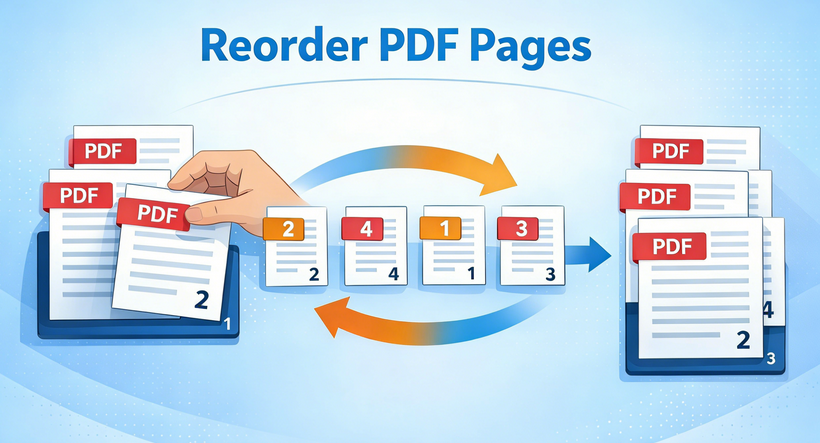
Você já baixou um PDF e descobriu que as páginas estão completamente fora de ordem? Talvez você tenha digitalizado documentos sem perceber que a sequência estava errada, ou precise extrair páginas específicas de vários PDFs para um novo documento. Reorganizar páginas de PDF é uma tarefa comum, mas muitas vezes frustrante, que profissionais, estudantes e usuários comuns encontram regularmente.
Neste guia abrangente, exploraremos vários métodos para reordenar páginas de PDF — desde ferramentas online simples até automação poderosa com Python. Se você precisa de uma solução rápida ou deseja implementar soluções programáticas, encontrará a abordagem certa aqui.
- Por que você pode precisar reorganizar as páginas do PDF
- Ferramentas online gratuitas para reordenar páginas de PDF
- Ferramentas de edição de ordem de página de PDF para desktop
- Método de automação com Python para reordenação de PDF em massa
- Melhores práticas para reordenar páginas de PDF
- Perguntas frequentes sobre a organização de páginas de PDF
Por que você pode precisar reorganizar as páginas do PDF
Os PDFs se tornaram o padrão universal para compartilhar documentos, preservando a formatação, mas não têm a flexibilidade dos formatos editáveis. A capacidade de reordenar as páginas de arquivos PDF é essencial para:
- Relatórios e apresentações que precisam de ajustes no fluxo lógico
- Documentos digitalizados onde as páginas foram acidentalmente misturadas
- Trabalhos acadêmicos que exigem a reorganização de capítulos ou apêndices
- Documentos comerciais que precisam que os resumos executivos sejam movidos para o início
- Criação de PDFs personalizados combinando páginas de várias fontes
Ferramentas online gratuitas para reordenar páginas de PDF
As ferramentas online são perfeitas se você não quiser baixar software e só precisar alterar a ordem das páginas em PDF ocasionalmente. A maioria é gratuita, fácil de usar e funciona em qualquer dispositivo com um navegador — não são necessárias habilidades técnicas.
Melhor escolha: iLovePDF (Organizar PDF)
O iLovePDF é uma das ferramentas de PDF online gratuitas mais populares, com um recurso dedicado de “Organizar PDF” projetado especificamente para reordenar, excluir ou girar páginas. Ele suporta processamento em lote (um recurso gratuito raro) e integração com armazenamento em nuvem.
Passos para reordenar páginas de PDF online com o iLovePDF:
- Visite a ferramenta Organizar PDF do iLovePDF.
- Carregue seu(s) PDF(s) do seu dispositivo, Google Drive, Dropbox ou URL.
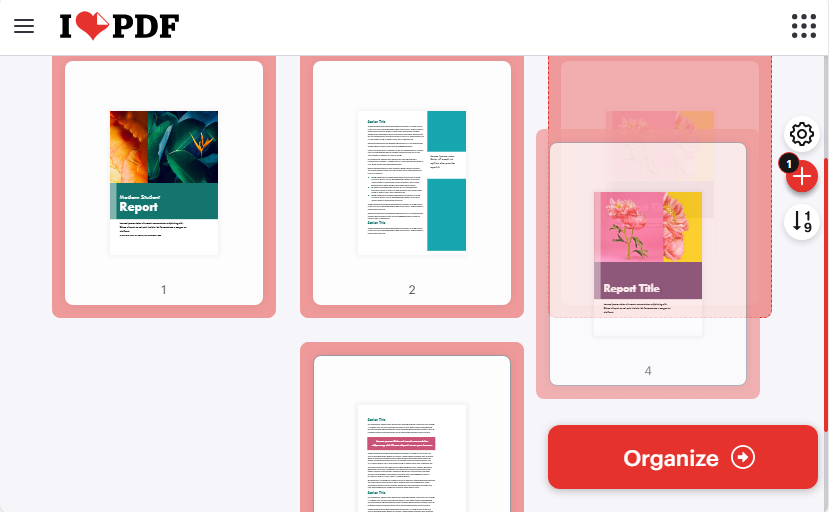
- Use a interface de arrastar e soltar para reorganizar as páginas. (Você também pode girar páginas ou excluir as indesejadas, se necessário.)
- Após reordenar, clique em "Organizar" e baixe o arquivo PDF reordenado.
Ferramentas online alternativas:
- PDF Candy: Interface amigável; permite salvar o resultado diretamente no armazenamento em nuvem.
- Sejda: Uma alternativa focada na privacidade; ótima escolha para documentos confidenciais ou PDFs grandes.
Artigo relacionado: Como extrair páginas de um PDF gratuitamente — sem necessidade de Adobe
Ferramentas de edição de ordem de página de PDF para desktop
Para edição frequente de PDF, documentos confidenciais (por exemplo, contratos legais, registros médicos) ou uso offline, as ferramentas de desktop são superiores - todo o processamento acontece localmente no seu dispositivo para garantir a máxima segurança dos dados.
Melhor escolha: PDF24 Creator (Gratuito, Offline e Portátil)
O PDF24 Creator é uma ferramenta de desktop 100% gratuita e sem anúncios que se destaca na reordenação de páginas de PDF e oferece um conjunto completo de recursos de edição de PDF (mesclar, dividir, girar, etc.). Funciona offline e é compatível com Windows (7/8/10/11).
Passos para reorganizar páginas de PDF com o PDF24 Creator:
- Baixe o PDF24 Creator e inicie-o.
- Abra a Caixa de Ferramentas do PDF24 e clique em “Organizar PDFs”.
- Importe seu arquivo PDF clicando em "Arquivo > Abrir" ou arrastando e soltando-o na interface.
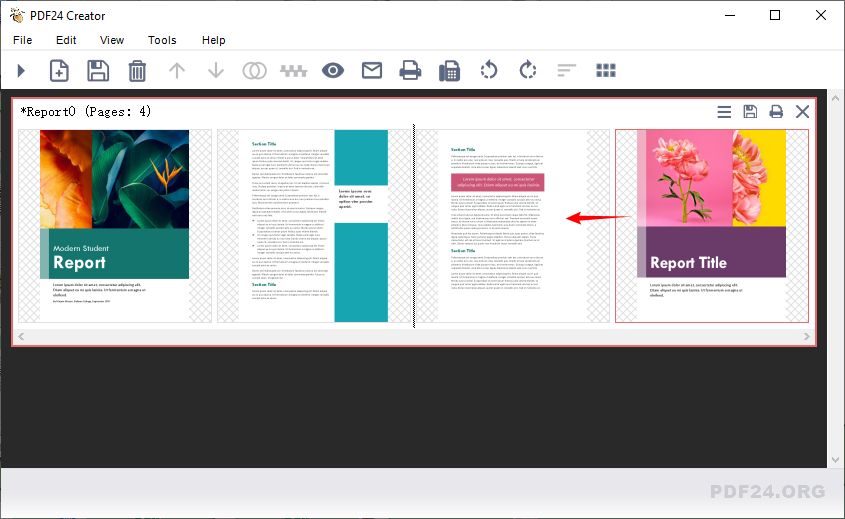
- Para reordenar as páginas, basta clicar e arrastar qualquer página para a posição desejada.
- Quando estiver satisfeito com a nova ordem, clique em "Salvar" para exportar seu arquivo PDF organizado.
Outras opções de desktop:
- Preview (Mac): Integrado, sem necessidade de instalação. Use a visualização de miniaturas para arrastar as páginas.
- Adobe Acrobat Pro (Pago): Uma ferramenta premium baseada em assinatura para usuários avançados e empresas que precisam de automação avançada de fluxo de trabalho em PDF.
Dica profissional: após reordenar, você pode adicionar números de página para tornar o documento PDF mais navegável para os leitores.
Método de automação com Python para reordenação de PDF em massa
Se você precisa automatizar a reordenação de PDF em lote (por exemplo, reordenar mais de 100 PDFs de uma vez) ou integrar a reordenação de páginas em um fluxo de trabalho Python, o Free Spire.PDF for Python é uma biblioteca poderosa e gratuita. É ideal para desenvolvedores, analistas de dados ou qualquer pessoa que trabalhe com grandes volumes de PDFs.
Código Python para reordenar páginas de PDF
Este código carrega um PDF, altera a ordem das páginas do PDF e salva em um novo arquivo.
from spire.pdf.common import *
from spire.pdf import *

# Crie uma instância de PdfDocument
pdf = PdfDocument()

# Carregue um arquivo PDF
pdf.LoadFromFile("Report.pdf")

# Reordene as páginas no arquivo PDF
pdf.Pages.ReArrange([3, 2, 0, 1])

# Salve o arquivo de resultado
pdf.SaveToFile("RearrangePDFPageOrder.pdf", FileFormat.PDF)
pdf.Close()
Dicas de personalização:
- Caminhos dos arquivos: substitua os arquivos de entrada e saída por caminhos absolutos (por exemplo, "C:/Documents/Report.pdf") ou caminhos relativos válidos (por exemplo, "./data/Report.pdf") para evitar erros de arquivo não encontrado.
- Ordem das páginas: modifique a lista [3, 2, 0, 1] (índices baseados em 0) para ajustar a sequência de páginas. Certifique-se de que o comprimento da lista corresponda ao total do PDF.
- Processamento em lote: envolva a função em um loop para reordenar todos os PDFs em uma pasta (use os.listdir() para iterar sobre os arquivos).
Resultado:
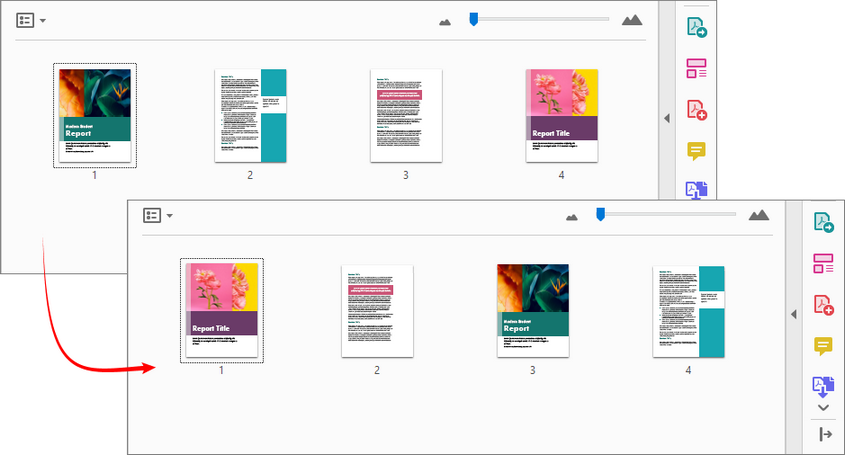
Com o Free Spire.PDF for Python, você também pode mesclar páginas de vários PDFs e organizá-las em uma ordem personalizada
Melhores práticas para reordenar páginas de PDF
Para evitar erros e garantir um fluxo de trabalho tranquilo, siga estas dicas:
Antes de começar:
- Faça uma cópia de backup do seu documento original
- Verifique se o PDF está protegido/criptografado (pode ser necessário remover a senha primeiro)
- Garanta que os números de página ou referências que possam precisar de atualização
Durante o processo:
- Use a visualização de várias páginas para entender a estrutura geral
- Considere agrupamentos lógicos ao mover várias páginas
- Verifique se as referências cruzadas no documento ainda fazem sentido
Após a reordenação:
- Percorra todo o documento para verificar o fluxo
- Atualize marcadores ou links se o seu software suportar
- Considere otimizar o tamanho do arquivo se você adicionou ou manipulou páginas
Conclusão
Reordenar páginas de PDF é simples com a ferramenta certa. Para a maioria dos usuários, plataformas online como o iLovePDF oferecem uma solução rápida e sem download. Se você lida com arquivos confidenciais ou trabalha offline, softwares de desktop como o PDF24 Creator mantêm seus dados seguros e sob seu controle. Para automação ou processamento em lote, o Python com o Free Spire.PDF oferece uma abordagem flexível e programável.
Escolha o método que se alinha ao seu fluxo de trabalho e transforme PDFs bagunçados e fora de ordem em arquivos organizados e fáceis de usar em minutos.
Perguntas frequentes sobre a organização de páginas de PDF
P: Essas ferramentas de reordenação de PDF são realmente gratuitas?
R: Sim, todas as ferramentas listadas oferecem níveis gratuitos. Algumas têm limites de tamanho de arquivo ou de página.
P: Esses métodos funcionam em PDFs digitalizados/baseados em imagem?
R: Sim, você pode reordenar PDFs digitalizados, mas eles permanecerão como imagens. Se você precisar editar o texto em um PDF digitalizado, primeiro precisará executar o OCR (Reconhecimento Óptico de Caracteres).
P: Existe uma maneira de inverter a ordem de todas as páginas (da última para a primeira)?
R: Sim, em ferramentas como o iLovePDF e o PDF24 Creator, eles oferecem um botão para inverter a ordem das páginas. Com Python, você pode gerar uma lista de índices invertida (por exemplo, [9, 8, 7, ..., 0] para um documento de 10 páginas).
P: Posso agendar tarefas automatizadas de reordenação de PDF?
R: Com scripts Python, sim — você pode usar agendadores de tarefas (como o cron no Linux ou o Agendador de Tarefas no Windows) para executar scripts de reordenação automaticamente em horários definidos.
Veja também
PDF 페이지 순서를 변경하는 3가지 방법: 온라인, 데스크톱 및 Python
PDF를 다운로드했는데 페이지 순서가 완전히 뒤죽박죽인 것을 발견한 적이 있습니까? 순서가 잘못된 것을 인지하지 못한 채 문서를 스캔했거나, 여러 PDF에서 특정 페이지만 추출하여 새 문서로 만들어야 할 수도 있습니다. PDF 페이지 재정렬은 전문가, 학생, 일반 사용자가 정기적으로 마주치는 흔하지만 종종 답답한 작업입니다.
이 종합 가이드에서는 간단한 온라인 도구부터 강력한 Python 자동화에 이르기까지 PDF 페이지를 재정렬하는 여러 가지 방법을 살펴보겠습니다. 빠른 수정이 필요하든 프로그래밍 방식의 솔루션을 구현하고 싶든 여기에서 올바른 접근 방식을 찾을 수 있습니다.
- PDF 페이지 재정렬이 필요한 이유
- 무료 온라인 PDF 페이지 재정렬 도구
- 데스크톱 PDF 페이지 순서 편집기 도구
- 대량 PDF 재정렬을 위한 Python 자동화 방법
- PDF 페이지 재정렬을 위한 모범 사례
- PDF 페이지 정리에 대한 자주 묻는 질문
PDF 페이지 재정렬이 필요한 이유
PDF는 서식을 보존하면서 문서를 공유하기 위한 보편적인 표준이 되었지만 편집 가능한 형식의 유연성이 부족합니다. PDF 파일의 페이지 순서를 바꾸는 기능은 다음에 필수적입니다.
- 논리적 흐름 조정이 필요한 보고서 및 프레젠테이션
- 페이지가 실수로 섞인 스캔된 문서
- 장 또는 부록의 재구성이 필요한 학술 논문
- 요약본을 앞으로 옮겨야 하는 비즈니스 문서
- 여러 소스의 페이지를 결합하여 사용자 지정 PDF 만들기
무료 온라인 PDF 페이지 재정렬 도구
온라인 도구는 소프트웨어를 다운로드하고 싶지 않고 가끔씩 PDF의 페이지 순서를 변경해야 하는 경우에 적합합니다. 대부분은 무료이고 사용자 친화적이며 브라우저가 있는 모든 장치에서 작동하므로 기술적인 기술이 필요하지 않습니다.
최고 추천: iLovePDF (PDF 정리)
ILovePDF는 페이지 재정렬, 삭제 또는 회전을 위해 특별히 설계된 전용 “PDF 정리” 기능이 있는 가장 인기 있는 무료 온라인 PDF 도구 중 하나입니다. 일괄 처리(드문 무료 기능) 및 클라우드 스토리지 통합을 지원합니다.
iLovePDF로 온라인에서 PDF 페이지를 재정렬하는 단계:
- iLovePDF PDF 정리 도구를 방문하세요.
- 장치, Google Drive, Dropbox 또는 URL에서 PDF를 업로드하세요.
- 드래그 앤 드롭 인터페이스를 사용하여 페이지를 재정렬하세요. (필요한 경우 페이지를 회전하거나 원하지 않는 페이지를 삭제할 수도 있습니다.)
- 재정렬 후 "정리"를 클릭하고 재정렬된 PDF 파일을 다운로드하세요.
대체 온라인 도구:
- PDF Candy: 사용자 친화적인 인터페이스; 출력을 클라우드 스토리지에 직접 저장할 수 있습니다.
- Sejda: 개인 정보 보호에 중점을 둔 대안; 민감한 문서나 대용량 PDF에 적합합니다.
관련 기사: Adobe 없이 무료로 PDF에서 페이지를 추출하는 방법
데스크톱 PDF 페이지 순서 편집기 도구
잦은 PDF 편집, 민감한 문서(예: 법률 계약서, 의료 기록) 또는 오프라인 사용의 경우 데스크톱 도구가 우수합니다. 모든 처리가 장치에서 로컬로 이루어져 최대의 데이터 보안을 보장합니다.
최고 추천: PDF24 Creator (무료, 오프라인 및 휴대용)
PDF24 Creator는 PDF 페이지 재정렬에 탁월하고 전체 PDF 편집 기능(병합, 분할, 회전 등)을 제공하는 100% 무료, 광고 없는 데스크톱 도구입니다. 오프라인으로 작동하며 Windows(7/8/10/11)와 호환됩니다.
PDF24 Creator로 PDF 페이지를 재정렬하는 단계:
- PDF24 Creator를 다운로드하고 실행하세요.
- PDF24 도구 상자를 열고 “PDF 정리”를 클릭하세요.
- "파일 > 열기"를 클릭하거나 인터페이스로 드래그 앤 드롭하여 PDF 파일을 가져옵니다.
- 페이지 순서를 바꾸려면 원하는 페이지를 클릭하여 원하는 위치로 드래그하기만 하면 됩니다.
- 새 순서에 만족하면 "저장"을 클릭하여 정리된 PDF 파일을 내보냅니다.
기타 데스크톱 옵션:
- 미리보기 (Mac): 내장되어 있어 설치가 필요 없습니다. 썸네일 보기를 사용하여 페이지를 드래그하세요.
- Adobe Acrobat Pro (유료): 고급 PDF 워크플로 자동화가 필요한 파워 유저 및 기업을 위한 프리미엄 구독 기반 도구입니다.
전문가 팁: 재정렬 후 페이지 번호를 추가하여 독자가 PDF 문서를 더 쉽게 탐색할 수 있도록 할 수 있습니다.
대량 PDF 재정렬을 위한 Python 자동화 방법
일괄 PDF 재정렬(예: 한 번에 100개 이상의 PDF 재정렬)을 자동화하거나 페이지 재정렬을 Python 워크플로에 통합해야 하는 경우, Free Spire.PDF for Python은 강력한 무료 라이브러리입니다. 개발자, 데이터 분석가 또는 대량의 PDF로 작업하는 모든 사람에게 이상적입니다.
PDF 페이지 재정렬을 위한 Python 코드
이 코드는 PDF를 로드하고 PDF 페이지의 순서를 변경한 다음 새 파일에 저장합니다.
from spire.pdf.common import *
from spire.pdf import *

# PdfDocument 인스턴스 생성
pdf = PdfDocument()

# PDF 파일 로드
pdf.LoadFromFile("Report.pdf")

# PDF 파일의 페이지 재정렬
pdf.Pages.ReArrange([3, 2, 0, 1])

# 결과 파일 저장
pdf.SaveToFile("RearrangePDFPageOrder.pdf", FileFormat.PDF)
pdf.Close()
사용자 지정 팁:
- 파일 경로: 파일 찾을 수 없음 오류를 방지하려면 입력 및 출력 파일을 절대 경로(예: "C:/Documents/Report.pdf") 또는 유효한 상대 경로(예: "./data/Report.pdf")로 바꾸세요.
- 페이지 순서: 페이지 순서를 조정하려면 [3, 2, 0, 1] 목록(0부터 시작하는 인덱스)을 수정하세요. 목록 길이가 PDF의 총 페이지 수와 일치하는지 확인하세요.
- 일괄 처리: 폴더의 모든 PDF를 재정렬하려면 함수를 루프로 래핑하세요(파일을 반복하려면 os.listdir() 사용).
결과:
Free Spire.PDF for Python을 사용하면 여러 PDF의 페이지를 병합하고 사용자 지정 순서로 정렬할 수도 있습니다.
PDF 페이지 재정렬을 위한 모범 사례
실수를 방지하고 원활한 워크플로를 보장하려면 다음 팁을 따르세요.
시작하기 전:
- 원본 문서의 백업 사본 만들기
- PDF가 보안/암호화되었는지 확인 (먼저 암호 제거가 필요할 수 있음)
- 업데이트가 필요할 수 있는 페이지 번호 또는 참조 확인
프로세스 중:
- 다중 페이지 보기를 사용하여 전체 구조 이해
- 여러 페이지를 이동할 때 논리적 그룹화 고려
- 문서 내 상호 참조가 여전히 유효한지 확인
재정렬 후:
- 전체 문서를 스크롤하여 흐름 확인
- 소프트웨어가 지원하는 경우 책갈피 또는 링크 업데이트
- 페이지를 추가하거나 조작한 경우 파일 크기 최적화 고려
결론
올바른 도구를 사용하면 PDF 페이지 재정렬이 간단합니다. 대부분의 사용자에게 iLovePDF와 같은 온라인 플랫폼은 다운로드가 필요 없는 빠른 솔루션을 제공합니다. 기밀 파일을 처리하거나 오프라인으로 작업하는 경우 PDF24 Creator와 같은 데스크톱 소프트웨어는 데이터를 안전하게 제어할 수 있도록 합니다. 자동화 또는 일괄 처리를 위해 Free Spire.PDF가 포함된 Python은 유연하고 스크립트 가능한 접근 방식을 제공합니다.
워크플로에 맞는 방법을 선택하고 지저분하고 순서가 맞지 않는 PDF를 몇 분 만에 정리되고 사용하기 쉬운 파일로 바꾸세요.
PDF 페이지 정리에 대한 자주 묻는 질문
Q: 이 PDF 재정렬 도구는 정말 무료인가요?
A: 예, 나열된 모든 도구는 무료 등급을 제공합니다. 일부는 파일 크기 또는 페이지 제한이 있습니다.
Q: 이 방법들이 스캔/이미지 기반 PDF에서도 작동하나요?
A: 예, 스캔한 PDF의 순서를 바꿀 수 있지만 이미지로 남아 있습니다. 스캔한 PDF 내의 텍스트를 편집해야 하는 경우 먼저 OCR(광학 문자 인식)을 수행해야 합니다.
Q: 전체 페이지 순서를 역순으로(마지막 페이지에서 첫 페이지로) 바꿀 수 있는 방법이 있나요?
A: 예, iLovePDF 및 PDF24 Creator와 같은 도구에서는 페이지 순서 역순 버튼을 제공합니다. Python을 사용하면 역순 인덱스 목록(예: 10페이지 문서의 경우 [9, 8, 7, ..., 0])을 생성할 수 있습니다.
Q: 자동화된 PDF 재정렬 작업을 예약할 수 있나요?
A: Python 스크립트를 사용하면 예—cron(Linux) 또는 작업 스케줄러(Windows)와 같은 작업 스케줄러를 사용하여 설정된 시간에 재정렬 스크립트를 자동으로 실행할 수 있습니다.
참고 항목
3 modi per riordinare le pagine di un PDF: online, desktop e Python
Indice
- Perché Potrebbe Essere Necessario Riorganizzare le Pagine di un PDF
- Strumenti Online Gratuiti per Riorganizzare le Pagine dei PDF
- Strumenti Desktop per Modificare l'Ordine delle Pagine dei PDF
- Metodo di Automazione con Python per la Riorganizzazione Massiva dei PDF
- Migliori Pratiche per Riorganizzare le Pagine dei PDF
- Domande Frequenti sull'Organizzazione delle Pagine dei PDF
Hai mai scaricato un PDF solo per scoprire che le pagine sono completamente fuori ordine? Forse hai scansionato documenti senza renderti conto che la sequenza era sbagliata, o hai bisogno di estrarre pagine specifiche da più PDF in un nuovo documento. Riorganizzare le pagine di un PDF è un compito comune ma spesso frustrante che professionisti, studenti e utenti di tutti i giorni incontrano regolarmente.
In questa guida completa, esploreremo diversi metodi per riordinare le pagine dei PDF—da semplici strumenti online a potenti automazioni con Python. Che tu abbia bisogno di una soluzione rapida o voglia implementare soluzioni programmatiche, qui troverai l'approccio giusto.
- Perché Potrebbe Essere Necessario Riorganizzare le Pagine di un PDF
- Strumenti Online Gratuiti per Riorganizzare le Pagine dei PDF
- Strumenti Desktop per Modificare l'Ordine delle Pagine dei PDF
- Metodo di Automazione con Python per la Riorganizzazione Massiva dei PDF
- Migliori Pratiche per Riorganizzare le Pagine dei PDF
- Domande Frequenti sull'Organizzazione delle Pagine dei PDF
Perché Potrebbe Essere Necessario Riorganizzare le Pagine di un PDF
I PDF sono diventati lo standard universale per la condivisione di documenti preservandone la formattazione, ma mancano della flessibilità dei formati modificabili. La capacità di riordinare le pagine dei file PDF è essenziale per:
- Rapporti e presentazioni che necessitano di aggiustamenti nel flusso logico
- Documenti scansionati in cui le pagine sono state mescolate accidentalmente
- Articoli accademici che richiedono la riorganizzazione di capitoli o appendici
- Documenti aziendali che necessitano di spostare i riassunti esecutivi all'inizio
- Creazione di PDF personalizzati combinando pagine da più fonti
Strumenti Online Gratuiti per Riorganizzare le Pagine dei PDF
Gli strumenti online sono perfetti se non vuoi scaricare software e hai solo bisogno di cambiare occasionalmente l'ordine delle pagine in un PDF. La maggior parte sono gratuiti, facili da usare e funzionano su qualsiasi dispositivo con un browser—senza richiedere competenze tecniche.
Scelta Migliore: iLovePDF (Organizza PDF)
iLovePDF è uno degli strumenti PDF online gratuiti più popolari, con una funzione dedicata “Organizza PDF” progettata specificamente per riordinare, eliminare o ruotare le pagine. Supporta l'elaborazione batch (una rara funzionalità gratuita) e l'integrazione con l'archiviazione cloud.
Passaggi per riordinare le pagine di un PDF online con iLovePDF:
- Visita lo strumento Organizza PDF di iLovePDF.
- Carica i tuoi PDF dal tuo dispositivo, Google Drive, Dropbox o tramite URL.
- Usa l'interfaccia drag-and-drop per riorganizzare le pagine. (Puoi anche ruotare le pagine o eliminare quelle indesiderate, se necessario.)
- Dopo aver riordinato, fai clic su "Organizza" e scarica il file PDF riordinato.
Strumenti Online Alternativi:
- PDF Candy: Interfaccia facile da usare; ti permette di salvare l'output direttamente sull'archiviazione cloud.
- Sejda: Un'alternativa attenta alla privacy; ottima scelta per documenti sensibili o PDF di grandi dimensioni.
Articolo Correlato: Come Estrarre Pagine da un PDF Gratuitamente — Senza Bisogno di Adobe
Strumenti Desktop per Modificare l'Ordine delle Pagine dei PDF
Per la modifica frequente di PDF, documenti sensibili (ad es. contratti legali, cartelle cliniche) o per l'uso offline, gli strumenti desktop sono superiori - tutta l'elaborazione avviene localmente sul tuo dispositivo per garantire la massima sicurezza dei dati.
Scelta Migliore: PDF24 Creator (Gratuito, Offline e Portatile)
PDF24 Creator è uno strumento desktop 100% gratuito e senza pubblicità che eccelle nel riordinare le pagine dei PDF e offre una suite completa di funzionalità di modifica PDF (unione, divisione, rotazione, ecc.). Funziona offline ed è compatibile con Windows (7/8/10/11).
Passaggi per riorganizzare le pagine di un PDF con PDF24 Creator:
- Scarica PDF24 Creator e avvialo.
- Apri la Casella degli Strumenti di PDF24 e fai clic su “Organizza PDF”.
- Importa il tuo file PDF facendo clic su "File > Apri" o trascinandolo nell'interfaccia.
- Per riordinare le pagine, fai semplicemente clic e trascina qualsiasi pagina nella posizione desiderata.
- Una volta soddisfatto del nuovo ordine, fai clic su "Salva" per esportare il tuo file PDF organizzato.
Altre Opzioni Desktop:
- Anteprima (Mac): Integrato, nessuna installazione necessaria. Usa la vista miniature per trascinare le pagine.
- Adobe Acrobat Pro (A pagamento): Uno strumento premium basato su abbonamento per utenti esperti e aziende che necessitano di automazione avanzata del flusso di lavoro PDF.
Consiglio Pro: Dopo aver riordinato, puoi aggiungere i numeri di pagina per rendere il documento PDF più navigabile per i lettori.
Metodo di Automazione con Python per la Riorganizzazione Massiva dei PDF
Se hai bisogno di automatizzare la riorganizzazione massiva di PDF (ad es. riordinare più di 100 PDF contemporaneamente) o integrare la riorganizzazione delle pagine in un flusso di lavoro Python, Free Spire.PDF for Python è una libreria potente e gratuita. È ideale per sviluppatori, analisti di dati o chiunque lavori con grandi volumi di PDF.
Codice Python per Riorganizzare le Pagine di un PDF
Questo codice carica un PDF, cambia l'ordine delle pagine del PDF e salva in un nuovo file.
from spire.pdf.common import *
from spire.pdf import *

# Create a PdfDocument instance
pdf = PdfDocument()

# Load a PDF file
pdf.LoadFromFile("Report.pdf")

# Reorder pages in the PDF file
pdf.Pages.ReArrange([3, 2, 0, 1])

# Save the result file
pdf.SaveToFile("RearrangePDFPageOrder.pdf", FileFormat.PDF)
pdf.Close()
Consigli per la Personalizzazione:
- Percorsi dei File: Sostituisci i file di input e output con percorsi assoluti (ad es. "C:/Documents/Report.pdf") o percorsi relativi validi (ad es. "./data/Report.pdf") per evitare errori di file non trovato.
- Ordine delle Pagine: Modifica la lista [3, 2, 0, 1] (indici basati su 0) per regolare la sequenza delle pagine. Assicurati che la lunghezza della lista corrisponda al totale delle pagine del PDF.
- Elaborazione Massiva: Inserisci la funzione in un ciclo per riordinare tutti i PDF in una cartella (usa os.listdir() per iterare sui file).
Risultato:
Con Free Spire.PDF for Python, puoi anche unire pagine da più PDF e disporle in un ordine personalizzato
Migliori Pratiche per Riorganizzare le Pagine dei PDF
Per evitare errori e garantire un flusso di lavoro senza intoppi, segui questi consigli:
Prima di iniziare:
- Fai una copia di backup del tuo documento originale
- Controlla se il PDF è protetto/crittografato (potrebbe essere necessario rimuovere prima la password)
- Assicurati che i numeri di pagina o i riferimenti che potrebbero necessitare di aggiornamento
Durante il processo:
- Usa la visualizzazione multi-pagina per comprendere la struttura generale
- Considera raggruppamenti logici quando sposti più pagine
- Verifica che i riferimenti incrociati all'interno del documento abbiano ancora senso
Dopo la riorganizzazione:
- Scorri l'intero documento per controllare il flusso
- Aggiorna i segnalibri o i link se il tuo software lo supporta
- Considera l'ottimizzazione della dimensione del file se hai aggiunto o manipolato pagine
Conclusione
Riorganizzare le pagine di un PDF è semplice con lo strumento giusto. Per la maggior parte degli utenti, piattaforme online come iLovePDF offrono una soluzione rapida e senza download. Se gestisci file confidenziali o lavori offline, software desktop come PDF24 Creator mantengono i tuoi dati sicuri e sotto il tuo controllo. Per l'automazione o l'elaborazione massiva, Python con Free Spire.PDF fornisce un approccio flessibile e programmabile.
Scegli il metodo che si allinea al tuo flusso di lavoro e trasforma PDF disordinati e fuori posto in file organizzati e facili da usare in pochi minuti.
Domande Frequenti sull'Organizzazione delle Pagine dei PDF
D: Questi strumenti per riordinare i PDF sono davvero gratuiti?
R: Sì, tutti gli strumenti elencati offrono versioni gratuite. Alcuni hanno limiti di dimensione del file o di numero di pagine.
D: Questi metodi funzionano su PDF scansionati/basati su immagini?
R: Sì, puoi riordinare i PDF scansionati, ma rimarranno come immagini. Se hai bisogno di modificare il testo all'interno di un PDF scansionato, dovrai prima eseguire l'OCR (Riconoscimento Ottico dei Caratteri).
D: C'è un modo per invertire l'intero ordine delle pagine (dall'ultima alla prima)?
R: Sì, in strumenti come iLovePDF e PDF24 Creator, offrono un pulsante per invertire l'ordine delle pagine. Con Python, puoi generare una lista di indici invertita (ad es. [9, 8, 7, ..., 0] per un documento di 10 pagine).
D: Posso pianificare attività di riorganizzazione automatica dei PDF?
R: Con gli script Python, sì—puoi usare pianificatori di attività (come cron su Linux o Utilità di pianificazione su Windows) per eseguire script di riorganizzazione automaticamente a orari prestabiliti.