Как изменить цвет фона в Word: 4 практических способа
Белый фон подходит для большинства документов Word, но это не всегда лучший выбор. Независимо от того, создаете ли вы брошюру, приглашение, учебный материал, фирменный отчет или документ для чтения с экрана, правильно подобранный цвет фона может подчеркнуть визуальный стиль документа и повысить комфорт при чтении.
В этом руководстве вы узнаете о четырех практических способах изменения цвета фона в Word. Независимо от того, редактируете ли вы один документ или обрабатываете большое количество файлов, вы сможете выбрать подход, который соответствует вашему рабочему процессу.
Обзор методов: выберите подходящий для вашего рабочего процесса
Идеальный метод зависит от ваших технических возможностей и объема документов, которые необходимо обработать. Ознакомьтесь с приведенной ниже сравнительной таблицей, чтобы определить, какой подход соответствует требованиям вашего проекта:
| Метод | Для чего лучше всего подходит | Преимущества | Ограничения |
|---|---|---|---|
| Microsoft Word (десктоп) | Отдельные документы | Полный набор функций, простота использования | Требует ручного редактирования |
| Word для интернета | Быстрое редактирование в браузере | Не требуется установка программы | Меньше расширенных параметров заливки |
| Изменение XML-пакета Word | Опытные пользователи, выполняющие контролируемые изменения на уровне файла | Не требует Word или сторонних библиотек | Ручные правки могут повредить файл при неправильном выполнении |
| Автоматизация на C# | Повторяющаяся или пакетная обработка документов | Применяет единые настройки к нескольким файлам | Требуются знания программирования на C# |
Метод 1: Изменение цвета фона страницы в Microsoft Word (десктоп)
Десктопная версия Microsoft Word предоставляет наиболее полный набор параметров фона страницы. Вы можете применить сплошные цвета, градиенты, текстуры или узоры ко всему документу или использовать полностраничную фигуру, если нужно изменить фон только одной страницы.
Добавление цвета фона для всего документа
-
Откройте документ Word.
-
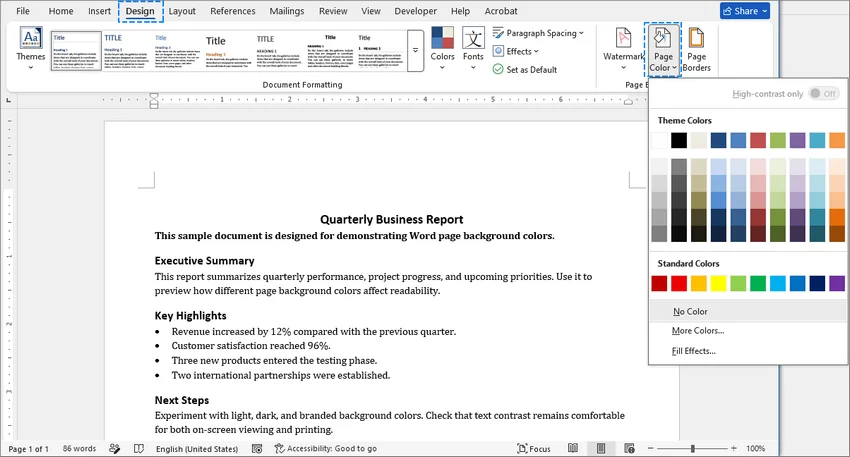
Перейдите на вкладку Конструктор (Design) на верхней ленте.
-
Выберите Цвет страницы (Page Color) в группе Фон страницы.
-
Выберите Цвет темы или Стандартный цвет из сетки.
-
Дополнительные параметры заливки (необязательно):
- Использование пользовательского цвета: Нажмите Другие цвета, выберите или введите нужные значения цвета и нажмите ОК.
- Использование градиента, текстуры или узора: Выберите Способы заливки в выпадающем меню, чтобы применить многоцветные градиенты, готовые текстуры или геометрические узоры, затем нажмите ОК.
Результат: Word мгновенно применяет выбранный цвет или эффект ко всем страницам документа.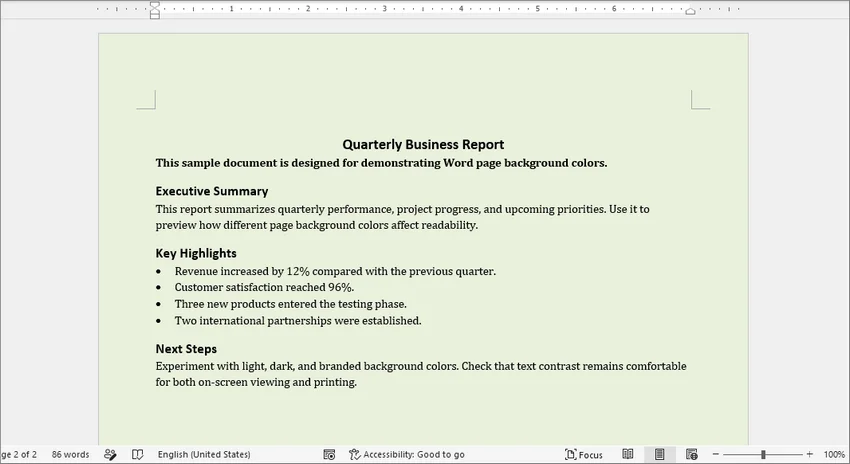
Добавление цвета фона на одну страницу
По умолчанию инструмент «Цвет страницы» применяет фон ко всем страницам документа. Если вы хотите изменить цвет фона только определенной страницы (например, титульного листа или разделителя разделов), используйте полностраничную фигуру в качестве фона:
-
Перейдите к странице, которую хотите изменить.
-
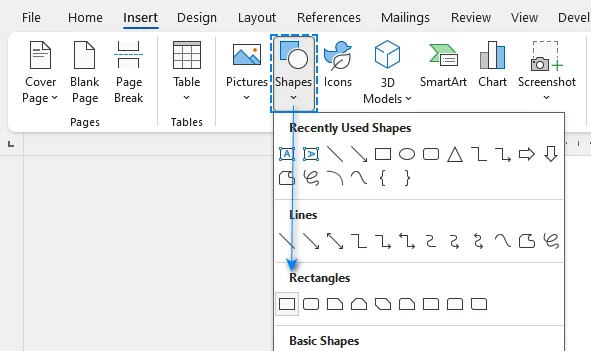
Перейдите на вкладку Вставка на верхней ленте.
-
Выберите Фигуры и выберите инструмент Прямоугольник.
-
Нажмите и перетащите прямоугольник так, чтобы он полностью закрывал всю страницу от края до края.
-
Перейдите на открывшуюся вкладку Формат фигуры.
-
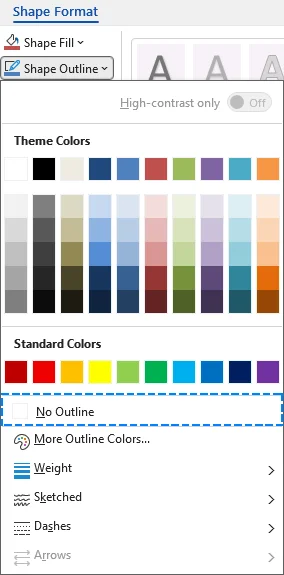
Нажмите Контур фигуры и выберите Нет контура.
-
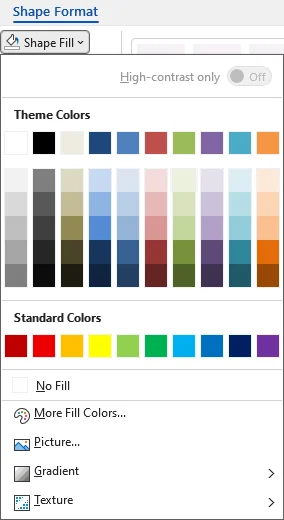
Нажмите Заливка фигуры и выберите нужный цвет.
-
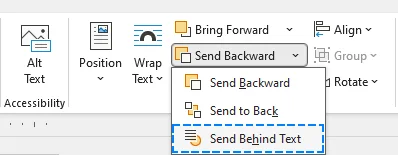
Нажмите стрелку рядом с кнопкой На задний план и выберите Поместить за текстом.
Результат: Цвет фона применяется только к выбранной странице, остальные страницы остаются без изменений.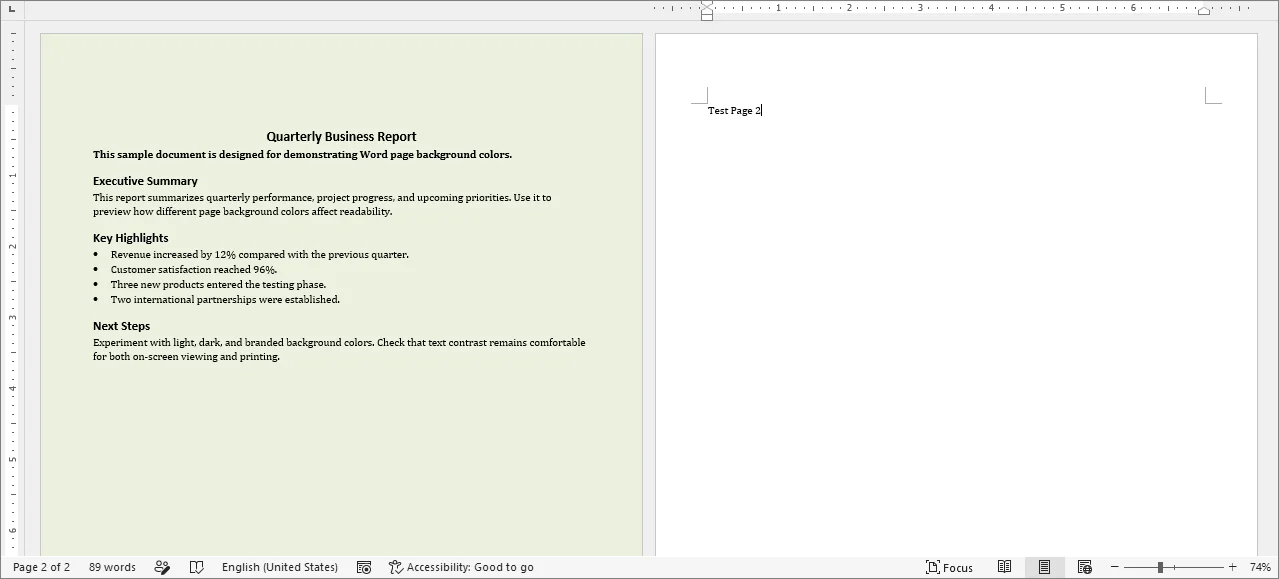
Важный совет: зафиксируйте положение фоновой фигуры
Word рассматривает плавающую фигуру как объект, привязанный к абзацу. При изменении окружающего контента фигура может сместиться, если ее положение не настроено должным образом.
Чтобы зафиксировать фоновый прямоугольник относительно страницы:
- Нажмите правой кнопкой мыши на вставленную фигуру и выберите Дополнительные параметры макета.
- Перейдите на вкладку Положение.
- Измените точки привязки для горизонтального и вертикального абсолютного положения на Страница.
- Установите флажок Привязать к объекту внизу, чтобы предотвратить случайное перемещение привязки к другому абзацу.
- Нажмите ОК, чтобы применить изменения.
Для дополнительного оформления страницы вы также можете добавить водяной знак или применить границы страницы, в зависимости от целей и дизайна документа.
Метод 2: Изменение цвета фона в Word для интернета
Если вы работаете на Chromebook, используете компьютер без установленного пакета Office или работаете совместно в режиме реального времени, вы можете настроить цвет фона страницы прямо в браузере с помощью Word для интернета (Microsoft 365 Online).
Шаги для изменения цвета фона онлайн
- Загрузите и откройте документ в Word для интернета.
- Перейдите в Макет > Цвет страницы.
- Выберите цвет в разделе Цвета страницы или Стандартные цвета.
- Если нужного цвета нет, выберите Другие цвета и выберите цвет в открывшемся диалоговом окне выбора цвета.
⚠️ Ограничения Word для интернета:
- Нет расширенных заливок: Градиенты, узоры, текстуры и фоновые изображения нельзя добавить онлайн.
- Несоответствие отображения: Документы со сложными фонами, созданными в десктопной версии, могут отображаться в браузере некорректно. Используйте десктопное приложение для точного предварительного просмотра и редактирования.
Метод 3: Изменение XML-пакета документа Word
Если вам нужно изменить цвет фона файла .docx без открытия Microsoft Word или написания кода, вы можете напрямую изменить структуру базового файла Open XML. Файл .docx — это, по сути, ZIP-архив, содержащий XML-файлы и связанные ресурсы.
Пошаговое руководство
-
Создайте резервную копию исходного документа Word.
-
Измените расширение файла с
.docxна.zip. -
Распакуйте ZIP-архив в новую папку.
-
Откройте файл word/document.xml внутри этой папки с помощью текстового редактора, например Notepad++ или Visual Studio Code.
-
Найдите открывающий элемент
<w:document ...>и вставьте следующий элемент после его открывающего тега, но перед<w:body>:<w:background w:color="F0F0F0"/>(Замените
F0F0F0на нужное шестизначное шестнадцатеричное значение цвета RGB. Не включайте символ#.)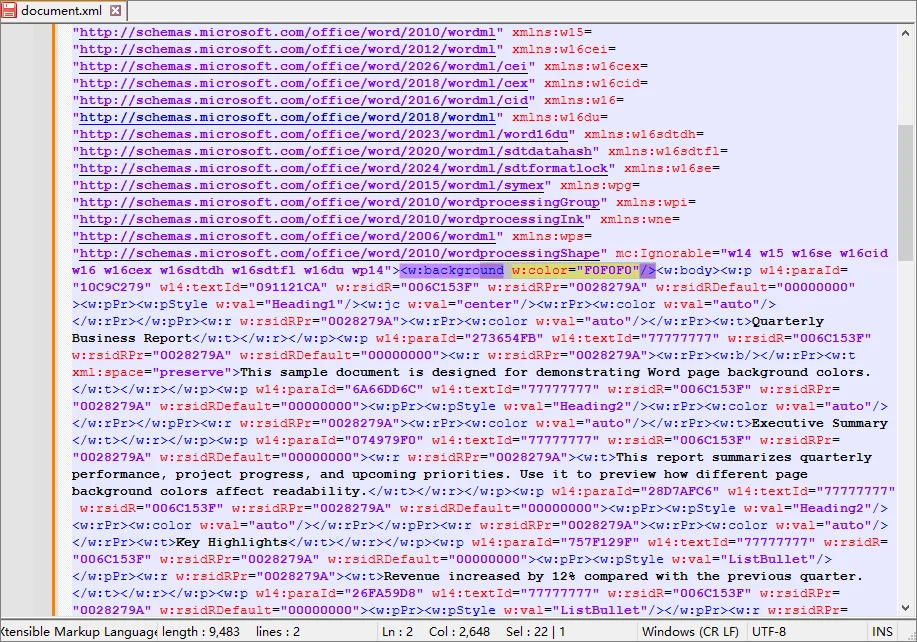
-
Сохраните и закройте document.xml.
-
Откройте word/settings.xml и убедитесь, что внутри элемента
<w:settings>присутствует следующий элемент:<w:displayBackgroundShape/> -
Выберите все файлы и папки внутри распакованного пакета (
[Content_Types].xml,_rels,docProps,word) и сожмите их в новый ZIP-архив. Не сжимайте саму внешнюю папку. -
Переименуйте расширение нового архива обратно из
.zipв.docx. -
Откройте документ в Word и убедитесь, что цвет фона отображается правильно.
⚠️ Важные замечания
Ручное редактирование XML может легко повредить документ. Если элементы будут перемещены, синтаксис нарушен или структура папок изменится при повторном сжатии, Word сообщит о нечитаемом содержимом. Всегда работайте с резервной копией исходного файла.
Метод 4: Изменение цвета фона программно с помощью C#
Для систем генерации документов, регулярных отчетов или папок, содержащих множество файлов Word, ручное изменение цвета фона неэффективно и может привести к несогласованным результатам. Решение на C# больше подходит, если одно и то же правило форматирования нужно применять многократно или интегрировать в существующий рабочий процесс.
В следующем примере используется Free Spire.Doc for .NET для программного применения цветов фона к документам Word без необходимости установки Microsoft Word.
Примечание: Free Spire.Doc for .NET ограничена 500 абзацами и 25 таблицами на документ при чтении или записи файлов. Документы, превышающие эти ограничения, следует тщательно тестировать или обрабатывать с помощью версии, поддерживающей необходимый размер документа.
Шаг 1: Установка Free Spire.Doc
Откройте Консоль диспетчера пакетов NuGet в Visual Studio и выполните команду:
Install-Package FreeSpire.Doc
Альтернативно, найдите FreeSpire.Doc в разделе «Управление пакетами NuGet» и установите его в свой проект.
Шаг 2: Написание кода автоматизации на C#
Следующий пример перебирает файлы .docx в указанной папке, применяет сплошной цвет фона и сохраняет измененные документы в отдельную выходную папку:
using System;
using System.Drawing;
using System.IO;
using Spire.Doc;
using Spire.Doc.Documents;

class Program
{
    static void Main()
    {
        // Определите отдельные папки для исходных и обработанных файлов.
        string inputFolder = @"C:\Documents\Input";
        string outputFolder = @"C:\Documents\Output";

        // Создайте выходную папку, если она еще не существует.
        Directory.CreateDirectory(outputFolder);

        // Получите все файлы DOCX из входной папки.
        string[] files = Directory.GetFiles(
            inputFolder,
            "*.docx",
            SearchOption.TopDirectoryOnly);

        foreach (string inputPath in files)
        {
            // Пропустите временные файлы блокировки, создаваемые при открытии документа в Word.
            if (Path.GetFileName(inputPath).StartsWith("~$"))
            {
                continue;
            }

            // Сохраните исходное имя файла в выходной папке.
            string outputPath = Path.Combine(
                outputFolder,
                Path.GetFileName(inputPath));

            try
            {
                // Создайте и автоматически освободите экземпляр Document.
                using (Document document = new Document())
                {
                    // Загрузите текущий документ Word.
                    document.LoadFromFile(inputPath);

                    // Примените сплошной светло-серый фон к документу.
                    document.Background.Type = BackgroundType.Color;
                    document.Background.Color = Color.LightGray;

                    // Сохраните измененную копию, не перезаписывая исходный файл.
                    document.SaveToFile(outputPath, FileFormat.Docx);
                }

                // Сообщите об успешной обработке.
                Console.WriteLine(
                    $"Обработано: {Path.GetFileName(inputPath)}");
            }
            catch (Exception ex)
            {
                // Запишите ошибку и продолжите обработку оставшихся файлов.
                Console.WriteLine(
                    $"Ошибка: {Path.GetFileName(inputPath)} - {ex.Message}");
            }
        }
    }
}
Советы разработчикам:
-
В этом примере
Color.LightGrayприменяет светло-серый фон. Вы также можете определить собственный цвет RGB:// Применение пользовательского цвета фона RGB. document.Background.Color = Color.FromArgb(240, 240, 240); -
Настройка
Document.Backgroundприменяется ко всему документу. Для фонов, специфичных для страницы, добавьте полностраничную фигуру и поместите ее за текстом.
Устранение распространенных проблем с цветом фона в Word
1. Почему цвет фона в Word не печатается?
По умолчанию Microsoft Word скрывает цвета фона для экономии чернил принтера. Если ваш фон выглядит белым при предварительном просмотре или на печати, выполните следующие быстрые шаги, чтобы это исправить:
- Перейдите в Файл > Параметры.
- Выберите Экран в меню слева.
- Прокрутите вниз до раздела Параметры печати.
- Установите флажок «Печать цветов и рисунков фона».
- Нажмите ОК, чтобы сохранить изменения.
2. Почему цвет страницы выглядит иначе в темном режиме?
Темный режим Word может изменять внешний вид холста документа во время редактирования. Это изменение отображения не обязательно означает, что сохраненный фон страницы изменился. Чтобы увидеть цвет фона страницы на светлом холсте документа, не отключая темный режим:
- Перейдите на вкладку Вид.
- Нажмите Переключить режимы в группе Темный режим, чтобы переключаться между светлым и темным представлением холста документа.
3. Почему вокруг фона страницы есть белые поля?
Большинство принтеров не могут печатать до самого края бумаги. В результате фон, заполняющий страницу на экране, может иметь белые поля при печати.
Если ваш принтер поддерживает печать без полей:
- Откройте Файл > Печать.
- Выберите Свойства принтера или Настройки.
- Включите Печать без полей, если она доступна.
- Выберите размер бумаги, поддерживаемый режимом печати без полей.
- Проверьте предварительный просмотр перед печатью.
Если принтер не поддерживает печать без полей для выбранного размера бумаги, белые поля нельзя устранить только настройками Word. Возможно, вам придется печатать на бумаге большего размера и обрезать ее или воспользоваться услугами профессиональной типографии.
Часто задаваемые вопросы
В1: Как удалить цвет фона в Word?
Чтобы удалить цвет фона страницы:
- Откройте вкладку Конструктор.
- Нажмите Цвет страницы.
- Выберите Нет цвета.
Фон документа вернется к стандартному белому цвету.
В2: Влияет ли изменение цвета фона Word на печать?
Не всегда. Word может отображать цвета фона на экране, но не печатать их, если не включена печать фона.
В3: Можно ли автоматически изменить цвет фона нескольких файлов Word?
Да. Программный подход, такой как использование C# с библиотекой Spire.Doc, позволяет обрабатывать несколько документов Word в пакетном режиме и автоматически применять одни и те же настройки фона.
Заключение
Теперь вы знаете несколько способов изменения цвета фона в Word: от быстрого ручного редактирования до пакетной автоматизации с помощью C#. Какой бы метод вы ни выбрали, убедитесь, что цвет подходит к документу и обеспечивает достаточный контраст с текстом, чтобы содержимое было легко читать.
Como inserir um vídeo em documentos do Word (3 maneiras fáceis)
Índice
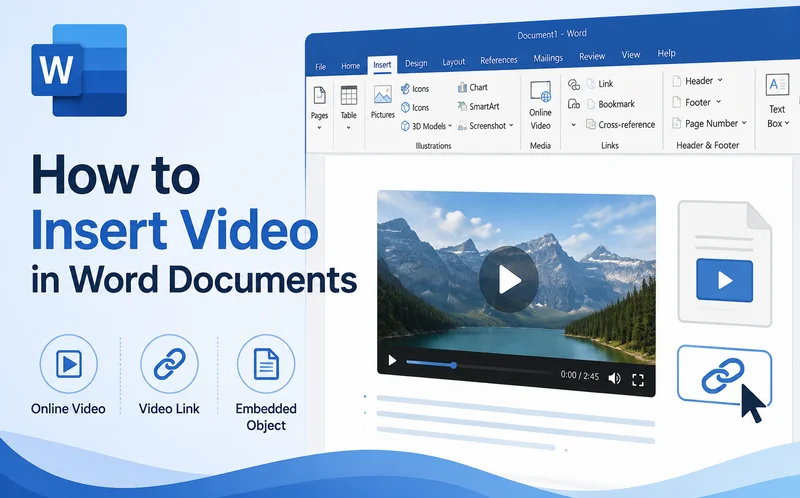
Adicionar vídeos ao Microsoft Word pode tornar relatórios, manuais e guias técnicos mais interativos, combinando instruções de texto com conteúdo visual. No entanto, o Word oferece várias maneiras de adicionar vídeos, incluindo vídeos online, hiperlinks e arquivos incorporados. Escolher o método certo depende de como você planeja compartilhar o documento. Seja para incorporar um vídeo em um documento do Word para reprodução online interativa ou vincular um arquivo local de forma organizada, aqui estão três maneiras práticas de inserir um vídeo no Microsoft Word mantendo a formatação limpa e o tamanho do arquivo sob controle.
- Inserir um vídeo online no Word para reprodução direta
- Inserir um vídeo em um documento do Word com hiperlinks
- Incorporar um vídeo em documentos do Word como um objeto
- Qual método você deve escolher
- Perguntas frequentes (FAQs)
Como inserir um vídeo online no Word para reprodução direta
Inserir um vídeo online é uma das maneiras mais simples de adicionar conteúdo de vídeo a um documento do Word. Em vez de redirecionar os leitores para um navegador externo, o Microsoft Word renderiza um componente de player interativo diretamente na página. Isso permite que os leitores acessem vídeos online compatíveis diretamente da interface do documento, sem precisar abrir manualmente uma janela separada do navegador.
Aqui estão os passos para incorporar um vídeo do YouTube em um documento do Word:
- Passo 1: Abra um documento do Word e coloque o cursor onde deseja que o player de vídeo apareça.
- Passo 2: Vá para a guia Inserir na faixa de opções superior.
- Passo 3: No grupo Mídia, clique na opção Vídeo Online.
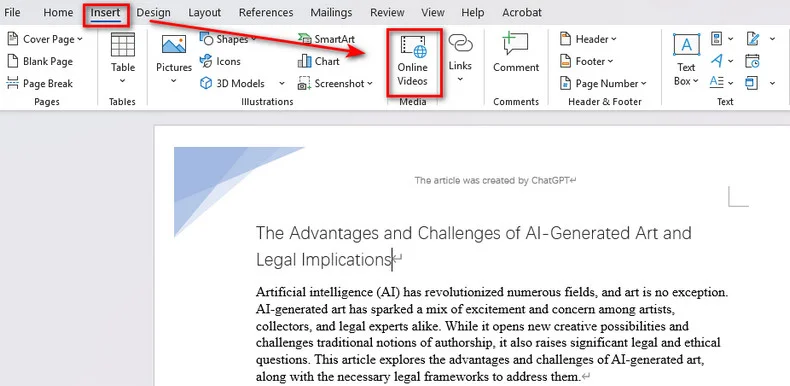
- Passo 4: Cole o link da web de um vídeo do YouTube.
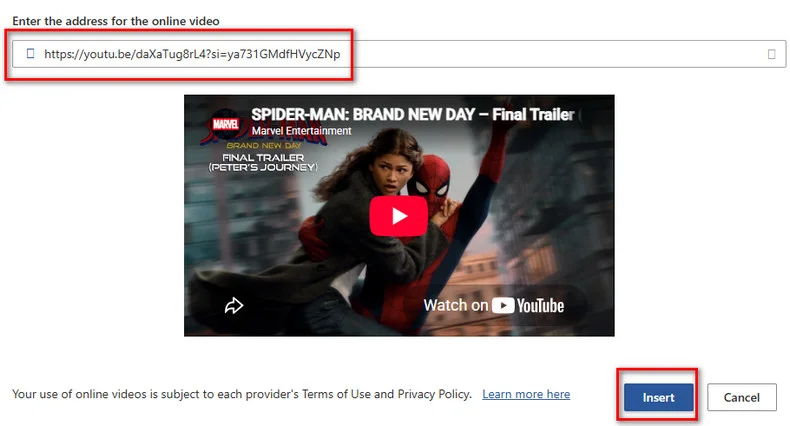
- Passo 5: Clique em Inserir. O Word gerará imediatamente uma miniatura de vídeo responsiva com um ícone de reprodução em sua página.
Solução de problemas: Por que o botão "Vídeo Online" está cinza?
Se o botão estiver desativado, é provável que você tenha aberto um documento DOC no **modo de compatibilidade**. Clique em Arquivo > Informações > Converter para atualizá-lo para o formato DOCX. Além disso, certifique-se de que o Modo de Exibição Protegido esteja desativado e que suas configurações de privacidade permitam experiências conectadas.
Como inserir um vídeo em um documento do Word com hiperlinks
Se você precisa referenciar arquivos MP4 locais ou personalizar a aparência de um link de vídeo, inserir um hiperlink geralmente é uma opção mais flexível. Diferente da ferramenta nativa de vídeo online, essa técnica anexa uma URL da web ou um caminho de arquivo local a uma sequência de texto ou a uma imagem de capa personalizada. Quando os leitores clicam no link, ele abre o vídeo perfeitamente no navegador padrão ou no player de mídia local.
1. Inserir manualmente um link de vídeo no Word
Configurar um hiperlink de vídeo manualmente leva apenas alguns segundos e funciona perfeitamente para qualquer arquivo da web ou local.
- Passo 1: Selecione o texto ou a imagem (como uma miniatura de capa de vídeo) no seu documento do Word onde deseja adicionar o link.
- Passo 2: Clique com o botão direito no objeto selecionado e selecione Link, ou vá para a faixa de opções superior e clique em Inserir > Link.
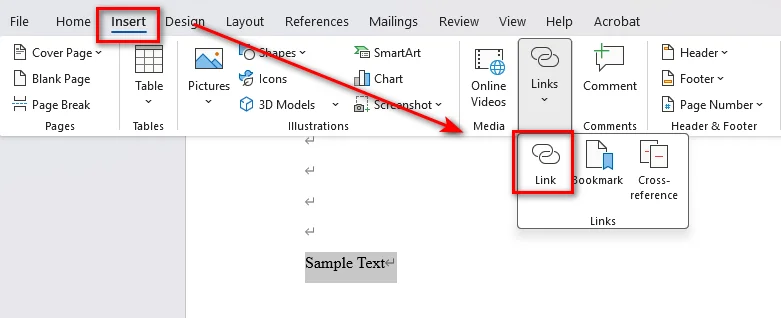
- Passo 3: Na janela pop-up, cole a URL do seu vídeo online ou clique em Arquivo ou Página da Web Existente para selecionar o caminho de um arquivo de vídeo local e clique em OK.
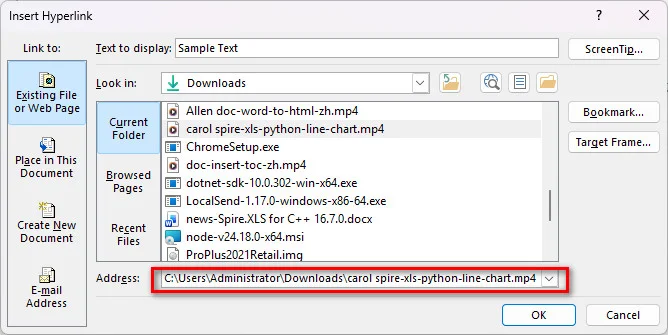
2. Inserir hiperlinks de vídeo automaticamente com Python
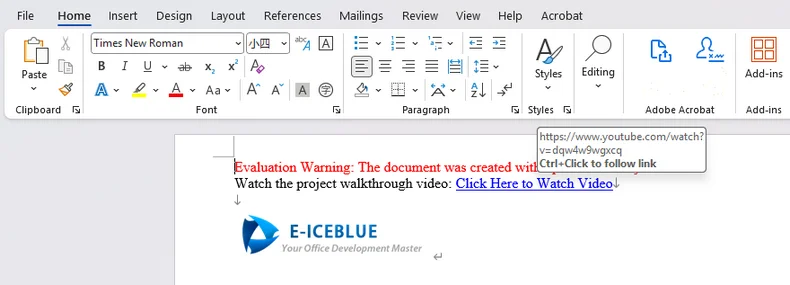
Para desenvolvedores que geram relatórios automatizados, processam documentação em lote ou criam pipelines de geração de docx, você pode inserir um link de vídeo no Word programaticamente usando o Free Spire.Doc for Python. É uma biblioteca Python independente que permite aos desenvolvedores criar, editar e converter documentos do Word sem o Microsoft Office. Ela também fornece APIs relacionadas a hiperlinks que podem ser usadas para adicionar URLs de vídeo ou links de arquivos locais a elementos de texto e imagem em documentos do Word.
from spire.doc import *
from spire.doc.common import *

# Inicializar um novo documento do Word
doc = Document()

# Adicionar uma seção e um parágrafo
section = doc.AddSection()
paragraph = section.AddParagraph()

# Inserir um hiperlink de texto apontando para um vídeo online
video_url = "https://www.youtube.com/watch?v=dQw4w9WgXcQ"
paragraph.AppendText("Assista ao vídeo de demonstração do projeto: ")
paragraph.AppendHyperlink(video_url, "Clique aqui para assistir ao vídeo", HyperlinkType.WebLink)

# Adicionar quebras de linha
paragraph.AppendBreak(BreakType.LineBreak)
paragraph.AppendBreak(BreakType.LineBreak)

# Inserir um hiperlink de imagem (miniatura + link de vídeo)
thumbnail_path = "/Logo1.png"
picture = paragraph.AppendPicture(thumbnail_path)

# Anexar a URL do vídeo à imagem da miniatura
paragraph.AppendHyperlink(video_url, picture, HyperlinkType.WebLink)

# Salvar o documento gerado
doc.SaveToFile("/output/VideoLinksDocument.docx", FileFormat.Docx2019)
doc.Dispose()
Incorporar um vídeo em documentos do Word como um objeto
Se você estiver entregando arquivos a clientes em um ambiente offline, pode optar por incorporar um vídeo no Word como um objeto binário incorporado. Essa abordagem força o Word a empacotar o arquivo de vídeo bruto diretamente dentro do contêiner do arquivo. É mais adequado para cenários onde links externos são proibidos e os dispositivos dos destinatários não têm acesso à internet, mas isso aumentará o tamanho do documento.
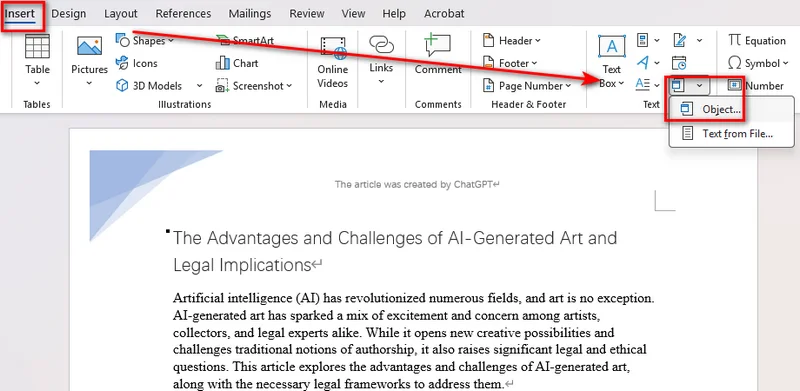
- Passo 1: Navegue até a guia Inserir na faixa de opções superior.
- Passo 2: Localize a seção Texto, clique no menu suspenso Objeto e escolha Objeto....
- Passo 3: Na caixa de diálogo pop-up, alterne para a guia Criar do arquivo.
- Passo 4: Clique em Procurar para localizar seu arquivo de vídeo local (MP4, AVI, MOV).
- Passo 5: Marque a caixa Exibir como ícone para garantir que ele apareça como um anexo de arquivo limpo e clique em OK.
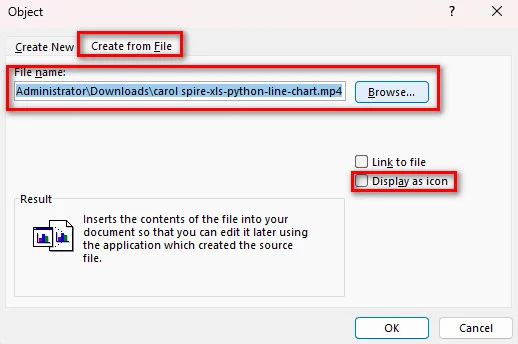
Diferente do PowerPoint, o Word não renderiza quadros de visualização de vídeo nativos para arquivos de vídeo locais incorporados. Ele exibe um ícone do sistema ou um quadrado simples. Clicar duas vezes inicia o seu player de mídia local padrão.
Você pode gostar de: Como anexar arquivos a documentos do Word (5 métodos eficazes)
Qual método você deve escolher?
Use esta tabela de comparação rápida para escolher o método certo para as necessidades do seu documento:
| Método | Experiência de reprodução | Impacto no tamanho do arquivo | Internet necessária? | Suporta automação? |
|---|---|---|---|---|
| Vídeo Online | Player pop-up direto dentro do Word | Irrelevante (bytes) | Sim | Limitado |
| Hiperlink de vídeo | Abre o navegador/player padrão | Irrelevante (bytes) | Opcional | Sim (Python) |
| Objeto incorporado | Clique duas vezes para abrir o player | Extremamente grande | Não | Sim |
Perguntas frequentes sobre como inserir vídeo no Word
1. Posso incorporar um vídeo diretamente no Word como no PowerPoint?
Sim, mas o comportamento da reprodução depende da fonte do vídeo:
- Vídeos online (YouTube, Vimeo, etc.): Reproduz diretamente dentro do Word através de uma janela pop-up integrada com um botão de reprodução nativo.
- Arquivos de vídeo locais (MP4, MOV, etc.): Não podem ser reproduzidos de forma integrada. Eles são inseridos como ícones de arquivo (ou imagens com hiperlink) que iniciam seu player de mídia padrão quando clicados.
2. Como insiro um vídeo no Word sem aumentar o tamanho do arquivo?
Para manter seu documento leve, use o Método 1 (Vídeo Online) ou o Método 2 (Hiperlink de imagem de capa). Ambos os métodos vinculam a recursos externos e não aumentarão o documento do Word.
3. Por que meu vídeo incorporado não é reproduzido no Microsoft Word?
Se o seu vídeo não for reproduzido, verifique se o seu documento está salvo no **modo de compatibilidade**. Além disso, certifique-se de que sua conexão de rede esteja ativa para vídeos online ou verifique se o seu player de mídia local é compatível com o formato de vídeo.
Conclusão
Adicionar vídeos corretamente ajuda você a criar documentos do Word que são mais fáceis de entender e mais interativos para os leitores. Seja optando por incorporar um vídeo em um documento do Word usando o recurso nativo de Vídeo Online do Microsoft Word, vincular miniaturas de imagem personalizadas manualmente ou via automação Python, ou anexar objetos de vídeo offline, a seleção do método certo depende das restrições técnicas do seu público. Escolha vídeos online para reprodução perfeita na web, hiperlinks para armazenamento local flexível e objetos incorporados estritamente para compartilhamento offline.
Leia também:
Word 문서에 동영상 삽입하는 방법 (3가지 쉬운 방법)
Microsoft Word에 비디오를 추가하면 텍스트 설명과 시각적 콘텐츠를 결합하여 보고서, 매뉴얼 및 기술 가이드를 더욱 상호작용적으로 만들 수 있습니다. 하지만 Word는 온라인 비디오, 하이퍼링크, 포함된 파일 등 비디오를 추가하는 여러 가지 방법을 지원합니다. 올바른 방법은 문서를 공유하려는 방식에 따라 달라집니다. 대화형 온라인 재생을 위해 Word 문서에 비디오를 포함하려 하든, 로컬 파일을 깔끔하게 연결하려 하든, 서식을 깔끔하게 유지하고 파일 크기를 제어하면서 Microsoft Word에 비디오를 삽입하는 세 가지 실용적인 방법을 소개합니다.
- Word에서 온라인 비디오 삽입하여 직접 재생하기
- 하이퍼링크를 사용하여 Word 문서에 비디오 삽입하기
- 개체로 Word 문서에 비디오 포함하기
- 어떤 방법을 선택해야 할까요?
- 자주 묻는 질문(FAQs)
Word에서 온라인 비디오 삽입하여 직접 재생하기
온라인 비디오를 삽입하는 것은 Word 문서에 비디오 콘텐츠를 추가하는 가장 간단한 방법 중 하나입니다. 독자를 외부 웹 브라우저로 리디렉션하는 대신, Microsoft Word는 페이지 내에서 직접 대화형 플레이어 구성 요소를 렌더링합니다. 이를 통해 독자는 별도의 브라우저 창을 수동으로 열지 않고도 문서 인터페이스에서 직접 지원되는 온라인 비디오에 액세스할 수 있습니다.
Word 문서에 YouTube 비디오를 포함하는 단계는 다음과 같습니다:
- 1단계: Word 문서를 열고 비디오 플레이어를 표시할 위치에 커서를 둡니다.
- 2단계: 상단 리본 메뉴에서 삽입 탭으로 이동합니다.
- 3단계: 미디어 그룹에서 온라인 비디오 옵션을 클릭합니다.
- 4단계: YouTube 비디오의 웹 링크를 붙여넣습니다.
- 5단계: 삽입을 클릭합니다. Word는 즉시 페이지에 재생 아이콘이 있는 반응형 비디오 썸네일을 생성합니다.
문제 해결: "온라인 비디오" 버튼이 회색으로 비활성화되어 있는 이유는 무엇인가요?
버튼이 비활성화된 경우, **호환 모드**에서 DOC 문서를 열었을 가능성이 높습니다. 파일 > 정보 > 변환을 클릭하여 DOCX 형식으로 업그레이드하세요. 또한 보호된 보기가 꺼져 있고 개인 정보 설정에서 연결된 환경을 허용하는지 확인하세요.
하이퍼링크를 사용하여 Word 문서에 비디오 삽입하기
로컬 MP4 파일을 참조하거나 비디오 링크의 모양을 사용자 지정해야 하는 경우, 하이퍼링크를 삽입하는 것이 일반적으로 더 유연한 옵션입니다. 기본 온라인 비디오 도구와 달리 이 기술은 텍스트 문자열이나 사용자 지정 이미지 표지에 웹 URL 또는 로컬 파일 경로를 연결합니다. 독자가 링크를 클릭하면 기본 웹 브라우저나 로컬 미디어 플레이어에서 비디오가 원활하게 열립니다.
1. Word에서 수동으로 비디오 링크 삽입하기
비디오 하이퍼링크를 수동으로 설정하는 데는 몇 초밖에 걸리지 않으며 모든 웹 또는 로컬 파일에서 원활하게 작동합니다.
- 1단계: Word 문서에서 링크를 추가할 텍스트나 이미지(예: 비디오 표지 썸네일)를 선택합니다.
- 2단계: 선택한 개체를 마우스 오른쪽 버튼으로 클릭하고 링크를 선택하거나, 상단 리본으로 이동하여 삽입 > 링크를 클릭합니다.
- 3단계: 팝업 창에서 온라인 비디오 URL을 붙여넣거나 기존 파일/웹 페이지를 클릭하여 로컬 비디오 파일 경로를 선택한 다음 확인을 클릭합니다.
2. Python을 사용하여 자동으로 비디오 하이퍼링크 삽입하기
자동화된 보고서를 생성하거나, 문서를 일괄 처리하거나, docx 생성 파이프라인을 구축하는 개발자의 경우 Free Spire.Doc for Python을 사용하여 프로그래밍 방식으로 Word에 비디오 링크를 삽입할 수 있습니다. 이는 Microsoft Office 없이도 Word 문서를 생성, 편집 및 변환할 수 있는 독립형 Python 라이브러리입니다. 또한 Word 문서의 텍스트 및 이미지 요소에 비디오 URL이나 로컬 파일 링크를 추가하는 데 사용할 수 있는 하이퍼링크 관련 API를 제공합니다.
from spire.doc import *
from spire.doc.common import *

# 새 Word 문서 초기화
doc = Document()

# 섹션 및 단락 추가
section = doc.AddSection()
paragraph = section.AddParagraph()

# 온라인 비디오를 가리키는 텍스트 하이퍼링크 삽입
video_url = "https://www.youtube.com/watch?v=dQw4w9WgXcQ"
paragraph.AppendText("프로젝트 안내 비디오 보기: ")
paragraph.AppendHyperlink(video_url, "여기를 클릭하여 비디오 보기", HyperlinkType.WebLink)

# 줄 바꿈 추가
paragraph.AppendBreak(BreakType.LineBreak)
paragraph.AppendBreak(BreakType.LineBreak)

# 이미지 하이퍼링크 삽입 (썸네일 + 비디오 링크)
thumbnail_path = "/Logo1.png"
picture = paragraph.AppendPicture(thumbnail_path)

# 썸네일 이미지에 비디오 URL 연결
paragraph.AppendHyperlink(video_url, picture, HyperlinkType.WebLink)

# 생성된 문서 저장
doc.SaveToFile("/output/VideoLinksDocument.docx", FileFormat.Docx2019)
doc.Dispose()
개체로 Word 문서에 비디오 포함하기
오프라인 환경에서 클라이언트에게 파일을 전달하는 경우, 비디오를 포함된 이진 개체로 Word에 포함할 수 있습니다. 이 접근 방식은 Word가 원시 비디오 파일을 파일 컨테이너 내부에 직접 패키징하도록 합니다. 외부 링크가 금지되어 있고 수신자 장치에 인터넷 연결이 없는 경우에 가장 적합하지만, 문서 크기가 커집니다.
- 1단계: 상단 리본의 삽입 탭으로 이동합니다.
- 2단계: 텍스트 섹션을 찾아 개체 드롭다운을 클릭하고 개체...를 선택합니다.
- 3단계: 팝업 대화 상자에서 파일로부터 만들기 탭으로 전환합니다.
- 4단계: 찾아보기를 클릭하여 로컬 비디오 파일(MP4, AVI, MOV)을 찾습니다.
- 5단계: 아이콘으로 표시 상자를 체크하여 깔끔한 파일 첨부 형태로 나타나게 한 다음 확인을 클릭합니다.
PowerPoint와 달리 Word는 포함된 로컬 비디오 파일에 대해 기본 비디오 미리 보기 프레임을 렌더링하지 않습니다. 시스템 아이콘이나 일반 사각형으로 표시됩니다. 두 번 클릭하면 기본 로컬 미디어 플레이어가 실행됩니다.
추천 콘텐츠: Word 문서에 파일을 첨부하는 방법 (5가지 효과적인 방법)
어떤 방법을 선택해야 할까요?
다음 비교 표를 사용하여 문서 요구 사항에 맞는 올바른 방법을 선택하세요:
| 방법 | 재생 경험 | 파일 크기 영향 | 인터넷 필요 여부 | 자동화 지원 여부 |
|---|---|---|---|---|
| 온라인 비디오 | Word 내부 직접 팝업 플레이어 | 무시할 수 있음 (바이트) | 예 | 제한적 |
| 비디오 하이퍼링크 | 기본 브라우저/플레이어 실행 | 무시할 수 있음 (바이트) | 선택 사항 | 예 (Python) |
| 포함된 개체 | 두 번 클릭하여 플레이어 실행 | 매우 큼 | 아니요 | 예 |
Word에 비디오 삽입에 관한 자주 묻는 질문(FAQs)
1. PowerPoint처럼 Word에 비디오를 직접 포함할 수 있나요?
네, 하지만 재생 동작은 비디오 소스에 따라 다릅니다:
- 온라인 비디오 (YouTube, Vimeo 등): 기본 재생 버튼이 있는 인라인 팝업 창을 통해 Word 내부에서 직접 재생됩니다.
- 로컬 비디오 파일 (MP4, MOV 등): 인라인으로 재생할 수 없습니다. 클릭하면 기본 미디어 플레이어를 실행하는 파일 아이콘(또는 하이퍼링크된 이미지)으로 삽입됩니다.
2. 파일 크기를 늘리지 않고 Word에 비디오를 삽입하려면 어떻게 해야 하나요?
문서를 가볍게 유지하려면 방법 1(온라인 비디오) 또는 방법 2(이미지 표지 하이퍼링크)를 사용하세요. 두 방법 모두 외부 리소스에 연결되므로 Word 문서 크기가 커지지 않습니다.
3. 포함된 비디오가 Microsoft Word에서 재생되지 않는 이유는 무엇인가요?
비디오가 재생되지 않으면 문서가 **호환 모드**로 저장되었는지 확인하세요. 또한 온라인 비디오의 경우 네트워크 연결이 활성화되어 있는지 확인하거나, 로컬 미디어 플레이어가 해당 비디오 형식을 지원하는지 확인하세요.
결론
비디오를 올바르게 추가하면 독자가 이해하기 쉽고 상호작용이 뛰어난 Word 문서를 만드는 데 도움이 됩니다. Microsoft Word의 기본 온라인 비디오 기능을 사용하여 Word 문서에 비디오를 포함하든, 사용자 지정 이미지 썸네일을 수동으로 또는 Python 자동화를 통해 연결하든, 오프라인 비디오 개체를 첨부하든, 올바른 방법 선택은 독자의 기술적 제약 조건에 따라 달라집니다. 원활한 웹 재생을 위해서는 온라인 비디오를, 유연한 로컬 저장을 위해서는 하이퍼링크를, 오프라인 공유를 위해서는 포함된 개체를 선택하세요.
추가 읽기:
Come inserire un video nei documenti Word (3 modi semplici)
Indice
Aggiungere video a Microsoft Word può rendere report, manuali e guide tecniche più interattivi, combinando istruzioni testuali con contenuti visivi. Tuttavia, Word supporta diversi modi per aggiungere video, inclusi video online, collegamenti ipertestuali e file incorporati. La scelta del metodo giusto dipende da come intendi condividere il documento. Che tu voglia incorporare un video in un documento Word per una riproduzione interattiva online o collegare un file locale in modo pulito, ecco tre modi pratici per inserire un video in Microsoft Word mantenendo la formattazione ordinata e le dimensioni del file sotto controllo.
- Inserire un video online in Word per la riproduzione diretta
- Inserire un video in un documento Word con collegamenti ipertestuali
- Incorporare un video in documenti Word come oggetto
- Quale metodo scegliere
- Domande frequenti (FAQ)
Come inserire un video online in Word per la riproduzione diretta
Inserire un video online è uno dei modi più semplici per aggiungere contenuti video a un documento Word. Invece di reindirizzare i lettori a un browser web esterno, Microsoft Word visualizza un componente player interattivo direttamente sulla pagina. Ciò consente ai lettori di accedere ai video online supportati direttamente dall'interfaccia del documento senza dover aprire manualmente una finestra del browser separata.
Ecco i passaggi per incorporare un video YouTube in un documento Word:
- Passaggio 1: Apri un documento Word e posiziona il cursore dove vuoi che appaia il player video.
- Passaggio 2: Vai alla scheda Inserisci sulla barra multifunzione in alto.
- Passaggio 3: Nel gruppo Multimedia, fai clic sull'opzione Video online.
- Passaggio 4: Incolla il link web di un video YouTube.
- Passaggio 5: Fai clic su Inserisci. Word genererà immediatamente un'anteprima video reattiva con un'icona di riproduzione sulla tua pagina.
Risoluzione dei problemi: Perché il pulsante "Video online" è disattivato?
Se il pulsante è disabilitato, probabilmente hai aperto un documento DOC in **modalità compatibilità**. Fai clic su File > Informazioni > Converti per aggiornarlo al formato DOCX. Inoltre, assicurati che la Visualizzazione protetta sia disattivata e che le tue impostazioni sulla privacy consentano le esperienze connesse.
Come inserire un video in un documento Word con collegamenti ipertestuali
Se devi fare riferimento a file MP4 locali o personalizzare l'aspetto di un collegamento video, inserire un collegamento ipertestuale è solitamente un'opzione più flessibile. A differenza dello strumento nativo per i video online, questa tecnica associa un URL web o un percorso di file locale a una stringa di testo o a un'immagine di copertina personalizzata. Quando i lettori fanno clic sul collegamento, il video si apre senza problemi nel loro browser web predefinito o nel lettore multimediale locale.
1. Inserire manualmente un collegamento video in Word
Configurare manualmente un collegamento ipertestuale video richiede solo pochi secondi e funziona perfettamente per qualsiasi file web o locale.
- Passaggio 1: Seleziona il testo o l'immagine (come un'anteprima di copertina video) nel tuo documento Word dove vuoi aggiungere il collegamento.
- Passaggio 2: Fai clic con il tasto destro sull'oggetto selezionato e seleziona Collegamento, oppure vai alla barra multifunzione in alto e fai clic su Inserisci > Collegamento.
- Passaggio 3: Nella finestra pop-up, incolla l'URL del tuo video online o fai clic su File o pagina web esistente per selezionare il percorso di un file video locale, quindi fai clic su OK.
2. Inserire collegamenti ipertestuali video automaticamente con Python
Per gli sviluppatori che generano report automatizzati, elaborano documentazione in batch o creano pipeline di generazione docx, è possibile inserire un collegamento video in Word a livello di programmazione utilizzando Free Spire.Doc for Python. È una libreria Python autonoma che consente agli sviluppatori di creare, modificare e convertire documenti Word senza Microsoft Office. Fornisce inoltre API relative ai collegamenti ipertestuali che possono essere utilizzate per aggiungere URL video o collegamenti a file locali a elementi di testo e immagini nei documenti Word.
from spire.doc import *
from spire.doc.common import *

# Inizializza un nuovo documento Word
doc = Document()

# Aggiungi una sezione e un paragrafo
section = doc.AddSection()
paragraph = section.AddParagraph()

# Inserisci un collegamento ipertestuale di testo che punta a un video online
video_url = "https://www.youtube.com/watch?v=dQw4w9WgXcQ"
paragraph.AppendText("Guarda il video dimostrativo del progetto: ")
paragraph.AppendHyperlink(video_url, "Clicca qui per guardare il video", HyperlinkType.WebLink)

# Aggiungi interruzioni di riga
paragraph.AppendBreak(BreakType.LineBreak)
paragraph.AppendBreak(BreakType.LineBreak)

# Inserisci un collegamento ipertestuale di immagine (anteprima + collegamento video)
thumbnail_path = "/Logo1.png"
picture = paragraph.AppendPicture(thumbnail_path)

# Collega l'URL del video all'immagine di anteprima
paragraph.AppendHyperlink(video_url, picture, HyperlinkType.WebLink)

# Salva il documento generato
doc.SaveToFile("/output/VideoLinksDocument.docx", FileFormat.Docx2019)
doc.Dispose()
Incorporare un video in documenti Word come oggetto
Se stai consegnando file ai clienti in un ambiente offline, puoi scegliere di incorporare un video in Word come oggetto binario incorporato. Questo approccio costringe Word a inserire il file video grezzo direttamente all'interno del contenitore del file. È più adatto per scenari in cui i collegamenti esterni sono vietati e i dispositivi dei destinatari non hanno accesso a Internet, ma aumenterà le dimensioni del documento.
- Passaggio 1: Vai alla scheda Inserisci sulla barra multifunzione in alto.
- Passaggio 2: Individua la sezione Testo, fai clic sul menu a discesa Oggetto e scegli Oggetto....
- Passaggio 3: Nella finestra di dialogo pop-up, passa alla scheda Crea da file.
- Passaggio 4: Fai clic su Sfoglia per individuare il tuo file video locale (MP4, AVI, MOV).
- Passaggio 5: Seleziona la casella Visualizza come icona per assicurarti che appaia come un allegato di file pulito, quindi fai clic su OK.
A differenza di PowerPoint, Word non visualizza fotogrammi di anteprima video nativi per i file video locali incorporati. Visualizza un'icona di sistema o un semplice quadrato. Facendo doppio clic si avvia il lettore multimediale locale predefinito.
Potrebbe interessarti: Come allegare file a un documento Word (5 metodi efficaci)
Quale metodo scegliere?
Usa questa tabella di confronto rapido per scegliere il metodo giusto per le esigenze del tuo documento:
| Metodo | Esperienza di riproduzione | Impatto sulle dimensioni del file | Internet richiesto? | Supporta l'automazione? |
|---|---|---|---|---|
| Video online | Player popup diretto all'interno di Word | Trascurabile (byte) | Sì | Limitato |
| Collegamento ipertestuale video | Apre il browser/player predefinito | Trascurabile (byte) | Opzionale | Sì (Python) |
| Oggetto incorporato | Doppio clic per aprire il player | Estremamente grande | No | Sì |
Domande frequenti (FAQ) sull'inserimento di video in Word
1. Posso incorporare un video direttamente in Word come in PowerPoint?
Sì, ma il comportamento di riproduzione dipende dalla fonte del video:
- Video online (YouTube, Vimeo, ecc.): Si riproducono direttamente all'interno di Word tramite una finestra popup integrata con un pulsante di riproduzione nativo.
- File video locali (MP4, MOV, ecc.): Non possono essere riprodotti in linea. Vengono inseriti come icone di file (o immagini con collegamento ipertestuale) che avviano il lettore multimediale predefinito quando vengono cliccati.
2. Come inserisco un video in Word senza aumentare le dimensioni del file?
Per mantenere il tuo documento leggero, usa il Metodo 1 (Video online) o il Metodo 2 (Collegamento ipertestuale su immagine di copertina). Entrambi i metodi si collegano a risorse esterne e non ingrandiranno il documento Word.
3. Perché il mio video incorporato non viene riprodotto in Microsoft Word?
Se il tuo video non viene riprodotto, controlla se il tuo documento è salvato in **modalità compatibilità**. Inoltre, assicurati che la tua connessione di rete sia attiva per i video online o verifica che il tuo lettore multimediale locale supporti il formato video.
Conclusione
Aggiungere video correttamente ti aiuta a creare documenti Word più facili da comprendere e più interattivi per i lettori. Che tu scelga di incorporare un video in un documento Word utilizzando la funzione nativa Video online di Microsoft Word, di collegare manualmente miniature di immagini personalizzate o tramite automazione Python, o di allegare oggetti video offline, la selezione del metodo giusto dipende dai vincoli tecnici del tuo pubblico. Scegli i video online per una riproduzione web fluida, i collegamenti ipertestuali per un'archiviazione locale flessibile e gli oggetti incorporati esclusivamente per la condivisione offline.
Leggi anche:
Comment insérer une vidéo dans des documents Word (3 méthodes simples)
L'ajout de vidéos dans Microsoft Word peut rendre les rapports, les manuels et les guides techniques plus interactifs en combinant des instructions textuelles avec du contenu visuel. Cependant, Word prend en charge plusieurs façons d'ajouter des vidéos, notamment les vidéos en ligne, les hyperliens et les fichiers intégrés. Le choix de la méthode dépend de la manière dont vous prévoyez de partager le document. Que vous souhaitiez intégrer une vidéo dans un document Word pour une lecture interactive en ligne ou lier un fichier local proprement, voici trois méthodes pratiques pour insérer une vidéo dans Microsoft Word tout en conservant une mise en forme propre et une taille de fichier maîtrisée.
- Insérer une vidéo en ligne dans Word pour une lecture directe
- Insérer une vidéo dans un document Word avec des hyperliens
- Intégrer une vidéo dans des documents Word en tant qu'objet
- Quelle méthode choisir
- FAQ
Comment insérer une vidéo en ligne dans Word pour une lecture directe
L'insertion d'une vidéo en ligne est l'un des moyens les plus simples d'ajouter du contenu vidéo à un document Word. Au lieu de rediriger les lecteurs vers un navigateur Web externe, Microsoft Word affiche un composant de lecteur interactif directement sur la page. Cela permet aux lecteurs d'accéder aux vidéos en ligne prises en charge directement depuis l'interface du document sans ouvrir manuellement une fenêtre de navigateur séparée.
Voici les étapes pour intégrer une vidéo YouTube dans un document Word :
- Étape 1 : Ouvrez un document Word et placez le curseur à l'endroit où vous souhaitez que le lecteur vidéo apparaisse.
- Étape 2 : Allez dans l'onglet Insertion du ruban supérieur.
- Étape 3 : Dans le groupe Multimédia, cliquez sur l'option Vidéo en ligne.
- Étape 4 : Collez le lien Web d'une vidéo YouTube.
- Étape 5 : Cliquez sur Insérer. Word générera immédiatement une vignette vidéo réactive avec une icône de lecture sur votre page.
Dépannage : Pourquoi le bouton "Vidéo en ligne" est-il grisé ?
Si le bouton est désactivé, vous avez probablement ouvert un document DOC en **mode de compatibilité**. Cliquez sur Fichier > Informations > Convertir pour le mettre à niveau vers le format DOCX. Assurez-vous également que le Mode protégé est désactivé et que vos paramètres de confidentialité autorisent les expériences connectées.
Comment insérer une vidéo dans un document Word avec des hyperliens
Si vous devez référencer des fichiers MP4 locaux ou personnaliser l'apparence d'un lien vidéo, l'insertion d'un hyperlien est généralement une option plus flexible. Contrairement à l'outil natif de vidéo en ligne, cette technique attache une URL Web ou un chemin de fichier local à une chaîne de texte ou à une image de couverture personnalisée. Lorsque les lecteurs cliquent sur le lien, la vidéo s'ouvre de manière transparente dans leur navigateur Web par défaut ou leur lecteur multimédia local.
1. Insérer manuellement un lien vidéo dans Word
La configuration manuelle d'un hyperlien vidéo ne prend que quelques secondes et fonctionne parfaitement pour n'importe quel fichier Web ou local.
- Étape 1 : Sélectionnez le texte ou l'image (comme une vignette de couverture vidéo) dans votre document Word où vous souhaitez ajouter le lien.
- Étape 2 : Faites un clic droit sur l'objet sélectionné et choisissez Lien, ou allez dans le ruban supérieur et cliquez sur Insertion > Lien.
- Étape 3 : Dans la fenêtre contextuelle, collez l'URL de votre vidéo en ligne ou cliquez sur Fichier ou page Web existant pour sélectionner le chemin d'un fichier vidéo local, puis cliquez sur OK.
2. Insérer automatiquement des hyperliens vidéo avec Python
Pour les développeurs générant des rapports automatisés, traitant des documents par lots ou créant des pipelines de génération de docx, vous pouvez insérer un lien vidéo dans Word par programmation en utilisant Free Spire.Doc for Python. Il s'agit d'une bibliothèque Python autonome qui permet aux développeurs de créer, modifier et convertir des documents Word sans Microsoft Office. Elle fournit également des API liées aux hyperliens qui peuvent être utilisées pour ajouter des URL vidéo ou des liens vers des fichiers locaux aux éléments de texte et d'image dans les documents Word.
from spire.doc import *
from spire.doc.common import *

# Initialiser un nouveau document Word
doc = Document()

# Ajouter une section et un paragraphe
section = doc.AddSection()
paragraph = section.AddParagraph()

# Insérer un hyperlien texte pointant vers une vidéo en ligne
video_url = "https://www.youtube.com/watch?v=dQw4w9WgXcQ"
paragraph.AppendText("Regardez la vidéo de présentation du projet : ")
paragraph.AppendHyperlink(video_url, "Cliquez ici pour regarder la vidéo", HyperlinkType.WebLink)

# Ajouter des sauts de ligne
paragraph.AppendBreak(BreakType.LineBreak)
paragraph.AppendBreak(BreakType.LineBreak)

# Insérer un hyperlien image (vignette + lien vidéo)
thumbnail_path = "/Logo1.png"
picture = paragraph.AppendPicture(thumbnail_path)

# Attacher l'URL vidéo à l'image de la vignette
paragraph.AppendHyperlink(video_url, picture, HyperlinkType.WebLink)

# Enregistrer le document généré
doc.SaveToFile("/output/VideoLinksDocument.docx", FileFormat.Docx2019)
doc.Dispose()
Intégrer une vidéo dans des documents Word en tant qu'objet
Si vous livrez des fichiers à des clients dans un environnement hors ligne, vous pouvez choisir d'intégrer une vidéo dans Word en tant qu'objet binaire incorporé. Cette approche force Word à empaqueter le fichier vidéo brut directement à l'intérieur du conteneur de fichier. Elle est mieux adaptée aux scénarios où les liens externes sont interdits et où les appareils des destinataires n'ont pas accès à Internet, mais cela augmentera la taille du document.
- Étape 1 : Accédez à l'onglet Insertion sur le ruban supérieur.
- Étape 2 : Localisez la section Texte, cliquez sur la liste déroulante Objet et choisissez Objet....
- Étape 3 : Dans la boîte de dialogue contextuelle, passez à l'onglet Créer à partir du fichier.
- Étape 4 : Cliquez sur Parcourir pour localiser votre fichier vidéo local (MP4, AVI, MOV).
- Étape 5 : Cochez la case Afficher sous forme d'icône pour vous assurer qu'elle apparaît comme une pièce jointe propre, puis cliquez sur OK.
Contrairement à PowerPoint, Word ne rend pas de cadres de prévisualisation vidéo natifs pour les fichiers vidéo locaux intégrés. Il affiche une icône système ou un carré simple. Un double-clic lance votre lecteur multimédia local par défaut.
Vous aimerez peut-être : Comment joindre des fichiers à un document Word (5 méthodes efficaces)
Quelle méthode choisir ?
Utilisez ce tableau de comparaison rapide pour choisir la méthode adaptée aux besoins de votre document :
| Méthode | Expérience de lecture | Impact sur la taille du fichier | Internet requis ? | Prend en charge l'automatisation ? |
|---|---|---|---|---|
| Vidéo en ligne | Lecteur contextuel direct dans Word | Négligeable (octets) | Oui | Limité |
| Hyperlien vidéo | Ouvre le navigateur / lecteur par défaut | Négligeable (octets) | Optionnel | Oui (Python) |
| Objet intégré | Double-clic pour ouvrir le lecteur | Extrêmement volumineux | Non | Oui |
FAQ sur l'insertion de vidéo dans Word
1. Puis-je intégrer une vidéo directement dans Word comme dans PowerPoint ?
Oui, mais le comportement de lecture dépend de la source de la vidéo :
- Vidéos en ligne (YouTube, Vimeo, etc.) : Lecture directe dans Word via une fenêtre contextuelle intégrée avec un bouton de lecture natif.
- Fichiers vidéo locaux (MP4, MOV, etc.) : Ne peuvent pas être lus en ligne. Ils s'insèrent sous forme d'icônes de fichier (ou d'images hyperliées) qui lancent votre lecteur multimédia par défaut lorsqu'on clique dessus.
2. Comment insérer une vidéo dans Word sans augmenter la taille du fichier ?
Pour garder votre document léger, utilisez la Méthode 1 (Vidéo en ligne) ou la Méthode 2 (Hyperlien sur image de couverture). Les deux méthodes renvoient à des ressources externes et n'alourdiront pas le document Word.
3. Pourquoi ma vidéo intégrée ne se lit-elle pas dans Microsoft Word ?
Si votre vidéo ne se lit pas, vérifiez si votre document est enregistré en **mode de compatibilité**. Assurez-vous également que votre connexion réseau est active pour les vidéos en ligne, ou vérifiez que votre lecteur multimédia local prend en charge le format vidéo.
Conclusion
L'ajout correct de vidéos vous aide à créer des documents Word plus faciles à comprendre et plus interactifs pour les lecteurs. Que vous choisissiez d'intégrer une vidéo dans un document Word à l'aide de la fonctionnalité native Vidéo en ligne de Microsoft Word, de lier manuellement des vignettes d'image personnalisées ou via l'automatisation Python, ou de joindre des objets vidéo hors ligne, le choix de la méthode dépend des contraintes techniques de votre public. Choisissez les vidéos en ligne pour une lecture Web fluide, les hyperliens pour un stockage local flexible et les objets intégrés strictement pour le partage hors ligne.
À lire également :
Cómo insertar un video en documentos de Word (3 formas sencillas)
Tabla de contenidos
Añadir videos a Microsoft Word puede hacer que los informes, manuales y guías técnicas sean más interactivos al combinar instrucciones de texto con contenido visual. Sin embargo, Word admite varias formas de añadir videos, incluyendo videos en línea, hipervínculos y archivos incrustados. Elegir el método correcto depende de cómo planee compartir el documento. Ya sea que desee incrustar un video en un documento de Word para una reproducción interactiva en línea o enlazar un archivo local de forma limpia, aquí tiene tres formas prácticas de insertar un video en Microsoft Word manteniendo el formato limpio y el tamaño del archivo bajo control.
- Insertar un video en línea en Word para reproducción directa
- Insertar un video en un documento de Word con hipervínculos
- Incrustar un video en documentos de Word como objeto
- Qué método debería elegir
- Preguntas frecuentes
Cómo insertar un video en línea en Word para reproducción directa
Insertar un video en línea es una de las formas más sencillas de añadir contenido de video a un documento de Word. En lugar de redirigir a los lectores a un navegador web externo, Microsoft Word renderiza un componente de reproductor interactivo directamente en la página. Esto permite a los lectores acceder a videos en línea compatibles directamente desde la interfaz del documento sin abrir manualmente una ventana de navegador separada.
Aquí están los pasos para incrustar un video de YouTube en un documento de Word:
- Paso 1: Abra un documento de Word y coloque el cursor donde desea que aparezca el reproductor de video.
- Paso 2: Vaya a la pestaña Insertar en el menú de la cinta superior.
- Paso 3: En el grupo Multimedia, haga clic en la opción Video en línea.
- Paso 4: Pegue el enlace web de un video de YouTube.
- Paso 5: Haga clic en Insertar. Word generará inmediatamente una miniatura de video adaptable con un icono de reproducción en su página.
Solución de problemas: ¿Por qué el botón "Video en línea" aparece atenuado?
Si el botón está deshabilitado, es probable que haya abierto un documento DOC en **modo de compatibilidad**. Haga clic en Archivo > Información > Convertir para actualizarlo al formato DOCX. Además, asegúrese de que la Vista protegida esté desactivada y que su configuración de privacidad permita experiencias conectadas.
Cómo insertar un video en un documento de Word con hipervínculos
Si necesita hacer referencia a archivos MP4 locales o personalizar la apariencia de un enlace de video, insertar un hipervínculo suele ser una opción más flexible. A diferencia de la herramienta nativa de video en línea, esta técnica adjunta una URL web o una ruta de archivo local a una cadena de texto o a una portada de imagen personalizada. Cuando los lectores hacen clic en el enlace, el video se abre sin problemas en su navegador web predeterminado o reproductor multimedia local.
1. Insertar manualmente un enlace de video en Word
Configurar un hipervínculo de video manualmente toma solo unos segundos y funciona perfectamente para cualquier archivo web o local.
- Paso 1: Seleccione el texto o la imagen (como una miniatura de portada de video) en su documento de Word donde desea añadir el enlace.
- Paso 2: Haga clic derecho en el objeto seleccionado y seleccione Vínculo, o vaya a la cinta superior y haga clic en Insertar > Vínculo.
- Paso 3: En la ventana emergente, pegue la URL de su video en línea o haga clic en Archivo o página web existente para seleccionar la ruta de un archivo de video local, luego haga clic en Aceptar.
2. Insertar hipervínculos de video automáticamente con Python
Para los desarrolladores que generan informes automatizados, procesan documentación por lotes o crean tuberías de generación de docx, puede insertar un enlace de video en Word mediante programación utilizando Free Spire.Doc for Python. Es una biblioteca de Python independiente que permite a los desarrolladores crear, editar y convertir documentos de Word sin Microsoft Office. También proporciona API relacionadas con hipervínculos que se pueden usar para añadir URL de video o enlaces de archivos locales a elementos de texto e imagen en documentos de Word.
from spire.doc import *
from spire.doc.common import *

# Inicializar un nuevo documento de Word
doc = Document()

# Añadir una sección y un párrafo
section = doc.AddSection()
paragraph = section.AddParagraph()

# Insertar un hipervínculo de texto que apunta a un video en línea
video_url = "https://www.youtube.com/watch?v=dQw4w9WgXcQ"
paragraph.AppendText("Vea el video de recorrido del proyecto: ")
paragraph.AppendHyperlink(video_url, "Haga clic aquí para ver el video", HyperlinkType.WebLink)

# Añadir saltos de línea
paragraph.AppendBreak(BreakType.LineBreak)
paragraph.AppendBreak(BreakType.LineBreak)

# Insertar un hipervínculo de imagen (miniatura + enlace de video)
thumbnail_path = "/Logo1.png"
picture = paragraph.AppendPicture(thumbnail_path)

# Adjuntar la URL del video a la imagen de miniatura
paragraph.AppendHyperlink(video_url, picture, HyperlinkType.WebLink)

# Guardar el documento generado
doc.SaveToFile("/output/VideoLinksDocument.docx", FileFormat.Docx2019)
doc.Dispose()
Incrustar un video en documentos de Word como objeto
Si está entregando archivos a clientes en un entorno sin conexión, puede optar por incrustar un video en Word como un objeto binario incrustado. Este enfoque obliga a Word a empaquetar el archivo de video sin procesar directamente dentro del contenedor del archivo. Es más adecuado para escenarios donde los enlaces externos están prohibidos y los dispositivos de los destinatarios carecen de acceso a Internet, pero aumentará el tamaño del documento.
- Paso 1: Navegue a la pestaña Insertar en la cinta superior.
- Paso 2: Localice la sección Texto, haga clic en el menú desplegable Objeto y elija Objeto....
- Paso 3: En el cuadro de diálogo emergente, cambie a la pestaña Crear desde archivo.
- Paso 4: Haga clic en Examinar para localizar su archivo de video local (MP4, AVI, MOV).
- Paso 5: Marque la casilla Mostrar como icono para asegurarse de que aparezca como un archivo adjunto limpio, luego haga clic en Aceptar.
A diferencia de PowerPoint, Word no renderiza marcos de vista previa de video nativos para archivos de video locales incrustados. Muestra un icono del sistema o un cuadrado simple. Al hacer doble clic, se inicia su reproductor multimedia local predeterminado.
Quizás le interese: Cómo adjuntar archivos a un documento de Word (5 métodos efectivos)
¿Qué método debería elegir?
Utilice esta tabla de comparación rápida para elegir el método adecuado para las necesidades de su documento:
| Método | Experiencia de reproducción | Impacto en el tamaño del archivo | ¿Requiere Internet? | ¿Admite automatización? |
|---|---|---|---|---|
| Video en línea | Reproductor emergente directo dentro de Word | Despreciable (bytes) | Sí | Limitado |
| Hipervínculo de video | Abre el navegador/reproductor predeterminado | Despreciable (bytes) | Opcional | Sí (Python) |
| Objeto incrustado | Doble clic para abrir el reproductor | Extremadamente grande | No | Sí |
Preguntas frecuentes sobre la inserción de video en Word
1. ¿Puedo incrustar un video directamente en Word como en PowerPoint?
Sí, pero el comportamiento de reproducción depende de la fuente del video:
- Videos en línea (YouTube, Vimeo, etc.): Se reproducen directamente dentro de Word a través de una ventana emergente integrada con un botón de reproducción nativo.
- Archivos de video locales (MP4, MOV, etc.): No se pueden reproducir de forma integrada. Se insertan como iconos de archivo (o imágenes con hipervínculos) que inician su reproductor multimedia predeterminado al hacer clic.
2. ¿Cómo inserto un video en Word sin aumentar el tamaño del archivo?
Para mantener su documento ligero, utilice el Método 1 (Video en línea) o el Método 2 (Hipervínculo de imagen de portada). Ambos métodos enlazan a recursos externos y no agrandarán el documento de Word.
3. ¿Por qué mi video incrustado no se reproduce en Microsoft Word?
Si su video no se reproduce, verifique si su documento está guardado en el **modo de compatibilidad**. Además, asegúrese de que su conexión de red esté activa para videos en línea, o verifique que su reproductor multimedia local admita el formato de video.
Conclusión
Añadir videos correctamente le ayuda a crear documentos de Word que son más fáciles de entender y más interactivos para los lectores. Ya sea que elija incrustar un video en un documento de Word utilizando la función nativa de Video en línea de Microsoft Word, enlazar miniaturas de imágenes personalizadas manualmente o mediante automatización con Python, o adjuntar objetos de video sin conexión, seleccionar el método correcto depende de las restricciones técnicas de su audiencia. Elija videos en línea para una reproducción web fluida, hipervínculos para un almacenamiento local flexible y objetos incrustados estrictamente para compartir sin conexión.
Lea también:
Wie man ein Video in Word-Dokumente einfügt (3 einfache Methoden)
Inhaltsverzeichnis
Das Hinzufügen von Videos zu Microsoft Word kann Berichte, Handbücher und technische Anleitungen interaktiver gestalten, indem Textanweisungen mit visuellen Inhalten kombiniert werden. Word unterstützt jedoch verschiedene Möglichkeiten zum Hinzufügen von Videos, darunter Online-Videos, Hyperlinks und eingebettete Dateien. Die Wahl der richtigen Methode hängt davon ab, wie Sie das Dokument weitergeben möchten. Egal, ob Sie ein Video für die interaktive Online-Wiedergabe in ein Word-Dokument einbetten oder eine lokale Datei sauber verlinken möchten – hier sind drei praktische Wege, um ein Video in Microsoft Word einzufügen, während die Formatierung übersichtlich bleibt und die Dateigröße kontrolliert wird.
- Online-Videos zur direkten Wiedergabe in Word einfügen
- Videos mit Hyperlinks in ein Word-Dokument einfügen
- Videos als Objekt in Word-Dokumente einbetten
- Welche Methode sollten Sie wählen?
- Häufig gestellte Fragen (FAQs)
Online-Videos zur direkten Wiedergabe in Word einfügen
Das Einfügen eines Online-Videos ist eine der einfachsten Möglichkeiten, Videoinhalte zu einem Word-Dokument hinzuzufügen. Anstatt Leser auf einen externen Webbrowser umzuleiten, rendert Microsoft Word eine interaktive Player-Komponente direkt auf der Seite. Dies ermöglicht es den Lesern, unterstützte Online-Videos direkt aus der Dokumentoberfläche heraus aufzurufen, ohne manuell ein separates Browserfenster öffnen zu müssen.
Hier sind die Schritte, um ein YouTube-Video in ein Word-Dokument einzubetten:
- Schritt 1: Öffnen Sie ein Word-Dokument und platzieren Sie den Cursor an der Stelle, an der der Videoplayer erscheinen soll.
- Schritt 2: Gehen Sie im oberen Menüband auf die Registerkarte Einfügen.
- Schritt 3: Klicken Sie in der Gruppe Medien auf die Option Onlinevideo.
- Schritt 4: Fügen Sie den Weblink eines YouTube-Videos ein.
- Schritt 5: Klicken Sie auf Einfügen. Word generiert sofort eine responsive Videovorschau mit einem Wiedergabesymbol auf Ihrer Seite.
Fehlerbehebung: Warum ist die Schaltfläche "Onlinevideo" ausgegraut?
Wenn die Schaltfläche deaktiviert ist, haben Sie wahrscheinlich ein DOC-Dokument im **Kompatibilitätsmodus** geöffnet. Klicken Sie auf Datei > Informationen > Konvertieren, um es auf das DOCX-Format zu aktualisieren. Stellen Sie außerdem sicher, dass die Geschützte Ansicht deaktiviert ist und Ihre Datenschutzeinstellungen verbundene Erfahrungen zulassen.
Videos mit Hyperlinks in ein Word-Dokument einfügen
Wenn Sie auf lokale MP4-Dateien verweisen oder das Erscheinungsbild eines Videolinks anpassen müssen, ist das Einfügen eines Hyperlinks meist die flexiblere Option. Im Gegensatz zum nativen Online-Video-Tool verknüpft diese Technik eine Web-URL oder einen lokalen Dateipfad mit einer Textzeichenfolge oder einem benutzerdefinierten Bild-Cover. Wenn Leser auf den Link klicken, wird das Video nahtlos in ihrem Standard-Webbrowser oder lokalen Mediaplayer geöffnet.
1. Manuelles Einfügen eines Videolinks in Word
Das manuelle Einrichten eines Video-Hyperlinks dauert nur wenige Sekunden und funktioniert reibungslos für jede Web- oder lokale Datei.
- Schritt 1: Markieren Sie den Text oder das Bild (z. B. eine Vorschaubild-Grafik), an der Sie den Link hinzufügen möchten.
- Schritt 2: Klicken Sie mit der rechten Maustaste auf das ausgewählte Objekt und wählen Sie Link, oder gehen Sie zum oberen Menüband und klicken Sie auf Einfügen > Link.
- Schritt 3: Fügen Sie im Popup-Fenster Ihre Online-Video-URL ein oder klicken Sie auf Datei oder Webseite, um einen Pfad zu einer lokalen Videodatei auszuwählen, und klicken Sie dann auf OK.
2. Automatisches Einfügen von Video-Hyperlinks mit Python
Für Entwickler, die automatisierte Berichte erstellen, Dokumentationen stapelweise verarbeiten oder Pipelines zur DOCX-Generierung aufbauen, können Videolinks in Word programmgesteuert mit Free Spire.Doc for Python eingefügt werden. Es handelt sich um eine eigenständige Python-Bibliothek, die es Entwicklern ermöglicht, Word-Dokumente ohne Microsoft Office zu erstellen, zu bearbeiten und zu konvertieren. Sie bietet zudem APIs für Hyperlinks, mit denen Video-URLs oder lokale Dateilinks zu Text- und Bildelementen in Word-Dokumenten hinzugefügt werden können.
from spire.doc import *
from spire.doc.common import *

# Initialisierung eines neuen Word-Dokuments
doc = Document()

# Hinzufügen eines Abschnitts und eines Absatzes
section = doc.AddSection()
paragraph = section.AddParagraph()

# Einfügen eines Text-Hyperlinks, der auf ein Online-Video verweist
video_url = "https://www.youtube.com/watch?v=dQw4w9WgXcQ"
paragraph.AppendText("Sehen Sie sich das Video zur Projektvorstellung an: ")
paragraph.AppendHyperlink(video_url, "Hier klicken, um das Video anzusehen", HyperlinkType.WebLink)

# Hinzufügen von Zeilenumbrüchen
paragraph.AppendBreak(BreakType.LineBreak)
paragraph.AppendBreak(BreakType.LineBreak)

# Einfügen eines Bild-Hyperlinks (Vorschaubild + Videolink)
thumbnail_path = "/Logo1.png"
picture = paragraph.AppendPicture(thumbnail_path)

# Verknüpfen der Video-URL mit dem Vorschaubild
paragraph.AppendHyperlink(video_url, picture, HyperlinkType.WebLink)

# Speichern des generierten Dokuments
doc.SaveToFile("/output/VideoLinksDocument.docx", FileFormat.Docx2019)
doc.Dispose()
Videos als Objekt in Word-Dokumente einbetten
Wenn Sie Dateien in einer Offline-Umgebung an Kunden weitergeben, können Sie ein Video als eingebettetes Binärobjekt in Word einbetten. Dieser Ansatz zwingt Word dazu, die Videodatei direkt im Datei-Container zu speichern. Dies eignet sich am besten für Szenarien, in denen externe Links untersagt sind und die Empfängergeräte keinen Internetzugang haben, erhöht jedoch die Dateigröße des Dokuments erheblich.
- Schritt 1: Navigieren Sie im oberen Menüband zur Registerkarte Einfügen.
- Schritt 2: Suchen Sie den Bereich Text, klicken Sie auf das Dropdown-Menü Objekt und wählen Sie Objekt....
- Schritt 3: Wechseln Sie im Popup-Dialog zur Registerkarte Aus Datei erstellen.
- Schritt 4: Klicken Sie auf Durchsuchen, um Ihre lokale Videodatei (MP4, AVI, MOV) zu finden.
- Schritt 5: Aktivieren Sie das Kontrollkästchen Als Symbol anzeigen, damit es als sauberes Dateianhangssymbol erscheint, und klicken Sie dann auf OK.
Im Gegensatz zu PowerPoint rendert Word keine nativen Videovorschaubilder für eingebettete lokale Videodateien. Es zeigt ein Systemsymbol oder ein einfaches Quadrat an. Ein Doppelklick startet Ihren Standard-Mediaplayer.
Das könnte Sie auch interessieren: So hängen Sie Dateien an ein Word-Dokument an (5 effektive Methoden)
Welche Methode sollten Sie wählen?
Verwenden Sie diese Vergleichstabelle, um die richtige Methode für Ihre Dokumentanforderungen zu finden:
| Methode | Wiedergabeerfahrung | Auswirkung auf Dateigröße | Internet erforderlich? | Unterstützt Automatisierung? |
|---|---|---|---|---|
| Online-Video | Direkter Popup-Player in Word | Vernachlässigbar (Bytes) | Ja | Begrenzt |
| Video-Hyperlink | Öffnet Standard-Browser / Player | Vernachlässigbar (Bytes) | Optional | Ja (Python) |
| Eingebettetes Objekt | Doppelklick zum Öffnen des Players | Extrem groß | Nein | Ja |
Häufig gestellte Fragen (FAQs) zum Einfügen von Videos in Word
1. Kann ich ein Video direkt in Word einbetten, wie in PowerPoint?
Ja, aber das Wiedergabeverhalten hängt von der Videoquelle ab:
- Online-Videos (YouTube, Vimeo usw.): Werden direkt in Word über ein Inline-Popup-Fenster mit einer nativen Wiedergabetaste abgespielt.
- Lokale Videodateien (MP4, MOV usw.): Können nicht inline abgespielt werden. Sie werden als Dateisymbole (oder verlinkte Bilder) eingefügt, die beim Anklicken Ihren Standard-Mediaplayer starten.
2. Wie füge ich ein Video in Word ein, ohne die Dateigröße zu erhöhen?
Um Ihr Dokument schlank zu halten, verwenden Sie Methode 1 (Online-Video) oder Methode 2 (Bild-Cover-Hyperlink). Beide Methoden verweisen auf externe Ressourcen und vergrößern das Word-Dokument nicht.
3. Warum wird mein eingebettetes Video in Microsoft Word nicht abgespielt?
Wenn Ihr Video nicht abgespielt wird, prüfen Sie, ob Ihr Dokument im **Kompatibilitätsmodus** gespeichert ist. Stellen Sie außerdem sicher, dass Ihre Netzwerkverbindung für Online-Videos aktiv ist oder überprüfen Sie, ob Ihr lokaler Mediaplayer das Videoformat unterstützt.
Fazit
Das korrekte Hinzufügen von Videos hilft Ihnen, Word-Dokumente zu erstellen, die für Leser leichter verständlich und interaktiver sind. Egal, ob Sie ein Video mit der nativen Online-Video-Funktion von Microsoft Word einbetten, benutzerdefinierte Bild-Vorschaubilder manuell oder per Python-Automatisierung verlinken oder Offline-Videoobjekte anhängen – die Wahl der richtigen Methode hängt von den technischen Anforderungen Ihrer Zielgruppe ab. Wählen Sie Online-Videos für eine nahtlose Web-Wiedergabe, Hyperlinks für flexible lokale Speicherung und eingebettete Objekte ausschließlich für die Offline-Weitergabe.
Lesen Sie auch:
Как вставить видео в документы Word (3 простых способа)
Добавление видео в Microsoft Word делает отчеты, руководства и технические инструкции более интерактивными, сочетая текстовые пояснения с визуальным контентом. Word поддерживает несколько способов добавления видео, включая онлайн-видео, гиперссылки и внедренные файлы. Выбор правильного метода зависит от того, как вы планируете распространять документ. Независимо от того, хотите ли вы внедрить видео в документ Word для интерактивного воспроизведения онлайн или аккуратно привязать локальный файл, вот три практических способа вставить видео в Microsoft Word, сохранив при этом форматирование и контролируя размер файла.
- Вставка онлайн-видео в Word для прямого воспроизведения
- Вставка видео в документ Word с помощью гиперссылок
- Внедрение видео в документы Word как объекта
- Какой метод выбрать
- Часто задаваемые вопросы
Как вставить онлайн-видео в Word для прямого воспроизведения
Вставка онлайн-видео — один из самых простых способов добавить видеоконтент в документ Word. Вместо перенаправления читателей во внешний браузер, Microsoft Word отображает интерактивный плеер прямо на странице. Это позволяет читателям просматривать поддерживаемые онлайн-видео непосредственно из интерфейса документа без необходимости вручную открывать отдельное окно браузера.
Вот шаги по внедрению видео с YouTube в документ Word:
- Шаг 1: Откройте документ Word и установите курсор в то место, где должен появиться видеоплеер.
- Шаг 2: Перейдите на вкладку Вставка на верхней ленте меню.
- Шаг 3: В группе Мультимедиа нажмите кнопку Онлайн-видео.
- Шаг 4: Вставьте веб-ссылку на видео с YouTube.
- Шаг 5: Нажмите Вставить. Word мгновенно создаст адаптивный миниатюрный плеер с кнопкой воспроизведения на вашей странице.
Устранение неполадок: Почему кнопка «Онлайн-видео» неактивна?
Если кнопка недоступна, вероятно, вы открыли документ в формате DOC в **режиме совместимости**. Нажмите Файл > Сведения > Преобразовать, чтобы обновить его до формата DOCX. Также убедитесь, что Защищенный просмотр отключен, а ваши настройки конфиденциальности разрешают использование подключенных возможностей.
Как вставить видео в документ Word с помощью гиперссылок
Если вам нужно сослаться на локальные MP4-файлы или настроить внешний вид ссылки на видео, вставка гиперссылки обычно является более гибким вариантом. В отличие от встроенного инструмента для онлайн-видео, этот метод привязывает веб-ссылку или путь к локальному файлу к текстовой строке или пользовательскому изображению-обложке. Когда читатели нажимают на ссылку, видео открывается в их браузере по умолчанию или локальном медиаплеере.
1. Ручная вставка ссылки на видео в Word
Настройка гиперссылки на видео вручную занимает всего несколько секунд и отлично работает для любых веб-ссылок или локальных файлов.
- Шаг 1: Выделите текст или изображение (например, миниатюру обложки видео) в документе Word, куда вы хотите добавить ссылку.
- Шаг 2: Щелкните правой кнопкой мыши по выбранному объекту и выберите Ссылка, или перейдите на верхнюю ленту и нажмите Вставка > Ссылка.
- Шаг 3: В появившемся окне вставьте URL-адрес онлайн-видео или нажмите Файл, веб-страница, чтобы выбрать путь к локальному видеофайлу, затем нажмите OK.
2. Автоматическая вставка гиперссылок на видео с помощью Python
Для разработчиков, создающих автоматизированные отчеты, пакетную документацию или конвейеры генерации файлов docx, можно вставлять ссылки на видео в Word программно с помощью Free Spire.Doc for Python. Это автономная библиотека Python, которая позволяет разработчикам создавать, редактировать и конвертировать документы Word без установленного Microsoft Office. Она также предоставляет API для работы с гиперссылками, которые можно использовать для добавления URL-адресов видео или ссылок на локальные файлы к текстовым и графическим элементам в документах Word.
from spire.doc import *
from spire.doc.common import *

# Инициализация нового документа Word
doc = Document()

# Добавление раздела и абзаца
section = doc.AddSection()
paragraph = section.AddParagraph()

# Вставка текстовой гиперссылки на онлайн-видео
video_url = "https://www.youtube.com/watch?v=dQw4w9WgXcQ"
paragraph.AppendText("Посмотреть видео с обзором проекта: ")
paragraph.AppendHyperlink(video_url, "Нажмите здесь, чтобы посмотреть видео", HyperlinkType.WebLink)

# Добавление разрывов строк
paragraph.AppendBreak(BreakType.LineBreak)
paragraph.AppendBreak(BreakType.LineBreak)

# Вставка гиперссылки на изображение (миниатюра + ссылка на видео)
thumbnail_path = "/Logo1.png"
picture = paragraph.AppendPicture(thumbnail_path)

# Привязка URL-адреса видео к изображению миниатюры
paragraph.AppendHyperlink(video_url, picture, HyperlinkType.WebLink)

# Сохранение созданного документа
doc.SaveToFile("/output/VideoLinksDocument.docx", FileFormat.Docx2019)
doc.Dispose()
Внедрение видео в документы Word как объекта
Если вы передаете файлы клиентам в автономной среде, вы можете внедрить видео в Word как двоичный объект. Этот подход заставляет Word упаковать исходный видеофайл непосредственно внутрь контейнера документа. Это лучше всего подходит для сценариев, где внешние ссылки запрещены, а устройства получателей не имеют доступа к интернету, однако это значительно увеличит размер документа.
- Шаг 1: Перейдите на вкладку Вставка на верхней ленте.
- Шаг 2: Найдите раздел Текст, нажмите раскрывающийся список Объект и выберите Объект....
- Шаг 3: В появившемся диалоговом окне перейдите на вкладку Создание из файла.
- Шаг 4: Нажмите Обзор, чтобы найти ваш локальный видеофайл (MP4, AVI, MOV).
- Шаг 5: Установите флажок Отображать в виде значка, чтобы файл выглядел как аккуратное вложение, затем нажмите OK.
В отличие от PowerPoint, Word не отображает кадры предварительного просмотра для внедренных локальных видеофайлов. Он отображает системный значок или простой прямоугольник. Двойной щелчок запускает ваш медиаплеер по умолчанию.
Вам может быть интересно: Как прикрепить файлы к документу Word (5 эффективных способов)
Какой метод выбрать?
Используйте эту сравнительную таблицу, чтобы выбрать подходящий метод для ваших задач:
| Метод | Воспроизведение | Влияние на размер файла | Нужен интернет? | Поддержка автоматизации? |
|---|---|---|---|---|
| Онлайн-видео | Прямое всплывающее окно в Word | Незначительное (байты) | Да | Ограниченно |
| Гиперссылка на видео | Открывает браузер/плеер по умолчанию | Незначительное (байты) | Опционально | Да (Python) |
| Внедренный объект | Двойной клик для запуска плеера | Очень большой | Нет | Да |
Часто задаваемые вопросы о вставке видео в Word
1. Можно ли внедрить видео непосредственно в Word, как в PowerPoint?
Да, но поведение воспроизведения зависит от источника видео:
- Онлайн-видео (YouTube, Vimeo и т.д.): Воспроизводится прямо внутри Word через всплывающее окно с кнопкой воспроизведения.
- Локальные видеофайлы (MP4, MOV и т.д.): Не могут воспроизводиться внутри документа. Они вставляются как значки файлов (или гиперссылки на изображения), которые запускают ваш медиаплеер при нажатии.
2. Как вставить видео в Word, не увеличивая размер файла?
Чтобы документ оставался легким, используйте Метод 1 (Онлайн-видео) или Метод 2 (Гиперссылка на изображение-обложку). Оба метода ссылаются на внешние ресурсы и не увеличивают размер документа Word.
3. Почему мое внедренное видео не воспроизводится в Microsoft Word?
Если видео не воспроизводится, проверьте, сохранен ли ваш документ в **режиме совместимости**. Также убедитесь, что для онлайн-видео активно сетевое соединение, или проверьте, поддерживает ли ваш локальный медиаплеер формат видео.
Заключение
Правильное добавление видео помогает создавать документы Word, которые легче воспринимаются и более интерактивны для читателей. Независимо от того, решите ли вы внедрить видео с помощью функции онлайн-видео, добавить ссылки на миниатюры вручную или с помощью автоматизации Python, или прикрепить офлайн-объекты, выбор метода зависит от технических ограничений вашей аудитории. Выбирайте онлайн-видео для удобного просмотра, гиперссылки для гибкого локального хранения, а внедренные объекты — только для офлайн-обмена.
Читайте также:
Como inserir imagens no PowerPoint: 6 métodos fáceis
Índice
- Método 1: Inserir uma imagem do seu computador
- Método 2: Adicionar imagens ao PowerPoint usando arrastar e soltar
- Método 3: Inserir várias imagens no PowerPoint de uma só vez
- Método 4: Adicionar uma imagem como plano de fundo do PowerPoint
- Método 5: Adicionar imagens ao PowerPoint usando VBA
- Método 6: Inserir imagens no PowerPoint usando Python
- Comparação dos 6 métodos
- Conclusão
- Perguntas frequentes (FAQs)
As imagens são uma parte essencial de muitas apresentações do PowerPoint, ajudando a explicar ideias, destacar informações importantes e tornar os slides visualmente mais atraentes. Esteja você criando um relatório de negócios, uma apresentação de marketing ou material educacional, saber como adicionar imagens de forma eficiente pode melhorar seu fluxo de trabalho.
O PowerPoint oferece várias maneiras de inserir imagens, desde operações manuais simples até soluções automatizadas para tarefas em larga escala. Neste artigo, exploraremos seis métodos práticos para adicionar imagens no PowerPoint, incluindo recursos nativos, automação via VBA e programação em Python.
Método 1: Inserir uma imagem do seu computador
A maneira mais comum de adicionar imagens no PowerPoint é usando o recurso nativo Inserir Imagens. Este método é adequado quando você precisa adicionar apenas algumas imagens e ajustar manualmente seu tamanho, posição ou aparência.
O PowerPoint permite inserir imagens locais diretamente nos slides e personalizá-las usando ferramentas de edição integradas, como cortar, redimensionar e ajustar a transparência. Se você precisar que a mesma imagem apareça na mesma posição em vários slides, como um logotipo da empresa, marca d'água ou gráfico de rodapé, você pode adicionar a imagem ao slide mestre em vez de inseri-la manualmente em cada slide.
Passos para inserir uma imagem:
- Abra sua apresentação do PowerPoint.
- Selecione o slide onde deseja adicionar uma imagem.
- Vá em Inserir > Imagens > Este Dispositivo.
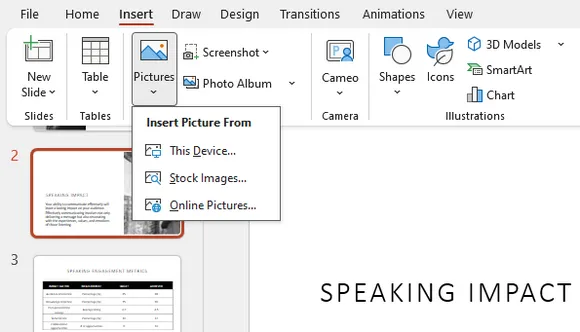
- Selecione um arquivo de imagem do seu computador.
- Clique em Inserir.
A imagem será adicionada ao slide selecionado. Você pode redimensioná-la, movê-la para a posição desejada ou aplicar as opções de formatação integradas do PowerPoint.
Mais fontes de imagem no PowerPoint
Além de adicionar imagens do seu computador, o PowerPoint também oferece fontes de imagem integradas que permitem encontrar e inserir conteúdo visual rapidamente.
Imagens de Estoque fornece uma coleção de fotos, ilustrações, ícones e outros ativos visuais isentos de royalties diretamente dentro do PowerPoint. É útil quando você precisa de gráficos com aparência profissional sem pesquisar em recursos externos.
Imagens Online permite pesquisar imagens de fontes online e inseri-las diretamente na sua apresentação. Esta opção é conveniente quando você precisa encontrar materiais visuais rapidamente sem baixar arquivos separadamente.
Método 2: Adicionar imagens ao PowerPoint usando arrastar e soltar
Arrastar imagens diretamente para o PowerPoint é uma das maneiras mais rápidas de adicionar conteúdo visual durante a edição da apresentação. Em vez de navegar pelos menus, você pode simplesmente mover um arquivo de imagem de uma pasta e colocá-lo no slide de destino.
Este método funciona especialmente bem ao preparar apresentações com apenas algumas imagens, pois requer o mínimo de etapas. No entanto, arrastar manualmente muitas imagens pode se tornar demorado ao trabalhar com apresentações ricas em imagens.
Passos:
- Abra a pasta que contém suas imagens.
- Inicie sua apresentação do PowerPoint.
- Arraste um arquivo de imagem para o slide de destino.
- Ajuste o tamanho e a posição da imagem, se necessário.
Para edições ocasionais, o arrastar e soltar geralmente é o fluxo de trabalho mais rápido. Para projetos maiores, considere usar métodos de inserção em lote ou automação.
Método 3: Inserir várias imagens no PowerPoint de uma só vez
Ao criar apresentações de fotos, vitrines de produtos ou coleções de imagens, adicionar fotos individualmente pode tornar o processo de edição mais lento. O PowerPoint permite selecionar várias imagens e inseri-las em uma apresentação ao mesmo tempo.
Essa abordagem é útil quando você já tem um grupo de imagens preparado e deseja criar slides rapidamente a partir de ativos visuais existentes. Para apresentações baseadas em fotos, o recurso integrado de Álbum de Fotos também pode ajudar a organizar as imagens automaticamente.
Inserir várias imagens:
- Abra sua apresentação do PowerPoint.
- Selecione o slide de destino.
- Vá em Inserir > Imagens > Este Dispositivo.
- Segure a tecla Ctrl e selecione várias imagens.
- Clique em Inserir.
Todas as imagens selecionadas serão adicionadas ao slide juntas.
Criar um Álbum de Fotos:
- Vá em Inserir > Álbum de Fotos.
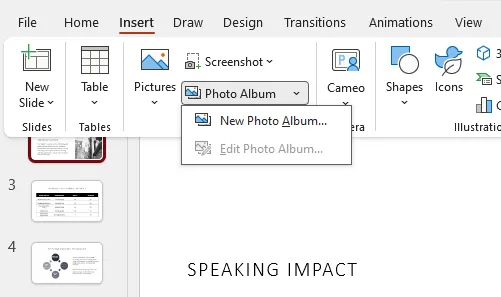
- Clique em Arquivo/Disco.
- Selecione as imagens que deseja usar.
- Clique em Criar.
O PowerPoint gerará slides contendo as fotos selecionadas automaticamente.
Método 4: Adicionar uma imagem como plano de fundo do PowerPoint
Às vezes, uma imagem não deve ser um objeto separado, mas o elemento visual principal de um slide. Nesse caso, você pode adicionar uma imagem como plano de fundo do PowerPoint e usá-la como base de todo o layout do slide.
Usar uma imagem de fundo é comum para capas de apresentações, modelos com marca e designs visuais em tela cheia. Diferente das imagens inseridas normalmente, as imagens de fundo ficam atrás de outros elementos do slide, reduzindo a chance de movimento acidental durante a edição.
Passos para adicionar uma imagem como plano de fundo:
- Clique com o botão direito no slide.
- Selecione Formatar Plano de Fundo.
- Escolha Preenchimento com imagem ou textura.
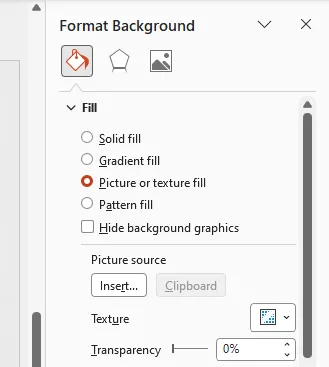
- Clique em Inserir e selecione sua imagem.
- Aplique o plano de fundo ao slide atual ou a todos os slides.
Este método é especialmente útil ao criar apresentações visualmente consistentes com temas personalizados ou gráficos de página inteira.
Método 5: Adicionar imagens ao PowerPoint usando VBA
Para usuários que realizam repetidamente as mesmas tarefas de inserção de imagem, o VBA pode automatizar o fluxo de trabalho diretamente no PowerPoint. Em vez de adicionar imagens manualmente e ajustar suas posições a cada vez, uma macro pode concluir o processo automaticamente.
O VBA é útil para tarefas como inserir logotipos da empresa, gerar relatórios baseados em imagens ou criar apresentações a partir de coleções de imagens predefinidas. É uma opção prática para usuários do Office que precisam de automação sem recorrer a ferramentas de programação externas.
Passos para executar o código VBA:
- Abra sua apresentação do PowerPoint.
- Pressione Alt + F11 para abrir o editor VBA.
- Clique em Inserir > Módulo.
- Cole o código a seguir.
- Pressione F5 para executar a macro.
Sub InsertImage()

    Dim slide As Slide
    Dim imgPath As String

    imgPath = "C:\Images\sample.jpg"

    Set slide = ActivePresentation.Slides(1)

    slide.Shapes.AddPicture _
        FileName:=imgPath, _
        LinkToFile:=msoFalse, _
        SaveWithDocument:=msoTrue, _
        Left:=100, _
        Top:=100, _
        Width:=300, _
        Height:=200

End Sub
A macro insere a imagem especificada no primeiro slide e a coloca na localização e tamanho definidos.
Método 6: Inserir imagens no PowerPoint usando Python
Para desenvolvedores que constroem fluxos de trabalho de apresentação automatizados, o Python oferece mais flexibilidade do que a edição manual ou macros do Office. Uma abordagem de programação permite controlar a inserção de imagens, o posicionamento e a geração de apresentações através de código.
Este método é adequado para processamento em lote, criação automatizada de relatórios e aplicativos que precisam modificar arquivos do PowerPoint programaticamente. No exemplo a seguir, usamos o Spire.Presentation for Python para inserir uma imagem em uma apresentação do PowerPoint existente.
Instalar o Spire.Presentation for Python
pip install spire.presentation
Adicionar uma imagem a um slide do PowerPoint
from spire.presentation.common import *
from spire.presentation import *
import math

# Criar um objeto Presentation
presentation = Presentation()

# Carregar uma apresentação do PowerPoint
presentation.LoadFromFile("Input.pptx")

# Obter o primeiro slide
slide = presentation.Slides[0]

# Caminho do arquivo de imagem
imageFile = "Image.png"

# Calcular a posição da imagem
left = math.trunc(presentation.SlideSize.Size.Width / float(2)) - 280

# Definir posição e tamanho da imagem
rect1 = RectangleF.FromLTRB(left, 140, 120 + left, 260)

# Inserir imagem no slide
image = slide.Shapes.AppendEmbedImageByPath(
    ShapeType.Rectangle,
    imageFile,
    rect1
)

# Remover borda da imagem
image.Line.FillType = FillFormatType.none

# Salvar a apresentação
presentation.SaveToFile(
    "AddImageToSlide.pptx",
    FileFormat.Pptx2010
)

presentation.Dispose()
O código carrega um arquivo do PowerPoint existente, seleciona um slide, insere uma imagem na localização especificada e salva a apresentação atualizada.
Comparado com a edição manual, a automação com Python é mais adequada para fluxos de trabalho que exigem processamento repetível de imagens ou geração de apresentações em larga escala.
Comparação dos 6 métodos
| Método | Dificuldade | Melhor para |
|---|---|---|
| Inserir Imagem | Fácil | Adicionar imagens individuais manualmente |
| Arrastar e Soltar | Fácil | Adicionar rapidamente algumas imagens |
| Inserir Várias Imagens | Fácil | Criar apresentações baseadas em fotos |
| Imagem de Fundo | Fácil | Designs visuais de slide completo |
| VBA | Média | Automação do Office |
| Python | Avançada | Processamento em lote e automação |
Conclusão
O PowerPoint oferece diferentes abordagens para adicionar imagens, dependendo da complexidade do seu fluxo de trabalho. Para apresentações do dia a dia, recursos integrados como Inserir Imagens, arrastar e soltar e Álbum de Fotos geralmente são suficientes.
Ao trabalhar com tarefas repetitivas ou um grande número de imagens, a automação via VBA e Python pode melhorar significativamente a eficiência. Escolher o método certo permite que você crie apresentações mais rapidamente, mantendo layouts de imagem consistentes.
Perguntas frequentes (FAQs)
1. Como insiro uma imagem no PowerPoint?
Você pode inserir uma imagem selecionando um slide e escolhendo Inserir > Imagens > Este Dispositivo. Após selecionar um arquivo de imagem, o PowerPoint o adicionará ao slide atual.
2. Posso adicionar várias imagens ao PowerPoint de uma só vez?
Sim. Você pode selecionar vários arquivos de imagem ao usar a opção Inserir Imagens. O PowerPoint também oferece o recurso Álbum de Fotos para criar apresentações a partir de coleções de imagens.
3. Quais formatos de imagem o PowerPoint suporta?
O PowerPoint suporta formatos de imagem comuns, incluindo JPG, JPEG, PNG, GIF, BMP e SVG. Os formatos disponíveis podem variar dependendo da sua versão do PowerPoint.
4. Como posso inserir imagens automaticamente no PowerPoint?
Você pode usar macros VBA ou bibliotecas Python para automatizar a inserção de imagens. Essas abordagens são úteis para processamento em lote e geração automática de apresentações.
5. Como defino uma imagem como plano de fundo do PowerPoint?
Você pode definir uma imagem como plano de fundo abrindo Formatar Plano de Fundo, selecionando Preenchimento com imagem ou textura e escolhendo seu arquivo de imagem.
Veja também
PowerPoint에 이미지를 추가하는 방법: 6가지 쉬운 방법
이미지는 많은 PowerPoint 프레젠테이션의 필수 요소로, 아이디어를 설명하고 중요한 정보를 강조하며 슬라이드를 시각적으로 더 매력적으로 만드는 데 도움을 줍니다. 비즈니스 보고서, 마케팅 프레젠테이션, 교육 자료 등 무엇을 만들든 이미지를 효율적으로 추가하는 방법을 알면 작업 흐름을 개선할 수 있습니다.
PowerPoint는 간단한 수동 작업부터 대규모 작업을 위한 자동화 솔루션까지 이미지를 삽입하는 여러 가지 방법을 제공합니다. 이 기사에서는 내장 기능, VBA 자동화, Python 프로그래밍을 포함하여 PowerPoint에 이미지를 추가하는 6가지 실용적인 방법을 살펴봅니다.
방법 1: 컴퓨터에서 이미지 삽입하기
PowerPoint에서 이미지를 추가하는 가장 일반적인 방법은 내장된 그림 삽입 기능을 사용하는 것입니다. 이 방법은 몇 개의 이미지만 추가하고 크기, 위치 또는 모양을 수동으로 조정해야 할 때 적합합니다.
PowerPoint를 사용하면 로컬 이미지를 슬라이드에 직접 삽입하고 자르기, 크기 조정, 투명도 조절과 같은 내장 편집 도구를 사용하여 사용자 지정할 수 있습니다. 회사 로고, 워터마크 또는 바닥글 그래픽과 같이 동일한 이미지가 여러 슬라이드의 같은 위치에 나타나야 하는 경우, 각 슬라이드에 수동으로 삽입하는 대신 슬라이드 마스터에 이미지를 추가할 수 있습니다.
이미지 삽입 단계:
- PowerPoint 프레젠테이션을 엽니다.
- 이미지를 추가할 슬라이드를 선택합니다.
- 삽입 > 그림 > 이 디바이스로 이동합니다.
- 컴퓨터에서 이미지 파일을 선택합니다.
- 삽입을 클릭합니다.
이미지가 선택한 슬라이드에 추가됩니다. 그런 다음 크기를 조정하거나 원하는 위치로 이동하거나 PowerPoint의 내장 서식 옵션을 적용할 수 있습니다.
PowerPoint의 추가 이미지 소스
컴퓨터에서 이미지를 추가하는 것 외에도, PowerPoint는 시각적 콘텐츠를 빠르게 찾고 삽입할 수 있는 내장 이미지 소스를 제공합니다.
스톡 이미지는 PowerPoint 내에서 바로 사용할 수 있는 로열티 프리 사진, 일러스트레이션, 아이콘 및 기타 시각적 자산 모음을 제공합니다. 외부 리소스를 검색할 필요 없이 전문적인 그래픽이 필요할 때 유용합니다.
온라인 그림을 사용하면 온라인 소스에서 이미지를 검색하여 프레젠테이션에 직접 삽입할 수 있습니다. 이 옵션은 파일을 별도로 다운로드하지 않고 시각 자료를 빠르게 찾아야 할 때 편리합니다.
방법 2: 드래그 앤 드롭으로 PowerPoint에 이미지 추가하기
이미지를 PowerPoint로 직접 드래그하는 것은 프레젠테이션 편집 중에 시각적 콘텐츠를 추가하는 가장 빠른 방법 중 하나입니다. 메뉴를 탐색하는 대신 폴더에서 이미지 파일을 끌어 대상 슬라이드에 놓기만 하면 됩니다.
이 방법은 단계가 최소화되므로 이미지가 몇 개만 포함된 프레젠테이션을 준비할 때 특히 효과적입니다. 그러나 이미지가 많은 프레젠테이션을 작업할 때 수동으로 많은 이미지를 드래그하는 것은 시간이 많이 걸릴 수 있습니다.
단계:
- 이미지가 포함된 폴더를 엽니다.
- PowerPoint 프레젠테이션을 실행합니다.
- 이미지 파일을 대상 슬라이드로 드래그합니다.
- 필요한 경우 이미지 크기와 위치를 조정합니다.
가끔 편집하는 경우에는 드래그 앤 드롭이 가장 빠른 작업 방식입니다. 더 큰 프로젝트의 경우 일괄 삽입 또는 자동화 방법을 고려하십시오.
방법 3: PowerPoint에 여러 이미지를 한 번에 삽입하기
사진 프레젠테이션, 제품 쇼케이스 또는 이미지 컬렉션을 만들 때 사진을 개별적으로 추가하면 편집 과정이 느려질 수 있습니다. PowerPoint를 사용하면 여러 이미지를 선택하여 동시에 프레젠테이션에 삽입할 수 있습니다.
이 접근 방식은 이미 준비된 이미지 그룹이 있고 기존 시각 자료로 슬라이드를 빠르게 구성하려는 경우에 유용합니다. 사진 기반 프레젠테이션의 경우, 내장된 사진 앨범 기능을 사용하면 이미지를 자동으로 정리하는 데 도움이 될 수 있습니다.
여러 이미지 삽입:
- PowerPoint 프레젠테이션을 엽니다.
- 대상 슬라이드를 선택합니다.
- 삽입 > 그림 > 이 디바이스로 이동합니다.
- Ctrl 키를 누른 상태에서 여러 이미지를 선택합니다.
- 삽입을 클릭합니다.
선택한 모든 이미지가 슬라이드에 함께 추가됩니다.
사진 앨범 만들기:
- 삽입 > 사진 앨범으로 이동합니다.
- 파일/디스크를 클릭합니다.
- 사용할 이미지를 선택합니다.
- 만들기를 클릭합니다.
PowerPoint가 선택한 사진이 포함된 슬라이드를 자동으로 생성합니다.
방법 4: PowerPoint 배경으로 이미지 추가하기
때로는 이미지가 별도의 개체가 아니라 슬라이드의 주요 시각적 요소여야 할 때가 있습니다. 이 경우 이미지를 PowerPoint 배경으로 추가하여 전체 슬라이드 레이아웃의 기초로 사용할 수 있습니다.
배경 이미지를 사용하는 것은 프레젠테이션 표지, 브랜드 템플릿 및 전체 화면 시각 디자인에 일반적입니다. 일반적인 삽입 그림과 달리 배경 이미지는 다른 슬라이드 요소 뒤에 유지되므로 편집 중에 실수로 움직일 가능성이 줄어듭니다.
이미지를 배경으로 추가하는 단계:
- 슬라이드를 마우스 오른쪽 버튼으로 클릭합니다.
- 배경 서식을 선택합니다.
- 그림 또는 질감 채우기를 선택합니다.
- 삽입을 클릭하고 이미지를 선택합니다.
- 현재 슬라이드 또는 모든 슬라이드에 배경을 적용합니다.
이 방법은 사용자 지정 테마나 전체 페이지 그래픽을 사용하여 시각적으로 일관된 프레젠테이션을 만들 때 특히 유용합니다.
방법 5: VBA를 사용하여 PowerPoint에 이미지 추가하기
동일한 이미지 삽입 작업을 반복적으로 수행하는 사용자의 경우, VBA를 통해 PowerPoint 내에서 직접 작업 흐름을 자동화할 수 있습니다. 매번 수동으로 이미지를 추가하고 위치를 조정하는 대신 매크로를 사용하여 프로세스를 자동으로 완료할 수 있습니다.
VBA는 회사 로고 삽입, 이미지 기반 보고서 생성 또는 미리 정의된 이미지 컬렉션에서 프레젠테이션을 만드는 등의 작업에 유용합니다. 외부 프로그래밍 도구로 전환하지 않고 자동화가 필요한 Office 사용자에게 실용적인 옵션입니다.
VBA 코드 실행 단계:
- PowerPoint 프레젠테이션을 엽니다.
- Alt + F11을 눌러 VBA 편집기를 엽니다.
- 삽입 > 모듈을 클릭합니다.
- 다음 코드를 붙여넣습니다.
- F5를 눌러 매크로를 실행합니다.
Sub InsertImage()

    Dim slide As Slide
    Dim imgPath As String

    imgPath = "C:\Images\sample.jpg"

    Set slide = ActivePresentation.Slides(1)

    slide.Shapes.AddPicture _
        FileName:=imgPath, _
        LinkToFile:=msoFalse, _
        SaveWithDocument:=msoTrue, _
        Left:=100, _
        Top:=100, _
        Width:=300, _
        Height:=200

End Sub
매크로는 지정된 이미지를 첫 번째 슬라이드에 삽입하고 정의된 위치와 크기에 배치합니다.
방법 6: Python을 사용하여 PowerPoint에 이미지 삽입하기
자동화된 프레젠테이션 워크플로우를 구축하는 개발자의 경우, Python은 수동 편집이나 Office 매크로보다 더 많은 유연성을 제공합니다. 프로그래밍 방식을 사용하면 코드를 통해 이미지 삽입, 위치 지정 및 프레젠테이션 생성을 제어할 수 있습니다.
이 방법은 일괄 처리, 자동 보고서 생성 및 프로그래밍 방식으로 PowerPoint 파일을 수정해야 하는 애플리케이션에 적합합니다. 다음 예제에서는 Spire.Presentation for Python을 사용하여 기존 PowerPoint 프레젠테이션에 이미지를 삽입합니다.
Spire.Presentation for Python 설치
pip install spire.presentation
PowerPoint 슬라이드에 이미지 추가
from spire.presentation.common import *
from spire.presentation import *
import math

# Presentation 객체 생성
presentation = Presentation()

# PowerPoint 프레젠테이션 로드
presentation.LoadFromFile("Input.pptx")

# 첫 번째 슬라이드 가져오기
slide = presentation.Slides[0]

# 이미지 파일 경로
imageFile = "Image.png"

# 이미지 위치 계산
left = math.trunc(presentation.SlideSize.Size.Width / float(2)) - 280

# 이미지 위치 및 크기 정의
rect1 = RectangleF.FromLTRB(left, 140, 120 + left, 260)

# 슬라이드에 이미지 삽입
image = slide.Shapes.AppendEmbedImageByPath(
    ShapeType.Rectangle,
    imageFile,
    rect1
)

# 이미지 테두리 제거
image.Line.FillType = FillFormatType.none

# 프레젠테이션 저장
presentation.SaveToFile(
    "AddImageToSlide.pptx",
    FileFormat.Pptx2010
)

presentation.Dispose()
이 코드는 기존 PowerPoint 파일을 로드하고, 슬라이드를 선택하고, 지정된 위치에 이미지를 삽입한 다음 업데이트된 프레젠테이션을 저장합니다.
수동 편집과 비교했을 때, Python 자동화는 반복 가능한 이미지 처리나 대규모 프레젠테이션 생성이 필요한 워크플로우에 더 적합합니다.
6가지 방법 비교
| 방법 | 난이도 | 최적의 용도 |
|---|---|---|
| 그림 삽입 | 쉬움 | 개별 이미지를 수동으로 추가할 때 |
| 드래그 앤 드롭 | 쉬움 | 이미지를 빠르게 몇 개 추가할 때 |
| 여러 이미지 삽입 | 쉬움 | 사진 기반 프레젠테이션을 만들 때 |
| 배경 이미지 | 쉬움 | 전체 슬라이드 시각 디자인 |
| VBA | 중간 | Office 자동화 |
| Python | 고급 | 일괄 처리 및 자동화 |
결론
PowerPoint는 워크플로우의 복잡성에 따라 이미지를 추가하는 다양한 방법을 제공합니다. 일상적인 프레젠테이션의 경우 그림 삽입, 드래그 앤 드롭, 사진 앨범과 같은 내장 기능으로 충분합니다.
반복적인 작업이나 많은 수의 이미지를 다룰 때는 VBA 및 Python 자동화가 효율성을 크게 향상시킬 수 있습니다. 올바른 방법을 선택하면 일관된 이미지 레이아웃을 유지하면서 프레젠테이션을 더 빠르게 만들 수 있습니다.
자주 묻는 질문(FAQ)
1. PowerPoint에 그림을 어떻게 삽입하나요?
슬라이드를 선택하고 삽입 > 그림 > 이 디바이스를 선택하여 그림을 삽입할 수 있습니다. 이미지 파일을 선택하면 PowerPoint가 현재 슬라이드에 이미지를 추가합니다.
2. PowerPoint에 여러 이미지를 한 번에 추가할 수 있나요?
네. 그림 삽입 옵션을 사용하는 동안 여러 이미지 파일을 선택할 수 있습니다. 또한 PowerPoint는 이미지 컬렉션에서 프레젠테이션을 만들기 위한 사진 앨범 기능을 제공합니다.
3. PowerPoint는 어떤 이미지 형식을 지원하나요?
PowerPoint는 JPG, JPEG, PNG, GIF, BMP 및 SVG를 포함한 일반적인 이미지 형식을 지원합니다. 사용 가능한 형식은 PowerPoint 버전에 따라 다를 수 있습니다.
4. PowerPoint에 이미지를 자동으로 삽입하려면 어떻게 해야 하나요?
VBA 매크로나 Python 라이브러리를 사용하여 이미지 삽입을 자동화할 수 있습니다. 이러한 방식은 일괄 처리 및 프레젠테이션 자동 생성에 유용합니다.
5. 그림을 PowerPoint 배경으로 설정하려면 어떻게 하나요?
배경 서식을 열고 그림 또는 질감 채우기를 선택한 다음 이미지 파일을 선택하여 그림을 배경으로 설정할 수 있습니다.