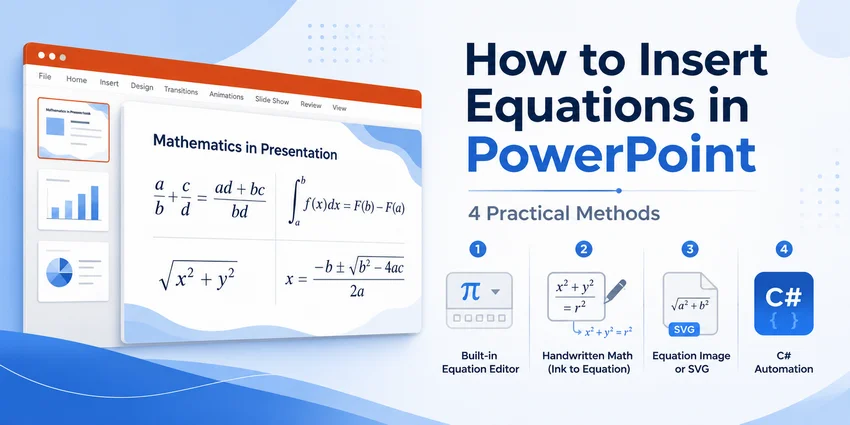
PowerPoint에서 수식을 삽입하는 방법: 4가지 실용적인 방법
수학 수식은 과학, 공학, 금융, 통계 및 교육 관련 프레젠테이션에서 흔히 사용됩니다. E = mc²와 같은 간단한 공식은 입력하기 쉽지만, 분수, 행렬, 적분 및 여러 단계의 위첨자가 포함된 식은 일반 텍스트 상자에서 서식을 지정하기가 매우 어렵습니다.
이 가이드에서는 PowerPoint에 수식을 삽입하는 네 가지 실용적인 방법을 다룹니다:
빠른 비교
PowerPoint에 수식을 삽입하는 가장 좋은 방법은 수식의 수정 가능 여부, 생성 방식, 그리고 단일 슬라이드 작업인지 아니면 여러 프레젠테이션을 자동으로 생성하는지에 따라 달라집니다.
| 방법 | 최적 용도 | 수식으로 편집 가능 여부 | 주요 제한 사항 |
|---|---|---|---|
| PowerPoint 수식 도구 | 수동으로 몇 개의 편집 가능한 수식 생성 | 예 | 복잡한 공식은 작성 시간이 오래 걸림 |
| 잉크 수식(Ink to Math) | 스타일러스 및 터치스크린 사용자 | 예 (변환 후) | 필기 인식 수정이 필요할 수 있음 |
| 이미지로 삽입 | 다른 곳에서 생성된 수식 보존 | 아니요 | 공식이 변경되면 이미지를 다시 생성해야 함 |
| C# 및 Free Spire.Presentation | 일괄 생성 및 자동화된 보고서 | 예 | 기본적인 C# 지식 필요 |
방법 1: PowerPoint 수식 도구를 사용하여 수식 삽입하기
대부분의 사용자에게는 PowerPoint의 내장 수식 편집기가 가장 좋은 시작점입니다. 이 도구는 프레젠테이션 내에서 직접 크기 조정, 위치 변경 및 편집이 가능한 기본 수식 개체를 생성합니다.
내장 수식 삽입하기
PowerPoint에는 직접 삽입할 수 있는 여러 일반적인 수식(이차 방정식이나 피타고라스 정리 등)이 포함되어 있습니다.
-
PowerPoint 프레젠테이션을 열고 원하는 슬라이드를 선택합니다.
-
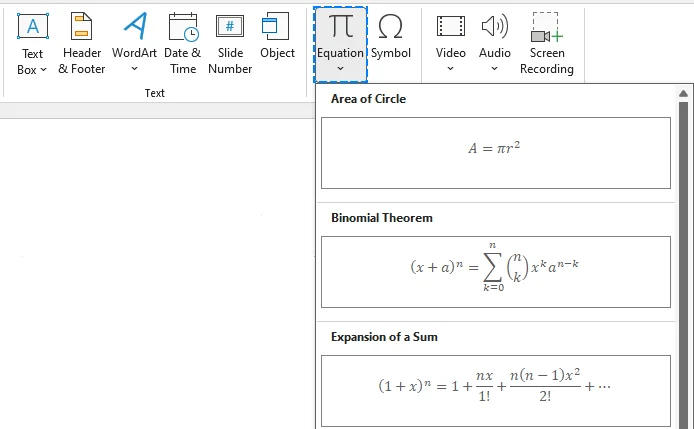
상단 리본 메뉴에서 삽입 탭으로 이동합니다.
-
기호 그룹에서 수식 옆의 드롭다운 화살표를 클릭합니다.
-
갤러리에서 내장 수식 중 하나를 선택합니다.
-
슬라이드의 수식 상자 안을 클릭하여 값, 기호 또는 구조를 편집합니다.
처음부터 새 수식 만들기
사용자 지정 수식을 만들려면:
-
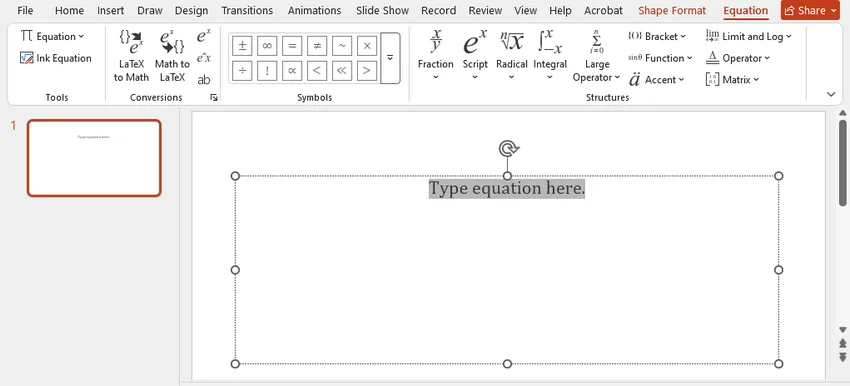
삽입 > 수식 > 새 수식 삽입으로 이동하거나(Windows에서는 Alt + = 누름) 새 수식 상자를 삽입합니다.
-
리본 메뉴가 자동으로 수식 탭으로 전환됩니다.
-
구조 그룹에서 필요한 범주(분수, 첨자, 근호, 적분, 행렬 등)를 클릭하여 표준 빈 템플릿을 삽입합니다.
-
공식 내부의 점선 사각형 자리 표시자를 클릭하고 변수나 숫자를 입력합니다.
선형 형식으로 수식 입력하기
고급 사용자의 경우, 리본 아이콘을 클릭하는 것보다 선형 구문으로 공식을 입력하는 것이 훨씬 빠릅니다.
Microsoft 365의 PowerPoint는 지원되는 LaTeX 및 UnicodeMath 표기법을 전문적으로 서식 지정된 수식으로 변환하는 기능을 지원합니다. 사용 가능한 명령 및 변환 옵션은 버전에 따라 다를 수 있습니다.
-
빈 수식 상자를 삽입합니다(Windows에서는 Alt + =).
-
상자 안에 선형 구문을 사용하여 식을 입력합니다. 예시:
- UnicodeMath:
(a+b)/(c+d),x^2, 또는y_1 - LaTeX:
\int_0^\infty e^{-x} dx
- UnicodeMath:
-
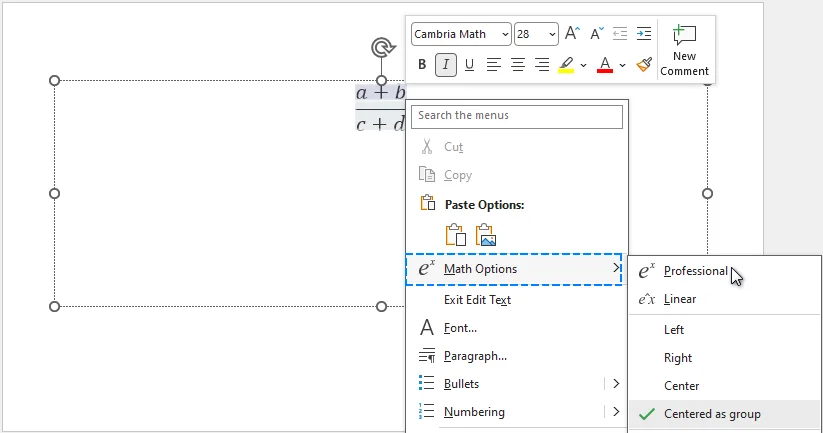
수식 상자 안에서 마우스 오른쪽 버튼을 클릭하고 수학 옵션에 마우스를 올린 다음 전문가용을 선택하거나(또는 수식 리본에서 변환 > 전문가용 클릭) 선형 공식을 표준 시각적 수학 표기법으로 렌더링합니다.
수식이 변환되지 않는 경우 대처 방법
PowerPoint가 표기법을 일반 텍스트로 남겨두는 경우:
- 텍스트가 일반 텍스트 상자가 아닌 수식 상자 안에 있는지 확인합니다.
- 변환 명령을 선택하기 전에 전체 식을 선택합니다.
- 지원되지 않는 명령이나 패키지별 기능을 단순화합니다.
- 괄호 누락, 일치하지 않는 구분 기호 또는 대소문자 구분 명령을 확인합니다.
- 예상되는 변환 옵션을 사용할 수 없는 경우 PowerPoint를 업데이트합니다.
PowerPoint가 여전히 올바르게 변환할 수 없는 수식의 경우, 이미지로 삽입(방법 3)하거나 프로그래밍 방식으로 생성(방법 4)하는 것을 고려하십시오.
방법 2: 잉크 수식(Ink to Math)으로 손글씨 수식 작성하기
태블릿, Microsoft Surface 또는 터치스크린 노트북을 사용하는 경우, 수식을 타이핑하는 것이 제한적으로 느껴질 수 있습니다. PowerPoint의 잉크 수식 기능을 사용하면 자연스럽게 공식을 그리고 이를 편집 가능한 디지털 수학 텍스트로 변환할 수 있습니다.
손글씨 수식 삽입하기
-
그리기 탭으로 이동하여 잉크 수식 버튼을 클릭하여 수학 입력 패널을 엽니다.

-
스타일러스, 손가락 또는 마우스를 사용하여 그리드 영역에 공식을 작성합니다.
-
패널 상단에서 실시간 디지털 변환 결과를 미리 봅니다.
-
문자가 잘못 읽힌 경우 하단 메뉴에서 선택 및 수정 도구를 사용하고, 잘못된 기호를 클릭한 다음 팝업 제안에서 올바른 기호를 선택합니다.
-
삽입을 클릭하여 슬라이드에 수식을 넣습니다.
참고: 사용 가능한 잉크 수식 옵션은 PowerPoint 버전에 따라 다를 수 있습니다. Windows용 Microsoft 365에서는 슬라이드에 직접 수식을 작성하고 올가미 선택으로 잉크를 선택한 다음 그리기 > 잉크 수식을 선택할 수도 있습니다. 이 직접 변환 기능은 Microsoft 365 연결된 환경이 활성화되어 있어야 합니다. 자세한 내용은 Microsoft 지원 문서를 참조하십시오.
방법 3: 이미지로 수식 삽입하기
LaTeX 편집기, 과학 애플리케이션 또는 온라인 수식 렌더러에서 이미 생성된 수식은 SVG 또는 PNG 이미지로 내보내 PowerPoint에 삽입할 수 있습니다.
이는 수식이 이미 완성되어 있고 나중에 편집할 필요가 없을 때 가장 간단한 해결책입니다.
SVG 또는 PNG: 어떤 형식을 선택할 것인가
- 가능하면 SVG를 사용하십시오. 벡터 형식이므로 크기를 조정해도 수식이 선명하게 유지됩니다.
- SVG를 사용할 수 없는 경우 PNG를 사용하십시오. 충분히 높은 해상도로 내보내고 가능하면 투명 배경을 사용하십시오.
수식 이미지 삽입하기
-
수식 편집기나 렌더러에서 수식을 SVG 또는 PNG 파일로 내보냅니다.
-
대상 슬라이드를 엽니다.
-
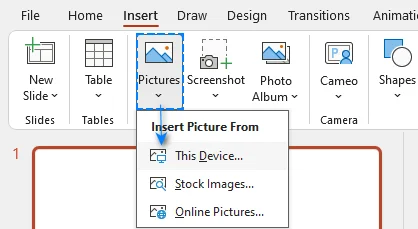
삽입 > 그림 > 이 디바이스를 선택합니다.
-
수식 이미지 파일을 선택합니다.
-
가로세로 비율을 유지하면서 크기를 조정하고 위치를 잡습니다.
중요한 제한 사항
이미지로 삽입된 수식은 수학적 콘텐츠로 편집할 수 없습니다. 공식이 변경될 경우를 대비하여 원본 소스 파일을 보관하십시오.
접근성을 위해 단순히 이미지라고 표시하는 대신 공식을 설명하는 대체 텍스트를 추가하십시오. 예시:
이차 방정식: x는 마이너스 b 플러스 마이너스 제곱근, b 제곱 마이너스 4ac, 나누기 2a.
이 방법을 사용하는 경우
- 수식이 다른 애플리케이션에서 생성된 경우.
- 편집 가능성보다 정확한 시각적 모양이 더 중요한 경우.
- PowerPoint가 복잡한 공식을 올바르게 렌더링하지 못하는 경우.
- 수식이 최종본이며 변경될 가능성이 없는 경우.
방법 4: C#을 사용하여 프로그래밍 방식으로 수식 삽입하기
수동 수식 입력은 몇 개의 슬라이드에는 적합합니다. 하지만 보고서 템플릿, 교육 자료, 금융 프레젠테이션 또는 문제 은행에 수식을 반복적으로 추가해야 할 때는 비효율적입니다.
이러한 경우 .NET 라이브러리를 사용하면 PowerPoint를 수동으로 열지 않고도 LaTeX 코드에서 PowerPoint 수학 콘텐츠를 생성할 수 있습니다. 다음 예제는 Free Spire.Presentation을 사용합니다. 이 라이브러리는 Microsoft PowerPoint를 설치하지 않고도 PowerPoint 파일을 생성 및 수정할 수 있습니다.
- *참고: 무료 버전은 소규모 작업용으로 설계되었으며 파일당 최대 10개의 슬라이드 처리를 허용합니다. 프레젠테이션이 이 제한을 초과하는 경우 전체 버전으로 전환하고 무료 평가판 라이선스를 신청하여 제한 없이 테스트할 수 있습니다.
1단계: 필요한 패키지 설치하기
NuGet 패키지 관리자 콘솔을 통해 Free Spire.Presentation을 설치합니다:
Install-Package FreeSpire.Presentation
또는 .NET CLI를 사용합니다:
dotnet add package FreeSpire.Presentation
2단계: C# 코드 작성하기
다음 코드는 프레젠테이션을 만들고, 첫 번째 슬라이드에 도형을 추가하며, LaTeX 코드에서 수식을 생성하고, 결과를 PPTX 파일로 저장합니다:
using Spire.Presentation;
using Spire.Presentation.Drawing;
using System;
using System.Drawing;
using System.IO;

namespace EquationDemo
{
    internal class Program
    {
        static void Main(string[] args)
        {
            string outputFolder = "generated-slides";
            string outputFile = Path.Combine(outputFolder, "QuadraticFormula.pptx");
            Directory.CreateDirectory(outputFolder);

            using (Presentation deck = new Presentation())
            {
                try
                {
                    ISlide firstSlide = deck.Slides[0];

                    // 투명한 사각형이 수식 텍스트의 컨테이너 역할을 합니다
                    IAutoShape equationBox = firstSlide.Shapes.AppendShape(
                        ShapeType.Rectangle,
                        new RectangleF(60, 120, 560, 90)
                    );
                    equationBox.Fill.FillType = FillFormatType.None;
                    equationBox.Line.FillType = FillFormatType.None;
                    equationBox.TextFrame.Paragraphs.Clear();

                    // LaTeX로 작성된 이차 방정식
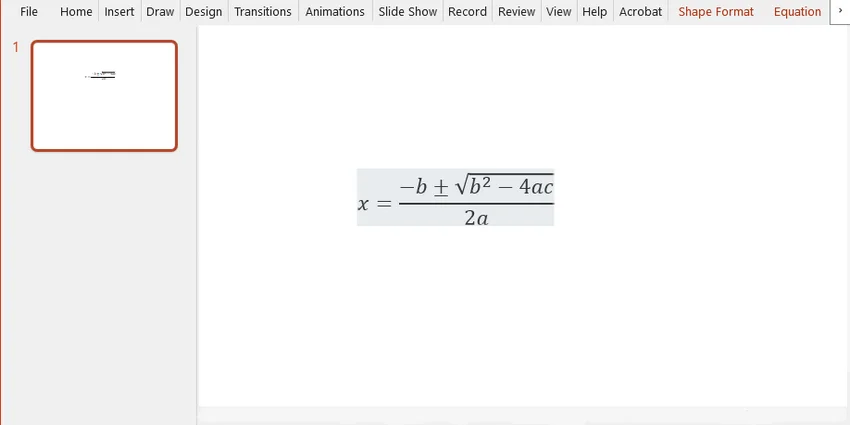
                    string quadraticFormula = @"x=\frac{-b\pm\sqrt{b^{2}-4ac}}{2a}";
                    equationBox.TextFrame.Paragraphs.AddParagraphFromLatexMathCode(quadraticFormula);

                    deck.SaveToFile(outputFile, FileFormat.Pptx2019);
                    Console.WriteLine($"저장됨: {outputFile}");
                }
                catch (Exception ex)
                {
                    Console.WriteLine($"슬라이드를 생성할 수 없음: {ex.Message}");
                }
            }
        }
    }
}
결과:
개발자를 위한 참고 사항:
- 기존 프레젠테이션 처리: 이 예제는 새 프레젠테이션을 만듭니다. 기존 파일에 수식을 삽입하려면 먼저 deck.LoadFromFile("your_file_path.pptx")로 로드한 다음 위와 동일한 도형/수식 메서드를 사용하십시오.
- 일괄 생성: 수식 삽입 로직을 루프(예: CSV 또는 데이터베이스에서 LaTeX 문자열 읽기)로 감싸서 많은 슬라이드나 파일을 자동으로 처리하십시오.
- 흔하지 않은 수식 먼저 테스트: 일반적이지 않은 명령과 복잡한 행렬은 프로덕션 워크플로에서 사용하기 전에 테스트해야 합니다.
- 무료 버전 제한: Free Spire.Presentation은 프레젠테이션당 최대 10개의 슬라이드를 지원합니다. 소스 프레젠테이션이 이 제한을 초과하는 경우, PowerPoint나 다른 제한 없는 도구를 사용하여 미리 분할하거나 상용 버전을 사용하십시오.
PowerPoint에서 명확한 수식을 만들기 위한 팁
읽기 쉬운 크기 사용
노트북에서는 괜찮아 보이는 수식이 프로젝터에서는 읽기 어려울 수 있습니다. 프레젠테이션 모드에서 슬라이드를 미리 보고 적절한 시청 거리에서 확인하십시오.
서식 일관성 유지
프레젠테이션 전체에서 일관된 수식 크기, 정렬 및 간격을 사용하십시오. 시각적 모양이 비슷하지 않은 한 스크린샷, 기본 수식 및 추가 기능 수식을 혼합하지 마십시오.
과도한 정보 피하기
유도 과정에 여러 단계가 포함된 경우, 여러 슬라이드에 나누어 표시하거나 애니메이션을 신중하게 사용하십시오. 밀도 높은 표기로 가득 찬 단일 슬라이드는 청중이 따라가기 어렵습니다.
글꼴 호환성 확인
Cambria Math와 같은 표준 수학 글꼴을 사용하고 재생에 사용되는 컴퓨터에서 프레젠테이션을 테스트하십시오. 글꼴이 없으면 수식 간격이나 모양이 변경될 수 있습니다. 호환성 문제를 줄이려면 파일 > 옵션 > 저장 > 파일에 글꼴 포함을 통해 지원되는 글꼴을 포함하거나, 최종 프레젠테이션을 PDF로 내보내십시오.
요약: 수식 삽입을 위해 어떤 방법을 선택해야 할까요?
대부분의 사용자에게는 PowerPoint의 내장 수식 도구가 간단하고 수식을 편집 가능한 상태로 유지하므로 가장 좋은 선택입니다. 손글씨 입력에는 잉크 수식을, 다른 곳에서 생성된 수식에는 SVG 또는 PNG 이미지를, 반복적이거나 자동화된 생성에는 C#과 Free Spire.Presentation을 사용하십시오.
PowerPoint에 수식 삽입에 관한 자주 묻는 질문
PowerPoint에서 수식을 삽입하는 가장 빠른 방법은 무엇인가요?
Windows에서는 Alt + =를 눌러 새 수식 상자를 삽입한 다음 공식을 입력하거나 붙여넣으십시오. 삽입 > 수식을 선택하고 내장 공식을 선택할 수도 있습니다.
PowerPoint가 LaTeX 코드를 수식으로 변환할 수 있나요?
네. PowerPoint를 포함한 Microsoft 365 애플리케이션은 수학 영역에 식이 입력될 때 지원되는 LaTeX 표기법을 Office 수학 콘텐츠로 변환할 수 있습니다. 그러나 PowerPoint가 전체 LaTeX 설치에서 사용할 수 있는 모든 명령이나 패키지를 지원하지는 않을 수 있습니다.
수식을 삽입한 후에도 편집할 수 있나요?
PowerPoint의 수식 도구로 생성하거나 잉크 수식을 통해 변환된 수식은 계속 편집할 수 있습니다. C#으로 PowerPoint 수학 콘텐츠로 생성된 수식도 편집할 수 있습니다. SVG 또는 PNG 이미지로 삽입된 수식은 수학적 콘텐츠로 편집할 수 없습니다.
LaTeX 수식이 PowerPoint에서 다르게 보이는 이유는 무엇인가요?
PowerPoint는 완전한 LaTeX 조판 시스템이 아닌 정의된 LaTeX 하위 집합을 지원합니다. 지원되지 않는 명령이나 패키지별 기능은 리터럴 텍스트로 나타나거나 다르게 렌더링될 수 있습니다. 정확한 서식이 필요한 경우 식을 단순화하거나 SVG 이미지로 삽입하십시오.
Word에서 PowerPoint로 수식을 복사할 수 있나요?
네. Microsoft Office의 수식 편집기로 생성된 수식은 일반적으로 Word에서 복사하여 PowerPoint에 붙여넣을 수 있으며 편집 가능한 상태로 유지됩니다. 붙여넣은 후 슬라이드의 크기, 정렬 및 줄 간격을 확인하십시오.
여러 PowerPoint 파일에 자동으로 수식을 삽입할 수 있나요?
네. Free Spire.Presentation과 같은 라이브러리와 C#을 사용하여 여러 PowerPoint 프레젠테이션에 수식을 일괄 삽입할 수 있습니다.
Come inserire equazioni in PowerPoint: 4 metodi pratici
Le equazioni matematiche sono comuni nelle presentazioni riguardanti scienza, ingegneria, finanza, statistica e istruzione. Una formula semplice come E = mc² può essere facile da digitare, ma frazioni, matrici, integrali ed espressioni con diversi livelli di apici possono diventare rapidamente difficili da formattare in una normale casella di testo.
Questa guida illustra quattro modi pratici per inserire equazioni in PowerPoint:
- Utilizzare lo strumento Equazione integrato di PowerPoint
- Convertire formule scritte a mano con "Input penna matematico"
- Inserire un'equazione come immagine
- Inserire equazioni a livello di programmazione con C#
Confronto rapido
Il modo migliore per inserire un'equazione in PowerPoint dipende dal fatto che debba rimanere modificabile, da come è stata creata e se si sta lavorando su una singola diapositiva o generando molte presentazioni automaticamente.
| Metodo | Ideale per | Modificabile come equazione? | Limitazione principale |
|---|---|---|---|
| Strumento Equazione di PowerPoint | Creare manualmente alcune equazioni modificabili | Sì | Le formule complesse richiedono più tempo per essere costruite |
| Input penna matematico | Utenti con stilo e touchscreen | Sì, dopo la conversione | Il riconoscimento della grafia potrebbe richiedere correzioni |
| Inserire come immagine | Preservare un'equazione creata altrove | No | L'immagine deve essere ricreata se la formula cambia |
| C# con Free Spire.Presentation | Generazione batch e reportistica automatizzata | Sì | Richiede conoscenze base di C# |
Metodo 1: Inserire un'equazione utilizzando lo strumento Equazione di PowerPoint
Per la maggior parte degli utenti, l'editor di equazioni integrato di PowerPoint è il punto di partenza migliore. Crea oggetti equazione nativi che possono essere ridimensionati, riposizionati e modificati direttamente nella presentazione.
Inserire un'equazione predefinita
PowerPoint include diverse equazioni comuni (come la formula quadratica o il teorema di Pitagora) che possono essere inserite direttamente.
-
Apri la tua presentazione PowerPoint e seleziona la diapositiva desiderata.
-
Vai alla scheda Inserisci sulla barra multifunzione in alto.
-
Nel gruppo Simboli, fai clic sulla freccia a discesa accanto a Equazione.
-
Seleziona una delle equazioni integrate dalla galleria.
-
Fai clic all'interno della casella dell'equazione sulla diapositiva per modificarne valori, simboli o struttura.
Creare una nuova equazione da zero
Per costruire un'equazione personalizzata:
-
Vai su Inserisci > Equazione > Inserisci nuova equazione (o premi Alt + = su Windows) per inserire una nuova casella di equazione.
-
La barra multifunzione passerà automaticamente alla scheda Equazione.
-
Fai clic sulla categoria necessaria (come Frazione, Apice, Radicale, Integrale o Matrice) nel gruppo Strutture per inserire modelli vuoti standard.
-
Fai clic nei segnaposto quadrati tratteggiati all'interno della formula e digita le tue variabili o numeri.
Digitare un'equazione in formato lineare
Per gli utenti esperti, inserire formule in sintassi lineare è molto più veloce rispetto al cliccare sulle icone della barra multifunzione.
PowerPoint in Microsoft 365 supporta la conversione della notazione LaTeX e UnicodeMath supportata in equazioni formattate professionalmente. I comandi disponibili e le opzioni di conversione possono variare in base alla versione.
-
Inserisci una casella di equazione vuota (Alt + = su Windows).
-
Digita la tua espressione all'interno della casella utilizzando la sintassi lineare. Esempi:
- UnicodeMath:
(a+b)/(c+d),x^2, oy_1 - LaTeX:
\int_0^\infty e^{-x} dx
- UnicodeMath:
-
Fai clic con il tasto destro all'interno della casella dell'equazione, passa il mouse su Opzioni matematiche e seleziona Professionale (o fai clic su Conversioni > Professionale sulla barra multifunzione Equazione) per trasformare la formula lineare nella notazione matematica visiva standard.
Cosa fare se l'equazione non viene convertita
Se PowerPoint lascia la notazione come testo semplice:
- Verifica che il testo sia all'interno di una casella di equazione e non di una normale casella di testo.
- Seleziona l'intera espressione prima di scegliere il comando di conversione.
- Semplifica i comandi non supportati o le funzionalità specifiche del pacchetto.
- Controlla se mancano parentesi graffe, delimitatori non corrispondenti o comandi sensibili alle maiuscole/minuscole.
- Aggiorna PowerPoint se le opzioni di conversione previste non sono disponibili.
Per un'equazione che PowerPoint non riesce ancora a convertire correttamente, prendi in considerazione l'inserimento come immagine (metodo 3) o la generazione a livello di programmazione (metodo 4).
Metodo 2: Scrivere un'equazione a mano con "Input penna matematico"
Se utilizzi un tablet, un Microsoft Surface o un laptop touchscreen, digitare equazioni può sembrare limitante. La funzionalità "Input penna matematico" di PowerPoint ti consente di disegnare formule in modo naturale e le converte in testo matematico digitale modificabile.
Inserire un'equazione scritta a mano
-
Vai alla scheda Disegno e fai clic sul pulsante Input penna matematico per aprire il pannello di input matematico.
-
Usa lo stilo, il dito o il mouse per scrivere la tua formula nell'area della griglia.
-
Visualizza l'anteprima della conversione digitale in tempo reale nella parte superiore del pannello.
-
Se un carattere viene letto in modo errato, usa lo strumento Seleziona e correggi dal menu in basso, fai clic sul simbolo errato e scegli quello corretto dai suggerimenti a comparsa.
-
Fai clic su Inserisci per inserire l'equazione nella tua diapositiva.
Nota: Le opzioni disponibili per l'Input penna matematico possono variare in base alla versione di PowerPoint. In Microsoft 365 per Windows, puoi anche scrivere un'equazione direttamente sulla diapositiva, selezionare l'input penna con Selezione lazo e scegliere Disegno > Input penna matematico. Questa funzione di conversione diretta richiede che le esperienze connesse di Microsoft 365 siano abilitate. Per ulteriori dettagli, consulta la documentazione di supporto Microsoft.
Metodo 3: Inserire un'equazione come immagine
Se un'equazione è già stata creata in un editor LaTeX, un'applicazione scientifica o un renderizzatore di equazioni online, può essere esportata come immagine SVG o PNG e inserita in PowerPoint.
Questa è spesso la soluzione più semplice quando l'equazione è già definitiva e non deve essere modificata in seguito.
SVG o PNG: quale formato scegliere
- Usa SVG quando possibile. È un formato vettoriale, quindi l'equazione rimane nitida quando viene ridimensionata.
- Usa PNG quando SVG non è disponibile. Esportalo a una risoluzione sufficientemente alta e usa uno sfondo trasparente quando possibile.
Inserire l'immagine dell'equazione
-
Esporta l'equazione come file SVG o PNG da un editor o renderizzatore di equazioni.
-
Apri la diapositiva di destinazione.
-
Seleziona Inserisci > Immagini > Questo dispositivo.
-
Scegli il file immagine dell'equazione.
-
Ridimensiona e posiziona senza modificarne le proporzioni.
Limitazione importante
Un'equazione inserita come immagine non può essere modificata come contenuto matematico. Conserva il file sorgente originale in modo che la formula possa essere rigenerata se cambia.
Per l'accessibilità, aggiungi un testo alternativo che descriva la formula invece di etichettarla semplicemente come immagine. Ad esempio:
Formula quadratica: x uguale a meno b più o meno la radice quadrata di b al quadrato meno quattro a c, diviso due a.
Usa questo metodo quando
- L'equazione è stata creata in un'altra applicazione.
- L'aspetto visivo esatto conta più della modificabilità.
- PowerPoint non renderizza correttamente una formula complessa.
- L'equazione è definitiva e difficilmente cambierà.
Metodo 4: Inserire equazioni a livello di programmazione in C#
L'inserimento manuale delle equazioni è adatto per poche diapositive. Diventa inefficiente quando le equazioni devono essere aggiunte ripetutamente a modelli di report, materiali didattici, presentazioni finanziarie o banche dati di domande.
In questi casi, una libreria .NET può generare contenuti matematici per PowerPoint dal codice LaTeX senza aprire PowerPoint manualmente. L'esempio seguente utilizza Free Spire.Presentation. La libreria può creare e modificare file PowerPoint senza richiedere l'installazione di Microsoft PowerPoint.
- *Nota: L'edizione gratuita è progettata per attività su piccola scala e consente di elaborare fino a 10 diapositive per file. Se la tua presentazione supera questo limite, puoi passare all' edizione completa e richiedere una licenza di prova gratuita per un test senza restrizioni.
Passaggio 1: Installare il pacchetto richiesto
Installa Free Spire.Presentation tramite la Console di Gestione pacchetti NuGet:
Install-Package FreeSpire.Presentation
In alternativa, usa la CLI .NET:
dotnet add package FreeSpire.Presentation
Passaggio 2: Scrivere il codice C#
Il codice seguente crea una presentazione, aggiunge una forma alla prima diapositiva, genera un'equazione dal codice LaTeX e salva il risultato come file PPTX:
using Spire.Presentation;
using Spire.Presentation.Drawing;
using System;
using System.Drawing;
using System.IO;

namespace EquationDemo
{
    internal class Program
    {
        static void Main(string[] args)
        {
            string outputFolder = "generated-slides";
            string outputFile = Path.Combine(outputFolder, "QuadraticFormula.pptx");
            Directory.CreateDirectory(outputFolder);

            using (Presentation deck = new Presentation())
            {
                try
                {
                    ISlide firstSlide = deck.Slides[0];

                    // Un rettangolo trasparente funge da contenitore per il testo dell'equazione
                    IAutoShape equationBox = firstSlide.Shapes.AppendShape(
                        ShapeType.Rectangle,
                        new RectangleF(60, 120, 560, 90)
                    );
                    equationBox.Fill.FillType = FillFormatType.None;
                    equationBox.Line.FillType = FillFormatType.None;
                    equationBox.TextFrame.Paragraphs.Clear();

                    // Formula quadratica, scritta in LaTeX
                    string quadraticFormula = @"x=\frac{-b\pm\sqrt{b^{2}-4ac}}{2a}";
                    equationBox.TextFrame.Paragraphs.AddParagraphFromLatexMathCode(quadraticFormula);

                    deck.SaveToFile(outputFile, FileFormat.Pptx2019);
                    Console.WriteLine($"Salvato: {outputFile}");
                }
                catch (Exception ex)
                {
                    Console.WriteLine($"Impossibile generare la diapositiva: {ex.Message}");
                }
            }
        }
    }
}
Risultato:
Note per gli sviluppatori:
- Elaborazione di presentazioni esistenti: Questo esempio crea una nuova presentazione. Per inserire equazioni in un file esistente, caricalo prima con deck.LoadFromFile("percorso_del_tuo_file.pptx"), quindi utilizza gli stessi metodi di forma/equazione mostrati sopra.
- Generazione batch: Inserisci la logica di inserimento dell'equazione in un ciclo (ad esempio leggendo stringhe LaTeX da un CSV o database) per elaborare molte diapositive o file automaticamente.
- Testa prima le equazioni non comuni: I comandi meno comuni e le matrici complesse dovrebbero essere testati prima di essere utilizzati in un flusso di lavoro di produzione.
- Limiti dell'edizione gratuita: Free Spire.Presentation supporta fino a 10 diapositive per presentazione. Se la presentazione di origine supera questo limite, suddividila in anticipo utilizzando PowerPoint o un altro strumento senza restrizioni, oppure utilizza l'edizione commerciale.
Suggerimenti per creare equazioni chiare in PowerPoint
Usa una dimensione leggibile
Un'equazione che sembra accettabile su un laptop potrebbe essere difficile da leggere su un proiettore. Visualizza in anteprima la diapositiva in modalità presentazione e controllala da una distanza di visione ragionevole.
Mantieni la formattazione coerente
Usa una dimensione, un allineamento e una spaziatura delle equazioni coerenti in tutta la presentazione. Evita di mescolare screenshot, equazioni native ed equazioni di componenti aggiuntivi a meno che il loro aspetto visivo non sia simile.
Evita il sovraffollamento
Quando una derivazione contiene diversi passaggi, rivelali su più diapositive o usa l'animazione con attenzione. Una singola diapositiva piena di notazioni dense è difficile da seguire per un pubblico.
Controlla la compatibilità dei caratteri
Usa un carattere matematico standard come Cambria Math e testa la presentazione sul computer utilizzato per la riproduzione. I caratteri mancanti potrebbero modificare la spaziatura o l'aspetto dell'equazione. Per ridurre i problemi di compatibilità, incorpora i caratteri supportati tramite File > Opzioni > Salva > Incorpora caratteri nel file, oppure esporta la presentazione finale in PDF.
Riepilogo: quale metodo dovresti scegliere per inserire le equazioni?
Per la maggior parte degli utenti, lo strumento Equazione integrato di PowerPoint è la scelta migliore perché è semplice e mantiene le formule modificabili. Usa l'Input penna matematico per l'input scritto a mano, l'immagine SVG o PNG per le equazioni create altrove e C# con Free Spire.Presentation per la generazione ripetuta o automatizzata.
Domande frequenti sull'inserimento di equazioni in PowerPoint
Qual è il modo più rapido per inserire un'equazione in PowerPoint?
Su Windows, premi Alt + = per inserire una nuova casella di equazione, quindi digita o incolla la formula. Puoi anche selezionare Inserisci > Equazione e scegliere una formula predefinita.
PowerPoint può convertire il codice LaTeX in un'equazione?
Sì. Le applicazioni Microsoft 365, incluso PowerPoint, possono convertire la notazione LaTeX supportata in contenuto Office Math quando l'espressione viene inserita in una zona matematica. Tuttavia, PowerPoint potrebbe non supportare ogni comando o pacchetto disponibile in un'installazione LaTeX completa.
Le equazioni possono essere modificate dopo essere state inserite?
Le equazioni create con lo strumento Equazione di PowerPoint o convertite tramite Input penna matematico rimangono modificabili. Anche le equazioni generate come contenuto matematico di PowerPoint con C# possono essere modificate. Un'equazione inserita come immagine SVG o PNG non può essere modificata come contenuto matematico.
Perché un'equazione LaTeX appare diversa in PowerPoint?
PowerPoint supporta un sottoinsieme definito di LaTeX piuttosto che un sistema di composizione LaTeX completo. I comandi non supportati o le funzionalità specifiche del pacchetto potrebbero apparire come testo letterale o essere renderizzati in modo diverso. Semplifica l'espressione o inseriscila come immagine SVG quando è richiesta una formattazione esatta.
Posso copiare un'equazione da Word a PowerPoint?
Sì. Le equazioni create con l'editor di equazioni di Microsoft Office possono solitamente essere copiate da Word e incollate in PowerPoint rimanendo modificabili. Dopo aver incollato, controlla la dimensione, l'allineamento e l'interlinea sulla diapositiva.
Posso inserire equazioni in più file PowerPoint automaticamente?
Sì. Puoi utilizzare C# con librerie come Free Spire.Presentation per inserire in batch equazioni in più presentazioni PowerPoint.
Comment insérer des équations dans PowerPoint : 4 méthodes pratiques
Table des matières
Les équations mathématiques sont courantes dans les présentations portant sur les sciences, l'ingénierie, la finance, les statistiques et l'éducation. Une formule simple telle que E = mc² peut être facile à saisir, mais les fractions, les matrices, les intégrales et les expressions comportant plusieurs niveaux d'exposants peuvent rapidement devenir difficiles à mettre en forme dans une zone de texte ordinaire.
Ce guide présente quatre méthodes pratiques pour insérer des équations dans PowerPoint :
- Utiliser l'outil Équation intégré de PowerPoint
- Convertir des formules manuscrites avec l'outil « Entrée manuscrite en équation »
- Insérer une équation sous forme d'image
- Insérer des équations par programmation avec C#
Comparaison rapide
La meilleure façon d'insérer une équation dans PowerPoint dépend de la nécessité de la garder modifiable, de la manière dont elle a été créée et de si vous travaillez sur une seule diapositive ou si vous générez automatiquement de nombreuses présentations.
| Méthode | Idéal pour | Modifiable en tant qu'équation ? | Limitation principale |
|---|---|---|---|
| Outil Équation de PowerPoint | Créer manuellement quelques équations modifiables | Oui | Les formules complexes prennent plus de temps à construire |
| Entrée manuscrite en équation | Utilisateurs de stylet et d'écran tactile | Oui, après conversion | La reconnaissance de l'écriture manuscrite peut nécessiter des corrections |
| Insérer comme image | Préserver une équation créée ailleurs | Non | L'image doit être recréée si la formule change |
| C# avec Free Spire.Presentation | Génération par lots et rapports automatisés | Oui | Nécessite des connaissances de base en C# |
Méthode 1 : Insérer une équation à l'aide de l'outil Équation de PowerPoint
Pour la plupart des utilisateurs, l'éditeur d'équations intégré de PowerPoint est le meilleur point de départ. Il crée des objets d'équation natifs qui peuvent être redimensionnés, repositionnés et modifiés directement dans la présentation.
Insérer une équation intégrée
PowerPoint inclut plusieurs équations courantes (comme la formule quadratique ou le théorème de Pythagore) qui peuvent être insérées directement.
-
Ouvrez votre présentation PowerPoint et sélectionnez la diapositive souhaitée.
-
Allez dans l'onglet Insertion sur le ruban supérieur.
-
Dans le groupe Symboles, cliquez sur la flèche déroulante à côté de Équation.
-
Sélectionnez l'une des équations intégrées dans la galerie.
-
Cliquez à l'intérieur de la zone d'équation sur votre diapositive pour modifier ses valeurs, symboles ou structure.
Créer une nouvelle équation à partir de zéro
Pour construire une équation personnalisée :
-
Allez dans Insertion > Équation > Insérer une nouvelle équation (ou appuyez sur Alt + = sous Windows) pour insérer une nouvelle zone d'équation.
-
Le ruban passera automatiquement à l'onglet Équation.
-
Cliquez sur la catégorie dont vous avez besoin (telle que Fraction, Script, Radical, Intégrale ou Matrice) dans le groupe Structures pour insérer des modèles vides standards.
-
Cliquez dans les espaces réservés en pointillés à l'intérieur de la formule et tapez vos variables ou nombres.
Saisir une équation au format linéaire
Pour les utilisateurs avancés, la saisie de formules en syntaxe linéaire est beaucoup plus rapide que de cliquer sur les icônes du ruban.
PowerPoint dans Microsoft 365 prend en charge la conversion de la notation LaTeX et UnicodeMath prise en charge en équations formatées professionnellement. Les commandes disponibles et les options de conversion peuvent varier selon la version.
-
Insérez une zone d'équation vide (Alt + = sous Windows).
-
Tapez votre expression à l'intérieur de la zone en utilisant la syntaxe linéaire. Exemples :
- UnicodeMath :
(a+b)/(c+d),x^2, ouy_1 - LaTeX :
\int_0^\infty e^{-x} dx
- UnicodeMath :
-
Faites un clic droit à l'intérieur de la zone d'équation, survolez Options mathématiques et sélectionnez Professionnel (ou cliquez sur Conversions > Professionnel dans le ruban Équation) pour transformer la formule linéaire en notation mathématique visuelle standard.
Que faire si l'équation ne se convertit pas
Si PowerPoint laisse la notation sous forme de texte brut :
- Confirmez que le texte se trouve dans une zone d'équation plutôt que dans une zone de texte normale.
- Sélectionnez l'expression entière avant de choisir la commande de conversion.
- Simplifiez les commandes non prises en charge ou les fonctionnalités spécifiques à un package.
- Vérifiez l'absence d'accolades manquantes, de délimiteurs non appariés ou de commandes sensibles à la casse.
- Mettez à jour PowerPoint si les options de conversion attendues ne sont pas disponibles.
Pour une équation que PowerPoint ne parvient toujours pas à convertir correctement, envisagez de l'insérer sous forme d'image (méthode 3) ou de la générer par programmation (méthode 4).
Méthode 2 : Écrire une équation à la main avec « Entrée manuscrite en équation »
Si vous utilisez une tablette, une Microsoft Surface ou un ordinateur portable à écran tactile, la saisie d'équations peut sembler restrictive. La fonctionnalité « Entrée manuscrite en équation » de PowerPoint vous permet de dessiner des formules naturellement et les convertit en texte mathématique numérique modifiable.
Insérer une équation manuscrite
-
Allez dans l'onglet Dessin et cliquez sur le bouton Entrée manuscrite en équation pour ouvrir le panneau de saisie mathématique.
-
Utilisez votre stylet, votre doigt ou votre souris pour écrire votre formule dans la zone de grille.
-
Prévisualisez la conversion numérique en temps réel en haut du panneau.
-
Si un caractère est mal lu, utilisez l'outil Sélectionner et corriger dans le menu inférieur, cliquez sur le symbole incorrect et choisissez le bon parmi les suggestions contextuelles.
-
Cliquez sur Insérer pour ajouter l'équation sur votre diapositive.
Remarque : Les options disponibles pour l'entrée manuscrite en équation peuvent varier selon la version de PowerPoint. Dans Microsoft 365 pour Windows, vous pouvez également écrire une équation directement sur la diapositive, sélectionner l'encre avec la Sélection au lasso, et choisir Dessin > Entrée manuscrite en équation. Cette fonctionnalité de conversion directe nécessite que les expériences connectées Microsoft 365 soient activées. Pour plus de détails, consultez la documentation de support Microsoft.
Méthode 3 : Insérer une équation sous forme d'image
Si une équation a déjà été créée dans un éditeur LaTeX, une application scientifique ou un générateur d'équations en ligne, elle peut être exportée sous forme d'image SVG ou PNG et insérée dans PowerPoint.
C'est souvent la solution la plus simple lorsque l'équation est déjà finalisée et n'a pas besoin d'être modifiée ultérieurement.
SVG ou PNG : quel format choisir
- Utilisez le SVG lorsque cela est possible. C'est un format vectoriel, l'équation reste donc nette lors du redimensionnement.
- Utilisez le PNG lorsque le SVG n'est pas disponible. Exportez-le avec une résolution suffisamment élevée et utilisez un arrière-plan transparent si possible.
Insérer l'image de l'équation
-
Exportez l'équation sous forme de fichier SVG ou PNG à partir d'un éditeur ou d'un générateur d'équations.
-
Ouvrez la diapositive cible.
-
Sélectionnez Insertion > Images > Cet appareil.
-
Choisissez le fichier image de l'équation.
-
Redimensionnez et positionnez-la sans modifier son rapport hauteur/largeur.
Limitation importante
Une équation insérée sous forme d'image ne peut pas être modifiée en tant que contenu mathématique. Conservez le fichier source original afin que la formule puisse être régénérée si elle change.
Pour l'accessibilité, ajoutez un texte alternatif qui décrit la formule plutôt que de simplement l'étiqueter comme une image. Par exemple :
Formule quadratique : x est égal à moins b plus ou moins la racine carrée de b au carré moins quatre a c, divisé par deux a.
Utilisez cette méthode lorsque
- L'équation a été créée dans une autre application.
- L'apparence visuelle exacte est plus importante que la modifiabilité.
- PowerPoint ne rend pas correctement une formule complexe.
- L'équation est définitive et peu susceptible de changer.
Méthode 4 : Insérer des équations par programmation en C#
La saisie manuelle d'équations convient pour quelques diapositives. Elle devient inefficace lorsque les équations doivent être ajoutées de manière répétée dans des modèles de rapport, des supports de formation, des présentations financières ou des banques de questions.
Dans ces cas, une bibliothèque .NET peut générer du contenu mathématique PowerPoint à partir de code LaTeX sans ouvrir PowerPoint manuellement. L'exemple suivant utilise Free Spire.Presentation. La bibliothèque peut créer et modifier des fichiers PowerPoint sans nécessiter l'installation de Microsoft PowerPoint.
- *Remarque : L'édition gratuite est conçue pour des tâches à petite échelle et permet de traiter jusqu'à 10 diapositives par fichier. Si votre présentation dépasse cette limite, vous pouvez passer à l'édition complète et demander une licence d'essai gratuite pour un test sans restriction.
Étape 1 : Installer le package requis
Installez Free Spire.Presentation via la console du gestionnaire de packages NuGet :
Install-Package FreeSpire.Presentation
Alternativement, utilisez l'interface CLI .NET :
dotnet add package FreeSpire.Presentation
Étape 2 : Écrire le code C#
Le code suivant crée une présentation, ajoute une forme à la première diapositive, génère une équation à partir de code LaTeX et enregistre le résultat sous forme de fichier PPTX :
using Spire.Presentation;
using Spire.Presentation.Drawing;
using System;
using System.Drawing;
using System.IO;

namespace EquationDemo
{
    internal class Program
    {
        static void Main(string[] args)
        {
            string outputFolder = "generated-slides";
            string outputFile = Path.Combine(outputFolder, "QuadraticFormula.pptx");
            Directory.CreateDirectory(outputFolder);

            using (Presentation deck = new Presentation())
            {
                try
                {
                    ISlide firstSlide = deck.Slides[0];

                    // Un rectangle transparent agit comme un conteneur pour le texte de l'équation
                    IAutoShape equationBox = firstSlide.Shapes.AppendShape(
                        ShapeType.Rectangle,
                        new RectangleF(60, 120, 560, 90)
                    );
                    equationBox.Fill.FillType = FillFormatType.None;
                    equationBox.Line.FillType = FillFormatType.None;
                    equationBox.TextFrame.Paragraphs.Clear();

                    // Formule quadratique, écrite en LaTeX
                    string quadraticFormula = @"x=\frac{-b\pm\sqrt{b^{2}-4ac}}{2a}";
                    equationBox.TextFrame.Paragraphs.AddParagraphFromLatexMathCode(quadraticFormula);

                    deck.SaveToFile(outputFile, FileFormat.Pptx2019);
                    Console.WriteLine($"Enregistré : {outputFile}");
                }
                catch (Exception ex)
                {
                    Console.WriteLine($"Impossible de générer la diapositive : {ex.Message}");
                }
            }
        }
    }
}
Résultat :
Notes pour les développeurs :
- Traitement de présentations existantes : Cet exemple crée une nouvelle présentation. Pour insérer des équations dans un fichier existant, chargez-le d'abord avec deck.LoadFromFile("votre_chemin_de_fichier.pptx"), puis utilisez les mêmes méthodes de forme/équation présentées ci-dessus.
- Génération par lots : Enveloppez la logique d'insertion d'équation dans une boucle (par exemple, en lisant des chaînes LaTeX à partir d'un CSV ou d'une base de données) pour traiter automatiquement de nombreuses diapositives ou fichiers.
- Testez d'abord les équations inhabituelles : Les commandes moins courantes et les matrices complexes doivent être testées avant d'être utilisées dans un flux de travail de production.
- Limites de l'édition gratuite : Free Spire.Presentation prend en charge jusqu'à 10 diapositives par présentation. Si la présentation source dépasse cette limite, divisez-la au préalable à l'aide de PowerPoint ou d'un autre outil sans restriction, ou utilisez l'édition commerciale.
Conseils pour créer des équations claires dans PowerPoint
Utilisez une taille lisible
Une équation qui semble acceptable sur un ordinateur portable peut être difficile à lire sur un projecteur. Prévisualisez la diapositive en mode présentation et vérifiez-la à une distance de visionnage raisonnable.
Gardez une mise en forme cohérente
Utilisez une taille, un alignement et un espacement d'équation cohérents tout au long de la présentation. Évitez de mélanger des captures d'écran, des équations natives et des équations de compléments, sauf si leur apparence visuelle est similaire.
Évitez la surcharge
Lorsqu'une dérivation contient plusieurs étapes, révélez-les sur plusieurs diapositives ou utilisez l'animation avec précaution. Une seule diapositive remplie de notations denses est difficile à suivre pour un public.
Vérifiez la compatibilité des polices
Utilisez une police mathématique standard telle que Cambria Math et testez la présentation sur l'ordinateur utilisé pour la lecture. Les polices manquantes peuvent modifier l'espacement ou l'apparence des équations. Pour réduire les problèmes de compatibilité, incorporez les polices prises en charge via Fichier > Options > Enregistrer > Incorporer les polices dans le fichier, ou exportez la présentation finale au format PDF.
Résumé : Quelle méthode choisir pour insérer des équations ?
Pour la plupart des utilisateurs, l'outil Équation intégré de PowerPoint est le meilleur choix car il est simple et permet de garder les formules modifiables. Utilisez « Entrée manuscrite en équation » pour la saisie manuscrite, une image SVG ou PNG pour les équations créées ailleurs, et C# avec Free Spire.Presentation pour une génération répétée ou automatisée.
Questions fréquemment posées sur l'insertion d'équations dans PowerPoint
Quel est le moyen le plus rapide d'insérer une équation dans PowerPoint ?
Sous Windows, appuyez sur Alt + = pour insérer une nouvelle zone d'équation, puis tapez ou collez la formule. Vous pouvez également sélectionner Insertion > Équation et choisir une formule intégrée.
PowerPoint peut-il convertir du code LaTeX en équation ?
Oui. Les applications Microsoft 365, y compris PowerPoint, peuvent convertir la notation LaTeX prise en charge en contenu mathématique Office lorsque l'expression est saisie dans une zone mathématique. Cependant, PowerPoint peut ne pas prendre en charge toutes les commandes ou tous les packages disponibles dans une installation LaTeX complète.
Les équations peuvent-elles être modifiées après avoir été insérées ?
Les équations créées avec l'outil Équation de PowerPoint ou converties via « Entrée manuscrite en équation » restent modifiables. Les équations générées en tant que contenu mathématique PowerPoint avec C# peuvent également être modifiées. Une équation insérée sous forme d'image SVG ou PNG ne peut pas être modifiée en tant que contenu mathématique.
Pourquoi une équation LaTeX semble-t-elle différente dans PowerPoint ?
PowerPoint prend en charge un sous-ensemble défini de LaTeX plutôt qu'un système de composition LaTeX complet. Les commandes non prises en charge ou les fonctionnalités spécifiques à un package peuvent apparaître sous forme de texte littéral ou s'afficher différemment. Simplifiez l'expression ou insérez-la sous forme d'image SVG lorsqu'un formatage exact est requis.
Puis-je copier une équation de Word vers PowerPoint ?
Oui. Les équations créées avec l'éditeur d'équations de Microsoft Office peuvent généralement être copiées depuis Word et collées dans PowerPoint tout en restant modifiables. Après le collage, vérifiez la taille, l'alignement et l'espacement des lignes sur la diapositive.
Puis-je insérer automatiquement des équations dans plusieurs fichiers PowerPoint ?
Oui. Vous pouvez utiliser C# avec des bibliothèques comme Free Spire.Presentation pour insérer par lots des équations dans plusieurs présentations PowerPoint.
Cómo insertar ecuaciones en PowerPoint: 4 métodos prácticos
Tabla de contenidos
Las ecuaciones matemáticas son comunes en presentaciones sobre ciencia, ingeniería, finanzas, estadística y educación. Una fórmula simple como E = mc² puede ser fácil de escribir, pero las fracciones, matrices, integrales y expresiones con varios niveles de superíndices pueden volverse difíciles de formatear rápidamente en un cuadro de texto común.
Esta guía cubre cuatro formas prácticas de insertar ecuaciones en PowerPoint:
- Usar la herramienta de ecuaciones integrada de PowerPoint
- Convertir fórmulas escritas a mano con Entrada de lápiz a matemáticas
- Insertar una ecuación como imagen
- Insertar ecuaciones mediante programación con C#
Comparación rápida
La mejor manera de insertar una ecuación en PowerPoint depende de si debe permanecer editable, cómo fue creada y si está trabajando en una sola diapositiva o generando muchas presentaciones automáticamente.
| Método | Ideal para | ¿Editable como ecuación? | Limitación principal |
|---|---|---|---|
| Herramienta de ecuaciones de PowerPoint | Crear manualmente algunas ecuaciones editables | Sí | Las fórmulas complejas tardan más en construirse |
| Entrada de lápiz a matemáticas | Usuarios de lápiz óptico y pantalla táctil | Sí, después de la conversión | El reconocimiento de escritura a mano puede requerir corrección |
| Insertar como imagen | Preservar una ecuación creada en otro lugar | No | La imagen debe recrearse cuando la fórmula cambia |
| C# con Free Spire.Presentation | Generación por lotes e informes automatizados | Sí | Requiere conocimientos básicos de C# |
Método 1: Insertar una ecuación usando la herramienta de ecuaciones de PowerPoint
Para la mayoría de los usuarios, el editor de ecuaciones integrado de PowerPoint es el mejor lugar para comenzar. Crea objetos de ecuación nativos que se pueden cambiar de tamaño, reposicionar y editar directamente en la presentación.
Insertar una ecuación integrada
PowerPoint incluye varias ecuaciones comunes (como la fórmula cuadrática o el teorema de Pitágoras) que se pueden insertar directamente.
-
Abra su presentación de PowerPoint y seleccione la diapositiva que desee.
-
Vaya a la pestaña Insertar en la cinta de opciones superior.
-
En el grupo Símbolos, haga clic en la flecha desplegable junto a Ecuación.
-
Seleccione una de las ecuaciones integradas de la galería.
-
Haga clic dentro del cuadro de la ecuación en su diapositiva para editar sus valores, símbolos o estructura.
Crear una nueva ecuación desde cero
Para crear una ecuación personalizada:
-
Vaya a Insertar > Ecuación > Insertar nueva ecuación (o presione Alt + = en Windows) para insertar un nuevo cuadro de ecuación.
-
La cinta de opciones cambiará automáticamente a la pestaña Ecuación.
-
Haga clic en la categoría que necesite (como Fracción, Script, Radical, Integral o Matriz) en el grupo Estructuras para insertar plantillas vacías estándar.
-
Haga clic en los marcadores de posición cuadrados discontinuos dentro de la fórmula y escriba sus variables o números.
Escribir una ecuación en formato lineal
Para usuarios avanzados, ingresar fórmulas en sintaxis lineal es mucho más rápido que hacer clic en los iconos de la cinta de opciones.
PowerPoint en Microsoft 365 admite la conversión de notación LaTeX y UnicodeMath compatible en ecuaciones con formato profesional. Los comandos disponibles y las opciones de conversión pueden variar según la versión.
-
Inserte un cuadro de ecuación en blanco (Alt + = en Windows).
-
Escriba su expresión dentro del cuadro usando sintaxis lineal. Ejemplos:
- UnicodeMath:
(a+b)/(c+d),x^2, oy_1 - LaTeX:
\int_0^\infty e^{-x} dx
- UnicodeMath:
-
Haga clic derecho dentro del cuadro de la ecuación, pase el cursor sobre Opciones matemáticas y seleccione Profesional (o haga clic en Conversiones > Profesional en la cinta de opciones Ecuación) para convertir la fórmula lineal completa en notación matemática visual estándar.
Qué hacer si la ecuación no se convierte
Si PowerPoint deja la notación como texto sin formato:
- Confirme que el texto esté dentro de un cuadro de ecuación en lugar de un cuadro de texto normal.
- Seleccione toda la expresión antes de elegir el comando de conversión.
- Simplifique comandos no admitidos o características específicas de paquetes.
- Compruebe si faltan llaves, delimitadores sin pareja o comandos que distinguen entre mayúsculas y minúsculas.
- Actualice PowerPoint si las opciones de conversión esperadas no están disponibles.
Para una ecuación que PowerPoint aún no puede convertir correctamente, considere insertarla como una imagen (método 3) o generarla mediante programación (método 4).
Método 2: Escribir una ecuación a mano con Entrada de lápiz a matemáticas
Si está utilizando una tableta, Microsoft Surface o una computadora portátil con pantalla táctil, escribir ecuaciones puede parecer restrictivo. La función Entrada de lápiz a matemáticas de PowerPoint le permite dibujar fórmulas de forma natural y las convierte en texto matemático digital editable.
Insertar una ecuación escrita a mano
-
Vaya a la pestaña Dibujar y haga clic en el botón Entrada de lápiz a matemáticas para abrir el panel de entrada matemática.
-
Use su lápiz óptico, dedo o mouse para escribir su fórmula en el área de la cuadrícula.
-
Obtenga una vista previa de la conversión digital en tiempo real en la parte superior del panel.
-
Si un carácter se lee incorrectamente, use la herramienta Seleccionar y corregir del menú inferior, haga clic en el símbolo incorrecto y elija el correcto de las sugerencias emergentes.
-
Haga clic en Insertar para colocar la ecuación en su diapositiva.
Nota: Las opciones disponibles de Entrada de lápiz a matemáticas pueden variar según la versión de PowerPoint. En Microsoft 365 para Windows, también puede escribir una ecuación directamente en la diapositiva, seleccionar la tinta con Selección de lazo y elegir Dibujar > Entrada de lápiz a matemáticas. Esta función de conversión directa requiere que las experiencias conectadas de Microsoft 365 estén habilitadas. Para obtener más detalles, consulte la documentación de soporte de Microsoft.
Método 3: Insertar una ecuación como imagen
Si una ecuación ya ha sido creada en un editor de LaTeX, una aplicación científica o un renderizador de ecuaciones en línea, se puede exportar como una imagen SVG o PNG e insertarla en PowerPoint.
Esta suele ser la solución más sencilla cuando la ecuación ya está finalizada y no necesita ser editada más tarde.
SVG o PNG: qué formato elegir
- Use SVG siempre que sea posible. Es un formato vectorial, por lo que la ecuación permanece nítida cuando se cambia de tamaño.
- Use PNG cuando SVG no esté disponible. Expórtela a una resolución suficientemente alta y use un fondo transparente siempre que sea posible.
Insertar la imagen de la ecuación
-
Exporte la ecuación como un archivo SVG o PNG desde un editor o renderizador de ecuaciones.
-
Abra la diapositiva de destino.
-
Seleccione Insertar > Imágenes > Este dispositivo.
-
Elija el archivo de imagen de la ecuación.
-
Cambie el tamaño y la posición sin cambiar su relación de aspecto.
Limitación importante
Una ecuación insertada como imagen no se puede editar como contenido matemático. Conserve el archivo fuente original para que la fórmula pueda regenerarse si cambia.
Para la accesibilidad, agregue texto alternativo que describa la fórmula en lugar de simplemente etiquetarla como una imagen. Por ejemplo:
Fórmula cuadrática: x es igual a menos b más o menos la raíz cuadrada de b al cuadrado menos cuatro a c, dividido por dos a.
Use este método cuando
- La ecuación fue creada en otra aplicación.
- La apariencia visual exacta importa más que la capacidad de edición.
- PowerPoint no renderiza correctamente una fórmula compleja.
- La ecuación es definitiva y es poco probable que cambie.
Método 4: Insertar ecuaciones mediante programación en C#
La entrada manual de ecuaciones es adecuada para unas pocas diapositivas. Se vuelve ineficiente cuando las ecuaciones deben agregarse repetidamente a plantillas de informes, materiales de capacitación, presentaciones financieras o bancos de preguntas.
En esos casos, una biblioteca .NET puede generar contenido matemático de PowerPoint a partir de código LaTeX sin abrir PowerPoint manualmente. El siguiente ejemplo utiliza Free Spire.Presentation. La biblioteca puede crear y modificar archivos de PowerPoint sin necesidad de tener instalado Microsoft PowerPoint.
- *Nota: La edición gratuita está diseñada para tareas a pequeña escala y permite procesar hasta 10 diapositivas por archivo. Si su presentación supera este límite, puede cambiar a la edición completa y solicitar una licencia de prueba gratuita para una prueba sin restricciones.
Paso 1: Instalar el paquete requerido
Instale Free Spire.Presentation a través de la Consola del Administrador de paquetes NuGet:
Install-Package FreeSpire.Presentation
Alternativamente, use la CLI de .NET:
dotnet add package FreeSpire.Presentation
Paso 2: Escribir código C#
El siguiente código crea una presentación, agrega una forma a la primera diapositiva, genera una ecuación a partir de código LaTeX y guarda el resultado como un archivo PPTX:
using Spire.Presentation;
using Spire.Presentation.Drawing;
using System;
using System.Drawing;
using System.IO;

namespace EquationDemo
{
    internal class Program
    {
        static void Main(string[] args)
        {
            string outputFolder = "generated-slides";
            string outputFile = Path.Combine(outputFolder, "QuadraticFormula.pptx");
            Directory.CreateDirectory(outputFolder);

            using (Presentation deck = new Presentation())
            {
                try
                {
                    ISlide firstSlide = deck.Slides[0];

                    // Un rectángulo transparente actúa como contenedor para el texto de la ecuación
                    IAutoShape equationBox = firstSlide.Shapes.AppendShape(
                        ShapeType.Rectangle,
                        new RectangleF(60, 120, 560, 90)
                    );
                    equationBox.Fill.FillType = FillFormatType.None;
                    equationBox.Line.FillType = FillFormatType.None;
                    equationBox.TextFrame.Paragraphs.Clear();

                    // Fórmula cuadrática, escrita en LaTeX
                    string quadraticFormula = @"x=\frac{-b\pm\sqrt{b^{2}-4ac}}{2a}";
                    equationBox.TextFrame.Paragraphs.AddParagraphFromLatexMathCode(quadraticFormula);

                    deck.SaveToFile(outputFile, FileFormat.Pptx2019);
                    Console.WriteLine($"Guardado: {outputFile}");
                }
                catch (Exception ex)
                {
                    Console.WriteLine($"No se pudo generar la diapositiva: {ex.Message}");
                }
            }
        }
    }
}
Resultado:
Notas para desarrolladores:
- Procesamiento de presentaciones existentes: Este ejemplo crea una presentación nueva. Para insertar ecuaciones en un archivo existente, cárguelo primero con deck.LoadFromFile("su_ruta_de_archivo.pptx"), luego use los mismos métodos de forma/ecuación mostrados arriba.
- Generación por lotes: Envuelva la lógica de inserción de ecuaciones en un bucle (por ejemplo, leyendo cadenas LaTeX de un CSV o base de datos) para procesar muchas diapositivas o archivos automáticamente.
- Pruebe primero las ecuaciones poco comunes: Los comandos menos comunes y las matrices complejas deben probarse antes de usarse en un flujo de trabajo de producción.
- Límites de la edición gratuita: Free Spire.Presentation admite hasta 10 diapositivas por presentación. Si la presentación de origen supera este límite, divídala de antemano usando PowerPoint u otra herramienta sin restricciones, o use la edición comercial.
Consejos para crear ecuaciones claras en PowerPoint
Use un tamaño legible
Una ecuación que parece aceptable en una computadora portátil puede ser difícil de leer en un proyector. Obtenga una vista previa de la diapositiva en modo de presentación y verifíquela desde una distancia de visualización razonable.
Mantenga el formato consistente
Use un tamaño, alineación y espaciado de ecuación consistentes en toda la presentación. Evite mezclar capturas de pantalla, ecuaciones nativas y ecuaciones de complementos a menos que su apariencia visual sea similar.
Evite el hacinamiento
Cuando una derivación contiene varios pasos, revélelos en varias diapositivas o use la animación con cuidado. Una sola diapositiva llena de notación densa es difícil de seguir para una audiencia.
Verifique la compatibilidad de fuentes
Use una fuente matemática estándar como Cambria Math y pruebe la presentación en la computadora utilizada para la reproducción. Las fuentes faltantes pueden cambiar el espaciado o la apariencia de la ecuación. Para reducir los problemas de compatibilidad, incruste las fuentes admitidas a través de Archivo > Opciones > Guardar > Incrustar fuentes en el archivo, o exporte la presentación final a PDF.
Resumen: ¿Qué método debería elegir para insertar ecuaciones?
Para la mayoría de los usuarios, la herramienta de ecuaciones integrada de PowerPoint es la mejor opción porque es simple y mantiene las fórmulas editables. Use Entrada de lápiz a matemáticas para la entrada escrita a mano, imágenes SVG o PNG para ecuaciones creadas en otro lugar, y C# con Free Spire.Presentation para la generación repetida o automatizada.
Preguntas frecuentes sobre la inserción de ecuaciones en PowerPoint
¿Cuál es la forma más rápida de insertar una ecuación en PowerPoint?
En Windows, presione Alt + = para insertar un nuevo cuadro de ecuación, luego escriba o pegue la fórmula. También puede seleccionar Insertar > Ecuación y elegir una fórmula integrada.
¿Puede PowerPoint convertir código LaTeX en una ecuación?
Sí. Las aplicaciones de Microsoft 365, incluido PowerPoint, pueden convertir notación LaTeX compatible en contenido matemático de Office cuando la expresión se ingresa en una zona matemática. Sin embargo, es posible que PowerPoint no admita todos los comandos o paquetes disponibles en una instalación completa de LaTeX.
¿Se pueden editar las ecuaciones después de insertarlas?
Las ecuaciones creadas con la herramienta de ecuaciones de PowerPoint o convertidas a través de Entrada de lápiz a matemáticas permanecen editables. Las ecuaciones generadas como contenido matemático de PowerPoint con C# también se pueden editar. Una ecuación insertada como imagen SVG o PNG no se puede editar como contenido matemático.
¿Por qué una ecuación LaTeX se ve diferente en PowerPoint?
PowerPoint admite un subconjunto definido de LaTeX en lugar de un sistema de composición tipográfica LaTeX completo. Los comandos no admitidos o las características específicas de los paquetes pueden aparecer como texto literal o renderizarse de manera diferente. Simplifique la expresión o insértela como una imagen SVG cuando se requiera un formato exacto.
¿Puedo copiar una ecuación de Word a PowerPoint?
Sí. Las ecuaciones creadas con el editor de ecuaciones de Microsoft Office generalmente se pueden copiar de Word y pegar en PowerPoint mientras permanecen editables. Después de pegar, verifique el tamaño, la alineación y el interlineado en la diapositiva.
¿Puedo insertar ecuaciones en varios archivos de PowerPoint automáticamente?
Sí. Puede usar C# con bibliotecas como Free Spire.Presentation para insertar ecuaciones por lotes en varias presentaciones de PowerPoint.
So fügen Sie Gleichungen in PowerPoint ein: 4 praktische Methoden
Mathematische Formeln sind in Präsentationen zu den Themen Wissenschaft, Technik, Finanzen, Statistik und Bildung weit verbreitet. Eine einfache Formel wie E = mc² lässt sich leicht tippen, aber Brüche, Matrizen, Integrale und Ausdrücke mit mehreren Ebenen von hochgestellten Zeichen können in einem normalen Textfeld schnell schwer zu formatieren sein.
Dieser Leitfaden behandelt vier praktische Möglichkeiten, um Formeln in PowerPoint einzufügen:
- Verwenden Sie das integrierte Formel-Tool von PowerPoint
- Handschriftliche Formeln mit „Freihand in Formel“ konvertieren
- Formel als Bild einfügen
- Formeln programmgesteuert mit C# einfügen
Kurzer Vergleich
Die beste Methode zum Einfügen einer Formel in PowerPoint hängt davon ab, ob sie bearbeitbar bleiben muss, wie sie erstellt wurde und ob Sie an einer einzelnen Folie arbeiten oder viele Präsentationen automatisch generieren.
| Methode | Am besten geeignet für | Als Formel bearbeitbar? | Hauptbeschränkung |
|---|---|---|---|
| PowerPoint Formel-Tool | Manuelle Erstellung einiger weniger bearbeitbarer Formeln | Ja | Komplexe Formeln benötigen mehr Zeit zum Erstellen |
| Freihand in Formel | Nutzer von Stift- und Touchscreen-Geräten | Ja, nach der Konvertierung | Handschrifterkennung erfordert eventuell Korrekturen |
| Als Bild einfügen | Beibehaltung einer extern erstellten Formel | Nein | Das Bild muss bei Änderungen der Formel neu erstellt werden |
| C# mit Free Spire.Presentation | Stapelverarbeitung und automatisierte Berichterstellung | Ja | Erfordert grundlegende C#-Kenntnisse |
Methode 1: Einfügen einer Formel mit dem PowerPoint-Formel-Tool
Für die meisten Benutzer ist der integrierte Formeleditor von PowerPoint der beste Ausgangspunkt. Er erstellt native Formelobjekte, die in der Präsentation direkt in der Größe verändert, verschoben und bearbeitet werden können.
Einfügen einer integrierten Formel
PowerPoint enthält mehrere gängige Formeln (wie die quadratische Formel oder den Satz des Pythagoras), die direkt eingefügt werden können.
-
Öffnen Sie Ihre PowerPoint-Präsentation und wählen Sie die gewünschte Folie aus.
-
Gehen Sie im oberen Menüband auf die Registerkarte Einfügen.
-
Klicken Sie in der Gruppe Symbole auf den Dropdown-Pfeil neben Formel.
-
Wählen Sie eine der integrierten Formeln aus der Galerie aus.
-
Klicken Sie in das Formelfeld auf Ihrer Folie, um die Werte, Symbole oder die Struktur zu bearbeiten.
Erstellen einer neuen Formel von Grund auf
So erstellen Sie eine benutzerdefinierte Formel:
-
Gehen Sie zu Einfügen > Formel > Formel einfügen (oder drücken Sie Alt + = unter Windows), um ein neues Formelfeld einzufügen.
-
Das Menüband wechselt automatisch zur Registerkarte Formel.
-
Klicken Sie in der Gruppe Strukturen auf die gewünschte Kategorie (z. B. Bruch, Skript, Wurzel, Integral oder Matrix), um Standardvorlagen einzufügen.
-
Klicken Sie in die gestrichelten Platzhalter innerhalb der Formel und geben Sie Ihre Variablen oder Zahlen ein.
Eingabe einer Formel im linearen Format
Für fortgeschrittene Benutzer ist die Eingabe von Formeln in linearer Syntax wesentlich schneller als das Klicken auf Symbole im Menüband.
PowerPoint in Microsoft 365 unterstützt die Konvertierung von unterstützter LaTeX- und UnicodeMath-Notation in professionell formatierte Formeln. Verfügbare Befehle und Konvertierungsoptionen können je nach Version variieren.
-
Fügen Sie ein leeres Formelfeld ein (Alt + = unter Windows).
-
Geben Sie Ihren Ausdruck in linearer Syntax in das Feld ein. Beispiele:
- UnicodeMath:
(a+b)/(c+d),x^2odery_1 - LaTeX:
\int_0^\infty e^{-x} dx
- UnicodeMath:
-
Klicken Sie mit der rechten Maustaste in das Formelfeld, bewegen Sie den Mauszeiger auf Mathematische Optionen und wählen Sie Professionell (oder klicken Sie im Menüband Formel auf Konvertierungen > Professionell), um die lineare Formel in die standardmäßige visuelle mathematische Notation umzuwandeln.
Was tun, wenn die Formel nicht konvertiert wird?
Wenn PowerPoint die Notation als einfachen Text belässt:
- Stellen Sie sicher, dass sich der Text in einem Formelfeld befindet und nicht in einem normalen Textfeld.
- Markieren Sie den gesamten Ausdruck, bevor Sie den Konvertierungsbefehl auswählen.
- Vereinfachen Sie nicht unterstützte Befehle oder paket-spezifische Funktionen.
- Überprüfen Sie auf fehlende Klammern, nicht übereinstimmende Trennzeichen oder Befehle, bei denen die Groß-/Kleinschreibung beachtet werden muss.
- Aktualisieren Sie PowerPoint, falls die erwarteten Konvertierungsoptionen nicht verfügbar sind.
Wenn PowerPoint eine Formel weiterhin nicht korrekt konvertieren kann, sollten Sie sie als Bild einfügen (Methode 3) oder programmgesteuert generieren (Methode 4).
Methode 2: Handschriftliche Formeleingabe mit „Freihand in Formel“
Wenn Sie ein Tablet, Microsoft Surface oder einen Laptop mit Touchscreen verwenden, kann das Tippen von Formeln einschränkend wirken. Die Funktion „Freihand in Formel“ von PowerPoint ermöglicht es Ihnen, Formeln natürlich zu zeichnen und in bearbeitbaren digitalen mathematischen Text umzuwandeln.
Einfügen einer handschriftlichen Formel
-
Gehen Sie zur Registerkarte Zeichnen und klicken Sie auf die Schaltfläche Freihand in Formel, um das mathematische Eingabefeld zu öffnen.
-
Verwenden Sie Ihren Stift, Finger oder die Maus, um Ihre Formel in den Rasterbereich zu schreiben.
-
Sehen Sie sich die digitale Echtzeit-Konvertierung oben im Bereich an.
-
Wenn ein Zeichen falsch gelesen wird, verwenden Sie das Tool Auswählen und korrigieren aus dem unteren Menü, klicken Sie auf das falsche Symbol und wählen Sie das richtige aus den Vorschlägen aus.
-
Klicken Sie auf Einfügen, um die Formel auf Ihre Folie zu übertragen.
Hinweis: Die verfügbaren Optionen für „Freihand in Formel“ können je nach PowerPoint-Version variieren. In Microsoft 365 für Windows können Sie eine Formel auch direkt auf die Folie schreiben, die Freihandeingabe mit Lasso-Auswahl markieren und Zeichnen > Freihand in Formel wählen. Diese direkte Konvertierungsfunktion erfordert, dass die verbundenen Microsoft 365-Erlebnisse aktiviert sind. Weitere Details finden Sie in der Microsoft-Support-Dokumentation.
Methode 3: Formel als Bild einfügen
Wenn eine Formel bereits in einem LaTeX-Editor, einer wissenschaftlichen Anwendung oder einem Online-Formel-Renderer erstellt wurde, kann sie als SVG- oder PNG-Bild exportiert und in PowerPoint eingefügt werden.
Dies ist oft die einfachste Lösung, wenn die Formel bereits fertiggestellt ist und später nicht mehr bearbeitet werden muss.
SVG oder PNG: Welches Format wählen?
- Verwenden Sie nach Möglichkeit SVG. Es ist ein Vektorformat, sodass die Formel bei Größenänderungen scharf bleibt.
- Verwenden Sie PNG, wenn SVG nicht verfügbar ist. Exportieren Sie es mit einer ausreichend hohen Auflösung und verwenden Sie nach Möglichkeit einen transparenten Hintergrund.
Einfügen des Formelbildes
-
Exportieren Sie die Formel als SVG- oder PNG-Datei aus einem Formeleditor oder Renderer.
-
Öffnen Sie die Ziel-Folie.
-
Wählen Sie Einfügen > Bilder > Dieses Gerät.
-
Wählen Sie die Formelbilddatei aus.
-
Ändern Sie die Größe und Position, ohne das Seitenverhältnis zu verändern.
Wichtige Einschränkung
Eine als Bild eingefügte Formel kann nicht als mathematischer Inhalt bearbeitet werden. Bewahren Sie die Originaldatei auf, damit die Formel bei Änderungen neu generiert werden kann.
Fügen Sie aus Gründen der Barrierefreiheit einen Alternativtext hinzu, der die Formel beschreibt, anstatt sie nur als Bild zu kennzeichnen. Zum Beispiel:
Quadratische Formel: x gleich minus b plus oder minus die Quadratwurzel aus b Quadrat minus vier a c, geteilt durch zwei a.
Verwenden Sie diese Methode, wenn
- Die Formel in einer anderen Anwendung erstellt wurde.
- Das exakte visuelle Erscheinungsbild wichtiger ist als die Bearbeitbarkeit.
- PowerPoint eine komplexe Formel nicht korrekt rendert.
- Die Formel endgültig ist und sich wahrscheinlich nicht mehr ändern wird.
Methode 4: Formeln programmgesteuert mit C# einfügen
Die manuelle Formeleingabe ist für einige wenige Folien geeignet. Sie wird jedoch ineffizient, wenn Formeln wiederholt in Berichtsvorlagen, Schulungsmaterialien, Finanzpräsentationen oder Fragenkatalogen hinzugefügt werden müssen.
In solchen Fällen kann eine .NET-Bibliothek PowerPoint-Mathematik-Inhalte aus LaTeX-Code generieren, ohne PowerPoint manuell öffnen zu müssen. Das folgende Beispiel verwendet Free Spire.Presentation. Die Bibliothek kann PowerPoint-Dateien erstellen und bearbeiten, ohne dass Microsoft PowerPoint installiert sein muss.
- *Hinweis: Die kostenlose Edition ist für Aufgaben in kleinem Umfang konzipiert und erlaubt die Verarbeitung von bis zu 10 Folien pro Datei. Wenn Ihre Präsentation dieses Limit überschreitet, können Sie zur Vollversion wechseln und eine kostenlose Testlizenz für einen uneingeschränkten Test beantragen.
Schritt 1: Installieren des erforderlichen Pakets
Installieren Sie Free Spire.Presentation über die NuGet-Paket-Manager-Konsole:
Install-Package FreeSpire.Presentation
Alternativ können Sie die .NET CLI verwenden:
dotnet add package FreeSpire.Presentation
Schritt 2: C#-Code schreiben
Der folgende Code erstellt eine Präsentation, fügt der ersten Folie eine Form hinzu, generiert eine Formel aus LaTeX-Code und speichert das Ergebnis als PPTX-Datei:
using Spire.Presentation;
using Spire.Presentation.Drawing;
using System;
using System.Drawing;
using System.IO;

namespace EquationDemo
{
    internal class Program
    {
        static void Main(string[] args)
        {
            string outputFolder = "generated-slides";
            string outputFile = Path.Combine(outputFolder, "QuadraticFormula.pptx");
            Directory.CreateDirectory(outputFolder);

            using (Presentation deck = new Presentation())
            {
                try
                {
                    ISlide firstSlide = deck.Slides[0];

                    // Ein transparentes Rechteck dient als Container für den Formeltext
                    IAutoShape equationBox = firstSlide.Shapes.AppendShape(
                        ShapeType.Rectangle,
                        new RectangleF(60, 120, 560, 90)
                    );
                    equationBox.Fill.FillType = FillFormatType.None;
                    equationBox.Line.FillType = FillFormatType.None;
                    equationBox.TextFrame.Paragraphs.Clear();

                    // Quadratische Formel, geschrieben in LaTeX
                    string quadraticFormula = @"x=\frac{-b\pm\sqrt{b^{2}-4ac}}{2a}";
                    equationBox.TextFrame.Paragraphs.AddParagraphFromLatexMathCode(quadraticFormula);

                    deck.SaveToFile(outputFile, FileFormat.Pptx2019);
                    Console.WriteLine($"Gespeichert: {outputFile}");
                }
                catch (Exception ex)
                {
                    Console.WriteLine($"Die Folie konnte nicht generiert werden: {ex.Message}");
                }
            }
        }
    }
}
Ergebnis:
Hinweise für Entwickler:
- Vorhandene Präsentationen verarbeiten: Dieses Beispiel erstellt eine neue Präsentation. Um Formeln stattdessen in eine bestehende Datei einzufügen, laden Sie diese zuerst mit deck.LoadFromFile("Ihr_Dateipfad.pptx") und verwenden Sie dann die oben gezeigten Form-/Formelmethoden.
- Stapelgenerierung: Kapseln Sie die Logik zum Einfügen von Formeln in einer Schleife (z. B. beim Lesen von LaTeX-Strings aus einer CSV-Datei oder Datenbank), um viele Folien oder Dateien automatisch zu verarbeiten.
- Ungewöhnliche Formeln zuerst testen: Weniger gebräuchliche Befehle und komplexe Matrizen sollten getestet werden, bevor sie in einem produktiven Workflow verwendet werden.
- Limits der kostenlosen Edition: Free Spire.Presentation unterstützt bis zu 10 Folien pro Präsentation. Wenn die Quellpräsentation dieses Limit überschreitet, teilen Sie sie vorher mit PowerPoint oder einem anderen uneingeschränkten Tool oder verwenden Sie die kommerzielle Edition.
Tipps zum Erstellen klarer Formeln in PowerPoint
Verwenden Sie eine lesbare Größe
Eine Formel, die auf einem Laptop akzeptabel aussieht, kann auf einem Projektor schwer zu lesen sein. Zeigen Sie die Folie im Präsentationsmodus in der Vorschau an und überprüfen Sie sie aus einem angemessenen Betrachtungsabstand.
Sorgen Sie für einheitliche Formatierung
Verwenden Sie in der gesamten Präsentation eine einheitliche Formelgröße, Ausrichtung und Abstände. Vermeiden Sie das Mischen von Screenshots, nativen Formeln und Add-in-Formeln, es sei denn, ihr visuelles Erscheinungsbild ist ähnlich.
Vermeiden Sie Überfüllung
Wenn eine Herleitung mehrere Schritte enthält, zeigen Sie diese über mehrere Folien hinweg oder verwenden Sie Animationen vorsichtig. Eine einzelne Folie, die mit dichter Notation gefüllt ist, ist für ein Publikum schwer zu verfolgen.
Überprüfen Sie die Schriftkompatibilität
Verwenden Sie eine mathematische Standardschriftart wie Cambria Math und testen Sie die Präsentation auf dem Computer, der für die Wiedergabe verwendet wird. Fehlende Schriftarten können den Abstand oder das Aussehen der Formel verändern. Um Kompatibilitätsprobleme zu reduzieren, betten Sie unterstützte Schriftarten über Datei > Optionen > Speichern > Schriftarten in der Datei einbetten ein oder exportieren Sie die fertige Präsentation als PDF.
Zusammenfassung: Welche Methode sollten Sie zum Einfügen von Formeln wählen?
Für die meisten Benutzer ist das integrierte Formel-Tool von PowerPoint die beste Wahl, da es einfach ist und Formeln bearbeitbar hält. Verwenden Sie „Freihand in Formel“ für handschriftliche Eingaben, SVG- oder PNG-Bilder für extern erstellte Formeln und C# mit Free Spire.Presentation für wiederholte oder automatisierte Generierung.
Häufig gestellte Fragen zum Einfügen von Formeln in PowerPoint
Was ist der schnellste Weg, eine Formel in PowerPoint einzufügen?
Drücken Sie unter Windows Alt + =, um ein neues Formelfeld einzufügen, und geben Sie dann die Formel ein oder fügen Sie sie ein. Sie können auch Einfügen > Formel wählen und eine integrierte Formel auswählen.
Kann PowerPoint LaTeX-Code in eine Formel konvertieren?
Ja. Microsoft 365-Anwendungen, einschließlich PowerPoint, können unterstützte LaTeX-Notation in Office-Mathematik-Inhalte konvertieren, wenn der Ausdruck in einer mathematischen Zone eingegeben wird. PowerPoint unterstützt jedoch möglicherweise nicht jeden Befehl oder jedes Paket, das in einer vollständigen LaTeX-Installation verfügbar ist.
Können Formeln nach dem Einfügen bearbeitet werden?
Formeln, die mit dem PowerPoint-Formel-Tool erstellt oder über „Freihand in Formel“ konvertiert wurden, bleiben bearbeitbar. Formeln, die mit C# als PowerPoint-Mathematik-Inhalt generiert wurden, können ebenfalls bearbeitet werden. Eine als SVG- oder PNG-Bild eingefügte Formel kann nicht als mathematischer Inhalt bearbeitet werden.
Warum sieht eine LaTeX-Formel in PowerPoint anders aus?
PowerPoint unterstützt eine definierte Teilmenge von LaTeX und kein vollständiges LaTeX-Satzsystem. Nicht unterstützte Befehle oder paket-spezifische Funktionen können als literaler Text erscheinen oder anders dargestellt werden. Vereinfachen Sie den Ausdruck oder fügen Sie ihn als SVG-Bild ein, wenn eine exakte Formatierung erforderlich ist.
Kann ich eine Formel aus Word in PowerPoint kopieren?
Ja. Formeln, die mit dem Formeleditor von Microsoft Office erstellt wurden, können normalerweise aus Word kopiert und in PowerPoint eingefügt werden, wobei sie bearbeitbar bleiben. Überprüfen Sie nach dem Einfügen die Größe, Ausrichtung und den Zeilenabstand auf der Folie.
Kann ich automatisch Formeln in mehrere PowerPoint-Dateien einfügen?
Ja. Sie können C# mit Bibliotheken wie Free Spire.Presentation verwenden, um Formeln stapelweise in mehrere PowerPoint-Präsentationen einzufügen.
Как вставить формулы в PowerPoint: 4 практических метода
Оглавление
Математические уравнения часто встречаются в презентациях, посвященных науке, инженерии, финансам, статистике и образованию. Простую формулу, такую как E = mc², легко набрать, но дроби, матрицы, интегралы и выражения с несколькими уровнями верхних индексов могут стать сложными для форматирования в обычном текстовом поле.
В этом руководстве рассматриваются четыре практических способа вставки уравнений в PowerPoint:
- Использование встроенного инструмента «Уравнение» в PowerPoint
- Преобразование рукописных формул с помощью функции «Рукописный ввод математических формул»
- Вставка уравнения в виде изображения
- Программная вставка уравнений с помощью C#
Краткое сравнение
Лучший способ вставки уравнения в PowerPoint зависит от того, должно ли оно оставаться редактируемым, как оно было создано и работаете ли вы над одним слайдом или автоматически генерируете множество презентаций.
| Метод | Для чего лучше всего подходит | Редактируется как уравнение? | Основное ограничение |
|---|---|---|---|
| Инструмент «Уравнение» в PowerPoint | Создание нескольких редактируемых уравнений вручную | Да | Сложные формулы требуют больше времени на создание |
| Рукописный ввод (Ink to Math) | Пользователи стилусов и сенсорных экранов | Да, после преобразования | Распознавание рукописного текста может потребовать исправлений |
| Вставка как изображения | Сохранение уравнения, созданного в другом месте | Нет | Изображение нужно создавать заново при изменении формулы |
| C# с Free Spire.Presentation | Пакетная генерация и автоматизированная отчетность | Да | Требуются базовые знания C# |
Метод 1: Вставка уравнения с помощью инструмента «Уравнение» в PowerPoint
Для большинства пользователей встроенный редактор уравнений PowerPoint — лучший вариант для начала. Он создает собственные объекты уравнений, которые можно изменять в размере, перемещать и редактировать непосредственно в презентации.
Вставка встроенного уравнения
PowerPoint включает несколько распространенных уравнений (например, квадратичную формулу или теорему Пифагора), которые можно вставить напрямую.
-
Откройте презентацию PowerPoint и выберите нужный слайд.
-
Перейдите на вкладку Вставка на верхней ленте.
-
В группе Символы нажмите стрелку раскрывающегося списка рядом с кнопкой Уравнение.
-
Выберите одно из встроенных уравнений из галереи.
-
Щелкните внутри поля уравнения на слайде, чтобы изменить его значения, символы или структуру.
Создание нового уравнения с нуля
Чтобы создать собственное уравнение:
-
Перейдите в Вставка > Уравнение > Вставить новое уравнение (или нажмите Alt + = в Windows), чтобы вставить новое поле для уравнения.
-
Лента автоматически переключится на вкладку Конструктор (Уравнение).
-
Нажмите на нужную категорию (например, Дробь, Индекс, Радикал, Интеграл или Матрица) в группе Структуры, чтобы вставить стандартные пустые шаблоны.
-
Щелкните по пунктирным квадратным заполнителям внутри формулы и введите свои переменные или числа.
Ввод уравнения в линейном формате
Для опытных пользователей ввод формул в линейном синтаксисе намного быстрее, чем нажатие на иконки ленты.
PowerPoint в Microsoft 365 поддерживает преобразование поддерживаемой нотации LaTeX и UnicodeMath в профессионально отформатированные уравнения. Доступные команды и параметры преобразования могут варьироваться в зависимости от версии.
-
Вставьте пустое поле уравнения (Alt + = в Windows).
-
Введите выражение внутри поля, используя линейный синтаксис. Примеры:
- UnicodeMath:
(a+b)/(c+d),x^2илиy_1 - LaTeX:
\int_0^\infty e^{-x} dx
- UnicodeMath:
-
Щелкните правой кнопкой мыши внутри поля уравнения, наведите курсор на Математические параметры и выберите Профессиональный (или нажмите Преобразовать > Профессиональный на ленте Уравнение), чтобы преобразовать линейную формулу в стандартную визуальную математическую нотацию.
Что делать, если уравнение не преобразуется
Если PowerPoint оставляет нотацию как обычный текст:
- Убедитесь, что текст находится внутри поля уравнения, а не в обычном текстовом поле.
- Выделите все выражение перед выбором команды преобразования.
- Упростите неподдерживаемые команды или специфические функции пакетов.
- Проверьте наличие пропущенных скобок, несоответствующих разделителей или команд, чувствительных к регистру.
- Обновите PowerPoint, если ожидаемые параметры преобразования недоступны.
Если PowerPoint все еще не может правильно преобразовать уравнение, рассмотрите возможность вставки его как изображения (метод 3) или программной генерации (метод 4).
Метод 2: Написание уравнения от руки с помощью функции «Рукописный ввод математических формул»
Если вы используете планшет, Microsoft Surface или ноутбук с сенсорным экраном, ввод уравнений с клавиатуры может казаться неудобным. Функция PowerPoint «Рукописный ввод математических формул» позволяет рисовать формулы естественным образом и преобразует их в редактируемый цифровой математический текст.
Вставка рукописного уравнения
-
Перейдите на вкладку Рисование и нажмите кнопку Рукописный ввод математических формул, чтобы открыть панель ввода.
-
Используйте стилус, палец или мышь, чтобы написать формулу в области сетки.
-
Просматривайте цифровое преобразование в реальном времени в верхней части панели.
-
Если символ распознан неверно, используйте инструмент Выбрать и исправить в нижнем меню, щелкните по неверному символу и выберите правильный из предложенных вариантов.
-
Нажмите Вставить, чтобы поместить уравнение на слайд.
Примечание: Доступные параметры рукописного ввода могут различаться в зависимости от версии PowerPoint. В Microsoft 365 для Windows вы также можете написать уравнение прямо на слайде, выделить рукописный текст с помощью Лассо и выбрать Рисование > Рукописный ввод математических формул. Эта функция прямого преобразования требует включения подключенных возможностей Microsoft 365. Для получения дополнительной информации см. документацию поддержки Microsoft.
Метод 3: Вставка уравнения в виде изображения
Если уравнение уже создано в редакторе LaTeX, научном приложении или онлайн-генераторе уравнений, его можно экспортировать как изображение SVG или PNG и вставить в PowerPoint.
Это часто самое простое решение, когда уравнение уже готово и его не нужно редактировать в дальнейшем.
SVG или PNG: какой формат выбрать
- Используйте SVG, когда это возможно. Это векторный формат, поэтому уравнение остается четким при изменении размера.
- Используйте PNG, если SVG недоступен. Экспортируйте его с достаточно высоким разрешением и по возможности используйте прозрачный фон.
Вставка изображения уравнения
-
Экспортируйте уравнение как файл SVG или PNG из редактора или генератора уравнений.
-
Откройте нужный слайд.
-
Выберите Вставка > Изображения > Это устройство.
-
Выберите файл изображения уравнения.
-
Измените размер и положение, не нарушая пропорции.
Важное ограничение
Уравнение, вставленное как изображение, нельзя редактировать как математический контент. Сохраняйте исходный файл, чтобы формулу можно было пересоздать, если она изменится.
Для обеспечения доступности добавьте замещающий текст, который описывает формулу, а не просто помечает ее как изображение. Например:
Квадратичная формула: x равно минус b плюс или минус квадратный корень из b в квадрате минус четыре ac, деленное на два a.
Используйте этот метод, когда
- Уравнение было создано в другом приложении.
- Точный визуальный вид важнее, чем возможность редактирования.
- PowerPoint некорректно отображает сложную формулу.
- Уравнение является окончательным и вряд ли изменится.
Метод 4: Программная вставка уравнений с помощью C#
Ручной ввод уравнений подходит для нескольких слайдов. Это становится неэффективным, когда уравнения нужно постоянно добавлять в шаблоны отчетов, учебные материалы, финансовые презентации или банки вопросов.
В таких случаях библиотека .NET может генерировать математический контент PowerPoint из кода LaTeX без необходимости вручную открывать PowerPoint. В следующем примере используется Free Spire.Presentation. Библиотека может создавать и изменять файлы PowerPoint без необходимости установки Microsoft PowerPoint.
- *Примечание: Бесплатная версия предназначена для небольших задач и позволяет обрабатывать до 10 слайдов в файле. Если ваша презентация превышает этот лимит, вы можете перейти на полную версию и подать заявку на бесплатную пробную лицензию для неограниченного тестирования.
Шаг 1: Установка необходимого пакета
Установите Free Spire.Presentation через консоль диспетчера пакетов NuGet:
Install-Package FreeSpire.Presentation
Или используйте .NET CLI:
dotnet add package FreeSpire.Presentation
Шаг 2: Написание кода на C#
Следующий код создает презентацию, добавляет фигуру на первый слайд, генерирует уравнение из кода LaTeX и сохраняет результат как файл PPTX:
using Spire.Presentation;
using Spire.Presentation.Drawing;
using System;
using System.Drawing;
using System.IO;

namespace EquationDemo
{
    internal class Program
    {
        static void Main(string[] args)
        {
            string outputFolder = "generated-slides";
            string outputFile = Path.Combine(outputFolder, "QuadraticFormula.pptx");
            Directory.CreateDirectory(outputFolder);

            using (Presentation deck = new Presentation())
            {
                try
                {
                    ISlide firstSlide = deck.Slides[0];

                    // Прозрачный прямоугольник выступает в роли контейнера для текста уравнения
                    IAutoShape equationBox = firstSlide.Shapes.AppendShape(
                        ShapeType.Rectangle,
                        new RectangleF(60, 120, 560, 90)
                    );
                    equationBox.Fill.FillType = FillFormatType.None;
                    equationBox.Line.FillType = FillFormatType.None;
                    equationBox.TextFrame.Paragraphs.Clear();

                    // Квадратичная формула, написанная на LaTeX
                    string quadraticFormula = @"x=\frac{-b\pm\sqrt{b^{2}-4ac}}{2a}";
                    equationBox.TextFrame.Paragraphs.AddParagraphFromLatexMathCode(quadraticFormula);

                    deck.SaveToFile(outputFile, FileFormat.Pptx2019);
                    Console.WriteLine($"Сохранено: {outputFile}");
                }
                catch (Exception ex)
                {
                    Console.WriteLine($"Не удалось создать слайд: {ex.Message}");
                }
            }
        }
    }
}
Результат:
Примечания для разработчиков:
- Обработка существующих презентаций: Этот пример создает новую презентацию. Чтобы вставить уравнения в существующий файл, сначала загрузите его с помощью deck.LoadFromFile("путь_к_вашему_файлу.pptx"), а затем используйте те же методы для фигур/уравнений, показанные выше.
- Пакетная генерация: Оберните логику вставки уравнений в цикл (например, считывая строки LaTeX из CSV или базы данных), чтобы автоматически обрабатывать множество слайдов или файлов.
- Сначала протестируйте редкие уравнения: Менее распространенные команды и сложные матрицы следует протестировать перед использованием в рабочем процессе.
- Ограничения бесплатной версии: Free Spire.Presentation поддерживает до 10 слайдов на презентацию. Если исходная презентация превышает этот лимит, разделите ее заранее с помощью PowerPoint или другого неограниченного инструмента, либо используйте коммерческую версию.
Советы по созданию четких уравнений в PowerPoint
Используйте читаемый размер
Уравнение, которое выглядит приемлемо на ноутбуке, может быть трудночитаемым на проекторе. Предварительно просмотрите слайд в режиме презентации и проверьте его с разумного расстояния просмотра.
Соблюдайте единообразие форматирования
Используйте одинаковый размер, выравнивание и интервалы для уравнений во всей презентации. Избегайте смешивания скриншотов, встроенных уравнений и уравнений из надстроек, если их визуальный вид не совпадает.
Избегайте перегруженности
Когда вывод формулы содержит несколько шагов, раскрывайте их на нескольких слайдах или аккуратно используйте анимацию. Один слайд, заполненный плотной нотацией, труден для восприятия аудиторией.
Проверьте совместимость шрифтов
Используйте стандартный математический шрифт, такой как Cambria Math, и протестируйте презентацию на компьютере, который будет использоваться для воспроизведения. Отсутствующие шрифты могут изменить интервалы или внешний вид уравнения. Чтобы уменьшить проблемы с совместимостью, внедрите поддерживаемые шрифты через Файл > Параметры > Сохранение > Внедрить шрифты в файл или экспортируйте готовую презентацию в PDF.
Резюме: какой метод выбрать для вставки уравнений?
Для большинства пользователей встроенный инструмент «Уравнение» в PowerPoint — лучший выбор, так как он прост и позволяет редактировать формулы. Используйте «Рукописный ввод математических формул» для рукописного ввода, изображения SVG или PNG для уравнений, созданных в других программах, и C# с Free Spire.Presentation для повторяющейся или автоматизированной генерации.
Часто задаваемые вопросы о вставке уравнений в PowerPoint
Какой самый быстрый способ вставки уравнения в PowerPoint?
В Windows нажмите Alt + =, чтобы вставить новое поле уравнения, затем введите или вставьте формулу. Вы также можете выбрать Вставка > Уравнение и выбрать встроенную формулу.
Может ли PowerPoint преобразовывать код LaTeX в уравнение?
Да. Приложения Microsoft 365, включая PowerPoint, могут преобразовывать поддерживаемую нотацию LaTeX в контент Office Math, если выражение введено в математической зоне. Однако PowerPoint может не поддерживать все команды или пакеты, доступные в полной установке LaTeX.
Можно ли редактировать уравнения после их вставки?
Уравнения, созданные с помощью инструмента «Уравнение» в PowerPoint или преобразованные через рукописный ввод, остаются редактируемыми. Уравнения, сгенерированные как математический контент PowerPoint с помощью C#, также можно редактировать. Уравнение, вставленное как изображение SVG или PNG, нельзя редактировать как математический контент.
Почему уравнение LaTeX выглядит иначе в PowerPoint?
PowerPoint поддерживает определенное подмножество LaTeX, а не полную систему верстки LaTeX. Неподдерживаемые команды или специфические функции пакетов могут отображаться как обычный текст или отображаться иначе. Упростите выражение или вставьте его как изображение SVG, когда требуется точное форматирование.
Можно ли скопировать уравнение из Word в PowerPoint?
Да. Уравнения, созданные с помощью редактора уравнений Microsoft Office, обычно можно скопировать из Word и вставить в PowerPoint, сохранив возможность редактирования. После вставки проверьте размер, выравнивание и межстрочный интервал на слайде.
Можно ли автоматически вставлять уравнения в несколько файлов PowerPoint?
Да. Вы можете использовать C# с библиотеками, такими как Free Spire.Presentation, для пакетной вставки уравнений в несколько презентаций PowerPoint.
Como inserir hiperlinks no PowerPoint [Guia detalhado]

Os hiperlinks podem tornar as apresentações do PowerPoint mais fáceis de navegar e mais envolventes para o público. Em vez de criar slides carregados de texto, adicionar hiperlinks ajuda a manter o layout limpo, permitindo que os espectadores acessem recursos externos instantaneamente. Neste guia, você aprenderá como inserir hiperlinks no PowerPoint, abrangendo tanto operações manuais no Microsoft PowerPoint quanto a automação usando Python para textos, imagens e outros elementos visuais.
- Como inserir hiperlinks no PowerPoint
- Cenários práticos: Vinculando imagens e vídeos online
- Inserir um hiperlink em apresentações do PowerPoint com Python
- Perguntas frequentes (FAQs)
Como inserir hiperlinks no PowerPoint
No PowerPoint, os hiperlinks geralmente apontam para arquivos externos, páginas da web ou slides específicos dentro da apresentação. Felizmente, as etapas principais são as mesmas, independentemente do tipo de destino. Com o Microsoft PowerPoint, você pode adicionar um hiperlink em textos ou imagens em apenas três etapas simples.
Siga estas etapas para inserir hiperlinks no PowerPoint:
- Etapa 1: Selecione o objeto clicando para destacar a palavra, imagem, forma ou ícone que você deseja tornar clicável.
- Etapa 2: Vá para a faixa de opções superior e clique em Inserir > Links > Link.
- Etapa 3: Na caixa de diálogo pop-up, defina o destino desejado:
- Arquivo ou Página da Web Existente: Cole uma URL externa (por exemplo, https://example.com) ou selecione um arquivo local no seu computador.
- Colocar neste documento: Escolha um número de slide ou título específico dentro da sua apresentação atual.
- Endereço de e-mail: Configure um link mailto: automático para respostas rápidas por e-mail.
Cenários práticos: Vinculando imagens e vídeos online
Além dos links básicos, os hiperlinks também são úteis para criar logotipos interativos, botões de navegação e apresentações de vídeo leves.
1: Logotipos interativos e ícones de navegação
Adicionar hiperlinks a logotipos e gráficos os transforma de visuais em ferramentas de navegação funcionais, aprimorando a identidade da marca e mantendo a apresentação do PowerPoint interativa.
- Autoridade da marca: Vincule o logotipo da sua empresa diretamente ao site oficial, página de destino do produto ou loja online para que os espectadores possam explorar sua marca instantaneamente.
- Navegação personalizada: Vincule ícones de "início", "menu" ou "voltar ao topo" ao Slide 1 ou a uma página de índice para saltos rápidos e flexíveis durante sessões de perguntas e respostas ao vivo.
2: Compartilhamento leve de vídeos online
Inserir arquivos de vídeo diretamente no PowerPoint geralmente aumenta o tamanho dos arquivos, tornando as apresentações difíceis de enviar por e-mail ou executar sem problemas em hardwares mais antigos.
Para manter sua apresentação leve:
- Insira uma imagem de botão de reprodução ou uma chamada de texto (por exemplo, "Assistir à demonstração completa").
- Aplique um hiperlink apontando para a URL do seu vídeo no YouTube, Vimeo ou armazenamento em nuvem.
Dica: Vídeos com hiperlink vs. Vídeos incorporados
Ao compartilhar vídeos no PowerPoint, você pode vincular a um vídeo externo ou incorporar o arquivo de vídeo diretamente. A escolha do método certo depende dos limites de tamanho do seu arquivo e da configuração da apresentação:
- Vídeo com hiperlink: Vincula diretamente a uma URL da web (por exemplo, YouTube) ou caminho de arquivo local. Ele abre em um navegador da web, mantendo o tamanho da apresentação mínimo e fácil de enviar por e-mail.
- Vídeo incorporado: Integra o arquivo de vídeo real na apresentação. Ele é reproduzido diretamente dentro do slide sem depender da internet, mas aumenta significativamente o tamanho do arquivo.
Inserir um hiperlink em apresentações do PowerPoint sem esforço com Python
A inserção manual de hiperlinks funciona bem para pequenas apresentações. No entanto, ao processar centenas de slides ou gerar apresentações dinamicamente, a automação torna-se mais eficiente. Para otimizar fluxos de trabalho, os desenvolvedores podem usar o Free Spire.Presentation for Python para adicionar hiperlinks automaticamente. O Free Spire.Presentation fornece APIs para adicionar hiperlinks a textos, imagens e formas programaticamente, facilitando a automação do processamento de apresentações em larga escala.
Adicionando hiperlinks a textos
Os hiperlinks de texto são aplicados no nível TextRange dentro da caixa de texto de uma forma. Ao iterar pelos parágrafos e intervalos de texto, você pode localizar palavras-chave específicas e definir sua URL de destino via ClickAction.Address.
Adicionando hiperlinks a imagens ou formas
Para elementos visuais como formas ou imagens incorporadas, os hiperlinks são aplicados no nível do objeto de forma. Você pode instanciar um objeto ClickHyperlink com sua URL de destino e atribuí-lo diretamente à propriedade .Click da imagem.
Exemplo completo de código Python
Este exemplo de código mostra como inserir hiperlinks para texto e uma imagem em uma apresentação do PowerPoint:
from spire.presentation import *
from spire.presentation.common import *

# Criar um novo objeto Presentation e carregar um arquivo PowerPoint
presentation = Presentation()
presentation.LoadFromFile("/sample.pptx")

# Obter o primeiro slide
slide = presentation.Slides[0]

# Inserir hiperlink no texto
for shape in slide.Shapes:
    if isinstance(shape, IAutoShape):
        for para in shape.TextFrame.Paragraphs:
            for tr in para.TextRanges:
                # Encontrar a palavra-chave de texto especificada
                if "Spire.Presentation" in tr.Text:
                    # Adicionar hiperlink ao texto
                    tr.ClickAction.Address = "https://www.e-iceblue.com"

# Criar uma forma retangular e definir a posição e o tamanho da imagem
rect = RectangleF.FromLTRB(400, 380, 660, 450)

# Anexar uma imagem ao slide e definir sua posição e tamanho
image = slide.Shapes.AppendEmbedImageByPath(ShapeType.Rectangle, "/Logo1.png", rect)

# Inserir um hiperlink na imagem
hyperlink = ClickHyperlink("https://www.e-iceblue.com")
image.Click = hyperlink

# Salvar a apresentação modificada
presentation.SaveToFile("/output/AddHyperlinks_Output.pptx", FileFormat.Pptx2013)
presentation.Dispose()
A imagem a seguir mostra o arquivo PowerPoint resultante com hiperlinks inseridos:
Perguntas frequentes (FAQs) sobre a inserção de hiperlinks no PowerPoint
Como edito ou removo um hiperlink no PowerPoint?
Clique com o botão direito no texto, imagem ou forma vinculada. Selecione Editar Link para alterar a URL de destino ou clique em Remover Link para converter o elemento de volta em conteúdo estático.
Os hiperlinks ainda funcionarão após converter o PowerPoint para PDF?
A maioria dos hiperlinks da web é preservada durante a conversão de PowerPoint para PDF. Links de navegação interna entre slides dependem da ferramenta de conversão e da compatibilidade do visualizador de PDF.
Por que o PowerPoint exibe um aviso de segurança ao clicar em um link de vídeo?
O PowerPoint aciona alertas de segurança padrão sempre que um elemento tenta iniciar navegadores da web externos ou executáveis locais. Você pode clicar com segurança em Sim para continuar ou ajustar suas configurações em Arquivo > Opções > Central de Confiabilidade > Configurações da Central de Confiabilidade para personalizar os avisos de link.
Conclusão
Adicionar hiperlinks no PowerPoint ajuda a criar apresentações mais interativas e fáceis de usar. Para tarefas simples, você pode usar as ferramentas integradas do PowerPoint para vincular textos, imagens, vídeos ou slides. Ao trabalhar com apresentações grandes, o Free Spire.Presentation oferece uma maneira programática de automatizar a criação de hiperlinks. Antes de compartilhar sua apresentação, lembre-se de testar todos os links no modo de apresentação de slides para garantir que funcionem conforme o esperado.
Leia também:
파워포인트에 하이퍼링크를 삽입하는 방법 [상세 가이드]
하이퍼링크를 사용하면 PowerPoint 프레젠테이션을 더 쉽게 탐색하고 청중의 참여를 유도할 수 있습니다. 텍스트가 많은 슬라이드를 만드는 대신 하이퍼링크를 추가하면 레이아웃을 깔끔하게 유지하면서 시청자가 외부 리소스에 즉시 액세스할 수 있습니다. 이 가이드에서는 PowerPoint에서 하이퍼링크를 삽입하는 방법을 배우게 되며, Microsoft PowerPoint에서의 수동 작업과 Python을 사용한 텍스트, 이미지 및 기타 시각적 요소의 자동화 방법을 모두 다룹니다.
- PowerPoint에서 하이퍼링크를 삽입하는 방법
- 실용적인 시나리오: 사진 및 온라인 비디오 연결
- Python을 사용하여 PowerPoint 프레젠테이션에 하이퍼링크 삽입
- 자주 묻는 질문(FAQs)
PowerPoint에서 하이퍼링크를 삽입하는 방법
PowerPoint에서 하이퍼링크는 일반적으로 외부 파일, 웹 페이지 또는 프레젠테이션 내의 특정 슬라이드를 가리킵니다. 다행히 대상 유형에 관계없이 핵심 단계는 동일합니다. Microsoft PowerPoint를 사용하면 세 가지 간단한 단계만으로 텍스트나 이미지에 하이퍼링크를 추가할 수 있습니다.
다음 단계에 따라 PowerPoint에 하이퍼링크를 삽입하세요:
- 1단계: 클릭 가능한 상태로 만들고 싶은 텍스트 단어, 그림, 도형 또는 아이콘을 클릭하여 개체를 선택합니다.
- 2단계: 상단 리본 메뉴에서 삽입 > 링크 > 링크를 클릭합니다.
- 3단계: 팝업 대화 상자에서 대상 위치를 설정합니다:
- 기존 파일 또는 웹 페이지: 외부 URL을 붙여넣거나(예: https://example.com) 컴퓨터의 로컬 파일을 선택합니다.
- 현재 문서: 현재 프레젠테이션 내의 특정 슬라이드 번호나 제목을 선택합니다.
- 전자 메일 주소: 빠른 이메일 응답을 위해 자동 mailto: 링크를 구성합니다.
실용적인 시나리오: 사진 및 온라인 비디오 연결
기본 링크 외에도 하이퍼링크는 대화형 로고, 탐색 버튼 및 가벼운 비디오 프레젠테이션을 만드는 데 유용합니다.
1: 대화형 로고 및 탐색 아이콘
로고와 그래픽에 하이퍼링크를 추가하면 단순한 시각 자료에서 기능적인 탐색 도구로 변환되어 브랜드 아이덴티티를 강화하고 프레젠테이션을 대화형으로 유지할 수 있습니다.
- 브랜드 권위: 회사 로고를 공식 웹사이트, 제품 랜딩 페이지 또는 온라인 스토어에 직접 연결하여 시청자가 브랜드를 즉시 탐색할 수 있도록 합니다.
- 사용자 지정 탐색: 홈, 메뉴 또는 맨 위로 이동 아이콘을 슬라이드 1이나 인덱스 페이지에 연결하여 실시간 질의응답 세션 중에 빠르고 유연하게 이동할 수 있습니다.
2: 가벼운 온라인 비디오 공유
비디오 파일 삽입을 PowerPoint에 직접 수행하면 파일 크기가 커져 이메일로 보내거나 구형 하드웨어에서 원활하게 실행하기 어려울 수 있습니다.
프레젠테이션을 가볍게 유지하려면:
- 재생 버튼 이미지나 텍스트 콜아웃(예: "전체 데모 보기")을 삽입합니다.
- YouTube, Vimeo 또는 클라우드 스토리지의 비디오 URL을 가리키는 하이퍼링크를 적용합니다.
팁: 하이퍼링크된 비디오 vs. 포함된 비디오
PowerPoint에서 비디오를 공유할 때 외부 비디오에 연결하거나 비디오 파일을 직접 포함할 수 있습니다. 올바른 방법을 선택하는 것은 파일 크기 제한과 프레젠테이션 설정에 따라 다릅니다:
- 하이퍼링크된 비디오: 웹 URL(예: YouTube) 또는 로컬 파일 경로에 직접 연결됩니다. 웹 브라우저에서 열리므로 프레젠테이션 크기를 최소화하고 이메일로 보내기 쉽습니다.
- 포함된 비디오: 실제 비디오 파일을 프레젠테이션에 통합합니다. 인터넷 연결 없이 슬라이드 프레임 내에서 직접 재생되지만 파일 크기가 크게 증가합니다.
Python을 사용하여 PowerPoint 프레젠테이션에 하이퍼링크 삽입
수동 하이퍼링크 삽입은 소규모 프레젠테이션에는 잘 작동합니다. 그러나 수백 개의 슬라이드를 처리하거나 프레젠테이션을 동적으로 생성할 때는 자동화가 더 효율적입니다. 워크플로를 간소화하기 위해 개발자는 Free Spire.Presentation for Python을 사용하여 하이퍼링크를 자동으로 추가할 수 있습니다. Free Spire.Presentation은 텍스트, 이미지 및 도형에 프로그래밍 방식으로 하이퍼링크를 추가하는 API를 제공하여 대규모 프레젠테이션 처리를 자동화하기 쉽게 만듭니다.
텍스트에 하이퍼링크 추가
텍스트 하이퍼링크는 도형의 텍스트 프레임 내 TextRange 수준에서 적용됩니다. 단락과 텍스트 범위를 반복하여 특정 키워드를 찾고 ClickAction.Address를 통해 대상 URL을 설정할 수 있습니다.
사진이나 도형에 하이퍼링크 추가
도형이나 포함된 이미지와 같은 시각적 요소의 경우 하이퍼링크는 도형 개체 수준에서 적용됩니다. 대상 URL로 ClickHyperlink 개체를 인스턴스화하고 이미지의 .Click 속성에 직접 할당할 수 있습니다.
전체 Python 코드 예제
이 코드 예제는 PowerPoint 프레젠테이션에서 텍스트와 이미지에 하이퍼링크를 삽입하는 방법을 보여줍니다:
from spire.presentation import *
from spire.presentation.common import *

# 새 Presentation 개체를 만들고 PowerPoint 파일 로드
presentation = Presentation()
presentation.LoadFromFile("/sample.pptx")

# 첫 번째 슬라이드 가져오기
slide = presentation.Slides[0]

# 텍스트에 하이퍼링크 삽입
for shape in slide.Shapes:
    if isinstance(shape, IAutoShape):
        for para in shape.TextFrame.Paragraphs:
            for tr in para.TextRanges:
                # 지정된 텍스트 키워드 찾기
                if "Spire.Presentation" in tr.Text:
                    # 텍스트에 하이퍼링크 추가
                    tr.ClickAction.Address = "https://www.e-iceblue.com"

# 직사각형 도형을 만들고 이미지 위치와 크기 정의
rect = RectangleF.FromLTRB(400, 380, 660, 450)

# 슬라이드에 이미지 추가 및 위치와 크기 설정
image = slide.Shapes.AppendEmbedImageByPath(ShapeType.Rectangle, "/Logo1.png", rect)

# 이미지에 하이퍼링크 삽입
hyperlink = ClickHyperlink("https://www.e-iceblue.com")
image.Click = hyperlink

# 수정된 프레젠테이션 저장
presentation.SaveToFile("/output/AddHyperlinks_Output.pptx", FileFormat.Pptx2013)
presentation.Dispose()
다음 이미지는 하이퍼링크가 삽입된 결과 PowerPoint 파일을 보여줍니다:
PowerPoint 하이퍼링크 삽입 관련 자주 묻는 질문(FAQs)
PowerPoint에서 하이퍼링크를 편집하거나 제거하려면 어떻게 하나요?
연결된 텍스트, 그림 또는 도형을 마우스 오른쪽 버튼으로 클릭합니다. 하이퍼링크 편집을 선택하여 대상 URL을 변경하거나, 하이퍼링크 제거를 클릭하여 요소를 정적 콘텐츠로 되돌립니다.
PowerPoint를 PDF로 변환한 후에도 하이퍼링크가 작동하나요?
PowerPoint-to-PDF 변환 중에 대부분의 웹 하이퍼링크는 유지됩니다. 내부 슬라이드 탐색 링크는 변환 도구 및 PDF 뷰어 호환성에 따라 다릅니다.
비디오 링크를 클릭할 때 PowerPoint에 보안 경고가 표시되는 이유는 무엇인가요?
요소가 외부 웹 브라우저나 로컬 실행 파일을 시작하려고 할 때마다 PowerPoint는 기본 보안 경고를 트리거합니다. 예를 클릭하여 안전하게 진행하거나, 파일 > 옵션 > 보안 센터 > 보안 센터 설정에서 설정을 조정하여 링크 경고를 사용자 지정할 수 있습니다.
마무리
PowerPoint에 하이퍼링크를 추가하면 더 대화형이고 사용자 친화적인 프레젠테이션을 만드는 데 도움이 됩니다. 간단한 작업의 경우 PowerPoint의 내장 도구를 사용하여 텍스트, 이미지, 비디오 또는 슬라이드를 연결할 수 있습니다. 대규모 프레젠테이션을 작업할 때는 Free Spire.Presentation을 사용하여 하이퍼링크 생성을 자동화하는 프로그래밍 방식을 사용할 수 있습니다. 프레젠테이션을 공유하기 전에 슬라이드 쇼 모드에서 모든 링크를 테스트하여 예상대로 작동하는지 확인하세요.
추가 읽기:
Come inserire collegamenti ipertestuali in PowerPoint [Guida dettagliata]
I collegamenti ipertestuali possono rendere le presentazioni PowerPoint più facili da navigare e più coinvolgenti per il pubblico. Invece di creare diapositive piene di testo, l'aggiunta di collegamenti ipertestuali aiuta a mantenere il layout pulito, consentendo agli spettatori di accedere istantaneamente a risorse esterne. In questa guida, imparerai come inserire collegamenti ipertestuali in PowerPoint, coprendo sia le operazioni manuali in Microsoft PowerPoint che l'automazione tramite Python per testo, immagini e altri elementi visivi.
- Come inserire collegamenti ipertestuali in PowerPoint
- Scenari pratici: collegare immagini e video online
- Inserire un collegamento ipertestuale nelle presentazioni PowerPoint con Python
- Domande frequenti (FAQ)
Come inserire collegamenti ipertestuali in PowerPoint
In PowerPoint, i collegamenti ipertestuali solitamente puntano a file esterni, pagine web o diapositive specifiche all'interno della presentazione. Fortunatamente, i passaggi fondamentali sono gli stessi indipendentemente dal tipo di destinazione. Con Microsoft PowerPoint, puoi aggiungere un collegamento ipertestuale a testo o immagini in soli tre semplici passaggi.
Segui questi passaggi per inserire collegamenti ipertestuali in PowerPoint:
- Passaggio 1: Seleziona l'oggetto facendo clic per evidenziare la parola, l'immagine, la forma o l'icona che desideri rendere cliccabile.
- Passaggio 2: Vai alla barra multifunzione in alto e fai clic su Inserisci > Collegamenti > Collegamento.
- Passaggio 3: Nella finestra di dialogo che appare, imposta la destinazione desiderata:
- File o pagina web esistente: Incolla un URL esterno (ad es. https://example.com) o seleziona un file locale sul tuo computer.
- Inserisci nel documento: Scegli un numero di diapositiva specifico o un titolo all'interno della presentazione corrente.
- Indirizzo e-mail: Configura un collegamento mailto: automatico per risposte rapide via e-mail.
Scenari pratici: collegare immagini e video online
Oltre ai collegamenti di base, i collegamenti ipertestuali sono utili anche per creare loghi interattivi, pulsanti di navigazione e presentazioni video leggere.
1: Loghi interattivi e icone di navigazione
L'aggiunta di collegamenti ipertestuali a loghi e grafiche li trasforma da elementi visivi in strumenti di navigazione funzionali, migliorando l'identità del marchio e mantenendo la presentazione PowerPoint interattiva.
- Autorità del marchio: Collega il logo della tua azienda direttamente al sito web ufficiale, alla pagina di destinazione del prodotto o al negozio online in modo che gli spettatori possano esplorare il tuo marchio istantaneamente.
- Navigazione personalizzata: Collega icone come "Home", "Menu" o "Torna all'inizio" alla diapositiva 1 o a una pagina indice per spostamenti rapidi e flessibili durante le sessioni di domande e risposte dal vivo.
2: Condivisione leggera di video online
L'inserimento di file video direttamente in PowerPoint spesso aumenta le dimensioni del file, rendendo le presentazioni difficili da inviare via e-mail o da eseguire senza problemi su hardware meno recente.
Per mantenere la tua presentazione leggera:
- Inserisci un'immagine con il pulsante "Play" o un richiamo testuale (ad es. "Guarda la demo completa").
- Applica un collegamento ipertestuale che punta all'URL del tuo video su YouTube, Vimeo o archiviazione cloud.
Suggerimento: Video con collegamento ipertestuale vs. Video incorporati
Quando condividi video in PowerPoint, puoi collegarti a un video esterno o incorporare il file video direttamente. La scelta del metodo giusto dipende dai limiti di dimensione del file e dalla configurazione della presentazione:
- Video con collegamento ipertestuale: Si collega direttamente a un URL web (ad es. YouTube) o a un percorso di file locale. Si apre in un browser web, mantenendo le dimensioni della presentazione minime e facili da inviare via e-mail.
- Video incorporato: Integra il file video effettivo nella presentazione. Viene riprodotto direttamente all'interno della diapositiva senza dipendenza da Internet, ma aumenta significativamente le dimensioni del file.
Inserire un collegamento ipertestuale nelle presentazioni PowerPoint senza sforzo con Python
L'inserimento manuale dei collegamenti ipertestuali funziona bene per presentazioni piccole. Tuttavia, quando si elaborano centinaia di diapositive o si generano presentazioni in modo dinamico, l'automazione diventa più efficiente. Per semplificare i flussi di lavoro, gli sviluppatori possono utilizzare Free Spire.Presentation for Python per aggiungere collegamenti ipertestuali automaticamente. Free Spire.Presentation fornisce API per aggiungere collegamenti ipertestuali a testo, immagini e forme a livello di programmazione, facilitando l'automazione dell'elaborazione di presentazioni su larga scala.
Aggiunta di collegamenti ipertestuali al testo
I collegamenti ipertestuali di testo vengono applicati a livello di TextRange all'interno della cornice di testo di una forma. Iterando attraverso paragrafi e intervalli di testo, è possibile individuare parole chiave specifiche e impostare il loro URL di destinazione tramite ClickAction.Address.
Aggiunta di collegamenti ipertestuali a immagini o forme
Per elementi visivi come forme o immagini incorporate, i collegamenti ipertestuali vengono applicati a livello di oggetto forma. È possibile istanziare un oggetto ClickHyperlink con l'URL di destinazione e assegnarlo direttamente alla proprietà .Click dell'immagine.
Esempio di codice Python completo
Questo esempio di codice mostra come inserire collegamenti ipertestuali per testo e un'immagine in una presentazione PowerPoint:
from spire.presentation import *
from spire.presentation.common import *

# Crea un nuovo oggetto Presentation e carica un file PowerPoint
presentation = Presentation()
presentation.LoadFromFile("/sample.pptx")

# Ottieni la prima diapositiva
slide = presentation.Slides[0]

# Inserisci collegamento ipertestuale al testo
for shape in slide.Shapes:
    if isinstance(shape, IAutoShape):
        for para in shape.TextFrame.Paragraphs:
            for tr in para.TextRanges:
                # Trova la parola chiave specificata
                if "Spire.Presentation" in tr.Text:
                    # Aggiungi collegamento ipertestuale al testo
                    tr.ClickAction.Address = "https://www.e-iceblue.com"

# Crea una forma rettangolare e definisci posizione e dimensioni dell'immagine
rect = RectangleF.FromLTRB(400, 380, 660, 450)

# Aggiungi un'immagine alla diapositiva e imposta posizione e dimensioni
image = slide.Shapes.AppendEmbedImageByPath(ShapeType.Rectangle, "/Logo1.png", rect)

# Inserisci un collegamento ipertestuale all'immagine
hyperlink = ClickHyperlink("https://www.e-iceblue.com")
image.Click = hyperlink

# Salva la presentazione modificata
presentation.SaveToFile("/output/AddHyperlinks_Output.pptx", FileFormat.Pptx2013)
presentation.Dispose()
L'immagine seguente mostra il file PowerPoint risultante con i collegamenti ipertestuali inseriti:
Domande frequenti (FAQ) sull'inserimento di collegamenti ipertestuali in PowerPoint
Come posso modificare o rimuovere un collegamento ipertestuale in PowerPoint?
Fai clic con il tasto destro del mouse sul testo, sull'immagine o sulla forma collegata. Seleziona Modifica collegamento per cambiare l'URL di destinazione, oppure fai clic su Rimuovi collegamento per convertire l'elemento nuovamente in contenuto statico.
I collegamenti ipertestuali funzioneranno ancora dopo la conversione di PowerPoint in PDF?
La maggior parte dei collegamenti ipertestuali web viene preservata durante la conversione da PowerPoint a PDF. I collegamenti di navigazione interna alle diapositive dipendono dallo strumento di conversione e dalla compatibilità del visualizzatore PDF.
Perché PowerPoint mostra un avviso di sicurezza quando si fa clic su un collegamento video?
PowerPoint attiva avvisi di sicurezza predefiniti ogni volta che un elemento tenta di avviare browser web esterni o eseguibili locali. Puoi fare clic in sicurezza su Sì per procedere, oppure regolare le tue impostazioni in File > Opzioni > Centro protezione > Impostazioni Centro protezione per personalizzare gli avvisi sui collegamenti.
In sintesi
L'aggiunta di collegamenti ipertestuali in PowerPoint aiuta a creare presentazioni più interattive e facili da usare. Per attività semplici, puoi utilizzare gli strumenti integrati di PowerPoint per collegare testo, immagini, video o diapositive. Quando lavori con presentazioni di grandi dimensioni, Free Spire.Presentation fornisce un modo programmatico per automatizzare la creazione di collegamenti ipertestuali. Prima di condividere la tua presentazione, ricorda di testare tutti i collegamenti in modalità presentazione per assicurarti che funzionino come previsto.
Leggi anche:
Comment insérer des liens hypertexte dans PowerPoint [Guide détaillé]
Les hyperliens peuvent rendre les présentations PowerPoint plus faciles à naviguer et plus attrayantes pour le public. Au lieu de créer des diapositives surchargées de texte, l'ajout d'hyperliens permet de garder une mise en page épurée tout en offrant aux spectateurs un accès instantané à des ressources externes. Dans ce guide, vous apprendrez comment insérer des hyperliens dans PowerPoint, en couvrant à la fois les opérations manuelles dans Microsoft PowerPoint et l'automatisation via Python pour le texte, les images et d'autres éléments visuels.
- Comment insérer des hyperliens dans PowerPoint
- Scénarios pratiques : Lier des images et des vidéos en ligne
- Insérer un hyperlien dans des présentations PowerPoint avec Python
- FAQ
Comment insérer des hyperliens dans PowerPoint
Dans PowerPoint, les hyperliens pointent généralement vers des fichiers externes, des pages web ou des diapositives spécifiques au sein de la présentation. Heureusement, les étapes fondamentales sont les mêmes quel que soit le type de cible. Avec Microsoft PowerPoint, vous pouvez ajouter un hyperlien sur du texte ou des images en seulement trois étapes simples.
Suivez ces étapes pour insérer des hyperliens dans PowerPoint :
- Étape 1 : Sélectionnez l'objet en cliquant pour mettre en surbrillance le mot, l'image, la forme ou l'icône que vous souhaitez rendre cliquable.
- Étape 2 : Allez dans le ruban supérieur et cliquez sur Insertion > Liens > Lien.
- Étape 3 : Dans la boîte de dialogue qui s'affiche, définissez votre destination cible :
- Fichier ou page web existant : Collez une URL externe (par ex. https://example.com) ou sélectionnez un fichier local sur votre ordinateur.
- Emplacement dans ce document : Choisissez un numéro de diapositive spécifique ou un titre à l'intérieur de votre présentation actuelle.
- Adresse électronique : Configurez un lien mailto: automatique pour des réponses rapides par e-mail.
Scénarios pratiques : Lier des images et des vidéos en ligne
Au-delà des liens de base, les hyperliens sont également utiles pour créer des logos interactifs, des boutons de navigation et des présentations vidéo légères.
1 : Logos interactifs et icônes de navigation
L'ajout d'hyperliens sur des logos et des graphiques les transforme d'éléments visuels en outils de navigation fonctionnels, renforçant l'identité de la marque tout en gardant la présentation PowerPoint interactive.
- Autorité de la marque : Liez votre logo d'entreprise directement au site officiel, à la page de destination du produit ou à la boutique en ligne afin que les spectateurs puissent explorer votre marque instantanément.
- Navigation personnalisée : Liez des icônes "Accueil", "Menu" ou "Retour en haut" à la diapositive 1 ou à une page d'index pour des sauts rapides et flexibles lors de sessions de questions-réponses en direct.
2 : Partage de vidéos en ligne léger
L'insertion de fichiers vidéo directement dans PowerPoint augmente souvent la taille des fichiers, rendant les présentations difficiles à envoyer par e-mail ou à lire de manière fluide sur du matériel ancien.
Pour garder votre présentation légère :
- Insérez une image de bouton de lecture ou un appel à l'action textuel (par ex. "Regarder la démo complète").
- Appliquez un hyperlien pointant vers l'URL de votre vidéo sur YouTube, Vimeo ou un service de stockage cloud.
Conseil : Vidéos avec hyperlien vs Vidéos incorporées
Lors du partage de vidéos dans PowerPoint, vous pouvez soit créer un lien vers une vidéo externe, soit incorporer le fichier vidéo directement. Le choix de la méthode dépend de vos limites de taille de fichier et de la configuration de votre présentation :
- Vidéo avec hyperlien : Renvoie directement à une URL web (par ex. YouTube) ou à un chemin de fichier local. Elle s'ouvre dans un navigateur web, ce qui maintient la taille de la présentation minimale et facilite l'envoi par e-mail.
- Vidéo incorporée : Intègre le fichier vidéo réel dans la présentation. Elle est lue directement dans le cadre de la diapositive sans dépendance à Internet, mais augmente considérablement la taille du fichier.
Insérer un hyperlien dans des présentations PowerPoint sans effort avec Python
L'insertion manuelle d'hyperliens fonctionne bien pour les petites présentations. Cependant, lors du traitement de centaines de diapositives ou de la génération dynamique de présentations, l'automatisation devient plus efficace. Pour rationaliser les flux de travail, les développeurs peuvent utiliser Free Spire.Presentation for Python pour ajouter des hyperliens automatiquement. Free Spire.Presentation fournit des API pour ajouter des hyperliens à du texte, des images et des formes par programmation, facilitant ainsi l'automatisation du traitement de présentations à grande échelle.
Ajout d'hyperliens au texte
Les hyperliens textuels sont appliqués au niveau du TextRange dans le cadre de texte d'une forme. En parcourant les paragraphes et les plages de texte, vous pouvez localiser des mots-clés spécifiques et définir leur URL cible via ClickAction.Address.
Ajout d'hyperliens aux images ou aux formes
Pour les éléments visuels tels que les formes ou les images incorporées, les hyperliens sont appliqués au niveau de l'objet forme. Vous pouvez instancier un objet ClickHyperlink avec votre URL de destination et l'assigner directement à la propriété .Click de l'image.
Exemple de code Python complet
Cet exemple de code montre comment insérer des hyperliens pour du texte et une image dans une présentation PowerPoint :
from spire.presentation import *
from spire.presentation.common import *

# Créer un nouvel objet Presentation et charger un fichier PowerPoint
presentation = Presentation()
presentation.LoadFromFile("/sample.pptx")

# Obtenir la première diapositive
slide = presentation.Slides[0]

# Insérer un hyperlien sur du texte
for shape in slide.Shapes:
    if isinstance(shape, IAutoShape):
        for para in shape.TextFrame.Paragraphs:
            for tr in para.TextRanges:
                # Trouver le mot-clé spécifié
                if "Spire.Presentation" in tr.Text:
                    # Ajouter un hyperlien au texte
                    tr.ClickAction.Address = "https://www.e-iceblue.com"

# Créer une forme rectangulaire et définir la position et la taille de l'image
rect = RectangleF.FromLTRB(400, 380, 660, 450)

# Ajouter une image à la diapositive et définir sa position et sa taille
image = slide.Shapes.AppendEmbedImageByPath(ShapeType.Rectangle, "/Logo1.png", rect)

# Insérer un hyperlien sur l'image
hyperlink = ClickHyperlink("https://www.e-iceblue.com")
image.Click = hyperlink

# Enregistrer la présentation modifiée
presentation.SaveToFile("/output/AddHyperlinks_Output.pptx", FileFormat.Pptx2013)
presentation.Dispose()
L'image suivante montre le fichier PowerPoint résultant avec les hyperliens insérés :
FAQ sur l'insertion d'hyperliens dans PowerPoint
Comment modifier ou supprimer un hyperlien dans PowerPoint ?
Faites un clic droit sur le texte, l'image ou la forme lié(e). Sélectionnez Modifier le lien pour changer l'URL cible, ou cliquez sur Supprimer le lien pour convertir l'élément en contenu statique.
Les hyperliens fonctionneront-ils après la conversion de PowerPoint en PDF ?
La plupart des hyperliens web sont préservés lors de la conversion de PowerPoint en PDF. Les liens de navigation interne entre diapositives dépendent de l'outil de conversion et de la compatibilité du lecteur PDF.
Pourquoi PowerPoint affiche-t-il un avertissement de sécurité lors du clic sur un lien vidéo ?
PowerPoint déclenche des alertes de sécurité par défaut chaque fois qu'un élément tente de lancer des navigateurs web externes ou des exécutables locaux. Vous pouvez cliquer en toute sécurité sur Oui pour continuer, ou ajuster vos paramètres sous Fichier > Options > Centre de gestion de la confidentialité > Paramètres du Centre de gestion de la confidentialité pour personnaliser les avertissements liés aux liens.
En résumé
L'ajout d'hyperliens dans PowerPoint aide à créer des présentations plus interactives et conviviales. Pour des tâches simples, vous pouvez utiliser les outils intégrés de PowerPoint pour lier du texte, des images, des vidéos ou des diapositives. Lorsque vous travaillez avec de grandes présentations, Free Spire.Presentation offre un moyen programmatique d'automatiser la création d'hyperliens. Avant de partager votre présentation, n'oubliez pas de tester tous les liens en mode diaporama pour vous assurer qu'ils fonctionnent comme prévu.