
Knowledgebase (2417)
Children categories
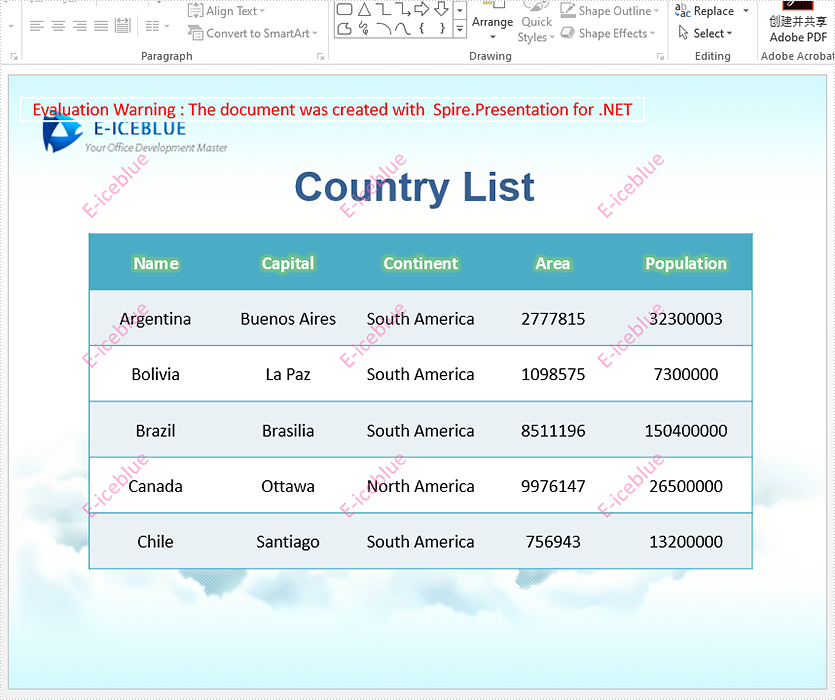
Spire.Presentation supports to insert text watermark and image watermark to PowerPoint document. This article will show you how to use Spire.Presentation to add multiple watermarks to the presentation slides in C#/VB.NET.
C#
using Spire.Presentation;
using Spire.Presentation.Drawing;
using System;
using System.Drawing;
using System.Windows.Forms;

namespace WatermarkDemo
{
    class Program
    {
        static void Main(string[] args)
        {
            //Create a PPT document and load file
            Presentation presentation = new Presentation();
            presentation.LoadFromFile("Sample.pptx");

            //Get the size of the watermark string
            Font font = new Font("Arial", 20);
            String watermarkText = "E-iceblue";
            SizeF size = TextRenderer.MeasureText("E-iceblue", font);
            float x = 30;
            float y = 80;
            for (int i = 0; i < 3; i++)
            {
                for (int j = 0; j < 3; j++)
                {
                    //Define a rectangle range
                    RectangleF rect = new RectangleF(x, y, size.Width, size.Height);

                    //Add a rectangle shape with a defined range
                    IAutoShape shape = presentation.Slides[0].Shapes.AppendShape(Spire.Presentation.ShapeType.Rectangle, rect);

                    //Set the style of the shape
                    shape.Fill.FillType = FillFormatType.None;
                    shape.ShapeStyle.LineColor.Color = Color.White;
                    shape.Rotation = -45;
                    shape.Locking.SelectionProtection = true;
                    shape.Line.FillType = FillFormatType.None;

                    //Add text to the shape
                    shape.TextFrame.Text = watermarkText;
                    TextRange textRange = shape.TextFrame.TextRange;
                    //Set the style of the text range
                    textRange.Fill.FillType = FillFormatType.Solid;
                    textRange.Fill.SolidColor.Color = Color.FromArgb(120, Color.HotPink);
                    textRange.EastAsianFont = new TextFont(font.Name);
                    textRange.FontHeight = font.Size;

                    x += (100 + size.Width);
                }
                x = 30;
                y += (100 + size.Height);
            }

            //Save the document
            presentation.SaveToFile("Watermark_result.pptx", FileFormat.Pptx2010);

        }
    }
}
VB.NET
Imports Spire.Presentation
Imports Spire.Presentation.Drawing
Imports System
Imports System.Drawing
Imports System.Windows.Forms

Namespace WatermarkDemo

    Class Program

        Private Shared Sub Main(ByVal args() As String)
            'Create a PPT document and load file
            Dim presentation As Presentation = New Presentation
            presentation.LoadFromFile("Sample.pptx")
            'Get the size of the watermark string
            Dim font As Font = New Font("Arial", 20)
            Dim watermarkText As String = "E-iceblue"
            Dim size As SizeF = TextRenderer.MeasureText("E-iceblue", font)
            Dim x As Single = 30
            Dim y As Single = 80
            Dim i As Integer = 0
            Do While (i < 3)
                Dim j As Integer = 0
                Do While (j < 3)
                    'Define a rectangle range
                    Dim rect As RectangleF = New RectangleF(x, y, size.Width, size.Height)
                    'Add a rectangle shape with a defined range
                    Dim shape As IAutoShape = presentation.Slides(0).Shapes.AppendShape(Spire.Presentation.ShapeType.Rectangle, rect)
                    'Set the style of the shape
                    shape.Fill.FillType = FillFormatType.None
                    shape.ShapeStyle.LineColor.Color = Color.White
                    shape.Rotation = -45
                    shape.Locking.SelectionProtection = true
                    shape.Line.FillType = FillFormatType.None
                    'Add text to the shape
                    shape.TextFrame.Text = watermarkText
                    Dim textRange As TextRange = shape.TextFrame.TextRange
                    'Set the style of the text range
                    textRange.Fill.FillType = FillFormatType.Solid
                    textRange.Fill.SolidColor.Color = Color.FromArgb(120, Color.HotPink)
                    textRange.EastAsianFont = New TextFont(font.Name)
                    textRange.FontHeight = font.Size
                    x = (x + (100 + size.Width))
                    j = (j + 1)
                Loop

                x = 30
                y = (y + (100 + size.Height))
                i = (i + 1)
            Loop

            'Save the document
            presentation.SaveToFile("Watermark_result.pptx", FileFormat.Pptx2010)
        End Sub
    End Class
End Namespace
Output:
Published in
Watermark
Tagged under
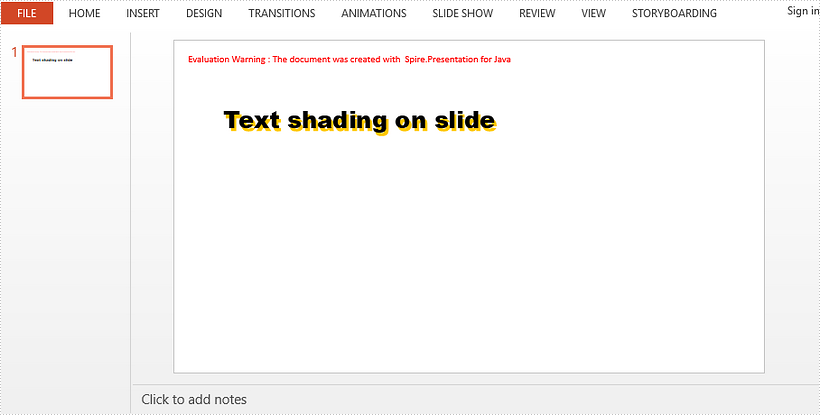
This article demonstrates how to apply a shadow effect to the text in a PowerPoint slide using Spire.Presentation for Java.
import com.spire.presentation.*;
import com.spire.presentation.drawing.FillFormatType;
import com.spire.presentation.drawing.OuterShadowEffect;

import java.awt.*;
import java.awt.geom.Rectangle2D;

public class SetShadowEffect {

    public static void main(String[] args) throws Exception {

        //Create a Presentation object
        Presentation presentation = new Presentation();
        presentation.getSlideSize().setType(SlideSizeType.SCREEN_16_X_9);

        //Get the first slide
        ISlide slide = presentation.getSlides().get(0);

        //Add a rectangle to slide
        IAutoShape shape = slide.getShapes().appendShape(ShapeType.RECTANGLE,new Rectangle2D.Float(50,80,500,100));
        shape.getFill().setFillType(FillFormatType.NONE);
        shape.getLine().setFillType(FillFormatType.NONE);

        //Set text of the shape
        shape.appendTextFrame("Text shading on slide");

        //Set font style
        shape.getTextFrame().getTextRange().setFontHeight(38f);
        shape.getTextFrame().getTextRange().setLatinFont(new TextFont("Arial Black"));
        shape.getTextFrame().getTextRange().getFill().setFillType(FillFormatType.SOLID);
        shape.getTextFrame().getTextRange().getFill().getSolidColor().setColor(Color.BLACK);

        //Create a OuterShadowEffect object
        OuterShadowEffect outerShadow= new OuterShadowEffect();

        //Set the shadow effect
        outerShadow.setBlurRadius(0);
        outerShadow.setDirection(50);
        outerShadow.setDistance(10);
        outerShadow.getColorFormat().setColor(Color.orange);

        //Apply shadow effect to text
        shape.getTextFrame().getTextRange().getEffectDag().setOuterShadowEffect(outerShadow);

        //Save to file
        presentation.saveToFile("output/AddShadow.pptx", FileFormat.PPTX_2013);
    }
}
Published in
Paragraph and Text
Tagged under
Java remove the formulas but keep the values on Excel worksheet
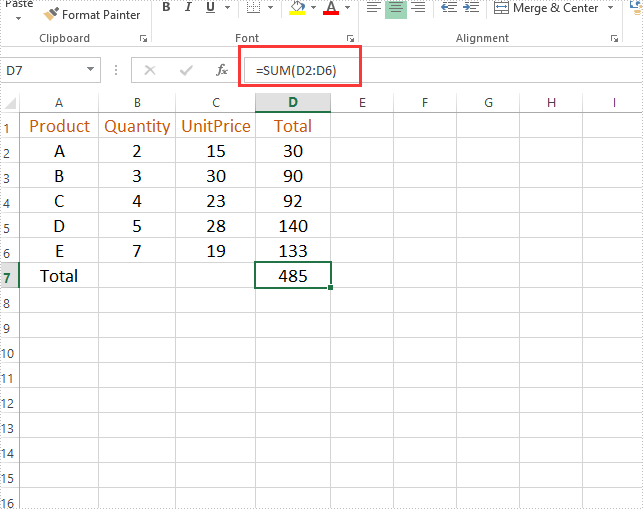
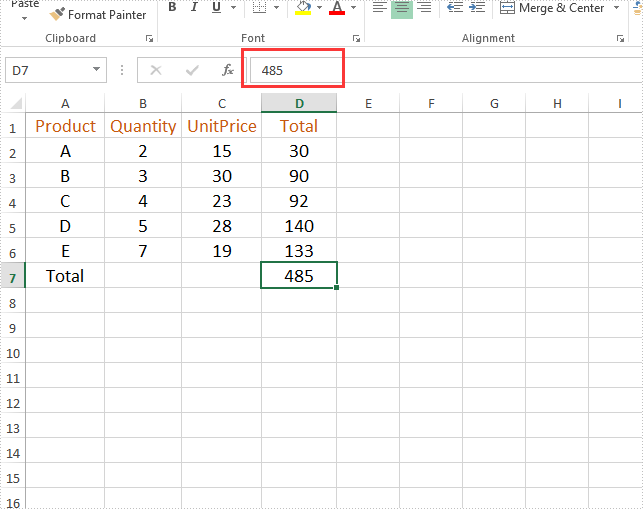
2021-02-20 05:39:06 Written by AdministratorThis article will demonstrate how to use Spire.XLS for Java to remove the formulas but keep the values on the Excel worksheet.
Firstly, view the original Excel:
String inputFile = "Sample.xlsx";
String outputFile="output/removeFormulasButKeepValues_result.xlsx";
//Create a workbook.
Workbook workbook = new Workbook();
//Load the file from disk.
workbook.loadFromFile(inputFile);
//Loop through worksheets.
for (Worksheet sheet : (Iterable<? extends Worksheet>) workbook.getWorksheets())
{
    //Loop through cells.
    for (CellRange cell : (Iterable<? extends CellRange>) sheet.getRange())
    {
        //If the cell contains formula, get the formula value, clear cell content, and then fill the formula value into the cell.
        if (cell.hasFormula())
        {
            Object value = cell.getFormulaValue();
            cell.clear(ExcelClearOptions.ClearContent);
            cell.setValue(value.toString());
        }
    }
}
//Save to file
workbook.saveToFile(outputFile, ExcelVersion.Version2013);
Output:
Published in
Formula
Tagged under
