Knowledgebase (2417)
Children categories
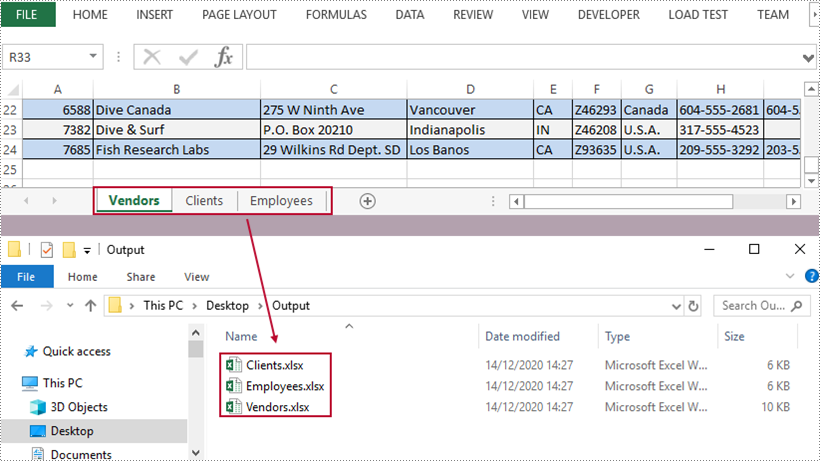
A workbook containing multiple worksheets helps to centrally manage relevant information, but sometimes we have to split the worksheets into separate Excel files so that individual worksheets can be distributed without disclosing other information. In this article, you will learn how to split Excel worksheets into separate workbooks in C# and VB.NET using Spire.XLS for .NET.
Install Spire.XLS for .NET
To begin with, you need to add the DLL files included in the Spire.XLS for .NET package as references in your .NET project. The DLL files can be either downloaded from this link or installed via NuGet.
PM> Install-Package Spire.XLS
Split Excel Sheets into Separate Files
The following are the main steps to split Excel sheets into separate workbooks using Spire.XLS for .NET.
- Create a Workbook object
- Load a sample Excel file using Workbook.LoadFromFile() method.
- Declare a new Workbook variable, which is used to create new Excel workbooks.
- Loop through the worksheets in the source document.
- Initialize the Workbook object, and add the copy of a specific worksheet of source document into it.
- Save the workbook to an Excel file using Workbook.SaveToFile() method.
- C#
- VB.NET
using Spire.Xls;
using System;

namespace SplitWorksheets
{
    class Program
    {
        static void Main(string[] args)
        {
            //Create a Workbook object
            Workbook wb = new Workbook();

            //Load an Excel document
            wb.LoadFromFile("C:\\Users\\Administrator\\Desktop\\data.xlsx");

            //Declare a new Workbook variable
            Workbook newWb;

            //Declare a String variable
            String sheetName;

            //Specify the folder path which is used to store the generated Excel files
            String folderPath = "C:\\Users\\Administrator\\Desktop\\Output\\";

            //Loop through the worksheets in the source file
            for (int i = 0; i < wb.Worksheets.Count; i++)
            {

                //Initialize the Workbook object
                newWb = new Workbook();

                //Remove the default sheets
                newWb.Worksheets.Clear();

                //Add the specific worksheet of the source document to the new workbook
                newWb.Worksheets.AddCopy(wb.Worksheets[i]);

                //Get the worksheet name
                sheetName = wb.Worksheets[i].Name;

                //Save the new workbook to the specified folder
                newWb.SaveToFile(folderPath + sheetName + ".xlsx", ExcelVersion.Version2013);
            }
        }
    }
}
Apply for a Temporary License
If you'd like to remove the evaluation message from the generated documents, or to get rid of the function limitations, please request a 30-day trial license for yourself.
This article will show you how to use Spire.PDF for Java to draw superscript and subscript text to PDF file in Java applications.
Draw Superscript Text
import com.spire.pdf.*;
import com.spire.pdf.graphics.*;
import java.awt.*;
import java.awt.geom.*;

public class PdfSuperscriptText {
    public static void main(String[] args) {

        //Create a new PdfDocument instance
        PdfDocument doc = new PdfDocument();
        //Add a page to pdf
        PdfPageBase page = doc.getPages().add();

        //Set the font
        PdfTrueTypeFont font = new PdfTrueTypeFont(new Font("Arial", Font.PLAIN,14),true);
        PdfSolidBrush brush = new PdfSolidBrush(new PdfRGBColor(Color.black));

        //Set initial (x, y) coordinate
        float x = 120f;
        float y = 100f;

        //Draw text string
        String text = "Sample Text";
        page.getCanvas().drawString(text, font, brush, new Point2D.Float(x, y));

        //Measure the string
        Dimension2D size = font.measureString(text);
        x += size.getWidth();

        //Draw the text string and set the format as Superscript
        PdfStringFormat format = new PdfStringFormat();
        format.setSubSuperScript(PdfSubSuperScript.Super_Script);
        text = "Superscrip";
        page.getCanvas().drawString(text, font, brush, new Point2D.Float(x, y), format);

        //Save the document to file
        String result="output/superScript.pdf";
        doc.saveToFile(result);
    }
}
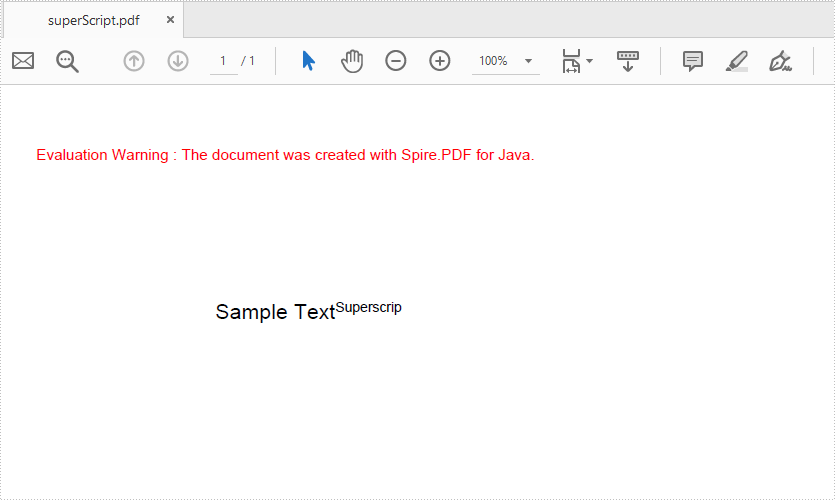
Effective screenshot:
Draw Subscript Text
import com.spire.pdf.*;
import com.spire.pdf.graphics.*;
import java.awt.*;
import java.awt.geom.*;

public class PdfSubscriptText {
    public static void main(String[] args) {

        //Create a new PdfDocument instance
        PdfDocument doc = new PdfDocument();
        //Add a page to pdf
        PdfPageBase page = doc.getPages().add();

        //Set the font
        PdfTrueTypeFont font = new PdfTrueTypeFont(new Font("Arial", Font.PLAIN,14),true);
        PdfSolidBrush brush = new PdfSolidBrush(new PdfRGBColor(Color.black));

        //Set initial (x, y) coordinate
        float x = 120f;
        float y = 100f;

        //Draw text string
        String text = "Sample Text";
        page.getCanvas().drawString(text, font, brush, new Point2D.Float(x, y));

        //Measure the string
        Dimension2D size = font.measureString(text);
        x += size.getWidth();

        //Draw the text string and set the format as Subscript
        PdfStringFormat format = new PdfStringFormat();
        format.setSubSuperScript(PdfSubSuperScript.Sub_Script);
        text = "Subscrip";
        page.getCanvas().drawString(text, font, brush, new Point2D.Float(x, y), format);

        //Save the document to file
        String result="output/subScript.pdf";
        doc.saveToFile(result);
    }
}
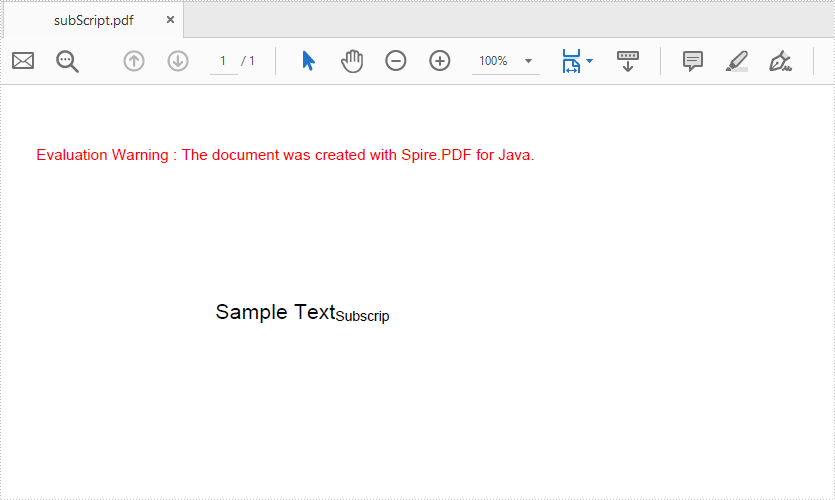
Output:
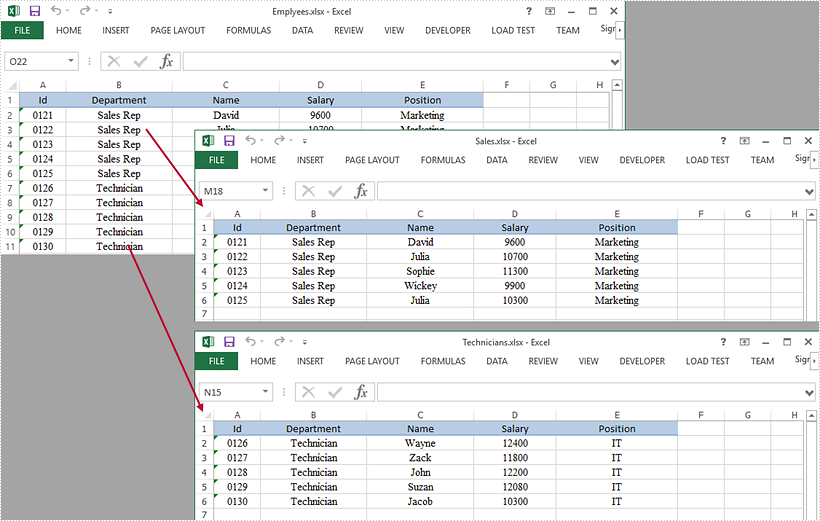
This article demonstrates how to split a worksheet into several Excel documents by using Spire.XLS for Java.
import com.spire.xls.CellRange;
import com.spire.xls.ExcelVersion;
import com.spire.xls.Workbook;
import com.spire.xls.Worksheet;

public class SplitWorksheet {

    public static void main(String[] args) {

        //Create a Workbook object to load the original Excel document
        Workbook bookOriginal = new Workbook();
        bookOriginal.loadFromFile("C:\\Users\\Administrator\\Desktop\\Emplyees.xlsx");

        //Get the first worksheet
        Worksheet sheet = bookOriginal.getWorksheets().get(0);

        //Get the header row
        CellRange headerRow = sheet.getCellRange(1, 1, 1, 5);

        //Get two cell ranges
        CellRange range1 = sheet.getCellRange(2, 1, 6, 5);
        CellRange range2 = sheet.getCellRange(7, 1, 11, 5);

        //Create a new workbook
        Workbook newBook1 = new Workbook();

        //Copy the header row and range 1 to the new workbook
        sheet.copy(headerRow, newBook1.getWorksheets().get(0), 1, 1, true, false);
        sheet.copy(range1, newBook1.getWorksheets().get(0), 2, 1, true, false);

        //Copy the column width from the original workbook to the new workbook
        for (int i = 0; i < sheet.getLastColumn(); i++) {

            newBook1.getWorksheets().get(0).setColumnWidth(i + 1, sheet.getColumnWidth(i + 1));
        }

        //Save the new workbook to an Excel file
        newBook1.saveToFile("Sales.xlsx", ExcelVersion.Version2016);

        //Copy the header row and range 2 to another workbook, and save it to another Excel file
        Workbook newBook2 = new Workbook();
        sheet.copy(headerRow, newBook2.getWorksheets().get(0), 1, 1, true, false);
        sheet.copy(range2, newBook2.getWorksheets().get(0), 2, 1, true, false);
        for (int i = 0; i < sheet.getLastColumn(); i++) {

            newBook2.getWorksheets().get(0).setColumnWidth(i + 1, sheet.getColumnWidth(i + 1));
        }
        newBook2.saveToFile("Technicians.xlsx", ExcelVersion.Version2016);
    }
}