Knowledgebase (2417)
Children categories
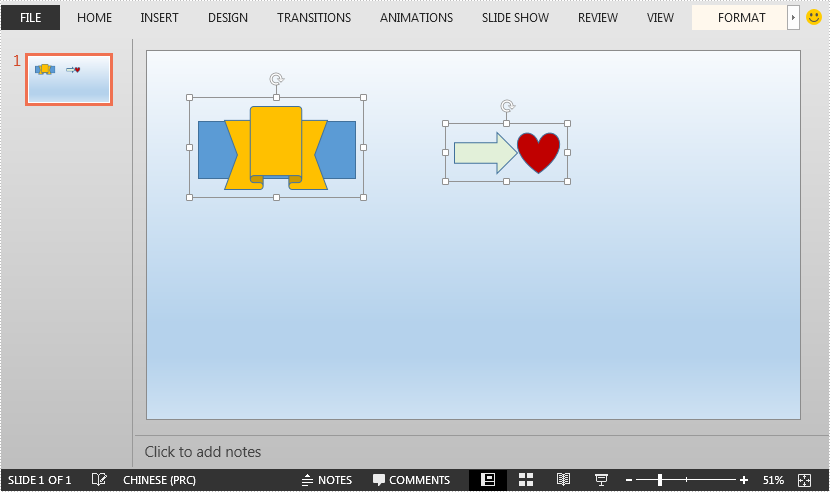
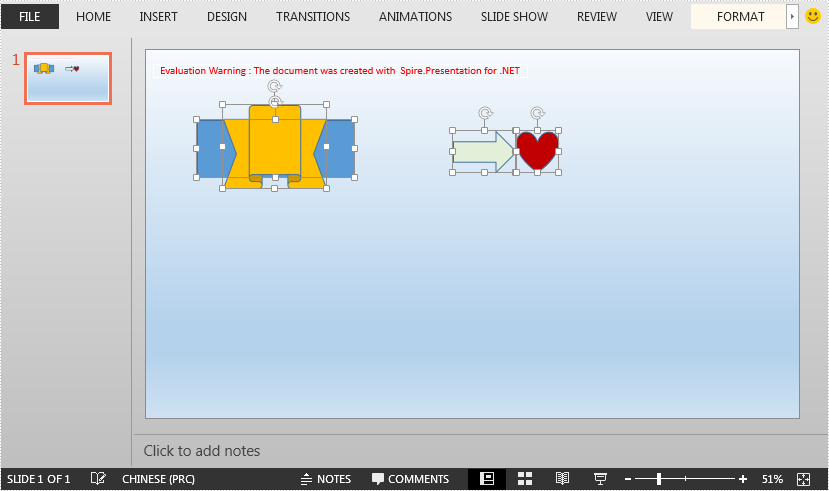
This article demonstrates how to ungroup grouped shapes in a PowerPoint document using Spire.Presentation for .NET.
The input PowerPoint document:
using Spire.Presentation;

namespace UngroupShapes
{
    class Program
    {
        static void Main(string[] args)
        {
            //Create a Presentation instance
            Presentation ppt = new Presentation();
            //Load the PowerPoint document
            ppt.LoadFromFile("Sample.pptx");

            //Get the first slide
            ISlide slide = ppt.Slides[0];

            //Loop through the shapes in the slide
            for(int i = 0; i< slide.Shapes.Count;i++)
            {
                IShape shape = slide.Shapes[i];
                //Detect if the shape is a grouped shape
                if (shape is GroupShape)
                {
                    GroupShape groupShape = shape as GroupShape;
                    //Ungroup the grouped shape
                    slide.Ungroup(groupShape);
                }
            }

            //Save the resultant document
            ppt.SaveToFile("UngroupShapes.pptx", FileFormat.Pptx2013);
        }
    }
}
Imports Spire.Presentation

Namespace UngroupShapes
    Class Program
        Private Shared Sub Main(ByVal args As String())
            Dim ppt As Presentation = New Presentation()
            ppt.LoadFromFile("Sample.pptx")
            Dim slide As ISlide = ppt.Slides(0)

            For i As Integer = 0 To slide.Shapes.Count - 1
                Dim shape As IShape = slide.Shapes(i)

                If TypeOf shape Is GroupShape Then
                    Dim groupShape As GroupShape = TryCast(shape, GroupShape)
                    slide.Ungroup(groupShape)
                End If
            Next

            ppt.SaveToFile("UngroupShapes.pptx", FileFormat.Pptx2013)
        End Sub
    End Class
End Namespace
The output PowerPoint document after ungrouping shapes:
SVG files are vector-based graphics that can be scaled and resized without losing quality. While they can be very useful in certain scenarios, there may still be times when you need to convert them to PDFs for further processing, sharing, distributing, printing, or archiving. In this article, you will learn how to programmatically convert SVG images to PDF files using Spire.PDF for Java.
Install Spire.PDF for Java
First of all, you're required to add the Spire.Pdf.jar file as a dependency in your Java program. The JAR file can be downloaded from this link. If you use Maven, you can easily import the JAR file in your application by adding the following code to your project's pom.xml file.
<repositories>
    <repository>
        <id>com.e-iceblue</id>
        <name>e-iceblue</name>
        <url>https://repo.e-iceblue.com/nexus/content/groups/public/</url>
    </repository>
</repositories>
<dependencies>
    <dependency>
        <groupId>e-iceblue</groupId>
        <artifactId>spire.pdf</artifactId>
        <version>12.9.0</version>
    </dependency>
</dependencies>
Convert SVG to PDF in Java
Spire.PDF for Java offers the PdfDocument.loadFromSvg() method to load an SVG file directly, and you can then convert it to a PDF file through the PdfDocument.saveToFile() method. The following are the detailed steps.
- Create a PdfDocument instance.
- Load a sample SVG file using PdfDocument.loadFromSvg() method.
- Convert the SVG file to PDF using PdfDocument.saveToFile(String filename, FileFormat.PDF) method.
- Java
import com.spire.pdf.FileFormat;
import com.spire.pdf.PdfDocument;

public class SVGToPDF {
    public static void main(String[] args) {
        //Create a PdfDocument instance
        PdfDocument pdf = new PdfDocument();

        //Load a sample SVG file
        pdf.loadFromSvg("sample.svg");

        //Save as PDF file
        pdf.saveToFile("SVGToPDF.pdf", FileFormat.PDF);
    }
}

Add SVG Images to PDF in Java
In addition to converting SVG to PDF, Spire.PDF for Java also supports adding SVG images to PDF files. During the process, you are allowed to set the position and size of the SVG image. The following are the detailed steps.
- Create a PdfDocument instance and load an SVG file using PdfDocument.loadFromSvg() method.
- Create a template based on the content of the SVG file using PdfDocument.getPages().get().createTemplate() method.
- Create another PdfDocument object and load a PDF file using PdfDocument.loadFromFile() method.
- Get a specified page in the PDF file using PdfDocument.getPages().get() method.
- Draw the template with a custom size at a specified location on the PDF page using PdfPageBase.getCanvas().drawTemplate() method.
- Save the result PDF file using PdfDocument.saveToFile() method.
- Java
import com.spire.pdf.FileFormat;
import com.spire.pdf.PdfDocument;
import com.spire.pdf.graphics.PdfTemplate;

import java.awt.*;
import java.awt.geom.Point2D;

public class AddSVGImagetoPDF {
    public static void main(String[] args) {
        //Create a PdfDocument instance
        PdfDocument doc1 = new PdfDocument();

        //Load an SVG file
        doc1.loadFromSvg("Image.svg");

        //Create a template based on the content of the SVG file
        PdfTemplate template = doc1.getPages().get(0).createTemplate();

        //Create another PdfDocument instance
        PdfDocument doc2 = new PdfDocument();

        //Load a PDF file
        doc2.loadFromFile("Intro.pdf");

        //Draw the template with a custom size at a specified location in the PDF file
        doc2.getPages().get(0).getCanvas().drawTemplate(template, new Point2D.Float(100,200), new Dimension(400,280) );

        //Save the result file
        doc2.saveToFile("AddSVGtoPDF.pdf", FileFormat.PDF);
        doc1.close();
        doc2.close();
    }
}

Apply for a Temporary License
If you'd like to remove the evaluation message from the generated documents, or to get rid of the function limitations, please request a 30-day trial license for yourself.
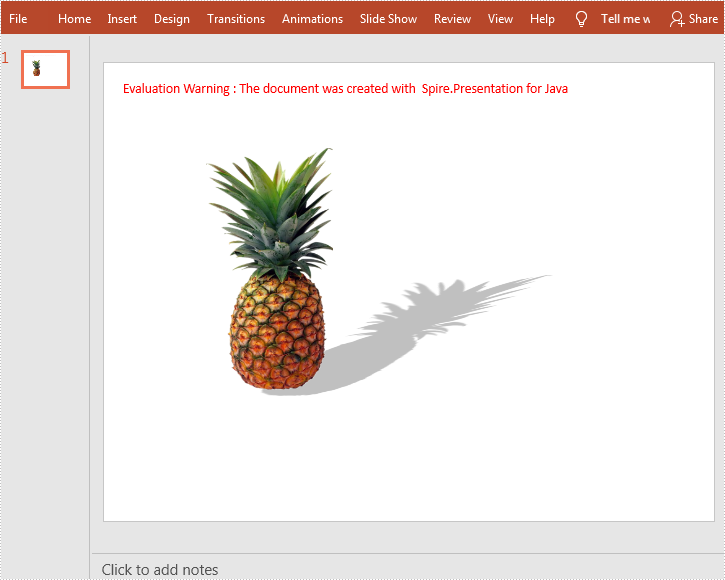
This article demonstrates how to add shadow effects to shapes in PowerPoint by using Spire.Presentation for Java. In addition to the PresetShadowEffect shown in this article, you can also add InnerShadowEffect, OuterShadowEffect and SoftEdgeEffect, etc.
import com.spire.presentation.*;
import com.spire.presentation.drawing.*;
import java.awt.*;
import java.awt.geom.Rectangle2D;

public class setShadowEffect {
    public static void main(String[] args) throws Exception {

        //Create a Presentation instance
        Presentation ppt = new Presentation();

        //Get the first slide
        ISlide slide = ppt.getSlides().get(0);

        //Add a shape to the slide.
        Rectangle2D rect = new Rectangle2D.Float(120, 100, 150, 300);
        IAutoShape shape = slide.getShapes().appendShape(ShapeType.RECTANGLE, rect);

        //Fill the shape with a picture
        shape.getFill().setFillType(FillFormatType.PICTURE);
        shape.getFill().getPictureFill().getPicture().setUrl("https://cdn.e-iceblue.com/C:\\Users\\Administrator\\Desktop\\img.png");
        shape.getLine().setFillType(FillFormatType.NONE);
        shape.getFill().getPictureFill().setFillType(PictureFillType.STRETCH);

        //Set shadow effect
        PresetShadow presetShadow = new PresetShadow();
        presetShadow.setPreset(PresetShadowValue.BACK_RIGHT_PERSPECTIVE);
        presetShadow.getColorFormat().setColor(Color.lightGray);

        //Apply the shadow effect to shape
        shape.getEffectDag().setPresetShadowEffect(presetShadow);

        //Save the document
        ppt.saveToFile("output/ShapeShadow.pptx", FileFormat.PPTX_2013);
    }
}