
Knowledgebase (2417)
Children categories
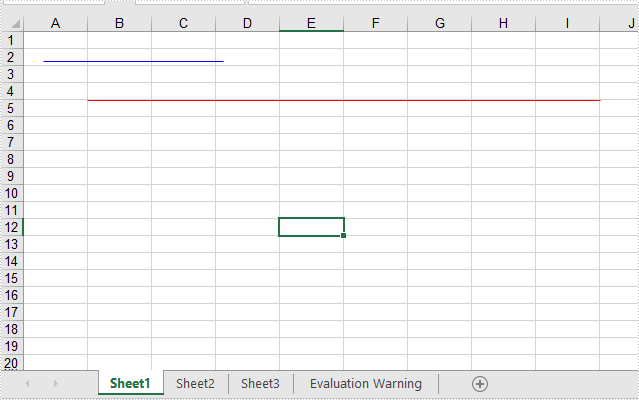
This article will show you how to add lines to Excel worksheets through two points. We could set the point’s location via relative location and Absolute location in pixels.
C#
using Spire.Xls;
using Spire.Xls.Core.Spreadsheet.Shapes;
using System.Drawing;

namespace Word
{
    class Program
    {
        static void Main(string[] args)

        {
            //Initiate a Workbook object and get the first worksheet
            Workbook workbook = new Workbook();
            Worksheet worksheet = workbook.Worksheets[0];
            //Add a line with relative location
            XlsLineShape line = worksheet.TypedLines.AddLine() as XlsLineShape;

            //set the column index of the starting point
            line.LeftColumn = 2;
            line.LeftColumnOffset = 2;
            line.TopRow = 5;
            line.TopRowOffset = 10;

            //set the column index of the end point
            line.RightColumn = 10;
            line.RightColumnOffset = 10;
            line.BottomRow =5;
            line.BottomRowOffset = 10;

            //Set the color
            line.Color = Color.Red;


            //Add a line with Absolute location in pixels
            XlsLineShape line1 = worksheet.TypedLines.AddLine() as XlsLineShape;
            //Set the start point and end point
            line1.StartPoint = new Point(20, 30);
            line1.EndPoint = new Point(200, 30);

            //Set the color
            line1.Color = Color.Blue;

            workbook.SaveToFile("Addlines.xlsx", ExcelVersion.Version2013);
            workbook.Dispose();
        }
    }
 }
VB.NET
Imports Spire.Xls
Imports Spire.Xls.Core.Spreadsheet.Shapes
Imports System.Drawing

Namespace Word

    Class Program

        Private Shared Sub Main(ByVal args() As String)
            'Initiate a Workbook object and get the first worksheet
            Dim workbook As Workbook = New Workbook
            Dim worksheet As Worksheet = workbook.Worksheets(0)
            'Add a line with relative location
            Dim line As XlsLineShape = CType(worksheet.TypedLines.AddLine,XlsLineShape)
            'set the column index of the starting point
            line.LeftColumn = 2
            line.LeftColumnOffset = 2
            line.TopRow = 5
            line.TopRowOffset = 10
            'set the column index of the end point
            line.RightColumn = 10
            line.RightColumnOffset = 10
            line.BottomRow = 5
            line.BottomRowOffset = 10
            'Set the color
            line.Color = Color.Red
            'Add a line with Absolute location in pixels
            Dim line1 As XlsLineShape = CType(worksheet.TypedLines.AddLine,XlsLineShape)
            'Set the start point and end point
            line1.StartPoint = New Point(20, 30)
            line1.EndPoint = New Point(200, 30)
            'Set the color
            line1.Color = Color.Blue
            workbook.SaveToFile("Addlines.xlsx", ExcelVersion.Version2013)
            workbook.Dispose
        End Sub
    End Class
End Namespace
Effective screenshot:
Published in
Objects
Tagged under
Add Trendline to Chart and Read Trendline Equation in Excel in Java
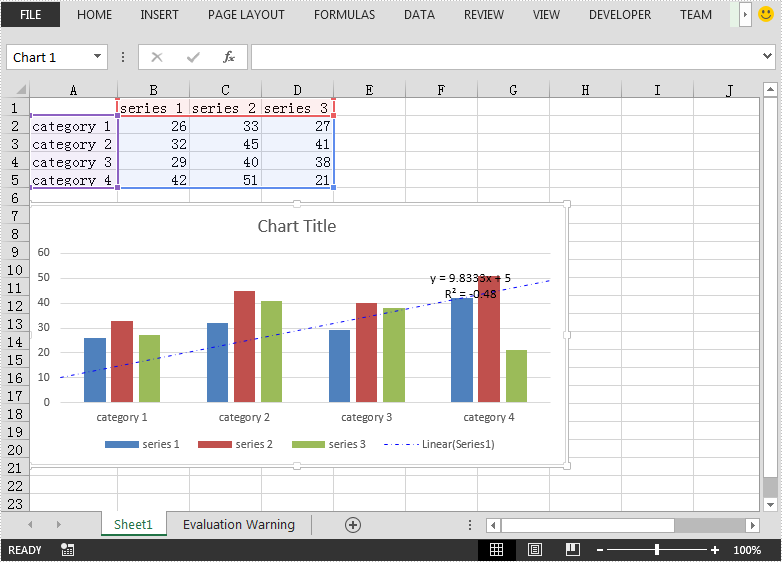
2020-11-17 08:12:33 Written by KoohjiThis article demonstrates how to add Trendline to an Excel chart and read the equation of the Trendline using Spire.XLS for Java.
Add Trendline
import com.spire.xls.*;
import com.spire.xls.core.IChartTrendLine;

import java.awt.*;

public class AddTrendline {
    public static void main(String[] args){
        //Create a Workbook instance
        Workbook workbook = new Workbook();
        //Load the Excel file
        workbook.loadFromFile("test.xlsx");

        //Get the first chart in the first worksheet
        Chart chart = workbook.getWorksheets().get(0).getCharts().get(0);

        //Add a Trendline to the first series of the chart
        IChartTrendLine trendLine = chart.getSeries().get(0).getTrendLines().add(TrendLineType.Linear);

        //Set Trendline name
        trendLine.setName("Linear(Series1)");
        //Set line type and color
        trendLine.getBorder().setPattern(ChartLinePatternType.DashDot);
        trendLine.getBorder().setColor(Color.blue);
        //Set forward and backward value
        trendLine.setForward(0.5);
        trendLine.setBackward(0.5);
        //Set intercept value
        trendLine.setIntercept(5);

        //Display equation on chart
        trendLine.setDisplayEquation(true);
        //Display R-Squared value on chart
        trendLine.setDisplayRSquared(true);

        //Save the result file
        workbook.saveToFile("AddTrendline.xlsx", ExcelVersion.Version2013);
    }
}
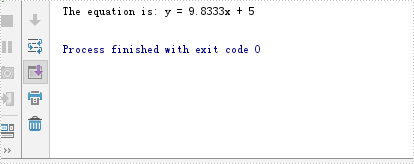
Read Trendline equation
import com.spire.xls.Chart;
import com.spire.xls.Workbook;
import com.spire.xls.core.IChartTrendLine;

public class ReadEquationOfTrendline {
    public static void main(String[] args){
        //Create a Workbook instance
        Workbook workbook = new Workbook();
        //Load the Excel file
        workbook.loadFromFile("AddTrendline.xlsx");

        //Get the first chart in the first worksheet
        Chart chart = workbook.getWorksheets().get(0).getCharts().get(0);

        //Read the equation of the first series of the chart
        IChartTrendLine trendLine = chart.getSeries().get(0).getTrendLines().get(0);
        String equation = trendLine.getFormula();
        System.out.println("The equation is: " + equation);
    }
}
Published in
Chart
Tagged under
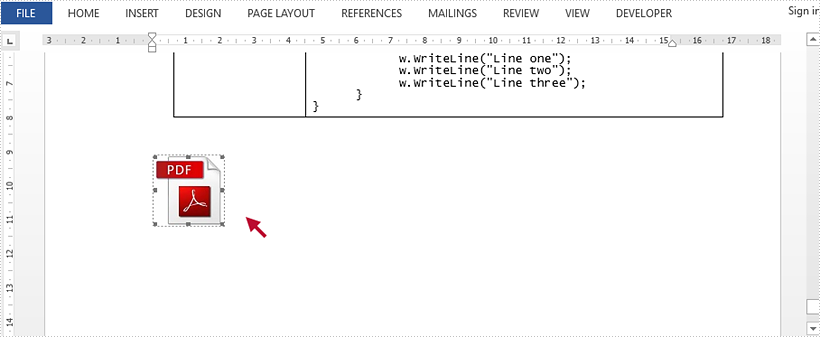
Spire.Doc for Java supports embedding an external file (Word, Excel, PowerPoint, PDF, picture, video, etc.) in Word documents as an OLE object. This article gives you an example of how to insert a PDF file into a Word document.
import com.spire.doc.Document;
import com.spire.doc.FileFormat;
import com.spire.doc.Section;
import com.spire.doc.documents.OleObjectType;
import com.spire.doc.documents.Paragraph;
import com.spire.doc.fields.DocOleObject;
import com.spire.doc.fields.DocPicture;

public class InsertOLE {

    public static void main(String[] args) {

        //Create a Document object and load a Word document
        Document doc = new Document();
        doc.loadFromFile("C:\\Users\\Administrator\\Desktop\\source.docx");

        //Get the last section
        Section section = doc.getLastSection();

        //Add a paragraph
        Paragraph par = section.addParagraph();

        //Load an image which will be inserted to Word document representing the embedded file
        DocPicture pdfIcon = new DocPicture(doc);
        pdfIcon.loadImage("C:\\Users\\Administrator\\Desktop\\pdf-icon.jpg");

        //Insert a PDF file to the Word document as an OLE object
        par.appendOleObject("C:\\Users\\Administrator\\Desktop\\report.pdf", pdfIcon, OleObjectType.Adobe_Acrobat_Document);

        //Save to another file
        doc.saveToFile("EmbedDocument.docx", FileFormat.Docx_2013);
    }
}
Published in
Others
Tagged under
