Knowledgebase (2417)
Children categories
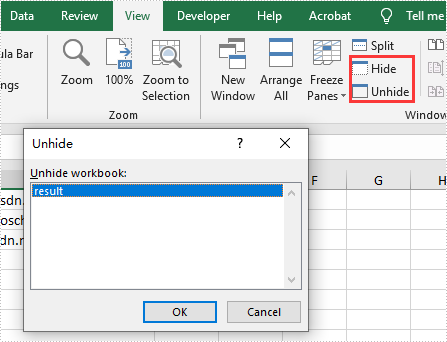
We have demonstrated how to use Spire.XLS for .NET to hide/show Excel worksheets. From Spire.XLS v 10.9.0, it starts to support hide the current window of Excel workbook by setting the property of workbook.IsHideWindow.
using Spire.Xls;

namespace HideWindow
{
    class Program
    {
        static void Main(string[] args)
        {
            //Load Sample Document
            Workbook workbook = new Workbook();
            workbook.LoadFromFile("Sample.xlsx");

            //Hide Excel Window
            workbook.IsHideWindow = true;

             //Save the document to file
            workbook.SaveToFile("result.xlsx", ExcelVersion.Version2013);
        }
    }

}
Imports Spire.Xls

Namespace HideWindow

    Class Program

        Private Shared Sub Main(ByVal args() As String)
            'Load Sample Document
            Dim workbook As Workbook = New Workbook
            workbook.LoadFromFile("Sample.xlsx")
            'Hide Excel Window
            workbook.IsHideWindow = true
            'Save the document to file
            workbook.SaveToFile("result.xlsx", ExcelVersion.Version2013)
        End Sub
    End Class
End Namespace
Sections in PowerPoint is a feature that allows you to organize slides into different groups/segments for easy management. Adding sections with unique names can help keep track of specific groups of slides, or can also help outline the topics of a PowerPoint presentation. In this article, you will learn how to programmatically add or remove sections in a PowerPoint document using Spire.Presentation for .NET.
- Add a Section at the End of a PowerPoint Document in C# and VB.NET
- Insert a Section Before a Specified Section in PowerPoint in C# and VB.NET
- Add a Section Before a Specified Slide in PowerPoint in C# and VB.NET
- Remove a Section from a PowerPoint Document in C# and VB.NET
Install Spire.Presentation for .NET
To begin with, you need to add the DLL files included in the Spire.Presentation for.NET package as references in your .NET project. The DLL files can be either downloaded from this link or installed via NuGet.
PM> Install-Package Spire.Presentation
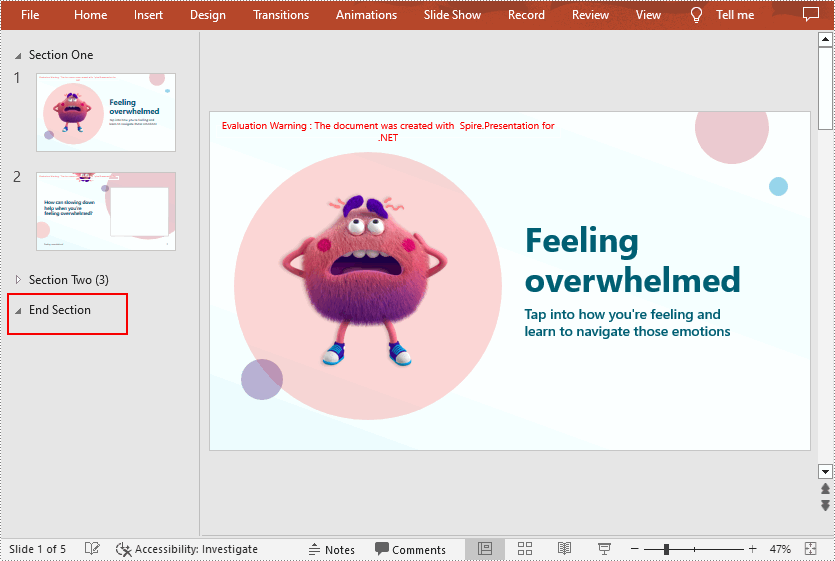
Add a Section at the End of a PowerPoint Document in C# and VB.NET
Spire.Presentation for .NET provides the Presentation.SectionList.Append(string sectionName) method to append a section with section name at the end of a PowerPoint document. The detailed steps are as follows.
- Initialize an instance of Presentation class.
- Load a PowerPoint document using Presentation.LoadFromFile() method.
- Append a section at the end of the document using Presentation.SectionList.Append(string sectionName) method.
- Save the result document using Presentation.SaveToFile() method.
- C#
- VB.NET
using Spire.Presentation;

namespace AppendSectionAtEnd
{
    class Program
    {
        static void Main(string[] args)
        {
            //Create a Presentation instance
            Presentation ppt = new Presentation();

            //Load a sample PowerPoint document
            ppt.LoadFromFile("Test.pptx");

            //Add a section at the end of the document
            Section section = ppt.SectionList.Append("End Section");

            //Save the result document
            ppt.SaveToFile("AddSectionAtEnd.pptx", FileFormat.Pptx2013);
        }
    }
}
Insert a Section Before a Specified Section in PowerPoint in C# and VB.NET
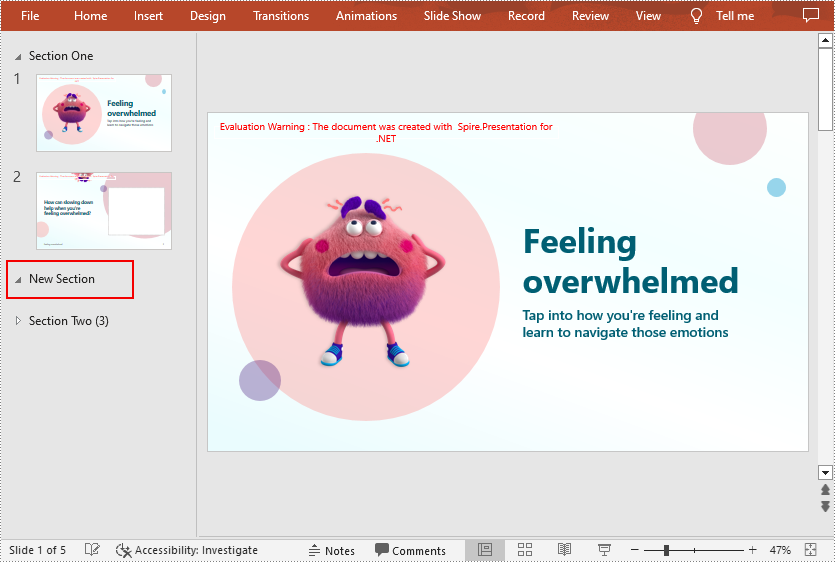
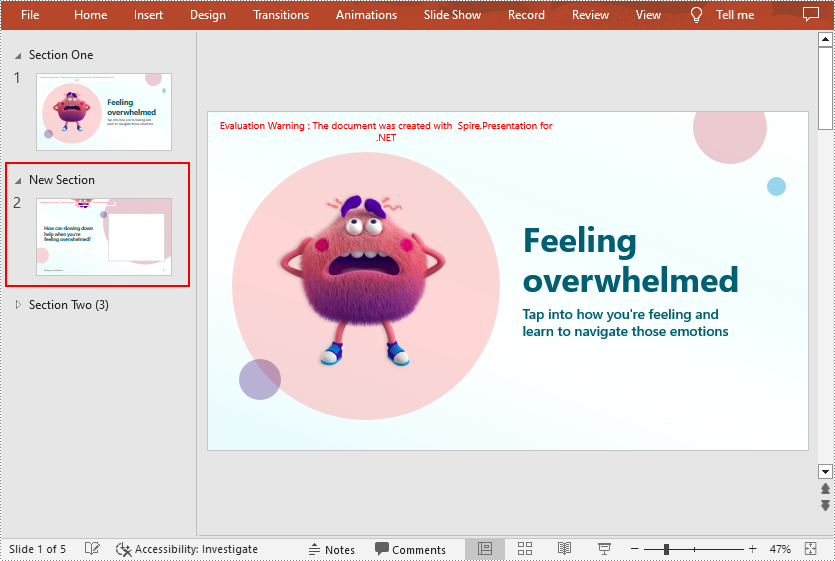
If you want to insert a section before an existing section to make the document more logical, Spire.Presentation for .NET provides the Presentation.SectionList.Insert(int sectionIndex, string sectionName) method. The following are the steps to insert a section at a specified position by section index.
- Initialize an instance of Presentation class.
- Load a PowerPoint document using Presentation.LoadFromFile() method.
- Insert a new section before the specified section using Presentation.SectionList.Insert(int sectionIndex, string sectionName) method.
- Save the result document using Presentation.SaveToFile() method.
- C#
- VB.NET
using Spire.Presentation;

namespace InsertSectionAtSpecifiedPosition
{
    class Program
    {
        static void Main(string[] args)
        {
            //Create a Presentation instance
            Presentation ppt = new Presentation();

            //Load a sample PowerPoint document
            ppt.LoadFromFile("Test.pptx");

            //Insert a section before the second section
            Section section = ppt.SectionList.Insert(1, "New Section");

            //Save the result document
            ppt.SaveToFile("InsertSectionAtSpecifiedPosition.pptx", FileFormat.Pptx2013);
        }
    }
}
Add a Section Before a Specified Slide in PowerPoint in C# and VB.NET
To divided the existing PowerPoint slides into different sections, you can use the Presentation.SectionList.Add(string sectionName, ISlide slide) method to insert a section before a specified slide. The detailed steps are as follows.
- Initialize an instance of Presentation class.
- Load a PowerPoint document using Presentation.LoadFromFile() method.
- Get a specified slide using Presentation.Slides property.
- Add a section before the specified slide using Presentation.SectionList.Add(string sectionName, ISlide slide) method.
- Save the result document using Presentation.SaveToFile() method.
- C#
- VB.NET
using Spire.Presentation;

namespace AddSectionBeforeSlide
{
    class Program
    {
        static void Main(string[] args)
        {
            //Create a Presentation instance
            Presentation ppt = new Presentation();

            //Load a sample PowerPoint document
            ppt.LoadFromFile("Test.pptx");

            //Get the second slide in the document
            ISlide slide = ppt.Slides[1];

            //Add a section before the second slide
            Section section = ppt.SectionList.Add("New Section", slide);

            //Save the result document
            ppt.SaveToFile("AddSectionBeforeSlide.pptx", FileFormat.Pptx2013);
        }
    }
}
Remove a Section from a PowerPoint Document in C# and VB.NET
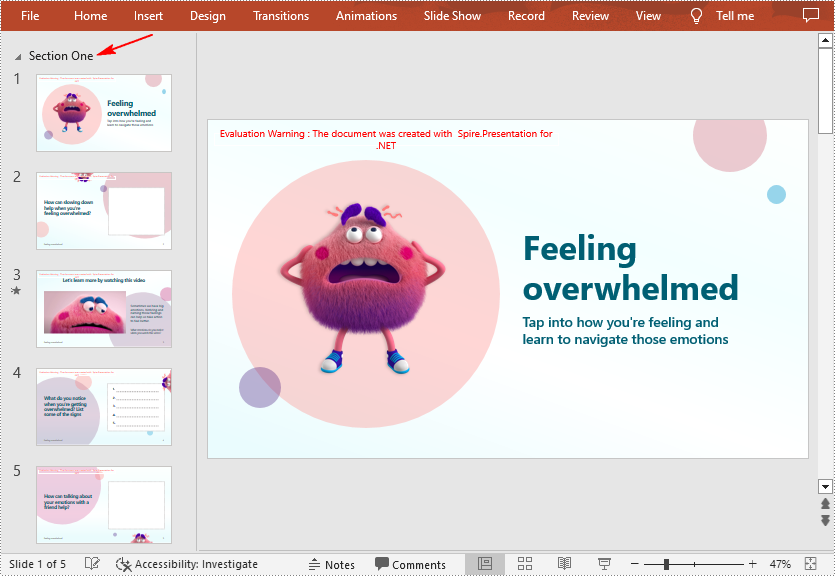
If you do not need a particular section, you can simply remove it using Presentation.SectionList.RemoveAt(int index) method. Note that removing a section does not remove the slides in that section. The following are the steps to remove a specified section but keep the slides in it.
- Initialize an instance of Presentation class.
- Load a PowerPoint document using Presentation.LoadFromFile() method.
- Remove a specified section using Presentation.SectionList.RemoveAt(int index) method. Or you can remove all the sections in the document using Presentation.SectionList.RemoveAll() method.
- Save the result document using Presentation.SaveToFile() method.
- C#
- VB.NET
using Spire.Presentation;

namespace RemoveSection
{
    class Program
    {
        static void Main(string[] args)
        {
            //Create a Presentation instance
            Presentation ppt = new Presentation();

            //Load a sample PowerPoint document
            ppt.LoadFromFile("Test.pptx");

            //Remove the second section
            ppt.SectionList.RemoveAt(1);

            //Remove all the sections
            //ppt.SectionList.RemoveAll();

            //Save the result document
            ppt.SaveToFile("RemoveSection.pptx", FileFormat.Pptx2013);
        }
    }
}
Apply for a Temporary License
If you'd like to remove the evaluation message from the generated documents, or to get rid of the function limitations, please request a 30-day trial license for yourself.
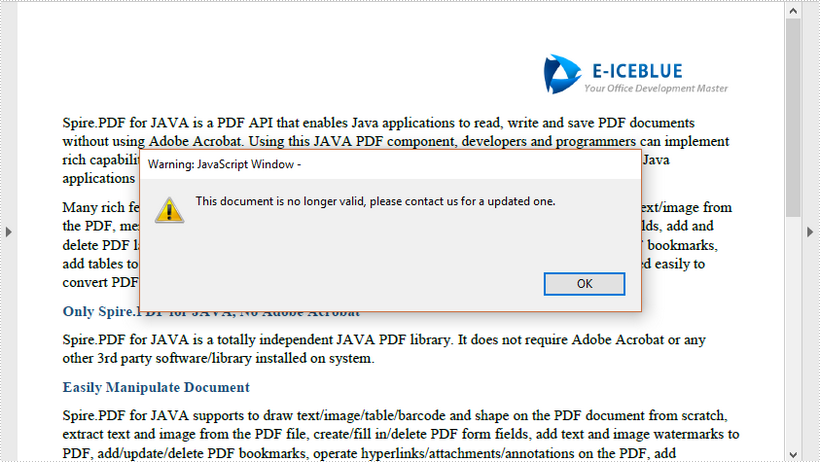
This article demonstrates how to set an expiration date for a PDF document using Spire.PDF for Java.
import com.spire.pdf.actions.PdfJavaScriptAction;

public class ExpiryDate {

    public static void main(String[] args) {

        //Create a PdfDocument object
        PdfDocument doc = new PdfDocument();

        //Load a PDF file
        doc.loadFromFile("C:\\Users\\Administrator\\Desktop\\sample.pdf");

        //Set expiration date and warning information,and close the document through JavaScript
        String javaScript = "var rightNow = new Date();"
                + "var endDate = new Date('June 20, 2020 23:59:59');"
                + "if(rightNow.getTime() > endDate)"
                + "app.alert('This document is no longer valid, please contact us for a updated one.',1);"
                + "this.closeDoc();";

        //Create a PdfJavaScriptAction object based on the javascript
        PdfJavaScriptAction js = new PdfJavaScriptAction(javaScript);

        //Set PdfJavaScriptAction as the AfterOpenAction
        doc.setAfterOpenAction(js);

        //Save to file
        doc.saveToFile("ExpirationDate.pdf", FileFormat.PDF);
    }
}