
Knowledgebase (2417)
Children categories
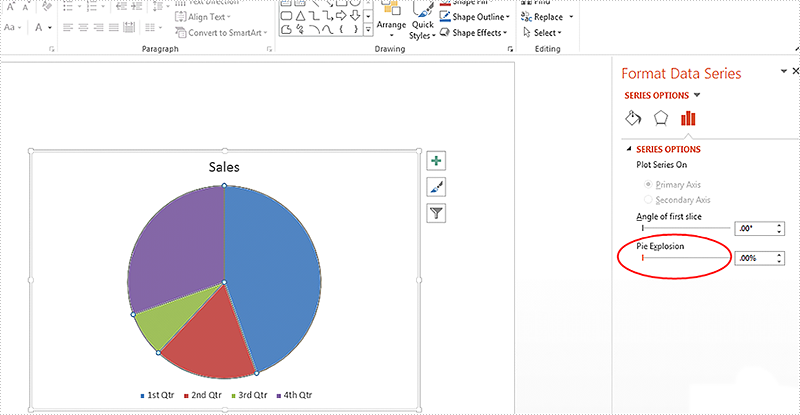
When we work with the pie chart on the presentation slide, we may need to separate each part of pie chart to make them stand out. This article is going to introduce the method of how to set the pie explosion for the pie chart on the presentation slides in C# by using Spire.Presentation.
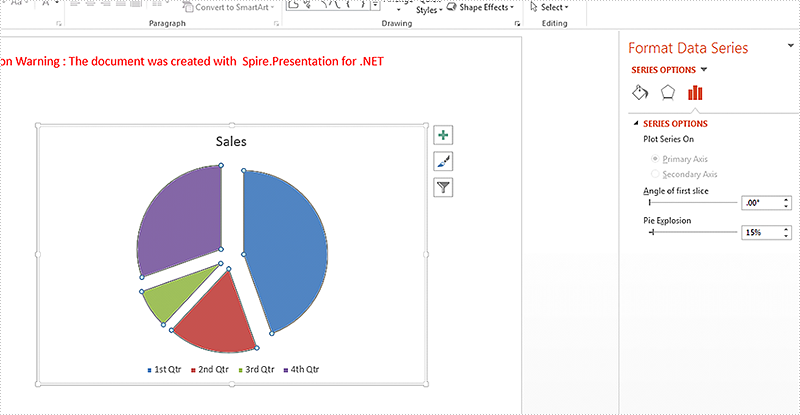
Spire.Presentation offers a property of chart.Series[].Distance to enable developers to pull the whole pie apart by exploding the pie chart.
On Microsoft PowerPoint, We can adjust the percentage of "Pie Explosion" on the Series Options at the "Format Data Series" area to control the distance between each section in the chart.
Step 1: Create a presentation document and load the file from disk.
Presentation ppt = new Presentation();
ppt.LoadFromFile("Sample.pptx");
Step 2: Get the chart that needs to set the point explosion.
IChart chart = ppt.Slides[0].Shapes[0] as IChart;
Step 3: Explode the pie chart.
chart.Series[0].Distance = 15;
Step 4: Save the document to file.
ppt.SaveToFile("Result.pptx", FileFormat.Pptx2010);
Effective screenshots after exploding the pie chart on presentation slide:
Full codes:
using Spire.Presentation;
using Spire.Presentation.Charts;

namespace ExplodePie
{
    class Program
    {
        static void Main(string[] args)
        {
            Presentation ppt = new Presentation();
            ppt.LoadFromFile("Sample.pptx");

            IChart chart = ppt.Slides[0].Shapes[0] as IChart;

            chart.Series[0].Distance = 15;

            ppt.SaveToFile("Result.pptx", FileFormat.Pptx2010);
        }
    }
}
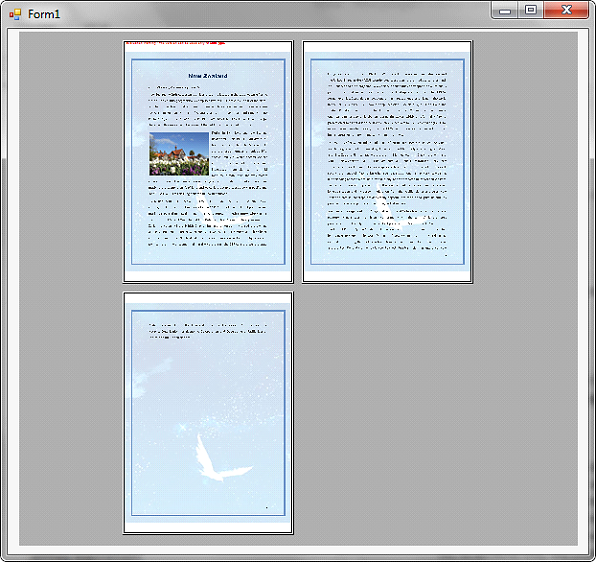
At some point, we may want to display a PDF file as it will appear when printed. This article demonstrates how to show print preview of a PDF file in Windows Forms application using Spire.PDF and c#.
Before using the following code, we need to create a windows forms application, add a PrintPreviewControl control to the form and reference Spire.Pdf.dll into the application.
using System;
using System.Windows.Forms;
using Spire.Pdf;

namespace PreviewPDF
{
    public partial class Form1 : Form
    {
        public Form1()
        {
            InitializeComponent();
        }

        private void printPreviewControl1_Click(object sender, EventArgs e)
        {
            //Load PDF file
            PdfDocument pdf = new PdfDocument();
            pdf.LoadFromFile("New Zealand.pdf");

            //Set the PrintPreviewControl.Rows and PrintPreviewControl.Columns properties to show multiple pages
            this.printPreviewControl1.Rows = 2;
            this.printPreviewControl1.Columns = 2;

            //Preview the pdf file
            pdf.Preview(this.printPreviewControl1);
        }
    }
}
Screenshot:
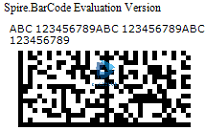
A DataMatrix code is a two-dimensional barcode consisting of black and white "cells" or modules arranged in either a square or rectangular pattern. The information to be encoded can be text or numeric data.
Following code snippets show how to create a DataMatrix barcode image using Spire.Barcode.
Step 1: Create a BarcodeSettings instance.
BarcodeSettings settings = new BarcodeSettings();
Step 2: Set the width of barcode module
settings.X = 2;
Step 3: Set the barcode type as DataMatrix.
settings.Type = BarCodeType.DataMatrix;
Step 4: Set the data and display text
settings.Data = "ABC 123456789ABC 123456789ABC 123456789";
settings.Data2D = "ABC 123456789ABC 123456789ABC 123456789";
Step 5: Set the DataMatrix symbol shape to square.
settings.DataMatrixSymbolShape = DataMatrixSymbolShape.Square;
Step 6: Generate barcode image based on the settings and save it in .png format.
BarCodeGenerator generator = new BarCodeGenerator(settings);
Image image = generator.GenerateImage();
image.Save("DataMatrix.png", System.Drawing.Imaging.ImageFormat.Png);
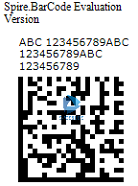
To create a rectangular DataMatrix barcode, set the DataMatrixSymbolShape property to Rectangle.
settings.DataMatrixSymbolShape = DataMatrixSymbolShape.Rectangle;
Full Code:
using Spire.Barcode;
using System.Drawing;

namespace DataMatrix
{
    class Program
    {
        static void Main(string[] args)
        {
            BarcodeSettings settings = new BarcodeSettings();
            settings.Type = BarCodeType.DataMatrix;
            settings.X = 1.5f;
            settings.DataMatrixSymbolShape = DataMatrixSymbolShape.Square;
            //rectangular DataMatrix barcode
            //settings.DataMatrixSymbolShape = DataMatrixSymbolShape.Rectangle;
            settings.Data = "ABC 123456789ABC 123456789ABC 123456789";
            settings.Data2D = "ABC 123456789ABC 123456789ABC 123456789";
            BarCodeGenerator generator = new BarCodeGenerator(settings);
            Image image = generator.GenerateImage();
            image.Save("DataMatrix.png", System.Drawing.Imaging.ImageFormat.Png);
        }
    }
}
